
Learn / DaVinci Resolveupdated for DaVinci Resolve 21.0.3 (July 2026)
What Is the Neural Engine in DaVinci Resolve? Explained Simply
Quick answer
The Neural Engine is Blackmagic Design's built-in machine learning system inside DaVinci Resolve, not Apple's separate hardware chip of the same name. Introduced in DaVinci Resolve 16 (2019), it now powers dozens of AI tools, from Magic Mask to DaVinci Resolve 21's newest additions. Nearly every one, including Super Scale, requires the paid Studio license.
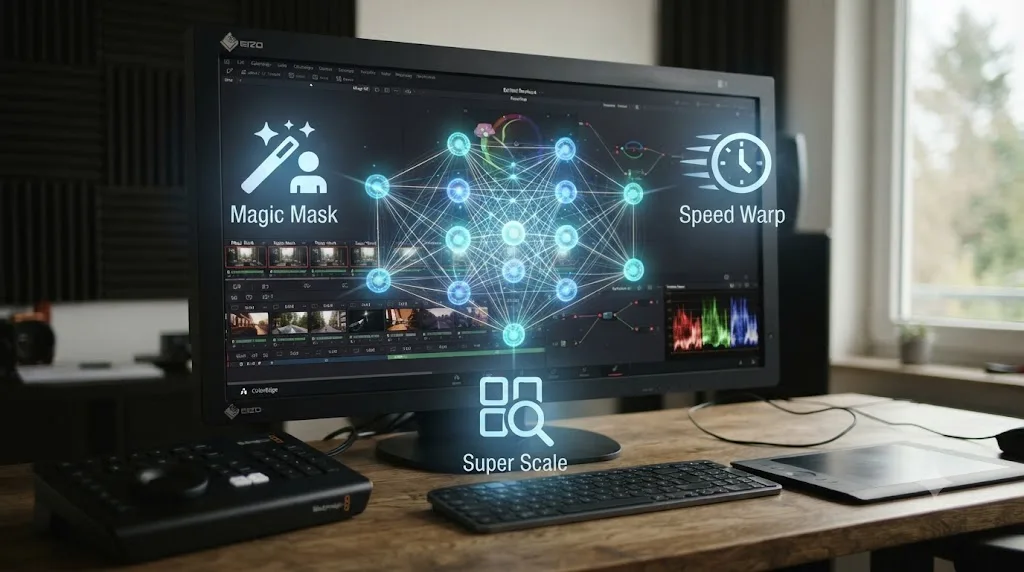
Open the Effects Library in DaVinci Resolve, scroll past the ordinary ResolveFX filters, and you'll notice a phrase attached to a handful of very different tools: Magic Mask, Speed Warp, Super Scale, Smart Reframe, Voice Isolation. Each one says it's "powered by the DaVinci Neural Engine." Blackmagic Design never puts that phrase on its own settings page and explains what it actually means. As of July 2026, running DaVinci Resolve 21.0.3, here's the plain answer: what the Neural Engine is, which tools it powers today, what it costs, and why it has nothing to do with the "Neural Engine" chip already sitting inside your Mac.
What is the Neural Engine in DaVinci Resolve?
The DaVinci Neural Engine is Blackmagic Design's own machine learning framework, built directly into DaVinci Resolve. Per Blackmagic's product page, it "uses state of the art deep neural networks and machine learning, along with artificial intelligence" to power features including facial recognition, object detection, smart reframing, speed warp retiming, super scale upscaling, and auto color matching (source: Blackmagic Design).
It isn't a separate application, a plugin you install, or a subscription on its own. It's the label Blackmagic attaches to every AI model running underneath dozens of individual tools scattered across the Edit, Color, Fusion, Fairlight, and Photo pages. Almost every one of those tools requires the paid Studio license, a point this guide covers in detail below, because the Neural Engine name itself doesn't tell you that on its own, and that's exactly the confusion this page exists to clear up.
The Neural Engine isn't one button in DaVinci Resolve. It's the label Blackmagic puts on every AI model running underneath dozens of separate tools. Knowing that changes how you read the badge the next time you see it stamped on a settings panel.
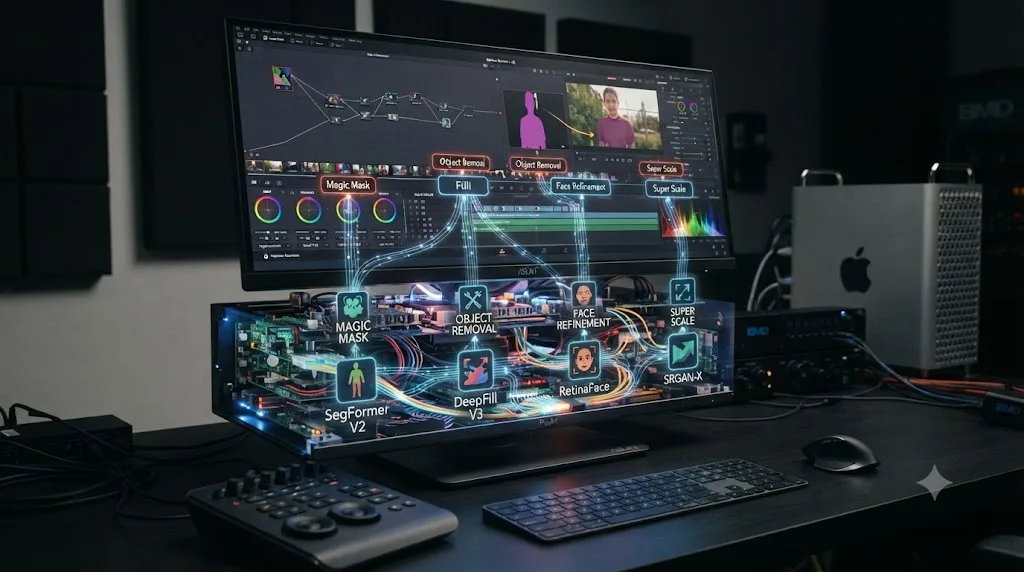
When did Blackmagic Design add the Neural Engine to DaVinci Resolve?
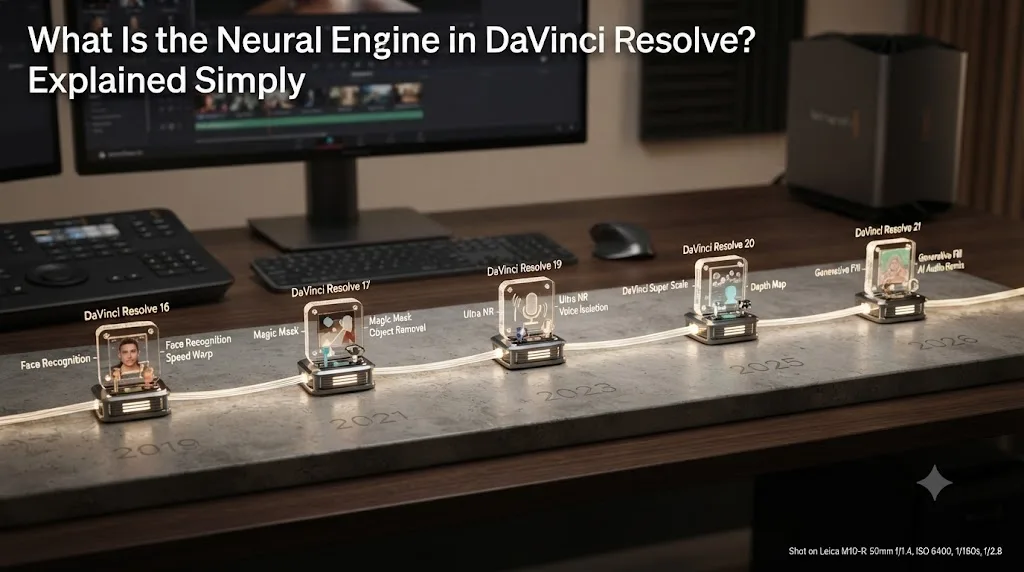
Blackmagic introduced the DaVinci Neural Engine by name in DaVinci Resolve 16, announced at NAB in April 2019. TV Tech's coverage of that launch described the new engine as powering "speed warp motion estimation for retiming, super scale for up-scaling footage, auto color and color matching, facial recognition and more," including automatic bin sorting based on which faces the engine detected in a shot (source: TV Tech).
Every major version since has added to that original set. Here's what's confirmed, version by version, from Blackmagic's own release materials and independent coverage:
| Version | Announced | Notable Neural Engine additions |
|---|---|---|
| DaVinci Resolve 16 | April 2019 | Speed Warp, Super Scale, auto color matching, facial recognition and auto-sorted bins |
| DaVinci Resolve 17 | November 2020 | Magic Mask, the AI-driven masking tool that tracks a subject from a single drawn stroke |
| DaVinci Resolve 19 | April 2024 | IntelliTrack AI point tracker for tracking and stabilization, plus Fairlight AI audio panning |
| DaVinci Resolve 20 | 2025 | Over a dozen new tools, including Magic Mask 2, AI IntelliScript, Multicam SmartSwitch, VoiceConvert, UltraNR noise reduction, and IntelliCut |
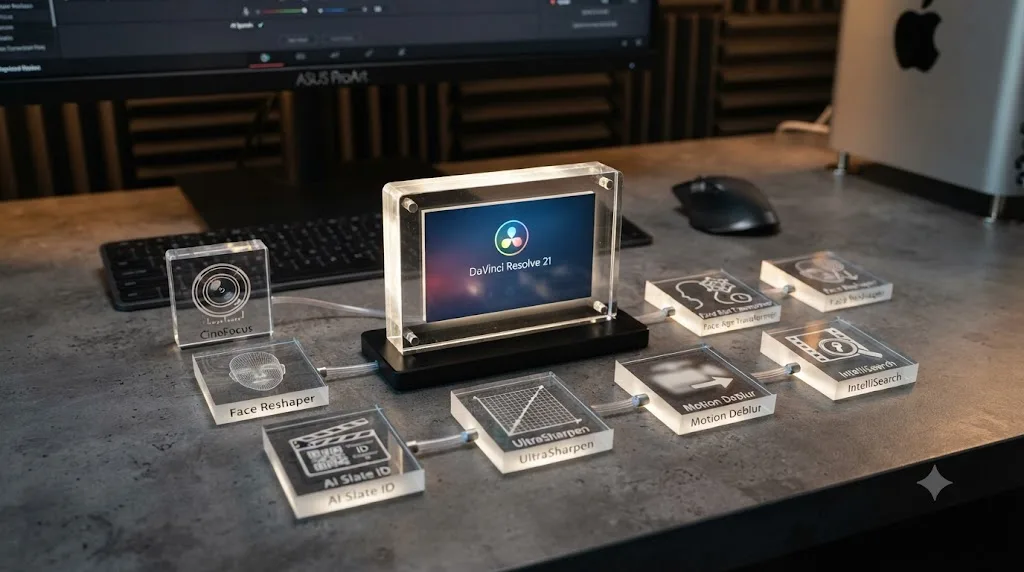
| DaVinci Resolve 21 | 2026 | Nine new tools in a single release: IntelliSearch, CineFocus, the AI Speech Generator, Face Age Transformer, Face Reshaper, Blemish Removal, AI Slate ID, UltraSharpen, and Motion Deblur |
Grant Petty, CEO of Blackmagic Design, described the DaVinci Resolve 19 additions this way in the company's own launch announcement: "The new Intellitrack AI is powered by the DaVinci Neural Engine and optimizes tracking and stabilization in the color and Fusion pages, as well as audio panning in Fairlight" (source: Blackmagic Design press release). That's a useful sentence to remember, since it names the pattern the Neural Engine has followed for every version since 2019: a new AI capability lands, and Blackmagic files it under the same umbrella term rather than branding it separately.
Colorist and editor coverage of DaVinci Resolve 20 counted more than a dozen Neural Engine features shipping in a single release, among them Magic Mask 2, AI IntelliScript for building timelines from a script, Multicam SmartSwitch for speaker-based camera assembly, AI VoiceConvert, and UltraNR spatial noise reduction (source: Larry Jordan). DaVinci Resolve 21 reached its final release on June 3, 2026 after a seven-week public beta and kept the pace going with nine new AI tools in a single version, more than any prior release in this table, covered in full later in this guide (source: Blackmagic Design What's New).
Half of what Blackmagic currently calls the Neural Engine didn't exist two versions ago. That's worth sitting with for a second, because it means any list of Neural Engine features, including the one on this page, is a snapshot, not a permanent inventory.
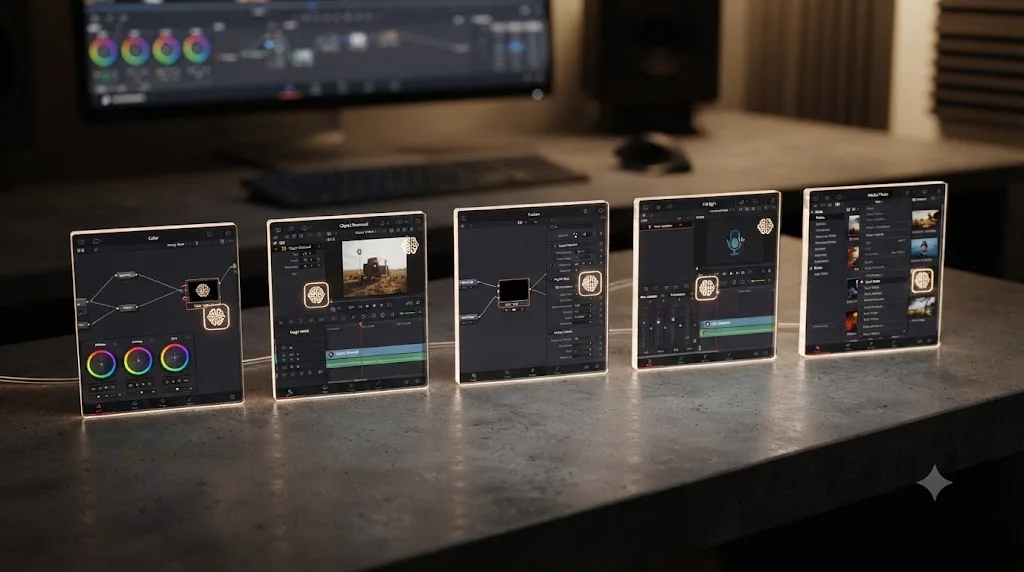
What features does the DaVinci Neural Engine power right now?
As of DaVinci Resolve 21.0.3, the Neural Engine sits underneath tools spread across five different pages, not just Color, where most people first encounter it.
| Page | Neural Engine features |
|---|---|
| Color | Magic Mask, Super Scale, Auto Color, Face Refinement, CineFocus, Face Age Transformer, Face Reshaper, Blemish Removal, UltraSharpen, Motion Deblur |
| Edit / Cut | Smart Reframe, Speed Warp, IntelliSearch, IntelliCut, Scene Cut Detection, AI Slate ID |
| Fusion | Automatic AI region tracking |
| Fairlight | Voice Isolation, Dialogue Leveler, Dialogue Separator, Music Remixer, AI Speech Generator, VoiceConvert |
| Photo | Magic Mask, UltraSharpen, IntelliSearch |
A few of those deserve a plain-language explanation, since their names don't always say what they do. Speed Warp uses optical flow analysis to generate smooth slow motion from normal-speed footage, comparing the original clip to its re-timed version and specifically looking for the areas most likely to look "rubbery" if handled with a simpler algorithm (source: Frame.io Insider). Magic Mask asks you to draw one stroke across a subject, then tracks and masks that subject automatically for the rest of the shot, without you setting a single keyframe by hand. Smart Reframe repositions a widescreen shot into a vertical or square crop while trying to keep the actual subject in frame as it moves. Super Scale takes a low-resolution clip and upscales it using a trained model rather than simple pixel interpolation, which is why it looks noticeably cleaner than a basic resize on heavily cropped or older footage.
A tool that automatically finds the subject and tracks it for you is a genuinely different kind of software than a tool that highlights a menu item you didn't know existed. That distinction matters more the further you get into this page, since it's exactly what separates the Neural Engine from an assistant like TryUncle.
What are DaVinci Resolve 21's nine newest Neural Engine tools?
DaVinci Resolve 21 shipped nine new AI tools in one release, more Neural Engine additions in a single version than any prior release this guide's version table covers. VP Land's coverage of the release lists all nine by name, and it's worth knowing what each one actually does before you go looking for it in your own copy of Resolve.
| Resolve 21 tool | What it does | Page it lives on |
|---|---|---|
| AI CineFocus | Click to focus on a scene area, then adjust aperture and focal range to change depth of field after the fact | Color |
| AI Speech Generator | Converts written text into spoken voice using a built-in model or a cloned sample of your own | Fairlight |
| AI Face Age Transformer | Ages or de-ages a detected face for flashback and continuity work | Color |
| AI Face Reshaper | Fine-tunes facial features on a moving, tracked subject: eyes, nose, mouth, eyebrows, overall face shape | Color |
| AI Blemish Removal | Reduces acne, discoloration, spots, and pores while keeping the skin's natural texture | Color |
| AI IntelliSearch | Searches a whole project's media for people, objects, faces, and dialog keywords at once | Media Pool, project-wide |
| AI Slate ID | Auto-detects a clapperboard's metadata, even in a dark or out-of-focus frame, and populates clip information | Media Pool |
| AI UltraSharpen | Blackmagic's most advanced sharpening tool to date, for recovering clarity from a soft or slightly blurred image | Color |
| AI Motion Deblur | Removes motion blur artifacts, streaks and softness, from footage shot with fast camera or subject movement | Color |
Sources: Blackmagic Design What's New, VP Land.
Two of these deserve more than a table row, since their mechanics and their implications go further than "sharpens a soft image." The next two sections cover CineFocus and the AI Speech Generator in more depth, because one changes what a lens does after the fact, and the other raises a question the rest of this guide hasn't touched yet: what happens once the Neural Engine can generate a voice.
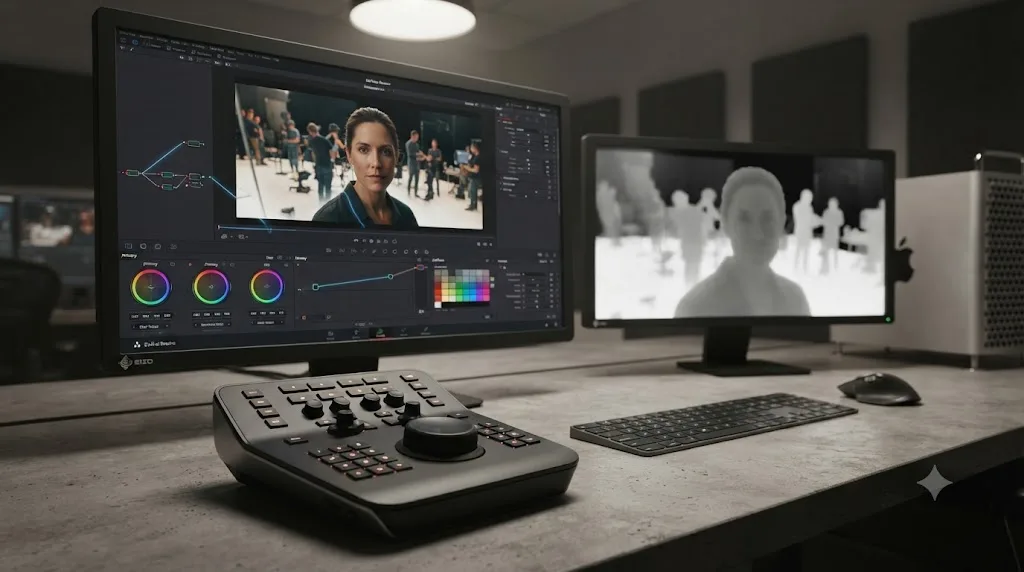
How does CineFocus fake shallow depth of field without a depth sensor?
CineFocus is a ResolveFX plugin in the Color page that uses AI-generated depth maps to create a synthetic depth of field, according to CineD's hands-on coverage of DaVinci Resolve 21 at NAB 2026, which puts it plainly: "CineFocus uses AI-generated depth maps to create convincing synthetic depth of field in post." Click anywhere in a frame to set a focal point, then adjust aperture shape, bokeh, blur intensity, and focal range, all keyframeable, which means a rack-focus move you never actually pulled on set can be added afterward, according to Blackmagic's own What's New page.
That's a genuinely different capability than a blur filter. A blur filter treats the whole frame the same way. CineFocus is estimating which pixels are meant to sit near the camera and which are meant to sit far from it, then blurring based on that estimated depth, the same underlying idea behind a phone's portrait mode, just running on a full video timeline inside a professional grading tool instead of a phone camera app at capture time.
CineFocus can add a shallow depth-of-field look after the fact, and it can also fix a focus mistake that would otherwise be unrecoverable, but it's estimating depth from a 2D image, not measuring it. That's the honest limitation worth sitting with. A shot with a genuinely complex background, fine hair, reflective glass, several subjects overlapping at different distances, gives the depth estimation more to get wrong than a simple portrait against a plain background. Treat CineFocus as a powerful correction and stylization tool, not a substitute for actually nailing focus or shooting with real depth-of-field control on set when a shot matters.
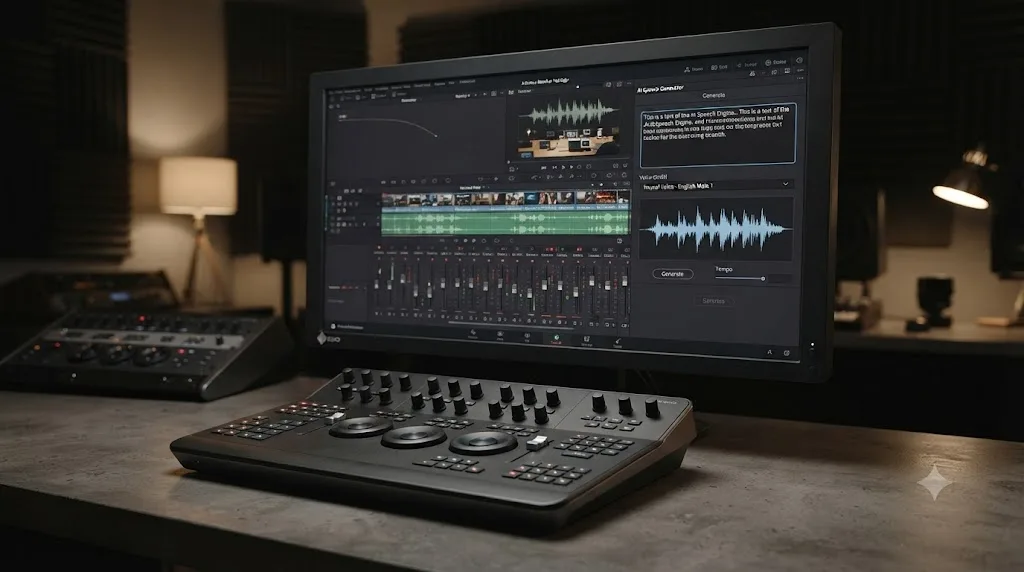
How does the AI Speech Generator work, and what ethical questions come with it?
The AI Speech Generator turns typed text into spoken audio, using either one of Blackmagic's built-in voice models or a voice cloned from your own sample, per Blackmagic's own description: "Generate speech from written text using one of Blackmagic's voice models or a sample of your own" (source: Blackmagic Design What's New).
The technical requirements are specific enough to trip up a first attempt. Voice cloning needs at least 10 seconds of clean speech, though JayAreTV's coverage of the feature notes shorter samples tend to produce flatter, less natural inflection, so more sample audio generally means a better clone. The source file has to be a WAV, not AIFF, not a compressed format like MP3, so a voice memo recorded on a phone needs converting before Resolve will accept it as a clone source, according to Cutsio's walkthrough of the workflow.
The practical use case Blackmagic is clearly building toward is dialogue replacement and ADR: isolate a line of production audio, clone the speaker's voice from a clean section of it, type a corrected line, and generate a replacement, all without booking a studio session or hiring a voice actor for a single pickup line.
A tool that can clone a real person's voice from ten seconds of audio raises a question the rest of this guide hasn't had to touch: consent. Blackmagic's own materials describe the mechanics of the AI Speech Generator; they don't publish an ethics policy for how to use it responsibly, and that gap is worth naming rather than glossing over. The wider voice-cloning industry has converged on a few baseline practices worth adopting even though Resolve doesn't enforce them: get explicit permission from anyone whose voice you're cloning, including your own cast and crew, disclose to an audience when they're hearing a generated voice rather than a real performance, and check your jurisdiction's rules before using a cloned voice commercially. Tennessee's ELVIS Act, passed in 2024, specifically extended personality-rights protection to AI-generated voice replicas, and the EU's AI Act, which took effect in 2025, requires disclosure when media has been manipulated or generated by AI (source: Camb.AI). Neither law is Resolve-specific, and neither one is enforced by the software itself; Resolve generates a cloned voice whether or not you have permission to use it, which means the responsibility sits entirely with the editor, not the tool.
If you're using the AI Speech Generator to smooth a bad ADR take from your own actor, with their knowledge, that's a straightforward, low-risk use. If you're considering cloning a voice you don't have permission to clone, for any reason, that's a decision with real legal and ethical weight attached, and it's worth pausing on before you type a single line of replacement dialogue.
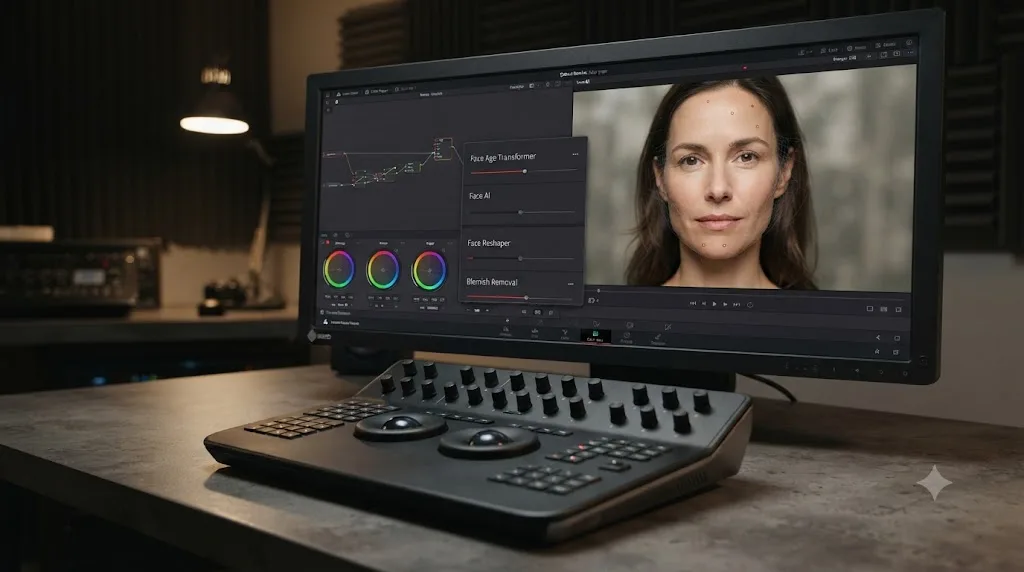
What do Face Age Transformer, Face Reshaper, and Blemish Removal actually change?
These three tools share a page, Color, and a category, facial AI, but each targets a different job.
AI Face Age Transformer analyzes a detected face, lets you enter the subject's actual age, and then applies an age offset slider that adds or removes age-related features like wrinkles and facial fullness, aimed specifically at continuity work: making the same actor look convincingly younger or older across a flashback or flash-forward without recasting or heavy prosthetic makeup (source: VP Land).
AI Face Reshaper works on a tracked, moving subject and lets you adjust the shape and position of specific features, eyes, nose, mouth, eyebrows, and overall face shape, with manual controls to fine-tune the result rather than accepting a single automatic pass.
AI Blemish Removal reduces superficial skin imperfections, acne, discoloration, spots, pores, while trying to preserve the skin's natural texture rather than smoothing it into plastic, with a strength slider to dial the effect up or down per subject.
None of these three tools has an independently benchmarked realism ceiling yet, and that's worth being honest about before you build a whole grade around one. Every source describing them right now is either Blackmagic's own marketing copy or first-look hands-on coverage from launch events, not a rigorous side-by-side test of how far you can push the age offset slider or the reshaping controls before a viewer notices something is off. Treat these tools the way you'd treat any new beauty or de-aging tool: start subtle, review on a large monitor rather than a laptop screen, and get a second pair of eyes before you commit to a strength setting for a whole project. The de-aging and retouching work these tools automate used to require frame-by-frame manual masking or, for major film work, a visual effects house and a real budget; whether Resolve's built-in version holds up at that level of scrutiny is something only real production use over the coming months will actually answer.
Are DaVinci Resolve 21's newest AI tools free or Studio-only?
Studio-only, almost certainly, though this is the one corner of this guide where the public record is genuinely less tidy than a marketing page makes it look. Blackmagic's own What's New page describes what each of the nine new tools does without stating, tool by tool, whether it's free or Studio-exclusive, and Blackmagic's general positioning statement, that "the DaVinci AI Neural Engine powers many of the features found exclusively in DaVinci Resolve Studio," per DaVinci Resolve Club's dedicated breakdown of the split, stops short of a tool-by-tool guarantee.
That same breakdown is refreshingly honest about the gap: "the free-tier AI tool situation is murkier than most coverage admits, and you should verify it in your own installed build." It cites hands-on testing describing the free version's AI Clip Analysis menu as "either greyed out or popping up a prompt to pay for Studio" when tested without a Studio license, consistent with every other Neural Engine tool this guide has covered.
Every independent source this guide checked lists CineFocus, the AI Speech Generator, Face Age Transformer, Face Reshaper, AI Blemish Removal, IntelliSearch, AI Slate ID, AI UltraSharpen, and AI Motion Deblur as Studio-only, with no exception reported anywhere. The safest working assumption, backed by every source this guide checked, is that all nine of DaVinci Resolve 21's new AI tools require Studio, the same way every established Neural Engine tool from earlier versions does. If you're on the free edition and one of these nine tools appears active and usable in your own copy of Resolve, that would be genuinely new information worth reporting, since nothing published so far documents it.
How is Voice Isolation different from Dialogue Leveler, Dialogue Separator, and Music Remixer?
Fairlight's Neural Engine audio tools solve overlapping but distinct problems, and picking the wrong one for a given clip wastes a pass without fixing what's actually wrong with the audio.
Voice Isolation, introduced in DaVinci Resolve 18, is built specifically to separate dialogue from music and background noise in a single pass, and it's the tool most editors reach for first on a noisy location recording, according to Larry Jordan's comparison of Resolve's AI noise-reduction tools.
Dialogue Leveler doesn't remove noise at all; it manages inconsistent dialogue volume within a clip, evening out a speaker who trails off at the end of a sentence or suddenly gets louder, a leveling problem rather than a noise problem.
Dialogue Separator goes further than Voice Isolation by splitting audio into three distinct components, dialogue, background, and ambience, rather than just pulling voice out of everything else, which gives you three separate elements to mix instead of one cleaned-up track.
Music Remixer targets a completely different source: it separates a music track into its individual instruments, voice, drums, bass, guitar, and other elements, useful for pulling a stem out of a licensed track or ducking a specific instrument under dialogue without a proper multitrack mix to start from.
| Tool | What it actually solves | Best used when |
|---|---|---|
| Voice Isolation | Separates dialogue from music and background noise in one pass | A noisy location recording with one dominant speaker |
| Dialogue Leveler | Evens out inconsistent volume within already-clean dialogue | A speaker who trails off or suddenly gets loud, not a noise problem |
| Dialogue Separator | Splits audio into dialogue, background, and ambience as three separate elements | You need to remix the components separately, not just clean one track |
| Music Remixer | Separates a music track into individual instrument stems | Pulling a specific instrument or vocal out of a mixed music track |
Reaching for Voice Isolation on a clip whose real problem is inconsistent volume, not noise, won't fix the actual issue, and running Dialogue Separator when a simple Voice Isolation pass would do costs you more manual remixing work than the clip needed. Match the tool to the specific symptom, not to whichever one you remember using last.
Is DaVinci Resolve's Neural Engine the same as Apple's Neural Engine chip?
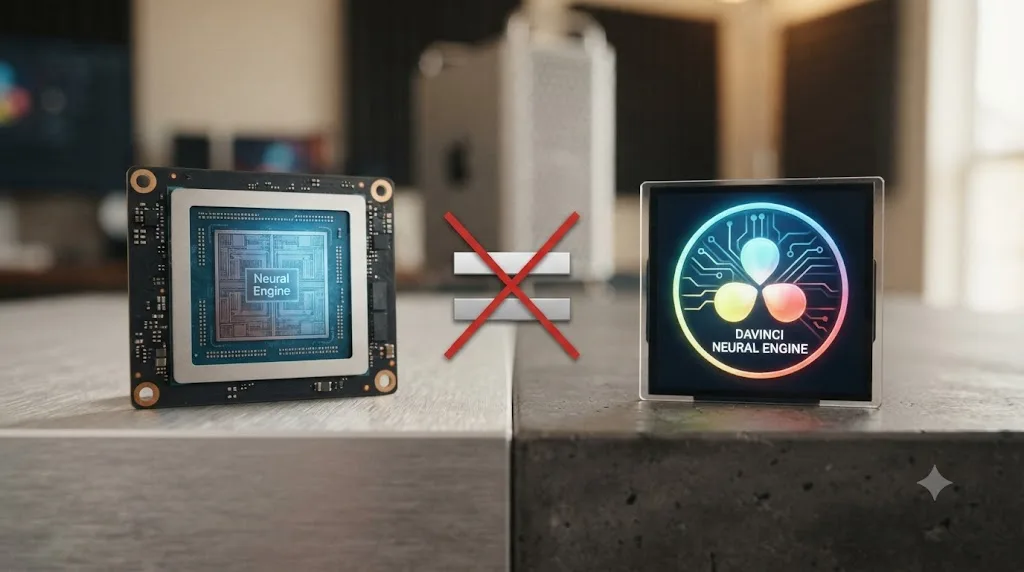
No, and this is the single most common source of confusion behind this exact search. They share a name and almost nothing else.
Apple's Neural Engine is a physical piece of silicon, a dedicated neural processing unit built into every A-series and M-series chip Apple has shipped since the iPhone 8, iPhone 8 Plus, and iPhone X in 2017, according to Wikipedia's technical entry on the hardware (source: Wikipedia). It's a chunk of physical hardware sitting on the same chip as your Mac's CPU and GPU cores, purpose-built to run machine learning calculations efficiently.
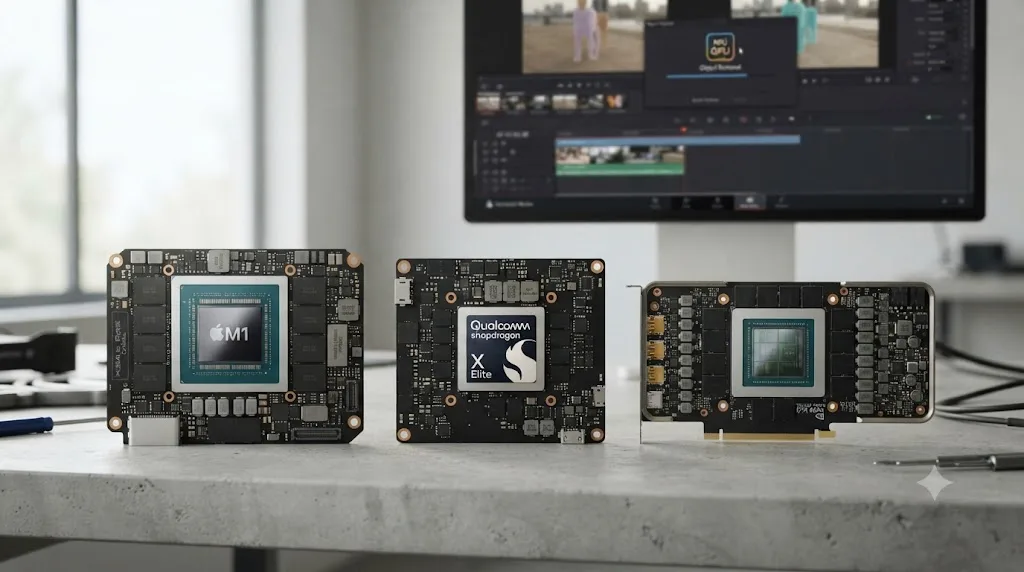
DaVinci Resolve's Neural Engine is software. Blackmagic Design writes it, updates it with every new version, and runs it on whatever hardware is available, GPU compute cores on Windows and Linux, or a mix of GPU and Apple's own Neural Engine chip on a Mac. Blackmagic's own What's New page lists the DaVinci AI Neural Engine as supported specifically on "Apple M series and Snapdragon X Elite" processors (source: Blackmagic Design What's New), which tells you the software is built to take advantage of dedicated AI hardware where it exists. But that's Blackmagic's software choosing to use Apple's chip when it's available and useful, not the two things being the same product.
| Apple's Neural Engine | DaVinci Resolve's Neural Engine | |
|---|---|---|
| What it is | A physical chip inside Apple Silicon | Blackmagic Design's own machine learning software |
| Who builds it | Apple | Blackmagic Design |
| First shipped | 2017, in the A11 Bionic chip | 2019, in DaVinci Resolve 16 |
| Where it runs | Only on Apple devices with A-series or M-series chips | Windows, macOS, and Linux, on any GPU Resolve supports |
| What it does | Accelerates any app's machine learning calculations | Powers specific tools like Magic Mask, Speed Warp, and Super Scale |
The DaVinci Neural Engine is software Blackmagic Design builds and updates on its own schedule. Apple's Neural Engine is a physical chip Apple bakes into its own silicon. They share a name and nothing else. If you're troubleshooting a Neural Engine feature in Resolve, Apple's hardware documentation won't help you, and if you're reading about Apple's Neural Engine chip, none of it applies to what Blackmagic ships.
Does the Neural Engine send your footage to the cloud?
No, and this is worth confirming directly since AI features in creative software increasingly do route through a vendor's servers. DaVinci Resolve's Neural Engine runs its inference locally, on your own machine's GPU or, on Apple Silicon, partly through the dedicated Neural Engine chip covered above, not on a Blackmagic server somewhere. Kunal Ganglani, who tested Resolve 21's AI feature set directly against a real project, confirmed this in his independent, hands-on review: the Neural Engine "runs inference on your own hardware" and "isn't sending your footage anywhere to get processed" (source: Kunal Ganglani).
That holds for every tool this guide has covered in the most depth. Transcript search and IntelliSearch process locally. Magic Mask and Smart Reframe process locally. Super Scale processes locally. The one tool worth flagging separately is the AI Speech Generator's voice-cloning feature, since Blackmagic hasn't published a detailed breakdown of exactly where that specific model runs its inference, and a voice-cloning feature is a more sensitive category of data than a masking or upscaling pass regardless of where the computation happens.
Local, on-device processing is a genuine, checkable architectural fact for the large majority of Resolve's Neural Engine tools, not a vague privacy promise. That matters directly if you're editing under an NDA, handling unreleased footage, or working with a source whose identity needs protecting: the footage itself isn't leaving your machine to get the AI treatment, which isn't true of every AI editing tool on the market, including some of the third-party assistants covered later in this guide.
Do you need DaVinci Resolve Studio to use the Neural Engine?
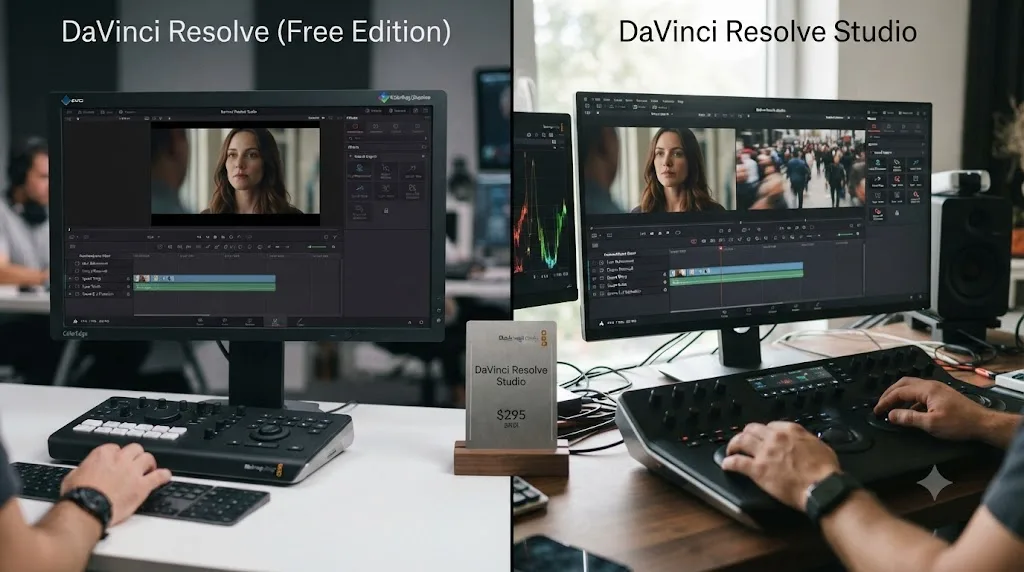
Almost always, yes, and this is a stricter answer than a lot of older coverage of this topic gives. Every tool this guide has named so far, Magic Mask, Speed Warp, Smart Reframe, Super Scale, Voice Isolation, Dialogue Separator, Music Remixer, IntelliSearch, and every one of DaVinci Resolve 21's nine new AI tools, requires DaVinci Resolve Studio, the paid tier that costs $295 as a one-time license, according to Blackmagic's own Studio product page (source: Blackmagic Design Studio) and confirmed independently by Toolfarm's in-depth comparison of Studio against the free version and Storyblocks' breakdown of the same split. The free edition of DaVinci Resolve doesn't include any of Resolve's named Neural Engine automation tools, full stop.
Since September 2025, Blackmagic has also offered a $30-a-month rental license through Blackmagic Cloud as an alternative to the one-time purchase, aimed at editors who don't want to commit to the full price up front (source: RedShark News). At that rate, the rental breaks even against the perpetual license at roughly ten months, so it makes more sense for a short project than for a full-time workflow.
| Access tier | What's included | Cost |
|---|---|---|
| Free edition | Core editing, node-based color grading, multi-track Fairlight audio, Fusion compositing, export up to Ultra HD 3840x2160 at 60fps in 8-bit color. No Neural Engine automation. | $0 |
| Studio, one-time license | Everything in free, plus every Neural Engine tool named in this guide: Magic Mask, Speed Warp, Smart Reframe, Super Scale, Voice Isolation, Dialogue Separator, Music Remixer, IntelliSearch, CineFocus, the AI Speech Generator, and the rest of Resolve 21's new AI tools | $295 |
| Studio, monthly rental | Identical feature set to the one-time license | $30/month via Blackmagic Cloud |
If you're weighing whether that $295 actually pays for itself against your specific editing volume, rather than just your curiosity, our deeper breakdown of DaVinci Resolve free versus Studio for a real production pipeline walks through exactly which features earn their keep at real production scale versus which ones are worth waiting on.
A feature branded "AI" in Resolve's marketing copy is not automatically part of the Neural Engine, but a feature that genuinely is part of the Neural Engine is, with no confirmed exception in this guide's research, exclusive to Studio. Check the specific tool you want before assuming either direction, but default to assuming Studio is required until you've confirmed otherwise in your own installed build.
What's actually free about the Neural Engine, if anything?
Nothing you'd call the Neural Engine's automation layer, and that's worth saying plainly instead of hedging. Every named tool this guide has covered, Magic Mask, Speed Warp, Smart Reframe, Super Scale, Voice Isolation, IntelliSearch, CineFocus, the AI Speech Generator, ships behind the same DaVinci Resolve Studio paywall, according to Blackmagic's own Studio product page and the independent breakdowns of the split cited above. If you've read elsewhere that Speed Warp or Magic Mask work in Resolve's free edition, that's incorrect information circulating online; it doesn't match Blackmagic's own, currently published feature split.
What free Resolve does include is the core application everything else in this guide takes for granted: full node-based color grading, multi-track Fairlight audio, Fusion compositing, and export up to Ultra HD 3840x2160 at 60fps in 8-bit color, per Blackmagic's own product page. None of that is Neural Engine automation. It's the editor the Neural Engine sits on top of.
There's a real free-adjacent path if AI assistance, not AI automation, is what you're after. A general chatbot like ChatGPT or Claude, Blackmagic's own free training library, and an on-screen assistant like TryUncle all work identically regardless of which Resolve edition you're running, since none of them touch the Neural Engine's gated tools directly; they help you use Resolve, rather than doing Resolve's job for you. Our broader roundup of AI tools to learn DaVinci Resolve breaks down exactly which of those work on the free tier and which don't.
Nothing branded as part of the DaVinci Neural Engine ships in Resolve's free edition. What ships free is the editor itself, plus a separate category of AI tools that help you use it, neither of which requires Blackmagic's paid tier to reach. That's the honest line to draw, and it's a stricter line than a lot of older coverage of this topic draws.
What hardware does the Neural Engine actually need to run well?
Any GPU DaVinci Resolve already supports, though some hardware runs specific Neural Engine features faster than others, and concrete numbers help more than "a modern GPU will do."
The DaVinci Neural Engine is built to be cross-platform, and it uses whatever GPU compute your system has available rather than requiring one specific brand or architecture. That's why it works identically, in terms of which tools are available, on a Windows PC with an NVIDIA card, a Linux workstation, or a Mac. Blackmagic's own What's New page specifically calls out Apple M-series and Snapdragon X Elite chips as supported platforms for the DaVinci AI Neural Engine (source: Blackmagic Design What's New), which reflects how much of the current AI-heavy laptop market runs on one of those two chip families.
Current published requirements differ meaningfully by platform. On Windows, that means Windows 10 or later, 16GB of system RAM (32GB if you're also running Fusion), a GPU with at least 4GB of VRAM running CUDA 12.8 or OpenCL 1.2, and a current NVIDIA Studio Driver rather than a consumer Game Ready driver, according to aggregated system-requirements coverage from SimonSaysAI and CodeItBro. On Linux, the floor is a discrete GPU with at least 4GB of VRAM on a supported distribution. On macOS, Resolve's Neural Engine hardware support specifically calls out Apple Silicon, per the What's New page cited throughout this guide.
Those are floors, not comfortable working numbers. Puget Systems' hardware guidance for Resolve recommends meaningfully more headroom for any Neural Engine-heavy workload, in the range of 6 to 8GB of VRAM as a practical minimum and considerably more for Fusion-heavy or large-timeline projects, since a Neural Engine pass, Magic Mask, Super Scale, or Speed Warp among them, competes for the same GPU memory pool as everything else already running on your timeline.
| Tier | What it looks like in practice |
|---|---|
| Below the documented minimum | Neural Engine tools may not launch at all, or fail immediately on anything beyond a short test clip |
| At the documented minimum (4-6GB VRAM) | Tools run, but expect to manage them: proxies, aggressive render caching, and patience on anything demanding |
| Comfortably above minimum (8-16GB VRAM) | Most Neural Engine tools stay responsive without constant babysitting |
| High-end (16GB+ VRAM, current-generation GPU or Apple Silicon) | Multiple Neural Engine passes, masking, reframing, upscaling, in the same project without a visible performance cliff |
Where things get more nuanced is which specific piece of silicon actually does the work on any given machine. On an Apple Silicon Mac, Resolve can route certain Neural Engine calculations through Apple's dedicated Neural Engine chip, the same hardware covered in the disambiguation section above, but it isn't locked to that chip. If your GPU cores can process the same task faster, Resolve favors the faster path. Blackmagic hasn't published a feature-by-feature breakdown of exactly which Neural Engine tool routes through which piece of hardware on which chip, so treat "it uses the ANE" as a general capability rather than a guaranteed behavior for any one specific tool you're troubleshooting.
A laptop that previews a Neural Engine effect smoothly for ten seconds isn't the same machine that renders a full timeline's worth of Magic Mask or Super Scale without throttling. Test with a representative clip length, not a quick preview, before you commit a whole project's worth of Neural Engine passes to hardware you haven't stress-tested.
What happens when a Neural Engine tool stalls, fails, or crashes?
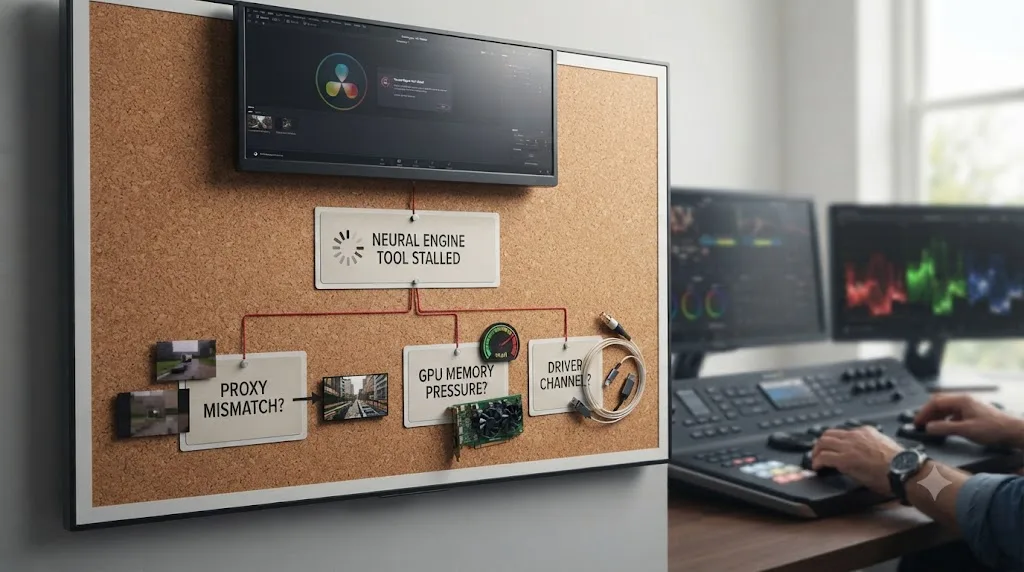
Every Neural Engine tool in Resolve shares the same underlying compute path, GPU-accelerated deep learning inference, and that means they share the same failure modes too. If you've hit a Neural Engine tool that does nothing, produces a worse result than you expected, or crashes Resolve outright, the cause is almost always one of a small, well-documented set of issues, not a broken feature.
Proxy media mismatches are the single most common cause of a Neural Engine tool appearing to do nothing at all. Several tools, Smart Reframe among the most thoroughly documented, expect full-resolution frame data for their analysis pass, and a proxy substitute, whether from an active Prefer Proxies setting or a reduced Timeline Proxy Resolution, can cause the analysis to silently fail rather than throw an error. Our full troubleshooting guide for Smart Reframe documents this exact failure mode in depth, along with the specific Proxy Handling and Timeline Settings fix that resolves it, and the same underlying cause is worth checking first on any Neural Engine tool that seems to do nothing when you run it.
GPU memory pressure is the second common cause, and it gets worse the more Neural Engine tools you stack on the same clip. Running Magic Mask, noise reduction, and Super Scale on the same node in the same session means all three are competing for the same limited pool of GPU memory, and the tool that fails first is often just the one that happened to ask for memory last. Closing other GPU-heavy effects before running a demanding Neural Engine pass, and checking your GPU Processing Mode under Preferences rather than leaving it on Auto, resolves a meaningful share of these failures.
GPU driver channel matters more than most editors realize. A consumer Game Ready driver, tuned and updated for the newest games rather than for professional GPU compute workloads, is a documented cause of Neural Engine crashes on otherwise capable hardware. Switching to a Studio Driver build, published separately by NVIDIA specifically for creative applications, is a real fix worth trying before assuming a hardware fault.
Leftover GPU memory from a previous crash can make a second attempt fail faster and more confusingly than the first. If a Neural Engine tool crashed Resolve once in a session, don't just reopen the project. Fully quit the application, confirm no background Resolve process is still running, and relaunch before trying again.
A Neural Engine tool that does nothing, fails, or crashes is a debuggable, well-documented problem in the large majority of cases, not evidence the feature is fundamentally broken. Proxy handling, GPU memory pressure, and driver channel account for most reported failures across every Neural Engine tool this guide has covered, from Smart Reframe to Super Scale to Magic Mask, and they're worth checking in that order before you file a bug report or give up on a tool that's usually just waiting on the right setting.
A worked example: turning one interview into five deliverables using five Neural Engine tools
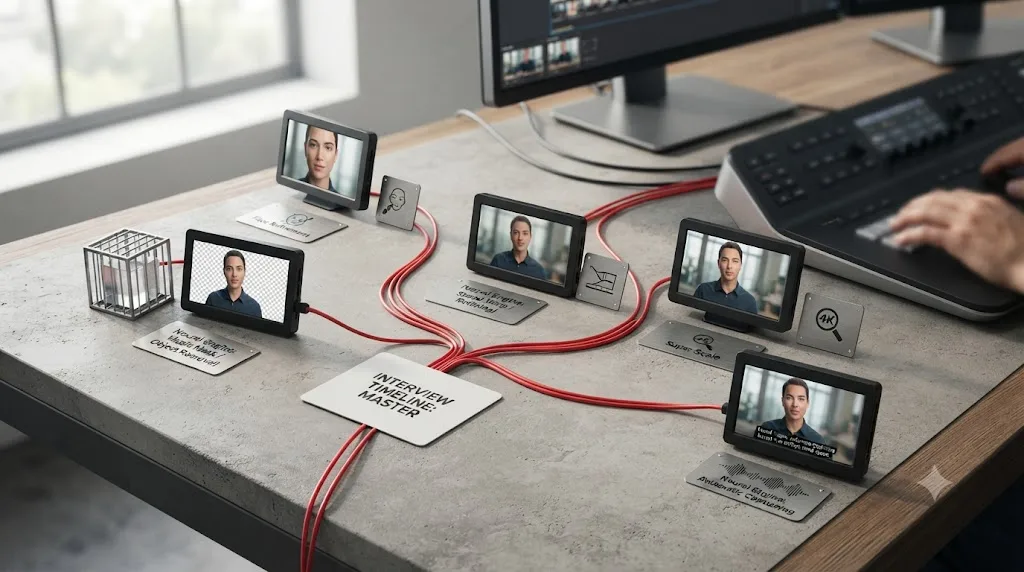
Numbers and a concrete workflow help more than an abstract feature list, so walk through how several Neural Engine tools actually stack together on one real, common job: a 25-minute sit-down interview that a client wants turned into a full-length YouTube video, three vertical social clips, an upscaled archival cutaway, and a cleaned-up narration track, all from the same footage.
Step 1: Clean the audio first, with Voice Isolation. The interview was shot in a room with noticeable HVAC hum and street noise bleeding through a window. Before anything else touches this footage, run Voice Isolation on the full clip to separate dialogue from that background noise, since every downstream step, transcript search, reframing, editing, works better against clean audio than against a mixed take.
Step 2: Find the three best quotes with IntelliSearch. Rather than scrubbing 25 minutes by ear, run IntelliSearch's dialog keyword search for the specific topics the client flagged in their brief. IntelliSearch returns the exact clip segments where those topics come up, across the whole project at once, not just the currently open clip. Our full guide to DaVinci Resolve's text-based editing and IntelliSearch covers the complete workflow, including what to do when a search comes up empty for a word you know was spoken.
Step 3: Build the vertical clips with Smart Reframe. With the three quote segments selected, apply Smart Reframe to convert each one from the original 16:9 interview frame into 9:16 for social delivery. Set the Object of Interest to Reference Point rather than Auto if the interview subject shares the frame with anyone else, since Auto's subject detection is the most common source of Smart Reframe drifting onto the wrong person.
Step 4: Upscale the one piece of archival cutaway footage with Super Scale. The client supplied one piece of old, low-resolution B-roll to cut in alongside the interview. Apply Super Scale at a 2x or 3x factor to bring it up to match the rest of the timeline's resolution, and render a short test section first, since Super Scale is one of the more GPU-intensive single operations in Resolve. If that archival clip is genuinely damaged rather than just low-resolution, scratched, heavily compressed, interlaced, Super Scale's conservative approach may undersell it; our comparison of Super Scale against a dedicated restoration tool like Topaz Video AI covers exactly when that distinction matters enough to reach for a second tool.
Step 5: Assemble the full-length version, then deliver all five outputs from one timeline structure. With clean audio, searchable transcripts, three reframed verticals, and one upscaled cutaway all sitting in the same project, the full 25-minute YouTube cut and the three social clips are all working from the same underlying assets rather than five separate, disconnected edits.
| Deliverable | Neural Engine tool used | Why that tool, specifically |
|---|---|---|
| Cleaned narration for every cut | Voice Isolation | Removes HVAC hum and street noise before any other step touches the audio |
| Locating the three usable quotes | IntelliSearch | Searches dialog across the whole project at once instead of manual scrubbing |
| Three vertical social clips | Smart Reframe | Automates the aspect-ratio conversion; Reference Point mode for a multi-person frame |
| Upscaled archival B-roll | Super Scale | Brings low-resolution cutaway footage up to match the rest of the timeline |
| Full-length YouTube cut | All of the above, assembled | Built from the same cleaned, searched, and reframed assets, not a separate pass |
None of these five steps required guessing which tool to use, because each one answers a specific, narrow question: is the audio clean, where's the quote, what aspect ratio does this need, is this footage big enough. That's the practical shape of using the Neural Engine well: matching a specific tool to a specific, narrow job, in a deliberate order, rather than reaching for whichever AI feature you remember exists and hoping it fits.
How is the Neural Engine different from an AI assistant like TryUncle?
They solve different problems, and confusing the two is easy given how often both get described as "AI in DaVinci Resolve."
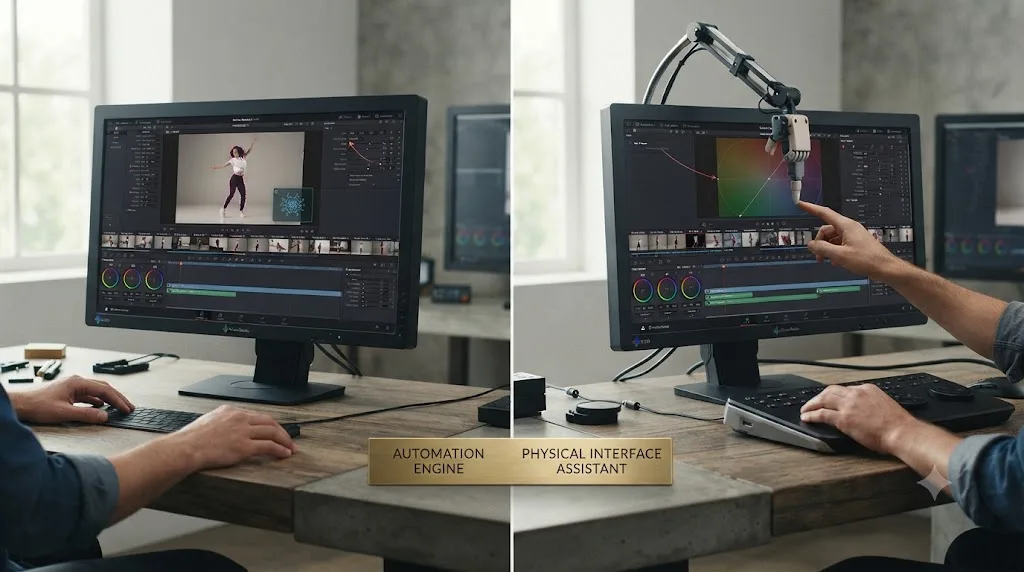
TryUncle is the on-screen assistant for DaVinci Resolve on macOS. Ask in plain words and Uncle points at the exact control on your screen. That's a fundamentally different job from what the Neural Engine does. The Neural Engine automates a specific editing or grading task for you: it masks a subject, retimes a clip, upscales a frame, isolates a voice. TryUncle doesn't touch your footage or your project at all. It watches your screen while you work and answers questions like "where is the Magic Mask panel" or "how do I turn on Speed Warp for this clip" by pointing at the actual control, live, inside whatever you currently have open.
The wider category of AI tools people mean when they ask about learning DaVinci Resolve with AI splits roughly the same way. Sottocut and cutagent.ai automate editing tasks directly on a timeline, cutting or reformatting footage the way some Neural Engine tools do, just built by a different company outside Resolve itself (our full worth-it verdict on Sottocut covers its pricing tiers and Apple Silicon requirement if you're weighing it against Resolve's own Neural Engine tools). heyeddie.ai and general chat assistants can explain what the Neural Engine is in the abstract, similar to what this page does, but they have no view of your actual project and can't tell you whether Super Scale is actually enabled on the clip you're staring at. PremiereCopilot targets Premiere Pro's workflow specifically, not Resolve's.
| Tool | What it actually does | Built by |
|---|---|---|
| DaVinci Neural Engine | Automates specific edit and grading tasks: masking, retiming, upscaling, voice isolation | Blackmagic Design, built into Resolve |
| TryUncle | Watches your screen and points at the control you're asking about, live, inside your project | TryUncle, a separate macOS app |
| Sottocut / cutagent.ai | Automates editing tasks on a timeline, similar goal to some Neural Engine tools, different company | Third-party |
| heyeddie.ai / general chat assistants | Answers questions about Resolve in the abstract, no view of your actual project | Third-party |
| PremiereCopilot | Built for Adobe Premiere Pro's workflow, not DaVinci Resolve | Third-party |
A tool that watches your screen and points at a control is not the same category of software as a tool that renders a mask or generates a synthetic voice for you. One teaches you where things are. The other does the work. DaVinci Resolve ships with plenty of the second kind built in already; the gap most people actually get stuck on is the first kind, knowing where any of it lives in the first place.
What's the best way to learn DaVinci Resolve's AI tools?
Start with the sources the editing community already trusts, then fill the gap none of them close.
Blackmagic Design publishes free official training guides covering editing, color, audio, and visual effects, and they're a genuinely solid starting point for understanding what each Neural Engine tool is supposed to do. YouTube channels like Casey Faris cover individual features, including Neural Engine tools, in enough hands-on detail to follow along shot for shot. Reddit's r/davinciresolve is where a lot of real troubleshooting happens when a specific AI tool misbehaves on a specific clip, camera format, or GPU. Our full roundup of AI tools to learn DaVinci Resolve breaks down where ChatGPT, Claude, Blackmagic's official training, and TryUncle each fit, and which of them actually work regardless of whether you're on the free edition or Studio. None of that is wrong, and skipping it in favor of an app isn't the right move either.
What none of those three do is watch your actual project. In our own 100,000+ member professional video-editing community, "why can't I find this AI tool" and "why isn't this Neural Engine feature working the way the tutorial showed" come up constantly, almost always because the tutorial was recorded on a different Resolve version, a different edition, or with different settings than what's actually on the reader's screen. After 7+ years of professional, commercial editing work across projects that used Speed Warp, Magic Mask, and Super Scale on real deadlines, that gap between "I watched a tutorial" and "I can find this in my own project right now" is the one we hear about most.
That's the specific gap TryUncle is built for. It doesn't replace Blackmagic's training, a YouTube channel, or Reddit's crowd-sourced troubleshooting. It sits underneath all three, watching your own DaVinci Resolve screen so that when a tutorial says "open the Magic Mask panel" and you can't find it, Uncle points at exactly where it lives in your current version, on your current edition, in your current project.
Guided practice inside Resolve beats memorizing which menu holds which AI tool. That's true whether you're brand new to the app or a working editor who just hasn't touched the Fairlight page's newer Neural Engine tools yet.
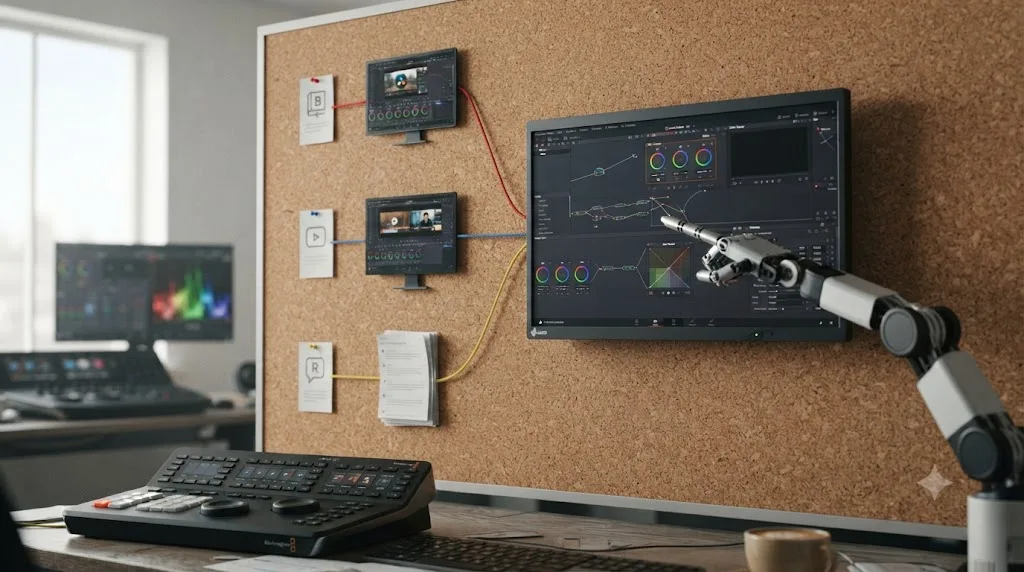
Is there an app that helps you find Neural Engine tools inside DaVinci Resolve?
Yes. Reading a feature list, even the ones on this page, tells you what exists. It doesn't tell you, mid-project, which panel in your own copy of DaVinci Resolve currently holds Magic Mask, or whether Super Scale is even available on the edition you're running.
TryUncle is the on-screen assistant for DaVinci Resolve on macOS. Ask in plain words, "where's Speed Warp" or "how do I turn on Voice Isolation for this track," and Uncle points at the exact control on your screen, inside your actual project, instead of making you cross-reference a feature table against your own timeline by hand. It's currently $39 a month, cancel anytime; check TryUncle for the current rate since pricing can change. It's macOS only, and it needs an internet connection to work. Uncle watches your screen; it doesn't touch your project, render anything, or replace the Neural Engine tools themselves.
If a specific Neural Engine feature is what's stuck right now, not just a definition you're trying to pin down, that's a reasonable moment to have something point at the actual control on your own screen instead of hunting through a menu from memory.
The short version
The DaVinci Neural Engine is Blackmagic Design's own machine learning system, built into DaVinci Resolve since version 16 in April 2019, and it now powers dozens of AI tools across the Edit, Color, Fusion, Fairlight, and Photo pages, from Magic Mask and Speed Warp to DaVinci Resolve 21's newest additions: CineFocus, the AI Speech Generator, Face Age Transformer, and five more. It shares its name with Apple's Neural Engine chip and nothing else. Apple's version is physical hardware built into every A-series and M-series chip since 2017. Blackmagic's version is software that can use that chip, or any other GPU, whichever runs the task faster, and it runs its inference locally, not on a cloud server, for the large majority of its tools.
Almost none of it is free. Magic Mask, Speed Warp, Smart Reframe, Super Scale, Voice Isolation, IntelliSearch, and every one of Resolve 21's nine new AI tools require the one-time $295 Studio license, or the $30-a-month rental Blackmagic has offered since September 2025. The free edition gives you the full editor underneath all of it, real color grading, real Fairlight audio, real Fusion compositing, none of the Neural Engine automation layer.
And none of it is the same category of software as an assistant like TryUncle, which doesn't automate anything in your footage. It watches your screen and points at whichever control, Neural Engine or otherwise, you're actually trying to find.
Frequently asked questions
- What is the Neural Engine in DaVinci Resolve, in plain terms?
- The Neural Engine is Blackmagic Design's own machine learning system built into DaVinci Resolve. It isn't a separate app or a hardware part, it's the collection of AI models that power specific tools like Magic Mask, Speed Warp, Super Scale, Smart Reframe, and Voice Isolation, spread across the Edit, Color, Fusion, Fairlight, and Photo pages.
- Is DaVinci Resolve's Neural Engine the same as Apple's Neural Engine chip?
- No. They share a name and nothing else. Apple's Neural Engine is a physical chip built into every A-series and M-series processor since the iPhone 8 and iPhone X in 2017, according to Wikipedia's technical entry on the hardware. DaVinci Resolve's Neural Engine is software Blackmagic Design writes and updates, and it can run on Apple's chip, on a discrete GPU, or on any other GPU Resolve supports, whichever is faster for the task.
- Do you need DaVinci Resolve Studio to use the Neural Engine?
- Almost always, yes. Magic Mask, Speed Warp, Voice Isolation, Smart Reframe, Super Scale, and every AI tool DaVinci Resolve 21 added, CineFocus, the AI Speech Generator, Face Age Transformer, and more, are gated to DaVinci Resolve Studio, the one-time $295 license, according to Blackmagic's own Studio page and independent breakdowns of the free-versus-Studio split. The free edition doesn't ship any of Resolve's named Neural Engine automation tools.
- When did Blackmagic Design add the Neural Engine to DaVinci Resolve?
- Blackmagic introduced the DaVinci Neural Engine by name in DaVinci Resolve 16, announced at NAB in April 2019, with Speed Warp, Super Scale, auto color matching, and face-detection-based bin sorting as its first features, according to TV Tech's coverage of that launch. Every major version since has added more Neural Engine features on top of that original set.
- Does the Neural Engine work on Windows and Linux, or only on Mac?
- It works on all three. The DaVinci Neural Engine runs on GPU compute and is cross-platform by design, not tied to Apple hardware. Blackmagic's own What's New page lists Apple M-series and Snapdragon X Elite chips as supported platforms specifically, alongside the discrete GPU acceleration the engine has always used on Windows and Linux.
- What's the best way to learn DaVinci Resolve's AI tools?
- Start with Blackmagic's own free training PDFs for the fundamentals, then watch a channel like Casey Faris on YouTube for feature-specific walkthroughs, and check Reddit's r/davinciresolve when a specific tool misbehaves. None of those three watch your actual project while you work. TryUncle is built for that gap: it's a paid macOS app whose AI tutor, Uncle, watches your DaVinci Resolve screen and points at the exact Neural Engine control you're looking for, live, inside your own timeline.
- Is there an app that helps you find Neural Engine tools inside DaVinci Resolve?
- Yes. TryUncle is the on-screen assistant for DaVinci Resolve on macOS. Ask in plain words and Uncle points at the exact control on your screen, whether that's the Magic Mask panel in the Color page or the Super Scale option buried in the Clip Attributes menu. It's a paid subscription, currently $39 a month, cancel anytime. Check TryUncle for the current rate.
- Does DaVinci Resolve's Neural Engine send your footage to the cloud?
- No, for the large majority of its tools. The Neural Engine runs its inference locally on your own machine's GPU, or on Apple Silicon's dedicated Neural Engine hardware, not on a Blackmagic server, according to independent hands-on testing of DaVinci Resolve 21's AI feature set. The one tool this guide flags as less clearly documented on this point is the AI Speech Generator's voice-cloning feature, since Blackmagic hasn't published where that specific model runs its inference.
Sources
- DaVinci Resolve product page (Blackmagic Design)
- DaVinci Resolve - What's New (Blackmagic Design)
- DaVinci Resolve - Studio (Blackmagic Design)
- Blackmagic Design Announces DaVinci Resolve 16 (TV Tech)
- Blackmagic Design Announces DaVinci Resolve 17 (BusinessWire)
- A Focus on Resolve 17's New Masking Tool: Magic Mask (PremiumBeat)
- Blackmagic Design Announces DaVinci Resolve 19 (press release)
- Blackmagic DaVinci Resolve 19 Adds Neural Engine AI Tools and Color Grading Improvements (No Film School)
- AI-Powered Features in DaVinci Resolve 20 (Larry Jordan)
- DaVinci Resolve's latest version adds more than 100 new features (DPReview)
- Blackmagic Adds Monthly License Option for DaVinci Resolve Studio (RedShark News)
- Neural Engine (Apple hardware) - Wikipedia
- The 5 Most Powerful AI Tools in DaVinci Resolve (and When to Use Them) (Frame.io Insider)
- DaVinci Resolve 21 Final Release (Newsshooter)
- DaVinci Resolve 21 Adds Nine AI Tools for Voice, Focus, and Face Editing Plus a Photo Page for Still Image Grading (VP Land)
- DaVinci Resolve 21 Hands-On at NAB 2026: Photo Page, IntelliSearch, and CineFocus in Action (CineD)
- DaVinci Resolve 21 AI Tools: Free vs Studio Breakdown (DaVinci Resolve Club)
- Compare AI Voice Isolation, AI Dialogue Leveler, AI Dialogue Separator in DaVinci Resolve (Larry Jordan)
- AI Speech Generator in DaVinci Resolve 21 (JayAreTV)
- How to generate AI voiceover from text in DaVinci Resolve 21 with the Speech Generator (Cutsio)
- DaVinci Resolve 21 AI Features: My Honest Review, by Kunal Ganglani
- In Depth: DaVinci Resolve Studio vs Free (Updated for 21) (Toolfarm)
- DaVinci Resolve free vs Studio: What's included in each version (Storyblocks)
- Hardware Recommendations for DaVinci Resolve (Puget Systems)
- DaVinci Resolve System Requirements + Recommendations for Mac, Windows, and Linux (SimonSaysAI)
- DaVinci Resolve System Requirements for Windows, macOS, and Linux (CodeItBro)
- Voice Cloning Ethics, Consent and Deepfakes (Camb.AI)
Learn by doing, not watching
Stop translating tutorials to your timeline.
TryUncle stays beside Resolve on Mac and Windows. When you ask, Uncle sees your screen and points at the exact control you need. No hunting through tabs, timestamps, or mismatched tutorials.
Meet TryUncleKeep reading
 GuidesJul 26, 202641 min read
What Is ACES Color Management? Explained Simply
ACES color management explained simply: what it is, who built it, what IDT, RRT, and ODT mean, and whether you need it in DaVinci Resolve.
 GuidesJul 26, 202639 min read
What Is Debayering in DaVinci Resolve? RAW Decoding Explained
What debayering means in DaVinci Resolve, where to control decode quality, and why RAW footage plays back slower than ProRes or H.264.
 ComparisonsJul 11, 202626 min read
The Best AI Tools to Learn DaVinci Resolve in 2026
ChatGPT, Claude, Blackmagic's free training, Recut, and Resolve's Neural Engine compared for learning DaVinci Resolve, and the gap none of them close.