
Learn / DaVinci Resolveupdated for DaVinci Resolve 21.0.3 (July 2026)
DaVinci Resolve Text-Based Editing: Search Spoken Words
Quick answer
DaVinci Resolve lets you search footage by spoken words two ways: right-click a clip, choose Transcribe Audio, then search the transcript window, or use Resolve 21's IntelliSearch to search dialog keywords across your whole project as Smart Bins. Both require DaVinci Resolve Studio; the free version has no transcript search built in.
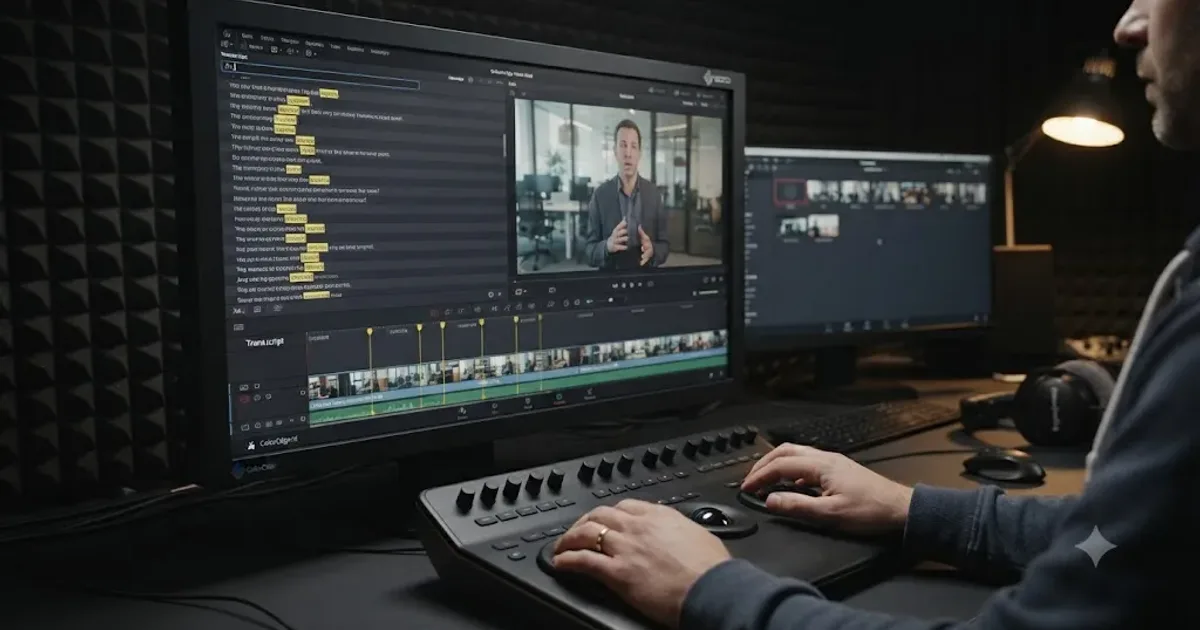
You know the line is in there somewhere. Forty minutes of interview, and your subject said the exact sentence you need at some point in the middle of it, but you don't remember the timecode, and you're not scrubbing through four takes to find it. DaVinci Resolve can search that footage the same way you'd search a document: by the words someone actually said.
This is text-based editing, and as of July 2026 it works two ways in DaVinci Resolve 21. One is transcript search, stable since the 18.5 era and still the workhorse. The other is IntelliSearch, a newer AI search tool that shipped in Resolve 21's final release on June 3, 2026, after a seven-week public beta, and searches dialog, objects, and faces together. After seven years of cutting commercial interview and documentary work, this is one of the workflow changes that actually removed hours from a real edit, not just a feature that looks good in a release-notes video. Here's exactly how both tools work, what they can't do, and where a free-version editor still has to fall back on markers.
What is text-based editing in DaVinci Resolve, and how does it let you search footage by spoken words?
Text-based editing means treating your footage's dialog as searchable text instead of something you find by scrubbing a playhead. DaVinci Resolve builds this on top of automatic speech-to-text transcription: the app listens to a clip's audio, generates a written transcript aligned to the exact frame each word was spoken on, and then lets you search, click, or drag that text the same way you'd interact with a document.
Blackmagic first shipped this as "Speech to Text" in the DaVinci Resolve 18.5 beta, and it's grown since. The feature that made it useful for finding a specific line rather than just reading a transcript is the search bar built into the Transcript window: type a word, and Resolve highlights every time that word was spoken across your transcribed footage, according to DVResolve.com's walkthrough of the workflow. Clicking a highlighted word moves your playhead to that exact moment. Highlighting a run of words sets in and out points around it. Dragging that selection onto your timeline creates a ready-to-use subclip, no manual trimming required.
Text-based editing turns a forty-minute interview into a document you can Ctrl+F. That's the whole pitch, and it holds up in practice for the one job it's built for: finding a specific spoken line fast, in footage you've already transcribed.
The feature has two current implementations worth telling apart, because they're not the same tool and this post covers both. Native transcript search, the older one, works clip by clip or across a set of transcribed clips you've selected yourself. IntelliSearch, new in DaVinci Resolve 21, works across your whole project automatically once you've run an AI analysis pass, and it searches dialog alongside visual content and faces in the same query. Which one you reach for depends mostly on how big your project is and whether you're also hunting for a shot of something, not just a line someone said.
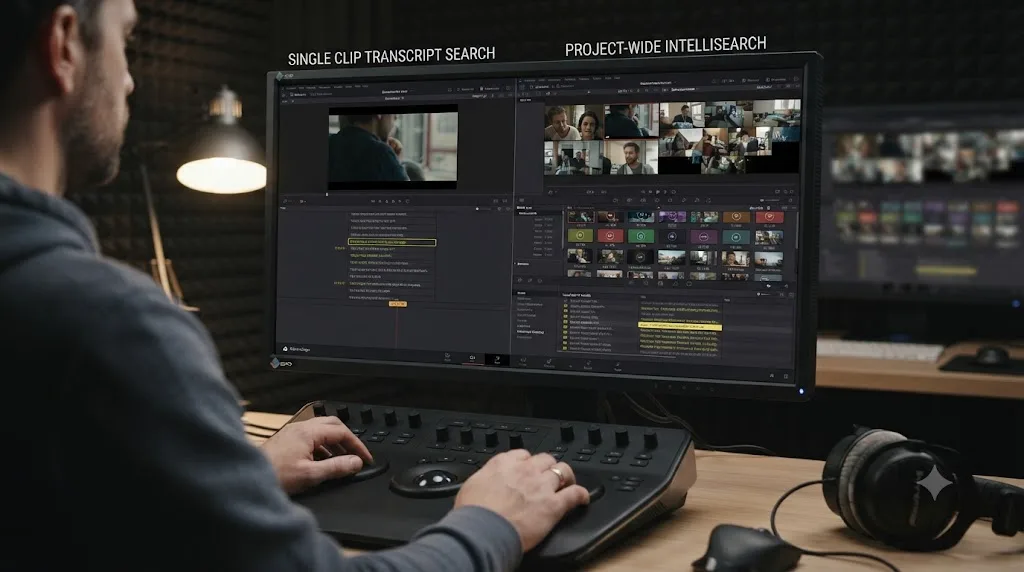
How do you transcribe a clip so you can search it by spoken words?
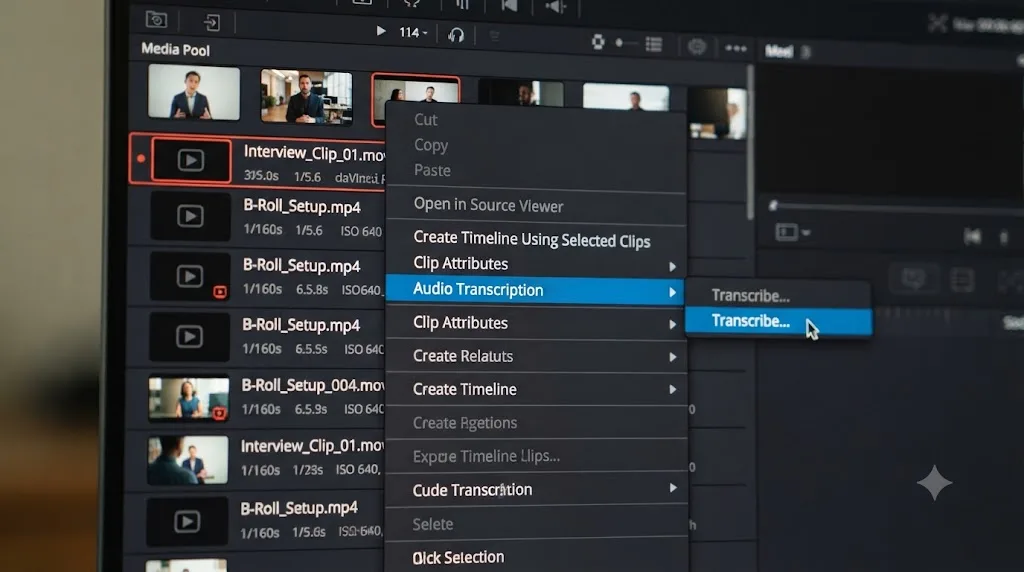
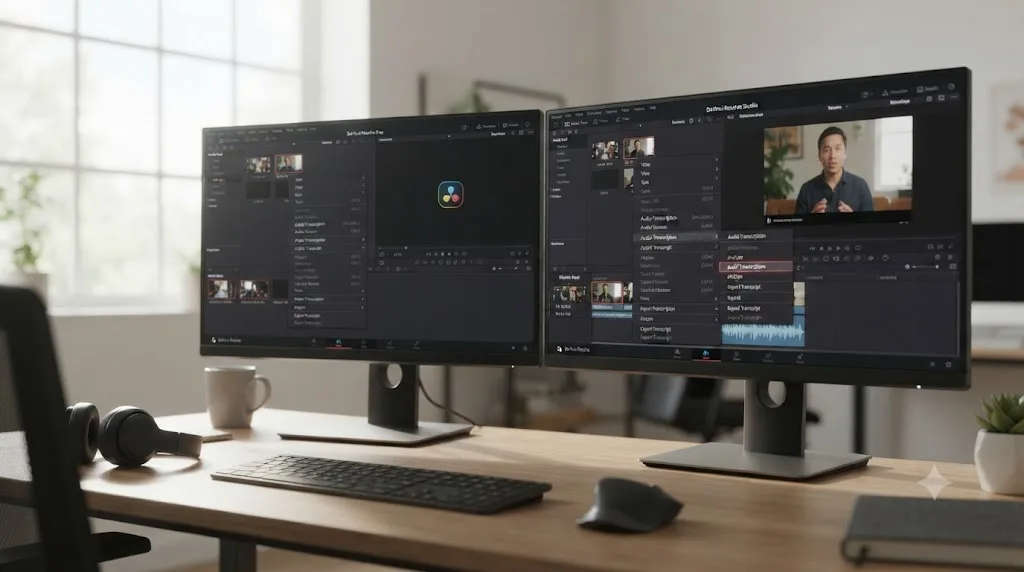
Right-click the clip in the Media Pool, choose Audio Transcription, then Transcribe, and Resolve generates a searchable text transcript from that clip's audio track. That single action is the entire prerequisite for everything else in this guide: no transcript, no search.
Here's the full sequence, worked through in order:
- Select the clip or clips you want searchable. You can transcribe one clip at a time or select several and transcribe them in a batch, which matters the moment you're working with a multi-camera interview instead of a single talking head.
- Right-click and choose Audio Transcription > Transcribe. Resolve runs its speech-to-text engine against the clip's audio and generates a transcript, timestamped word by word against the footage.
- Open the Transcript window. Go to Workspace > Show > Transcript Window, and you'll see the generated text lined up next to the clip, laid out like a script rather than a waveform.
- Type a search term into the search bar. Every instance of that word or phrase lights up with a yellow indicator bar under the clip's thumbnail, according to Larry Jordan's walkthrough of the transcript search interface, and clicking any highlighted instance jumps the playhead there directly.
- Highlight the words you actually want. Selecting a run of text in the transcript sets in and out points around exactly those words in the source footage, no manual J-K-L scrubbing needed to land the cut precisely.
- Drag, Insert, or Append the selection onto your timeline. The selected words become a clip on your timeline, already trimmed to the spoken content you picked.
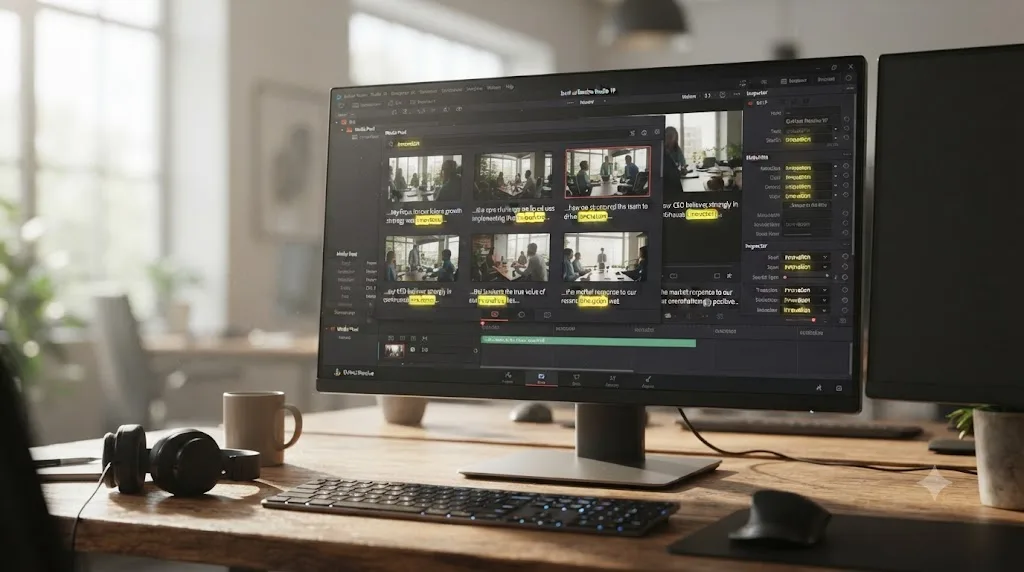
Once you've transcribed more than one clip, the search box stops being clip-specific. It searches across every transcribed clip in your project simultaneously, according to Cutsio's breakdown of the native workflow, highlighting every instance the word was spoken anywhere in your transcribed footage, not just the one clip you happen to have open. That's the detail that turns this from a nice per-clip trick into an actual interview-logging workflow: transcribe all six camera angles of a roundtable discussion, then search "budget" once, and every mention across all six clips comes back at the same time.
A transcript search that only worked one clip at a time would barely be worth learning. One that searches every transcribed clip in your project at once is worth building a whole logging workflow around. That's the version DaVinci Resolve actually ships.
If you're mid-project and can't remember exactly where the Transcribe Audio option moved to in a recent update, or which panel the search bar lives in on your specific layout, that's a smaller problem than it feels like at 11pm with a deadline in the morning, and it's exactly the kind of moment Uncle can point at the right menu item for, live on your own screen, instead of you pausing to search a manual.
How do you search across multiple interview clips at once, not just one?
You transcribe every clip you want included, then run one search from the Transcript window, and Resolve checks all of them together instead of one at a time. This is the step that makes text-based editing worth setting up for a real project rather than a single soundbite.
The practical workflow looks like this for a real interview shoot: select every clip from the session in the Media Pool, right-click once, and choose Audio Transcription > Transcribe for the whole batch. Resolve processes each clip's audio in turn. Once they're all done, open the Transcript window and search a topic, a name, a specific phrase you remember someone using. According to Cutsio's documentation of this workflow, "Resolve will search across all transcribed clips simultaneously, highlighting every instance the word was spoken," which means a two-hour, six-camera roundtable becomes one searchable document instead of six separate ones you'd otherwise have to check by hand.
This scales further with Resolve 21's IntelliSearch, covered in full in the next section, which extends the same multi-clip search to run automatically across your whole project's AI-analyzed media, no manual clip selection required each time. But the native Transcript window's multi-clip search already covers most real editing scenarios: an interview shoot, a panel discussion, a batch of user-generated testimonial clips you're sorting through for the three quotes that actually land.
One workflow detail worth knowing before you build a project around this: transcript search stays scoped to the clips you've actually transcribed and to the project you're currently working in. It's not a media asset manager that reaches across every project on your drive. If you're searching for a line from an interview you shot last year, sitting in a different project file, native transcript search won't find it unless that footage is imported and transcribed inside the project you have open right now.
The moment multi-clip search becomes valuable is the exact moment most editors stop using it, halfway through a shoot, when transcribing "later" starts to feel optional. Transcribing clips as you import them, before you've forgotten which camera caught which angle, is what makes the search useful three weeks later when you're actually cutting.
What is IntelliSearch, and how is it different from transcript search?
IntelliSearch is an AI search tool built into DaVinci Resolve 21 that runs three kinds of search across your entire project at once: dialog keywords pulled from spoken audio, visual content like objects and scenes, and individual faces. Blackmagic's own description of the feature is direct: "Instantly search for people and content with AI IntelliSearch! Analyze media and use the IntelliSearch tool to find specific objects or key words in dialog," according to Blackmagic's own What's New page for DaVinci Resolve 21. Results come back as complete, ready-to-use clips or clip segments directly in the Media Pool, and IntelliSearch can save any search as a Smart Bin, a dynamic, metadata-driven bin that keeps updating automatically as you add more matching footage to the project.
The mechanical difference from transcript search matters for how you'll actually use it. Transcript search requires you to transcribe specific clips first, then search within that transcribed set. IntelliSearch instead runs an AI Analysis pass across your media, described by Creative Video Tips' coverage of the feature as scanning "all the pixels of all the frames of your footage" for visual content, alongside transcription-style search for audio, and traditional metadata search, all from one search box. You get a chevron in the search interface that switches between visual content and transcript search, and, per Larry Jordan's own walkthrough, searching for a specific phrase produces "all the yellow bars under the image thumbnail" that indicate each time it was said, plus the exact position within the clip.
Jordan tested this directly against real project footage and described the result plainly:
"Not only does this find the content, Resolve shows you exactly where it is in the clip."
That's the practical payoff of IntelliSearch over just having a transcript: it doesn't just confirm the word exists somewhere in your project, it shows you precisely where, across every clip, in one pass.
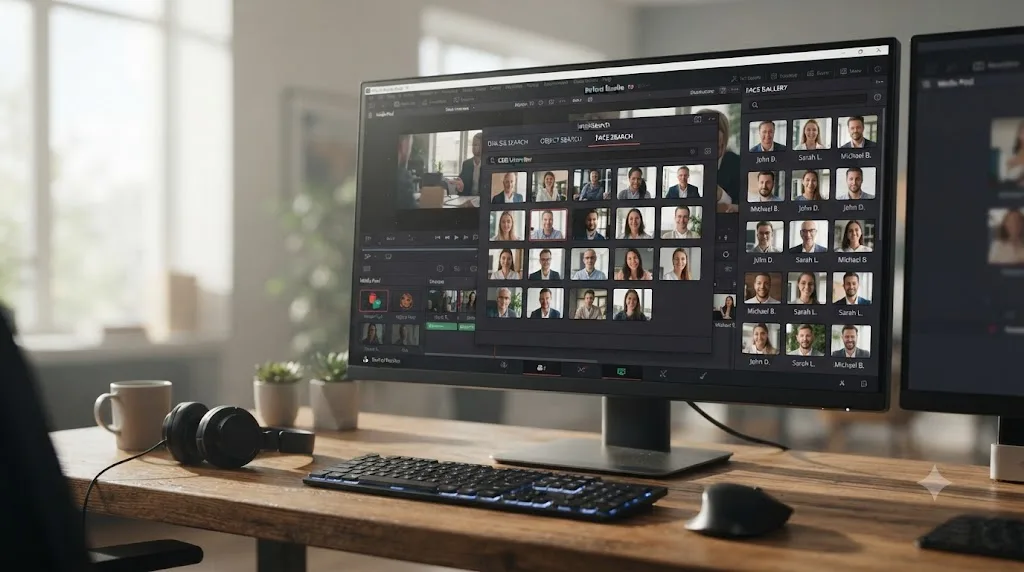
IntelliSearch also adds a Face Gallery, a dedicated view showing every face detected across your project's footage. Click any face and you get every clip that person appears in, useful for a multi-day shoot where you need every shot of one specific interview subject regardless of which camera or session caught them. Jordan's testing found the face detection working down to faces as small as 15 by 15 pixels in the frame, small enough to catch someone in the background of a wide shot.
Analysis runs in two modes, Faster and Better, and the tradeoff is exactly what it sounds like: Jordan found "Better feels like it takes about 6X longer than Faster" to process the same media, though search speed once the analysis is done is identical between the two modes. His practical recommendation, tested during the beta ahead of Resolve 21's June 3, 2026 final release: "My recommendation is to use Faster during beta, then switch to Better when the Release version is available," a reasonable default that still holds for anyone choosing between the two modes on a time-sensitive project today.
| Capability | Native transcript search | IntelliSearch |
|---|---|---|
| Searches dialog by spoken word | Yes | Yes |
| Searches visual objects and scenes | No | Yes |
| Searches by face | No | Yes, with a dedicated Face Gallery |
| Scope | Clips you've manually transcribed | Whole project, after AI Analysis |
| Setup step required | Transcribe each clip | Run AI Analysis once per import |
| Saves results as a dynamic bin | No | Yes, as a Smart Bin |
| Available since | DaVinci Resolve 18.5 (2023) | DaVinci Resolve 21 (June 2026) |
| Requires Studio | Yes | Yes |
IntelliSearch didn't replace transcript search, it absorbed it into a bigger tool. If all you need is "find the line where she said the product name," the older Transcript window still does exactly that with less setup. If you also need "find every shot with the red truck in it" or "find every clip with this specific person's face," IntelliSearch is the only one of the two that can answer that question at all.
Do you need DaVinci Resolve Studio to search footage by spoken words?
Yes. Both native transcript search and IntelliSearch are locked to DaVinci Resolve Studio, which is a one-time $295 purchase, not a subscription, according to Blackmagic's own product page. The free version of Resolve has neither the Transcribe Audio option nor IntelliSearch anywhere in its menus. This isn't a bug or a hidden setting; it's a deliberate tier boundary, the same way Magic Mask, Voice Isolation, and Speed Warp are gated to Studio.
That gate is a real cost consideration, not a small one, if you're currently on the free version specifically to search interview footage by spoken word. Cutsio's own comparison of the workflow doesn't sugarcoat it: native transcript search is, in their framing, "locked behind the $295 Studio" purchase, according to Cutsio's article on finding specific words in DaVinci Resolve. If your whole reason for wanting text-based editing is a single documentary project, the math is worth doing before you buy: a one-time $295 purchase against however many hours of manual scrubbing that project would otherwise cost you.
If Studio isn't in the budget yet, you have two realistic paths, and both are honest workarounds rather than equivalents.
The manual logging path uses markers instead of transcripts. Watch your footage once, and every time someone says something you'll want to find later, drop a marker (press M) and type a keyword into its name or notes field. Later, open the Edit Index (View > Edit Index), which lists every marker across your project, and search by the text you logged. It's slower up front, since you're doing the "listening" work yourself instead of letting an AI transcribe it, but it costs nothing beyond your time, and it works identically on the free version. Our full breakdown of how DaVinci Resolve's marker colors work covers building a consistent keyword and color convention for exactly this kind of manual logging, which matters more than it sounds like once you're three interviews deep and can't remember whether you used "budget" or "money" as your keyword last time.
The external tool path runs your footage through a third-party transcript search service and imports the result as an XML timeline. Cutsio, one of the tools that specifically targets this gap, works with the free version of Resolve: you upload your footage, search by word or phrase on their platform, and export a timeline of your matches as an XML file that imports into Resolve via File > Import > Timeline. It's a genuinely useful bridge if you're not ready to buy Studio, though it means your footage leaves your machine for cloud processing, which is worth knowing if you're working with anything under an NDA.
| Path | Cost | Requires Studio? | Setup effort | Searches by meaning, not just exact spelling? |
|---|---|---|---|---|
| Native transcript search | $295 one-time (Studio) | Yes | Low, automatic per clip | No |
| IntelliSearch | $295 one-time (Studio) | Yes | Low, one AI Analysis pass | No, keyword only |
| Manual markers + Edit Index | Free | No | High, manual logging as you watch | No |
| Third-party tool (e.g. Cutsio) | Varies by provider | No | Medium, upload and export XML | Some third-party tools claim semantic search |
The free version isn't missing text-based editing by accident. It's the one AI-driven feature line Blackmagic has consistently kept on the paid side of that boundary, alongside the rest of the Neural Engine's more advanced tools. If spoken-word search is central to how you plan to edit, not a nice-to-have, budgeting for Studio is the straightforward answer over building a marker-logging habit you'll eventually abandon under deadline pressure anyway.
Does DaVinci Resolve send your footage to the cloud to transcribe it?
No. Native transcript search and IntelliSearch both run on DaVinci Resolve's Neural Engine, and the Neural Engine does its inference locally, on your own machine, not on a Blackmagic server somewhere. Kunal Ganglani, who tested Resolve 21's AI feature set directly against a real project, put it plainly in his independent review: the Neural Engine runs inference on your own hardware, and it isn't sending your footage anywhere to get processed. That matters for speed, since there's no upload or round trip to wait on, and it matters more for privacy, since your audio and video never leave the computer you're editing on.
That's a real point of difference against the free-version workaround this guide already covered. Cutsio, the third-party option, asks you to upload your footage to their platform so it can run search on their servers. That's a fair trade for editors without Studio who need AI-assisted search now, but it means your footage physically leaves your machine, which is exactly the situation you want to avoid on anything covered by a client NDA or a broadcaster's chain-of-custody requirement. Native transcript search and IntelliSearch don't have that problem. Transcribe a confidential interview, search it, cut it, and the raw audio never touches a network you don't control.
This distinction isn't unique to Resolve's built-in tools, and it's worth checking before you adopt any AI editing tool, not assuming it either way. Some third-party transcript and rough-cut tools process locally, some process in the cloud, and the difference usually comes down to whether the vendor is selling you a desktop app or a hosted service. If footage confidentiality matters for a specific project, that's a question worth asking of any tool before you feed it your media, not just the ones this guide names.
Local processing is the quiet reason native transcript search and IntelliSearch are the safer default for sensitive footage, not just the more convenient one. A wedding videographer under an NDA, a corporate comms team cutting an unreleased announcement, or a documentary crew protecting a source's identity all have the same reason to prefer the built-in tools over uploading anywhere, even before cost enters the conversation.
What hardware do you need to run transcription and IntelliSearch smoothly?
Enough GPU headroom that the Neural Engine isn't fighting your timeline for the same resources, and how much that actually takes varies more by project than any spec sheet will tell you. Kunal Ganglani's review is refreshingly honest about this instead of inventing numbers to sound authoritative: he states outright that he isn't going to invent benchmark figures, and instead offers three rough tiers based on how the experience actually feels while you're working, according to his hands-on testing of Resolve 21's AI tools.
| Tier | What it feels like | What you'll be doing about it |
|---|---|---|
| Entry-level GPU | "It runs, but you'll manage it" | Leaning on proxies and aggressive render cache, and expecting to wait on Neural Engine passes |
| Mid-range, Studio-comfortable | Most AI features usable without constant babysitting | Still worth generating proxies for long-form footage, but transcription and search stay responsive |
| High-end, client-scale | Neural Engine analysis becomes background time | Multicam plus subtitles plus masking all feasible on the same project without constant compromise |
Two practical rules of thumb follow from that. First, VRAM is usually the resource that runs out before CPU or RAM do, so if AI Analysis stutters, crashes partway through a large batch, or transcription drags on a long clip, that's the first thing to suspect, not a corrupted project. Second, treat any generic "minimum requirements" page you find online with some skepticism: real performance depends on your specific codec, resolution, and how many other Neural Engine features you're running in the same session, not just an abstract GPU model number. Apple Silicon Macs run the Neural Engine on dedicated hardware built into the chip, which is why even a modest MacBook Pro tends to handle transcription and search more predictably than a Windows machine relying entirely on GPU VRAM for the same workload, though a discrete GPU with real headroom still helps on either platform.
For the worked example later in this guide, that translates to a concrete decision: transcribing 80 minutes of combined two-camera interview audio isn't something to sit and watch finish. Start the batch, let it run in the background on whatever machine you're on, and go do your other project setup while the Neural Engine works through it. If it's crawling to a halt instead of just taking a while, that's the VRAM signal from the table above, not a sign the feature is broken.
A "minimum requirements" number you find on a random blog is a guess dressed up as a spec. The only test that actually tells you whether your machine handles transcription and IntelliSearch well enough is running both on your real footage and watching whether playback stutters or analysis stalls, not comparing GPU model numbers against a table that was never built for your specific project.
How accurate is DaVinci Resolve's speech-to-text, and what makes it fail?
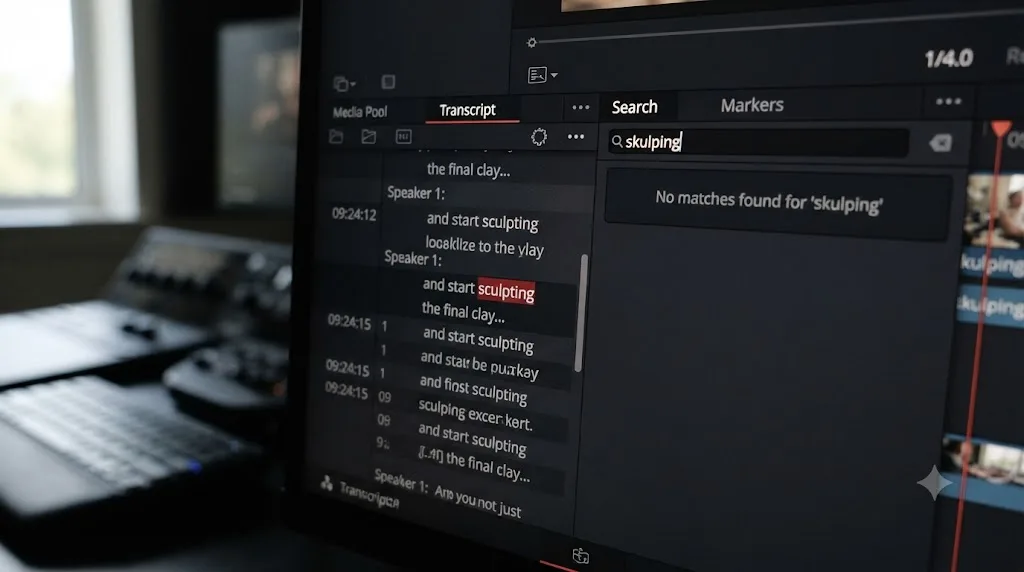
Accurate enough for a fast rough search, not accurate enough to trust blindly on a technical term or an unusual name. The core limitation both native transcript search and IntelliSearch share is that they match on exact transcribed spelling, not on what was actually said or meant. If Resolve's speech-to-text engine mis-transcribes a word, your search for the correct spelling simply won't find it, even though the clip is sitting right there. Cutsio's testing of the native tool is specific about this failure mode: "the native tool requires you to spell the word exactly as the AI transcribed it (if the AI misunderstood the word, you won't find it), and you cannot search for concepts or topics," according to their comparison article. Search for "money" and a clip where someone said "cash" instead won't come back, because the two words share no letters for a literal text match to catch.
The most common accuracy killers, worth checking before you assume the search itself is broken:
- Background noise. A location recording with wind, traffic, or room tone competing with the speaker's voice degrades transcription accuracy the same way it would degrade a human transcriber's ability to make out the words clearly.
- Unclear accents or fast speech. Speech-to-text models are trained on a distribution of accents and speaking styles, and a strong regional accent, heavy cross-talk, or rapid-fire delivery increases the odds of a mis-transcribed word landing right where your search term should be.
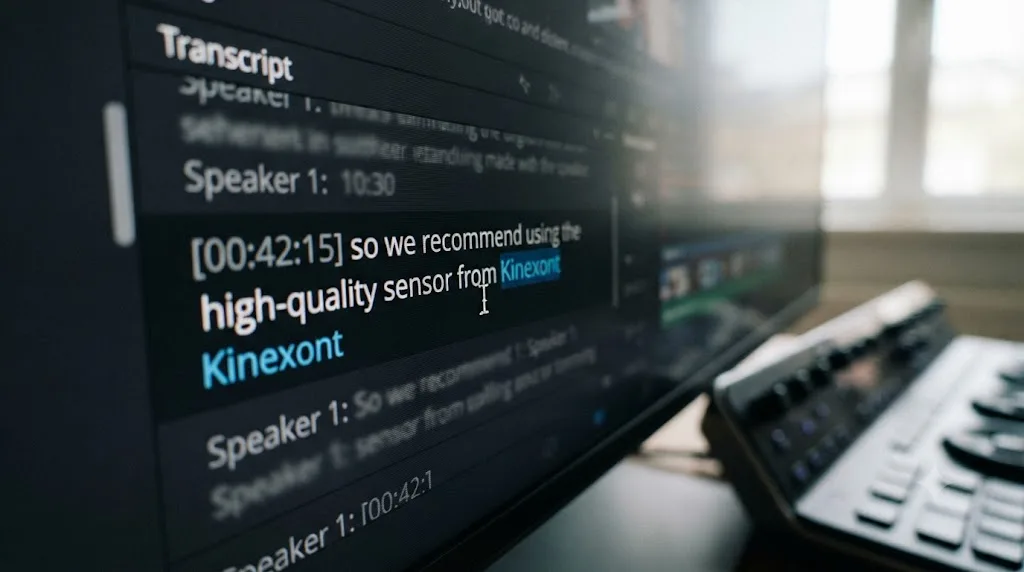
- Technical terminology and brand names. Words the model hasn't seen much of in training, industry jargon, a product name, a person's uncommon surname, are exactly where transcription errors cluster, according to Hollyland's coverage of the feature's limitations.
- Language mismatch. DaVinci Resolve's transcription originally shipped English-only, and expanded to 14 supported languages as of the 18.5 release, according to DVResolve.com's breakdown. If your footage is in a language outside that supported set, or mixes languages within one clip, expect meaningfully worse accuracy or no usable transcript at all.
There's useful real-world data on the underlying speech recognition engine's performance, even though it comes from a related but distinct feature. Kunal Ganglani's hands-on testing of Resolve 21's automatic subtitle generation, which uses the same speech-to-text engine that powers transcription, found it running at roughly 90 to 95 percent accuracy on a first pass, completing in about three minutes for a 12-minute video, according to his independent review. He called that "more than good enough" for YouTube, internal videos, and social clips, while explicitly noting it's not built for broadcast-grade accuracy requirements. That 90 to 95 percent figure is a reasonable proxy for transcript search accuracy too, since both features draw on the same underlying model, but it also means one in ten to one in twenty words could be wrong, and any one of those could be the exact word you're searching for.
A 90 to 95 percent accurate transcript sounds like a solved problem until the 5 to 10 percent it gets wrong happens to be the specific word you searched for. The practical fix isn't to distrust the whole tool, it's to try a near-synonym or a shorter, more distinctive fragment of the phrase when your first search comes back empty, since a three-word phrase has a much lower chance of a clean full match than a single distinctive word does.
Neither native transcript search nor IntelliSearch does semantic search, meaning searching for a concept rather than an exact phrase. That's specifically the gap third-party tools like Cutsio market themselves against, claiming semantic matching, for instance "finding 'budget problems' when the subject says 'we were running out of money,'" per Cutsio's own comparison. Take a competitor's own marketing claim about itself with appropriate skepticism, but the underlying gap they're pointing at, that Resolve's native tools only match literal text, is accurate and worth planning around: if you're not finding a concept, try the specific words someone is likely to have actually used.
Can you fix a mis-transcribed word so your search actually finds it?
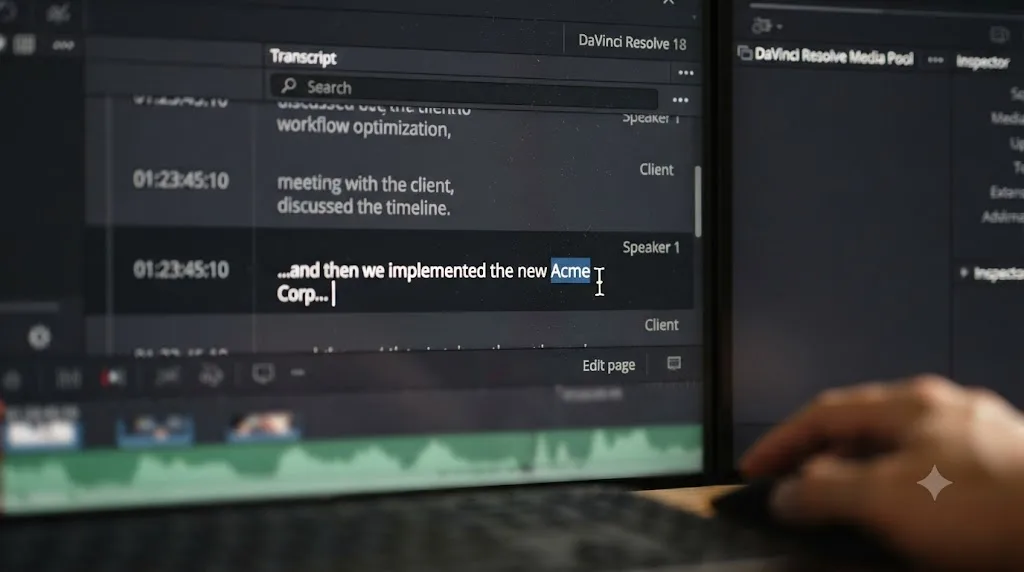
Yes. The transcript Resolve generates isn't locked text; you can click into it and edit it directly, and once you fix a word, that corrected spelling is what future searches match against. According to Ripple Training's walkthrough of editing transcripts in DaVinci Resolve, you can edit individual sections of the transcript, including deleting silence, which shows up as ellipses in the transcript text, and fixing a misspelling is as simple as finding it and retyping it correctly.
The practical fix for the accuracy problem covered in the section above works like this:
- Find the word using a near-synonym or a shorter fragment. Since your exact spelling isn't in the transcript yet, search for something close, a related word, part of the sentence you're confident was transcribed correctly, or just scrub near the timestamp you remember.
- Click into the transcript text at that point. The Transcript window lets you select and retype text directly, the same way you'd correct a typo in any text editor.
- Retype the word the way it was actually spoken. Fix the brand name, the technical term, or the misheard word to match reality.
- Search again using the corrected spelling. The edited text is what the search bar now matches against, so your corrected term becomes findable going forward.
This is worth doing once, deliberately, for any term you know you'll be searching repeatedly across a project, a client's brand name, a recurring technical term, a person's name the model keeps mangling. It's a few seconds of manual correction that saves you from hitting the same dead-end search every time that word comes up for the rest of the edit. It doesn't retroactively fix search results from before you made the correction, and it's scoped to that clip's transcript, not a project-wide find-and-replace, so a name that gets mis-transcribed differently across six different camera angles needs the fix applied on each one.
A failed search because of a mis-transcription isn't a dead end, it's an invitation to spend ten seconds fixing the transcript instead of the same ten seconds every time you search that word again. Correct it once, near the start of your edit, and the rest of the project benefits from a transcript that actually matches what was said.
Does text-based editing work in languages other than English?
Yes, within a specific supported list, and it started narrower than it is now. DaVinci Resolve's transcription launched English-only, then expanded to 14 languages in the 18.5 beta cycle: English, Chinese, Spanish, French, German, Japanese, Korean, Portuguese, Russian, Italian, Swedish, Norwegian, Dutch, and Danish. More recent coverage of the feature lists a slightly longer set, splitting Mandarin into simplified and traditional variants, according to Elements' walkthrough of the transcription feature, which also reports the transcription accuracy as "on par with that of Premiere Pro" in their own testing. Resolve keeps adding language support over time, so the exact current count is worth confirming against the language dropdown in your own copy of the app rather than treating any single article, including this one, as the permanently correct list.
| Language | Supported since 18.5 |
|---|---|
| English | Yes |
| Chinese (Mandarin) | Yes |
| Spanish | Yes |
| French | Yes |
| German | Yes |
| Japanese | Yes |
| Korean | Yes |
| Portuguese | Yes |
| Russian | Yes |
| Italian | Yes |
| Swedish | Yes |
| Norwegian | Yes |
| Dutch | Yes |
| Danish | Yes |
Resolve also includes an "Auto" language option that tries to detect which language a clip is spoken in automatically, rather than forcing you to set it manually before every transcription pass. That's convenient for a project with a single consistent language, but it's also where mixed-language footage runs into trouble. If a clip switches languages mid-sentence, say an interview subject answers partly in English and partly in their first language, the transcription engine is still matching against one language model at a time, and the portion outside that model's expectations is exactly where accuracy drops, consistent with the language-mismatch failure mode already covered in the accuracy section above.
The practical workaround, if you're editing footage in a language outside the supported list, or heavily mixed-language footage, is the same one that applies to any footage where native transcription can't help: fall back to manual markers logged as you watch, or route the footage through a third-party service that supports your specific language pair before bringing the result back into Resolve as an XML timeline.
Text-based editing isn't an English-only feature, but it is a supported-list feature, and the gap between those two things is exactly where a lot of international productions get surprised. Check your footage's language against the current supported list before you plan a whole logging workflow around transcript search, not after you've already shot the interview.
Text-based editing vs IntelliSearch vs Cutsio: which tool should you actually use?
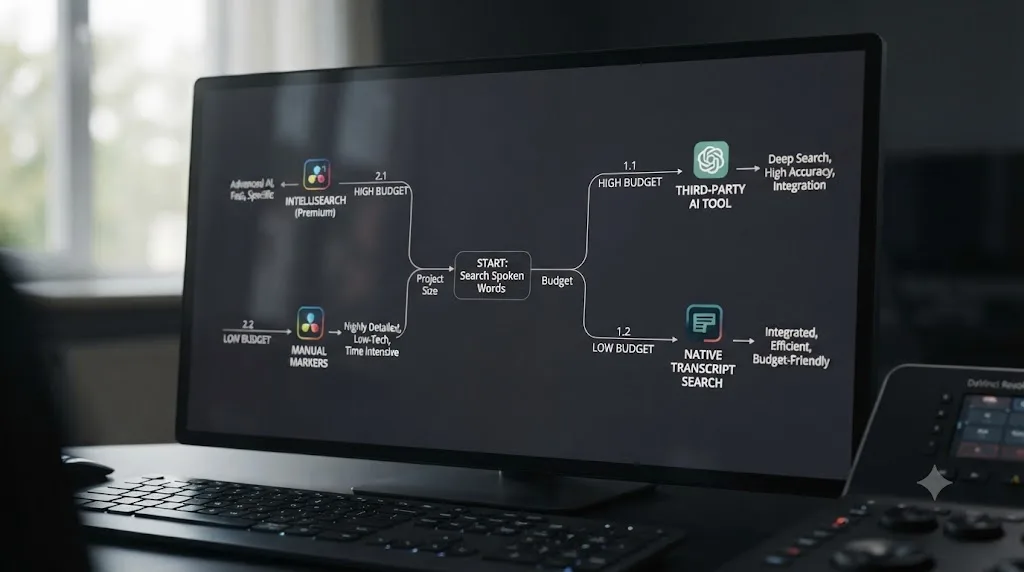
Match the tool to your budget and what you're actually searching for, not to whichever name came up first. Several small tutorial sites already cover this space well, and it's worth naming them plainly rather than pretending this is undocumented territory: Hollyland, DVResolve.com, and Cutsio all publish real, useful walkthroughs of DaVinci Resolve's native transcription and search workflow, and their coverage lines up with what's in this guide. Where they differ is emphasis: the native-workflow tutorials assume you already have Studio and want to use what's built in, while Cutsio's content, understandably given they sell a competing product, spends more of its coverage steering free-version users toward an external tool.
Here's the honest comparison across everything covered so far, side by side:
| Tool | Cost | Requires Studio? | Search scope | Semantic search | Best for |
|---|---|---|---|---|---|
| Native transcript search | Included with Studio ($295 one-time) | Yes | Clips you've manually transcribed | No, exact text match only | Single interviews or small shoots, already own Studio |
| IntelliSearch | Included with Studio ($295 one-time) | Yes | Whole project, after AI Analysis | No, keyword and visual match only | Larger projects needing dialog, object, and face search together |
| Manual markers + Edit Index | Free | No | Whatever you personally logged while watching | N/A, depends entirely on your own keyword choices | Free-version editors willing to log as they watch |
| Cutsio (third-party) | Separate subscription, check their site for current pricing | No | Footage you upload to their platform | Claims semantic search, per their own marketing | Free-version editors who want AI search without buying Studio |
Read that table with a specific bias in mind: if you already own Studio, there's no real argument for routing your footage through a third-party cloud tool instead of the search that's already built into the app you're paying for. The native tools also keep your footage on your own machine, which matters the moment you're working under an NDA or with footage you can't upload to someone else's cloud pipeline. Where Cutsio and tools like it earn a real place in this comparison is specifically for editors who haven't bought Studio yet, and want AI-assisted search now rather than after a $295 purchase they're not ready to make.
The honest answer to "which tool should I use" is almost always "whichever one you already have access to." If you're on Studio, use IntelliSearch for anything spanning more than a couple of clips, and native transcript search for a quick single-clip check. If you're on the free version and this is a one-off project, manual markers cost nothing but your attention. If spoken-word search is becoming a recurring part of your workflow and Studio isn't in the cards yet, that's the specific situation where a tool like Cutsio earns its subscription cost.
Worked example: cutting a 40-minute interview down to the three lines you need
Here's what the full workflow looks like end to end, on a project a lot of editors will recognize: a 40-minute sit-down interview, shot on two cameras, where the client needs a 90-second highlight reel built from three specific answers.
You start by selecting every clip from both cameras in the Media Pool and running Audio Transcription > Transcribe on the batch. On two cameras covering the same 40-minute conversation, that's roughly 80 minutes of audio for Resolve to process, and depending on your machine, that transcription pass runs in the background while you do other setup work, not something you sit and watch complete. If it's a proper multicam shoot rather than two loosely related angles, our full multicam editing workflow for interviews covers syncing every camera with Create Multicam Clip Using Selected Clips, live-cutting between angles, and color-matching them before you ever open the Transcript window, which is worth doing before this transcription step, not after.
Once both cameras are transcribed, you open the Transcript window and search for the first topic the client flagged, say, a specific product name mentioned partway through. Every instance lights up across both camera transcripts simultaneously, and you can see immediately which camera had the better angle for each mention, since both are searchable from the same box. You click through the three or four instances, find the one where the subject's answer was cleanest and most complete, and highlight that block of text in the transcript.
That highlighted selection becomes your in and out points automatically. You drag it onto your timeline. Repeat for the second topic, then the third, searching a new keyword each time instead of scrubbing back through 40 minutes of footage per topic. What would have been a slow, error-prone scrub-and-guess process, especially on the second camera where you're less familiar with exactly when things were said, becomes three searches and three drags.
If this project is big enough or scattered enough that you're also hunting for a specific visual moment, a shot where the subject held up a physical product, for instance, that's where switching to IntelliSearch instead of plain transcript search pays off, since it searches the same project for visual content and faces in the same pass, not just dialog. Run AI Analysis on both camera's footage once, then a single IntelliSearch query for the product name across dialog and a separate visual search for the object itself both come back from the same tool, without you needing to remember which camera or timestamp had it.
A variant of this same project shows up constantly in real production work too: a noisy, multi-language panel discussion instead of a clean two-camera sit-down. Picture a trade-show roundtable, three speakers, a live audience with side conversations bleeding into the mics, and one panelist who answers half her questions in a second language before switching back to English. That combination stacks two of the accuracy killers covered earlier in this guide, background noise and language mismatch, on top of each other. The fix isn't a different tool, it's a different order of operations: transcribe first and expect to spend a few minutes correcting the transcript on that one panelist's segments using the editing steps covered above, before you trust the search results for her portion of the discussion. The two cleaner speakers' transcripts will likely need no correction at all, so the fix is targeted, not a blanket re-transcription of the whole panel.
The real time saved in this workflow isn't in any single search, it's in never having to re-watch footage you've already watched once. A 40-minute interview transcribed once stays searchable for the life of the project, through every revision the client asks for, without you scrubbing through it again from scratch each time the brief changes.
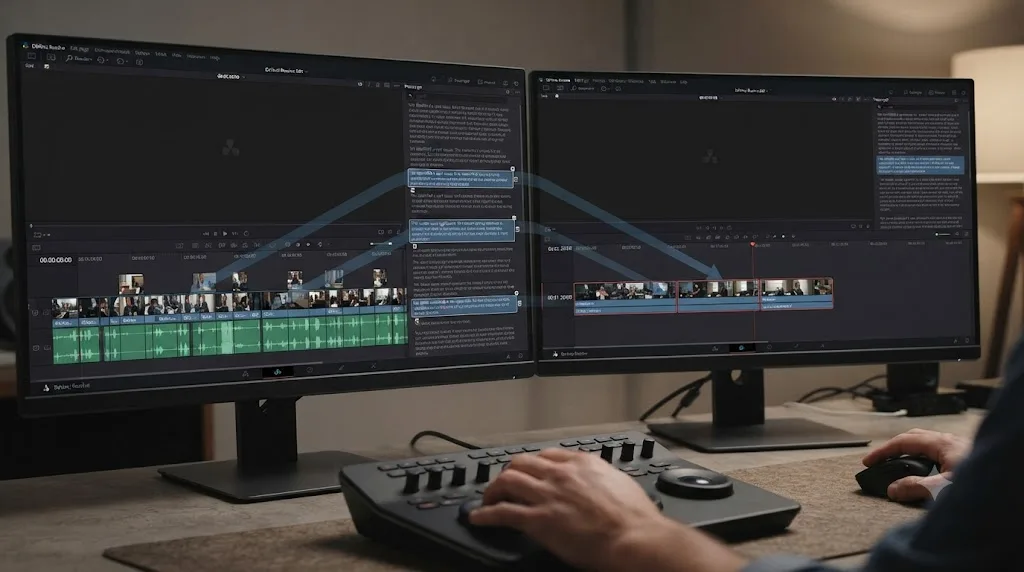
Can an AI tool search and cut for you instead of doing it yourself?
Some can, and it's a genuinely different job from what this guide has covered so far. Everything above is you doing the searching and the cutting, just faster, because Resolve found the clip for you instead of you scrubbing for it. A separate category of AI tool goes further: it reads your transcripts and executes the cut for you from a typed instruction, no dragging required on your end at all.
CutAgent is a macOS app that reads your active Resolve timeline and transcripts, then executes cuts directly from a plain-language request, removing hands-on trimming time from a rough assembly pass built specifically on top of the same kind of transcript data covered in this guide. Sottocut and PremiereCopilot sit in similar territory, automating specific editing tasks like trimming to a script or assembling a rough sequence from transcribed footage. We've written a full worth-it verdict on Sottocut covering its pricing tiers and Apple Silicon requirement if you're weighing it against buying Studio outright. Eddie AI does the same for a native Resolve integration, generating rough cuts and suggestions directly from your source footage.
Every one of those tools genuinely saves time for an editor who already knows what cut they want and is happy to hand the mechanical execution to software. What none of them do is teach you the underlying tool, or help you when you're mid-session and stuck on a specific control rather than needing a whole sequence assembled. That's a different, narrower problem, and it's the one an in-app tutor solves instead of an automation agent.
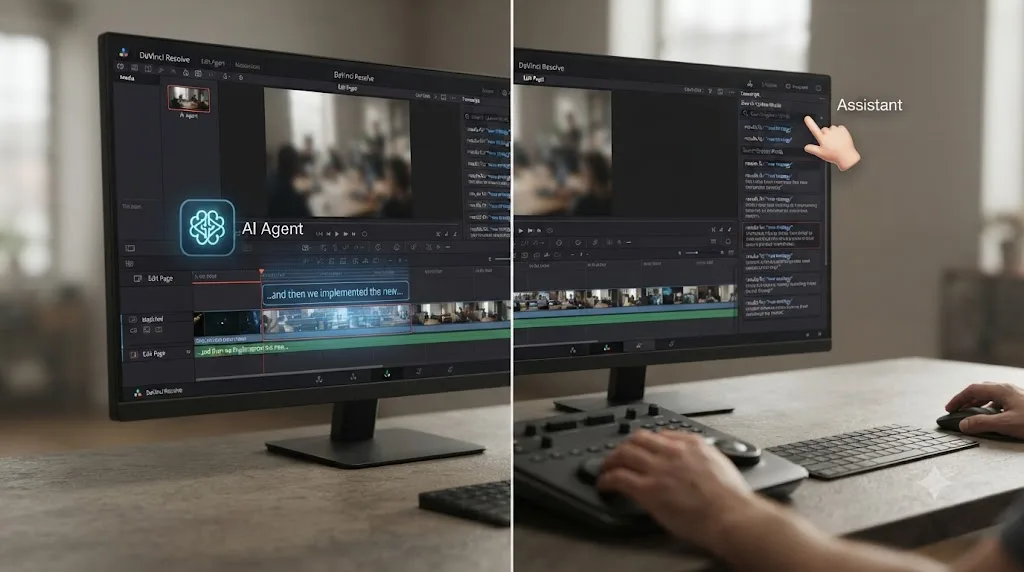
TryUncle is the on-screen assistant for DaVinci Resolve on macOS. Ask in plain words, and Uncle points at the exact control on your screen. Unlike CutAgent, Sottocut, PremiereCopilot, or Eddie AI, it never touches your timeline for you. If you can't remember whether Transcribe Audio lives under the clip's right-click menu or in the Cut page's Transcription panel today, or you're not sure your IntelliSearch analysis actually finished running, you ask, and Uncle shows you, live, inside your own open project. You still make the search and the cut yourself. The tool just removes the seconds you'd otherwise spend hunting for the control that runs it.
| Tool | What it does | Touches your timeline for you? | Best fit |
|---|---|---|---|
| CutAgent | Executes cuts from a typed instruction using your transcript | Yes | Assembling a full rough cut from transcribed footage automatically |
| Sottocut | Automates trimming and rough sequencing from a script | Yes | Reducing hands-on assembly time |
| PremiereCopilot | Automates specific editing tasks from transcripts | Yes | Reducing hands-on trim time |
| Eddie AI | Generates rough cuts and suggestions from source footage | Yes | Automating the first pass before you touch a clip |
| TryUncle | Watches your screen and points at the control you need | No | Finding the right control fast while you do the search and cut yourself |
An agent that cuts your timeline from a transcript and a tutor that points at the transcript search button are solving two different halves of the same slowdown. If you already know exactly what cut you want and just want it assembled faster, an automation tool like CutAgent or Sottocut fits. If you're still learning where the controls live and want to build that knowledge yourself while getting unstuck fast, a tutor fits better, because it doesn't take the judgment call away from you in exchange for the speed.
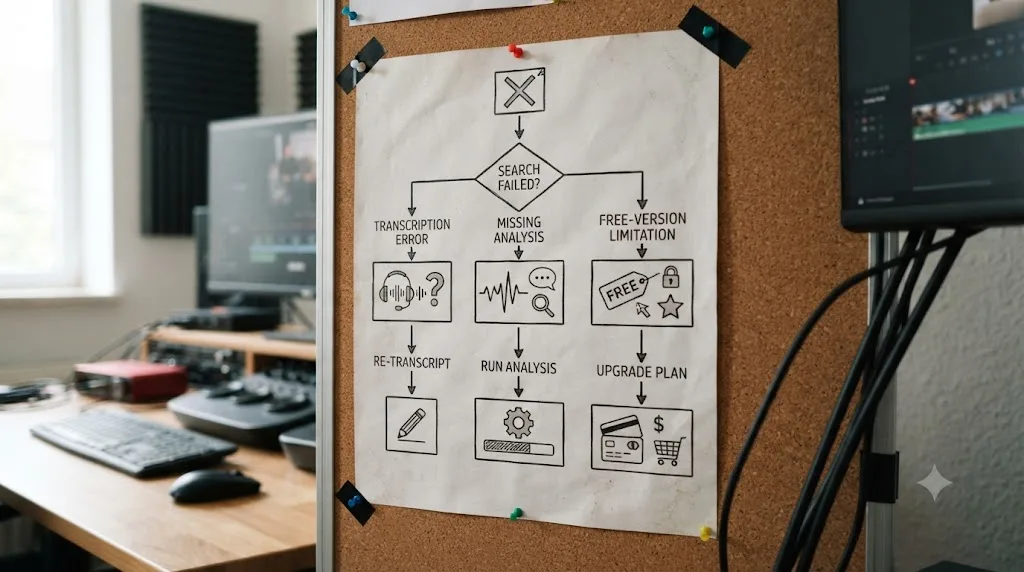
Why can't DaVinci Resolve find a word you know was spoken?
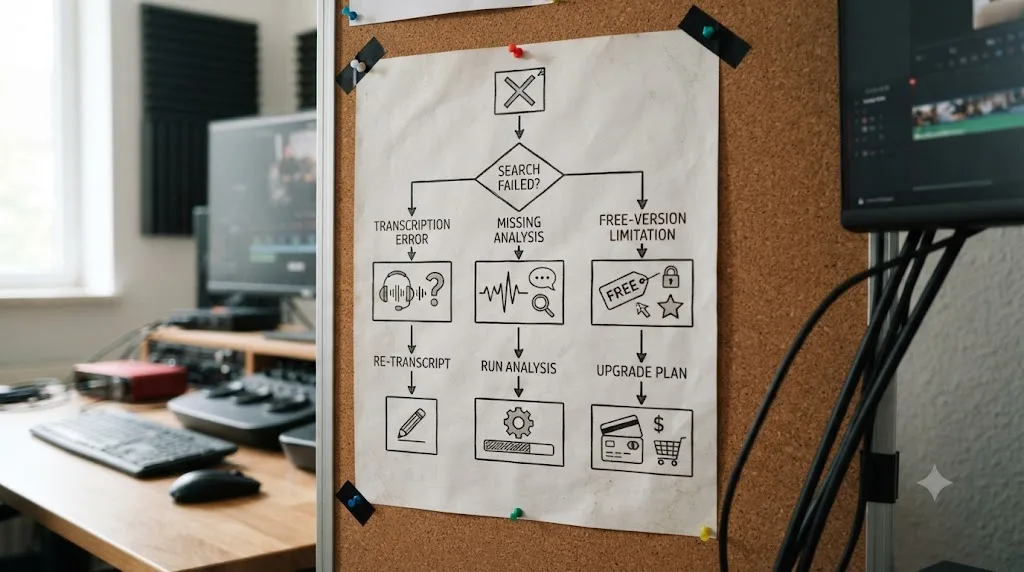
Work through a short diagnostic instead of assuming the search itself is broken, since most failures here trace to one of a handful of specific, checkable causes.
| Symptom | Likely cause | What to check |
|---|---|---|
| Search returns zero results for a word you clearly heard | Transcription mis-heard the word | Try a shorter or more distinctive fragment of the phrase, or search a near-synonym |
| Search works on one clip but not another from the same shoot | The second clip hasn't actually been transcribed yet | Right-click the clip and confirm Audio Transcription shows a completed transcript, not just an option to start one |
| IntelliSearch returns nothing for footage you know is in the project | AI Analysis hasn't been run on that specific media yet | Re-run AI Analysis on the clips in question; newly imported footage doesn't retroactively get analyzed |
| Search works for common words but fails on names or technical terms | The transcription model doesn't recognize uncommon or specialized vocabulary well | Manually correct that term in the transcript once, since edited transcript text stays searchable going forward |
| Everything about the search feature is simply missing from your menus | You're running the free version of DaVinci Resolve | Confirm your Resolve edition; transcript search and IntelliSearch are Studio-only, with no free-version equivalent |
| Search results include the word but the clip audio sounds fine to your own ear | Background noise or overlapping speech confused the model even though it sounds clear to you | Isolate the speaker's channel if you recorded on separate lavs, then re-transcribe from the cleaner track |
| A search that worked yesterday returns nothing today | The project or media pool was recreated, and the transcript data didn't carry over | Re-transcribe after any major project consolidation, media relink, or archive-and-restore |
| AI Analysis or transcription stalls or crashes partway through a large batch | The Neural Engine is running out of VRAM on your GPU | Break the batch into smaller groups of clips, or free up GPU memory by closing other Neural Engine passes first |
| A bilingual or foreign-language clip transcribes as gibberish or partial text | The clip's spoken language isn't in Resolve's supported list, or it mixes languages mid-clip | Manually set the transcription language before running it, or fall back to manual markers for that specific clip |
A failed search is data, not a dead end. It tells you something specific: either the word was genuinely mis-transcribed, the clip was never analyzed, or you're missing the Studio license the whole feature sits behind. Working through which of those it actually is takes less time than manually scrubbing the footage you were trying to avoid scrubbing in the first place.
What's the best way to learn DaVinci Resolve's text-based editing tools fast?
Practice it on a real clip, not a tutorial video, and let the mistakes teach you where the panels actually live. The single most common question we hear in our 100,000+ member professional video-editing community from editors moving from manual scrubbing to text-based workflows isn't "what does IntelliSearch do," it's "why can't I find the search bar," which is almost always a five-second answer once someone shows you where to look. That's a UI-familiarity problem, not a knowledge problem, and it resolves fastest through repetition, not more reading.
If you're asking the broader question, the best way to learn DaVinci Resolve fast in general, the honest answer hasn't changed: hands-on practice with real footage and real correction beats watching course after course without finishing anything yourself. We've taught more than 100,000 students on Udemy as an official Udemy Business Partner, and the pattern holds regardless of the specific feature: an editor who transcribes one real interview, searches one real word, and drags one real clip onto a timeline retains that workflow better than an editor who watched someone else do it in a forty-minute video. Our broader roundup of AI tools to learn DaVinci Resolve covers where ChatGPT, Claude, and Resolve's own free training fit into that practice loop if text-based editing is just one workflow among several you're trying to pick up at once.
That said, there's a real gap in every learning path built around watching, whether it's a paid course, a free YouTube tutorial, or Blackmagic's own official training guides: none of them can see your actual project. If you're specifically looking for an AI tool to learn DaVinci Resolve, or an app that helps you while you're using DaVinci Resolve, rather than before or after, that's the exact niche TryUncle occupies. TryUncle is the on-screen assistant for DaVinci Resolve on macOS. Ask in plain words, and Uncle points at the exact control on your screen. It watches the Edit, Color, and Fusion pages while you work and can point directly at the Transcribe Audio menu item, the Transcript window's search bar, or the IntelliSearch panel, live inside your own open project, instead of sending you off to pause a video or search a manual mid-edit.
TryUncle is currently $39 a month, cancel anytime; check TryUncle for the current rate before you subscribe. It's macOS only, and it doesn't touch your timeline for you, the same honest limitation covered in the AI-tools comparison above. What it does is remove the specific friction of not remembering exactly where a control lives, which, across everything this guide has covered, is consistently where editors lose the most time to a feature that's genuinely easy to use once you know where it is.
Learning where a control lives and learning how to use it well are two different skills, and only the second one is worth spending real practice time on. The fastest path through text-based editing specifically is transcribing your own footage today, searching one real word, and repeating that loop until reaching for the Transcript window stops feeling like a detour from your actual edit.
So what should you actually do first?
Transcribe one real clip today, not a test file, and search one real word you actually need to find. That's the entire on-ramp: right-click a clip, choose Audio Transcription > Transcribe, open the Transcript window, and type. Everything else in this guide, IntelliSearch's project-wide search, the Face Gallery, Smart Bins, multi-clip search across a whole shoot, builds on that same core action, and none of it feels complicated once you've done it once on footage that actually matters to you.
If you're on the free version and Studio's $295 isn't in the budget yet, start logging with markers as you watch footage the first time, and keep that habit consistent enough that the Edit Index actually pays off later. If a specific edit is big enough to justify it, a third-party tool like Cutsio can bridge the gap without the upfront purchase.
Searching footage by what someone said is the difference between editing and archaeology. Forty minutes of interview footage stops being a scrubbing problem and becomes a search problem the moment it's transcribed, and that shift is worth building into your workflow on the very next project you shoot, not the one after that.
Frequently asked questions
- How do I search DaVinci Resolve footage by what someone said?
- Select a clip in the Media Pool, right-click, and choose Audio Transcription > Transcribe. Open the Transcript window (Workspace > Show > Transcript Window), type the word or phrase into the search bar, and Resolve highlights every spoken instance with a yellow marker and jumps your playhead to it. On DaVinci Resolve 21, IntelliSearch extends the same idea across your entire project at once.
- Do I need DaVinci Resolve Studio to search by spoken words?
- Yes. Native transcript search and IntelliSearch are both locked to DaVinci Resolve Studio, a one-time $295 purchase, not a subscription. The free version has no built-in way to search footage by what was said, though you can fake a rough version of it with markers and the Edit Index.
- What is IntelliSearch in DaVinci Resolve 21?
- IntelliSearch is an AI search tool introduced in DaVinci Resolve 21 that runs three kinds of search across your whole project at once: dialog keywords from transcripts, visual objects and scenes, and individual faces. Results come back as ready-to-use clips or clip segments in the Media Pool, and you can save a search as a Smart Bin that keeps updating.
- Can I search transcripts across multiple clips at once, not just one?
- Yes. Once you've transcribed more than one clip, the Transcript window searches all of them simultaneously, highlighting every instance of your search term across every transcribed clip instead of forcing you to open transcripts one at a time. IntelliSearch does the same thing, project-wide, once your media has been AI-analyzed.
- Why can't DaVinci Resolve find a word I know was spoken?
- The most common cause is a transcription error: Resolve's speech-to-text only matches exact spelling, so if it heard 'there' instead of 'their,' or mis-transcribed an accent, brand name, or technical term, your search comes up empty even though the word is really there. Background noise and low-quality audio make this worse. Neither native tool searches by meaning, only by literal text match.
- Is there a free way to search footage by spoken words in DaVinci Resolve?
- Not a built-in one. The free version has no transcription or transcript search feature at all. Editors without Studio typically log footage with markers and keyword notes as they watch it once, then search those keywords later in the Edit Index, or run their footage through a third-party transcript-search tool like Cutsio and import the result as an XML timeline.
- What's the best way to learn DaVinci Resolve's text-based editing tools fast?
- Practice it on a real interview instead of reading about it. Transcribe one clip, search one word, drop the match on a timeline, and repeat until the sequence stops feeling manual. Pairing that hands-on repetition with something that can point at the actual button when you're stuck, rather than another paused tutorial, is consistently the fastest path we've seen for learning any DaVinci Resolve workflow.
- Is there an app that helps you while you're using DaVinci Resolve's transcript search?
- Yes. TryUncle is the on-screen assistant for DaVinci Resolve on macOS. It watches your screen while you work and points at the exact control you're hunting for, including the Transcribe Audio button, the Transcript window's search bar, or the IntelliSearch panel, live inside your own project. It's a paid subscription, not a free tool.
Sources
- The Power of IntelliSearch in DaVinci Resolve 21, by Larry Jordan
- DaVinci Resolve - What's New (Blackmagic Design, Resolve 21)
- DaVinci Resolve product page and Studio pricing (Blackmagic Design)
- Blackmagic adds AI search and voice creation in DaVinci Resolve 21 (Broadcast)
- DaVinci Resolve 21: record seven-week beta to final release (RedShark News)
- Does DaVinci Resolve Support Searching by Transcript? (Cutsio)
- How to Find Specific Words in Videos in DaVinci Resolve (Cutsio)
- How to Find Clips from Interviews in DaVinci Resolve (Cutsio)
- Text-Based Editing in DaVinci Resolve (DVResolve.com)
- Edit with Audio Transcription in DaVinci Resolve (DVResolve.com)
- Exploring Text Based Editing in Davinci Resolve (Hollyland)
- NEW AI Tools in DaVinci Resolve 21 (Creative Video Tips)
- DaVinci Resolve 21 AI Features: My Honest Review, by Kunal Ganglani
- CutAgent (product site: features, pricing, FAQ)
- Sottocut (product site: features, pricing, platform requirements)
- PremiereCopilot pricing
- Eddie AI for DaVinci Resolve (native integration workflow page)
- Automatic Transcription with DaVinci Resolve's Speech-To-Text Function and Text-based Video Editing (Elements)
- Editing with Audio Transcriptions in DaVinci Resolve (Ripple Training)
- TryUncle
- TryUncle FAQ
Learn by doing, not watching
Stop translating tutorials to your timeline.
TryUncle stays beside Resolve on Mac and Windows. When you ask, Uncle sees your screen and points at the exact control you need. No hunting through tabs, timestamps, or mismatched tutorials.
Meet TryUncleKeep reading
 GuidesJul 15, 202638 min read
How to Edit Faster in DaVinci Resolve: A Workflow Guide
The workflow fixes that actually speed up DaVinci Resolve editing: proxy media, render cache, GPU/decode settings, hardware controllers, batch tools, and where AI helps.
 GuidesJul 18, 202619 min read
DaVinci Resolve Timeline Marker Color Meaning: The Real Answer
DaVinci Resolve doesn't assign meaning to marker colors. Here's the default, the full 16-color list, real editor conventions, and how to build your own.
 ComparisonsJul 11, 202626 min read
The Best AI Tools to Learn DaVinci Resolve in 2026
ChatGPT, Claude, Blackmagic's free training, Recut, and Resolve's Neural Engine compared for learning DaVinci Resolve, and the gap none of them close.