
Learn / DaVinci Resolveupdated for DaVinci Resolve 21.0.2 (2026)
DaVinci Resolve Smart Reframe Not Working: Every Fix
Quick answer
Smart Reframe usually fails because of a proxy media mismatch, a timeline scaled down from a larger source resolution, or a Neural Engine tracking limit, not a broken feature. Set Proxy Handling to Prefer Camera Originals, set Mismatched Resolution Files to Scale Full Frame With Crop, and re-run Smart Reframe on a timeline at its native resolution.
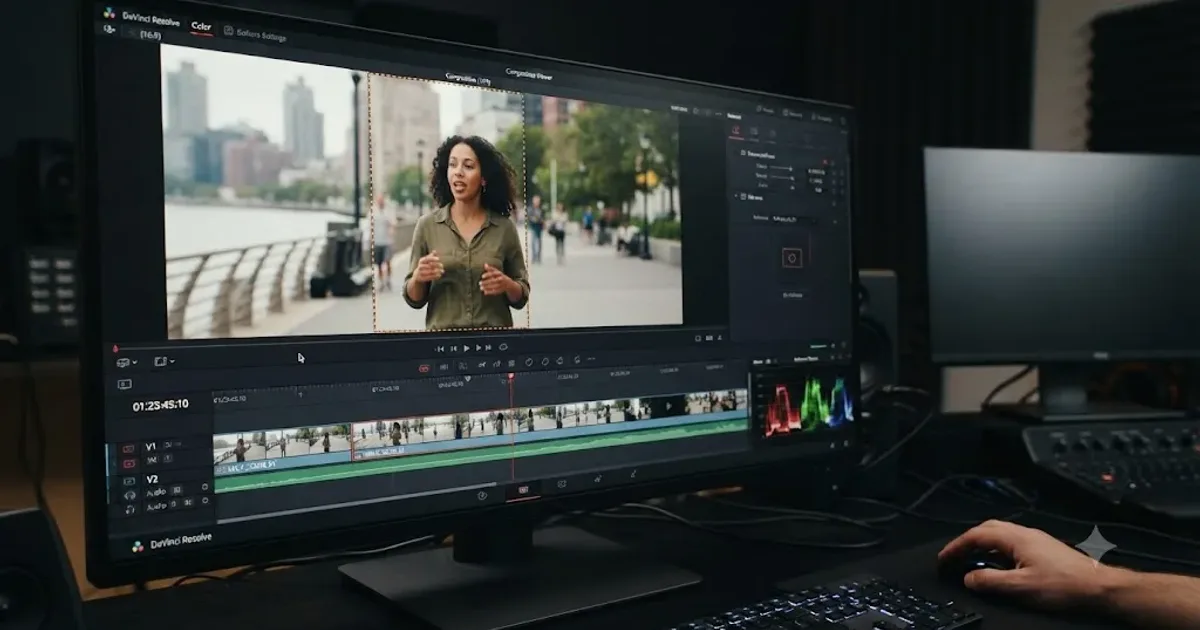
Smart Reframe promises to turn a 16:9 timeline into a vertical one without you touching a single keyframe. Then you click Auto, and nothing happens. Or something happens, but it's the wrong something: black bars where there shouldn't be any, a subject that drifts out of frame halfway through the clip, or a Transform track suddenly carrying seventy keyframes you never asked for.
None of that means the feature is broken software. It means Smart Reframe is a specific tool with specific requirements, and when one of those requirements isn't met, the failure looks like nothing at all rather than an error message. I want to walk through every documented cause I could find real evidence for, in the order worth checking them, so you stop guessing and start fixing.
What is Smart Reframe supposed to do?
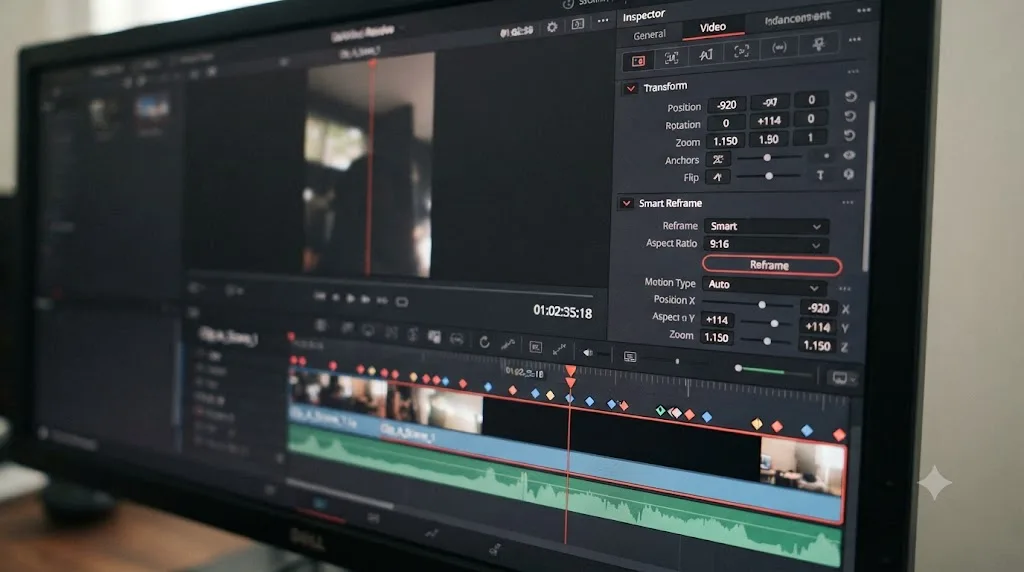
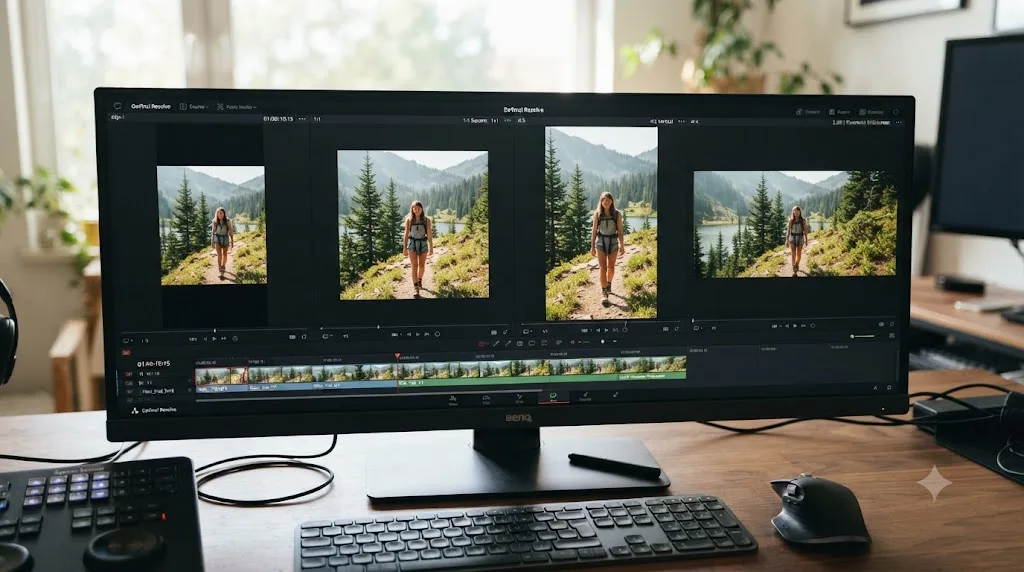
Smart Reframe lives in the Inspector's Transform controls on the Edit and Cut pages, and it exists to solve one specific, common problem: you shot something at 16:9 and now you need it at 9:16 for Reels, Shorts, or TikTok, or at 1:1 for a feed post, without manually keyframing pan and zoom on every clip in the timeline. According to the DaVinci Resolve manual's Smart Reframe page, the feature "makes it easier to quickly reframe material across extreme aspect ratio changes," and it's built specifically for "situations where you've shot a 16:9 horizontal video and find yourself needing to create a vertically-oriented 9:16 version for mobile phones and social media deliverables or using 4:3 archival footage in a 2.39:1 widescreen movie."
That second example is easy to skip past, but it's worth sitting with, because it tells you Smart Reframe isn't a "vertical video tool" that happens to also do other things. It's an aspect-ratio tool, full stop, and the horizontal-to-vertical social conversion is just the most common reason anyone opens it in 2026.
Under the hood, it isn't magic. It's Resolve's Neural Engine running an object-detection pass on your clip, finding what it thinks is the main subject, and then writing Transform keyframes that pan and scale the frame to keep that subject roughly centered inside your new aspect ratio. A discussion on the Blackmagic Forum about getting Smart Reframe to actually reframe describes it working like Resolve's IntelliTrack in either automatic or manual targeting mode: once it finishes analyzing the clip, it sets keyframes on the Transform section of the Inspector for you to review and adjust.
Smart Reframe is not a rendering effect. It's an automated keyframing tool that writes ordinary Transform keyframes you can see, edit, and delete like any others. That single fact explains most of what goes wrong and most of how you fix it. When the tool "isn't working," you're not dealing with a black box. You're dealing with a tracker that made a bad guess, or a set of keyframes that never got written in the first place, both of which are things you can directly inspect and correct.
One naming note before we go further: you'll see this feature called "Auto Reframe" on some third-party tutorial sites and comparison articles, borrowing the term Adobe uses for the equivalent tool in Premiere Pro. Inside DaVinci Resolve itself, the button, the Inspector section, and Blackmagic's own manual all say "Smart Reframe." They're the same feature. If you search "auto reframe davinci resolve" and land here, you're in the right place.
Is Smart Reframe even available in your copy of Resolve?
Before troubleshooting anything else, rule out the simplest explanation: Smart Reframe is a Studio-only feature. It sits in the same tier as Magic Mask, advanced noise reduction, and the rest of Resolve's Neural Engine toolset, all of which are gated behind the paid Studio license rather than the free version.
If you're on the free version of Resolve, there is no Smart Reframe button anywhere in the Inspector, on any page, in any version. That's not a bug and there's no hidden setting to enable it. DaVinci Resolve's free version has no Smart Reframe option at all, in any release, because the feature is gated to Studio the same way Magic Mask and advanced noise reduction are. If you need automated reframing without paying for Studio, your realistic options are manual Transform keyframing with the built-in Tracker, or a third-party reframing tool outside Resolve entirely.
If you are on Studio and still don't see the option, check that you're looking in the right place: the Smart Reframe controls appear in the Inspector's Video tab, under the Transform section, on a clip selected in the Edit or Cut page timeline, not in the Color page or the Media Pool. Selecting a clip that has no video (an audio-only clip, a title with no Transform section active) will also hide the controls, since there's nothing for the tool to reframe.
Why does Smart Reframe do nothing when you click Auto?
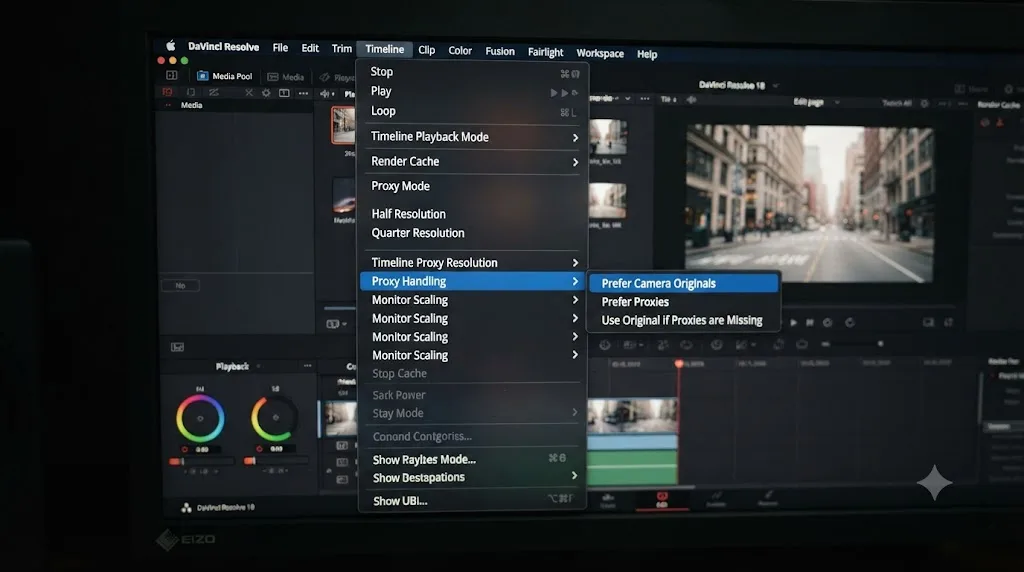
This is the single most common complaint, and it has a single most common cause: proxy media. A thread on the Blackmagic Forum titled "Smart Reframe Refuses To Work" describes exactly this, clicking Auto and getting no reaction from the tool whatsoever, no analysis progress, no keyframes, nothing. The fix that resolved it for that user, and for others reporting the same symptom, involved two settings working together:
- Open Playback > Proxy Handling and select Prefer Camera Originals.
- Open Timeline Settings and confirm the Timeline Proxy Resolution is set to Full, not a reduced resolution.
Once both of those were set, Smart Reframe started working the way it's supposed to. The likely mechanism, though Blackmagic hasn't published a technical explanation for exactly why, is that Smart Reframe's Neural Engine analysis pass expects to read full-resolution frame data, and when Resolve is instead handing it a lower-resolution proxy substitute, whether because a proxy exists and Prefer Proxies is active, or because the Timeline Proxy Resolution setting itself is scaled down, the analysis either silently fails or never starts.
A proxy resolution mismatch is the most commonly reported reason Smart Reframe does nothing at all when you click Auto. If you're using proxies for editing performance, which is completely reasonable on a big timeline, the practical move is to temporarily switch to camera originals specifically for the reframing pass, then switch back to proxies afterward if you need the performance for the rest of your edit. Our guide on proxy handling and disappearing footage covers the same Proxy Handling menu in more depth, including the purple line Resolve draws on a timeline when it can't find the media a given mode expects.
Why does Smart Reframe fail on a scaled-down timeline?
A separate, less obvious cause shows up specifically on projects built around high-resolution source footage with a much smaller timeline resolution. A Blackmagic Forum thread about Smart Reframe on "full res" timelines describes a project shot on a 6144x3456 sensor, edited on a timeline scaled down through Timeline Settings, where Smart Reframe simply didn't function at all.
The documented workaround is a deliberate detour:
- Duplicate the timeline you're working on.
- Change the duplicate's resolution to match your source footage's native resolution, using Timeline Settings' Format tab.
- Render all clips in place at that native resolution, or simply run Smart Reframe directly on this full-resolution duplicate.
- Once Smart Reframe has written its keyframes, change the timeline resolution back to whatever you actually need for delivery, the vertical or square format you're targeting.
This works because Smart Reframe's keyframes are Transform position and zoom values relative to the clip, not baked pixels, so they carry over correctly when you change the timeline's output resolution afterward. What doesn't carry over reliably is the analysis itself when it's asked to run against a timeline resolution wildly mismatched from the source.
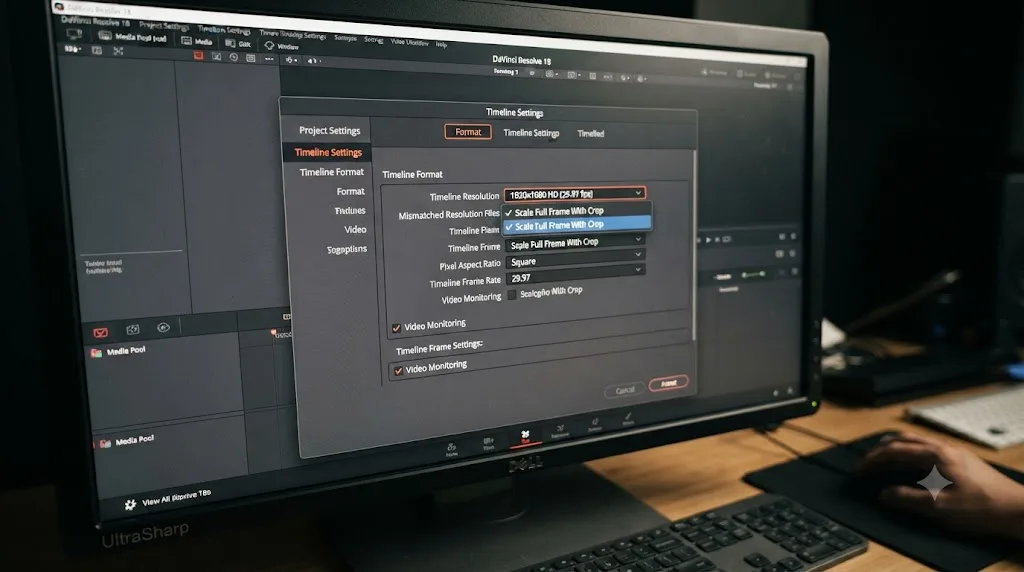
A closely related setting worth checking at the same time is Mismatched Resolution Files, found in Timeline Settings' Format tab. According to the DaVinci Resolve manual's page on timeline resolution, this setting controls how Resolve handles clips that don't match your project's frame size, with four modes: Center Crop With No Resizing, Scale Full Frame With Crop, Scale Entire Image To Fit, and Stretch Frame To All Corners. Scale Full Frame With Crop is the setting most consistently associated with Smart Reframe working correctly, because it guarantees the analysis pass sees a frame that's genuinely filled edge to edge rather than one padded with blanking or distorted by an uneven stretch.
Here's a quick reference for that setting specifically:
| Mismatched Resolution Files mode | What it does | Smart Reframe compatibility |
|---|---|---|
| Center Crop With No Resizing | No scaling; smaller clips get blanking, larger clips get cropped | Unreliable, frame often isn't fully filled |
| Scale Full Frame With Crop | Scales every clip to fill the frame with no blanking | Most consistently reported to work |
| Scale Entire Image To Fit | Scales to fit without cropping; adds letterboxing or pillarboxing where needed | Unreliable, blanked regions can confuse the analysis |
| Stretch Frame To All Corners | Stretches non-uniformly, mainly for anamorphic media | Not recommended, distorts the subject Smart Reframe is trying to track |
Why does Smart Reframe track the wrong subject, or lose it partway through?
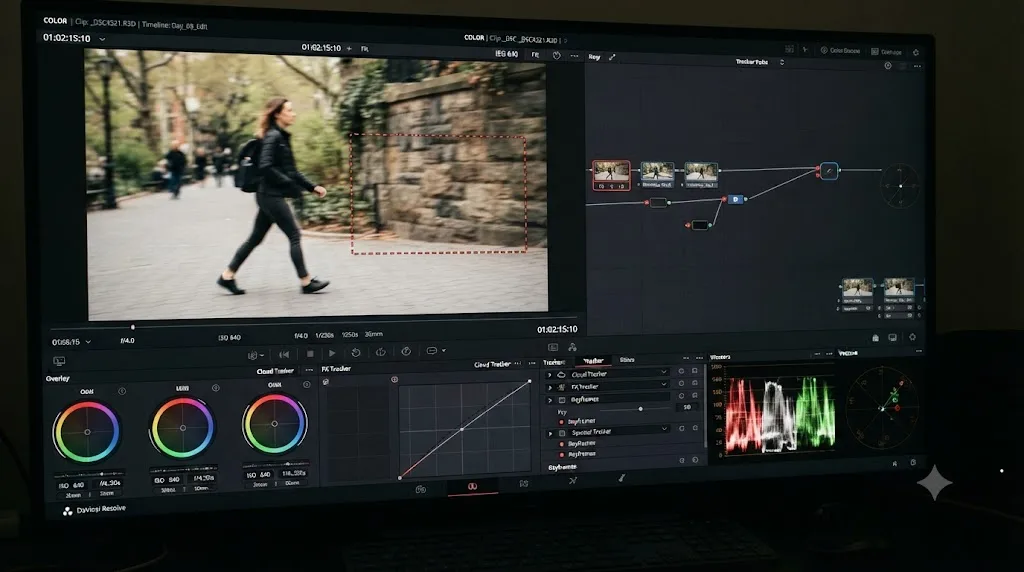
This is the failure mode that feels the most like the tool is simply bad at its job, and it's also the one with the clearest technical explanation. Smart Reframe's automatic mode is doing real-time object detection and tracking, the same underlying category of technology as Resolve's other Neural Engine tracking tools, and every tracker of this kind has known weaknesses: fast motion, motion blur, low contrast between subject and background, multiple similarly prominent subjects, and shots with no single obvious focal point.
A thread titled "Smart Reframe Not working properly" on the Blackmagic Forum describes exactly this pattern: the tool loses its subject entirely, with the frame drifting completely off the intended target after just a few minutes of footage. A separate thread about the tool's timing, "Smart Reframe keyframes lags by about 2s behind action", describes the reframe consistently arriving after the action it's supposed to be following, getting progressively worse toward the end of a clip, with one report of the frame moving in the opposite direction from the person it was meant to be tracking.
A third thread, simply titled "Fix auto reframe", reports the tool clinging to nothing in particular and veering toward random points in the frame specifically on static or slow-panning shots where there's no clearly dominant subject for the detection pass to lock onto.
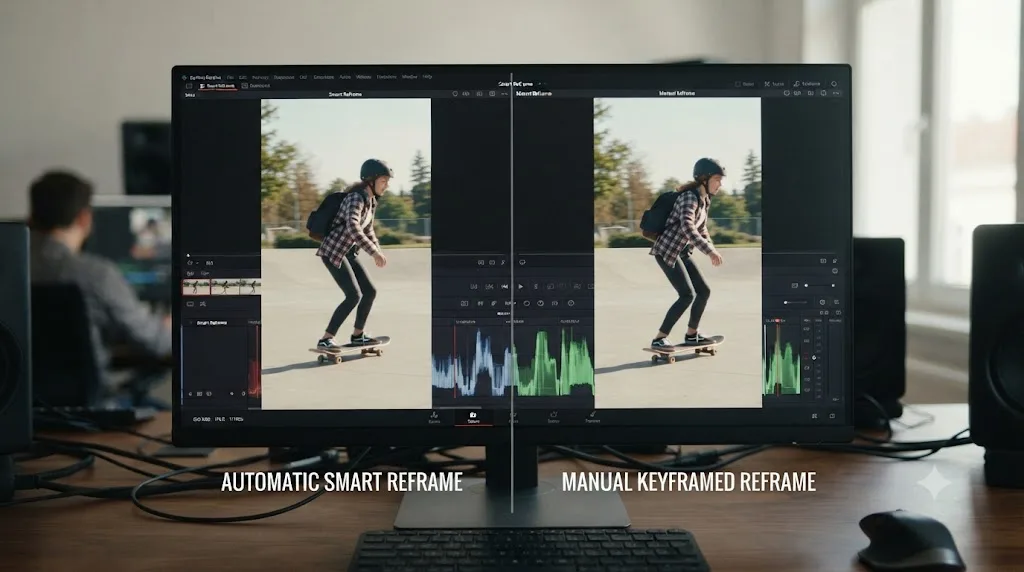
Taken together, these reports point at the same underlying reality: Smart Reframe's automatic subject detection works best on a single clear subject in reasonable light with moderate motion, and degrades in predictable ways outside that zone. The fix that recurs across these reports isn't a settings change. It's switching the Object of Interest dropdown in the Smart Reframe controls from Auto to Reference Point, where you drag a bounding box directly onto the subject you want tracked instead of trusting the detection pass to guess correctly. Reference Point doesn't eliminate tracking drift entirely, since it's still the same underlying tracker doing the work frame to frame, but it removes the single biggest source of error: the tool choosing the wrong subject in the first place.
There's also a length effect worth separating from shot difficulty entirely. The same "Smart Reframe Not working properly" thread notes that tracking holds up noticeably better on shorter clips, and grows more prone to timing lag and drift the longer a single continuous take runs, independent of how hard the shot itself is to track. If you've got a five-minute unbroken interview take you want reframed, consider splitting it at natural cut points first and running Smart Reframe on each segment separately, rather than trusting one long automatic pass to stay locked on for the full duration. Variable frame rate source footage compounds the same underlying timing problem, since Smart Reframe's keyframe timing and the clip's actual playback timing can drift apart when the frame rate itself isn't constant throughout the file.
Practical guidance by shot type:
- A single person talking to camera, well lit, moderate movement: automatic mode usually works acceptably on the first pass.
- A wide shot with multiple people or no dominant subject: switch to Reference Point immediately and click your actual subject rather than letting Auto guess.
- Fast action, sports, or handheld run-and-gun footage: expect drift regardless of mode, and plan to review and hand-correct keyframes rather than trusting a single automatic pass.
- A subject that exits and re-enters frame: Smart Reframe doesn't reliably re-acquire a subject it lost, so break the clip at the point of exit and re-run tracking separately on the segment where the subject returns.
- A long, unbroken take of any kind: split it at natural cut points before reframing, even if the content itself is easy to track, since duration alone degrades accuracy over several minutes.
Why does Smart Reframe add black bars or move the frame vertically when it shouldn't?
A distinct complaint, separate from losing the subject entirely, is Smart Reframe repositioning the frame on an axis where it clearly shouldn't need to. A Blackmagic Forum thread bluntly titled "Is it just me or is smart reframe fundamentally flawed?" lays this out clearly: Smart Reframe adjusts position on both the X and Y axis by default, even in cases where the Y axis is already using the clip's full height and has nowhere useful to move. The result is unwanted vertical drift that introduces blank space, black bars, at the top or bottom of an otherwise correctly framed shot.
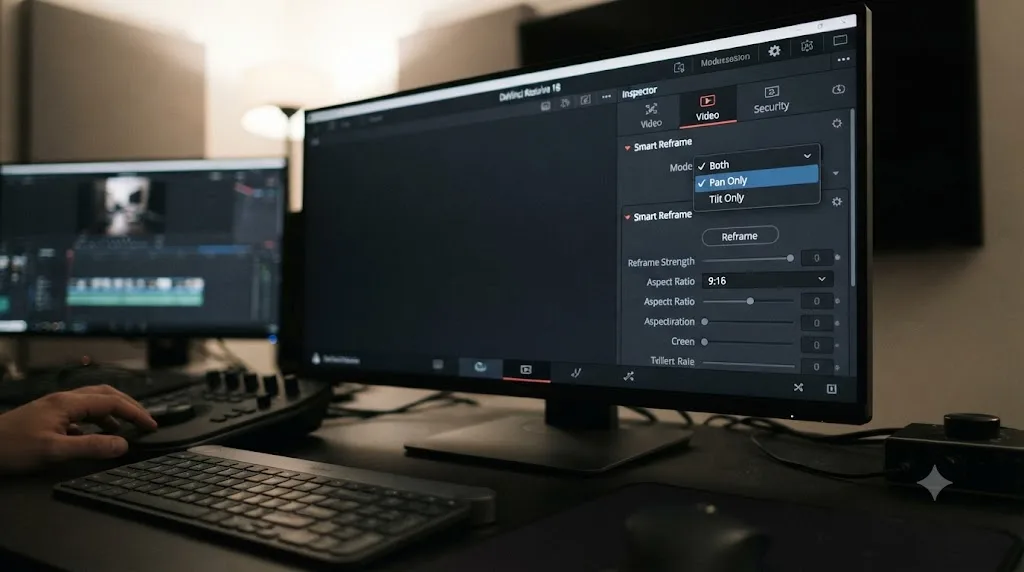
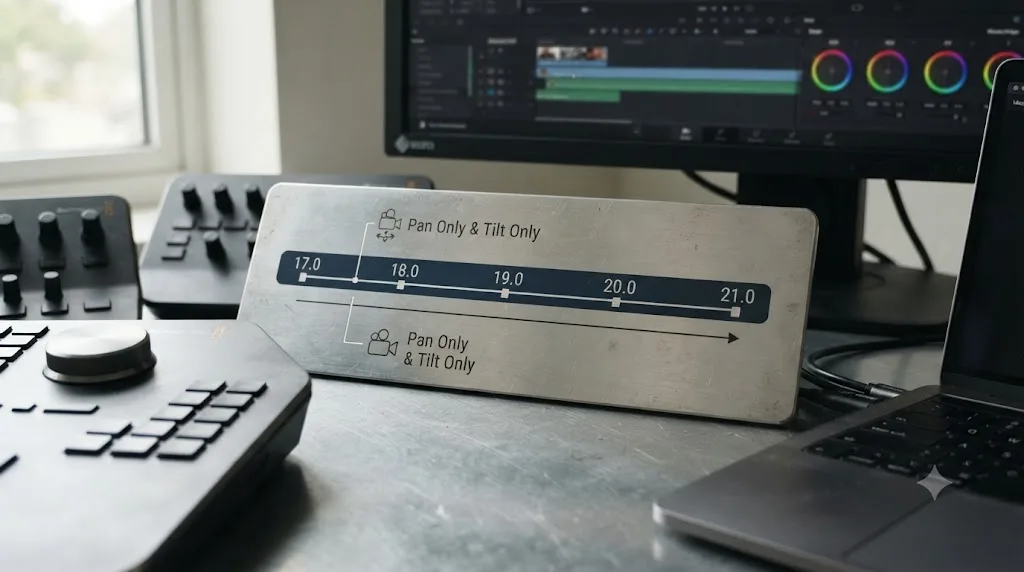
The thread's requested fix, restricting Smart Reframe to horizontal-only movement for straightforward 16:9-to-9:16 conversions where vertical repositioning is rarely needed, has since shown up as an actual feature. Recent versions of Resolve, including the updates covered in Blackmagic's DaVinci Resolve 21 New Features Guide and the earlier 20.1 New Features Guide, add Pan Only and Tilt Only modes directly to the Smart Reframe controls, alongside the original Both mode. Pan Only restricts the automatic reframing to horizontal movement, which is exactly the option that black-bar reports were asking for.
If Smart Reframe is adding black bars on a shot where the subject is already properly framed vertically, switching its mode from Both to Pan Only usually removes them entirely, because it stops the tool from making unnecessary Y-axis adjustments in the first place. This is worth checking before you assume the tool is fundamentally broken; it's often a mode setting rather than a tracking failure.
If you're on an older version of Resolve without Pan Only and Tilt Only as options, the workaround is manual: let Smart Reframe run, then select all its Y-axis keyframes on the Transform track and delete or flatten them, leaving only the X-axis pan keyframes intact.
Why does Smart Reframe create dozens of keyframes instead of a smooth move?
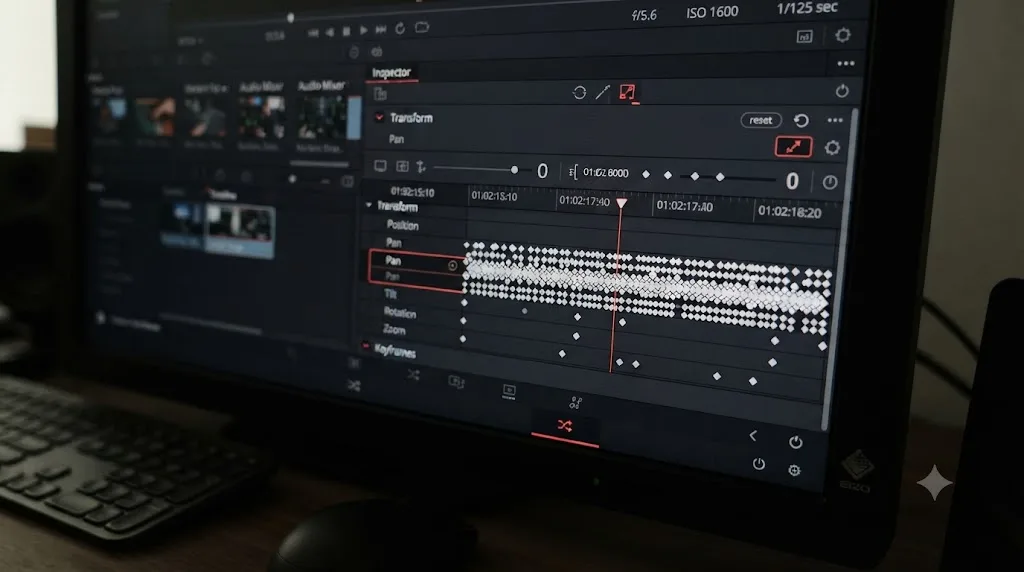
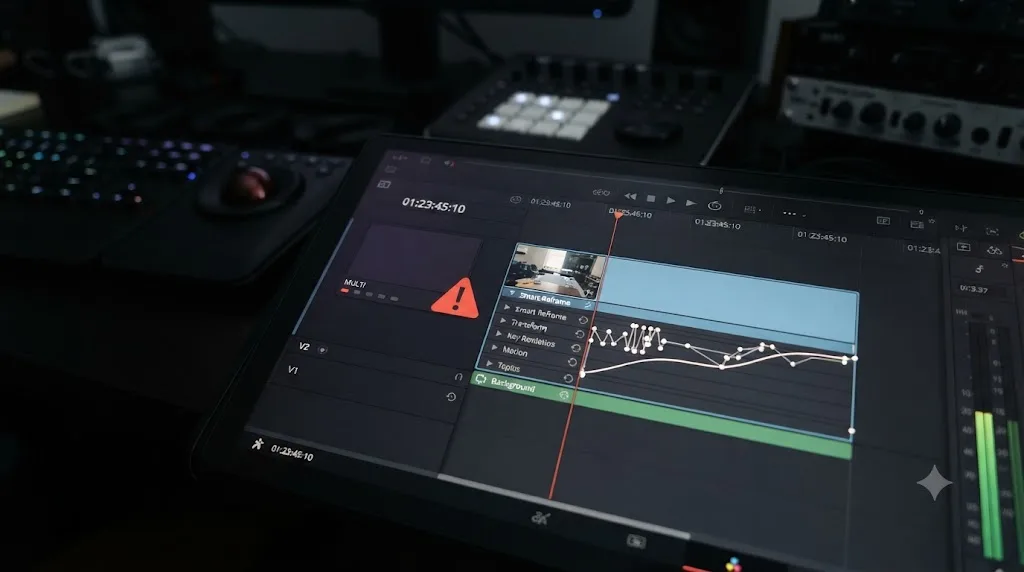
A more mechanical complaint shows up in a Blackmagic Forum thread specifically about Smart Reframe generating too many keyframes, describing 40 to 70 keyframes appearing on a single clip's Transform track after one automatic pass, far more than a human colorist would ever hand-key for the same move, and asking whether a "delete all" option exists for clearing them quickly.
This ties directly back to the tracking-confidence problem covered above. When the underlying object detection isn't confident about the subject's exact position frame to frame, Smart Reframe doesn't smooth over that uncertainty. It writes a correction keyframe every time its estimate shifts, which on a noisy or difficult shot means a keyframe every few frames instead of a handful of clean anchor points across the whole clip. The result plays back as a jittery, over-corrected move rather than a smooth pan.
A Smart Reframe pass with dozens of keyframes on a single clip is a symptom of low tracking confidence, not a separate bug from tracking drift. The practical responses:
- Select every Smart Reframe keyframe on the clip's Transform Zoom, Pan, and Tilt parameters in the Keyframes panel, and delete them before re-running the tool, rather than layering a second automatic pass on top of a messy first one.
- Fix the underlying cause first, usually by switching to Reference Point targeting, then re-run Smart Reframe on a clean slate.
- If the shot is short and the jitter is minor, manually thin the keyframes afterward by deleting every second or third one and letting Resolve's default interpolation smooth the gaps, rather than deleting the whole set and starting over.
- For a shot you know in advance will be difficult, skip automatic Smart Reframe entirely and hand-key three or four Transform positions yourself. It's often faster than cleaning up an over-corrected automatic pass.
Can you apply Smart Reframe to multiple clips at once?
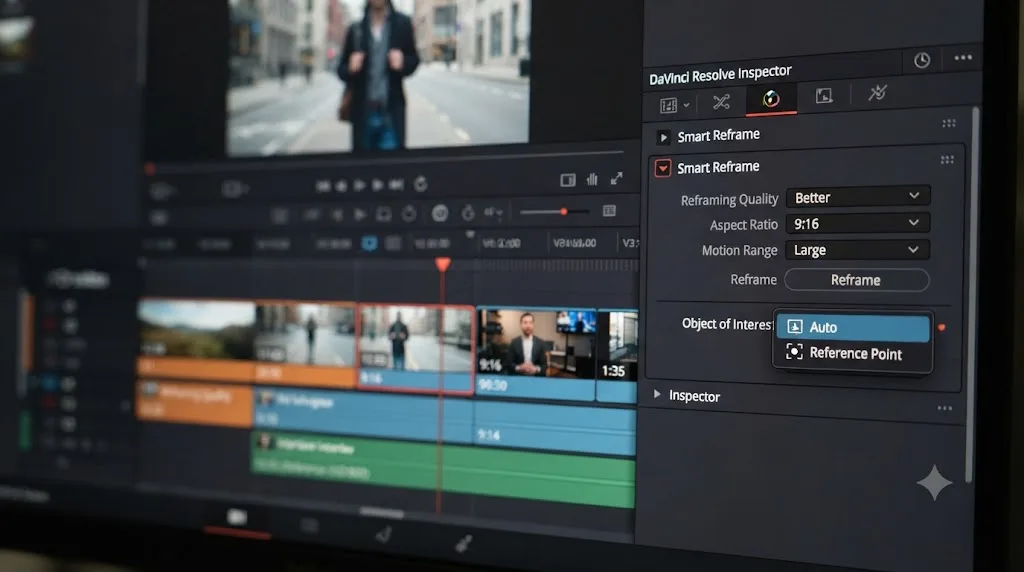
Yes, and this is where the tool's naming gets specific enough to matter. The control that decides what Smart Reframe tracks is a dropdown in the Inspector called Object of Interest, and it has two settings: Auto and Reference Point.
Auto is what most people mean when they talk about "automatic mode": Resolve's Neural Engine picks the subject for you, on every clip, with no input from you beyond clicking Reframe. Reference Point is the manual alternative referenced throughout this guide. Choosing it exposes a Target icon next to the dropdown; clicking it switches the Viewer into Smart Reframe mode and lets you drag a bounding box onto the subject you actually want tracked, clip by clip, according to the DaVinci Resolve manual's page on Smart Reframe's Object of Interest controls.
That second part is the detail worth knowing before you try to batch a whole timeline. If you select more than one clip and open Smart Reframe, Auto is the only Object of Interest setting available. Reference Point requires a target set by hand, and a hand can only point at one clip's Viewer at a time, so Resolve simply doesn't offer it as a multi-select option. To batch-apply Smart Reframe across a run of clips:
- Select every clip you want reframed in the timeline (shift-click, or drag a selection box across them).
- Open the Inspector's Transform section and find Smart Reframe.
- Confirm Object of Interest is set to Auto. It's the only option Resolve will let you choose with multiple clips selected.
- Click Reframe. Resolve analyzes and keyframes every selected clip in one pass.
This is efficient for a run of similar shots, a sit-down interview cut into several clips, or a sequence of B-roll where the framing logic is the same throughout. It's a poor fit for a timeline with mixed shot types, because Auto will make its own subject-detection call on every single clip with no chance for you to correct a bad guess until after the batch finishes. Batch Smart Reframe works best on clips you'd already trust to Auto mode individually; it doesn't make Auto smarter, it just runs the same guess across more footage at once.
If a batch pass gets some clips right and others wrong, the fix isn't to redo the whole batch. Select just the clips that came out wrong, switch Object of Interest to Reference Point one at a time, and manually target each one. You lose the speed of batching for those specific shots, but you don't have to touch the clips that already came out correctly.
Does Smart Reframe work on compound clips and multicam timelines?
Not reliably, and this is worth knowing before you build your workflow around it rather than after. Compound clips and multicam clips both wrap multiple pieces of media into a single timeline object, and Smart Reframe's Neural Engine analysis doesn't always survive that wrapping.
Compound clips. A Blackmagic Forum thread titled "Smart reframe on a compound clip" and a related thread specifically about "Resolve crashes when doing Smart ReFrame on a compound clip" both describe the same failure: running Smart Reframe on a compound clip crashes Resolve outright rather than producing a bad result you could fix. Blackmagic support responded to the crash report by saying they couldn't reproduce it on their own test builds of 18.5 and 18.5.1, and asked the reporting user for diagnostic logs and their exact project and media resolutions, which points to this being an edge case tied to specific project conditions rather than something that fails for every compound clip on every system.
Multicam clips. The failure mode here is different, and in a way more frustrating, because Smart Reframe appears to work. A Blackmagic Forum thread about Smart Reframe on multicam timelines describes reframing a multicam clip successfully, seeing the Transform keyframes appear correctly on the selected angle, and then losing all of it the moment that multicam clip gets placed into a new timeline. The keyframes exist on the multicam clip itself, not on the timeline instance of it, and something in how Resolve hands that clip off to a fresh timeline drops them.
The workaround suggested in that thread is a rendering detour rather than a settings fix: render the reframed multicam clip out to an intermediate codec, Cineform, DNxHR, or ProRes, before bringing it into the timeline where you actually need it. Baking the reframe into real pixels sidesteps the keyframe-handoff problem entirely, at the cost of an extra render pass and a file you now have to manage.
A practical order of operations avoids both problems. Rather than discovering the crash or the keyframe loss mid-project, build your workflow around this sequence instead:
- Do your multicam cutting and angle switching first, on the multicam clip, before any reframing.
- Flatten the multicam clip to a single video track, or render it out to an intermediate file, once your cut is locked.
- Run Smart Reframe on the flattened, single-track result, not on the live compound or multicam object.
- If you still need to make cut changes after this point, expect to redo the reframe pass, since it's tied to the flattened clip, not the original multicam group.
This is slower than reframing directly on a compound or multicam clip would be if it worked cleanly, but it's the difference between a workflow that fails predictably at a known point and one that crashes or silently drops your work partway through a project. Treat Smart Reframe as a tool for individual, flattened clips, not for the compound or multicam objects Resolve builds on top of them.
Does GPU memory or hardware cause Smart Reframe to fail?
Smart Reframe's analysis runs through DaVinci Resolve's Neural Engine, the same GPU-accelerated machine learning system behind features like Magic Mask, Speed Warp, and face detection. According to No Film School's coverage of Resolve's AI and Neural Engine features, these tools rely on deep neural networks running through the GPU rather than the CPU, which is a meaningfully different compute path from ordinary color correction or cutting.
Blackmagic hasn't published a documented GPU requirement specific to Smart Reframe separate from Resolve Studio's general system requirements, and I want to be honest that the evidence here is thinner than the proxy and resolution causes above. One poster on the same "Smart Reframe Refuses To Work" thread cited above went further and reported the tool only working reliably on machines with a dedicated graphics card, rather than integrated graphics, though that's a single anecdotal report rather than a documented spec, and I'd treat it as a reason to check your GPU setup rather than a hard rule.
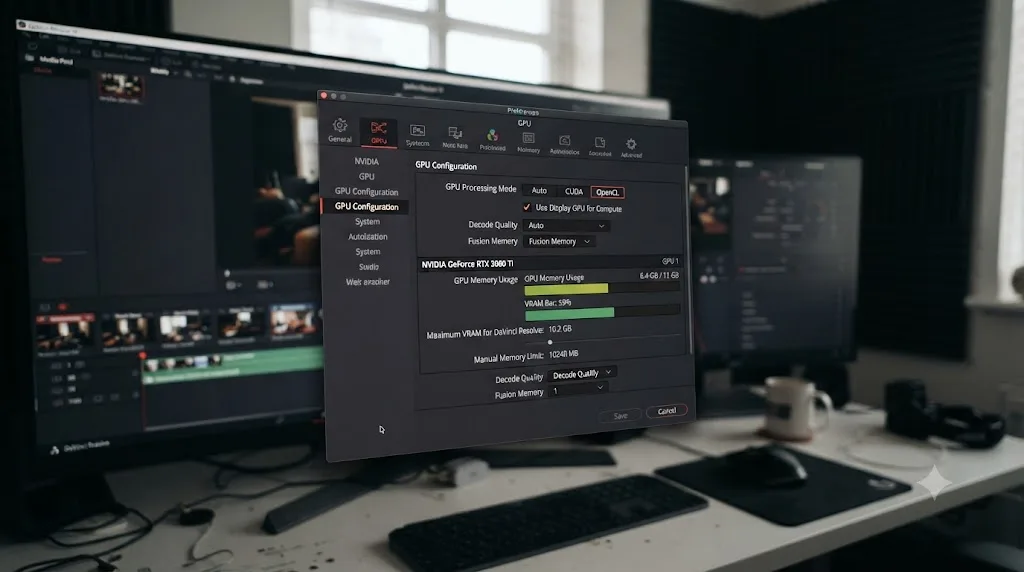
What's well established, though, is that Neural Engine tools compete for the same pool of GPU memory. If you're running Smart Reframe on a timeline that also has active noise reduction, an open Magic Mask node, or several other GPU-heavy effects processing simultaneously, you're a more likely candidate for the tool stalling, running extremely slowly, or failing outright, particularly on higher-resolution footage.
The practical check, drawn from Resolve's own Memory and GPU preferences documentation:
- Close or disable other GPU-intensive nodes and effects on the timeline before running Smart Reframe, especially noise reduction and Magic Mask.
- Check Preferences > System > Memory and GPU and confirm your GPU processing mode matches your actual hardware rather than sitting on Auto, particularly if you have more than one GPU installed.
- If you're working in 4K or higher, consider running Smart Reframe on a lower-resolution proxy-free duplicate timeline first (see the full-resolution timeline fix above for the correct order of operations), rather than fighting the tool on your heaviest possible frame size.
Smart Reframe shares the same GPU memory pool as every other Neural Engine feature in DaVinci Resolve, so a GPU already under pressure from noise reduction or Magic Mask is a reasonable first suspect if reframing specifically stalls on demanding footage. If you're chasing an outright GPU memory error rather than a quiet stall, that's a distinct and related problem covered in more detail below, since it's also the leading cause of Smart Reframe crashing Resolve outright rather than just running slowly.
Why does DaVinci Resolve crash when you run Smart Reframe?
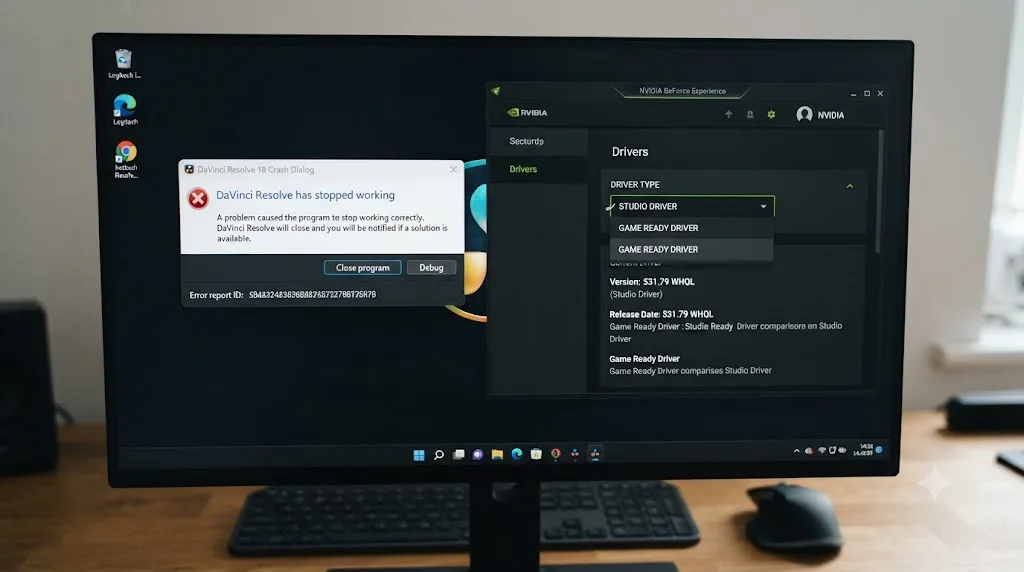
A hard crash is a different problem from a stall or a tool that quietly does nothing, and it has its own, narrower set of documented causes. Beyond the compound clip crash covered above, a Blackmagic Forum thread simply titled "Bug - Smart Reframe Crash-" describes Resolve crashing during a Smart Reframe pass on ordinary, non-compound footage, with the crash tied to the GPU driver rather than the project structure. The user who reported it resolved the crash by switching to a Studio Driver build rather than a consumer Game Ready driver on their NVIDIA GPU.
That distinction matters because the two driver types are tuned differently. Game Ready drivers prioritize the newest games and get updated on a fast cycle that doesn't always prioritize stability for professional GPU compute workloads like Resolve's Neural Engine. Studio Drivers, published separately by NVIDIA specifically for creative applications, update less often but go through validation against apps like Resolve before release. If Smart Reframe is crashing Resolve on demanding footage and you're on a Game Ready driver, switching to the Studio Driver channel is a documented fix worth trying before you assume a hardware fault.
There's a second wrinkle worth knowing if a Smart Reframe crash happens more than once in the same session. Forum reports describe GPU memory not fully releasing after the initial crash, so Resolve reopens the project already carrying leftover allocation, and the next attempt fails faster with an explicit "video memory full" message instead of a silent crash. If that happens to you, don't just reopen the project. Fully quit Resolve, confirm no background Resolve process is still running (Task Manager on Windows, Activity Monitor on Mac), and relaunch before trying Smart Reframe again.
A Smart Reframe crash has three practical causes worth checking in order: a compound or multicam clip as the direct target, an outdated or non-Studio GPU driver, and leftover GPU memory from a previous crash in the same session. None of these are things Smart Reframe itself does wrong; they're the same categories of instability that affect any GPU-heavy Neural Engine feature in Resolve. Smart Reframe just tends to surface them first, because it's one of the more GPU-intensive tools in the Inspector.
If you've ruled out all three and Resolve still crashes specifically on Smart Reframe, generate a diagnostic log through Resolve's built-in crash reporter (or the Help menu, depending on your version) and file it with Blackmagic support directly, the way the compound clip reporter above did. Blackmagic's own response in that thread, that they couldn't reproduce the crash without the reporter's specific project and media resolution details, is a fair reminder that some of these failures are narrow enough that only your exact project can reproduce them.
Is Smart Reframe only good for horizontal-to-vertical, or does it handle other aspect ratio changes too?
Almost everyone who searches for this tool is trying to solve one specific problem, turning a 16:9 timeline into 9:16 for Shorts, Reels, or TikTok, so it's worth being explicit that Smart Reframe isn't limited to that conversion. Blackmagic's own manual describes it working across "extreme aspect ratio changes" generally, and specifically calls out 4:3 archival footage going into a 2.39:1 widescreen movie as a use case, a conversion that has nothing to do with social video at all.
That matters because the direction of the crop changes what Smart Reframe is actually doing. Going from 16:9 to 9:16, you're cutting a tall, narrow window out of a wide frame, so the tool's job is almost entirely about horizontal position: where in that wide frame does the narrow window sit. Going from 4:3 to 2.39:1, you're doing something closer to the opposite, cutting a short, wide window out of a taller, narrower frame, which puts more weight on vertical position and makes the Pan Only and Tilt Only modes covered earlier genuinely useful in both directions rather than just for stopping unwanted vertical drift on vertical conversions.
If you're delivering the same source to more than one platform, it's worth thinking about the destination ratios as a set rather than running Smart Reframe once per platform from scratch:
| Destination | Aspect ratio | Practical note |
|---|---|---|
| YouTube Shorts, Reels, TikTok | 9:16 | The conversion Smart Reframe is built and tested for most; Pan Only usually suffices for a centered subject |
| Instagram, LinkedIn feed | 1:1 or 4:5 | Less extreme crop than 9:16; Smart Reframe has more room to work with and typically needs fewer corrections |
| Standard YouTube, most streaming | 16:9 | Usually your source ratio already; Smart Reframe isn't needed unless you're converting from something else |
| Archival or mismatched source into a widescreen deliverable | 2.39:1 or similar | The use case named directly in Blackmagic's own documentation; expect to lean on Reference Point and Tilt Only more than on the social conversions |
A practical habit worth adopting: duplicate your master timeline once per destination ratio before running Smart Reframe on each duplicate, rather than reframing, exporting, undoing, and reframing again on the same timeline. Smart Reframe's keyframes are specific to a timeline's resolution and aspect ratio; keeping each ratio on its own timeline means you can revisit or tweak any one of them later without disturbing the others.
Is Smart Reframe as fast and accurate as Adobe Premiere Pro's Auto Reframe?
This isn't a question Blackmagic answers, so it's worth going to an independent source rather than guessing. Elements Media Storage ran a side-by-side comparison of Smart Reframe against Premiere Pro's equivalent Auto Reframe feature, testing identical clips in both applications, and the results are worth knowing before you assume Resolve's version is the industry standard simply because Resolve is your main editor.
On processing speed, the gap was substantial: "Resolve's Smart Reframe feature ran at 39 fps and required about 19 seconds for a 30-second clip (H264 4Kp25)," while "Premiere Pro required just around 4 seconds" for the same clip, according to that test. On keyframe output, the article reports Smart Reframe generating 19 to 31 percent more keyframes than Premiere Pro's Auto Reframe across its test clips, consistent with the low-confidence, over-correction pattern covered earlier in this guide. On visual quality, the article's assessment was that Smart Reframe "produces more unnatural-looking results due to unnecessary and often fast movement" and adds motion even to shots that were static in the original framing, where Premiere's tool left static shots alone.
Smart Reframe did come out ahead on one point: manual control. The article credits Resolve's Reference Point option as a meaningful advantage over Premiere Pro's more limited manual adjustment options, giving you more direct control over what gets tracked when Auto guesses wrong.
In one independent benchmark, DaVinci Resolve's Smart Reframe processed footage roughly five times slower than Adobe Premiere Pro's Auto Reframe on an identical clip, and produced meaningfully more keyframes doing it. I want to flag the limits of this comparison honestly: it's one test, on one clip type, on an Intel-based Mac, and results on Apple Silicon or a high-end Windows GPU workstation could look different. It's also not a reason to abandon Resolve if that's your editor of choice; the two tools aren't interchangeable once you factor in everything else Resolve does. But if you regularly reframe long-form content and speed genuinely matters to your deadline, and you have both applications available, it's a real, sourced data point worth factoring into that decision rather than something to dismiss as marketing.
What's the complete fix order, step by step?
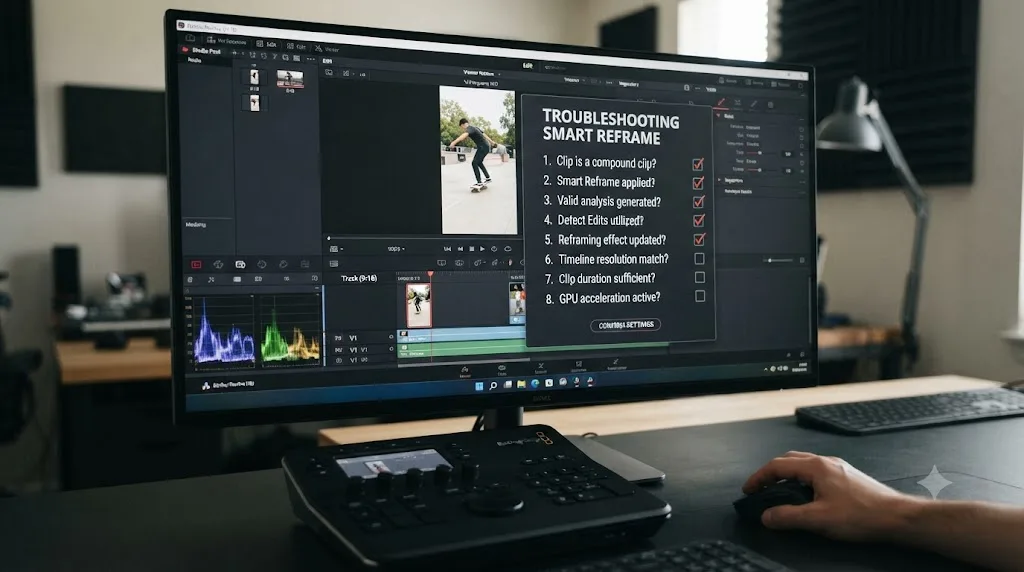
Rather than jumping straight to the most dramatic fix, work through these in order. The earlier steps resolve the large majority of reports; the later ones are for cases the first few don't cover.
- Confirm you're on Resolve Studio. No Smart Reframe button means there's nothing to troubleshoot; you're looking at a licensing limitation, not a bug.
- Set Proxy Handling to Prefer Camera Originals under the Playback menu, and confirm Timeline Proxy Resolution is Full in Timeline Settings. This alone fixes the most commonly reported "does nothing" symptom.
- Compare your timeline resolution to your source footage's native resolution. If the timeline is scaled well below the source, duplicate it, set the duplicate to native resolution, run Smart Reframe there, then switch the resolution back for delivery.
- Set Mismatched Resolution Files to Scale Full Frame With Crop in Timeline Settings' Format tab, so Smart Reframe analyzes a fully filled, undistorted frame.
- Switch Object of Interest to Reference Point instead of Auto if your shot has multiple people, low contrast, or no single obvious subject.
- Choose Pan Only or Tilt Only in the Smart Reframe mode selector if you're getting unwanted movement or black bars on an axis that's already correctly framed.
- Delete existing Smart Reframe keyframes before re-running the tool rather than stacking a new automatic pass on top of a jittery old one.
- Don't run Smart Reframe directly on a compound or multicam clip. Flatten it to a single track or render it to an intermediate file first, since the live object has been reported to crash Resolve or drop its keyframes on handoff to a new timeline.
- Free up GPU memory by closing other Neural Engine tools and heavy nodes elsewhere in the project before reframing demanding 4K or higher footage.
- If Resolve crashes during Smart Reframe, check your GPU driver channel. Switch from a Game Ready driver to a Studio Driver, and fully relaunch Resolve rather than reopening the project, to clear any leftover GPU memory from the crash.
- Fall back to manual Transform keyframes for shots that still won't track correctly after all of the above, particularly fast action or a subject that leaves and re-enters frame.
Is Smart Reframe worth using at all, or should you just reframe by hand?
It's worth being direct about this rather than treating Smart Reframe as something you should force into working on every shot. Scott Simmons, writing for ProVideo Coalition when Smart Reframe first launched in Resolve 17, put it plainly: "Finally, I have to mention the new Smart Reframe that will be useful as you reformat your edits for social media." He also called it "an inevitable addition" given how much editing work now ends up reformatted for vertical delivery, while noting that any real time savings on the reformatting pass, not a guarantee of a perfect automatic result, is the actual value on offer.
That framing has held up, and the independent benchmark against Premiere Pro's Auto Reframe covered above only sharpens it. Smart Reframe is a time-saving first pass for straightforward shots, not a guaranteed hands-off solution for every shot in a timeline, and it isn't the fastest or cleanest tool of its kind on the market. The decision that actually matters isn't "does Smart Reframe work," it's which shots are worth handing to it in the first place, and whether Resolve's other strengths outweigh a slower, jitterier reframe pass if speed is genuinely what you need.
| Shot type | Recommended approach |
|---|---|
| Single subject, static or slow camera move, good lighting | Smart Reframe, Auto mode, review before trusting |
| Multiple people or no clear focal point | Smart Reframe, Reference Point targeting |
| Fast action, sports, handheld run-and-gun | Manual Transform keyframes from the start |
| Subject exits and re-enters frame | Break the clip; manual keyframes around the gap |
| Static wide shot, nothing moving through frame | Skip Smart Reframe; a single fixed crop is faster and steadier |
| Long-form talking head over several minutes | Split into shorter segments, reframe each with Smart Reframe, review the full length for drift before trusting it |
| Compound clip or multicam clip | Flatten or render out first; never target the live compound or multicam object directly |
| High-volume, deadline-driven batch reframing across many platforms | Consider whether a faster tool fits your deadline better than Resolve's Smart Reframe, based on the independent speed comparison above |
Does this behave differently on Mac versus Windows or Linux?
Smart Reframe's controls, modes, and menu locations are identical across Mac, Windows, and Linux; nothing about how you access or configure the tool changes by platform. Where platform can matter is the GPU branch covered above. On a Mac, Neural Engine processing runs through Apple's Metal framework and Apple Silicon's dedicated hardware, which tends to handle AI workloads more predictably than a Windows or Linux system juggling multiple GPU processing mode options, CUDA, OpenCL, or Auto, especially on machines with more than one installed GPU.
That doesn't mean Mac users are immune to the proxy, resolution, or tracking-confidence causes covered earlier, all of which are platform-independent and account for the overwhelming majority of real reports. It means that if you've ruled out every other cause and you're specifically seeing Smart Reframe stall or behave erratically only on your most GPU-demanding footage, a Windows or Linux system with a GPU processing mode set to Auto is a slightly more likely place to find that particular problem than a Mac is.
One more platform detail worth flagging: the independent Smart Reframe versus Premiere Pro Auto Reframe benchmark cited earlier in this guide was run on an Intel-based MacBook Pro, not an Apple Silicon machine or a Windows workstation. Intel Macs are several generations behind Resolve's current minimum recommendations and have no dedicated Neural Engine hardware the way Apple Silicon does, so that specific 19-second processing time is more a floor than a representative number for current hardware. Treat the comparison's conclusion, that Smart Reframe runs slower and generates more keyframes than Premiere's equivalent, as the durable finding, and treat the exact seconds as tied to one specific, now-dated machine.
Does this differ across Resolve versions?
Smart Reframe launched in Resolve 17 as a Studio-only feature and has been actively revised since. The Pan Only and Tilt Only modes covered above are the most significant recent addition, appearing in the update cycle documented in Blackmagic's 20.1 and 21 New Features Guides, specifically to address the unwanted vertical movement that earlier versions' Both-only mode produced. If you're troubleshooting black bars or unwanted Y-axis drift on an installation that only shows a single Both mode with no Pan Only or Tilt Only option, updating Resolve is worth doing before you spend time on manual keyframe cleanup as a permanent workaround.
The proxy handling, timeline resolution, tracking-confidence, compound clip, and multicam issues covered earlier in this guide are not tied to a specific version. Forum reports describing them span multiple release cycles, which tells you these are structural characteristics of how Smart Reframe's analysis pipeline and keyframe handoff work, not bugs specific to one build that a later patch quietly fixed. Blackmagic does ship frequent maintenance updates that touch keyframe handling and vertical-timeline behavior elsewhere in Resolve, so it's always worth updating to the current point release before assuming a persistent problem is unfixable, but don't expect a version bump alone to resolve a proxy mismatch, a compound clip crash, or a genuinely difficult tracking shot.
What's a full worked example, start to finish?
Here's how this plays out on an actual project, working through the causes in the order they're worth checking.
An editor delivers a 16:9 interview to a vertical 9:16 cut for Instagram. The subject sits mostly still, well lit, single person, ordinary talking-head framing. Clicking Auto on Smart Reframe does nothing at all, no progress indicator, no keyframes appear.
- Check Proxy Handling first, since this is the most common cause for exactly this symptom. Playback > Proxy Handling is set to Prefer Proxies, left over from editing performance settings earlier in the project. Switching it to Prefer Camera Originals and confirming Timeline Proxy Resolution is Full gets Smart Reframe running immediately on the next attempt.
- Auto mode correctly identifies the single seated subject and produces a clean pan-and-scale move with a small, reasonable number of keyframes, since the shot has exactly the low-difficulty characteristics that automatic mode handles well.
- A quick full-length review confirms no drift; the subject stays centered from the first frame to the last.
Total time from "nothing happens" to a finished vertical cut: under five minutes, because the actual cause was the first thing worth checking.
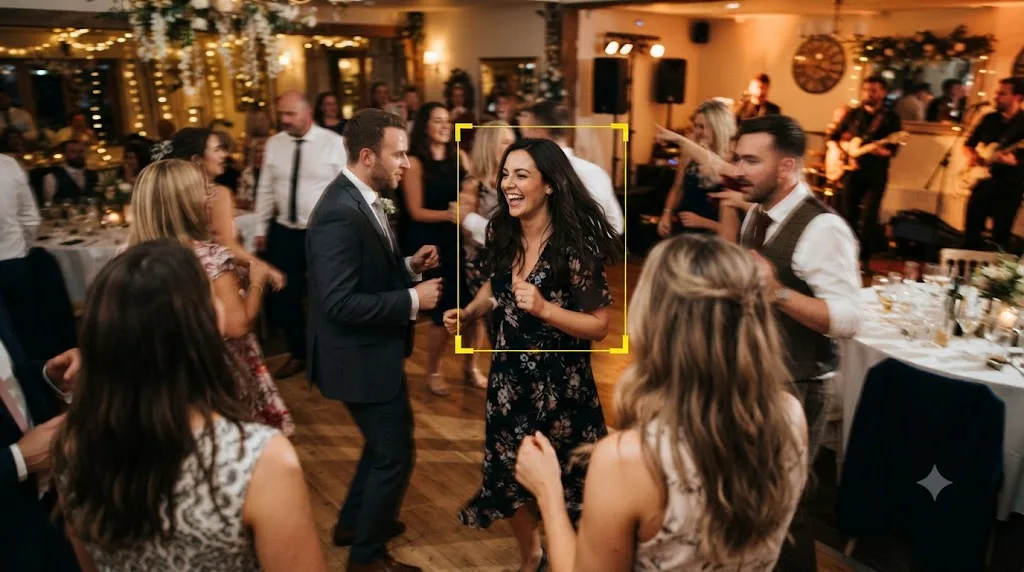
A second, harder example lands on a different branch. A wedding videographer needs a vertical highlight reel from a wide reception shot with several people moving through frame, dancing, walking past the camera, no single dominant subject. Auto mode's result whips the frame between different people every few seconds, with dozens of keyframes cluttering the Transform track.
- This isn't a proxy or resolution problem; Smart Reframe is running, just tracking badly, which points straight at the subject-detection branch.
- Deleting the existing Smart Reframe keyframes clears the jittery first pass rather than trying to patch it.
- Switching Object of Interest to Reference Point and clicking the bride specifically, the intended subject for this section of the reel, gives the tracker a fixed target instead of letting it guess among several moving people.
- Re-running Smart Reframe with that manual target produces a stable, much cleaner result, though the editor still reviews the full clip afterward, since even Reference Point targeting can lose lock during a fast dance move or when the subject briefly leaves frame.
- For the two seconds where the bride steps fully out of frame, the editor breaks the clip there and hand-keys a fixed frame rather than trusting either automatic or manual tracking to invent a sensible position with no subject present at all.
A third example shows the compound-clip and multicam trap in action, and it's worth walking through because the failure here doesn't look like a failure until it's too late. A podcast production team records a three-camera multicam setup, cuts the episode using multicam angle switching, and needs a vertical highlight reel of one exchange for social. They select the multicam clip in the timeline, open Smart Reframe, and run Auto. The keyframes appear to work, tracking the current speaker correctly angle to angle.
- They copy the reframed multicam clip into a new highlight-reel timeline to assemble it alongside other clips, exactly the kind of step that feels routine and harmless.
- The Transform keyframes are gone the moment the clip lands in the new timeline. The clip sits back at its original horizontal framing as if Smart Reframe never ran on it at all.
- Recognizing this as the documented multicam keyframe-loss behavior, rather than assuming Smart Reframe silently failed a second time or wasting an hour re-troubleshooting proxy settings that were never the issue, the editor renders the reframed multicam clip out to a ProRes intermediate file in place, on the original timeline, before touching the highlight reel.
- The rendered file carries the reframe as real pixels, not keyframes tied to a multicam object, so it drops into the highlight-reel timeline correctly and stays that way through the rest of the edit.
Same starting tool, three completely different root causes, and three completely different amounts of manual cleanup required. That's the pattern worth internalizing: a simple, well-lit, single-subject shot is close to a solved problem for Smart Reframe. A busy shot with multiple moving subjects is not, and no settings change turns it into one; it just turns it into a shot worth giving the tool better information to work with. And a compound or multicam clip is a structural mismatch with how Smart Reframe stores its results, regardless of how good the shot itself looks once reframed.
Quick troubleshooting reference
| Symptom | Likely cause | Fix |
|---|---|---|
| Clicking Auto does nothing at all | Proxy media conflict | Playback > Proxy Handling > Prefer Camera Originals; Timeline Proxy Resolution set to Full |
| No Smart Reframe controls visible anywhere | Running the free version | Studio-only feature; upgrade or reframe manually |
| Tool does nothing on a heavily scaled-down timeline | Timeline resolution far below source resolution | Duplicate timeline at native resolution, run Smart Reframe there, switch resolution back after |
| Subject drifts off frame partway through the clip | Tracker lost confidence on motion, contrast, or a busy shot | Switch Object of Interest to Reference Point |
| Frame moves vertically when the subject is already centered | Both-axis mode moving unnecessarily on Y | Switch mode to Pan Only |
| Dozens of jittery keyframes on one clip | Low tracking confidence writing constant corrections | Delete keyframes, fix the underlying cause, re-run rather than layering a second pass |
| Reference Point option is grayed out | Multiple clips selected; Object of Interest only offers Auto in multi-select | Batch with Auto, then fix individual clips one at a time with Reference Point afterward |
| Resolve crashes when reframing a compound clip | Known compound clip crash behavior | Flatten the compound clip to a single track, or file a diagnostic report with Blackmagic |
| Reframe keyframes vanish after a multicam clip moves to a new timeline | Multicam keyframes don't survive the handoff | Render the reframed clip to an intermediate codec before using it elsewhere |
| Resolve crashes on ordinary (non-compound) footage | Outdated or non-Studio GPU driver, or leftover GPU memory from a prior crash | Switch to a Studio Driver build; fully relaunch Resolve before retrying |
| Smart Reframe stalls specifically on 4K or higher footage | GPU memory pressure from other Neural Engine tools | Close other GPU-heavy nodes before reframing |
| Works fine on some clips, badly on others in the same project | Per-shot difficulty, not a project-wide setting | Handle each clip on its own merits; there's no single global fix |
The verdict
Smart Reframe not working almost never means the feature is broken. In the overwhelming majority of documented reports, it's one of a short list of specific things: a proxy media conflict stopping the analysis from starting, a timeline resolution mismatched against the source footage, a tracker losing confidence on a difficult or overlong shot, unnecessary Y-axis movement that recent versions now let you turn off with Pan Only mode, or a compound or multicam clip being asked to do a job it isn't built to survive. Work through those in order, and most "not working" reports resolve in minutes rather than hours.
What Smart Reframe won't do, on any version, with any setting correctly configured, is reliably track a genuinely hard shot the way a human editor would, or match the raw processing speed of Adobe's equivalent tool if that's what you're actually optimizing for. Busy scenes with multiple moving subjects, fast action, subjects that leave and re-enter frame, and compound or multicam clips are still faster and more reliable to keyframe or flatten by hand than to fight an automatic tracker into submission. Know which category your shot falls into before you click Auto, and you'll spend a lot less time troubleshooting a tool that was never going to handle that particular clip well in the first place.
Getting your export settings right after the reframe is done matters just as much as the reframe itself; our DaVinci Resolve export settings for YouTube guide covers the Deliver page settings for getting a vertical or square cut out the door correctly. And if you'd rather have something watch your actual project and tell you which setting is causing your specific Smart Reframe problem, live, instead of matching your symptoms to a guide, that's exactly what TryUncle is built for.
Frequently asked questions
- Why does Smart Reframe do nothing when I click Auto?
- The most common cause is a proxy media conflict. Go to Playback > Proxy Handling and choose Prefer Camera Originals, then open Timeline Settings and set the proxy resolution handling to Full. Users on the Blackmagic Forum reported Smart Reframe working immediately once it stopped trying to analyze a low-resolution proxy stand-in instead of the real frame.
- Why does Smart Reframe only move part of the picture, or leave black bars?
- Smart Reframe repositions on both the X and Y axis by default, even when the Y axis already fills the frame. That produces the black bars people report on the Blackmagic Forum. Recent versions of Resolve add Pan Only and Tilt Only modes in the Smart Reframe controls specifically to stop the unwanted vertical drift; switch to Pan Only for a straightforward horizontal-to-vertical conversion.
- Why does Smart Reframe lose the subject or track the wrong thing?
- Smart Reframe is built on the same object-tracking engine as Resolve's other AI tools, and trackers lose lock on fast motion, low contrast, motion blur, or a static wide shot with no clear subject. Forum reports describe it drifting increasingly off target as a clip goes on, or fixating on background motion when nothing dominant is in frame. Switching the Object of Interest dropdown from Auto to Reference Point and manually setting a target before running Smart Reframe fixes most of these cases. The same reports note tracking holds up better on shorter clips, so splitting a long take at its natural cut points before reframing each piece separately is also worth trying.
- Does Smart Reframe need a specific GPU?
- Smart Reframe runs through Resolve's Neural Engine, which is GPU-accelerated on every platform. It doesn't have a documented separate GPU requirement from the rest of Resolve Studio, but AI features are the first thing to choke if your GPU is already near its memory limit from noise reduction, Magic Mask, or a heavy multi-layer timeline. If Smart Reframe stalls specifically on demanding footage, closing other GPU-heavy tools first is worth trying before you blame the reframe tool itself.
- Is Smart Reframe only in DaVinci Resolve Studio?
- Yes. Smart Reframe is a Studio-only feature, gated the same way as Neural Engine tools like Magic Mask and advanced noise reduction. The free version of Resolve has no Smart Reframe button at all, so if you're on the free version, you'll need to reframe manually with the Transform tool and keyframes, or a tracker.
- Why does Smart Reframe create dozens of keyframes instead of a smooth move?
- When the automatic tracker isn't confident about where the subject is, it corrects itself constantly, and each correction writes a new keyframe onto the Transform controls. A forum thread specifically about this describes 40 to 70 keyframes appearing on a single clip. Deleting the Smart Reframe keyframes and re-running the tool after fixing the underlying tracking problem, or manually thinning the keyframes afterward, are the two practical ways out.
- Does Smart Reframe work on a timeline scaled down from a much larger source resolution?
- Not reliably. A Blackmagic Forum thread specifically about full-resolution timelines found that when the project resolution is set well below the source footage's native resolution through Timeline Settings scaling, Smart Reframe can fail to do anything at all. Duplicating the timeline at the source's native resolution, running Smart Reframe there, then changing the resolution back afterward is the documented workaround.
- Does Smart Reframe work on compound clips or multicam timelines?
- Not reliably. Running Smart Reframe directly on a compound clip has been reported to crash DaVinci Resolve outright, and reframing a multicam clip can appear to work, only for the Transform keyframes to disappear the moment that clip gets placed into a new timeline. The safer approach is to flatten a compound or multicam clip to a single video track, or render it out to an intermediate file, before running Smart Reframe on it.
Sources
- DaVinci Resolve Manual - Smart Reframe (Blackmagic Design, mirrored)
- DaVinci Resolve Manual - Timeline Resolution and Mismatched Resolution Files (Blackmagic Design, mirrored)
- DaVinci Resolve Manual - Switching Between Proxy Media and Original Media (Blackmagic Design, mirrored)
- DaVinci Resolve Manual - Memory and GPU Preferences (Blackmagic Design, mirrored)
- DaVinci Resolve Manual - Smart Reframe, Object of Interest and Reference Point (Blackmagic Design, mirrored)
- Blackmagic Forum - Smart Reframe Refuses To Work
- Blackmagic Forum - Is it just me or is smart reframe fundamentally flawed?
- Blackmagic Forum - Smart Reframe Not working properly
- Blackmagic Forum - Smart Reframe for "full res" timelines
- Blackmagic Forum - Smart Reframe -- too many keyframes, "delete all" available?
- Blackmagic Forum - Fix auto reframe
- Blackmagic Forum - Smart Reframe keyframes lags by about 2s behind action
- Blackmagic Forum - How to get "smart reframe" do a smart reframing?
- Blackmagic Forum - Smart Reframe - Multicam - Timeline Doesn't Keep Reframe
- Blackmagic Forum - Resolve crashes when doing Smart ReFrame on a compound clip
- Blackmagic Forum - Smart reframe on a compound clip
- Blackmagic Forum - Bug - Smart Reframe Crash-
- My Top Seven Features of DaVinci Resolve 17, by Scott Simmons - ProVideo Coalition
- Comparing the Auto Reframe Functions in DaVinci Resolve and Premiere Pro - ELEMENTS Media Storage
- DaVinci Resolve 21 New Features Guide (Blackmagic Design)
- DaVinci Resolve 20.1 New Features Guide (Blackmagic Design)
- The 7 Best AI and Neural Engine Features in DaVinci Resolve Studio 18.6 - No Film School
Learn by doing, not watching
Stop translating tutorials to your timeline.
TryUncle stays beside Resolve on Mac and Windows. When you ask, Uncle sees your screen and points at the exact control you need. No hunting through tabs, timestamps, or mismatched tutorials.
Meet TryUncleKeep reading
 GuidesJul 7, 202632 min read
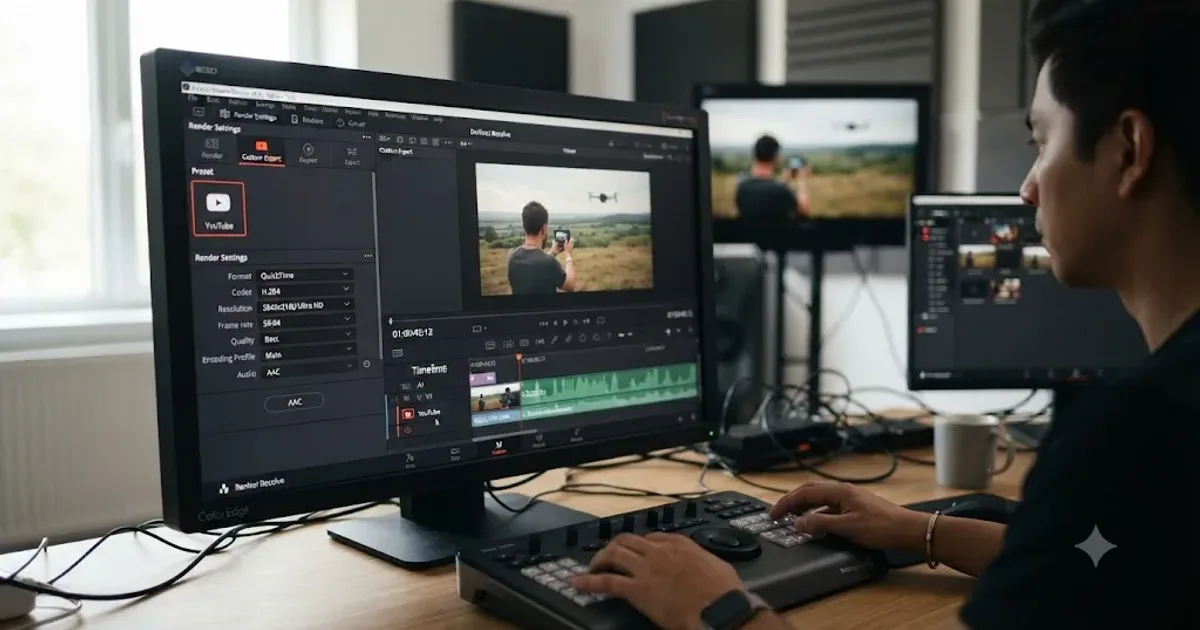
DaVinci Resolve Export Settings for YouTube (Copy These Exactly)
The exact DaVinci Resolve export settings YouTube recommends: codec, bitrate, resolution, audio, and the Deliver page steps that avoid soft uploads.
 GuidesJul 8, 202633 min read
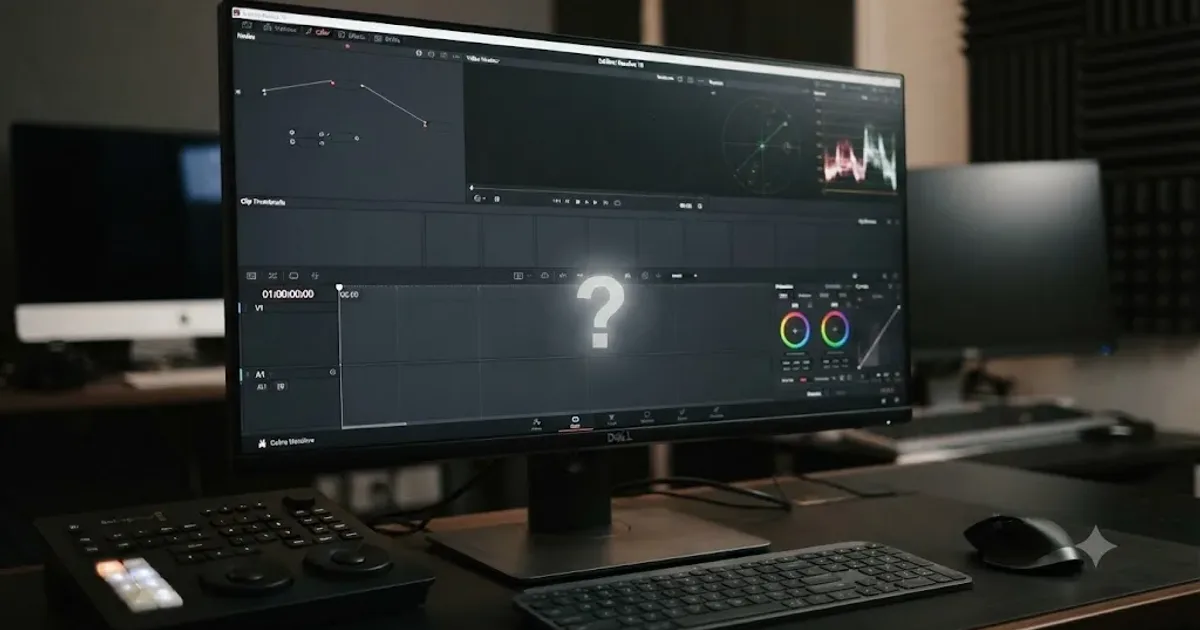
DaVinci Resolve Color Tab Not Showing Footage: Every Fix
Why DaVinci Resolve's Color page shows an empty timeline instead of your footage, and the exact filter, track, timeline, and cache fixes that solve it.
 FixesOct 10, 202631 min read
DaVinci Resolve Audio Disappears After Reopening Project? Fix It
Fix DaVinci Resolve audio that disappears after reopening a project. Diagnose missing media, moved drives, bins, proxies, timelines, and playback routing.