
Learn / DaVinci Resolveupdated for DaVinci Resolve 21.0.2 and Topaz Video (July 2026)
Topaz Video AI vs DaVinci Resolve Super Scale Upscaling
Quick answer
Topaz Video AI recovers more visible detail on soft, noisy, or compressed footage using dedicated models like Proteus and Rhea. DaVinci Resolve's Super Scale stays inside your timeline, is cleaner but softer, and needs Resolve Studio ($295 one-time). Many editors run both.
You've got footage that's too small for where it needs to go. Maybe it's a 1080p interview that has to sit next to 4K B-roll. Maybe it's an old SD archive clip a client wants blown up for a modern documentary. Either way, you've landed on the same two names every time you search for a fix: Topaz Video AI and DaVinci Resolve's own Super Scale.
We've spent seven years cutting commercial video work in Resolve, and we also run a 100,000+ member professional video-editing community where "which upscaler should I actually use" is one of the recurring questions people ask. The honest answer isn't one tool beats the other in every case. It's that they solve the same problem with a different amount of commitment, and picking wrong costs you either money, time, or a render that looks worse than the footage you started with.
As of July 2026, this comparison runs against DaVinci Resolve 21.0.2 and what Topaz Labs now sells as Topaz Video, the subscription successor to the desktop app most editors still call Topaz Video AI. We'll use both names interchangeably below, since that's how people actually search for it, and we'll flag the version deltas that matter as they come up.
The quick answer, in one table
Here's the whole comparison compressed into one place. Every row gets its own section below, with sources.
| Category | Winner | Why |
|---|---|---|
| Detail recovery on soft or noisy footage | Topaz Video AI | Dedicated models run denoise, deartifact, and sharpen in one adaptive pass |
| Convenience, staying in one app | DaVinci Resolve | Super Scale lives in Clip Attributes, no export, no second license |
| Cost for a single upscale project | DaVinci Resolve | Free to test, $295 once for Studio, versus Topaz's $299 to $699 a year |
| Model variety and specialization | Topaz Video AI | 19 named models tuned for different footage types, versus Resolve's 4 tools |
| Maximum resolution ceiling | DaVinci Resolve Studio | 2x, 3x, 4x scale factors can push HD footage as high as 8K |
| Working inside Resolve's native pipeline | DaVinci Resolve | No export, no re-import, no frame rate or color space mismatch risk |
| Archival and heavily damaged footage | Topaz Video AI | Models like Rhea and Nyx are purpose-built for reconstruction, not just scaling |
| Batch processing many clips unattended | Topaz Video AI | Dedicated queue and batch export built for exactly this |
| Free tier available | DaVinci Resolve | Free edition exists; Topaz has no free tier since October 2025 |
| Direct integration between the two | Both | Topaz ships an official OFX plugin that runs inside Resolve Studio |
Neither tool loses across the board, because "upscaling" isn't one job. What follows is the reasoning behind each row, plus the actual workflow that uses both.
What is Topaz Video AI, in one sentence?
Topaz Video AI, now sold as Topaz Video under a subscription model, is a dedicated AI video enhancement application built around a library of specialized models, each trained for a different job: upscaling, denoising, deartifacting, deinterlacing, and frame interpolation, according to Topaz Labs' own comparison of the two products.
As of 2026, that model library includes Proteus, Iris, Nyx, Rhea, Rhea XL, Artemis, Gaia, Theia, Apollo, Chronos, Aion, Themis, and the newer Starlight and Astra series, alongside dedicated SDR-to-HDR and stabilization tools, per Topaz's own product page. Each model targets a specific failure mode in source footage rather than trying to be a universal fix, which is the core design difference between Topaz's approach and Resolve's.
Topaz Video AI treats upscaling as a reconstruction problem, not a resizing problem. That single framing explains almost everything else in this comparison: why it has 19 models instead of one slider, why it runs as a separate application instead of a timeline effect, and why it costs what it costs.
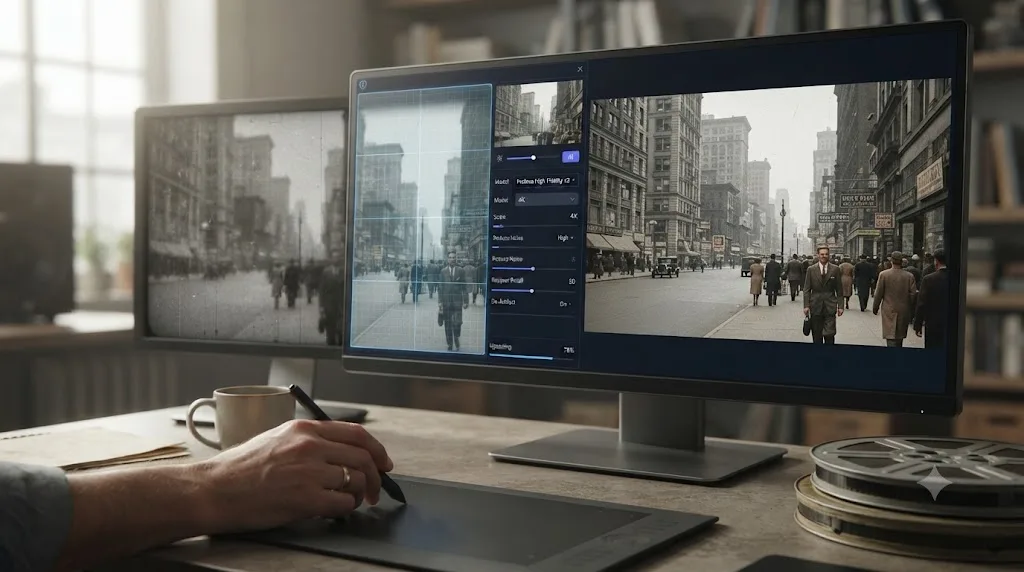
What is DaVinci Resolve's Super Scale, in one sentence?
Super Scale is a Studio-only feature in DaVinci Resolve that uses the DaVinci Neural Engine to analyze the pixels around each frame and generate plausible new detail when you scale footage up, rather than relying on the simple pixel-duplication math older upscalers use.
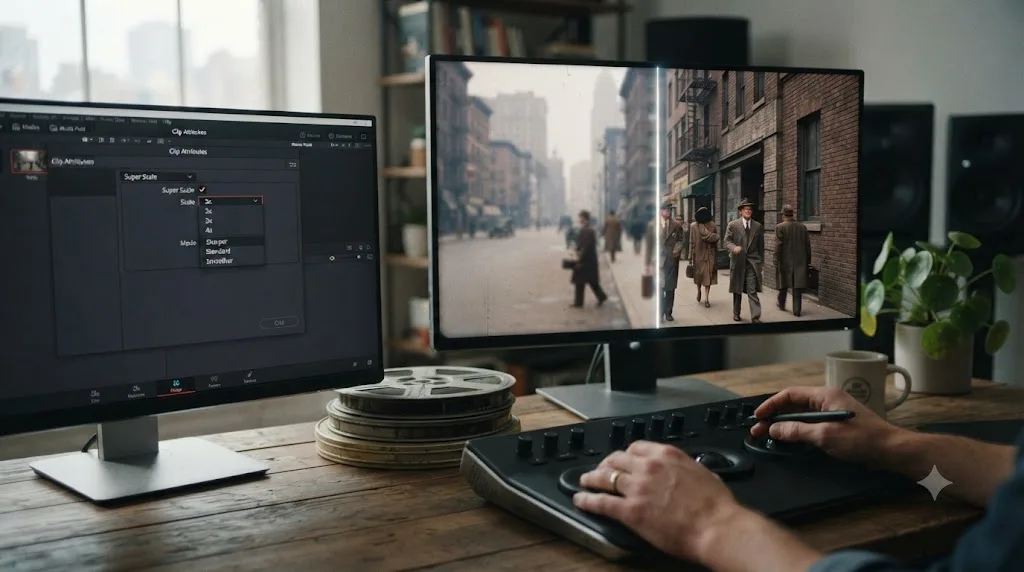
You apply it per-clip through the Clip Attributes menu, choosing a scale factor of 2x, 3x, or 4x, and a mode: Sharper, Standard, or Smoother, alongside built-in noise reduction and sharpness controls that clean up compression artifacts before the upscale magnifies them. It's a genuinely useful tool for scaling archival footage or bumping HD sources up to 4K or 8K delivery, and it never requires you to leave your project.
This is also where TryUncle enters the picture for a lot of editors doing this exact task for the first time. TryUncle is the on-screen assistant for DaVinci Resolve on macOS. Ask in plain words and Uncle points at the exact control on your screen, which matters here specifically because Super Scale's settings sit inside a Clip Attributes submenu that isn't where most editors expect to find an upscaling tool the first few times they go looking for it.
Super Scale assumes the footage is already good enough to enhance. It was never built to reconstruct footage that's genuinely damaged or heavily compressed. That's the honest starting point for understanding where it wins and where it doesn't.
Why do editors even compare a standalone app to a built-in timeline feature?
Because the two options solve the same visible problem, footage that's too small or too soft, but from opposite starting assumptions, and most editors only discover the gap between them after they've already committed to one.
Someone who upscales inside Resolve assumes their whole job should live in one app, and for cutting, grading, and delivering, that assumption is correct almost everywhere else in the software. Someone who reaches for Topaz has usually already hit a wall: a Super Scale result that still looks soft, an archival clip so damaged that no built-in tool touches it, or a client asking for restoration work that's a different job entirely from a resolution bump.
A resolution bump and a restoration job look identical in a search bar and completely different in the render. That distinction, whether your footage needs more pixels or needs actual reconstruction, is the real fork this whole comparison sits on, and it's worth answering honestly before you spend money or render time on either tool.
How does Topaz Video AI's upscaling actually work?
Topaz's models don't share one algorithm. Each one is trained on a different category of footage and failure mode, which is why picking the right model matters more in Topaz than picking a slider value ever does in Resolve.
Proteus is the general-purpose starting point, letting you manually adjust enhancement settings and working best on medium-quality footage that needs compression-artifact cleanup, mild denoising, and detail sharpening without over-smoothing the image. Artemis automates that same cleanup for footage that needs both denoising and sharpening in one pass, tuned for common camera and web-video artifacts. Rhea and its larger sibling Rhea XL are built specifically for advanced 4x upscaling, the model family you reach for when the resolution gap itself, not just softness, is the main problem. Nyx is a dedicated denoiser, useful when grain or compression noise is the dominant issue and you don't want the upscale to amplify it. Gaia targets footage that's already computer-generated or animated, a different visual profile than live-action camera noise. The newer Starlight series, including Starlight Precise and Starlight Sharp, are diffusion-based restoration models built for the hardest cases: severely damaged or extremely low-resolution source material, according to Topaz's own product materials.
| Model | Best for | Runs locally or cloud |
|---|---|---|
| Proteus | Manual-control general enhancement | Local |
| Artemis | Automated denoise plus sharpen | Local |
| Rhea / Rhea XL | Advanced 4x upscaling | Local |
| Nyx | Dedicated denoising | Local |
| Gaia | CG, animation, and GenAI footage | Local |
| Starlight (Precise, Sharp, and cloud variants) | Severe restoration, diffusion-based | Local and cloud |
Picking the wrong Topaz model for your footage produces a worse result than picking no model at all, since a model tuned for animation applied to noisy live-action footage, or a heavy denoiser applied to already-clean footage, actively works against what your clip needs. That's the tradeoff for having 19 specialized tools instead of one: more precision, more decisions, and more room to get it wrong on the first try.
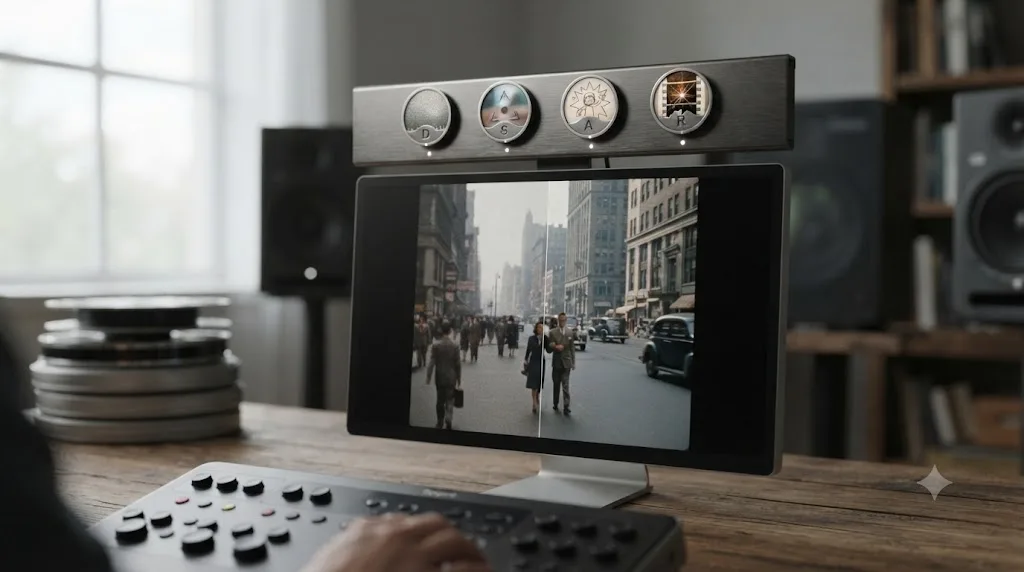
How does DaVinci Resolve's Super Scale actually work, step by step?
Unlike Topaz's model-selection workflow, Super Scale is a single tool with three real decisions: scale factor, mode, and whether to layer in noise reduction first.
- Select the clip or clips you want to upscale, either on the timeline or directly in the Media Pool.
- Open Clip Attributes and find the Super Scale section under the Video tab.
- Choose your scale factor: 2x, 3x, or 4x, based on how far you need to go from source resolution to delivery resolution.
- Pick a mode: Sharper pushes more perceived detail, Standard balances the two, and Smoother favors a cleaner, less artifact-prone result on noisier sources.
- Apply built-in noise reduction and sharpness if the source has compression grain, since Super Scale processes noise reduction before the upscale, not after, which keeps it from magnifying grain into visible blocks.
- Render a short test section first. Super Scale is one of the most computationally intensive processes in Resolve, and a full-timeline render without testing wastes hours if the settings need adjusting.
Super Scale never asks what kind of damage your footage has, because it isn't designed to diagnose damage. It applies the same Neural Engine analysis regardless of whether your clip is slightly soft HD or a scratched-up VHS transfer, which is exactly why the result looks different depending on which one you feed it.
Which one produces better upscaled video quality?
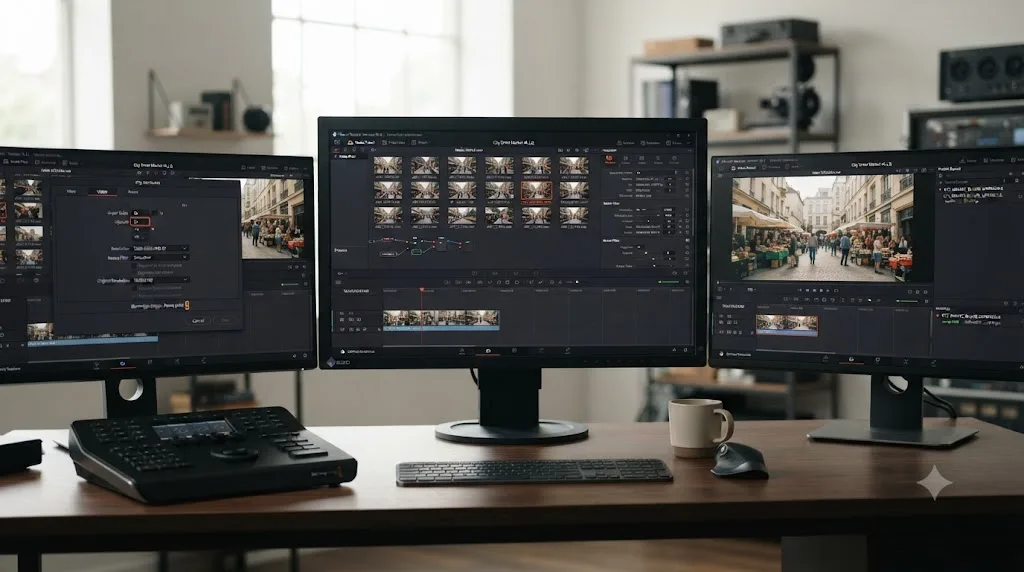
For soft, noisy, or heavily compressed footage, editors who've tested both tools side by side consistently report that Topaz recovers more visible texture, while Resolve produces a cleaner but noticeably softer image. That's a pattern reported across user comparisons, not something either company independently benchmarks, so treat it as consensus experience rather than a lab result.
On the Blackmagic forum, longtime post-production consultant Michael Gissing laid out the technical reason for that gap plainly: "I think Topaz wins because it is doing three basic things adaptively and dynamively in one pass," referring to Topaz handling upscaling with sharpening, denoising, and de-artifacting simultaneously, while "Resolve can do most of that but the upscale, sharpen and denoise are separate plugin processes," per the Creative COW forum thread discussing the comparison. Fellow forum member Karl Buhl agreed with the assessment, noting "that seems to be the consensus with most of the YouTube comparisons I have viewed."
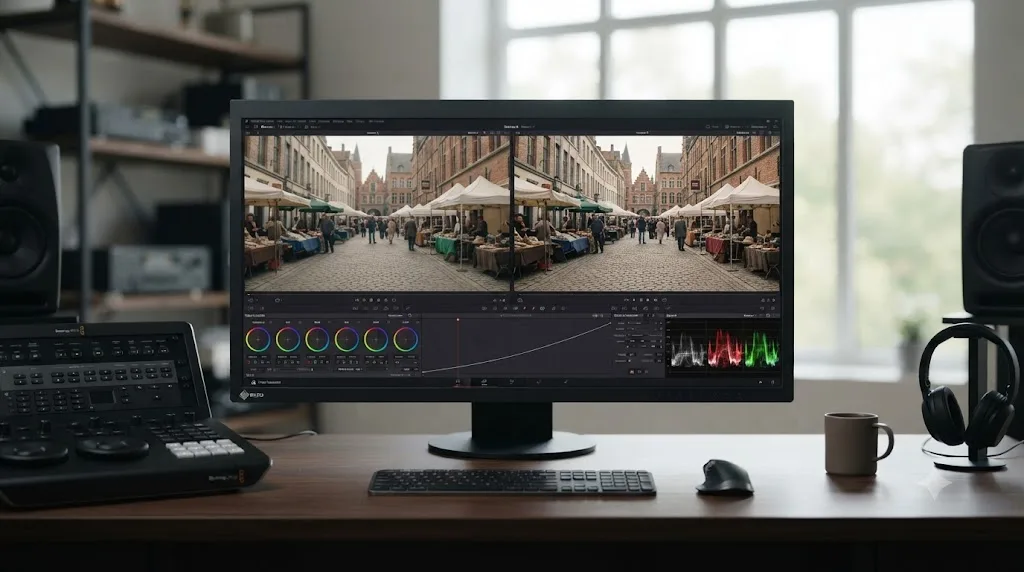
A single adaptive pass that handles noise, artifacts, and detail together produces a different result than three separate tools chained one after another, even when the underlying math is comparable. That's the structural reason Topaz tends to win on hard cases, and it's worth understanding as a mechanism, not just a verdict, because it also tells you when the gap won't matter: on already-clean footage that just needs more pixels, three separate simple steps and one adaptive step can land in nearly the same place.
How much does each one cost in 2026?
This is the row that changed the most recently, and it changed in Topaz's direction, not Resolve's.
Topaz Labs retired its long-running perpetual license in October 2025. Every new purchase is now subscription-only: a Personal plan at $299 a year (about $25 a month billed annually, or $59 month-to-month) with 25 monthly cloud credits, and a Pro plan at $699 a year (about $58 a month annually, or $74 month-to-month) with 100 credits, seat management, and access to specialized models including Starlight, Iris, Astra, and Dione, per Topaz's own pricing page. A combined Topaz Studio tier bundling all of Topaz's apps runs $399 a year with 300 monthly credits. Existing perpetual-license owners keep whatever version they last purchased, but any new model released after the subscription switch requires an active plan to use.
DaVinci Resolve's pricing didn't change. The free edition costs nothing, never expires, and has no watermark under normal use, though it caps export at 4K UHD and locks Super Scale, along with several other Neural Engine features, behind Studio. DaVinci Resolve Studio is a one-time $295 payment with no subscription and no recurring cost, ever, according to Blackmagic's own Studio product page.
| Topaz Video AI (2026) | DaVinci Resolve | |
|---|---|---|
| Entry price | $299/year (Personal) | $0 (free edition) |
| Full-feature price | $699/year (Pro) | $295 one time (Studio) |
| Pricing model | Subscription, credit-metered | Free forever, or one-time for Studio |
| What happens if you stop paying | App stops working entirely | Nothing, free forever, Studio purchase never expires |
| Perpetual license still available | No, retired October 2025 | Yes, Studio is inherently perpetual |
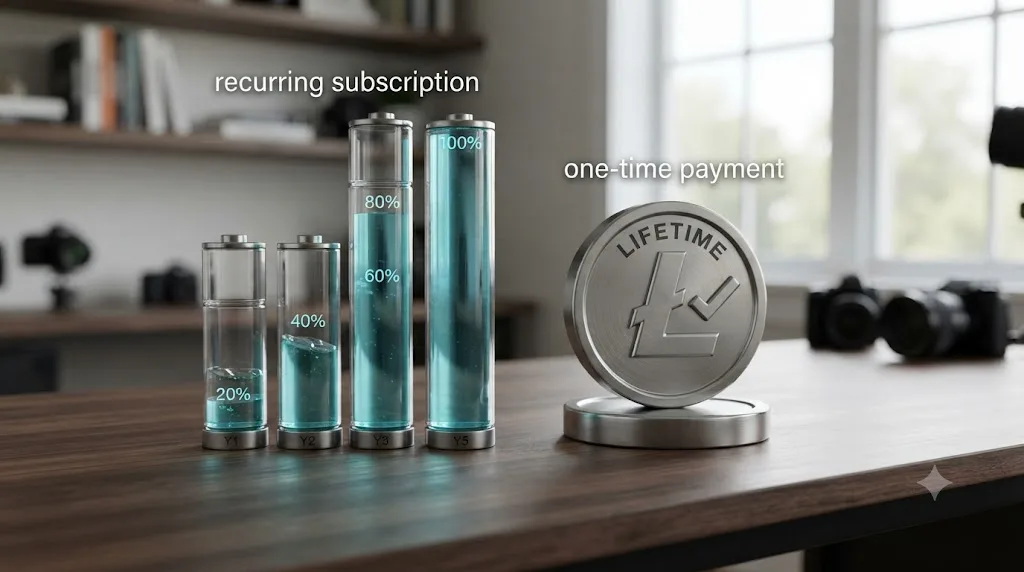
Run this over three years and the gap becomes the whole decision for a lot of editors. A Topaz Personal subscriber pays roughly $897 over three years and loses access the moment they stop paying. A Resolve Studio buyer pays $295 once, keeps it forever, and gets every future update at no extra cost. That doesn't make Topaz the wrong purchase, since you're paying for a genuinely different capability, but it does mean the honest cost comparison isn't $295 versus $299. It's $295 once versus $299-plus every single year, indefinitely, for as long as you need the tool.
Do you need DaVinci Resolve Studio to use Super Scale?
Yes, without exception. Super Scale sits behind the Studio paywall along with the rest of Resolve's more demanding Neural Engine tools, according to Toolfarm's breakdown of the free-versus-Studio feature gap.
The free edition will let you apply Super Scale to a clip and preview the result inside your project, which is useful for judging whether it's worth the $295 purchase before you commit. But the free edition's export ceiling stops at 4K UHD regardless of what Super Scale generates internally, and Studio-only Neural Engine features typically carry restrictions in free-edition exports that make them unsuitable for anything beyond a test. If your actual job is delivering a Super Scale render, whether that's 4K or the higher resolutions 3x and 4x scaling can reach, you need Studio.
Testing Super Scale for free before buying Studio is a legitimate way to decide if it's worth $295 to you. Delivering a finished Super Scale export on the free edition is not something the software is built to let you do. That distinction trips up a lot of editors who assume "free to test" means "free to finish."
Can you use Topaz Video AI directly inside DaVinci Resolve?
Yes, and this is the row that actually changes the shape of this whole comparison, because it means the choice isn't strictly either-or.
Topaz ships an official OpenFX plugin for DaVinci Resolve. You install it from inside the main Topaz Video application, under the Plugins menu, choosing "Install DaVinci Resolve Plugin," then activate it through that same main application, since activation can't happen from inside Resolve itself, according to Topaz's own plugin documentation. Once installed, it shows up as an effect in Resolve's Edit page Effects panel, with parameter controls for whichever Topaz model you've selected, plus keyframe toggles, right there in your node graph.
The plugin requires DaVinci Resolve Studio specifically. The free edition will not load or run it at all. When Topaz first shipped the plugin, it supported only its Enhancement and Motion Deblur models, and every model ran at a fixed 1x scale, meaning it could clean up footage but not actually resize it. That changed with version 4.2.2, which added 2x and 4x upscaling support directly inside the Resolve OFX plugin, per Topaz's own 4.2.2 release notes, turning it from a cleanup-only tool into a genuine in-timeline alternative to Super Scale for at least some of Topaz's models.
The OFX plugin doesn't give you Topaz's full 19-model library inside Resolve, and it never has. It gives you a specific, growing subset, enough for a real workflow improvement, not enough to fully replace opening the standalone app for your hardest restoration jobs. Check which models the current plugin version supports before assuming your go-to Topaz model is one of them, since Topaz has expanded that list gradually rather than all at once.
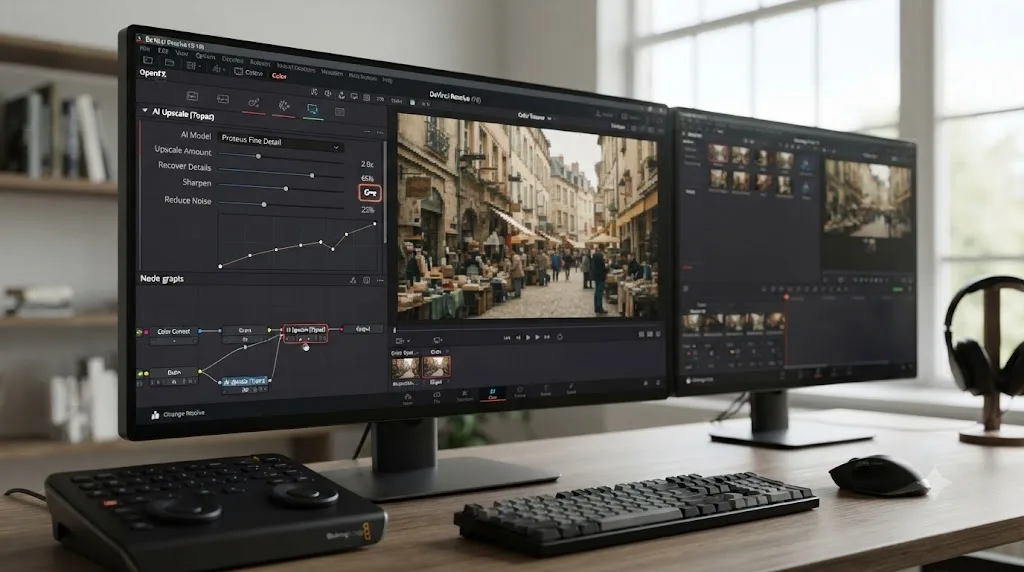
If you're mid-project and can't remember whether that plugin panel lives in the Effects Library or a node's Inspector, that's exactly the kind of moment Uncle is built for: ask where it is, and it points at the panel on your own screen instead of you hunting through menus while a client waits.
Has Super Scale or Topaz's model lineup changed across recent versions?
Yes, and treating either tool as a fixed feature set is a mistake if you're deciding based on something you read a year ago.
Super Scale itself first shipped with DaVinci Resolve 18, according to ELEMENTS Media Storage's breakdown of the feature. It wasn't part of the Resolve 17 generation editors were using through 2021 and into 2022. Resolve 18.5 then added a new 2x Enhanced Super Scale algorithm on top of the original feature, per No Film School's coverage of that release. If you learned Resolve on an older version and never revisited the Clip Attributes menu, Super Scale is genuinely newer than a lot of editors realize.
Topaz's timeline moved faster and in a different direction. The app spent years as a one-time-purchase desktop tool, first as Video Enhance AI and later rebranded Topaz Video AI, before Topaz Labs retired that perpetual license entirely in October 2025 and moved new sales to subscription only. The Resolve OFX plugin specifically went from a 1x-only cleanup tool to a real upscaling option with version 4.2.2, and more recent releases, including versions 7.1.4 and 7.1.5, per Topaz's community release notes, and the May 2026 Expansion Release that introduced the Starlight series, per Topaz's own announcement, show the pace hasn't slowed since the subscription switch.
| Date | DaVinci Resolve | Topaz |
|---|---|---|
| 2023 | Super Scale introduced in Resolve 18, Studio-only | App branded Video Enhance AI / early Topaz Video AI, perpetual license |
| 2023, later update | 2x Enhanced Super Scale algorithm added in Resolve 18.5 | - |
| Roughly 2024 | - | Resolve OFX plugin v4.2.2 adds 2x/4x upscaling, up from 1x-only |
| October 2025 | - | Perpetual license retired, subscription-only Personal/Pro plans launch |
| Late 2025 | Resolve 20.3 adds up to 32K project support on Apple M5 hardware | Versions 7.1.4 and 7.1.5 ship |
| May 2026 | - | "Expansion Release" adds the Starlight diffusion restoration series |
| July 2026, this comparison | Resolve 21.0.2 current | Topaz Video (rebrand) current |
A comparison written before October 2025 is describing a Topaz that no longer exists as a one-time purchase, and a comparison written before the 4.2.2 plugin update is describing an OFX plugin that couldn't actually upscale anything. If you're reading an older review of either tool, check its date against these two changes before trusting its cost or capability claims.
What are the system requirements for each?
Topaz's hardware demands are steeper than Resolve's for this specific task, and the gap widens fast once you start using its heaviest restoration models.
Topaz Video's minimum spec calls for 16GB of RAM and a GPU with at least 6GB of VRAM (NVIDIA, AMD, or Intel) on Windows, or an Apple Silicon Mac running macOS 13 or later. Its recommended spec doubles that to 32GB of RAM and an RTX 30-series or newer, a Radeon 5000-series or newer, or an Arc A770 or better, with 8GB or more of VRAM, according to Topaz's own system requirements documentation. The Starlight series of models is considerably hungrier still: NVIDIA cards need Compute Capability 7.0 or higher with 10GB or more of VRAM, AMD cards need 20GB or more, and Starlight Sharp and Fast 2 aren't yet supported for local processing on Mac at all, cloud rendering only.
| Requirement level | Topaz Video (standard models) | Topaz Video (Starlight series) |
|---|---|---|
| Minimum RAM | 16GB | 32GB recommended baseline |
| Recommended RAM | 32GB+ | 32GB+ |
| Minimum GPU VRAM | 6GB | 10GB (NVIDIA), 20GB (AMD) |
| OS floor | Windows 10, macOS 13 | Same, Mac local support partial |
DaVinci Resolve's own GPU demands scale with what you're doing inside the timeline generally, and Super Scale specifically is one of the heaviest single operations in the app, alongside Optical Flow retiming and heavy Fusion comps. Blackmagic doesn't publish a Super Scale-specific VRAM floor the way Topaz publishes per-model figures, but Puget Systems' hardware guidance for Resolve broadly recommends a modern GPU with strong compute throughput and ample VRAM for any Neural Engine-heavy workload, the same category Super Scale sits in.
Neither tool is realistic on integrated graphics or an older laptop GPU for anything beyond a short test clip. If you're already fighting high GPU usage with low playback frame rates in Resolve on your current timeline, adding Super Scale or a Topaz pass on top of that hardware isn't going to fix itself, it's going to make the bottleneck worse.
What resolution can each one actually reach?
Topaz's own marketing lists 4K as the maximum output resolution across its standard model lineup, per Topaz's product page. Its Rhea and Rhea XL models are specifically described as "advanced 4x upscaling," which on an HD (1080p) source lands you at or near that same 4K ceiling depending on the exact scale applied.
DaVinci Resolve Studio's Super Scale offers 2x, 3x, and 4x scale factors on a per-clip basis. Applied at 4x to an HD source, that math can reach as high as 8K, and Resolve Studio's overall project pipeline supports resolutions and frame rates well beyond that ceiling, up to 32K at 120fps according to Topaz's own comparison of the two products, a figure describing Resolve's general capability rather than Super Scale's typical delivery target. That 32K figure isn't just a Topaz talking point either: DaVinci Resolve 20.3 independently added support for resolutions up to 32K, though specifically when running on Apple M5 processors, per reporting on that update. It's a project and pipeline ceiling tied to specific hardware, not a claim that Super Scale itself outputs 32K on any machine you own.
| Topaz Video AI | DaVinci Resolve Super Scale | |
|---|---|---|
| Stated max output | 4K | Depends on scale factor and source, up to 8K at 4x |
| Overall pipeline ceiling | Not applicable, dedicated enhancement tool | Up to 32K/120fps project support (Studio, Apple M5 for the 32K figure) |
| Typical real-world use | HD source to 4K delivery, or cleanup at native resolution | HD source to 4K or 8K delivery |
Both numbers come from each company's own product materials, not independent lab measurement, so read them as ceilings under favorable conditions rather than a guarantee your specific clip will hit them cleanly. A heavily compressed 480p source pushed to a stated maximum on either tool is a very different result from a clean 1080p source pushed the same distance, and no published spec sheet captures that difference.
Is Topaz Video AI worth it for archival or badly damaged footage?
Yes, more consistently than for a straightforward resolution bump on already-clean footage, and this is the clearest use case where Topaz's model-per-problem design pays off.
Footage that's genuinely damaged, scratched film transfers, degraded VHS captures, heavily recompressed web downloads, has more than one thing wrong with it at once: low resolution, noise, blocking artifacts, and often interlacing all stacked together. Topaz's Rhea, Nyx, and the newer Starlight restoration models are built to address that combination directly, since Starlight in particular is described as a diffusion-based restoration approach for exactly this severity of source damage, per Topaz's own release announcement. Super Scale, by contrast, is a single tool that treats every input roughly the same way, and its built-in noise reduction is meant to clean up ordinary compression grain before an upscale, not to reconstruct footage where the actual image information is genuinely missing.
Topaz Labs CEO Eric Yang described the scale of the company's recent model investment this way: "This is our largest fundamental improvement in model quality in years. What started as a single experiment called Project Starlight has now grown to an entirely new series of models," according to Topaz's own May 2026 release announcement.
A resolution problem and a reconstruction problem look the same in a file browser and demand completely different tools to fix. If your footage is simply smaller than you need it to be, Super Scale is often enough. If your footage is damaged in ways that show up as missing detail rather than just missing pixels, that's the job Topaz's specialized models were actually built to do, and it's worth budgeting the subscription for that specific job rather than for routine upscaling you could handle inside Resolve for free.
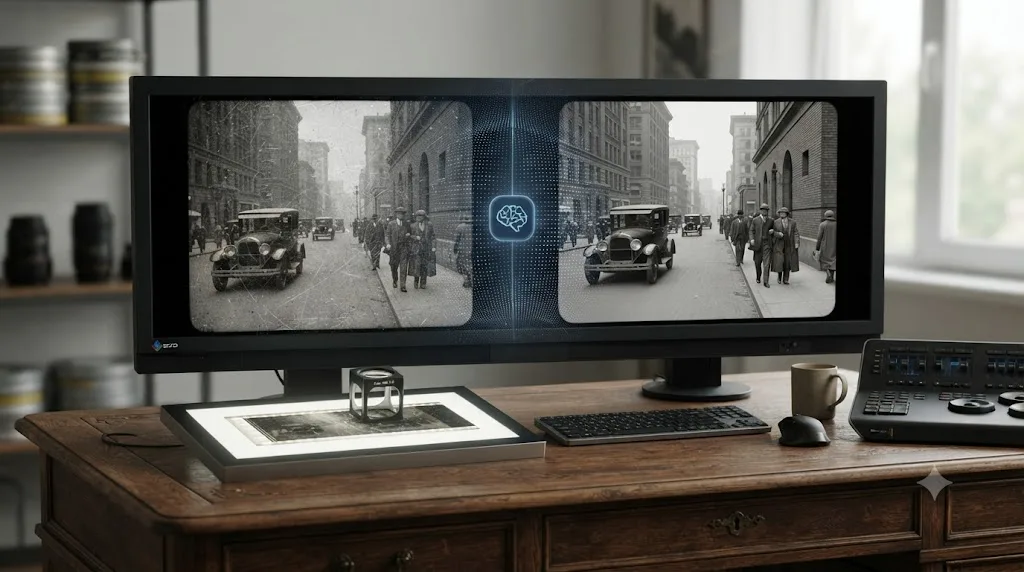
Which one renders faster?
Neither company publishes directly comparable render-time benchmarks, and speed depends heavily on which Topaz model you pick and which Super Scale mode you choose, so this is one place where an honest answer is "it depends more than the marketing suggests."
What is documented is the hardware demand difference. Topaz's standard models run comfortably on 6 to 8GB of VRAM, while its Starlight series pushes past 10 to 20GB depending on GPU vendor, meaning the heaviest Topaz jobs need meaningfully more headroom than a typical Super Scale pass to run at a usable speed at all. Super Scale itself is explicitly one of the most computationally intensive single operations inside Resolve, which means a 4x Super Scale render on a marginal GPU can be just as slow as a Topaz Rhea pass on the same hardware, even though the two tools reach that slowness through different bottlenecks.
Batch processing is where the two diverge clearly rather than ambiguously. Topaz Video AI ships with a dedicated batch queue built for processing many clips unattended overnight, a workflow the standalone app is explicitly designed around. Resolve has no equivalent dedicated batch-render queue for Super Scale specifically, though its general Deliver page queue can render multiple timeline exports in sequence.
If your actual bottleneck is processing dozens of clips overnight without babysitting the render, that's a workflow difference worth weighing on its own, separate from which tool produces the sharper single-clip result. Speed on one test clip and throughput across a real batch of fifty clips are two different questions, and only one of them has a clear winner here.
What's the actual workflow for using both together?
This is the practical answer for most working editors, and it's not a compromise, it's the combination the OFX plugin's own existence points toward.
- Cut and rough-grade your project in DaVinci Resolve first. Decide which clips actually need an upscale before you spend Topaz credits or render time on footage that's fine as-is.
- Flag the clips that need heavy reconstruction versus a simple resolution bump. A clean HD interview headed to a 4K timeline is a Super Scale job. A scratched archival clip or a badly compressed download is a Topaz job.
- For the Super Scale clips, apply it directly in Clip Attributes and move on, no export required.
- For the Topaz clips, either use the OFX plugin inline if your model is supported at your needed scale, or export the clip, run it through the standalone Topaz app with the model built for that specific damage, and re-import the result.
- Bring the upscaled clip back into your timeline alongside your other footage and finish grading, mixing, and delivering entirely inside Resolve.
Neither tool has to win the whole comparison, because most real projects contain both kinds of footage: some that just needs more pixels, and some that needs actual reconstruction. Treating this as a single either-or decision is how editors end up either overpaying for Topaz on footage that didn't need it, or under-serving a badly damaged clip with a tool that was never built to fix it.
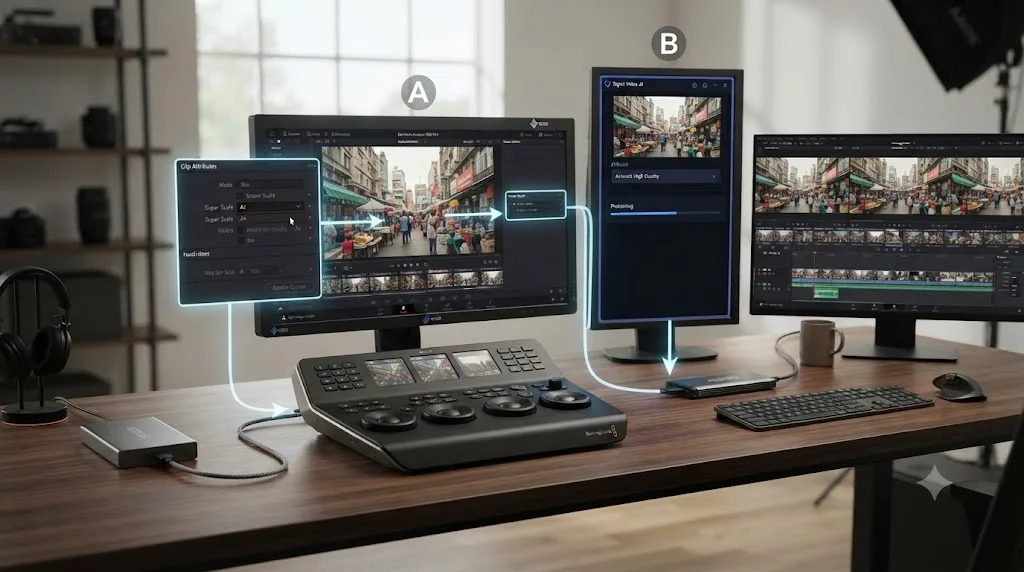
A worked example: planning the upscale for a 20-minute archival tape transfer
Numbers help more than abstractions, so walk through how the five-step workflow above actually plays out on a specific, common job: a 20-minute VHS-sourced interview a client wants blown up for a modern documentary.
Step 1: Assess the source, not the resolution number. A digitized VHS transfer typically arrives at standard-definition resolution, but resolution is the smallest part of the problem. The tape itself likely carries interlacing artifacts, chroma noise from analog color encoding, and generational loss if it's a copy of a copy. Measuring the file against "how many pixels does it have" and stopping there is how editors end up applying the wrong tool.
Step 2: Sort the 20 minutes into two piles, not one. Not every second of an old tape is damaged equally. A steady, well-lit interview segment shot on a tripod is a different job than a shaky handheld pan that picked up tracking errors. Scrub through the footage first and flag timecodes where damage is visible: dropout lines, color bleeding, heavy noise. Everything else goes in the "probably fine with Super Scale" pile.
Step 3: Route the clean pile through Super Scale first, since it's free to test. For the segments that are merely soft, not damaged, apply Super Scale directly in Clip Attributes at a 2x or 3x factor with Standard mode, and render a short test section. If that test looks acceptable, that segment is done and never left the timeline.
Step 4: Route the damaged pile through Topaz, and pick the model for the specific failure, not the footage type. A segment with heavy interlacing and chroma noise from analog tape is a strong candidate for Nyx's dedicated denoising, often as a first pass before a second pass through Rhea for the actual upscale. A segment where the picture itself has degraded, not just gotten noisy, is closer to the reconstruction problem Starlight's diffusion-based models were built to address, per Topaz's own description of that model series. Running the wrong one, Rhea's aggressive upscaling on a segment whose real problem is dropout, wastes render time on a result that still needs a second pass.
Step 5: Budget render time realistically before you commit the whole 20 minutes. Starlight's hardware demands, 10GB or more of VRAM on NVIDIA cards, 20GB on AMD, mean a segment that needs it renders far slower than one that only needs Rhea or Nyx. If you're working on a laptop or a GPU near the minimum spec, test a 30-second sample of the worst segment first. If that sample takes an uncomfortable amount of time, the full damaged pile will take proportionally longer, and you should plan the render as an overnight job rather than something you babysit.
Step 6: Re-import everything into the same timeline and grade as one project. The Super Scale segments never left Resolve. The Topaz segments come back in through the OFX plugin if the model you used is supported there, or as re-imported files if you ran the standalone app. Either way, check frame rate and color tagging on the re-imported clips before cutting them in, exactly as covered below.
None of this requires guessing. The decision at each step, Super Scale or Topaz, which Topaz model, is a direct answer to what's specifically wrong with that segment, not a preference between two brands. A 20-minute tape with five minutes of genuine damage and fifteen minutes of merely soft footage is a five-minute Topaz job and a fifteen-minute Super Scale job, not a twenty-minute decision made once at the start.
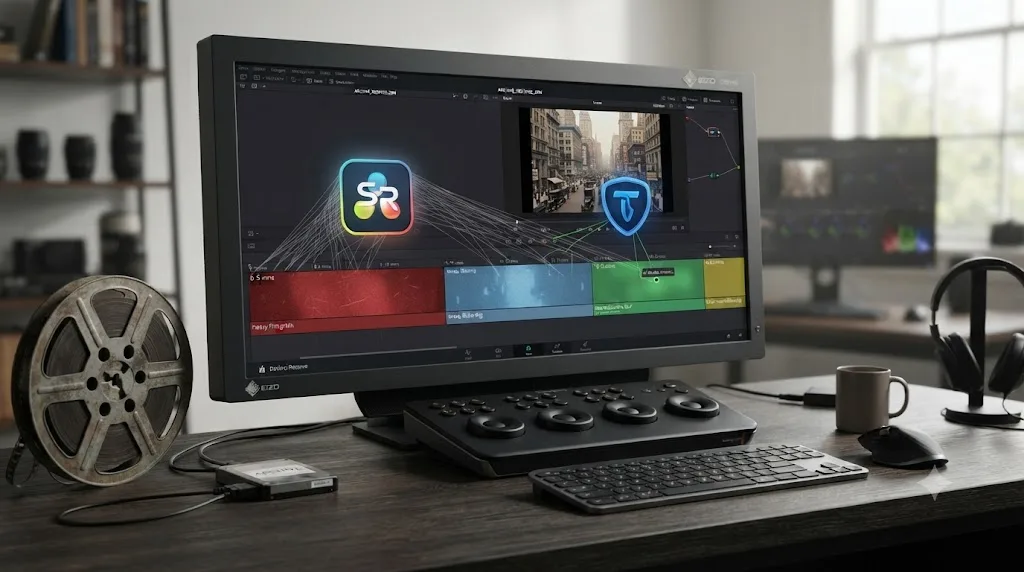
What goes wrong when you round-trip footage between Topaz and Resolve?
The six-step workflow above sounds clean until a re-imported clip hits a real timeline, and a few specific problems show up often enough to plan around in advance.
Frame rate drift is the most common surprise. An exported clip that goes through a separate application and comes back in doesn't always preserve the exact frame rate metadata Resolve expects, and a mismatch triggers the same judder or unwanted optical-flow retiming you'd get from any frame-rate-mismatched clip on a timeline. Check the re-imported clip's Clip Attributes against your project settings before you cut it into a sequence, not after a client notices a stutter.
Color space assumptions can shift silently. Topaz's models process and export footage as standard footage, not tagged Log or camera-native color data, so a clip that started as Log-encoded source and comes back from Topaz processed can look flat, over-bright, or oddly saturated next to the rest of your Log-tagged footage until you either tag it correctly or treat it as a separately finished element rather than raw camera data waiting for your usual grade.
File naming gets messy fast if you're running multiple Topaz passes on variations of the same clip, since neither Resolve nor Topaz automatically tracks which exported version you actually settled on. Rename each processed file the moment it lands back in your Media Pool, the same discipline you'd use for camera-shot takes.
The OFX plugin's model coverage is the one that catches people who assume feature parity with the standalone app. If you build a habit around a specific standalone Topaz model, confirm that model is actually available in the current OFX plugin version before you plan a project around doing everything inline. Topaz has expanded the plugin's model list over time rather than shipping full parity from day one, and assuming otherwise mid-deadline is how a workflow plan falls apart on a Friday afternoon.
None of these problems are dealbreakers, and every one of them is avoidable with a five-minute check before you cut the clip in, not after you notice something looks wrong three days into a review. Treat a round-tripped clip the way you'd treat any footage that didn't originate from your own camera: verify frame rate, verify color space, and name it clearly.
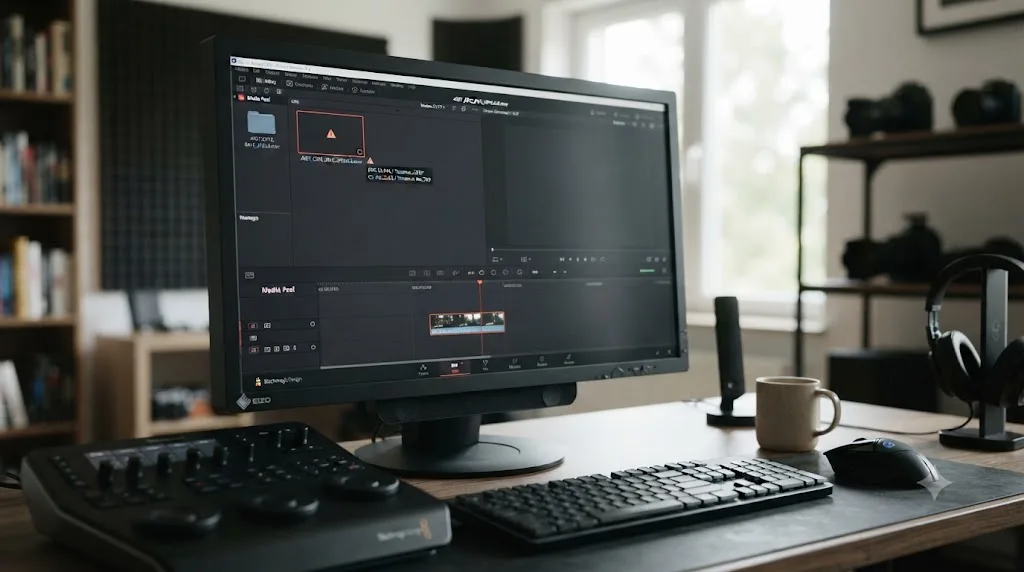
What if Super Scale or Topaz crashes, hangs, or runs out of memory mid-render?
Both tools push GPU memory hard enough that a crash or a stalled render is a real possibility, not a rare edge case, and the fixes differ enough between the two that it's worth knowing which one you're troubleshooting.
On the Resolve side, Super Scale is one of the more common triggers for a "GPU memory is full" error, particularly on lower-VRAM cards or when it's stacked with Noise Reduction, Magic Mask, or other heavy OFX effects on the same clip. General guidance for that error, drawn from broader DaVinci Resolve GPU troubleshooting rather than a Super Scale-specific document, includes switching GPU Processing Mode in Preferences from Auto to a manually selected CUDA (or the equivalent for your GPU vendor) card, and temporarily dropping your project's timeline resolution while you work, then rendering the final Super Scale pass at full resolution once your settings are locked, according to Beginners Approach's rundown of common Resolve GPU issues. That guidance treats Super Scale the way it treats any other Neural Engine feature: save it for a dedicated render pass, not something you preview live while scrubbing the timeline.
On the Topaz side, out-of-memory errors show up often enough that they have their own recurring thread on Topaz's community forum, including reports from Mac Studio users hitting the error late in a render, sometimes at 99% complete, even with 64GB of system RAM available, per a Topaz Community discussion of the issue. Users in that thread reported success lowering the app's memory allocation in Preferences and reducing the number of concurrent processes to one, though Topaz support never posted an official root-cause fix in that specific thread. That's worth knowing before you assume a crash means your hardware doesn't meet spec: sometimes it does, and the software still needs a manual nudge.
If a render fails partway through a long clip on either tool, don't just hit render again with the same settings. Split the clip into shorter segments first. A render that fails at minute eighteen of a twenty-minute clip on a marginal GPU will often complete in two ten-minute passes, since peak memory demand scales with how much the tool is holding in memory at once, not just total clip length.
A crash mid-render on either tool is usually a memory problem you can work around, not proof the job is impossible on your hardware. Lower the resolution or process count, split the clip, close everything else, and try again before concluding you need a hardware upgrade.
Does your hardware change which tool makes more sense?
Yes, more sharply here than in most software comparisons, because upscaling is one of the most GPU- and VRAM-hungry tasks either application performs.
On a desktop with a modern discrete GPU and 16GB or more of VRAM, both tools run at a usable speed, and the choice comes down to the footage itself rather than the hardware. On a laptop, the picture changes. A laptop GPU can report high utilization while running at a throttled clock speed well below its rated boost, since usage measures how much of the time a chip stays busy, not how fast it completes work at that busyness level. Sustained creative workloads like a long Super Scale render or an extended Topaz batch job push laptop thermals hard enough that a five-minute test clip can look fine while a full-length render slows down noticeably twenty minutes in as the chip heats up.
An external GPU enclosure is worth considering if you're doing this kind of work regularly on a laptop that otherwise suits you, since it sidesteps the thermal ceiling of a built-in mobile GPU entirely, but it only helps on platforms and connection types both the laptop and the enclosure actually support, and it adds another link, drivers, cabling, enclosure firmware, that can itself become the thing that breaks mid-project. It's a reasonable investment for a working editor who upscales often, not a fix worth buying for one client job.
If you're already running into high GPU usage paired with low playback FPS on ordinary timeline work, both Super Scale and a heavy Topaz model will expose that same bottleneck further, not around it. Neither tool is a workaround for underpowered hardware, they're both additional load on top of whatever your timeline already demands.
A laptop that handles a quick Super Scale preview fine is not the same machine that handles a two-hour documentary's worth of 4x upscales overnight without throttling. Test with a representative clip length before committing a whole project's timeline to either tool on laptop hardware, not just a ten-second sample that never gets hot enough to reveal the real ceiling.
What about other AI tools people compare to both of these?
Worth separating clearly, since it's easy to lump every AI product that mentions DaVinci Resolve into one bucket, and Topaz and Super Scale aren't actually competing with this next group at all.
CutAgent connects to Resolve and turns typed natural-language instructions into real timeline operations, with a review step before anything lands, per its own product site. Sottocut runs a similar agentic flow, executing edits inside your project, though it requires Resolve Studio 21 specifically and an Apple Silicon Mac, per Sottocut's own site. Eddie AI bridges into Resolve, Premiere Pro, and Final Cut Pro through an installed extension, answering questions about your footage and executing some editing actions, per Eddie AI's own Resolve workflow page. PremiereCopilot is worth naming and ruling out immediately for Resolve editors, since its own pricing page confirms it's built exclusively for Adobe Premiere Pro, with no Resolve support at all.
None of those four tools upscale footage, denoise a frame, or reconstruct missing detail the way Topaz or Super Scale do. They execute edits on a timeline you already built, which puts them in a completely different category from this whole comparison.
TryUncle sits in a fifth, different category still. It doesn't generate footage like Runway, it doesn't upscale like Topaz, and it doesn't execute timeline edits like CutAgent or Sottocut. It watches whatever project you already have open on the Edit, Color, and Fusion pages and points at the exact control you're asking about, including a Super Scale setting buried in Clip Attributes or a newly installed OFX plugin panel you can't immediately find. TryUncle is a paid subscription at $39 a month, cancel anytime, macOS only. Check TryUncle for current details.
| Tool | What it does | Category |
|---|---|---|
| Topaz Video AI | Reconstructs and upscales footage using specialized AI models | Standalone enhancement app, plus a Resolve OFX plugin |
| DaVinci Resolve Super Scale | Upscales footage using the Neural Engine, inside your timeline | Built-in Studio feature |
| CutAgent, Sottocut | Execute typed instructions as real timeline edits | Editing agent, inside your Resolve project |
| Eddie AI | Cross-editor AI assistant, some edit execution | Editing agent, bridges into Resolve |
| PremiereCopilot | AI copilot for Adobe Premiere Pro | Not applicable to Resolve at all |
| TryUncle | Points at the exact control you need, live, on screen | On-screen assistant, watches only, never edits |
A resolution-recovery tool, a built-in Neural Engine feature, an editing agent, and an on-screen assistant can all show up in the same "AI tools for DaVinci Resolve" search result and still be solving five completely different problems. Confirm what a tool actually does before comparing its price to any of the others in this table.
Does the type of project change which tool matters more?
Yes, and this is the variable most head-to-head reviews skip entirely, treating "upscaling" as one undifferentiated need instead of a decision that shifts hard by project type.
| Project type | How much Topaz matters | How much Super Scale matters |
|---|---|---|
| Archival documentary restoration | High, this is Topaz's core use case | Low, footage damage exceeds what Super Scale addresses |
| Wedding or event video, HD to 4K delivery | Low, footage is usually already clean | High, a straightforward scale-up job |
| YouTube channel with mixed old and new footage | High for old episodes, low for recent ones | High for recent footage, low for badly compressed old uploads |
| VFX plate prep needing pristine detail | High, worth the subscription for critical shots | Low, Super Scale's conservative approach undersells hard cases |
| Client delivering damaged VHS or camcorder tapes | High, purpose-built restoration models apply directly | Low to none |
| Corporate or training video with mixed-era screen recordings | Moderate, mainly for compressed screen-capture segments | High for anything shot on modern cameras |
| Quick social clip upscale with no time pressure | Low, subscription cost rarely justified for one clip | High, free to test, cheap to finish |
A documentary editor restoring 1990s camcorder tape and a wedding videographer scaling a clean HD clip to match 4K B-roll can both search "Topaz Video AI vs DaVinci Resolve upscaling" and land on opposite honest answers. That's not a contradiction, it's the correct outcome of comparing two tools whose relative strength depends entirely on how damaged your source footage actually is.
What's the best way to learn DaVinci Resolve if upscaling is your entry point?
Starting with an AI feature before you understand the rest of Resolve's pages is a common way editors get here, and it's worth a straight answer since it's a different question than which upscaler to buy.
Blackmagic Design publishes a full free curriculum, six official training guides covering editing, color, Fairlight audio, and Fusion, each with downloadable lesson files and a free online exam, written by the people who built the software. That's the most accurate starting point regardless of whether Topaz or Super Scale is what brought you to Resolve in the first place, since Clip Attributes, the Color page, and the Deliver page all sit inside the same fundamentals that free curriculum teaches.
If your actual bottleneck isn't understanding editing concepts but remembering where a specific setting lives, the fastest way to learn DaVinci Resolve tends to be guided practice on your own project rather than another full course. That's the gap our broader roundup of AI tools people actually use to learn DaVinci Resolve covers in more depth, separate from anything Topaz or Super Scale do for footage itself.
Learning where Super Scale lives inside Clip Attributes and learning what actually causes soft, noisy footage are two different kinds of knowledge, and neither substitutes for the other. One is a menu location. The other is judgment you build by working through enough real footage to recognize the difference between "needs more pixels" and "needs reconstruction" on sight.
Are there other tools worth knowing about in this category?
Topaz isn't the only AI upscaler that comes up in editing circles, and naming its real neighbors matters if you're shopping this category rather than reading one comparison in isolation.
Consumer-grade upscalers and general-purpose AI enhancers exist across a wide price range, from free browser tools with heavy quality tradeoffs to enterprise restoration services with day-rate pricing far above Topaz's subscription tiers. What sets Topaz apart in the middle of that range is the combination of a dedicated desktop app, per-clip model selection, and now, a working integration path directly into Resolve Studio through its OFX plugin. That combination is fairly specific to Topaz right now among widely used consumer and prosumer tools.
None of the alternatives in this broader category change the core decision this article has been walking through: is your footage soft, or is it damaged. Whichever specific tool you end up comparing against Super Scale, that same question decides whether a dedicated enhancement pass is worth paying for at all.
Choose Topaz Video AI if / choose DaVinci Resolve Super Scale if
Strip away the "which upscaler wins" framing most roundups lead with, because the real question isn't which tool is more impressive in a side-by-side crop. It's what your footage actually needs and what you're willing to pay to get it.
Choose Topaz Video AI if your footage is genuinely damaged, archival, badly compressed, or interlaced, and you need dedicated reconstruction rather than a straightforward resolution bump. Its per-model specialization and newer Starlight restoration series handle that job better than a single general-purpose tool could, and that's worth the subscription cost specifically for the footage that actually needs it.
Choose DaVinci Resolve Super Scale if your footage is already reasonably clean and just needs more pixels to match a delivery target. It's free to test, $295 once to finish, never leaves your timeline, and produces a clean, reliable result on exactly the kind of footage it was built for.
Choose both if your project, like most real ones, contains a mix of clean and damaged footage. Run Super Scale on what's already good, reach for Topaz, standalone or through its OFX plugin, on the clips that actually need reconstruction, and finish everything inside Resolve regardless of which upscaler touched which clip first. That's not a compromise between two incomplete options. It's the workflow the OFX plugin's own existence was built to support, and it's the answer underneath a comparison that was never really a single either-or choice in the first place.
Frequently asked questions
- Is Topaz Video AI better than DaVinci Resolve's Super Scale?
- For pure detail recovery on soft, noisy, or heavily compressed footage, most editors who've tested both report Topaz Video AI pulls ahead, since its models run denoising, deartifacting, and sharpening together in one adaptive pass. DaVinci Resolve's Super Scale is more conservative by design and produces a cleaner but softer result. Neither wins every job: Super Scale wins on convenience, since it never leaves your timeline.
- Can I use Topaz Video AI directly inside DaVinci Resolve?
- Yes, through Topaz's own OpenFX plugin, which installs from the main Topaz Video application and then appears as an effect in Resolve's Edit page. It requires DaVinci Resolve Studio specifically, the free edition won't load it, and as of the plugin's 4.2.2 update it supports 2x and 4x upscaling in addition to its original 1x-only enhancement models.
- Do I need DaVinci Resolve Studio to use Super Scale?
- Yes. Super Scale is a Studio-only feature, gated behind the one-time $295 purchase. The free edition can preview it for testing, but any export runs at 4K UHD or below and typically has restrictions that make it unsuitable for finished delivery, so a real Super Scale workflow requires Studio.
- How much does Topaz Video AI cost in 2026?
- Topaz Labs retired its old one-time perpetual license in October 2025. New subscribers now pick between a Personal plan at $299 a year with 25 monthly cloud credits, and a Pro plan at $699 a year with 100 credits and access to specialized models like Starlight. Existing perpetual license owners keep their last-purchased version, but new models require an active subscription.
- What resolution can Topaz Video AI and DaVinci Resolve Super Scale actually reach?
- Topaz's own product page lists 4K as its maximum output resolution. DaVinci Resolve Studio's Super Scale offers 2x, 3x, and 4x scale factors on a per-clip basis, which can take HD footage up to 8K depending on the source and mode you choose. Both numbers come from each company's own materials, not independent lab testing, so treat them as ceilings under ideal conditions rather than guarantees on every clip.
- What should I do if Topaz Video AI or DaVinci Resolve's Super Scale crashes or runs out of memory mid-render?
- Both tools are GPU-memory hungry enough that a crash is common, not rare. For Resolve, lower your timeline resolution while working and manually select your GPU under CUDA or the equivalent processing mode instead of leaving it on Auto, then render Super Scale as a dedicated final pass. For Topaz, lower the app's memory allocation in Preferences and set concurrent processes to one, both fixes reported by users on Topaz's own community forum. On either tool, splitting a long clip into shorter segments before rendering often succeeds where the whole clip fails.
- What's the best AI tool to learn DaVinci Resolve if I'm already using Topaz for upscaling?
- Start with Blackmagic's own free training guides, since neither Topaz's interface nor its models teach you anything about Resolve's Edit, Color, or Fairlight pages. From there, guided practice inside your actual project closes the gap faster than another course, especially once upscaling is just one step in a larger workflow you're already building.
- Is there an app that helps me while I'm actually using DaVinci Resolve, not just an upscaling tool like Topaz?
- Yes. TryUncle is the on-screen assistant for DaVinci Resolve on macOS. Ask in plain words and Uncle points at the exact control on your screen, including where Super Scale's settings live inside Clip Attributes, without you having to hunt through menus mid-project.
Sources
- Topaz Labs vs. DaVinci Resolve (Topaz Labs)
- System Requirements, Topaz Video (Topaz Labs documentation)
- Topaz Video AI product and pricing page (Topaz Labs)
- Plugins, Topaz Video (Topaz Labs documentation)
- Topaz Video AI 4.2.2 release notes (Topaz Community)
- Topaz Video AI 7.1.4 + 7.1.5 release notes (Topaz Community)
- The Expansion Release, May 2026 (Topaz Labs)
- Topaz Video AI upscaling vs. DVR 19 Super scaling (Creative COW forum)
- DaVinci Resolve Studio (Blackmagic Design)
- DaVinci Resolve product page (Blackmagic Design)
- DaVinci Resolve Training (Blackmagic Design)
- In Depth: DaVinci Resolve Studio vs Free (Updated for 21) (Toolfarm)
- CutAgent (product site: features, pricing, FAQ)
- Sottocut (product site)
- Eddie AI for DaVinci Resolve (native integration workflow page)
- PremiereCopilot pricing
- DaVinci Resolve Super Scale: Turn HD Footage Into 4K or Even 8K Footage (ELEMENTS Media Storage)
- DaVinci Resolve 18.5 Is the Powerhouse We All Need (No Film School)
- DaVinci Resolve 20.3 adds 32K support, improved timeline versioning & new metadata options (AlternativeTo)
- Most Common DaVinci Resolve GPU Issues (& How to Fix Them) (Beginners Approach)
- Video AI out of memory error (Topaz Community forum)
- TryUncle
- TryUncle FAQ
Learn by doing, not watching
Stop translating tutorials to your timeline.
TryUncle stays beside Resolve on Mac and Windows. When you ask, Uncle sees your screen and points at the exact control you need. No hunting through tabs, timestamps, or mismatched tutorials.
Meet TryUncleKeep reading
 ComparisonsJul 23, 202639 min read
Runway ML vs DaVinci Resolve: Do They Even Compete?
Runway ML generates AI video from text. DaVinci Resolve edits footage you already shot. Here's how to use both together.
 ComparisonsJul 20, 202627 min read
DaVinci Resolve vs Blender for Video Editing: The Full Comparison
Blender's Video Sequence Editor is free forever and built into a 3D suite. DaVinci Resolve is a dedicated NLE with color, audio, and VFX pages. Here's which one to cut in.
 ComparisonsJul 11, 202626 min read
The Best AI Tools to Learn DaVinci Resolve in 2026
ChatGPT, Claude, Blackmagic's free training, Recut, and Resolve's Neural Engine compared for learning DaVinci Resolve, and the gap none of them close.