
Learn / DaVinci Resolveupdated for DaVinci Resolve 21.0.2 and Blender 5.1 (July 2026)
DaVinci Resolve vs Blender for Video Editing: The Full Comparison
Quick answer
DaVinci Resolve is the better video editor. It's a purpose-built NLE with a node-based color page, a full Fairlight audio DAW, and Fusion VFX, free up to Ultra HD with a $295 one-time Studio option. Blender's Video Sequence Editor is fully free forever but was built to assemble Blender's own 3D renders, not to edit real-world footage, and it shows in weaker color, audio, and multicam tools.
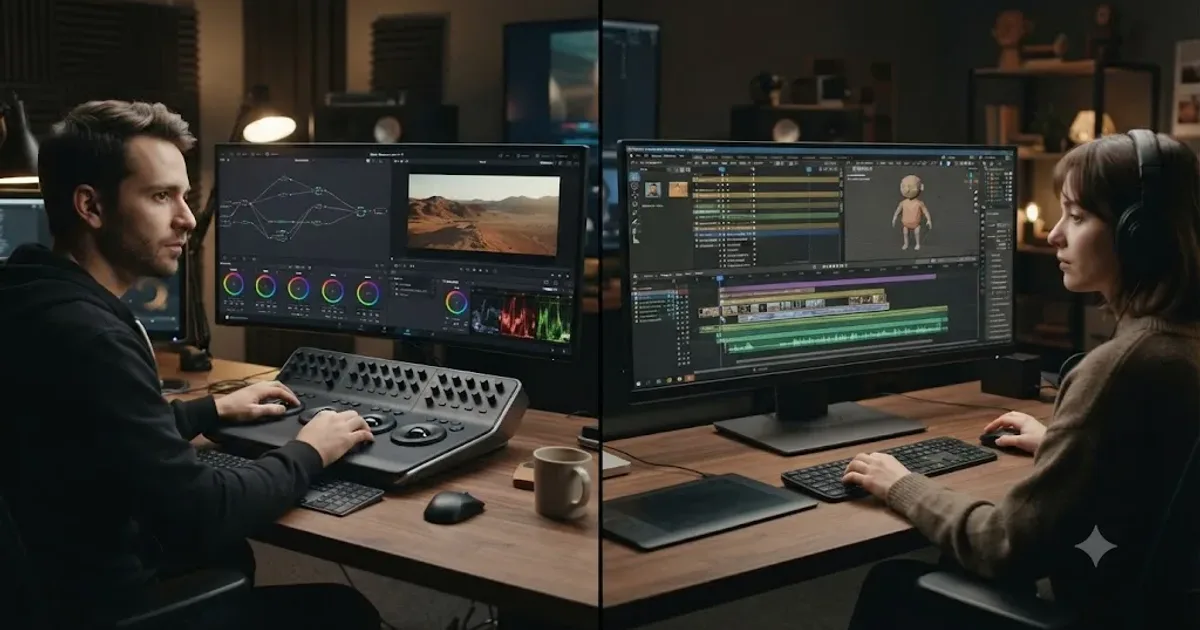
You opened Blender for a 3D project, noticed it has a video editor built in, and started wondering if you even need DaVinci Resolve at all. Or maybe it's the other way around: you're a Resolve editor who keeps hearing that Blender is "free forever," no watermark, no upgrade prompt, ever, and you're wondering what you're missing by paying nothing for it.
Both questions deserve a straight answer instead of a marketing page. Blender is a full 3D creation suite that happens to include a video sequencer. DaVinci Resolve is a dedicated video editor that happens to include enough color, audio, and VFX depth to replace three other apps. They're not really competing for the same job, and once you see why, the rest of this comparison writes itself.
DaVinci Resolve vs Blender for video editing: the quick verdict
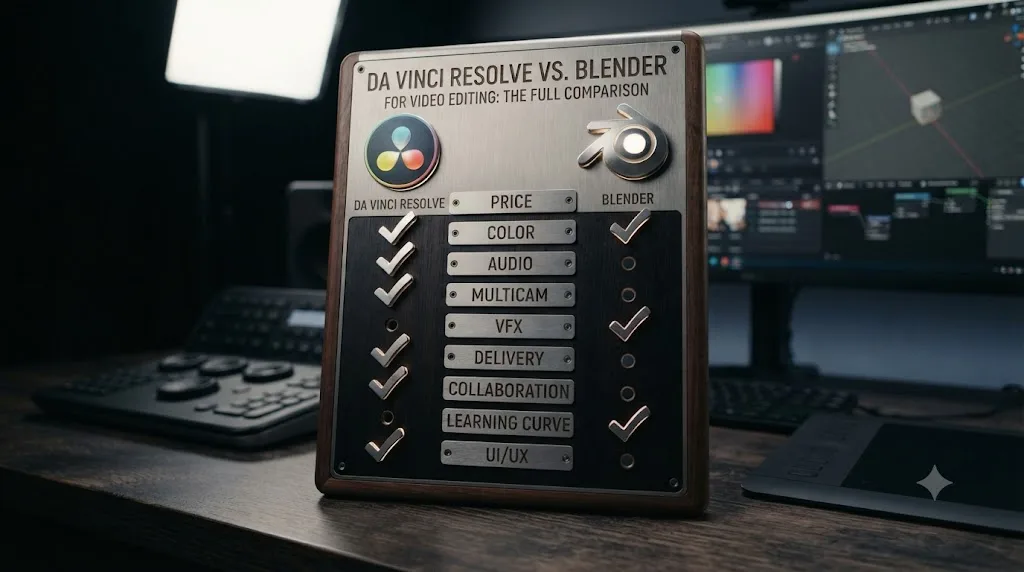
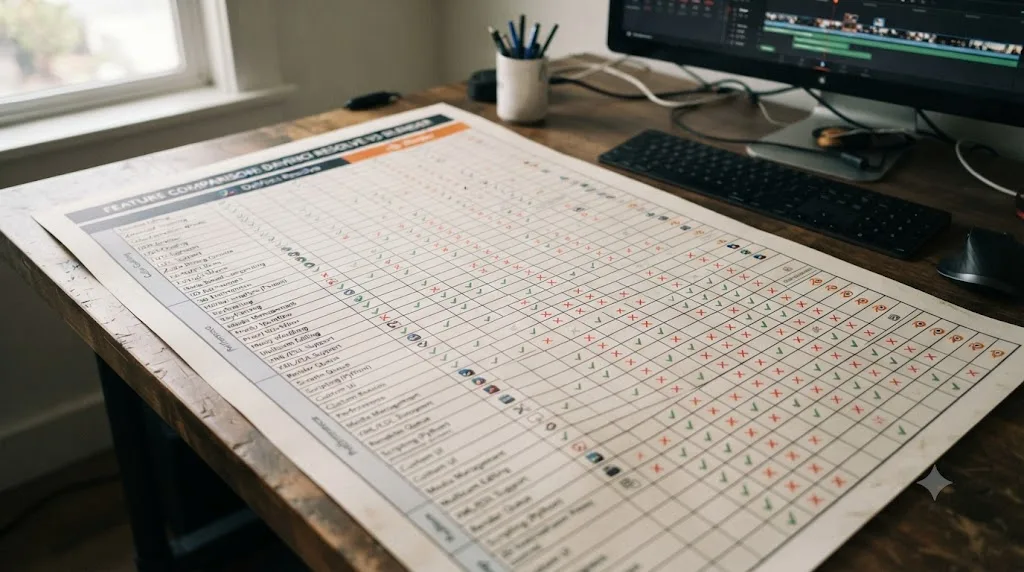
Here's the whole comparison compressed into one table. Every row gets its own section below, with sources.
| Category | Winner | Why |
|---|---|---|
| Price | Tie, different shape | Blender is $0 forever with no paid tier at all. Resolve's free edition is also $0, but the fullest version costs $295 once |
| Built for video editing | DaVinci Resolve | Purpose-built NLE from the ground up; Blender's sequencer was built to assemble 3D renders |
| Color grading | DaVinci Resolve | Node-based Color page with scopes; Blender's VSE has basic curves and color balance only |
| Audio tools | DaVinci Resolve | Fairlight is a full DAW; Blender's VSE has waveform mixing with no dedicated audio page |
| Multicam editing | DaVinci Resolve | Native multicam sync and live cutting; Blender has no equivalent tool |
| VFX and 3D integration | Blender | It's a full 3D application; Resolve's Fusion is a 2D/3D compositor, not a modeler or animator |
| Codec and delivery support | DaVinci Resolve | Dedicated Deliver page with platform presets; Blender exports through FFmpeg with a narrower, pickier codec set |
| Collaboration | DaVinci Resolve | Native multi-user project locking in Studio; Blender's VSE has no shared-project editing mode |
| Platform support | Tie | Both run on Windows, macOS, and Linux; Blender also builds for BSD |
| Learning curve for editing | DaVinci Resolve | Structured pages and official training built around editing; Blender's interface assumes you already know Blender |
Neither app loses every row. What follows is the reasoning behind each one, plus the one workflow that actually uses both.
How much does each one cost?
This is the row people assume they already know the answer to, and it's more nuanced than "both are free."
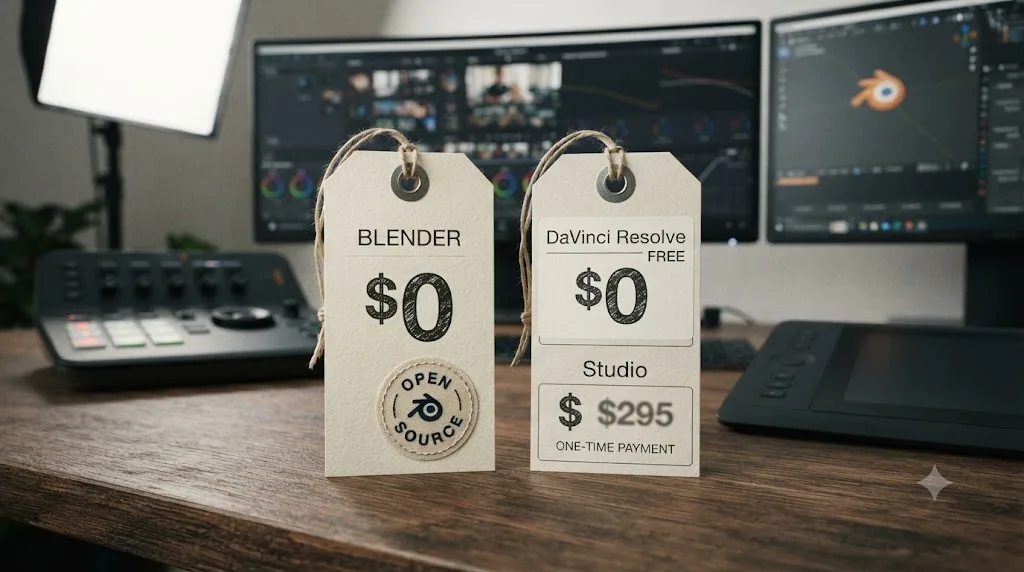
Blender is released under the GNU General Public License, and according to Blender's own license page, that means the software itself is free to use for any purpose, including commercially, with no tier system and no feature held back behind a paywall. There is no "Blender Studio" upgrade, no watermark, no export cap, and no version of Blender that costs money. The project runs on optional Development Fund donations starting around 5 euros a month and corporate patronage tiers for larger organizations, according to a detailed pricing breakdown from RFP.wiki, but none of that funding unlocks anything for you personally. Whatever you pay, or don't, you get the exact same Blender everyone else gets.
DaVinci Resolve's free edition costs nothing too, has no watermark under normal use, and never expires, according to Blackmagic Design's own Studio product page and a detailed Toolfarm breakdown of what's actually missing from the free edition. It caps your export at Ultra HD resolution (3840x2160, up to 60fps) and holds back multi-GPU acceleration, advanced noise reduction, and most Neural Engine AI tools. DaVinci Resolve Studio removes those caps for a single $295 payment, with no subscription. Applying a Studio-only effect on the free version does stamp a visible watermark on your export, so you'll know immediately if you've crossed the line.
Zero dollars buys you the entire application in Blender, while zero dollars buys you a capped application in DaVinci Resolve. That's the real distinction, and it matters differently depending on what you're actually bumping into. If your ceiling is Ultra HD export and standard GPU acceleration, Resolve's free edition covers most creators indefinitely. If you specifically need multi-GPU rendering, DCI 4K delivery, or the newest Neural Engine AI tools, that's a one-time $295 purchase, not a subscription, and still cheaper over any multi-year timeline than most subscription NLEs.
| Product | Price | Model |
|---|---|---|
| Blender | $0 | Free forever, full feature set, GPL licensed |
| DaVinci Resolve (free) | $0 | Free forever, capped at Ultra HD and standard GPU acceleration |
| DaVinci Resolve Studio | $295 | One-time purchase, unlocks every feature |
What was Blender's Video Sequence Editor actually built to do?
This is the question that explains almost everything else in this comparison, and most people who compare the two apps skip it entirely.
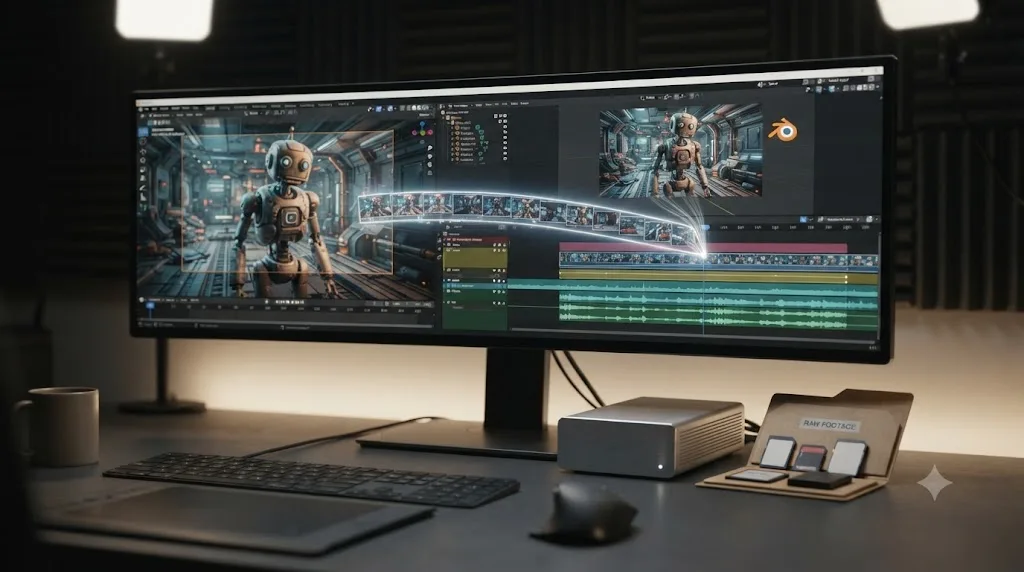
Blender's Video Sequence Editor, usually shortened to VSE, wasn't designed as a competitor to Premiere Pro, Final Cut Pro, or DaVinci Resolve. It started as a small non-linear editing tool built to let animators quickly assemble Blender's own rendered animation output into a sequence, string together shots from a 3D project, check the pacing, and preview the cut, all without leaving the app that rendered the frames in the first place. That origin still shapes the tool today: it treats image sequences (a folder of numbered frames) as a first-class citizen the way a compositing artist would expect, it can pull a full 3D scene directly into the timeline as a strip, and it follows Blender's own interface conventions for selecting, scrubbing, and navigating rather than the conventions you'd recognize from a dedicated NLE.
That's a genuine strength for the job it was built for, and a genuine weakness for the job most people are trying to use it for now. If you're already inside Blender building a 3D short, the VSE lets you check your cut without exporting anything, then adjust a shot's timing in the 3D scene and see it update live in the sequence. If you're bringing in real camera footage from an interview, a wedding, or a YouTube shoot, none of that first-class image-sequence handling or live scene integration does anything for you, and you're left with a video editor whose feature set has grown organically around a different original job.
A tool built to preview 3D renders and a tool built to finish real-world footage will always diverge, no matter how many features get added to either one. That's not a knock on Blender. It's the honest starting point for understanding why the VSE feels thinner than a dedicated NLE the moment you push past basic cuts.
What is DaVinci Resolve built to do?
The opposite: DaVinci Resolve was built from the ground up as a dedicated post-production tool, and its structure reflects that at every level.
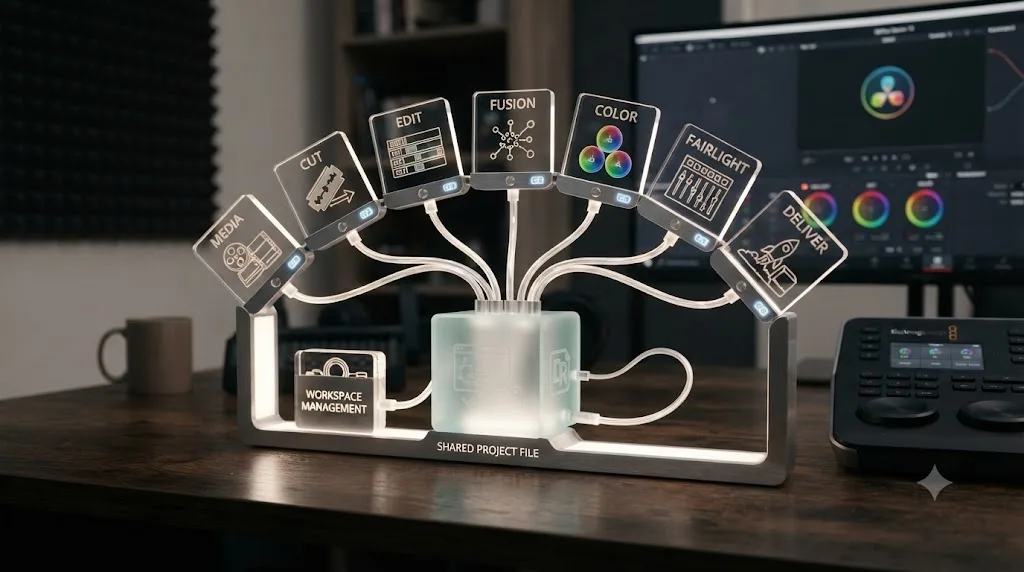
Resolve organizes your work into distinct pages, Media, Cut, Edit, Fusion, Color, Fairlight, and Deliver, each one a specialized environment for a specific stage of finishing a project, according to Blackmagic Design's own product overview. You cut on the Edit or Cut page, jump to Fusion for compositing, grade on the Color page with a full scopes suite, mix on the Fairlight page with a real DAW, then render everything through Deliver, all inside one project file, no exporting between apps. Every one of those pages is deep enough to be its own dedicated application in a different NLE's world, which is exactly why editors describe Resolve as five or six apps wearing one interface.
That structure exists because Resolve's actual origin story runs the opposite direction from Blender's. It started as a dedicated color grading tool built for feature film and broadcast colorists, then grew editing, audio, and VFX capability around that color-first core over more than a decade of development. By the time Resolve added a standalone editing page capable enough to function as a full NLE, it had already inherited the GPU-accelerated processing pipeline, node-based thinking, and professional scopes that a color tool needs, and none of that had to be bolted on later the way it does for a 3D app growing a video editor.
DaVinci Resolve wasn't built to be a good video editor eventually. It was built to be one from day one, with everything else growing around that core. That's the structural advantage no amount of Blender VSE roadmap work fully closes, because Resolve isn't trying to catch up on the editing fundamentals, it's trying to stay ahead on features layered on top of fundamentals it already has.
Which has better color grading tools?
DaVinci Resolve, by a wide margin, and this is the row where the two apps stop feeling like the same category of software.
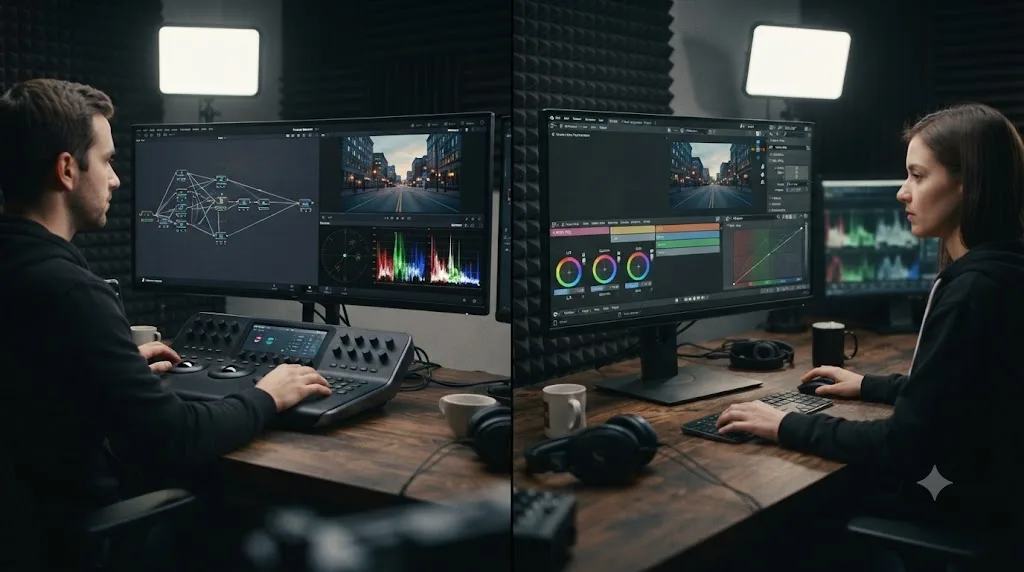
Resolve's Color page is built entirely around nodes, discrete processing blocks you wire together in whatever order the shot needs, each one visible as part of a graph you can read at a glance, backed by a full scopes suite (waveform, vectorscope, histogram, parade) docked right next to the graph. It's the tool ProVideo Coalition's Oliver Peters points to as the standard for accurate, portable ACES workflows, ahead of every other major NLE. Our deeper breakdown of Resolve's own color management options versus ACES covers when you'd actually reach for each one.
Blender's VSE has real color tools, just far fewer of them. It includes RGB curves, a Color Balance panel with three wheels for shadows, midtones, and highlights, a Hue Correct tool for selective desaturation, and a brightness and contrast modifier you can stack across multiple strips with an adjustment layer, according to a CG Cookie course covering VSE color correction with scopes and BlenderNation's rundown of the VSE's color effects. That's a legitimate toolkit for basic corrections. It's not close to a node graph with qualifiers, power windows, and parallel nodes.
The bigger limitation is what the VSE doesn't have natively: for anything beyond those basic tools, you have to jump into Blender's separate node-based Compositor, which offers real freedom and access to render layers, but only works shot by shot rather than across your whole sequence, and historically lacked built-in scopes of its own (you view them through the Image Editor's Viewer node instead). That's a real, documented seam in the workflow. Grading in the VSE means switching contexts between two different editors, the sequencer for the cut and the compositor for anything past a basic correction, whereas Resolve keeps the whole grade inside one page built for exactly that job.
A node-based color page with built-in scopes is not the same tool as a curves panel that requires switching to a separate compositor for anything advanced. Both can technically color-correct a shot. Only one of them was designed around doing that as its primary job.
Which has better audio tools?
DaVinci Resolve, and it's not particularly close once you look at what each app actually offers.
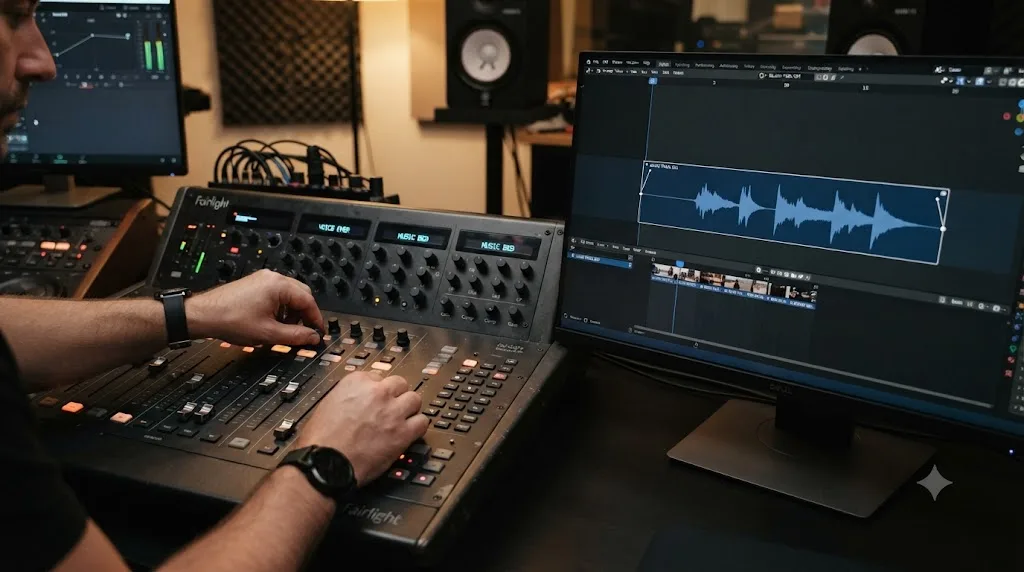
Resolve's Fairlight page is a genuine digital audio workstation built into the same app as the picture editor. Blackmagic's own Fairlight page describes support for up to 2,000 tracks with realtime effects on a single system, a full channel-strip mixer with faders, stereo and 3D panners, six effects slots per channel, a built-in 6-band parametric EQ and dynamics processing on every track by default, plus dedicated ADR and Foley tools for post-production sound work. Blackmagic markets it as "the world's first and only audio post production software that's completely integrated with picture editing," and that integration is the actual point: you never leave the project file to mix.
Blender's VSE handles audio through Audaspace, its internal audio library, which lets you see waveforms on strips, apply basic gain and panning, crossfade between clips, and mix down a final track. That covers a rough podcast edit or a simple dialogue pass fine. There's no dedicated audio workspace, no channel-strip mixer, no built-in EQ or dynamics processor per track, and no ADR or Foley toolset. If your project needs real sound design or a proper mix bus, Blender doesn't have a page for that at all, and you'd need to route audio out to a separate DAW entirely, the same round trip Final Cut Pro editors make to Logic Pro, except Blender doesn't bundle one.
Fairlight is a full digital audio workstation living inside your edit; Blender's audio tools are a waveform display with a volume knob attached. That's not an exaggeration for effect. It's the literal gap between "audio post production software" and "the audio strip in a video sequencer that was never meant to carry that weight."
Which handles VFX and 3D integration better?
This is the one row where Blender pulls decisively ahead, because it's not really a fair fight in the other direction.
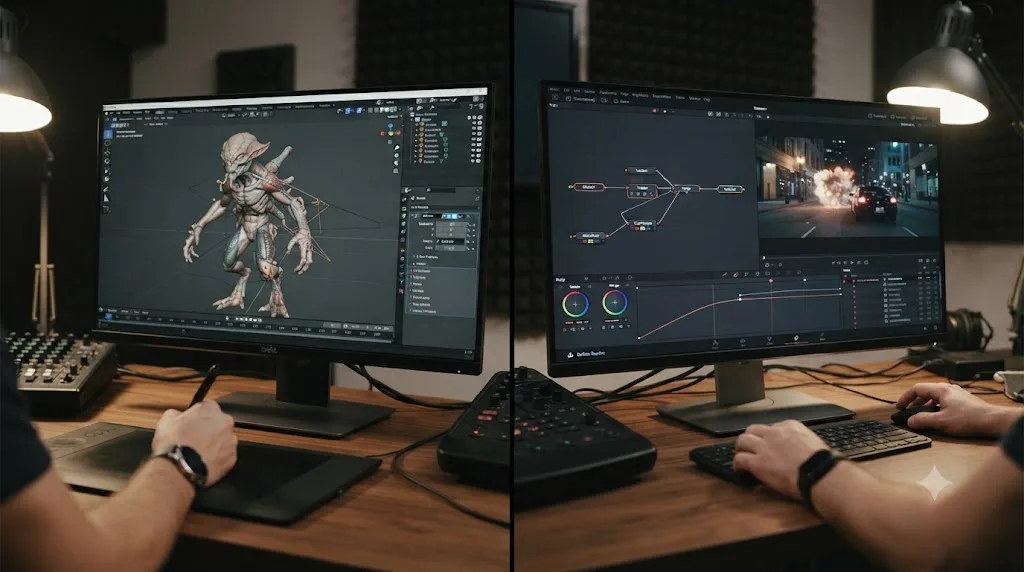
Blender is a complete 3D application: modeling, sculpting, rigging, animation, simulation, and rendering (through Cycles for path-traced realism or EEVEE for real-time preview), all in the same program that includes the VSE. You can add a full 3D scene directly into your sequencer timeline as a scene strip, adjust the animation, and watch the cut update without any export or re-import step. Filmmaker and VFX artist Ian Hubert builds his set extensions and compositing work this way, projecting original footage onto tracked 3D geometry inside Blender's viewport to add environments, effects, and CG elements that read as part of the original plate, a technique documented in a breakdown of his 3D compositing workflow.
DaVinci Resolve's Fusion page is a genuine node-based compositor, and Blackmagic describes it as a true 3D compositing workspace with more than 250 tools covering vector paint, keying, rotoscoping, tracking, and particle systems. That's real depth for compositing, motion graphics, and adding effects to existing footage. What Fusion isn't is a modeler, a sculptor, a rigger, or a full animation system. You can build simple 3D elements and camera moves inside Fusion, but you're not building a character, sculpting a creature, or running a cloth simulation there the way you would in Blender.
Here's the honest split: if your VFX work means compositing, tracking, and adding motion graphics to footage that's already shot, Fusion inside Resolve handles that without leaving your edit. If your VFX work means building new 3D elements from scratch, whether that's a set extension, a full CG character, or a stylized animated sequence, Blender is doing a job Resolve was never built to do at all.
Blender is the only one of these two apps that can model, rig, and animate a 3D character from nothing. DaVinci Resolve is the only one that can grade, mix, and deliver the finished project professionally. Neither gap closes with a feature update, because they're not accidents of development priority, they're what each app fundamentally is.
Does either one support multicam editing?
Only DaVinci Resolve, and this is a gap that shows up the moment you shoot an interview, a podcast, or any project with more than one camera running at once.
Resolve lets you select every angle in the Media Pool, choose Create Multicam Clip Using Selected Clips, and sync automatically by timecode (if the cameras were jam-synced) or by waveform (matching a shared audio source across angles). Once synced, you drop the multicam clip on a timeline and cut live between angles using number keys, with support for up to 16 angles in a single multicam clip in both the free and Studio editions. Our full multicam editing workflow for interviews walks through the whole process, sync method to flattening the final cut.
Blender's VSE has no equivalent feature. There's no built-in multicam sync tool, no automatic timecode or waveform matching across angles, and no live-cutting mode that switches between synced cameras with a keypress. If you need to cut a two-camera interview in Blender, you're syncing angles manually by lining up waveforms or timecode by eye, then manually swapping which strip is active at each cut point, strip by strip, with none of the automation a dedicated multicam tool provides.
A feature that has to be rebuilt by hand for every project isn't really a feature, it's a workaround. If any meaningful share of your work involves more than one camera at a time, this single gap is often reason enough on its own to finish the edit in Resolve, even if the VFX for the same project was built in Blender.
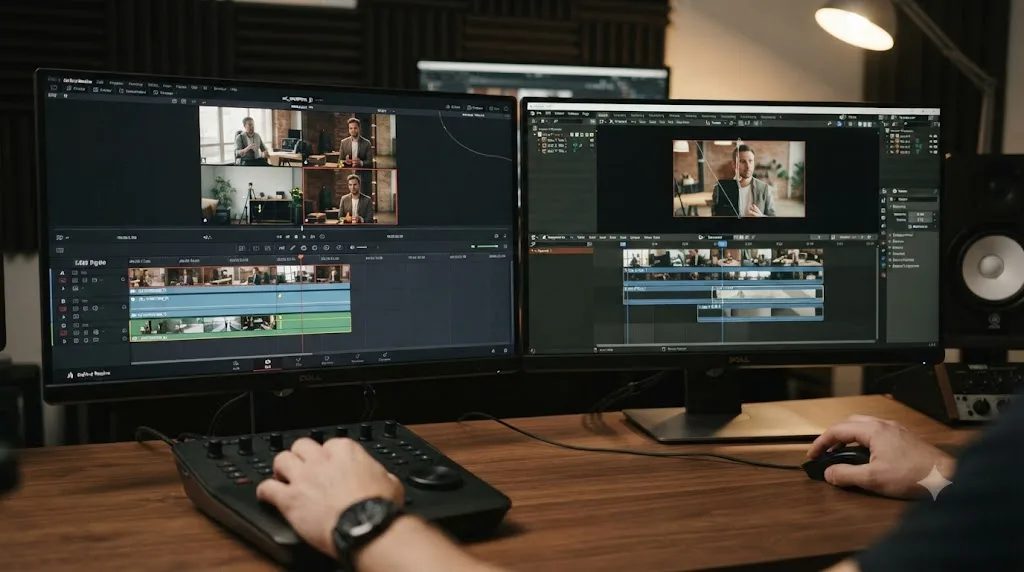
What happens when you try to finish a real project entirely inside Blender's VSE?
This is worth walking through honestly, because it's the scenario most comparisons skip: not "can Blender open a video file," but "can you actually finish paid client work in it."
Media organization is the first friction point. The VSE has no bin system with thumbnail previews the way Resolve's Media Pool does, so managing dozens of source clips across a real shoot means scrolling a flat file browser rather than organizing footage visually before you start cutting. Proxy media, editing with a lower-resolution stand-in while your source footage renders in the background, exists in Blender but isn't nearly as refined or automatic as Resolve's proxy workflow, which generates and switches proxies with a couple of clicks. Codec support is the next wall: Blender encodes and decodes video through FFmpeg, and while that covers a lot of ground, real-world reports describe inconsistent behavior with specific codec and container combinations, including some H.264 export configurations that produce files certain media players won't open correctly. Resolve, by contrast, ships with a Deliver page built specifically to output clean, compatible files for every major platform without you needing to know FFmpeg's flag syntax at all.
Playback performance is the last piece, and it's the one most actively being addressed. Historically, the VSE processed effects and color transforms on the CPU rather than the GPU, which meant a timeline with more than a handful of strips, transitions, or color corrections could start dropping frames on playback, even on capable hardware. That's directly acknowledged in Blender's own 2026 development plans, which prioritize GPU-accelerated compositor modifiers and effects specifically because the current CPU-bound pipeline doesn't scale to real editing sessions the way a GPU-native tool like Resolve does by default.
None of this means Blender's VSE is unusable. It means every one of these gaps is a small tax you pay on top of the actual editing work, one you don't pay in a tool built around solving them from the start. The cost of a free video editor is never the license price. It's every workaround you build to make up for the features it doesn't have.
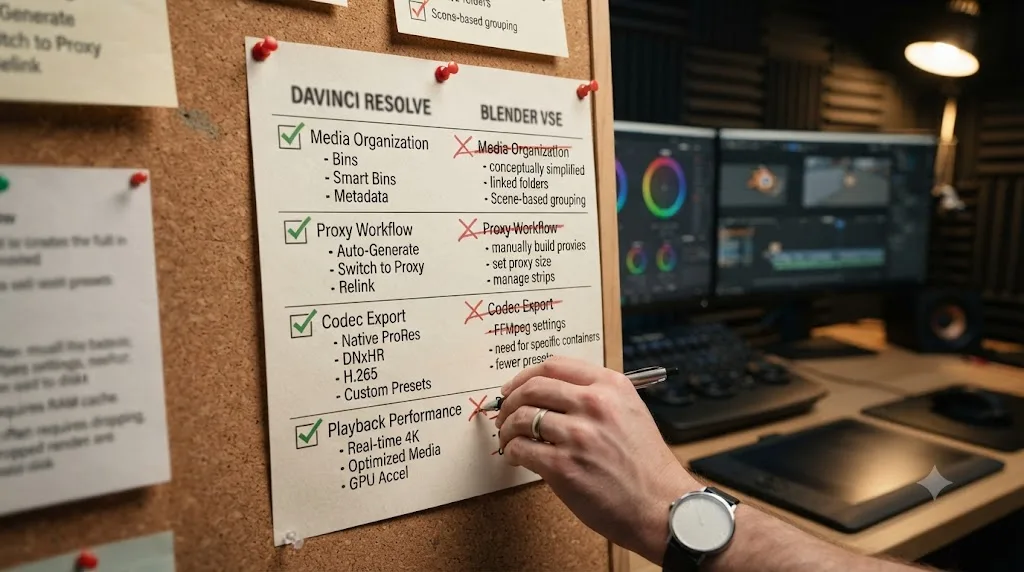
Which one exports and delivers finished video better?
DaVinci Resolve, and the gap here is about polish and presets more than raw capability.
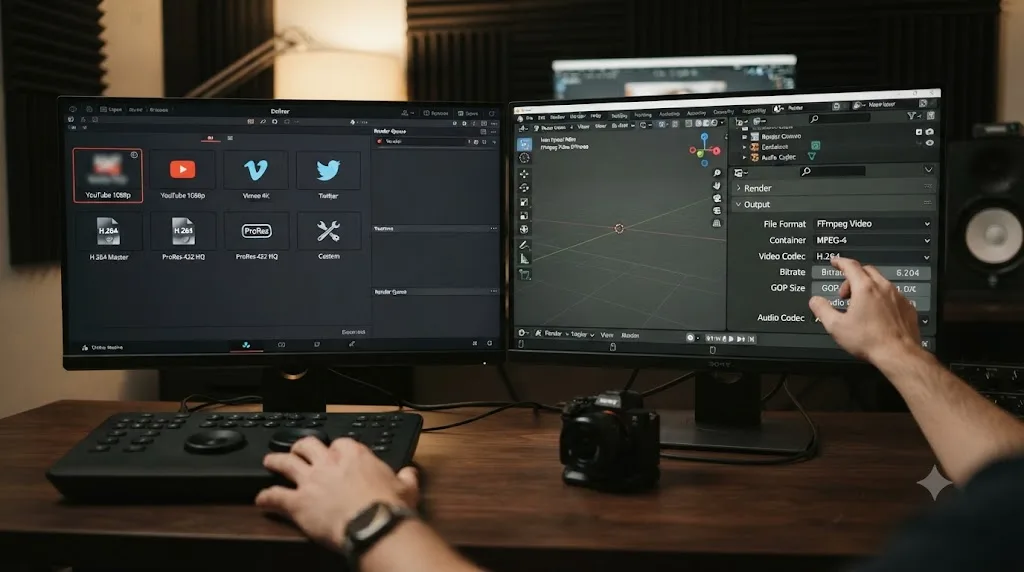
Resolve's Deliver page ships with ready-made export presets for YouTube, Vimeo, and other common destinations, along with full manual control over codec, bitrate, and container when you need it, all inside a dedicated page built specifically for the last step of finishing a project. Our full export settings guide for YouTube covers the specific settings worth knowing before your first upload.
Blender exports through a Render settings panel that leans on FFmpeg under the hood, with a narrower set of built-in presets and more manual configuration expected of you before a render matches what a specific platform wants. It's entirely capable of producing a clean, compatible file, plenty of finished short films and animations have shipped straight out of Blender's render pipeline, but there's more setup between "the edit is done" and "the file is ready to upload" than Resolve's preset-driven Deliver page requires.
Which one is faster and more stable on real hardware?
It depends heavily on what you're doing, which is a more honest answer than either app's fans usually give.
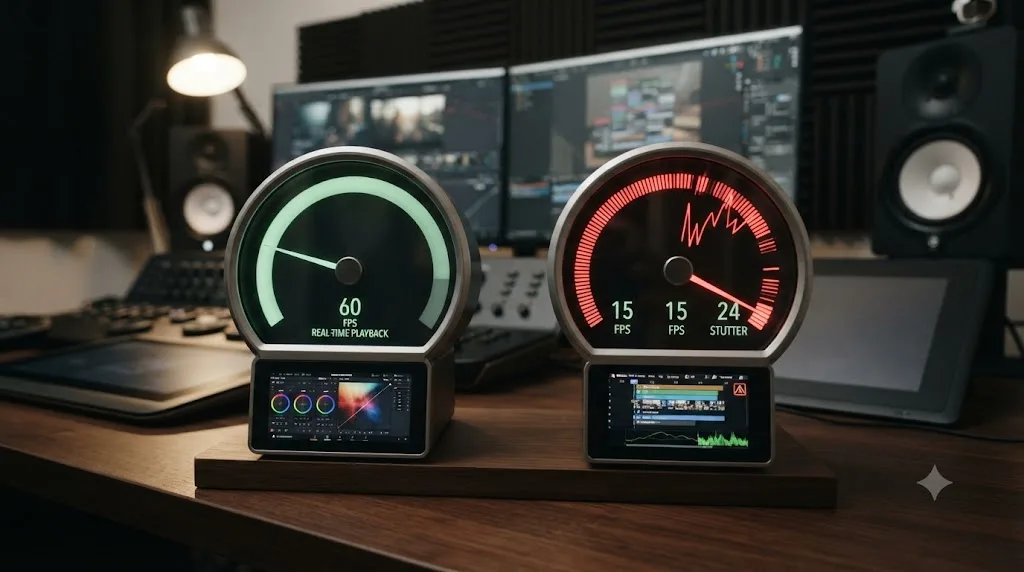
DaVinci Resolve was built around GPU-accelerated processing from its earliest days as a color tool, and that shows in how it handles real-time playback of graded, multi-layer timelines, the exact workload it was designed for. Blender's rendering engines, Cycles and EEVEE, are themselves heavily GPU-optimized and extremely fast for what they do: rendering 3D scenes, according to Blender's own hardware requirements page, which recommends recent NVIDIA, AMD, or Intel GPUs for both engines. But 3D rendering speed and video sequencer playback speed are two different systems inside the same application, and the VSE historically hasn't inherited the same GPU-first treatment as Blender's 3D renderers, which is exactly the gap the 2026 roadmap targets.
For pure hardware capability, both apps can push a capable GPU hard. For the specific task of scrubbing a timeline with color correction, multiple video layers, and audio playing back in sync, Resolve is the one built around making that feel instant, because that's the exact job its entire architecture was designed around from the start.
Which one is easier to learn for video editing specifically?
DaVinci Resolve, if the goal is learning to edit real-world footage. Blender, if you're already inside Blender for 3D work and just need to assemble a rough cut of your own renders.
That split matters more than it sounds like it should. Blender's interface, keyboard shortcuts, and selection model are consistent across every part of the app, modeling, animation, and the VSE included, which means a Blender user coming to the sequencer already has a head start on the interface conventions, even with no video editing background at all. The tradeoff is the same consistency working against anyone coming from outside Blender: the VSE doesn't resemble any dedicated NLE's interface, so an editor who already knows Premiere, Final Cut, or another NLE gets none of that transferred muscle memory.
DaVinci Resolve's learning curve is steeper up front for a different reason: it's genuinely five distinct applications wearing one interface, Edit, Color, Fairlight, Fusion, and Deliver, each deep enough to be its own dedicated app elsewhere. But Blackmagic Design publishes a full free curriculum, six official training guides covering editing, color, Fairlight audio, and Fusion, each with downloadable lesson files, and it's the correct starting point for anyone learning to edit real footage, written by the people who built the software. YouTube channels like Casey Faris cover the same ground from an independent, working-editor angle, and Reddit's editing communities are a reliable place to sanity-check a specific workflow question against people who do this for a living. None of Blender's official documentation covers video editing with anywhere near that depth, because it's not the primary thing Blender is documented to teach.
Our roundup of every AI tool people actually use to learn DaVinci Resolve breaks down the specific tools worth using, including where general chatbots like ChatGPT and Claude help and where they get Fusion's node logic wrong. Worth naming directly here too, since it's the specific gap that matters most for anyone relearning Resolve's interface after years in Blender: TryUncle is the on-screen assistant for DaVinci Resolve on macOS, ask in plain words and Uncle points at the exact control on your screen. If you already understand nonlinear editing concepts from years in the VSE and just need to relearn where a familiar idea lives across Resolve's five pages, that's a faster fix than rewatching a full course from the beginning.
Worth being clear about what TryUncle is and isn't. It's a paid subscription, not free, at $39 a month with cancel-anytime billing, and it's macOS only. Check TryUncle directly for the current rate. It's also worth naming the category honestly: tools like CutAgent, Sottocut, PremiereCopilot, and Eddie AI all promise AI help for Resolve too, but they execute edits or answer chat questions about your footage rather than teach you the interface. TryUncle doesn't touch your timeline. It watches, and it points, which is a different job than automating the cut for you.
Can you use Blender and DaVinci Resolve together?
Yes, and for a specific kind of project, this is genuinely the best answer, not a compromise between two imperfect options.
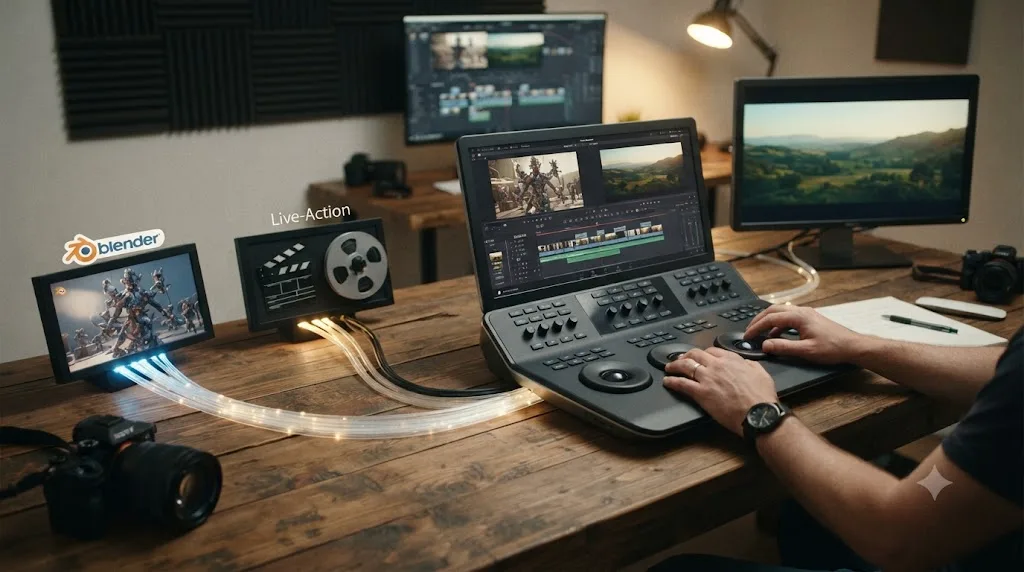
The split plays to what each app is actually strong at: build any 3D elements, set extensions, or full CG shots in Blender, using its modeling, animation, and rendering tools that Resolve simply doesn't have, then bring the rendered footage into DaVinci Resolve for the edit, the color grade, the audio mix, and final delivery. That's not a theoretical workflow. Ian Hubert, a working filmmaker and VFX artist known for building elaborate scenes almost entirely inside Blender, titles his own process breakdown "My Resolve & Blender Workflow", which describes the exact split this comparison points toward: Blender for the 3D and compositing work, Resolve for the edit. When one of the most visible Blender-first filmmakers working today still reaches for Resolve to finish the cut, that's a stronger signal than any feature list.
The practical version of this workflow: render your Blender scenes or VFX shots as image sequences or a high-quality intermediate codec, import them into Resolve's Media Pool alongside your live-action footage, cut and grade everything together on Resolve's Edit and Color pages, mix the final audio in Fairlight, and deliver from Resolve's Deliver page. You get Blender's unmatched 3D toolset for anything that needs real geometry and animation, and Resolve's editing, color, audio, and delivery depth for everything else, without either app trying to do a job it wasn't built for.
The two apps aren't rivals for the same seat. They're built for adjacent jobs that happen to feed into the same finished video. Treating this as an either-or decision is the wrong frame for anyone whose work actually spans both 3D and live-action footage.
What's changing in Blender's VSE for 2026, and does it close the gap?
Some of it, not all of it, and Blender's own roadmap is honest about the target it's chasing.
Blender's 2026 development plans for the sequencer include ripple and three-point editing (both standard NLE trimming behaviors Resolve has had for years), media bins for organizing source clips, new Sequencer effects, and GPU support for compositor modifiers and effects, according to Blender's own 2026 roadmap developer forum post. CG Channel's coverage of the same roadmap frames the intent directly: these changes are meant to "bring the Sequencer more in line with dedicated video editing software, including free tools like DaVinci Resolve." That's not a hedge or marketing language, it's Blender's own development community naming Resolve specifically as the bar the VSE is trying to clear.
Some of that work has already landed. A ripple delete operator has merged, conversion of footage into the sequencer's working color space now happens on demand rather than immediately (cutting redundant processing), and GPU acceleration for compositor modifiers and effects inside the VSE is now controllable through Render, Performance, Compositor settings. Media bins, full three-point editing, and broader hardware-accelerated decode and encode are still in progress, with hardware acceleration specifically flagged as dependent on developer availability rather than guaranteed for the year.
None of this changes the structural gap covered earlier in this piece: media bins and ripple editing bring the VSE closer to table stakes for a modern NLE, but they don't add a Fairlight-equivalent audio DAW, a node-based color page, or native multicam sync, none of which appear anywhere on the current roadmap. Catching up on editing fundamentals and matching a decade of purpose-built color, audio, and multicam depth are two very different sizes of project. The 2026 work makes Blender's VSE a noticeably less frustrating basic editor. It doesn't make it a Resolve replacement, and Blender's own developers aren't claiming it will.
Should you edit in Blender, DaVinci Resolve, or both?
This depends entirely on what's actually driving the question, so let's work through the real scenarios instead of a blanket recommendation.
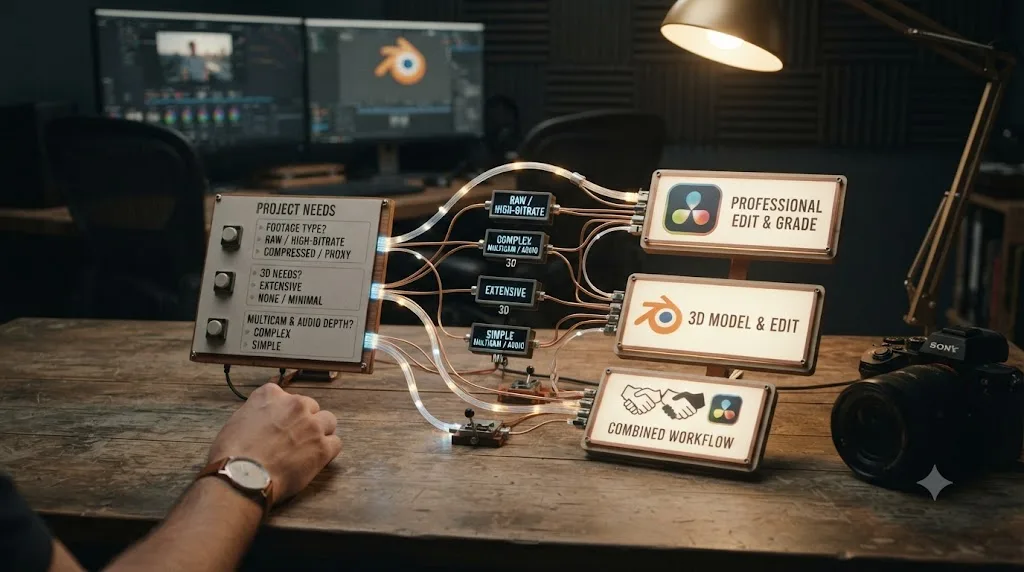
You're cutting real-world camera footage, interviews, YouTube videos, weddings, corporate work, anything shot with an actual camera. Use DaVinci Resolve. Its color, audio, multicam, and delivery tools all exist specifically for this job, and the free edition covers the large majority of that work at no cost at all.
You're building a fully animated 3D short and need to assemble your own rendered scenes into a sequence. Blender's VSE is a genuinely convenient tool for exactly this, since it can pull scenes directly from the same project without any export step. Whether you finish the final grade and mix there or bring the render into Resolve depends on how much polish the audio and color need.
You're a VFX artist or 3D generalist who needs to build set extensions, CG elements, or full digital environments for live-action footage. Build the 3D work in Blender, since Resolve has no modeling, rigging, or animation tools at all, then bring the rendered shots into Resolve for the edit, grade, and mix, the same split Ian Hubert's own workflow follows.
Your project includes more than one camera at any point, an interview, a podcast, a multi-angle event. DaVinci Resolve's native multicam sync makes this close to a non-decision. Blender has no equivalent tool, and manually syncing angles strip by strip on a real deadline is a poor use of your time.
Your budget is genuinely zero and you're choosing your very first editing tool. Start with DaVinci Resolve's free edition rather than Blender's VSE, unless you already know you're headed toward 3D animation specifically. Its free tier is more complete for the actual job of editing footage, and the official Blackmagic training curriculum gives you a real, structured path forward that Blender's video editing documentation doesn't match.
You need real sound design, ADR, or a proper mix pass as part of your regular workflow. Resolve's Fairlight page is a full DAW built into the same project. Blender has nothing comparable, and you'd need to round-trip to a separate audio application either way.
None of the above apply, and you're already fluent in Blender's interface from 3D work. That familiarity is worth something. If your projects are simple cuts of your own renders with minimal color and audio work, staying inside Blender saves you the overhead of learning a second app's interface conventions, at least until the project's needs outgrow what the VSE can do.
DaVinci Resolve vs Blender: the full side-by-side comparison table
Every row from this article in one place, so you don't have to scroll back through each section to compare two specific features.
| Feature | DaVinci Resolve | Blender |
|---|---|---|
| Price | Free (capped), $295 one-time for Studio | $0 forever, full feature set, GPL licensed |
| Primary purpose | Dedicated video editing, color, audio, and VFX suite | Full 3D creation suite with a built-in video sequencer |
| Platforms | macOS, Windows, Linux | Windows, macOS, Linux, and BSD |
| Current version (July 2026) | 21.0.2 | 5.1 |
| Color grading | Node-based Color page with full scopes suite | Curves, color balance, hue correct; advanced work needs the separate Compositor |
| Audio tools | Fairlight, full DAW, up to 2,000 tracks | Audaspace-based waveform mixing, no dedicated audio page |
| VFX and compositing | Fusion, node-based, 250+ tools, 2D/3D compositor | Full 3D suite: modeling, rigging, animation, Cycles/EEVEE rendering |
| Multicam editing | Native sync (timecode or waveform), up to 16 angles | No native multicam tool |
| Media organization | Media Pool with bins and thumbnail previews | Flat file browser; media bins planned for 2026, not yet shipped |
| Codec/delivery | Dedicated Deliver page with platform presets | FFmpeg-based render export, narrower preset support |
| Multi-user collaboration | Native project/bin/timeline locking (Studio) | None for the VSE |
| GPU-accelerated timeline playback | Yes, by design since the app's origin | Partial; VSE GPU acceleration is an active 2026 development target |
| Learning curve | Steeper (5 integrated apps in one), extensive official training | Consistent Blender-wide interface; little dedicated video editing documentation |
| Best real-world use | Editing, grading, mixing, and delivering real footage | Modeling, animating, and rendering 3D scenes, with basic assembly of the results |
Which one should you actually pick?
Strip away the "free versus free" framing that most listicles lead with, since it hides more than it reveals. The real question isn't which app costs less, it's which app was built for the job you're actually doing. DaVinci Resolve was built to edit, grade, mix, and deliver real footage, and it does that better than Blender's VSE on nearly every axis that matters: color, audio, multicam, delivery, and collaboration. Blender was built to model, animate, and render 3D scenes, and nothing on the market touches it for that job at any price, paid or free.
If you're editing real-world footage, and most people asking this question are, DaVinci Resolve is the right tool, full stop, and its free edition is genuinely capable enough to never force an upgrade for the majority of creators. If your work is 3D animation or VFX-heavy, keep Blender for what it's uniquely good at, and don't force its video sequencer to do a job it was never designed around. And if your actual pipeline spans both, the way a growing number of independent filmmakers and VFX artists work today, build the 3D in Blender and finish the cut in Resolve. That's not a compromise between two lesser options. It's the one workflow that plays each app's real strength instead of asking either one to be something it isn't.
Frequently asked questions
- Is Blender good for video editing?
- It's usable for basic cuts, but it wasn't built for it. Blender's Video Sequence Editor started as a way to quickly assemble Blender's own rendered animation output, and its color, audio, and codec support are all noticeably thinner than a dedicated NLE's. A Capterra reviewer who tried it for real editing work put it plainly: it's a 3D graphics tool that also has video capabilities, not the other way around, and that shows in daily use.
- Is DaVinci Resolve better than Blender for editing real footage?
- Yes, for the actual job of cutting, grading, and mixing footage. DaVinci Resolve is a dedicated NLE with a node-based Color page, a full Fairlight audio DAW, native multicam sync, and delivery presets for every major platform. Blender wins on one specific axis: it's the only one of the two that's also a full 3D application, so VFX shots that need real 3D compositing stay in one app.
- Is Blender's Video Sequence Editor completely free, unlike DaVinci Resolve?
- Yes. Blender is released under the GNU GPL and has no paid tier, no feature gate, and no Studio-style upgrade at any price, according to Blender's own license page. DaVinci Resolve's free edition is also genuinely free with no watermark or time limit, but it caps exports at Ultra HD and holds back features like multi-GPU acceleration behind the one-time $295 Studio purchase.
- Can I use Blender and DaVinci Resolve together on the same project?
- Yes, and a lot of working 3D artists do exactly that. A common pipeline builds VFX shots, set extensions, or full CG scenes in Blender, then cuts, grades, and mixes the finished footage in DaVinci Resolve. Blender VFX artist Ian Hubert titles his own process breakdown 'My Resolve & Blender Workflow,' which is the split in one phrase: Blender for the 3D, Resolve for the edit.
- Does Blender support multicam editing like DaVinci Resolve does?
- Not natively, no dedicated multicam tool. DaVinci Resolve lets you select multiple angles in the Media Pool, sync them by timecode or waveform, and cut live between them with number keys, supporting up to 16 angles in a single multicam clip. Blender's VSE has no equivalent feature, so multi-camera footage has to be synced and switched manually, strip by strip.
- What's the fastest way to learn DaVinci Resolve if I'm coming from Blender?
- Start with Blackmagic's own free training guides for the vocabulary and page structure, since Blender's interface conventions don't carry over. From there, the fastest path is guided practice on your own footage rather than another full course, since you already understand nonlinear editing concepts from the VSE, you just need to relearn where they live across Resolve's five pages.
- Why is Blender's video editor weaker than dedicated NLEs like DaVinci Resolve or Premiere Pro?
- Because it was never built to compete with them. The Video Sequence Editor originated as a way to preview and assemble Blender's own rendered animation frames, not to ingest and finish real-world camera footage. Blender's own 2026 development roadmap explicitly aims to bring the Sequencer more in line with dedicated video editing software, including free tools like DaVinci Resolve, which is the clearest sign of how far apart the two still are.
Sources
- Blender - The Free and Open Source 3D Creation Software (Blender.org)
- License (Blender.org)
- Color effects in Blender VSE (BlenderNation)
- VSE: Color Correction with Scopes (CG Cookie)
- Video Sequence Editor (VSE) 2026 roadmap (Blender Developer Forum)
- See the 2026 Blender development roadmap (CG Channel)
- DaVinci Resolve - Studio (Blackmagic Design)
- In Depth: DaVinci Resolve Studio vs Free (Updated for 21) (Toolfarm)
- DaVinci Resolve - Fairlight (Blackmagic Design)
- DaVinci Resolve - Fusion (Blackmagic Design)
- DaVinci Resolve - Collaboration (Blackmagic Design)
- DaVinci Resolve product page (Blackmagic Design)
- Blender Reviews (Capterra)
- Blender 5.0 Release (Blender.org press)
- Release Notes (Blender.org)
- Requirements (Blender.org)
- DaVinci Resolve vs Blender comparison (RFP.wiki)
- Blender vs DaVinci Resolve comparison (Software Advice)
- My Resolve & Blender Workflow, by Ian Hubert (Patreon)
- CutAgent (product site: features, pricing, FAQ)
- Sottocut (product site: features, pricing, platform requirements)
- Eddie AI for DaVinci Resolve (native integration workflow page)
- PremiereCopilot pricing
- DaVinci Resolve Training (Blackmagic Design)
- TryUncle
Learn by doing, not watching
Stop translating tutorials to your timeline.
TryUncle stays beside Resolve on Mac and Windows. When you ask, Uncle sees your screen and points at the exact control you need. No hunting through tabs, timestamps, or mismatched tutorials.
Meet TryUncleKeep reading
 ComparisonsJul 15, 202628 min read
DaVinci Resolve vs Final Cut Pro in 2026: The Full Comparison
Pricing, ACES color, Fairlight vs Final Cut audio, Fusion vs Motion, collaboration, and 2026 Apple Silicon benchmarks, compared with real sources and one clear verdict.
 ComparisonsJul 11, 202626 min read
The Best AI Tools to Learn DaVinci Resolve in 2026
ChatGPT, Claude, Blackmagic's free training, Recut, and Resolve's Neural Engine compared for learning DaVinci Resolve, and the gap none of them close.
 ComparisonsJul 12, 202630 min read
Resolve Color Management vs. ACES: Which Should You Use?
DaVinci Resolve Color Management and ACES both fix scene-referred color, but they solve different problems. Here's which one fits your project.