
Learn / DaVinci Resolveupdated for DaVinci Resolve 21.0.3 (July 2026)
DaVinci Resolve Free vs Studio for YouTube Automation Channels
Quick answer
DaVinci Resolve's free edition already covers what most automation-channel pipelines run on daily: multi-user collaboration, compound and adjustment clips, PowerGrades, and unlimited render queuing. Studio's $295 one-time upgrade adds Neural Engine automation (Magic Mask, Voice Isolation, Speed Warp, Smart Reframe), Python and Lua scripting, and Remote Rendering. Most channels don't need Studio to launch; high-volume ones usually do.
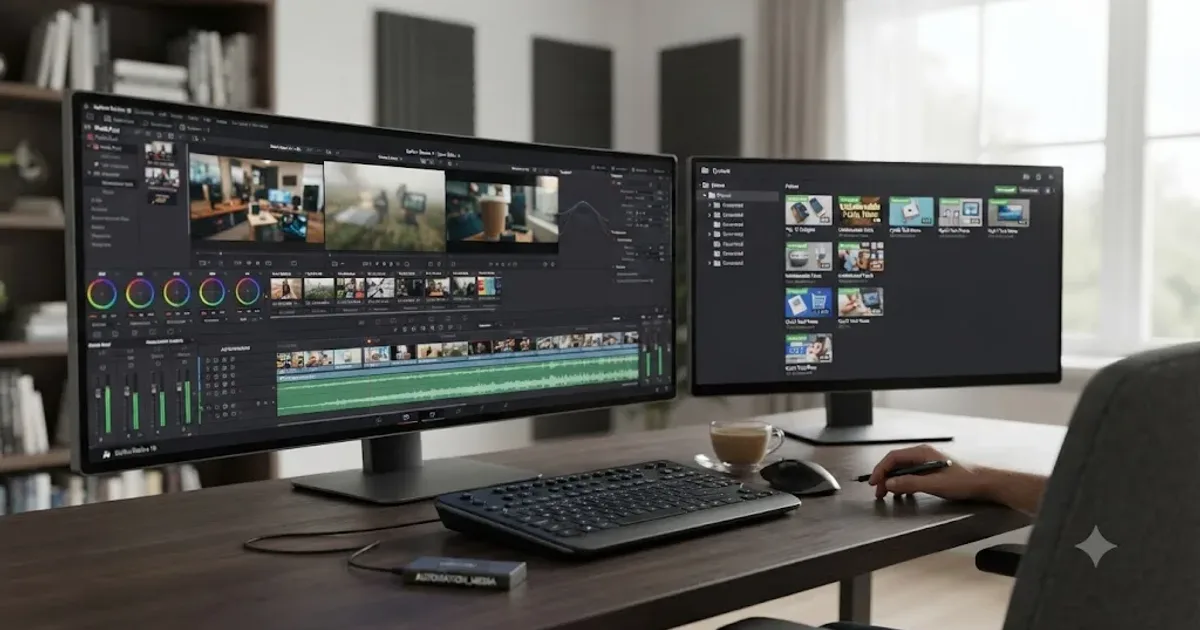
You've got a niche, a script pipeline, and an outsourced editor lined up. Now you're staring at a $295 fork in the road before you've published a single video: free DaVinci Resolve, or Studio. Most guides answer this question for a solo hobbyist. Your channel isn't that. It's a small production line, and the wrong call here either wastes $295 you didn't need to spend, or costs you weeks of manual work Studio would have automated from day one.
As of July 2026, running on DaVinci Resolve 21.0.3, here's the honest answer: free Resolve already runs the actual backbone of an automation pipeline. Studio adds specific, named tools that matter once your volume, your outsourced team, or your repurposing needs cross a real line. This guide draws that line with the actual features, the actual prices, and one risk most free-vs-Studio comparisons never mention at all: what YouTube's own monetization policy has to say about templated, automated video.
What is a YouTube automation channel, and why does free vs Studio hit harder here?
A YouTube automation channel outsources or systematizes the repetitive parts of production, scripting, voiceover, editing, and thumbnails, while the owner focuses on niche selection and strategy rather than sitting behind the timeline personally. That structure is exactly why this specific software decision matters more than it does for a single creator editing their own vlog: the person choosing DaVinci Resolve's edition often isn't the person who'll spend eight hours a day inside it.
A solo creator can try Studio's $295 purchase, decide it wasn't worth it, and eat the cost personally. An automation channel owner is making that call for one or more outsourced editors, sometimes before hiring them, sometimes as a requirement in a job posting. Get it wrong and you've either bought scripting and Neural Engine automation nobody on your team will touch, or you've handed an editor a free-tier limitation that quietly caps your output right as the channel starts to work.
We've spent 7+ years cutting commercial video professionally and run a video-editing community with more than 100,000 members, and this exact question, whether an automation channel needs Resolve Studio before it scales, is one of the recurring threads in that community. The answer people want is a single yes or no. The honest one is a feature-by-feature list, because "Studio" isn't one upgrade, it's roughly a dozen separate features bundled at one price, and an automation channel only needs some of them.
Here's the frame this guide uses throughout: DaVinci Resolve's free edition is not a trial or a stripped demo. DaVinci Resolve's free edition is the same core application Studio is built on, not a limited preview of it. It's a full non-linear editor with color grading, multi-track Fairlight audio, and Fusion compositing, all included, all at no cost. Studio is a specific, named set of additions on top of that foundation, and the rest of this guide walks through exactly which of those additions an automation channel actually needs.
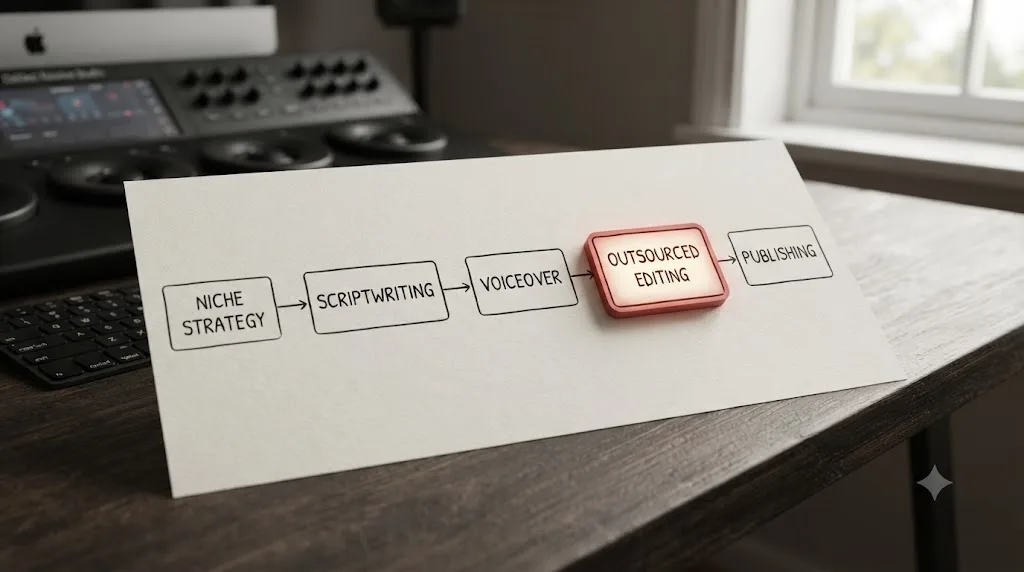
What's actually different between DaVinci Resolve free and Studio in 2026?
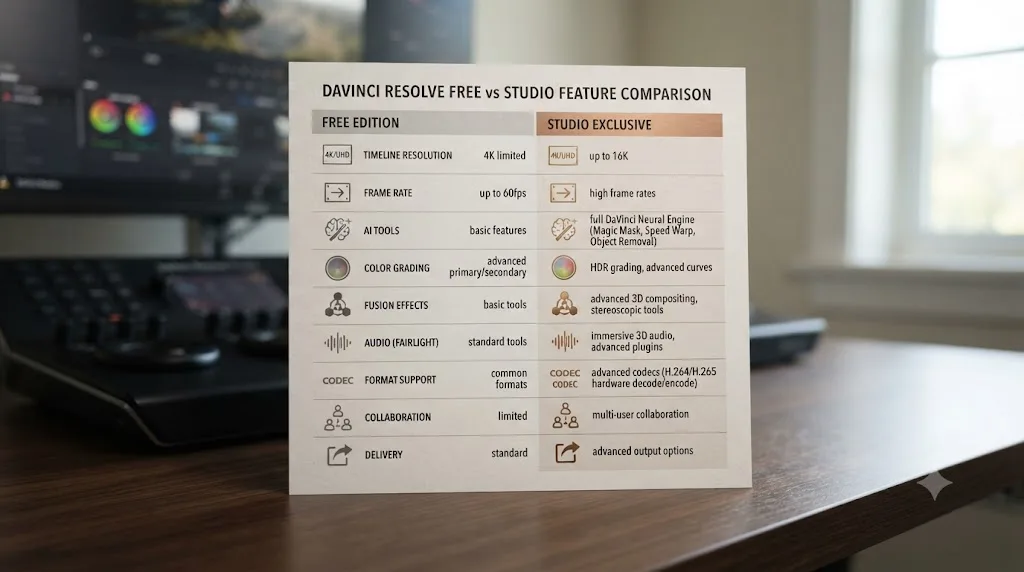
DaVinci Resolve Studio is a one-time $295 purchase, not a subscription, and it adds a specific list of features on top of the identical free edition, according to Blackmagic Design's own product and comparison pages. Nothing about core editing, color, or audio changes between the two; the gap is entirely in named, gated add-ons.
Here's the full comparison, built specifically around what an automation-channel pipeline actually touches, not a generic feature dump:
| Capability | Free edition | Studio ($295 one-time) |
|---|---|---|
| Core editing, Cut and Edit pages, multi-track timelines | Yes | Yes |
| Color grading, node-based correction | Yes | Yes |
| Fairlight multi-track audio, Dialogue Leveler | Yes | Yes |
| Fusion compositing | Yes | Yes |
| Multi-user collaboration (shared database or Blackmagic Cloud) | Yes | Yes |
| Compound clips, adjustment clips, PowerGrades | Yes | Yes |
| Render Queue, batch queuing across multiple projects | Yes | Yes |
| Maximum resolution and color depth | Virtually all 8-bit formats, up to Ultra HD 3840x2160 at 60fps | Beyond 4K, higher bit depth, advanced HDR grading |
| Magic Mask, object isolation and tracking | No | Yes |
| Voice Isolation, Music Remixer, dialogue separation | No | Yes |
| Speed Warp (optical flow retiming) | No | Yes |
| Smart Reframe (auto aspect-ratio conversion) | No | Yes |
| Scene Cut Detection, SuperScale upscaling, Object Removal | No | Yes |
| Python and Lua scripting API | No | Yes |
| Remote Rendering (send a job to a second machine) | No | Yes |
| Additional Resolve FX filters and Fairlight FX plugins | Base set | 45+ additional filters, more audio plugins |
| Stereoscopic 3D tools, Dolby Vision, IMF, DCP delivery | No | Yes |
Read that table by row, not by column. Most of what an outsourced editing pipeline runs on every single day, collaboration, batch rendering, and reusable templates, is on the free-edition side of that line. The Studio-only column is almost entirely automation and repurposing tools: things that save time at high video volume, not things that unlock the ability to edit at all. That distinction is the whole argument this guide makes, and it's worth sitting with before you spend $295 on a hunch.
Do you need DaVinci Resolve Studio to run an outsourced editing pipeline?
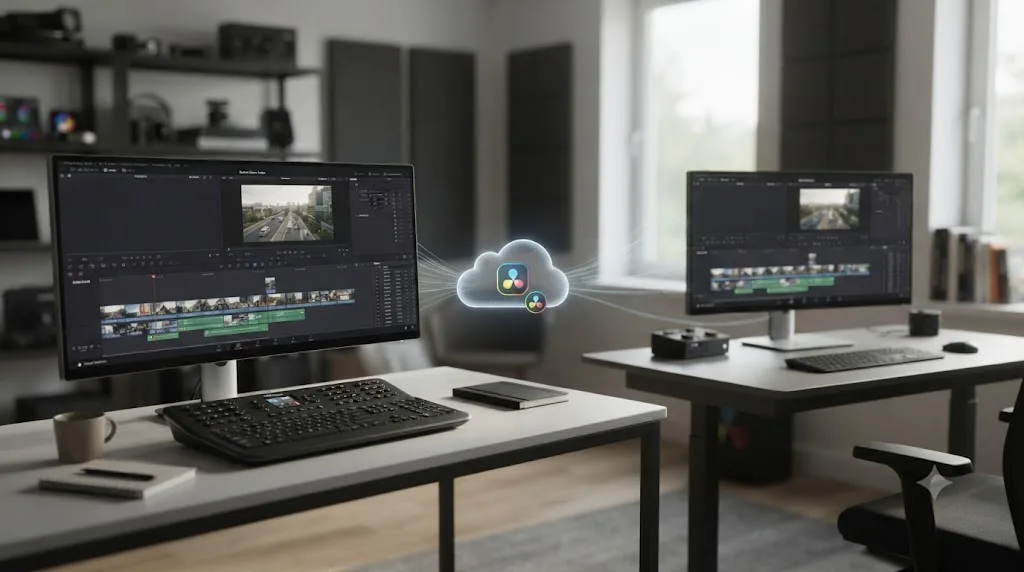
No. Multi-user collaboration ships in DaVinci Resolve's free edition, not behind Studio's paywall, according to both Blackmagic Design's dedicated Collaboration product page and its free-vs-Studio comparison page. That single fact quietly answers the question most automation-channel owners assume requires an upgrade before they hire anyone.
Collaboration in Resolve runs on a shared project library, either a self-hosted PostgreSQL database on a NAS or spare machine, or Blackmagic Cloud Project Libraries, the hosted version of the same system, and both paths work identically on free and Studio. An owner managing niche strategy and a script pipeline can sit in the same project as one or more outsourced editors, each pulling from a shared Media Pool, without anyone paying for Studio just to unlock the ability to work together.
The mechanic worth understanding before you hand a project to an outsourced editor: Resolve's collaboration system locks on a first-come basis. Whoever opens a bin or a timeline first holds it, and everyone else gets read-only access until that person clicks away. On a solo creator's project, that's rarely an issue. On an automation channel with an owner reviewing footage while an editor is mid-cut, it causes a specific, well-documented headache: a shared project locks at the bin level as often as the timeline level, so one person opening the wrong bin can freeze work for everyone else in it. Our guide to fixing collaboration mode timeline locks covers the actual fix, giving each active timeline its own dedicated bin instead of clustering them together, which is exactly the setup an automation channel with more than one person touching a project needs to know from day one, not after the first missed upload deadline.
There's a real reason to buy Studio for a multi-editor pipeline anyway, and it's not collaboration itself. It's the Neural Engine and scripting features covered in the next two sections, which do sit behind Studio, and which matter more the more videos your editors are turning around per week. But "can my outsourced editor and I work on the same project" is not a reason to buy Studio in 2026. That door was already open on the free tier.
Can you batch-render and template videos on the free version, or does that need Studio?
Yes, the core batch and templating tools an automation channel actually runs on ship in the free edition. Compound clips, adjustment clips, PowerGrades, and multi-timeline render queuing all work identically on free and Studio, which covers the actual repeatable-format workflow most automation channels are built around.
Build your channel's recurring intro, lower third, or outro once as a Compound Clip, store it in a Power Bin, and drag it into every new project without rebuilding it. Apply a consistent color correction across a whole batch of stock footage with an Adjustment Clip instead of grading each clip by hand. Save a repeatable Node 1 correction as a PowerGrade and apply it via Color Groups across dozens of clips from the same source in one action. None of that requires Studio. Our full YouTube editing workflow guide covers exactly how these pieces fit together for a channel publishing on a recurring schedule.
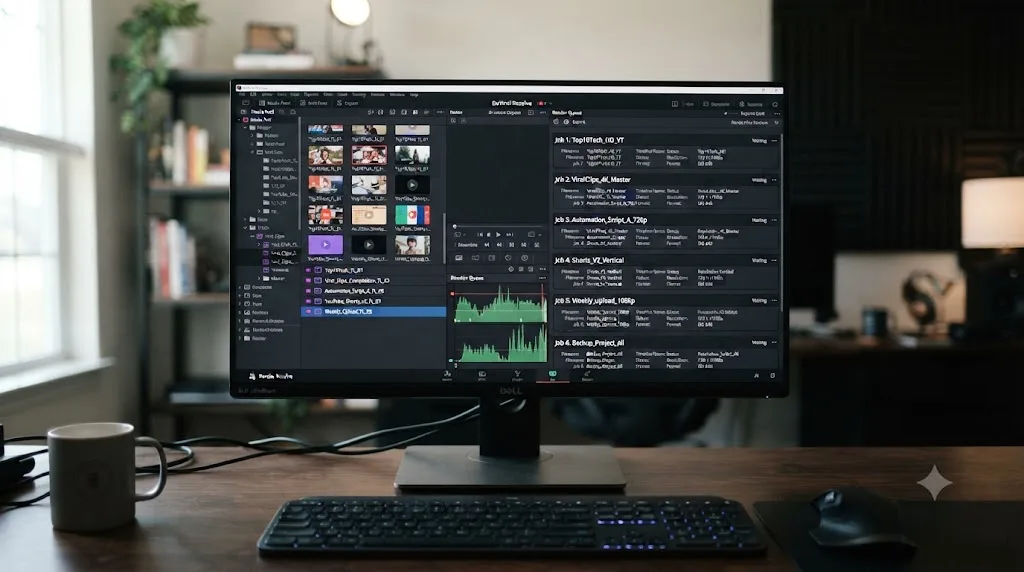
Rendering scales the same way. Select multiple timelines in the Media Pool, right-click, and choose Add to Render Queue Using a saved preset, and every selected timeline queues in one action rather than one trip to the Deliver page per video. Resolve can even pull queued jobs from several separate projects into a single combined render pass through the Render Queue Option menu's Show All Projects command, which matters directly for an automation channel where each video often lives in its own project file. Our guide to rendering multiple timelines at once walks through the exact steps, plus the one gotcha that catches automation pipelines specifically: Resolve queues a live reference to a timeline, not a saved snapshot, so toggling tracks to fake several versions of one video renders the same final state for all of them. Build genuinely separate timelines for genuinely separate videos, always.
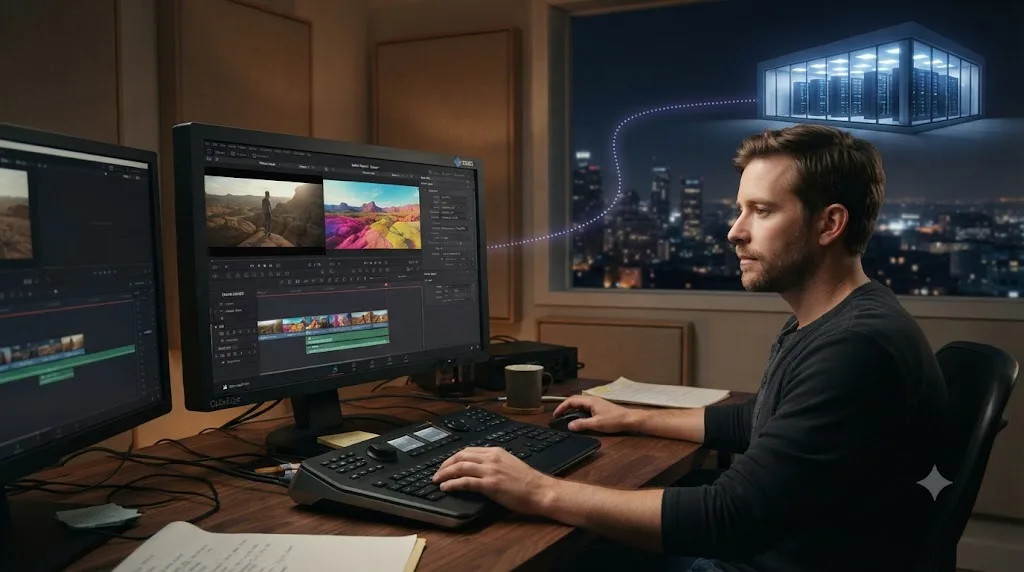
Where Studio actually enters this picture is speed at scale, not capability. Remote Rendering, sending one queued job to a second physical machine so it renders while you keep working on the first, requires Resolve Studio on both computers, a shared project database, and matching media storage paths. Blackmagic Design's own manual states the requirement without hedging: both machines need Studio installed, since remote rendering doesn't work with the free version at all. For a channel queuing ten videos a week on one machine, that's rarely the bottleneck. For a channel running two editing workstations that both need to keep rendering overnight without blocking each other, it's the specific, real reason to pay for Studio, covered fully in our render farm service recommendations for DaVinci Resolve.
The entire multi-video, multi-project batch workflow an automation channel actually runs day to day works on the free edition; only sending a render to a second physical machine requires Studio. That's worth knowing before assuming a growing upload schedule is automatically a reason to upgrade. Usually, it isn't yet.
Which Studio-only Neural Engine features actually save time at automation-channel scale?
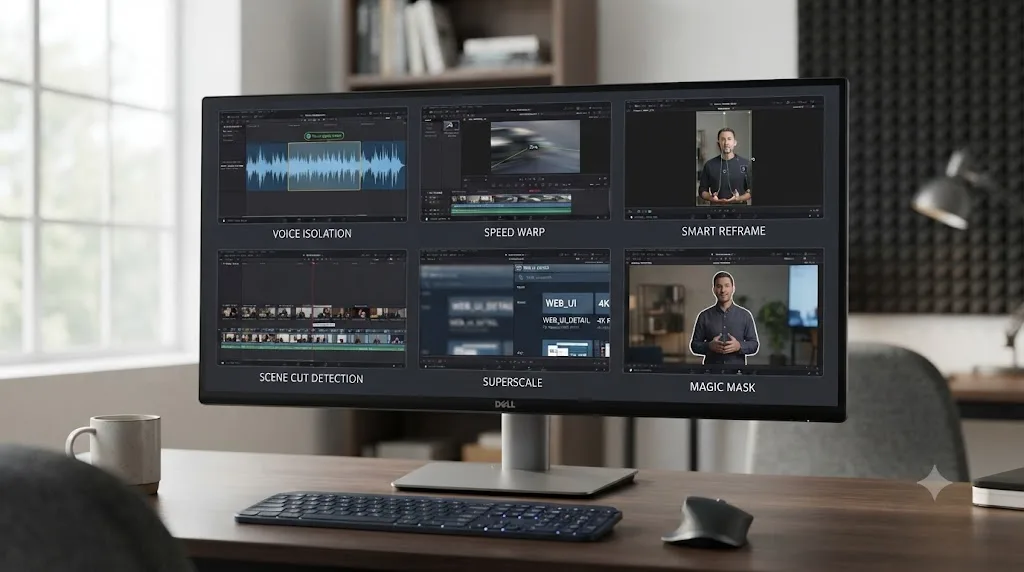
Several, and this is where Studio's $295 genuinely earns its keep for a high-volume channel, more than any other single category in the free-vs-Studio split. The DaVinci Neural Engine is Resolve's built-in machine learning system, and a specific subset of its tools maps directly onto the repetitive, high-volume tasks an automation pipeline actually does, according to No Film School's coverage of Resolve's AI feature set.
Here's the honest read on which ones matter, and which don't, at automation-channel volume:
| Neural Engine feature | What it does | Why it matters for an automation channel |
|---|---|---|
| Voice Isolation | Separates dialogue from background noise using an audio model | Cleans up cheap or AI-generated voiceover recorded in an untreated room, a common cost-cutting reality for outsourced narration |
| Speed Warp | Optical flow frame interpolation for slow motion | Stretches limited stock footage further without visible judder, useful when licensing fresh footage per video isn't in the budget |
| Smart Reframe | Auto-tracks a subject and repositions the frame for a new aspect ratio | Turns one long-form video into a Shorts feed automatically, which is most of the actual repurposing work an automation channel does weekly |
| Scene Cut Detection | Automatically identifies scene changes in a clip | Speeds up sorting bulk, unlabeled stock footage into usable segments before an editor touches it |
| SuperScale | AI upscaling to 4x resolution | Makes lower-resolution licensed stock or archival footage usable at a modern delivery resolution without a visible quality cliff |
| Magic Mask | Object isolation and tracking without hand-drawn keyframes | Useful for automation content built around isolating a product, a chart element, or an on-screen subject repeatedly across videos |
Kunal Ganglani's hands-on review of DaVinci Resolve 21's AI features tested IntelliTrack, the tracking engine underlying several of these tools, and reported it "locked onto a person and held through arm movements reliably," concluding that "for 80% of real-world tracking tasks, this eliminates manual keyframing entirely." That's a meaningful number for a channel repurposing the same footage into a dozen different vertical clips a week, since manual keyframing at that volume is exactly the kind of task that quietly eats an editor's whole day.
Ganglani also tested Resolve 21's automatic subtitle generation specifically, reporting roughly 90 to 95 percent accuracy on a first pass, completing in about three minutes for a 12-minute video, calling it "more than good enough" for YouTube and social clips while flagging it isn't built for broadcast-grade accuracy. For an automation channel captioning every upload as a matter of course, that's a real, sourced number worth weighing against a manual captioning pass or a third-party service.
Every one of these six features is gated to Studio, full stop; there's no partial free-tier version or trial toggle inside the app. The entire Neural Engine automation layer that actually saves an automation channel real editing hours sits behind Studio's $295 one-time price, with nothing comparable available in the free edition. If your channel's actual bottleneck is repurposing long-form into Shorts, cleaning rough voiceover audio, or processing a backlog of stock footage, this is the specific category worth paying for. If your bottleneck is somewhere else entirely, publishing consistency, script quality, thumbnail testing, none of these six tools moves that needle at all.
Is DaVinci Resolve's scripting API worth $295 for a hands-off pipeline?
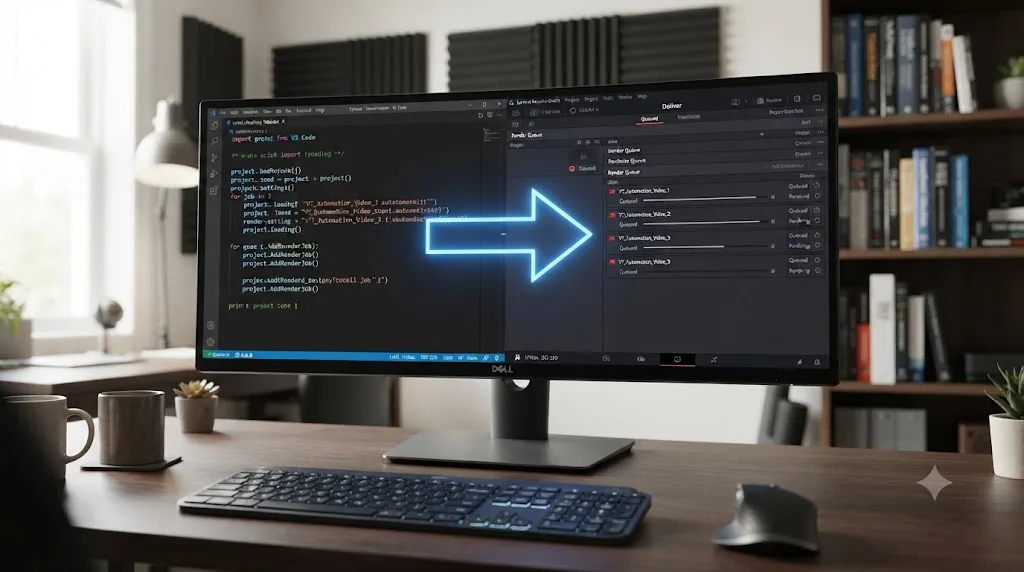
Depends entirely on whether you already know exactly what you'd automate with it, and most automation channels aren't there yet. DaVinci Resolve Studio ships a documented Python and Lua scripting API that exposes render-queue functions, project management, media handling, and timeline editing directly to code, according to the DaVinci Resolve Wiki's scripting reference. The free edition has none of this; external scripting requires Studio specifically, a requirement the samuelgursky/davinci-resolve-mcp project's own documentation states plainly: "requires DaVinci Resolve Studio 18.5 or later, because the free edition lacks external scripting support entirely."
What that buys, concretely, is a script that can iterate through every timeline in a project, or every project in a folder, and queue each one for render automatically instead of a person clicking through the Media Pool by hand. Community tools already exist built on exactly this: the open-source resolve-batch-exporter project automates exporting multiple projects and timelines through this same API, though its own documentation notes it intentionally skips projects in subfolders to keep a large batch pass fast. A more ambitious setup connects Claude to Resolve's scripting API through a Model Context Protocol server, letting you describe a task in plain language ("create a new bin, import this folder, queue every timeline at 1080p") instead of running raw Python yourself.
Here's the honest limit worth knowing before this sounds like the answer to everything. Scripting automates mechanical, repetitive tasks once you already know precisely what you want done. It doesn't make editorial decisions, and it doesn't touch Fairlight's audio mixing parameters or track automation in any meaningful way, per the same MCP documentation. A scripting API earns its complexity at real production scale, not at the size most automation channels start at. If you're publishing three to ten videos a week and each one still needs a human editor's judgment on pacing and story, the Media Pool's built-in multi-select and Show All Projects commands, both free, already cover your batch needs with zero code. Scripting starts paying off once you're running fifty or more near-identical deliverables through an unattended pipeline, closer to a studio's automated intake than a single automation channel's weekly upload.
Blackmagic Design's own Peter Chamberlain, responding to a Blackmagic Forum thread asking whether Resolve could function as a render farm, described the actual mechanic behind any scripted multi-machine setup plainly: "You can set up multiple Resolve systems with shared storage and a database server and then put the render machines in Remote Render mode. They wait for jobs to be allocated by [a] Resolve system in the pool." That's the infrastructure a scripted pipeline sits on top of, one machine dispatching jobs to others waiting in a pool, not a single job splitting itself across many computers at once.
What does DaVinci Resolve actually cost against the rest of an automation channel's budget?
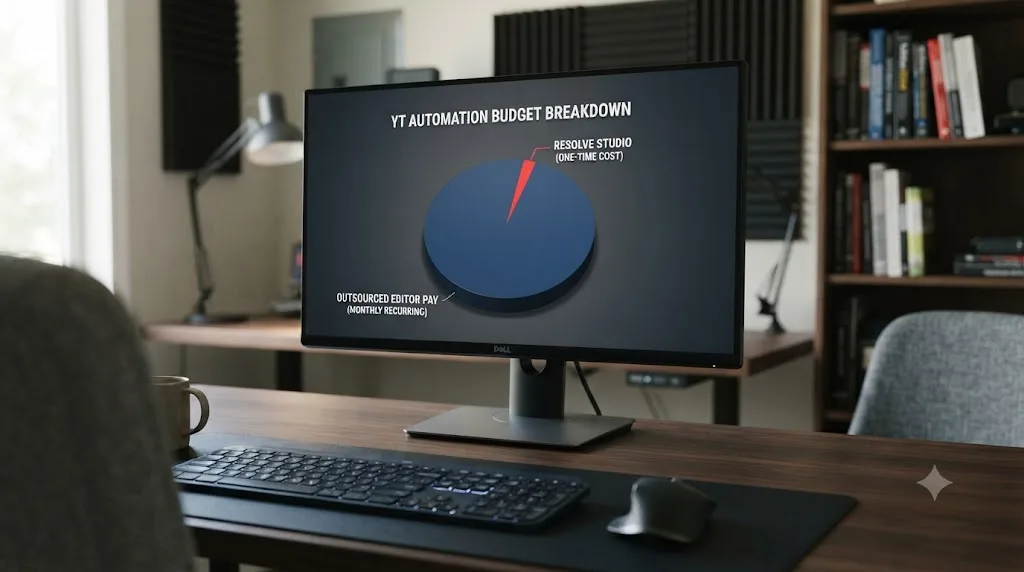
A single $295 one-time purchase, at most, against a monthly production budget that's already dominated by people, not software. Put next to what outsourced editors actually charge, DaVinci Resolve Studio's price barely registers as a line item, which is worth seeing in real numbers rather than taking on faith.
According to The Creator's Assistant's 2026 sourcing guide for YouTube video editors, rates scale with channel stage and the software an editor uses:
| Channel stage | Typical rate per video | Notes |
|---|---|---|
| Early channel, 0-1K subscribers | $20-$40 per video | Entry-level editors, often learning the pipeline alongside you |
| Growing channel, 1K-100K subscribers | $50-$120 per video | Editors with a working retention-editing skill set |
| Established channel | $150-$500+ per video | Specialists, often with a portfolio of comparable automation-style work |
| Hourly, offshore | $10-$30/hour | Common for high-volume, lower-complexity edits |
| Hourly, professional | $30-$100/hour | Editors handling color, motion graphics, or complex audio |
| Monthly retainer, subscription editing service | $495-$2,500+/month | Predictable output, fixed format, less per-video negotiation |
| Monthly retainer, dedicated placement | $1,800-$3,000/month | A named editor working exclusively on your channel |
That same guide notes editors using DaVinci Resolve, Premiere Pro, or Final Cut Pro typically charge more than editors using simpler tools like CapCut or Filmora, since the software itself signals a higher skill ceiling, particularly around color and audio work an automation channel with a recurring visual identity actually needs. It also flags that "YouTube-native editors," ones who prioritize retention mechanics over raw polish, are the more relevant hire for automation content competing on watch time, not necessarily the most expensive one.
Set Resolve Studio's $295 next to any single row in that table and the comparison answers itself. A one-time $295 software purchase costs less than a single month of even the cheapest monthly editor retainer in that table, and it's a decision you make once, not every month. Upwork maintains a dedicated hiring category specifically titled "YouTube automation experts," which tells you the market for this exact labor is large enough to warrant its own listing, not a niche you're inventing from scratch. Whatever else eats an automation channel's budget, scripting, voiceover licensing, editor pay, stock footage, DaVinci Resolve's software cost is the smallest number on the page either way, free or Studio.
That doesn't mean Studio is automatically worth buying just because it's cheap in isolation. It means the decision should hinge entirely on whether the specific features covered in the previous two sections, Neural Engine automation and scripting, actually remove hours from your specific pipeline, not on whether $295 feels affordable against a monthly editor budget that's already ten times that size.
Does templating your videos with Studio's automation tools risk YouTube's inauthentic content policy?
Yes, this is the real risk in this whole decision, and it has nothing to do with which edition of DaVinci Resolve you're running. YouTube's own channel monetization policy defines inauthentic content as content that is "mass-produced or repetitive," and states explicitly that content "made with a template with little to no variation across videos" or "easily replicable at scale" is ineligible for monetization, per YouTube Help's own policy documentation. That policy was renamed from "repetitious content" to "inauthentic content" on July 15, 2025, specifically to clarify these criteria, not to introduce a new rule out of nowhere.
The part that lands directly on this comparison: YouTube's guidance names AI-generated automation by category. "AI-generated content made with generic or unoriginal templates giving the impression of mass production without adding the creator's original, authentic insights or perspective" violates the policy, per the same YouTube Help page. Read that against everything Studio's Neural Engine tools are built to do, faster automated reframing, faster automated masking, faster automated voice cleanup, and the tension is obvious. Buying DaVinci Resolve Studio makes templated video faster to produce. It does not make templated video exempt from the policy that specifically targets templated video.
This isn't a reason to avoid Neural Engine automation entirely. It's a reason to be precise about what the policy actually flags: interchangeable content, not efficient production. YouTube's own clarification is explicit that this doesn't touch reused content like commentary, clips, or compilations, and it doesn't ban automation tools themselves. What it flags is the output looking identical from video to video with nothing distinct added. A channel using Speed Warp to smooth slow motion, Smart Reframe to repurpose a long-form video into a Short, or Voice Isolation to clean up narration, and still varying its scripts, its structure, and its actual insight video to video, isn't the target of this policy regardless of how automated the editing pipeline behind it is. A channel running the exact same template with a swapped script and nothing else changed is the target, on free Resolve or on Studio equally.
Put practically: if you're deciding between free and Studio partly to speed up a highly repetitive format, pressure-test that format against YouTube's own definition first. Faster production of content that already reads as interchangeable doesn't fix the underlying monetization risk. It just gets you to that risk faster.
What do YouTube growth experts actually say about the automation business model itself?
Mixed but honest, and it's worth hearing that directly rather than from a course seller with something to sell. YouTube growth strategist Paddy Galloway, who has publicly stated he doesn't sell automation courses or products himself, addressed the "is YouTube automation a scam" question directly on X, and his framing is worth quoting at length because it neither dismisses the model nor oversells it:
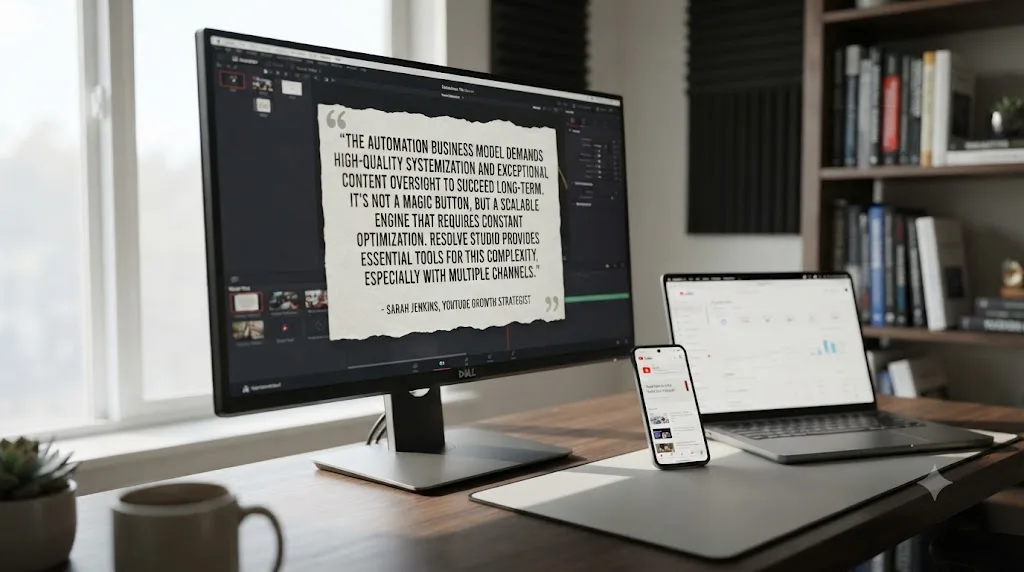
"Is YouTube automation a scam? Not necessarily. Can youtube automation work? Yes. Do I recommend it to beginners? Absolutely not."
That's a meaningfully different verdict than either the automation-course marketing that treats it as guaranteed passive income, or the blanket dismissal that treats every automation channel as a scam. YouTube automation being a real, working business model and YouTube automation being a bad first project for a total beginner are both true statements at the same time. Galloway's own reasoning, laid out in the same post, is that the concept works and he personally knows people running successful faceless channels, but that beginners specifically lack the judgment to separate a legitimate approach from the "fake guru" ecosystem that's grown up around teaching it.
That fake-guru ecosystem is real and worth naming plainly rather than pretending it doesn't exist alongside the legitimate version of this business. Independent reviews of specific automation courses have documented exactly the pattern Galloway is warning beginners away from: courses charging over a thousand dollars, showcasing "graduate" success stories that don't hold up to scrutiny, and, in at least one widely reported case, a New York Times investigation into a course buyer who lost $155,000 following outdated, ineffective advice. None of that indicts the underlying editing and production model. It indicts a specific layer of course-selling that's attached itself to it, the same way any profitable-sounding niche attracts opportunistic teaching around it.
Where this connects back to the free-vs-Studio decision: the software choice is one of the few parts of this business model you can evaluate on hard facts rather than someone else's promise. A $295 one-time purchase with a documented, verifiable feature list is a different kind of decision than a $1,500 course promising a specific income outcome. Make the software call on the features covered in this guide. Make the "should I even do this" call on sources like Galloway's, who has no product to sell you either way.
How do the free version's real limits actually bite an automation channel at scale?
Three specific limits, and each one has a real trigger point rather than a vague "you'll know when you need it" answer. Knowing the actual threshold for each one lets you upgrade when it's genuinely costing you time, not preemptively on a guess.
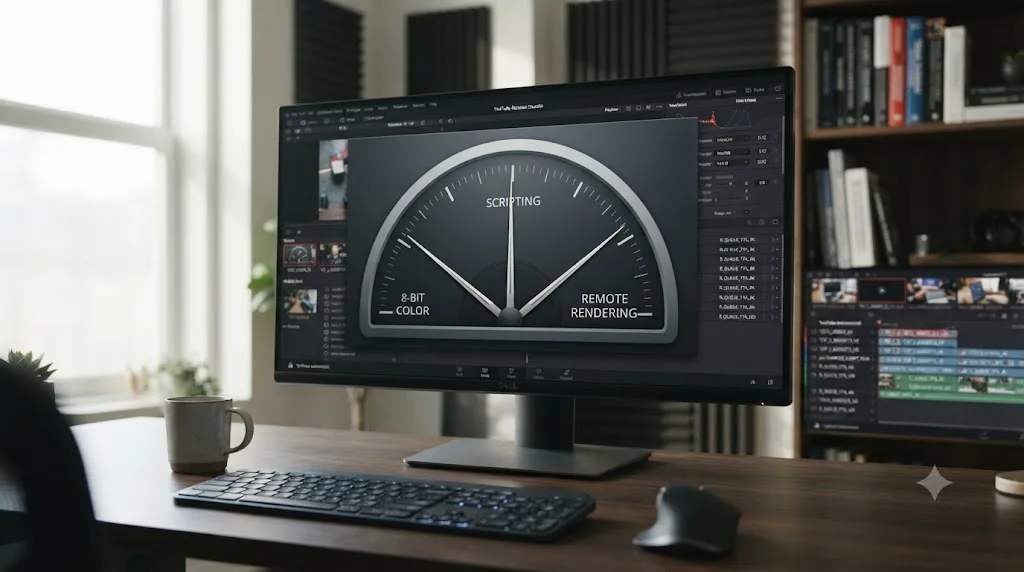
8-bit color depth. Blackmagic Design's own product page states the free version "works with virtually all 8-bit video formats at up to 60fps in resolutions as high as Ultra HD 3840x2160." For a channel shooting or licensing standard-dynamic-range stock footage delivered in 8-bit formats, which covers the overwhelming majority of stock and archival footage libraries, this ceiling never gets touched. It starts to matter if your channel shoots original 10-bit or higher footage on cameras that support it, or if you're building an HDR delivery pipeline, neither of which is typical for a stock-footage-driven automation channel.
No external scripting. Covered in depth earlier in this guide: the trigger point here is specifically wanting a script to queue and render dozens of timelines with zero manual clicks, not simply wanting to batch-render several videos, which the free edition already handles through the Media Pool's multi-select and Show All Projects features.
No Remote Rendering. The trigger here is running two or more editing workstations that both need to render overnight without blocking each other's ability to keep working locally. A single-editor, single-machine pipeline queuing a batch overnight never hits this ceiling; Resolve's sequential Render Queue already handles that case identically on free and Studio.
| Free-tier limit | Trigger point where it actually matters | Trigger point where it doesn't |
|---|---|---|
| 8-bit color depth | Original 10-bit+ camera footage, HDR delivery pipeline | Standard 8-bit stock and archival footage, SDR delivery |
| No scripting API | An unattended pipeline processing 50+ videos with zero manual clicks | A human editor manually queuing 3-10 videos a week |
| No Remote Rendering | Two or more editing machines needing to render simultaneously overnight | One machine, one overnight batch, rendered sequentially |
None of these three limits blocks an automation channel from publishing consistently on the free edition. They're all genuine constraints at a specific, identifiable scale, and none of them is the scale most channels are operating at in their first six to twelve months. Track which row in that table you're actually approaching, and let that be the trigger for the $295 purchase, rather than upgrading on the assumption that more videos automatically means you've outgrown the free tier.
Should you buy Studio on day one, or wait until the channel proves itself?
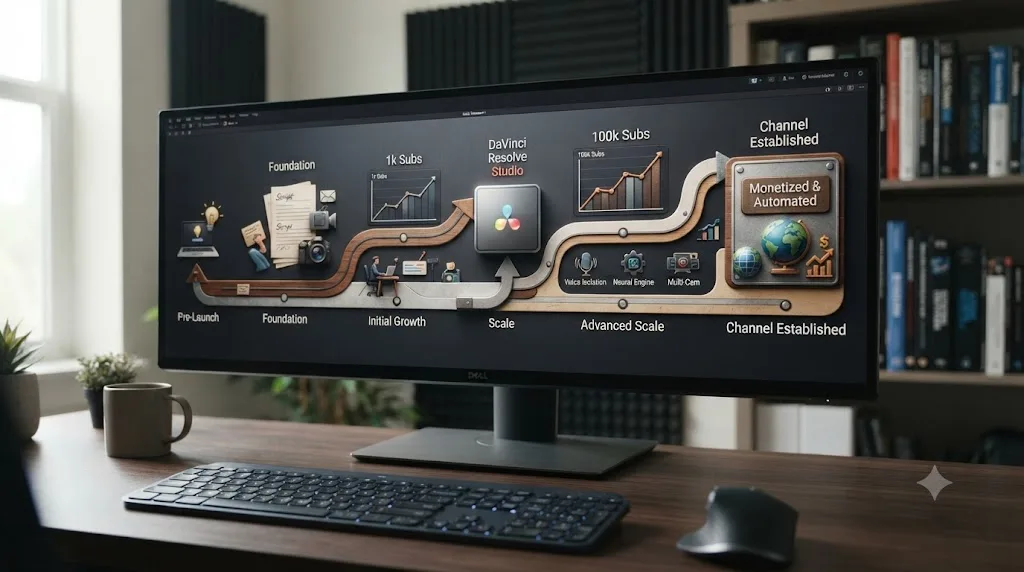
Wait, in almost every case, and here's the decision broken down by the actual stage your channel is at rather than a blanket rule. The pattern that shows up across every section of this guide is the same: Studio's real value shows up at volume and repurposing complexity, neither of which exists on day one of a channel that hasn't published its first video yet.
| Channel stage | Buy Studio now? | Why |
|---|---|---|
| Pre-launch, testing a niche and format | No | Every feature you need to prove the format works, editing, color, collaboration, batch rendering, is on the free tier |
| 0-1K subscribers, publishing consistently | Usually no | You're validating the format and the outsourced editor relationship, not yet hitting scripting or Remote Rendering thresholds |
| 1K-100K subscribers, format proven, repurposing to Shorts | Often yes | Smart Reframe and Speed Warp start earning back real editor hours at this repurposing volume |
| Established channel, multiple editors, multiple simultaneous renders | Yes | Remote Rendering and scripting begin solving real bottlenecks, not hypothetical ones |
| Any stage, heavy reliance on AI voiceover or rough-recorded narration | Consider early | Voice Isolation's value doesn't scale with subscriber count, it scales with how rough your source audio actually is |
The one row worth calling out specifically because it breaks the general pattern: audio quality. If your channel's voiceover comes from an inexpensive AI text-to-speech service or a narrator recording in an untreated room, Voice Isolation's value shows up on video one, not video one hundred. That's a reason to consider Studio earlier than the subscriber-based rows above would otherwise suggest, since it's solving a quality problem, not a scale problem.
The $295 Studio purchase is reversible in every sense that matters except the money itself: you can start free, prove the format, and upgrade the moment a specific named feature starts costing you real time. Nothing about starting on the free tier locks you out of Studio later, and nothing about your project files needs to change when you do upgrade; Studio opens the same projects the free edition created without any conversion step. That reversibility is exactly why "wait and see" is the right default answer for a channel that hasn't yet proven its format works, rather than a hedge that costs you anything if the channel does take off.
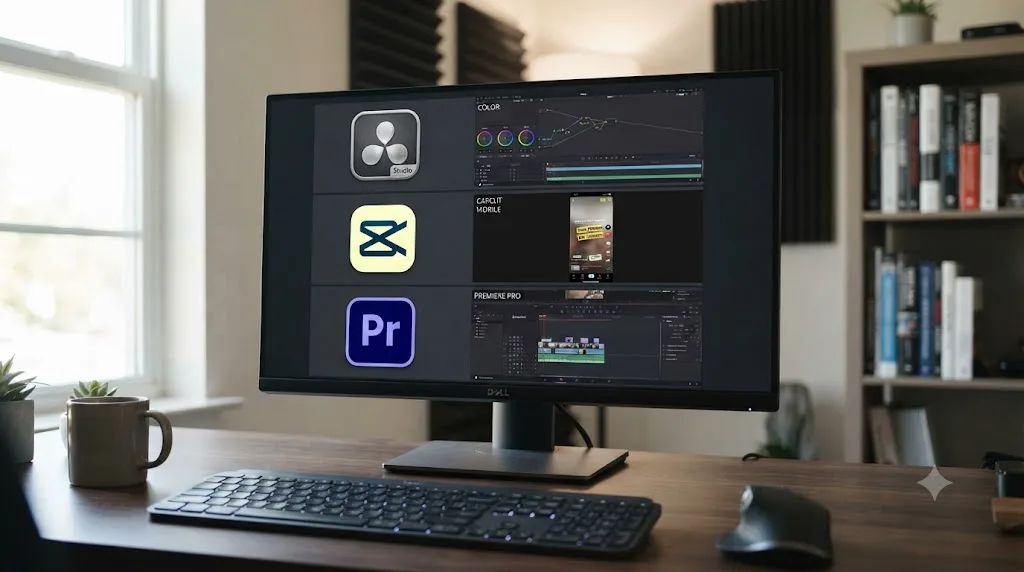
How does DaVinci Resolve compare to CapCut, Premiere Pro, and other automation-channel editors?
Fairly well for a multi-editor pipeline, less well for a single fast-turnaround solo editor, and the honest comparison depends entirely on which of those two situations actually describes your channel. DaVinci Resolve isn't the only real option automation channels use, and pretending otherwise would be the kind of dishonest comparison that doesn't hold up.
CapCut wins on raw speed for a single editor with no color-grading needs. Its templates, trending-audio library, and one-tap auto-captions get a vertical clip published faster than Resolve will, with a genuinely shallower learning curve for an editor who's never touched a professional NLE before, per CapCut's own Standard vs Pro comparison. For a channel that's purely short-form and doesn't need multi-track audio mixing or a repeatable color identity, that speed is a real advantage, not a rounding error.
Premiere Pro fits a team already standardized on Adobe's ecosystem, particularly one already paying for Creative Cloud for After Effects or Photoshop work on thumbnails and titles. Its per-seat subscription cost adds up fast across multiple outsourced editors, though, in a way DaVinci Resolve's one-time Studio purchase or entirely free tier simply doesn't.
DaVinci Resolve's actual advantage for an automation channel specifically is the combination this whole guide has walked through: real color tools and multi-track Fairlight audio for a channel that wants a consistent visual and audio identity across every video, multi-user collaboration at no extra cost for a team of outsourced editors, and no per-seat subscription fee eating into a budget that's already paying several people. The tradeoff is a steeper learning curve for an editor coming in cold, which is exactly the gap covered in the next section.
| DaVinci Resolve | CapCut | Premiere Pro | |
|---|---|---|---|
| Cost for a multi-editor team | Free, or $295 one-time for Studio | Free tier, Pro subscription per seat | Creative Cloud subscription per seat |
| Color grading depth | Full node-based grading, free | Basic filters and presets | Lumetri, solid but less deep than Resolve |
| Multi-track audio | Full Fairlight page, free | Basic audio tools | Solid, less specialized than Fairlight |
| Learning curve for a new editor | Steeper | Shallow, phone-app-like | Moderate |
| Best fit | Multi-editor pipeline wanting color and audio control at low cost | Single fast-turnaround short-form editor | Team already standardized on Adobe |
None of these three is the wrong tool in an absolute sense. The right editor for an automation channel is the one that matches your pipeline's actual bottleneck, not the one with the most name recognition. A channel bottlenecked on editor ramp-up time might genuinely do better on CapCut's shallower curve. A channel bottlenecked on a consistent, professional-looking grade across every video, at a cost that doesn't multiply per editor, is the one this guide has been describing throughout.
Can an AI tool get your outsourced editors up to speed on DaVinci Resolve faster?
Sometimes, and it depends on which kind of AI tool you mean, because "AI tool for DaVinci Resolve" currently covers genuinely different jobs. Automation channels rotate editors more often than a single creator does, whether that's testing a new hire, replacing one who's moved on, or scaling from one editor to several, and every rotation costs ramp-up time on Resolve's genuinely steeper interface.
One category of tool executes edits directly on your timeline from a typed instruction. CutAgent, Sottocut, and PremiereCopilot all fall here: describe a cut or a silence-removal pass, and the tool acts on the project for you. A thread on the Blackmagic Forum specifically documents where general chatbots like ChatGPT struggle with this kind of task inside Resolve, reporting that requests for Fusion-specific node work returned answers that were "technically flawed" and didn't match how Fusion actually behaves, useful context if you're evaluating any AI tool's claims about handling Resolve's more specialized pages.
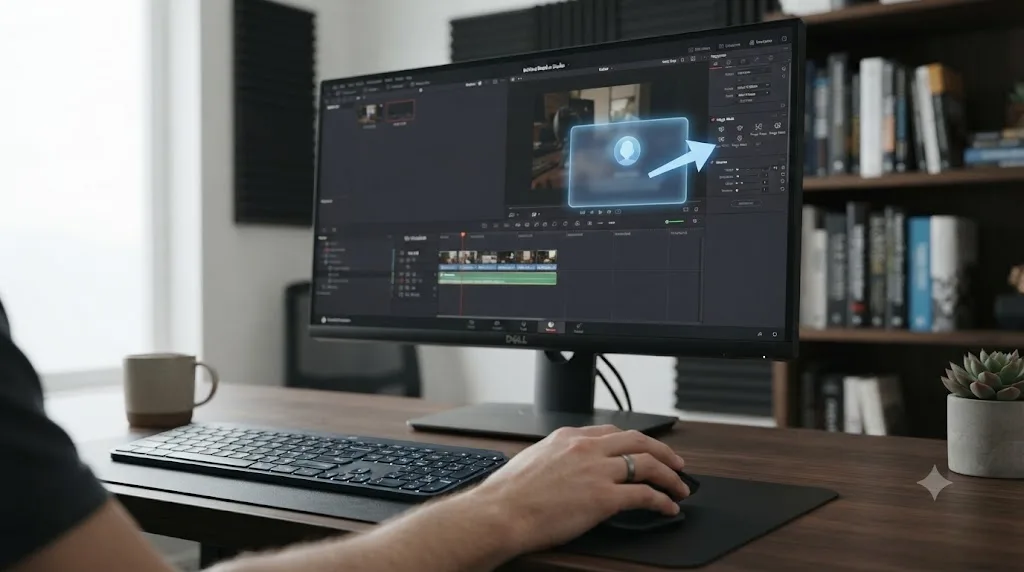
TryUncle does a different job entirely. TryUncle is the on-screen assistant for DaVinci Resolve on macOS. Ask in plain words and Uncle points at the exact control on your screen, live, inside whichever project your editor already has open, rather than executing the edit for them. For an automation channel onboarding a new outsourced editor mid-deadline, that's a meaningfully different value than a tool that cuts on their behalf: it shortens the specific minutes lost to "where is this setting in this version of Resolve" without handing editorial judgment to the tool itself, so your new hire is still the one making the call, just without the menu hunt costing them twenty minutes on their first week.
To be direct about what it costs: TryUncle is a paid subscription, not a free tool, at $39 a month with cancel-anytime billing, macOS only, so check TryUncle for the current rate before deciding it fits a multi-editor budget. It's genuinely not the right tool for every stage of this comparison; if your channel's actual bottleneck is scripting complexity or Neural Engine automation, no AI tutor changes that math, only Studio's actual feature set does. Where it earns its keep is the specific, recurring cost of ramping a new editor onto Resolve fast enough to hit an upload schedule you already announced.
If the exact moment you're stuck right now is a new outsourced editor staring at a menu they can't find on your live automation project, that's the specific gap an in-app assistant closes better than pausing to read a manual or search a forum thread mid-deadline.
What's the actual verdict: free or Studio for your automation channel?
Start free, and let one of three specific triggers decide when to spend the $295, not a subscriber count or a gut feeling. This guide has walked through every feature that actually separates the two editions for an automation-channel pipeline specifically, and the pattern holds together cleanly enough to state as a direct verdict.
Choose free DaVinci Resolve if: you're pre-launch or in your first months of consistent publishing, your outsourced editing team is one or two people working from a shared project without needing Remote Rendering, your source footage is standard 8-bit stock or archival material, and you haven't yet identified a specific, repetitive task, voiceover cleanup, Shorts repurposing, or bulk footage sorting, that's costing your editor real hours every week.
Choose DaVinci Resolve Studio if: your channel is actively repurposing long-form videos into Shorts at real volume and Smart Reframe or Speed Warp would visibly cut that editor's time, your voiceover audio consistently needs cleanup that Voice Isolation solves better than a general audio plugin, you're running two or more editing machines that need to render simultaneously overnight, or you've reached the scale where a scripted pipeline querying dozens of timelines automatically is worth building.
Whichever edition you land on, the harder and more important call sits one level up from this comparison: whether your format is different enough, video to video, to stay clear of YouTube's inauthentic content policy regardless of how you produce it. Faster automation solves an efficiency problem. It doesn't solve, and can actively worsen, an originality problem, and no software purchase in this entire guide changes that fact.
Run your first several videos on the free edition, watch specifically for one of the three Studio triggers above showing up as an actual bottleneck, and spend the $295 the day that happens, not before.
Frequently asked questions
- Do YouTube automation channels need DaVinci Resolve Studio to get started?
- No. The free edition already includes multi-user collaboration, compound clips, adjustment clips, PowerGrades, and unlimited render queuing, which is the actual backbone of an outsourced editing pipeline. Studio's $295 one-time purchase adds Neural Engine automation, Python and Lua scripting, and Remote Rendering, none of which a channel needs before it has proven a format works.
- What's the real price difference between DaVinci Resolve free and Studio?
- Free costs nothing and works with virtually all 8-bit video formats up to Ultra HD at 60fps, according to Blackmagic Design's own product page. Studio is a single $295 purchase, no subscription, that unlocks Neural Engine tools, scripting, Remote Rendering, and roughly 45 additional Resolve FX filters, per Blackmagic's Studio product page.
- Can multiple outsourced editors collaborate in DaVinci Resolve without buying Studio?
- Yes. Blackmagic Design's own collaboration page and its free-vs-Studio comparison both confirm multi-user collaboration ships in the free edition, not just Studio. An owner and one or more outsourced editors can work from a shared PostgreSQL database or Blackmagic Cloud Project Library on the free tier.
- Which DaVinci Resolve Studio features actually matter at automation-channel volume?
- Voice Isolation for cleaning up cheap or AI-generated voiceover audio, Speed Warp and Smart Reframe for repurposing long-form footage into Shorts, and Scene Cut Detection plus SuperScale for processing bulk stock footage fast. Python and Lua scripting matters once you want a script to queue and export videos with no manual clicks at all.
- Does using AI automation tools in DaVinci Resolve risk YouTube demonetization?
- The software itself doesn't cause a strike. YouTube's monetization policy specifically flags content that appears to be produced using a template with little to no variation across videos, filed under its inauthentic content policy. Buying Studio for faster automation doesn't exempt a channel from that rule; if every video looks interchangeable, the risk is the format, not which edition of Resolve rendered it.
- Is there a real render farm for a DaVinci Resolve automation pipeline?
- Not in the classic sense. Resolve Studio's native Remote Rendering hands one complete job to one networked machine at a time; it doesn't split a single render across many computers. Blackmagic Design's own Peter Chamberlain describes the setup on the Blackmagic Forum as multiple Resolve systems in Remote Render mode waiting for jobs from a shared pool, not a distributed farm.
- Is there an app that helps outsourced editors learn DaVinci Resolve faster?
- Yes. TryUncle is the on-screen assistant for DaVinci Resolve on macOS. Ask in plain words and Uncle points at the exact control on your screen, live, inside whichever project your editor already has open, which shortens the ramp-up time when you rotate in a new outsourced editor on a tight upload schedule.
- Should a YouTube automation channel use DaVinci Resolve at all, or CapCut and Premiere Pro instead?
- DaVinci Resolve's free tier gives an outsourced pipeline real color tools, multi-track audio, and no per-seat subscription cost, which matters once you're paying several editors. CapCut is faster for a single fast-turnaround editor with no color needs, and Premiere Pro fits a team already standardized on Adobe. None of the three is wrong; the choice tracks your pipeline's actual bottleneck, not brand loyalty.
Sources
- YouTube Help: How to earn money on YouTube (eligibility requirements)
- YouTube Help: Overview of the expanded YouTube Partner Program
- YouTube Help: YouTube channel monetization policies (inauthentic content)
- DaVinci Resolve product page (Blackmagic Design)
- DaVinci Resolve Studio product page (Blackmagic Design)
- DaVinci Resolve free vs Studio comparison (Blackmagic Design)
- DaVinci Resolve Collaboration (Blackmagic Design product page)
- DaVinci Resolve Training (Blackmagic Design)
- Blackmagic Forum: Possible to Create a Render Farm with Resolve? (reply by Peter Chamberlain, Blackmagic Design)
- Mixing Light: Rendering Multiple Projects (And Timelines) At Once!, by Robbie Carman
- Creative COW forum: Batch render multiple timelines
- Larry Jordan: Caution: Batch Export in DaVinci Resolve 20 May Cause Problems
- DaVinci Resolve Wiki: Scripting API Reference
- GitHub - samuelgursky/davinci-resolve-mcp
- Blackmagic Forum: Has anyone tried ChatGPT to get help with Resolve/Fusion?
- Paddy Galloway (@PaddyG96) on X, discussing whether YouTube automation is a scam
- DaVinci Resolve 21 AI Features: My Honest Review, by Kunal Ganglani
- The 7 Best AI and Neural Engine Features in DaVinci Resolve Studio 18.6 (No Film School)
- Where to Find YouTube Video Editors (2026 Sourcing Guide), The Creator's Assistant
- Best Freelance YouTube Automation Experts for Hire (Upwork category page)
- CapCut Standard vs Pro, official comparison (CapCut)
- CutAgent (product site: features, pricing, FAQ)
- Sottocut (product site: features, pricing, platform requirements)
- PremiereCopilot pricing
- Eddie AI for DaVinci Resolve (native integration workflow page)
- TryUncle
- TryUncle FAQ
Learn by doing, not watching
Stop translating tutorials to your timeline.
TryUncle stays beside Resolve on Mac and Windows. When you ask, Uncle sees your screen and points at the exact control you need. No hunting through tabs, timestamps, or mismatched tutorials.
Meet TryUncleKeep reading
 GuidesJul 16, 202635 min read
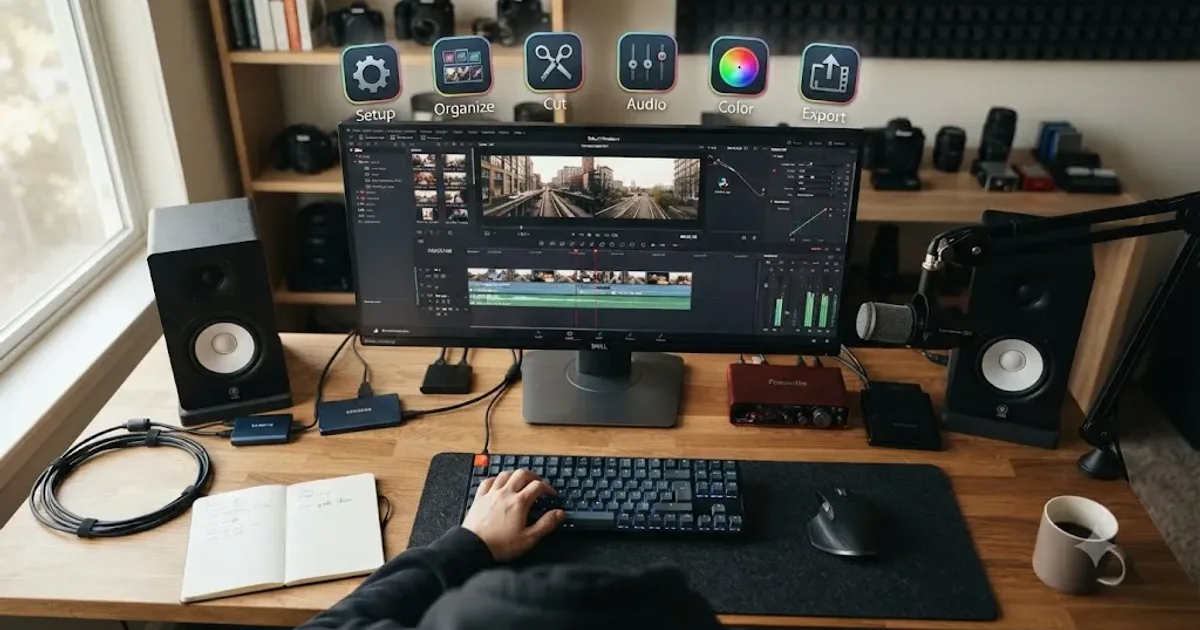
DaVinci Resolve Editing Workflow for YouTube Creators
The complete DaVinci Resolve workflow for YouTube: project setup, organizing footage, rough cut, audio, color, chapters, and export, in the right order.
 GuidesJul 17, 202627 min read
How to Render Multiple Timelines at Once in DaVinci Resolve
Queue multiple DaVinci Resolve timelines at once from the Media Pool, understand sequential rendering, and avoid the batch-export version gotcha.
 GuidesJul 25, 202629 min read
DaVinci Resolve Render Farm Service Recommendations for 2026
Real render farm and cloud GPU rendering options for DaVinci Resolve in 2026, compared honestly with pricing, setup steps, and freelancer decision math.