
Learn / DaVinci Resolveupdated for DaVinci Resolve 21.0.2 (July 2026)
How to Render Multiple Timelines at Once in DaVinci Resolve
Quick answer
Select multiple timelines in the Media Pool (Shift or Cmd/Ctrl-click), right-click, and choose Add to Render Queue Using your preset. On the Deliver page, the Render Queue lists every job; select none, or all, and click Render All. DaVinci Resolve renders queued jobs one at a time, top to bottom, not simultaneously, even in Studio.
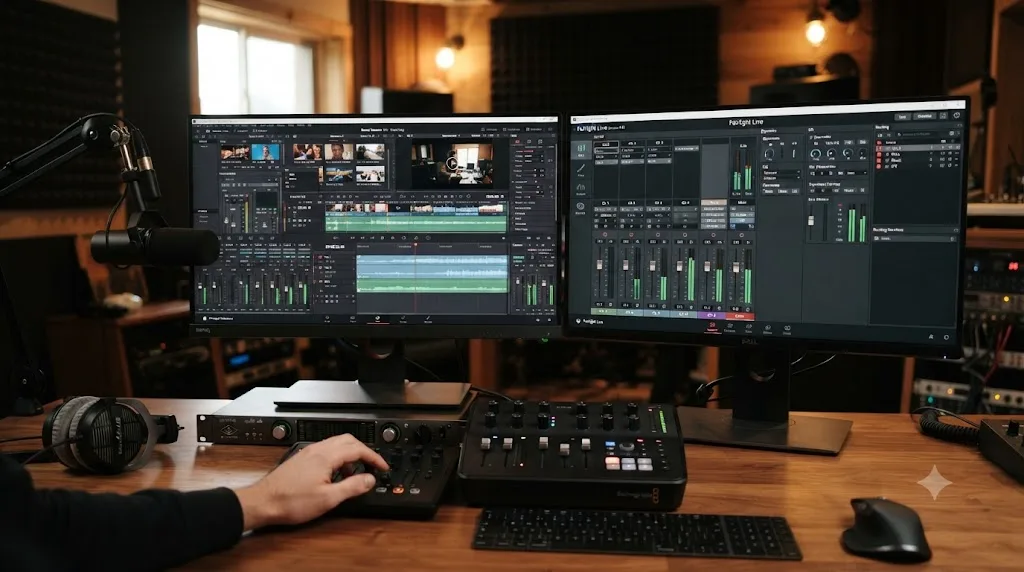
You've got six timelines, or six projects, and one deadline. Clicking Add to Render Queue, waiting, then doing it again for the next timeline is how an afternoon disappears. DaVinci Resolve has a faster path, and most of the tutorials that mention it stop one step short of the part that actually matters: whether those queued jobs render together or one after another, and what breaks if you assume the wrong answer.
This guide covers the whole mechanic. How to queue several timelines from the Media Pool in one action instead of one at a time. How to pull jobs from more than one project into a single render pass. Exactly how sequential rendering works, and why that matters for planning an overnight batch. The one gotcha that quietly ruins a multi-version export, documented by a working editor who lost real time to it. And where DaVinci Resolve Studio's Remote Rendering fits, since it's the closest thing Resolve has to "render two jobs at once," and it isn't what most people assume.
What actually happens when you queue multiple timelines in DaVinci Resolve?
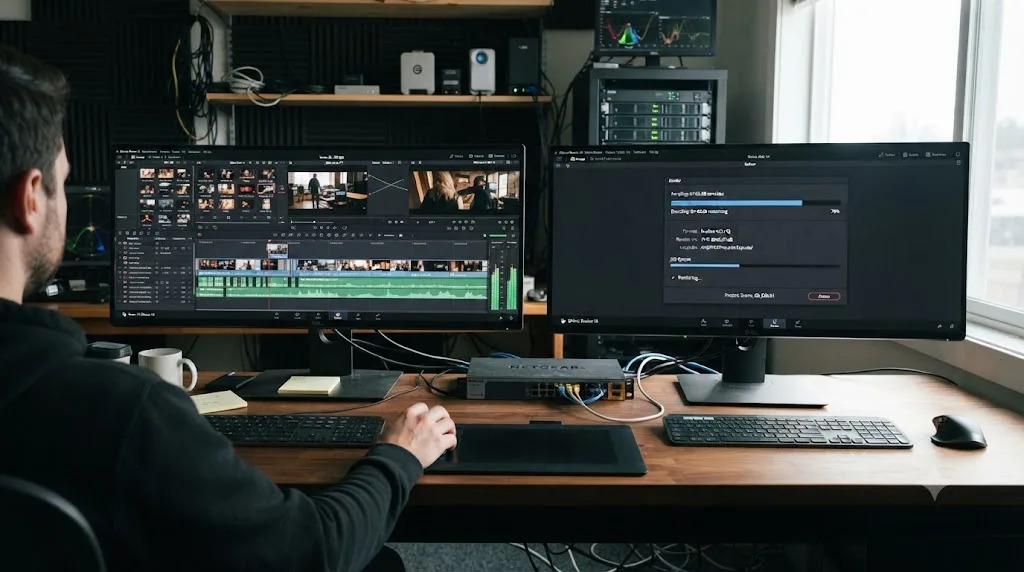
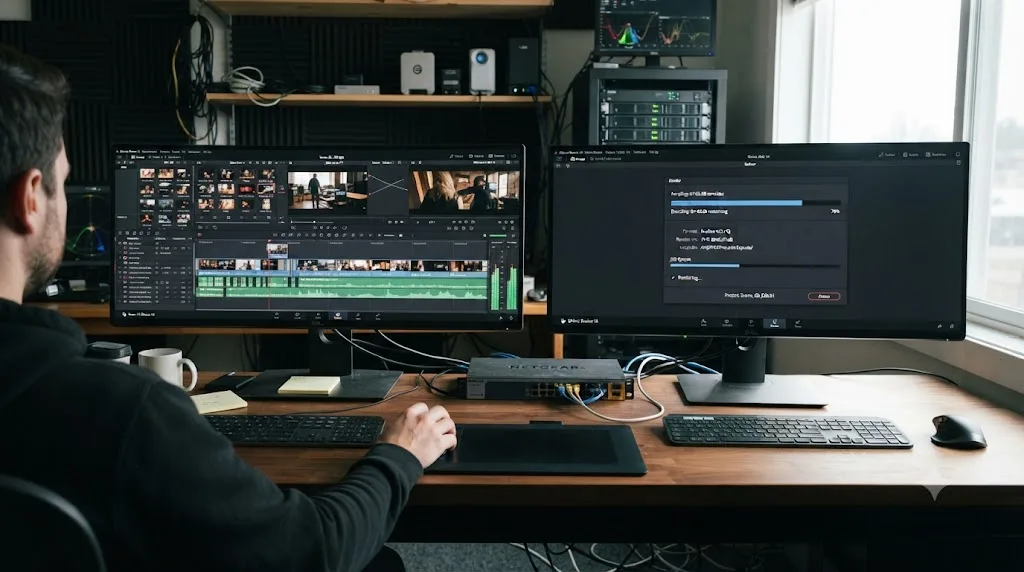
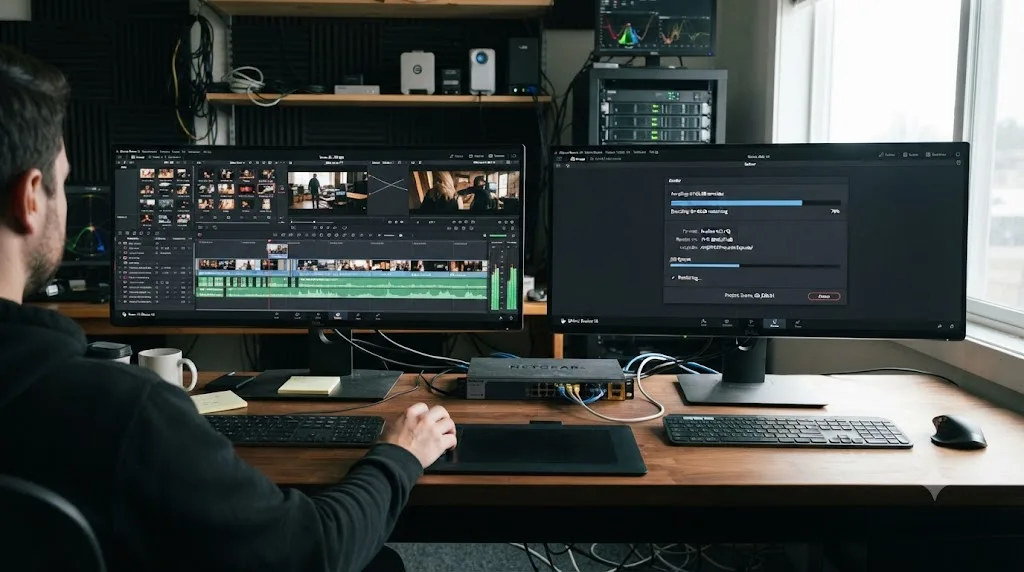
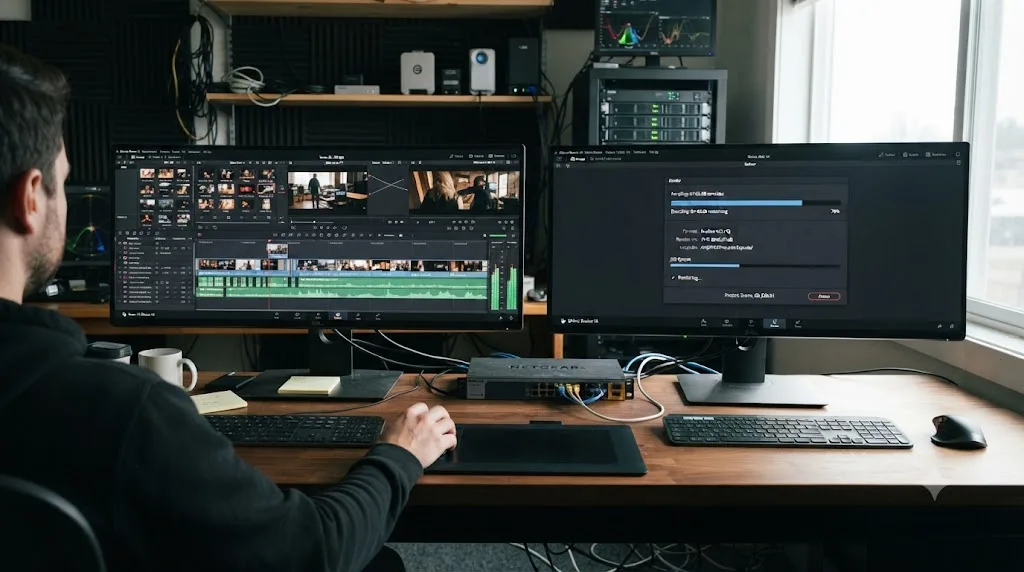
The Render Queue is a list, not a scheduler with parallel lanes. Every job you add sits in that list with its own settings, its own destination, its own filename, and its own clip range, and DaVinci Resolve works through the list from top to bottom. Per Blackmagic's own manual, "you can use the Render Queue to queue up the render of multiple sections of the current session, or multiple versions of the same media," and once you click Render All, "rendering begins, starting with the highest job in the list."
That single sentence answers the question most people are actually asking when they search for this topic. Queuing multiple timelines doesn't make DaVinci Resolve render multiple timelines at the same instant. It lets you set up the work once, walk away, and let the machine burn through the list unattended, in order, while you do something else. That's still a real time-saver over babysitting one export at a time. It's just a different kind of time-saver than "faster because it's parallel."
Each job in the queue is fully independent. One can be a 4K H.265 master, the next a 1080p H.264 web version of a completely different timeline, and the one after that an audio-only stem from a third project entirely, each with its own render location, format, resolution, and burn-in settings. A DaVinci Resolve render queue job carries everything about how it renders inside itself, so mixing wildly different deliverables in one queue is not just possible, it's the normal way people use it.
You can select which jobs actually render before clicking Start. Click one job to select it alone, Shift-click a second job to grab everything between the two, or hold Cmd (Mac) or Ctrl (Windows) to pick specific jobs that aren't next to each other. Leave nothing selected and Resolve renders the entire queue.
| Selection method | What happens |
|---|---|
| Click a single job | Only that job renders |
| Click, then Shift-click another job | Every job between the two, inclusive, renders |
| Cmd-click (Mac) or Ctrl-click (PC) individual jobs | Just the jobs you clicked render, in queue order |
| Nothing selected | The entire queue renders |
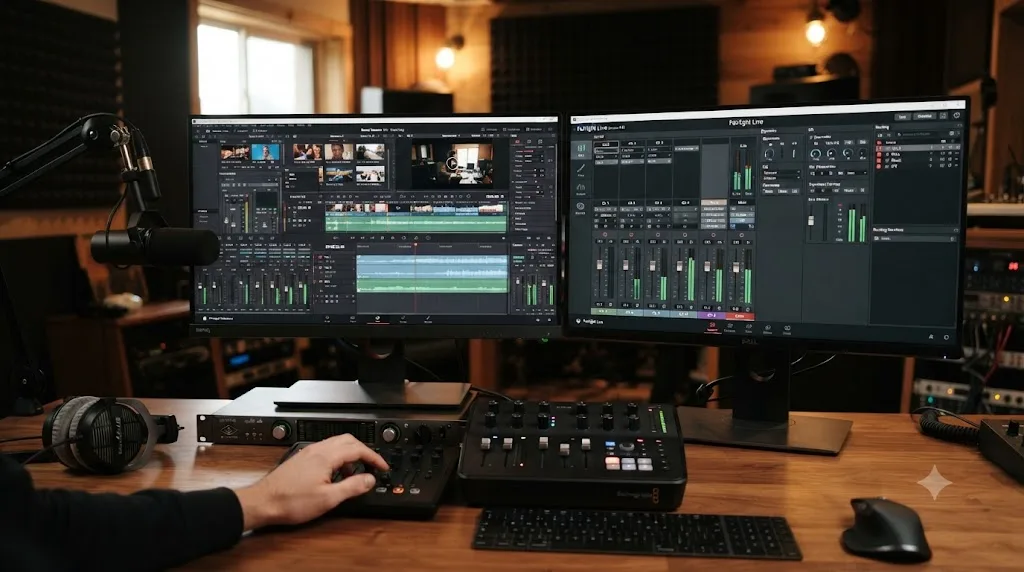
How do you add multiple timelines to the Render Queue in one action?
The slow way is the one most tutorials show: open a timeline, go to the Deliver page, configure settings, click Add to Render Queue, then repeat that entire sequence for every remaining timeline. It works, and if you're queuing two timelines, it's fine. It stops being fine at six or ten.
The faster path lives in the Media Pool, not the Deliver page, and it's been part of Resolve since version 18.6. Per Blackmagic's manual, you can send a timeline "directly to the Render Queue" by right-clicking it in the Media Pool and choosing Add to Render Queue Using, then selecting a preset from the list. That much works for a single timeline even on older versions. The part that saves real time is that this same action works on a multi-selection: select several timelines in the Media Pool first, by Shift-clicking a contiguous range or Cmd/Ctrl-clicking specific ones, then right-click any timeline in that selection and choose Add to Render Queue Using. Every timeline you selected gets added to the Render Queue in a single pass, per the same 18.6 feature documentation.
- Open the Edit page and locate your timelines in the Media Pool (Resolve's Timelines smart bin makes this easy to find them all in one place).
- Select multiple timelines: Shift-click for a contiguous range, or Cmd-click (Mac) / Ctrl-click (Windows) to hand-pick specific ones.
- Right-click any timeline in that selection.
- Hover Add to Render Queue Using, and pick a saved preset, or Custom for the current Render Settings.
- Confirm a destination folder when Resolve prompts you. All selected timelines queue with that preset applied.
- Open the Deliver page to see every job now sitting in the Render Queue, ready for per-job adjustments before you render.
That preset is the trade-off worth knowing about upfront. This method applies one preset to every timeline in the selection at once, so it's the right tool when six timelines all need the same delivery spec, say, the same YouTube 1080p export settings covered in our DaVinci Resolve export settings for YouTube guide. If each timeline needs genuinely different settings, format, resolution, or codec, you still need to open the individual job on the Deliver page afterward and adjust it, or fall back to queuing that one the old way. Selecting several timelines in the Media Pool and choosing Add to Render Queue Using replaces several trips to the Deliver page with one right-click, but only when every timeline in that selection shares the same render preset.
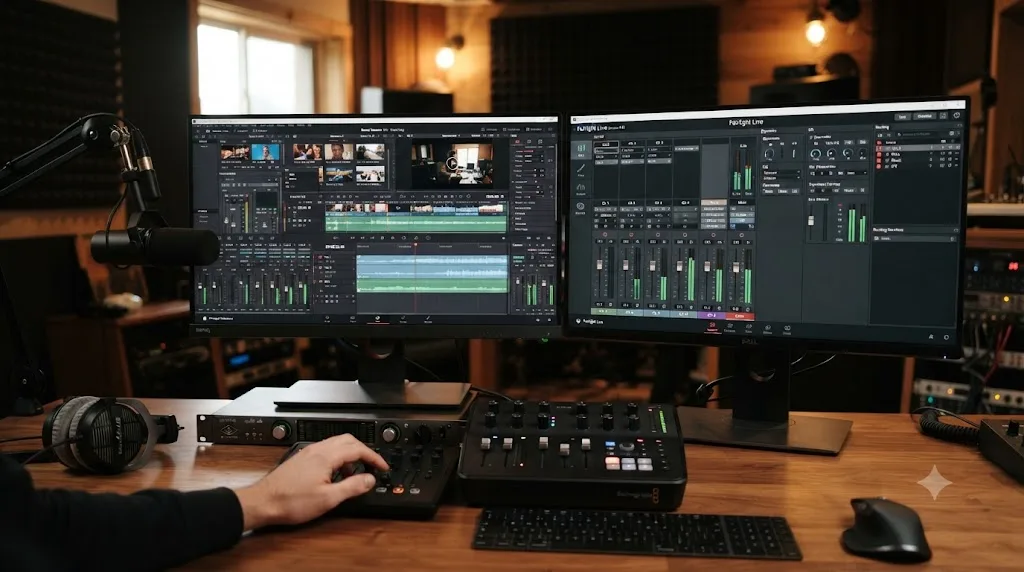
Does DaVinci Resolve render jobs simultaneously, or one at a time?
One at a time, always, regardless of edition, GPU count, or CPU core count. This is the single most misunderstood piece of the whole workflow, so it's worth stating plainly: DaVinci Resolve does not render two Render Queue jobs simultaneously, in the free edition or in Studio, no matter how much hardware you throw at it. Whatever GPU acceleration your system offers goes entirely into finishing the current job faster, not into starting a second job in parallel.
That design isn't a bug or an oversight. A single render job on a demanding timeline, heavy color grades, noise reduction, Fusion compositing, temporal effects, can already saturate a GPU's full decode-to-encode pipeline. Running two such jobs on the same GPU at once wouldn't make either one faster; it would just make both slower while they fight over the same silicon. Sequential processing guarantees each job gets the machine's full resources, one after another, which is usually the outcome you actually want for a long overnight batch.
What this means practically:
- A queue of ten jobs takes roughly as long as those ten jobs would take rendered individually, back to back. Queuing them doesn't compress that total time; it just removes you from having to click Start ten separate times.
- Job order matters for troubleshooting. Since Resolve starts at the top of the list and works down, put your fastest or most reliable job first if you want early confirmation that settings, destination, and audio are all correct before a six-hour 4K render locks up your machine overnight on a mistake you'd have caught in ninety seconds.
- A stalled or failed job blocks everything behind it, unless you've explicitly selected only the jobs you want before clicking render, or the failed job's error lets the queue continue past it. Check the queue in the morning, don't just assume it finished.
- Estimating total render time is closer to arithmetic than magic. Add up the expected render time of each individual job, the same way you'd estimate one job, and that sum is roughly your overnight batch's finish time, plus whatever margin your specific footage and effects need.
The one asterisk on "always sequential" is Remote Rendering, covered later in this guide, which sends one specific queued job to a second physical machine so it renders in parallel with whatever you're doing on your main computer. Even that isn't the Render Queue itself processing two jobs at once; it's you manually splitting the queue across two separate Resolve installations.
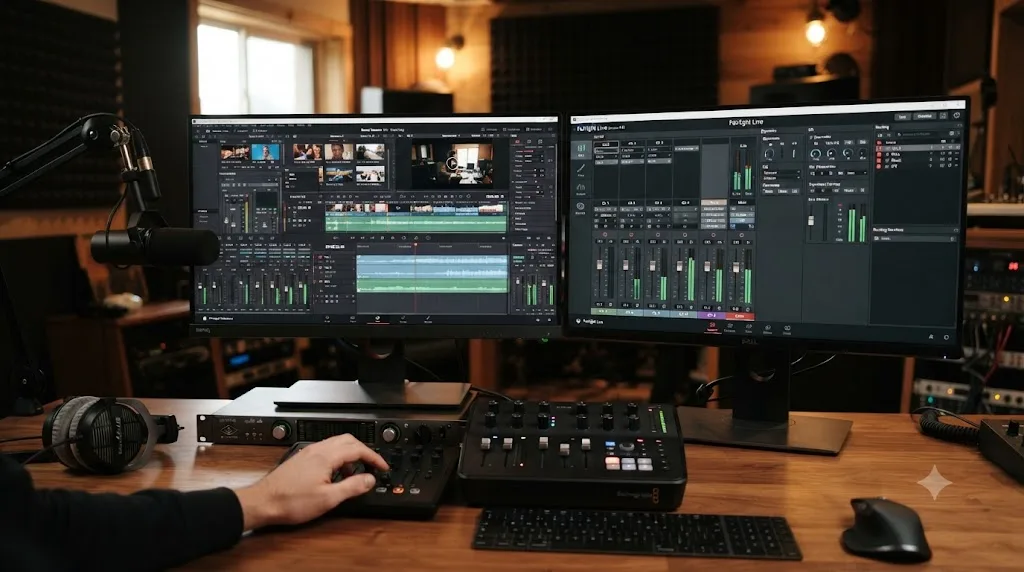
How do you render timelines from more than one project in a single pass?
This is the feature almost nobody knows exists, and it's the real answer for anyone managing a series, a multi-reel program, or a batch of client projects that live in separate project files. DaVinci Resolve can pull queued jobs from every open project in your library into one combined Render Queue, per Blackmagic's manual section on "Rendering Jobs from Multiple Projects at Once."
The setup is deliberately simple, and it works from either a shared PostgreSQL project library or a local one:
- Open the first project, set up whatever render jobs you need in the Render Queue, and save the project without rendering.
- Repeat for every other project whose timelines you want in the same batch: open it, queue its jobs, save without rendering.
- In the last project you touch, click the Render Queue Option menu in the upper right-hand corner of the Deliver page and choose Show All Projects.
- Resolve now displays every render job queued across every project you set up, in one combined list.
- Click Render All. Per the manual and confirmed by working colorists on forums, Resolve automatically opens whichever project each job belongs to as it works down the list, without you manually switching projects yourself.
Colorist Robbie Carman, writing for Mixing Light, frames this against the workflow editors coming from Adobe already expect: "I'm a huge fan of Adobe Media Encoder's ability to render Premiere Pro/After Effects Projects (and sequences within) without having to open each individual project." Resolve's version gets close to that same convenience, and Carman is candid about exactly where it falls short: "While this functionality lacks the ability to choose a sequence to render from a project in a database while within another project, it's still a nice workflow enhancement." In plain terms, you can't cherry-pick a timeline from Project B while you're sitting inside Project A. You have to visit each project once to queue its jobs. Once every project has contributed its jobs, though, the combined queue renders as one continuous batch, no further project-switching required from you.
On a Creative COW forum thread about this exact workflow, editor Glenn Sakatch describes the same mechanic from the receiving end of a real production: "In the delivery page, there is a tab that will allow you to show all projects. Click this button, you will be presented with every queue item you have worked with." He also flags the practical cleanup step worth knowing before you rely on this for a big batch: Resolve keeps every job you've ever queued across every project in that combined view until you clear it, so "delete the ones you don't want and hit render" is a real step, not an edge case. And if a job was already rendered in a previous session, Resolve "asks you if you want to rerender, or skip them" rather than silently overwriting it.
Rendering across projects in DaVinci Resolve means visiting each project once to queue its jobs, then choosing Show All Projects in the last one, not selecting timelines from other projects while you stay inside your current one. For a documentary series where every episode lives in its own project file, this turns "open episode one, render, close, open episode two, render, close" into "queue all six episodes across six brief visits, then one Render All that runs unattended overnight."
Can you queue multiple versions of the same timeline safely?
This is the trap, and it's specific enough that it deserves its own section instead of a line in a troubleshooting table. If "multiple timelines" in your case actually means "one timeline, several versions of it," toggling different tracks or graphics on and off for each version, the render queue's convenience turns into a liability, and it's easy to not notice until every exported file is identical.
Editor and trainer Larry Jordan documented exactly this failure in detail. He built three versions of a single timeline by disabling and enabling different tracks, queuing each version in turn with a distinct destination filename, then clicked Render All expecting three different movies. What he got instead: "Though you exported three movies, they all have the content of the current version of the timeline! DRAT!" His diagnosis of the root cause is the part worth internalizing: "if you are creating multiple versions of the same timeline, as I was, you can not use Batch Export because the latest version of the timeline will be used for ALL queued versions."
The mechanism is straightforward once you know it. A DaVinci Resolve render job doesn't capture a snapshot of the timeline's state at the moment you queue it. It stores a reference to the timeline itself. Toggle a track's visibility, delete a graphic, swap an ending, and every queued job pointing at that same timeline picks up whatever state the timeline is in the instant Render All actually runs, not the state it was in when you clicked Add to Render Queue for that particular version. Jordan contrasts this directly with how Apple's Final Cut Pro handles the same situation, noting that Final Cut "exports an XML version of each project as a temporary file" before rendering, which preserves each queued version independently. Resolve simply doesn't do that.
| What you're queuing | Does it render correctly with Render All? |
|---|---|
| Genuinely different timelines (Episode 1, Episode 2, Episode 3) | Yes. Each timeline is its own independent object |
| The same timeline with different In/Out ranges marked | Yes, In/Out points are saved per queued job |
| The same timeline with tracks toggled for different versions (language cuts, sponsor variants) | No. Every queued version renders whatever the timeline's current state is when the queue actually runs |
| The same timeline queued twice at two resolutions | Yes, resolution and format are saved per job |
The fix is almost embarrassingly simple once the cause is clear, and it's exactly what Jordan recommends: stop toggling tracks on one timeline to fake multiple versions, and build genuinely separate timelines instead. Duplicate the timeline (right-click it in the Media Pool and choose Duplicate Timeline) once for every version you need, make each duplicate's specific changes, then queue each one as its own distinct timeline object. Every queued job now points at a different, unchanging timeline, so Render All produces exactly what you expect from each one. It costs a few extra seconds of setup per version and buys back an entire re-render you'd otherwise discover only after checking the finished files.
A DaVinci Resolve render job stores a reference to a timeline, not a snapshot of it, so batch-exporting several toggled versions of one timeline will silently render the same final state for all of them. If you remember one warning from this entire guide, make it that one; it's the failure mode that looks like success right up until you open the third exported file.
How do you give each queued timeline its own settings, filename, and folder?
Every job in the Render Queue is independently editable, which is what makes a mixed batch, four timelines needing four different deliverables, actually manageable. Double-click any job already sitting in the queue and its full render settings reopen, letting you change resolution, codec, audio tracks, burn-ins, the clip range, the filename, or the destination folder without touching any other job in the list.
The practical workflow most editors land on:
- Queue every timeline you need, using whichever method fits, Media Pool multi-select for a shared preset, or the Deliver page one at a time for custom settings.
- Work down the Render Queue list and double-click each job to confirm its destination folder is where you actually want that file to land, since a shared preset applies the same base location to every timeline in that selection by default.
- Rename each job's output filename to something identifiable at a glance. "Timeline 1" and "Timeline 2" in a folder of finished files six months from now tells you nothing; "Episode_03_1080p_Final" does.
- If a specific timeline needs a genuinely different format from the rest of the batch, a vertical Short next to a set of horizontal masters, for instance, open that one job and change its settings without touching the others.
Subfolder organization is worth planning before you queue a large batch, not after. Resolve applies whatever destination path you set at the moment each job is added, and per the workflow Sakatch describes on Creative COW, "you may have to manually change the location for each timeline to get a subfolder setup the way you want." There's no single toggle that automatically routes twenty timelines into twenty matching subfolders; you're setting the path per job, the same way you're setting resolution or codec per job. For a large batch, decide your folder structure first, client name, then delivery format, then filename, and apply it consistently as you queue each timeline rather than reorganizing loose files afterward.
Should you use Remote Rendering to render on a second machine at the same time?
If you genuinely need two jobs finishing simultaneously rather than one long sequential queue, Remote Rendering is the real answer, and it's the one path in this entire guide that actually breaks the "always sequential" rule. It's also the one gated entirely to DaVinci Resolve Studio.
Per Blackmagic's manual, the requirement is unambiguous: "Both the artist workstation and the remote workstation must have DaVinci Resolve Studio installed. Remote rendering does not work with the free version of DaVinci Resolve." Beyond the license, two infrastructure pieces have to be in place before a remote job will even show up as an option:
- A shared project library. Both machines need access to the same PostgreSQL project database, whether that's hosted on one of the two workstations or on a separate server, so both computers see the identical project and its jobs.
- Matching media access. Per the manual, "both the artist workstation and the remote workstation must have access to the same media files on either the same storage volumes, or identically named storage volumes," which in practice means shared network storage, or a SAN, mapped identically (or mapped via Resolve's volume-mapping tool) on both machines.
A detailed community walkthrough on the Level1Techs forum lays out the practical setup: designate the second machine as a render server by opening the shared project database on it and switching to the Remote Rendering workspace, which turns that machine into a dedicated monitor for incoming jobs rather than a normal editing session. From your main workstation's Deliver page, queue a job as usual, but before starting it, click the network icon next to that queue entry and pick the remote machine by name. The job renders there while your local machine stays free for editing. The same guide notes a subtlety worth flagging before you plan around this: the render server option only appears "if the project has to be open from within the PostgreSQL database," so a locally-stored project without a shared database won't offer this at all.
One thing Remote Rendering is not: a way to split one large job across two machines to finish it faster. It sends one complete, self-contained job to one machine. If you have two urgent deliverables, Remote Rendering genuinely gets you two jobs finishing in parallel, one on each computer. If you have one giant timeline that needs to render faster, Remote Rendering doesn't help; that's a hardware and codec question, not a queuing one.
| Scenario | Does Remote Rendering help? |
|---|---|
| Two separate urgent deliverables, and you own two DaVinci Resolve Studio licenses and a second machine | Yes, send one to the remote machine, keep the other local |
| One long render blocking you from continuing to edit | Yes, send that single job to the remote machine and keep working locally |
| Wanting one huge render to finish faster by splitting the work across two computers | No, this is not what Remote Rendering does |
| You're on the free edition | Not available at all, regardless of setup |
Is Remote Rendering the same thing as Fusion's network rendering?
No, and mixing these up leads people to expect capabilities Resolve's Deliver page simply doesn't have. They solve related problems with genuinely different architectures.
DaVinci Resolve Studio's Remote Rendering, covered above, hands one complete render job to one other machine at a time. There's no distribution of a single job's frames across multiple computers, no central render farm coordinating dozens of nodes, just a one-to-one handoff you trigger manually per job.
Fusion Studio, the compositing environment inside Resolve Studio (and available as its own standalone application), has a genuinely different and more powerful system for its own compositions. Per Blackmagic's manual on network rendering in Fusion, it's "capable of distributing a variety of rendering tasks to an unlimited number of computers on a network," with a Render Master managing the queue of compositions and handing out individual frames to any number of connected Render Nodes, which then work on that job in parallel. That's true distributed rendering: one composition, split across many machines, finishing far faster than any single machine could manage alone.
The catch is what each system actually renders. Fusion's network rendering applies to Fusion compositions, standalone comps, or the Fusion page's own render queue, not to a DaVinci Resolve Editor timeline queued on the Deliver page. If your project is a heavy VFX composite built and rendered inside Fusion, Fusion's network rendering is available to you and can meaningfully cut render time by spreading the frame load. If your project is a color-graded timeline with a few Fusion titles queued through the ordinary Deliver page Render Queue, you're working with Resolve's Remote Rendering system, one job to one machine, not Fusion's distributed one.
| DaVinci Resolve Studio Remote Rendering | Fusion Studio network rendering | |
|---|---|---|
| What it renders | Deliver page timeline jobs | Fusion compositions |
| Machines per job | One remote machine per job | Any number of Render Nodes per job |
| Splits a single job's work | No | Yes, by frame, across nodes |
| Edition required | DaVinci Resolve Studio | Fusion Studio (included with Resolve Studio, or standalone) |
Do the free and Studio editions batch-render differently?
For everything covered so far except Remote Rendering, no. Queuing multiple timelines from the Media Pool, combining jobs from several projects with Show All Projects, giving each job its own settings and destination, sequential rendering itself: none of that sits behind DaVinci Resolve Studio's $295 one-time license, confirmed on Blackmagic's product page. The free edition of DaVinci Resolve handles a large multi-timeline overnight batch exactly the same way Studio does, aside from whatever export ceilings the free edition already carries regardless of batch size, like its 4K maximum resolution.
| Capability | Free edition | Studio |
|---|---|---|
| Queue multiple timelines from the Media Pool at once | Yes | Yes |
| Combine jobs from multiple projects with Show All Projects | Yes | Yes |
| Per-job custom settings, filenames, destinations | Yes | Yes |
| Sequential Render Queue processing | Yes | Yes |
| Remote Rendering to a second machine | No | Yes |
| Maximum export resolution | 4K (UHD, 3840x2160) | Beyond 4K |
The entire multi-timeline, multi-project batch-rendering workflow covered in this guide runs on DaVinci Resolve's free edition; only sending a job to a second physical machine requires Studio. That's worth knowing before assuming a big overnight batch is a reason to upgrade. It usually isn't. The reason to pay for Remote Rendering specifically is wanting two machines finishing two different jobs at the same literal moment, not wanting to queue more than one timeline.
Can you script or automate rendering a really large batch?
If your batch is large enough that even Show All Projects and the Media Pool multi-select feel manual, there's a scripting path, and it's worth knowing it exists even if you never need it. DaVinci Resolve Studio ships with a documented scripting API that exposes render-queue functions directly to Python or Lua. Two functions do the actual work: AddRenderJob(), which "adds a render job based on current render settings to the render queue" and returns a job ID, and StartRendering(), which starts specific jobs by ID, or every queued job if you call it with no arguments at all.
That combination is exactly what lets a script iterate through every timeline in a project, or every project in a folder, and queue each one automatically instead of you clicking through the Media Pool by hand. Third-party tools have already been built on top of it for exactly this reason. The open-source resolve-batch-exporter project, for instance, automates exporting multiple projects and multiple timelines through this same underlying API, and its own documentation notes one practical limitation worth knowing if you're evaluating a similar tool: it intentionally skips "projects in subfolders" during a batch pass, to keep the operation's processing time reasonable on a large project library.
This is genuinely a power-user path, not the default recommendation for most people reading this guide. If you're queuing under a dozen timelines a few times a week, the Media Pool multi-select and Show All Projects cover the job with zero code. Scripting earns its complexity at real scale: a weekly batch of fifty client deliverables, a render farm feeding an automated pipeline, or a studio wanting zero manual clicks between "footage is graded" and "files are rendered." If that's your situation, Resolve's own scripting reference, reachable inside the app under Help, Documentation, Developer, is the canonical starting point, since the community-formatted wiki version exists specifically because the bundled README ships with no examples or formatting of its own.
What are the most common mistakes when batch-rendering multiple timelines?
Most batch-render problems trace back to a handful of repeat causes, and nearly all of them show up only after the render finishes, not during it. Diagnose by symptom before assuming the whole queue needs rebuilding.
| Symptom | Likely cause | Fix |
|---|---|---|
| Every queued "version" of a timeline came out identical | Tracks were toggled on one timeline instead of building separate timelines | Duplicate the timeline once per version and queue each duplicate independently |
| Only one job in the queue rendered, the rest were skipped | A specific job (not the whole queue) was selected before clicking render | Click an empty area of the queue to deselect everything, so Render All processes every job |
| The overnight batch stopped partway through | An early job hit an error (offline media, a full disk) and blocked everything queued behind it | Check the failed job's status first; fix the underlying cause, then re-select only the remaining unrendered jobs |
| Jobs from another project never showed up | Show All Projects wasn't selected in the Render Queue Option menu, or that project's jobs were never saved before switching projects | Reopen each project, confirm its jobs are still queued and saved, then choose Show All Projects again in the last project |
| A remote render job never appears as an option | The project isn't open from the shared PostgreSQL database, or the remote machine isn't running DaVinci Resolve Studio | Confirm both machines are on Studio and the project is opened from the shared database, not a local copy |
| Files landed in one folder instead of organized subfolders | A shared preset applied the same base destination to every timeline in a Media Pool multi-select | Double-click each job on the Deliver page and set its destination folder individually before rendering |
| A huge batch filled the destination drive partway through | No one added up the expected file sizes for every queued job before starting an unattended overnight render | Estimate total output size (roughly bitrate times duration, summed across every job) against free disk space before walking away |
| The queue rendered, but hours later than expected | Sequential processing was mistaken for parallel; ten jobs' render times were assumed to overlap instead of add up | Budget an overnight batch as the sum of every individual job's expected render time, not the length of the longest one |
The theme running through nearly every row: batch rendering in DaVinci Resolve is genuinely reliable once you understand it queues references, not snapshots, and processes sequentially, not in parallel. Almost every surprise on this list is someone's mental model expecting the opposite of one of those two facts.
What do three real batch-render setups look like end to end?
Settings and menus read differently once you see them applied to an actual job. Here are three complete, worked scenarios, each using a different piece of this guide.
A six-episode documentary series, each episode its own project. Open Episode 1's project, queue its master export on the Deliver page with your delivery preset, save without rendering. Repeat for Episodes 2 through 6, visiting each project once. In Episode 6, the last one you touch, open the Render Queue Option menu and choose Show All Projects. All six episodes now sit in one combined queue. Confirm nothing is selected, so the whole queue renders, click Render All, and let it run overnight. Resolve opens each project automatically as it works down the list. This is the Show All Projects workflow from earlier in this guide, applied at the scale it's actually built for.
One YouTube video needing a horizontal master and a vertical Short from the same footage. Build both timelines inside the same project, the standard 16:9 edit and a reframed 9:16 version. In the Media Pool, select both timelines and choose Add to Render Queue Using your standard YouTube preset, which queues both in one action. Then double-click the vertical Short's job specifically and correct its resolution to 1080x1920, since the shared preset applied your horizontal settings to both by default. Render both together. This is the Media Pool multi-select method, plus the reminder that a shared preset needs a follow-up check on any job that genuinely differs from the rest.
Ten client social clips cut from one longer interview, each needing a slightly different caption burn-in. Duplicate the master timeline ten times in the Media Pool, once per clip, naming each duplicate for its client or platform. Trim each duplicate to its own in/out range and adjust its specific caption burn-in. Queue all ten from the Deliver page (or select all ten duplicates in the Media Pool and queue them together if they share export settings), then double-check each job's filename and destination folder before clicking Render All. This is the timeline-duplication approach from the version-safety section, used here not to fix a mistake but as the correct method from the start, since ten genuinely different caption burn-ins are ten genuinely different timelines, not ten toggled states of one.
Is there an AI tool that helps when the render queue itself is the confusing part?
Sometimes the blocker isn't which method to use, it's that a specific menu item, like Render Queue Option or Add to Render Queue Using, is buried somewhere you haven't found yet on your own screen, in your own version of Resolve, in the middle of an actual deadline. TryUncle is the on-screen assistant for DaVinci Resolve on macOS, ask in plain words and Uncle points at the exact control on your screen, live, inside the project you're already working in, rather than making you pause the render and go search a forum thread.
That's a genuinely different job from the other AI tools that get mentioned alongside DaVinci Resolve. Agents like CutAgent, Sottocut, and PremiereCopilot take a typed instruction and execute edits or automate parts of a cut directly on your timeline, useful once you already know Resolve well enough to review what changed. Chat-based assistants like heyeddie.ai answer questions about your project in a conversation window. Uncle does neither. It watches your screen, and when you ask where something lives, it points at that exact control on your actual project instead of touching anything itself, closer in spirit to a colleague looking over your shoulder than to an automation tool. If you're weighing an agent that edits for you against a tutor that teaches you where things are, our CutAgent vs TryUncle comparison covers that distinction in full.
To be clear about what it costs: TryUncle is a paid subscription at $34.99 a month with cancel-anytime billing, macOS only, per TryUncle's own site. It's not a replacement for reading a manual or watching a tutorial once, the way this guide or Blackmagic's own documentation is. It's for the moment mid-project when you know what you want to do and just can't find where Resolve hid the control for it.
The short version
Queue several timelines at once from the Media Pool with Add to Render Queue Using. Pull jobs from multiple projects into one pass with Show All Projects. Expect every queued job to render sequentially, one after another, never in parallel, unless you're specifically using DaVinci Resolve Studio's Remote Rendering to hand one job to a second machine. And never toggle tracks on a single timeline to fake multiple versions inside one batch; build separate timelines, because Resolve renders the timeline's current state, not a snapshot of the state it was in when you queued it.
Batch-rendering multiple timelines in DaVinci Resolve is a real, well-documented workflow; it's just organized around one queue processing jobs in order, not several jobs racing each other to finish. Set it up once, correctly, and the difference between six timelines and sixty is how long you wait, not how many times you have to click.
Frequently asked questions
- Can DaVinci Resolve render two videos at the same time?
- No, not as separate simultaneous processes. DaVinci Resolve's Render Queue processes jobs sequentially, starting with the highest job in the list and working down, according to Blackmagic's own manual. You can queue as many timelines as you want, but the machine renders them one after another, not in parallel, regardless of whether you're on the free edition or Studio.
- How do I add multiple timelines to the render queue at once?
- Open the Edit page, select several timelines in the Media Pool by Shift-clicking (a contiguous range) or Cmd/Ctrl-clicking (individual picks), then right-click the selection and choose Add to Render Queue Using, followed by a preset. Every selected timeline gets added to the Render Queue in one action instead of you repeating the Deliver page steps for each one.
- Can I queue timelines from more than one project in a single render queue?
- Yes. Set up render jobs in each project and save without rendering, then, in the last project, open the Render Queue Option menu in the upper right corner of the Deliver page and choose Show All Projects. Resolve then displays every queued job across every project you touched and works through them from one queue, automatically opening whichever project a job needs.
- Why did every version I batch-exported come out identical?
- Because DaVinci Resolve queues a live reference to a timeline, not a saved snapshot of it. If you build three versions by toggling tracks on the same timeline and queue all three before rendering, every export renders whatever state the timeline is in when Render All actually runs, not the state it was in when you queued each version. Build genuinely separate timelines instead of toggling tracks on one timeline if you need multiple versions rendered unattended.
- Do I need DaVinci Resolve Studio to render multiple timelines?
- No. Queuing several timelines, queuing across multiple projects, and rendering them in one Render All pass all work in the free edition. The one piece gated to Studio is Remote Rendering, sending a queued job to a second physical machine on your network so it renders while you keep editing on your main computer.
- Can I render on a second computer while I keep editing on my main machine?
- Yes, with DaVinci Resolve Studio on both machines, a shared PostgreSQL project library, and identical media storage paths on each computer. Once that's set up, you send a specific queued job to the remote machine from the Deliver page and keep working locally while it renders. It sends one job to one machine at a time; it isn't a render farm that splits a single job across several computers.
- Is there an app that helps you while you're actually using DaVinci Resolve?
- Yes. TryUncle is the on-screen assistant for DaVinci Resolve on macOS. Ask in plain words and Uncle points at the exact control on your screen, live, inside your own project, whether that's finding the Render Queue Option menu or figuring out why a job in your queue won't start. It doesn't touch your timeline or render anything for you. It just helps you find the control faster than a forum search would.
Sources
- DaVinci Resolve manual: Using the Render Queue (Blackmagic Design, mirrored)
- DaVinci Resolve manual: Rendering Jobs from Multiple Projects at Once (Blackmagic Design, mirrored)
- DaVinci Resolve manual: Adding Media Pool Timelines Directly to the Render Queue (Blackmagic Design, mirrored)
- DaVinci Resolve manual: Remote Rendering (Blackmagic Design, mirrored)
- DaVinci Resolve manual: Setting Up Network Rendering in Fusion Studio (Blackmagic Design, mirrored)
- EasyEdit: What's New in DaVinci Resolve 18.6
- Mixing Light: Rendering Multiple Projects (And Timelines) At Once!, by Robbie Carman
- Larry Jordan: Caution: Batch Export in DaVinci Resolve 20 May Cause Problems
- Creative COW forum: Batch render multiple timelines
- Level1Techs forum: DaVinci Resolve Remote Render Server Complete Guide (Windows/Linux)
- DaVinci Resolve Wiki: Scripting API Reference
- DaVinci Resolve Studio product page (Blackmagic Design)
- DaVinci Resolve product page (Blackmagic Design)
- resolve-batch-exporter (GitHub, third-party scripting tool)
Learn by doing, not watching
Stop translating tutorials to your timeline.
TryUncle stays beside Resolve on Mac and Windows. When you ask, Uncle sees your screen and points at the exact control you need. No hunting through tabs, timestamps, or mismatched tutorials.
Meet TryUncleKeep reading
 GuidesJul 7, 202632 min read
DaVinci Resolve Export Settings for YouTube (Copy These Exactly)
The exact DaVinci Resolve export settings YouTube recommends: codec, bitrate, resolution, audio, and the Deliver page steps that avoid soft uploads.
 GuidesJul 12, 202638 min read
How to Archive a DaVinci Resolve Project Without Losing Media
The right way to archive a DaVinci Resolve project so every clip travels with it: Export Project Archive vs Media Management vs Backups, compared.
 ComparisonsJul 15, 202638 min read
CutAgent vs TryUncle: AI Editing Agent or DaVinci Resolve Tutor?
CutAgent edits your DaVinci Resolve timeline from a prompt. TryUncle points at the control and lets you click it. The real difference, priced out.