
Learn / DaVinci Resolveupdated for DaVinci Resolve 21.0.2 (July 2026)
DaVinci Resolve Collaboration Mode Timeline Locked: The Fix
Quick answer
DaVinci Resolve locks a timeline in Multi-User Collaboration because the first person to open it, or the bin holding it, claims a first-come lock, and Resolve's bin-locking model then treats every timeline sharing that bin as unavailable. Move your active timelines into their own dedicated bin, away from Master, and each one unlocks independently again.

Your editor picks up a timeline that was fine an hour ago and it's suddenly read-only. Nobody touched it. Your colorist is three rooms away working on something else entirely. And yet there it sits, grayed out, refusing every click, while the clock on delivery keeps moving.
I dug through the Blackmagic Forum threads where editors have been reporting this for years, cross-checked them against Blackmagic's own manual, and the pattern holds up: this isn't random, and it isn't a corrupted project. It's DaVinci Resolve's Multi-User Collaboration lock system doing exactly what it was built to do, just at the wrong scope. Below is the root cause, the one-bin-per-timeline fix that clears it in under a minute, and every branch of this problem the forums have documented, from stuck locks that outlive the session to a manual lock icon that doesn't always tell the truth.
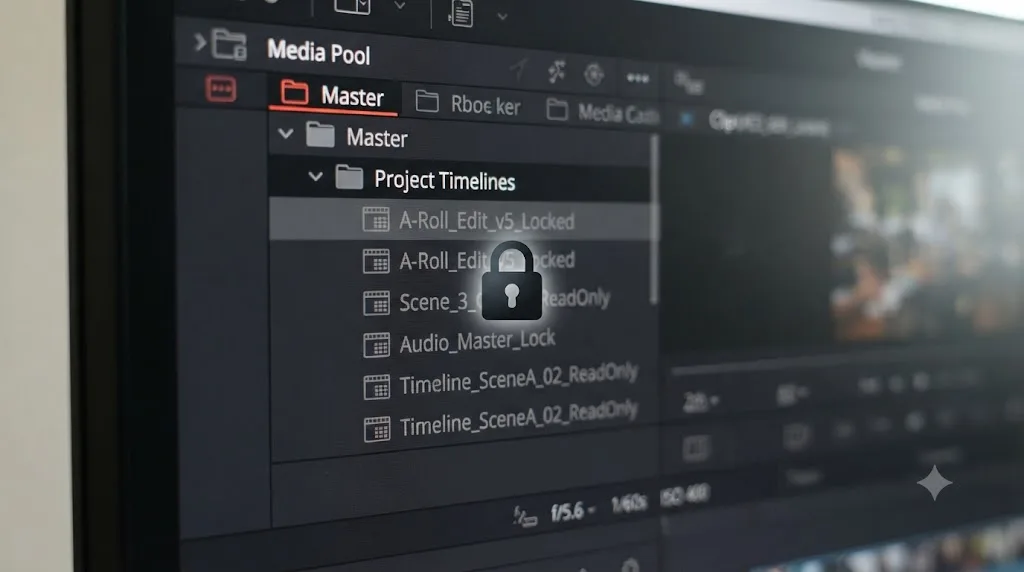
Why does DaVinci Resolve lock a timeline during Multi-User Collaboration?
Locking isn't a malfunction. It's the entire point of the feature. DaVinci Resolve's collaboration system exists so two or more people can work inside the same project at the same time without silently overwriting each other's changes, and locking is the mechanism that makes that safe.
Per Blackmagic's own manual page on how collaboration works, the system runs on a model it describes plainly: "the first collaborator to select a bin in the Media Pool, open a timeline, or select a clip in the Fusion page or Color page gets a 'lock' on that item." Whoever gets there first owns it. Everyone else can look, but they can't touch it until the lock releases.
In DaVinci Resolve's Multi-User Collaboration, a lock isn't assigned by a project manager or a permissions setting. It's whoever clicks first. That detail matters more than it sounds like it should, because it means the lock you're fighting isn't a bug report waiting to happen. It's the system working correctly, applied to a scope you didn't expect.
The lock shows up as a colored badge next to the bin or timeline in the Media Pool, and hovering over that badge reveals the name of the collaborator currently holding it. Other team members can still view a locked bin's contents. They just can't reorganize it, rename anything inside it, or add new material to it while someone else holds the lock. Locks release automatically the instant their owner selects something else, a different bin, a different timeline, a different clip, at which point the change gets "checked in" and becomes visible to everyone else once they manually refresh their own view with the circular refresh icon that appears when new changes are waiting.
That refresh step is worth understanding on its own, because it explains why a teammate can swear they're not touching your timeline and still be the one holding it. Resolve doesn't push updates to your screen automatically while you're actively working, so you can be looking at a timeline you believe is free when it was actually released and re-claimed by someone else two minutes ago. Click refresh before you assume a lock is permanent.
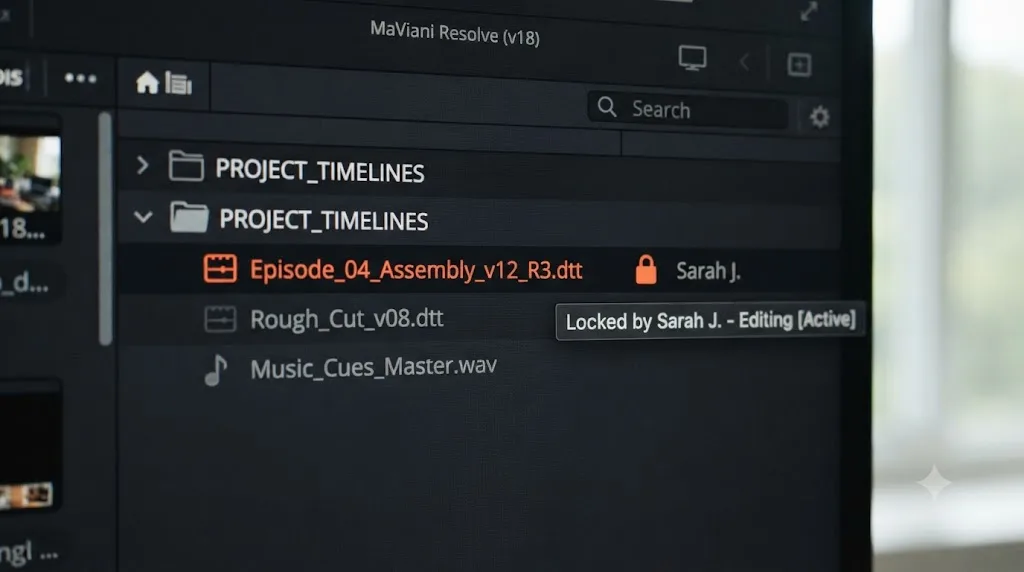
Why do ALL your timelines lock when you only opened one?
This is the specific complaint that sends editors searching, and it's documented on the Blackmagic Forum in a thread titled "Timelines locking in Multi-User Collaboration". The report is consistent across the thread: when multiple timelines live in the same bin, opening any one of them for editing appears to lock every timeline in that bin, not just the one you're actually working on. One user described the practical result of this bluntly, that years after the behavior was first reported, they still find themselves locked out of doing anything unless the other person exits DaVinci Resolve completely, calling the whole experience a "pseudo" version of real collaboration.
Here's why it happens, and it comes down to a gap between two things Resolve's own manual describes separately. The page on manually locking and unlocking timelines states that "opening a timeline automatically locks other collaborators out of making changes to that timeline" while still permitting modifications to the containing bin. Taken alone, that sentence promises exactly the granular, timeline-only lock you'd expect. But the earlier page on the general lock model already told you the first thing to get locked is often a bin selection, not a timeline selection specifically, since "the first collaborator to select a bin in the Media Pool... gets a 'lock' on that item." When your active timelines all live inside one bin, opening a timeline necessarily means selecting that bin first, and in practice, across a long list of forum reports, the bin-level claim behaves as though it extends to everything sitting inside it.
A DaVinci Resolve timeline lock and a DaVinci Resolve bin lock are two different mechanisms that share the same trigger, and when your timelines share a bin, that shared trigger makes them behave as one. That's the entire bug, reduced to a sentence. It isn't that Resolve forgot how to lock a single timeline. It's that selecting a timeline and selecting its bin happen to be the same click, and the lock the system actually grants sits one level higher than editors assume it does.
The moderator response in that same forum thread names the fix directly and confirms Blackmagic was aware of the gap: "For now, move the active timelines to their own bin," with the team stating they were "actively looking into making this better." That's an official acknowledgment that the granular timeline-only lock the manual describes doesn't reliably hold when timelines share a bin, and the one dependable workaround is structural, not a setting you flip.
| What you expect | What the manual describes | What forum reports show actually happens |
|---|---|---|
| Only the timeline you opened locks | "Opening a timeline automatically locks other collaborators out of making changes to that timeline" | Every timeline sharing that bin behaves as locked too |
| Other timelines in the same bin stay editable | Locked bins restrict organizational changes, not necessarily every timeline inside | Editors report being unable to touch sibling timelines until the bin releases |
| The lock clears the moment you click away | Locks release automatically when you select something else | Confirmed accurate, once you've actually clicked away, not just stopped typing |
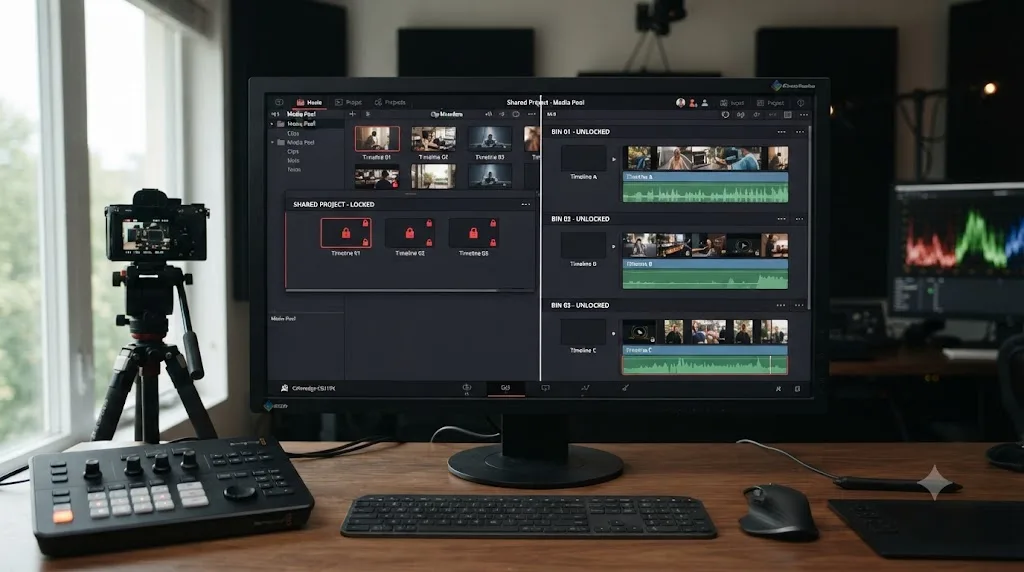
What's the actual fix: giving each timeline its own bin?
This is the fix the forum thread lands on, and it's the one worth trying first before anything else on this page, because it resolves the large majority of "everything is locked and I only touched one thing" reports.
- Open the Media Pool and look at where your active timelines currently live. If two or more timelines that different people are actively editing sit in the same bin, that's your problem, confirmed.
- Right-click an empty area of the Media Pool and choose Add Bin. Name it something specific: the editor's name, the sequence it belongs to, or the scene number, anything that tells you at a glance which timeline lives there.
- Drag the timeline out of the shared bin and into its new, dedicated bin. Do this one timeline at a time if you have several, since dragging them all into one new bin just recreates the same problem under a different name.
- Repeat for every timeline currently in active, simultaneous use. A finished timeline nobody's touching this week can stay wherever it already lives. It's only the timelines multiple people need open at once that need this separation.
- Have each collaborator open their own dedicated timeline going forward. Once each active timeline has a bin to itself, opening one no longer touches the others, because there's no longer a shared bin selection for the lock to attach to.
That's the whole fix, and it takes less time to perform than it took to read this section. The single highest-value structural change you can make to a collaborative DaVinci Resolve project is giving every actively edited timeline a bin of its own. Everything else in this guide is about the edge cases around that one core move: what happens when a lock outlives the session, how the manual lock toggle behaves, and what changes on Blackmagic Cloud versus local storage.
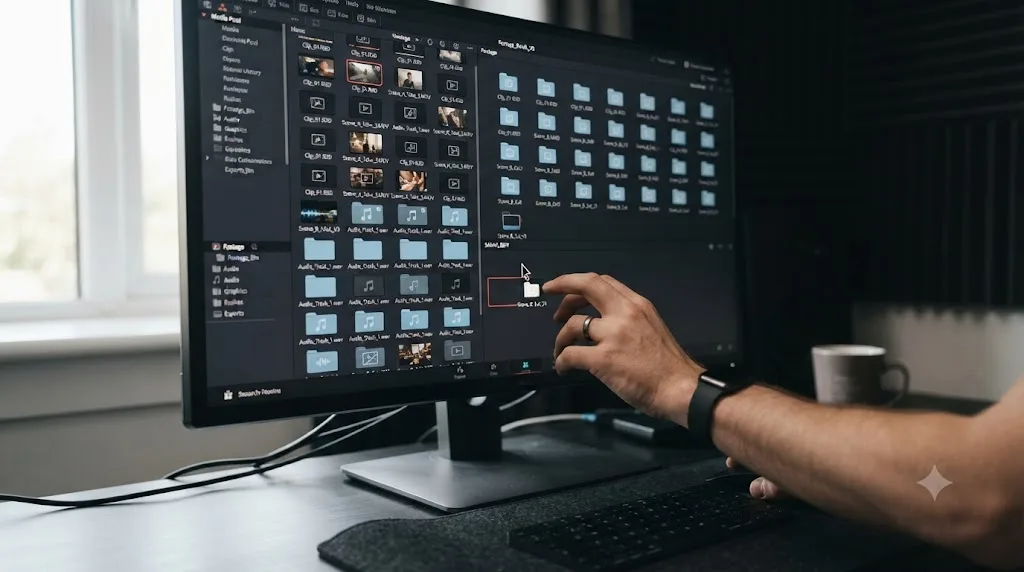
How does DaVinci Resolve's lock system work under the hood, first-come, first-served?
Understanding the mechanics behind the fix makes every other symptom on this page easier to diagnose instead of guessing at, so it's worth walking through once.
Per the manual's Enabling Multiple User Collaboration page, all collaborators need to be working on a project saved either in Blackmagic Cloud or on a properly configured remote project library server, with all machines on the same network or reachable across subnets. Once that's in place and Collaboration is enabled from File > Multiple User Collaboration, the interface adds a Collaboration button and a Collaboration Chat button in the lower right corner of the app.
From there, the manual's description of how collaboration works lays out the "first come, first served" model in full: the first collaborator to select a bin, open a timeline, or select a clip in Fusion or Color gets the lock. Everyone else sees it, but can't edit it, until the owner moves on. When they do, the change is checked in automatically, and other collaborators see a refresh badge they click to pull in the update. Nothing is lost in the handoff. Resolve saves continuously as you work, and the check-in happens the instant you click away, not on some delayed timer.
There's one deliberate exception worth knowing, because it explains why some grading work doesn't feel locked the way editorial work does. A locked bin still lets other collaborators create Fusion compositions or adjust color grades on clips inside it, even though they can't reorganize the bin itself or rename anything in it. That's why a colorist can often keep grading shots inside a bin an editor is actively reorganizing, while a second editor genuinely can't touch the same bin's structure at the same time.
This same first-come model extends down to the clip level on the Color and Fusion pages, independent of bins and timelines entirely. Per the manual's page on manually locking and unlocking timelines, "the first compositing artist or colorist to select any given clip has an automatic lock on that clip," shown as a badge indicating who currently holds it, and selecting a different clip automatically saves and pushes the previous clip's changes to everyone else. If two colorists are working the same sequence and one appears to be locked out of a specific shot rather than a whole timeline, that's this clip-level lock, not the bin-level bug covered above, and moving timelines into separate bins won't touch it. The fix there is simpler: whoever's not actively grading that specific clip needs to select a different one.
Why is a bin still locked after your collaborator says they closed it?
This is a separate, related complaint documented in a Blackmagic Forum thread titled "Accidental locking of bins (probably applies elsewhere)", and it catches teams who thought they understood the lock model perfectly well.
The scenario: a collaborator finishes a session and steps away from their desk, but DaVinci Resolve is still open on their machine, still pointed at whatever bin they were last working in, maybe the Master bin, maybe your shared selects bin. Because a lock only releases when its owner selects something else, not when they stop typing or walk away, that bin stays locked for everyone else on the project for as long as that session sits idle. One editor in the thread put the practical frustration of this plainly: their associate had no idea that just sitting on a bin, doing nothing at all, locks everyone else out of the entire bin's contents.
A DaVinci Resolve lock doesn't expire on a timer, and it doesn't know the difference between someone actively working and someone who stepped away for lunch with the app still open. There's no automatic timeout that releases a stale lock after a period of inactivity. The lock is tied to a selection state, not to activity, and a selection doesn't change itself just because time passes.
The manual's page on managing bin locks manually gives you two tools for this specific situation, and they solve different problems. If you know in advance you'll be away and don't want your bin available to others, you can deliberately right-click and lock it, which keeps it reserved "even when you deselect them, until you right-click them again and choose Unlock Bins." That's an intentional reservation. The accidental version above is the opposite: nobody meant to reserve anything, the app just happened to be sitting on a selection when its owner stopped paying attention.
For a bin that's locked and nobody's actively working in it, the practical options are limited and worth knowing before you burn twenty minutes messaging around the studio:
- Ask the owner to select a different bin or timeline, even briefly, if they're reachable. This is the fastest fix and requires no exiting anything.
- Ask them to fully exit DaVinci Resolve if they're not reachable to click away themselves, or if their machine has gone to sleep or crashed. Exiting the application releases every lock that machine was holding, cleanly, every time.
- Option-click the bin yourself to open it read-only, which the manual notes is indicated by an eyeball badge next to the bin. This lets you see the contents without waiting, though you still can't edit anything until the actual lock releases.
There's no fourth option that force-unlocks someone else's active session from your own machine. That's a deliberate design choice, not a missing feature, since a force-unlock would defeat the entire purpose of the lock in the first place, protecting a collaborator's in-progress work from being overwritten by someone else.
Can you manually lock or unlock a timeline yourself?
Yes, and knowing this gives you a layer of intentional control on top of the automatic first-come system, useful for holding a timeline through a coffee break or handing one off cleanly to a teammate.
Per the manual's page on manually locking and unlocking timelines, the process runs through the Media Pool's contextual menu:
- Right-click the timeline you currently have open and hold in the Media Pool.
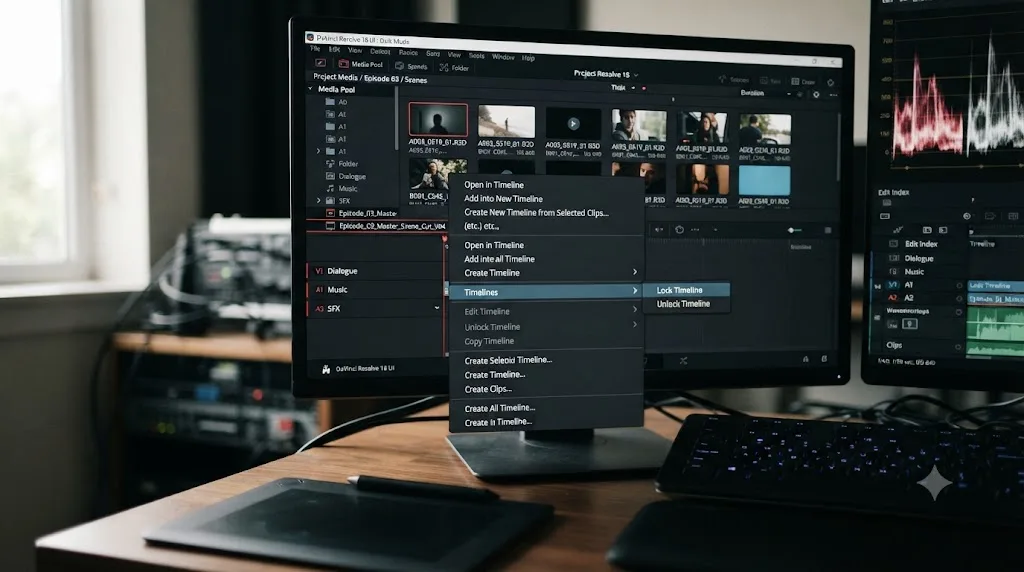
- Choose Timelines > Lock Timeline from the contextual menu to keep it reserved for you even after you click onto something else, which normally would have released it automatically.
- When you're ready to hand it off, right-click again and choose Timelines > Unlock Timeline, which releases it immediately for whoever's waiting rather than making them wait for you to happen to select something else.
Once locked this way, other collaborators can't modify that specific timeline while you hold the lock, though the manual is explicit that they can still "modify any other clips and timelines in the bin," which is exactly the granular, timeline-scoped behavior that the automatic lock doesn't reliably deliver when timelines share a bin.
Manual locking gives you deliberate control over one timeline. It does not fix the bin-sharing bug covered earlier in this guide, because it operates on top of the same underlying lock system, not around it. If your real problem is that opening one timeline in a shared bin locks its neighbors, manually locking that one timeline changes nothing about its siblings. The bin-separation fix from earlier in this guide is still the move for that specific symptom. Manual locking solves a different problem: holding or releasing access to a single timeline on purpose, independent of whether you're actively clicked into it at this exact second.
Does DaVinci Resolve 18.1's manual timeline lock actually work reliably?
Not always, according to a cluster of reports on a Blackmagic Forum thread titled "How does 18.1 Collaborative Timeline Locks work? Or do they?", and this is worth knowing before you trust the lock icon at face value during a real session.
DaVinci Resolve 18.1 introduced the Timelines > Lock Timeline and Unlock Timeline menu items covered in the previous section, giving editors explicit manual control for the first time rather than relying purely on the automatic selection-based lock. In theory, this should make handoffs between collaborators cleaner and more predictable. In practice, editors on the forum reported inconsistent behavior around the lock icon itself: a newly created timeline shows the "unlock timeline" option available, but with no locked icon displayed at all, which makes it impossible to tell its actual state at a glance. Some users found that manually locking a timeline, then exiting the project and reopening it later, silently dropped the lock, meaning a timeline you deliberately reserved could be wide open again the next time anyone checked, with no warning that the reservation had been lost.
There's also a reported split in reliability between local or shared-storage collaboration and Blackmagic Cloud-based collaboration specifically, with some users noting the manual lock behaves more consistently for bins nested inside other bins on local storage than it does over a cloud-hosted project.
Treat DaVinci Resolve's manual Lock Timeline icon as a convenience layer, not a guarantee, and confirm a timeline's actual state by trying to edit it rather than trusting the badge alone. If a badge says unlocked but your edit doesn't go through, or a badge says locked but the timeline updates anyway, believe the behavior over the icon every time. This isn't a workflow failure on your part. It's a documented inconsistency in how the icon renders, not evidence that the underlying first-come lock itself has stopped functioning.
Is this a bug, or the price of what Blackmagic Cloud promised?
It's worth being honest about the gap between how Blackmagic markets this feature and how it behaves once your bin structure gets complicated, because the gap is real and it's what's driving people to search for this exact problem.
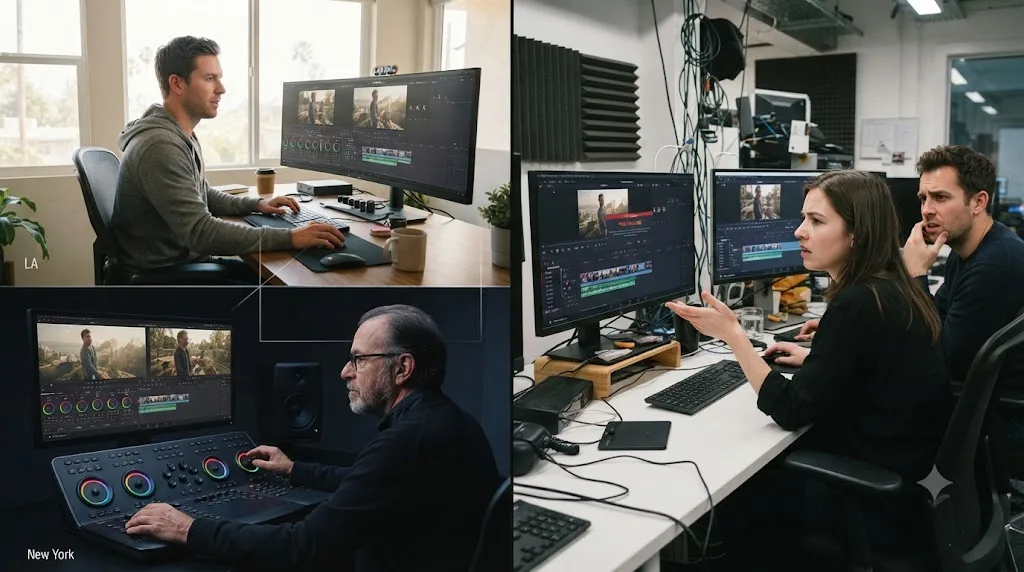
When Blackmagic Design announced DaVinci Resolve 18 and its Blackmagic Cloud collaboration features, CEO Grant Petty made a specific, ambitious promise about what the feature would let teams do. "With Blackmagic Cloud, customers can collaborate on the same timeline anywhere in the world. Imagine editing in Tokyo, while a colorist is grading in LA on the same timeline, at exactly the same time!" he said, in Blackmagic's announcement of DaVinci Resolve 18, calling the release one that "totally revolutionizes remote project collaboration using cloud based workflows."
That promise is genuinely true for the specific case it describes: an editor and a colorist working the same timeline from different clip-level and page-level contexts, one on the Edit page, one on the Color page, at the same moment. Resolve really does let that happen smoothly, and it's a legitimately rare capability among post-production tools.
What Petty's quote doesn't mention, and what the forum threads throughout this guide document in detail, is the far more common real-world scenario: two editors, not an editor and a colorist, both needing write access to different timelines that happen to live in the same project, organized the way most teams naturally organize a project before they've learned to avoid it. That's the scenario where the bin-level lock swallows more than it should, and it's not covered by the marketing promise because it's not the scenario the marketing promise was describing.
Blackmagic's collaboration features deliver exactly what the company promises for the specific workflow they were built to showcase, and the bin-locking side effect is a real, separate limitation that shows up outside that showcase scenario. Neither of those two things cancels the other out. Both are true at once, and knowing that helps you plan a project's bin structure from day one instead of discovering the gap mid-deadline.
Why couldn't you enable Collaboration mode at all with a Timelines bin active?
This is an older, related complaint worth knowing if you're on an older Resolve installation or inheriting a project built years ago, documented in a Blackmagic Forum thread titled "Collaboration mode not possible when timelines bin active".
In earlier versions of Resolve, around the version 15 era, some users found they couldn't even switch a project into Collaboration mode in the first place while a dedicated Timelines bin was active in that project, and the option to disable the Timelines bin was greyed out entirely, giving them no direct path to fix it from inside the app. The workaround forum participants landed on involved dynamic project switching and copying timelines out to a fresh structure, which is a heavier lift than anything covered elsewhere in this guide. The more durable recommendation that came out of that thread, and one that's aged well, was to lean on Smart Bins instead of a dedicated Timelines bin for organizing sequences in a collaborative project.
If you're troubleshooting an old project inherited from a previous editor, or a project that started life years before your current version of Resolve, and Collaboration mode itself won't toggle on, this legacy Timelines bin conflict is worth ruling out before you assume something in the current bin-locking system is broken. Rebuilding the project's bin structure around Smart Bins rather than a manually maintained Timelines bin, covered in more depth in the next section, resolves both this older enablement issue and the modern bin-sharing lock bug from the same root cause: fewer bins doing double duty, less contention.
Should you use Smart Bins instead of a manually maintained Timelines bin?
Given everything above, it's worth stepping back and asking whether the underlying organizational habit, not just the immediate lock, is worth changing.
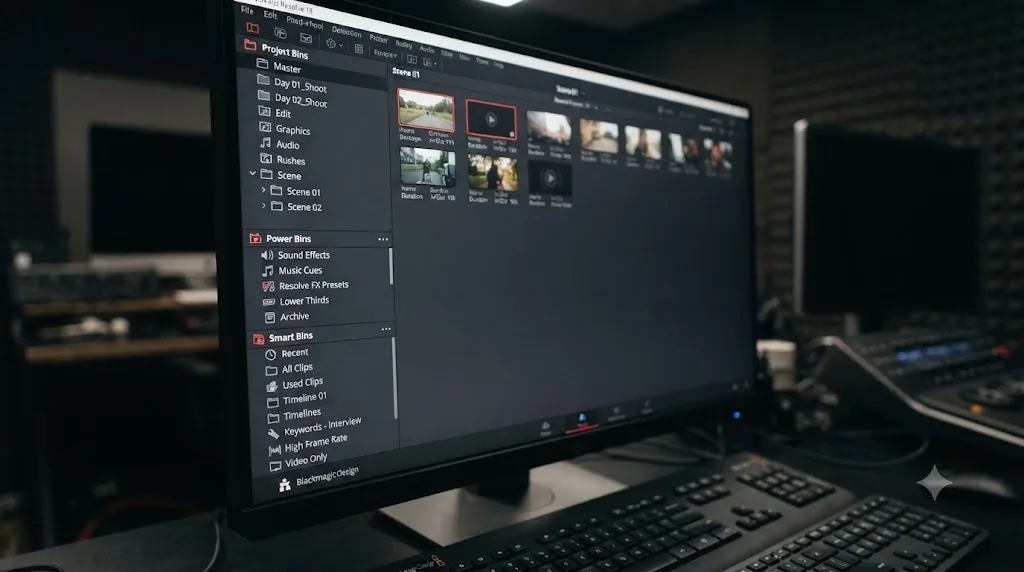
The manual's page on Bins, Power Bins, and Smart Bins confirms that every project starts with a single default bin named "Master," and that the Media Pool actually supports three distinct kinds of bins: regular bins you create and organize by hand, Power Bins that persist across projects, and Smart Bins that update their contents dynamically based on metadata rather than requiring you to manually drag clips or timelines into them.
That distinction matters directly for the collaboration lock problem, because a Smart Bin's membership is calculated automatically from metadata rather than requiring a physical, shared container that multiple people manually drop timelines into. A team relying on Smart Bins to surface "all timelines tagged Editor A" or "all timelines modified this week" isn't manually filing multiple active timelines into one shared physical bin the way a hand-organized Timelines bin naturally encourages, which sidesteps the specific trigger behind the bin-sharing lock bug almost by accident.
| Bin type | How membership works | Collaboration lock risk |
|---|---|---|
| Regular bin (hand-organized, including the default Timelines bin) | You manually drag clips and timelines into it | High, if multiple active timelines end up sharing one bin |
| Smart Bin | Automatically populated by metadata rules you define | Low, since it doesn't require multiple people filing work into the same physical container |
| Power Bin | Persists across projects, shared media library style | Not typically where active per-project timelines live day to day |
This isn't a mandate to abandon regular bins entirely. A dedicated bin per active editor or per active timeline, the fix covered earlier in this guide, works perfectly well and is simpler to explain to a team that's new to Resolve's collaboration model than reworking your whole metadata and Smart Bin strategy mid-project. But if you're setting up bin structure for a new collaborative project from scratch, building it around Smart Bins for anything multiple people need simultaneous access to is worth doing from day one, since it removes the shared-bin trigger before it ever has a chance to cause a problem.
Does this happen on the free version of DaVinci Resolve too, or only Studio?
Yes, and it's worth confirming directly since collaboration features are exactly the kind of thing that tends to be gated to the paid tier in other software, which makes it reasonable to assume the same here.
Blackmagic Design's own free versus Studio comparison page states it plainly: "The free version includes multi-user collaboration and HDR grading." That's not a partial or crippled version of the feature. The same first-come lock model, the same bin-and-timeline scoping, and the same bug covered throughout this guide apply whether every collaborator on your team is running the free edition, Studio, or a mix of both.
That holds true even for Blackmagic Cloud specifically, the hosted version of collaboration that replaces local or shared network storage with Blackmagic's own servers. According to a detailed breakdown of Blackmagic Cloud's Project Library pricing, Project Libraries cost $5 per month per library, and critically, "they work with both free and studio versions of DaVinci Resolve, providing flexibility for teams with different software licenses." You're paying for cloud-hosted storage and sync, not for the collaboration feature itself, and that storage layer works identically for locking purposes regardless of which Resolve license each collaborator runs.
Whether you're troubleshooting this on the free version, DaVinci Resolve Studio, local shared storage, or a paid Blackmagic Cloud Project Library, the fix is the same: separate bins for separate active timelines. Don't waste time wondering if this is a "you need Studio" problem. It isn't, and the free version's collaboration system runs on the exact same first-come lock code the rest of this guide describes.
Does this behave differently on Blackmagic Cloud versus local or shared storage?
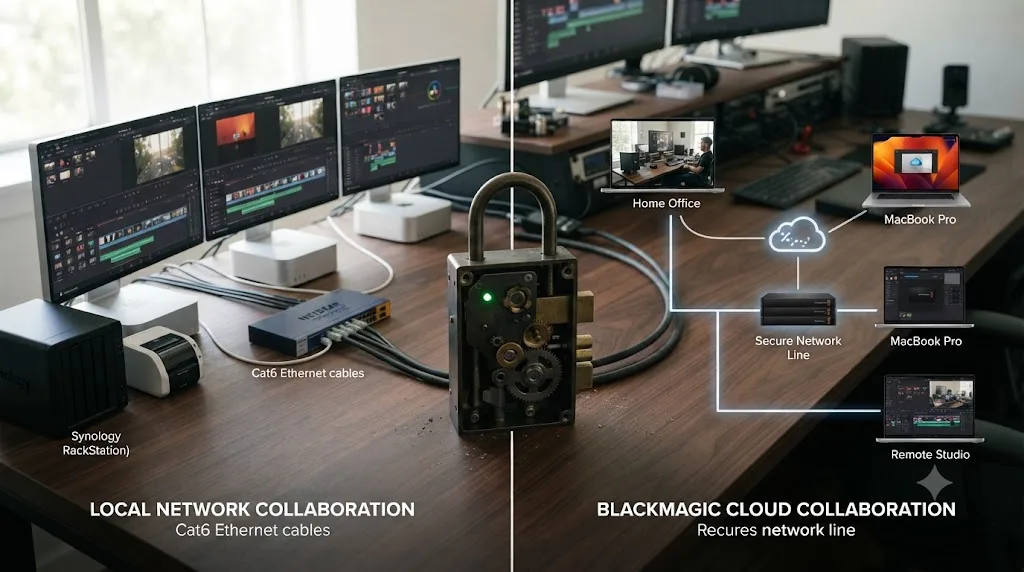
The lock model underneath is identical either way, since both paths route through the same Multiple User Collaboration system described in the manual's page on enabling multiple user collaboration. Whether your project lives on a local SAN, a shared network volume, or a Blackmagic Cloud Project Library, "the first collaborator to select a bin... gets a 'lock' on that item" applies the same way, and the bin-sharing bug covered throughout this guide isn't specific to one storage path over the other.
Where the two paths genuinely diverge is in how quickly a stale lock actually clears, and this is a distinction worth knowing before you spend twenty minutes debugging the wrong layer of your setup.
On local or shared network storage, a lock lives as long as the machine holding it stays connected and that machine's session state says it's still selected. If that machine crashes, loses network connectivity, or goes to sleep without properly quitting Resolve, the lock can outlive the session in a way nobody on the team can clear except by physically getting to that machine, waking it, and either clicking away or force-quitting the application.
On Blackmagic Cloud, connectivity and sync work through Blackmagic's own servers rather than a direct peer connection between collaborator machines, which the manual's page on setting up a cloud-based collaboration workflow covers in more depth for initial setup. In practice, this means a fresh lock or a fresh release can lag by a few seconds while it syncs through the cloud layer, which occasionally looks like a stuck lock to an impatient editor but clears itself once the sync catches up, distinct from a genuinely stuck lock caused by a crashed machine.
If a lock hasn't cleared after a full minute of waiting and a manual refresh click, and you're on Blackmagic Cloud, check your own and your collaborator's internet connection before assuming the lock itself is broken. If you're on local or shared storage and a lock hasn't cleared, go check whether the machine that holds it is actually still running Resolve, since a crashed or sleeping machine is the far more common cause on that path specifically.
What if the lock isn't a bin problem at all, it's a Color or Fusion clip lock?
Not every "everything's locked" complaint traces back to bins and timelines. If your specific symptom is that a colorist can't grade a shot even though the timeline itself opened fine, or a compositor can't touch a node graph on a clip that looks completely free in the Edit page, you're dealing with the clip-level lock covered briefly earlier in this guide, and it needs a different fix entirely.
Per the manual, the first compositing artist or colorist to select any given clip automatically locks that specific clip, shown with its own badge, independent of whatever's happening at the timeline or bin level above it. This is actually the feature working as intended in its narrowest, most reliable form: it lets multiple colorists grade different shots within the same locked timeline simultaneously, which is the exact "editing in Tokyo, grading in LA" scenario Grant Petty's DaVinci Resolve 18 announcement described. If a specific clip won't open for grading, check who else on the team currently has that exact clip selected on the Color or Fusion page, not the timeline it belongs to. Moving timelines into separate bins does nothing for a clip-level lock, since it's scoped one level lower than anything the bin-separation fix touches.
This is also worth knowing if you've landed on this guide because your Color page looks frozen or unresponsive rather than explicitly locked. That's a related but genuinely different symptom with its own set of causes, and our guide to DaVinci Resolve's Color tab not showing footage covers the case where a bin or timeline locked by another editor in a Studio-only multi-user project looks grayed out or frozen in a way that can be mistaken for missing footage entirely, alongside several unrelated causes like filters and disabled tracks that produce a nearly identical blank-looking Color page.
A worked example: unlocking a project stuck mid-session
Here's how the whole diagnosis and fix plays out on a real, deadline-pressure scenario, so you can see the branches above fit together in the order that actually matters.
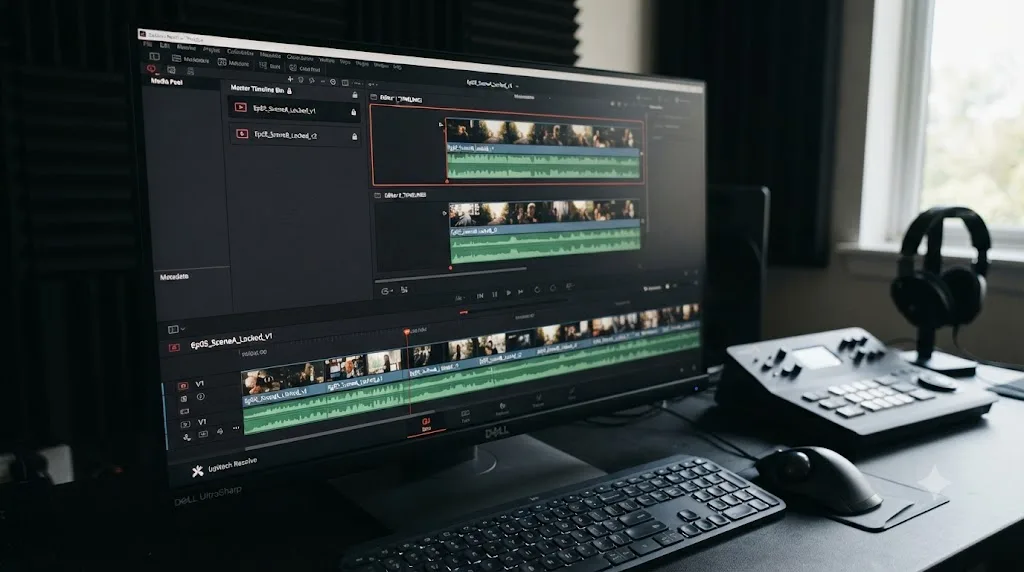
Two editors are cutting a documentary together, both working off the same shared network volume, Collaboration mode enabled from the start. Editor A opens Timeline_SceneA to trim an interview. A few minutes later, Editor B tries to open Timeline_SceneB, a completely different sequence, and finds it's read-only. Both timelines, it turns out, have been living in the same "Working Timelines" bin since the project was set up months ago, back when there was only one editor and no reason to think about bin structure at all.
Editor B's first instinct is to assume Editor A somehow has SceneB open too, so they message to check. Editor A confirms they've never touched SceneB today, and their own view shows it as unlocked on their end, which briefly makes it look like a genuine bug rather than anything either of them did.
The actual cause becomes clear once Editor B checks the Media Pool structure rather than the timelines themselves: both SceneA and SceneB sit in the same Working Timelines bin, and Editor A's session, still actively selected on that bin because SceneA is open inside it, is holding a bin-level lock that's catching SceneB as an unintended side effect, exactly the pattern documented in the "Timelines locking in Multi-User Collaboration" thread.
The fix takes under two minutes. Editor B creates two new bins, one named for each editor, and drags SceneA and SceneB apart so each timeline finally has a bin to itself. From that point forward for the rest of the project, both editors can work their respective timelines simultaneously without either one appearing locked to the other, because there's no longer a shared bin selection for the automatic lock to attach to.
A second, smaller scenario from the same project: a week later, a third collaborator, a remote colorist working from home over Blackmagic Cloud, reports that a bin has been locked for three hours with nobody able to explain why. It turns out Editor A stepped away for a late lunch with Resolve still open and that same Working Timelines bin selected, exactly the accidental-locking pattern from the forum thread on that specific issue. A quick message gets Editor A to click onto a different bin, and the lock releases within seconds once they do, cloud sync lag included. No force-unlock was needed, and none was available, since Resolve deliberately doesn't offer one.
Quick troubleshooting reference
Work through this top to bottom. The first two rows account for the overwhelming majority of reports on this exact problem.
| Symptom | Likely cause | Fix |
|---|---|---|
| One timeline is locked and you know exactly who has it open | Working as designed: first-come, first-served lock | Wait for them to click away, or ask them to select a different item to release it early |
| Multiple unrelated timelines all lock when only one is being edited | Timelines share a bin, and the bin-level lock is catching all of them | Move each active timeline into its own dedicated bin |
| A bin is locked and nobody's actively working in it | The owner's session is idle but Resolve is still open and selected on that bin | Have them select something else, or fully exit DaVinci Resolve on that machine |
| A specific clip won't open for grading, but the timeline itself is fine | Clip-level lock from another colorist or compositor working that exact shot | Check who has that clip selected on the Color or Fusion page, not the timeline |
| The manual lock icon shows one state but the timeline behaves differently | Documented DaVinci Resolve 18.1 lock icon inconsistency | Trust actual edit behavior over the icon; don't rely on the badge alone |
| Collaboration mode won't even enable on an old project | Legacy conflict between Collaboration mode and an active Timelines bin, older Resolve versions | Rebuild the project's bin structure around Smart Bins instead |
| Locking behaves inconsistently over Blackmagic Cloud specifically | Cloud sync latency, distinct from a genuinely stuck local lock | Wait roughly a minute and check your internet connection before assuming it's broken |
| You're not sure if this is a free-version limitation | It isn't | Multi-user collaboration and its lock system are included in the free version and work identically to Studio |
The verdict
DaVinci Resolve's collaboration lock isn't broken. It's doing precisely what Blackmagic built it to do, first person in gets write access, everyone else waits, and that model genuinely does deliver the same-timeline, different-city collaboration Grant Petty described when Resolve 18 shipped. What it doesn't do cleanly, and what the forums have been documenting since at least 2022 with no official fix beyond a workaround, is scope that lock correctly when multiple active timelines share a single bin. The bin claims the lock, not just the timeline, and every timeline riding along in that same bin gets caught in it.
The fix costs you two minutes: separate bins for separate active timelines, every time. Everything else in this guide, the accidental idle-session locks, the DaVinci Resolve 18.1 lock icon that doesn't always tell the truth, the older Timelines-bin conflict, the clip-level locks that are working exactly as intended, is a variation on that same first-come lock system, and now you know which branch you're actually looking at instead of guessing.
If you're mid-project and trying to figure out in the moment whether what you're looking at is a bin lock, a clip lock, or something else entirely, that live, in-the-app diagnosis is exactly what TryUncle is built for. It watches your actual DaVinci Resolve session and points at the specific bin, timeline, or clip causing the holdup, instead of sending you off to compare your Media Pool structure against a guide from another tab. And once your team's collaborative structure is solid, our guide to DaVinci Resolve export settings for YouTube picks up right where a finished, unlocked timeline needs to go next.
Frequently asked questions
- Why does DaVinci Resolve keep locking my timeline in Collaboration mode?
- Resolve's collaboration system runs on a first-come, first-served model. The first collaborator to open a bin, a timeline, or select a clip on the Color or Fusion page claims a lock on it, and everyone else gets read-only access until that person clicks away. If you're the one locked out, someone on your team, possibly without realizing it, is simply sitting on that item.
- Why do ALL my timelines lock when I only opened one of them?
- Because Resolve's lock model operates at the bin level as much as the timeline level. If your active timelines share a bin, opening one of them selects that bin, and the bin-level lock behaves as though it covers everything inside it, not just the single timeline you're touching. Move each active timeline into its own dedicated bin and this stops happening.
- How do I move a timeline into its own bin in DaVinci Resolve?
- In the Media Pool, right-click an empty area and choose Add Bin, name it after the timeline or the editor working on it, then drag the timeline from wherever it currently lives into that new bin. Do this for every timeline that's actively being worked on at the same time, not just the one giving you trouble.
- Can I manually lock or unlock a timeline myself?
- Yes. Right-click the timeline in the Media Pool and choose Timelines > Lock Timeline to hold it even after you click away, or Timelines > Unlock Timeline to release it early. This only works if you're the one who currently holds the lock. You can't force open a timeline someone else is actively editing.
- Why is a bin still locked after my collaborator says they closed it?
- A bin releases when someone selects a different bin or timeline, not necessarily when they quit working. If a collaborator leaves DaVinci Resolve open on their desk with that bin still selected, whether they're at lunch or just switched to email, the lock stays live. The only guaranteed fix is having them select something else or fully exit the application.
- Does this bin-locking behavior happen on the free version of DaVinci Resolve too?
- Yes. Blackmagic Design's own comparison page states the free version includes multi-user collaboration, and Blackmagic Cloud Project Libraries, the hosted version of the same locking system, work with both the free and Studio versions. The bin and timeline locking mechanics behind this bug are identical regardless of which license you're running.
- Is this different if I'm using Blackmagic Cloud instead of local or shared storage?
- The underlying lock model, first person in gets the lock, is the same either way, since both paths run through the same Multiple User Collaboration system. What changes is how fast a stale lock clears. On a local network, a crashed or sleeping machine can leave a lock stuck until someone manually intervenes. On Blackmagic Cloud, sync latency can occasionally make a fresh lock appear to lag by a few seconds.
- Why did the manual timeline lock icon in DaVinci Resolve 18.1 stop showing correctly?
- Multiple editors on the Blackmagic Forum reported that a newly created timeline shows no lock icon even when it's technically unlocked, and that manually locking a timeline, then closing and reopening the project, can silently drop the lock state. Treat the manual Lock Timeline icon as a convenience layer on top of the automatic first-come lock, not as a guarantee, and confirm lock status by trying to actually edit rather than trusting the badge alone.
Sources
- Blackmagic Forum: Timelines locking in Multi-User Collaboration
- Blackmagic Forum: Timelines Locking Randomly in Collaboration
- Blackmagic Forum: Accidental locking of bins (probably applies elsewhere)
- Blackmagic Forum: Collaboration mode not possible when timelines bin active
- Blackmagic Forum: How does 18.1 Collaborative Timeline Locks work? Or do they?
- DaVinci Resolve Manual: How Collaboration Works (Blackmagic Design, mirrored)
- DaVinci Resolve Manual: Enabling Multiple User Collaboration (Blackmagic Design, mirrored)
- DaVinci Resolve Manual: Managing Bin Locks Manually (Blackmagic Design, mirrored)
- DaVinci Resolve Manual: Manually Locking and Unlocking Timelines (Blackmagic Design, mirrored)
- DaVinci Resolve Manual: Bins, Power Bins, and Smart Bins (Blackmagic Design, mirrored)
- DaVinci Resolve - Collaboration (Blackmagic Design product page)
- DaVinci Resolve free vs Studio comparison (Blackmagic Design)
- Blackmagic Design Announces DaVinci Resolve 18 (Grant Petty quote, via Mix Online)
- DaVinci Resolve Collaboration - Team Setup Guide 2026 (Fastio)
- A collaborative editing workflow in Resolve (Frame.io Workflow Guide)
- Post-Production Collaboration Made Simple in DaVinci Resolve 14 Studio (Pond5 Blog)
- Mastering Blackmagic Cloud: A Comprehensive Guide for Remote Video Editing (VP Land)
Learn by doing, not watching
Stop translating tutorials to your timeline.
TryUncle stays beside Resolve on Mac and Windows. When you ask, Uncle sees your screen and points at the exact control you need. No hunting through tabs, timestamps, or mismatched tutorials.
Meet TryUncleKeep reading
 GuidesJul 8, 202633 min read
DaVinci Resolve Color Tab Not Showing Footage: Every Fix
Why DaVinci Resolve's Color page shows an empty timeline instead of your footage, and the exact filter, track, timeline, and cache fixes that solve it.
 ComparisonsJul 11, 202626 min read
The Best AI Tools to Learn DaVinci Resolve in 2026
ChatGPT, Claude, Blackmagic's free training, Recut, and Resolve's Neural Engine compared for learning DaVinci Resolve, and the gap none of them close.
 GuidesJul 7, 202632 min read
DaVinci Resolve Export Settings for YouTube (Copy These Exactly)
The exact DaVinci Resolve export settings YouTube recommends: codec, bitrate, resolution, audio, and the Deliver page steps that avoid soft uploads.