
Learn / DaVinci Resolveupdated for DaVinci Resolve 21.0.3 (July 2026)
DaVinci Resolve Render Farm Service Recommendations for 2026
Quick answer
DaVinci Resolve has no third-party render farm like Blender or Maya do. Real options are Resolve Studio's native Remote Rendering (shared database, $295 license), Fusion Studio's free unlimited render nodes, or GPU cloud workstations like iRender ($8.20+/hour), CUDO Compute, or AWS (from $1.20/hour) that you remote into and render locally.
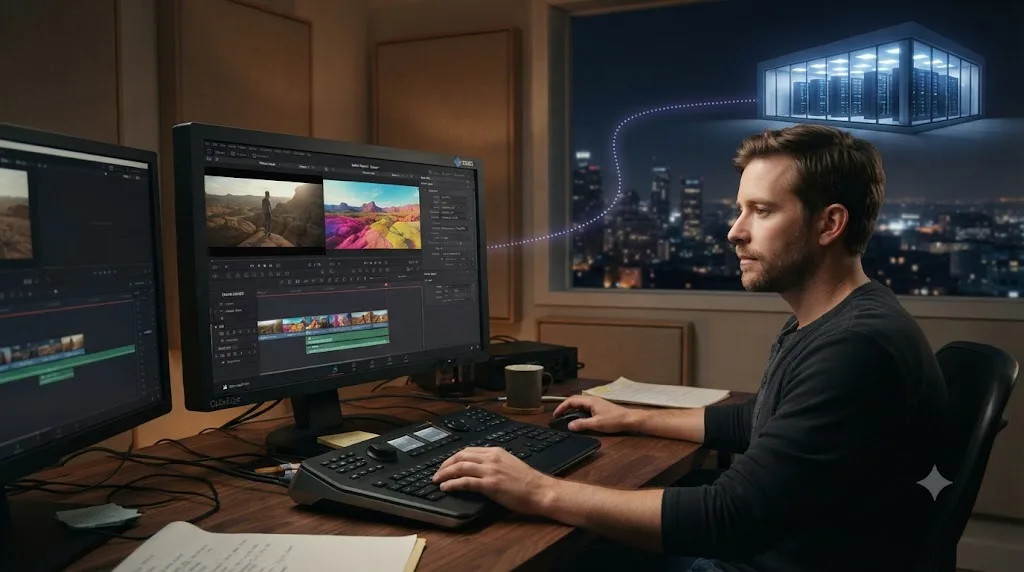
We've spent 7+ years cutting commercial video in DaVinci Resolve, run a 100,000+ member editing community where render questions come up constantly, and taught over 100,000 students how this software actually works. One of the recurring questions in that community is some version of "can I just rent a render farm for this," usually typed at 1 a.m. with a deadline six hours out. The honest answer disappoints most people who ask it, because DaVinci Resolve doesn't have a render farm ecosystem the way Blender or Cinema 4D do. It has something narrower, and knowing exactly what that something is saves you from paying for a service that was never going to render your timeline in the first place.
What Does "Render Farm" Actually Mean for DaVinci Resolve?
A render farm, in the sense 3D artists use the term, is a pool of remote computers that takes a stateless scene file and returns finished frames, with no ongoing connection to your local machine required. That model doesn't map cleanly onto DaVinci Resolve, because a Resolve project isn't a portable scene file. It's a live reference to a database, a Media Pool full of source clips, color grades tied to specific nodes, and often gigabytes of RAW or ProRes footage that has to physically exist somewhere the renderer can read it.
Three genuinely different things get called "render farm" when people search for one in the context of DaVinci Resolve, and confusing them wastes money.
Native Remote Rendering is Resolve Studio's own built-in feature. You network a second (or third, or tenth) Resolve Studio license, point every machine at the same shared storage and project database, and send finished render jobs to whichever machine is free. It requires no third-party service and costs nothing beyond the Studio licenses you already need.
GPU cloud workstation rental is what most people actually mean when they search for a DaVinci Resolve render farm service. Companies like iRender and CUDO Compute rent you a powerful remote machine, you install or activate DaVinci Resolve on it, upload or stream your project to it, and render locally on that rented hardware. It's not a farm in the distributed sense. It's a single, more powerful computer you're borrowing by the hour.
Classic 3D render farms, RebusFarm, GarageFarm, and Ranch Computing among the biggest names, are built for a fundamentally different workflow: submit a scene file through a plugin, the farm distributes individual frames across hundreds of nodes, and you download the finished frame sequence. None of the major 3D render farms list DaVinci Resolve as supported software, and that's not an oversight. Their entire submission pipeline assumes a stateless scene file, which a graded, multi-track Resolve timeline simply isn't.
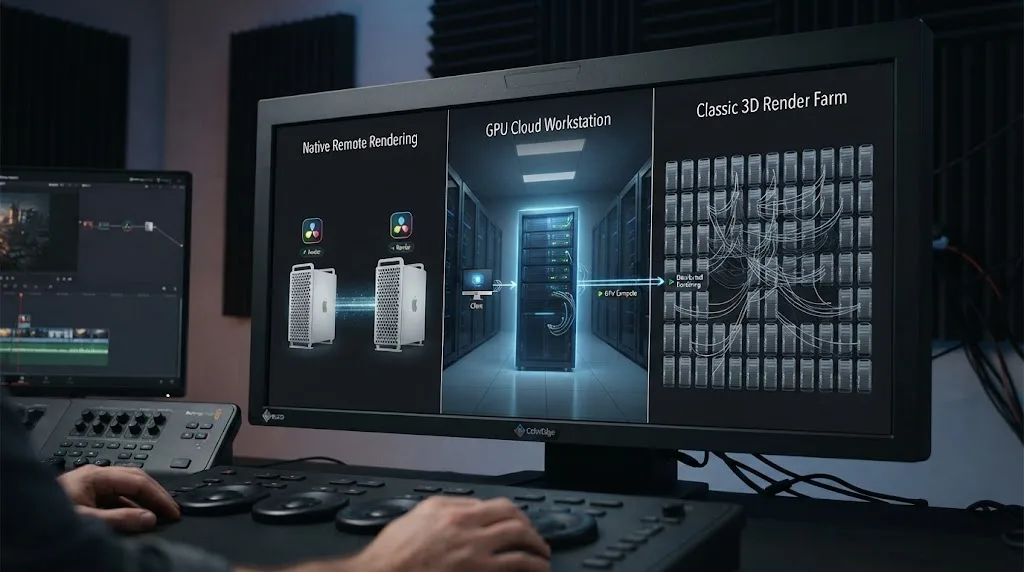
Knowing which of these three you actually need before you start comparing pricing pages is most of the battle. The rest of this guide walks through each one honestly, including where each one falls short.
Does DaVinci Resolve Support a Real Render Farm Like Blender or Maya?
No, not in the distributed-frame sense a 3D artist means. DaVinci Resolve has no equivalent to a Blender or Maya render farm, because a graded editorial timeline is not a stateless frame job you can hand to a stranger's GPU cluster. When someone on the Blackmagic Design forum asked exactly this question, Peter Chamberlain, DaVinci Resolve's own product manager at Blackmagic Design, answered it directly:
"You can set up multiple Resolve systems with shared storage and a database server and then put the render machines in Remote Render mode. They wait for jobs to be allocated by a Resolve system in the pool."
Read that carefully and it tells you exactly what Resolve does and doesn't do. It confirms you can build a pool of render machines, which sounds farm-like. It also confirms each job goes to one machine, waiting in a queue, not fractured across many machines the way a single 3D frame gets split across cores on a real render farm. Resolve's Remote Rendering sends one job to one machine at a time; it's not a farm that splits a single render across several computers.
That distinction matters for planning. If you have one four-hour documentary export due in one hour, adding five remote render machines to your Resolve pool doesn't cut that single job's time by a factor of five. It lets you run five different jobs, five different timelines or five different delivery specs, in parallel across five machines, each one still taking its own full render time. That's a genuinely useful capability for a studio delivering ten different aspect ratios of the same spot at once. It's not a capability that speeds up one big render.
Why does Resolve work this way when 3D render farms don't? Rendering a 3D frame is embarrassingly parallel: every frame in the sequence is independent, computed from the same static scene data, so splitting a thousand frames across a thousand machines is mathematically clean. A Resolve timeline's render pass depends on continuous playback state, real-time audio mixing, transitions that span multiple clips, and in Fusion-heavy projects, compositing nodes that reference earlier frames for motion blur and temporal effects. Blackmagic built distributed job assignment, not distributed frame-splitting, because frame-splitting a linear edit timeline the way a renderer splits a static 3D scene isn't a clean engineering problem the same way.
How Do You Set Up DaVinci Resolve Studio's Native Remote Rendering?
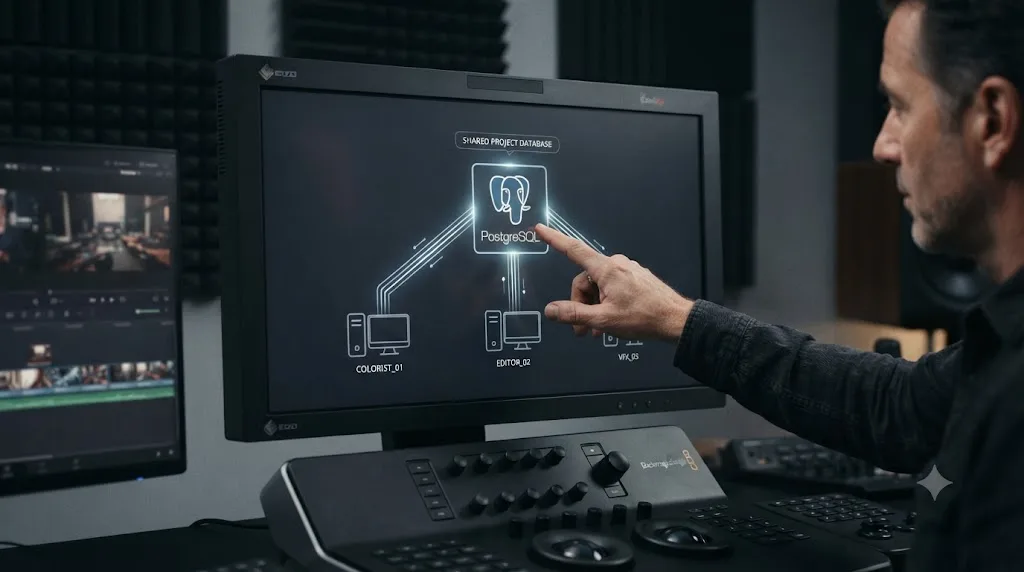
You need three things before you touch a single setting: a DaVinci Resolve Studio license on every machine involved, shared network storage that every machine can see at an identical file path, and a way for every machine to reach the same project database. Blackmagic's own reference manual is blunt about the first requirement: "Make sure the storage volume containing the media being referenced by the project you want to render is mounted on both the artist and remote workstations." Skip that step and the remote machine will report missing media the instant you assign it a job, no matter how good its GPU is.
Here's the setup, step by step, once the prerequisites are in place.
- License DaVinci Resolve Studio on every machine. Remote Rendering is locked to Studio; the free edition can neither send nor receive a remote job. That means the render machine needs its own Studio license, not a shared one, at $295 per perpetual seat as of mid-2026, per Blackmagic's own pricing page.
- Mount identical shared storage on every machine. Map the same network drive to the same letter or mount point on both the main editing workstation and every render machine. Path mismatches are the single most common reason a remote job fails at the last step.
- Put the render machine into Remote Rendering mode. Right-click anywhere in the Project Manager and choose Remote Rendering, or, if a project is already open, go to Workspace > Remote Rendering. The machine automatically opens to the Deliver page and sits there, waiting for an assigned job. Every other page is locked out while it's in this mode.
- Optionally run it headless. According to the manual's headless setup guide, launching Resolve from the command line with the
-rrflag runs it invisibly on macOS, Windows, or CentOS, with no GUI and no logged-in session required. That's the setup most studios actually run in a closet somewhere, a spare machine nobody has to look at. - Send a job from the main workstation. On the Deliver page of your main editing system, submit a render job and choose whether it renders locally, on a specific remote machine, or on whichever machine in the pool is free next.
One editor who documented this exact setup on Mixing Light shared real numbers worth knowing before you build one of these rigs. Rendering a 24-minute broadcast show in ProRes 1080i60, his main workstation "achieved 100-130 frames consistently, completing in 6-7 minutes," while sending the same job to a remote iMac produced "about 40-50 frames per second," taking nearly the full runtime of the program to finish. A remote render machine only speeds up your workflow if it's actually faster than the one sitting under your desk; a weaker second machine just moves the wait somewhere else.
That same writeup flags two limitations worth planning around before you commit. Local render caches aren't shareable between machines, so a remote machine either has to re-render its own cache to shared storage first or render without the speed benefit of any cache at all. And any third-party OFX plugin used in the timeline needs its own separate license activated on the remote machine; Resolve doesn't carry your local plugin licenses across the network for you.
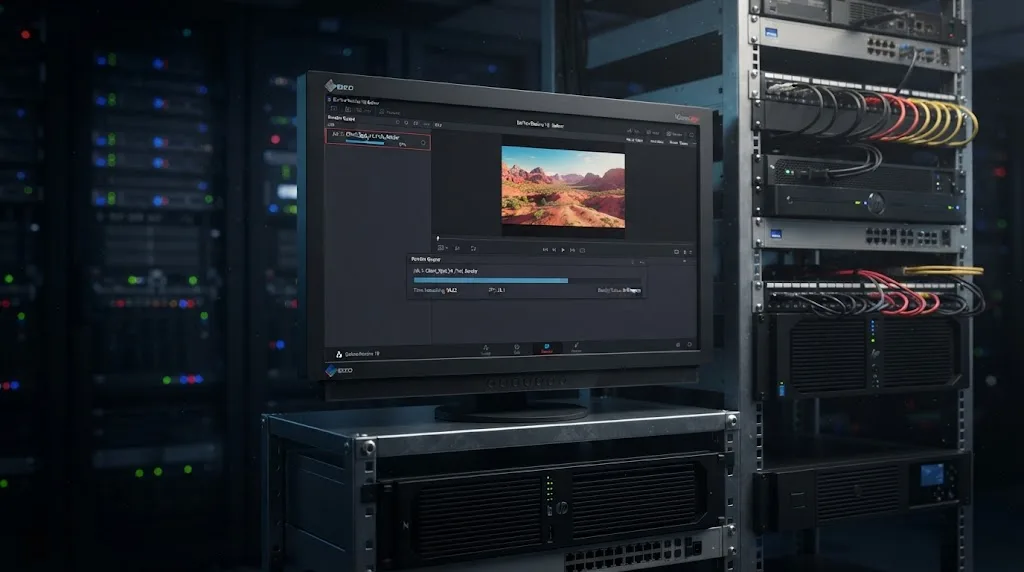
Once you've queued and split work across timelines, the mechanics of the render queue itself, whether jobs run one at a time or in parallel and how batch versions actually behave, matter just as much as the remote machine. Our guide on rendering multiple timelines at once in DaVinci Resolve covers exactly how the queue processes jobs and what to check before you assume a stack of queued renders will finish unattended overnight.
What's the Difference Between Remote Rendering and Fusion's Render Nodes?
They're often confused because both ship inside the same license and both involve networked machines, but they solve different problems. Remote Rendering, covered above, sends a finished DaVinci Resolve Deliver-page job to a second machine. Fusion render nodes distribute compositing work for Fusion compositions specifically, and unlike Remote Rendering, the license for them is genuinely unlimited.
Per Blackmagic's own licensing documentation, "each Fusion Studio dongle includes an unlimited number of cross-platform Render node licenses, which you can install on as many macOS, Windows, and Linux computers as you need." A single Fusion Studio hardware key licenses one artist seat and grants unlimited render nodes on the same local network subnet, provided the Fusion Server application runs continuously as a background service on the machine holding the dongle. For facilities that need more than one artist working at once, multi-seat dongles license up to 10 copies of Fusion Studio each, and multiple dongles combine, three 10-seat dongles license 30 total artist seats, all sharing that same unlimited render node pool.
Because DaVinci Resolve Studio includes a full copy of Fusion Studio, anyone who owns a Resolve Studio license already owns unlimited Fusion render nodes at no extra cost. The catch is scope: this only distributes rendering for Fusion compositions, motion graphics, VFX comps, and title sequences built on the Fusion page, not a full Deliver-page export of a color-graded edit timeline. If your bottleneck is a heavy Fusion title sequence rendering slowly, this is the free lever to pull before you rent anything. If your bottleneck is a long-form color-graded documentary export, this feature doesn't touch that job at all; you're back to Remote Rendering or a rented cloud workstation.
Which GPU Cloud Rendering Services Actually Support DaVinci Resolve in 2026?
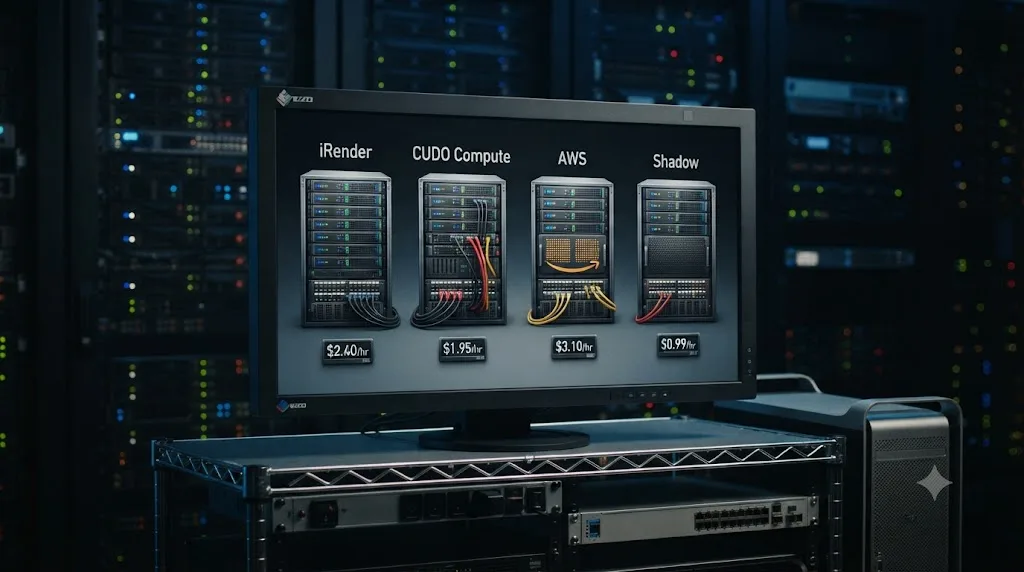
This is the category most people mean when they type "render farm" into a search bar looking for DaVinci Resolve help. It's not a farm in the distributed sense described above. It's a rented remote workstation, usually accessed over RDP or a streaming protocol, with a GPU far more powerful than what most freelancers own. You install or activate Resolve on it, load your project, and render on that rented machine instead of your own. A handful of providers have specifically built for this workflow.
iRender
iRender is the most Resolve-specific of the cloud GPU services, with dedicated documentation and a comparison page built around DaVinci Resolve workloads. Pricing runs in tiers by GPU count, per iRender's own rate card:
| Tier | GPUs | VRAM | Standard rate | 3+ hour rate |
|---|---|---|---|---|
| GPU Cloud Workstation 3S | 1x RTX 4090 | 24GB | $8.20/hour | $7.38/hour |
| GPU Cloud Workstation 4S | 2x RTX 4090 | 24GB each | $15.00/hour | $13.50/hour |
| GPU Cloud Workstation 5S | 4x RTX 4090 | 24GB each | $30.00/hour | $27.00/hour |
Every tier ships with an AMD Ryzen Threadripper PRO CPU, 256GB of system RAM, and 2TB of NVMe SSD storage, running Windows or Ubuntu. You connect over Remote Desktop with credentials iRender emails you, install or activate your own copy of DaVinci Resolve, and render on their hardware. iRender's own guidance recommends the dual or quad-GPU tiers specifically for Resolve, since Resolve's GPU acceleration scales usefully across more than one card for color-heavy grades and noise reduction passes, unlike Fusion compositing, which often scales poorly past two GPUs.
CUDO Compute
CUDO Compute takes a different billing approach entirely. Instead of flat hourly tiers, it bills per second, so a render that finishes in 40 minutes only costs 40 minutes, not a rounded-up full hour. Its data centers offer NVIDIA RTX A4000, A5000, and A6000 GPUs, paired with AMD EPYC CPUs. The A4000 handles 4K timelines at the low end of the price range, while the A6000's 48GB of VRAM is specifically positioned for 6K and 8K timelines in Resolve Studio, per CUDO's own tutorial documentation. CUDO also supports multi-user collaboration, letting a colorist and an editor share the same cloud project simultaneously through Resolve's own collaboration tools rather than passing a single rented machine back and forth.
AWS
Amazon Web Services isn't a packaged render farm product the way iRender and CUDO Compute are, it's raw infrastructure you assemble yourself, but Blackmagic and AWS have documented real production use of it. In AWS's own case study, a feature film production put editors in Chicago, Los Angeles, and San Diego onto shared G4dn.4xlarge EC2 instances, each carrying an NVIDIA T4 GPU capable of decoding 4K and 6K Blackmagic RAW footage, connected to a shared Blackmagic Design Project Server running on a low-cost T3.medium instance the team described as costing "pennies per hour." Media lived centrally on Amazon S3 and was served to editors through Amazon FSx for Windows File Server at up to 3GB/s, fast enough that the team worked directly with full-resolution RAW footage instead of building proxies. One editor on the project, Dean Gonzalez, put it plainly:
"I've never been able to edit with full resolution footage until now. It's always been promised but I've always been let down. This workflow shows me it can be done."
That kind of setup is real, and it's genuinely more powerful than a rented iRender or CUDO Compute session for a distributed team, but it's not turnkey. As of mid-2026, a G4dn.4xlarge instance runs roughly $1.20 an hour on-demand in US regions, cheaper per hour than any iRender or CUDO tier, but you're also personally responsible for provisioning the instance, installing DaVinci Resolve, configuring the Blackmagic Project Server, and setting up FSx or S3 storage yourself, none of which iRender or CUDO Compute make you touch. AWS is the right answer for a studio with someone who already knows EC2. It's the wrong answer for a solo freelancer who wants a working Resolve session in the next ten minutes.
Shadow
Shadow sells cloud gaming and workstation subscriptions, not render-specific hourly billing, and lists DaVinci Resolve Studio as compatible software rather than building dedicated tooling around it. Its media and entertainment tier offers two monthly plans: Neo Pro at €39.99/month and Power Pro at €54.99/month, the latter offering roughly 50% more GPU capacity along with 28GB of RAM and 20GB of VRAM. Shadow streams the desktop to you rather than handing you an RDP login, which matters for the confidentiality question later in this guide, since nothing physically transfers to your local machine. It's the cheapest monthly option here by a wide margin if you need occasional remote horsepower rather than a dedicated per-project rental, but its published specs are vaguer than iRender's or CUDO's, and it wasn't built around Resolve specifically the way iRender was.
Why Won't RebusFarm, GarageFarm, or Ranch Computing Render My DaVinci Resolve Timeline?
Because none of them were built to. The big three classic render farms exist to render 3D scene files, and DaVinci Resolve isn't a 3D scene file. RebusFarm's own supported software list names seventeen applications: 3ds Max, Cinema 4D, Maya, Blender, V-Ray, Corona Renderer, Redshift, OctaneRender, Mental Ray, Maxwell Render, MODO, Softimage, LightWave 3D, SketchUp, Rhino 3D, Arnold, and Revit. DaVinci Resolve isn't on it, and it isn't an oversight; every one of those seventeen tools exports a self-contained scene description that a remote node can open and render with zero dependency on files that live only on your local drive. Resolve's timeline is the opposite: a live reference into a project database, pointing at footage that has to be physically reachable, with grades applied through a real-time node graph that expects to run inside a live Resolve session, not a batch renderer.
Ranch Computing and GarageFarm follow the identical pattern. Ranch supports over 250 3D applications and plugins, per its own materials, and neither its documentation nor GarageFarm's public listings mention DaVinci Resolve anywhere. GarageFarm's own 2025 comparison of render farm platforms makes the split explicit: it names Blackmagic Cloud as "intended for collaboration in the cloud rather than for rendering," and separately points readers toward CUDO Compute and iRender as the actual third-party options for Resolve rendering. Even a farm operator writing about the category agrees Resolve rendering lives in a different bucket than 3D render farms do.
If a service's homepage lists Blender, Maya, or Cinema 4D as headline supported software and doesn't mention DaVinci Resolve by name anywhere, assume it can't render your timeline before you contact support to confirm it. That single check saves an afternoon of back-and-forth with a sales team explaining why their farm can't ingest a .drp project file.
DaVinci Resolve Render Farm Services: Comparison Table
Here's the full landscape in one table, built to answer the question this post owns directly: which service, if any, should you actually pay for.
| Option | What it actually does | Cost | Setup effort | Best for |
|---|---|---|---|---|
| Native Remote Rendering | Sends one finished job to one networked Resolve Studio machine at a time | $295 per Studio seat, one time | Moderate: shared storage, matched paths, Studio on every machine | Studios with spare hardware and multiple simultaneous delivery jobs |
| Fusion render nodes | Distributes Fusion composition rendering across unlimited networked nodes | Included free in every Resolve Studio license | Moderate: Fusion Server running continuously | Heavy Fusion/VFX and title-sequence workloads, not full edit exports |
| iRender | Rents a remote RTX 4090 workstation by the hour, built specifically for Resolve | $8.20 to $30/hour by GPU count | Low: RDP login, install Resolve, go | Freelancers who need one powerful machine for a short deadline push |
| CUDO Compute | Rents a remote workstation, per-second billing, RTX A4000 to A6000 | Per-second, varies by GPU tier | Low to moderate: web console setup | Cost-conscious short renders and multi-user collaboration |
| AWS (EC2 + Project Server) | Self-assembled remote editing and rendering infrastructure | From ~$1.20/hour for a G4dn.4xlarge, plus storage | High: you provision, install, and configure everything | Distributed teams with in-house technical setup capacity |
| Shadow | Monthly cloud workstation subscription, streamed desktop, Resolve-compatible | €39.99 to €54.99/month | Low: subscribe and stream | Occasional remote horsepower, not dedicated per-project rendering |
| RebusFarm, GarageFarm, Ranch Computing | Distributed 3D scene rendering, doesn't support Resolve | N/A | N/A | 3D artists, not DaVinci Resolve editors |
Choose native Remote Rendering if you already own multiple Resolve Studio licenses and a spare machine, and your real pain point is delivering several jobs at once, not making one job faster. Choose Fusion render nodes if your bottleneck is specifically a heavy Fusion composite, not a color-graded edit export. Choose a rented GPU cloud workstation (iRender, CUDO Compute, or a DIY AWS setup) if you're a freelancer without spare hardware facing an occasional crunch. Choose Shadow if you need general-purpose remote horsepower more days than not and don't want per-hour billing anxiety. Skip the classic render farms entirely; none of them will take your project.
Is Cloud Rendering Actually Faster Than Rendering Locally?
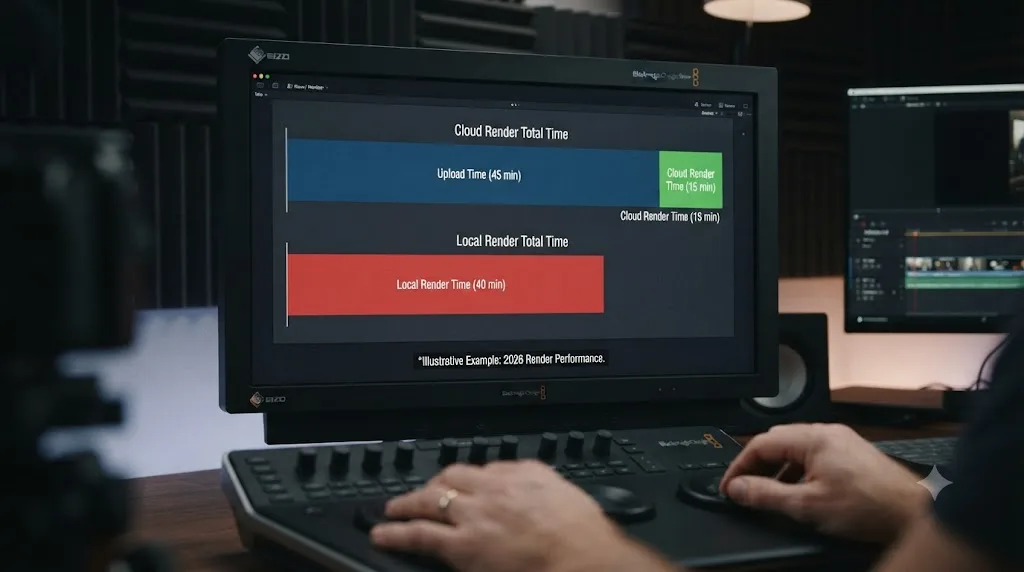
Sometimes, and the honest answer depends on a variable most pricing pages don't mention: the time it takes to get your footage onto the rented machine in the first place. A rented RTX 4090 workstation genuinely outperforms most freelancers' home rigs on raw GPU compute for noise reduction, Optical Flow retiming, and multi-node color grades. A cloud GPU workstation only saves time once uploading and downloading the project stop being the bottleneck.
Run the math before committing. A 45-minute documentary shot on 4K Blackmagic RAW might sit at 80 to 150GB of source footage. Uploading that over a typical 20-30 Mbps residential upload connection takes somewhere between six and sixteen hours before you've rendered a single frame on the rented machine. If the rented GPU then finishes your export in 20 minutes instead of the 90 minutes your own machine would need, you've still spent most of a day moving data to save 70 minutes of render time. That math only works in your favor if your upload speed is fast (a studio fiber connection, not a home cable plan), your footage is already proxy-light, or the service streams a remote desktop to you, like Shadow or an RDP session, rather than requiring a full media transfer.
This is exactly why iRender, CUDO Compute, and AWS all default to a remote desktop or streamed session model rather than a straightforward file upload and download. You connect to the rented machine and everything, editing, playback, and rendering, happens there; only your keyboard and mouse input and a compressed video stream of the desktop travel over your actual internet connection. That sidesteps the multi-hour upload problem entirely, provided your project's source media is either already stored in the cloud (an S3 bucket, for instance) or you're willing to eat one large transfer once and keep working from the rented machine afterward rather than round-tripping footage for every render.
The Mixing Light performance numbers cited earlier in this guide, 100-130fps locally versus 40-50fps on a weaker remote iMac, make the same point from the opposite direction. Renting more compute only helps if the rented machine is actually faster than the one you already have, and a rented budget instance with a mid-range GPU can easily lose to a well-specced home workstation. Check the actual GPU model in any rental tier against your own before you assume "cloud" automatically means "faster."
If your export is consistently slower than it should be regardless of where it renders, it's worth ruling out a local misconfiguration first. Our guide on why a DaVinci Resolve export runs slower than realtime walks through the four most common bottlenecks, RAW debayering, GPU-heavy effects, software encoding, and a mis-set render speed slider, any one of which will make a rented cloud GPU look disappointing if it wasn't actually the problem.
Is It Safe to Send Client Footage to a Cloud Rendering Service?
Check the provider's data handling before the footage leaves your machine, especially on any project bound by an NDA. This is a real concern for freelance and agency work, not a hypothetical one: production confidentiality commonly flows down a chain, distributor to studio, studio to post house, post house to every vendor and freelancer touching the files, with each layer forbidding further disclosure without written consent. A client contract that says source files can't leave a controlled environment is a real constraint a render farm choice can violate without anyone intending it to.
RebusFarm, to its credit, addresses this directly by publishing a standing non-disclosure agreement for productions that need one, even though it doesn't support Resolve. That's the standard worth expecting from any cloud rendering provider you actually use: a stated data retention policy, encryption in transit, and ideally a signable NDA rather than a vague privacy policy buried in the footer. None of the four GPU cloud workstation services covered in this guide, iRender, CUDO Compute, AWS, and Shadow, currently publish a dedicated, off-the-shelf NDA the way RebusFarm does, so if a client requires one, ask the provider's sales team directly before you sign up rather than assuming their general terms of service cover it.
There's also a meaningful architectural difference between the services worth knowing before you upload anything sensitive. A remote desktop that streams pixels rather than transferring files never actually copies your source footage to a location outside your control in the traditional sense, since the media stays on the rented server's drive and only a compressed video of the screen reaches you. That's the model Shadow and most RDP-based iRender and CUDO Compute sessions use. Compare that to a workflow where you physically upload a project archive to a shared bucket for a farm to process, which is closer to how a 3D render farm ingests a scene file, and which does mean a literal copy of your footage now exists on infrastructure you don't own.
For most freelance work without a strict NDA, any of the four cloud workstation services in this guide is a reasonable risk. For agency or studio work under a named-access NDA, get the provider's data handling terms in writing, confirm whether footage is retained after the session ends and for how long, and lean toward a streamed-desktop model over a file-upload model when the contract language is ambiguous about what counts as the footage "leaving" your environment.
Should a Freelance Editor Rent a Render Farm or Buy Better Hardware?
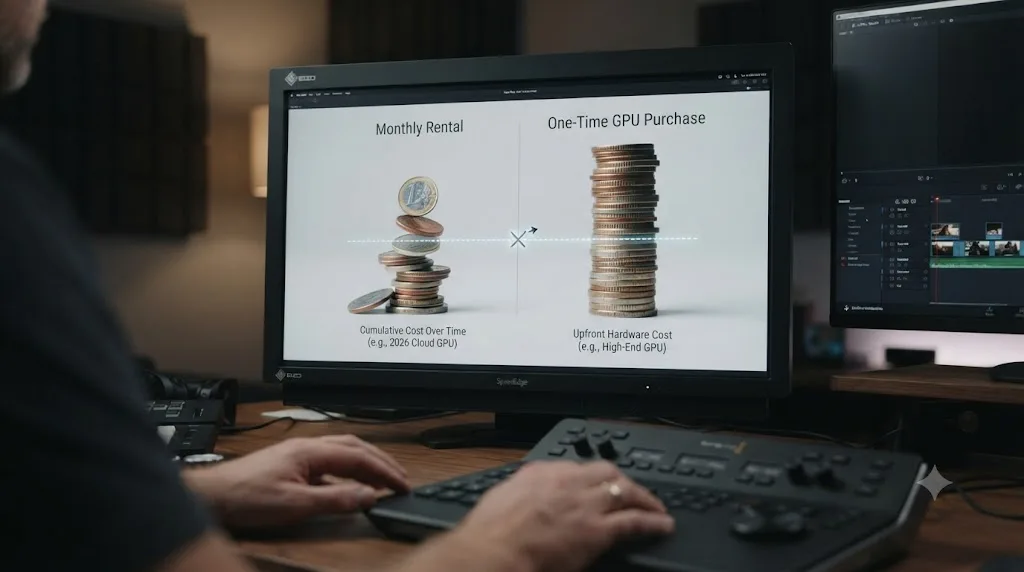
Do the math against your actual crunch frequency, not your worst week. Renting solves an occasional, unpredictable spike. Owning solves a chronic, recurring one. Confusing which situation you're in is the single most common way freelancers overspend on either option.
Here's the breakeven math using iRender's published single-GPU rate of $8.20/hour against a rough $2,000 upgrade to add a comparable RTX 4090 to a personal workstation:
| Crunch frequency | Annual rental cost (8-hour sessions) | Time to match a $2,000 GPU purchase |
|---|---|---|
| Once a year | ~$66/year | Never; renting wins by a wide margin |
| Once a quarter (4x/year) | ~$262/year | About 7.6 years |
| Once a month (12x/year) | ~$787/year | About 2.5 years |
| Twice a month (24x/year) | ~$1,574/year | About 15 months |
| Weekly (52x/year) | ~$3,411/year | About 7 months |
The pattern is clear once it's laid out: freelancers who rent by the hour break even against buying hardware only if the crunch is rare, not routine. Below roughly monthly frequency, renting is close to free money compared to a hardware purchase sitting idle most of the year. Above roughly twice a month, the rental bill overtakes a GPU purchase inside its first year, and every month after that is money that would have gone toward equipment you'd own outright.
This math changes for anyone doing more than adding a GPU, someone comparing a full workstation build against ongoing rental, or anyone factoring in the resale value of hardware they'd eventually sell, so treat the table as a starting frame, not a universal answer. It also assumes the rented tier actually matches or beats your current machine; renting a weaker remote GPU than the one already on your desk is never the right call regardless of frequency.
There's a portfolio angle worth considering too, since render farm decisions tend to surface exactly when a freelancer is chasing a deadline that matters for their career, not just their calendar. If you're building out the body of work that gets you hired in the first place, our guide to DaVinci Resolve portfolio tips for freelance editors covers how many finished projects actually move the needle and what a strong reel needs, which matters more to landing the next client than whether this particular export finished on a rented GPU or your own.
Is DaVinci Resolve Studio Worth Buying Just for the Render Options?
If native Remote Rendering or Fusion's unlimited render nodes are the specific feature drawing you in, yes, but only Studio unlocks either one; the free edition of DaVinci Resolve can't send, receive, or distribute a render job at all. As of mid-2026, Studio costs $295 as a one-time perpetual license, per Blackmagic's own pricing page, and that price has held steady since 2021 with every subsequent major version, including Resolve 21, included at no extra cost.
Since September 2025, Blackmagic has also offered Studio as a monthly rental through Blackmagic Cloud, roughly $30/month, activated against your Blackmagic Cloud ID rather than a physical dongle, with instant activation and deactivation managed from a dashboard instead of moving a hardware key between machines. The breakeven against the perpetual license is simple arithmetic: $295 divided by $30 comes out to roughly 9.8 months, so anyone needing Studio for ten months or more in a year comes out ahead buying outright, while short contract work, a one-to-four-month gig, temporarily adding a seat for a subcontractor, or trying Studio before committing to the full purchase, is exactly what the rental tier exists for.
If you're weighing this purely for render capability and don't already need Studio's other features, the free edition's cap is worth knowing precisely: no Remote Rendering, no distributed Fusion render nodes, and on Windows and Linux specifically, no hardware-accelerated H.264/H.265 encoding either, which the paid tier unlocks. On a Mac, Apple's own media engine already gives the free edition hardware encoding, so the render-speed gap between free and Studio is much narrower there than it is on Windows or Linux. If your bottleneck really is render speed rather than the distributed rendering features covered in this guide, check whether a Studio upgrade or a faster GPU actually solves it before paying for either.
What Goes Wrong When You Use Remote or Cloud Rendering in DaVinci Resolve?
A handful of failure modes account for most of the frustration people report with both native Remote Rendering and rented cloud workstations. Knowing them ahead of time turns a lost afternoon into a five-minute fix.
Missing media on the remote machine. By far the most common failure. If the remote machine's mapped drive letter, mount point, or file path doesn't exactly match the path the project expects, Resolve reports offline media the instant a job starts, even though the files exist and are reachable. Fix: confirm the exact same drive letter (Windows) or mount path (macOS/Linux) on every machine before assigning a single job, not after the first failure.
Third-party OFX plugin licenses not installed remotely. A plugin licensed and activated on your main machine doesn't automatically work on a remote render node; per the Mixing Light writeup on this exact setup, every OFX plugin used in a timeline needs its own separate activation on whichever machine renders it. A job that uses a plugin the remote machine hasn't licensed either fails outright or silently drops that effect from the render.
Local render cache not carrying over. Render caches built on your main editing machine live locally and don't transfer to a remote render node automatically. A remote job either re-renders its own cache from scratch on shared storage, adding time you didn't budget for, or renders without any cache benefit at all. Plan for the slower, uncached time when estimating how long a remote job will actually take.
GPU driver mismatches on rented cloud workstations. Rented GPU instances get updated on the provider's schedule, not yours, and a driver update between sessions can occasionally change how a specific OFX plugin or Fusion node behaves. If a project that rendered cleanly last week suddenly throws GPU errors on a fresh rental session, check the driver version against what you used before reaching for anything more complicated.
Color management mismatches between machines. If your main workstation uses a custom ICC display profile, a specific color space setting, or ACES with a particular OCIO config, a remote machine or rented cloud workstation needs the identical configuration or the rendered output can shift subtly from what you graded on your own monitor. This matters more for delivery masters than for a quick social cut; confirm color management settings match before trusting a remote render's output as final.
Network interruption mid-render on a streamed session. Services like Shadow and RDP-based sessions on iRender or CUDO Compute keep rendering even if your local connection drops, since the render itself runs on the remote machine, not your local one, but a dropped connection during setup or while monitoring a long job can be unsettling if you don't know that in advance. Confirm with your provider whether a render continues unattended after a disconnect before you rely on it for an overnight job.
Between remote render setup problems and a genuinely slow local export, it helps to have already ruled out the ordinary culprits first. Our DaVinci Resolve export takes forever guide covers the six most common local causes, in the order worth checking them, before you conclude the fix requires renting anything at all.
Windows, Linux, or Mac: Does the OS Change Your Render Farm Options?
Yes, in ways that affect both native Remote Rendering and cloud rental choices. Nvidia GPUs are strongly preferred across the board, per the Level1Techs remote render server guide, and AMD GPUs specifically lack OpenCL rendering support on Linux, a gap that doesn't exist the same way on Windows or macOS. If you're building a Linux render node, confirm Nvidia hardware and proprietary drivers before assuming any spare machine will work.
Every GPU cloud rental service covered in this guide runs on Windows (iRender and CUDO Compute both also offer Ubuntu options; Shadow is Windows-based). None currently offer a native macOS rental tier, because Apple doesn't license macOS for third-party cloud hosting the way Microsoft and the Linux ecosystem do. That means Mac-based freelancers renting a cloud GPU workstation are, practically speaking, remoting into a Windows or Linux machine regardless of what they edit on locally, which is fine for the render itself but worth knowing if your project relies on a Mac-specific plugin or font.
For native Remote Rendering specifically, mixed-OS pools work, a Mac editing workstation can send jobs to a Windows or Linux render node and vice versa, provided every machine involved runs a licensed copy of Resolve Studio and the shared storage is mounted identically across whatever combination of operating systems you're running. The Level1Techs guide notes Windows 10 offers the best overall compatibility for a dedicated render node, with Ubuntu 18.04 or newer and CentOS both viable Linux options for anyone building a dedicated, cost-optimized render box rather than repurposing an existing Mac or Windows workstation.
One GPU-specific note that applies regardless of OS: Resolve won't mix Nvidia and AMD GPUs in the same system for rendering, even if both are physically installed. Multiple Nvidia cards of different generations can coexist in one machine, but pairing an Nvidia card with an AMD card in the same box for Resolve rendering isn't supported, which matters if you're assembling a dedicated render node from spare parts rather than buying a fresh matched build.
So Which DaVinci Resolve Render Farm Service Should You Actually Use?
If you got here searching for a DaVinci Resolve render farm, the honest recommendation depends on what kind of slow you're actually dealing with, not on picking the biggest name in the category.
If your problem is one occasional crunch and you don't own spare hardware, rent a single-GPU tier from iRender or CUDO Compute for that specific deadline and don't commit to anything ongoing. If you're cost-sensitive and your render times are unpredictable, CUDO Compute's per-second billing avoids paying for a rounded-up hour you didn't use. If your problem is regularly delivering multiple versions of the same project at once, DaVinci Resolve Studio's native Remote Rendering is the right free-beyond-the-license answer, not a rented service at all. If your bottleneck is specifically Fusion compositing, check whether Fusion's unlimited render nodes already solve it before spending anything. If you're a distributed team with someone comfortable provisioning cloud infrastructure, AWS gives you the cheapest per-hour compute and the most control, at the cost of doing the setup work yourself. And if a service's front page is built around Blender, Maya, or Cinema 4D and doesn't mention DaVinci Resolve by name, skip it; RebusFarm, GarageFarm, and Ranch Computing weren't built to touch your timeline, and no amount of support-ticket persistence changes that.
Whichever option you land on, the render itself is rarely the part that actually eats a freelancer's afternoon. Finding the right toggle, remembering where Remote Rendering mode lives in the Project Manager, or figuring out why a rented machine's driver update broke a plugin usually costs more time than the render does. If you're mid-setup on any of this inside your own project, TryUncle is the on-screen assistant for DaVinci Resolve on macOS: ask in plain words and Uncle points at the exact control on your screen, whether that's the Remote Rendering toggle, the render speed slider, or the shared storage path setting a rental session just changed on you.
Frequently asked questions
- Is there a render farm for DaVinci Resolve?
- Not in the way Blender or Maya artists mean it. Classic render farms like RebusFarm, GarageFarm, and Ranch Computing don't list DaVinci Resolve as supported software, because their whole model is built around uploading a stateless 3D scene file to a stranger's queue. What DaVinci Resolve actually offers is its own native Remote Rendering feature (Studio only), Fusion Studio's free unlimited render nodes, and a growing set of GPU cloud workstation services, iRender and CUDO Compute among them, built specifically to run Resolve remotely.
- Can DaVinci Resolve split one render job across multiple computers like a 3D render farm does?
- No. According to Blackmagic Design's own product manager Peter Chamberlain, Resolve's Remote Rendering sends one complete job to one machine at a time from a pool of networked systems; it doesn't fracture a single timeline into chunks that render in parallel across several computers the way a 3D render farm splits frames across nodes. Queue five jobs and Resolve can spread them across five machines, but one job never renders on more than one machine at once.
- Do I need DaVinci Resolve Studio to use a render farm or cloud rendering service?
- For native Remote Rendering, yes; the free edition doesn't support it at all, and you need a Resolve Studio license on every machine in the pool. For a GPU cloud workstation like iRender, CUDO Compute, or an AWS instance, you're renting someone else's computer and installing whatever copy of Resolve you want on it, free or Studio, so the license requirement is the same as it would be on your own desk.
- Is it safe to send client footage to a cloud rendering service?
- Check the provider's data handling before you upload anything under NDA. RebusFarm publishes a standing non-disclosure agreement for exactly this reason, and any GPU cloud workstation service worth using should offer encryption in transit, a stated retention policy, and account-level access controls. If a client contract specifies that source files can't leave a controlled environment, a rented remote desktop that streams pixels rather than transferring files, like Shadow or a VPN'd AWS instance, is usually the safer read of that clause than a farm that ingests your project.
- Should a freelance editor rent a cloud GPU workstation or just buy better hardware?
- Do the math on your actual crunch frequency, not your worst week. Renting a single RTX 4090 workstation from iRender at roughly $8.20 an hour costs about $66 for an 8-hour push, which is cheap against a $2,000+ GPU upgrade if that push happens two or three times a year. If it happens two or three times a month, the rental bill catches up to a hardware purchase inside a year, and owning the card starts winning.
- What's the cheapest way to render DaVinci Resolve exports faster without buying new hardware?
- Fix local bottlenecks before you rent anything. A wrong render speed setting, a full local cache drive, or hardware encoding left disabled routinely costs more render time than a GPU upgrade would fix, and none of it costs a dollar. Only reach for a rented GPU cloud workstation once you've confirmed the machine you already own is actually the constraint, not a setting inside Resolve.
- Is there an app that helps while you're actually using DaVinci Resolve?
- Yes. TryUncle is the on-screen assistant for DaVinci Resolve on macOS. Ask in plain words and Uncle points at the exact control on your screen, live, inside your own project, whether that's finding the Remote Rendering toggle, the render speed slider, or the Deliver page setting a rental server's driver update just moved. It doesn't render anything for you and it doesn't touch your timeline. It's a paid subscription at $39 a month, cancel anytime.
Sources
- DaVinci Resolve Studio product and pricing page (Blackmagic Design)
- Blackmagic Forum: Possible to Create a Render Farm with Resolve? (reply by Peter Chamberlain, Blackmagic Design)
- DaVinci Resolve Reference Manual: Setting Up and Using Remote Rendering (Blackmagic Design, mirrored)
- DaVinci Resolve Reference Manual: Setting Up a Headless Remote Rendering Workstation (Blackmagic Design, mirrored)
- DaVinci Resolve Reference Manual: Licensing for Network Rendering (Blackmagic Design, mirrored)
- DaVinci Resolve Reference Manual: Setting Up Network Rendering in Fusion Studio (Blackmagic Design, mirrored)
- Mixing Light: Resolve Remote Rendering, Setting Up a ProRes 'Dongle'
- Level1Techs Forum: DaVinci Resolve Remote Render Server Complete Guide (Windows/Linux)
- iRender: GPU Cloud Rendering Services (hourly pricing and specs)
- iRender: The Best Cloud Rendering Service For DaVinci Resolve
- CUDO Compute: Rendering in the Cloud with DaVinci Resolve
- CUDO Compute: Video editing with DaVinci Resolve (docs tutorial)
- AWS for M&E Blog: Creating a Feature Film with DaVinci Resolve on AWS
- Vantage: g4dn.4xlarge pricing and specs (AWS EC2)
- Shadow: A Cloud Post-Production Studio for Media and Entertainment
- RebusFarm: Supported 3D Software
- RebusFarm: Render Farm Non-Disclosure Agreement (NDA)
- GarageFarm: Top Render Farms for 2025, Comparing the Best Platforms for 3D Rendering Needs
- Blackmagic Forum: Individuals can now rent DVR Studio for $30 per month
- RedShark News: Blackmagic Adds Monthly License Option for DaVinci Resolve Studio
- PetaPixel: DaVinci Resolve 21 Officially Released With New Photo Editing, AI Tools, and Much More
- Newsshooter: DaVinci Resolve 21.0.3 Update
- TryUncle
- TryUncle FAQ
Learn by doing, not watching
Stop translating tutorials to your timeline.
TryUncle stays beside Resolve on Mac and Windows. When you ask, Uncle sees your screen and points at the exact control you need. No hunting through tabs, timestamps, or mismatched tutorials.
Meet TryUncleKeep reading
 FixesJul 20, 202625 min read
DaVinci Resolve Export Takes Forever? How to Speed It Up
A DaVinci Resolve export that takes forever usually comes down to one of six fixes: render speed, background load, encoding, storage, cache, or bitrate.
 GuidesJul 17, 202627 min read
How to Render Multiple Timelines at Once in DaVinci Resolve
Queue multiple DaVinci Resolve timelines at once from the Media Pool, understand sequential rendering, and avoid the batch-export version gotcha.
 GuidesJul 19, 202638 min read
DaVinci Resolve Portfolio Tips for Freelance Editors
How freelance editors build a DaVinci Resolve portfolio that lands work: project count, reel length, niches, export settings, hosting, and rates.