
Learn / DaVinci Resolveupdated for DaVinci Resolve 21.0.2 and CapCut's 2026 Pro pricing (July 2026)
CapCut vs DaVinci Resolve: The Full 2026 Comparison
Quick answer
CapCut is faster and cheaper for quick social edits, with mobile editing, auto-captions, and templates built in. DaVinci Resolve is free too, desktop-first, and wins once you need real color grading, multi-track audio, or exports without a subscription. Most creators start on CapCut and move to DaVinci Resolve once a project outgrows templates.
You've made a dozen edits in CapCut this month. Maybe a hundred this year. The trending sound synced up, the auto-caption style matched your brand, and you exported and posted before your coffee got cold. Then something changed: a client asked for a real color grade, your channel started pulling in footage from three different cameras, or you just got tired of a Pro subscription that keeps climbing while your export still says "CapCut" in the corner if you forget to renew it.
That's the fork in the road this article covers, honestly and with real numbers attached. As of July 2026, CapCut and DaVinci Resolve are both free to start with, both genuinely good at what they do, and built on almost opposite assumptions about what "editing" means. We'll cover pricing, exports, color, audio, AI tools, hardware, and the actual decision, not a generic "it depends" that leaves you exactly where you started.
CapCut vs DaVinci Resolve: the quick verdict
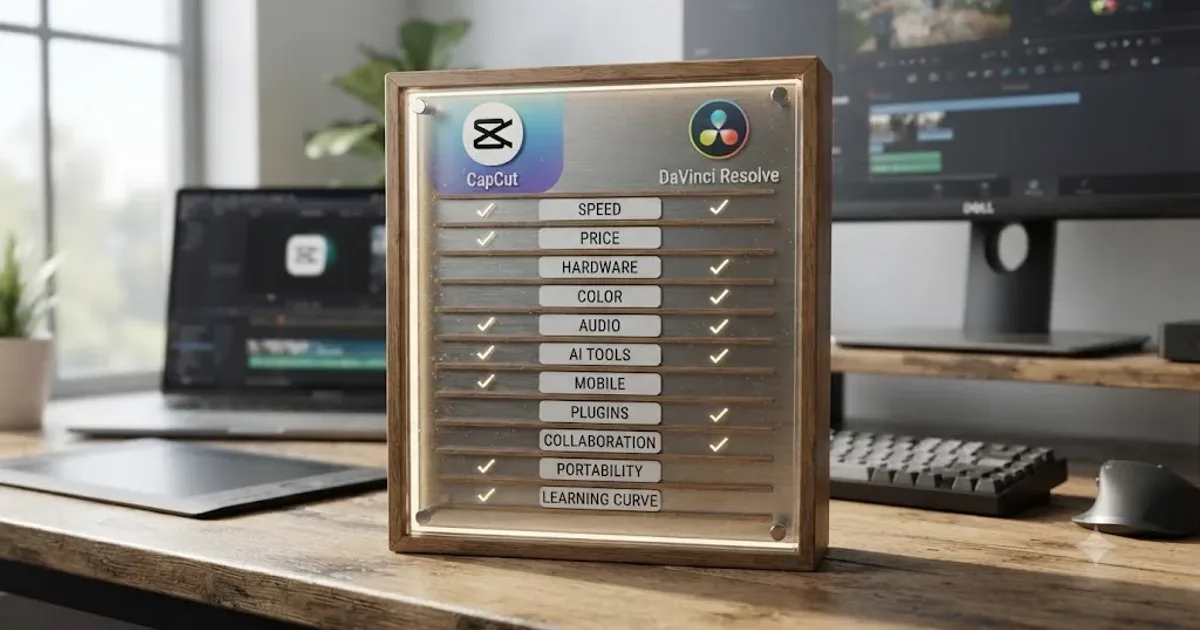
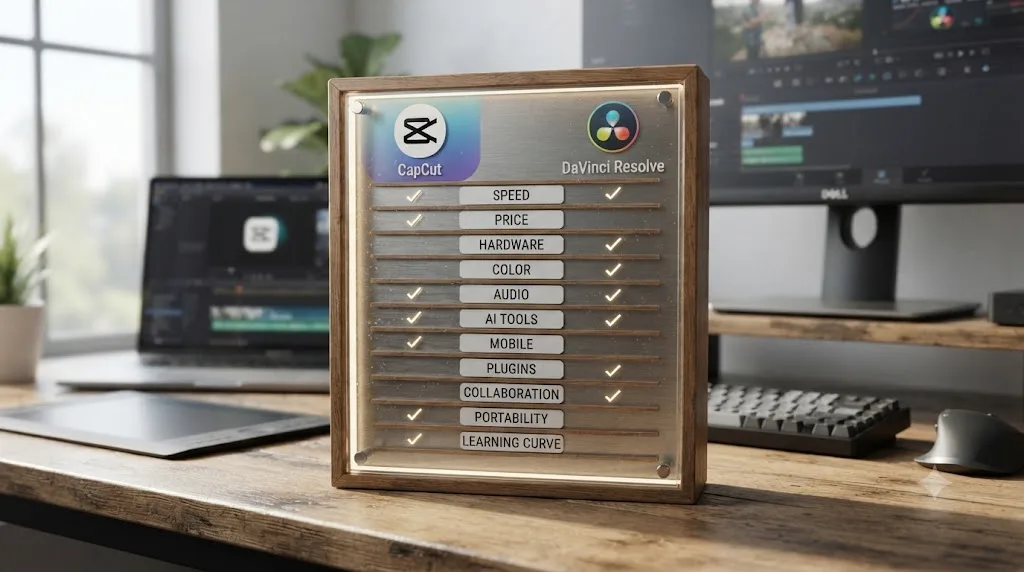
Before the details, here's the whole comparison in one table. Every row gets its own section further down, with sources.
| Category | Winner | Why |
|---|---|---|
| Speed for a same-day social edit | CapCut | Templates, auto-captions, and trending sounds built in, on a real phone app |
| Price to start | Tie | Both have a genuinely free tier; CapCut's free tier restricts 4K, DaVinci Resolve's doesn't |
| Ongoing cost if you export a lot | DaVinci Resolve | Free edition never charges for export volume; CapCut Pro is a recurring $19.99/mo or $179.99/yr |
| Hardware requirements | CapCut | Runs on modest, older hardware; DaVinci Resolve needs a modern GPU and, on Mac, Apple Silicon |
| Color grading depth | DaVinci Resolve | Full node-based Color page vs CapCut's slider and filter panel |
| Audio tools | DaVinci Resolve | Fairlight is a full digital audio workstation; CapCut has basic ducking and denoise |
| AI auto-editing | CapCut | Smart Cut, auto-captions, and template-driven auto-assembly with no manual work |
| AI as a Neural Engine (masking, reframing, upscaling) | DaVinci Resolve | Magic Mask, Smart Reframe, Super Scale, and more, gated to Studio |
| Mobile editing | CapCut | Full-featured iOS and Android apps; DaVinci Resolve has no phone app at all |
| Plugin ecosystem | DaVinci Resolve | Open OFX standard with a real third-party marketplace; CapCut has none |
| Team collaboration | DaVinci Resolve | Real-time multi-user bin and timeline locking vs CapCut's shared-account Team plan |
| Project portability | Neither, cleanly | CapCut has no AAF/XML/EDL export; DaVinci Resolve reads those formats but has nothing from CapCut to import |
| Learning curve | CapCut | Minutes to a finished edit vs weeks to real comfort in DaVinci Resolve |
Neither app wins every row, and that's the honest starting point. What follows is why each row shakes out the way it does.
What's the actual difference between CapCut and DaVinci Resolve?
CapCut is a mobile-first, template-driven video editor built by ByteDance, the company behind TikTok, designed to get a finished vertical video out fast with almost no manual work. DaVinci Resolve is a professional editing, color grading, audio, and visual effects suite built by Blackmagic Design, the same lineage of software used to grade feature films, spread across seven dedicated pages instead of one simplified window.
The scale gap between them is real and worth naming upfront. CapCut has picked up more than 300 million monthly mobile active users and commands 81% of total active users for mobile video editing, with Adobe's entire suite of mobile video apps holding less than 2% of that same user base by comparison, according to Sensor Tower data reported by Bloomberg via Yahoo Finance. CapCut launched outside China in 2020 and has grown into the default editor for an entire generation of short-form creators in the years since.
DaVinci Resolve comes from a different tradition entirely: color grading software that added editing, not the other way around. CapCut assumes your video is already shot and just needs assembling fast. DaVinci Resolve assumes your footage needs correcting, mixing, and finishing before it's actually done. Neither assumption is wrong. They're just answers to different questions, and the question you're actually asking determines which tool fits.
How much does CapCut cost compared to DaVinci Resolve?
This is the row most people check first, and it's also the row that shifts the most depending on which tier you actually need.
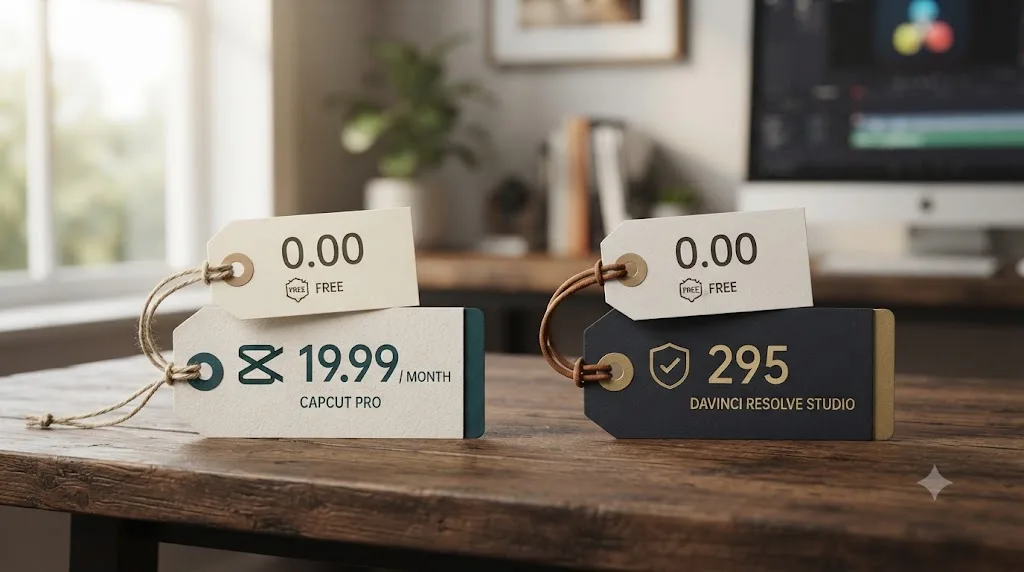
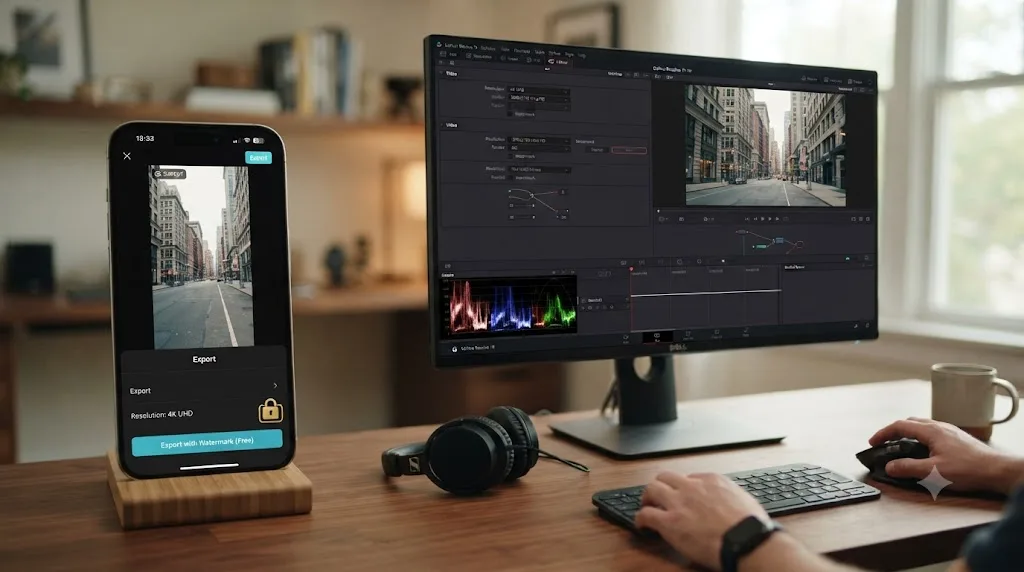
CapCut's free tier, which CapCut's own pricing page still labels "Standard," costs nothing and covers basic cutting, trimming, and core effects. Get past the basics and you hit CapCut Pro, priced on CapCut's own Standard vs Pro comparison page at $19.99 a month for individual users, or $179.99 a year, which works out to roughly $15 a month billed annually. A Team plan starts around $24.99 a month for collaborative work. Pro unlocks roughly 1TB of cloud storage, unrestricted 4K export, and CapCut's full AI toolkit, including background removal, motion tracking, and noise reduction. Prices vary by region, platform, and promotion, so treat these as the current baseline rather than a fixed global number.
DaVinci Resolve ships in two editions. The free edition costs nothing, has no watermark on standard exports, and never expires, according to Blackmagic Design's own comparison of Free versus Studio. It caps export at Ultra HD (3840x2160, up to 60fps) and leaves out the Neural Engine's AI tools, stereoscopic 3D, and a handful of advanced Fairlight and Fusion features. DaVinci Resolve Studio removes those caps, adding support up to 32K at 120fps and unlocking the full AI toolkit, for a single $295 payment with no subscription and no recurring fee, ever.
| Product | Price | Model |
|---|---|---|
| CapCut Standard (free) | $0 | Free forever, watermark and bitrate limits on 4K export |
| CapCut Pro | $19.99/mo or $179.99/yr | Subscription, unrestricted 4K, ~1TB cloud storage, full AI suite |
| CapCut Pro Team | From $24.99/mo | Subscription, adds collaboration features |
| DaVinci Resolve (free) | $0 | Free forever, Ultra HD export cap, no watermark |
| DaVinci Resolve Studio | $295 | One-time purchase, no subscription, up to 32K/120fps and full Neural Engine |
A subscription that keeps billing as long as you keep exporting is a different financial commitment than a single payment that never renews. Run the math on your own export habits: at $19.99 a month, CapCut Pro crosses $295 in total spend in under fifteen months. DaVinci Resolve Studio crosses that same $295 exactly once, and then it's done, permanently.
Is DaVinci Resolve really free the way CapCut is free?
More permanently, and with fewer strings attached. CapCut's free Standard tier is genuinely usable, but it comes with real limits that push toward the paid tier the moment your work gets more ambitious. CapCut's own help center page on exporting 2K/4K video states plainly that free accounts "may face watermarks or bitrate limits on 4K exports," while Pro subscribers get "unrestricted 4K." A creator who shoots 4K footage and wants to deliver it at full quality, without a visible logo or a compressed-looking export, hits that wall fast.
DaVinci Resolve's free edition doesn't have an equivalent watermark trap for its own included features. Editing, Color, Fairlight, and Fusion are all included at no cost, with no time limit and no watermark on any export up to Ultra HD resolution. The one place a watermark appears is if you apply a Studio-exclusive feature, like Magic Mask or Smart Reframe, while running the free edition; the export will visibly flag that you've crossed into paid territory, which at least tells you immediately rather than surprising you at delivery.
Free, in DaVinci Resolve's case, means a complete professional editor with no clock running out. Free, in CapCut's case, means a complete casual editor that starts nudging you toward a subscription the moment your resolution or storage needs grow past what a phone-first workflow was built to handle for free.
Can you import a CapCut project directly into DaVinci Resolve?
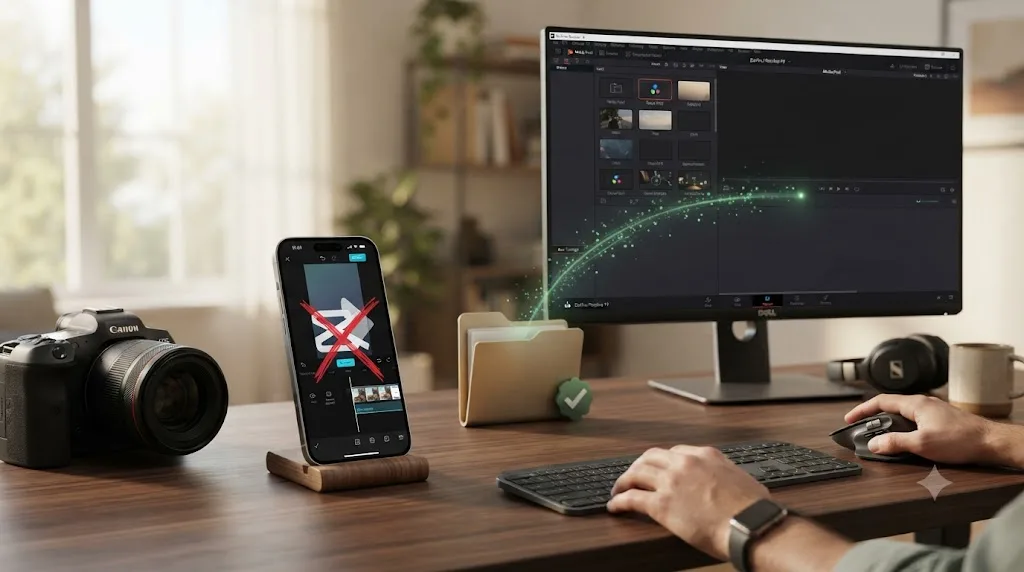
No, and this is the single biggest surprise waiting for creators who assume they can just drag their CapCut project file over. CapCut has no AAF, XML, or EDL export anywhere in the app, the interchange formats professional editors rely on to move a timeline between applications, according to CapCut's own help center. DaVinci Resolve can import AAF, EDL, XML, DRT, ADL, and OTIO timelines directly through Timelines > Import in the Media Pool, and it does that reliably for apps like Premiere Pro and Final Cut Pro. There's simply nothing on CapCut's side of that handshake to feed it.
What that means practically: your cut order, your trims, your caption placements, your template choices, and your color adjustments all exist only inside CapCut's own project format. None of it travels. The path that actually works is locating your original, unedited footage, wherever you first imported it from, and bringing those raw clips into DaVinci Resolve's Media Pool to rebuild the edit from scratch, using your finished CapCut export as a visual reference for the cut order.
A missing export option isn't a bug CapCut forgot to fix. It's the direct consequence of building a tool that was never meant to be a waypoint to somewhere else. CapCut was designed as a self-contained finishing app for one platform's content pipeline, not a staging area for a longer post-production process. That's a completely reasonable design choice for what CapCut is trying to be. It's also exactly why the switch to DaVinci Resolve means a rebuild, not an import.
What are the system requirements for CapCut vs DaVinci Resolve?
CapCut was built to run on whatever you already own. DaVinci Resolve was built assuming you'd eventually invest in real hardware for it, and the gap between the two shows up the moment you actually try to install both on the same machine.
CapCut Desktop's official minimum, per CapCut's own download page, is Windows 10 (64-bit) or later, an Intel Core i3 or equivalent AMD CPU, 4GB of RAM, an integrated GPU or 2GB of VRAM, and 10GB of free storage. The recommended spec only asks for a Core i5 or Ryzen 5, 8 to 16GB of RAM, and a dedicated GPU with 4GB or more VRAM. That's a laptop most people already own, or one they could pick up used for a few hundred dollars.
DaVinci Resolve asks for more, and asks differently depending on your platform. On Windows, the minimum is 16GB of system RAM, doubling to 32GB if you're touching Fusion, a GPU carrying at least 4GB of VRAM, and current NVIDIA Studio drivers if you're on Nvidia hardware. Linux requires Rocky Linux 8.6 specifically, not just any distribution, paired with a discrete GPU carrying 4GB of VRAM and NVIDIA's Studio driver branch.
macOS is where the requirement actually changes a buying decision. DaVinci Resolve 21 dropped Intel Mac support entirely and now requires an Apple Silicon Mac running macOS 15 Sequoia or later, with 8GB of unified memory as the stated minimum, 16GB if Fusion is part of the workflow, according to a breakdown of the release's platform requirements. If you're editing CapCut exports on a 2019 Intel MacBook Pro, that machine runs CapCut without complaint. It cannot run DaVinci Resolve 21 at all, full stop, no workaround, and Blackmagic won't warn you until the installer refuses to launch.
| Spec | CapCut Desktop (minimum) | DaVinci Resolve 21 (minimum) |
|---|---|---|
| Windows OS | Windows 10 (64-bit) | Windows 10 Creators Update |
| Windows RAM | 4GB | 16GB (32GB for Fusion) |
| Windows GPU | Integrated or 2GB VRAM | 4GB VRAM, current Studio driver |
| macOS support | Any reasonably recent Mac | Apple Silicon only, macOS 15 Sequoia+ |
| Linux support | Not officially supported | Rocky Linux 8.6, 4GB VRAM discrete GPU |
| Storage | 10GB free | Varies by project; no published minimum |
If you're on an older Intel Mac and thinking about switching, that's the one hardware question worth answering before you download anything: check your chip, not just your free disk space. Below the minimum on either platform, Resolve tends to fail at launch or crash on the first heavy timeline rather than degrade gracefully, so there's little upside in trying to squeeze it onto hardware it wasn't built for.
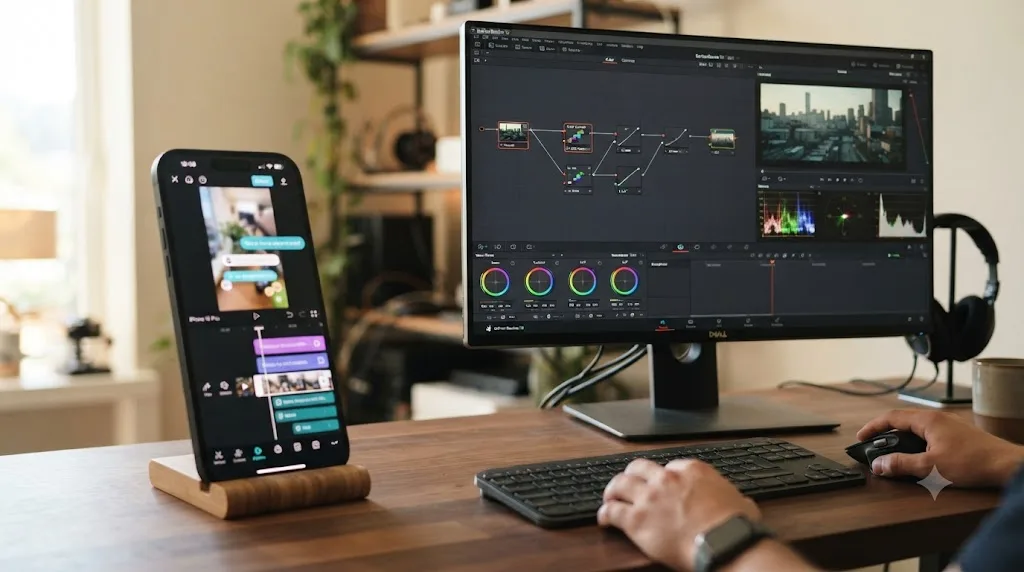
Does CapCut or DaVinci Resolve run better on your phone vs your desktop?
CapCut, without much of a contest, if a phone is where you actually work. CapCut runs as a full-featured app on iOS, Android, desktop, and the web, and per SelectHub's 2026 comparison of the two tools, it "works on mobile and desktop so you can start an edit on your phone and finish on your computer." That cross-device continuity is a real, specific advantage for a creator who shoots, cuts, and posts entirely from a phone, sometimes in the same sitting, sometimes standing in line for coffee.
DaVinci Resolve has no phone app for iPhone or Android, and it never has. What it does have is a genuine, free iPad app with real editing and color grading tools, a meaningfully different experience from CapCut's phone-first design, built around a larger touch surface and closer to the desktop app's actual toolset. If your workflow is 100% phone-based, DaVinci Resolve simply isn't in the running for the capture-to-post pipeline; it only enters once footage lands on a desktop or an iPad.
Platform support flips the other direction on desktop. DaVinci Resolve 21 runs on Windows, macOS, and Rocky Linux with the same feature set and interface on every platform, per CG Channel's coverage of the 21.0 release. CapCut's desktop app exists on both Windows and Mac too, but it's built as a companion to the mobile-first product, not a from-the-ground-up desktop NLE the way Resolve is.
| CapCut | DaVinci Resolve | |
|---|---|---|
| iPhone / Android app | Yes, full editor | No phone app |
| iPad app | No dedicated iPad app | Yes, free, real editing and color tools |
| Windows desktop | Yes | Yes |
| macOS desktop | Yes | Yes |
| Linux | No | Yes (Rocky Linux 8.6) |
| Web editor | Yes | No |
A tool that follows you from your phone to your laptop mid-edit and a tool that assumes you're sitting at a real workstation aren't competing for the same moment. Pick based on where you actually are when the footage needs cutting, not which app has the deeper toolset in the abstract.
What footage formats and codecs does each app actually support?
This matters most the moment you try to bring footage shot on a real camera, not a phone, into either app.
CapCut supports the everyday consumer and web codecs: MP4, MOV, M4V, AVI, MKV, and WebM, plus common image formats like JPEG and PNG for stills. That covers essentially anything a phone or a mirrorless camera outputs by default, and CapCut's own help center confirms MP4 as its primary supported container, with a dedicated troubleshooting page for import failures on that exact format. What CapCut doesn't do is RAW. There's no camera RAW decoding anywhere in the app, because CapCut isn't built for a color-grading pipeline that starts from unprocessed sensor data.
DaVinci Resolve was built for exactly that pipeline. Blackmagic RAW, the company's own camera RAW format used by its Pocket Cinema Camera line, runs natively with no conversion step. As of DaVinci Resolve 20.2, Resolve also decodes ProRes RAW natively, including footage shot on an iPhone 17 Pro or captured on Blackmagic's own Pocket Cinema Camera 4K, and it supports the rest of the ProRes family up to ProRes 444. Beyond that, recent Resolve updates added decoding support for Sony ARW stills and ARRICORE clips, plus encoding support for Samsung's APV codec, according to coverage of those releases.
Audio formats are the one place both apps line up closely: MP3, WAV, and M4A import cleanly into either timeline, since audio codec support was never the bottleneck for either app.
Practically: if every clip you touch comes off a phone or a consumer camera shooting H.264 or H.265, both apps handle it without drama. The moment RAW footage from a cinema camera enters your pipeline, CapCut is no longer in the conversation, because it has nowhere to put that data. That's not a gap Resolve created to look more professional. It's the direct result of one app being color-grading software with editing bolted on, and the other being a phone-first cutting tool that was never meant to touch a debayering pipeline.
| Format | CapCut | DaVinci Resolve |
|---|---|---|
| MP4 / MOV / H.264 / H.265 | Yes | Yes |
| AVI / MKV / WebM | Yes | Yes (varies by platform codec libraries) |
| Blackmagic RAW | No | Yes, native |
| ProRes RAW | No | Yes, native since 20.2 |
| ProRes (non-RAW, up to 444) | No | Yes |
| Sony ARW / ARRICORE stills and clips | No | Yes (recent updates) |
| MP3 / WAV / M4A audio | Yes | Yes |
How does CapCut's color grading compare to DaVinci Resolve's Color page?
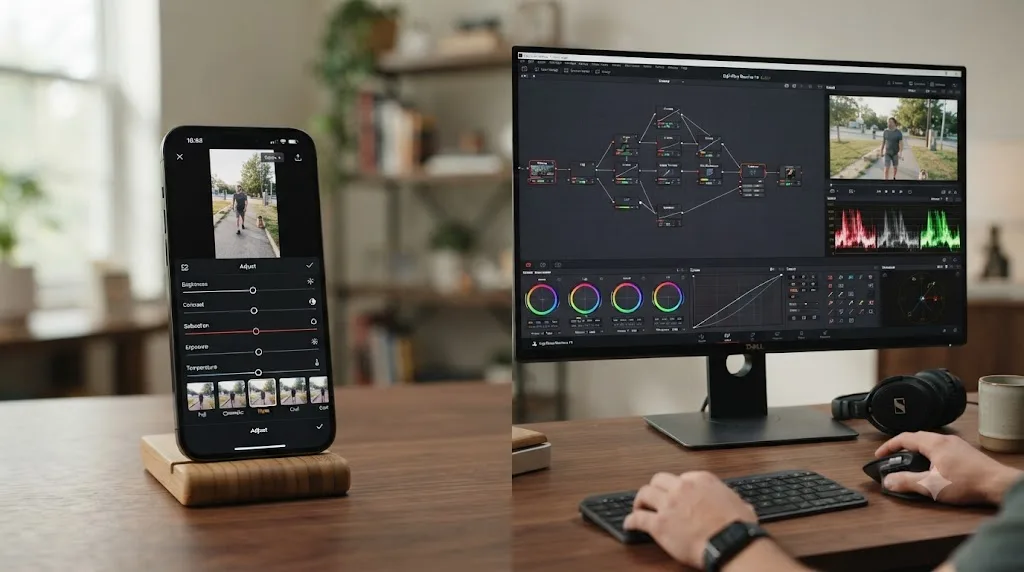
This is where the two apps stop feeling like variations on the same idea. CapCut's color tools are sliders and filters: brightness, contrast, saturation, a curves panel, and LUT-style presets you tap onto a clip, according to SelectHub's breakdown. That's genuinely useful for a fast, consistent look applied broadly across a clip or a whole edit. It's not a full grade, and it was never trying to be one.
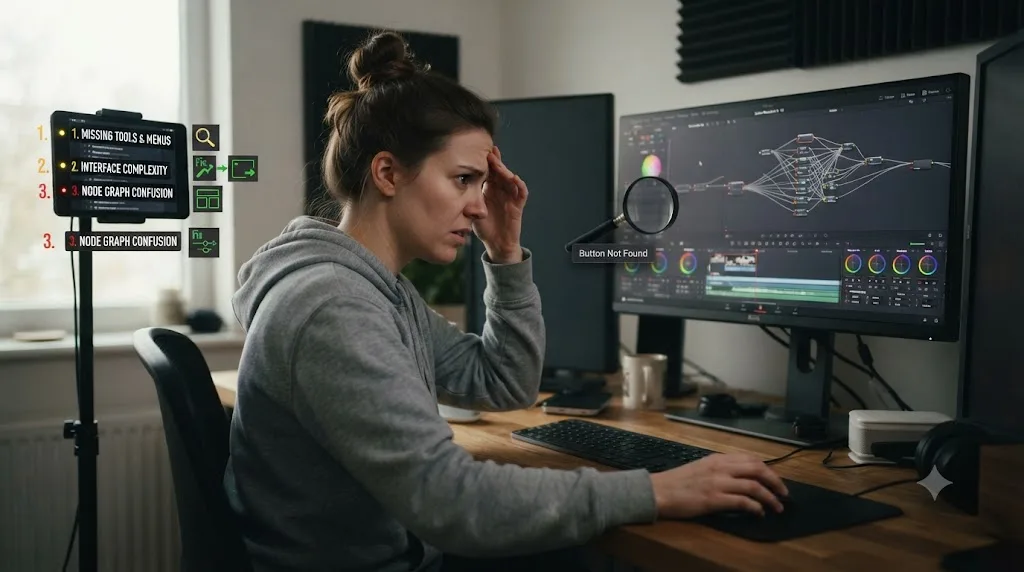
DaVinci Resolve's Color page is built entirely around nodes: discrete processing blocks wired together in whatever order a shot actually needs. A primary correction node feeds into a qualifier isolating one color range, which feeds into a power window masking one part of the frame, all visible at once as a graph rather than hidden behind a fixed panel. Take a concrete example: warming a subject's skin tone without touching a blown-out sky in the same shot. In CapCut, that's a broad slider adjustment with no way to isolate just the face. In DaVinci Resolve, that's a qualifier node isolating the skin tone, feeding a correction node, running in parallel with a separate node handling the sky, both feeding into a final output node. It's real setup work the first time you build it. It's dramatically easier to isolate, tweak, or rebuild one piece without disturbing the rest, once the graph clicks.
CapCut's own comparison page is honest about this gap rather than pretending it doesn't exist: it acknowledges DaVinci Resolve's "superior color grading capabilities" as a specific, named strength, while noting that Resolve's "comprehensive feature set and professional tools can be overwhelming for beginners," a fair trade described directly on CapCut's own resource page comparing the two apps.
A slider panel and a node graph aren't the same tool at two different skill levels. They're built on opposite assumptions about how a correction should work. CapCut assumes one adjustment applied broadly. Resolve's Color page assumes multiple, independent adjustments that run in isolation and recombine. Only one of those assumptions scales past a shot that needs more than one correction at once.
Does DaVinci Resolve have real audio tools, or is CapCut enough?
CapCut's audio tools handle the common cases well: auto-ducking that lowers background music when someone talks, AI-driven noise reduction, and a basic mixer for level and pan adjustments. For a voiceover-and-music-bed edit, that covers most of what a social video actually needs, and it does it with almost no manual configuration.
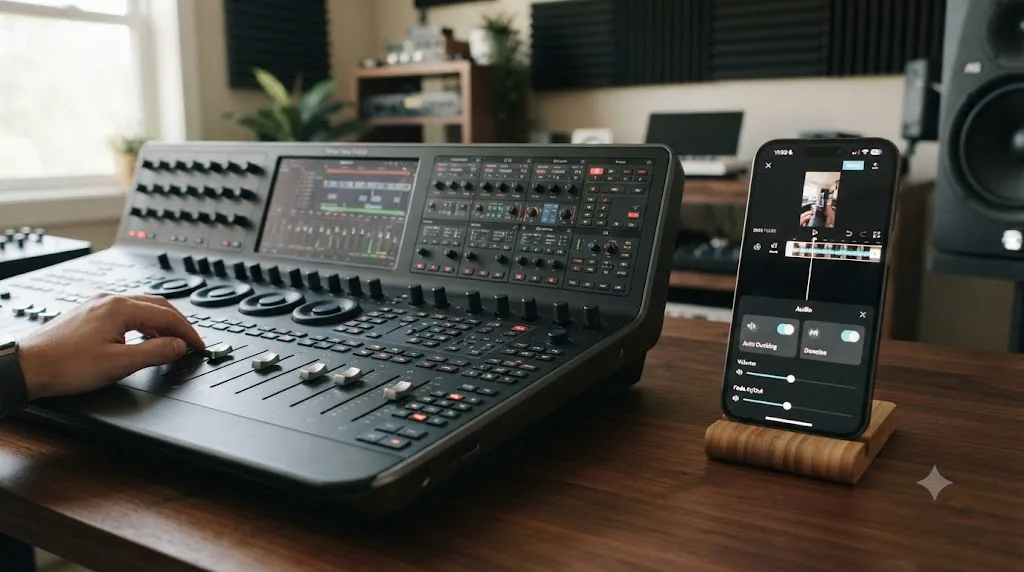
Fairlight, DaVinci Resolve's dedicated audio page, is a different category of tool entirely. Described on Blackmagic's own Fairlight page as "the world's first and only audio post production software that's completely integrated with picture editing," Fairlight supports up to 2,000 tracks with realtime effects on a single system running Fairlight Audio Core, a full channel-strip mixer with faders and panners, six effects slots per channel, a built-in 6-band parametric EQ and dynamics processing running on every track by default, and dedicated ADR and Foley recording tools built specifically for post-production sound work. CapCut has nothing resembling a dedicated audio workspace; Fairlight is an entire application's worth of tools sitting one tab away in the same project file.
If your projects have never needed more than a clean voiceover and a ducked music bed, CapCut's audio tools already cover that case well, and the practical gap won't hit hard in week one after switching. If you're doing anything approaching a real mix, multiple dialogue tracks needing independent processing, or a client delivery spec beyond a casual social upload, Fairlight is materially deeper than anything CapCut ever offered, not a renamed version of a panel you already know.
Fairlight is a full audio post-production suite that happens to share a project file with your picture edit, not a ducking toggle bolted onto a video editor. That distinction is the entire gap, and it's a bigger jump than it looks at first, precisely because CapCut's automated audio tools are genuinely good enough to mask how much mixing depth sits underneath a professional pipeline.
Are CapCut's AI tools better than DaVinci Resolve's Neural Engine?
They're aimed at different jobs, and both are genuinely good at what they were built for. CapCut's AI leans toward one-tap automation: Smart Cut removes mistakes and awkward pauses automatically, auto-captions transcribe and style subtitles with almost no setup, and background removal isolates a subject without a physical green screen. These tools are designed to produce a finished result with a single tap, and for fast social content, that speed is the entire point.
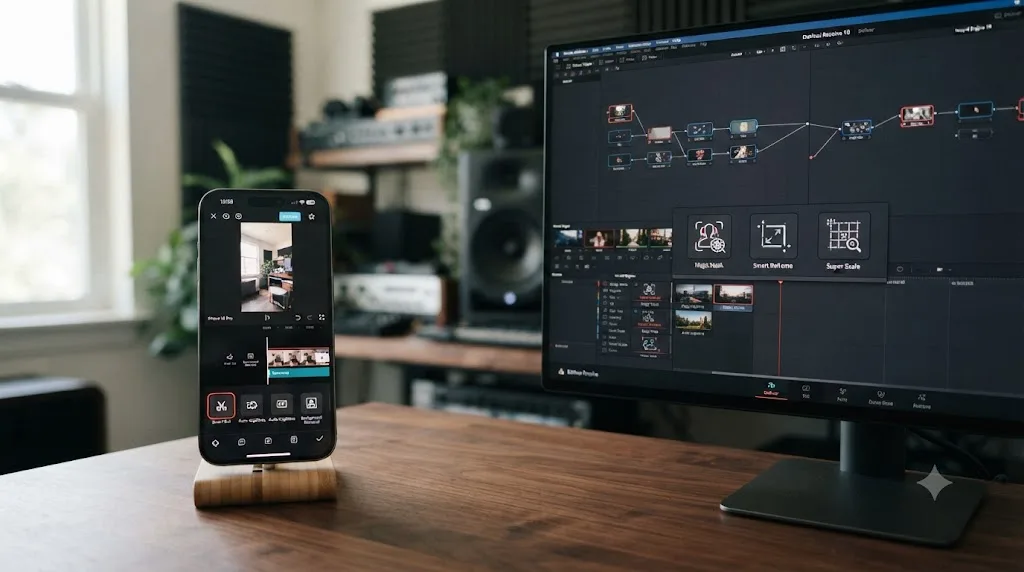
DaVinci Resolve's Neural Engine, mostly gated to the Studio edition, takes a different shape: AI as a precision tool inside a manual workflow rather than a replacement for it. Magic Mask lets you paint a rough stroke and tracks a subject through an entire clip. Smart Reframe auto-crops footage for vertical delivery while keeping the subject centered, the direct equivalent of what CapCut's auto-reframe tools do, just applied as a node on the Color page instead of a single toggle. Super Scale upscales footage to 4K or 8K from lower-resolution sources. DaVinci Resolve 21.0 added a second wave on top of that: AI Face Age Transformer, AI Blemish Removal, AI CineFocus for adjusting depth of field after the fact, AI Motion Deblur, and AI IntelliSearch for finding specific people or objects across an entire media pool, according to CG Channel's coverage of the 21.0 release.
The honest read: CapCut's AI produces a finished output fast, with the tradeoff that you have limited control over exactly how it got there. DaVinci Resolve's AI tools remove labor from specific, isolated tasks, masking frame by frame, matching a color across cameras, upscaling a shot, while leaving the overall creative decisions in your hands. Neither teaches you the underlying craft. Both just remove a different category of manual work.
| AI capability | CapCut | DaVinci Resolve |
|---|---|---|
| Auto-captions | Yes, one-tap styling | Yes, via text-based editing tools, positioned as a captioning aid |
| Background removal | Yes, Smart Cutout style tools | Magic Mask (Studio only), node-based |
| Auto-reframe for vertical | Yes, built in | Smart Reframe (Studio only) |
| Upscaling | Limited | Super Scale (Studio only), up to 8K from HD |
| One-tap auto-edit from raw clips | Yes (Smart Cut, template auto-assembly) | No equivalent on any page |
| Face/age/beauty AI tools | No | AI Face Age Transformer, AI Blemish Removal (Studio only, 21.0) |
| Object/person search across footage | No | AI IntelliSearch (Studio only, 21.0) |
Can DaVinci Resolve edit vertical video for TikTok and Instagram Reels like CapCut?
Yes, and it's been able to for longer than most switchers assume. Set your timeline to a vertical resolution like 1080x1920 under Project Settings, or give one timeline its own vertical format the moment you create it, and DaVinci Resolve exports it with no watermark and no time limit, on the free edition included.
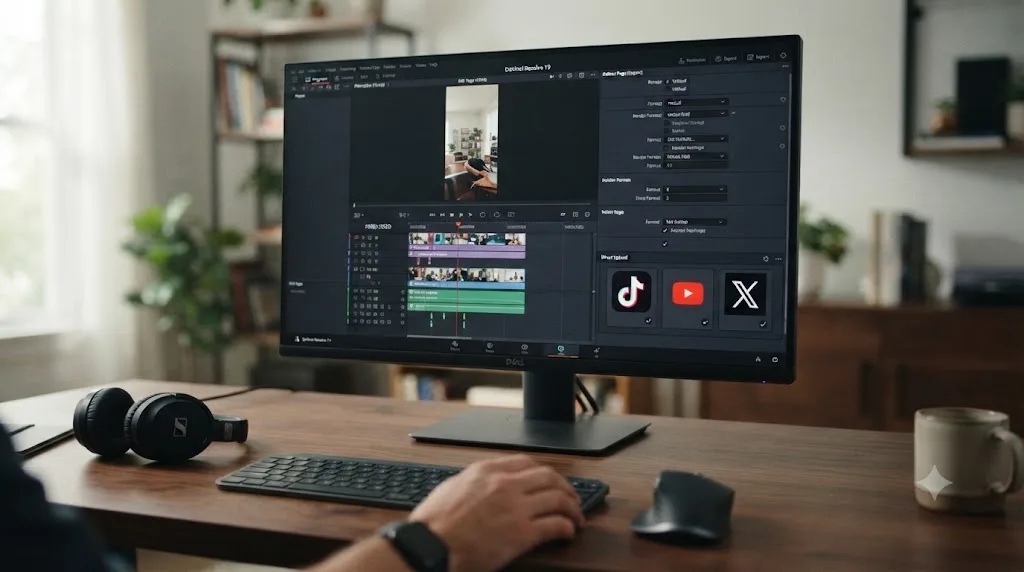
DaVinci Resolve 20 specifically targeted short-form workflows with a set of additions built for this exact use case: vertical video support, direct upload to TikTok, Vimeo, X, and YouTube from inside the app, Smart Reframe for automatically adapting horizontal footage into vertical formats, and updated text tools aimed at easier content repurposing, per Notebookcheck's coverage of that release.
What DaVinci Resolve still won't do is auto-caption in CapCut's specific styled, one-tap way, or auto-select a trending sound, or auto-assemble a rough cut from five clips the way CapCut's template system can. You set up a vertical workflow once inside Resolve, save it as a preset, and reuse it. Vertical export was never the gap between these two apps. Speed of setup for a first-time vertical edit is. If your channel is purely short-form and you're not touching color or multi-track audio, that speed gap is real and worth weighing seriously before you switch anything.
Can teams collaborate and add third-party plugins in CapCut and DaVinci Resolve?
Collaboration. CapCut's answer is the Pro Team plan, layered on top of the same account-based structure as Pro, giving a group shared access to projects and assets through CapCut's cloud storage. It's built for a small content team working the same account, not for multiple specialists editing the same timeline live.
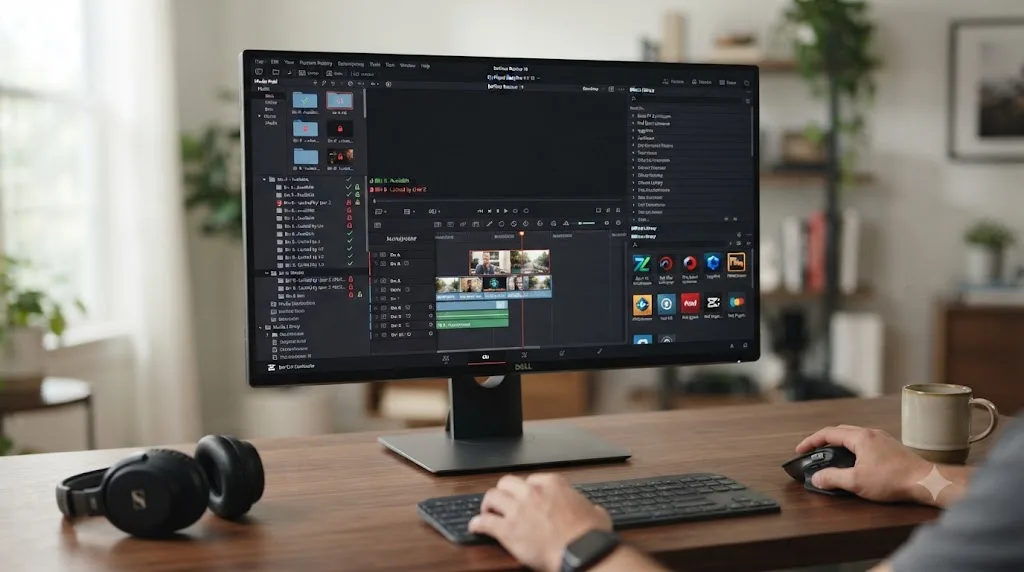
DaVinci Resolve's collaboration model goes deeper, and it's genuinely built for a crew. According to Blackmagic's own collaboration page, multiple editors, colorists, Fusion artists, and audio engineers can work on the same project at once, with bin and timeline locking so one person's changes never silently overwrite another's; a locked bin or timeline simply goes read-only for everyone else until its owner releases it. The DaVinci Resolve Project Server that ties this together locally is free to run, and Blackmagic Cloud extends the same real-time workflow over the internet, syncing project files, timelines, bins, and grades, though not the underlying media itself, so a remote team still needs its own way to share footage. In practice, most setup guides treat the full multi-user workflow, several specialists locking bins and merging changes on one project at once, as a workflow you deploy with DaVinci Resolve Studio and a proper shared database, even though the Project Server software itself costs nothing.
Plugins. This is where the two apps stop resembling each other entirely. CapCut has no third-party plugin ecosystem. Its AI tools, effects, and templates are all built and shipped by CapCut itself; there's no marketplace where an outside developer sells you a tool that runs inside the app.
DaVinci Resolve runs on OFX (OpenFX), an open plugin standard that lets outside developers build effects usable across multiple host applications, not just Resolve. Every OFX plugin installed shows up in Resolve's Effects Library alongside the built-in ResolveFX filters. Established plugin houses like BorisFX and Red Giant sell OFX-compatible tools that plug directly into the Color and Edit pages, and marketplaces like Envato Elements carry templates, presets, and effects built specifically for Resolve, per Toolfarm's rundown of the Resolve plugin market. Most third-party plugins run fine in the free edition; only a handful of advanced ones require Studio. Our roundup of DaVinci Resolve plugins worth buying as a beginner covers where to actually start if you're coming from an app that never had this option.
A plugin ecosystem and a real-time multi-editor pipeline aren't features CapCut is missing by accident. They're consequences of what CapCut was built to be: one person, one phone, one finished video, fast. DaVinci Resolve was built assuming a crew, and assuming that crew would eventually want a tool an outside developer built better than Blackmagic did. Neither approach is wrong for the job it was designed around.
| Capability | CapCut | DaVinci Resolve |
|---|---|---|
| Team plan / shared account | Pro Team, from $24.99/mo | N/A (per-seat Studio licensing instead) |
| Real-time multi-user editing | No | Yes, via Blackmagic Cloud or Project Server |
| Bin / timeline locking | No | Yes |
| Third-party plugin marketplace | No | Yes, OFX standard (BorisFX, Red Giant, Envato Elements, more) |
| Plugins that work on the free edition | N/A | Most do; a few require Studio |
What do creators actually say about switching editing apps?
The honest sentiment from working creators is more mixed than either app's marketing suggests, and it's worth hearing directly rather than summarized. When CapCut briefly went dark during the 2025 TikTok shutdown, creators who'd built their entire workflow around it discovered how attached they were to a specific tool, in ways that carry directly into anyone weighing a permanent switch. YouTube creator Seth Beavers, quoted in Digiday's reporting on the shutdown, put the friction plainly:
"Using a touch screen, it works very well, and I'm practiced in it. So, now I have to learn a new editing program. I've tried other editing software, and you have to pay to get rid of watermarks, or they don't have as many features, like iMovie."
That's the exact tension this whole comparison sits on top of: muscle memory built on a specific interface, weighed against watermark-free exports and feature depth elsewhere. Streamer MinniePortable, in the same piece, described trying Filmora as an alternative and hitting a paywall almost immediately: "when I tried to export it, it said 'export with watermark or pay the annual $50 a year to export it.' I'm not doing the $50 a year with no watermark, so I just stopped trying to edit, and was hoping for CapCut to come back." Video creator Gianna Christine offered the calmer middle path many working editors actually land on: "I use Final Cut for more intense editing, so I use a mix of everything." Ali Grant, co-CEO of The Digital Department, summed up the business impact directly: "CapCut also took longer to come back than TikTok, so even when creators were able to post again to TikTok, they were without their go-to editing app."
The real lesson from that outage isn't that CapCut is unreliable. It's that a single-app workflow with no fallback is a business risk, not just a preference. Whatever tool you land on, having a second one you're at least minimally comfortable in, even DaVinci Resolve's free edition sitting idle until you need it, is cheap insurance against exactly the kind of week Digiday documented.
Is DaVinci Resolve harder to learn than CapCut?
Yes, and there's no honest version of this comparison that says otherwise. CapCut's templates and one-tap AI tools get a usable video out in minutes, with almost no menu-digging required. DaVinci Resolve splits the entire application into seven pages, Media, Cut, Edit, Fusion, Color, Fairlight, and Deliver, and treats Color, Fairlight, and Fusion as genuinely separate disciplines, each deep enough to be its own dedicated app in a different NLE's world. Most switchers get comfortable cutting on the Edit or Cut page within a couple of weeks. Color and Fairlight take real, separate practice, since CapCut's tools never went nearly as deep in either area to begin with.
Switching from CapCut to DaVinci Resolve is one of the most common questions inside our own 100,000+ member video editing community, and we've taught more than 100,000 students on Udemy as an official Udemy Business Partner, so we see the same pattern repeat constantly: creators who are genuinely fast in CapCut hit a wall not because Resolve is confusing in the abstract, but because nothing in Resolve's seven-page layout looks like the single window they've built years of muscle memory around.
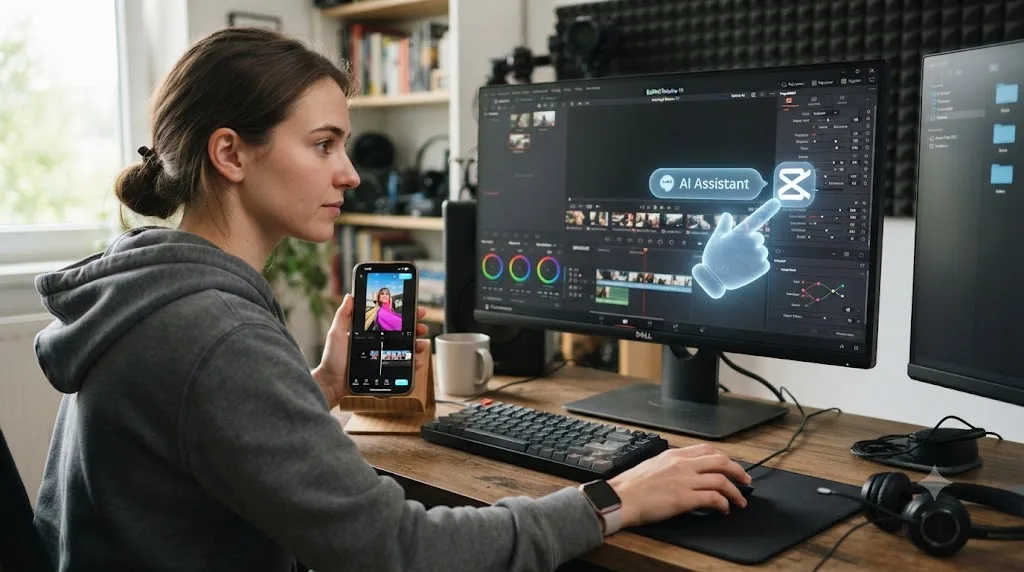
Blackmagic Design publishes six official training guides covering editing, color, Fairlight, and Fusion, each with downloadable lesson files, and that's the correct starting point regardless of which app you're coming from, since it's written by the people who built the software. But a sequential written or video curriculum can't see your actual timeline, and it can't answer "why does my specific shot look wrong right now." That's the specific gap an in-app assistant is built to close, and it's worth naming directly here rather than dancing around it: TryUncle is the on-screen assistant for DaVinci Resolve on macOS, ask in plain words and Uncle points at the exact control on your screen.
Worth being clear about what TryUncle is and isn't. It's a paid subscription, not free, at $39 a month, cancel anytime, and it's macOS only. Check TryUncle directly, or our page on TryUncle's current pricing plans, for the current rate. It's also worth naming the category it competes in honestly. Tools like CutAgent, Sottocut, PremiereCopilot, and Eddie AI all promise AI help for DaVinci Resolve too, but they execute edits or answer chat questions about your footage rather than teach you where things live, a difference our CutAgent vs TryUncle and Eddie AI vs TryUncle comparisons cover in more depth. If you let one of them cut your timeline for you, that's a fair trade for speed on a deadline, but it doesn't build the fluency a CapCut switcher actually needs while relearning an unfamiliar interface. TryUncle doesn't touch your timeline at all. It watches, and it points.
Our full guide on the best way to learn DaVinci Resolve covers the underlying reasoning for why guided, in-app practice tends to beat watching a course straight through, and our roundup of every AI tool people actually use to learn Resolve breaks the whole category down in more depth than this section can. If you're mid-edit and genuinely stuck on where a specific CapCut habit is supposed to live inside Resolve's seven pages, that's exactly the moment Uncle is built to point at the control on your own screen instead of you pausing to search a forum.
What are the most common mistakes creators make switching from CapCut?
Most of these aren't about DaVinci Resolve being needlessly complicated. They're about carrying a CapCut-shaped expectation, especially around automation, into a tool that doesn't share every one of CapCut's assumptions.
Looking for a project import option that doesn't exist. New switchers routinely spend their first session hunting through Resolve's File menu for an "Import CapCut Project" option. It isn't there, and it was never going to be, since CapCut never wrote an export format Resolve could read in the first place.
Expecting a Smart Cut or template equivalent somewhere in Resolve. Editors used to CapCut's one-tap auto-assembly look for a similar button in Resolve and don't find one, anywhere, on any page. Every cut in Resolve is placed deliberately; there's no substitute for that.
Trying to find CapCut's color filters inside the Color page. Editors who look for a single panel matching CapCut's slider-and-filter layout end up frustrated by a node graph that doesn't work that way. The node model takes a genuine mental shift; give it real time on a low-stakes shot before you touch a real deadline's grade.
Assuming DaVinci Resolve's free tier is more limited than it actually is. A surprising number of switchers, used to CapCut's watermark-gated 4K and recurring subscription, assume they need to pay $295 immediately just to access basic color or audio tools. They don't. The free edition includes full Color, Fairlight, and Fusion access with no watermark; the paywall only affects export resolution above Ultra HD and specific Neural Engine AI tools.
Trying to learn Color, Fairlight, and Fusion all at once. CapCut never asked anyone to learn three genuinely separate disciplines at the same time, because its tools handled a simplified version of all three inside one window. Treating Resolve's depth as one thing to "get used to," instead of three distinct skills to build one at a time, is the single most common source of switcher burnout.
Assuming DaVinci Resolve normalizes loudness automatically on export. CapCut handles loudness matching quietly in the background. Resolve doesn't. By default your export can land anywhere on the loudness scale unless you open Fairlight's Loudness Meter, set a target like -14 LUFS for YouTube or -16 LUFS for a podcast platform, and normalize deliberately before you render, per a walkthrough of Fairlight's loudness tools.
Skipping a reference copy of the finished CapCut edit before rebuilding. Diving straight into Resolve without exporting your finished CapCut video first means reconstructing your cut order purely from memory, which is slower and more error-prone than it needs to be.
| Mistake | What actually happens | Fix |
|---|---|---|
| Hunting for a project import option | Wasted time in Resolve's File menu | Go straight to importing raw footage; no import option exists |
| Expecting a Smart Cut equivalent | Searching every page for an auto-assembly tool that isn't there | Accept every cut is manual; there's no substitute |
| Looking for CapCut's filters in the Color page | Frustration with a node graph that doesn't work that way | Learn the node model deliberately on a low-stakes shot |
| Assuming the free edition is too limited | Paying $295 before it's actually needed | Start free; Color, Fairlight, and Fusion are all included, watermark-free |
| Learning Color, Fairlight, and Fusion simultaneously | Burnout from three new disciplines at once | Learn one page at a time, moving on only once it's automatic |
| Assuming Resolve auto-normalizes loudness | Export lands too quiet or too hot for the platform | Set a LUFS target in Fairlight's Loudness Meter before rendering |
| Rebuilding purely from memory | Slower, error-prone reconstruction of the cut | Export your finished CapCut video first as a visual reference |
Why does my footage look different after I move it from CapCut into DaVinci Resolve?
This trips up almost every switcher on their first real project, and it's not a bug in either app.
CapCut applies its own default color and gamma handling invisibly in the background, tuned to look correct on a phone screen straight out of camera. DaVinci Resolve, by default, manages color more literally, and if your project's color management settings don't match your footage's actual gamma curve, a clip that looked normal in CapCut can look flat, washed out, or oddly saturated the moment it lands on Resolve's timeline.
The fix isn't complicated once you know where to look. Under Project Settings > Color Management, confirm Resolve's Color Science matches your footage; for most consumer camera and phone footage, the default Rec.709 gamma handling is correct, and the mismatch usually comes from a clip that was already color-graded or compressed once, like a CapCut export you're re-importing, getting a second, unwanted gamma shift applied on top. Never re-import a finished CapCut export into DaVinci Resolve expecting to grade it like raw footage; grade the original camera files instead, since a compressed, already-graded export has nowhere near the color data left to push around.
If you're working from your phone's original camera roll rather than a CapCut export, the far more common cause is simpler: your monitor isn't calibrated, or Resolve's UI preview scaling doesn't match your footage's actual color space. Both are worth ruling out with Resolve's built-in scopes, the Waveform and Vectorscope on the Color page, before you assume the footage itself is the problem. Trust the scopes over your eyes and your screen, especially on a laptop display, which is rarely calibrated out of the box.
One more version of this problem is specific to switchers who shot the same footage twice, once as a phone recording used inside CapCut, and again as a higher-quality camera file kept as backup. If you're rebuilding your edit in Resolve using the camera file instead of the phone recording, the right move, since it holds more color data, don't expect the two to match without deliberate grading. They came off different sensors with different color science, and Resolve's default settings will render them looking noticeably different from each other until you correct for it manually.
This is a genuinely new one-time cost of switching, not a Resolve problem to be fixed later. Budget an extra pass of color-matching time on your first rebuilt project, and it stops being a surprise on every project after that.
Which tool actually fits your specific niche?
The scenarios elsewhere in this article cover the broad strokes. Some niches have a more specific answer worth naming directly, since "it depends on the project" isn't always true, sometimes it depends on the job itself.
Wedding videographers. DaVinci Resolve, close to unanimously. Wedding footage comes off multiple cameras with different white balances, needs a consistent color story across a ceremony, a reception, and a lighting change in between, and often needs a proper audio mix pulled from a lapel mic, a room mic, and a DJ feed at once. That's Color and Fairlight's entire job description.
Gaming montage and highlight-reel editors. CapCut, usually. Fast cuts synced to a trending sound, a caption style tuned to the platform, and a same-day turnaround matter far more than color depth here, and CapCut's Smart Cut and template tools were built exactly for this loop.
Podcasters and long-form YouTube creators. DaVinci Resolve, once the channel is established. A weekly hour-long podcast edit benefits enormously from Fairlight's multi-track dialogue tools and from reusable Compound Clips and PowerGrades that keep every episode looking and sounding the same without redoing setup work each time. Early on, before a channel can justify that setup time, CapCut's speed is a reasonable stopgap.
Travel and lifestyle vloggers. A genuine split. If you're cutting and posting from your phone between flights, CapCut's mobile continuity wins outright, there's no equivalent workflow in Resolve. If you're bringing footage home to build a monthly recap video with a consistent grade across a dozen locations and cameras, that's a DaVinci Resolve project every time.
Freelance editors doing paid client and agency work. DaVinci Resolve, almost without exception. Client delivery specs increasingly ask for a loudness target, a specific color space, or a mix pass that CapCut has no tools to hit, and a portfolio built entirely on CapCut exports signals "social content only" to an agency client looking for a broadcast or brand deliverable.
Corporate and explainer video editors. DaVinci Resolve, mainly because of Fusion. Explainer content leans on titles, lower thirds, and simple motion graphics well past what CapCut's Text+ equivalent handles, and Fusion's node-based compositing, while a separate discipline to learn, covers that ground without leaving the app.
UGC and short-form brand content creators. CapCut, for the bulk of the work, with DaVinci Resolve kept in reserve. Most UGC ad content is fast, vertical, and templated on purpose, since brands buying UGC want it to look native to the platform, not overproduced. If a brand asks for a polished 30-second hero cut alongside the UGC batch, that one piece is worth building in Resolve.
| Niche | Better fit | Why |
|---|---|---|
| Wedding videography | DaVinci Resolve | Multi-camera color matching, layered audio mix |
| Gaming montages / highlight reels | CapCut | Speed, trending sounds, one-tap captions |
| Podcasts / long-form YouTube | DaVinci Resolve | Fairlight multi-track audio, reusable PowerGrades |
| Travel and lifestyle vlogging | Split by workflow stage | CapCut for phone-based capture-to-post, DaVinci Resolve for the monthly grade |
| Freelance client / agency work | DaVinci Resolve | Delivery specs, loudness targets, professional color |
| Corporate / explainer video | DaVinci Resolve | Fusion covers titles and motion graphics in-app |
| UGC and short-form brand content | CapCut, mostly | Native-feeling, fast, template-driven by design |
Our guide on whether DaVinci Resolve is overkill for simple social media edits goes deeper into that exact tradeoff if your work sits mostly in the "fast and native" camp above.
CapCut vs DaVinci Resolve: the full side-by-side comparison table
Here's every row from this article in one place, so you don't have to scroll back through each section to compare two specific features.
| Feature | CapCut | DaVinci Resolve |
|---|---|---|
| Free tier | Yes (Standard), watermark/bitrate limits on 4K | Yes, no watermark, Ultra HD (3840x2160) 60fps cap |
| Paid tier price | $19.99/mo or $179.99/yr (Pro) | $295 one-time (Studio) |
| Monthly active users | 300M+ mobile MAU, 81% of mobile video editing share | Not publicly comparable; desktop-first professional tool |
| Minimum RAM (Windows) | 4GB | 16GB (32GB for Fusion) |
| macOS support | Any recent Mac | Apple Silicon only (macOS 15 Sequoia+) |
| Phone app | Yes, iOS and Android | No |
| iPad app | No dedicated app | Yes, free |
| Desktop platforms | Windows, macOS | Windows, macOS, Linux |
| Web editor | Yes | No |
| RAW / professional codec support | No | BRAW native, ProRes RAW native, ProRes up to 444 |
| Project interchange (AAF/XML/EDL) | None | Imports AAF, EDL, XML, DRT, ADL, OTIO (nothing to import from CapCut) |
| Color grading | Sliders, curves, filter presets | Node-based Color page with qualifiers, power windows, scopes |
| Audio tools | Basic ducking, AI denoise, simple mixer | Fairlight: full DAW, 2,000 tracks, 6-band EQ, ADR/Foley |
| VFX/compositing | Basic masking and effects | Fusion, 250+ node-based compositing tools |
| Vertical video export | Yes, native and default | Yes, since Resolve 20, plus direct platform upload |
| Auto-captions | Yes, one-tap styled | Text-based editing, positioned as a captioning aid |
| One-tap auto-edit | Yes (Smart Cut, templates) | None on any page |
| AI masking/reframing | Smart Cutout, auto-reframe | Magic Mask, Smart Reframe (Studio only) |
| Third-party plugins | None | OFX standard (BorisFX, Red Giant, and more) |
| Team collaboration | CapCut Pro Team plan | Real-time multi-user bin/timeline locking (Studio-oriented) |
| Time to first finished edit | Minutes | Hours to days for a comparable comfort level |
| Learning curve | Gentle, template-driven | Steeper, 7 integrated pages |
Should you switch from CapCut to DaVinci Resolve?
This depends entirely on what's actually forcing the question, so let's work through the real scenarios instead of a generic yes-or-no.
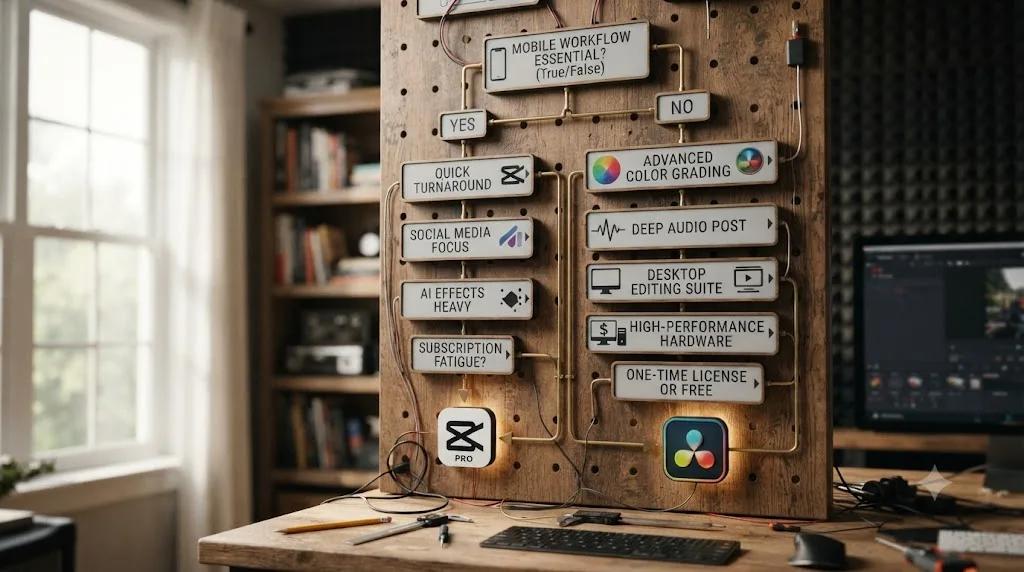
You're posting daily short-form content shot and edited entirely on your phone. Stay on CapCut, or start there if you're not already. The speed and mobile continuity documented above are real, and you're unlikely to hit the ceilings, real color grading, deep multi-track audio, native cross-platform delivery, where DaVinci Resolve pulls ahead.
A client asked for footage that needs real color grading, or your channel just started looking flat next to competitors. Move to DaVinci Resolve, or at minimum learn its Color page well enough to handle that one job. CapCut's slider-based tools, covered in full above, aren't a workaround-able gap here.
You're tired of paying a recurring $19.99-a-month subscription just to export 4K without a logo on it. DaVinci Resolve's free edition already exports Ultra HD with no watermark and no time limit, and Studio's one-time $295 payment never bills you again after that.
Your projects involve real sound design, multiple dialogue tracks, or a proper mix pass, not just level-matching. Fairlight's full digital audio workstation, covered above, is a materially deeper tool than anything CapCut offers, built into the same project file as your edit.
You're on an older Intel Mac and haven't checked whether your hardware even supports the switch. Check first. DaVinci Resolve 21 requires Apple Silicon; CapCut doesn't care what chip you're running. That's a five-minute check that saves a wasted download.
None of the above apply, and you just want your videos to look a little more polished without learning a new app. That's a legitimate reason to stay on CapCut a while longer. Switching editors never taught anyone to edit. Finishing a project did, and the interface you already have muscle memory for will always beat the theoretically-more-capable app you haven't learned yet, at least for the video due this week.
You're not sure yet, and want to hedge. Run both. CapCut's free Standard tier and DaVinci Resolve's free edition cost nothing together, and plenty of working creators genuinely split their pipeline this way: CapCut for the same-day trend edit, DaVinci Resolve for anything where color, audio, or production value actually matters.
Neither app is a downgrade from the other. They're built around different bets on what most of an editor's time actually goes toward, and both bets are defensible. Pick based on the specific project sitting in your queue this week, and if that project points you toward DaVinci Resolve, treat the first few weeks of relearning where things live as the real cost of the switch, not a footnote you'll figure out later.
Frequently asked questions
- Is CapCut or DaVinci Resolve better?
- Neither wins outright, they're built for different jobs. CapCut wins on speed for a quick vertical edit made and posted the same day, with built-in captions, templates, and a real phone app. DaVinci Resolve wins the moment a project needs real color grading, multi-track audio, or an export that isn't tied to a monthly subscription, and it's free too.
- Is DaVinci Resolve really free like CapCut?
- Yes, and more permanently. DaVinci Resolve's free edition exports Ultra HD (3840x2160) video at up to 60fps with no watermark and no time limit, according to Blackmagic Design's own comparison of Free versus Studio. CapCut's free tier, still labeled Standard on CapCut's own pricing page, caps 4K exports with watermark and bitrate restrictions that only lift once you pay for Pro.
- Can I import my CapCut project directly into DaVinci Resolve?
- No. CapCut has no AAF, XML, or EDL export, the interchange formats editors use to move a timeline between professional apps, according to CapCut's own help center. DaVinci Resolve imports AAF, EDL, XML, DRT, ADL, and OTIO timelines through the Media Pool, but there's nothing on CapCut's side to hand it. You move your raw footage across and rebuild the cut.
- Is DaVinci Resolve harder to learn than CapCut?
- For a first edit, yes, noticeably. CapCut's templates and one-tap AI tools hide almost all of the underlying complexity. DaVinci Resolve is a professional tool spread across seven pages. Most switchers get comfortable cutting on the Edit or Cut page within a couple of weeks and treat Color, Fairlight, and Fusion as separate skills to build only once a project actually needs them.
- Does DaVinci Resolve have templates and auto-captions like CapCut?
- Not the same way. Resolve has no trending-template marketplace and no one-tap caption styling tuned to a specific platform's look, though its text-based editing tools can auto-transcribe dialogue for captions. What it has instead is PowerGrades for reusable color looks, Text+ for custom titles, and Compound Clips for reusable timeline structures, all built for control rather than one-tap speed.
- Can DaVinci Resolve edit vertical video for TikTok and Instagram Reels like CapCut?
- Yes, including in the free version, with no watermark. Set the timeline to 1080x1920 under Project Settings, or give one timeline its own vertical format when you create it. DaVinci Resolve 20 also added direct upload to TikTok, Vimeo, X, and YouTube along with Smart Reframe for auto-cropping horizontal footage, according to Notebookcheck's coverage of that release.
- Should I keep using CapCut after switching to DaVinci Resolve?
- Plenty of working creators do, and it's a defensible split. CapCut for the same-day trend edit that has to post in the next hour, DaVinci Resolve for anything where color, audio, or production value actually matters to the client or the channel. Running both costs nothing extra if you're on CapCut's free Standard tier and Resolve's free edition.
- What's the best way to learn DaVinci Resolve after switching from CapCut?
- Start with Blackmagic's own free training, built for the exact version you're running, then layer in a YouTube channel for workflow habits and a subreddit for the oddly specific question no course covers. TryUncle is worth knowing about separately: it watches your Resolve screen live and points at the control you're asking about, instead of you pausing your edit to search a forum.
Sources
- CapCut vs DaVinci Resolve (CapCut's own comparison page)
- CapCut Standard vs Pro comparison (official, pricing and features)
- How much does CapCut Pro cost (CapCut Help Center)
- How Do I Import a Previous Project into the Current Project (CapCut Help Center)
- How Do I Export 2K/4K Videos in CapCut (CapCut Help Center)
- Why Can't I Import MP4 and JPG Files (CapCut Help Center)
- CapCut Desktop Download (official system requirements)
- Bloomberg (via Yahoo Finance): The Rise of ByteDance's CapCut Threatens Adobe and Canva
- Digiday: Creators are split on whether to keep using TikTok's editing app CapCut post-shutdown
- CapCut vs DaVinci Resolve | Which Video Editing Software Wins In 2026? (SelectHub)
- DaVinci Resolve - Studio (Blackmagic Design)
- DaVinci Resolve - Fairlight (Blackmagic Design)
- DaVinci Resolve - Fusion (Blackmagic Design)
- DaVinci Resolve Training (Blackmagic Design)
- DaVinci Resolve - Collaboration (Blackmagic Design)
- Blackmagic Design: ProRes RAW support added to DaVinci Resolve
- Blackmagic Design releases DaVinci Resolve 21.0 (CG Channel)
- DaVinci Resolve 21.0.2 Update, by Matthew Allard ACS (Newsshooter)
- Blackmagic launches DaVinci Resolve 20 with new features social media creators and film editors will want (Notebookcheck)
- DaVinci Resolve 21 System Requirements (DaVinci Resolve Club)
- Fairlight Audio in DaVinci Resolve: Editing, Cleanup, LUFS & Fixes (DaVinci Resolve Club)
- Blackmagic DaVinci Resolve Plugins Store (Toolfarm)
- CutAgent (product site: features, pricing, FAQ)
- Sottocut (product site: features, pricing, platform requirements)
- Eddie AI for DaVinci Resolve (native integration workflow page)
- PremiereCopilot pricing
- TryUncle
Learn by doing, not watching
Stop translating tutorials to your timeline.
TryUncle stays beside Resolve on Mac and Windows. When you ask, Uncle sees your screen and points at the exact control you need. No hunting through tabs, timestamps, or mismatched tutorials.
Meet TryUncleKeep reading
 ComparisonsJul 15, 202628 min read
DaVinci Resolve vs Final Cut Pro in 2026: The Full Comparison
Pricing, ACES color, Fairlight vs Final Cut audio, Fusion vs Motion, collaboration, and 2026 Apple Silicon benchmarks, compared with real sources and one clear verdict.
 GuidesJul 12, 202641 min read
The Best Way to Learn DaVinci Resolve (What the Research Says)
Guided, hands-on practice inside DaVinci Resolve beats video courses and MOOCs. Here's the learning-science research behind why, and how to apply it.
 ComparisonsJul 11, 202626 min read
The Best AI Tools to Learn DaVinci Resolve in 2026
ChatGPT, Claude, Blackmagic's free training, Recut, and Resolve's Neural Engine compared for learning DaVinci Resolve, and the gap none of them close.