
Learn / DaVinci Resolveupdated for DaVinci Resolve 21.0.2 desktop and DaVinci Resolve for iPad 21.0 (July 2026)
Does DaVinci Resolve Work on iPad? (2026 Guide)
Quick answer
Yes. DaVinci Resolve for iPad is a free, separate app on the App Store, with a $94.99 Studio unlock. It runs on iPadOS 16 or later on an A12 Bionic chip or newer, and shares Cut and Color pages with the desktop app, but it has no Fusion or Fairlight page and can't run third-party plugins.
You've got an iPad in your bag and a desktop running DaVinci Resolve at home, and you're wondering if you actually need to carry a laptop too. Or maybe you saw someone color grading on a tablet in a video and assumed it was a toy version, a stripped-down demo that lets you pretend to edit until you get back to a real machine.
Neither guess is right. DaVinci Resolve for iPad is a real, separate app from Blackmagic Design, and it does more than most people expect from something running on a tablet. It also does noticeably less than the desktop app in a few specific, important places. Here's exactly where that line sits, with the requirements, the pricing, and what reviewers who've actually put it through real projects have to say about it.
Does DaVinci Resolve work on iPad?
Yes, and it has since December 2022. DaVinci Resolve for iPad is its own app on the App Store, not a remote-desktop shortcut or a companion app that just previews your timeline. It runs Blackmagic's actual color science and editing engine locally on the tablet, with a touch-adapted interface built around the Cut and Color pages.
DaVinci Resolve for iPad isn't a demo of the real app. It is the real app, minus two of its five pages. That distinction matters, because a lot of the skepticism around tablet video editing comes from apps that fake professional tools with simplified sliders. Resolve's iPad version uses the same node-based color engine, the same primary and secondary grading tools, and the same PowerWindows and qualifiers that the desktop Color page runs.
Here's the shape of the whole answer in one table, with every row covered in more depth further down.
| Question | Answer |
|---|---|
| Does it exist and work? | Yes, since December 2022, updated alongside desktop releases |
| Is it free? | Yes, base app is free; Studio unlock is a separate $94.99 in-app purchase |
| Which pages does it include? | Cut and Color by default; Fusion and Fairlight are missing |
| Minimum iPad | iPadOS 16.0+, A12 Bionic chip or later (Blackmagic's stated minimum) |
| Recommended iPad | M1 iPad Pro or newer, 8GB+ RAM |
| Does it sync with desktop? | Yes, project files are compatible with desktop Resolve 18+, and Blackmagic Cloud can sync project data |
| Third-party plugins? | Not supported |
| Does TryUncle work on it? | No, TryUncle is macOS-only and watches the desktop app |
What can you actually do in DaVinci Resolve for iPad?
More than a rough cut, less than a full finishing pass. The app centers on two pages: Cut, for assembling and trimming a timeline, and Color, for grading it.
On the Cut page, you get a touch-optimized timeline with trim tools, transitions, titles, and as of the DaVinci Resolve 21 update in June 2026, bezier retimes, expanded keyframing options, and graphics support, according to Slatepad's coverage of the 21.0 iPad release. On the Color page, you get the real node graph: primary correction wheels, PowerWindows, qualifiers, 3D trackers, and advanced HDR grading tools, the same fundamental toolset the desktop Color page runs, adapted for touch and Apple Pencil input.
Leon Barnard, a trainer at Film Editing Pro who spent two weeks testing the app against real footage, put it bluntly in his hands-on review:
"It works well, really well."
Barnard's testing found close to full feature parity between the iPad Color page and its desktop equivalent, including performance with 6K ProRes footage, an unusually heavy codec to expect a tablet to chew through smoothly. That's not marketing copy. That's someone who spent real hours grading real clips on the thing.
DaVinci Resolve 21 for iPad also introduced a brand-new Photo page, the first time still-image editing has shipped in the iPad app at all, per Slatepad's release coverage. It comes with an image library (tags, favorites, ratings, albums), native RAW support for Canon, Fujifilm, Nikon, Panasonic, and Sony cameras, and the same node-based color pipeline used for video, though full-resolution photo exports require the Studio unlock.
A tablet that grades 6K ProRes footage with a real node graph isn't a toy, it's a second workstation that happens to fold flat. That's the honest framing. It's not pretending to replace a desktop for every job. It's genuinely handling the two jobs, cutting and grading, that eat the most hours in a typical post workflow.
| Feature | Available on iPad |
|---|---|
| Cut page (trim, transitions, titles, bezier retimes) | Yes |
| Color page (nodes, PowerWindows, qualifiers, HDR) | Yes |
| Photo page (RAW editing, since v21.0) | Yes |
| Apple Pencil support | Yes |
| Magic Keyboard support | Yes |
| Blackmagic Cloud collaboration | Yes |
| DaVinci Neural Engine AI tools (Magic Mask, Smart Reframe, Voice Isolation) | Studio unlock required |
| Media page (dedicated bin management) | No |
| Fusion page (node-based compositing) | No |
| Fairlight page (audio mixing console) | No |
| Third-party plugins | No |
What's missing compared to the desktop app?
Two whole pages, plus a list of smaller things that only show up once you go looking for them.
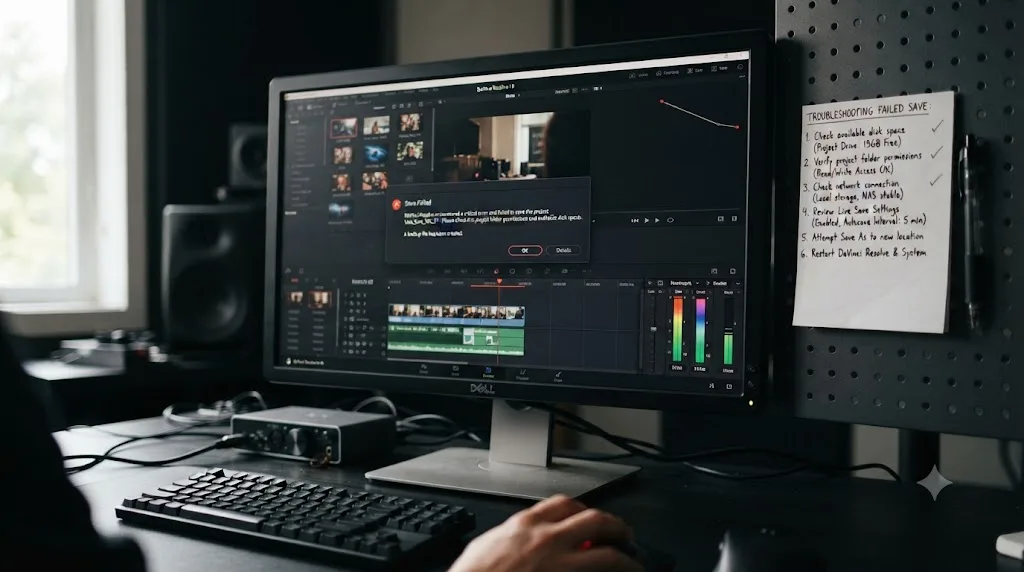
Fusion and Fairlight are the big absences. There's no dedicated Fusion page for building your own node-based visual effects or motion graphics, though some Fusion-created effects apply as presets. There's no Fairlight page either, which means no full mixing console, no ADR tools, no sound library, and no ability to build the kind of layered audio mix that Fairlight handles on desktop. Third-party plugins aren't supported on iPad at all, according to Vagon's breakdown of the app's limitations, which rules out any third-party color, noise reduction, or AI plugin you might rely on in your desktop workflow.
Past those two headline gaps, a handful of timeline features that desktop editors take for granted aren't there yet: compound clips, some keyframe curve options, subtitle tracks, track destination mapping for complex audio routing, render cache, and optimized media generation. None of these will surprise anyone who's used the app for more than an afternoon, but they're worth knowing before you plan a whole project around the iPad exclusively.
Performance has a ceiling too, and it's an honest one. Vagon's own testing found that heavy grading, stacking ten or more nodes with masks and blurs, "you'll be watching a slideshow" on hardware below an M-series iPad Pro. Heavier codecs like ProRes RAW and RED footage push the same limit further. This isn't a knock on the app so much as a reminder that a tablet chip, even a fast one, isn't a desktop GPU.
Fusion and Fairlight didn't make the cut, and Blackmagic has never pretended otherwise. That's the difference between an honest limitation and a hidden one. The app tells you what it does well instead of quietly failing at what it doesn't do.
Which iPad models and iPadOS versions does it support?
This is where you need to check your specific hardware rather than assume "it's an iPad, it'll run."
Blackmagic Design's own download page lists the minimum requirement as iPadOS 16.0 or later on an iPad with an A12 Bionic chip or newer. That covers a wide range of devices going back to 2018: the iPad Pro 11-inch and 12.9-inch from the 3rd generation onward, the iPad Air from the 3rd generation onward, the iPad mini from the 5th generation onward, and the standard iPad from the 8th generation onward.
There's a wrinkle worth flagging honestly. The current build listed on the App Store requires iPadOS 18.0, a newer minimum than Blackmagic's own stated baseline. If your iPad is running an older iPadOS version, check the App Store listing directly before assuming Blackmagic's published minimum still applies to the exact build you'd be installing today, since app requirements tend to creep upward with each update cycle even when the marketing material doesn't get revised at the same pace.
Meeting the minimum and getting a good experience aren't the same thing. Blackmagic recommends an M1 iPad Pro or newer with at least 8GB of RAM for real editing and grading work. Fall below that, an older A12 or A-series iPad without an M-series chip, and you're looking at HD-only playback in some cases and memory limits that cap what you can realistically do, per the App Store's own developer notes.
| iPad generation | Chip | Meets minimum? | Recommended for real work? |
|---|---|---|---|
| iPad Pro (2018+), 11" or 12.9" | A12X or newer | Yes | Only M1 and newer |
| iPad Air (2019+) | A12 or newer | Yes | Only M1 and newer (2022 Air onward) |
| iPad mini (2019+) | A12 or newer | Yes | No, expect HD caps and slower renders |
| iPad (2020+, 8th gen) | A12 or newer | Yes | No, expect HD caps and slower renders |
| iPad Pro (2021+), M1 or later | M1, M2, M3, M4, M5 | Yes | Yes |
Storage is a smaller consideration but still worth naming: the app itself takes roughly 3.8GB, before you add any media. RAW and ProRes footage eats iPad storage fast, and unlike a desktop with an external SSD bay you can max out overnight, an iPad's onboard storage is what it is unless you're routing footage through an external drive via USB-C.
How much does DaVinci Resolve for iPad cost?
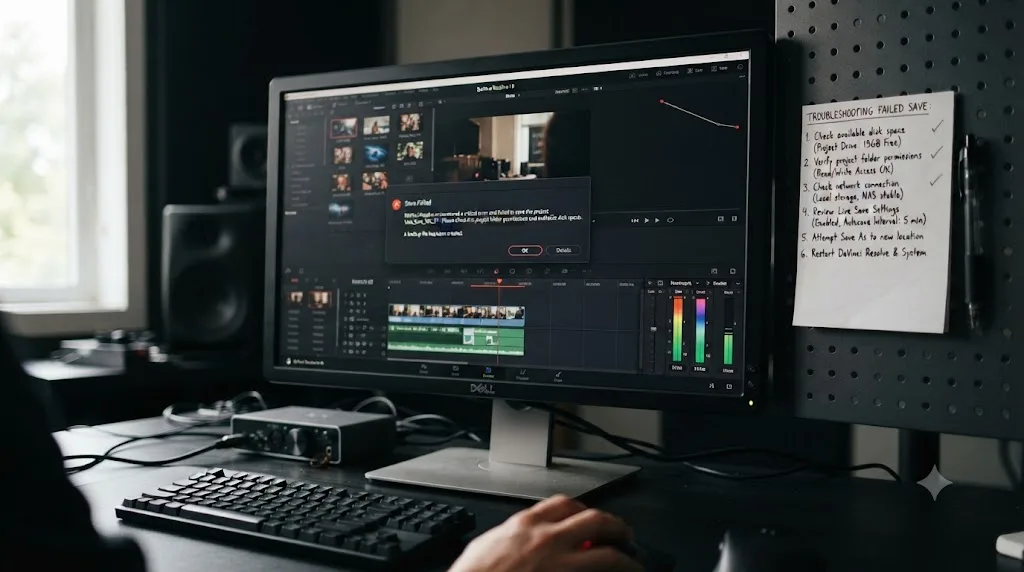
The base app is free, same philosophy Blackmagic applies to the desktop version: no watermark, no trial countdown, no feature that vanishes after 30 days. If you never buy anything, you still have a working editor and colorist on your tablet.
The Studio unlock costs $94.99 as a one-time in-app purchase, confirmed on the App Store listing. It's worth being precise about what that $94.99 buys, because it's easy to assume it's the same purchase as desktop Studio. It isn't. Desktop DaVinci Resolve Studio costs $295 as a separate one-time purchase, confirmed on Blackmagic's own Studio product page, and owning one doesn't unlock the other. Buy Studio on your Mac, and your iPad still shows the free-tier limits until you buy Studio there too, and vice versa.
| Purchase | Price | Unlocks |
|---|---|---|
| DaVinci Resolve for iPad (base) | Free | Cut and Color pages, core editing and grading, Blackmagic Cloud |
| DaVinci Resolve for iPad Studio | $94.99, one-time | Neural Engine AI tools, full-resolution photo exports, extra effects |
| DaVinci Resolve (desktop, base) | Free | Full editor, capped at Ultra HD export |
| DaVinci Resolve Studio (desktop) | $295, one-time | Multi-GPU acceleration, advanced noise reduction, Neural Engine, no export cap |
On iPad, the Studio purchase is what unlocks the DaVinci Neural Engine's AI tools, the same family of features desktop Studio users get: Magic Mask, Smart Reframe, Voice Isolation, and the rest. Without it, you're working with the core Cut and Color toolset and a Rec.709-limited export path in some cases, similar in spirit to the desktop free edition's Ultra HD ceiling.
Two separate $95-and-$295 purchases for one workflow sounds odd until you remember most people don't own both devices for the same job. If you're a desktop-only editor who picked up an iPad for travel reviews, you may never need the iPad Studio unlock at all. If you're building a real two-device workflow, budget for both licenses, since neither purchase carries over.
Can you move a project between iPad and desktop?
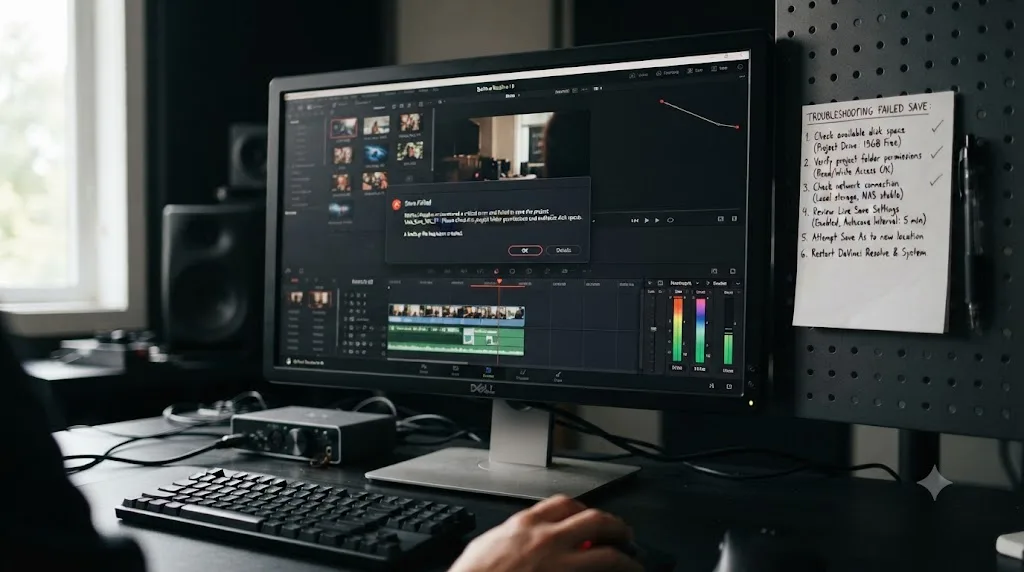
Yes, and this is one of the app's strongest selling points rather than an afterthought bolted on later. DaVinci Resolve for iPad creates and opens standard project files, and those files are compatible with DaVinci Resolve 18 and later on desktop, meaning a project you start on the tablet on a flight can open directly on your Mac, Windows, or Linux machine when you land, and the reverse works too.
There are two practical ways to move a project between devices:
- Project archive. Create a .drp archive on one device, then transfer that file to the other, either by AirDrop, cloud storage, or a direct connection. Version matching matters here: an older desktop Resolve install can't always open a project archived from a newer version, so keep both installs reasonably current.
- Blackmagic Cloud. Sync the project automatically between iPad and desktop without manually moving a file at all. You start a project on the iPad, it syncs to Blackmagic Cloud, and you open the same project on your desktop with your changes already there.
Here's the part that trips people up: Blackmagic Cloud syncs your project data, the edits, the color grades, the timeline structure, but it does not sync your media files, according to Vagon's testing of the sync behavior. Your actual footage still needs to be accessible on whichever device you're currently working from. In practice, that means routing your source media through an external SSD connected via USB-C, or making sure the same footage is copied onto both devices before you start, rather than assuming the cloud handles everything for you.
Blackmagic Cloud moves your edits. It does not move your footage. Miss that distinction and you'll open a synced project on your desktop, only to find every clip offline because the media never left the iPad.
How does Blackmagic Cloud collaboration work on iPad?
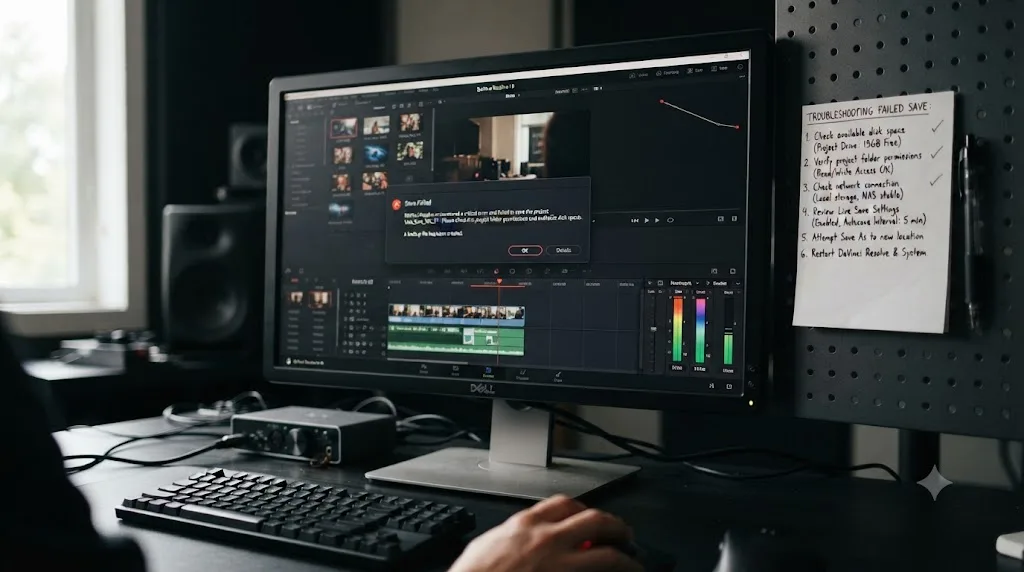
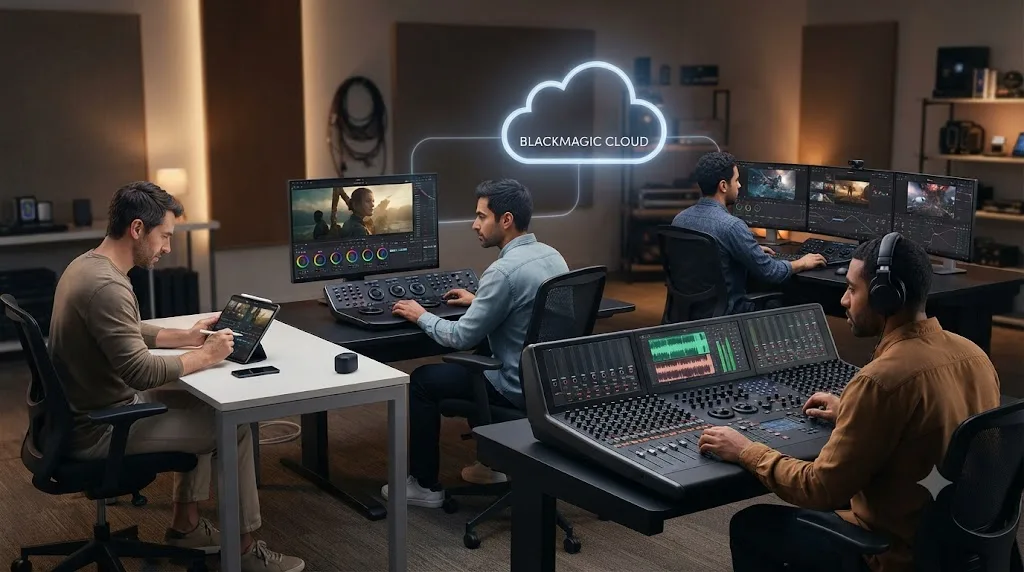
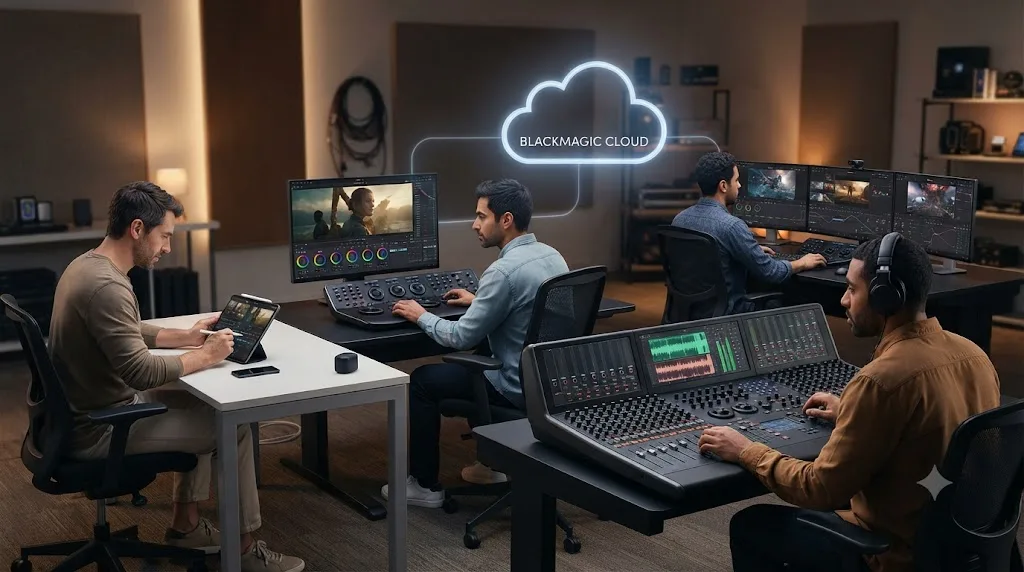
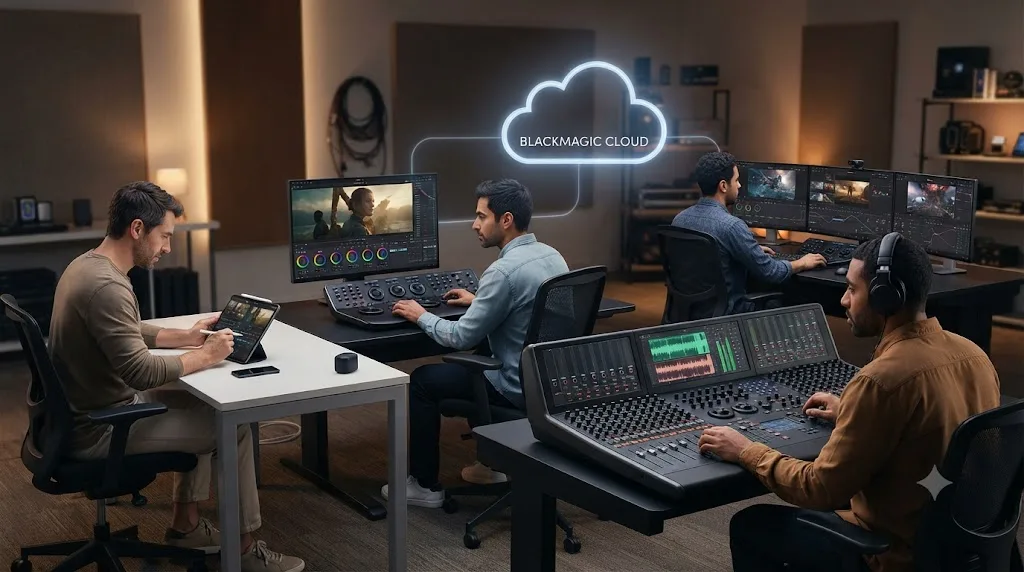
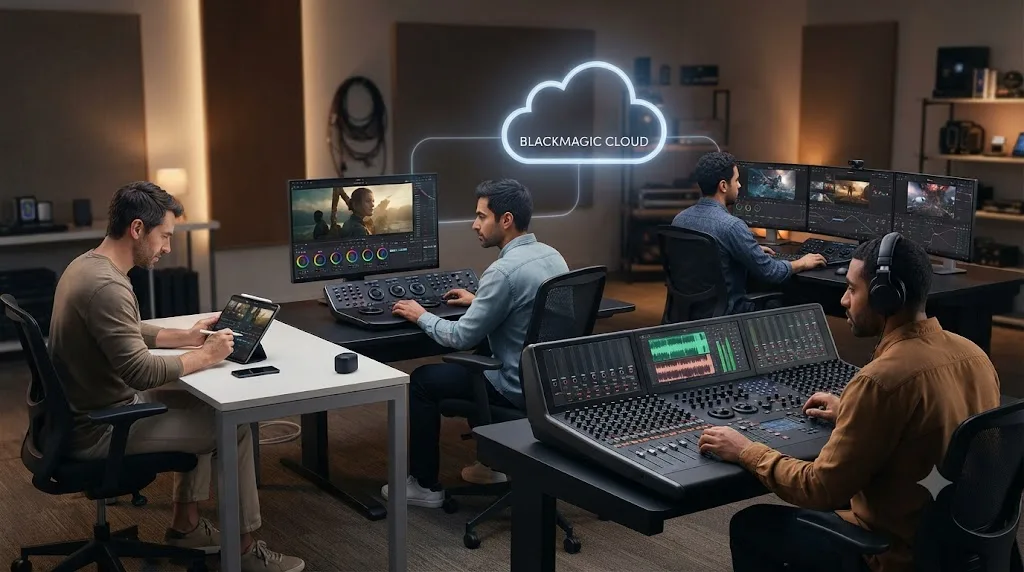
The same collaborative model Blackmagic built for desktop teams extends to the iPad app, which is a genuinely unusual feature for a tablet editor to include at all. Blackmagic's own collaboration page describes a system where bins and timelines stay read-only until someone unlocks them to work, preventing two people from silently overwriting each other's edits, with live incremental saving, shared markers, and a built-in chat panel.
On iPad specifically, that means an editor working from a tablet on set can be in the same live project as a colorist on a desktop workstation back at the studio, each seeing the other's locks and changes without emailing files back and forth. Grant Petty, Blackmagic Design's CEO, framed the ambition behind this when the iPad app first launched:
"Compatibility with DaVinci Resolve 18 and Blackmagic Cloud, mean that customers can collaborate on the same timeline with other editors or colorists as well as audio engineers and VFX artists from literally anywhere in the world."
That's the pitch from 2022, and the 21.0 release in June 2026 pushed it further: Blackmagic Cloud sync now runs roughly three times faster than before, according to Slatepad's release coverage, which matters more the bigger your project files get.
Worth naming the limit here too, since Fairlight isn't on iPad at all: an audio engineer collaborating through Blackmagic Cloud with an iPad-based editor can't do their mixing pass on the tablet. That work still routes through a desktop Fairlight page. The iPad slots into the collaborative loop for cutting and grading, not for every role a project needs.
What's new in DaVinci Resolve 21 for iPad?
The June 2026 update was the biggest single jump the iPad app has had since launch, per Slatepad's detailed rundown. The headline addition is the new Photo page, bringing still-image RAW editing to the tablet for the first time, with an image library, tagging and rating tools, and the same node-based color pipeline used for video.
The AI feature list grew substantially too. DaVinci Resolve 21 for iPad added AI IntelliSearch for finding people and objects across your media, an AI Speech Generator for text-to-speech voiceover work, an AI Face Age Transformer, AI Blemish Removal, AI Face Reshaper, AI SlateFinder and SlateID for automatic slate detection and metadata tagging, AI UltraSharpen, and an improved AI UltraNR noise reduction pass for UHD timelines. Most of these mirror additions that landed in desktop Resolve 21 around the same release window, keeping the two versions closer in AI capability than in page count.
The Cut page picked up bezier retimes, expanded keyframing options, and graphics support. The Color page gained a MultiMaster trim pass and expanded node stacks. On the interoperability side, the update added support for Final Cut Pro 12 FCPXML files and Apple ProRAW decoding, both useful if your pipeline ever touches Apple's own editing ecosystem.
Every iPad update since 2022 has closed a little more of the gap with desktop, and the 21.0 release closed more of it than any single update before it. That trend line matters if you're deciding whether to invest time learning the iPad workflow now versus waiting: the app you'd learn on today already has meaningfully more capability than the one that launched three years ago, and Blackmagic hasn't shown signs of abandoning it.
Is DaVinci Resolve for iPad any good, according to people who've used it?
Reviewers who've put real hours into it consistently land somewhere between surprised and impressed, which is a different reaction than the polite dismissal tablet editing apps usually get.
Creative Bloq's review, headlined bluntly as "no mere gimmick for video editors", frames the app as one of the most professionally capable tools ever released for the platform, noting it beat Final Cut Pro to the iPad App Store in the race to bring a serious NLE to Apple's tablet line. Leon Barnard's hands-on testing at Film Editing Pro put functional parity with desktop at roughly 95% on the pages the iPad version actually includes, with an intuitive touch interface that didn't demand a steep relearning curve for someone who already knew desktop Resolve.
None of that is uncritical cheerleading. Barnard's own review flagged real friction: color grading on a small screen is genuinely harder than on a calibrated desktop monitor, and he recommended an external monitor for anything beyond a quick pass. Vagon's testing flagged the same performance ceiling covered earlier, heavy node stacks and RAW codecs pushing older hardware into slideshow territory. The honest read across every review that's actually tested the app: it's real, capable software with specific, named limits, not a marketing stunt and not a full desktop replacement either.
The reviewers who dismissed this as a gimmick clearly never opened it. The ones who did came away describing something closer to a genuine second workstation than a tablet toy, with the caveat that it's a workstation missing two of its five rooms.
DaVinci Resolve for iPad vs Final Cut Pro for iPad: which should you use?
If you're choosing an iPad NLE specifically, this is the actual competition, not a hypothetical.
Final Cut Pro for iPad exists too, bundled into Apple's Creator Studio subscription rather than sold separately, and it shares the same Mac-and-iPad-only restriction that defines Final Cut Pro on desktop, confirmed on Apple's own Final Cut Pro product page. Our full DaVinci Resolve vs Final Cut Pro comparison covers the desktop matchup in depth, and most of the same structural differences carry over to the tablet versions: DaVinci Resolve's iPad app leans on a node-based color engine and Fairlight-adjacent audio tools (even without the full Fairlight page), while Final Cut Pro for iPad inherits Apple's simpler, more opinionated Color Board approach and tighter integration with iPadOS gestures.
The practical difference that actually decides this for most people: platform lock-in and pricing structure. DaVinci Resolve for iPad is a standalone one-time purchase ($94.99 for Studio), works identically whether your desktop is a Mac, a Windows PC, or Linux, and your projects move freely between all three. Final Cut Pro for iPad only makes sense if your entire pipeline, tablet and desktop both, is already Mac-committed and you're already paying for or considering the Creator Studio bundle.
| Category | DaVinci Resolve for iPad | Final Cut Pro for iPad |
|---|---|---|
| Pricing model | Free base, $94.99 one-time Studio unlock | Included in Apple Creator Studio subscription |
| Desktop compatibility | macOS, Windows, Linux | macOS only |
| Color grading | Node-based, same engine as desktop | Color Board and curves, same as desktop Mac app |
| Audio tools | No Fairlight page on iPad | No dedicated audio page on either platform |
| Collaboration | Blackmagic Cloud, multi-user project locking | Limited compared to Resolve's collaboration tools |
If your desktop editing already lives in DaVinci Resolve, picking the iPad version isn't really a choice, it's just continuity. If you're Mac-only end to end and already inside Apple's ecosystem financially, Final Cut Pro for iPad avoids introducing a second app's interface into your workflow.
Can an AI tool help you learn DaVinci Resolve while working on iPad?
Not the way it can on a Mac desktop, and it's worth being direct about that gap rather than glossing over it.
TryUncle is the on-screen assistant for DaVinci Resolve on macOS — ask in plain words and Uncle points at the exact control on your screen. It watches your desktop DaVinci Resolve session through macOS's screen-recording and accessibility permissions, then answers by voice or text and draws directly on your screen to show you where the control you need actually lives. That entire mechanism depends on macOS, which is exactly why it doesn't extend to the iPad app: DaVinci Resolve for iPad doesn't support third-party plugins or the kind of system-level screen and accessibility access macOS grants, so no AI copilot, TryUncle included, currently runs alongside it. The same platform restriction covers the broader category too. Tools like CutAgent, Sottocut, PremiereCopilot, and Eddie AI all build their assistance around desktop Resolve panels or chat interfaces, not the iPad app.
Our full roundup of AI tools to learn DaVinci Resolve covers where ChatGPT, Claude, Blackmagic's own free training, and TryUncle each fit into a learning workflow, all of it assuming a desktop session. If your actual learning happens on the iPad, the honest answer right now is that you're working from Blackmagic's in-app help and your own memory of the desktop layout, since the tablet doesn't (yet) have anything watching your screen the way a Mac session can.
A screen-reading assistant needs a desktop-grade accessibility layer to work, and the iPad simply doesn't expose one yet. That's not a TryUncle limitation specifically, it's an iPadOS one, and it applies to every tool in this category, not just one product.
Worth being precise about what TryUncle is, for anyone reading this who's never heard of it: a paid macOS app at $34.99 a month with cancel-anytime billing. It's never been free, and it's never claimed to be. Check TryUncle directly for the current rate.
Should you edit on iPad, or wait until you're at a desktop?
This depends entirely on what stage of the job you're at, so here's how to actually decide instead of defaulting to "always use the bigger machine."
You're reviewing dailies on a flight, in a hotel room, or between setups on location. The iPad is exactly built for this. Pull footage onto an external SSD via USB-C, do your rough selects and a quick color pass in the Cut and Color pages, and sync the project to Blackmagic Cloud so it's waiting on your desktop when you land.
You're a wedding or event shooter who needs a same-day highlight reel before leaving the venue. DaVinci Resolve for iPad's Cut page, paired with a Magic Keyboard for faster trimming, handles exactly this job: assemble, trim, apply a quick grade, export, done, all without unpacking a laptop.
Your project needs Fusion compositing, a real Fairlight mix, or a third-party plugin you rely on. Don't try to force this onto the iPad. Do the rough assembly there if you want, but plan to finish on desktop, since none of those three things exist on the tablet at all right now.
You're grading footage that needs to be color-accurate for delivery. Do your final pass on a calibrated desktop monitor, not an iPad screen, even though the Color page's tools are functionally the same. The tools being equivalent doesn't make an uncalibrated tablet display equivalent to a reference monitor, and Barnard's own review flagged exactly this as the app's most honest limitation.
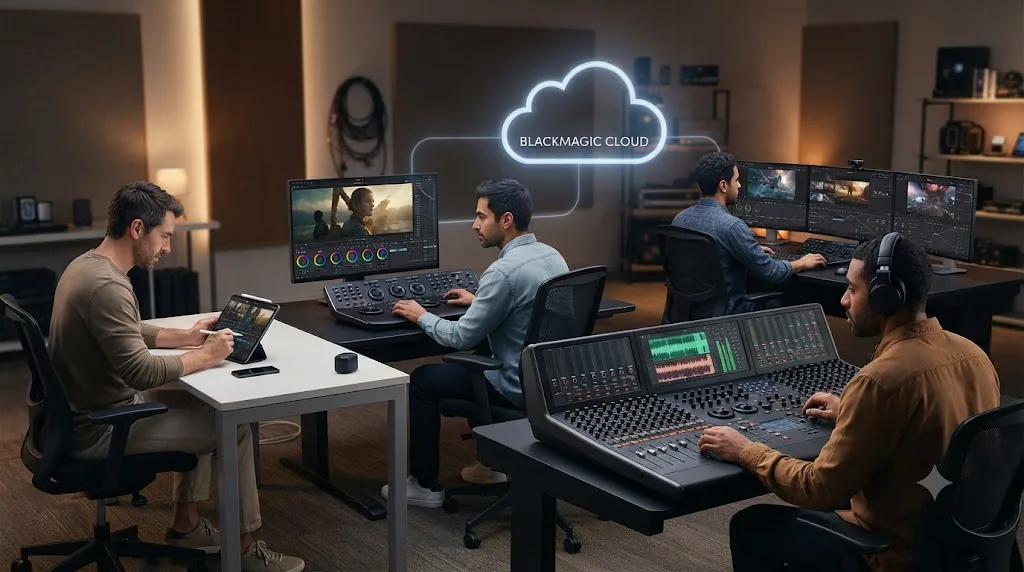
Your team includes a colorist on desktop and an assistant editor who travels constantly. This is where the iPad app earns its collaboration features specifically. The assistant builds and locks selects from anywhere, the colorist picks up the same live project through Blackmagic Cloud without waiting for a file transfer.
The verdict
DaVinci Resolve works on iPad, fully and for free, with a paid Studio unlock for the extras. It isn't a scaled-down demo and it isn't a full desktop replacement either. It's a genuine second workstation for cutting and grading, missing exactly two pages, Fusion and Fairlight, and a short list of timeline conveniences that most editors will notice eventually but rarely miss on day one.
If your work is mostly assembly, trims, and color, and you want to do it away from a desk, the iPad app earns the download without any asterisk. If Fusion compositing or a real Fairlight mix is core to your pipeline, keep the iPad as your travel and review tool and finish those specific jobs on desktop, where the software has always lived at full strength. Either way, the two versions talk to each other well enough that "iPad or desktop" stopped being an either-or question the day Blackmagic shipped a project format both of them could open.
Frequently asked questions
- Does DaVinci Resolve work on iPad?
- Yes. DaVinci Resolve for iPad has been available on the App Store since December 2022 and got a major update alongside DaVinci Resolve 21 in June 2026. It's a separate app from the desktop version, free to download, with a $94.99 in-app purchase to unlock Studio features. It handles the Cut and Color pages well but leaves out Fusion, Fairlight, and third-party plugins entirely.
- Is DaVinci Resolve free on iPad?
- The base app is free with no watermark and no time limit, same philosophy as the free desktop edition. The Studio in-app purchase costs $94.99 as a one-time payment and unlocks the Neural Engine AI tools (Magic Mask, Speed Warp, Voice Isolation), full-resolution photo exports, and a handful of effects that are otherwise capped or missing.
- What iPad do I need to run DaVinci Resolve?
- Blackmagic Design's own minimum listed on its download page is iPadOS 16.0 or later on an iPad with an A12 Bionic chip or newer, which covers the 2018 iPad Pro and newer, the 2019 iPad Air and newer, and the 2019 iPad mini and newer. Blackmagic recommends an M1 iPad Pro or newer with at least 8GB of RAM for real work, and the current App Store build requires iPadOS 18.0, so check your iPad's software version before assuming it qualifies.
- Does DaVinci Resolve for iPad have Fusion or Fairlight?
- No. As of the 21.0 iPad release in June 2026, the app ships with the Cut and Color pages by default and no dedicated Fusion or Fairlight page. Fusion effects show up as presets you can apply, but you can't build your own node-based composites, and Fairlight's mixing console, ADR tools, and effects automation aren't there at all. Third-party plugins aren't supported on iPad either.
- Can I move a DaVinci Resolve project between iPad and desktop?
- Yes. DaVinci Resolve for iPad creates and opens standard project files compatible with DaVinci Resolve 18 and later on desktop, and Blackmagic Cloud can sync the project data automatically between the two. Blackmagic Cloud only syncs project data, not your media files, so you still need your footage accessible on whichever device you're working from, usually via an external SSD.
- Does TryUncle work on the iPad version of DaVinci Resolve?
- No. TryUncle is a macOS app that watches DaVinci Resolve running on a Mac, not the iPad app. Since DaVinci Resolve for iPad doesn't support third-party plugins or screen-reading accessibility tools the way macOS does, no AI copilot, including TryUncle, runs alongside it on iPad right now.
- Is DaVinci Resolve for iPad worth it in 2026?
- For rough cuts, color passes, and reviewing footage away from a desk, reviewers who've tested it call it far more capable than a tablet video app has any right to be, close to desktop feature parity on the pages it does include. If your workflow depends on Fusion compositing, a real Fairlight mix, or third-party plugins, it isn't a replacement for your desktop setup, and nobody claims it is.
Sources
- DaVinci Resolve for iPad (App Store, Apple)
- DaVinci Resolve Download (Blackmagic Design, system requirements)
- DaVinci Resolve for iPad 21.0: New Photo Page, AI Tools & More (Slatepad)
- Blackmagic Design Announces DaVinci Resolve for iPad (HPA - Hollywood Professional Association)
- DaVinci Resolve for iPad - Complete Review & Testing, by Leon Barnard (Film Editing Pro)
- DaVinci Resolve for iPad review: no mere gimmick for video editors (Creative Bloq)
- How To Run DaVinci Resolve On iPad (Vagon)
- DaVinci Resolve - Collaboration (Blackmagic Design)
- Final Cut Pro (Apple product page)
- DaVinci Resolve - Studio (Blackmagic Design)
- TryUncle
Learn by doing, not watching
Stop translating tutorials to your timeline.
TryUncle stays beside Resolve on Mac and Windows. When you ask, Uncle sees your screen and points at the exact control you need. No hunting through tabs, timestamps, or mismatched tutorials.
Meet TryUncleKeep reading
 ComparisonsJul 15, 202628 min read
DaVinci Resolve vs Final Cut Pro in 2026: The Full Comparison
Pricing, ACES color, Fairlight vs Final Cut audio, Fusion vs Motion, collaboration, and 2026 Apple Silicon benchmarks, compared with real sources and one clear verdict.
 ComparisonsJul 11, 202626 min read
The Best AI Tools to Learn DaVinci Resolve in 2026
ChatGPT, Claude, Blackmagic's free training, Recut, and Resolve's Neural Engine compared for learning DaVinci Resolve, and the gap none of them close.
 GuidesJul 12, 202637 min read
What Is TryUncle? The Assistant Built Into DaVinci Resolve
TryUncle is a macOS assistant that watches your DaVinci Resolve screen and points at the exact control live, so you learn by doing, not watching.