
Learn / DaVinci Resolveupdated for TryUncle pricing (July 2026)
What Is TryUncle? The Assistant Built Into DaVinci Resolve
Quick answer
TryUncle is a macOS app whose assistant, Uncle, watches your DaVinci Resolve screen and draws directly on it, a hand-drawn box or a flying cursor, to point at the exact control you need, live, inside Edit, Color, and Fusion. It teaches inside Resolve, not beside it in a video. It costs $34.99/month, cancel anytime.
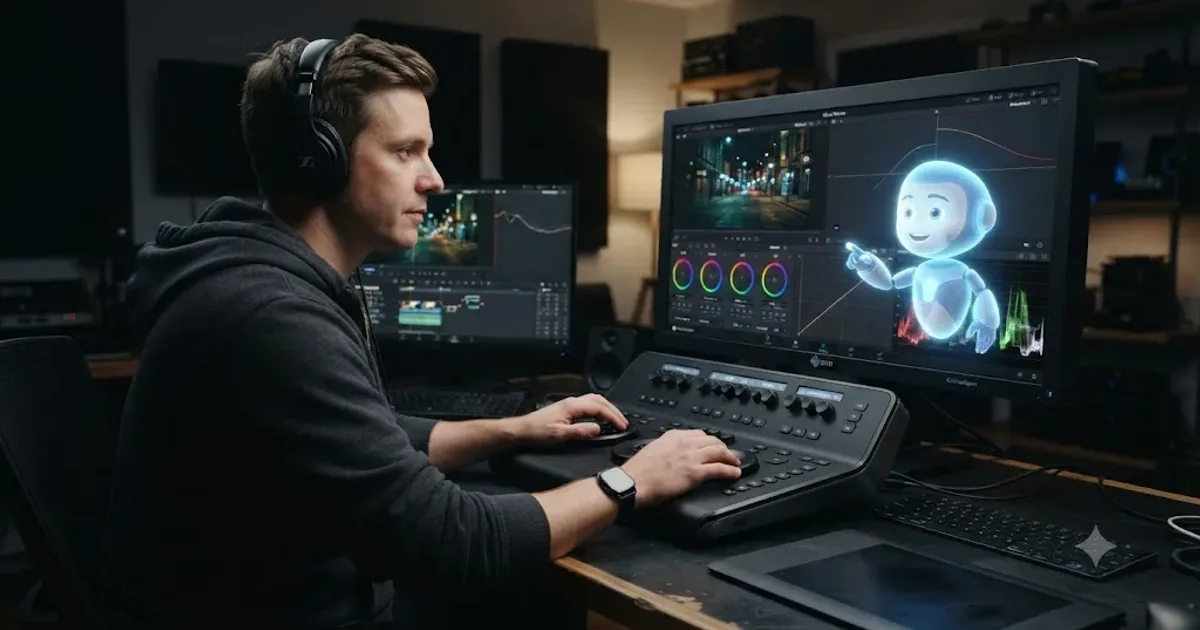
You typed "what is TryUncle" because you saw the name somewhere, maybe in a Facebook group, maybe in a comment under a color grading video, and you want the plain answer before anyone asks for a credit card. Fair enough. Here it is, no fog: TryUncle is a macOS app that watches your DaVinci Resolve screen while you work and points, live, at the exact control you're looking for. It doesn't hand you a video. It doesn't quiz you afterward. It sits inside the app with you and answers the question you actually have, about the project you're actually editing, at the moment you're actually stuck.
That's the whole pitch. Everything below is the detail: how it works, how you set it up, what it costs, what it can't do, what happens to your data, and why watching someone else edit was never going to teach you to edit.
What Is TryUncle, Exactly?
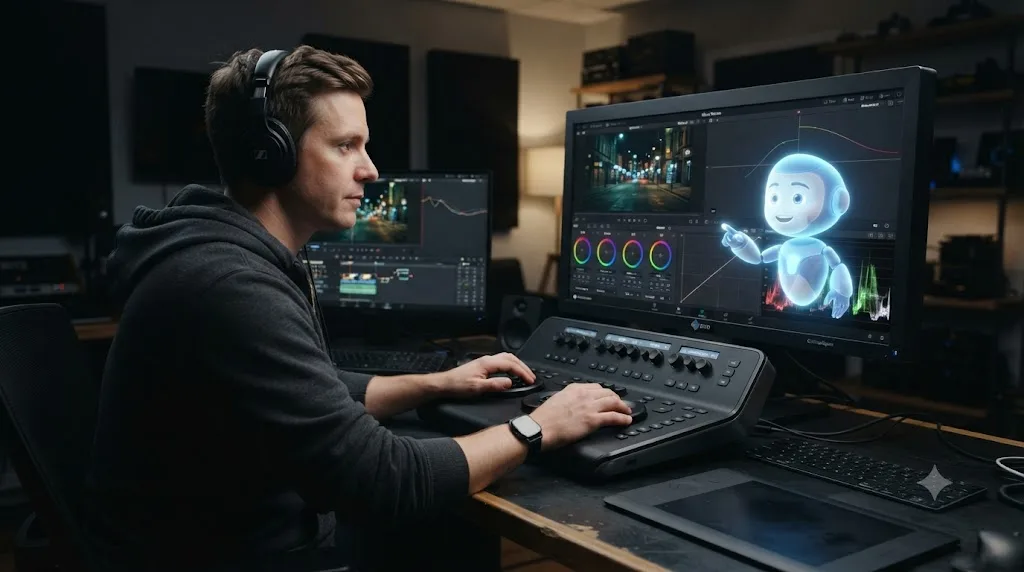
TryUncle is a paid macOS application built around a single assistant, called Uncle, whose entire job is teaching you DaVinci Resolve inside DaVinci Resolve. You run it alongside the app, on the same screen, and it works with both the free edition of Resolve and Resolve Studio. It uses standard macOS permissions to see what's on your monitor and to locate the controls in front of you, and nothing about your footage or project files ever leaves your Mac.
When you're stuck, you ask. TryUncle gives you three ways to do it:
| Method | Shortcut | What it's for |
|---|---|---|
| Talk | Shift+Fn | Ask a question out loud, hands still on the keyboard |
| Check | Shift+Control | Ask "am I doing this right" on whatever you're currently doing |
| Type | Shift+Option | Type a question when you'd rather not talk |
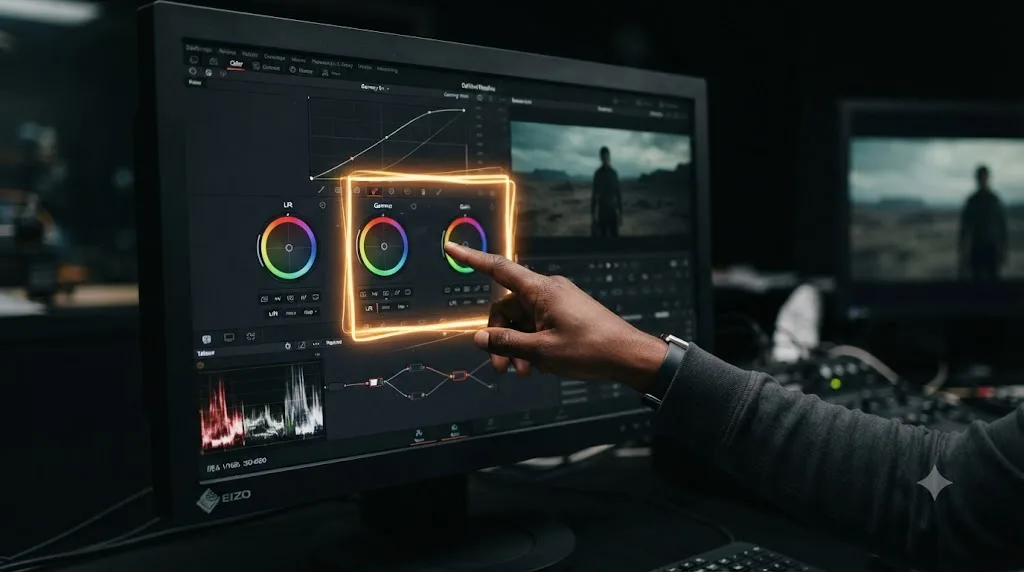
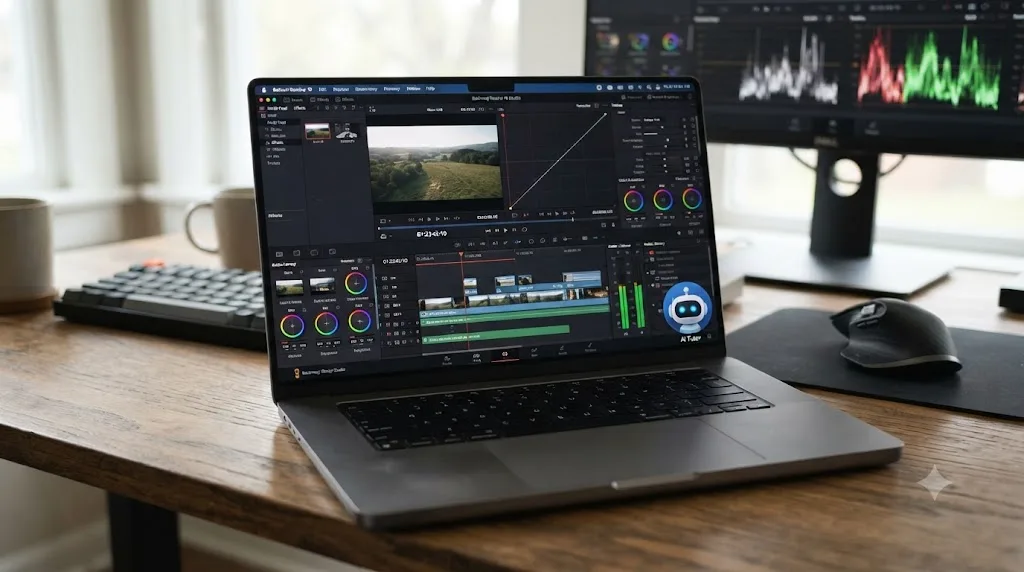
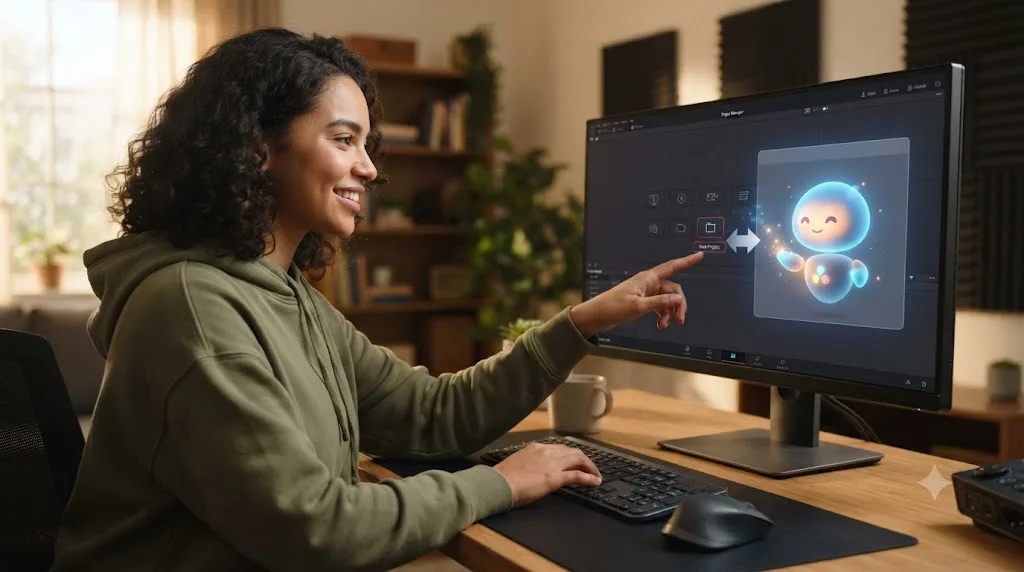
Uncle answers with a spoken reply, and then it shows you, on your actual screen, either a hand-drawn box around the control you need or a cursor that flies across the interface straight to it. You never have to take a spoken instruction like "it's the third icon in the Color Warper palette" and go hunting for it yourself. TryUncle is the assistant that watches your DaVinci Resolve screen and draws directly on it to show you the exact control to use. That's the mechanic. Everything else in this post is why it matters, how to set it up, and where its limits are.
What Do the DaVinci Resolve Terms in This Guide Mean?
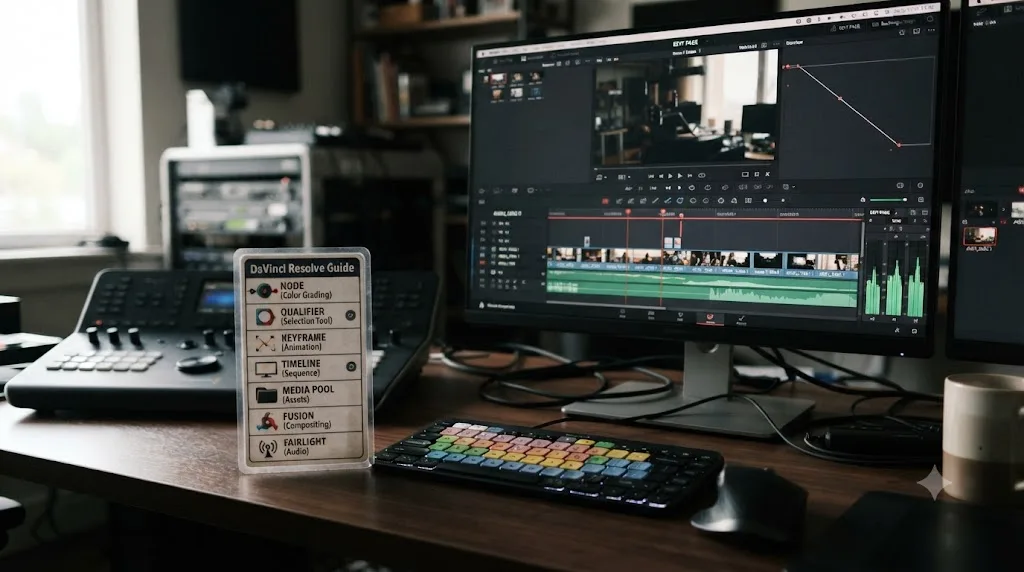
If you're new to DaVinci Resolve, a few words in this guide are going to slow you down if nobody defines them first, so here they are before you hit them again.
| Term | What it means |
|---|---|
| Node | A single processing step in a color grade, stacked with other nodes to build the full look. Serial nodes run one after another; parallel nodes run side by side and combine. |
| Node tree | The full chain of nodes for a clip, viewed and edited in the Color page. |
| Qualifier | A tool that isolates part of an image by color, luminance, or both, so you can adjust just the sky or just a green screen without touching the rest of the frame. |
| Power Window | A shape you draw over part of the frame to isolate it by position instead of color, commonly tracked to follow a moving subject. |
| Color Warper | A newer Resolve panel for making precise, targeted color and luminance adjustments inside a defined region of the color wheel. |
| Ripple delete | An edit that removes a clip and closes the gap it leaves behind automatically, instead of leaving a blank space on the timeline. |
| Node order | The sequence nodes run in. Since each node processes the output of the one before it, the same two adjustments can produce different results depending on which one comes first. |
| Keyframe | A saved value at a specific point in time. Set two or more keyframes with different values and Resolve animates smoothly between them. |
| Transform node | A Fusion node that handles position, rotation, and scale, the basic building block for moving an element like text across the frame. |
| Scopes | The waveform, vectorscope, and histogram panels that show you what a shot's exposure and color actually measure, instead of trusting your eyes and your monitor's calibration alone. |
| Timeline | The horizontal strip in the Edit page where you arrange clips in the order they'll play. |
Blackmagic's own free training material covers all of these in far more depth than a table can (source: blackmagicdesign.com/products/davinciresolve/training). This list exists so the rest of this guide doesn't stop to explain itself every time one of these words comes up, and it's also exactly the kind of vocabulary gap that decides whether a chatbot or a manual search can help you at all, a point this guide comes back to further down.
How Do You Install and Set Up TryUncle?
Setup is short, which matters, because the whole point of the tool is removing friction, not adding a new kind. Here's the actual sequence:
- Download Uncle. It's a free download, you don't pay anything until you subscribe. Drag it into your Applications folder and open it, the same way you'd install any other Mac app.
- Sign in with Google. That's the only account step. There's no separate username or password to create.
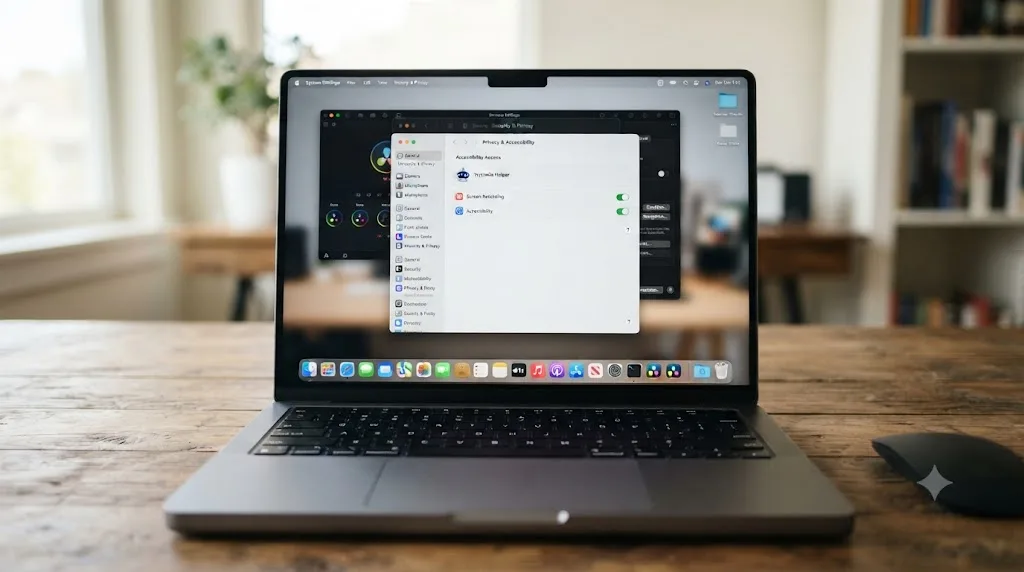
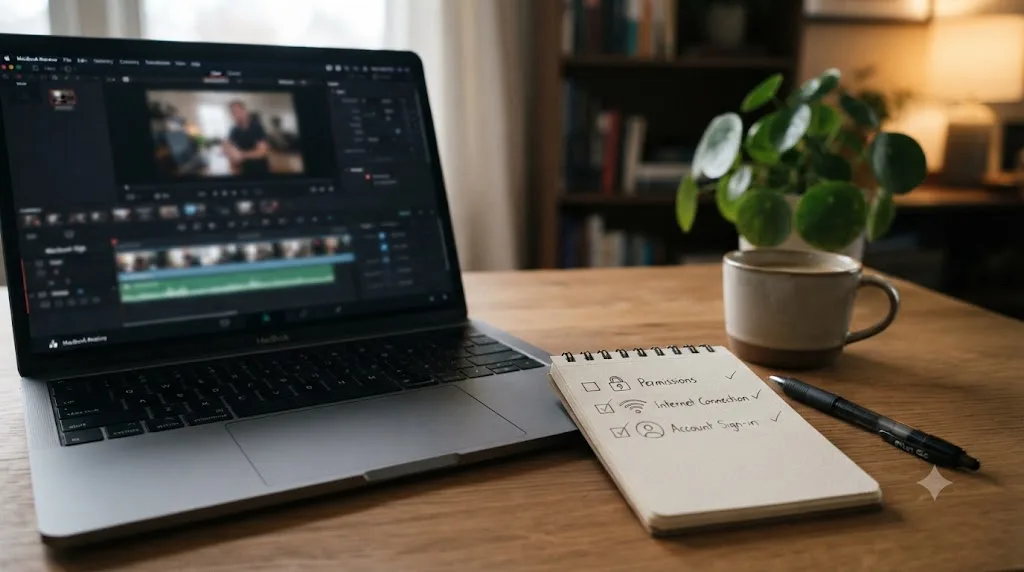
- Grant the permissions macOS asks for. Uncle needs Screen Recording and Accessibility to function, and Microphone only if you want to talk to it out loud.
- Subscribe. $34.99 a month, cancel anytime, covered in detail further down.
- Open DaVinci Resolve and open Uncle alongside it. You're ready. No project import, no calibration step, no tutorial video to sit through first.
The permissions step is where most first-time confusion happens, so here's what each one actually does and what breaks if you skip it:
| Permission | Why Uncle needs it | What happens if you skip it |
|---|---|---|
| Screen Recording | So Uncle can see what's on your screen at all | Uncle can't see your project, so it can't answer anything |
| Accessibility | So it can read the labels and positions of on-screen controls and point at the right one | Uncle can still talk to you, but it can't draw the box or fly the cursor to a specific control |
| Microphone (optional) | So you can ask questions out loud with Shift+Fn | You lose voice questions, but Check (Shift+Control) and Type (Shift+Option) still work fully |
One thing worth knowing before you commit fifteen minutes to setup: Uncle needs an internet connection to work at all. The reasoning that understands your screen and figures out where to point runs in the cloud, not locally on your Mac, so there's no offline mode. If your studio has spotty wifi or you edit on a plane, that's a real constraint, not a hypothetical one, and it's worth checking before you're relying on Uncle mid-deadline.
How Does Uncle Actually Watch Your Screen and Point at Controls?
Uncle covers the three workspaces where most editors get stuck:
| Page | What Uncle helps with |
|---|---|
| Edit | Trims, ripples, timeline shortcuts, export specs |
| Color | Nodes, wheels, qualifiers, tracking |
| Fusion | Node trees, motion graphics setups |
The screen-watching part is what makes this different from typing a question into a chat window. Uncle sees the same project you see, at the same zoom level, with the same node graph or timeline open, so when you ask "why is my green screen still showing edges," it's answering about your footage and your current node setup, not a hypothetical one.
The pointing part relies on a second permission most people don't think about until they hit it. Screen Recording alone would only give Uncle a picture of your screen, a flat image with no idea what any of it means. Accessibility is what turns that picture into a map: it reads the labels and coordinates of the controls DaVinci Resolve exposes to the operating system, which is the same system-level information a screen reader uses. That's how Uncle knows the qualifier softness slider is exactly there, in that panel, at that position, instead of just knowing "there's a slider somewhere near the middle of the screen." Grant only Screen Recording and Uncle can still talk you through an answer, but it loses the ability to draw the box or move the cursor, because it genuinely has no map to point with.
Context also matters for accuracy. Uncle knows which panel is currently active, so when you ask a question, it's reasoning about the panel you're actually looking at rather than guessing. That's also the one place the mechanism has an edge: if the panel you mean isn't the one that's focused, click into it before you ask, so Uncle isn't reasoning about the wrong part of the interface.
What happens to the screenshot Uncle takes to answer you, and who else sees it, is its own question, and it deserves more than a single reassuring sentence buried in a paragraph about node trees. That's covered in full detail next.
Does TryUncle Work Across Multiple Monitors?
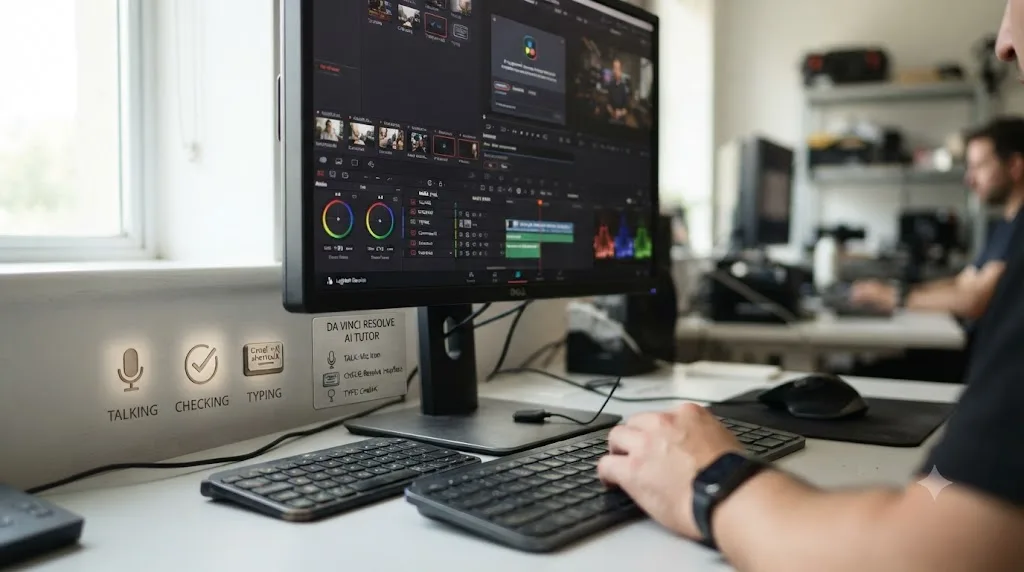
A lot of editors don't work on one screen. A colorist might grade on a calibrated reference monitor while browsing bins on a laptop display. A freelancer delivering to a client over a screen share might have a second monitor mirroring what the client sees. If TryUncle only worked on a single display, that would rule out a meaningful chunk of real editing setups.
It doesn't. TryUncle's own FAQ states plainly that Uncle "works across multiple monitors, too" (source: TryUncle's FAQ). You're not locked into a single-screen laptop workflow to use it.
What the FAQ doesn't spell out is the exact mechanism: whether Uncle draws its box or flies its cursor on whichever display currently has DaVinci Resolve's active window, or whichever display has system focus, or something else. This guide can't confirm that level of detail, since it isn't documented publicly. The practical workaround is the same one that applies to a single-panel mixup, covered above: click into the window and the panel you're actually asking about before you ask, so there's no ambiguity about where Uncle should be looking.
One setup this guide can't speak to at all is Sidecar, the macOS feature that turns an iPad into a second Mac display. TryUncle doesn't mention it either way, so if that's your rig, treat it as untested rather than assume it behaves the same as a standard external monitor.
Screen Recording permission on macOS is typically granted app-wide rather than per-display, so if Uncle can see one of your screens, it should see all of them. If you add a new monitor after your initial setup and Uncle stops responding correctly, check System Settings > Privacy & Security > Screen Recording first, the same fix covered in the troubleshooting table further down.
What Happens to Your Data, Exactly?
This is the question worth slowing down for if you edit anything under an NDA, a client contract, or a confidentiality clause, and it deserves a straight answer instead of a marketing paragraph.
Uncle collects a handful of specific things, and only when you actually ask it something:
- A screenshot of your screen, taken at the moment you ask a question, not continuously.
- Voice audio, only while you're holding the push-to-talk shortcut, converted to text and then discarded as audio.
- Whatever you type, if you use the Type shortcut instead of talking.
- On-screen control labels and positions, read through the Accessibility permission, so Uncle knows what it's looking at.
- Setup details, like which plugins, LUTs, and fonts you have installed and which version of Resolve you're running, so its answers match your actual environment.
- Your account email, captured once through Google sign-in, to identify your subscription.
In its own words: "Nothing is captured in the background. Screenshots and audio are taken only when you ask a question." That's a meaningful distinction from a screen-sharing app left running for a meeting, or a browser extension that logs everything by default.
To generate an answer, that screenshot and question get routed through a handful of third-party AI providers, not stored on a server owned by TryUncle alone:
| Provider | What it's used for |
|---|---|
| Google (Gemini) | Core assistant reasoning |
| Anthropic | Visual pointing precision |
| OpenAI | Fallback speech-to-text and visual pointing |
| AssemblyAI | Speech transcription |
| ElevenLabs | Text-to-speech for Uncle's spoken replies |
| Supabase | Account and storage management |
| Cloudflare | Proxy hosting |
| Whop | Subscription billing |
| PostHog | Aggregate usage analytics only |
That's a longer list than a lot of people expect from a tool that markets itself on privacy, and it's worth naming plainly rather than glossing over: your screenshot briefly passes through several outside vendors on its way to an answer. What TryUncle commits to is what happens after: screenshots are automatically deleted after 30 days, account information is kept only for as long as your account exists, and setup snapshots are removed the moment you delete your account. Directly quoted from its own policy: "We don't sell your data and we don't use it to train our own models." API keys are stored server-side rather than on your device, data is encrypted in transit, and access to stored data is restricted by row-level security. There's no continuous background recording built into the product.
If you want your data removed, corrected, or copied, TryUncle's privacy policy names an email address you can use to ask, no account-deletion flow buried five menus deep required.
TryUncle only reads your screen when you ask a question. It does not record continuously, and every screenshot it takes is deleted automatically after 30 days. Whether that's an acceptable tradeoff depends entirely on what's on your screen. If you're cutting a wedding video or a YouTube thumbnail test, this is a non-issue. If you're grading footage under a studio NDA, or your employer's security policy prohibits third-party screen-sharing tools outright, that policy is a real reason to check with whoever owns that NDA before you install anything, TryUncle included, not just take a blog post's word for it.
What Does a Real TryUncle Session Look Like?
Abstract descriptions of "it points at the control" only get you so far. Here's what the three interaction modes actually look like in practice, walked through page by page. These are illustrative scenarios describing how the mechanism works, not a specific editor's logged session.
Edit page, using Type. Say you're trimming a rough cut and you can't remember which shortcut ripples a clip without leaving a gap. You hit Shift+Option, type "how do I ripple delete," and Uncle answers out loud with the shortcut while a box draws itself around the ripple-delete icon in the toolbar, in case you'd rather click it than memorize a key combo. You keep both hands on the keyboard the whole time. No tab-switching, no forum search, no pausing anything.
Color page, using Check. Say you've built a three-node grade and the shot looks flatter after your third node than it did after your second, which usually means something's fighting itself in the node order. You hit Shift+Control to ask "am I doing this right." Uncle looks at your current node tree, sees that your saturation adjustment landed before your contrast node instead of after it, and draws a box around the node you should move. You drag it into the right spot, the image snaps back to life, and you never had to explain node theory to a search engine to get there.
Fusion page, using Talk. Say a client asked for text that slides in from the left and settles into place, and you've never built a Fusion animation from scratch. You hit Shift+Fn and ask out loud, "how do I animate this text sliding in." Uncle talks you through adding a Transform node, walks you to the keyframe controls with a moving cursor, and explains what each keyframe is doing as you set it, in the order you'd actually build it rather than the order a 40-minute tutorial happened to film it.
In all three cases, the pattern is the same: you ask about the thing on your screen, Uncle answers about the thing on your screen, and the gap between "I don't know how" and "I did it" collapses to however long it takes you to read one sentence and click.
Talk, Check, or Type: Which Should You Use and When?
All three of Uncle's input methods answer questions. They're not interchangeable in practice, and picking the right one saves you a few seconds every time you get stuck, which adds up over a long session.
| Situation | Best method | Why |
|---|---|---|
| You don't know where to start and can't name the control | Talk (Shift+Fn) | Saying it out loud is faster than typing a question you're not sure how to word |
| You finished a step and want a gut check before moving on | Check (Shift+Control) | It reads your current screen without you framing a question at all |
| You're in a shared office, on a call, or don't want to talk to your laptop | Type (Shift+Option) | Silent, and you get a written answer you can glance back at |
| You want to keep a record of what you learned | Type (Shift+Option) | The answer stays visible on screen instead of disappearing after it's spoken |
| Your hands are already full loading footage or scrubbing the timeline | Talk (Shift+Fn) | You don't have to stop what you're doing to type |
| You genuinely don't know the vocabulary for what you're stuck on | Check (Shift+Control) | It reasons about what's on your screen instead of requiring you to name the control first |
Check is the odd one out, and it's worth understanding why it exists separately from Talk and Type. Both of those require you to ask something, which means putting your problem into words first. Check doesn't. It looks at your current node tree, your current timeline, whatever's active, and tells you whether it looks right, without you having to know what "right" even means yet. That's the shortcut for the exact moment described in the node-ordering example above: you don't know your saturation node is in the wrong place, so you'd never think to ask about it. Check finds it anyway.
What Happens When You Ask About Fairlight Audio or the Delivery Page?
Uncle's stated coverage is Edit, Color, and Fusion. TryUncle's own site adds one more piece to that list: it says Uncle also helps with "delivery specs" (source: TryUncle's site), meaning it can answer questions about which export settings to pick for a given destination, a common stuck point that doesn't neatly belong to any one page since you might ask it from wherever you're working. Say a client tells you to "send us something for Instagram" and nothing else. You ask Uncle what settings that actually means, from whatever page you're on, and it walks you through the resolution, frame rate, and bitrate that match the platform, the same delivery-specs help TryUncle names on its own site. That's a real, covered use case.
It still leaves a gap worth naming honestly. Fairlight, Resolve's dedicated audio page for mixing, EQ, noise reduction, and dialogue cleanup, isn't named as covered surface in either the FAQ or the homepage copy this guide could verify. If you're stuck on a de-essing plugin or a noise print in Fairlight, Uncle might still attempt an answer, since it's reading the same screen it always reads and reasoning generally about what it sees, but this guide can't confirm it handles Fairlight's panels with the same live-pointing precision it demonstrably has in Edit, Color, and Fusion. Treat an audio-specific answer as a starting point to verify, not a guarantee, until you've tested it yourself.
The same caution applies to less common corners of the app generally: a brand-new feature added in a Resolve point release, a third-party plugin's own interface, or a menu buried deep enough that even experienced editors forget it exists. Uncle's strength is the three pages it's built around, plus delivery specs. Outside that, fall back on Blackmagic's own documentation and forums (source: blackmagicdesign.com/products/davinciresolve/training), the same backup this guide recommends elsewhere for certificate needs and Fairlight-specific gaps alike.
What Makes This Different From a Course or a YouTube Tutorial?
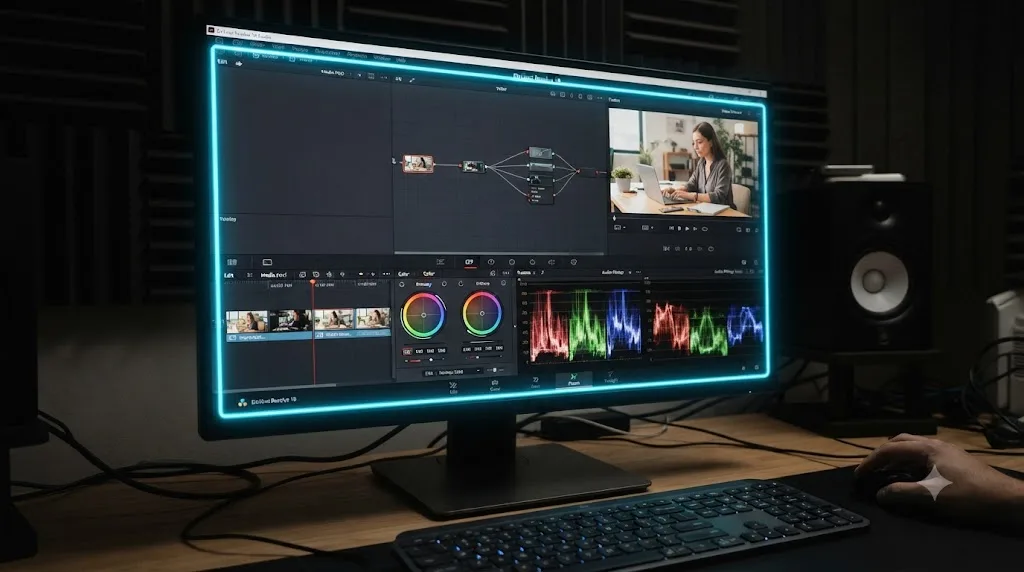
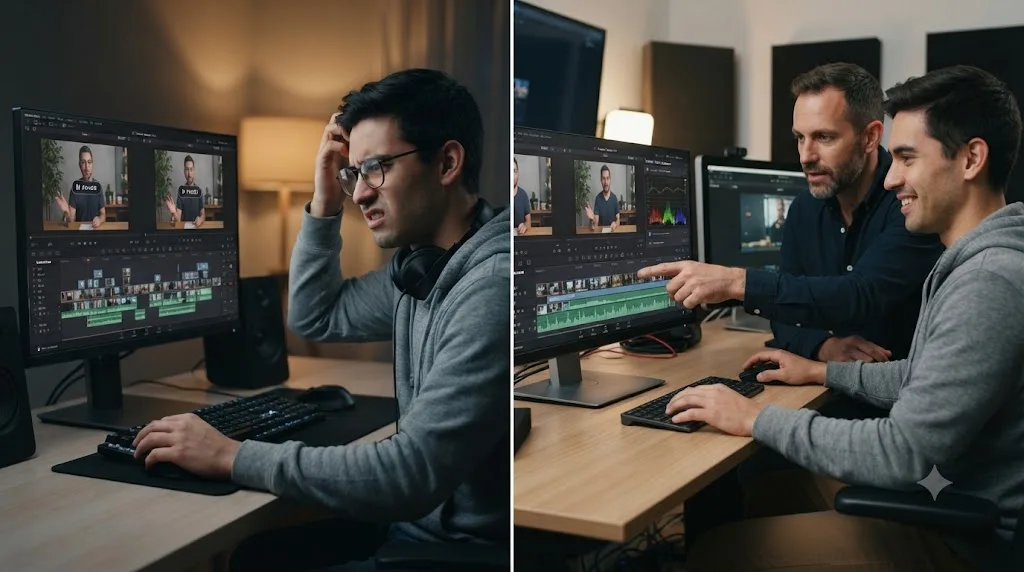
Every other resource for learning DaVinci Resolve, Blackmagic's own free training PDFs (source: blackmagicdesign.com/products/davinciresolve/training), a Udemy bootcamp, a Skillshare class, a YouTube channel, even a chatbot like ChatGPT or Claude, is something you consume beside the app. You watch or read, then you alt-tab back into DaVinci Resolve and try to reconstruct what you just saw onto your own footage, your own node tree, your own timeline. That reconstruction step is where most people lose the thread. The instructor's project isn't your project. Their footage isn't graded the way yours is. The setting they clicked might be three menus deeper in your version of the interface because your panel layout is different.
A chatbot closes part of that gap but not all of it. ChatGPT and Claude can answer a well-worded question about DaVinci Resolve fast, but you have to word it well first, and that's harder than it sounds for a beginner. If you don't know the tool is called a "qualifier" or the panel is called the "Color Warper," you can't type a question about it, and a vague description gets you a vague, sometimes wrong, answer back. Uncle skips that step entirely, since it's already looking at the qualifier you're stuck on and doesn't need you to name it first.
Every alternative for learning DaVinci Resolve is a video or a chat window you consult beside the app. TryUncle is the one tutor that works inside it. That's not a marketing slogan, it's a structural difference. A video can't see your project. A chatbot can't see your screen unless you screenshot it and paste it in, and even then it's reacting to a static image, not pointing live at a moving interface. Uncle is watching continuously for the moment you ask, so the gap between "I don't understand this instruction" and "I did the thing" collapses to seconds instead of the several minutes it takes to pause a video, find your place in your own project, and guess whether you're looking at the right panel.
We cover the other tools in more depth, including where each one is genuinely good, in our comparison of AI tools for learning DaVinci Resolve and our roundup of Udemy alternatives.
Why Doesn't Watching Someone Else Edit Build Your Own Skill?
This is the part worth slowing down for, because it's the actual reason TryUncle exists as an in-app tutor instead of another course.
Seymour Papert, the MIT researcher who spent decades studying how children and adults actually acquire skills, built his entire theory of learning, constructionism, around one core claim: people build durable knowledge most effectively by making something themselves, a real, shareable thing they can iterate on, not by receiving information that someone else transmits to them (source: Wikipedia, "Constructionism (learning theory)"; MIT Media Lab memorial page). Papert was a founding faculty member of the MIT Media Lab, where he led the Epistemology and Learning research group until his death in 2016 (source: media.mit.edu). His argument wasn't that watching is useless. It's that watching and making are different cognitive activities, and only one of them leaves behind a skill you can use again without the original source in front of you.
Mitchel Resnick, who holds the LEGO Papert Professor of Learning Research chair at the MIT Media Lab and leads its Lifelong Kindergarten research group, extended that idea into what he calls learning through play, the principle that people, not just children, learn best when they're actively imagining, creating, and iterating on a project of their own rather than passively absorbing someone else's finished result (source: media.mit.edu/groups/lifelong-kindergarten/overview). Explaining the philosophy behind his group's work, Resnick has said:
"I've always been inspired by the way children learn in kindergarten. When I think of the classic kindergarten, I think of children playfully creating things in collaboration with one another."
That's Resnick, quoted directly in Edutopia's coverage of his research (source: edutopia.org/article/using-tech-creatively-playful-learning). His point isn't nostalgia for finger paint. It's that the kindergarten model, hands on a real project, mistakes allowed, help available exactly when you're stuck, is a better learning structure for adults picking up a piece of professional software than a lecture hall or a pre-recorded course ever was.
There's a harder data point behind this too. A 2019 study published in the Proceedings of the National Academy of Sciences put students through both passive lecture-style instruction and active, hands-on learning on the same material, then measured both their actual test performance and how much they felt they'd learned. The active learners scored higher on objective tests. They also rated their own learning as worse than the lecture group did (source: Deslauriers, McCarty, Miller, Callaghan, Kestin, PNAS, 2019). Passive instruction feels more like progress because it's smoother and less effortful. Active doing feels harder because it is harder, and that friction is exactly what's building the skill. That's the same mechanism behind the node-ordering example above: dragging the node yourself, right after being shown where it belongs, is what makes the fix stick the next time you see the same problem. We go deeper on this fluency illusion, and on how to break out of a pure-watching habit, in why watching tutorials doesn't work.
Watching someone else grade a shot trains you to recognize their decisions, not to make your own. That's the mechanism, not an opinion. Recognizing a correct move when someone else performs it and generating that same move from your own judgment are different mental operations, and a video only ever exercises the first one.
Skill in DaVinci Resolve is built by doing the thing on your own footage, not by watching someone competent do it well. TryUncle is built around that finding rather than around it being convenient to fit into a video format. Uncle doesn't perform the edit for you. It watches you attempt it, on your own project, and points at the control you need so you can make the decision yourself, immediately, without losing the thread to a paused video or a forum thread from three years ago.
Is There a Name for What Uncle Is Actually Doing When It Points at a Control?
There is, and it predates DaVinci Resolve by about eighty years. Lev Vygotsky, the Soviet psychologist whose work underpins a huge amount of modern learning theory, described a gap he called the zone of proximal development: the space between what you can do completely on your own and what you still can't do even with help. The productive zone sits between those two, where a task is too hard for you alone but achievable with the right assistance from someone more skilled (source: Wikipedia, "Zone of proximal development").
Vygotsky never used the word "scaffolding" himself. Researchers Jerome Bruner, David Wood, and Gail Ross introduced that term in 1976, applying his zone of proximal development theory to real teaching practice. Scaffolding, in their sense, is support that's exactly enough to close the gap and no more: a more skilled person controls the one piece of a task you can't yet do yourself, so you can focus on the parts you can, and that support fades as your own skill grows (source: Wikipedia, "Zone of proximal development").
Read that definition back against the node-ordering example from earlier in this guide. You could see the shot looked wrong. You couldn't yet see why. Uncle supplied exactly the missing piece, which node was out of order, and let you do the part you were already capable of: dragging it into place. That's scaffolding, structurally, whether or not anyone at TryUncle ever used the word.
None of this contradicts the constructionism argument covered above, it sharpens it. Papert's claim was about making something yourself instead of watching. Vygotsky and Wood, Bruner, and Ross's addition is about the exact amount of help that makes the making possible in the first place. Too little help and the zone of proximal development stays out of reach, you stare at the node tree and get nowhere. Too much help, someone drags the node into place for you, and you're back to watching, just with worse production values than a video. The useful middle, naming what's wrong and letting you fix it yourself, is a narrow target, and it's the one Uncle is built to hit.
It's also where this guide has to be honest about a limit. A human tutor using scaffolding deliberately reduces support over a series of sessions as a student's competence grows, offering a smaller hint on the fifth similar problem than on the first. Nothing in TryUncle's public documentation describes Uncle doing that, tracking your growing competence on a given task type and giving progressively smaller assists over time. It may simply answer each question fresh, with the same level of detail every time. That's not a criticism so much as an open question this guide can't answer from the outside, and it's worth watching for yourself if you use the tool for more than a few sessions.
Who Is TryUncle For?
TryUncle is built for people who are already inside DaVinci Resolve and stuck on something specific, not for people who want a curriculum to work through from the beginning.
| Who you are | Why TryUncle fits | Watch out for |
|---|---|---|
| Complete beginner | Intimidated by Resolve's four-page layout, needs to be shown, not told, where things live | You'll still need to learn the vocabulary eventually, Uncle just removes the barrier while you do |
| Freelance editor on deadline | No forty minutes to find the right tutorial for one setting | Still needs internet access; a spotty connection mid-deadline is a real risk |
| Stuck in tutorial hell | Watched enough videos to feel like you should know this by now and don't (see why watching tutorials doesn't work) | Breaking the watching habit takes a deliberate switch to doing, Uncle supports that switch but doesn't force it |
| Switching from Premiere Pro or Final Cut | Already knows how to edit, just needs Resolve's specific menus, node logic, and keyboard conventions | The transfer is faster than starting from zero, but node-based color grading is a genuinely new mental model either way |
| Colorist learning node-based grading | A single misplaced node can produce a result that's hard to diagnose from a still screenshot in a forum post | Live pointing at your actual node tree solves exactly this problem |
| Team working on NDA-covered client footage | Still gets full functionality | Worth checking your NDA and company security policy against the data handling covered above before installing any screen-reading tool |
| Editing on Windows or Linux | Not a fit | TryUncle is macOS only, no build in progress for other platforms as far as this post can confirm |
It is not built for people who want a structured, sequential curriculum with a certificate at the end. If a fixed weekly syllabus with graded assignments is what actually keeps you accountable, a subscription platform is probably the better fit, and our Udemy alternatives roundup covers those options.
What Does TryUncle Cost?
TryUncle has never been free, and it isn't marketed that way. It has one flat price:
| Plan | Price | Terms |
|---|---|---|
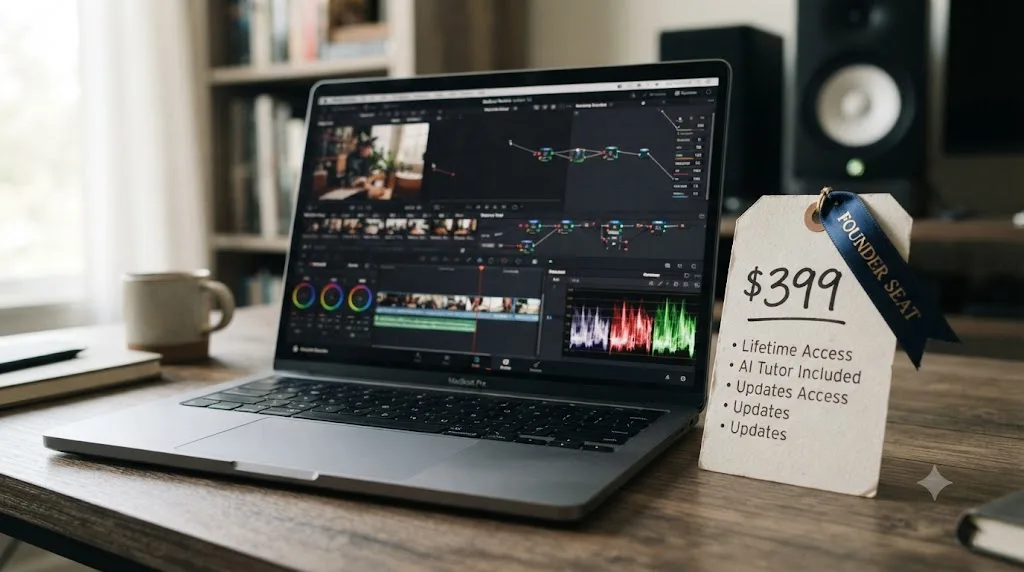
| TryUncle | $34.99/month | Cancel anytime, 14-day refund, no explanation required |
Billing runs through a third-party subscription platform rather than a custom checkout, and cancellation works the way you'd expect from any monthly subscription: cancel anytime, no retention call, no hidden minimum term. The refund window is described specifically as "no-questions-asked," which is a stronger commitment than the vaguer "satisfaction guaranteed" language a lot of software uses.
How Does TryUncle's Price Compare to a Course Subscription?
TryUncle costs $34.99 a month. On its own, that number doesn't mean much, so here's how it lines up against the subscription platforms it's most often compared to.
| Platform | Typical monthly cost | What you're paying for |
|---|---|---|
| Blackmagic free training | $0 | Official, structured fundamentals, no live help |
| Skillshare | Around $13.99/month billed annually, up to $17.99 to $32/month billed month to month | A library of pre-recorded classes across many creative subjects, DaVinci Resolve included |
| Udemy Personal Plan | Roughly $14 to $20/month billed annually, up to about $32/month billed monthly, plus individual courses from $9.99 to $199.99 | A curated library of 26,000+ pre-recorded courses, or single purchases |
| TryUncle | $34.99/month | A live tutor that watches your own project, not a video library |
Skillshare and Udemy figures come from third-party pricing trackers current as of this writing, not each company's own live pricing page, so check both platforms directly for your region before you commit, since course-subscription pricing shifts often and varies by country.
The price lands at the top of what a Skillshare or Udemy monthly subscription already costs. It's not a bargain-bin price and it's not a wildly premium one either. The real difference isn't the number, it's what the number buys: a fixed library of videos you watch and adapt yourself, against a tutor that watches the specific project you're stuck on right now.
Worth separating from all of that: TryUncle is a subscription layered on top of DaVinci Resolve, not a replacement for it. Resolve's free edition costs nothing, and Resolve Studio is a one-time $295 purchase with no subscription attached and no annual fee (source: blackmagicdesign.com/products/davinciresolve/studio). A year of TryUncle runs about $420, which clears the entire one-time price of Resolve Studio itself. That's not a knock on TryUncle, a tutor and an application are different products solving different problems, but it's a real number worth having in your head before you subscribe to anything.
TryUncle also makes a specific financial argument on its own site, which is worth repeating with the right amount of skepticism. It frames color grading work as adding "$200 to $500 per video" to a freelancer's invoicing, and motion graphics work as adding "$300 to $800 per project," concluding that one graded video pays for a year of the subscription (source: TryUncle's site). That's a vendor's own positioning, not an independently verified benchmark, and your actual rates depend entirely on your market, your clients, and your existing skill level. Treat it as a hypothesis to test against your own invoices, not a promise.
What Can't TryUncle Do?
Honesty matters more than a clean sales pitch, so here's what TryUncle doesn't do:
- It's macOS only. There's no Windows or Linux version. If you edit on a PC, this isn't an option yet.
- It needs an internet connection. The reasoning that understands your screen runs in the cloud, not locally, so there's no offline mode. If you're not online, Uncle can't answer.
- It needs more than one system permission to work fully. Screen Recording alone lets it talk to you about your problem, but without Accessibility too, it can't draw the box or move the cursor, since it has no map of where anything actually is.
- It's not a certificate program. If you need a credential for a job application or a client pitch, look at Blackmagic's own free training and certification path instead (source: blackmagicdesign.com/products/davinciresolve/training).
- It doesn't replace the work of actually editing. Uncle points at the control. You still have to make the creative decision and do the click. Nobody, including an assistant, can shortcut the repetition that turns a shown technique into a skill you own.
- It's a new product, still growing its coverage. It's built for Edit, Color, Fusion, and delivery specs specifically. If your question is purely about Fairlight audio mixing or a very new feature added mid-version, you may still need Blackmagic's documentation or forum as a backup.
What Do You Do When Uncle Isn't Working Right?
Most first-run problems trace back to the same handful of causes, and they're worth checking in order before you assume something's broken.
| Symptom | Likely cause | What to check |
|---|---|---|
| Uncle won't respond at all | No internet connection, or Screen Recording permission isn't granted | Confirm you're online, then check System Settings > Privacy & Security > Screen Recording |
| Uncle answers in words but never draws a box or moves the cursor | Accessibility permission isn't granted | Check System Settings > Privacy & Security > Accessibility and enable Uncle there |
| Voice questions (Shift+Fn) don't do anything | Microphone permission isn't granted | Check System Settings > Privacy & Security > Microphone, or switch to Type (Shift+Option) as a workaround |
| Uncle points at the wrong control | Most likely the panel you meant isn't the one that's actually focused, since Uncle reasons about the active panel | Click into the panel you're actually asking about before you ask |
| You can't sign in | Google sign-in hiccup | Sign out and back in with the same Google account you subscribed with |
| Billing or subscription issue | Handled through the third-party billing platform, not something Uncle itself can fix | Reach TryUncle's support team through the contact details on its site, they handle billing questions directly |
If none of that resolves it, the fastest path is still direct contact with TryUncle's own support rather than guessing further, since a young product changes its setup flow faster than any third-party guide can track.
Who Is Behind TryUncle?
TryUncle is built by Marius Manolachi, and the reason that matters is worth spelling out rather than taking on faith.
Manolachi runs the DaVinci Resolve 21 Learning Group on Facebook, a community that has grown to roughly 99,000 members, and through it he has personally taught DaVinci Resolve to somewhere around 100,000 people (source: DaVinci Resolve 21 (Learning Group)). That's not a number pulled from a course-platform dashboard. It's the direct result of years spent answering the same category of question this post is built to answer: someone stuck on a specific control, in a specific project, needing a specific answer right now.
He's also a contributor to OECD academic research on learning behavior, connected to the OECD's long-running Future of Education and Skills project, and a recognized member of that research community (source: oecd.org). Outside of DaVinci Resolve specifically, he's an ex-Entrepreneur First founder and a member of the Sigma Squared Society, a global, invite-only network of young entrepreneurs building across five continents (source: sigma-squared.org), which has put him inside the European startup ecosystem well beyond video editing. On his personal site, he describes himself simply as "a perpetual learner" who loves "humanity, hiking, technology and solving problems" (source: mariusmanolachi.com), a framing that lines up with a tool built to answer the next question rather than perform a fixed lesson plan. He writes longer, research-grounded essays on how people actually learn at mariusmanolachi.com.
The person building your DaVinci Resolve tutor has already taught the software to roughly 100,000 people, one stuck question at a time. TryUncle isn't a course he outsourced to a production team and never touched again. It's the automation of the exact thing he's spent years doing manually inside a 99,000-member community: watching where someone is stuck and pointing at the fix, grounded in the same constructionist, learning-through-play research already covered above, not invented for a landing page.
What Do Early TryUncle Users Say?
Worth being direct about what this section is and isn't. These are testimonials TryUncle publishes on its own site, not independent reviews from a third-party outlet, so read them the way you'd read any vendor-selected quote: as an example of a best-case outcome, not a guarantee of your own results. As of this writing, no independent third-party review of TryUncle could be found, which tracks with it being a young product rather than a red flag on its own.
With that framing in place, here's what three named early users say about it, quoted directly:
"It pointed at the qualifier, I pulled it, the skin held."
- Devon K., music video colorist
"Blown-out sky in a wedding edit. I asked, it circled the fix, done before my coffee went cold."
- Priya S., wedding filmmaker
"I quoted motion graphics I had never built. Uncle walked me through Fusion node by node. Invoice paid."
- Marcus T., corporate video editor
The pattern across all three is the same one this post keeps returning to: a specific stuck moment, on a specific project, resolved without leaving the app or watching a video first. That's a consistent story, and it's also exactly the story you'd expect a company to lead with. Weigh it accordingly, and treat your own trial period, covered by the refund guarantee above, as the test that actually matters for your workflow.
How Is TryUncle Different From Resolve's Own Tooltips and Manual?
DaVinci Resolve already ships with help built in. Hover over most controls long enough and a tooltip names it. The Help menu links out to Blackmagic's full instruction manual and free training material (source: blackmagicdesign.com/products/davinciresolve/training), hundreds of pages covering the entire application in depth.
That existing help solves a narrower problem than the one this guide keeps returning to. A tooltip answers "what is this" for a control you've already found by hovering over it. It doesn't answer "where is the control for this," which is the actual question when you're stuck, and it can't point you toward a control you don't know exists yet. The manual has the same limit in a different shape: it's comprehensive, but it's organized to be read start to end or searched by the exact term you're looking for. If you don't know the qualifier tool is called a qualifier, you can't search the manual for it any more than you could type a good question into a chatbot, the same vocabulary barrier covered earlier in this guide. The manual's search box works the same way a chatbot does, on the words you feed it, so the wrong word gets you nothing useful, or a plausible-sounding wrong section.
Uncle's live pointing is built specifically for the gap between those two, the moment between "something's wrong with my shot" and "I know what to call the thing that's wrong." Resolve's native tooltips and manual are still worth using once you already know roughly where to look. Uncle is for before that point.
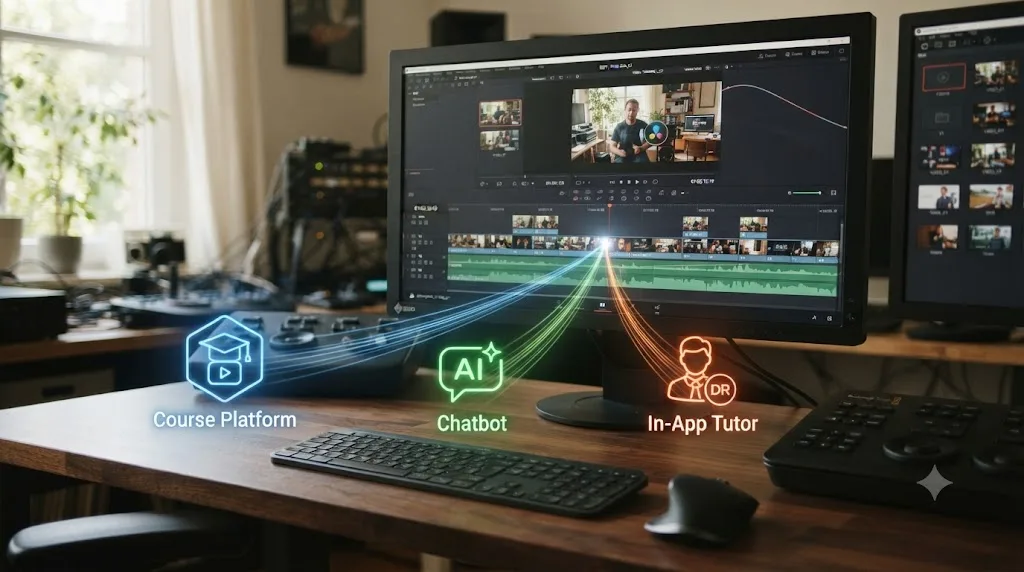
How Does TryUncle Compare to Other Ways to Learn DaVinci Resolve?
| Option | Cost | Watches your project? | Needs internet? | Best for |
|---|---|---|---|---|
| Blackmagic free training | Free | No | Only to download, works offline after | Structured fundamentals from zero |
| Udemy / Skillshare courses | Per-course or subscription | No | Only to stream or download | Broad, sequential curriculum |
| ChatGPT / Claude | Free tier or subscription | No (text or pasted screenshots only) | Yes, always | Declarative questions, scripting help |
| YouTube tutorials | Free | No | Yes, unless downloaded on Premium | Narrow, specific "how do I" questions |
| TryUncle | $34.99/month | Yes, live, continuously while you're asking | Yes, always, no offline mode | Getting unstuck on your own project without leaving the app |
None of these are wrong choices, they solve different problems. Blackmagic's own free guides (source: blackmagicdesign.com/products/davinciresolve/training) are the right call if you want a structured path from absolute zero and you're not in a hurry, and once downloaded you can work through them without wifi. A chatbot is genuinely useful for declarative, text-answerable questions, "what does this node do" or "write me a Python script for this," but it has no view of your actual screen unless you manually paste one in, and even then it's reasoning about a static image, not pointing at a live interface. We break down exactly where each AI tool helps and where it breaks down in our full comparison of AI tools for learning DaVinci Resolve, and where the traditional course platforms stand against each other in our Udemy alternatives comparison.
TryUncle occupies a different slot entirely: it's for the moment you're already mid-edit, already stuck, and you'd rather have the answer pointed at on your own screen than go find and watch a video about it, provided you're online and on a Mac to begin with.
Is TryUncle Worth It?
If you're a Mac editor who gets stuck mid-project more often than you get stuck at the very start, and you'd rather have a control pointed at on your own screen than pause a video and hunt for it yourself, TryUncle is built exactly for that moment, and the 14-day refund window makes it cheap to find out whether it earns its $34.99 a month. If you're on Windows, want a certificate, need to work offline, or genuinely prefer working through a full curriculum front to back before you touch your own project, start with Blackmagic's free training or one of the course platforms in our Udemy alternatives guide instead.
Either way, don't take our word for the mechanism over the marketing copy. Go open your own project, get stuck on purpose, and see whether having the answer pointed at on your own screen gets you unstuck faster than a search bar does. That test is the only review that actually matters, and you can run it yourself at TryUncle.
Frequently asked questions
- What is TryUncle in one sentence?
- TryUncle is a paid macOS app with an assistant named Uncle that watches your DaVinci Resolve screen and points at the exact control you need, live, instead of making you watch a pre-recorded video and translate it onto your own project.
- Is TryUncle free?
- No. TryUncle is a paid subscription at $34.99 a month, cancel anytime, with a 14-day refund guarantee. It has never been free and isn't marketed that way.
- Does TryUncle work on Windows or Linux?
- No. TryUncle is macOS only, and it needs an internet connection since the reasoning that understands your screen runs in the cloud. There's no Windows or Linux build and no offline mode. If you edit on a PC, or you're offline more often than not, TryUncle isn't an option for you right now.
- What does Uncle actually do when I ask it a question?
- You ask by voice (Shift+Fn), by a quick correctness check (Shift+Control), or by typing (Shift+Option). Uncle answers out loud and shows you where the fix lives on your actual screen, either a hand-drawn box around the control or a cursor that flies to it, so you never have to translate a spoken instruction into a click yourself.
- Is TryUncle a DaVinci Resolve course?
- No. A course teaches a curriculum in a fixed order whether or not it matches what you're stuck on today. TryUncle answers the question you have, about the project you're actually editing, at the moment you're stuck, inside the Edit, Color, and Fusion pages.
- Does TryUncle upload my footage or project files?
- No. TryUncle only reads your screen through standard macOS screen-recording and accessibility permissions, and only when you actually ask it a question, not continuously. Your media and project files stay on your Mac. The screenshot and question it sends to its AI providers to generate an answer gets deleted automatically after 30 days, and TryUncle says it never uses that data to train its own models.
- Who built TryUncle?
- Marius Manolachi, who runs the 99,000-member DaVinci Resolve 21 Learning Group on Facebook and has taught DaVinci Resolve to roughly 100,000 people through it. He's a contributor to OECD research on learning behavior, an ex-Entrepreneur First founder, and a member of the Sigma Squared Society.
- How is TryUncle different from asking ChatGPT or Claude?
- A chatbot answers a question you type with zero view of your actual project. Uncle watches your screen while you work and can point at the exact button or node you mean, without you leaving DaVinci Resolve to describe your problem in words first.
Sources
- Constructionism (learning theory) - Wikipedia
- Seymour Papert, pioneer of constructionist learning, dies at 88 (MIT Media Lab)
- Group Overview - Lifelong Kindergarten (MIT Media Lab)
- Using Tech Creatively Through Playful Learning (Edutopia, quoting Mitchel Resnick)
- Deslauriers, McCarty, Miller, Callaghan, Kestin: Measuring actual learning versus feeling of learning in response to being actively engaged in the classroom (PNAS, 2019)
- Zone of proximal development - Wikipedia
- DaVinci Resolve Training (Blackmagic Design)
- DaVinci Resolve - Studio (Blackmagic Design)
- Future of Education and Skills 2030/2040 (OECD)
- About - Sigma Squared Society
- DaVinci Resolve 21 (Learning Group) - Facebook
- Marius Manolachi
- TryUncle
- TryUncle FAQ
- TryUncle Privacy Policy
- Skillshare Cost 2026: Pricing Plans, Free Trials, and App Discounts
- Udemy Pricing in 2026: Free Courses, Fees, Plans & Refunds
Learn by doing, not watching
Stop translating tutorials to your timeline.
TryUncle stays beside Resolve on Mac and Windows. When you ask, Uncle sees your screen and points at the exact control you need. No hunting through tabs, timestamps, or mismatched tutorials.
Meet TryUncleKeep reading
 ComparisonsJul 11, 202626 min read
The Best AI Tools to Learn DaVinci Resolve in 2026
ChatGPT, Claude, Blackmagic's free training, Recut, and Resolve's Neural Engine compared for learning DaVinci Resolve, and the gap none of them close.
 GuidesJul 8, 202629 min read
Why Watching Tutorials Doesn't Work (And What Actually Builds Skill)
Why watching tutorials doesn't work: it trains recognition, not recall. The research on active practice, retrieval, and how to actually break out of tutorial hell.
 ComparisonsJul 8, 202633 min read
12 Best Udemy Alternatives in 2026 (Free and Paid)
We compared 12 Udemy alternatives, free and paid, to help you pick the right one for what you're actually trying to learn.