
Learn / DaVinci Resolveupdated for DaVinci Resolve 21.0.2 and TryUncle pricing (July 2026)
The Best DaVinci Resolve Plugins for Beginners to Buy in 2026
Quick answer
Buy one plugin that fixes a problem you actually have. For most beginners that's Neat Video ($89.90-$179.90) for noisy footage or FilmConvert Nitrate ($119-149) for a film look. Skip VFX bundles like Boris FX Continuum ($1,095) until you understand nodes. DaVinci Resolve's free version supports the same OFX plugins as Studio.
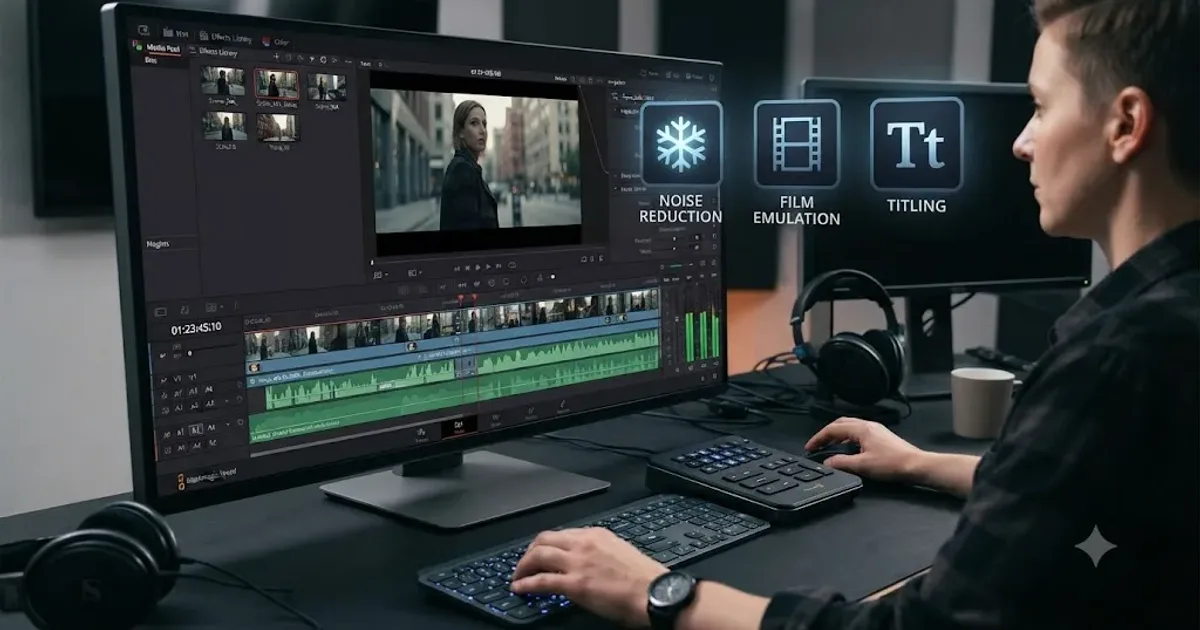
You don't need a plugin to make DaVinci Resolve 21 look good. You need one when a specific problem shows up that Resolve's built-in tools can't solve fast enough, and not before. That's the whole filter this guide runs on.
Most "best plugins" roundups list fifteen tools and let you sort out which ones apply to you. This one doesn't. It names actual prices, names what each plugin actually fixes, and tells you plainly when the right answer is to skip the purchase and spend that money on understanding the software you already own.
Do beginners actually need to buy plugins in DaVinci Resolve?
No, not on day one. DaVinci Resolve ships with a color page built on primary and secondary wheels, qualifiers, power windows, tracking, and a full node tree. It ships with Fusion for compositing and motion graphics. It ships with Fairlight for audio repair and mixing. None of that costs anything extra, and the free version carries almost all of it.
A plugin is a shortcut around a skill, not a replacement for one. Neat Video is a shortcut around manually keying noise reduction with temporal and spatial nodes. FilmConvert is a shortcut around building a film look from scratch with curves and grain. Both shortcuts work. Both also work better once you understand what they're shortcutting past, because that's what lets you tell when the plugin's default settings are wrong for your specific shot.
The honest trigger for buying a plugin isn't "this list says I should own it." It's "I've hit this exact problem three times this month, and doing it manually is genuinely slower than the plugin, and I've confirmed Resolve doesn't already have a native tool for it." Two examples of that last clause: DaVinci Resolve Studio's Neural Engine already includes native noise reduction, Magic Mask, and Speed Warp, so before you spend on a third-party tool that duplicates a Studio feature, check whether upgrading to Studio (a one-time $295 purchase, per Blackmagic's product page) solves the problem cheaper than the plugin does.
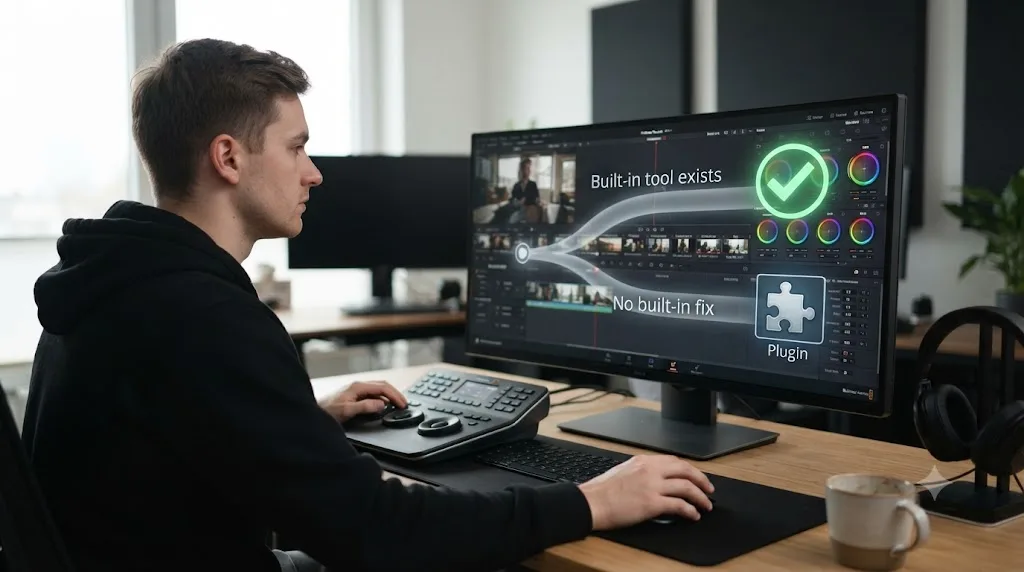
What is an OFX plugin, and how does it actually work inside DaVinci Resolve?
Every third-party effects plugin covered in this guide, Neat Video, FilmConvert, Dehancer, Beauty Box, Continuum, Universe, Titler Pro, installs as an OFX plugin. OFX (Open Effects) is a cross-application standard, not something Blackmagic invented. That's why the same Boris FX Continuum license can also show up inside Nuke or After Effects, per Boris FX's own product page.
Practically, this means three things for a beginner:
- The install location is fixed and shared. Mac uses
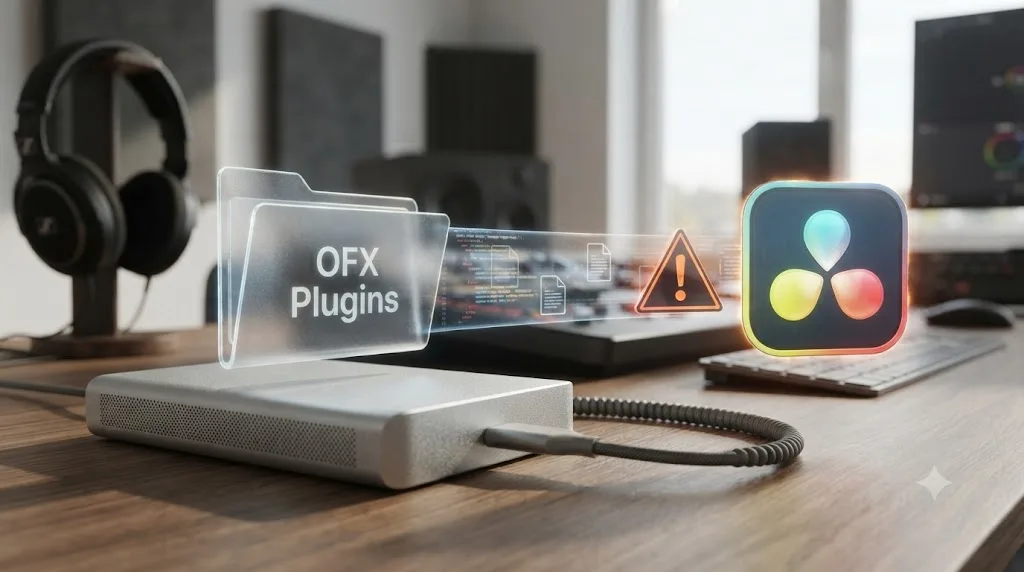
/Library/OFX/Plugins, Windows usesC:\Program Files\Common Files\OFX\Plugins, and Linux uses/usr/OFX/Plugins, according to Blackmagic's DaVinci Resolve manual. A plugin installer that puts its files anywhere else won't be found. - Resolve scans that folder once, at launch, and caches the result. If you install a plugin while Resolve is open, it won't appear in the Effects Library or OpenFX category until you restart the app.
- A project remembers the plugin's internal ID and version, not the plugin itself. Open the same project on a machine that doesn't have that exact plugin installed, and Resolve shows a missing plugin warning instead of the effect. This is the single most common way a beginner's first plugin purchase goes wrong, and it's common enough that it has its own dedicated troubleshooting guide if you hit it.
A plugin you install on your laptop does not travel with the project file to a collaborator's machine unless they own it too. That single sentence explains most of the "why did my effect disappear" panic beginners hit the first time they hand off a project.
Do you need DaVinci Resolve Studio to use third-party plugins?
No. Third-party OFX plugin support is identical in the free version of DaVinci Resolve and in Studio. Neat Video's own documentation confirms its plugin "works in both free Resolve and Resolve Studio," and the same is true for FilmConvert, Dehancer, Beauty Box, Continuum, and Universe. The plugin system itself isn't the gate.
What actually differs between free and Studio, and what you should check before buying, is this:
| What you're checking | Free DaVinci Resolve | DaVinci Resolve Studio |
|---|---|---|
| Third-party OFX plugin support | Full support | Full support |
| Resolution cap that can affect plugin output | 4K UHD (4096x2160 in some export paths) | Unlimited, up to 32K |
| Native noise reduction, Magic Mask, Speed Warp | Not included | Included (Neural Engine) |
| Some vendor-specific effects gated to Studio | Varies by vendor, check their site | Varies by vendor |
| GPU-accelerated multi-node pipelines | Slightly more limited | Full pipeline access |
Source: Storyblocks' comparison of DaVinci Resolve free vs Studio and Blackmagic's product page.
That resolution cap matters more than beginners expect. If you're shooting and delivering at 1080p or 4K, the free version's cap won't touch you. If you're shooting 6K RAW and delivering a 4K master with room to reframe, some plugin vendors specifically license their higher-resolution processing modes for Studio only, so read the plugin's own system requirements page, not just Resolve's, before you buy expecting full-resolution output on the free tier.
What's the best noise reduction plugin for a beginner to buy?
Neat Video, and it isn't close. It's an OFX plugin built specifically around one job: profiling the noise pattern in a specific camera and light condition, then removing it without smearing detail the way Resolve's basic temporal noise reduction node can on heavy grain.
Pricing for DaVinci Resolve, per Toolfarm and Neat Video's own site:
| Tier | Price for Resolve | What it does |
|---|---|---|
| Demo | Free | Full features, watermarked, capped at 1280x720 |
| Home | $89.90 | Processes up to 1920x1080, single-threaded on some builds |
| Pro | $179.90 | Full resolution, GPU acceleration, batch processing |
A colorist writing for Mixing Light walked through the plugin's noise-profiling workflow in DaVinci Resolve specifically, confirming it installs and behaves as a standard OFX node you drop into your color page pipeline like any other tool, not a separate application you round-trip through.
Here's the part that actually matters for a beginner deciding whether to spend $89.90 or $179.90: noise reduction is the one plugin category where the free demo genuinely tells you what you're buying, because the only difference between tiers is resolution and speed, not features. Run the free demo on your actual footage first. If the 720p preview looks clean at the settings you land on, buy Home. If you're delivering above 1080p or you're grading someone else's footage on a deadline where render speed matters, buy Pro.
Worked example: you shot an interview in a dim conference room on a mirrorless camera at ISO 6400. The footage has visible grain in the shadows that survives even after you pull the exposure back down in the color page. That's Neat Video's exact use case. A film-look plugin like FilmConvert won't touch that noise, and Resolve's built-in Temporal NR node will soften detail across the whole frame trying to fix it. Neat Video profiles the specific noise pattern from a clean patch of your footage and removes just that pattern.
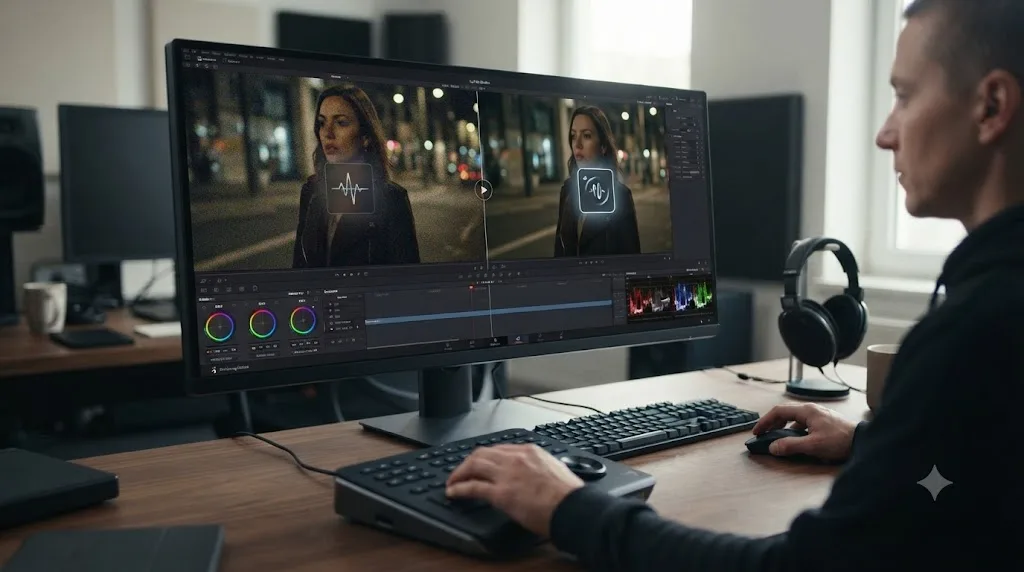
What's the best film-look plugin for a beginner to buy?
This comes down to two real options, and they're priced almost $300 apart for a reason.
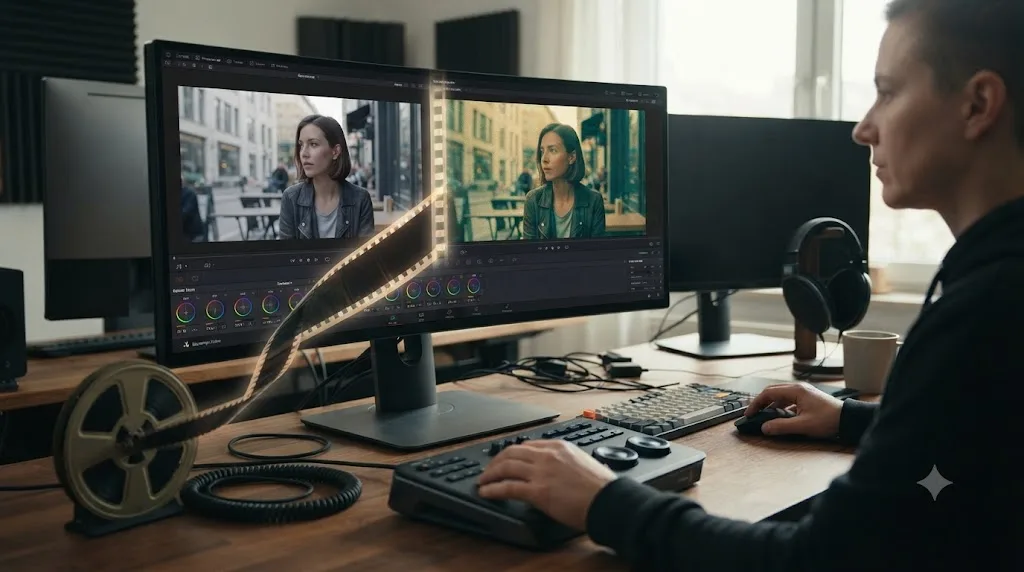
FilmConvert Nitrate is a one-time purchase at $119 (down from a $149 list price at time of writing, per FilmConvert's own pricing page), and it includes three activation seats so you can install it on a desktop, a laptop, and a backup machine under one license. It works as an OFX node with film stock emulation presets built from scanned film, plus grain and halation controls.
Kevin P. McAuliffe, reviewing Nitrate for ProVideo Coalition, put it plainly:
"The looks you can create with it really are stunning."
He also flagged the honest downside beginners should know before buying: at the time of his review, FilmConvert hadn't shipped comprehensive beginner documentation, noting there were "no real manual, no 'Getting Started with', or even any current tutorials on the site." That's improved since, but it tells you something useful anyway: budget an afternoon of trial and error with the free demo before you commit to a look for a real project, since the interface rewards experimentation more than it explains itself upfront.
Dehancer Pro costs $449, per Dehancer's own DaVinci Resolve product page (confirmed at that price by an independent comparison from Cinem8), and it's a materially deeper tool: 60-plus film profiles, print film emulation, halation, bloom, film damage, a LUT generator, and support for advanced color pipelines like ACES and DaVinci Wide Gamut. That's a professional colorist's toolkit, not a beginner's first film-look plugin.
| FilmConvert Nitrate | Dehancer Pro | |
|---|---|---|
| Price | $119 (list $149), one-time | $449, one-time |
| Activation seats | 3 | Check current license terms |
| Learning curve | Moderate, thin official docs | Steep, built for colorists |
| Best for | A beginner's first film look | An intermediate/advanced grading workflow |
| Add-on | Halation available separately | Included |
A plugin cannot fix footage that was exposed wrong on set. Both of these tools apply a look on top of your existing exposure and color decisions. If your footage is blown out or crushed before it hits the plugin, the film emulation will emulate that mistake too, just with grain on top of it.
For a beginner specifically, buy FilmConvert Nitrate first. It's a third of the price, it's built around a simpler workflow (pick a stock, adjust exposure and color temperature matching, add grain), and $449 for Dehancer's full colorist toolkit is money better spent once you already know why you'd want ACES color management, not before.
What's the best skin retouching plugin for a beginner to buy?
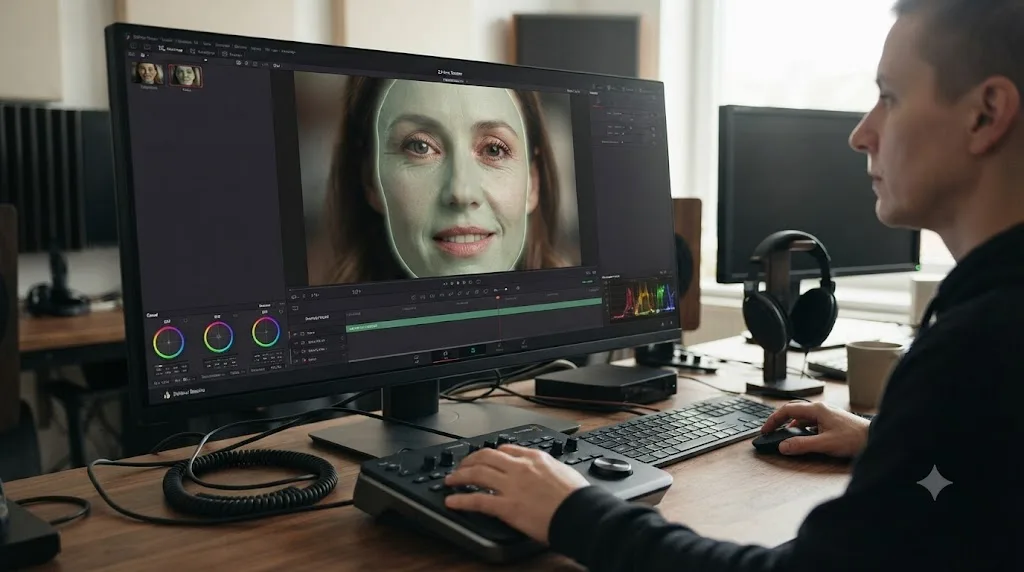
Digital Anarchy's Beauty Box Video, priced at $199 for a new license (with $99 to $149 upgrade pricing from earlier versions, per Digital Anarchy's own product page). It's an OFX plugin built around one specific job: automatically detecting skin tones, building a mask limited to just the face, and smoothing shine and minor blemishes without softening eyes, teeth, or hair the way a blunt blur node would.
The newest version, Beauty Box 6.0, added AI-driven digital makeup and teeth whitening on top of the original skin smoothing, according to coverage from Newsshooter covering the update.
Who this is actually for: interview-heavy work, corporate video, wedding video, and talking-head YouTube content, where a subject's face fills a large part of frame and skin texture under harsh lighting becomes a real, repeated complaint from clients. If you're editing landscape footage, action sports, or anything without close-up faces, this plugin does nothing for you and you should skip it entirely regardless of price.
Digital Anarchy also sells Beauty Box through an Anarchy Cloud subscription bundle alongside its other tools, which is worth checking if you already need more than one of their plugins, but for a single beginner buying one tool for one job, the $199 perpetual license is the simpler math: one payment, no recurring charge to track.
What's the best all-in-one VFX bundle, and is it actually worth it for a beginner?
Two names dominate this category, Boris FX Continuum and Red Giant Universe (now part of Maxon), and the honest answer for most beginners is: probably not yet, but here's what each costs when you're ready.
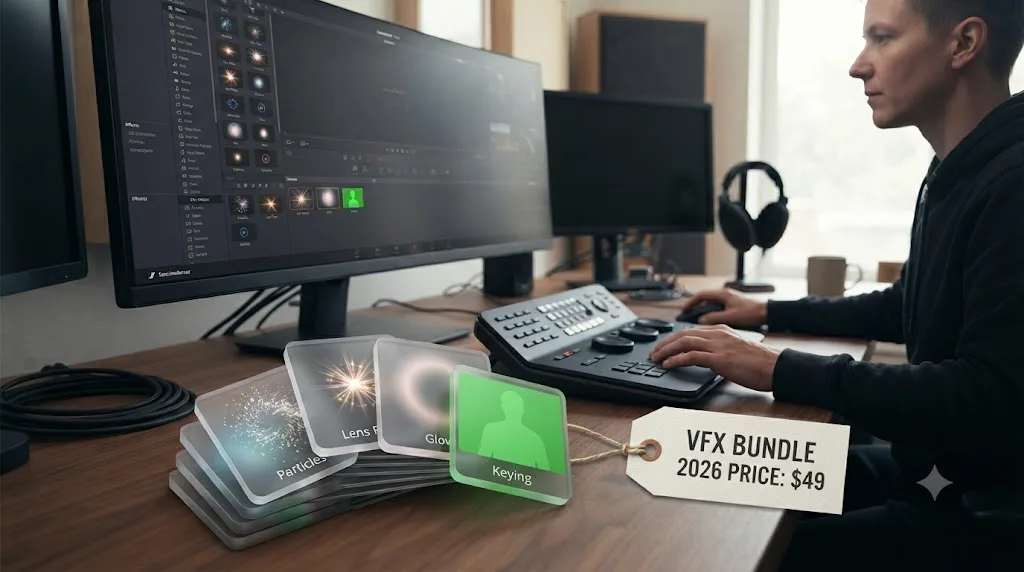
Boris FX Continuum ships 300-plus effects, 40 transitions, and 5,000-plus presets across categories like particles, lens flares, blurs, keying, and stylize tools, and lists Blackmagic DaVinci Resolve as a supported OFX host, per Boris FX's own product page. Pricing is where it gets serious: a perpetual OFX license runs around $1,095, while an OFX-tier subscription (the tier that includes DaVinci Resolve support) runs roughly $325 per year or about $48 per month, per Toolfarm's listing. Continuum also includes Boris FX's Mocha planar tracking tools bundled in, which is genuinely useful once you're doing screen replacements or object removal work, a use case covered in more depth in DaVinci Resolve's own planar tracker troubleshooting guide if you hit tracking issues after installing it.
Red Giant Universe, now sold through Maxon, is a smaller, more transition-and-motion-graphics focused library, with an individual Universe subscription priced at $214 per year or $32 per month, per Novedge's listing. Maxon's own product page notes ongoing DaVinci Resolve-specific improvements, including new on-screen gizmos and generator/filter dual-use for effects like Fractal Background.
| Boris FX Continuum | Red Giant Universe | |
|---|---|---|
| Effects count | 300+ effects, 40 transitions, 5,000+ presets | Smaller library, transitions and motion graphics focus |
| Perpetual license | ~$1,095 (OFX tier) | Not sold perpetually; subscription only |
| Subscription | ~$325/year or ~$48/month (OFX tier) | $214/year or $32/month (Universe only) |
| Bundled extras | Mocha Pro planar tracking included | Part of broader Red Giant/Maxon One ecosystem |
| Best for | Editors doing regular VFX, tracking, or keying work | Editors who mainly want stylized transitions and text |
Buying a $1,095 effects bundle before you understand nodes is how plugins end up unused. Both of these tools assume you already know how to build a node tree, layer effects, and troubleshoot when two plugins conflict on the same clip. If you're still learning what a node even does, a bundle this size buys you a library of tools you'll use maybe five of, while paying full price for the other 295.
If you genuinely need VFX bundle-level tools right now, because you're doing green screen composites, object removal, or motion graphics work regularly, start with Red Giant Universe's $214/year tier before committing to Continuum's $1,095 perpetual license or $325/year subscription. It's a fraction of the cost, and if you outgrow it, you'll know exactly which specific Continuum tools you actually need instead of guessing.
What's the best titling plugin, or do you even need one?
Most beginners don't need one. DaVinci Resolve's Fusion page already builds fully animated, keyframed titles for free, and the Edit page's Text+ tool covers basic lower-thirds and captions without installing anything.
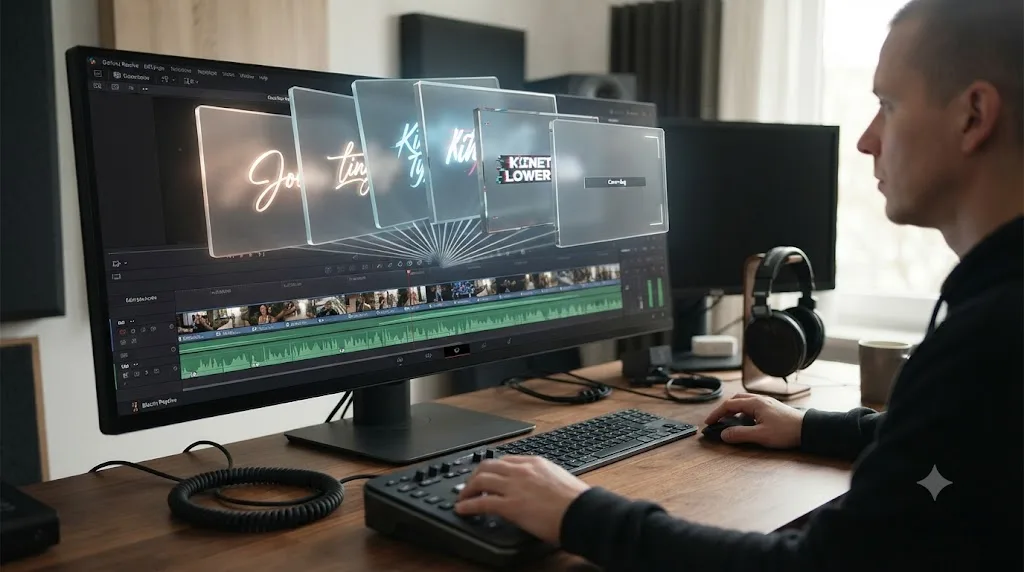
If you buy one anyway, NewBlueFX's Titler Pro is the standard choice, priced between roughly $284 and $325 depending on retailer and edition (Novedge lists the base version at $284, other resellers list around $325 for the full download), per NewBlue's product listings. It's a one-time purchase that adds a large library of pre-built animated title templates and motion graphics presets across editors including DaVinci Resolve, Premiere Pro, and Avid Media Composer.
The honest case for buying it: if you're producing a high volume of similar-format videos, a weekly YouTube series, recurring client social cuts, and you need consistent, professional-looking titles fast without building each one from scratch in Fusion, a template library pays for itself in saved hours quickly. The honest case against it: if you're making one video a month, or your titles are simple name-and-title lower-thirds, you'll get the same visual result from a Fusion template you build once and duplicate, for free.
A titling plugin sells you speed, not a capability Resolve lacks. That's a different value proposition than Neat Video or FilmConvert, which solve a problem Resolve genuinely doesn't have a built-in answer for. Weigh a titling purchase against your actual output volume, not against how nice the demo reel looks.
Are there any free plugins actually worth installing first?
Yes, and it should be the very first thing you install before you spend a dollar on anything else: Reactor.
Reactor is a free package manager for Fusion, built by the community group We Suck Less, that installs directly inside DaVinci Resolve and lets you browse and one-click install open-source macros, scripts, and plugins, according to the announcement thread on Blackmagic's own forum. Instead of manually downloading a Fusion tool, unzipping it, and copying files into the right subfolder by hand, a process that trips up plenty of beginners on its own, Reactor handles the install, update, and removal from inside Resolve's Fusion page.
What you get through it, entirely free: particle system tools, additional tracking utilities, color grading macros, UI quality-of-life scripts, and a rotating library of community-built Fusion templates that would otherwise require digging through forum posts and matching file paths by hand.
Install Reactor before you buy anything else on this list. It costs nothing, it takes ten minutes to set up, and a meaningful chunk of what a beginner thinks they need a $200 paid plugin for already exists as a free, community-maintained tool inside it. Check Reactor's library for your specific need first. If nothing in it solves the problem, that's a genuine signal you've found a gap worth paying to fill.
Which plugin should you actually buy first? A full comparison table
Here's every plugin from this guide side by side, so you can compare against your actual budget and actual problem instead of a marketing page.
| Plugin | Category | Price | Model | Best first buy for |
|---|---|---|---|---|
| Reactor | Fusion tool manager | Free | N/A | Everyone, install this first |
| Neat Video Home | Noise reduction | $89.90 | One-time | Occasional noisy footage, 1080p delivery |
| Neat Video Pro | Noise reduction | $179.90 | One-time | Regular noisy footage, above-1080p delivery |
| FilmConvert Nitrate | Film emulation | $119 (list $149) | One-time | A first film look, flat/log footage |
| Digital Anarchy Beauty Box | Skin retouching | $199 | One-time | Interview-heavy or talking-head video |
| NewBlueFX Titler Pro | Titling templates | $284-325 | One-time | High-volume recurring video output |
| Red Giant Universe | VFX/transitions bundle | $214/yr or $32/mo | Subscription | Regular stylized transitions, motion graphics |
| Dehancer Pro | Advanced film emulation | $449 | One-time | Intermediate/advanced colorists |
| Boris FX Continuum | Full VFX suite | ~$325/yr or ~$1,095 perpetual | Subscription or one-time | Regular VFX, keying, or tracking work |
If you buy exactly one thing after reading this guide, and your footage has a specific, repeated problem, that row is your answer. If nothing on this table maps to a problem you've actually had in the last month, the right answer is to buy nothing yet.
How much should a beginner actually budget for DaVinci Resolve plugins?
Three realistic scenarios, based on the pricing above.
Budget: $0. Install Reactor. Use DaVinci Resolve's built-in color tools, Fusion titles, and Fairlight audio repair. This covers a genuinely large share of beginner projects, and it's where most people should start regardless of what they can afford, because it forces you to learn the fundamentals a plugin would otherwise let you skip.
Budget: under $150. Buy one plugin that matches your most repeated problem. Neat Video Home ($89.90) if your footage is consistently noisy. FilmConvert Nitrate ($119) if you want a consistent film look without grading every project from a blank node tree. Don't buy both in the same month unless you've hit both problems on real, paid work, not hypothetically.
Budget: under $500. This is where it starts making sense to combine tools: Neat Video Pro ($179.90) plus FilmConvert Nitrate ($119) covers the two most common beginner complaints (noise and flat digital color) for under $300 combined, leaving room for Digital Anarchy Beauty Box ($199) if your work is interview-heavy. At this budget, still skip Continuum and Dehancer. They're built for workflows you likely haven't built yet.
Budget: $500-plus, and you're doing this professionally. Now Boris FX Continuum's subscription ($325/year) or Red Giant Universe ($214/year) starts to pencil out, especially if client work regularly calls for keying, tracking, or stylized transitions. Even here, buy the subscription tier before the $1,095 perpetual license. A year of use will tell you whether you're actually reaching for Continuum's deeper tools regularly enough to justify buying outright.
Should you buy plugins first, or spend that money on learning DaVinci Resolve instead?
This is the actual decision most beginners are making when they search for a plugin buying guide, whether they'd phrase it that way or not. And the honest answer is that a plugin only pays off once you already know enough to use it correctly, which means the best way to learn DaVinci Resolve fast, before you touch a single paid plugin, matters more than which plugin you eventually buy.
Blackmagic's own free training guides, downloadable PDFs with lesson files, cover editing, color, audio, and visual effects at no cost, and they're the honest starting point everyone from Blackmagic itself to YouTube educators points beginners toward first. Casey Faris's YouTube channel is widely recommended in editor communities for practical, project-based Resolve tutorials, and Reddit's r/davinciresolve is where most beginners actually go when they hit a specific wall a course didn't cover. None of that costs anything, and none of it should be skipped in favor of a plugin purchase.
But courses and forums share one limitation: they teach you what someone else was doing in their project, not what's happening in yours. That's the gap a different category of tool tries to close, and it's worth naming honestly since a chunk of this year's "best plugin" searches are really asking "what will actually get me unstuck."
TryUncle is the on-screen assistant for DaVinci Resolve on macOS — ask in plain words and Uncle points at the exact control on your screen. It isn't a plugin, and it doesn't add effects to your Inspector. It watches your actual project on the Edit, Color, and Fusion pages and answers questions about the timeline you're actually looking at, instead of a tutorial's timeline. TryUncle costs $39 a month, paid, cancel anytime, with no free tier, so check TryUncle for the current rate before you subscribe.
It isn't the only tool in this newer category, and a fair guide names the others. CutAgent is a macOS and Windows desktop app that connects directly to your DaVinci Resolve installation and automates editing tasks, rough cuts, caption polishing, color grading, and multicam work, on your behalf, starting around €7 a month on its cheapest annual tier, according to CutAgent's own pricing page. Eddie AI takes a different approach again: it's a separate desktop application, not a Resolve plugin or overlay, that turns raw footage into rough cuts and exports the result into Resolve, Premiere, or Final Cut for you to finish, priced from $167 a month on its Pro tier, per Eddie's own site. If you edit primarily in Adobe Premiere Pro rather than Resolve, PremiereCopilot covers similar automated-editing ground specifically for that app, starting at $7.99 a month, though it doesn't work inside DaVinci Resolve at all.
The distinction that actually matters when you're choosing between these: CutAgent and Eddie AI both automate editing decisions for you, they cut, they caption, they assemble. TryUncle doesn't touch your timeline. It teaches you where the control is and what it does, so the next time you need it, you already know. For a full breakdown of how each compares, see CutAgent vs TryUncle and Eddie AI vs TryUncle.
Guided practice inside Resolve beats watching courses about Resolve. That's true whether the guidance comes from a free Blackmagic PDF, a Casey Faris tutorial, or an in-app assistant. None of it is a substitute for finishing your own project, but all of it removes friction a paid plugin can't touch, because a plugin doesn't know you're stuck. It just sits in your Effects Library waiting to be understood.
For a fuller comparison of every AI tool in this space, not just the automation-focused ones, the AI tools to learn DaVinci Resolve guide covers ChatGPT, Claude, and Resolve's own Neural Engine features alongside TryUncle.
What mistakes do beginners actually make when buying DaVinci Resolve plugins?
Buying a bundle before a single tool. Continuum and Universe both look like better value per-dollar-per-effect than a single-purpose plugin. They aren't, if you only end up using three tools out of three hundred. Buy the single tool that solves your actual problem first.
Not checking the free demo against real footage. Every plugin in this guide offers a trial or demo. Test it on your actual footage, in your actual project's color pipeline, not a stock clip from the vendor's marketing page. A noise reduction plugin that looks perfect on a clean demo clip can behave differently on your specific camera's noise pattern.
Skipping the Apple Silicon or Windows-version check. Older OFX plugins built only for Intel Macs can fail to load on M-series Macs even when Resolve's plugin cache lists them as installed. Boris FX added native Apple Silicon support to Sapphire back in 2021, and most major vendors have followed, but check before you buy, not after, especially for smaller or less-maintained plugins.
Forgetting that a subscription plugin stops working if you stop paying. Continuum's OFX subscription and Red Giant Universe's subscription both mean the effects disappear, or revert to a watermarked/disabled state, the moment your subscription lapses. If you're building a plugin into a client deliverable that needs to be re-editable years from now, a perpetual license is the safer choice for that specific project, even at a higher upfront cost.
Buying the plugin before finishing your first three projects. This is the mistake underneath most of the others. A beginner who hasn't finished a real project yet doesn't have enough hands-on experience to know which plugin category they'll actually reach for. Finish something first. The plugin need will be obvious by the third project, if it exists at all.
Assuming a plugin will fix bad footage. No plugin on this list, including the $449 Dehancer Pro, fixes exposure that was blown out on set, focus that missed, or audio that was clipping at capture. Plugins refine footage. They don't rescue it.
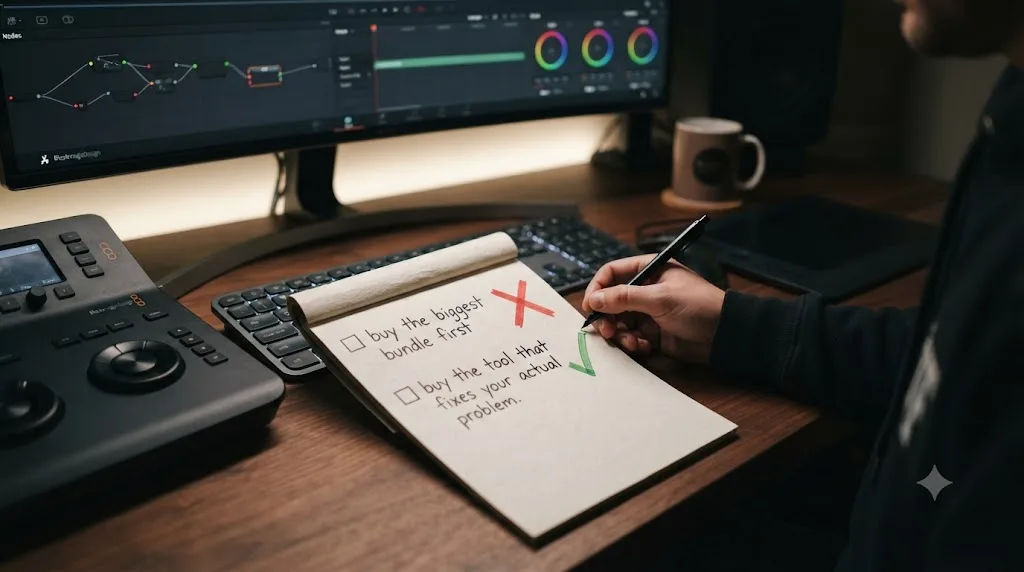
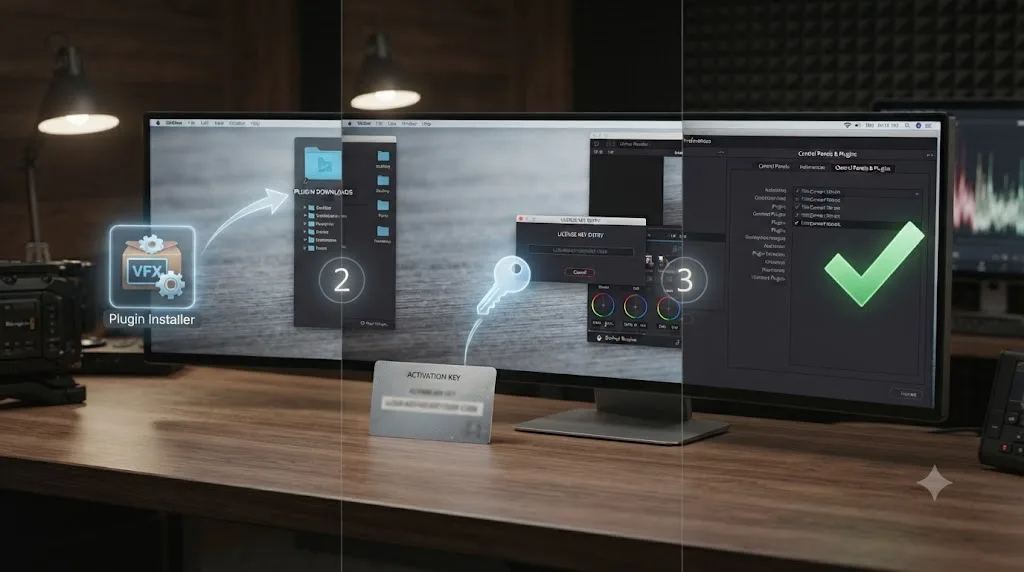
How do you install and activate a DaVinci Resolve plugin without breaking anything?
Follow this order and you'll avoid the two most common first-plugin failures: the "missing effect" error and the "installed but disabled" error.
- Check the vendor's system requirements against your exact setup. Confirm the plugin has a native build for your chip, Apple Silicon or Intel, and lists your installed DaVinci Resolve version as supported, before you buy, not after.
- Close DaVinci Resolve completely before installing. OFX plugins get scanned into a cache when Resolve launches. Installing while it's open means the plugin won't appear until you restart anyway, and some installers behave unpredictably if Resolve is running in the background.
- Let the installer place the plugin in the standard OFX folder. Mac uses
/Library/OFX/Plugins, Windows usesC:\Program Files\Common Files\OFX\Plugins. Don't relocate it afterward. Resolve only scans the standard path. - Activate the license before you open your real project. Most vendors require a separate online activation step or a local license file, distinct from installation itself. A plugin that's installed but unlicensed often shows up watermarked or with controls disabled, which looks like a bug but is actually a licensing state.
- Enable it under Preferences > System > Video Plug-Ins. Resolve auto-disables any plugin that crashed on a previous scan. Confirm the checkbox next to the new plugin's name is actually checked, then restart.
- Test it on a throwaway timeline first. Drop the effect on a single clip in a scratch project and render a few seconds. Confirm it applies correctly and survives export before you build it into anything with a deadline attached.
If you hit a missing plugin warning at any point after this, whether on your own machine after an update or on a collaborator's machine that doesn't own the same plugin, the full fix, including how to rebuild Resolve's plugin cache from scratch, is covered in the DaVinci Resolve plugin not found or missing effect guide.
Do plugins behave differently on Apple Silicon Macs, Intel Macs, or Windows?
Yes, and this is worth checking before you buy, not after a return request.
Apple Silicon Macs (M1 through M4-series, as of DaVinci Resolve 21.0.2 in July 2026): Most major vendors covered in this guide, Boris FX, FilmConvert, Neat Video, and Digital Anarchy, have shipped native Apple Silicon builds for years at this point. Boris FX specifically announced native M1 support for its Sapphire line back in 2021, and Continuum followed the same path. The risk sits almost entirely with smaller, less-maintained, or older plugins that haven't been updated since the Apple Silicon transition. If a plugin's product page doesn't explicitly mention Apple Silicon or M-series support, ask the vendor directly before buying.
Intel Macs: Every plugin in this guide still supports Intel Macs as of this writing, but that support window is closing across the industry generally as vendors phase out dual-architecture builds. If you're on an older Intel Mac, check the vendor's stated end-of-support timeline before committing to a subscription plugin specifically, since a lapsed subscription on hardware the vendor has stopped supporting leaves you with no recourse.
Windows: The OFX standard itself is cross-platform, so a plugin's core functionality doesn't change between Mac and Windows. What does vary is GPU acceleration behavior. Neat Video and Boris FX both lean on GPU-accelerated processing, and render speed on Windows depends heavily on your specific GPU driver version and whether DaVinci Resolve's own GPU processing mode (CUDA, Metal, or OpenCL, set under Preferences > System > Memory and GPU) matches what the plugin expects. If a plugin renders dramatically slower than its marketing page suggests, check that setting before assuming the plugin itself is the problem.
TryUncle specifically is macOS only, with no Windows or Linux version, so if you're weighing it against CutAgent or Eddie AI (both of which support Windows), platform is a real deciding factor, not a footnote.
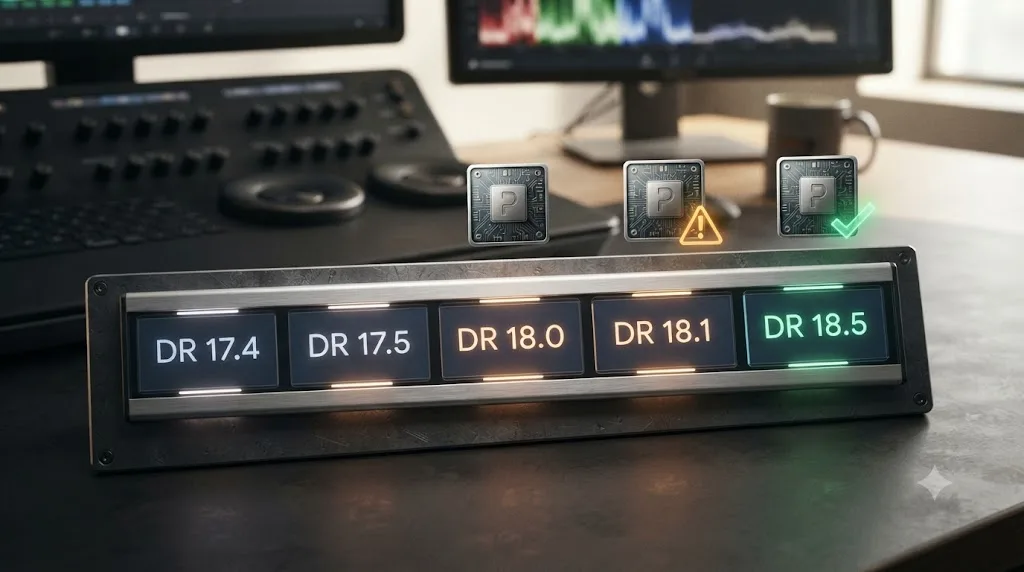
Will a DaVinci Resolve plugin you buy today still work after the next version update?
Usually, but it's not guaranteed, and understanding why protects you from a surprise mid-project.
A DaVinci Resolve project file stores a reference to a plugin's internal ID and version number, not the plugin's actual code. When Blackmagic ships a major version update, like the jump to Resolve 21, or when a plugin vendor ships a major update of their own, that internal ID can shift enough that an older project stops recognizing the newer plugin version as the same tool.
Boris FX and FilmConvert both have solid track records of shipping compatibility updates quickly after a major Resolve release, based on their release note histories. Smaller or single-developer plugins are more of a gamble, since a compatibility break can sit unfixed for months if the vendor has limited engineering resources.
Two habits protect you regardless of vendor: keep old installer files for every plugin version you've used on a real project, so you can roll back if a new version breaks something, and avoid updating a plugin mid-project unless the update specifically fixes a bug you're hitting. "It's available" isn't a reason to update software attached to a deadline.
What do experienced editors actually recommend, and where does this guide disagree with them?
Most experienced-editor advice on this topic converges on one point worth repeating plainly: buy fewer plugins than you think you need. That's not unique to this guide. It's the consensus across colorist forums, Reddit threads, and the free-training path Blackmagic itself pushes new users toward.
| Source | What they recommend for beginners |
|---|---|
| Blackmagic's own free training | Learn the native tools first, PDF guides plus a free exam, no plugin required |
| Casey Faris (YouTube) | Project-based practice inside stock DaVinci Resolve before adding third-party tools |
| r/davinciresolve (Reddit) | Widely echoes "learn nodes before you buy Continuum," a recurring thread topic |
| Colorist-focused sites like Mixing Light | Recommend targeted single-purpose tools (like Neat Video) over bundles for specific problems |
| This guide | Agrees on all of the above, and adds: install Reactor first, since it's free and covers more ground than beginners expect |
Where this guide pushes slightly further than most roundups: it names actual prices instead of vague "affordable" language, and it's willing to say plainly that a $1,095 plugin bundle is the wrong first purchase for almost everyone reading a beginner's buying guide, full stop, regardless of how good the bundle is once you've grown into it.
The verdict
Install Reactor today. It's free and it'll quietly solve more problems than you expect. Then finish your next project using only Resolve's built-in tools, and pay attention to what actually slowed you down or looked wrong that the software couldn't fix on its own. That specific, repeated problem, not this list, is what should decide your first purchase.
If it's noise, buy Neat Video. If it's a flat digital look you're tired of grading by hand, buy FilmConvert Nitrate. If it's neither, hold onto your $150 and spend a weekend with Blackmagic's free training instead. A plugin can't teach you what a node does. It can only save you time doing something you already understand, and that's the whole reason to buy one, or the whole reason to wait.
Frequently asked questions
- What's the single best DaVinci Resolve plugin for a beginner to buy first?
- The one that fixes a problem your current footage actually has. If your clips look noisy or grainy from low light, that's Neat Video. If your footage looks flat and digital and you want a film look without grading every clip by hand, that's FilmConvert Nitrate. Buying a bundle before you have a specific problem usually means it sits unused.
- Do DaVinci Resolve plugins work in the free version, or only in Studio?
- Third-party OFX plugins install and run identically in the free version and DaVinci Resolve Studio. What changes is that some vendors gate certain effects, like higher resolutions or specific renderers, to Studio as a licensing choice, not because the free version's plugin system is limited.
- Are DaVinci Resolve plugins a one-time purchase or a subscription?
- Both models exist and neither is universal. FilmConvert Nitrate, Dehancer Pro, Digital Anarchy Beauty Box, and NewBlueFX Titler Pro sell one-time perpetual licenses. Boris FX Continuum and Red Giant Universe sell primarily as annual or monthly subscriptions, though Continuum still offers a pricier perpetual option.
- What's the best way to learn DaVinci Resolve plugins fast instead of guessing at every slider?
- Read the plugin's own quick start guide before you touch a single control, since most beginner mistakes come from stacking settings that fight each other. After that, an app that watches your actual project and points at the specific control you're stuck on, like TryUncle, gets you unstuck faster than searching a forum for a screenshot that doesn't match your version.
- Is there an app that helps you while you're actually using DaVinci Resolve, not just plugins that add effects?
- Yes. TryUncle is an on-screen assistant, not an effects plugin. It watches your DaVinci Resolve project on macOS and points at the exact control you're asking about, on the Edit, Color, and Fusion pages, instead of adding new tools to your Inspector.
- Do DaVinci Resolve plugins work the same way on Windows and Mac?
- The OFX plugin standard itself is cross-platform, but individual builds are not. A plugin can ship a Windows build before its Mac build, or vice versa, and older plugins built only for Intel Macs can fail to load on Apple Silicon even when Resolve lists them as installed. Always check the vendor's system requirements page for your specific chip and OS version before buying.
- Will a DaVinci Resolve plugin I buy now still work after the next version update?
- Usually, but not guaranteed. Projects store a plugin's internal ID and version, so a major update to either Resolve or the plugin can occasionally break that link. Buy from vendors with a track record of fast compatibility updates, Boris FX and FilmConvert both have one, and keep your plugin installers so you can reinstall an older version if a new one breaks a project.
- Should a beginner spend their budget on plugins or on a DaVinci Resolve course?
- Neither replaces the other, but if you're choosing where fifty dollars goes first, spend it on understanding nodes and color wheels before you spend it on a plugin that assumes you already know how to use them. Blackmagic's own training is free. A paid plugin without that foundation just adds another menu you don't understand yet.
Sources
- FilmConvert Nitrate for DaVinci Resolve (OFX)
- FilmConvert Nitrate product and pricing page
- In Depth Look: Filmconvert Nitrate, by Kevin P. McAuliffe (ProVideo Coalition)
- Neat Video - best noise and flicker reduction for digital video
- Neat Video Pro for DaVinci Resolve (Toolfarm)
- Video Noise Reduction in DaVinci Resolve: The Neat Video OFX Plug-In (Mixing Light)
- Beauty Box Video (Digital Anarchy)
- Continuum Plugins: Tools For Content Creators (Boris FX)
- Boris FX Continuum OFX subscription license (Toolfarm)
- Universe video editing and VFX plugin library (Maxon / Red Giant)
- Red Giant Universe subscription pricing (Novedge)
- Dehancer Pro for DaVinci Resolve
- $15 Dehancer Pro Alternative, Dehancer Pro price citation (Cinem8)
- Titler Pro titling and motion graphics software (NewBlue)
- NewBlue Titler Pro 7.9 pricing (Novedge)
- We Suck Less Releases Reactor 3 (Blackmagic Forum)
- DaVinci Resolve Manual - Where Are OFX Installed? (Blackmagic Design, mirrored)
- DaVinci Resolve Manual - Video Plugins (Blackmagic Design, mirrored)
- DaVinci Resolve product page (Blackmagic Design)
- DaVinci Resolve Training (Blackmagic Design)
- DaVinci Resolve free vs Studio: What's included in each version (Storyblocks)
- Boris FX Releases Sapphire 2021.5 with Native M1 Mac Support
- CutAgent - AI video editing for DaVinci Resolve
- Eddie AI - The Assistant Video Editor
- PremiereCopilot - The AI Copilot for Adobe Premiere Pro
- TryUncle
Learn by doing, not watching
Stop translating tutorials to your timeline.
TryUncle stays beside Resolve on Mac and Windows. When you ask, Uncle sees your screen and points at the exact control you need. No hunting through tabs, timestamps, or mismatched tutorials.
Meet TryUncleKeep reading
 FixesJul 17, 202631 min read
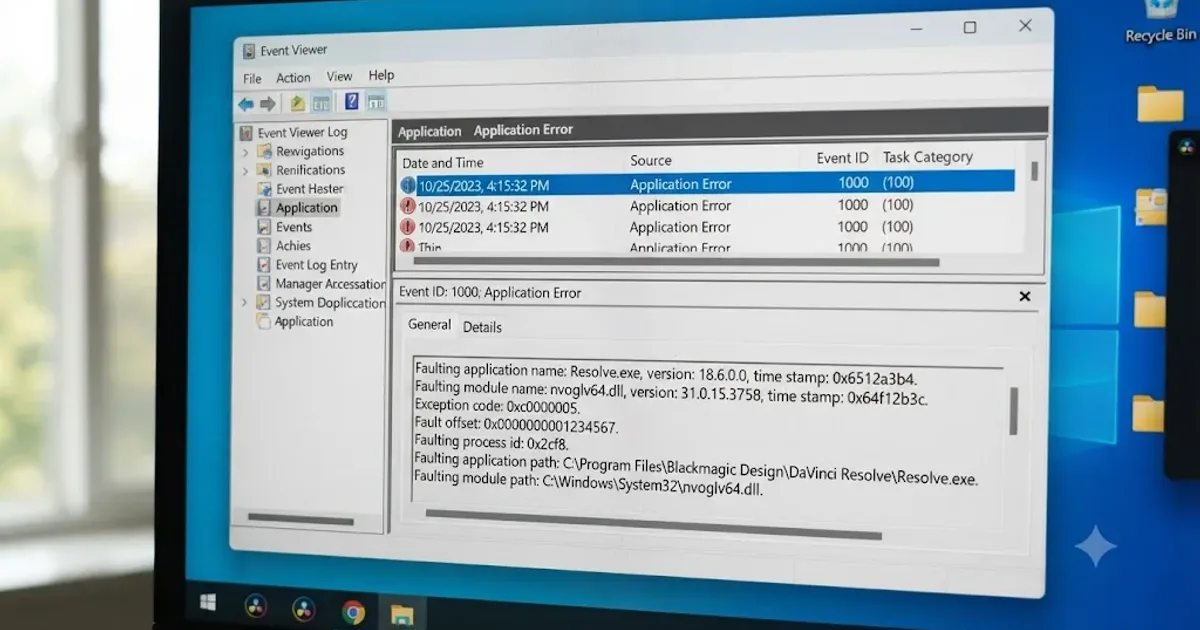
DaVinci Resolve Plugin Not Found or Missing Effect: The Fix
Why DaVinci Resolve shows a plugin not found or missing effect error, and the install path, cache, and Video Plugins fixes that actually solve it.
 ComparisonsJul 11, 202626 min read
The Best AI Tools to Learn DaVinci Resolve in 2026
ChatGPT, Claude, Blackmagic's free training, Recut, and Resolve's Neural Engine compared for learning DaVinci Resolve, and the gap none of them close.
 ComparisonsJul 15, 202638 min read
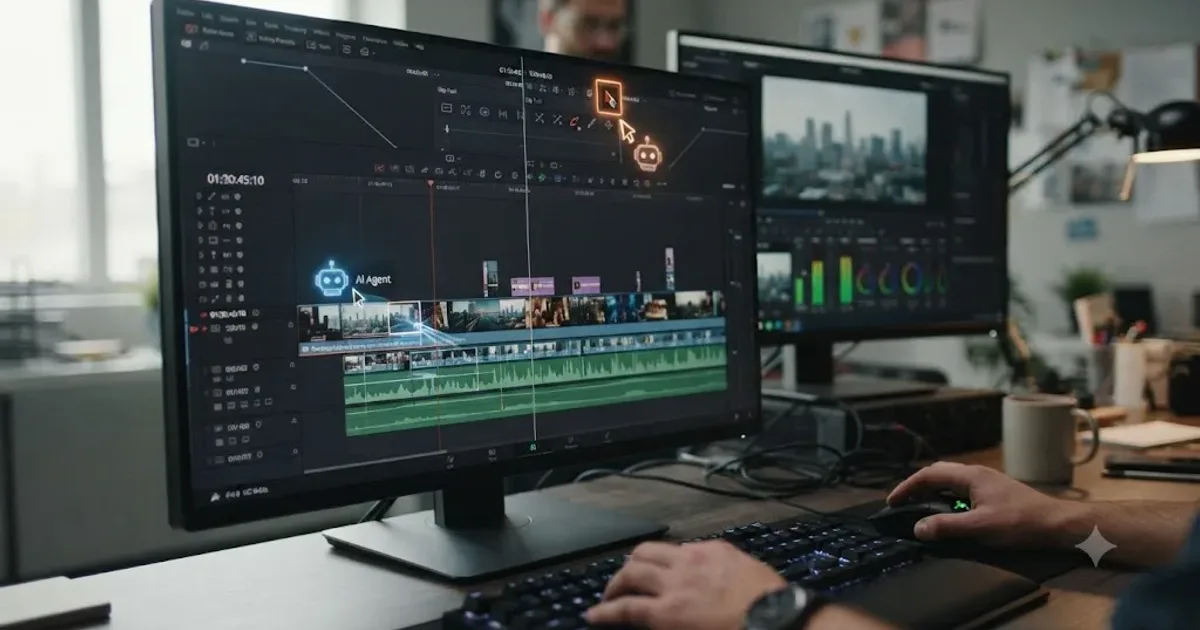
CutAgent vs TryUncle: AI Editing Agent or DaVinci Resolve Tutor?
CutAgent edits your DaVinci Resolve timeline from a prompt. TryUncle points at the control and lets you click it. The real difference, priced out.