
Learn / DaVinci Resolveupdated for DaVinci Resolve 21.0.2 (July 2026)
DaVinci Resolve Plugin Not Found or Missing Effect: The Fix
Quick answer
DaVinci Resolve shows a plugin not found or missing effect error when a project uses a third-party OFX plugin, like Sapphire, Continuum, or Red Giant Universe, that isn't installed, licensed, or enabled on the current machine. Install the exact same plugin version in the OS-specific OFX folder, delete the OFX plugin cache, and re-enable it under Preferences > System > Video Plug-Ins.
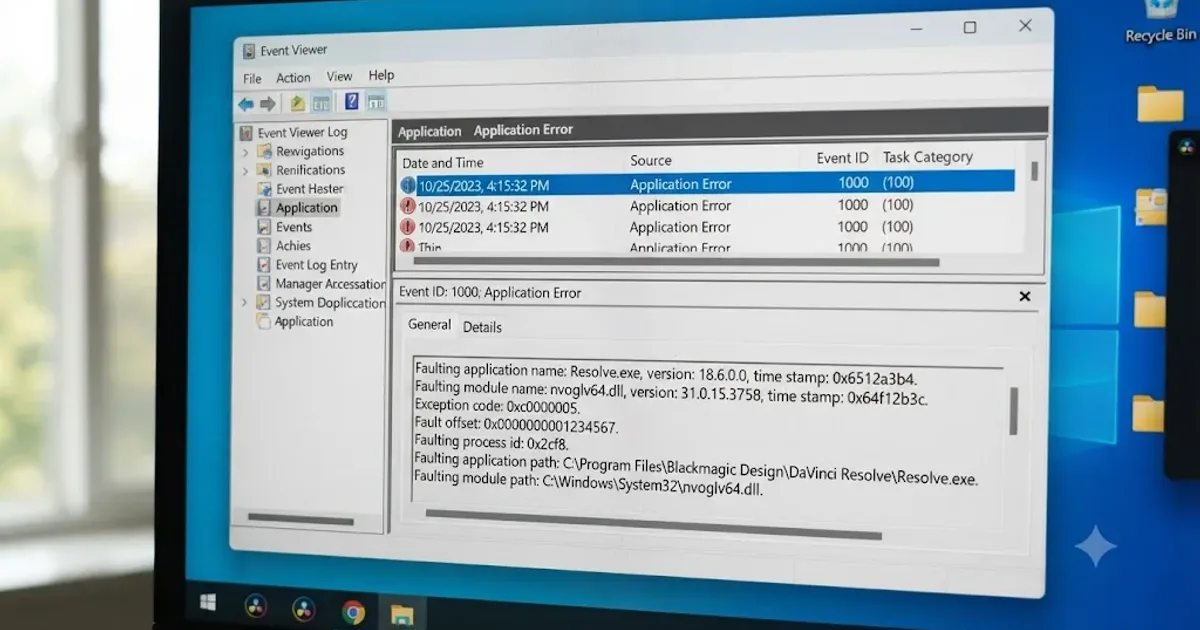
Your colorist sends you a project. You open it, and instead of the grade they built, you get a warning: a plugin is missing, an effect can't be found, and the clip that's supposed to carry their whole look sits there unprocessed. Nothing is corrupted. Nothing crashed. DaVinci Resolve is just telling you, accurately, that it doesn't have a piece of software your machine has never seen before.
I want to walk through why this happens, how to find the exact clip and plugin causing it, and every fix that actually works, in the order worth trying them. This isn't a rare glitch. It's what happens every time a project crosses from a machine with a third-party plugin installed to one without it, and it happens on render farms, shared drives, cloud projects, and freelancer handoffs constantly.
What does "plugin not found" or "missing effect" actually mean in DaVinci Resolve?
Here's the detail that trips people up the first time it happens: a DaVinci Resolve project file doesn't store the plugin. It stores a reference to it, an internal ID string and a version number, the same way a document references a font by name instead of embedding every glyph. When you open that project on a different machine, or reopen it after uninstalling something, Resolve reads that reference, goes looking for a plugin that matches, and either finds it or doesn't.
OFX, the plugin standard DaVinci Resolve uses for third-party effects, is a shared, cross-application format. It's not something Blackmagic Design invented and locked to Resolve. Plugins built to the OFX spec, things like Boris FX's Sapphire and Continuum, Red Giant's Universe, FilmConvert, and Dehancer, install once per computer into a standardized system folder, and any OFX host application on that machine, Resolve included, can find and load them from there.
A missing plugin error is not DaVinci Resolve losing your effect. It is Resolve telling you the truth: that exact plugin is not installed on this machine. The project file did its job correctly. It remembered exactly what effect was applied and asked for it back. The gap is entirely on the receiving machine's plugin folder, not in anything Resolve itself did wrong.
This matters because it changes where you should be looking. A missing plugin symptom isn't a bug to report or a corrupted project to rebuild. It's an inventory mismatch between two computers, and the fix lives in matching that inventory, not in troubleshooting the project file itself.
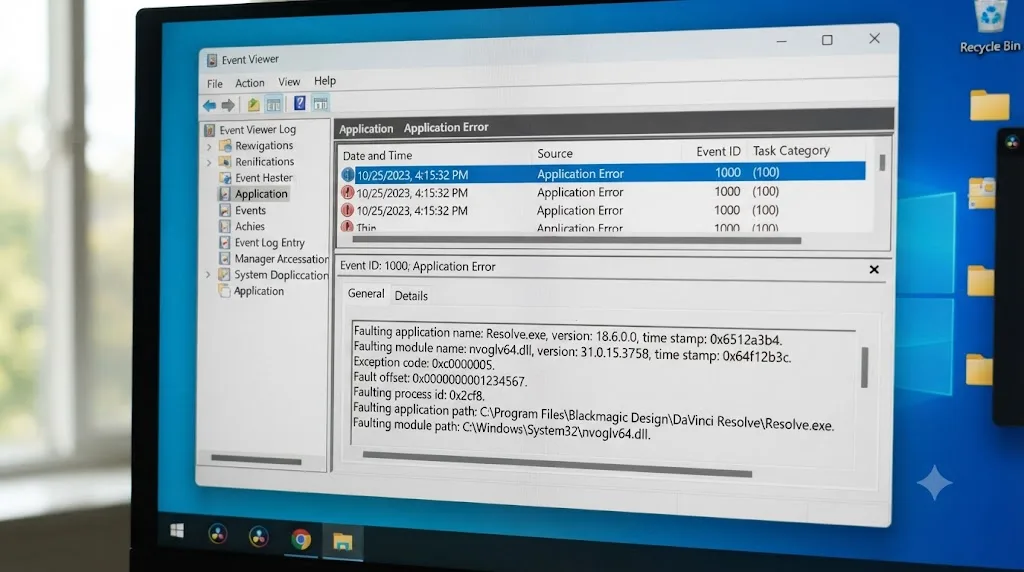
Why does DaVinci Resolve say a plugin is missing? The five real causes
Every "plugin not found" or "missing effect" report traces back to one of five root causes, and they need different fixes, so it's worth knowing which one you're actually looking at before you start reinstalling things.
| Cause | What it looks like | Fix |
|---|---|---|
| Plugin was never installed on this machine | Effect missing the moment you open the project | Install the exact plugin the project needs, in the correct OFX folder |
| Plugin is installed but disabled | Plugin shows in the folder but Resolve still reports it missing | Enable it under Preferences > System > Video Plug-Ins |
| Plugin cache is stale or the plugin was blacklisted after a crash | Reinstalling doesn't fix it; Resolve keeps ignoring it | Delete the OFX plugin cache file and restart |
| Project references an older or newer plugin version than what's installed | Effect worked yesterday, missing today after an update | Install the matching version alongside the current one, or rebuild the effect |
| Plugin architecture doesn't match the machine | Plugin loads on one Mac but not another, especially after switching Apple Silicon | Confirm the plugin has a native build for your chip and OS |
A Blackmagic Forum thread specifically titled "OFX Missing Plugin Fix" walks through the second and third rows of that table directly: going into User Preferences, System, Video Plug-Ins, and manually deselecting any plugin that's no longer actually present, alongside clearing the plugin cache when a plugin that should load keeps getting skipped. That thread's marked "[Solved]" tag is doing a lot of work, because the fix wasn't a Resolve update or a workaround. It was locating the specific setting that had gone stale.
Before you touch any of those fixes, though, there's a step that comes first, and it's the one most people skip: figuring out which clip, and which plugin, is actually causing the warning in front of you.
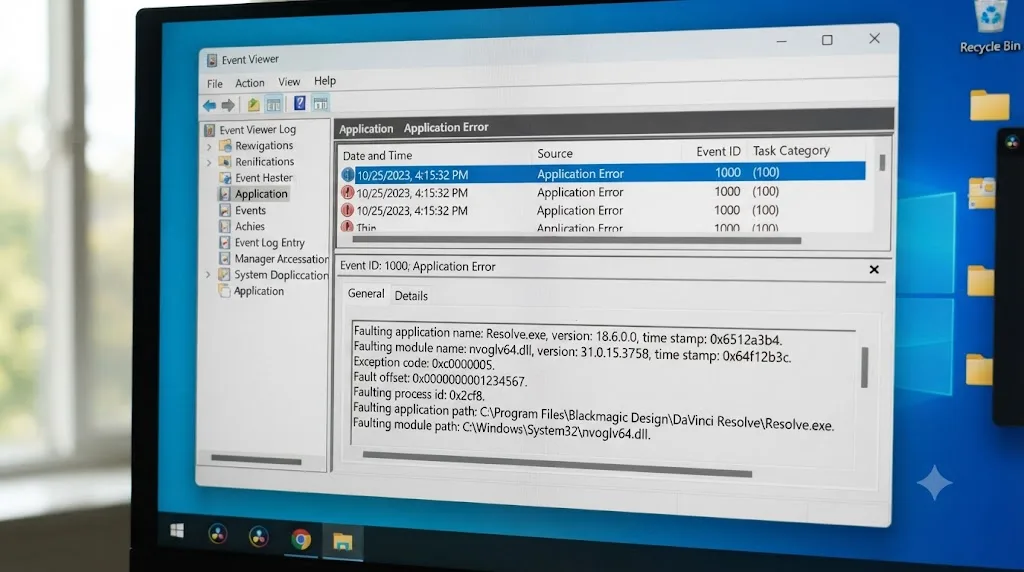
How do you find which clip is actually using the missing plugin?
This is the part that genuinely stumps experienced editors, and it's a real, documented gap in how Resolve surfaces this information. Resolve can tell you an effect is missing. It cannot tell you which effect, because a plugin that isn't installed has no name for Resolve to display. You get a warning, but the warning doesn't come with a clip number or a helpful arrow pointing at the culprit.
A finishing editor named Jef Huey ran into exactly this on the Lift Gamma Gain colorist forum, describing the problem in plain terms: "I know this because I do not have Sapphire on my system and the render from my system fails with a message coming up saying something like 'missing Sapphire plugin.'" The frustrating part came next: "My question is how to find the clips with the Sapphire plugs? Using the clip filters in both the Edit Index and in the Color page filters, I can not find any sapphire plugs." Huey's own diagnosis of why the normal filters failed was exactly right: "My assumption is that since I do not have the plugin installed, Resolve can not show me where it is."
That thread produced a real, working answer, and it's worth walking through step by step because it's not documented anywhere in Resolve's own manual.
The Smart Filter trick, from Marty Webb. On the Color page, you can build a Smart Bin or a timeline filter looking for any clip with an Open FX instance applied. Webb's first suggestion: "You can find all shots that use an instance of any OFX on the colour page with a smart filter like so. Only works for the colour page and not the edit page though." That alone narrows things down, but the real trick is what comes next. Webb explained: "You can have it filter all not installed ofx with Color Timeline Properties - Open FX - Is - (leave this variable blank). This basically tries to show you all OFX with the name you set. If you set nothing as the name it shows you OFX with no names. Which is not installed OFX."
Read that twice, because it's the single most useful technique in this whole guide. An uninstalled OFX plugin has no name Resolve can display, so filtering for OFX effects with a blank name surfaces exactly the clips carrying a plugin your machine doesn't have. It's a clever inversion: instead of searching for a plugin you don't have, you search for the absence of a name where a plugin should be.
Here's the full sequence:
- Open the Color page and right-click in the Timeline track area, or use the Smart Bin controls in the Media Pool, to build a new smart filter.
- Set the condition to Color Timeline Properties.
- Choose Open FX as the property.
- Set the operator to Is.
- Leave the value field completely blank.
- Apply the filter. Every clip carrying an OFX instance with no recognizable name shows up in the results, and that's your missing plugin.
Two other people in that same thread offered complementary approaches worth knowing, because the Smart Filter trick only covers the Color page. Ryan McNeal suggested checking "preclip, post clip, and timeline nodes" directly on suspect clips, useful when you already have a rough idea which section of the timeline is affected. Pepijn Klijs suggested exporting an XML from the timeline and inspecting it with a plain text editor, since the plugin's internal ID string, the same one Resolve uses to look it up, appears in the XML even when the UI can't render a friendly name for it. That covers Edit-page effects the Color-page smart filter can't reach.
If you're stuck without the actual missing plugin on hand and just need to confirm what's causing a specific clip to fail, Rajneesh Kassin's suggestion in the same thread is worth remembering too: most major plugin vendors, Boris FX included, offer free trial versions specifically so you can install, identify, and verify a missing effect without buying a full license first.
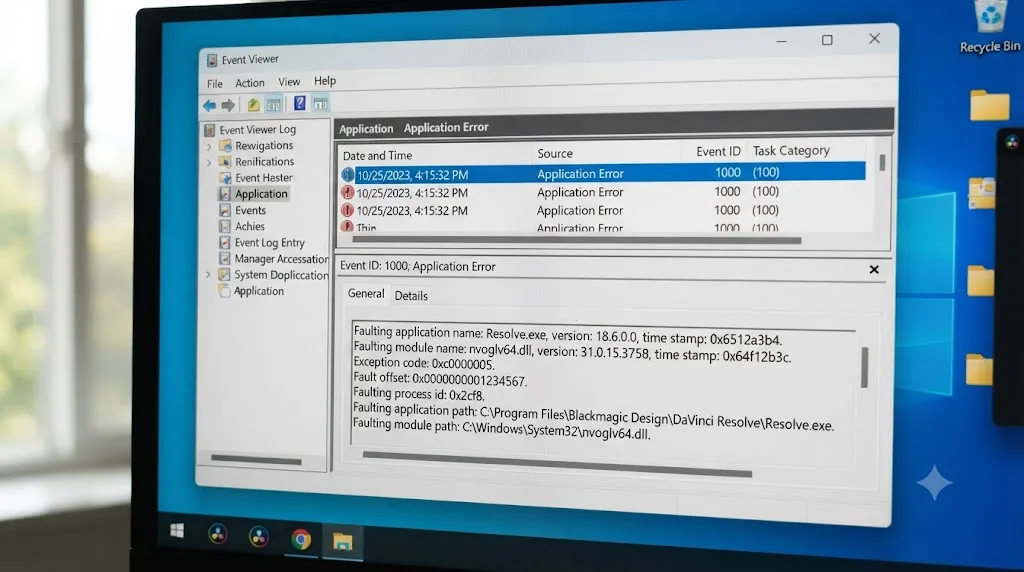
Where do OFX plugins actually get installed on Mac, Windows, and Linux?
Once you know which plugin you're chasing, the next question is where it's supposed to live. This trips people up constantly, because OFX plugins don't install into a Resolve-specific folder the way a LUT or a Fusion macro might. They install into one shared, operating-system-level location that every OFX-compatible host application reads from.
According to DaVinci Resolve's own manual, the standard locations are:
| Operating system | OFX plugin folder |
|---|---|
| macOS | /Library/OFX/Plugins |
| Windows | C:\Program Files\Common Files\OFX\Plugins |
| Linux | /usr/OFX/Plugins |
The manual explains the reasoning behind this design directly: "the installation and licensing of Open FX plugins is handled by a vendor's own installer," and that standardized location exists specifically so a single plugin install works across every OFX-compatible application on the machine, not just Resolve.
There are two mistakes that show up constantly here, and both look identical from the symptom side, an effect that's missing even though you swear you installed it.
Mistake one: the plugin lands on the user Library instead of the root Library, on Mac. A Blackmagic Forum thread specifically about installing OFX plugins and a related Lowepost forum thread about locating the OFX folder on a 5K iMac both circle the same trap: macOS has two folders named Library, one at the root of the drive (/Library) and one inside your personal user account (/Users/yourname/Library). OFX plugins need the root one. A user in the Lowepost thread, working through this exact confusion, got confirmation from another member, Mazze, that "the usual folder is /Library/OFX/Plugins/ on OSX," and that the folder frequently doesn't exist yet on a fresh system, so you may need to create it manually before a plugin installer will even find it.
Mistake two: the .ofx.bundle sits inside a subfolder instead of directly in the Plugins directory. This is a genuinely common trap because plugin downloads often arrive zipped with an extra folder layer, a version folder, an architecture folder, or a leftover ACES folder, wrapped around the actual .ofx.bundle. In the same Lowepost thread, Mazze asked directly: "Did you drop in the plugin .bundles?" and then clarified further: "Try putting the ofx.bundle files directly into the plugins folder, without the ACES folder inbetween." Resolve scans the Plugins folder for .ofx.bundle packages sitting right at that top level. Nest one folder deeper and Resolve's scanner simply doesn't look there.
A GitHub issue on the NatronGitHub openfx-misc repository documents this same failure mode on Windows in more technical detail. A user pulled .ofx.bundle folders from Natron's own plugin directory and copied them to C:\Program Files\Common Files\OFX\Plugins, and reported: "After launching resolve I can't find the plugins anywhere," despite confirming that "the OFXPluginCache.xml file in my C:\ProgramData\Blackmagic Design\DaVinci Resolve\Support dir also shows all off the bundles being detected, with an entry for every file." That's a genuinely useful, if slightly discouraging, data point: Resolve's cache can register a plugin bundle exists on disk without that plugin ever surfacing in the actual Effects Library UI, usually because the bundle wasn't built or packaged specifically for Resolve's exact OFX API expectations, not because of a folder-location mistake at all.
OFX plugins install once per computer, not once per project, so a project built with a specific third-party plugin only opens correctly on a machine that has that same plugin installed in its system-wide OFX folder. That single fact explains most of the confusion in this whole topic. It's not a Resolve project setting. It's an operating-system-level folder that every editor, colorist, and render machine touching that project needs to keep in sync.
The plugin is installed and it's still missing. What's actually wrong?
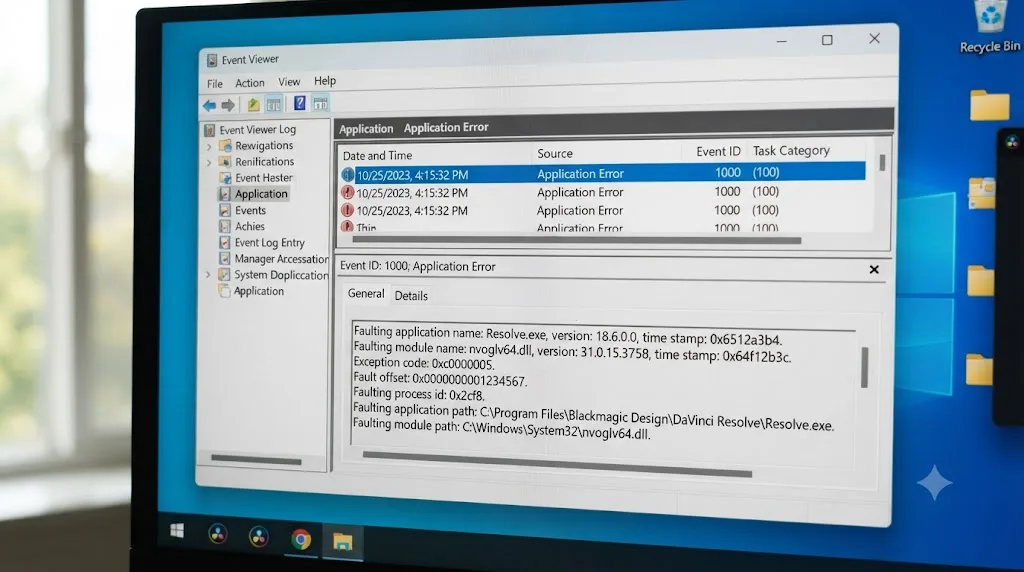
This is the second-most-common version of the complaint, and it's more frustrating than a simple missing install, because you've done the work. The plugin's .ofx.bundle is sitting exactly where it should be, you've confirmed the folder path twice, and Resolve still shows the effect as missing.
Three things cause this, and they stack in the order worth checking them.
The plugin is disabled in Resolve's own preferences. According to DaVinci Resolve's manual page on Video Plugins, the Video Plugins panel under Preferences > System lets you "manually enable and disable" individual OFX plugins with checkboxes, independent of whether the plugin files themselves are present on disk. This exists so you can trim down a bloated Effects Library without uninstalling anything. The catch is that it's easy to disable a plugin by accident, or inherit a preferences file from a template or a shared workstation setup where someone else already turned it off.
Resolve auto-blacklisted the plugin after a crash. This is a deliberate safety feature, not a bug, and it's worth understanding because it explains why a fresh reinstall sometimes doesn't fix anything. The same manual page states plainly that Resolve "automatically checks the last plugin loading result on startup, and skips any plugins that previously caused a crash or hang." If a plugin ever caused Resolve to hang or crash during a previous session, Resolve remembers that and refuses to load it again on subsequent launches, silently, without necessarily telling you which plugin got blacklisted or why. Reinstalling the exact same plugin version doesn't clear this flag, because the flag isn't stored with the plugin file. It's stored in Resolve's own cache.
The OFX plugin cache is stale. This is the fix that resolves the largest share of "installed but still missing" reports across every forum thread on this topic. Resolve maintains a cache file, OFXPluginCacheV2.xml in current versions (older builds used OFXPluginCache.xml), that records what plugins it found the last time it scanned, along with their load status. On Mac, this lives in ~/Library/Application Support/Blackmagic Design/DaVinci Resolve/. On Windows, the equivalent path is C:\ProgramData\Blackmagic Design\DaVinci Resolve\Support\. If that cache got written before you fixed a folder path, updated a plugin, or cleared a blacklist entry, Resolve keeps reading the stale version instead of rescanning your actual plugin folder.
Deleting the OFX plugin cache does not delete your plugins. It only makes Resolve forget what it thinks it knows about them. The fix is genuinely that simple, and it's non-destructive:
- Quit DaVinci Resolve completely.
- Navigate to the Application Support (Mac) or ProgramData (Windows) folder listed above.
- Delete
OFXPluginCacheV2.xml(andOFXPluginCache.xmlif it's also present). - Relaunch Resolve. It rebuilds the plugin cache from a fresh scan of your OFX folder, which also clears any crash-related blacklist entries tied to the old cache file.
- Reopen the project and check whether the effect is now recognized.
A Blackmagic Forum thread on this exact fix and independent troubleshooting notes from Colourlab.ai's help center both converge on the same sequence: confirm the plugin's checkbox is enabled in Video Plug-Ins, and if it's already checked and the plugin still won't load, clear the cache before assuming the installation itself is broken.
Why did the plugin work yesterday and go missing today?
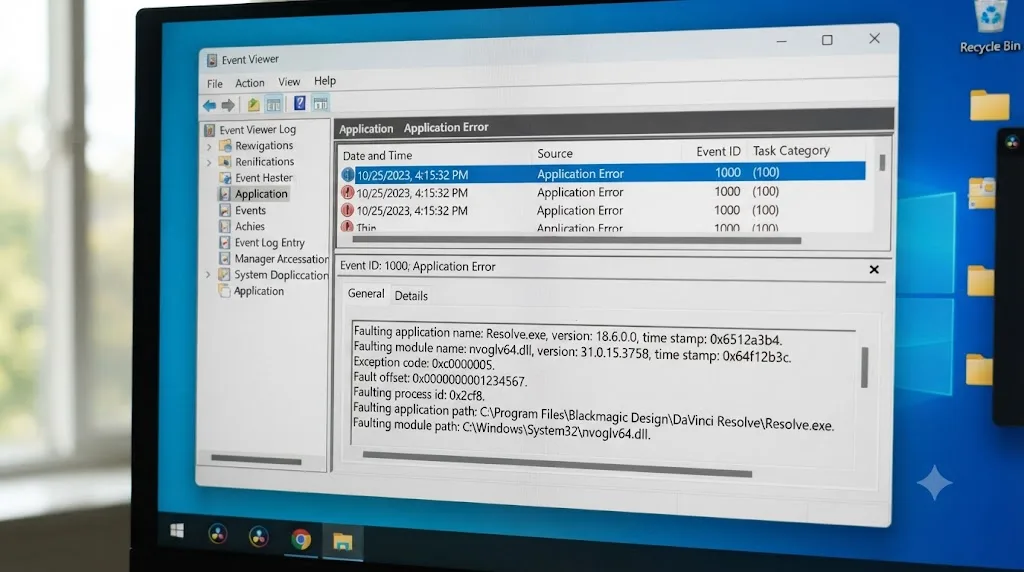
If nothing about your plugin folder changed, no reinstalls, no moved files, and an effect that worked in a previous session suddenly shows as missing, the cause almost always traces back to a version mismatch rather than a missing installation.
Plugin vendors update their software regularly, and an update can change more than bug fixes under the hood. It can change the plugin's internal identifier, drop compatibility with an older host API version, or split a single plugin into a differently versioned bundle. A project built while an older version of a plugin was installed references that exact version's ID. Update the plugin, and the newer version installed on your machine may register under a slightly different identifier than the one baked into your project.
Forum reports around this specifically point to Dehancer as a plugin where upgrading triggered exactly this symptom: a project that referenced an older Dehancer build started reporting the plugin as missing after the newer version replaced it, even though "Dehancer" as a named product was clearly still installed. Resolve isn't being unreasonable here. It's doing exactly what it's designed to do, matching a specific version reference against what's actually present, and finding no exact match.
There are two ways to resolve this, and which one makes sense depends on whether you still need the old look intact or you're fine moving forward:
Keep both versions installed side by side, if the vendor supports it. Some plugin developers, aware of exactly this problem, deliberately let old and new major versions coexist in the OFX folder so existing projects keep resolving against whichever version they were built with. Check the vendor's own documentation for the specific plugin before assuming this isn't possible.
Rebuild the effect using the current version. If side-by-side installation isn't supported, or you're fine with the newer version's defaults, the practical fix is reapplying the effect fresh rather than fighting to resurrect the exact old reference. This does mean re-dialing in whatever settings the original artist used, which is why it's worth checking whether the project notes, a render still, or a communication thread documents the original parameters before you start from scratch.
Deleting the OFX plugin cache from the previous section is worth trying here too, since a cache rebuild sometimes resolves a version mismatch on its own if both the old and new plugin files happen to still be present on disk and Resolve simply hadn't rescanned since the update.
Does Apple Silicon change any of this?
Yes, but the scope of the problem has shrunk a lot since the first wave of M-series Macs shipped, and it's worth being precise about what's actually still an issue versus what's mostly resolved now.
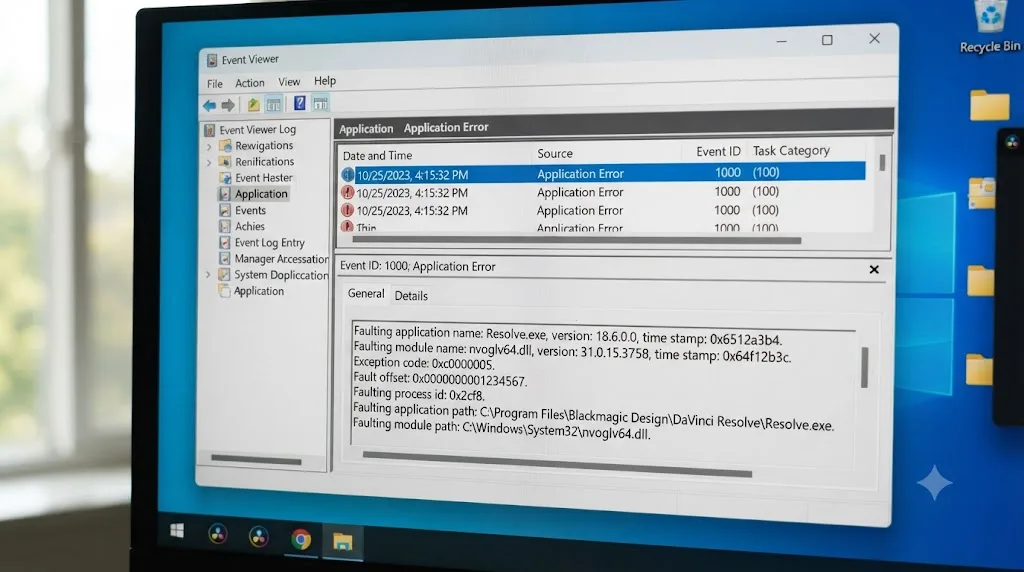
The core issue was straightforward: OFX plugins are compiled binaries, and a plugin built only for Intel processors doesn't run natively on Apple Silicon's ARM-based architecture. Apple's Rosetta 2 translation layer can bridge some Intel software, but plugin frameworks that hook deeply into a host application's rendering pipeline, which describes most OFX plugins, are exactly the kind of software where Rosetta translation is unreliable at best. Apple's own developer guidance is direct about this: Rosetta is meant to ease the transition to Apple Silicon, not serve as a permanent substitute for a properly compiled native version.
Major plugin vendors moved quickly to address this. Boris FX announced Sapphire 2021.5 with native M1 Mac support in May 2021, confirming the update as "available as a plugin for Adobe, Avid, and OFX hosts including Autodesk Flame, Blackmagic DaVinci Resolve and Fusion Studio, Foundry Nuke, VEGAS Pro, and more." Continuum received the same treatment around the same window. If you're running a current version of a major suite like Sapphire, Continuum, Red Giant Universe, or Dehancer today, Apple Silicon compatibility is a solved problem and not something you need to think about.
Where this still bites people:
Older, smaller, or abandoned plugins. Free or niche OFX plugins, the kind distributed by individual developers on GitHub or personal sites rather than a commercial vendor with an update cycle, are far more likely to have never received an Apple Silicon build at all. A Blackmagic Forum thread on OpenFX plugin compatibility with Apple Silicon describes exactly this pattern: a plugin that worked fine in Resolve 16.0 failed to load in Resolve 17.x, even after the developer compiled it as a universal binary supporting both arm64 and x86_64, which suggests the compatibility issue can sit as much in how Resolve's own OFX host handles a specific plugin's API calls on the new architecture as in the plugin's compilation target itself.
Old projects built on Intel Macs, opened later on Apple Silicon. A project that references an Intel-only plugin build won't magically resolve against an Apple Silicon version with a different internal signature, even if you've since upgraded the plugin. This is the same version-mismatch mechanism covered in the previous section, just triggered by a hardware transition instead of a routine plugin update.
The practical check, if you suspect this is your specific problem: confirm directly with the plugin vendor's own compatibility page or release notes whether the version you have supports Apple Silicon natively. Don't assume; a plugin that's several years old, from a vendor that hasn't shipped an update since 2021 or so, is the specific profile most likely to still be affected.
Why does a plugin work in Edit or Color but not on the Fusion page?
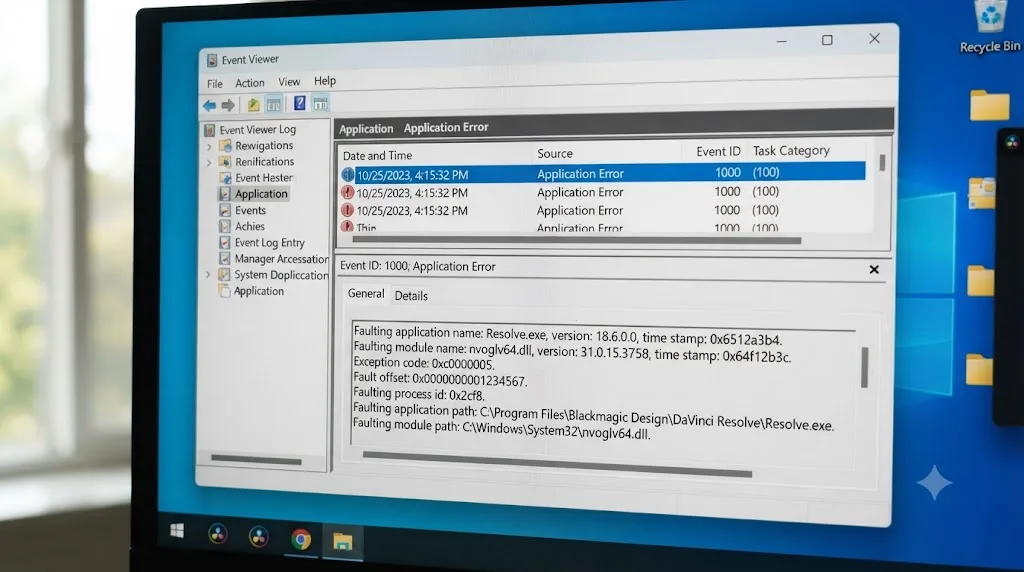
This is a distinct failure mode from an outright missing plugin, and it's worth separating clearly because it produces a confusingly similar symptom: an effect that seems to be there, installed, licensed, checked as enabled, and yet still doesn't behave the way it's supposed to on a specific page of DaVinci Resolve.
Boris FX's Continuum suite is the clearest documented example. According to Boris FX's own BCC Overview documentation for Resolve, "not all BCC filters will appear as options within the Resolve UI" because of "certain limitations in the current DaVinci Resolve implementation of the OFX plugin API." The specific technical limit named in that same documentation: "Up through the release of Resolve 14 it is not currently possible for an OFX plugin to access the source layer at points in time that are more than roughly 5 frames from the current frame." That constraint quietly rules out any BCC effect built around wide time-range analysis, things like Optical Stabilizer or Optical Flow, from appearing in Resolve's Effects Library at all, regardless of whether Continuum itself is correctly installed and licensed.
The Continuum filters missing from your Effects Library are not a bug in your installation. They are filters Boris FX has not built for Resolve's OFX implementation to support in the first place. No cache clear, no reinstall, and no version change fixes this, because there's no version of Continuum where those specific effects will show up inside Resolve. They're a genuinely different category of "missing" than everything else covered in this guide.
The Fusion page adds a second, separate wrinkle. Boris FX's own Continuum 2019 for OFX release notes state directly: "The embedded Fusion page in Resolve is not officially supported at this time," clarifying further that "official Resolve support does not yet include the embedded Fusion page within Resolve." That means an effect that's fully licensed, correctly installed, and works perfectly on the Edit and Color pages can still be entirely absent, or behave unpredictably, if you go looking for it inside a Fusion composition instead.
Here's the practical distinction to keep straight:
| Page | Continuum support | What "missing" means here |
|---|---|---|
| Edit page | Officially supported | A genuinely missing or misconfigured plugin, covered by the fixes earlier in this guide |
| Color page | Officially supported | Same as Edit; a real missing-plugin fix applies |
| Fusion page | Not officially supported | Expected behavior for this suite, not a fixable bug |
If you've confirmed a plugin is installed, enabled, and matches the version your project needs, and it's still not showing up specifically inside a Fusion node graph, check the vendor's documentation for that plugin's Fusion-page support status before spending more time troubleshooting. Some suites, and some individual effects within a suite, simply don't extend there yet, independent of anything on your machine.
What happens when you render or deliver a project with a missing plugin?
Everything covered so far deals with spotting a missing plugin while you're actively working in the project. The other place this shows up, often with more consequence attached, is on the Deliver page, or on a render machine that isn't the one you edited on at all.
A missing plugin encountered during a render behaves differently depending on where in the pipeline it's caught:
The render job fails outright. This is the most common outcome when the missing plugin sits directly in a clip's effect chain. The render queue reports a failure, and Resolve's render log names the specific plugin it couldn't resolve, which is genuinely useful, since it gives you the exact string to go looking for in the Video Plug-Ins panel or the OFX folder, without needing the Smart Filter workaround covered earlier.
The render completes, but the affected clip is missing its effect. Less common, but it happens, particularly on effects Resolve can silently skip rather than treat as a hard stop. The output file plays back fine technically, it just doesn't have the look, the noise reduction, or the stylization the missing plugin was supposed to add, and nothing in the delivered file itself flags that anything's wrong.
This distinction matters most in exactly the scenario Jef Huey described on the Lift Gamma Gain forum: rendering a project through a shared or cloud rendering pipeline where the machine actually doing the render work isn't the same one the timeline was built on. A colorist's workstation, fully loaded with every plugin a project needs, can produce a perfect preview. Hand that same project off to a render node, a colleague's machine, or a cloud rendering service, and if that machine's OFX folder doesn't match, the render either fails or silently drops the effect, even though nothing about the actual editorial work changed.
The practical takeaway for any workflow involving more than one machine touching the same project: before a final render, confirm the render machine's installed plugin set matches the machine that built the timeline, not just the Resolve version. Two machines running an identical build of DaVinci Resolve can still produce completely different render results if their third-party OFX folders don't match, and Resolve's version number tells you nothing about that.
What happens in collaboration or shared projects when one machine has the plugin and another doesn't?
Multi-User Collaboration and Blackmagic Cloud projects raise the stakes on this problem, because instead of one person eventually hitting a missing plugin warning on their own machine, you can have several collaborators editing the same timeline in real time, each with a different plugin inventory installed locally.
According to DaVinci Resolve's manual on opening projects to collaborate, the collaboration system syncs project data, timelines, bins, and grades, through a shared Project Server or Blackmagic Cloud, so every collaborator sees the same edit decisions in near real time. What it doesn't sync is the plugins themselves. A colorist applies Sapphire's Glow effect to a clip; that decision, the fact that this clip now has a Glow instance from Sapphire applied with these parameters, syncs instantly to every other collaborator's timeline view. Whether that effect actually renders correctly on each collaborator's own screen depends entirely on whether Sapphire is installed on that specific machine.
A plugin installed on the colorist's machine and missing on the editor's machine is not a corrupted project. It is two computers with two different plugin folders, both correctly reflecting a shared timeline they're both correctly reading. This is the same root cause as everything else in this guide, just distributed across a team instead of showing up once when a single project changes hands.
The practical implications for a team running collaboration mode:
Standardize the plugin set before you standardize anything else about the workflow. If your team is going to use Sapphire, Continuum, or any specific third-party OFX plugin on a shared project, every machine that will open that project, editors, colorists, assistant editors doing pickups, and any render nodes, needs the same plugin installed, licensed, and enabled, not just the one machine where the effect was first applied.
Expect the symptom to look different depending on who's looking. One collaborator sees the finished grade exactly as intended. Another, on a machine missing the plugin, sees a warning, or the clip playing back without that specific effect. Neither person is looking at a broken project. They're looking at the same accurate project data rendered through two different local plugin inventories.
License seats matter as much as installation. Some plugin vendors tie licenses to a specific number of activated machines rather than a flat per-user model. A team scaling up collaborators on a project needs enough licensed seats for every machine touching that plugin's effects, not just enough for however many people happen to be actively grading at once.
If your team is also running into unrelated collaboration friction, timelines or bins that seem locked when nobody's actively editing them, that's a separate, well-documented behavior in Resolve's first-come locking model, covered in full in our guide on why DaVinci Resolve's collaboration mode locks a timeline.
Is this a free version limitation, or does Studio behave differently?
No, and it's worth confirming directly because Resolve does gate a real set of features to the paid Studio license, and it's reasonable to wonder whether third-party OFX support is one of them.
It isn't. The OFX standard, the system-wide plugin folders, the Video Plug-Ins preferences panel, the plugin cache mechanism, and the missing plugin warning itself all work identically whether you're running DaVinci Resolve's free version or Studio. A third-party plugin that's compatible with Resolve at all is compatible with both licenses in the same way, and the troubleshooting steps in this guide apply without any Studio-specific branch.
Where licensing does enter the picture is on the plugin vendor's side, not Resolve's. Some third-party plugin suites price or restrict certain features based on the resolution or bit depth you're working at, which can indirectly line up with Studio-tier projects more often, since Studio supports higher resolutions and broadcast-grade formats the free version doesn't. That's a decision made by the plugin vendor's own licensing terms, entirely separate from anything DaVinci Resolve itself enforces.
Multi-User Collaboration, covered in the previous section, is included in both the free version and Studio as well, which means the shared-plugin-inventory problem that comes with team collaboration isn't something you can sidestep by upgrading your Resolve license. It's a plugin-management problem regardless of which version everyone on the team is running.
What's a full worked example, start to finish?
Here's how this plays out on an actual handoff, working through the checks in the order they're worth trying.
A freelance colorist finishes grading a commercial using Sapphire's Glow and Halation effects on several clips, then delivers the project file to the agency's in-house editor for final trims before delivery. The editor opens the project and immediately sees a warning: a plugin is missing on two clips in the timeline. Nothing else in the edit looks wrong, cuts, audio, titles are all intact, but those two clips play back flat, without the finishing look the colorist built.
- Confirm this is a plugin problem, not a corrupted project. The editor checks a few other clips in the timeline; everything else plays and exports normally, which rules out a broader project-file issue and narrows this specifically to whatever effect sits on those two clips.
- Find the exact clips carrying the missing plugin. Rather than manually clicking through every clip, the editor builds a Color page Smart Bin filter set to Color Timeline Properties, Open FX, Is, with the value left blank, and it immediately surfaces the two affected clips, confirming both are running an unnamed OFX instance.
- Identify the plugin. A quick message to the colorist confirms it's Sapphire's Glow and Halation, applied on the Color page. The editor doesn't have Sapphire installed at all; it was never part of the in-house toolkit.
- Decide on a resolution path rather than guessing. Since a full Sapphire license isn't something the agency wants to buy for a single project, the editor asks Boris FX for a trial install specifically to confirm and preview the missing effect, matching the approach suggested on the Lift Gamma Gain forum, rather than trying to work around the missing plugin blind.
- Install Sapphire's trial into the correct OFX folder,
/Library/OFX/Pluginson the editor's Mac, confirming the.ofx.bundlesits directly in that folder rather than nested inside an extra subfolder. - Restart Resolve and reopen the project. The two clips now render correctly, confirming the plugin, not the project, was the entire issue.
- Communicate the actual dependency back to the agency, so future handoffs either budget for a Sapphire license on the editing side or the colorist avoids that specific effect on projects that need to travel to machines without it.
Total time from "two clips are missing an effect" to a confirmed, correctly rendering fix: about twenty minutes, most of it spent identifying which plugin was involved rather than actually installing anything.
A second, shorter example lands on a completely different branch. A one-person shop upgrades Continuum to a new major version on a Tuesday, then opens a project from the previous week that used an older Continuum filter.
- The plugin shows as missing, even though "Continuum" as a product is clearly still installed and other Continuum effects in the same project work fine.
- The editor recognizes this as a version mismatch rather than a missing installation, since only one specific effect from the suite is affected while the rest work normally.
- Checking the vendor's release notes confirms the new Continuum version changed the internal ID for that specific filter category.
- Rather than hunting for the old installer, the editor rebuilds the effect fresh using the current version's equivalent filter, since the original settings were simple enough to eyeball and match from a reference still frame the client had already approved.
Same starting complaint, "a plugin is missing," and two shots that needed completely different fixes: one needed a plugin installed for the first time, the other needed an effect rebuilt against a newer version rather than resurrected. That's the pattern worth carrying forward from this whole guide: match the fix to which of the five root causes you're actually looking at, and don't reach for a reinstall when the real problem is a version mismatch, a disabled checkbox, or a stale cache file.
Quick troubleshooting reference
Bookmark this table. Work through it top to bottom; the earlier rows account for the large majority of reports.
| Symptom | Likely cause | Fix |
|---|---|---|
| Effect missing the first time you open a project on this machine | Plugin was never installed here | Install the exact plugin, matching version, in the correct OS-specific OFX folder |
| Plugin file is confirmed present but Resolve still reports it missing | Disabled in Video Plug-Ins preferences, or auto-blacklisted after a crash | Check Preferences > System > Video Plug-Ins; delete the OFX plugin cache if the checkbox is already on |
| Reinstalling the plugin doesn't fix anything | Stale OFX plugin cache | Quit Resolve, delete OFXPluginCacheV2.xml, relaunch |
| Effect worked yesterday, missing today, nothing else changed | Plugin was updated to a new version with a different internal ID | Reinstall the matching old version alongside the new one, or rebuild the effect fresh |
| Plugin loads on one Mac but not another | Missing native Apple Silicon build, or an Intel-only plugin on an M-series Mac | Confirm the vendor's compatibility page for a native build |
| Effect works on Edit and Color pages but not inside Fusion | Vendor doesn't officially support the Fusion page for that plugin | Check the vendor's documentation; this is expected behavior, not a bug |
| Some filters from a suite (e.g. Continuum) never appear at all | Resolve's OFX API implementation doesn't support that specific filter type | No fix available; check the vendor's Resolve-specific filter list before relying on it |
| Render fails or silently drops an effect on a different machine | Render machine's OFX folder doesn't match the editing machine's | Sync plugin installs across every machine touching the project, not just Resolve version |
| Different collaborators see different results on the same shared timeline | Collaboration syncs the edit decision, not the plugin itself | Standardize plugin installs across every collaborator's machine |
| You can't tell which clip is causing the warning | No Resolve UI directly names the missing plugin | Use a Color page Smart Filter for Open FX Is, left blank, or export and search an XML |
Does this behave differently on Mac versus Windows or Linux?
The core mechanics, the OFX standard itself, the Video Plug-Ins preferences panel, the plugin cache system, and the missing plugin warning behavior, work identically across all three platforms. Nothing about how Resolve detects or reports a missing plugin is platform-specific.
What differs is entirely the folder path and a handful of platform-specific traps already covered above. Mac users hit the root-Library-versus-user-Library confusion most often, since macOS genuinely has two folders with the same name and only one of them is correct for OFX. Windows users are more likely to run into the nested-subfolder mistake, since installers on Windows more frequently create an extra version or architecture folder inside the Plugins directory by default. Linux, with a smaller plugin ecosystem overall, sees this issue less often in practice simply because fewer commercial OFX plugins ship native Linux builds at all, which makes plugin availability itself, rather than a missing-effect troubleshooting problem, the more common blocker on that platform.
Apple Silicon compatibility, covered earlier, is obviously Mac-specific, since it's tied to Apple's own chip architecture transition. Windows and Linux don't have an equivalent recent hardware-architecture shift that's produced the same wave of plugin compatibility gaps.
The verdict
A "plugin not found" or "missing effect" error in DaVinci Resolve is never really about the project. It's about two machines, or the same machine at two different points in time, having different plugin folders. The project file did exactly what it's supposed to do: it remembered precisely which effect belonged on which clip. The gap is always downstream of that, in what's actually installed, enabled, cached, and version-matched on the machine trying to open it.
Work through the causes in the order this guide covers them. Find the specific clip and plugin first, using the blank Open FX Smart Filter if the normal filters come up empty, since guessing wastes far more time than a targeted search. Then check installation, then the enabled checkbox in Video Plug-Ins, then a stale cache, then a version mismatch, and only then start worrying about Apple Silicon or Fusion-page support gaps that no reinstall will ever fix.
TryUncle is the on-screen assistant for DaVinci Resolve on macOS. Ask in plain words and Uncle points at the exact control on your screen. That's exactly the kind of moment TryUncle was built for: instead of matching your project cold against a guide like this one, you can ask Uncle where a specific missing-plugin warning is actually coming from while you're staring at it, and it watches your real Fusion page or Color page timeline to point at the clip and the setting causing it. It's a paid subscription at $34.99 a month, cancel anytime. And once your plugin inventory is sorted across every machine touching a project, our guide on why DaVinci Resolve's collaboration mode locks a timeline covers the other most common way a shared project trips up a team that's otherwise doing everything right.
Frequently asked questions
- Why does DaVinci Resolve say a plugin or effect is missing when I open a project?
- Because the project file only stores a reference to the plugin, its internal ID and version, not the plugin itself. If that exact plugin isn't installed, licensed, and enabled on the machine you're opening the project on, Resolve has nothing to load and shows a missing plugin warning instead of silently dropping the effect.
- How do I find out which clip is using the missing plugin?
- On the Color page, build a Smart Bin or timeline filter for Open FX Is, then leave the value blank. Resolve shows every clip carrying an OFX effect it can't name, which is exactly what an uninstalled plugin looks like. For the Edit page, check each clip's Inspector for an empty effect slot, or export an EDL/XML and search the text for the plugin's ID string.
- Where does DaVinci Resolve look for OFX plugins on Mac, Windows, and Linux?
- Mac uses /Library/OFX/Plugins, Windows uses C:\Program Files\Common Files\OFX\Plugins, and Linux uses /usr/OFX/Plugins. These are shared, standardized OFX locations, not Resolve-specific folders, and the plugin has to sit as a .ofx.bundle folder directly inside that path, not nested inside a subfolder.
- I installed the plugin and it still shows as missing. What now?
- First check Preferences > System > Video Plug-Ins and confirm the plugin's checkbox is actually enabled, since Resolve auto-disables any plugin that crashed on a previous load. If it's enabled and still missing, quit Resolve and delete the OFX plugin cache file, OFXPluginCacheV2.xml, from Resolve's support folder, then relaunch so it rebuilds the plugin list from scratch.
- Why did my plugin disappear after I updated it or updated DaVinci Resolve?
- Projects reference a specific plugin version, not just a plugin name. Updating a plugin like Dehancer or Continuum to a new version can change its internal ID or drop support for an older API, so a project built on the old version shows the new one as missing until you either reinstall the older version alongside it or rebuild the effect with the new one.
- Does this behave differently on Apple Silicon Macs?
- Only if the plugin itself hasn't shipped an Apple Silicon build. Older Intel-only OFX plugins can fail to load on M-series Macs even when they show up in the plugin cache. Most major vendors, including Boris FX's Sapphire and Continuum lines, added native Apple Silicon support years ago, so this mostly affects older or abandoned plugins now.
- Is this a free version limitation, or does DaVinci Resolve Studio behave differently?
- No. Third-party OFX plugin support, the install folders, the Video Plug-Ins preferences panel, and the missing plugin warning all work identically in the free version and Studio. What differs is that some plugin vendors only sell or license certain effects for use with Studio's higher resolutions, which is a vendor licensing decision, not a Resolve feature gate.
- What happens if I render or deliver a project with a missing plugin?
- The render queue job fails, or completes with the affected clip missing its effect, and Resolve's render log names the specific plugin it couldn't find. This is a common surprise on shared or cloud rendering, where the machine doing the rendering doesn't have the same plugin set installed as the machine that built the timeline.
Sources
- DaVinci Resolve Manual - Where Are OFX Installed? (Blackmagic Design, mirrored)
- DaVinci Resolve Manual - Video Plugins (Blackmagic Design, mirrored)
- DaVinci Resolve Manual - Opening Projects to Collaborate (Blackmagic Design, mirrored)
- Blackmagic Forum - [Solved] OFX Missing Plugin Fix
- Blackmagic Forum - Install ofx.... where?
- Lowepost Forum - Unable to find OFX plug in folder, iMac 5k Retina
- Creative COW - OFX Plug-ins will not load
- Creative COW - OpenFX Error
- GitHub - NatronGitHub/openfx-misc Issue #54, Plugins not appearing in Resolve
- Boris FX Documentation - BCC Overview in Resolve
- Boris FX / Wondertouch - Continuum 2019 for OFX 12.0.2 Release Notes
- Lift Gamma Gain Forum - Searching for missing plugin question
- Boris FX - Boris FX Releases Sapphire 2021.5 with Native M1 Mac Support
- Colourlab.ai Help Center - I can't see my plugin in Davinci Resolve after Installation
Learn by doing, not watching
Stop translating tutorials to your timeline.
TryUncle stays beside Resolve on Mac and Windows. When you ask, Uncle sees your screen and points at the exact control you need. No hunting through tabs, timestamps, or mismatched tutorials.
Meet TryUncleKeep reading
 GuidesJul 9, 202636 min read
DaVinci Resolve Green Screen Not Working: Every Real Fix
Why a DaVinci Resolve green screen key works in Fusion but not on the timeline, and the Alpha Output, keyer, and export fixes that solve it.
 GuidesJul 10, 202637 min read
DaVinci Resolve Fusion Planar Tracker Not Tracking: Every Fix
Why DaVinci Resolve's Fusion Planar Tracker won't move, drifts, or loses lock, and the reference frame, tracker type, and mask fixes that solve it.
 FixesJul 11, 202628 min read
DaVinci Resolve Collaboration Mode Timeline Locked: The Fix
Why DaVinci Resolve locks a timeline, or a whole bin of them, in Multi-User Collaboration, and the fix: give each active timeline its own bin.