
Learn / DaVinci Resolveupdated for DaVinci Resolve 21.0 (2026)
DaVinci Resolve Fusion Planar Tracker Not Tracking: Every Fix
Quick answer
DaVinci Resolve's Fusion Planar Tracker usually fails because of a poor reference frame, low contrast, an unmasked object crossing the plane, or a perspective Motion Type forced onto footage that doesn't need it. Pick a clean, high-contrast reference frame, mask anything crossing the surface, and match Motion Type to the camera's actual movement.
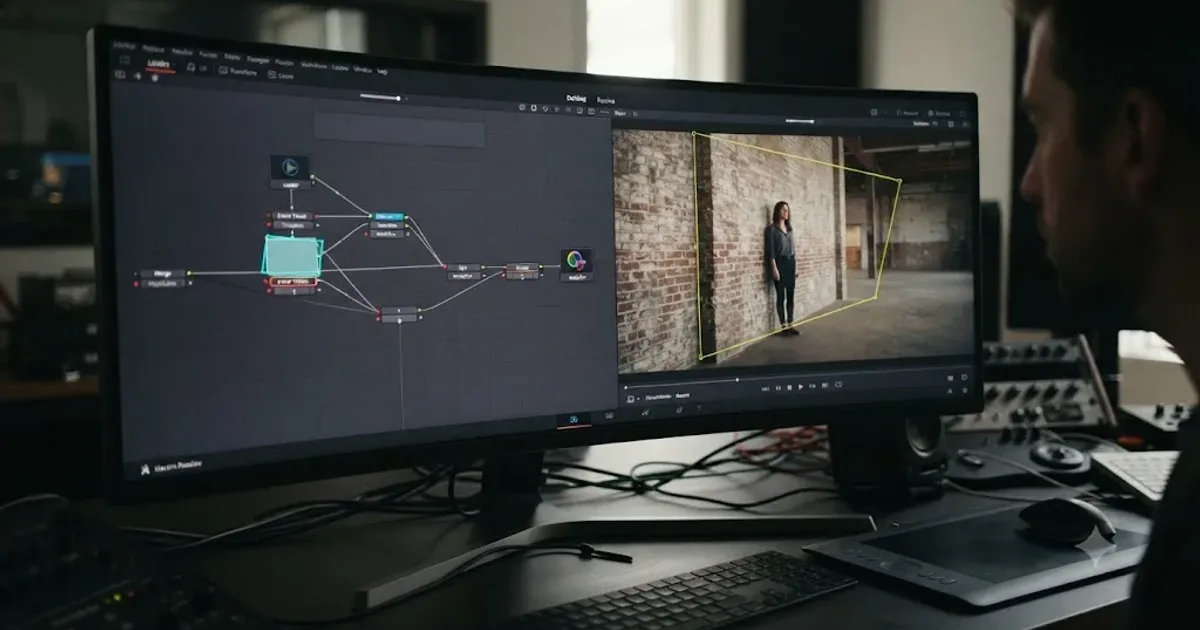
The polygon just sits there. You've drawn your pattern around the wall, the sign, the laptop screen, whatever flat surface you need to replace, and you hit Track Forward, and the render bar creeps across the timeline while the shape doesn't move at all. Or worse: it does move, and it's wrong, sliding a few pixels off the corner of the surface by frame thirty and completely off the building by frame two hundred.
I want to walk through every documented reason DaVinci Resolve's Fusion Planar Tracker stalls, drifts, or quietly gives up, in the order worth checking them. Most of what looks like a broken feature is a setup problem you can fix in under a minute once you know where to look.
What does the Planar Tracker actually track, and why does that matter when it "doesn't work"?
Here's the detail that trips up almost everyone who's used a point tracker or a subject tracker before: the Planar Tracker doesn't track a thing. It tracks a plane. Specifically, according to Blackmagic's own DaVinci Resolve manual page on the Planar Tracker node, "the Planar Tracker automates this keyframing process and tracks the perspective distortions of a planar surface over time." Blackmagic's own Fusion product page puts it just as plainly: "Planar tracking lets you track image planes, or flat objects, in a scene."
That single word, planar, is the whole story. A wall. A phone screen. A billboard. The side of a moving vehicle. A book cover lying flat on a table. If the surface you're trying to track is genuinely flat, or close enough to flat that its perspective distortion is what you're trying to capture, the Planar Tracker is built exactly for that job. If it's not flat, if you're trying to track a person's face, a rounded object, or a subject that changes shape as it moves, you're using the wrong tool, and no amount of settings tweaking fixes that mismatch.
The Planar Tracker tracks a flat plane, not a subject, and most "it won't track" reports turn out to be a mismatch between the tool and the footage, not a bug. The manual's own use case makes this concrete: tracking a moving license plate or road sign where the camera's motion keeps changing the surface's apparent perspective, replacing manual corner-pin keyframing with an automated pass that follows those distortions frame by frame.
Under the hood, the node runs one of two distinct algorithms, called Tracker types, and it applies one of five distortion models, called Motion types, on top of whichever tracker type you picked. Every failure mode covered in this guide traces back to one of four things: the reference frame, the tracker type, the motion type, or something crossing the plane mid-shot. Knowing which of those four you're actually dealing with is most of the battle.
Why does the Planar Tracker do nothing when you click Track Forward?
This is the complaint that shows up first in almost every troubleshooting thread: you draw the pattern, you hit Track Forward, and the tool behaves like it's working (the render bar moves, the interface says it's processing) but the polygon never actually moves from frame to frame. A Blackmagic Forum thread titled "Planar Tracker does not work" describes exactly this: the pattern gets drawn, Track is clicked, and nothing happens, even after clicking Set at various points in the process.
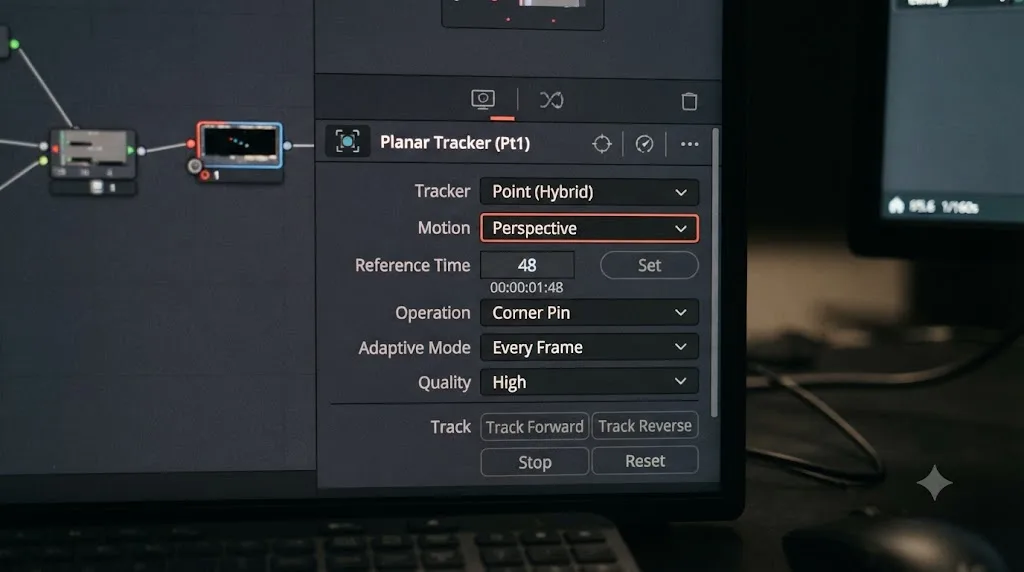
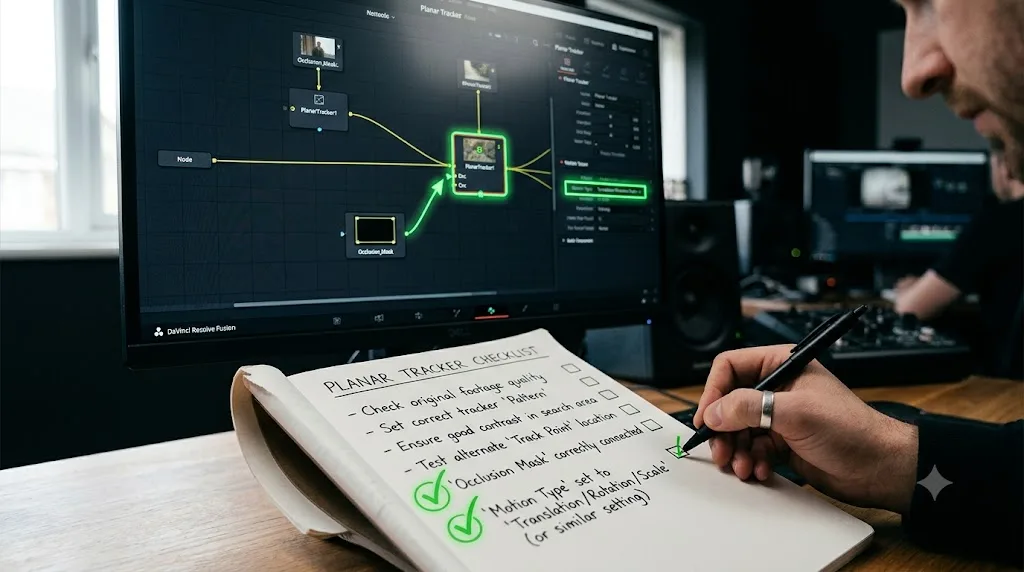
The fix that resolves the large majority of these reports has nothing to do with the tracking algorithm itself. It's the reference frame. A track that fails on frame one is almost never a bad track. It's a reference frame that was never actually set. The Planar Tracker needs an explicit anchor point, a specific frame where it can see the pattern clean and undistorted, before it has anything to track relative to. Skip that step, or set it on the wrong frame, and the tracker has nowhere to start from.
Here's the sequence that actually sets it correctly:
- Move the playhead to a frame where your target surface is fully visible, not partially cut off by the frame edge and not obstructed by anything passing in front of it.
- Draw your Polygon or B-Spline pattern on that exact frame.
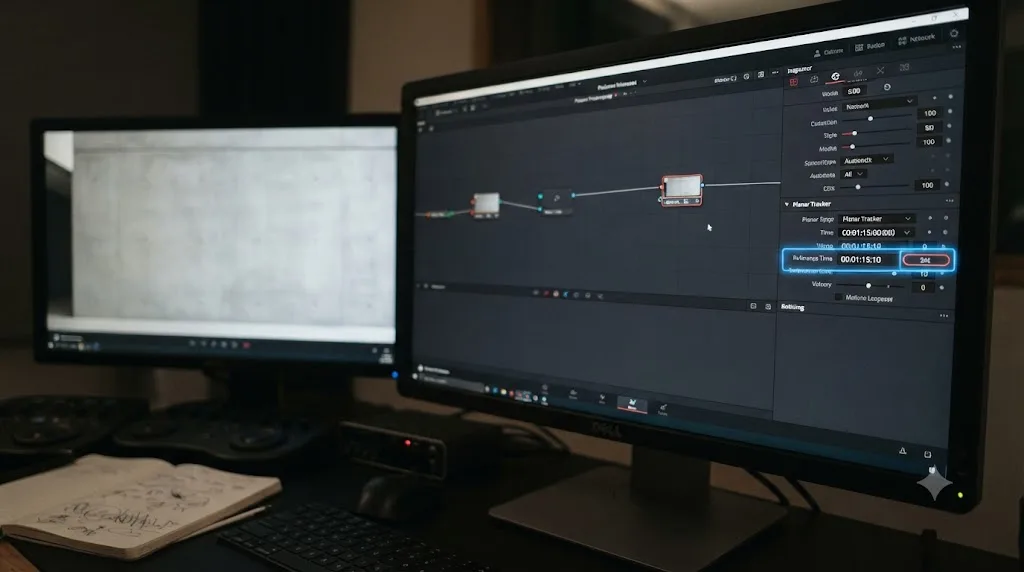
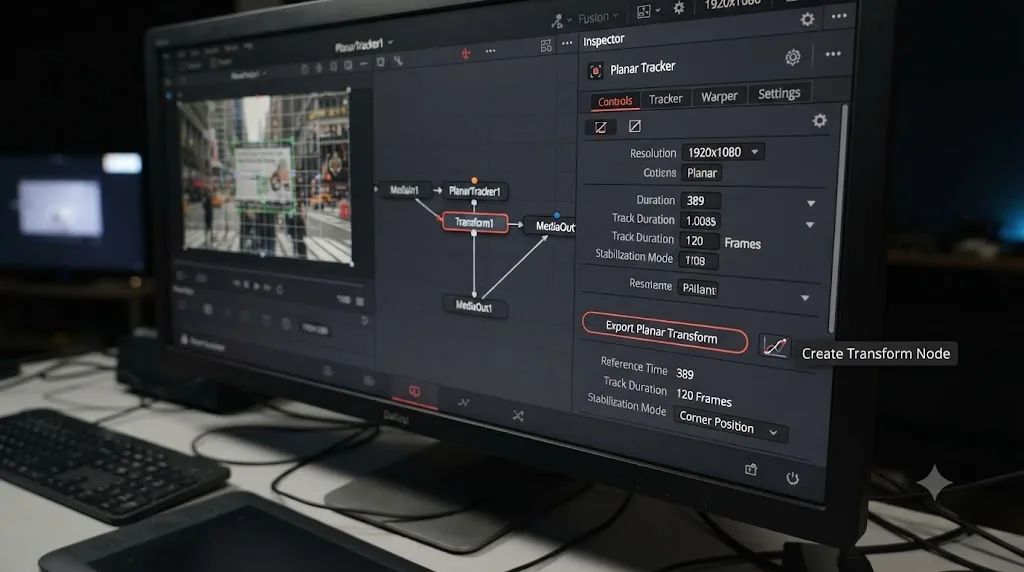
- Click the Set button next to Reference Time in the Inspector. This is the step people skip, because the pattern looks drawn and ready without it.
- Click Track Forward or Track Backward, and watch the render bar to confirm the polygon is actually moving frame to frame, not just holding still while Resolve churns through the render.
There's a second, more specific version of this same problem that only shows up on timeline clips rather than standalone media in the Media Pool. Because Resolve's internal frame numbering inside Fusion doesn't always match the timeline's own numbering, the reference frame you think you're setting, based on where your playhead sits on the Edit or Cut page timeline, can land on a completely different frame of the underlying clip once you're inside the Fusion page. The practical fix is the same: don't trust where you assume the reference frame landed. Scrub to it directly inside the Fusion page's own timeline after setting it, and confirm visually that the pattern still lines up with the surface.
A smaller number of forum reports on the same thread describe a related but distinct symptom: clicking "Track to End" causes the interface to display a "wait till render completes" message that never resolves, without the track moving a single frame. If a fresh reference frame and a restart of the tracking pass don't clear this, the workaround reported to work reliably is opening the affected clip in a brand new, empty project and rebuilding the Planar Tracker node there from scratch. It's a blunt fix, and it doesn't explain the underlying cause, but it's consistent enough across reports to be worth trying before you assume your specific clip is permanently broken.
Why does your track drift, wobble, or slide once it starts moving?
This is a different, more frustrating problem than a tracker that refuses to move at all, because everything looks fine at first. The polygon follows the surface for the first few dozen frames, and then it starts sliding, a pixel here, a pixel there, until by the end of the shot your composite is visibly floating off the surface it's supposed to be locked to.
A Blackmagic Forum thread specifically about Planar Tracking causing blur and slight "jello" captures the visual symptom well: a track that looks acceptable in a quick preview but reveals a soft, wobbling instability once you actually scrutinize it, closer to the jello effect associated with rolling shutter than a clean lock. Blackmagic's own manual is direct about this being a real limitation of the tool rather than a bug to report: "some shots are simply not trackable, or the resulting track suffers from too much jitter or drift," and the Planar Tracker is explicitly described as "not a 100% solution."
Three separate causes produce this same symptom, and they're worth telling apart because each one needs a different fix.
The pattern doesn't have enough trackable detail. Justin Robinson's breakdown of the Planar Tracker node for JayAreTV is blunt about this: patterns with "too few pixels or not enough trackable features" cause "jitter, wobble, and slippage." A small pattern drawn tightly around just the area you plan to composite into gives the tracker very little to work with. Robinson's recommendation is to draw the pattern "as large as possible," extending it beyond the exact composite area into any adjacent high-contrast detail, since the tracker doesn't require the tracked area and the final composite area to match exactly.
The camera's real motion is more complex than the Motion Type you selected. Covered in full in the next section, but worth flagging here: forcing a camera move with real perspective change into a simpler Translation or Affine model produces exactly this kind of progressive slide, because the model literally can't represent the distortion actually happening in the footage.
Lens distortion is bending straight lines the tracker assumes are straight. Robinson's article notes that "the more lens distortion in the footage, the more the resulting track will slide and wobble," since the Planar Tracker's underlying math assumes a flat, undistorted plane, and a wide-angle lens with visible barrel or pincushion distortion breaks that assumption at the edges of frame especially.
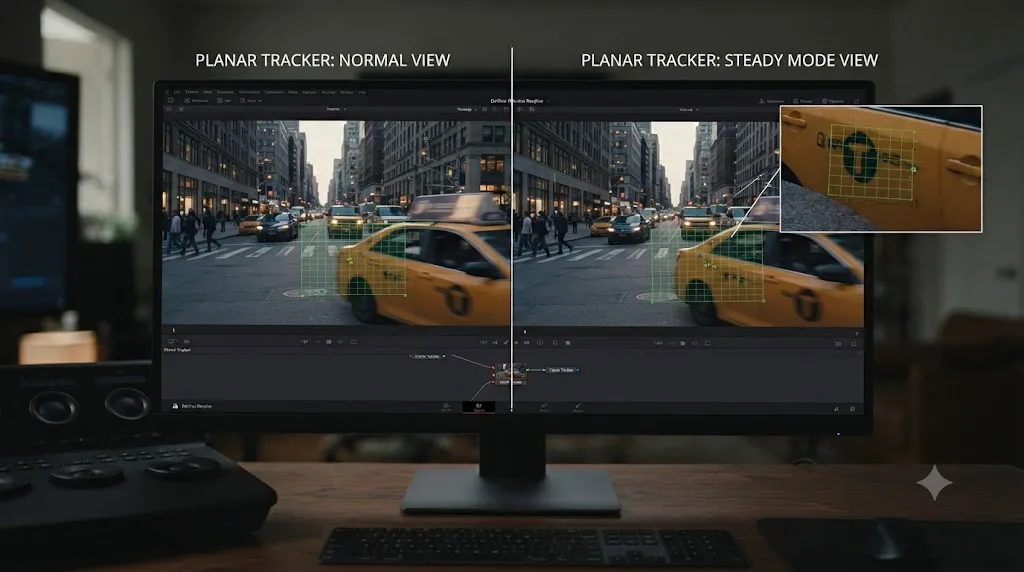
The only reliable way to tell if a track is actually clean, rather than just looking clean in a casual scrub through the timeline, is to check it in Steady mode. Set the Planar Tracker's operation to Steady, point the steady time at your reference frame, then zoom into a fixed, high-contrast detail on the tracked surface and play through the clip. A track that looks locked in the normal viewer can still be sliding by several pixels, and Steady mode is the only view that reveals it honestly. If that detail holds rock solid in Steady mode, your track is genuinely good. If it drifts even slightly, you have real work to do before compositing anything onto it, because that drift will be far more visible once there's a texture or replacement graphic riding on top of it.
Point or Hybrid Point/Area: which tracker type should you use?
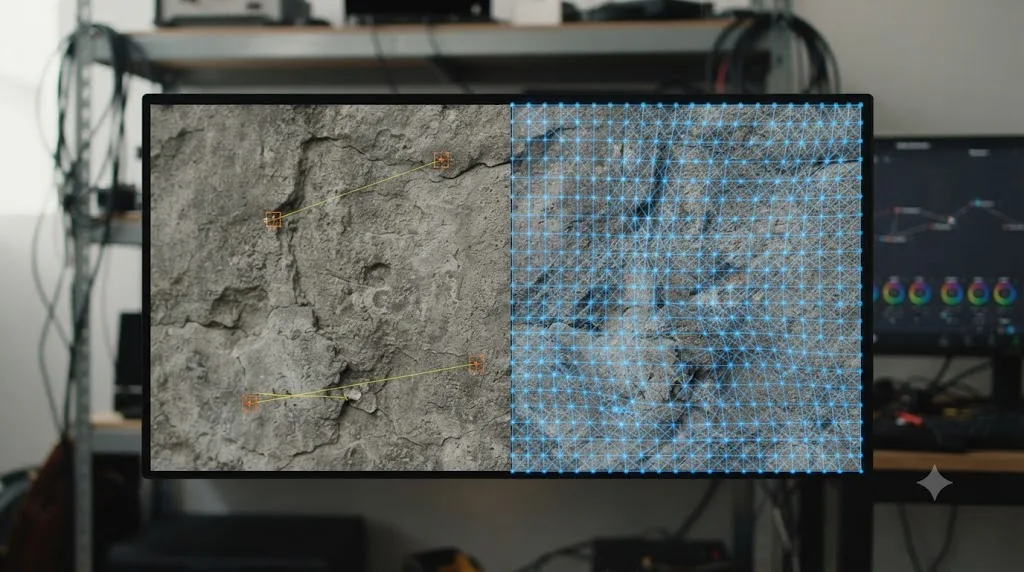
Before you touch Motion Type or occlusion masks, the Planar Tracker asks you to pick one of two fundamentally different tracking algorithms, and picking the wrong one for your footage is one of the most common reasons a track that should work simply doesn't.
Point Tracker follows a limited number of distinct, high-contrast features inside your pattern, the same conceptual approach as a classic point tracker, but constrained to the plane you've defined. According to the DaVinci Resolve manual, the Point Tracker "possesses the ability to automatically create an internal occlusion mask to detect and reject outlier tracks that do not belong to the dominant motion." That's a significant practical advantage: if something briefly crosses in front of your surface, Point tracking has a real chance of noticing that the motion doesn't match the rest of the pattern and ignoring it on its own.
Hybrid Point/Area takes the opposite approach. Instead of isolating a handful of standout features, it uses an area tracker that considers every pixel inside the pattern. Bernd Klimm's Planar Tracking Fundamentals tutorial for Mixing Light explains the tradeoff directly, and it's worth quoting because it corrects a genuinely common misconception: "A common mistake is to think that Hybrid Point [Tracker] is always better [than Point]. It's not, it's different."
Klimm's underlying reasoning shows up in the VFXstudy tutorial on the Planar Tracker as well: Hybrid "always considers the whole area and cannot discard false information," which means "strong highlights, objects that pass through, or reflections can literally throw the tracker off track." Where Point tracking can shrug off a passing obstruction by discarding the outlier points it's affecting, Hybrid has no equivalent instinct. Every pixel in the pattern matters to it, including the ones that briefly belong to something that isn't actually the surface.
Here's the practical breakdown:
| Tracker type | Best for | Weakness | Occlusion handling |
|---|---|---|---|
| Point | Surfaces with a few strong, distinct high-contrast features; shots with occasional passing obstructions | Less precise on evenly textured surfaces with no standout features | Automatic, via internal outlier rejection |
| Hybrid Point/Area | Evenly textured, high-contrast surfaces (brick, tile, printed signage) with minimal interruptions | Can be thrown off by reflections, highlights, or anything crossing the plane | Manual, requires a connected occlusion mask |
A useful rule of thumb, drawn from both the VFXstudy and JayAreTV write-ups: if your surface has a handful of genuinely distinct, high-contrast landmarks (a logo, a corner, a doorframe) and things occasionally pass in front of it, start with Point. If your surface is uniformly detailed across its whole area (a brick wall, a patterned wallpaper, a textured floor) with nothing crossing it, Hybrid Point/Area typically gives you a tighter, less jittery lock. Neither tracker type is a strict upgrade over the other. Picking the wrong one for your footage produces a worse track than picking either one consistently.
If you've been defaulting to Hybrid because it sounds more advanced, and your footage has occasional occlusions or a relatively sparse set of trackable features, that mismatch alone might be the entire reason your track keeps failing.
Which Motion Type stops the wobble, and which one causes it?
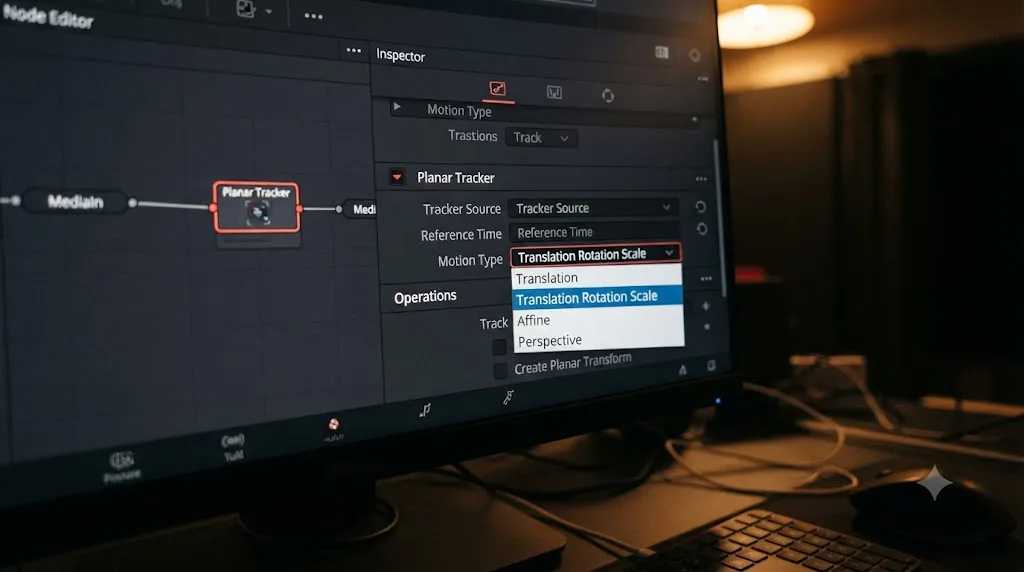
Once you've picked a tracker type, the Planar Tracker asks a second, equally consequential question: how complex is the actual camera movement relative to this surface? The manual lists five available distortion models, ordered from simplest to most complex: Translation, Translation + Rotation, Translation + Rotation + Scale, Affine, and Perspective.
The instinct most people have, especially the first time they open this tool, is to reach straight for Perspective, since it's the most capable model and it feels like the "correct" choice for anything shot with a moving camera. Bernd Klimm's Mixing Light tutorial on choosing and verifying Motion Type pushes back on that instinct directly: "In practice, you never have such simple movement… However, you also don't always really have full perspective movement." His point is that most handheld and gimbal shots, where the camera stays roughly the same distance from the tracked surface throughout the shot, don't actually need the full perspective model, because you "get away with much less than full perspective [tracking]" when the subject stays far enough from the camera that its apparent shape barely changes.
That matters because a more complex Motion Type isn't free. Every additional degree of freedom the model tracks gives the algorithm more room to make small, cumulative errors, and those errors compound over the length of a shot. Forcing Perspective onto a shot that's really just a simple pan can introduce exactly the kind of slow, creeping drift covered in the previous section, not because the tracker is broken, but because it's solving for distortions that were never actually happening in the footage, and each frame's slightly-wrong solve builds on the last one.
The reverse mistake is just as real. A dolly move, where the camera physically travels toward or away from the tracked plane, genuinely does introduce perspective change, and forcing that shot into Affine or a simpler model will produce a track that visibly slides because the model can't represent what's actually happening to the surface's shape.
| Motion Type | What it captures | Typical shot |
|---|---|---|
| Translation | Position only, no rotation or scale | Locked-off camera, subject moves slightly |
| Translation + Rotation + Scale | Position, rotation, and uniform zoom | Simple handheld shots with minor camera roll |
| Affine | Adds shear, handles non-uniform stretching | Side-to-side pans and tilts where the camera stays a consistent distance from the plane |
| Perspective | Full perspective distortion, most general | Dolly or zoom moves where distance to the plane actually changes |
Klimm's tutorial recommends a practical verification method rather than guessing: switch the Planar Tracker's operation mode to Steady, set the steady time to your reference frame, and watch a fixed detail in the frame. If it holds rock solid, the Motion Type you picked is adequate. If it wobbles or slides, the underlying camera motion has more freedom of movement than your current Motion Type can represent, and it's worth stepping up to the next level of complexity rather than assuming the whole tracker is unreliable.
The wrong Motion Type produces the exact same symptom as a bad tracker type or a low-detail pattern, a slow, creeping slide, which is why picking the right one first saves you from misdiagnosing the actual cause. Start with the simplest model you think could plausibly explain the shot, verify it in Steady mode, and only step up in complexity if the verification shows real residual movement. Going the other direction, starting at Perspective and stepping down, works too, but you'll spend more time undoing unnecessary drift along the way.
Why does the track break the moment something crosses the surface?
This failure mode is usually the most visually obvious, because you can watch it happen. The track is holding fine, and then a person walks in front of the wall you're tracking, or a hand reaches across the phone screen, or a boom mic dips into frame for two seconds, and the polygon lurches, jumps, or starts drifting from that point forward, even after the obstruction has cleared the shot.
By default, the Planar Tracker treats every pixel inside your drawn pattern as part of the surface it's tracking. It has no independent way of knowing that a person walking through that area for a few frames isn't the plane moving. If you're using Hybrid Point/Area tracking specifically, this is a real vulnerability, since as covered above it "always considers the whole area and cannot discard false information." Point tracking fares better here on its own, thanks to its automatic occlusion detection, but it isn't immune, particularly on longer or larger obstructions where a majority of the tracked points end up briefly covered.
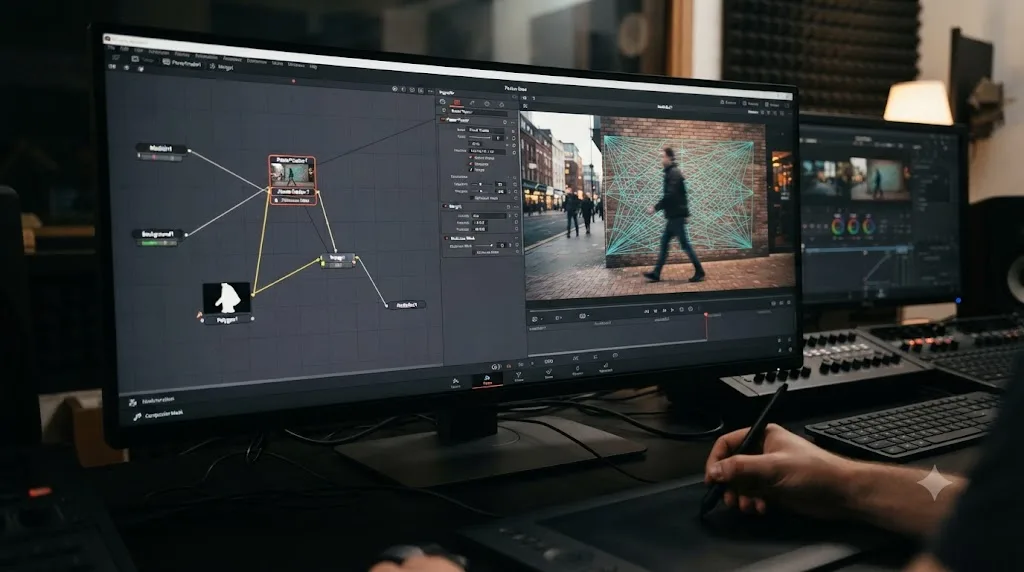
The manual's fix for this is a dedicated input on the node itself: the Occlusion Mask. According to the manual's description of the Planar Tracker's inputs, the white Occlusion Mask input exists specifically to define "regions to exclude from tracking." An occlusion mask does not make an object invisible to the composite. It tells the tracker to stop looking at that region while it's calculating where the plane moved.
Building one is a garbage matte problem, not a tracking problem:
- Identify exactly which frames the obstruction is actually inside your tracked pattern, not the whole shot, just the frames where it overlaps.
- Build a mask, using a Polygon, B-Spline, or a rotoscoped shape if the obstruction moves in an irregular way, that covers the obstruction for those specific frames.
- Animate that mask to follow the obstruction if it moves through frame, rather than leaving a single static shape covering more of the pattern than necessary for the whole duration.
- Connect the mask's output to the Planar Tracker node's Occlusion Mask input (the white connector).
- Re-run the track. The tracker now ignores whatever's inside that mask for the frames it's present, and continues solving based on the unobstructed portion of the pattern.
Bernd's VFXstudy tutorial frames the two available responses to an occlusion clearly: "you can intervene and fix areas that you were unable to track" after the fact, or you can "attach an occlusion mask or change your tracked area for parts of the sequence" before tracking in the first place. Prevention is almost always less work than manual correction afterward, especially on a shot where the obstruction is predictable, a person walking a known path, a car passing at a known point.
One detail worth knowing before you build an elaborate occlusion mask: the two tracker types respond differently to the same obstruction. Point tracking, with its built-in outlier rejection, can sometimes ride through a brief, partial occlusion without any mask at all, simply by discarding the handful of points the obstruction covers and continuing to track the rest. Hybrid Point/Area has no equivalent fallback, so if you're seeing occlusion-related jumps specifically with Hybrid tracking, it's worth testing whether switching to Point, rather than building a mask, solves the problem more simply. If the obstruction covers most or all of the pattern for several frames, though, neither tracker type has enough clean data left to work with, and a mask (or breaking the track into segments before and after the occlusion) becomes necessary regardless of which type you're using.
Does low contrast or motion blur really kill the track, and what fixes it?
Yes, and it's one of the more mechanically straightforward failure modes to understand, even though the underlying footage problem can feel unfixable once you're staring at it. The Planar Tracker's algorithms, both Point and Hybrid, work by identifying and following distinguishable visual detail inside your pattern. If that detail isn't there, whether because the surface itself is smooth and low-contrast, or because motion blur or a shallow depth of field has smeared away the texture that would otherwise be trackable, the tracker has nothing solid to lock onto, and the result is either a track that won't hold at all or one that wobbles unpredictably as it grabs onto whatever faint, unreliable detail happens to be left.
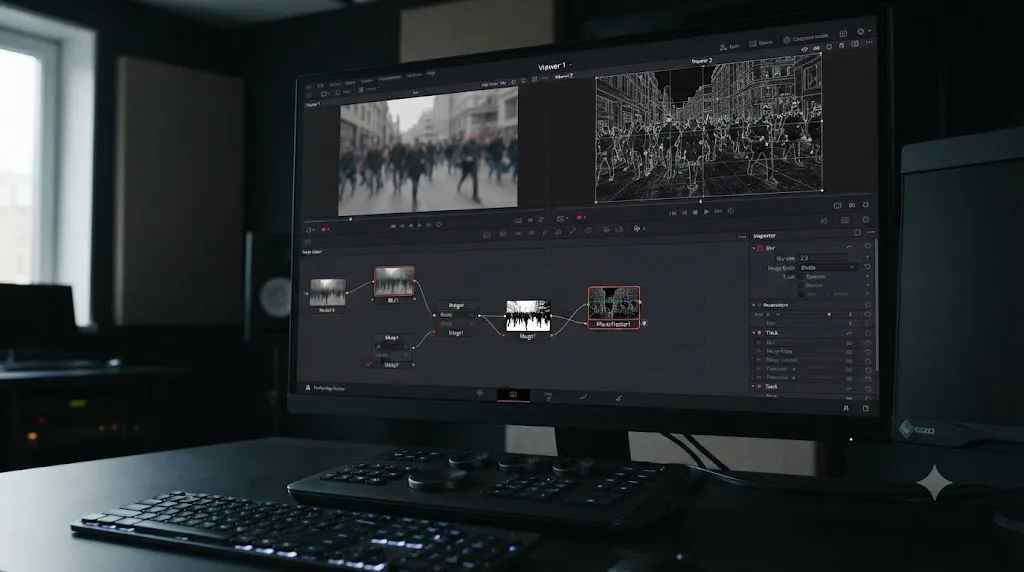
There's a genuinely useful, documented technique for this specific problem: frequency separation, a technique borrowed from retouching workflows and repurposed for tracking. Chadwick Shoults, writing a tutorial on the technique for Creative Video Tips, explains the underlying idea: "frequency separation divides color information from detail information," by creating a deliberately blurred copy of the footage and dividing it out of the original using a Channel Boolean node set to Divide mode. What's left after that division is a high-contrast, texture-only image containing structural detail with the smooth color variation stripped away.
Feeding that detail-only layer to the Planar Tracker instead of the original graded, blurred, or low-contrast footage gives the algorithm something concrete to grab onto, even on a surface that looks nearly featureless to the eye in its normal, graded state. As Shoults puts it plainly: "The planar tracker then uses only the high-frequency detail for more accurate tracking." The tracking data produced this way is just numbers, position, rotation, and scale over time, so once the track is solved on the enhanced detail layer, that same tracking data applies cleanly to your original, unmodified footage or to whatever replacement graphic you're compositing in.
The practical setup:
- Duplicate your source footage inside the Fusion comp.
- Apply a Blur node to the duplicate, tuned enough to remove fine detail while leaving broad color shapes intact.
- Add a Channel Booleans node set to Divide, feeding the original footage and the blurred duplicate into it.
- The output is a flat gray image with only the high-frequency texture visible, brightened and contrast-boosted if needed to make it easier to track visually.
- Feed this detail image into the Planar Tracker's background input instead of the original clip.
- Track normally. Once solved, apply the resulting tracking data (via the Inspector's transform-node export) to your actual composite, working against the original footage.
This isn't a fix for every low-contrast situation. A surface that's genuinely, uniformly flat with zero underlying texture, freshly painted drywall under flat lighting, for instance, won't produce meaningfully more detail no matter how aggressively you separate frequencies, because there's no hidden texture to reveal. But surfaces that look smooth mainly because of grading, lighting, or a wide dynamic range compressing the visible contrast (which describes a lot of real-world footage) often have more underlying structure than they appear to, and frequency separation is specifically built to expose it to the tracker without altering your final image at all.
Why did your finished track vanish after you saved and reopened the project?
This is one of the more counterintuitive failure modes in the whole guide, because it doesn't happen while you're tracking. It happens afterward. You track a shot, the result looks correct, you close the project (or Resolve crashes, or you just save and step away for the day), and when you reopen it, the tracking data is gone, and clicking Track Forward again starts the whole process over from scratch.
This isn't a bug. It's documented, deliberate behavior. The DaVinci Resolve manual states it directly: the Planar Tracker "does not save temporary tracking information such as the individual point trackers," and as a direct consequence, "Tracking may not be resumed after a comp containing a Planar Tracker node has been saved and reloaded." DaVinci Resolve's Planar Tracker does not save its temporary tracking data, so closing the project mid-track can throw away a tracking pass that took real time to build.
The practical implication is that you should treat a Planar Tracker session as something to finish in one sitting whenever the shot allows it, rather than something you leave half-tracked and return to later expecting to pick up where you left off. If a shot is long enough that a single tracking pass genuinely can't be completed in one session, or if you just want insurance against a crash mid-track, the fix isn't to save more carefully. It's to convert the tracking data into a form that does survive a save, which the Planar Tracker's Inspector gives you a direct way to do: a button that bakes the completed track into a standalone Transform node, carrying the position, rotation, and scale keyframes as ordinary animation curves rather than the tracker's own internal working state.
Once that Transform node exists, it behaves exactly like any other keyframed node in Fusion. It saves and reloads normally, you can hand-edit its curves the way covered in the next section, and the original Planar Tracker node's internal, unsaved tracking data becomes irrelevant, since you're no longer depending on it.
A related practical habit worth adopting: bake and export the Transform node as soon as a track finishes and looks correct, even if you're planning to keep working in the same session. It costs almost nothing, and it means an unexpected crash, an accidental undo past the tracking pass, or a colleague reopening the project on a different machine doesn't cost you the tracking work itself. Treat the Planar Tracker node as a temporary calculator, not permanent storage, for anything you actually need to keep.
Do color grades, retiming, or other nodes upstream break the Planar Tracker?
Sometimes, and the two most reliably documented cases are worth knowing about separately, because they need different fixes.
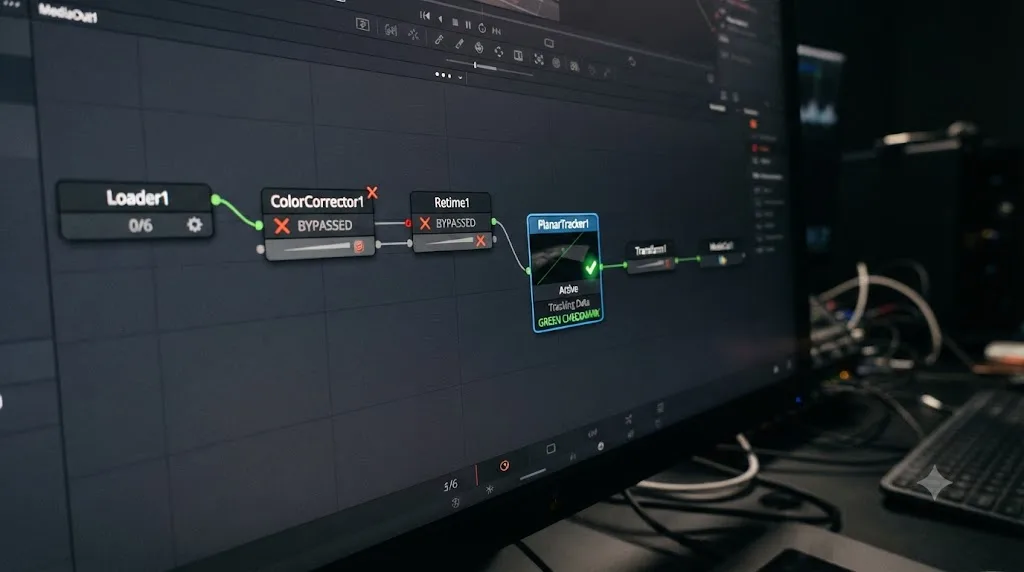
Heavy grading or effects feeding into the tracker. A recurring, if less formally documented, troubleshooting step reported around the "Planar Tracker does not work" thread is disabling color grading nodes, or nodes carrying effects like object removal, upstream of the Planar Tracker before attempting to track. The likely mechanism is straightforward even without an official technical explanation: a grade that crushes contrast, clips highlights, or heavily desaturates the image can strip away exactly the visual detail the tracker needs to lock onto, in much the same way low native contrast does. If you've built your node tree with the Planar Tracker sitting downstream of a full color pass rather than analyzing something closer to the source footage, temporarily bypassing those upstream nodes before tracking, then re-enabling them afterward once the tracking data is solved, is worth trying before you assume the shot itself is untrackable.
Retimed or speed-ramped clips. This one has a specific, named bug report behind it. A Blackmagic Forum thread on a Retime & Scaling bug affecting Fusion clip trackers describes the Planar Tracker failing specifically on Fusion clips that have Retime and Scaling applied on the Edit page before the clip reaches Fusion, with a related surface tracker reported to be worse, capable of making Resolve stop responding entirely under the same conditions. The documented workaround is to render the clip in place at its final, retimed speed before doing any Fusion tracking work on it, rather than asking the Planar Tracker to analyze a clip whose frame rate and timing are still being manipulated live by a Retime node sitting between the source media and the Fusion page.
A Fusion clip inherited from the timeline versus a clip opened directly. A related, less clearly diagnosed pattern shows up in community reports: a tracker that won't work when the clip is embedded as part of a larger Fusion Clip pulled in from the Edit page timeline, but does work when the same footage is opened and tracked as an individual clip. If you're hitting a wall specifically on a Fusion Clip built from a timeline selection, isolating just the problem clip, either by opening it directly on the Fusion page outside the multi-clip context, or by rendering it out and reimporting it as standalone media, is worth trying as a diagnostic step even without a documented root cause behind why the difference exists.
| Upstream condition | Symptom | Fix |
|---|---|---|
| Heavy grade or object-removal effect before the tracker | Tracker won't move, or produces a poor lock on footage that should be trackable | Bypass upstream nodes, track, then re-enable them |
| Retime & Scaling applied to the clip | Tracker fails outright; a related surface tracker can hang Resolve | Render the clip in place at final speed before adding tracking nodes |
| Multi-clip Fusion Clip from the timeline | Tracker fails on the embedded clip but works on the same footage opened individually | Isolate the clip on the Fusion page directly, or render and reimport as standalone media |
None of these three causes are about the tracker's algorithm being wrong for your footage. They're about what the tracker is actually being asked to analyze, which isn't always the same as what you see in the viewer. Ruling them out before you start second-guessing your tracker type or Motion Type choice can save a genuinely frustrating amount of trial and error, since a bad Motion Type and a broken retimed clip produce symptoms that look almost identical on the surface.
Can you manually fix a track instead of starting over?
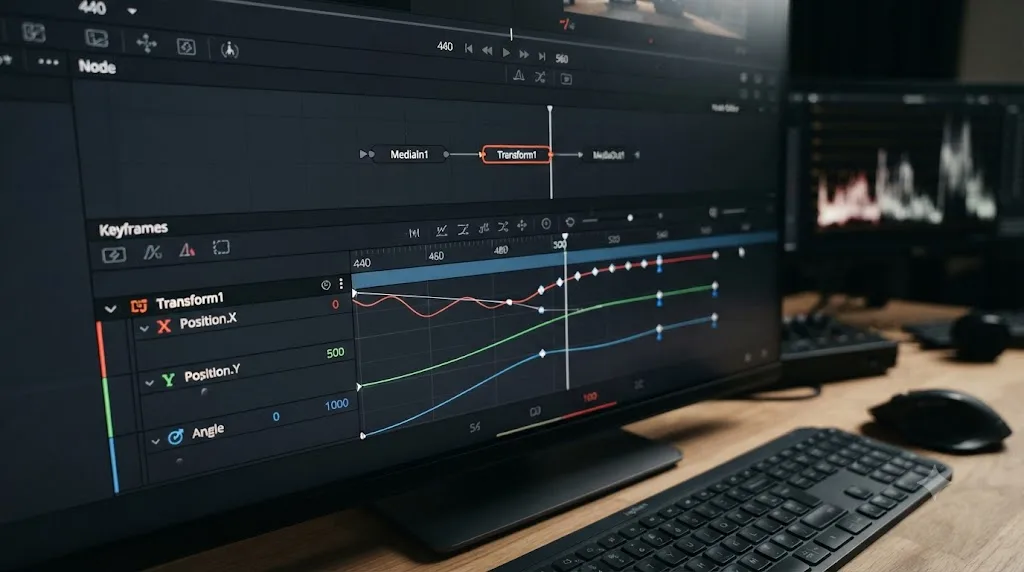
Yes, and this is worth knowing before you write off a mostly-good track just because it slips for a few seconds somewhere in the middle. A Blackmagic Forum thread on manually altering a planar tracker makes an important point about the tool's design: the Planar Tracker node itself is effectively a black box while it's working, meaning you can't reach in and directly edit the raw tracking data it's calculating. What you can edit is the output, once you've converted that output into an ordinary Transform node.
That's the same bake-to-Transform step covered in the previous section, and it's the gateway to every manual fix available to you. Once the track exists as a Transform node's Position, Angle, and Size curves, it's just keyframed animation, and you can treat it exactly like you'd treat any hand-keyed move.
The practical approach, drawn from the same forum discussion:
- Identify precisely which frames the track starts to slip, using Steady mode as covered earlier to confirm it rather than guessing from the regular viewer.
- Bake the Planar Tracker's output to a Transform node from the Inspector if you haven't already.
- Open the Transform node's Position, Angle, and Size parameters in the Keyframes panel.
- Add a keyframe at the frame just before the slip begins, locking in the last good position.
- Add a keyframe at the frame where the surface returns to a position you can visually confirm as correct, if the slip is temporary rather than a permanent drift from that point forward.
- Manually adjust any keyframes between those two anchor points until the interpolated motion matches the surface, using a fixed detail in the frame as your reference the same way you would in Steady mode.
For drift that never recovers, that starts at some frame and just keeps compounding for the rest of the shot, the more efficient move is usually to re-track from that frame forward as a fresh pass, using the last good frame as a new reference frame, rather than hand-keying an entire back half of a shot from scratch. You can also mix approaches: track cleanly up to the point of failure, bake that segment, then either hand-key the remainder if it's short, or set a new reference frame at the recovery point and let the tracker pick the job back up on the far side of whatever caused the failure.
A mostly-good planar track with a few seconds of drift is usually faster to hand-correct than it is to re-track from zero, once you know the tracking data is just ordinary keyframes underneath. This is also the practical reason baking to a Transform node early, as soon as a pass looks reasonable, is worth doing even before you're certain the track is finished: it gives you a safety net you can edit directly, rather than an all-or-nothing tracking pass you either accept whole or discard entirely.
Planar Tracker vs Point Tracker vs 3D Camera Tracker: which one should you actually open?
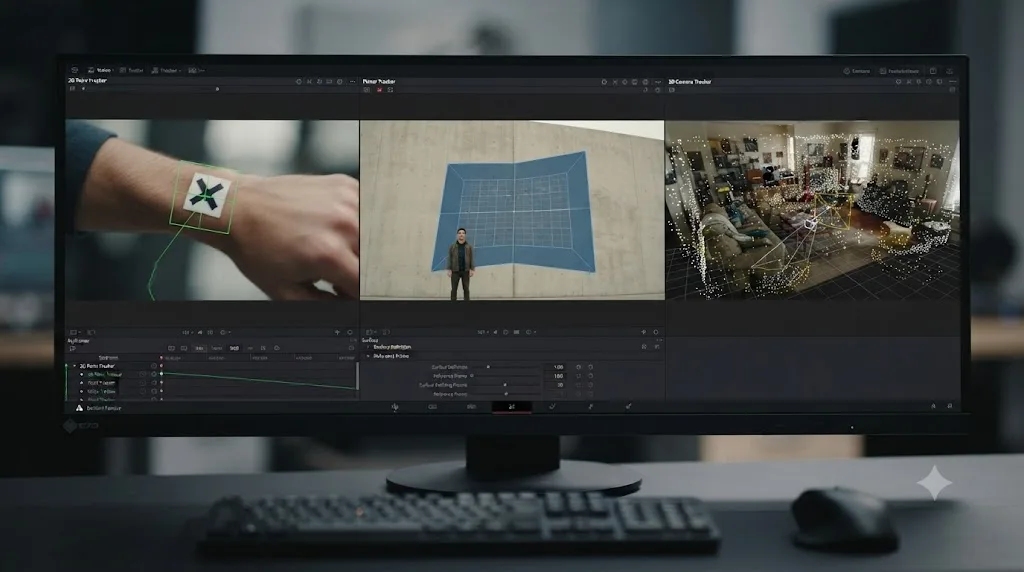
Fusion ships with three distinct tracking tools, and reaching for the wrong one produces frustration that has nothing to do with any bug covered in this guide, because you're asking a tool to solve a job it was never built for. Blackmagic's Fusion product page describes all three in a single breath: "The 2D tracker is great for following most objects that move throughout a scene," "Planar tracking lets you track image planes, or flat objects, in a scene," and "the 3D camera tracker is extremely powerful because it analyzes the motion of the camera that shot the original scene and recreates it in 3D space."
| Tool | Tracks | Good for | Bad fit for |
|---|---|---|---|
| 2D Point Tracker | Individual points or small features | Attaching a graphic to a moving point, stabilizing a shot, tracking a subject's eye or hand | Anything needing perspective-correct distortion across a whole surface |
| Planar Tracker | A flat surface's position, rotation, scale, and perspective over time | Screen replacements, sign and billboard replacements, corner-pinned textures | Non-flat, rounded, or deforming subjects; full 3D camera moves |
| 3D Camera Tracker | The camera's own motion through 3D space | Placing 3D objects into a scene, virtual set extensions, complex parallax composites | Simple 2D screen or sign replacement, where it's more setup than the job needs |
The mistake that lands people on this guide specifically is usually one of two things: trying to track a rounded or non-planar subject with the Planar Tracker, which fights the tool's core assumption that the surface is flat, or trying to solve a genuine camera-move-through-3D-space problem, a walking shot around a room where you need to place a 3D object convincingly, with the Planar Tracker instead of the 3D Camera Tracker, which is built for exactly that job.
A useful diagnostic question before you open any of the three: is the thing I'm tracking flat, and does it stay roughly the same shape from the camera's point of view throughout the shot? If yes, Planar Tracker is the right tool, and any failure you're seeing is one of the causes covered earlier in this guide. If the surface curves, rotates out of plane, or changes shape as the camera or subject moves, no amount of Motion Type tweaking rescues a Planar Tracker track, because the tool's core assumption doesn't hold, and you need either the 2D Point Tracker for a single feature or the 3D Camera Tracker for full spatial placement instead.
Is the Planar Tracker included in DaVinci Resolve's free version?
Yes, and this is worth confirming directly since some of Resolve's more advanced tools, particularly the Neural Engine-driven ones like Magic Mask and Smart Reframe, are gated to the paid Studio license. The Planar Tracker isn't one of them. MiniTool's guide to using the Planar Tracker in DaVinci Resolve states it directly: "Yes, you can perform planar tracking with DaVinci Resolve's free version. The program offers a powerful planar tracker," while noting the free version does carry other, unrelated limitations compared to Studio, none of which affect the tracker itself.
The Planar Tracker ships in DaVinci Resolve's free version, the same as the 2D Point Tracker, with no feature gate separating them from the Studio license. Every technique covered in this guide, the reference frame workflow, both tracker types, all five Motion Types, occlusion masking, frequency separation for low-contrast footage, and manually correcting a baked Transform node, works identically whether you're on the free version or Studio. If you're troubleshooting a track that won't move or won't hold, you are dealing with a setup or footage problem, full stop, not a paywall.
The 3D Camera Tracker sits in a genuinely different category from a licensing standpoint, and reports on exactly where the line falls have varied across Resolve's release history, so it's worth checking your specific version's feature list directly if full 3D camera solving is what you actually need, rather than assuming its availability matches the Planar Tracker's.
What's a full worked example, start to finish?
Here's how this plays out on an actual shot, working through the checks in the order they're worth trying.
A motion designer needs to replace a blank laptop screen with a UI mockup, in a shot where someone walks across the room and briefly passes between the camera and the laptop. The shot is a locked-off tripod frame with a slight handheld wobble from someone bumping the table, nothing resembling a dolly move.
- Open the Fusion page and add a Planar Tracker node, connected from a MediaIn node pulling in the interview footage. The designer scrubs to a frame where the laptop screen is fully visible and undistorted, well before the person walks through frame, and draws a Polygon pattern tightly around the screen's visible edges.
- Click Set next to Reference Time, then click Track Forward. The track holds cleanly for the first several seconds, right up until the person crosses in front of the laptop, at which point the polygon visibly jumps.
- Diagnose the jump correctly rather than assuming the tracker is broken. Scrubbing back, it's clear the tracker was doing fine until the occlusion; this isn't a reference frame or Motion Type problem, it's a missing occlusion mask.
- Build a garbage matte around the person, animated to follow them for the roughly two seconds they're in frame, and connect its output to the Planar Tracker's white Occlusion Mask input.
- Re-run the track from the same reference frame. This time the polygon holds steady through the occlusion, since the tracker is now ignoring the person's motion entirely while calculating the surface's position.
- Verify with Steady mode. Switching the operation mode to Steady and zooming into the laptop's keyboard reveals a very slight residual wobble, small enough to have been invisible in the normal viewer, but this is a locked-off tripod shot with only a minor handheld bump, so Translation + Rotation + Scale, rather than the default Perspective, turns out to be the more accurate Motion Type. Switching to it and re-tracking removes the wobble entirely.
- Bake the finished track to a Transform node from the Inspector before doing anything else, protecting the completed work against an accidental crash or an editor reopening the project later.
- Connect the mockup image through Corner Pin inputs, using the baked Transform node's tracking data to drive the perspective-matched placement onto the screen.
Total time from "the tracker jumped when the person walked through" to a finished, locked composite: about twelve minutes, with the occlusion mask taking longer to build than every other step combined.
A second, shorter example lands on a completely different branch. A colorist is asked to track a billboard for a sign replacement in a fast handheld run-and-gun shot, heavily graded already, shot on a gimbal with real dolly movement toward the sign.
- The first attempt, tracking directly on the graded clip with Point tracking and default Perspective, produces a track that never really locks, sliding visibly from the first few frames.
- Bypassing the color grade nodes upstream of the Planar Tracker and re-tracking against the flatter, ungraded footage immediately improves the lock, confirming the grade's crushed shadows had been starving the tracker of usable contrast.
- Switching to Hybrid Point/Area, since the billboard itself is a single, evenly lit, high-contrast printed surface with nothing crossing it, tightens the track further compared to Point.
- Perspective, kept as the Motion Type this time rather than simplified down, turns out to be the correct choice, since the shot's real camera-to-sign distance is changing as the gimbal operator walks toward it, which is exactly the situation Perspective is built to handle.
- The color grade is re-enabled downstream of the finished, baked Transform node, since the track was only ever a problem while it sat upstream of the grade, not something that needed to stay bypassed for the rest of the composite.
Same starting complaint, "the tracker won't lock," and two shots that needed almost opposite fixes: one needed a simpler Motion Type and an occlusion mask on an otherwise straightforward locked-off frame, the other needed a bypassed grade and the full Perspective model on a genuinely complex camera move. That's the pattern worth carrying forward from this whole guide: a Planar Tracker failure is rarely one universal cause. It's a small set of independent variables, reference frame, tracker type, Motion Type, occlusions, contrast, and what's actually feeding the node, and the fix depends entirely on which one is actually wrong for the specific shot in front of you.
Does this behave differently on Mac versus Windows or Linux?
The Planar Tracker's core algorithm, both tracker types, all five Motion Types, the reference frame workflow, and the occlusion mask input all work identically across Mac, Windows, and Linux. None of the fixes in this guide are platform-specific, and nothing about how the tracker solves a plane's motion changes based on your operating system.
Where hardware does matter, at least anecdotally, is processing speed on demanding footage rather than tracking accuracy itself. The Planar Tracker's analysis is a real computational workload, and Resolve's general Memory and GPU preferences documentation applies to it the same way it applies to any GPU-accelerated processing in Fusion: a GPU processing mode left on Auto, particularly on a system with more than one GPU installed, is worth checking under Preferences > System > Memory and GPU if tracking passes are running unusually slowly rather than producing an outright wrong result. That's a performance consideration, not an accuracy one; a slow track and a bad track are different problems, and nothing here suggests GPU settings cause the drift, occlusion, or reference-frame failures covered throughout this guide.
I want to be honest that Blackmagic hasn't published platform-specific benchmarks or known issues for the Planar Tracker specifically, unlike some of Resolve's Neural Engine-driven AI tools, which do have documented platform quirks tied to Metal versus CUDA processing paths. The Planar Tracker predates those AI features and uses a more traditional computer vision approach, which appears to be a meaningful part of why its behavior stays consistent across platforms in the reports available.
Quick troubleshooting reference
Bookmark this table. Work through it top to bottom; the earlier rows account for the large majority of reports.
| Symptom | Likely cause | Fix |
|---|---|---|
| Track does nothing when you click Track Forward | Reference frame never actually set | Move to a clean frame, click Set next to Reference Time, then track |
| Track works on standalone media but not on a timeline clip | Fusion's internal frame numbering doesn't match the timeline reference frame | Scrub to the reference frame inside the Fusion page directly and confirm it visually |
| "Track to End" hangs with a render message that never finishes | Unresolved bug on the specific clip | Try a fresh reference frame and restart; if that fails, rebuild the node in a new empty project |
| Track holds at first, then slowly slides or wobbles | Pattern too small or low-contrast, wrong Motion Type, or lens distortion | Enlarge the pattern, verify in Steady mode, and step up Motion Type complexity if needed |
| Track jumps or slides the moment something crosses the surface | No occlusion mask connected | Build a garbage matte timed to the obstruction and connect it to the Occlusion Mask input |
| Track never really locks on a smooth or heavily graded surface | Insufficient visible texture for the tracker to grab | Try frequency separation to expose underlying high-frequency detail |
| Finished track is gone after reopening the project | Planar Tracker doesn't save its temporary tracking data | Bake completed tracks to a Transform node before closing the project |
| Track fails specifically on a clip with speed changes applied | Retime & Scaling conflicts with Fusion tracking nodes | Render the clip in place at final speed before tracking |
| Track works on isolated footage but not inside a multi-clip Fusion Clip from the timeline | Undiagnosed interaction with the timeline-derived Fusion Clip | Isolate the clip directly on the Fusion page, or render and reimport as standalone media |
| Hybrid Point/Area tracking throws off track on reflections or passing objects | Hybrid can't discard false information the way Point can | Switch to Point tracking, or add an occlusion mask |
| Track is technically correct but you can't manually nudge a few bad frames | Planar Tracker's raw output isn't directly editable | Bake to a Transform node first, then hand-key the Position, Angle, or Size curves |
| You're trying to track a curved or non-flat subject | Wrong tool for the surface | Use the 2D Point Tracker for a single feature, or the 3D Camera Tracker for full spatial placement |
The verdict
A Planar Tracker that "isn't tracking" in DaVinci Resolve is almost never a broken feature. It's a tool with real, documented limits, applied to a shot that doesn't match one of its assumptions yet: a reference frame that was never set, a tracker type mismatched to the surface, a Motion Type simpler or more complex than the actual camera move, an obstruction with no occlusion mask, or footage too smooth or blurry for the algorithm to find anything to hold onto. Every one of those is fixable, and none of them require Studio, since the Planar Tracker ships free.
Work through the causes in the order this guide covers them, reference frame first, then tracker type and Motion Type, then occlusions and contrast, because chasing an exotic fix like frequency separation when the actual problem is an unset reference frame wastes far more time than the methodical order does. And remember the one behavior that catches even experienced Fusion users off guard: this tool doesn't save its working data between sessions, so bake a good track to a Transform node the moment it looks right, not after you've decided you're finished for the day.
If matching your specific project against a guide like this one, node by node, isn't how you'd rather spend the afternoon, that's exactly the gap Uncle is built to close: the assistant that watches your actual Fusion page and points at the specific setting, the missing occlusion mask, the mismatched Motion Type, that's causing your track to fail, live, instead of making you diagnose it cold. And once your composite is tracking cleanly, our guide on why a Fusion green screen key won't show up outside the Fusion page covers the other most common way a technically correct Fusion composite fails to reach your timeline.
Frequently asked questions
- Why does the Planar Tracker do nothing when I click Track Forward?
- The most common cause is a reference frame that was never actually set. Move the playhead to a clean frame where the surface is fully visible and click Set next to Reference Time before you click Track Forward. A close second cause, specific to timeline clips, is that the tracker defaults to frame 0 of the underlying media, which usually isn't where your clip sits in the timeline, so the reference frame you think you set is somewhere else entirely.
- Why does my planar track drift or wobble even though it looks like it's tracking?
- Drift almost always comes from one of three places: a Motion Type that's more complex than the actual camera movement, a pattern area that's too small or too low in contrast to hold a stable lock, or lens distortion the tracker has no way to account for. Switch to Steady mode and zoom into a fixed detail; if it slides even slightly, the track isn't done, no matter how good it looked in the regular viewer.
- What's the difference between Point and Hybrid Point/Area tracking, and which should I use?
- Point tracking follows a handful of high-contrast features and automatically builds its own occlusion mask to reject outliers, which makes it fast and forgiving when things cross the frame. Hybrid Point/Area tracks every pixel in the pattern for more precision on richly textured, high-contrast surfaces, but it can't tell a passing object from real motion, so it needs a manual occlusion mask. Neither is universally better; they're built for different footage.
- Why does the Planar Tracker lose track when someone walks in front of the surface?
- Because the tracker, by default, assumes every pixel inside your pattern belongs to the surface it's tracking. When a person, a boom mic, or a passing car crosses that area, the tracker tries to follow that motion too, and the track jumps or slides. Connect a garbage matte to the Planar Tracker's Occlusion Mask input, timed to cover exactly where and when the obstruction appears, and the tracker ignores that region entirely.
- Does the Planar Tracker work on blurry or low-contrast footage?
- Not reliably on its own. The tracker needs visible texture to lock onto, and motion blur or a soft, low-contrast surface gives it very little to work with. A documented workaround called frequency separation splits the footage into a blurred color layer and a high-frequency detail layer, then feeds only the detail layer to the tracker, which restores enough texture for a usable lock even on otherwise flat-looking footage.
- Why did my finished track disappear after I saved and reopened the project?
- DaVinci Resolve's own manual states that the Planar Tracker does not save its temporary tracking information, meaning the track can't be resumed once a comp with a Planar Tracker node has been saved and reloaded. If you need to stop partway through a long track, click the button in the Inspector that bakes the tracking data into a Transform node before you close the project, since that data survives a save even though the tracker's internal working data doesn't.
- Is the Planar Tracker included in DaVinci Resolve's free version?
- Yes. The Planar Tracker and the 2D Point Tracker both ship in DaVinci Resolve's free version, on the Fusion page, with no feature gate. If you're troubleshooting a track that won't move or won't hold, you're dealing with a setup or footage problem, not a licensing restriction.
- Does the Planar Tracker work on a retimed or speed-ramped clip?
- Not reliably. A Blackmagic Forum bug report describes the Planar Tracker failing specifically on Fusion clips that have Retime and Scaling applied, with a separate surface tracker reported to stop Resolve from responding entirely under the same conditions. The documented workaround is to render the clip in place at its final speed before adding any Fusion tracking nodes, rather than tracking a clip that's still being retimed live.
Sources
- DaVinci Resolve Manual - Planar Tracker Node [PTra] (Blackmagic Design, mirrored)
- DaVinci Resolve Manual - Memory and GPU Preferences (Blackmagic Design, mirrored)
- Blackmagic Forum - Planar Tracker does not work
- Creative COW - Planar tracker frustration
- Blackmagic Forum - Planar Tracking causing blur, and slight jello
- Blackmagic Forum - A "smarter" Planar tracker
- Blackmagic Forum - Manually altering planar tracker in Fusion
- Blackmagic Forum - Bug 19.1.2 Retime & Scaling > Fusion clip > Trackers
- Planar Tracking Fundamentals in DaVinci Resolve Fusion, by Bernd Klimm (Mixing Light)
- Planar Tracking: Choosing (and Verifying) Your Motion Type, by Bernd Klimm (Mixing Light)
- Fusion Planar Tracker - Introduction and Advanced Tips (VFXstudy)
- Tips for the Fusion Planar Tracker, by Gedaly Guberek (DVResolve.com)
- How Fusion's Planar Tracker Works, by Gedaly Guberek (DVResolve.com)
- How to Use Planar Tracker in DaVinci Resolve, by Marco Sebastiano Alessi (Boris FX)
- Planar Tracker Node, by Justin Robinson (JayAreTV)
- DaVinci Resolve - Fusion (Blackmagic Design product page)
- Complete Guide: How to Use Planar Tracker in DaVinci Resolve (MiniTool MovieMaker)
- DaVinci Resolve Fusion Planar Tracking Hack, by Chadwick Shoults (Creative Video Tips)
Learn by doing, not watching
Stop translating tutorials to your timeline.
TryUncle stays beside Resolve on Mac and Windows. When you ask, Uncle sees your screen and points at the exact control you need. No hunting through tabs, timestamps, or mismatched tutorials.
Meet TryUncleKeep reading
 GuidesJul 9, 202636 min read
DaVinci Resolve Green Screen Not Working: Every Real Fix
Why a DaVinci Resolve green screen key works in Fusion but not on the timeline, and the Alpha Output, keyer, and export fixes that solve it.
 GuidesJul 9, 202638 min read
DaVinci Resolve Smart Reframe Not Working: Every Fix
Why DaVinci Resolve's Smart Reframe does nothing, drifts off the subject, or fights your timeline, and the proxy, resolution, and GPU fixes that solve it.
 GuidesJul 8, 202633 min read
DaVinci Resolve Color Tab Not Showing Footage: Every Fix
Why DaVinci Resolve's Color page shows an empty timeline instead of your footage, and the exact filter, track, timeline, and cache fixes that solve it.