
Learn / DaVinci Resolveupdated for DaVinci Resolve 21.0.3 (July 2026)
What Is Krokodove in DaVinci Resolve, and How Do You Use It?
Quick answer
Krokodove is a motion graphics toolset for DaVinci Resolve's Fusion page, built by Raf Schoenmaekers over 20-plus years and shipped inside Resolve 21 for the first time in June 2026. It adds dozens of nodes for warps, generators, and 3D duplication. Find it in the Fusion Effects Library's search field.
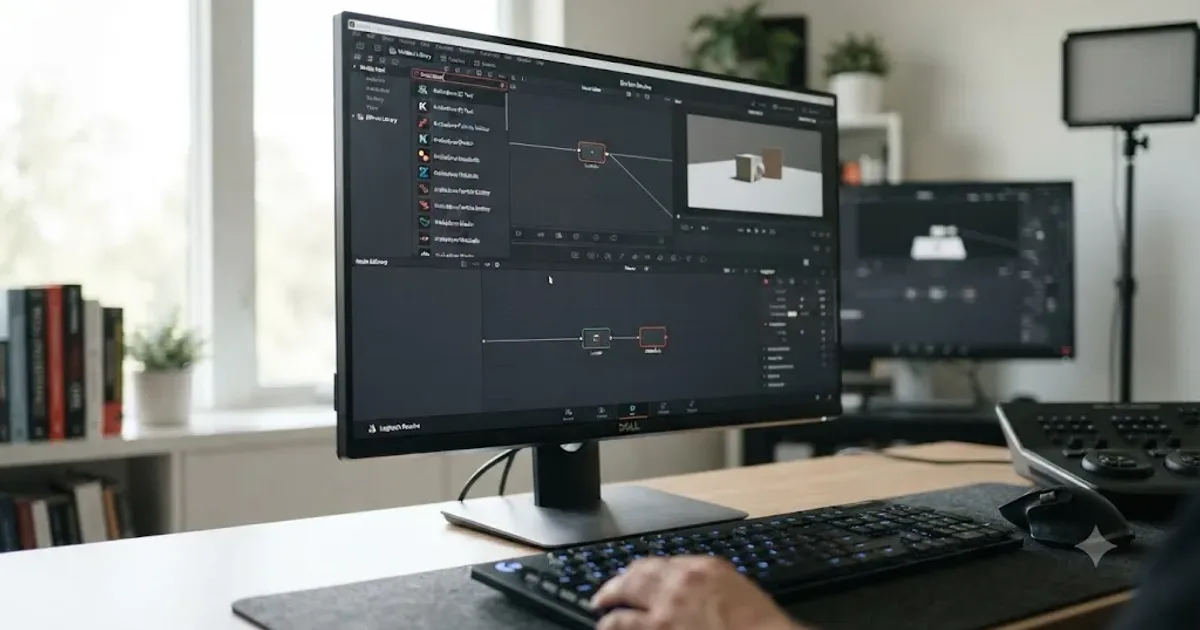
As of July 2026, if you searched "what is Krokodove," you probably just watched DaVinci Resolve 21's Fusion page turn up a search result for a word that sounds like it belongs in a nature documentary, not a compositing app. It's not a typo and it's not an AI feature. Krokodove is a real, twenty-year-old motion graphics toolset that Blackmagic Design just built directly into Fusion for the first time.
This page is the long, sourced version of what Krokodove actually is, who built it, whether it costs anything, and exactly how to find and apply it inside your own project. It also covers the parts most short explainers skip: worked examples across four different node categories, a decision table for when to reach for Krokodove instead of a native Fusion tool, and the troubleshooting branches that come up once a node is already sitting on your tree. No filler, and nothing here beyond what's actually sourced or genuinely useful to know.
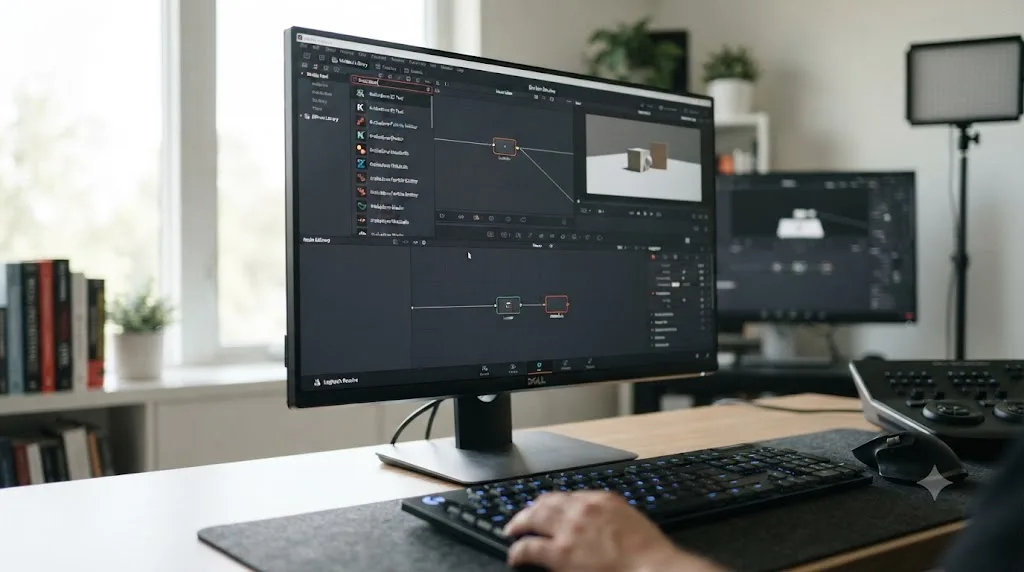
What Is Krokodove in DaVinci Resolve?
Krokodove is a procedural node toolset for Blackmagic Design's Fusion compositing engine, the same engine that powers Resolve's Fusion page. It's built by one developer, Raf Schoenmaekers, working under the studio name Komkom Doorn, and it adds a large library of ready-made nodes for image processing, generators, distortion, color, and modifiers on top of Fusion's own built-in toolset.
Blackmagic's own description of the release keeps it simple: "Fusion now proudly features Krokodove, the popular and ever-growing library of motion graphics," according to Blackmagic's What's New page. The same page describes the collection as ranging "from utility tools that improve productivity, to essential vector and data tools, to customizable 2D and 3D graphic templates that can be used throughout DaVinci Resolve."
Krokodove isn't a new AI feature and it isn't a template pack you buy once and reuse. It's a node library, the same category of thing as Fusion's own built-in Merge, Blur, or Transform tools, just built by a third party and now shipped inside the app instead of sitting on a separate download page. Manuel Kotulla, reviewing the toolset for Digital Production, put it directly: "Krokodove is not a template collection. It is a complete, smart and very large toolset of new nodes," he wrote, adding that "Blackmagic primarily positions the toolset for motion graphics artists, but many of the nodes are also extremely useful for VFX work," according to Digital Production's coverage.
That distinction matters for how you should think about it. You don't "apply the Krokodove effect" the way you'd apply a single ResolveFX filter. You browse a category of dozens of individual nodes, each one doing one specific job, and you wire the ones you need into your comp like any other part of a Fusion node tree.
Who Made Krokodove, and Why Is It Suddenly Inside Resolve 21?
Krokodove predates DaVinci Resolve's Fusion page by years. Raf Schoenmaekers has developed and maintained it for more than two decades as a free add-on for eyeon Software's Fusion, and later for Blackmagic's own Fusion after Blackmagic acquired eyeon in 2014. A decade into that history, CG Channel covered a routine compatibility update: "Raf Schoenmaekers ships Krokodove 6.40 for Fusion," a release that added support for the newly launched Fusion 8 and described Krokodove even then as "a collection of over 100 free Fusion tools, ranging from standard image filters to warping and morphing effects, and a range of titling and text animation options," per CG Channel's report from April 2016.
For all of that history, Krokodove lived outside Resolve. You had to know it existed, find Komkom Doorn's site, download the plugin, and drop it into Fusion's plugin folder yourself. That changed with DaVinci Resolve 21, which shipped its stable 21.0 release in June 2026. Per CG Channel's release coverage of DaVinci Resolve 21.0, "the popular Krokodove library, which features over 100 tools and effects, including 2D and 3D motion graphics templates, is now integrated directly into Resolve."
Twenty years of a free, community-known Fusion plugin just became a first-party feature of the world's most downloaded professional editing app. That's the actual news behind the strange name showing up in your search results.
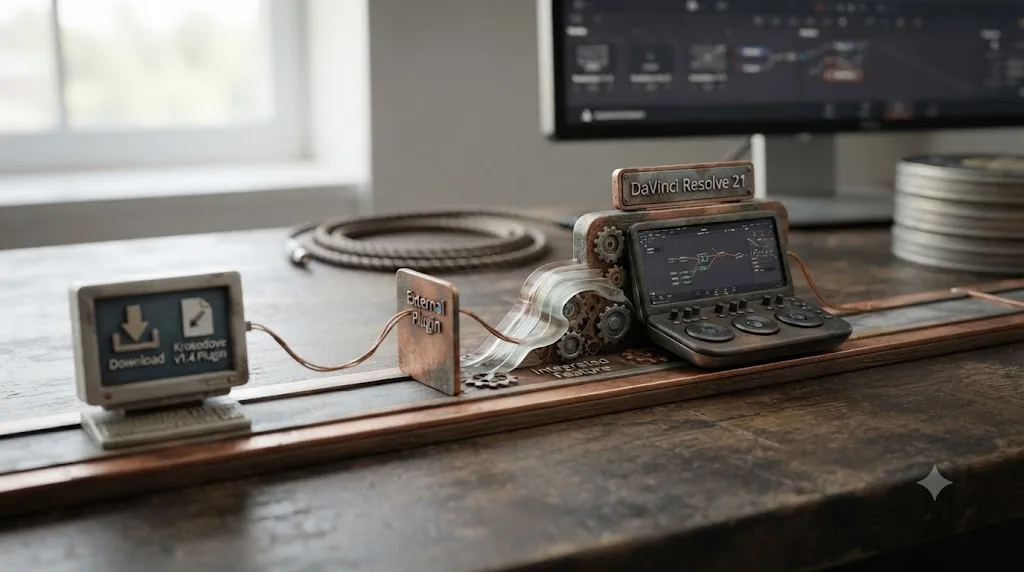
How Did Krokodove Go From a Free Plugin to a Built-In Feature?
Laid out as a timeline, the gap between "hobbyist plugin" and "first-party Resolve feature" looks even longer than a single paragraph makes it feel.
| When | What happened |
|---|---|
| Roughly two decades before Resolve 21 | Raf Schoenmaekers begins building Krokodove as a free add-on, per Digital Production's framing of "more than 20 years" of continuous development. |
| April 2016 | Krokodove 6.40 ships with support for the newly released Fusion 8, described by CG Channel as "a collection of over 100 free Fusion tools." |
| Ongoing, independent of Resolve | Komkom Doorn keeps updating the standalone plugin on its own release schedule, reaching version 8.30 as of this writing, per the developer's own site. |
| June 2026 | DaVinci Resolve 21.0 ships as a stable release, integrating Krokodove directly into the Fusion page's Effects Library for the first time, per CG Channel's release coverage. |
| July 2026 | Digital Production publishes a hands-on review of the integration, covering both its scope and a real performance gap against the standalone version. |
Source: CG Channel's 2016 report, CG Channel's DaVinci Resolve 21.0 release coverage, and Digital Production's review.
It took roughly two decades of independent development before Blackmagic folded Raf Schoenmaekers' work into the app itself. That's an unusually long runway for a third-party tool to earn first-party status inside a major creative application, and it's worth sitting with for a second: most plugins either get acquired outright, fade out, or stay niche forever. Krokodove did none of those things. It just kept shipping, year after year, until Blackmagic decided the toolset had earned a permanent home.
What Kinds of Tools Does Krokodove Actually Add?
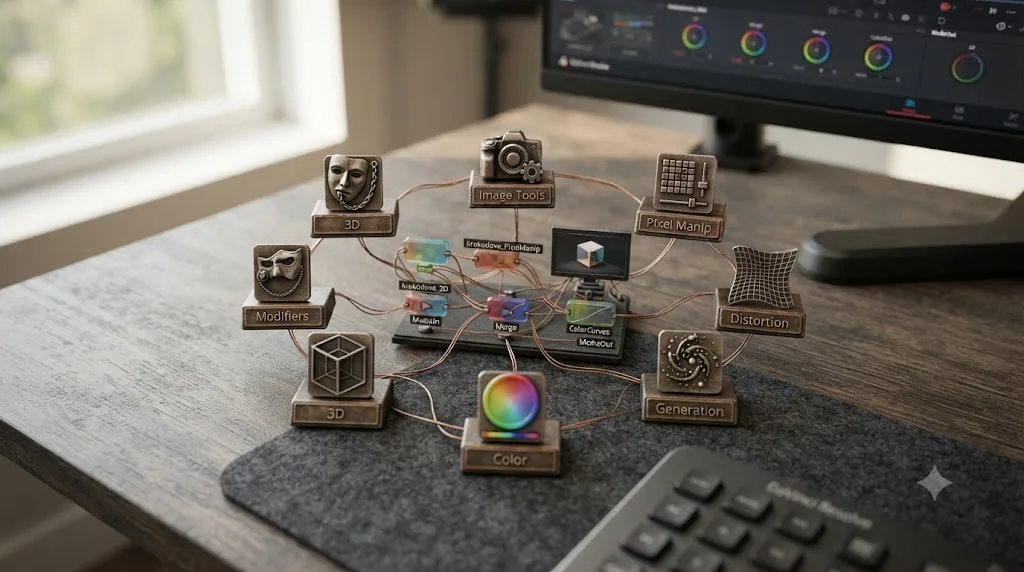
Krokodove organizes its nodes into a handful of broad categories rather than one flat list. Per Digital Production's breakdown of the Resolve 21 integration, here's what shows up inside each one:
| Category | Example tools |
|---|---|
| Image tools | Rasterize, Pack, Dither, Painterly, Extend |
| Pixel manipulation | Noise, Bevel 2D, Seamless Loop, Extrude 2D |
| Distortion and warping | Bend 2D, Relative Transform, Spherize, Direction Scale |
| Image generation | Shapes, Pattern, Blob, Contour |
| Color tools | Invert, Threshold, Replace Color |
| 3D tools | Mapped Duplicate 3D |
| Modifiers | Random, Beat, Juggle Text |
Source: Digital Production's Krokodove overview.
On top of that grid, Krokodove's own documentation frames the collection more broadly as covering "simple but useful productivity improvements to inspiring graphic effects for 2D and 3D" plus "vector and data tools," per Komkom Doorn's official Krokodove page, the developer's own site.
A modifier like Beat or Juggle Text isn't a filter you drop on a clip once. It's a small engine you wire into another node's parameter to drive motion automatically, the same way Fusion's native Follower or Publish modifiers work, just with a different, more specific job. That's the practical difference between Krokodove's "modifiers" category and its "image tools" category: one changes pixels directly, the other changes how a value animates over time.
On tool count specifically, sourcing gets a little messy, and it's worth being upfront about that instead of picking whichever number sounds most impressive. CG Channel's DaVinci Resolve 21.0 review cites "over 100 tools and effects," while its separate Fusion Studio 21.0 review and The Byte Lab's rundown of the release both say "over 70 new graphics." The gap likely tracks Krokodove's own history: the standalone library already exceeded 100 free tools back in 2016, so the 70-plus figure several reviewers landed on is probably what's newly surfaced and searchable inside Resolve's own Effects Library today, not the entire two-decade catalog counted at once. Either way, the honest range to hold in your head is "dozens, likely 70 to 100-plus," not a single precise figure Blackmagic has published itself.
What Does Each Krokodove Category Actually Do?
The table above is the quick reference. Here's what each category is actually for, reasoned out from the node names Blackmagic and Digital Production have published so far.
Image tools (Rasterize, Pack, Dither, Painterly, Extend) handle the less glamorous, more essential work around an image rather than a single flashy effect. Rasterize, true to its name, likely converts procedurally generated or vector-style content into standard raster pixels Fusion can process downstream. Extend deals with the edges of your frame, useful when a downstream warp or transform needs pixel data past the visible boundary and you don't want a hard black edge showing up mid-composite.
Pixel manipulation (Noise, Bevel 2D, Seamless Loop, Extrude 2D) works closer to the pixel level. Bevel 2D and Extrude 2D both suggest the kind of pseudo-3D treatment motion designers apply to flat shapes and text: edges that catch light, depth that isn't really there. Seamless Loop is the most immediately useful of the four for anyone building backgrounds or textures that need to tile or repeat without a visible seam, and it's the one this guide walks through in a worked example below.
Distortion and warping (Bend 2D, Relative Transform, Spherize, Direction Scale) covers a classic warp toolkit: bending an image along a curve, wrapping it around a sphere, scaling it non-uniformly along a chosen direction rather than just X and Y. Relative Transform is the odd one out, and it's likely a transform node that moves, scales, or rotates one layer relative to another rather than to the frame's absolute center, a common need in rigs where one element should track another.
Image generation (Shapes, Pattern, Blob, Contour) builds pixels from nothing. These are your starting points for procedural backgrounds, abstract motion graphics elements, and generative textures that don't need a source clip at all, just parameters you dial in the Inspector.
Color tools (Invert, Threshold, Replace Color) are the smallest category and the most self-explanatory. Replace Color in particular is a common request in motion graphics work: swap a specific hue across a whole graphic without re-rendering it or manually keying every instance by hand.
3D tools (Mapped Duplicate 3D) is a single node doing a specific, powerful job: taking a source and duplicating it across a 3D structure based on a map, the same underlying idea behind particle-style and array-style effects in other compositing tools, just implemented as one Krokodove node instead of a long chain of native ones.
Modifiers (Random, Beat, Juggle Text) don't touch pixels directly. They drive other nodes' parameters over time, the way Fusion's own Follower and Publish modifiers do. Random adds controlled unpredictability to a value, Beat ties a value to a rhythmic pulse, and Juggle Text, covered in the worked example below, animates individual text characters rather than a whole text block at once.
What Do You Need to Know About Fusion Before You Touch Krokodove?
If you've spent your time in Resolve on the Edit, Color, or Cut pages, the Fusion page can feel like a different application wearing the same window chrome. It is, in a sense: Fusion is a node-based compositor, and Krokodove nodes behave exactly like every other node in it, so the vocabulary is worth having straight before you drag your first one in.
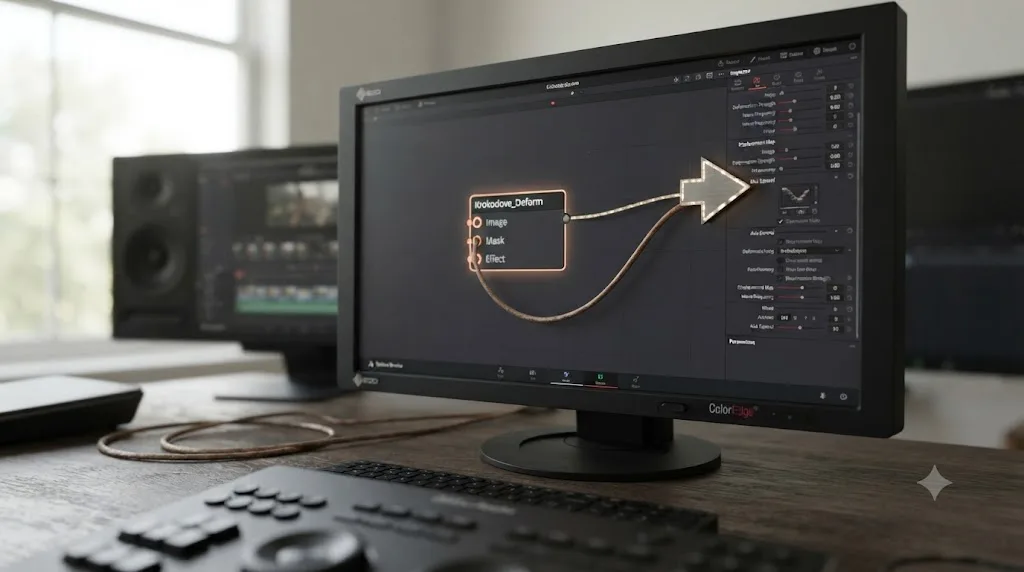
A node is a single processing step. A Blur node blurs, a Merge node combines two inputs into one, a Krokodove node does whatever its name says. Nodes connect to each other with wires, called connections, that carry image data from one node's output to the next node's input. String enough nodes together and you get a flow, Fusion's term for the node tree you're building, visible in the Nodes panel that runs across the bottom of the Fusion page.
Every node has at least one input, shown as a small colored dot or triangle on the left or top edge of the node icon. The orange input is the main image input on most nodes, including Krokodove's, and it's the one you'll wire your source clip or upstream node into first. Some nodes expose additional inputs, for a mask, a reference layer, or a second image to combine with the first.
The Inspector panel, usually on the right side of the Fusion page, is where you actually adjust a selected node's settings. Click any node and its parameters populate the Inspector: sliders, dropdowns, color pickers, whatever that specific tool exposes. This is true whether the node is a built-in Fusion tool or a Krokodove one, which is exactly why the learning curve for Krokodove is shorter than learning Fusion itself. You're not learning a new interaction model. You're learning what a new set of nodes do inside a model you may already know.
Two more pieces are worth knowing. MediaIn and MediaOut nodes bookend most flows. MediaIn brings a clip in from your timeline, MediaOut sends the finished result back out, and everything between the two, Krokodove nodes included, sits on that path. And Reactor, mentioned later in this guide in the context of the standalone plugin, is Fusion's own built-in package manager: a way to browse, install, and update third-party tools and example content directly from inside Fusion, without hunting down installers by hand.
If none of this is familiar and you're starting from zero, Fusion's learning curve is real, and this page won't teach it end to end. Blackmagic's own free training and our comparison of Fusion against After Effects for motion graphics both go deeper into the node-based mental model itself. What you need for Krokodove specifically is smaller: know what a node, an input, and the Inspector are, and the rest is exploration.
Do You Need DaVinci Resolve Studio to Use Krokodove?
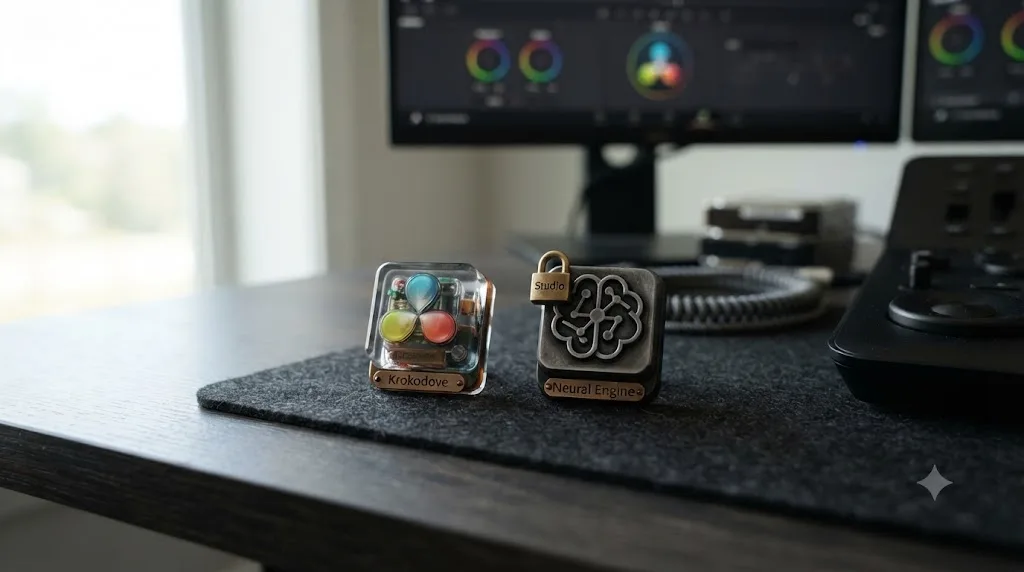
No, based on the strongest evidence available: Krokodove ships as part of Fusion, and Fusion's core node system, Krokodove included, is not one of the features Blackmagic gates behind the $295 Studio license. Blackmagic's own DaVinci Resolve product page describes the Krokodove toolset in its general feature rundown, not on the separate Studio product page, which lists what Studio actually adds on top of the free edition: "With over 100 advanced features, Studio includes DaVinci AI Neural Engine, additional Resolve FX, stereoscopic 3D and more," per Blackmagic's own Studio page. Krokodove doesn't appear on that Studio-exclusive list.
That lines up with a broader pattern worth knowing regardless of Krokodove specifically: Fusion's core toolset has always shipped free inside DaVinci Resolve, unlike the Neural Engine AI tools such as Magic Mask, Speed Warp, or CineFocus, all of which genuinely do require Studio, as covered in more depth in our full explainer on DaVinci Resolve's Neural Engine. Krokodove is a Fusion toolset, not a Neural Engine feature, and that distinction is exactly why it doesn't carry the same Studio gate.
A tool built on the Neural Engine gets gated to Studio almost automatically. A tool built as ordinary Fusion nodes doesn't have to be, and Krokodove wasn't. Worth naming honestly: this guide found one third-party write-up describing Krokodove as Studio-exclusive and naming a different, unverified set of tool names than every other source cited here. That single account conflicts with Blackmagic's own product pages, with Digital Production's independently reported node list, and with a hands-on account of the free edition covering the same release. Where sources disagree this directly, the deciding vote goes to the vendor's own product page and the two outlets whose node lists actually match each other, not to the outlier. If you want certainty for your own copy rather than taking any outlet's word for it, including this one, check whether a specific Krokodove node in your Effects Library carries a Studio badge, the same small lock icon Resolve uses on every genuinely Studio-only effect.
How Do You Find and Apply a Krokodove Tool in DaVinci Resolve 21?
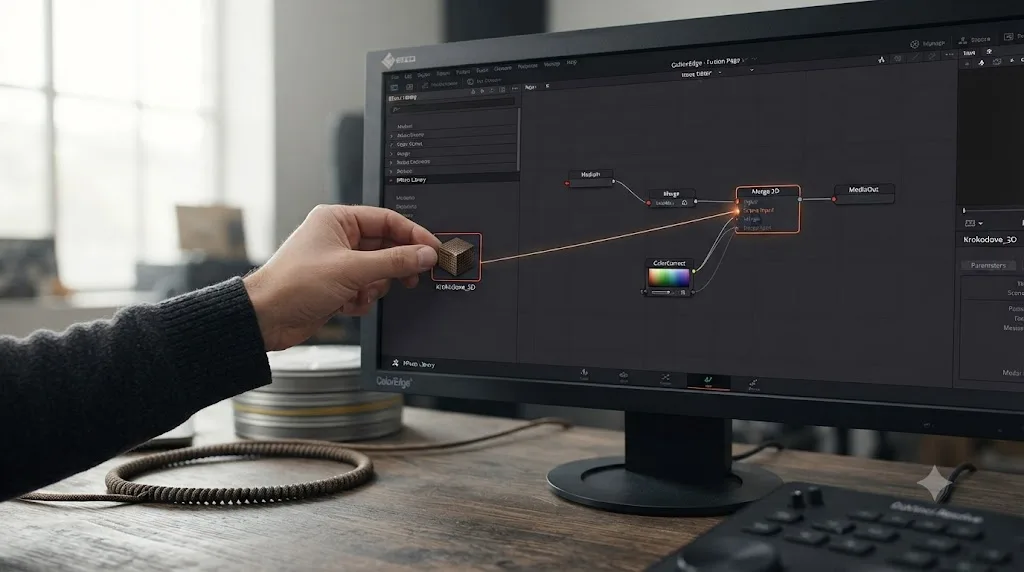
Krokodove tools install and behave exactly like Fusion's own built-in nodes once you know where to look. Here's the sequence:
- Open the Fusion page. Select a clip on your timeline and switch to the Fusion tab, or send a clip there from the Edit page using Fusion Connect.
- Open the Effects Library. It's the same panel you'd use to find any ResolveFX or transition, just viewed from inside the Fusion page.
- Search "Krokodove" in the search field. This filters the library down to Krokodove's own category instead of making you scroll past every built-in Fusion tool first.
- Drag the node you want onto your node tree. Krokodove nodes drop into the flow graph exactly like a native Merge or Blur node would.
- Wire your input into the node's orange input. Connect a source clip, or the output of an upstream node, the same way you'd connect any two Fusion nodes.
- Adjust the node's parameters in the Inspector. Every Krokodove tool exposes its controls in the same Inspector panel Fusion uses for everything else, so nothing about the interaction model is new once the node is on your tree.
That basic drag-and-wire pattern is consistent across write-ups covering the feature, including a step-by-step Krokodove walkthrough from Cutsio, and it's the same interaction pattern every Fusion tool in Resolve already uses, built-in or third-party.
Can You Apply Krokodove Without Leaving the Edit Page?
Not directly, but there's a shortcut worth knowing if you live on the Edit page and only dip into Fusion when you need to.
- Select the clip on your timeline you want to apply a Krokodove effect to.
- Right-click it and choose Fusion Connect, or click the Fusion page tab directly. Either one opens that specific clip's Fusion composition, creating one automatically if it doesn't already have one.
- Search and apply your Krokodove node as covered above, inside that clip's own Fusion flow, following the same steps as before.
- Return to the Edit page by clicking back to the Edit tab. Your changes are already part of that clip, with no separate render or export step required to see them reflected on your timeline.
If you want a Krokodove-driven effect to apply across multiple clips at once, rather than living inside one clip's own composition, the move is different: build it on an Adjustment Clip instead. Add an Adjustment Clip above the clips you want affected, open it in Fusion the same way, and apply your Krokodove node there. Because an Adjustment Clip affects everything beneath it on the timeline within its own duration, one Krokodove-built effect can cover an entire sequence instead of a single shot.
This distinction, one clip's own Fusion composition versus a timeline-wide Adjustment Clip, isn't specific to Krokodove. It's how Fusion effects of any kind get applied inside an Edit-page-first workflow, and it's worth knowing before you assume Krokodove requires living on the Fusion page full time. You can dip in for thirty seconds to apply one node and dip back out, which is a very different workflow than building an entire composition from scratch.
A Worked Example: Animating Text With Krokodove's Modifiers
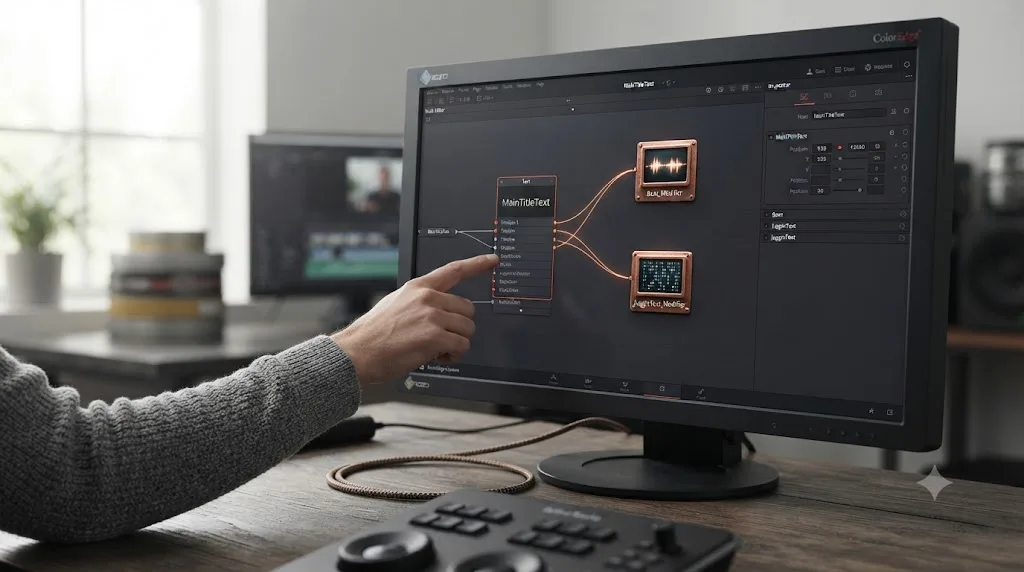
Here's the general shape of a real use case, built around two of the actual named tools in Krokodove's Modifiers category, Beat and Juggle Text, both documented in Digital Production's coverage of the toolset. This walks through the workflow shape rather than exact parameter values, since those depend on your specific footage and text.
Say you've dropped a text node onto your Fusion comp and it just sits there, static, while the rest of your motion graphics package moves. Instead of hand-keyframing every letter's bounce yourself:
- Add your text node first, as you normally would in Fusion, and get its font, size, and position looking right before you touch any modifier.
- Find Juggle Text in the Krokodove Modifiers category and connect it to the parameter you want to animate, typically the text node's position or scale.
- Layer in a Beat modifier if you want the motion tied to rhythm rather than a smooth, continuous animation, since a beat-style modifier drives values in discrete pulses instead of an eased curve.
- Tune the modifier's own parameters in the Inspector, the same panel you'd use for any Fusion modifier, adjusting intensity and timing until the bounce reads at the speed your edit actually needs.
- Preview at full resolution before committing, since modifier-driven animation can look different once it's actually playing back in real time versus a single still frame in the node editor.
The point of a modifier-based workflow like this isn't that it's faster than hand-keyframing once. It's that the same Juggle Text and Beat combination can drive a dozen different text elements across a project without you re-animating each one from scratch. If you're more used to the diamond-and-timeline approach to animation, our full guide to keyframing effects in DaVinci Resolve covers the manual method this replaces, and it's worth knowing both, since some jobs genuinely call for hand-placed keyframes instead of a modifier.
What Are Some Other Ways to Use Krokodove in a Real Project?
The text-animation example above covers Krokodove's Modifiers category. Here are three more, one from each of three other categories, to show how differently the toolset behaves depending on the job.
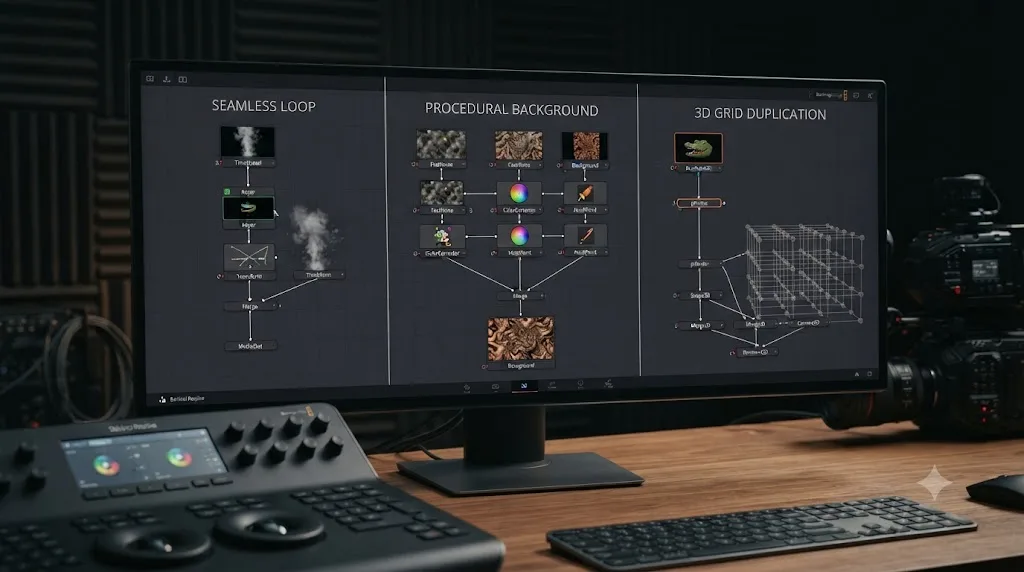
Building a seamless texture loop
Say you need a looping abstract background for a lower-third package or a streaming overlay, something that plays for ten seconds and cuts back to frame one without a visible jump. Building that by hand usually means carefully matching the first and last frame of a generated texture, a fiddly process even with keyframes doing the animating.
- Generate your base texture first. Use a Krokodove image generation node like Pattern or Blob, or bring in your own footage, to get a moving image you like the look of before worrying about the loop point.
- Add Seamless Loop from Krokodove's pixel manipulation category downstream of your texture, and connect its orange input to your texture node's output.
- Set the loop's duration to match your actual output length. A loop tool like this needs to know exactly how many frames must tile cleanly, so match that setting to your real sequence length rather than a placeholder number.
- Scrub across the full loop range in the viewer rather than trusting a single still frame, since a seam can be invisible on frame one and obvious on frame two hundred.
- Render a short test clip and play it back looped before committing it to a real project, because a seam that's invisible in Fusion's viewer can still read as a stutter once compression and playback are involved.
Generating a procedural background
Not every project has stock footage or a plate to build on. Sometimes you need a background from nothing, fast, for a title card or a placeholder graphic.
- Drop a Shapes node onto an empty part of your flow. It doesn't need an input. Krokodove's generation nodes build their output from parameters alone.
- Layer a Pattern node afterward if you want repetition or tiling built into the base shape rather than a single instance, connecting Pattern's input to Shapes' output.
- Push color and contrast through a Krokodove color tool, like Threshold or Invert, if you want a graphic, poster-like look rather than a soft, photographic one.
- Merge the result with your actual footage or title text using Fusion's own Merge node, the same way you'd combine any two layers, once the generated background looks right on its own.
- Keep the whole chain non-destructive. Because every step is a separate node with its own parameters, you can go back and change the Shapes node's seed or scale later without rebuilding anything downstream of it.
3D duplication with Mapped Duplicate 3D
Mapped Duplicate 3D is the single node in Krokodove's 3D Tools category, and it's worth a dedicated example because it does something Fusion's native toolset doesn't hand you in one step: scattering a source across a 3D structure based on a map.
- Prepare your source element, whatever you want duplicated: a shape, a piece of text, a small logo.
- Prepare a map, an image or generated pattern whose brightness or structure will control where and how the duplicates get placed. A grayscale gradient, a noise pattern, or a rendered 3D object can all work as a map depending on the look you're after.
- Connect your source into Mapped Duplicate 3D's main input, and your map into its dedicated map input, keeping the two roles separate so the node knows what to copy and where to copy it.
- Adjust density, scale, and distribution parameters in the Inspector until the duplication pattern reads the way you want, sparse and scattered, or dense and uniform.
- Bring the result into your existing 3D scene or comp through Fusion's normal 3D pipeline, connecting it the same way you'd connect any other 3D node's output.
The common thread across all three examples: a Krokodove node is a single ingredient, not a finished dish. You're still building a flow, wiring inputs, and adjusting parameters in the Inspector. Krokodove just hands you a more powerful set of ingredients than Fusion ships with by default.
How Is Krokodove Different From Resolve's Built-In Fusion Tools?
They're the same category of thing, node-based tools inside the Fusion page, but they come from different places and cover different ground.
| Fusion's built-in tools | Krokodove | |
|---|---|---|
| Built by | Blackmagic Design | Raf Schoenmaekers / Komkom Doorn |
| Scope | Core compositing: Merge, Transform, Blur, Color Corrector, tracking, keying | Extended library: dozens of warps, generators, pixel tools, and modifiers layered on top |
| Availability before Resolve 21 | Always part of Fusion | Separate download, manually installed |
| Availability in Resolve 21 | Free and Studio | Free and Studio, per Blackmagic's product page |
| Studio-exclusive Neural Engine tools it replaces | No | No, it's a different category from AI tools like CineFocus or Magic Mask |
Fusion gives you the primitives. Krokodove gives you a much larger library of finished nodes built on top of those primitives, so you spend less time reconstructing a common effect, like a seamless loop or a hex-pattern generator, out of raw building blocks every time you need one.
For a broader look at how Fusion as a whole stacks up against Adobe's motion graphics tool, including cost, learning curve, and whether Fusion can realistically replace it, see our comparison of DaVinci Resolve Fusion vs After Effects for motion graphics.
Why Does It Matter That This Is Built In Now, Instead of a Download?
It's easy to read "Blackmagic integrated a free plugin" as a minor packaging change. It isn't, for a few practical reasons that go beyond convenience.
Nothing to trust beyond Blackmagic itself. Downloading and running a third-party plugin, even a well-regarded one with two decades of history, means trusting an external developer's distribution channel. The built-in version ships through the same update mechanism as the rest of Resolve, distributed the way Blackmagic distributes everything else in the app.
Nothing to keep in sync. A standalone plugin can drift out of compatibility with a new Resolve version until its developer pushes an update. Komkom Doorn's own site already shows this pattern, with separate compatibility notes for different Fusion and Resolve version ranges. The built-in version doesn't have that lag, because it ships and updates on Resolve's own schedule.
Nothing extra for a collaborator to install. A studio, a freelance team, or a solo editor moving between machines doesn't need to remember which computers have the plugin installed and which don't. If everyone's on Resolve 21, everyone has Krokodove.
A discovery problem solved by default. Before Resolve 21, you had to already know Krokodove existed to benefit from it, know to search for it, and know to trust a download from a personal site rather than Blackmagic's own. Building it into the Effects Library turns "know about a specific plugin" into "search a word inside an app you already trust," a meaningfully lower bar, even if that word is an unfamiliar one the first time you see it.
None of this makes the standalone plugin obsolete, especially for the render-speed reasons covered next. But it does explain why "Blackmagic built a twenty-year-old free plugin into Resolve" is a bigger deal than it initially sounds, and why enough outlets covered it as real news rather than a footnote in a release changelog.
Is the Old Standalone Krokodove Plugin Still Worth Installing?
For most Resolve 21 users, no, the built-in version covers the same ground with none of the setup. But the standalone plugin hasn't disappeared, and there's real reasons a Fusion Studio user might still reach for it.
| Built into Resolve 21 | Standalone plugin (Komkom Doorn) | |
|---|---|---|
| Current version | Ships with Resolve 21's Fusion page | v8.30, per Komkom Doorn's own site |
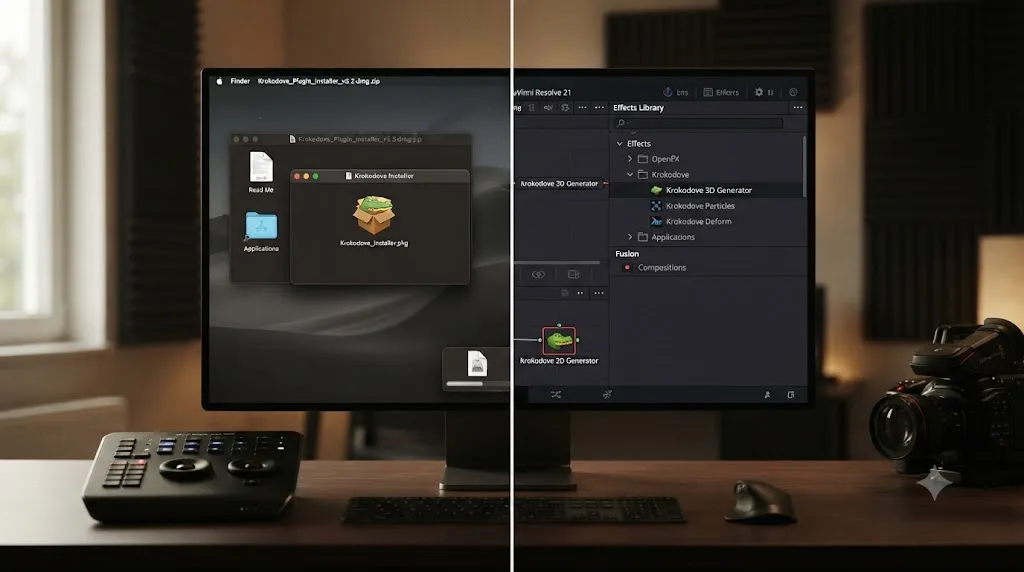
| Install required | None, it's already in the Effects Library | Yes, manual download and copy into Fusion's plugin folder |
| Supported host versions | Resolve 21 and later | Fusion/Resolve 6 through 19, though only 18 and later get active updates |
| Plugin support requirement | N/A, built in | Komkom Doorn's site states plainly that "only the Studio (paid) versions of Fusion and Resolve support plugins" |
| Performance | Runs inside Resolve's own Fusion page | Digital Production's review notes the standalone Fusion version runs "significantly faster" than the Resolve-integrated one |
If you're already on Resolve 21, the built-in copy is the obvious default, since there's nothing to install and nothing that can silently go out of date against your Resolve version. If you're a dedicated Fusion Studio user chasing every bit of render speed on a Krokodove-heavy comp, the standalone plugin is worth knowing still exists, per Digital Production's testing.
There's also a documentation angle the built-in version doesn't currently offer. Digital Production's review points readers toward the standalone side of the ecosystem for reference material: "Through Reactor, you can download 35 example comps, and they are exceptionally well made," and separately, "we have dug up the only real existing manual, which provides good information on all nodes," referring to a reference document the outlet found labeled as a v4.15 file, predating the Resolve 21 integration. None of that example content or documentation ships with the built-in Resolve 21 version, so if you want worked examples beyond what's in this guide, the standalone plugin's Reactor package is currently the only sourced place to find them.
Krokodove or Native Fusion Tools? A Quick Decision Table
Krokodove doesn't replace Fusion's built-in toolset, and knowing when to reach for which one saves time.
| Situation | Reach for |
|---|---|
| You need a standard compositing operation: merge, blur, color correct, track, key | Fusion's native tools. They're the primitives everything else, Krokodove included, is built on. |
| You need a seamless tiling texture, a procedural shape generator, or a 3D duplication effect | Krokodove. These fill gaps Fusion's default toolset doesn't cover on its own. |
| You're on a machine without Resolve 21 yet, but need Krokodove-style tools now | The standalone plugin from Komkom Doorn, if you're running Studio, since free Fusion versions before Resolve 21 can't load third-party plugins at all. |
| You're chasing every bit of render speed on a Krokodove-heavy comp | The standalone plugin, per Digital Production's testing, which found it runs noticeably faster outside Resolve's own Fusion page overhead. |
| You're not sure which category a specific effect falls into | Search the Effects Library by name first. Krokodove's category groupings are a starting point, not a strict rulebook, and some tools could reasonably sit in more than one bucket. |
| You want the effect to work identically for every collaborator on a shared project, regardless of their Resolve setup | The built-in Resolve 21 version. It ships with the app, so nobody needs to separately install or update anything to open your project correctly. |
That collaboration point matters more than it might look on a quick read. A Krokodove node from the standalone plugin won't render correctly, or at all, on a collaborator's machine that only has the built-in Resolve 21 version, since the two aren't guaranteed to be running identical node code even though they share a name and a developer. If you're handing a project off, or working in a shared bin with other editors, stick to the built-in version unless everyone on the project has explicitly agreed to install the same standalone plugin version.
What Mistakes Do Beginners Make With Krokodove?
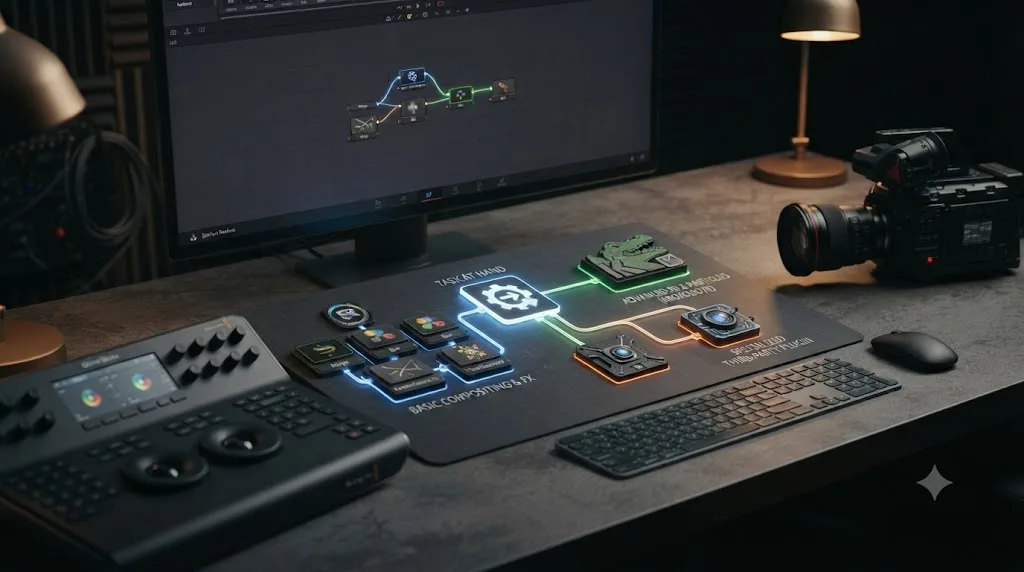
A few patterns show up often enough with any large, newly surfaced toolset that they're worth naming directly.
Treating "Krokodove" like a single effect. It isn't one filter you toggle on. It's a category containing dozens of independent nodes. Searching "Krokodove" and dragging the first result onto your comp without checking what that specific node actually does is a common way to end up confused about why nothing looks like what you expected.
Skipping the category structure. Because the whole toolset shows up under one search term, it's tempting to scroll the full list rather than think about which category, image tools, distortion, generation, color, 3D, modifiers, actually matches the job. Narrowing by category first, the way this guide's earlier table is organized, is faster than scanning every result every time.
Assuming the standalone plugin and the built-in version are interchangeable files. They come from the same developer and the same underlying node logic, but as covered above, they're not guaranteed to be identical installs, and mixing them on a collaborative project causes exactly the kind of "it works on my machine" confusion that's hardest to diagnose later.
Not checking the Studio badge on the specific node you're using. Most Krokodove tools aren't Studio-exclusive based on the sourcing in this guide, but "most" isn't "all," and Blackmagic's own product pages are the more reliable check than any single third-party article, this one included.
Giving up after one failed search. If a remembered node name from years of standalone plugin use doesn't turn up a result, that's more often a naming or organization difference than a missing tool. Search by category, not just by a name from memory, before concluding something's gone.
Why Can't I Find Krokodove in My Copy of DaVinci Resolve?
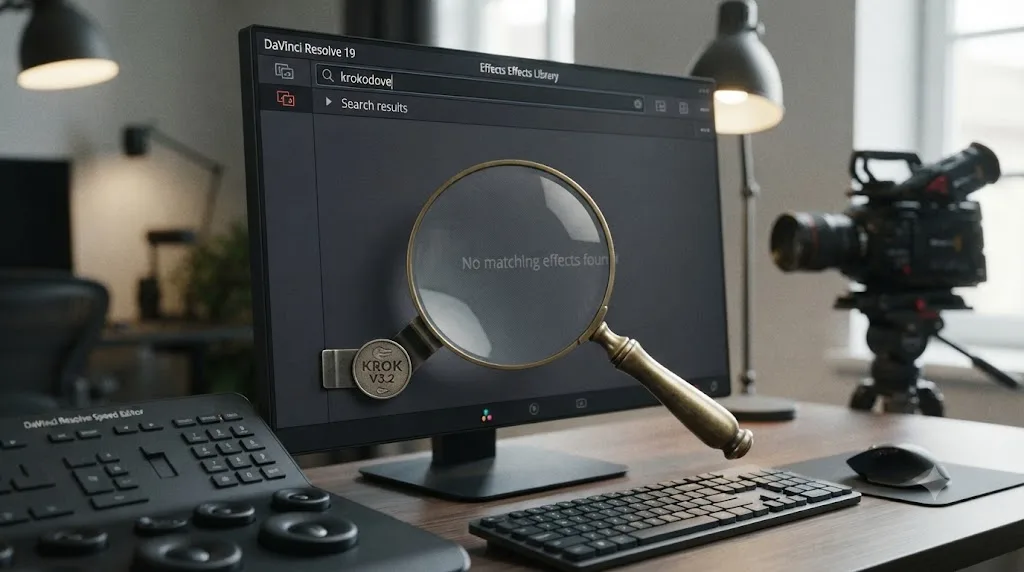
Two explanations cover almost every real case. First, you're on DaVinci Resolve 20 or an earlier version, and Krokodove simply wasn't built into Fusion before version 21, so no amount of searching the Effects Library will surface it. Second, and more common, your search field has a typo, a leftover filter, or you're searching for a specific old node name from the standalone plugin era that the built-in integration organized or labeled slightly differently.
This is one of the recurring questions in our 100,000+ member DaVinci Resolve editing community: someone who used the standalone Krokodove plugin for years searches for a tool by the exact name they remember, comes up with nothing in Resolve 21's Effects Library, and assumes the feature is broken rather than reorganized. Check your Resolve version first, in the About box, then search Krokodove as a whole category rather than a remembered node name before assuming anything's actually wrong. If a specific effect still won't show up anywhere in your Effects Library, our guide to DaVinci Resolve's plugin not found or missing effect error covers the broader set of causes beyond Krokodove specifically, including OFX plugin installs that never fully registered.
What Do You Do When a Krokodove Node Is on Your Tree But Something's Off?
Finding the tool is only the first hurdle. Here's what to check when a Krokodove node is already on your flow but isn't behaving.
The node is on the tree but the image doesn't seem to change at all. Check the wire first. It's easy to drag a Krokodove node onto your flow and forget to actually connect its orange input to anything upstream, in which case it has nothing to process. Click the node and look at the Inspector too. Several Krokodove tools, especially in the Modifiers category, have their effect strength or amount set low by default so the change starts subtle rather than jarring. Push a parameter to an obvious extreme temporarily, just to confirm the node is doing something at all, then dial it back once you've confirmed the connection works.
The comp got noticeably slower after adding a Krokodove node. This isn't unique to Krokodove. Any additional node in a Fusion flow adds render overhead, and some categories, particularly the 3D and pixel manipulation tools, are naturally heavier than a simple color correction. Digital Production's own testing found the standalone plugin runs faster than the Resolve-integrated version, which suggests some genuine overhead in how the built-in version currently runs inside Resolve's Fusion page specifically. If a single Krokodove node is dragging your whole comp down, try caching it: right-click the node and enable caching so Fusion doesn't recompute it on every single frame change while you're working, only when its inputs actually change. If the slowdown is severe enough that Fusion starts throwing memory errors rather than just running slowly, that's a different, more specific problem, covered in our guide to DaVinci Resolve's Fusion out of memory error.
A node you used last week is missing from the Effects Library today. Before assuming anything broke, check whether your search field still has a leftover filter or category selected from a previous session. Clear the search field entirely and browse Krokodove's category list manually rather than searching a remembered name, since the built-in integration organizes things by category first and individual node name second.
You see a Studio badge on a node you expected to be free, or vice versa. Trust what's actually in front of you over any single article, including this one. Blackmagic occasionally shifts which specific tools sit where between point releases, and the honest answer to "is this node free" is always whatever badge Resolve itself is currently showing you, checked against your own installed version.
You installed the standalone plugin and now see two versions of similarly named tools. This is expected, not a bug, if you're running Fusion Studio and have both the built-in Resolve 21 Krokodove and Komkom Doorn's standalone plugin installed side by side. Check the node's tooltip or its position in the Effects Library tree. The standalone plugin typically installs into its own separate category rather than merging into Resolve's built-in Krokodove listing.
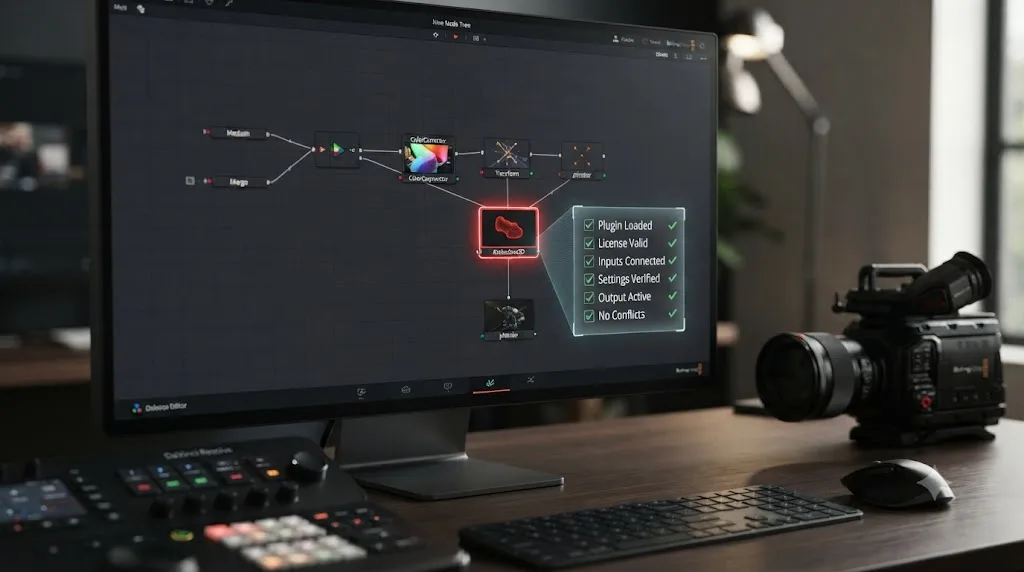
Your project uses a Krokodove node and won't open correctly on another machine. This is the collaboration issue from the decision table above. Confirm both machines are running the same Resolve version, and if either side is using the standalone plugin instead of the built-in version, get everyone onto the same one before troubleshooting further, since that mismatch alone explains most of these reports.
Who Actually Benefits From Krokodove?
Not every DaVinci Resolve user needs to care about this update, and it's worth being direct about who it actually changes things for.
Motion designers get the most immediate value. Digital Production's own framing puts it plainly: Blackmagic built this primarily for motion graphics artists, and the categories, generators, modifiers, pixel tools, line up with what a motion design workflow actually needs day to day: backgrounds, text animation, procedural elements.
VFX artists get a smaller but real benefit. Manuel Kotulla's review notes many of the nodes are "extremely useful for VFX work" too, even though that's not the primary audience. A tool like Mapped Duplicate 3D or a warp node has obvious uses outside pure motion graphics, in compositing shots that need a matched distortion or a procedural element blended into live footage.
Colorists mostly won't touch this. Krokodove lives on the Fusion page. If your work stays on the Color page, in nodes, wheels, and curves, none of this changes your workflow, though it's worth knowing it exists in case a project ever calls for a Fusion Composition clip inside an otherwise color-focused timeline.
Editors cutting straightforward projects can mostly ignore it too, at least at first. If your current work doesn't involve the Fusion page, Krokodove being built in doesn't change anything about your day. Where it starts to matter is the moment a project asks for something beyond a stock transition or title template, a custom animated lower third, a background texture, a stylized wipe, at which point Krokodove is a large head start on Fusion's native toolset alone.
The through-line: Krokodove expands what's possible without requiring anyone who doesn't need it to learn anything new. It sits inside a page most editors already skip past, waiting for the project that actually calls for it.
Does Krokodove Work the Same on Windows, Mac, and Linux?
DaVinci Resolve 21, Fusion page included, ships for Mac, Windows, and Linux, per Blackmagic's own DaVinci Resolve product page. Since Krokodove is now built directly into the app rather than distributed as a separate download, the reasonable expectation is that it installs and behaves the same way on all three platforms, the same way every other built-in Fusion tool already does.
None of the coverage cited throughout this page, CG Channel, Digital Production, or CineD, calls out a platform-specific difference in how Krokodove behaves, which is itself a useful signal. Coverage of platform-specific bugs tends to surface fast in a community as active as Resolve's, and as of this writing no such report shows up in the sourcing for this page.
That's different from TryUncle, the AI assistant covered further down this page, which genuinely is macOS-only by design, not by omission. If you're on Windows or Linux, that specific tool isn't available to you regardless of which version of Resolve you're running, but Krokodove itself, being part of the app rather than a separate macOS-only layer on top of it, isn't affected by that limitation.
If you do hit a platform-specific Krokodove issue on Windows or Linux that isn't covered here, that's a genuine gap in what's publicly documented right now, not evidence the tool is broken. Check Blackmagic's own release notes and forum for your specific Resolve build before assuming your platform is the problem.
Is There an App That Can Help You Learn Krokodove and DaVinci Resolve's Fusion Page?
After seven years of cutting professional commercial work, and after building the 100,000-plus-member DaVinci Resolve Learning Group where a question like "where did this tool go" comes up constantly, we know the actual friction point here isn't understanding what Krokodove does. It's finding the specific node you need inside an Effects Library that just got dozens of new entries added to it overnight.
TryUncle is the on-screen assistant for DaVinci Resolve on macOS. Ask in plain words, and Uncle points at the exact control on your screen. Say you're staring at the Fusion page trying to remember whether the tool you want is called Bend 2D or Relative Transform. You ask Uncle in plain language, and it looks at your actual Effects Library, not a generic list, and shows you where to look. Our full explainer on what TryUncle is covers exactly how that screen-watching mechanism works, page by page.
It's worth naming the other tools in this space honestly rather than pretending Uncle is the only option. Sottocut, PremiereCopilot, heyeddie.ai, and cutagent.ai are real AI tools built around Resolve and other editors, but most of them automate an edit for you or answer a chat question without seeing your actual screen. Uncle's job is different: it watches your DaVinci Resolve screen live and points at the exact control, including a Krokodove node buried in a freshly expanded Effects Library, instead of performing the edit or the search for you.
TryUncle is a paid subscription, currently $39 a month, cancel anytime; check TryUncle for the current rate since pricing can change. It's macOS only, so if you're on Windows or Linux, Blackmagic's own free training and the standalone Krokodove documentation on Komkom Doorn's site remain the best places to learn the toolset from scratch.
If a Krokodove node in your own project is doing something you don't understand right now, that's exactly the kind of moment where having something point at your actual node tree beats reading another glossary entry, whether that's Uncle or a patient rewatch of a tutorial.
What Terms Should You Know Before You Dig Into Krokodove Further?
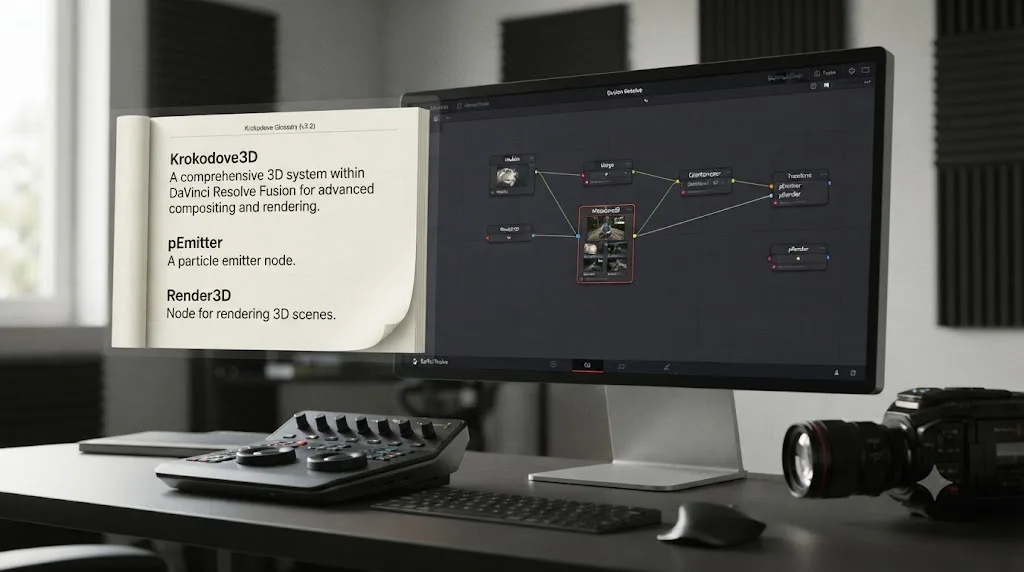
If words like "node," "modifier," or "Inspector" in this guide slowed you down, that's normal if you're newer to Fusion specifically, even if you're comfortable elsewhere in Resolve. Our glossary of common DaVinci Resolve terms covers the vocabulary that shows up across the whole app, node included, in plain language, so the rest of your time in the Fusion page goes faster.
The Short Version
Krokodove is a two-decade-old, free Fusion node library built by one developer, Raf Schoenmaekers of Komkom Doorn, and DaVinci Resolve 21, released in June 2026, is the first version of Resolve to ship it built directly into the Fusion page instead of requiring a separate download. It adds dozens of nodes, independent sources put the count anywhere from roughly 70 to over 100, spanning image processing, generators, distortion, color tools, and modifiers like Beat and Juggle Text. It ships free alongside Fusion's own core toolset, not gated behind DaVinci Resolve Studio the way the app's Neural Engine AI tools are, and it works the same way on Mac, Windows, and Linux, since it's part of the app rather than a separate download.
To use it, open the Fusion page, search "Krokodove" in the Effects Library, and drag a node onto your tree like you would any other Fusion tool. Start small: a seamless loop for a background, a Juggle Text modifier on a title, one node from one category, rather than trying to learn all seventy-plus tools before you build anything. If you're stuck on which specific node does what you need once your Effects Library has dozens of new, unfamiliar entries in it, that's a smaller problem than learning Fusion from zero, and it's exactly the kind of moment where pointing at your own screen beats searching a glossary by hand.
Frequently asked questions
- What is Krokodove in DaVinci Resolve?
- Krokodove is a large procedural node toolset for Blackmagic Design's Fusion compositing engine, built by Belgian motion designer Raf Schoenmaekers over more than 20 years. DaVinci Resolve 21, released in June 2026, is the first version of Resolve to ship Krokodove built directly into the Fusion page's Effects Library, instead of requiring a separate download and install.
- Is Krokodove free, or do you need DaVinci Resolve Studio?
- Krokodove ships as part of Fusion, and Fusion's core toolset, Krokodove included, is available in the free edition of DaVinci Resolve 21, not gated behind the $295 Studio license the way Neural Engine AI tools like CineFocus and Magic Mask are. Blackmagic's own DaVinci Resolve product page lists Krokodove outside the features it names as Studio-exclusive, so check for a Studio badge on a specific node in your own Effects Library if you want to confirm it yourself.
- How do you use Krokodove in DaVinci Resolve 21?
- Open the Fusion page, open the Effects Library, and type "Krokodove" into the search field. Drag any result onto your node tree, wire your input into its orange input, and adjust its parameters in the Inspector panel, the same way you'd apply any other Fusion tool.
- Who made Krokodove?
- Raf Schoenmaekers, working under the studio name Komkom Doorn, has built and maintained Krokodove for more than 20 years, first as a free add-on for Fusion 6 and later versions, and now as a toolset Blackmagic Design has integrated directly into DaVinci Resolve 21.
- Is the built-in Krokodove the same as the old standalone Krokodove plugin?
- They come from the same developer and the same underlying node library, but they're not identical installs. The standalone plugin, currently at version 8.30 on Komkom Doorn's own site, still needs to be downloaded and dropped into Fusion's plugin folder, and Komkom Doorn's own documentation says only the paid Studio versions of Fusion and Resolve can load third-party plugins at all. The version built into Resolve 21's Fusion page ships automatically with the app and, per Blackmagic's own materials, isn't presented as a Studio-exclusive add-on.
- Why can't I find Krokodove in my copy of DaVinci Resolve?
- Two things explain almost every case. You're on DaVinci Resolve 20 or earlier, and Krokodove wasn't built into Fusion until version 21, so it won't be in your Effects Library no matter how you search. Or your Effects Library search field has a typo or a leftover filter from a previous search. This is one of the recurring questions in our 100,000+ member editing community: someone searches an old node name from the standalone plugin days and comes up empty, when the built-in version organizes and sometimes renames things slightly differently.
- Can you use Krokodove tools on the Edit or Color page, or only inside Fusion?
- Only inside Fusion, directly. Krokodove nodes are Fusion nodes, and Fusion lives on its own page. You can bring Krokodove-built effects into an Edit or Color page timeline through a clip's own Fusion composition or through an Adjustment Clip with Fusion applied, but you can't apply a Krokodove tool straight from the Edit or Color page's own effects panels.
- What's the best way to learn DaVinci Resolve's Fusion tools, including Krokodove?
- Start with Blackmagic's own free training materials for the underlying node logic, since Krokodove nodes behave like any other Fusion node once they're on your tree. From there, the fastest way to learn DaVinci Resolve's Fusion page is hands-on practice inside a real composition, dragging a Krokodove tool onto actual footage and watching what each parameter does, rather than watching a tutorial about it and trying to reconstruct the steps afterward.
Sources
- Blackmagic Design releases DaVinci Resolve 21.0 (CG Channel)
- Blackmagic Design releases Fusion Studio 21.0 (CG Channel)
- Raf Schoenmaekers ships Krokodove 6.40 for Fusion (CG Channel, 2016)
- DaVinci Resolve 21 Final Release Now Available, New Photo Page, Expanded AI Toolset, Krokodove in Fusion, and Wide RAW Support (CineD)
- Krokodove: a massive expansion of Fusion and Resolve's creative arsenal, by Manuel Kotulla (Digital Production)
- Krokodove (Komkom Doorn, official plugin page)
- DaVinci Resolve - What's New (Blackmagic Design)
- DaVinci Resolve product page (Blackmagic Design)
- DaVinci Resolve Studio product page (Blackmagic Design)
- DaVinci Resolve 21: What's New and Who Should Care (The Byte Lab)
- DaVinci Resolve 21 Just Dropped, and the Free Version Is Absurd, by Jamil (DEV Community)
- What are the new Krokodove tools in DaVinci Resolve 21 Fusion (Cutsio)
- TryUncle
- TryUncle FAQ
Learn by doing, not watching
Stop translating tutorials to your timeline.
TryUncle stays beside Resolve on Mac and Windows. When you ask, Uncle sees your screen and points at the exact control you need. No hunting through tabs, timestamps, or mismatched tutorials.
Meet TryUncleKeep reading
 ComparisonsJul 28, 202637 min read
DaVinci Resolve Fusion vs After Effects for Motion Graphics
Fusion is free and better for single-shot VFX. After Effects wins on templates, plugins, and tutorials. Full 2026 comparison with real numbers.
 GuidesJul 29, 202636 min read
What Is the Neural Engine in DaVinci Resolve? Explained Simply
What the DaVinci Neural Engine is, which AI tools it powers, whether you need Resolve Studio, and how it differs from Apple's Neural Engine chip.
 GuidesJul 28, 202641 min read
DaVinci Resolve Glossary of Common Video Editing Terms (2026)
A DaVinci Resolve glossary of common video editing terms, from nodes and Power Windows to conform and ACES, defined and sourced for July 2026.