
Learn / DaVinci Resolveupdated for DaVinci Resolve 21.0, WEF Future of Jobs Report 2025, and TryUncle pricing (July 2026)
How to Future-Proof Your DaVinci Resolve Skills as AI Improves
Quick answer
Future-proof your DaVinci Resolve skills by separating durable skills, color theory, node logic, pacing, audio, from perishable ones like menu locations and panel names. Blackmagic ships a major update yearly, so practice the durable layer on real footage, let AI handle mechanical labor like masking, and treat every tool as a supplement to practice, never a replacement.
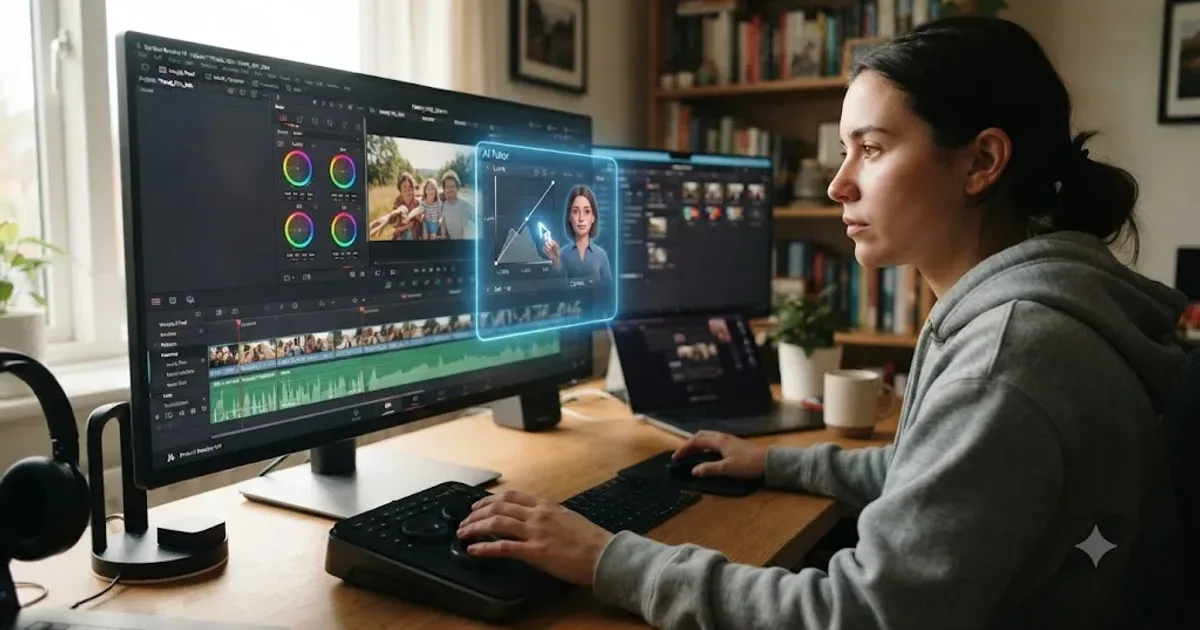
I keep hearing a version of the same worry from people learning DaVinci Resolve right now: why bother getting good at something AI might automate next year. It's a fair question. It's also answerable, because not every skill in Resolve ages the same way.
Some of what you're learning right now will still be worth exactly what it's worth today in five years. Some of it will be worth half as much within one Resolve update cycle. This guide splits the difference honestly, tells you which is which, and gives you an actual routine for spending your limited practice time on the half that lasts.
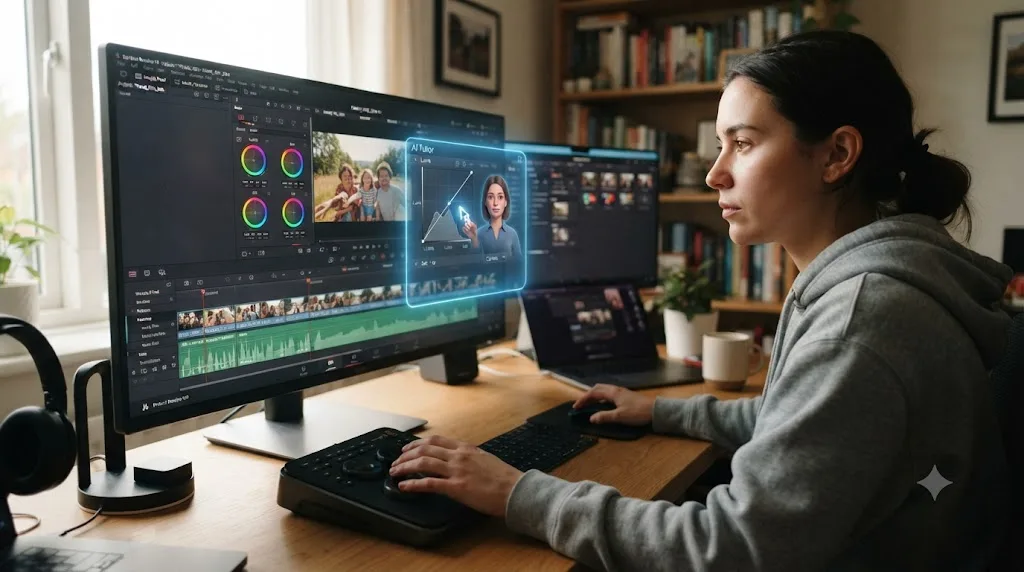
What does "future-proofing your DaVinci Resolve skills" actually mean?
It doesn't mean predicting which feature Blackmagic ships next. Nobody can do that reliably, and chasing feature announcements is a losing strategy anyway, because by the time you've mastered this year's new panel, next year's version has already rearranged it. Future-proofing means something narrower and more useful: knowing which of your current skills will still be worth having regardless of what the software looks like in three years, and putting your limited practice hours there first.
That split has a name in workforce research, and it's not new to video editing. Economists and labor researchers distinguish between skills that decay fast, tied to a specific tool, interface, or process, and skills that decay slowly or not at all, tied to judgment, theory, and transferable reasoning. A skill's future-proof value depends on what it's actually built from, not on how advanced it currently looks. Knowing exactly where the Qualifier lives in Resolve's current UI looks impressive today and is worth nothing the day Blackmagic moves that panel. Knowing why you'd reach for a qualifier instead of a window in the first place is worth the same amount before and after that UI change.
Applied to Resolve specifically, this post treats "future-proof" as a real, answerable question: which of the things you're currently practicing, node-based color grading logic, Fusion's compositing model, a trained ear for dialogue levels, familiarity with this month's Magic Mask panel, survive a version bump, and which don't.
How fast is DaVinci Resolve itself actually changing?
Faster than a casual user notices, slower than the panic implies. Blackmagic Design has shipped a major Resolve version roughly once a year for the last several cycles: Resolve 18 was announced in April 2022 and released that July, Resolve 19 was announced in April 2024 and shipped its final release that August, according to Blackmagic's own announcement, Resolve 20 arrived in 2025, and Resolve 21 was announced in April 2026, according to Blackmagic's own press release. That's an annual rhythm, timed almost every year to the NAB trade show, with smaller point releases (18.1, 19.1, and so on) landing several times a year in between to fix bugs rather than move panels around.
Each major version tends to add somewhere between dozens and over a hundred individual feature changes, according to Blackmagic's own What's New page, which tracks every release. Resolve 21 alone shipped a new fully integrated Photo page, several new AI tools including IntelliSearch, an AI Speech Generator, and CineFocus, plus AI Face Age Transformer, Face Reshaper, Blemish Removal, SlateID, UltraSharpen, and Motion Deblur, according to a hands-on review of the update. None of that requires relearning the entire application. It requires relearning specific panels, specific tools, and occasionally an entire new workflow like Photo page editing.
| Version | Announced / released | What changed |
|---|---|---|
| Resolve 18 | Announced Apr 2022, released Jul 2022 | Major UI and performance changes across Edit and Fusion |
| Resolve 19 | Announced Apr 2024, released Aug 2024 | IntelliTrack AI, Ultra NR noise reduction, ColorSlice, multi-source editing, new Fusion USD tools |
| Resolve 20 | 2025 | Continued Neural Engine expansion, workflow refinements |
| Resolve 21 | Announced Apr 2026, released mid-2026 | New Photo page, IntelliSearch, AI Speech Generator, CineFocus, and five more AI tools |
DaVinci Resolve ships a major version about once a year, and each one moves something. That's the honest baseline this whole guide works from. It's frequent enough that memorizing exact menu paths is a recurring cost, and infrequent enough that a real relearning task, not a constant one, is what you're actually planning around. If you're coming from another NLE and wondering whether this pace is unusual, it isn't. Adobe, Avid, and every other major post-production tool run on a similar yearly cadence; Resolve just bundles more of its yearly changes into visible new AI features than most.
Which DaVinci Resolve skills have the shortest shelf life, and which last for years?
This is the actual planning tool this guide is built around, so it's worth laying out plainly before anything else. Sort what you know, or what you're about to spend hours learning, into these two columns.
| Durable (lasts through version changes) | Perishable (resets with each UI update) |
|---|---|
| Node-based color theory: primary vs. secondary correction, why you'd serialize vs. parallel two nodes | The exact keyboard shortcut for a specific tool in this version |
| Understanding what a waveform, vectorscope, or histogram is telling you | Which submenu currently holds a specific effect |
| Story pacing and knowing when a cut serves a scene | The current name of a panel that gets renamed between versions |
| A trained ear for dialogue levels, noise, and EQ problems | The precise click path to reach a settings dialog |
| Fusion's node-graph logic: inputs, outputs, order of operations | Which page tab currently hosts a given tool |
| Knowing what a client or director actually wants and how to defend a choice | Exact default values of a specific effect's parameters |
| General color science (color spaces, gamma, white balance) | Branding and marketing names for specific AI features |
The skills that survive a Resolve update are the ones that would still be true if Resolve didn't exist. Node logic doesn't change because it's the same logic behind Nuke, Flame, and most other node-based compositing tools, not something Blackmagic invented and could redesign away. Pacing judgment doesn't change because audiences haven't changed the way they respond to a held shot or a fast cut. Contrast that with "the Magic Mask panel currently lives under the Color page's third tab from the left," a fact that has already changed once and will change again.
This isn't an argument to ignore the perishable column. You still need to know where things are to actually work. It's an argument about where to put your deliberate practice time when you're deciding what to focus a study session on: the durable column pays you back for years, the perishable column pays you back until the next release.
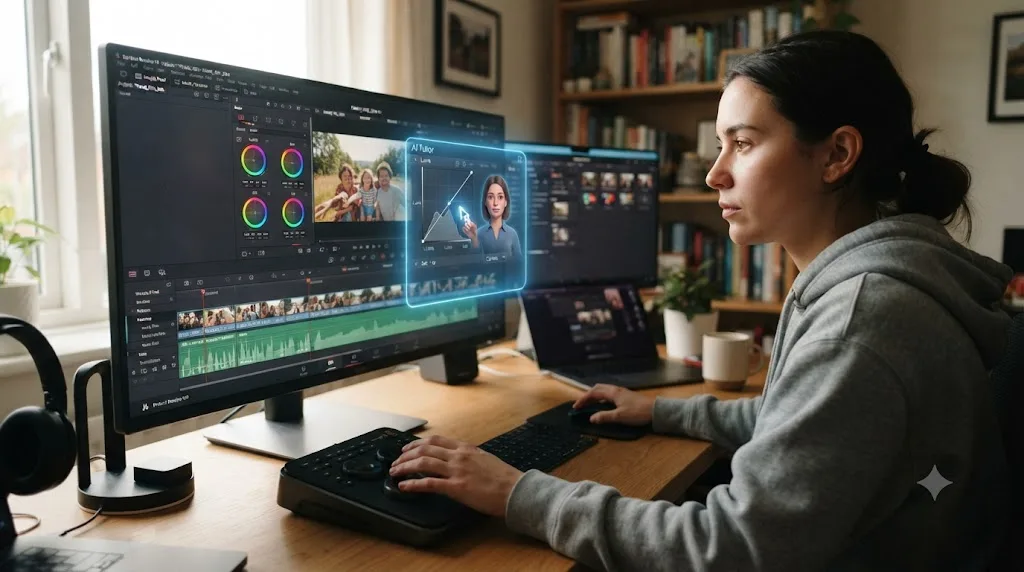
How do you tell if a specific skill is durable or perishable before you spend hours on it?
The table above covers the obvious cases. Real learning decisions rarely arrive that clean. You're staring at a new panel Resolve 21 just shipped, or a technique a YouTuber just posted, and you have to decide, in the moment, whether it's worth deliberate practice or just worth knowing exists. Three questions settle it.
First, would this knowledge have mattered in Resolve 15, or does it only make sense inside this version's current layout? Understanding why a parallel node keeps two corrections independent would have been just as true a decade ago. Knowing that IntelliSearch currently lives under a specific tab wouldn't have meant anything before IntelliSearch existed, and won't mean anything once it gets renamed or folded into something else.
Second, does it transfer to a tool you've never opened? Reasoning about ratio and threshold on a compressor works the same in Fairlight, in a standalone DAW, or in a mixing console from 1985, because it describes what happens to a waveform, not where a slider sits. A specific keyboard shortcut transfers to exactly one piece of software, and only until that software's next update.
Third, if Blackmagic redesigned every panel overnight and hid every label, would you still know what to do, even before you knew where to click? That's the real test. Someone with durable color science knowledge would still know they need to isolate a specific hue range and pull down its saturation, even staring at a completely unfamiliar interface. Someone who only memorized "the Qualifier is the eyedropper icon in the third row" would be stuck until they relearned the UI from scratch.
A skill that survives being asked "what if the software looked completely different" is durable. A skill that only answers "where do I click" is perishable. Run any new technique through those three questions before deciding how much practice time it deserves, and you'll sort your study time correctly almost every time, without needing a pre-built list for every possible feature Resolve ships next.
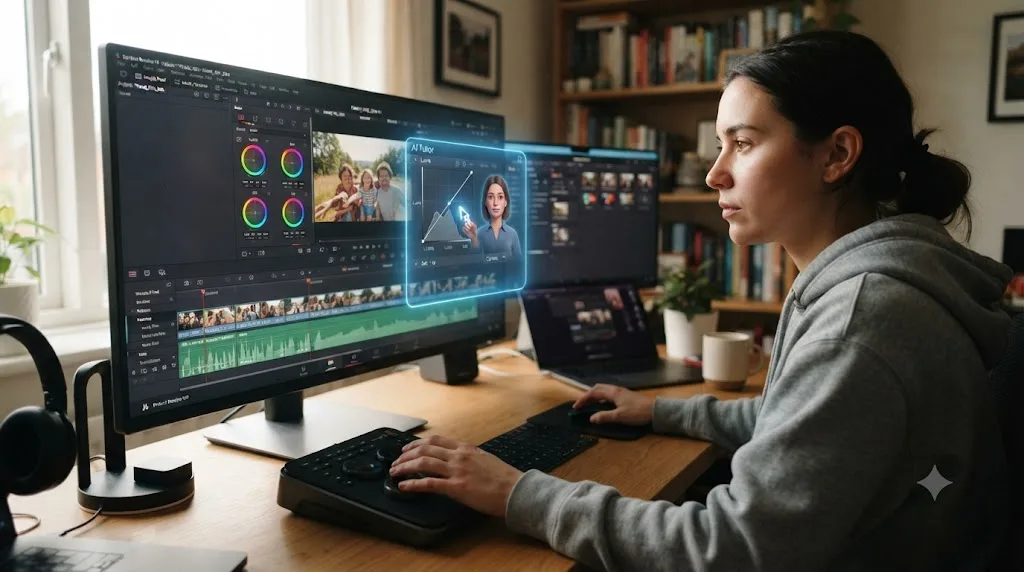
What does the research actually say about how fast job skills go obsolete?
This isn't a video-editing-specific worry, and the research on it predates generative AI by years. Stephane Kasriel, then CEO of Upwork and a World Economic Forum council member, put a specific number on it back in 2017: the half-life of a learned skill sits at roughly five years, meaning five years from now, a skill set worth 100% today is worth roughly half that in practical market value, according to his own piece for the World Economic Forum. Kasriel's own examples make the mechanism clear: a bank teller after the ATM, a telegraph operator after the telephone, a travel agent after Expedia and Priceline. The people didn't get worse at their jobs. The market value of the specific thing they did well simply moved.
The World Economic Forum's more recent Future of Jobs Report 2025 updates that picture with fresh survey data from employers directly. Employers expect 39% of workers' core skills to change by 2030, an enormous share, though notably down from 44% measured in the 2023 edition of the same report. Of a representative 100 workers globally, the report estimates 59 will need meaningful reskilling or upskilling by 2030, and of those, 11 are unlikely to actually receive it, leaving their employment prospects genuinely at risk. Nearly six in ten workers worldwide are expected to need meaningful retraining by 2030, and roughly one in five of them won't get it. That's not a video-editing statistic specifically. It's the general climate every creative software skill sits inside right now.
America Succeeds ran a separate, more concrete version of the same question by analyzing actual job postings rather than surveying employer predictions. Its July 2025 update, Durable by Design, found that 76% of nearly 76 million job postings analyzed explicitly requested durable, human-centered skills, communication, adaptability, critical thinking, problem solving, and that employers ask for these skills 3.8 times more often than they ask for the top five technical or software-specific skills combined. That's a market signal, not a prediction: employers are already, today, pricing durable skills higher than specific tool fluency, in the actual language of the job postings they're publishing.
| Source | What it measured | Key finding |
|---|---|---|
| Stephane Kasriel / World Economic Forum, 2017 | Estimated market value of a fixed skill set over time | Roughly a 5-year half-life for a learned skill |
| World Economic Forum, Future of Jobs Report 2025 | Employer survey on expected core skill change | 39% of core skills expected to change by 2030 (down from 44% in 2023) |
| America Succeeds, Durable by Design, July 2025 | Analysis of ~76 million real job postings | 76% request durable skills; employers ask for them 3.8x more than top technical skills |
LinkedIn's own 2026 Talent Velocity Advantage Report adds the employer-side confession that makes all three of these numbers feel less abstract: 86% of organizations surveyed say they can't clearly see what skills their own workforce has, can't mobilize talent to where it's needed, and can't keep pace with AI-driven change. If large, well-resourced organizations are struggling to even track which skills are going stale internally, an individual editor tracking their own skill decay by feel, without a framework, is working at an even bigger disadvantage.
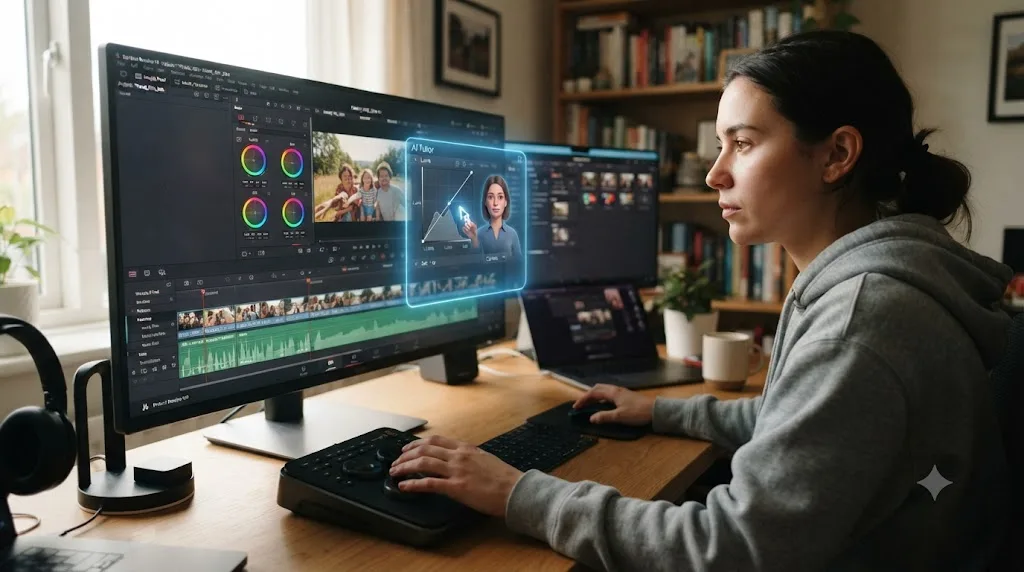
Will AI actually replace video editors, or just specific tasks inside the job?
Just specific tasks, and the distinction matters enormously for how you plan your own learning. The clearest available data on this comes from the U.S. Bureau of Labor Statistics, which still projects 3% employment growth for film and video editors through 2034, a median wage of $70,980, and about 6,400 annual job openings, according to its own Occupational Outlook Handbook. That's a calm number from a source with no incentive to sell you either panic or reassurance.
Adobe's own 2026 Creators' Toolkit Report frames the same split from inside the industry using AI tools most heavily right now: 93% of surveyed creators say generative AI helps them produce content faster, and 75% call it integrated or essential to their current work. The same survey found 85% still believe the final creative decision should remain with the human creator. The tools accelerating video work and the belief that a human should still make the call are both growing at the same time, not trading off against each other. Our full breakdown of whether AI will actually replace video editors goes deep on the labor data, the union contract language, and the career-stage-by-career-stage risk picture if you want the complete version of that question. This guide only needs the summary: the mechanical, well-specified layer of editing gets automated first and fastest. The judgment layer, deciding what a shot should feel like, which take serves the story, what a specific person wants, doesn't, because nobody has a labeled dataset of "the choice that made this scene land."
That split is exactly what "future-proofing" means in practice, applied specifically to Resolve. Skills that live on the mechanical side of that line are the ones AI absorbs. Skills that live on the judgment side are the ones worth protecting deliberately.
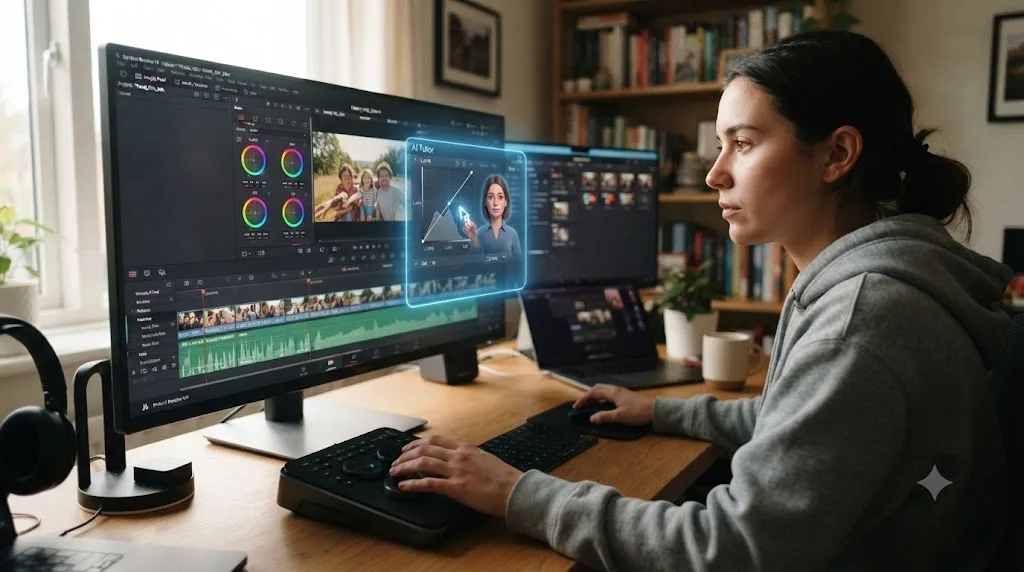
What's the best way to learn DaVinci Resolve so it doesn't go stale in a year?
The best way to learn DaVinci Resolve, full stop, whether or not you're worried about AI, is guided, hands-on practice on your own footage, not passive video-watching. Our piece on the best way to learn DaVinci Resolve covers the learning-science research behind that claim in depth: constructionism, deliberate practice, and active-recall research all point the same direction, that skill forms by doing something with feedback, not by watching someone else do it first.
What's worth adding here is why that specific method also happens to be the most future-proof one available. Watching a tutorial teaches you where a button was in the version the tutorial was recorded on. Practicing a real grading decision on your own footage teaches you why that decision was correct, a fact that doesn't expire when the button moves. Guided practice inside Resolve beats watching courses about Resolve, and it also ages better, because you're training judgment instead of memorizing a screenshot. If your current learning routine is mostly video-watching, the single highest-leverage change you can make, for both learning speed and skill durability, is spending more of that time actually grading a clip or cutting a timeline instead.
What does practicing the durable layer actually look like on a real shot?
It helps to see the split in action instead of just as a category label, so walk through a problem that comes up on almost every project with more than one camera: two interview subjects, shot on different bodies, and their skin tones don't quite match once you cut between them.
The perishable habit is chasing a specific number. Someone who's only memorized "move the Color Boost slider to around 15" on one clip will apply that exact value to the next mismatched pair and wonder why it looks wrong, because the mismatch on this new pair isn't the same mismatch. The slider position was never the lesson. It was a coincidence that happened to work once.
The durable habit starts somewhere else entirely: the waveform monitor. Pull up both clips and compare where their luma values sit relative to each other, not against an ideal, against each other. If one camera is reading warmer and slightly brighter in the midtones, that's the actual problem, described in terms that don't depend on which panel you're looking at. From there the decision is a node-logic decision, not a slider-hunting one: does this call for a parallel node with a hue vs. hue curve pulling the warmer clip's midtones back toward neutral, or does the mismatch only live in a specific skin-tone range, in which case a qualifier isolating that hue band and adjusting just that region is the cleaner fix. Neither choice depends on knowing today's exact menu path for either tool. It depends on understanding what a hue vs. hue curve does and when a targeted qualifier beats a broad correction, which is true regardless of which submenu currently holds either one.
The practice that actually builds durable skill is diagnosing the mismatch on the waveform first and picking a node strategy second, not memorizing the slider value that happened to fix last week's shot. Run that same reasoning on a pacing decision, and it looks almost identical: instead of memorizing "cut every 3 seconds because that's what looked good on my last video," you're asking what this specific scene needs, how long the audience needs to read an expression before it lands, whether a held shot is building tension or just dragging. That reasoning process, not any specific answer it produces, is the thing that's still worth the same amount three Resolve versions from now.
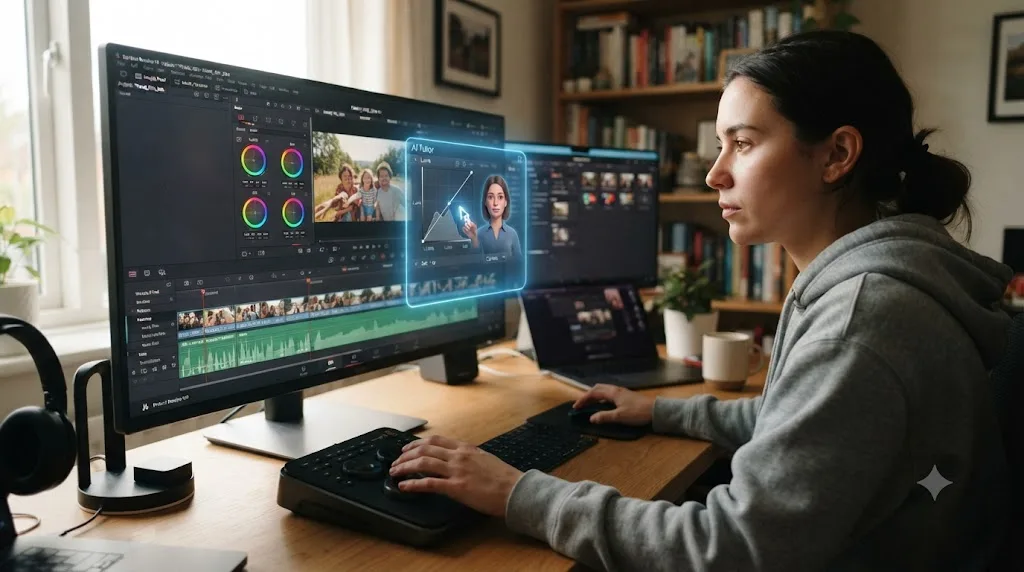
Should you learn Resolve's node system and color science, or just memorize today's UI?
Learn the node system and color science first, and treat today's specific UI as a temporary map on top of it. This is the clearest single example of the durable-versus-perishable split in the entire application.
Resolve's Color page is built on a node graph: a serial node applies a correction on top of everything before it, a parallel node applies a correction independently and combines it, a layer mixer blends two branches together. That logic is not a Resolve invention. It's the same conceptual model behind Nuke, Flame, Fusion itself, and most professional node-based compositing and grading tools on the market. Learn why you'd reach for a parallel node instead of a serial one, and that reasoning transfers directly if you ever touch a different grading tool, and it survives every UI redesign Resolve ships, because the redesign moves where the node menu lives, not what a serial node does.
Color science underneath that is even more durable. Understanding what a waveform monitor is actually showing you, luma values across the frame, mapped to horizontal position, doesn't change based on which panel currently displays it. Knowing that a vectorscope plots hue and saturation, with skin tones clustering along a predictable line, is true whether you're looking at Resolve 18's vectorscope or Resolve 25's, whenever that ships. Color science is physics and perception, not software, and physics doesn't get a version number.
Contrast that against what actually changes version to version: exact panel names, exact menu depth, which keyboard shortcut triggers which tool, whether a given control lives under "Color Match" or gets renamed and folded into a broader AI feature. Those are real, and you do need to relearn them, but they're a much smaller relearning cost than it feels like from the outside, because the underlying logic you already understand tells you what you're looking for, even when you don't yet know exactly where it moved.
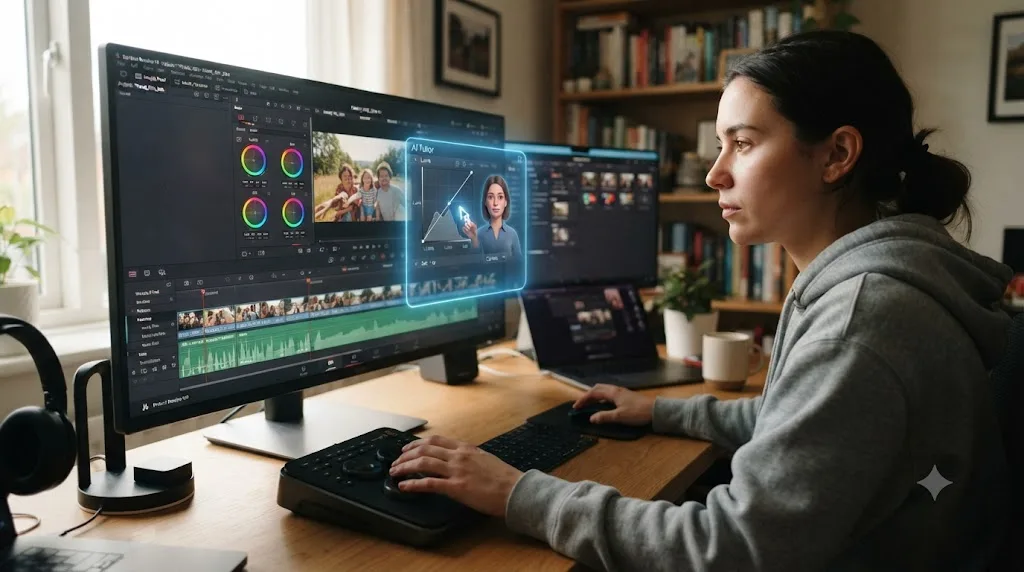
Is it still worth learning Fusion if AI can composite for me now?
Yes, for the same reason it's worth learning the Color page's node logic instead of memorizing today's panel layout. Fusion's entire model is a node graph: inputs feed a node, the node performs one operation, outputs feed the next node, and the order those nodes chain together determines the final image. AI compositing tools, including several of Resolve 21's own new AI features, automate specific, well-specified composite tasks: removing an object, aging a face, sharpening a soft shot. None of them replace the underlying skill of building an arbitrary, non-standard composite that doesn't match a pattern the tool was trained on.
That's the practical test worth applying to any Fusion task in front of you. If it's a well-specified, common operation, isolate this person, remove this object, blur this background, an AI tool inside Resolve probably already does it faster than you'd build it by hand, and using that tool is the efficient choice, not a shortcut you should feel guilty about. If it's a genuinely novel composite, a specific transition effect nobody's built before, a complex multi-layer effect tied to a specific creative brief, Fusion's node graph is still the tool for it, because nobody has trained a model on "the exact weird thing this specific project needs."
Fusion's node graph logic is durable because it's a general problem-solving structure, not a Resolve-specific skill, the same reasoning behind why programmers who understand control flow can pick up a new language faster than someone who only memorized one language's syntax. Learn to think in nodes, inputs and outputs and order of operations, and that skill transfers to any node-based tool you ever touch, composited by AI or not.
Should you learn DaVinci Resolve's scripting API for future-proofing?
If your work involves repetitive technical tasks, batch-renaming clips, automating render queue management, tagging metadata across a large project, learning Resolve's Python or Lua scripting API is genuinely one of the more future-proof technical investments in this guide, for a reason that has nothing to do with the API's specific syntax.
Scripting forces you to break a task into an explicit, ordered sequence of steps: do this, then this, check this condition, repeat. That skill, decomposing a fuzzy task into a precise, repeatable procedure, is close to identical to the skill of prompting an AI tool well. Someone who's already used to specifying exactly what a script should do, in what order, with what edge cases handled, writes noticeably better prompts for an AI assistant than someone who's never had to be that precise about a process before. The API's exact function names and syntax will change between versions the way any API does. The underlying discipline of precise, sequential task specification doesn't.
If your work is mostly creative decision-making, grading, cutting, sound design judgment calls, scripting is a lower-priority skill than the durable creative fundamentals covered elsewhere in this guide. It's not useless, but it's not where your limited practice hours pay off fastest either. Weigh it against your actual day-to-day work rather than learning it because it sounds technically impressive.
How does Blackmagic's own free training fit into a future-proofing plan?
It's the right starting point for the fundamentals, and it stays current in a way most third-party material doesn't, because Blackmagic updates it alongside its own software. Blackmagic Design publishes free training guides covering editing, color, Fairlight audio, and Fusion, each with lesson project files and a free certification exam, at its own DaVinci Resolve Training page. In early 2026, the company also ran a series of free live webinars covering the full post-production pipeline for beginner through professional users, according to coverage from Y.M.Cinema Magazine.
That's a genuinely strong foundation, and it deserves credit most AI-anxious "will this course still be relevant" content skips over: it's free, it's accurate, it's maintained by the company that owns the software, and it covers exactly the durable fundamentals, color theory, node logic, audio basics, this guide keeps pointing back to. If you haven't gone through Blackmagic's own material yet, do that before anything else in this guide.
What it can't do is watch your specific project and correct your specific mistake. A training PDF or a webinar recording teaches the same lesson to everyone watching it, at the same pace, regardless of what you personally got wrong on your own footage. That's not a criticism unique to Blackmagic's material, it's the structural limit of any pre-recorded or written curriculum, and it's the same gap our piece on why watching tutorials doesn't work covers from a broader angle. Pair Blackmagic's free fundamentals with your own practice project and something that corrects you on that specific project, and the combination covers more ground than either half alone.
Are YouTube channels and Reddit's advice still good sources as AI improves?
Yes, with the same caveat that applies to any pre-recorded material: they're strong for the fundamentals and for specific technical fixes, and weak for correcting your own specific project. YouTube educators like Casey Faris have built large, genuinely useful libraries of Resolve tutorials covering everything from basic cuts to advanced color grading, and Reddit communities around Resolve are active, fast, and often blunt in a useful way when a specific workflow question comes up. Neither source is going stale because of AI. Both were already limited in the same way any static or crowd-sourced content is limited: they answer the question someone already asked, not your specific question about your specific footage.
Where AI changes the calculation slightly is speed and specificity. A YouTube tutorial recorded before a version update might show a panel in a location that's since moved, and you have to translate mentally between what you see on screen and what the video shows. A Reddit thread from two years ago might reference a feature that's since been renamed or folded into something else. Neither of those problems is new, and neither is really about AI, it's the same staleness risk any tutorial content carries the moment the software underneath it updates. The fix is the same one that applies throughout this guide: use these sources for the durable fundamentals and general technique, and expect to independently verify the exact current location of any specific control they reference.
Are Udemy and Coursera courses future-proof, or do they go stale fast?
They sit in the middle, and it depends heavily on how recently the course was recorded and how often the instructor updates it. Udemy and Coursera both host genuinely strong, structured DaVinci Resolve curricula, and a well-built course has a real advantage over free scattered tutorials: a deliberate order, building each lesson on the last one, rather than a pile of individually useful but disconnected videos.
The staleness risk is concrete, though, and worth naming honestly rather than glossing over. A course recorded on Resolve 19 that hasn't been updated for 21 will show you a Color page, a Fusion panel, or an export dialog that's since moved, and depending on how much changed, that gap ranges from a minor annoyance to a genuinely confusing mismatch between what the instructor describes and what you see on your own screen. Before buying a course specifically for this reason, check its last-updated date and whether the instructor has a track record of revising it for new Resolve versions, the same due diligence worth applying to any paid, version-specific software course.
| Source | Strength | Staleness risk |
|---|---|---|
| Blackmagic's free training | Free, accurate, maintained by the software's own maker | Low, updated alongside new versions |
| YouTube (Casey Faris and others) | Deep libraries, free, fast to search | Moderate, individual videos age with the UI they were recorded on |
| Fast, blunt, good for specific troubleshooting | Moderate to high on old threads referencing renamed features | |
| Udemy / Coursera | Structured, sequential curriculum | Depends heavily on last-updated date |
| An in-app tutor (TryUncle) | Watches your current, live project | Low, since it points at whatever's actually on your screen right now |
None of this makes courses a bad choice. It makes them a category with a specific failure mode worth checking for before you pay, the same way you'd check a car's mileage before buying it used.
What's the difference between an AI tool that edits for you and one that teaches you?
This is the single most important distinction in this entire guide, because it determines whether a given AI tool helps your future-proofing plan or quietly works against it. A growing category of AI tools now execute cuts directly inside a DaVinci Resolve timeline from a typed instruction: CutAgent, according to its own product site, Sottocut, according to its own site, PremiereCopilot, according to its own pricing page, and Eddie AI, which offers a native Resolve extension, according to Eddie's own workflow documentation. Each of these is genuinely useful for what it does: describe a cut in plain language, and the tool executes it in your project.
Using a tool that edits your timeline for you and using a tool that teaches you where a control lives are two different activities wearing the same "AI assistant" label. The first replaces a decision. The second replaces friction while leaving the decision to you. Neither is wrong, but they solve opposite problems, and mixing them up is exactly how a well-intentioned future-proofing plan backfires: if the goal is building durable judgment, handing every editorial decision to an automation tool skips the practice that builds the judgment in the first place, the same trap our piece on whether AI is making editors worse at their jobs covers in depth.
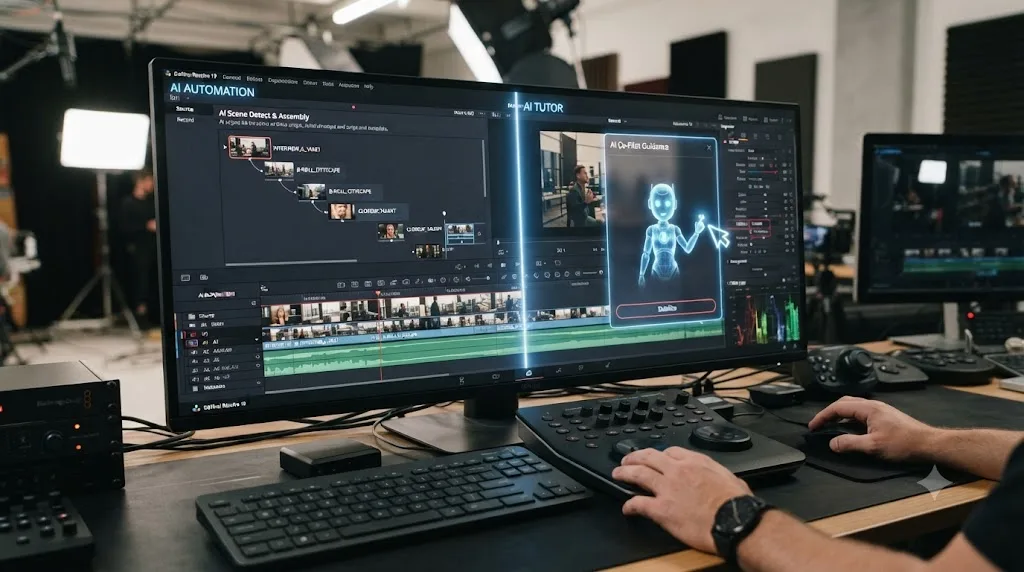
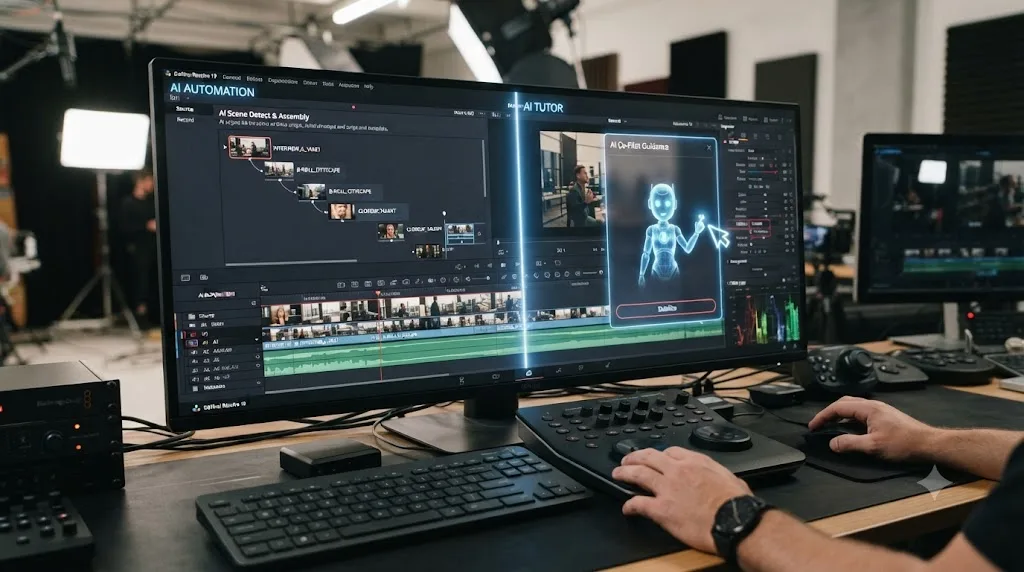
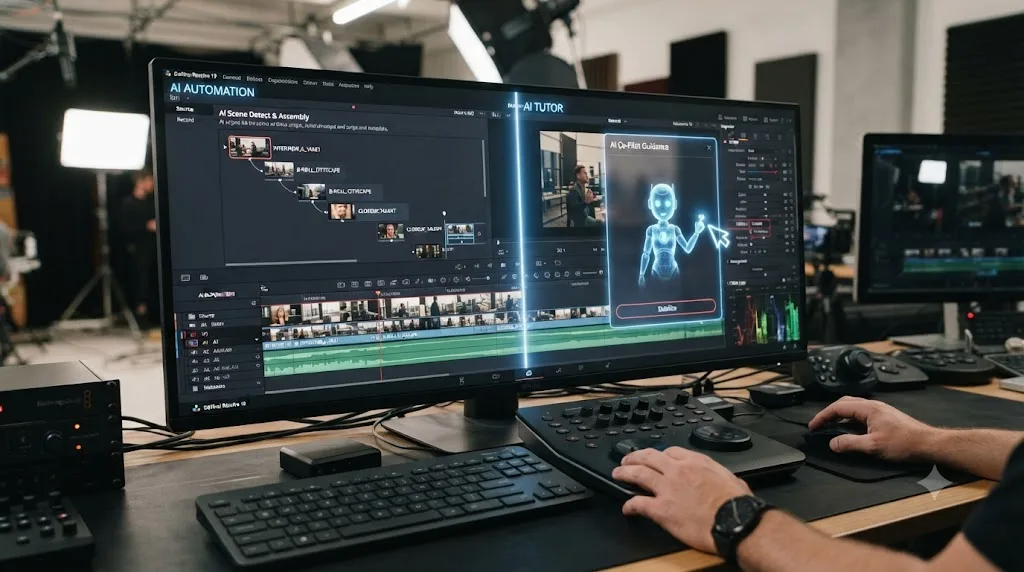
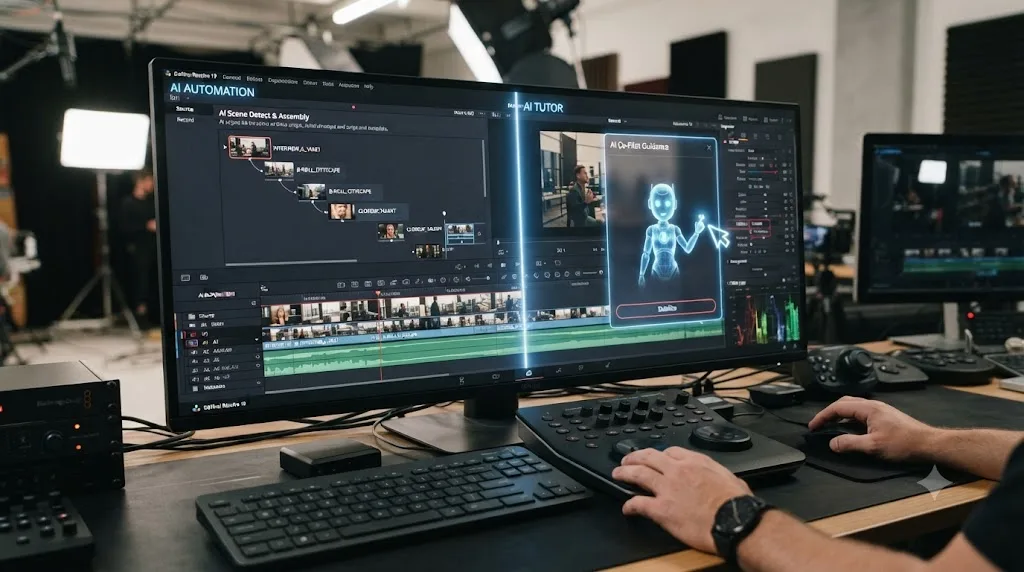
TryUncle sits in the second category by design. TryUncle is the on-screen assistant for DaVinci Resolve on macOS. Ask in plain words, and Uncle points at the exact control on your screen. It doesn't touch your timeline, generate a cut, or make a color decision on your behalf. Ask it where a specific qualifier lives, or how to build a particular kind of transition, and it points at the actual control inside your actual project, live, while the decision of what to do with it stays entirely yours.
| Category | Examples | What it does | What it does to your future-proofing plan |
|---|---|---|---|
| Timeline-editing agents | CutAgent, Sottocut, PremiereCopilot, Eddie AI | Executes cuts inside Resolve from a typed instruction | Speeds up production, but skips the practice reps that build editorial judgment if used exclusively |
| In-app tutor | TryUncle | Watches your project and points at the control you need | Removes friction from finding a control without replacing the decision, so practice reps still happen |
| General chatbot | ChatGPT, Claude | Answers declarative questions about Resolve with no view of your project | Good for fast facts, useless for anything specific to your current footage |
Neither category is the "right" one in the abstract. A tight deadline on a large batch of interview footage is a legitimate reason to reach for a timeline-editing agent. Learning a technique well enough that you don't need any tool the next time is a legitimate reason to reach for an in-app tutor instead. The mistake worth avoiding is using the first category as your only learning method and mistaking speed for skill.
Is there an AI tool to learn DaVinci Resolve that actually helps you future-proof your skills?
Yes, and it's worth being specific about which design choices make a tool genuinely useful for this rather than just another feature to memorize before it changes. The clearest test is whether the tool teaches you something that survives its own interface, or whether it just becomes one more thing you have to relearn every time it updates.
TryUncle is built around watching your actual DaVinci Resolve project on the Edit, Color, and Fusion pages and pointing at the specific control you're asking about, live, inside your own screen. That design has a future-proofing advantage the static resources covered earlier in this guide structurally can't match: because it looks at whatever version of Resolve is actually running on your machine right now, it never shows you a panel from two versions ago. A course recorded on Resolve 19 stays frozen on Resolve 19's layout forever. A tool that watches your live screen updates the moment you do.
Worth stating plainly, since price and platform change and this post shouldn't pretend otherwise: TryUncle is a paid, macOS-only app at $34.99 a month with cancel-anytime billing, so check TryUncle for the current rate. It's macOS only, so if you edit on Windows or Linux, it isn't an option for you right now, and Blackmagic's free training plus active practice is the more relevant combination from this guide. It's also not the right tool if what's actually blocking you is finishing your first project rather than not knowing where a control lives, in which case our fuller comparison of AI tools for learning DaVinci Resolve covers the broader landscape, including free options.
What does a working colorist actually say about staying current as AI tools change?
John Daro, a colorist at Warner Bros. Discovery who has spent years building his own AI-assisted grading tools, addressed this exact tension directly in a 2024 post about where color grading is heading. His framing has held up well against everything this guide has covered so far:
"This stuff is exploding. It's got the potential to change the game for colorists, but like any tool, it's how we use it that matters."
Read the full post here. Notice what Daro doesn't say. He doesn't say the tools are safe to ignore, and he doesn't say they're dangerous by default. He says the outcome depends on use, which is the exact same variable this guide keeps returning to under a different name: whether you're using a fast-changing tool to skip the judgment underneath it, or to remove friction around judgment you're still building.
A working colorist's own advice about staying relevant as AI tools multiply comes down to the same principle as every research source in this guide: the tool changing fast isn't the threat, letting the tool replace your own judgment is. That's a sentence worth reading twice if you're currently anxious about a specific new AI feature Resolve just shipped, because the anxiety is usually really about the wrong variable.
What should a future-proof weekly learning routine actually look like?
Everything above compresses into a routine you can actually run, not a philosophy to nod along with and then forget. None of it requires more total study time than a typical learning schedule already asks for, just a different allocation of that time.
- Sort your current skill list into durable and perishable, honestly, once. Write down what you actually know how to do in Resolve right now. Mark each item durable (theory, logic, judgment) or perishable (a specific location, a specific shortcut). This takes twenty minutes and changes where every future study session goes.
- Spend most new practice time on the durable list, using real footage. A grading decision, a pacing choice, a compositing problem, practiced on your own project, not a sample file built to look clean. This is the highest-leverage single habit in this guide, and it's the same one behind the best-way-to-learn-Resolve research covered earlier.
- Let AI tools handle the mechanical layer on purpose, not by accident. Use Magic Mask, IntelliSearch, and similar tools for labor that never built judgment in the first place, so the time you save goes toward the durable list, not toward doing nothing with it.
- Expect a real relearning task about once a year, and budget an afternoon for it, not a crisis. Based on Blackmagic's own release cadence, that's roughly the actual frequency a major UI change happens. Treat it as a scheduled maintenance task, not evidence your skills are collapsing.
- Pair every stretch of solo practice with an actual correction loop. A forum post, a mentor, a peer review, or an in-app tutor watching your live project. Unverified practice can train a wrong habit just as effectively as a right one, and nothing in this routine catches that on its own.
None of these steps ask you to abandon a specific tool, course, or channel you already use. They ask you to notice which category each one falls into, durable-building or perishable-patching, and weight your limited hours toward the first.
What if you don't have time to build both layers this year?
Most people reading this don't have unlimited practice hours, and pretending otherwise makes the whole routine feel like one more obligation instead of something you'll actually do. The honest answer is you don't build both layers evenly. You protect the durable one first, and let the perishable one get patched in smaller, cheaper doses.
If you've got two or three hours a week total, put roughly nine of every ten minutes into durable practice on your own footage and leave the rest for a single pass through Blackmagic's own What's New page once a quarter, just enough to know what changed without chasing every feature the day it ships. If you've got less than that, an hour here and there, skip the perishable layer almost entirely between major versions. You'll lose a few minutes hunting for a moved panel when you sit down to work. That's a smaller cost than it feels like, and it's cheaper than spending your only free hour memorizing a menu that might move again next year anyway.
Staff editors with structured training time at work face the opposite constraint: plenty of scheduled hours, but often spent on whatever the studio's current tool rollout happens to be, which is almost always perishable-layer material. If that describes your job, treat employer-provided training as your perishable-layer budget covered, and protect your own personal practice time exclusively for durable reps, since nobody else is going to schedule that for you.
| Weekly time available | Where it goes |
|---|---|
| Under 1 hour | Durable practice only; skip perishable upkeep until a major version actually ships |
| 2-3 hours | About 90% durable practice on real footage, one short pass through What's New per quarter |
| 4+ hours, mostly self-directed | Durable practice most sessions, one dedicated session per new major version to relearn moved panels |
| Plenty of employer training time, little personal time | Let work cover the perishable layer; protect personal hours for durable reps entirely |
There's no time budget where the perishable layer deserves more of your hours than the durable one. The only variable that changes with less time is how much perishable catch-up you do at all, not which column gets priority.
How should beginners future-proof differently than experienced editors and colorists?
Differently enough that the same generic advice doesn't serve both groups well, and the direction of the difference matters more than it first appears.
An experienced colorist who's graded hundreds of projects already has years of durable judgment banked: pacing sense, an eye for color mismatches, a working theory of what a specific look requires. For that person, future-proofing mostly means protecting what's already there and staying current on perishable specifics as they shift, a maintenance problem, not a construction one. If Resolve 22 moves a panel, a veteran's underlying judgment tells them approximately what they're looking for even before they know exactly where it moved.
A beginner is building both columns from zero at the same time, and that's where the risk research on AI deskilling, covered in more depth in our piece on whether AI is making you worse at your job, gets genuinely serious rather than theoretical. If a beginner's very first grading decisions get made by an automation tool instead of practiced by hand, there's no durable judgment forming underneath the convenience, because it was never built in the first place. That's not skill loss. It's skill non-formation, and it's a materially bigger risk for someone starting today than for someone who already has a decade of hand-graded reps behind them.
The highest-leverage move for a beginner worried about future-proofing isn't picking the "right" AI tool. It's delaying automation on the specific tasks that build judgment until the manual version has been practiced enough times to know what right looks like. Use AI for the mechanical layer from day one, object removal, silence trimming, background masking. Hold off on letting it make your first hundred color and pacing decisions, because those hundred reps are exactly where the durable skill this whole guide is about actually gets built.
How should freelancers future-proof differently than staff editors and colorists?
The core durable-versus-perishable split doesn't change based on employment type, but the stakes and the visibility of getting it wrong do.
A staff editor or colorist at a post house has some built-in cover: peers who can catch a mistake before a client sees it, a team where slow quarters don't immediately threaten the next booking, and time to recalibrate a skill privately. A freelancer doesn't get that cushion. Every new client effectively re-audits your skills through the same three signals: your reel, your turnaround time, and how you perform live when a client asks you to nudge something in real time on a call. If your durable judgment has quietly gone soft because you've been leaning on automation tools for every editorial call, that's exactly the moment it gets exposed, in front of the person deciding whether to hire you again.
That asymmetry pushes freelancers toward a slightly different weighting of the routine above. The relearning-cadence habit matters just as much, but the correction-loop habit matters more, because nobody else is positioned to catch a freelancer's drift before a client does. If you freelance, building a habit of getting your grading and cutting decisions reviewed by a peer, a mentor, or a tool that corrects you in the moment isn't a nice-to-have. It's the only enforcement mechanism you have, since there's no supervisor or QC pass doing it for you the way there would be on a staff team.
Future-proofing looks the same on paper for a freelancer and a staff editor. It's enforced completely differently, because a freelancer's next booking is the performance review, and nobody warns you in advance which client call that's going to be.
How does future-proofing change for a sound editor or motion graphics artist versus a picture editor?
The same durable-versus-perishable split applies outside the Color page too, and it's worth naming explicitly, because most future-proofing advice defaults to picture editing and quietly leaves the other two crafts out.
For a Fairlight-focused sound editor, the durable column looks like a trained ear for dialogue levels, an understanding of what ratio and threshold actually do to dynamics, knowing why a specific EQ cut clears up muddiness instead of just thinning the track, and the judgment to know when a mix serves the picture rather than just sounding technically clean in isolation. None of that is Fairlight-specific. It's audio engineering, and it transfers to any DAW you ever touch. The perishable column is exactly what you'd expect: which panel currently hosts the loudness meter, what a specific processor's default plugin chain looks like this version, whether a routing option lives under a track header or a separate bus menu this year. AI tools like Voice Isolation and dialogue cleanup features absorb the mechanical noise-removal labor. They don't replace the judgment call of whether a voice actually sounds right for the scene it's in.
For a Fusion-heavy motion graphics artist, durable skill is node logic again, plus the animation fundamentals that predate any software: easing, timing, anticipation, the visual weight of a shape moving through frame. Perishable is the exact name and location of a specific modifier, a specific template's parameter layout, or which of Resolve's built-in generators currently produces a given look. AI keyframing and templated generators speed up producing a specific, well-specified motion effect. They don't replace understanding why a hard ease-out reads as an impact and a soft ease-out reads as a drift, because that reasoning is animation theory, not Resolve UI knowledge.
Swap "color theory" for "audio engineering" or "animation timing" and the entire framework in this guide still applies without modification, because the split was never really about color grading specifically. It's about the difference between reasoning that depends on physics and perception, and reasoning that only depends on this version's specific menu. Whichever page of Resolve you spend most of your time on, the same three-question durability test from earlier in this guide sorts your specific craft's skills into the same two columns.
What Resolve skills should you deliberately stop worrying about learning by hand?
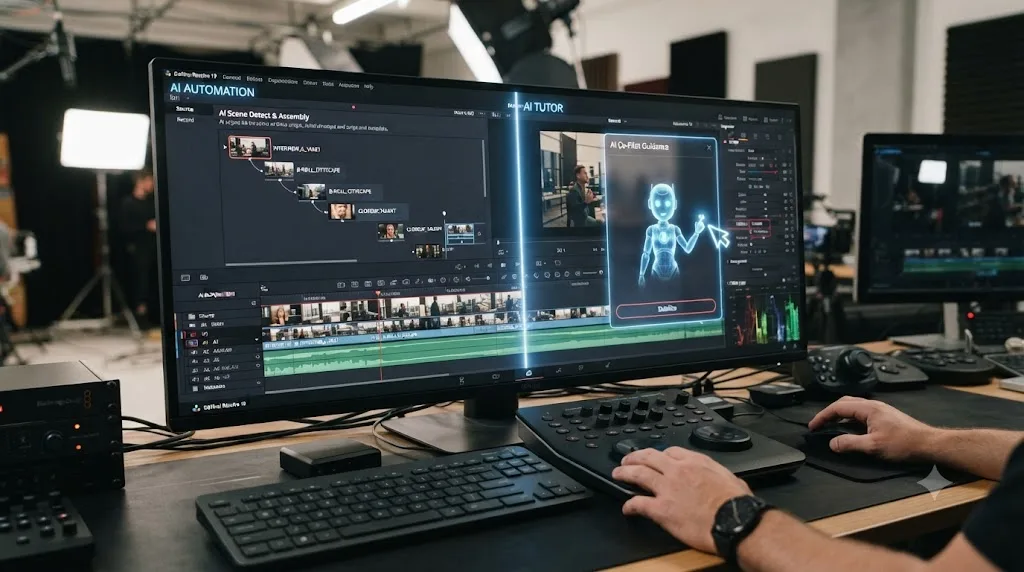
Not every skill deserves your deliberate practice time, and pretending otherwise wastes hours you could spend on the durable column instead. This is the honest flip side of everything above: some tasks were never where the craft lived, and using AI for them isn't a shortcut, it's just the efficient choice.
Frame-by-frame rotoscoping, before Magic Mask existed, took patience, not judgment, and losing hours of that labor to an AI tool frees time for the parts of grading that actually distinguish a good colorist from a mediocre one. Manually hunting through hours of footage for a specific shot, before IntelliSearch existed, was a search problem, not a creative one, and a text-based search does it faster with no loss to your craft. Manual EQ sweeps to remove a specific hum or background noise, before Voice Isolation existed, replaced ears with patience the same way rotoscoping replaced judgment with patience.
| Task | Why it's safe to hand to AI | What to still practice occasionally |
|---|---|---|
| Rotoscoping / object masking | Never built creative judgment, only patience | Manual keying once in a while, to catch a mask that breaks on hair or motion blur |
| Finding a specific shot in footage | A search task, not a judgment task | Nothing, this is pure convenience |
| Removing background noise from dialogue | Replaces mechanical labor, not a trained ear | Understanding what "clean" actually sounds like, so you can judge the AI's output |
| Rough assembly from a script or shot list | Speeds up a first pass | Pacing decisions on the assembled cut, which the tool doesn't make for you |
Refusing every AI tool to protect a skill you were never actually practicing in the first place doesn't future-proof you. It just makes you slower than everyone else competing for the same job. The point of this whole guide isn't maximum manual effort everywhere. It's spending your specific, limited hours of deliberate practice on the column that actually pays you back in three years, and letting AI carry everything else.
What if your employer or client already requires you to use a specific AI tool?
This removes some of the choice the rest of this guide assumes you have, and it's common enough to address directly rather than pretend it's a hypothetical. A studio standardizes on a specific rough-cut assembler. A client expects AI-generated captions and object removal as the default, not an upsell. In that situation, the question isn't whether to use the mandated tool. It's how to keep building durable skill inside a workflow you don't fully control.
The answer borrows directly from the routine covered earlier, adjusted for less autonomy. You may not be able to skip a mandated AI step on a client deliverable, but you can still do the manual version of that same task afterward, on your own time or your own footage, purely to keep the underlying judgment exercised. You can still critically evaluate the mandated tool's output rather than accepting it by default, which protects the judgment half of the equation even when the automation half isn't optional.
There's a longer-term signal worth reading honestly here too. If every client or studio in your specific niche has standardized on a given AI workflow, that's sometimes a genuine market signal about where the work is heading, not just a corner being cut. Resisting it professionally is usually a weaker long-term strategy than getting good at supervising it well: knowing when the mandated tool's output is wrong is a durable skill you can build even inside a workflow you don't control, as long as you're actually paying attention to its output instead of rubber-stamping it.
What should you actually do this week to start future-proofing your Resolve skills?
Everything in this guide compresses into a short list you can start on your very next Resolve session, none of it requiring more time than you're probably already spending.
- Spend twenty minutes sorting your current skills into durable and perishable. Do this once, in writing, before anything else on this list.
- Pick one durable skill and practice it on your own footage this week, not a sample project. A grading decision, a pacing call, a Fusion composite you'd normally look up instead of reasoning through.
- Name one mechanical task you're still doing by hand that AI could safely take over. Hand it off on purpose, and spend the time you saved on step two instead of on nothing.
- Check your Resolve version against Blackmagic's own What's New page once, and note what's actually changed since you last checked. That's the entire perishable-layer maintenance task, done in ten minutes instead of feeling like a constant background anxiety.
- Find one correction loop you'll actually use. A forum thread, a mentor, a peer, or an in-app tutor that watches your live project. Practice without any feedback loop is the single biggest gap in most self-taught routines, AI-related or not.
None of these steps ask you to distrust Resolve's AI tools, refuse to learn new features, or freeze your current skill set out of fear. They ask you to put your limited hours where they compound, and let the fast-changing surface layer change without taking your actual craft down with it.
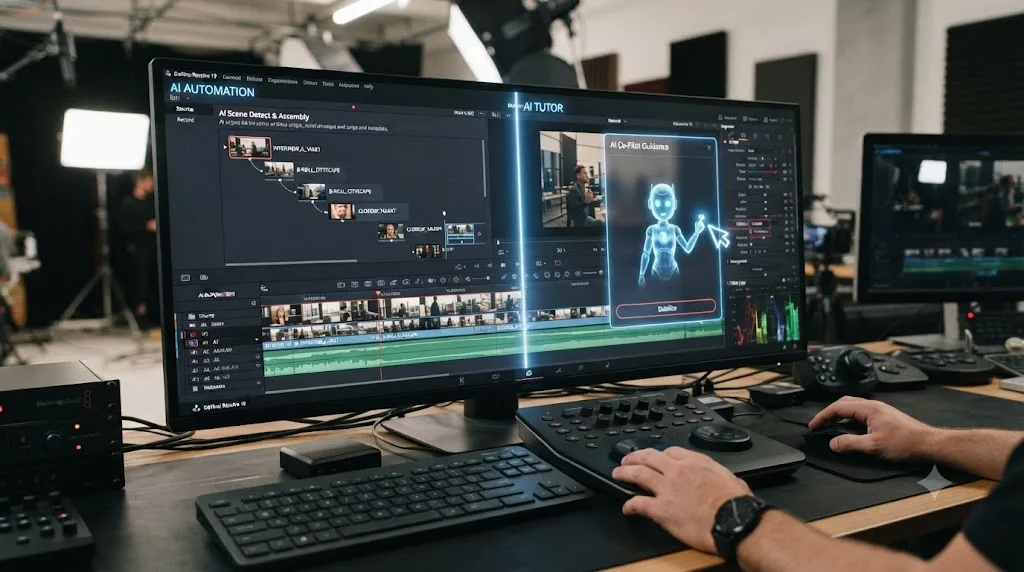
So, how do you actually future-proof your DaVinci Resolve skills as AI improves?
By putting your limited practice hours where they compound and letting the rest change without you. Every source in this guide, from a 2017 World Economic Forum estimate on skill half-life to a 2025 survey of employers expecting 39% of core skills to shift by 2030, to a working colorist's own advice about tools that keep exploding, points at the identical mechanism: durable judgment holds its value regardless of what the interface around it looks like, and perishable specifics need periodic, not constant, maintenance.
Blackmagic will keep shipping a major Resolve version roughly once a year, and each one will move something. That's not a reason to stop learning the software, and it's not a reason to panic every time a new AI feature ships either. It's a predictable, budgetable cost, an afternoon here and there, not a reason to abandon the deeper skill underneath it.
Keep practicing node logic, color theory, pacing judgment, and a trained ear, on your own real footage, with something correcting you when you're wrong. Let AI tools handle the mechanical labor that was never where your craft actually lived. Notice which category any new tool falls into, one that replaces your judgment or one that removes friction around it, before you build a habit around it. Do that consistently, and the specific menu Resolve 25 ships with becomes a minor Tuesday-afternoon inconvenience instead of a threat to the actual skill you spent years building.
Frequently asked questions
- How do I future-proof my DaVinci Resolve skills as AI improves?
- Split what you know into two piles. Durable skills, color theory, node logic, story pacing, a trained ear for audio, keep their value no matter what Resolve 22 or 23 ships. Perishable skills, exact menu locations, specific keyboard shortcuts, which panel a feature currently lives in, lose value with every update. Spend most of your practice time on the durable pile, let AI tools like Magic Mask and IntelliSearch handle the mechanical labor, and keep re-deriving the perishable details as they shift instead of memorizing them as permanent.
- What's the best way to learn DaVinci Resolve so it doesn't go stale?
- Guided, hands-on practice on real footage, not passive video-watching. Our piece on the best way to learn DaVinci Resolve covers the learning-science research behind why practice with feedback beats course completion, and that mechanism doesn't change when Blackmagic ships a new version, because you're training judgment, not memorizing a menu.
- Is it still worth learning DaVinci Resolve's Fusion page if AI can composite for me?
- Yes, because AI composites a specific effect, not the composite you actually need for an ambiguous, non-standard shot. Fusion's node logic (inputs, outputs, order of operations) is the same node logic behind Resolve's Color page and most other node-based compositing tools. Learn the logic once and it survives a UI redesign. Memorize only which node menu holds which effect, and you'll relearn that every version.
- Should I learn DaVinci Resolve's Python or Lua scripting API?
- If you do repetitive technical work, render queue management, batch metadata tagging, project automation, yes, and it's one of the more future-proof technical skills in this guide, because a scripting mindset (breaking a task into a repeatable sequence of steps) transfers directly to prompting AI tools well. If your work is mostly creative decision-making, it's a lower-priority skill than color theory or pacing.
- Is there an AI tool to learn DaVinci Resolve that won't make me worse at it?
- It depends on whether the tool decides for you or points at where the decision lives. Tools like CutAgent, Sottocut, PremiereCopilot, and Eddie AI execute cuts inside your timeline from a typed instruction, useful, but they make the editorial call, not you. TryUncle is built differently: it watches your DaVinci Resolve project and points at the control you need, live, so the decision stays yours. Neither category is wrong. They solve different problems.
- What DaVinci Resolve skills will AI never replace?
- The ones with no single correct answer. Deciding what a grade should feel like, which take serves a scene, how long to hold a shot before it drags, what a specific director or client actually wants: none of that reduces to a pattern a model can learn from thousands of labeled examples, because the correct answer depends on a specific person's taste in a specific moment. AI automates the mechanical steps around those decisions. It doesn't make them.
- How often does DaVinci Resolve change enough to require relearning?
- Roughly once a year for a major version, based on Blackmagic's own release history: Resolve 18 in mid-2022, 19 in mid-2024, 20 in 2025, and 21 in 2026, each adding dozens of features and several new AI tools. Point releases land more often, several times a year, usually fixing bugs rather than moving panels around. Expect a real relearning task about once a year, not constantly.
- Is Blackmagic's free training still enough to learn DaVinci Resolve in 2026, or do I need something more?
- It's still a genuinely good, free starting curriculum for the fundamentals, and it gets updated for new versions. What it can't do is watch your specific project and correct your specific mistake, which is the gap every course, free or paid, runs into. Pair it with hands-on practice on your own footage, and something that corrects you in the moment, a mentor, a forum, or an in-app tutor like TryUncle, closes that gap.
- How can I tell if a specific DaVinci Resolve skill is durable or perishable?
- Ask three questions. Would this knowledge have been useful in Resolve 15, or does it only make sense in this version's current layout? Does it transfer to a different tool entirely, a different editor, compositor, or DAW? If Blackmagic redesigned every panel overnight, would you still know what to do, even before you knew where to click? Two or three yeses means the skill is durable. A skill that only answers where do I click is perishable, useful today and gone the next update.
Sources
- The Future of Jobs Report 2025 (World Economic Forum)
- Skill, re-skill and re-skill again. How to keep up with the future of work, by Stephane Kasriel (World Economic Forum)
- Durable by Design: An Update on the High Demand for Durable Skills, July 2025 (America Succeeds)
- 2026 Talent Velocity Advantage Report (LinkedIn Learning)
- Blackmagic Design Announces DaVinci Resolve 21
- Blackmagic Design Announces DaVinci Resolve 19
- DaVinci Resolve - What's New (Blackmagic Design)
- DaVinci Resolve 21 AI Features: Tested on a Real Project, by Kunal Ganglani
- DaVinci Resolve - Training (Blackmagic Design)
- Blackmagic Is Offering Free DaVinci Resolve Webinars. Here's the Full Schedule (Y.M.Cinema Magazine)
- Film and Video Editors and Camera Operators: Occupational Outlook Handbook (U.S. Bureau of Labor Statistics)
- 87 Percent of Creators Say Creative AI Is Growing Their Business and Audience, According to Adobe's 2026 Creators' Toolkit Report
- John Daro: The Future of Color Grading, AI, Cloud, and Remote Workflows
- CutAgent (product site: features, pricing, FAQ)
- Sottocut (product site)
- PremiereCopilot pricing
- Eddie AI for DaVinci Resolve (native integration workflow page)
- TryUncle FAQ
Learn by doing, not watching
Stop translating tutorials to your timeline.
TryUncle stays beside Resolve on Mac and Windows. When you ask, Uncle sees your screen and points at the exact control you need. No hunting through tabs, timestamps, or mismatched tutorials.
Meet TryUncleKeep reading
 GuidesJul 15, 202639 min read
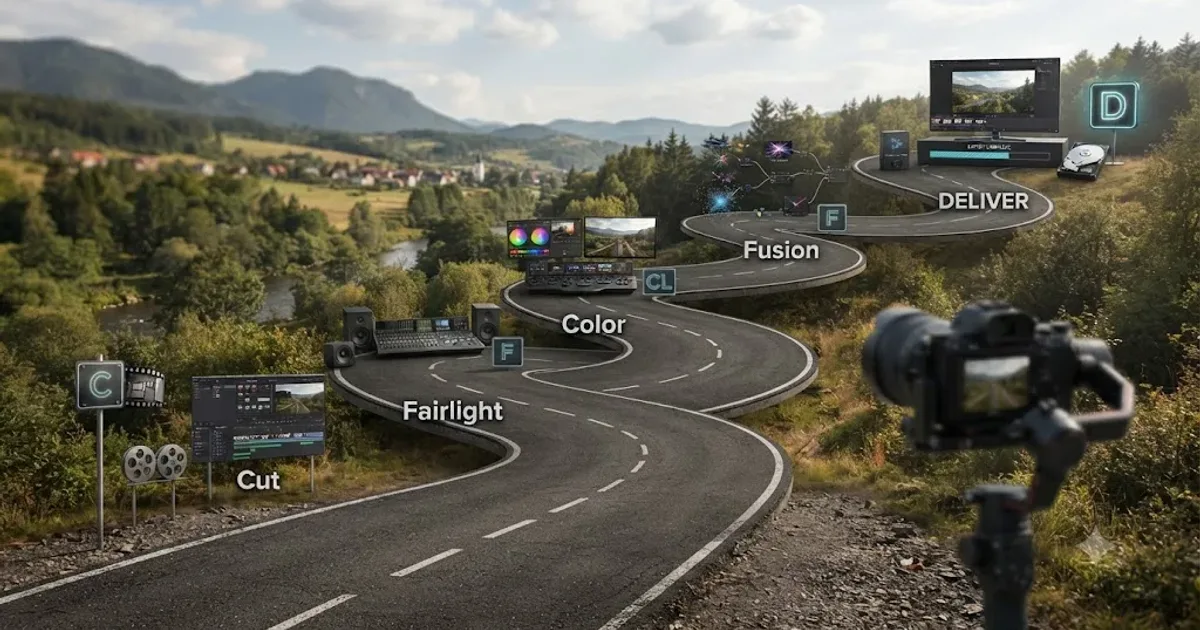
The DaVinci Resolve Learning Roadmap for Beginners
The right order to learn DaVinci Resolve: Cut or Edit, then Fairlight, Color, and Fusion, checked against Blackmagic and Ripple Training's own paths.
 ComparisonsJul 11, 202626 min read
The Best AI Tools to Learn DaVinci Resolve in 2026
ChatGPT, Claude, Blackmagic's free training, Recut, and Resolve's Neural Engine compared for learning DaVinci Resolve, and the gap none of them close.
 GuidesJul 11, 202637 min read
Is AI Making Me Worse at My Job? What the Research Says
Deskilling research from medicine and coding says yes, sometimes. How to use DaVinci Resolve's AI tools without losing your editing and grading skills.