
Learn / DaVinci Resolveupdated for DaVinci Resolve 21.0.2 and Adobe Express's 2026 pricing tiers (July 2026)
DaVinci Resolve vs Adobe Express for Beginners: Which First?
Quick answer
Adobe Express edits fast in a free browser tool, good for quick templated social clips, but has no color grading, only one audio track, and a two-hour project cap. DaVinci Resolve's free edition adds real color, multi-track audio, and no length limit, at the cost of a steeper first session. Pick Adobe Express only for a single quick clip.
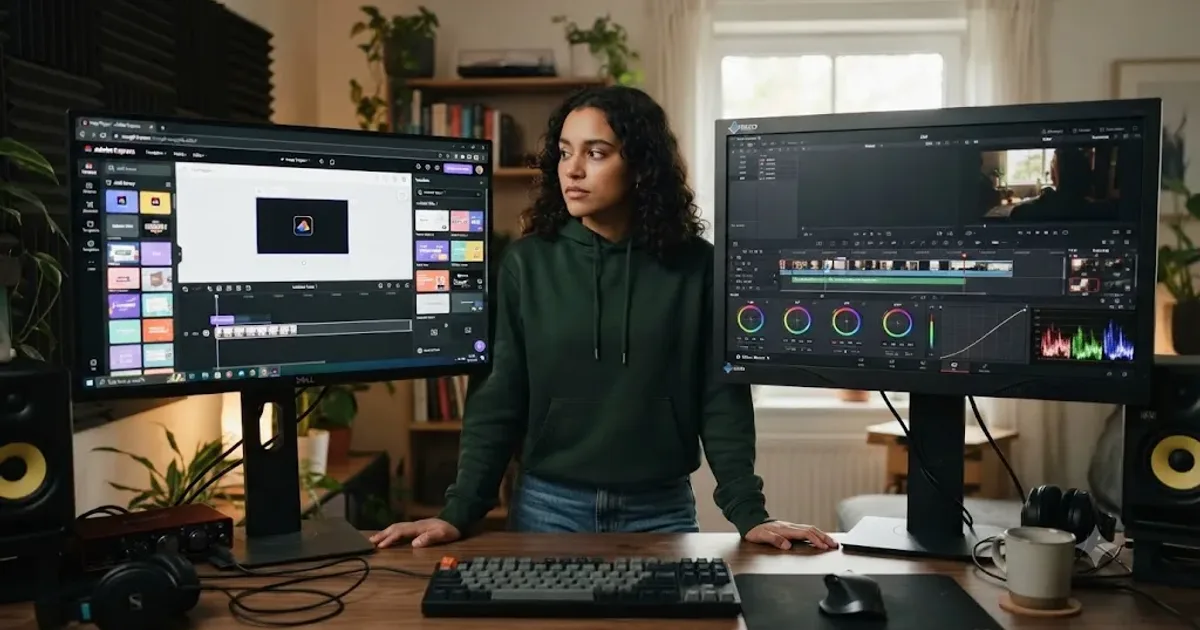
You opened Adobe Express because you already had an Adobe account, or a coworker sent you a template, and now you're staring at a real editing decision: keep going in the free browser tool, or install DaVinci Resolve, the professional-grade software everyone online keeps recommending for free. As of July 2026, that's a genuinely fair question, and it deserves real numbers instead of a shrug.
We've spent seven years cutting commercial video professionally in DaVinci Resolve, taught more than 100,000 students on Udemy as an official Udemy Business Partner, and run a video-editing community that's grown past 100,000 members, so a version of this exact question comes up constantly from people testing free tools before committing to Resolve's depth. Here's the honest version: what each tool is actually built for, what Adobe Express can and can't do in 2026, what DaVinci Resolve's free edition gives you at no cost, and which one to open first depending on what you're actually trying to make.
DaVinci Resolve vs Adobe Express for beginners: the quick verdict
Here's the whole comparison in one table before the details. Every row gets its own section below, with sources.
| Category | Winner | Why |
|---|---|---|
| Speed for a single quick clip | Adobe Express | Browser-based, template-driven, no install, no timeline to learn from scratch |
| True cost at zero budget | Tie, mostly | Both free tiers are watermark-free; Express caps project length and storage, Resolve caps export resolution instead |
| Color grading | DaVinci Resolve | Node-based Color page with wheels, curves, and scopes; Express has filters only, no professional grading tools |
| Audio editing | DaVinci Resolve | Fairlight is a full multi-track mixer; Express has a single audio track with no mixing |
| AI generative tools | Adobe Express | Firefly-powered generative fill, object remove/replace, and one-click background removal built in |
| Learning curve, first hour | Adobe Express | Scene-based structure, guided templates, no separate pages to get lost between |
| Learning curve, first month | DaVinci Resolve | Skills transfer to real production work; Express's ceiling is templates and short clips |
| Project length | DaVinci Resolve | No fixed cap; Express's Clip Maker tops out near 2 hours and gets impractical past 10-15 minutes |
| Growing past a single clip | DaVinci Resolve | Handles multi-track projects, longer footage, and repurposing without hitting a structural wall |
Neither tool wins every row, and the honest answer is that plenty of beginners eventually use both, for different jobs. What follows explains why each row lands the way it does, so you can weigh the ones that actually matter for what you're making.
What are Adobe Express and DaVinci Resolve actually built to do?
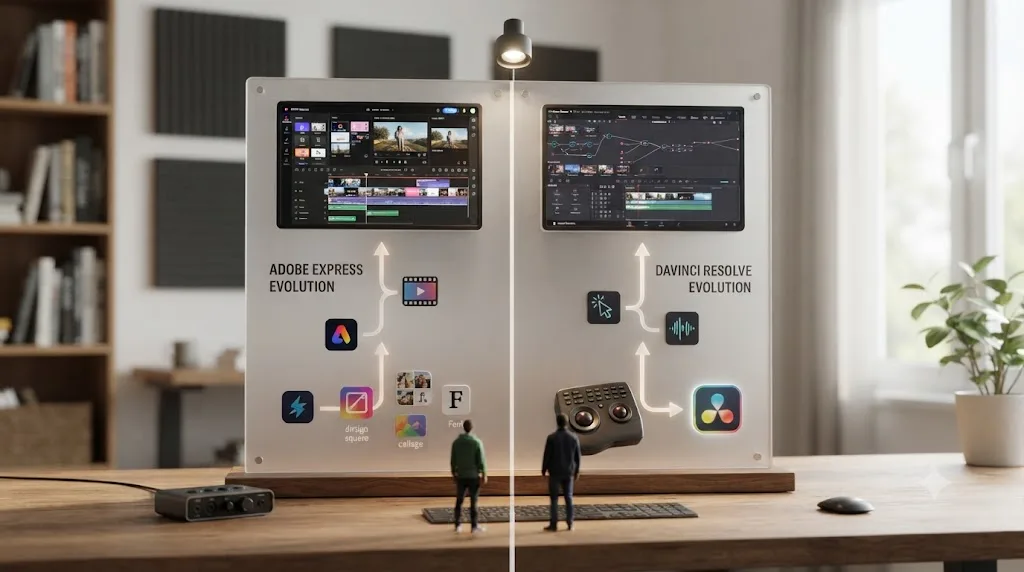
Adobe Express is a free, browser-based design and content tool that added real video editing on top of an existing graphic-design foundation. DaVinci Resolve is a full production suite, built around color grading first, that added templates and design-adjacent tools as a side effect of already being a professional editor.
That distinction is the one thing that explains almost every other row in this comparison. Adobe's own description of the product calls it "the quick and easy app to create on-brand content," aimed at people with no design or editing background who need a finished graphic, photo, or video fast, per Adobe's own Express product page. It ships as a browser app, a desktop app, and mobile apps for iOS and Android, all syncing the same project automatically.
DaVinci Resolve was built the opposite way. Blackmagic Design's own product page describes it as software that combines "editing, color correction, visual effects, motion graphics and audio post production all in one software tool" for everything from feature films to social media content. It splits into seven pages, Media, Cut, Edit, Fusion, Color, Fairlight, and Deliver, each one deep enough to be its own dedicated application in a different editor's world. A beginner touches maybe two or three of those pages on a first project. The rest sit there, unused but not in the way, waiting for the day the work actually needs them.
A template tool that added a video timeline is not the same thing as a professional editor that added templates. That's the whole distinction, and it explains the pricing, the learning curve, and the feature gaps covered in every section below. Adobe Express got good at video by extending a design platform that already did templates, brand kits, and stock assets well. DaVinci Resolve got good at design-adjacent work, titles, graphics, quick templates, as a side effect of already being a full production pipeline. Neither approach is wrong. They answer different questions about what you're actually trying to build.
| Adobe Express | DaVinci Resolve | |
|---|---|---|
| Started as | Design and content creation tool (evolved from Adobe Spark) | Color grading software, expanded into a full NLE |
| Core strength | Templates, Firefly AI generation, brand assets, stock library | Editing, color, audio, and VFX in one app |
| Video editor structure | Scene-based, not a true multi-track timeline | Frame-accurate, multi-track timeline across seven pages |
| Best at | Fast, templated, branded short content | Anything from a quick cut to a full production pipeline |
How much do Adobe Express and DaVinci Resolve actually cost?
Both tools have a genuinely free, watermark-free tier in 2026, which makes this row less lopsided than most editor comparisons, and worth getting exactly right instead of assuming Adobe Express hides a watermark somewhere.
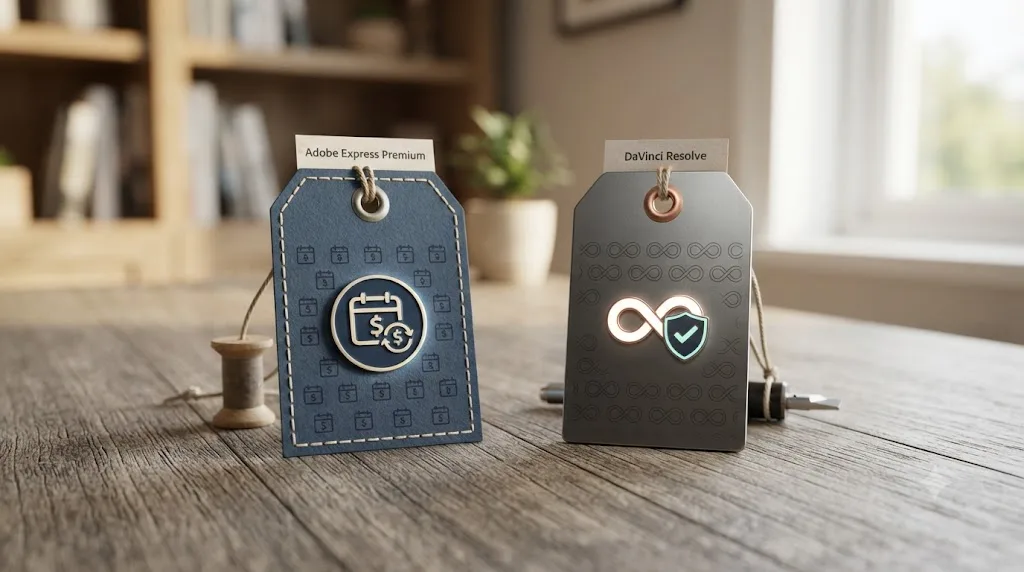
Adobe Express's free plan includes 100,000 templates, more than 1 million royalty-free Adobe Stock assets, 4,000 fonts, and 5GB of cloud storage, with full editing and export at no watermark, per Capterra's pricing breakdown of Adobe Express. Premium costs $9.99 a month, or $99.99 billed annually, and adds 200 million-plus Adobe Stock assets, 100GB of storage, and 250 generative AI credits for Firefly-powered features. A separate Firefly Pro tier runs $19.99 a month for a bigger generative credit allowance, and Teams pricing starts at $19.99 per user for brand kits and shared workflows. Adobe Express Premium is also bundled at no extra cost into any Creative Cloud All Apps subscription, and nonprofits qualify for a free Premium plan.
DaVinci Resolve ships in two editions, and the free one is genuinely free, not a trial. Per Blackmagic Design's own Studio product page and a detailed breakdown from Toolfarm of what's actually missing from the free edition, the free edition has no watermark, no time limit, and exports up to Ultra HD resolution (3840x2160) at up to 60fps. DaVinci Resolve Studio removes that resolution cap and adds the Neural Engine's AI tools for a single $295 payment, with no subscription and no recurring fee ever.
Two tools in the same comparison have genuinely free, watermark-free tiers, which almost never happens in this category. That single fact reframes the whole "which one is actually free" question most comparisons in this space lead with. The real difference isn't watermarks. It's what each free tier caps instead: Adobe Express caps storage, stock access, and generative credits; DaVinci Resolve caps export resolution and leaves out Neural Engine AI extras.
| Product | Price | What it unlocks |
|---|---|---|
| Adobe Express (free) | $0 | 100,000 templates, 1M+ stock assets, 4,000 fonts, 5GB storage, no watermark |
| Adobe Express Premium | $9.99/mo, $99.99/yr | 200M+ stock assets, 100GB storage, 250 generative credits |
| Adobe Express Firefly Pro | $19.99/mo | Larger generative AI credit allowance |
| Adobe Express Teams | $19.99/user | Brand kits, shared templates, team workflows |
| DaVinci Resolve (free) | $0 | No watermark, no time limit, Ultra HD export, full color/audio/VFX pages |
| DaVinci Resolve Studio | $295 one-time | Everything in free, plus Neural Engine AI tools, higher-than-4K export, collaboration extras |
Here's the practical math for a beginner specifically. If templates, stock assets, and Firefly's generative fill matter more to you than editing depth, Adobe Express Premium's monthly fee buys real value you'd otherwise source yourself. If you want the actual craft of editing, real color, real multi-track audio, no length cap, DaVinci Resolve's free edition already includes all three at a price that beats every Adobe Express tier, including Premium, since none of Express's paid tiers add color grading or multi-track audio at any price.
Which one is easier to learn on day one?
Adobe Express, without much argument, for the first session specifically.
Adobe Express's video editor uses a scene-based structure inherited from its design-tool roots: you pick a template or start blank, drop in clips, text, and Firefly-generated elements, and the interface guesses at reasonable defaults for timing and layout. There's no Media Pool to understand, no Project Settings to configure before you start, and no separate pages to get lost between. Marcus VanWormer, reviewing the tool directly for the Freelance Video Collective, called it "definitely worth it" for everyday tasks and noted "the app offers a strong set of tools for quick video edits" (source: Marcus VanWormer, Freelance Video Collective). A Capterra reviewer identified as Jena S., a project manager, put the broader ease-of-use case plainly: Adobe Express "strikes a fantastic balance between functionality and ease of use, making design accessible to everyone" (source: Capterra reviews, Adobe Express).
DaVinci Resolve's learning curve is steeper for one specific, structural reason: it's actually five distinct applications (Edit, Color, Fairlight, Fusion, and the simplified Cut page) wearing one interface. A total beginner who opens Resolve for the first time and lands on the Color page's node graph, or worse, the Fusion compositing canvas, can walk away convinced the whole application is too much for them.
That first impression is real and worth taking seriously rather than waving away. It's also not the whole story. DaVinci Resolve is overwhelming from the Color page and approachable from the Cut page, and which one you land on first decides your entire first impression of the software. The Cut page strips away almost everything a beginner doesn't need yet: a source tape view, a single-track-first layout, and big, obvious trim tools that behave a lot like what you'd expect from a simpler app. Starting there instead of the full Edit page is the single biggest decision an Express-to-Resolve beginner can make.
| First-session task | Adobe Express | DaVinci Resolve (Cut page) | DaVinci Resolve (Edit page) |
|---|---|---|---|
| Import footage | Drag and drop, instant | A minute or two to find the Media Pool | Same as Cut page |
| Trim a clip | Drag the scene edge | Blade tool or a keyboard shortcut, quick once learned | Same tools, more surrounding panels to ignore |
| Add text | Click a text template | Text+ titles, more setup the first time | Same |
| Add a transition | Drag one onto the scene break | Built in, fewer preset options than Express | Same |
| Export | One button, platform presets | Deliver page, or Quick Export with named presets | Same, more manual options visible |
Neither learning curve is permanent. Adobe Express's stays roughly flat, since scenes and templates don't grow into a deeper mode. DaVinci Resolve's drops fast after the first project, once Project Settings, the Blade tool, and the Cut page's layout stop requiring conscious thought.
What can Adobe Express actually do, and where does it stop?
Naming this plainly is the honest way to judge whether Express is enough for your project, rather than assuming either way.
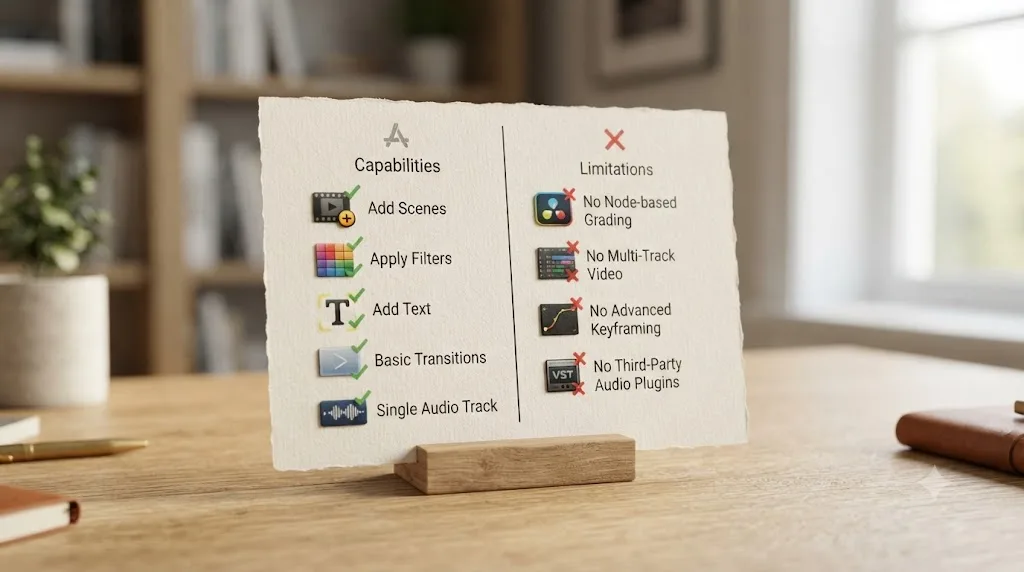
Adobe Express genuinely handles real assembly work: scene-based editing with clip trimming and reordering, animated transitions, text overlays with built-in animation presets, and Firefly-powered AI tools that let you add, remove, or replace objects in a clip and generate elements from a text prompt with one click, per a 2026 review of Adobe Express's video features. One-click resizing for different social platforms and an auto-caption tool round out the toolset. For a branded, templated social clip, that's a genuinely complete kit.
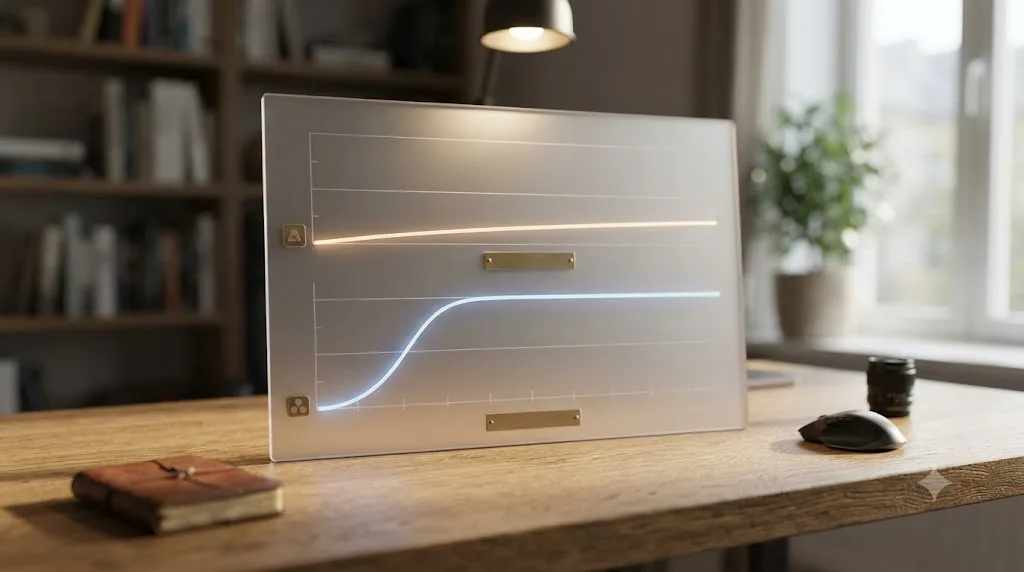
Where it stops is just as concrete. Adobe Express has no node-based color grading, no scopes, and no curves or wheels beyond basic filters, according to the same review. Its animation controls are limited to preset text and element motion, with no true keyframe-by-keyframe control, per fluxnote's breakdown of Adobe Express's video limitations. Audio is a single track with no mixing capability at all, not a channel strip, not independent EQ, not the ability to duck a music bed under a voice track with any precision. Background removal for video does exist, but it's an AI subject-cutout tool locked behind the Premium plan, not a manual chroma-key or green-screen compositing system the way DaVinci Resolve's Fusion page offers.
There's also a real project-length ceiling worth knowing before you build something around it. Per fluxnote's breakdown, Adobe Express's Clip Maker feature tops out near 2 hours of total project length, automated captioning caps at 5 minutes of source audio, and users consistently report the scene-based editor becoming unwieldy past 10 to 15 minutes of actual footage. Free-tier uploads cap at 1GB per file, with 5GB of total cloud storage before you hit a wall.
Export quality has a real ceiling too. Adobe Express's primary export is a compressed MP4 at 1080p. A 4K export option exists in the menu, but Adobe's own community forums report that footage frequently comes out visibly compressed relative to the source, with one documented case of a 400MB source file shrinking to an 80MB export, per fluxnote's video limitations breakdown. Adobe Express's Export Service caps out at a maximum of 3840x3840 resolution, and the platform doesn't let you choose between export quality tiers the way a dedicated editor's Deliver page does.
| Adobe Express capability | What it covers | What it doesn't |
|---|---|---|
| Scene-based editing | Trim, reorder, animated transitions | Frame-accurate multi-track sequencing |
| Color | Basic filters and presets | Curves, wheels, scopes, node-based grading |
| Audio | Single track, basic volume | Multi-track mixing, EQ, ducking |
| Compositing | AI subject cutout (Premium) | Manual chroma key, layered masking |
| Project length | Up to ~2 hours (Clip Maker) | Smooth performance past 10-15 minutes is inconsistent |
| Export control | Resolution only, capped at 3840x3840 | Codec, bitrate, or container format choice |
For a single social clip built from a template, none of this matters. For a longer project, or one that needs real color matching or a proper audio mix, it starts to.
What does DaVinci Resolve's free edition give you that Adobe Express doesn't?
Everything the section above just said Adobe Express was missing, at no cost, which tends to surprise beginners most.
DaVinci Resolve's Color page is a node-based system: discrete processing blocks you wire together in whatever order a shot needs, with a full scopes suite (waveform, vectorscope, histogram, parade) docked right next to the node graph. That's not a stretch feature bolted onto an editor. It's the reason DaVinci Resolve exists as a product; Blackmagic built Resolve as color grading software first, and the editing tools came later. Adobe Express has nothing comparable at any price tier, since color grading was never part of what the product was built to do.
Fairlight, Resolve's audio page, is a real digital audio workstation living inside the same app as the picture editor, supporting up to 2,000 tracks with realtime effects, a full channel-strip mixer, and built-in parametric EQ and dynamics processing on every track by default, per Blackmagic's own Fairlight page. Where Adobe Express gives you one audio track with no mixing, Fairlight gives you the actual mixing console a real audio pass needs.
Fusion, Resolve's compositing and motion graphics page, adds the keyframe animation and chroma-key work Adobe Express structurally lacks. Blackmagic describes Fusion as a 3D compositing workspace with more than 250 tools, covering vector paint, keying, rotoscoping, tracking, and particle systems, all inside the same project file as your edit and your grade.
Templates and AI-generated fills teach you to recognize someone else's timing, not to build your own. That line applies directly to the Express-versus-Resolve gap on titles and motion graphics. Express's text animations and Firefly-generated elements are presets and prompts: pick one, type one, done. Resolve's Text+ and Fusion tools let you build a custom animation keyframe by keyframe, which takes longer the first time and produces something that's actually yours.
| Resolve page | What it adds over Adobe Express | Included in the free edition? |
|---|---|---|
| Color | Node-based grading, curves, wheels, scopes | Yes |
| Fairlight | Full multi-track audio mixer, EQ, dynamics | Yes |
| Fusion | Keyframe animation, chroma key, 250+ compositing tools | Yes (Studio adds more Neural Engine extras) |
| Deliver | Codec, bitrate, and container control | Yes |
None of this means Adobe Express is a worse product overall. It means Express was never trying to be this product. If your actual project needs color matching, real multi-track audio, or a project longer than a couple hours, Express simply doesn't have a paid tier that adds it. Resolve has it built into the version that costs nothing.
Is DaVinci Resolve overkill if you only make short social clips?
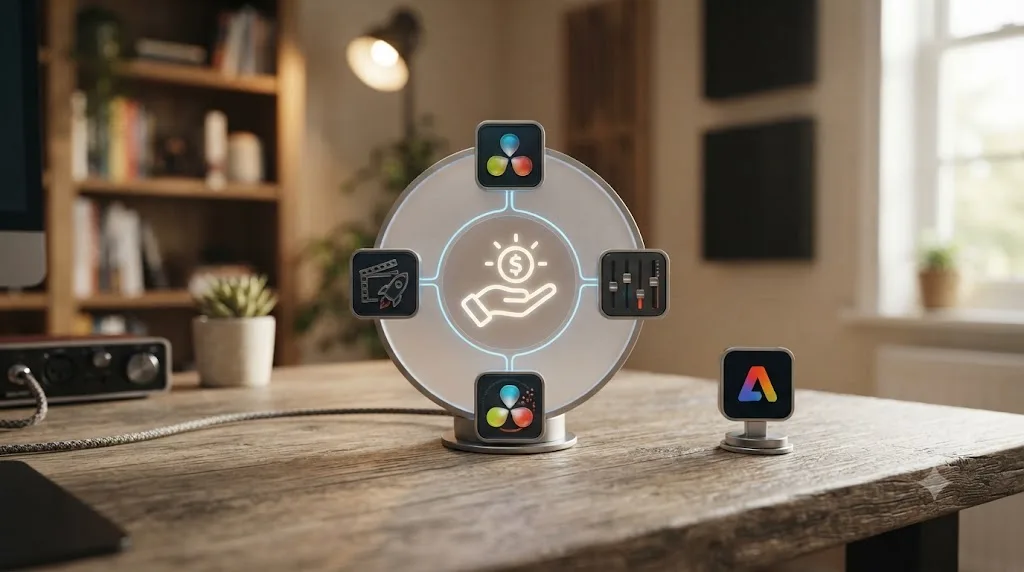
This is the question that actually decides most beginners' choice, and it deserves a direct answer instead of a hedge.
Sometimes, yes. If you're editing exactly one video, ever, a single fifteen-second clip built from an Adobe Express template you'll never open again, Express's zero-setup speed wins outright. Opening a desktop app, importing footage into a Media Pool, and learning even the simplified Cut page all cost real minutes a browser-based drag-and-drop tool skips entirely.
But most people asking this question aren't editing exactly one video. Our full breakdown of whether DaVinci Resolve is overkill for simple social media edits walks through the exact threshold in more depth, and the short version applies directly here too: the learning cost is fixed and one-time, while the speed payoff compounds with every clip after the first. Adobe Express's speed advantage doesn't compound the same way, since you're not building toward anything deeper each time you use it.
Where this comparison differs from a plain speed-versus-depth question is Firefly. Adobe Express's generative AI tools, add an object, remove one, generate a background from a prompt, are genuinely useful for a fast marketing asset in a way neither DaVinci Resolve's free tier nor most competing browser editors match without a paid AI add-on. If your actual job is "produce a branded social video that needs a quick generative fix," that's a real, structural advantage for Express. If your job is purely "cut this footage well and grade it," that advantage disappears and the comparison collapses back to editing depth, where Resolve wins clearly.
| Your situation | Overkill? | Better fit |
|---|---|---|
| One clip, ever, matching an Express template | No, Express is the right tool for this specific job | Adobe Express |
| One clip needing a quick generative fix (object removal, background swap) | No | Adobe Express |
| Regular branded social posts, template-driven | Mostly Adobe Express | Adobe Express, unless color or audio needs grow |
| Regular posts from your own raw footage, any color work | No | DaVinci Resolve |
| Repurposing long-form video into multiple clips | No | DaVinci Resolve |
Which is better for repurposing long-form footage into multiple clips?
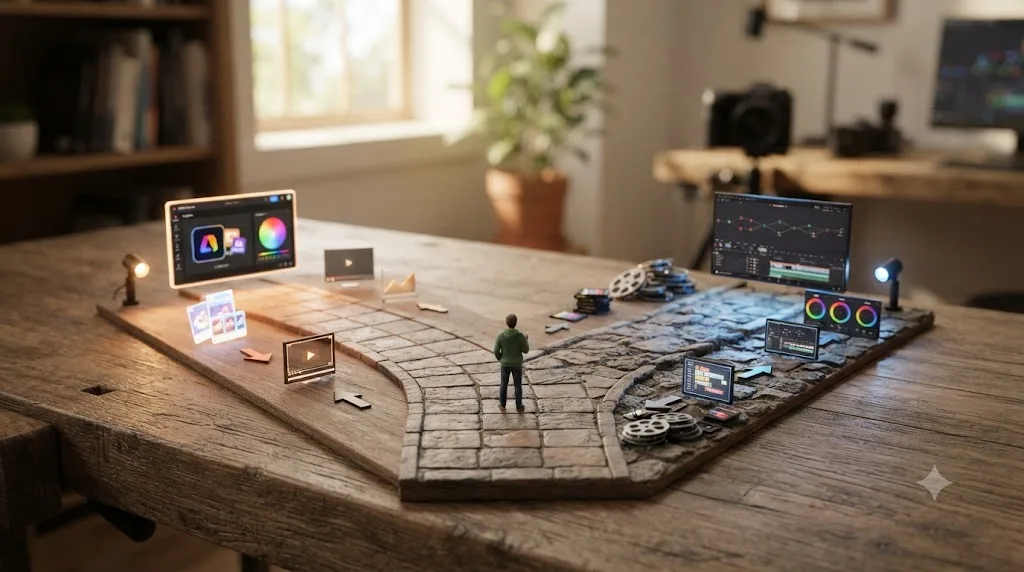
DaVinci Resolve, and this is one of the clearest wins in the whole comparison, because Adobe Express's own project-length ceiling makes the decision for you before features even enter the conversation.
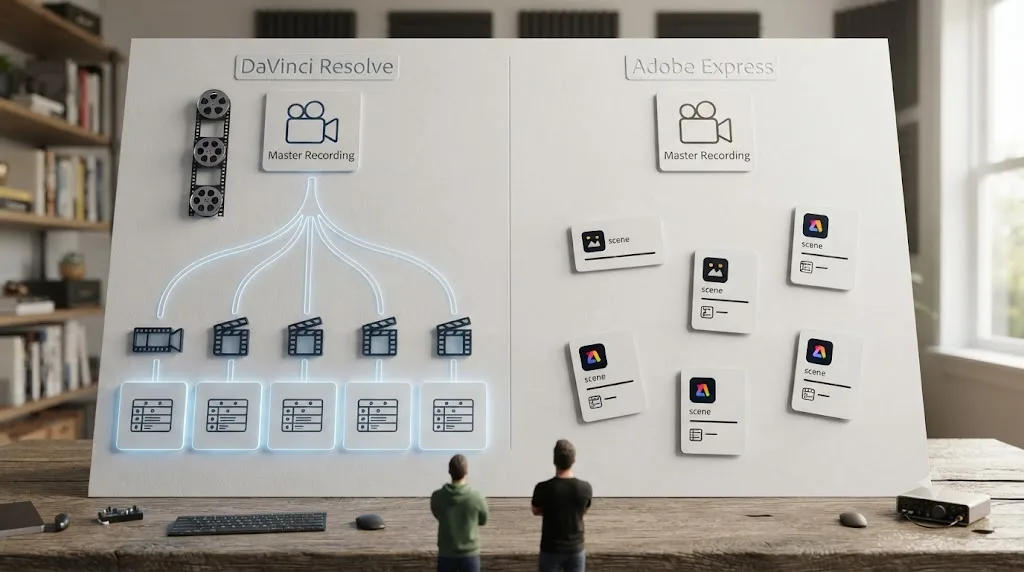
Say you record one 30-minute video, a tutorial, a podcast, a recap, and want to cut it into five short vertical posts for the week, plus keep the full-length version for YouTube. In Adobe Express, that recording already sits near the edge of what the Clip Maker feature comfortably handles, and the scene-based editor gets genuinely cramped well before you reach the two-hour cap fluxnote documents. You'd manually scrub through the full recording to find five candidate moments, since Express has no marker-and-search system built for a long source, cut each into its own separate project, and export five times with no shared organizational layer connecting them back to the original file.
In DaVinci Resolve, you import the recording once, mark candidate moments with typed keywords as you watch, search those markers through the Edit Index to shortlist the best five, duplicate the timeline once per clip, crop and caption each one, and export all five plus the original long-form cut from a single project and a single Media Pool.
A tool built around short, templated scenes falls behind fast the moment your source footage runs long. That's the practical, non-abstract version of "Adobe Express doesn't scale past a quick clip." It's not that Express can't technically hold a longer file. It's that the scene-based structure and Clip Maker ceiling make anything beyond a few short outputs from one source measurably harder than the same job in a project built around a searchable timeline from the start.
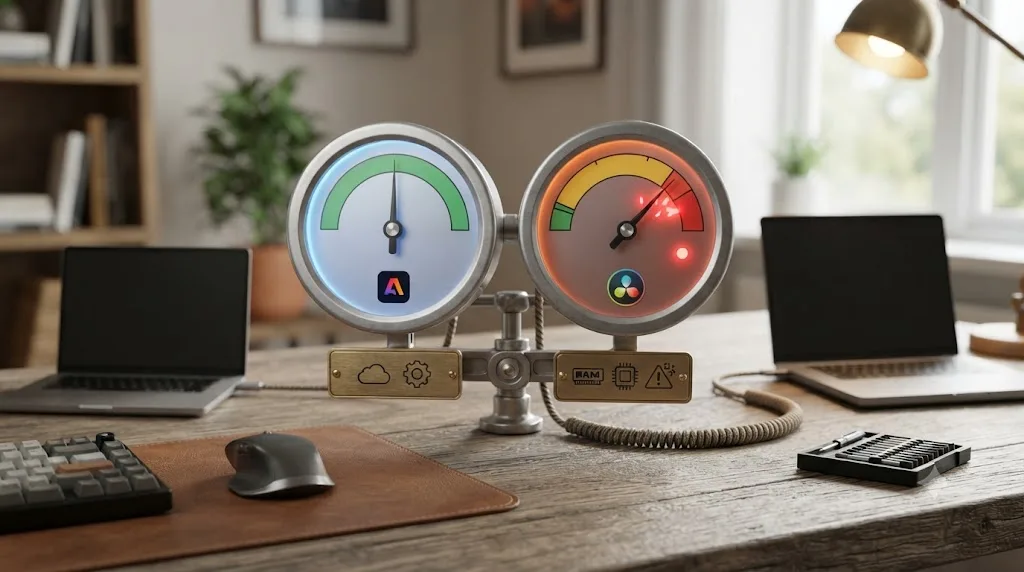
Will either app actually run on your computer?
This matters more than most comparisons admit, because a tool that's technically capable but chokes on your specific hardware is functionally the wrong choice regardless of its feature list.
Adobe Express is browser-based, with an optional desktop app, which means its hardware demands are mostly about your internet connection and browser performance, not raw CPU or GPU power. Almost any laptop from the last several years runs Adobe Express's video editor without strain, since generative AI tasks and rendering lean on Adobe's servers rather than your local machine.
DaVinci Resolve is a full desktop application with real hardware requirements. Per a 2026 breakdown of Resolve's system requirements, the practical baseline is a quad-core processor (an Intel Core i5 6th-generation or an AMD Ryzen 5 equivalent), 8GB of system RAM, and a GPU with at least 2GB of VRAM supporting Metal, OpenCL, or CUDA depending on your platform. That's fine for a simple cut with light color and no Fusion work. Where beginners run into real trouble is 4K source footage on an 8GB machine with an older integrated GPU: playback stutters, exports crawl, and the experience feels like proof Resolve is too much, when the actual problem is a hardware mismatch.
| Your setup | Adobe Express | DaVinci Resolve |
|---|---|---|
| Any laptop with a modern browser, decent wifi | Smooth, no meaningful lag | Depends on specs below |
| Apple Silicon Mac or recent Intel/AMD PC, 16GB+ RAM | Smooth | Smooth, no strain on a simple edit |
| Older machine, 8GB RAM, integrated graphics | Smooth (server-side AI, light local rendering) | Workable for 1080p, may stutter on 4K or heavy color |
| No reliable internet connection | Doesn't work at all, Express is cloud-connected | Works fully offline once installed |
That last row cuts both ways and rarely gets mentioned. Adobe Express needs a live internet connection for most of its features, since your project and its Firefly-powered tools live partly on Adobe's servers. DaVinci Resolve, once installed, edits and exports entirely offline. If you travel with spotty wifi, or your workspace has an unreliable connection, that's a real, practical reason to lean toward Resolve that has nothing to do with feature depth.
What if DaVinci Resolve feels too slow on your current computer?
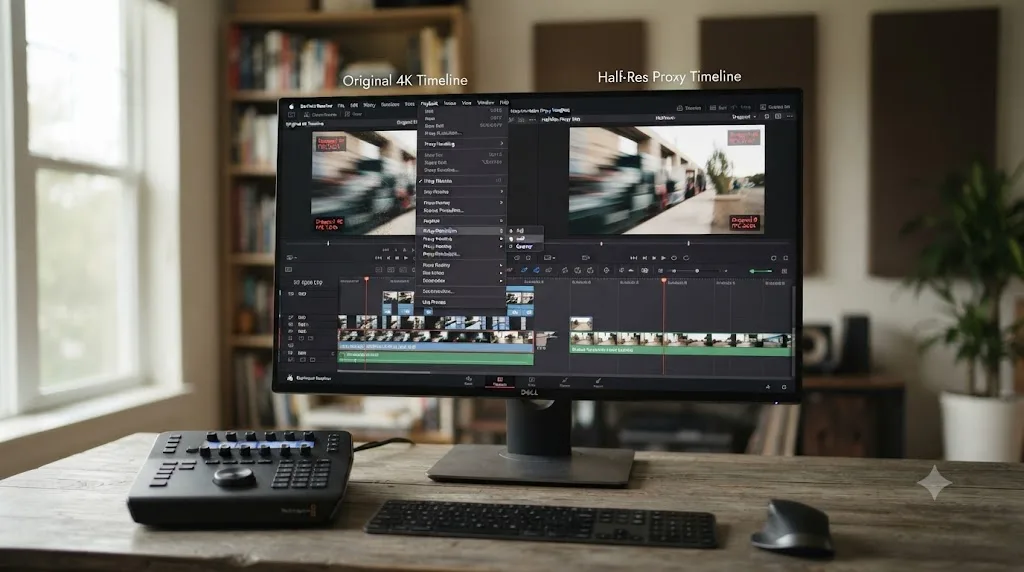
This is one of the most common reasons a beginner abandons DaVinci Resolve mid-project, and most of the time it's fixable without buying new hardware.
If you're on hardware near or below the baseline covered above, a quad-core CPU, 8GB of RAM, an older or integrated GPU, and you're editing 4K footage, stuttery playback and slow scrubbing are expected, not a sign something's broken. Three things fix most of it before you touch a settings menu you don't recognize: drop your timeline proxy resolution (Playback menu, Proxy Resolution, set it to Half or Quarter) so Resolve decodes a smaller file while you edit and switches back to full resolution automatically on export; generate Optimized Media for your heaviest clips, which transcodes them into a format your GPU decodes faster; and turn off real-time effects preview on anything you're not actively adjusting, since a live Fusion composite redraws on every single frame whether you're looking at it or not.
If none of that gets you to smooth playback, the honest options narrow. Editing at 1080p instead of your source 4K, at least for the assembly pass, cuts the decode load roughly to a quarter. Beyond that, you're looking at more RAM, a better GPU, or accepting that heavy color and Fusion work on this specific machine will always feel sluggish, in which case doing the rough cut in Resolve and reserving the actual grade for a session on stronger hardware is a reasonable compromise.
A stuttering DaVinci Resolve timeline is almost always a proxy-resolution problem, not a verdict on whether your computer is good enough. Most beginners never touch the Proxy Resolution setting because nothing in the default interface points at it, and it's the single highest-value five-second fix on this entire page. If you're staring at a stuttering timeline in your own project right now and can't find where Proxy Resolution actually lives, that's exactly the kind of "which button is this" moment Uncle can point at directly on your screen while you keep working.
Does either tool work on a phone or tablet?
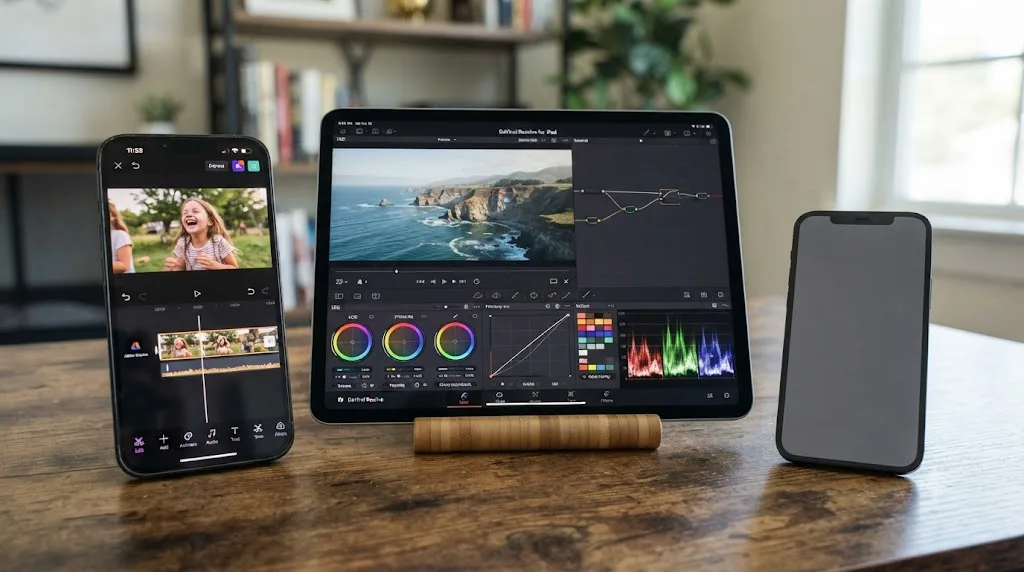
Yes, but the two apps take opposite approaches to what "mobile" means, and that split matters if most of your editing time happens away from a desk.
Adobe Express's mobile app for iOS and Android carries over most of what the desktop and browser editor does. Per Adobe's own mobile technical requirements page, it requires iOS 17.0 or newer or Android 10.0 or higher, and per Adobe's mobile install guide, it includes trimming clips, resizing for social media, adding captions, adjusting speed, and applying filters from a touch-friendly interface, plus one-click features like auto captions, background removal, and character animation driven by your own voice. Your work syncs automatically between devices, so you can start on a laptop and finish trimming on a phone.
DaVinci Resolve has no phone app at all, on either iOS or Android, and never has. What it does have is DaVinci Resolve for iPad, a genuinely separate, free application from Blackmagic Design that runs on iPad only, not on iPhone or any Android tablet. It's not a stripped preview: it runs the real Cut and Color pages, with the same node-based color engine and the same primary grading tools as desktop. What it doesn't carry over is Fusion or Fairlight, so any compositing or serious audio mixing still has to wait for a desktop session. Our full breakdown of whether DaVinci Resolve works on iPad covers device requirements, pricing, and what the app leaves out in more depth.
| Adobe Express | DaVinci Resolve | |
|---|---|---|
| Phone app | Yes, iOS 17+ and Android 10+ | No, on either platform |
| Tablet app | Yes, same app as phone | iPad only, separate app from desktop |
| Feature parity with desktop | High, same core editing tools plus AI features | Cut and Color only; no Fusion or Fairlight on iPad |
| Offline editing on mobile | Limited, most AI features need a connection | N/A, no mobile app exists |
A beginner who edits mostly from a phone has an easy call here. Adobe Express's mobile app is a first-class citizen of the product, built to carry the same Firefly tools and templates you'd use at a desk. DaVinci Resolve's closest equivalent needs an iPad specifically, and even then hands you half the app. If your editing genuinely happens on a phone more often than a computer, that alone might decide this comparison before color grading or audio ever enters the conversation.
Can multiple people work on the same project at once?
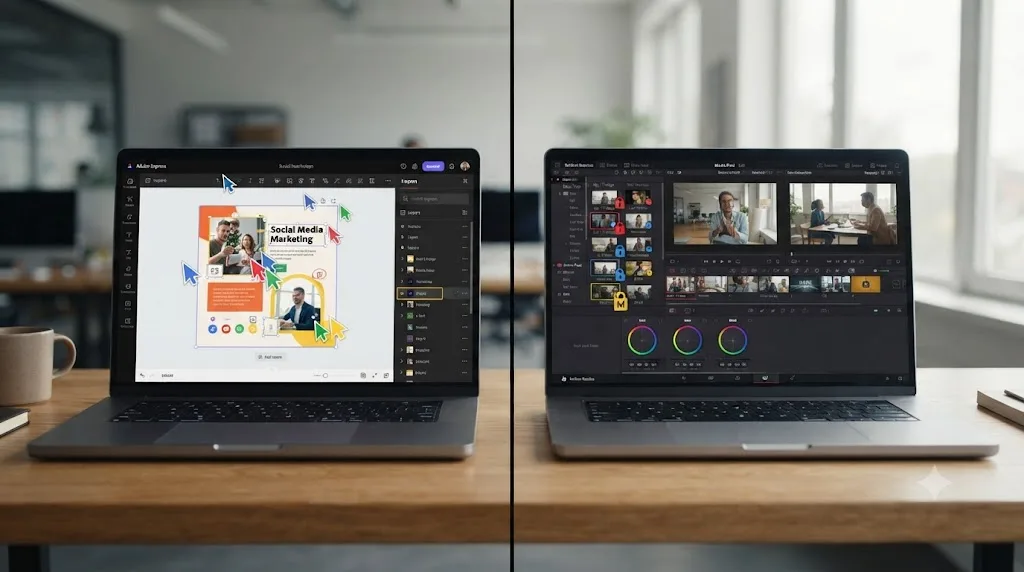
Yes in both tools, but the collaboration model is built on different assumptions, and mismatched expectations here cause real friction on a team project.
Adobe Express's collaboration tools grew out of its design-tool roots, live coediting, inline comments, and shared Projects, so a team can be inside the same design at the same time and see each other's changes land, similar to the real-time model behind Google Docs, per Adobe's own breakdown of how Express helps teams collaborate. Brand Kits keep logos, colors, and approved assets consistent across a whole team's projects, and Adobe Express for Business adds enterprise templates, asset libraries, and review-and-approval workflows on top, per Adobe Express for Business. Full team collaboration features sit on the paid Teams plan, at $19.99 per user.
DaVinci Resolve's Multi-User Collaboration works differently on purpose. Per Blackmagic's own collaboration page, the system runs on a first-come, first-served lock: whoever opens a bin, a timeline, or a clip first claims it, and everyone else gets read-only access until that person clicks away. It's not simultaneous multi-cursor editing on the same object, it's structured hand-offs that prevent two editors from silently overwriting each other's work on the same timeline. And this isn't a paid-tier feature: the free edition includes Multi-User Collaboration too, along with a free Blackmagic Cloud ID that lets a small team share a project library over the internet.
That locking model trips up teams often enough that it has its own well-documented failure mode: opening one timeline can lock every other timeline sharing its bin, not just the one you touched. Our guide to DaVinci Resolve's Collaboration Mode timeline-locked issue walks through why that happens and the one-bin-per-timeline fix that clears it in under a minute.
Adobe Express's collaboration model assumes you're all looking at the same canvas together. DaVinci Resolve's assumes you're each protecting your own piece of a shared project from the others. Neither approach is wrong, they're solving different problems: a marketing team refining one branded video together in real time versus a post-production team where an editor, colorist, and audio engineer each need exclusive control of their own piece without anyone's changes vanishing.
| Adobe Express | DaVinci Resolve | |
|---|---|---|
| Real-time multi-cursor editing | Yes | No |
| First-come lock model | No | Yes, per bin/timeline/clip |
| Cost to unlock full collaboration | Teams plan, $19.99/user | Free (Blackmagic Cloud storage optional and paid separately) |
| Brand kit / shared asset library | Yes | No built-in equivalent |
What do professional editors and reviewers actually say?
Worth naming the honest consensus here instead of picking whichever quote flatters the conclusion this guide is already pointed toward.
The recurring theme across independent 2026 reviews is that Adobe Express is genuinely good at what it's built for, and consistently described as outside professional editors' actual toolkit for serious work. One 2026 review put it bluntly: video editing inside Express "is basic at best; suitable for light work but nowhere near Premiere Pro," and lacks the depth of "genuine free video editing software like DaVinci Resolve." That same coverage frames the product as "not a power tool, but a smart utility tool," comparing it to a graphic calculator rather than a design workstation, a description that lines up with what this guide's own feature breakdown found independently. Marcus VanWormer's review reaches a similar conclusion from a different angle, rating Express 4.5 out of 5 for everyday tasks while explicitly noting that "advanced editing" still requires "other software like Premiere Pro or After Effects" (source: Marcus VanWormer, Freelance Video Collective).
That consensus tracks with the honest limitations named across user reviews on Capterra too. Alongside praise for ease of use, reviewers there flag real ceilings: one, identified as Karly R., a teacher, described the platform as "more limited than other online design programs" and noted it "runs slow" at times, while another, Jacqueline C., a brand designer, put the free-tier ceiling plainly: "their free version is extremely limited and as time goes on, you either subscribe or move on" (source: Capterra reviews, Adobe Express). None of these sources argue Adobe Express is a bad product. What they consistently argue is that Express earns its reputation on speed, templates, and AI generation, not on editing depth, and that professional editors reach for it rarely, for exactly the reasons the feature gaps above explain.
On the Resolve side, the honest consensus is just as consistent: real, but temporary friction. Blackmagic Design's own free training curriculum exists precisely because the company knows its software has genuine depth to climb, six structured guides covering editing, color, audio, and visual effects, according to Blackmagic's training page. YouTube channels built around Resolve, Casey Faris among the most consistently recommended for clear, non-hype walkthroughs, spend real time on orientation content specifically because new users need it. Reddit's r/DaVinciResolve is full of beginners asking some version of the exact question this guide answers, and the honest recurring answer there tracks the same line: fine for a single quick clip if you're patient with the first session, clearly worth learning once you're editing regularly or want more than a filter.
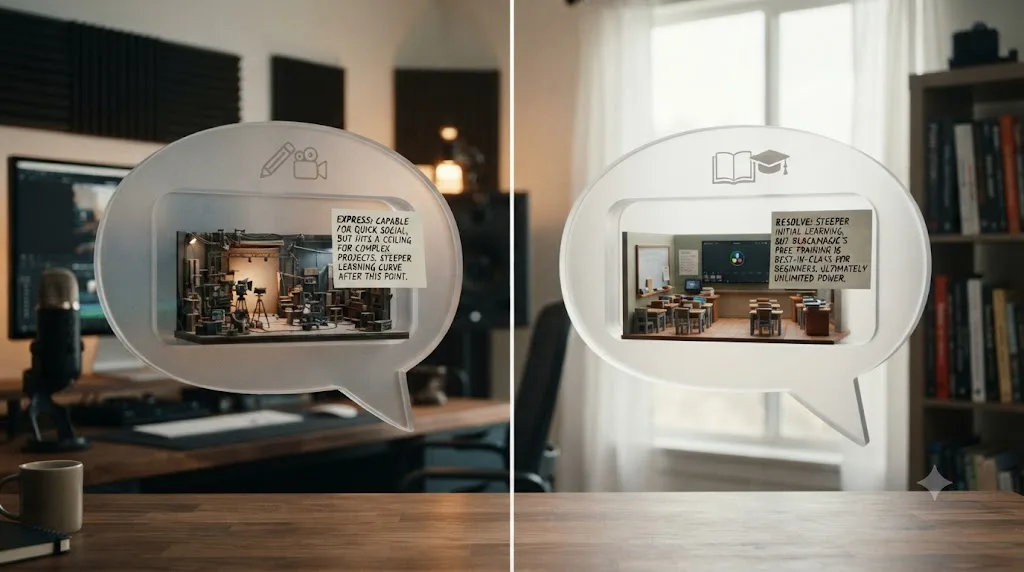
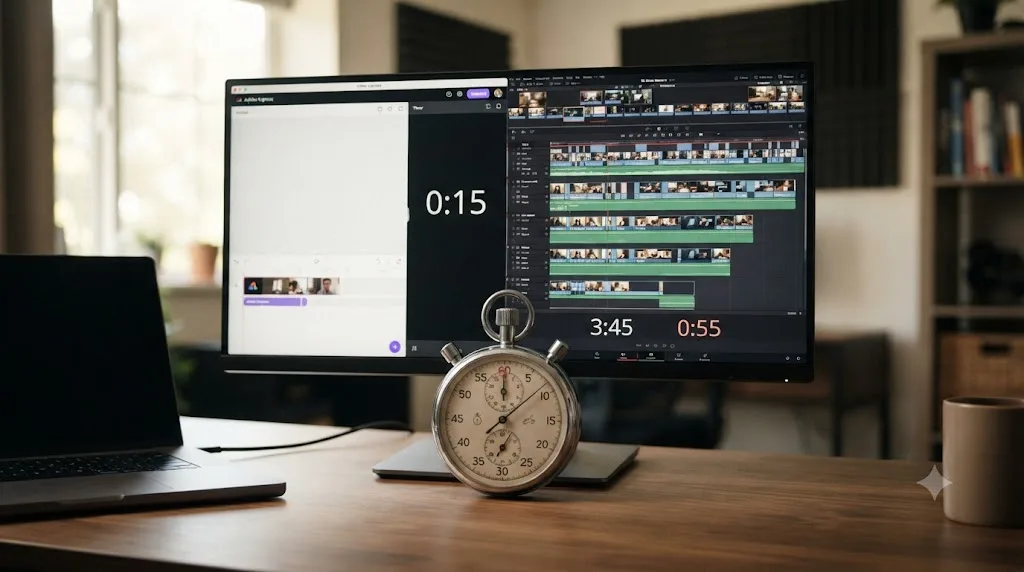
Worked example: cutting the same 60-second clip in Adobe Express and DaVinci Resolve
Numbers make this concrete in a way a feature table can't, so here's a realistic walk-through of the same task in both tools: cutting a raw two-minute phone recording down to a 60-second vertical clip, with a title card, a music bed, and captions.
In Adobe Express, starting from zero prior experience with its video editor: open a blank video project or pick a template (under a minute), upload the raw clip (a minute, depending on connection speed), trim using the scene editor's drag handles (a couple of minutes, since in and out points are visually obvious immediately), drop in a title from Express's template library and adjust the text (two or three minutes), add a music track from Express's stock library and adjust volume (a minute, since there's no second track to balance against), run the auto-caption tool and proofread the result (one to two minutes), resize to vertical using the one-click resize tool (under a minute), and export at 1080p (a minute or two, longer if the export queue is busy). Total: roughly 9 to 13 minutes, most of it spent in the template and text-styling steps rather than the cut itself.
In DaVinci Resolve, for someone who has never opened the app before: install and launch (five to ten minutes the first time, essentially zero afterward), import the clip on the Cut page (a minute or two while you locate the Media Pool), trim with the Blade tool or a keyboard shortcut (a couple of minutes once you know it, longer while you're hunting for the button), duplicate the timeline and set it to vertical 1080x1920 in Project Settings (a few minutes the first time, since Project Settings isn't where an Express user would intuitively look), manually set Scaling to Scale Full Frame with Crop and adjust position (a few minutes on the free edition, since there's no one-tap auto-reframe without Studio's Smart Reframe), build a title using a Text+ template and adjust timing (three to five minutes, more manual than Express's drag-in templates but far more customizable), add a music track from your own library, since Resolve has no built-in stock-music browser (a few minutes to source and license one), add captions manually or through a third-party plugin if you don't have Studio's Create Subtitles from Audio feature (five to ten minutes), and export from the Deliver page using a built-in platform preset (a couple of minutes). Total for a first-timer: realistically 30 to 40 minutes, most of it spent finding where things live rather than doing the actual edit.
| Step | Adobe Express (first time) | DaVinci Resolve (first time) | DaVinci Resolve (fifth time) |
|---|---|---|---|
| Import footage | Under 1 min | 1-2 min | Under 1 min |
| Trim to length | 1-2 min | 2-3 min | 1 min |
| Convert to vertical | Under 1 min (one-click resize) | 3-5 min (manual crop) | 1-2 min |
| Add title card | 2-3 min (template-driven) | 3-5 min (build from Text+) | 1-2 min |
| Add music | 1 min (Express stock library) | 3-5 min (source your own) | 3-5 min (no shortcut here) |
| Add captions | 1-2 min (auto-caption, proofread) | 5-10 min (manual or plugin) | 3-5 min |
| Export | 1-2 min | 2-3 min (faster with a preset) | 1-2 min |
| Total | ~9-13 min | ~30-40 min | ~11-17 min |
The real question isn't which tool is more capable. It's how many times you're going to open it this month. Nine to thirteen minutes, every single time, with a hard ceiling on how far it grows, describes Adobe Express accurately. Thirty-plus minutes once, dropping to under fifteen by clip five, with a huge ceiling to grow into, describes DaVinci Resolve. Neither number is a wrong answer. They answer different questions about your own future workload, not about which piece of software is objectively better.
What's the best way to learn DaVinci Resolve fast if you're coming from Adobe Express?
If you've read this far and landed on "I'm editing regularly enough that Resolve's depth is worth the setup cost," here's the fastest realistic path in, not the slowest one a full production course would put you through.
Start on the Cut page, not the Edit page. Its simplified toolset and single-track-first layout sit much closer to the scene-based simplicity Adobe Express already trained you on than Resolve's full multi-track Edit page does. This single decision, Cut page first, is the biggest speed shortcut available to anyone making this exact switch.
Pair that with a narrow, task-specific orientation instead of a full course. Blackmagic's own free training guides are ground truth, written by the people who built the software, and worth a skim for vocabulary and structure, but you don't need all six guides before cutting your first clip. YouTube channels built specifically around Resolve, Casey Faris among the most consistently recommended, cover real workflows in short, digestible pieces. Watching just the segment on the Cut page and vertical export gets you further, faster, than a full-course marathon, and Reddit's r/DaVinciResolve is genuinely useful for one specific thing: troubleshooting a single, reproducible error, not answering a broader "how do I learn this" question a thread can't really settle.
Our deeper guide to the best way to learn DaVinci Resolve covers the underlying learning-science reasoning for why guided, in-app practice tends to beat watching a course straight through. It's worth reading if the Express-to-Resolve switch is genuinely your plan and not just a hypothetical.
None of the free resources above can see your specific project. Blackmagic's guides, YouTube walkthroughs, and Reddit threads all teach a demo clip chosen because it behaves predictably, not your actual footage with your actual framing problem or your actual audio issue. That gap, between a tutorial's sample clip and your real timeline, is exactly what the next section addresses directly.
Is there an AI tool to learn DaVinci Resolve, or an app that helps while you're actually using it?
Yes, and it's worth being precise about which kind of AI help you actually want, since "AI tool for Resolve" now covers at least two genuinely different products, and Adobe Express's own Firefly tools solve a third, different problem entirely.
Adobe Express's Firefly-powered AI generates or transforms content for you inside its own scene-based editor: object removal, background swaps, generative fill, image generation from a prompt. That's genuinely useful automation for the design side of a project, but it has nothing to do with learning DaVinci Resolve's interface, since it lives entirely inside a different application.
TryUncle is the on-screen assistant for DaVinci Resolve on macOS, ask in plain words and Uncle points at the exact control on your screen. It's built for the exact friction point an Express-to-Resolve switcher hits constantly in that first month: you're mid-clip, you remember Express had a simple button for this, and you can't find Resolve's equivalent without alt-tabbing to a search engine and typing out a paragraph describing your problem. Uncle watches your Resolve session and points directly at the panel, node, or setting you're asking about, live, inside your own project, on the Edit, Color, and Fusion pages.
That's a different job from a separate category of tool now showing up around Resolve: AI agents that execute edits from a typed instruction rather than pointing at a control for you to click yourself. CutAgent, Sottocut, PremiereCopilot, and Eddie AI all read your timeline or transcript and generate a rough cut, a trim, or an assembly from a chat-style prompt. That's genuinely useful if you have hours of footage to turn into clips at real volume and would rather review an AI's rough cut than build the timeline yourself. It's a different bet than TryUncle makes, and it's worth being honest that these execution-focused tools are the ones a general search usually surfaces first.
| Tool | What it does | Touches your timeline for you? | Where it fits |
|---|---|---|---|
| Adobe Express's Firefly tools | Generates or transforms content inside Express's own editor | Yes, within Express only | Fast generative fixes for the design side of a project |
| CutAgent, Sottocut, PremiereCopilot, Eddie AI | Execute cuts inside Resolve from a typed or spoken instruction | Yes, inside Resolve | Speeds up mechanical cutting once you already know roughly what you want |
| TryUncle | Watches your screen and points at the exact control you're asking about | No | Closes the "where did that setting go" gap while you're still learning Resolve's layout, coming from Express or anywhere else |
Guided practice inside Resolve beats watching courses about Resolve. That's the whole design premise behind an in-app assistant instead of another tutorial series, and it's especially relevant here: an Express-to-Resolve beginner already knows what a finished edit is supposed to look like, since Express taught that part through its templates. What's missing is knowing where the equivalent tool lives inside five unfamiliar pages instead of Express's one scene view.
TryUncle is a paid subscription at $39 a month, macOS only, cancel anytime. Check TryUncle directly for the current rate before deciding it fits, since this guide can't guarantee the number stays accurate indefinitely. It's also worth being upfront about the platform limit: if you edit on Windows, TryUncle isn't an option right now, and Adobe Express's browser-based, cross-platform nature is a genuine advantage in that specific case.
This exact question, whether to keep working in Adobe Express or make the jump to DaVinci Resolve, is one of the recurring questions in our 100,000-plus member editing community, usually from someone who's outgrown Express's templates and just hit their first color-matching problem it can't solve. Our full roundup of AI tools people actually use to learn DaVinci Resolve covers this category in more depth than this section can, including where ChatGPT and Claude fit into the picture, and our guide to TryUncle for complete DaVinci Resolve beginners walks through a first session end to end.
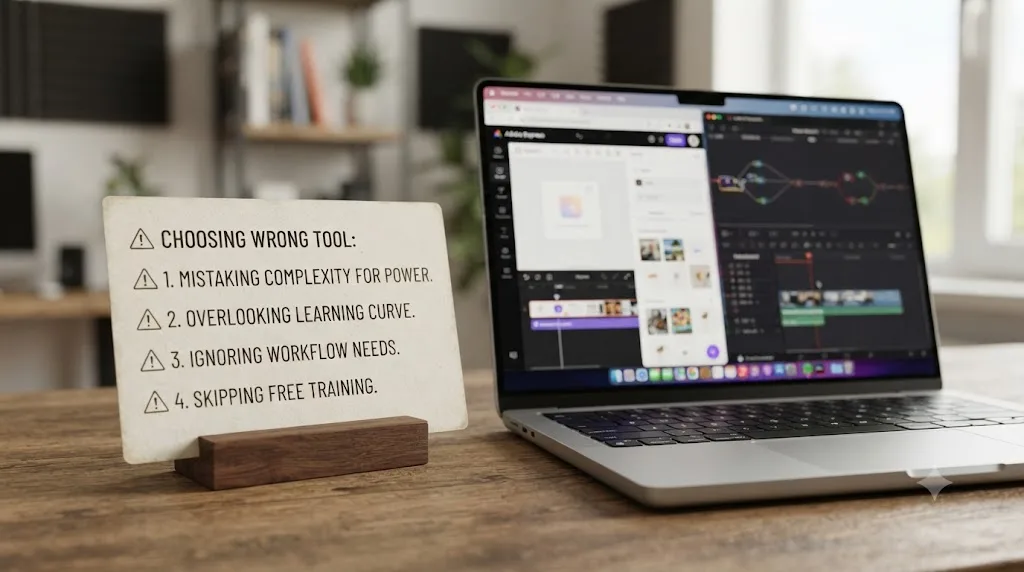
Common mistakes beginners make choosing between Adobe Express and DaVinci Resolve
Most of the regret in this decision traces back to a handful of avoidable assumptions, not to either tool actually being the wrong pick in the abstract.
Judging DaVinci Resolve by its scariest page instead of the one you'd actually use. New users land on the Color page's node graph or Fusion's compositing canvas by accident and conclude the whole app is too much for a beginner. The Cut page, the one you'd actually use first, looks nothing like that.
Assuming Adobe Express's Premium plan adds editing depth it doesn't have. Premium's $9.99 a month buys more stock assets, storage, and generative credits, not color grading, multi-track audio, or a real timeline. If your project needs one of those three things, no Express tier adds it.
Picking Adobe Express for a workload that's actually multi-output. If you're repurposing longer recordings into several clips a week, Express's project-length ceiling and lack of a shared organizational system make that workload measurably harder than the same job in DaVinci Resolve.
Assuming DaVinci Resolve's Collaboration mode works like Adobe Express's real-time coediting. Teams that expect simultaneous, same-clip editing get confused the first time a bin comes back read-only, and blame it on a bug rather than the deliberate first-come lock model covered above.
Assuming DaVinci Resolve's free edition is more limited than it actually is. A surprising number of beginners assume they need the $295 Studio license just to do basic cutting and a simple color pass. They don't; the free edition includes full Color, Fairlight, and Fusion access, with the paywall affecting export resolution above Ultra HD and a specific set of AI and collaboration extras most beginners won't touch for months, if ever.
Treating this as a permanent, one-tool-forever decision. Plenty of creators reasonably use both: Adobe Express for branded templates, quick generative fixes, and marketing assets, DaVinci Resolve for anything needing real editing depth. Picking one tool forever isn't required.
| Mistake | What actually happens | Fix |
|---|---|---|
| Judging Resolve by Color or Fusion | Concluding the whole app is overkill from the scariest page | Start on and judge from the Cut page specifically |
| Assuming Express Premium adds editing depth | Paying $9.99/mo for stock and credits while still lacking color and audio tools | Confirm what Premium actually adds: assets and storage, not editing features |
| Choosing Express for a multi-output weekly workload | Hitting the project-length ceiling and losing organizational benefits | Match the tool to whether you're cutting one clip or several from one long source |
| Expecting Resolve's Collaboration mode to work like Express's | Getting locked out of a bin mid-deadline and assuming it's broken | Learn the first-come lock model and give each active timeline its own bin |
| Assuming free Resolve is too limited | Paying $295 for Studio before it's actually needed | Confirm what's paywalled: resolution ceiling and AI extras, not core editing |
| Treating the choice as permanent | Sticking with a worse-fit tool out of habit | Use both, per project, without treating it as a loyalty decision |
Can you use Adobe Express and DaVinci Resolve together instead of choosing one?
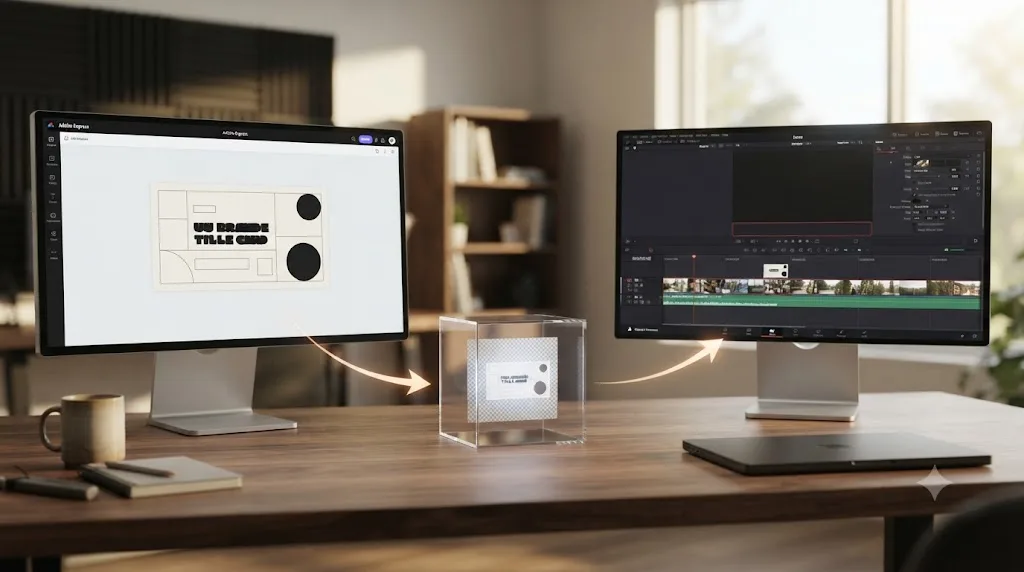
Yes, and this is worth naming directly because most comparisons force a false either-or that doesn't match how a lot of creators actually work.
A common hybrid workflow looks like this: build branded title cards, lower-thirds, thumbnails, and intro graphics in Adobe Express, where the template library, Brand Kit, and Firefly's generative fill do real work fast, then export those elements as transparent PNGs or short video clips and bring them into DaVinci Resolve. Resolve handles the actual cut, the color pass, the audio mix, and the final export, compositing Express's graphics on top of the timeline like any other layer.
This plays to each tool's actual strength instead of asking either one to do a job it wasn't built for. Adobe Express's design library, brand consistency tools, and generative AI have no real equivalent inside Resolve, since Resolve was never trying to be a graphic design platform. Resolve's color, audio, and multi-track depth have no equivalent inside Express, for the same reason in reverse. Neither tool needs to be the only tool in your workflow just because this article compared them head to head.
The practical requirement on the Express side: export your graphic as a transparent-background PNG (for a static title) or an MP4 for an animated element, then import that file into Resolve's Media Pool like any other clip and place it on a track above your footage. That single habit turns Adobe Express from a competitor into a genuinely useful part of a Resolve-based pipeline, for exactly the branded, templated, generative work Express already does well.
DaVinci Resolve vs Adobe Express: the full side-by-side comparison table
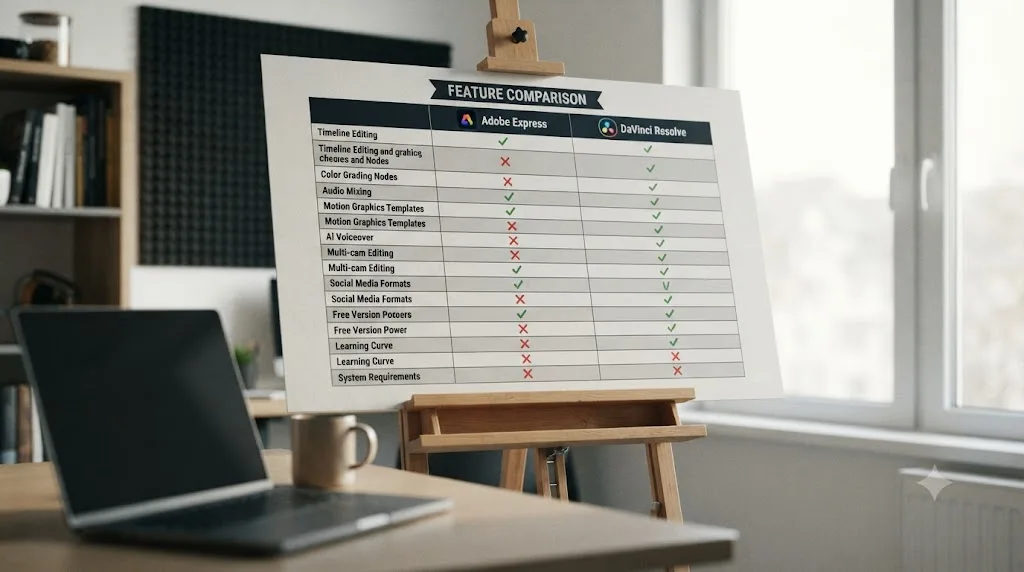
Here's every row from this article in one place, so you don't have to scroll back through each section to compare two specific features.
| Feature | Adobe Express | DaVinci Resolve |
|---|---|---|
| Price (free tier) | Free, no watermark, 5GB storage, 1GB file cap | Free, no watermark, Ultra HD export |
| Price (full-featured) | $9.99/mo, $99.99/yr (Premium) | $295 one-time (Studio) |
| Platform | Browser-based, plus desktop app; needs internet | macOS, Windows, Linux; works fully offline once installed |
| Phone or tablet app | Yes, full-featured, iOS 17+ and Android 10+ | iPad only (Cut and Color pages), no phone app |
| Timeline structure | Scene-based, not a multi-track timeline | Yes, frame-accurate, multi-track |
| Project length cap | ~2 hours (Clip Maker), unwieldy past 10-15 min | No fixed cap |
| Templates and stock library | 100,000 templates, 1M+ stock (free); 200M+ (Premium) | None built in; Power Bins for your own reusable assets |
| Generative AI (Firefly) | Yes, object removal, generative fill, background swap | Studio-only Neural Engine tools (different feature set) |
| Color grading | Basic filters only | Node-based Color page, curves, wheels, scopes |
| Audio editing | Single track, no mixing | Fairlight, full multi-track DAW, 2,000 tracks |
| Chroma key / compositing | AI background removal (Premium), no manual keying | Built into Fusion, 250+ tools |
| Keyframe animation | Not available | Full keyframe control on Edit and Fusion pages |
| Export control | Resolution only, capped at 3840x3840 | Format, codec, bit rate, resolution, frame rate |
| Team collaboration model | Real-time, multi-cursor, Teams plan $19.99/user | First-come lock, one editor per bin/timeline/clip, free |
| Best learning curve, hour one | Adobe Express | - |
| Best learning curve, month one | - | DaVinci Resolve |
| Offline editing | No | Yes |
| Free official training | Limited | Six free guides plus video library (Blackmagic) |
So which one should you actually pick?
Choose Adobe Express if you're making a single branded clip, matching a template, a brand kit, and other marketing assets you've already built, or if you need a fast generative fix, an object removed, a background swapped, that Firefly handles in one click. It's free, it's genuinely watermark-free, and it's built for exactly that job.
Choose DaVinci Resolve if you're editing regularly, want real color control, need more than one audio track under your voice, or expect this project to run longer than a couple of hours. Its free edition costs nothing to try, and the extra first-session friction is a one-time cost, not a recurring one.
If you strip away whichever tool you already have a login for, the decision comes down to one honest question: are you making a single quick clip, or are you learning to edit video? The tool that's free forever beats the tool that's free until you need the one feature it doesn't have. Start on the Cut page if you pick Resolve, budget one real session for your first clip, and expect that time to drop by more than half within four or five clips.
Neither app is a downgrade from the other. They're built around different bets on what most of your time will actually go toward, and both bets are defensible. Pick based on the specific project sitting in front of you this week, not on which tool you already have a login for, and if that project points you toward Resolve, treat the first hour of relearning where things live as the real cost of the switch, not a footnote you'll figure out later.
Frequently asked questions
- Is DaVinci Resolve better than Adobe Express for beginners?
- It depends on what you're actually making. For one quick, templated social clip you'll never touch again, Adobe Express's free browser editor is faster and genuinely capable enough. If you expect to keep editing, want real color control, need more than one audio track, or plan to make anything longer than a few minutes, DaVinci Resolve's free edition gives you all of that at no cost, and the extra first-session learning curve pays for itself within a few clips.
- Can Adobe Express actually edit video, or is it just for graphic design?
- It genuinely edits video, with drag-and-drop trimming, transitions, text animation, and Firefly-powered AI tools like generative fill and one-click background removal. What it doesn't have is a real timeline. Adobe Express uses a scene-based structure that gets cramped past a few minutes, plus a single audio track with no mixing and no node-based color grading, the features that separate a template tool from a dedicated video editor.
- Is DaVinci Resolve too hard for someone who has never edited video before?
- It's demanding on day one because it's actually five specialized applications (Edit, Cut, Color, Fairlight, Fusion) behind one set of page tabs, and a first-timer can lose real minutes just finding the Media Pool. It isn't too hard to become comfortable with, though. Starting on the simplified Cut page instead of the full Edit page, paired with Blackmagic's own free training, gets most beginners through a first project in under an hour.
- Is Adobe Express Premium worth paying for if I mainly want to edit video?
- Only if you need more stock assets, generative AI credits, or storage than the free plan already gives you. Premium costs $9.99 a month and unlocks 200 million-plus stock assets, 250 generative credits, and 100GB of storage, but it doesn't add a real timeline, multi-track audio, or color grading. DaVinci Resolve's free edition already has all three of those at no cost, which makes Express Premium an asset-library upgrade, not an editing-depth upgrade.
- What's the best way to learn DaVinci Resolve fast if I'm coming from Adobe Express?
- Start on the Cut page instead of the full Edit page. Its simplified, single-track-first layout sits closer to the drag-and-drop simplicity Adobe Express already trained you on. Pair that with one short, targeted orientation video from Blackmagic's own free training or a channel like Casey Faris, and cut your own footage immediately rather than a demo clip that behaves nothing like your actual project.
- Is there an AI tool to learn DaVinci Resolve, or an app that helps while you're actually using it?
- Yes. TryUncle is the on-screen assistant for DaVinci Resolve on macOS, ask in plain words and Uncle points at the exact control on your screen, live, inside your own project on the Edit, Color, and Fusion pages. That's a different job from tools like CutAgent or Eddie AI, which execute cuts for you; TryUncle doesn't touch your timeline, it just shows you where the thing you need actually lives.
- Can I use Adobe Express and DaVinci Resolve together instead of choosing one?
- Yes, and it's a common workflow. Build branded title cards, thumbnails, or lower-third graphics in Adobe Express, where the Firefly tools and template library do real work fast, export them as transparent PNGs, and import them into DaVinci Resolve to composite over your timeline. Express stays in the design lane it's built for, and Resolve handles the cut, color, and audio.
- Does DaVinci Resolve work on my phone the way Adobe Express does?
- No. DaVinci Resolve has no phone app on iOS or Android, so a phone-only workflow rules it out completely. Adobe Express's mobile app, by contrast, requires iOS 17 or Android 10 or newer and carries over most of the desktop editor's tools, including trim, resize, captions, and one-click background removal. DaVinci Resolve does have a separate iPad app, but it only covers the Cut and Color pages and needs an iPad specifically, not an iPhone.
Sources
- Adobe Express Review 2026: Can the Free Video Editor Compete? (Wondershare Filmora)
- Adobe Express Video Limitations 2026: Length, Quality & Fixes (fluxnote)
- Adobe Express Pricing 2026 (Capterra)
- Adobe Express Reviews 2026 (Capterra)
- Adobe Express Review (2026): Is It Worth It?, by Marcus VanWormer (Freelance Video Collective)
- Free Online Video Editor (Adobe Express product page)
- Install Adobe Express on mobile (Adobe Helpx)
- Adobe Express on mobile technical requirements (Adobe Helpx)
- How Adobe Express helps teams create smarter, faster and on-brand (Adobe Blog)
- Adobe Express for Business (Adobe)
- DaVinci Resolve (Blackmagic Design product page)
- DaVinci Resolve Studio (Blackmagic Design)
- DaVinci Resolve Training (Blackmagic Design)
- DaVinci Resolve Collaboration (Blackmagic Design)
- DaVinci Resolve Fairlight (Blackmagic Design)
- In Depth: DaVinci Resolve Studio vs the Free Version (Toolfarm)
- DaVinci Resolve System Requirements (CodeItBro)
- DaVinci Resolve for iPad (App Store, Apple)
- CutAgent (product site: features, pricing, FAQ)
- Sottocut (product site)
- PremiereCopilot pricing
- Eddie AI for DaVinci Resolve (native integration workflow page)
- TryUncle
- TryUncle FAQ
Learn by doing, not watching
Stop translating tutorials to your timeline.
TryUncle stays beside Resolve on Mac and Windows. When you ask, Uncle sees your screen and points at the exact control you need. No hunting through tabs, timestamps, or mismatched tutorials.
Meet TryUncleKeep reading
 GuidesJul 19, 202638 min read
Is DaVinci Resolve Overkill for Simple Social Media Edits?
A quick TikTok or Reel trim doesn't need DaVinci Resolve's seven pages. Here's when it's overkill, when it isn't, and how it stacks up against CapCut.
 ComparisonsJul 11, 202626 min read
The Best AI Tools to Learn DaVinci Resolve in 2026
ChatGPT, Claude, Blackmagic's free training, Recut, and Resolve's Neural Engine compared for learning DaVinci Resolve, and the gap none of them close.
 GuidesJul 12, 202641 min read
The Best Way to Learn DaVinci Resolve (What the Research Says)
Guided, hands-on practice inside DaVinci Resolve beats video courses and MOOCs. Here's the learning-science research behind why, and how to apply it.