
Learn / DaVinci Resolveupdated for TryUncle pricing (July 2026)
TryUncle for Complete DaVinci Resolve Beginners: A Full Guide
Quick answer
TryUncle is a paid macOS assistant that watches your DaVinci Resolve screen and points at the exact menu, node, or timeline control you need, live, so a complete beginner learns the Edit, Color, and Fusion pages by doing instead of pausing tutorials. It costs $34.99/month, cancel anytime.
You've never opened DaVinci Resolve. Maybe you installed it last night and closed it again after ninety seconds, because the interface has six page tabs across the top and none of them look like the video editor you were picturing. You typed "TryUncle for complete DaVinci Resolve beginners" because you want a straight answer: does this thing actually help someone starting from zero, or is it built for editors who already know what a node is.
Here's the straight answer. TryUncle is built for exactly the moment you're in right now, arguably more than for anyone else. It's a paid macOS app with an assistant named Uncle that watches your Resolve screen while you work and points, live, at the control you need, whether that's the button that starts a new project or the node that's ruining your first color grade. It doesn't replace opening the app. It replaces the part where you'd otherwise be alone with it.
Everything below maps that mechanism against the actual pain points a complete beginner hits, in the order you'll hit them: the overwhelming four-page layout, the color page's node system, timeline basics, Fusion, setup, cost, and the honest limits. No fog, no hedging past the point where hedging is useful.

What Makes DaVinci Resolve So Overwhelming for a Complete Beginner?
It's not one thing. It's four things stacked on top of each other, and most "getting started" advice only names the first one.
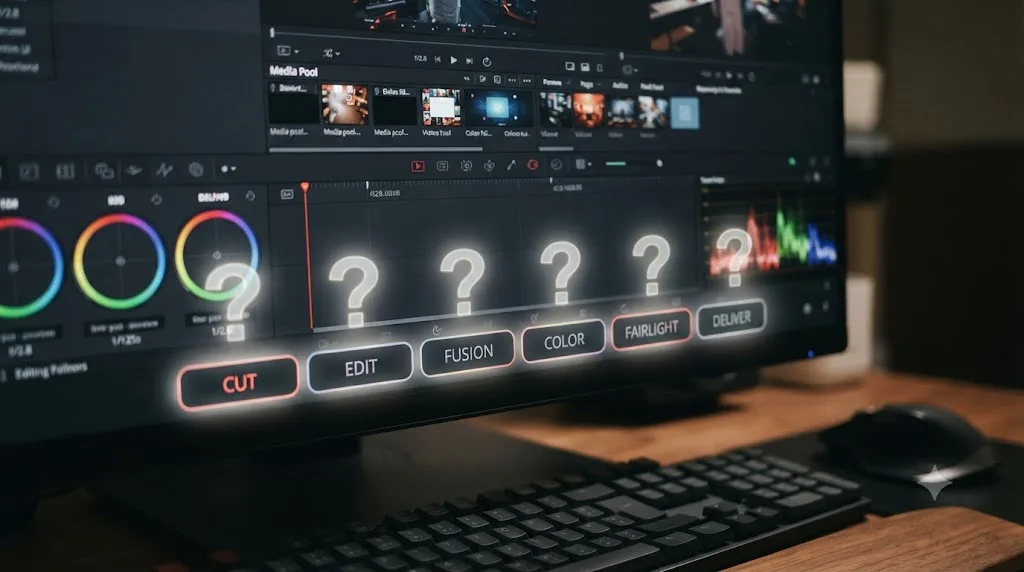
DaVinci Resolve splits editing into six separate pages, Cut, Edit, Fusion, Color, Fairlight, and Deliver, and nothing in the interface tells a first-time user which one to open. A beginner coming from a phone editing app or a simpler tool like CapCut has never seen software organized this way. Premiere Pro and Final Cut keep almost everything in one window. Resolve deliberately splits color grading, visual effects, and audio mixing into their own dedicated workspaces, because that's how professional post-production pipelines are actually structured, with different specialists working different pages on the same project. That design choice is a real strength once you understand it. On minute one, it just looks like six different programs wearing one name.
The second wall is vocabulary. A beginner doesn't know what a node is, what a qualifier does, or why a "ripple delete" is different from a regular delete. Every tutorial and every menu assumes you already have this vocabulary, because the people writing tutorials stopped being beginners years ago and forgot which words used to be opaque.
The third wall is that Resolve's color page works on a completely different model than anything in a phone app. Instagram and TikTok give you sliders: brightness, contrast, saturation, done. Resolve's Color page is built around nodes, a chain of individual processing steps you stack and reorder, and the same two adjustments can produce different results depending on which order you apply them in. Nothing about a phone's filter picker prepares you for that.
The fourth wall is that a beginner doesn't know what they don't know. You can watch a full 40-minute overview video and still have no idea which of the forty things it covered actually matters for the specific ten-second clip sitting in your Media Pool right now. That's not a failure of attention. It's the structural problem with any pre-recorded resource: it was built for an average beginner, not for you, on your footage, at this exact moment.
None of these four walls are about talent or aptitude. They're about a piece of software built for professional pipelines being handed to someone who's never touched a timeline. That distinction matters, because the fix for each wall is different, and conflating them is why so many people quit in the first week convinced they're "just not good at this."
| Wall | What it actually is | What usually fails to fix it |
|---|---|---|
| Six-page layout | Editing, color, effects, and audio are deliberately separated into specialist workspaces | A single "overview" video that shows every page once, briefly |
| Vocabulary gap | Words like node, qualifier, ripple, and keyframe are assumed knowledge | Reading a glossary in isolation, without a control in front of you to attach the word to |
| Node-based color model | Grading is a chain of stacked steps, not a slider panel | Watching a colorist grade a shot chosen specifically because it's easy |
| Not knowing what you don't know | You can't ask about a control you've never seen | A comprehensive course, since comprehensiveness doesn't fix not knowing where you are in it |
The pattern across all four rows is the same one this guide keeps returning to: every standard fix is something you consume before you touch your own project, and none of them tell you, live, on your own screen, what you're actually looking at right now. That gap is the specific thing TryUncle is built to close, not by teaching a curriculum faster, but by sitting inside the confusion with you and pointing.
What Is TryUncle, in Plain Terms, for Someone Who's Never Opened Resolve?
TryUncle is a macOS app you run alongside DaVinci Resolve. Its entire job is one assistant, Uncle, whose only skill is watching your Resolve screen and telling you, out loud or in text, exactly where the control you need lives, then showing you with a hand-drawn box or a moving cursor. It works with both the free edition of Resolve and Resolve Studio, so which version you installed doesn't shut you out.
You ask by voice (Shift+Fn), by a general "am I doing this right" check (Shift+Control), or by typing (Shift+Option). Uncle answers, then shows you on your actual screen where the fix or the next step is. You never have to take a spoken instruction like "the ripple delete icon is the third one in the toolbar" and go hunting for it. It's already circled.
That's a meaningfully different structure than everything else a beginner is handed by default. Blackmagic's own free training, YouTube tutorials, and paid courses are all something you consume before you touch Resolve, then try to reconstruct onto your own footage afterward. TryUncle doesn't ask you to reconstruct anything. It answers the question about the thing that's actually open on your screen, right now, in the order your confusion happens in, not the order a curriculum happened to film. We cover the full mechanism, setup, and data handling in our deeper what is TryUncle guide; this post narrows in specifically on what changes when the person asking is a complete beginner instead of an editor who already knows the software.
One honest note before going further: TryUncle is not free, and it never has been. It's a paid subscription at $34.99 a month, and it needs an internet connection since the reasoning that understands your screen runs in the cloud. Keep both facts in mind as you read the rest of this guide, because they shape who this is actually a fit for.
How Does TryUncle Help a Beginner With the Menus and the Four-Page Layout?
This is the wall a complete beginner hits in the first sixty seconds, so it's worth being specific about how Uncle actually closes it, rather than just asserting that it does.
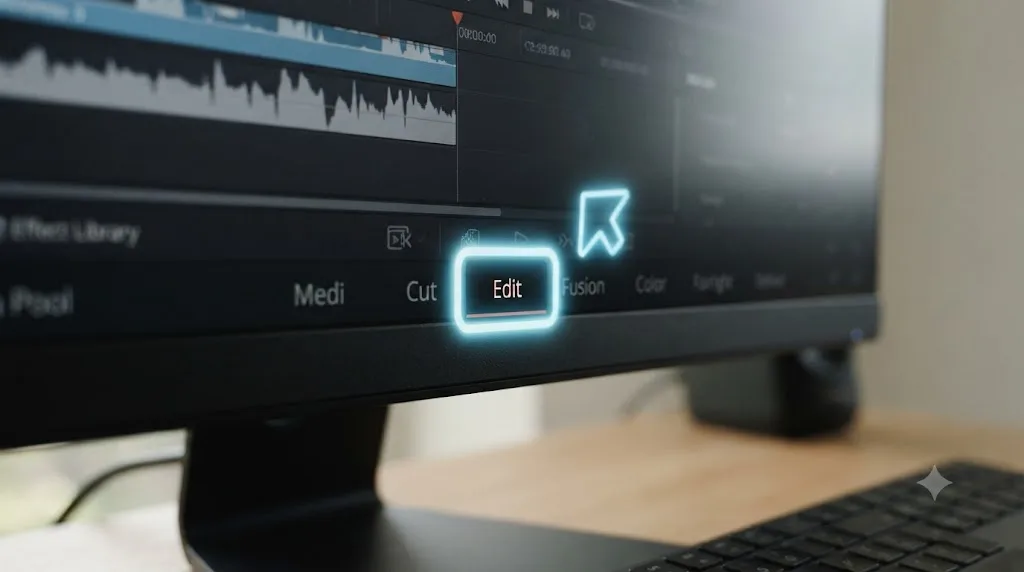
Say you've opened Resolve for the first time, created a project, and you're staring at the interface trying to figure out which of the six page tabs at the bottom you're supposed to click to start cutting your footage together. You hit Shift+Fn and ask out loud, "where do I start editing my clips." Uncle answers that the Cut or Edit page is where timeline work happens, since Fusion, Color, Fairlight, and Deliver are for effects, grading, audio, and export respectively, and it circles the Edit tab at the bottom of your screen. You click it. You're oriented in under ten seconds, without having to pause anything or search a manual for "which tab do I use."
That same mechanism applies to every menu a beginner gets lost in. Where's the button to import footage. Where's the setting for the frame rate my camera actually shot at. Where's the export button once I'm done. None of these are hard questions once you know where to look. They're genuinely hard the first time, because Resolve's interface, like most professional tools, optimizes for someone who already knows the layout, not for someone seeing it fresh.
A beginner doesn't need the whole interface explained at once. They need the one control that matters right now, pointed at, without having to first learn the name of the panel it lives in. That's the specific difference between a manual's table of contents and a tool that already knows which panel is open on your screen. The manual assumes you can search for what you don't know the name of yet. Uncle doesn't need you to name it first.
Here's a concrete comparison of how a beginner would normally solve four common first-session confusions, against how TryUncle handles the same four:
| First-session confusion | Typical beginner path without TryUncle | With TryUncle |
|---|---|---|
| "Which page do I edit in?" | Google, land on a forum thread, cross-reference against your own version's UI | Ask Shift+Fn, get pointed at the Edit tab in seconds |
| "Where do I import my footage?" | Right-click around the Media Pool guessing, or search "davinci resolve import media" | Ask Shift+Option while looking at the Media Pool, get shown the Import Media button |
| "My clip won't play, what's wrong?" | Assume it's broken, possibly reinstall Resolve | Shift+Control on the stalled clip, told it's a missing codec or a proxy setting, shown where to fix it |
| "How do I even start a new project?" | Watch a 5-minute setup video before touching anything | Open Resolve, ask, get walked through the New Project dialog live |
None of these four are conceptually hard. They're just invisible the first time, and invisibility is exactly the problem an in-app pointer solves that a video, however well made, structurally can't, because a video isn't looking at your actual screen when you get stuck.
How Does TryUncle Help With the Color Page, the Hardest Wall for a Beginner?
If there's one page that convinces a beginner they're "not cut out for this," it's Color. That reaction is understandable and it's also wrong, and it's worth explaining exactly why before covering how TryUncle changes it.
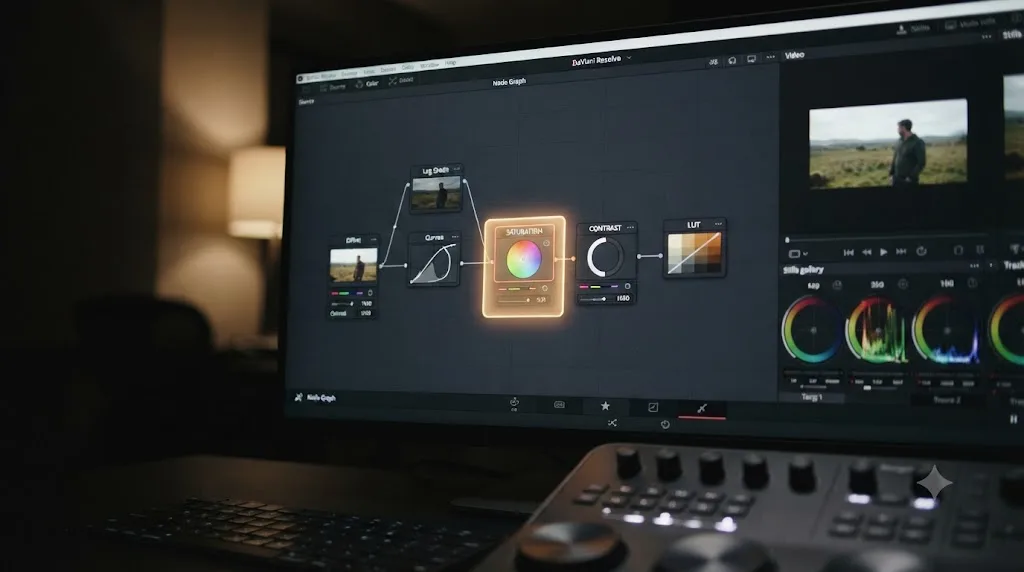
Resolve's Color page is built around node-based grading. Instead of one panel of sliders, you build a chain of individual nodes, each one a discrete processing step, stacked serially (one after another) or in parallel (side by side, then combined). The order those nodes run in changes the result, because each node processes the output of the one before it. That's a genuinely different mental model from every consumer editing tool a beginner has ever touched, and nobody explains it well in five minutes, because it isn't a five-minute idea.
Here's where a complete beginner gets stuck, specifically, almost every time: they add a saturation boost and a contrast adjustment on two different nodes, the shot looks flat or blown out, and they have no idea why, because visually the two nodes look identical whether the saturation node comes before or after the contrast node. Nothing about the interface screams "node order matters here." You just have to already know.
This is precisely the kind of stuck moment TryUncle is built around. You hit Shift+Control, Uncle looks at your actual node tree, the exact one on your exact screen, and tells you your saturation adjustment is fighting your contrast node because of the order they're stacked in, then circles the node you should drag to fix it. You move it. The shot corrects itself. You just learned node order by watching your own mistake get identified and fixed on your own footage, which is a different and stickier kind of learning than watching someone else's clean demo clip never have the problem in the first place.
A few more concrete color-page walls a beginner hits, and how the same pointing mechanism applies to each:
"I can't find the wheel that changes just the shadows." Resolve's primary color wheels (Lift, Gamma, Gain, and Offset in the newer interface) each target a different tonal range, and nothing labels them "shadows, midtones, highlights" in plain English on the wheel itself. Ask Uncle, and it points at Lift specifically, since that's the one that primarily affects the darkest parts of your image.
"My qualifier is grabbing more than I want." The qualifier tool isolates part of an image by color or luminance so you can adjust just the sky or just a green screen, but a beginner's first pull almost always grabs too much, catching a wall or a patch of skin that's close in color to the target. Uncle sees your actual selection and points at the edge-softening or range controls that tighten it.
"I added a Power Window but it's not doing anything." A Power Window shapes a selection by position rather than color, and a common beginner mistake is drawing the window on the wrong node, or forgetting the window needs to be tracked to follow a moving subject. Uncle sees which node the window actually lives on and whether tracking is active, and tells you which one is missing.
"The still I graded doesn't match when I apply it to a different clip." Grades built on one shot don't automatically account for a different exposure or white balance on the next one, a common surprise for a beginner who assumes a "copy grade" is a one-click universal fix. Uncle can walk you through matching exposure first before copying the grade over, instead of copying blind and wondering why it looks wrong.
| Color-page stuck point | What's actually happening | What Uncle points at |
|---|---|---|
| Grade looks worse after the third node | Node order, a later node is fighting an earlier one | The specific node to reorder |
| Qualifier grabs too much | Color range too wide, or edge softness too low | The range or softness slider to adjust |
| Power Window isn't isolating anything | Window on the wrong node, or tracking not enabled | Which node the window belongs on, and the tracking toggle |
| Wheels seem to do nothing | Wrong wheel for the tonal range you're trying to fix | The wheel matched to shadows, midtones, or highlights |
| Copied grade looks wrong on a new clip | Exposure or white balance mismatch between shots | The pre-match step before copying the grade |
Node-based grading isn't harder than a slider panel because it's more advanced. It's harder because nobody hands a beginner a live reason to care about node order until their own shot breaks. That's the exact moment TryUncle's screen-watching mechanism has an edge over every static resource: it's reacting to your broken shot, not a curated one that was chosen specifically because it never breaks on camera.
How Does TryUncle Help With Timeline and Edit Page Basics?
The Edit page is friendlier territory for most beginners, since it resembles the timeline-based tools people have usually seen before, phone apps, CapCut, even PowerPoint's video trimmer at a stretch. But friendlier doesn't mean easy, and a specific set of first-timeline mistakes shows up constantly.
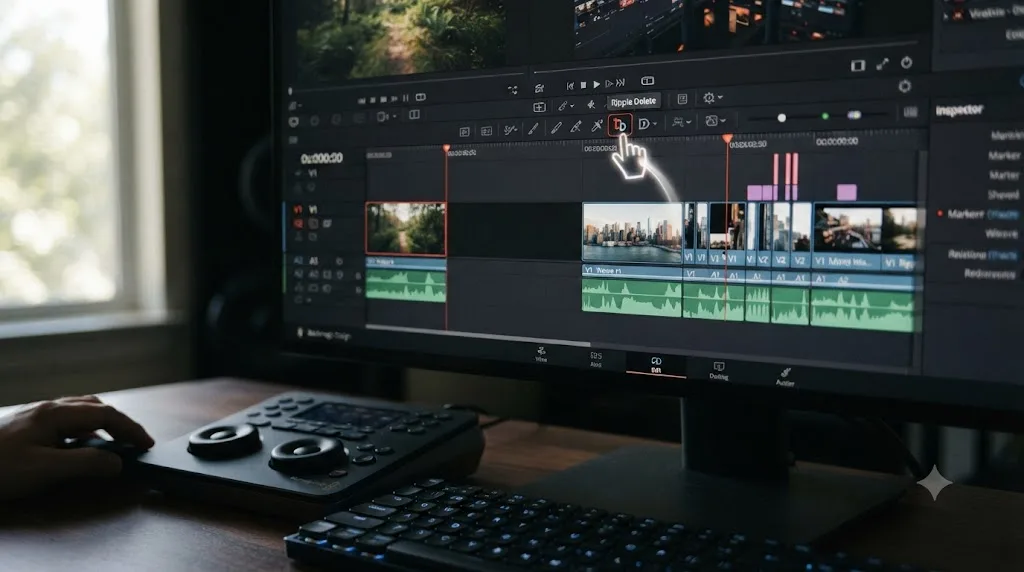
Ripple delete versus regular delete trips up nearly everyone in their first session. Deleting a clip the normal way leaves a gap, a blank space where the clip used to be, and a beginner's first instinct is to drag every remaining clip left by hand to close it. Ripple delete removes the clip and automatically closes the gap in one motion. Nobody's born knowing that distinction exists, and the two commands look almost identical in the right-click menu until you already know which one you want. Ask Uncle "how do I delete this clip without leaving a gap," and it points straight at the ripple delete option, or shows you the keyboard shortcut, instead of you discovering the hard way that "delete" and "ripple delete" aren't the same thing.
Trimming versus trimming with a ripple is the same confusion one level deeper. Dragging a clip's edge normally just changes where it starts or ends, leaving everything else on the timeline untouched. A ripple trim shifts everything downstream to close the resulting gap automatically. Neither is wrong, they're for different situations, but a beginner using the wrong one gets a timeline full of unexplained gaps and no idea why.
Clip speed and frame rate mismatches are the other classic first-week wall. A clip plays back too fast, too slow, or audio drifts out of sync as the timeline goes on, and the beginner's instinct is to assume the footage itself is broken. It's almost always a mismatch between the timeline's frame rate and the source footage's native frame rate, a purely technical fact with a single correct fix, not a judgment call. Uncle checks both settings against each other and tells you which one to change, in seconds, instead of you spending an evening convinced your camera recorded something defective.
Not knowing what a track even is trips up people coming from single-track phone editors specifically. Resolve's timeline stacks multiple video and audio tracks, and a beginner adding a title often has no idea they need a new track above their footage rather than trying to layer it directly onto the same clip. Ask Uncle "how do I add text over my video," and it points at the Add Track option before it even gets to the title tool itself, since that's the actual first missing step.
Export settings feel like a final boss fight for a lot of beginners, since the Deliver page has more dropdown menus than the rest of the app combined, and picking the wrong codec or resolution produces a file that looks fine in Resolve but wrong once it's uploaded anywhere. Say a client, or your own future self, wants "something for Instagram" and nothing more specific than that. Ask Uncle from wherever you're working, and it walks you through the resolution, frame rate, and bitrate that actually match the platform, since delivery specs are explicitly part of what Uncle covers, alongside Edit, Color, and Fusion.
| Edit-page stuck point | Beginner mistake | What Uncle does |
|---|---|---|
| Deleting a clip leaves a gap | Used regular delete instead of ripple delete | Points at the ripple delete command or shortcut |
| Trimming leaves unexplained gaps elsewhere | Used a ripple trim when a normal trim was needed, or vice versa | Explains which trim type matches what you're trying to do |
| Clip plays wrong speed, audio drifts | Timeline frame rate doesn't match source footage | Checks both settings, points at the mismatch |
| Title won't layer over footage | Didn't add a new track above the clip first | Points at Add Track before the title tool |
| Export looks wrong on the destination platform | Picked a generic export preset instead of a platform-matched one | Walks through the correct resolution, frame rate, and bitrate live |
A complete beginner's first timeline is never broken because of a lack of talent. It's broken because ripple delete and regular delete look identical in a menu until someone tells you they aren't. That's true of almost every stuck point in this section: the fix is a single fact, not a skill, and a tool that can hand you that fact the moment you're staring at the wrong menu removes an entire category of first-week frustration that has nothing to do with whether you'll ever be a good editor.
What About Fusion, Titles, and the Rest of the App?
Fusion is the page most beginners avoid entirely for months, and that avoidance is usually the right instinct at first, since it's the most advanced page in Resolve by a wide margin. It's a node-based compositing environment for motion graphics and visual effects, structurally similar to the Color page's node logic but applied to animation, layering, and tracking instead of color.
A beginner's actual first contact with Fusion is rarely intentional Fusion work. It's usually an animated title, since Fusion Titles are pre-built templates, lower thirds, animated text, that live in the Effects Library and don't require building a node graph from scratch. Drag one onto your timeline, and you're using Fusion without necessarily realizing it. Text and Text+ tools, covered in more depth in our guide to adding text and titles in DaVinci Resolve, are actually simpler entry points, since Text+ gives you font, color, and basic animation controls without opening the Fusion page at all.
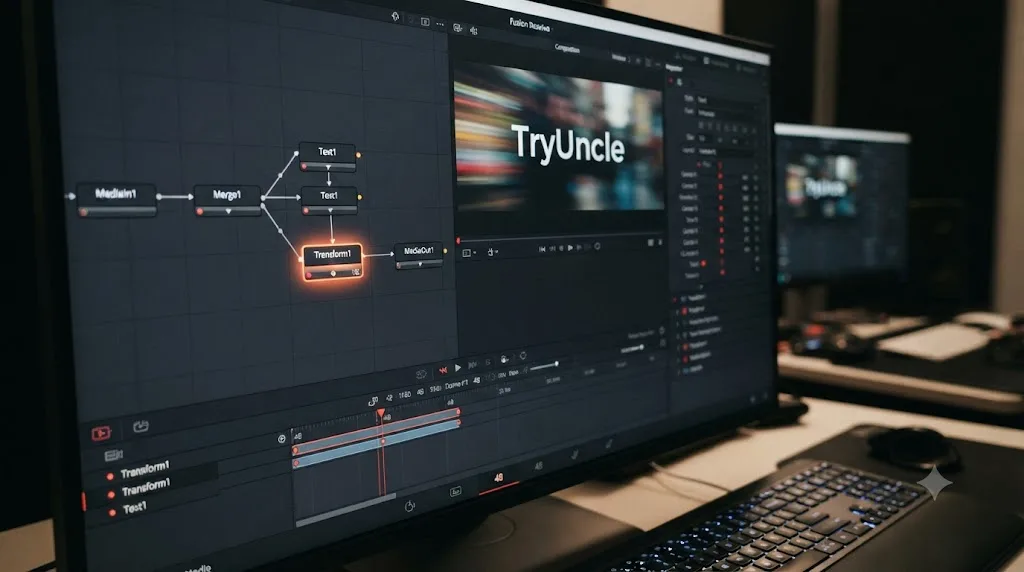
Where a beginner does hit real Fusion friction is the moment a client or a personal project asks for something a template doesn't cover, text that slides in from the left and settles into place, say. That requires adding a Transform node and keyframing it, a genuinely new skill with no direct analog anywhere else in Resolve. This is one of the clearest cases where TryUncle's mechanism earns its keep for a beginner specifically: ask Uncle "how do I animate this text sliding in," and it walks you through adding the Transform node, then walks you to the keyframe controls with a moving cursor, explaining what each keyframe does as you set it, in the order you'd actually build it, not the order a 40-minute tutorial happened to film it in.
Fairlight, Resolve's dedicated audio page, is worth naming honestly here rather than glossing over. TryUncle's stated coverage is Edit, Color, Fusion, and delivery specs. Fairlight isn't named as covered surface in TryUncle's own FAQ or homepage copy. If you're a beginner stuck on a noise-reduction plugin or a de-essing setting in Fairlight, Uncle might still attempt an answer, since it's reading the same screen it always reads, but this guide can't confirm it handles Fairlight's panels with the same live-pointing precision it demonstrably has in Edit, Color, and Fusion. Treat an audio-specific answer there as a starting point to verify, not a guarantee, and fall back on Blackmagic's own Fairlight Audio Guide, part of its free training library, if you're stuck there specifically.
The Cut and Deliver pages round out the six. Cut is a simplified, faster version of the Edit page built for quick turnaround work, and most beginners can safely ignore it until Edit itself feels comfortable. Deliver is where export settings live, covered above under timeline basics, and it's explicitly named as a use case Uncle handles, since delivery specs questions like "what settings do I need for YouTube" are common enough that TryUncle calls them out specifically on its own site.
What Vocabulary Should a Beginner Know Before Their First Session?
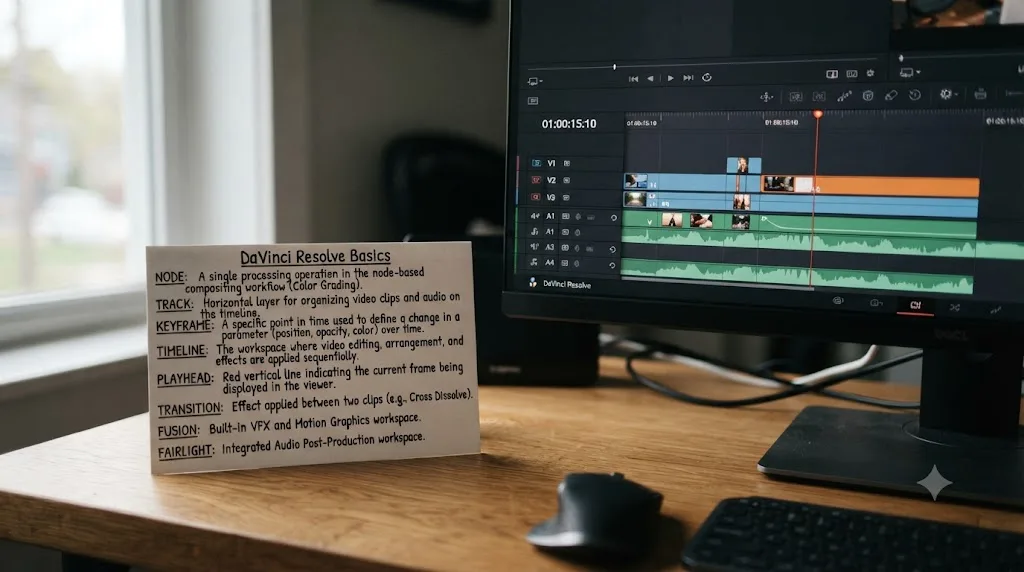
You don't need to memorize this table before opening TryUncle, since the whole point of an in-app tutor is that you don't have to arrive with the vocabulary already loaded. But a handful of terms will slow you down every time you hit them cold, so here they are once, in plain language, before the rest of this guide uses them again.
| Term | What it means, in plain terms |
|---|---|
| Node | A single processing step in a color grade. Chain several together and you build the full look. |
| Node tree | The full chain of nodes for one clip, viewed on the Color page. |
| Qualifier | A tool that isolates part of an image by color or brightness, so you can adjust just the sky without touching everything else. |
| Power Window | A shape you draw over part of the frame to isolate it by position instead of color. |
| Ripple delete | Removes a clip and closes the gap automatically, instead of leaving a blank space. |
| Track | A horizontal layer on the timeline. Video and titles need their own separate tracks to stack on top of footage. |
| Keyframe | A saved value at a specific point in time. Set two with different values and Resolve animates between them automatically. |
| Transform node | The Fusion node that handles position, rotation, and scale, the basic tool for moving something across the frame. |
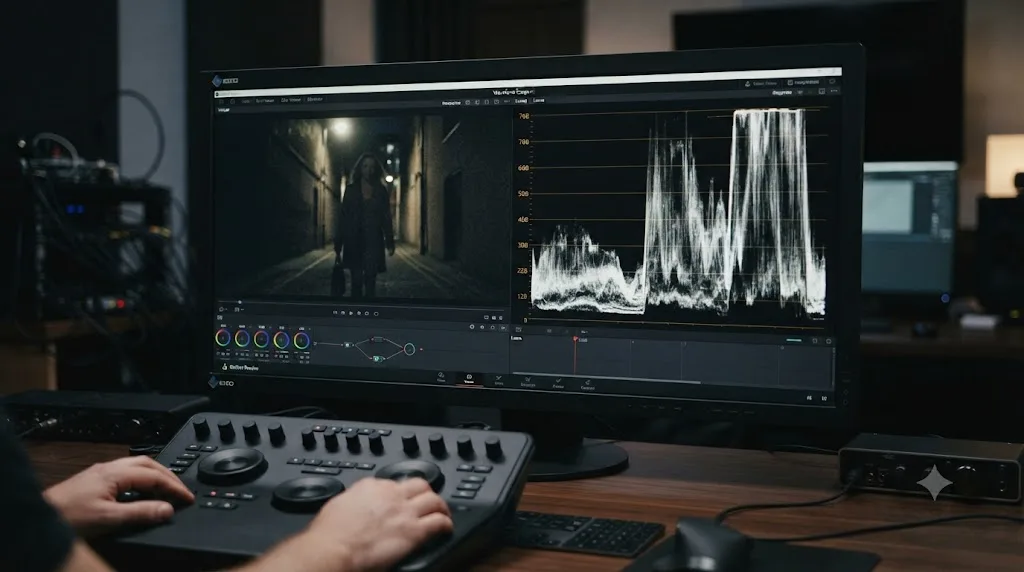
| Scopes | The waveform, vectorscope, and histogram panels that measure a shot's actual exposure and color, instead of trusting your eyes and an uncalibrated monitor. |
| Timeline | The horizontal strip on the Edit page where clips are arranged in playback order. |
| Media Pool | Where imported footage lives before you drag it onto a timeline. |
| Proxy media | A lower-resolution stand-in for your original footage, used to keep playback smooth on slower hardware. |
Blackmagic's own free training PDFs cover every one of these in far more depth than a table can, and they're a genuinely good reference to keep open in a second tab. What a table, and even a full manual, can't do is tell you which of these twelve terms actually matters for the specific control you're staring at right now, which is exactly the gap TryUncle's screen-watching closes: you don't need to know the qualifier is called a qualifier to ask Uncle about it, since it's already looking at the qualifier you're stuck on.
What Does a Complete Beginner's First TryUncle Session Actually Look Like?
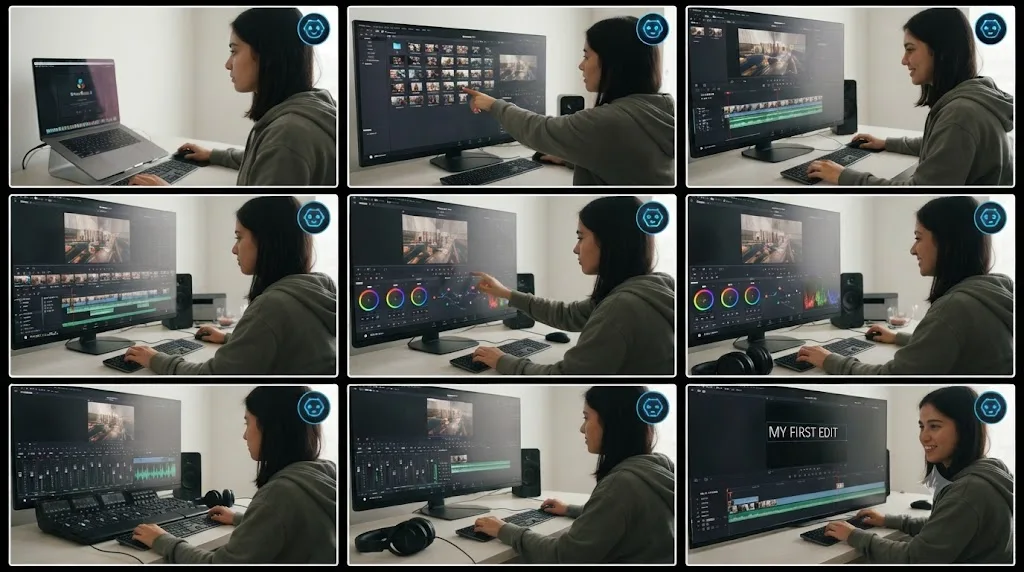
Abstract descriptions only go so far. Here's what a realistic first session looks like end to end, walked through the way it would actually unfold for someone who installed Resolve yesterday. This is an illustrative walkthrough of how the mechanism works, not a transcript of one specific person's session.
Minute one: orientation. You open DaVinci Resolve, create a new project, and stare at the six page tabs. You open TryUncle, hit Shift+Fn, and ask "where do I start putting my clips together." Uncle tells you the Edit page is where timeline work happens and circles the tab. You click it.
Minute five: importing footage. You drag a folder of clips into the Media Pool, or you're not sure how, so you hit Shift+Option and type "how do I get my videos into this project." Uncle points at the Import Media option and explains you can also just drag files from Finder straight into the Media Pool.
Minute twelve: the first cut. You drag three clips onto the timeline in the wrong order and want to fix it. You hit Shift+Control, the general "am I doing this right" check, while looking at your timeline. Uncle notices you're about to drag a clip in a way that will leave a gap and tells you to hold a modifier key instead, so the clips shuffle into place without a hole appearing.
Minute twenty: something looks wrong. Your exported test clip plays back faster than it should. You ask Uncle directly: "why is my clip playing too fast." Uncle checks your timeline's frame rate against your source footage's native frame rate, finds a mismatch, and shows you exactly where to fix the project setting.
Minute thirty-five: your first color attempt. You open the Color page for the first time in your life. It's node-based, unfamiliar, and your first adjustment makes the shot look worse instead of better. You hit Shift+Control on your current node tree. Uncle sees your saturation node landed before your contrast node, points at the one to move, and the shot corrects itself once you drag it into the right spot.
Minute fifty: adding a title. You want your project's name to appear at the start. You hit Shift+Fn and ask "how do I add text to my video." Uncle points you toward Text+ in the Effects Library, walks you through dragging it onto a new track above your first clip, and shows you the Inspector panel where you'll type and style it.
In every one of these six moments, the pattern repeats: you hit a wall specific to your own project, you ask in whichever of the three ways fits the moment, and Uncle answers about the thing actually on your screen, not a hypothetical version of it. The gap between "I have no idea how to do this" and "I did it" collapses to however long it takes you to read one sentence and click, which is a genuinely different experience than the version of your first session where you're alone with a paused tutorial and a project that doesn't match it.
Talk, Check, or Type: Which Should a Complete Beginner Actually Use?
All three of Uncle's input methods work for a beginner. They're not interchangeable in practice, and a beginner specifically benefits from knowing which one to reach for, since a beginner is far more likely than an experienced editor to be in the "I don't even know what to call this" situation Check is built for.
| Situation | Best method for a beginner | Why |
|---|---|---|
| You genuinely don't know the name of the thing you're stuck on | Check (Shift+Control) | It reads your current screen and reacts, without requiring you to name a control you've never seen before |
| You know roughly what you want but not where it lives | Talk (Shift+Fn) | Saying "how do I add text" out loud is faster than typing a question you're not confident is worded right |
| You're in a shared space, or feel self-conscious talking to your laptop as a beginner | Type (Shift+Option) | Silent, and it gives you a written answer you can reread, which matters more early on when everything is new |
| You want to build your own reference as you go | Type (Shift+Option) | The written answer stays on screen instead of disappearing the moment it's spoken, useful while you're still building vocabulary |
| You just finished a step and have no idea if it was right | Check (Shift+Control) | This is the single most valuable mode for a total beginner, since "was that right" is the question you'll ask more than any other in week one |
Check deserves special attention for a beginner specifically, more than it does for an experienced editor. Talk and Type both require you to put your problem into words first, which is exactly the skill a beginner hasn't built yet, since you can't ask about a qualifier if you don't know the word qualifier exists. Check skips that requirement entirely. It looks at whatever's open on your screen and reacts to it, which means the exact vocabulary gap covered earlier in this guide simply doesn't block you from getting help. The single biggest advantage TryUncle offers a complete beginner over an experienced editor using the same tool is that Check removes the one precondition beginners are least equipped to meet: already knowing what to call the thing they're stuck on.

How Do You Set Up TryUncle as a Complete Beginner?
Setup doesn't require knowing anything about DaVinci Resolve first, which matters, since the whole point is removing friction before you've even opened the app you're trying to learn.
- Install DaVinci Resolve first, if you haven't already. TryUncle is a companion app, not a replacement, so Resolve needs to actually be on your Mac. The free version works fine to start.
- Download TryUncle. It's a free download, you don't pay until you subscribe. Drag it into Applications and open it, the same as any other Mac app.
- Sign in with Google. That's the only account step, no separate username or password.
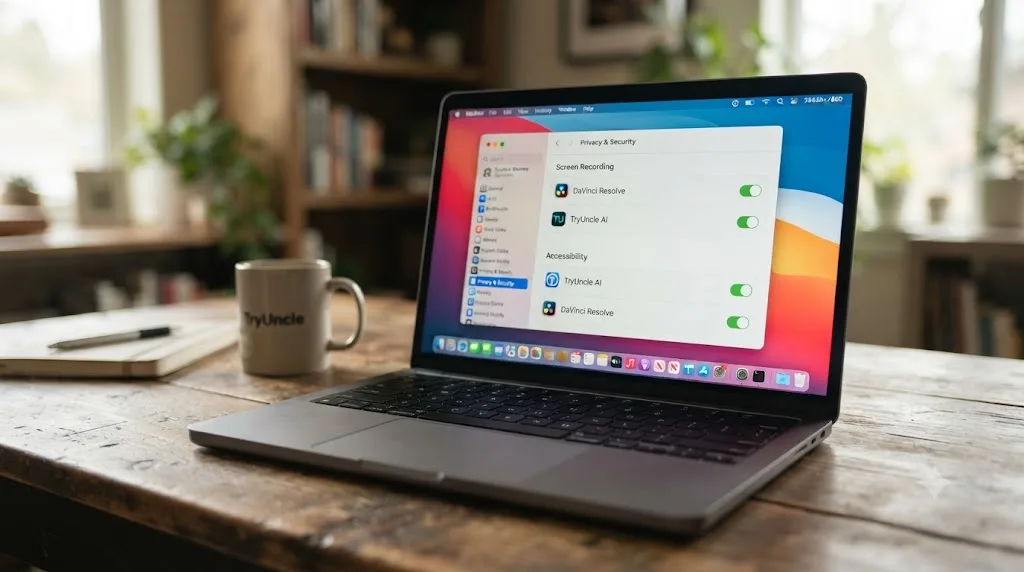
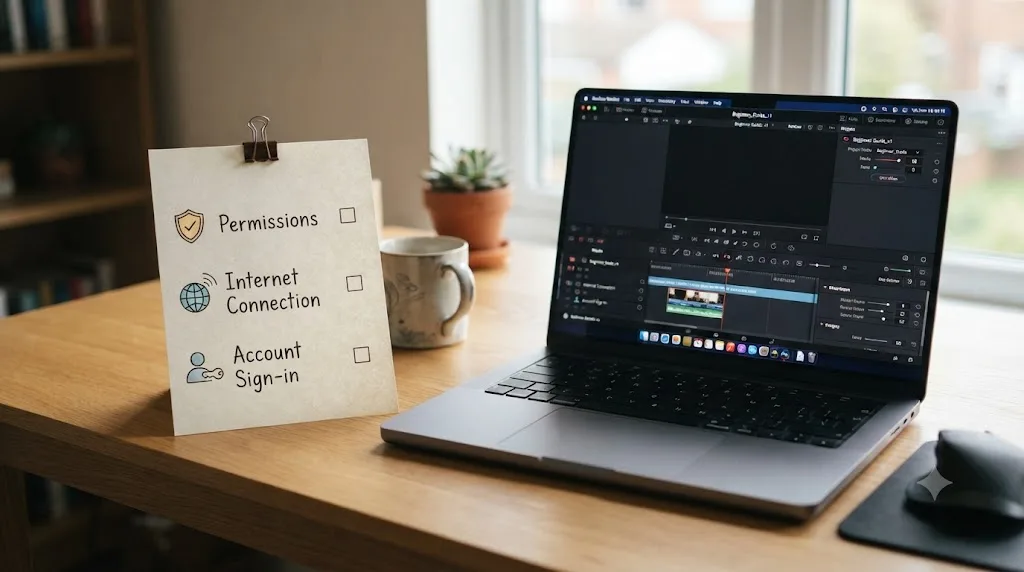
- Grant the permissions macOS asks for. Screen Recording and Accessibility are required for Uncle to function at all. Microphone is optional, only needed if you want to use Talk.
- Subscribe. $34.99 a month, cancel anytime, covered in full below.
- Open DaVinci Resolve and open TryUncle alongside it. You're ready. No tutorial video required before you touch your own project, which is the whole point.
The permissions step is worth understanding rather than clicking through blindly, since a beginner is the most likely person to skip one and then be confused why Uncle "isn't working right."
| Permission | Why it matters for a beginner specifically | What breaks if you skip it |
|---|---|---|
| Screen Recording | Without it, Uncle has no view of your project at all | Uncle can't answer anything, since it can't see what you're stuck on |
| Accessibility | Turns the raw screen image into a map of labeled, located controls | Uncle can still talk you through an answer, but it loses the ability to draw the box or move the cursor, the exact feature that matters most for someone who doesn't know a control's name yet |
| Microphone (optional) | Enables Talk (Shift+Fn) | You lose voice questions, but Check and Type still work fully, so this one is genuinely optional |
Accessibility is the permission a beginner should least consider skipping, even though it sounds like the more optional-feeling of the two. Screen Recording alone gets you a spoken description of where something is. Accessibility is what turns that description into an actual box drawn around the control, and for someone who doesn't yet have the vocabulary to translate "third icon in the toolbar" into a location, that visual pointing is doing more work than it would for an experienced editor who could probably find the icon from the verbal description alone.
One more thing worth knowing before you commit fifteen minutes to setup: Uncle needs an internet connection to work at all, since the reasoning that understands your screen runs in the cloud, not locally on your Mac. If you're planning to learn Resolve somewhere without reliable wifi, a coffee shop with spotty service, a flight, that's a real constraint on this specific tool, not a hypothetical one.
Do You Need DaVinci Resolve Studio, or Does the Free Version Work for a Beginner?
The free version is genuinely enough to start, and it's worth being direct about that instead of nudging you toward a purchase you don't need yet. DaVinci Resolve's free edition supports resolutions up to Ultra HD at up to 60fps, includes HDR grading, and covers the entire core workflow: editing, node-based color, Fairlight audio, and Fusion compositing. TryUncle itself works identically on both the free edition and Resolve Studio, so a beginner isn't locked out of the tutor by sticking with free.
What actually changes between the two versions is a specific, named list of AI-powered Neural Engine features: Magic Mask, Voice Isolation, Speed Warp, and Smart Reframe are all Studio-only, according to Blackmagic's own product page. None of them are things a complete beginner needs in week one. They're automation shortcuts for tasks, isolating a subject automatically, cleaning up noisy audio automatically, that assume you already know how to do the manual version first.
Resolve Studio itself is a one-time $295 purchase, not a subscription, no annual fee attached. That's worth having in your head next to TryUncle's own price, since a beginner weighing "should I buy Studio or subscribe to a tutor" is comparing two genuinely different things: Studio unlocks specific automated features permanently, while TryUncle is ongoing guidance on whatever version of Resolve you're already running.
| DaVinci Resolve Free | DaVinci Resolve Studio | |
|---|---|---|
| Cost | $0 | $295 one-time |
| Core editing, color, Fusion, Fairlight | Included | Included |
| Max resolution | Up to Ultra HD 3840x2160 | Higher, plus additional format support |
| Magic Mask, Voice Isolation, Speed Warp, Smart Reframe | Not included | Included |
| Works with TryUncle | Yes | Yes |
A complete beginner doesn't need to spend $295 before they've finished a single project. Start on the free version, learn the fundamentals with TryUncle pointing at whatever's actually on your screen, and only consider Studio once you hit a specific task, isolating a moving subject without hand-tracking it, say, that the free edition genuinely can't do. Buying Studio on day one because a listicle told you to is a common and avoidable beginner expense.
What Are the Most Common Beginner Mistakes TryUncle Catches Early?
Some mistakes are worth naming specifically, since they show up across nearly every complete beginner's first few sessions, and knowing they're common (rather than a personal failing) changes how you react when TryUncle catches one.
Grading on an uncalibrated laptop screen and trusting your eyes over the scopes. A beginner's first instinct is to adjust color until it "looks right" on whatever monitor happens to be open. Laptop screens vary wildly in how they render color, and a shot that looks correctly exposed on one MacBook can look crushed or blown out on another. Ask Uncle to check your grade, and if your blacks are actually crushed below broadcast-legal range on the waveform, it can point you at the scope reading instead of letting you trust a screen that's lying to you.
Building a title directly on top of footage instead of a new track. Covered above under timeline basics, but common enough to repeat: a beginner tries to drag a Text+ element onto the same track as their video clip, and it either replaces the footage or refuses to layer. The fix, adding a new track above, is a one-click action once you know it exists.
Not realizing proxy media is active and wondering why quality looks soft. Resolve can generate lower-resolution proxy files to keep playback smooth on slower Macs, and a beginner who doesn't know this setting exists sometimes panics that their footage is permanently degraded. It's a display setting, not a destructive one, and Uncle can confirm proxy mode is on and point at the toggle to switch back to full resolution for final review.
Exporting with the wrong frame rate or resolution for the destination. Covered above, but it's the single most common "why does my export look wrong" question a beginner asks, and it's a pure delivery-specs question TryUncle explicitly covers.
Assuming a grade that looks good on one clip will look good on every clip. A beginner grades their first shot, loves it, copies the grade to every other clip in the timeline, and is confused when half of them look wrong. Different shots have different exposure and white balance even within the same scene, and copying a grade blind skips the matching step that should come first.
Confusing a technical bug with a judgment call. This one is subtle and worth naming on its own, because it wastes more beginner time than almost anything else. A clip playing back at the wrong speed is a fact-based technical problem with one correct fix, a frame rate mismatch, not something you should be second-guessing your own creative instincts about. A grade that looks flat to a reviewer is a judgment call that needs a second opinion, not a setting. Beginners regularly treat the first kind like the second, sitting there wondering if their eye for color is bad when the actual problem is a mismatched project setting that has nothing to do with taste.
None of these six mistakes are signs a beginner lacks aptitude for DaVinci Resolve. They're the same six mistakes almost everyone makes in their first month, discovered the hard way instead of pointed out in the moment. The value TryUncle adds here isn't teaching anything conceptually new. It's catching the mistake at the moment it happens, on your own project, instead of you discovering it three projects later when the habit's already half-formed.
Is TryUncle a Replacement for a Beginner Course, or Should You Do Both?
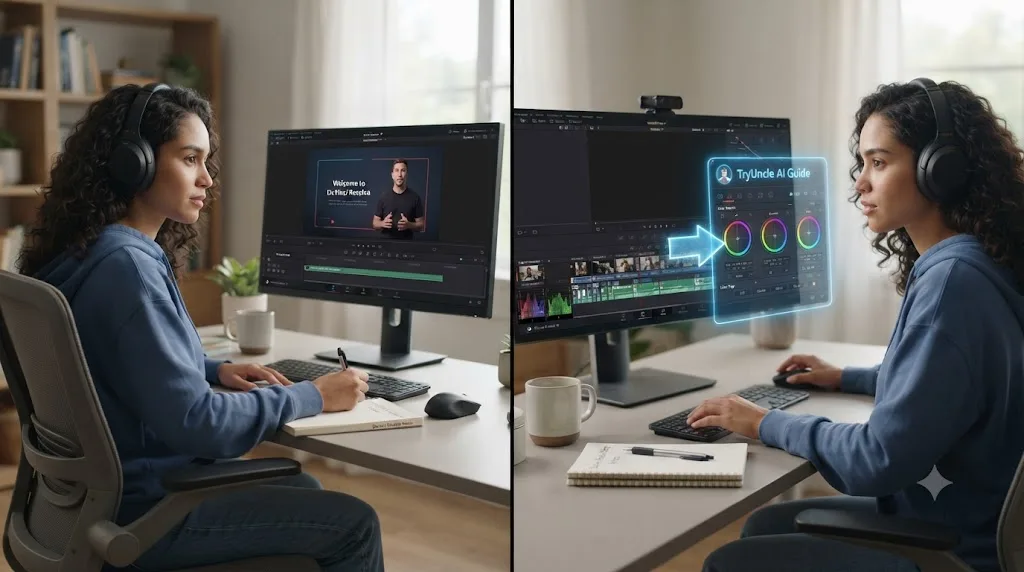
Neither extreme is the honest answer. TryUncle isn't a course, and it isn't trying to be one. A course teaches a fixed sequence, in a fixed order, whether or not that order matches what you're actually stuck on today. TryUncle answers the question you have, about the project you're actually editing, at the moment you're stuck. Those are genuinely different jobs, and the strongest approach for most complete beginners combines both rather than picking one.
Research on how skill actually forms backs this up more directly than it might seem to at first. Seymour Papert, the MIT researcher who spent decades studying how people acquire skills, built his theory of constructionism around a specific claim, stated plainly in his own words:
"Constructionism means 'Giving children good things to do so that they can learn by doing much better than they could before.'"
That's Papert, quoted directly from a piece on his work. His point wasn't that instruction is useless. It's that watching and making are different cognitive activities, and only making leaves behind a skill you can use again once the original source isn't in front of you. A short orientation video, the kind that shows roughly where things live and the rough order operations happen in, satisfies a real need efficiently. It's a fine map for someone who doesn't know where anything is yet. It just can't build the judgment that only forms when you're grading your own shot and finding out, in the moment, whether your decision was right.
Mitchel Resnick, who leads the Lifelong Kindergarten research group at the MIT Media Lab and holds the LEGO Papert Professor of Learning Research chair there, has described the philosophy behind his group's research this way:
"I've always been inspired by the way children learn in kindergarten. When I think of the classic kindergarten, I think of children playfully creating things in collaboration with one another."
That's Resnick, quoted directly in Edutopia's coverage of his work. Applied to a complete beginner opening DaVinci Resolve for the first time, the practical version of his research is straightforward: a small, low-stakes project of your own, something you're willing to get wrong, teaches more per hour than a comprehensive course watched start to finish, because you're the one making the decisions, and decisions are where the learning actually happens.
There's harder data behind the same conclusion. A University of Pennsylvania study tracked one million users across sixteen free Coursera courses and found an average completion rate of just 4%. That number isn't specific to DaVinci Resolve courses, but a Resolve bootcamp is structurally the same format: pre-recorded video, fixed sequence, an instructor who's already made every decision for you. A course is a fine map for someone who doesn't know where anything is yet. It is not, on its own, a mechanism that reliably gets someone to actually finish anything, and the completion data says that plainly, across every subject MOOCs have ever tried to teach.
Here's the practical combination worth using, rather than treating this as an either-or choice:
| Resource | What it's actually good for | What it can't do |
|---|---|---|
| A single short orientation video | Roughly where things live, the rough order operations happen in | Answer "does this look right, on my footage, right now" |
| Blackmagic's free official training | Structured, accurate fundamentals at your own pace | React to the specific mistake you just made |
| A paid course (Udemy, Skillshare) | A curated sequence with a defined endpoint | Adapt to a stuck point that doesn't match its script |
| TryUncle | Live correction on your own project, at the moment you're stuck | Replace the orientation a beginner still benefits from having first |
The practical sequence: watch one short orientation video, not a playlist, so you have the barest map. Open your own project immediately after. Use TryUncle for every "where is this" and "is this right" moment that follows. That combination, one map plus live correction, closes both the vocabulary gap and the judgment gap that a course alone, or a tool alone, each leave open on their own. Our full breakdown of the research behind this, covering deliberate practice, retrieval, and why the correction is supposed to fade as you improve, lives in the best way to learn DaVinci Resolve, and our comparison of every AI tool available for this, ChatGPT, Claude, Blackmagic's guides, and TryUncle side by side, is in the best AI tools to learn DaVinci Resolve.
What Does TryUncle Cost, and Is It Worth It for Someone Who's Never Opened Resolve?
TryUncle has never been free, and it isn't marketed that way. It has one flat price:
| Plan | Price | Terms |
|---|---|---|
| TryUncle | $34.99/month | Cancel anytime, 14-day refund, no explanation required |
Billing runs through a third-party subscription platform, and the refund window is described as no-questions-asked, a stronger commitment than the vaguer "satisfaction guaranteed" language a lot of software uses.
For a beginner specifically, the honest framing is a comparison, not a verdict handed down for you. Skillshare runs roughly $14 to $32 a month depending on billing cycle, and Udemy courses range from about $10 to $200 individually, both of which get you a library of pre-recorded videos across many subjects, DaVinci Resolve included. TryUncle at $34.99 a month lands at the top of that range, and what you're paying for is structurally different: not a library to watch, but a tutor that watches your specific project.
A year of TryUncle runs about $420, which is more than the entire one-time $295 purchase of Resolve Studio itself. That's a real number worth having in your head before you subscribe to anything, and it's not a knock on TryUncle specifically, a tutoring subscription and a software license solve different problems.
Is it worth it for a complete beginner specifically? That depends on what you're actually trying to avoid. If your bottleneck is motivation, wanting someone or something to keep you accountable to actually finishing a project, TryUncle doesn't solve that; it answers questions, it doesn't nag you to open the app. If your bottleneck is getting stuck on "where is this" and "is this right" over and over until you give up out of frustration, that's the specific problem TryUncle is built to remove, and the 14-day refund window means the actual cost of testing that hypothesis on your own workflow is low.
What Can't TryUncle Do for a Complete Beginner?
Honesty matters more than a clean pitch, especially aimed at someone deciding whether to spend their first month of learning Resolve on a paid tool. Here's what TryUncle doesn't do, stated plainly.
It's macOS only. If you're a beginner on a Windows PC, this tool isn't available to you at all, full stop. You'll need Blackmagic's free training, YouTube, or a course platform instead.
It needs an internet connection, always. No offline mode exists, since the reasoning runs in the cloud. If you're learning somewhere without reliable wifi, that's a real limitation on this specific tool.
It's a paid subscription from the first day. There's no free tier, no "free during early access." A beginner testing the waters is committing $34.99 a month, offset by the 14-day refund guarantee.
It doesn't teach in a fixed sequence. If you're the kind of learner who genuinely needs a structured, weekly syllabus to stay accountable, and a fixed course with milestones is what actually keeps you going, TryUncle's reactive, ask-when-stuck model may feel less structured than what you need. It answers questions well. It doesn't hand you a curriculum.
It's not a certificate program. If you need a credential for a job application or a client pitch, Blackmagic's own free training and certification path is the correct resource, not TryUncle.
Fairlight audio coverage is unconfirmed. Named coverage is Edit, Color, Fusion, and delivery specs. A beginner stuck specifically on audio mixing or noise reduction may get a weaker answer there than on the three named pages.
It doesn't do the editing for you. Uncle points at the control. You still make the creative decision and do the click. No tool, this one included, shortcuts the repetition that turns a shown technique into a skill you actually own.
None of these limits mean TryUncle is a bad fit for beginners. They mean it's a specific tool solving a specific problem, and it's worth knowing exactly which problem before you subscribe. A beginner on Windows, without reliable internet, or who genuinely needs a structured syllabus with milestones, is better served starting somewhere else, at least until circumstances change.
How Does TryUncle Compare to Other Ways a Beginner Can Learn DaVinci Resolve?
| Option | Cost | Watches your actual project? | Structured curriculum? | Best fit for a beginner who... |
|---|---|---|---|---|
| Blackmagic free training | Free | No | Yes, six books deep | Wants a sequenced, official path and doesn't mind reading before doing |
| YouTube tutorials | Free | No | No, scattered by creator | Wants a quick answer to one narrow "how do I" question |
| Udemy / Skillshare courses | Per-course or subscription | No | Yes | Wants accountability from a fixed schedule with milestones |
| ChatGPT / Claude | Free tier or paid | No, text only unless you paste a screenshot | No | Has declarative questions, "what does this term mean," and doesn't mind describing the problem in words |
| TryUncle | $34.99/month | Yes, live | No, reactive to your own project | Learns best by doing, on real footage, and wants correction the moment something's wrong |
None of these are wrong choices for a beginner. They solve different problems, and the honest recommendation for most people starting from zero is a combination, not a single winner: one short orientation resource (a video or Blackmagic's Beginner's Guide) for the barest map, then TryUncle or an active community for the live correction that actually builds the judgment a map alone can't. Our full side-by-side of every AI tool for learning Resolve, including where ChatGPT and Claude genuinely help and where they get Fusion node logic confidently wrong, is in the best AI tools to learn DaVinci Resolve.
What Do Beginners and Early Users Actually Say?
Worth being direct about what this section is and isn't. These are testimonials TryUncle publishes on its own site, named early users, not independent third-party reviews, so read them the way you'd read any vendor-selected quote: an example of a best-case outcome, not a guarantee of your own results.
"It pointed at the qualifier, I pulled it, the skin held." Devon K., music video colorist
"Blown-out sky in a wedding edit. I asked, it circled the fix, done before my coffee went cold." Priya S., wedding filmmaker
"I quoted motion graphics I had never built. Uncle walked me through Fusion node by node. Invoice paid." Marcus T., corporate video editor
None of these three are self-described complete beginners; they're working editors describing a specific stuck moment resolved fast. That's worth naming honestly, since it's a slightly different use case than someone who's never opened Resolve at all. What the pattern across all three does show is the underlying mechanism working as described: a specific problem, on a specific project, resolved without leaving the app or pausing a video first, which is exactly the mechanism this guide has argued matters more for a total beginner than for anyone else, since a beginner hits that exact kind of stuck moment more often than an experienced editor does.
Treat your own trial period, covered by the 14-day refund guarantee, as the test that actually matters. Open Resolve for the first time, get stuck on purpose, and see whether having the answer pointed at on your own screen gets you unstuck faster than searching would.
What Do You Do When TryUncle Isn't Working Right on Your First Try?
Most first-session problems trace back to the same handful of causes, worth checking in order before assuming something's broken, since a beginner is the person most likely to assume a setup hiccup means the whole tool is faulty.
| Symptom | Likely cause | What to check |
|---|---|---|
| Uncle won't respond at all | No internet connection, or Screen Recording permission not granted | Confirm you're online, then check System Settings > Privacy & Security > Screen Recording |
| Uncle answers in words but never draws a box or moves the cursor | Accessibility permission not granted | Check System Settings > Privacy & Security > Accessibility |
| Voice questions (Shift+Fn) do nothing | Microphone permission not granted | Check System Settings > Privacy & Security > Microphone, or switch to Type as a workaround |
| Uncle points at the wrong control | The panel you meant isn't the one that's actually focused | Click into the specific panel you're asking about before you ask |
| You can't sign in | Google sign-in hiccup | Sign out and back in with the same Google account you subscribed with |
| Uncle's answer doesn't match a control you can see | You might be on the wrong Resolve page for the question you asked | Confirm you're on the page (Edit, Color, or Fusion) that actually matches your question |
If none of that resolves it, TryUncle's own support contact, listed on its site, is the fastest path, since a young product changes its setup flow faster than any guide can track.
Should You Start With TryUncle on Day One, or Warm Up First?
Start on day one, with one caveat worth naming clearly. Nothing about TryUncle requires you to already know anything about Resolve, since Check alone removes the need to name what you're stuck on before asking about it. Waiting until you "know enough to ask good questions" is a trap a lot of beginners fall into with every learning resource, not just this one, and it usually just delays the moment you'd actually start learning by doing.
The one caveat: watch a single short orientation video first, five to ten minutes, not a playlist. You need three things before you touch anything: a rough sense of where the six pages live, the rough order operations usually happen in (import, edit, color, export), and the one setting that would otherwise break your first attempt if nobody told you it existed. That's genuinely all a video needs to give you. Everything past that point, TryUncle's live pointing does better than a second, third, or fourth video ever will, because it's reacting to your actual footage instead of a curated demo clip.
Here's the sequence that follows from everything covered in this guide:
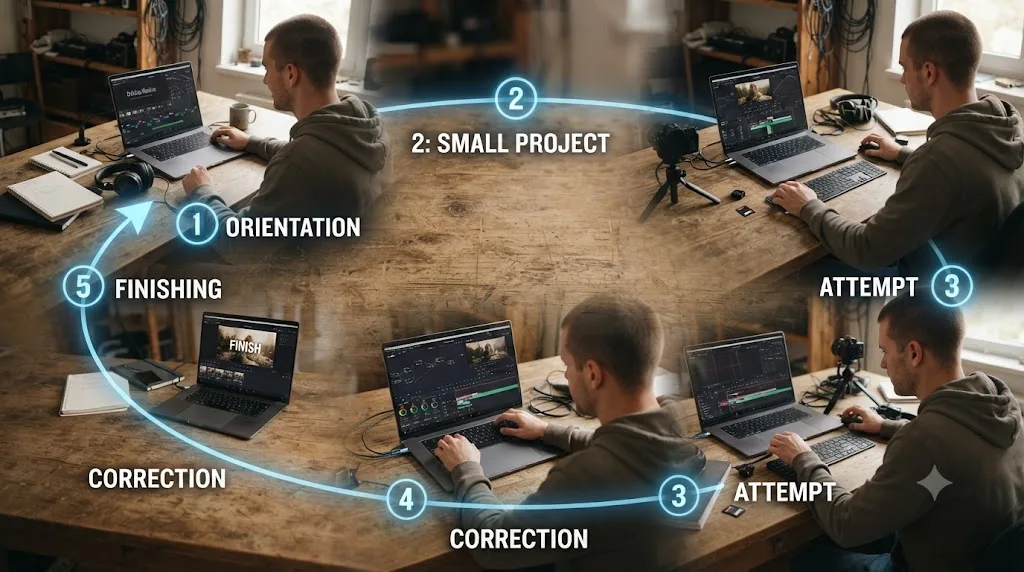
- Install DaVinci Resolve and TryUncle, following the setup steps above.
- Watch one short orientation video, just enough to know roughly where the six pages are and what order things usually happen in.
- Pick a project small enough to finish in one sitting, on your own footage, not a demo clip.
- Attempt the task without a video paused beside you. Use Check when you don't know what to call your stuck point, Talk or Type when you do.
- Get corrected on the specific thing you just did, not a general explanation of the feature.
- Finish it, badly if necessary, and start a second one. The loop closes when you finish, since finishing is what exposes the next real gap.
None of this requires abandoning free resources entirely. It just changes what they're for: a quick answer to a specific fact, or a five-minute map before you start, not the whole plan.
So here's the actual verdict, stated as plainly as it can be. If you're a complete beginner on a Mac, willing to spend $34.99 a month, and you'd rather have the exact control pointed at on your own screen than pause a video and hunt for it yourself, TryUncle is arguably a better fit for you than for almost anyone else it's marketed to, precisely because a beginner hits the "where is this" wall constantly, and that's the specific question it's built to answer. If you're on Windows, need a certificate, can't rely on internet access, or genuinely learn best from a fixed weekly syllabus, start with Blackmagic's free training or a structured course instead, and revisit TryUncle once those constraints change.
Either way, don't take a blog post's word for the mechanism over the marketing copy. Install DaVinci Resolve, open your own footage, get stuck on purpose, and see whether having the answer pointed at on your own screen actually gets you unstuck faster than a forum search would. That test, run inside the 14-day refund window, is the only review that matters, and you can run it yourself at TryUncle.
Frequently asked questions
- Is TryUncle actually good for someone who has never opened DaVinci Resolve before?
- Yes, with one condition: you still need to install Resolve and open a project first, since TryUncle watches your screen rather than teaching in the abstract. Once you're inside the app, it's arguably better suited to a total beginner than to an advanced editor, because a beginner hits the 'where is this' wall constantly, and that's the exact question Uncle is built to answer by pointing instead of describing.
- Do I need to learn DaVinci Resolve's basics before I start using TryUncle?
- No. That's the point it's built around. A traditional course assumes you'll sit through the basics before touching your own footage. TryUncle assumes the opposite: open your own project on day one, ask Uncle when you're stuck, and let the basics get taught in the order your actual confusion happens in, not the order a curriculum happened to film them.
- Does TryUncle replace a beginner course entirely?
- Not entirely, and it isn't marketed that way. Courses and official documentation are still efficient for pure vocabulary, what a term means, roughly where a category of tool lives. TryUncle is for the much larger category a course can't touch: knowing whether the specific thing you just did on your own footage is right. Most beginners get more out of pairing a short orientation video with TryUncle than using either alone.
- How much does TryUncle cost for a beginner, and is it worth the price?
- TryUncle is a paid subscription, never free, at $34.99 a month with cancel-anytime billing and a 14-day refund guarantee. Whether it's worth it depends on how much you value getting unstuck immediately versus digging through a manual or a forum thread yourself.
- Does TryUncle work with the free version of DaVinci Resolve, or do I need Studio?
- TryUncle itself works with both the free edition and DaVinci Resolve Studio, so a beginner on the free version isn't locked out. What changes is which Resolve features exist for Uncle to point at. Studio-only tools like Magic Mask, Voice Isolation, and Speed Warp simply won't be there to ask about until you upgrade, but everything in Edit, Color, and Fusion that ships with the free version is fully covered.
- What's the first thing a complete beginner should actually ask Uncle?
- Something concrete on your own footage, not a general question like 'teach me DaVinci Resolve.' A beginner-friendly first ask is closer to 'how do I trim this clip without leaving a gap' or 'why does my exported video look different from what I see in the Viewer.' Uncle answers questions about a specific thing on your specific screen far better than it answers an open-ended request for a curriculum, because it isn't one.
- Is TryUncle available for beginners on Windows or Linux?
- No. TryUncle is macOS only, with no Windows or Linux build in progress as far as this guide can confirm. A complete beginner editing on a Windows PC will need to rely on Blackmagic's free training, YouTube, or a course platform instead, at least until that changes.
Sources
- TryUncle
- TryUncle FAQ
- TryUncle Privacy Policy
- DaVinci Resolve Training (Blackmagic Design)
- DaVinci Resolve - Studio (Blackmagic Design)
- DaVinci Resolve free vs Studio: What's included in each version (Storyblocks)
- Seymour Papert on constructionism, quoted in Constructionism vs. Instructionism (The Daily Papert)
- Using Tech Creatively Through Playful Learning (Edutopia, quoting Mitchel Resnick)
- Deslauriers, McCarty, Miller, Callaghan, Kestin: Measuring actual learning versus feeling of learning in response to being actively engaged in the classroom (PNAS, 2019)
- MOOC completion rate just 4%, study says (Higher Ed Dive)
- Zone of proximal development - Wikipedia
- DaVinci Resolve 21 (Learning Group) - Facebook
Learn by doing, not watching
Stop translating tutorials to your timeline.
TryUncle stays beside Resolve on Mac and Windows. When you ask, Uncle sees your screen and points at the exact control you need. No hunting through tabs, timestamps, or mismatched tutorials.
Meet TryUncleKeep reading
 GuidesJul 12, 202637 min read
What Is TryUncle? The Assistant Built Into DaVinci Resolve
TryUncle is a macOS assistant that watches your DaVinci Resolve screen and points at the exact control live, so you learn by doing, not watching.
 GuidesJul 12, 202641 min read
The Best Way to Learn DaVinci Resolve (What the Research Says)
Guided, hands-on practice inside DaVinci Resolve beats video courses and MOOCs. Here's the learning-science research behind why, and how to apply it.
 ComparisonsJul 11, 202626 min read
The Best AI Tools to Learn DaVinci Resolve in 2026
ChatGPT, Claude, Blackmagic's free training, Recut, and Resolve's Neural Engine compared for learning DaVinci Resolve, and the gap none of them close.