
Learn / DaVinci Resolveupdated for DaVinci Resolve 21.1 (October 2026)
AI Assistant for Fusion in DaVinci Resolve: 2026 Guide
Quick answer
The best AI assistant for Fusion in DaVinci Resolve depends on the job. DaVinci Resolve 21.1 adds native assistant integration for repetitive tasks, while editing agents such as Eddie and Sottocut focus on footage and timelines. For learning nodes, controls, and a live Fusion problem, a screen-aware assistant such as TryUncle is the closer fit.
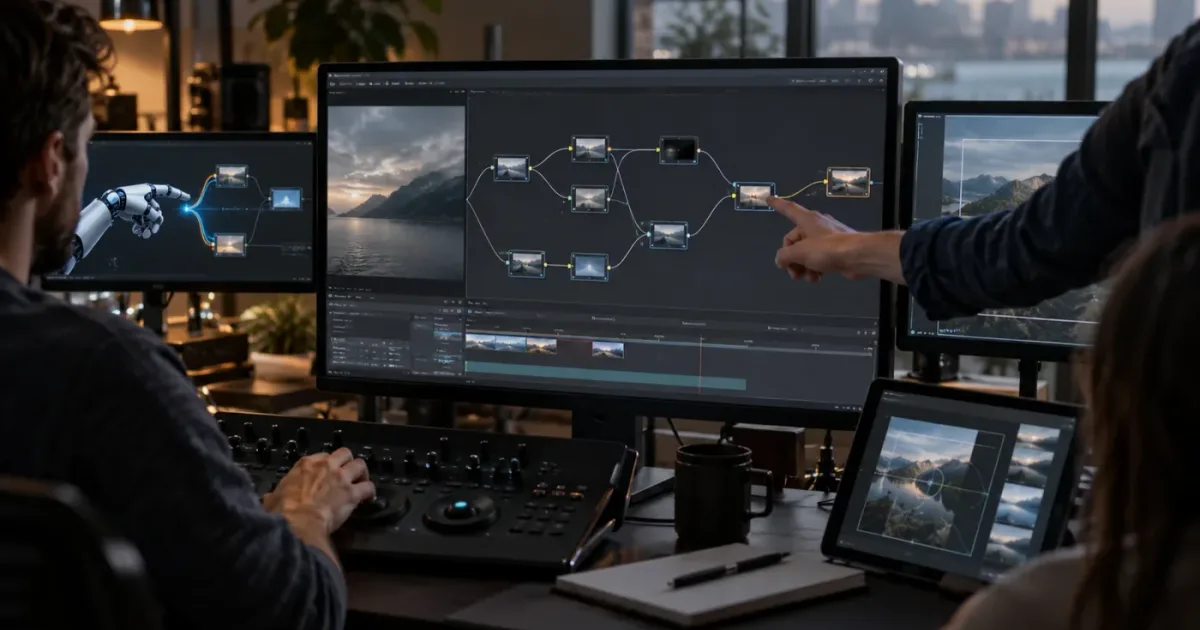
DaVinci Resolve has never had a single kind of AI problem. Sometimes you want an assistant to sort media or batch a render. Sometimes you want a rough cut. In Fusion, you usually want something more precise: “Which node should I add, why is this Merge backwards, and where is the control I need on this screen?”
As of October 2026, DaVinci Resolve 21.1 includes AI assistant integration for selected conversational tasks, and Fusion 21.1 has its own manual and expanding toolset. That makes the phrase “AI assistant for Fusion in DaVinci Resolve” more complicated than a list of chatbots. The useful question is what kind of help you need.
TryUncle is the on-screen assistant for DaVinci Resolve on Mac and Windows — ask in plain words and Uncle points at the exact control on your screen.
What is the best AI assistant for Fusion in DaVinci Resolve?
The best AI assistant for Fusion in DaVinci Resolve depends on whether you want the software to act, a chatbot to explain, an editing agent to assemble footage, or a screen-aware tutor to show you the next control. Those are different jobs, and buying the wrong category creates a new problem instead of solving the old one.
Fusion is the compositing and motion graphics environment inside DaVinci Resolve. Blackmagic Design describes Fusion as a tool for visual effects, animation, paint, keying, rotoscoping, compositing, lighting, and particles, with both 2D and 3D workspaces. Its node graph is powerful because each operation is visible and editable. It is also why generic “click here” advice often fails. A tutorial may use a different node order, a different viewer layout, a different frame, or a different version of Resolve.
The comparison below uses four practical categories rather than pretending every product is interchangeable.
| Assistant type | What it does well | What it does not promise | Best fit in Fusion | Main trade-off |
|---|---|---|---|---|
| DaVinci Resolve 21.1 native AI assistant integration | Conversational help for selected Resolve tasks such as organizing media and batch rendering | A universal Fusion teacher or a guarantee that generated changes are correct | Editors who want to reduce repetitive Resolve work | Availability and behavior depend on Resolve version, edition, assistant integration, and permissions |
| Screen-aware assistant such as TryUncle | Looks at the editor's screen and points to the relevant control while the editor works | Automatic editing or a finished composition without human decisions | Learning nodes, finding Inspector controls, and resolving a stuck project-specific question | Paid product, cloud processing and screen privacy need consideration |
| Editing agent such as Eddie | Logs footage, analyzes media, makes rough cuts, and sends project data back to Resolve | Step-by-step Fusion instruction inside the node graph | Editors who want a faster path from rushes to an edit | Stronger for footage and timeline work than for Fusion education |
| Local-first assistant editor such as Sottocut | Scores footage, proposes a cut, and verifies timeline changes inside an open Resolve project | A general Fusion tutor | Editors focused on selecting and arranging footage | It solves an editing problem, not every compositing question |
| General chatbot | Explains terms, suggests node structures, and helps interpret documentation | Reliable awareness of the exact project state unless you provide it | Planning a comp, learning vocabulary, or checking a concept | You still have to translate prose into the right node and control |
The short verdict is simple. If you want Resolve to perform a repetitive project task, start with the native 21.1 integration and read its current documentation. If you want a rough cut from interviews, look at an editing agent. If you are stuck in the Fusion page and need to understand the control in front of you, use a screen-aware assistant or a human-led learning workflow.
An AI editor, an AI chatbot, and an on-screen tutor solve three different problems in DaVinci Resolve.
Is DaVinci Resolve 21.1's AI assistant a Fusion assistant?
DaVinci Resolve 21.1's AI assistant integration is a Resolve workflow feature, not proof that every Fusion question can be solved automatically. Blackmagic's September 2026 release says customers can ask assistants such as Claude, Claude Code, and ChatGPT Codex to analyze projects, organize media, adjust settings, and batch render using conversational language. The release also says Resolve 21.1 adds more than 25 Krokodove tools in Fusion and 20 new scripting APIs.
That distinction matters because “AI assistant for Fusion” can mean two things:
- An assistant that operates on Resolve tasks while a Fusion composition is part of the project.
- An assistant that understands a Fusion node graph and teaches you how to build or repair it.
The first is automation. The second is instruction and diagnosis. They can overlap, but they are not the same capability.
Blackmagic's 21.1 release uses concrete examples such as highlight edits, media organization, and batch rendering. Those are useful examples of repetitive work. They do not establish that the assistant will infer your artistic intent, choose the correct coordinate space, reconnect a broken mask, or understand why a 3D merge is producing an unexpected result. You should treat any generated change as a proposal that needs inspection.
The version number is important. The official Blackmagic support page lists DaVinci Resolve 21.1 and Fusion 21.1 manuals dated September 8, 2026. Older advice about Resolve 20, Resolve 19, or an earlier beta may describe different menus, permissions, scripting hooks, or assistant behavior. If a guide tells you that a control does not exist, check the version before deciding that your installation is broken.
The edition matters too. Blackmagic's support listing distinguishes the free DaVinci Resolve 21 update from the Studio 21 update, and the Studio update includes features such as new AI tools and the Krokodove toolset. The product comparison page lists DaVinci Resolve Studio 21 at $295, while the free edition remains available. That price is a software-license fact from Blackmagic, not a reason to buy Studio for every Fusion task.
Grant Petty, Blackmagic Design's CEO, described the 21.1 direction this way: “With AI assistant support, our customers can now ask Claude or ChatGPT to handle repetitive tasks such as create highlight edits, organizing media or batch rendering, which frees them up to focus on creative decisions.” The quote is useful because it tells you what Blackmagic is trying to automate. It does not say that an AI will replace the editor's judgment in a Fusion comp.
How do you choose between automation and instruction?
Choose automation when you already know the result you want and the task is repetitive. Choose instruction when you are still deciding what a node, control, or workflow is supposed to do. The difference is the amount of judgment you want to keep in your hands.
Here are four questions that expose the difference quickly:
| Your real question | Better starting point | Why |
|---|---|---|
| “Can Resolve organize these clips or batch this render?” | Resolve 21.1 assistant integration or scripting | The task has a clear operational outcome and can be checked afterward |
| “Can an AI find the best soundbites from this interview?” | Eddie, Sottocut, or another editing agent | These products focus on media analysis, selection, and rough-cut workflows |
| “Why is my Merge node showing the foreground behind the background?” | Fusion documentation plus a screen-aware guide | The answer depends on the actual node connections and the control state in your comp |
| “Where is the mask or tracker control on my screen?” | A screen-aware assistant or a human instructor | The problem is visual location, not only conceptual knowledge |
| “How should I design this title animation?” | Blackmagic training, a Fusion course, or a chatbot for planning | You need principles and examples before you need automation |
The best way to learn DaVinci Resolve is still a mix of structured practice, official documentation, and real projects. Our guide to the best way to learn DaVinci Resolve covers why a single source rarely teaches every page well. For Fusion, that mix is even more important because the page combines compositing, animation, tracking, paint, and 3D work.
An assistant can shorten the distance between a question and the next action. It cannot decide whether your visual idea needs a mask, a keyer, a tracker, a transform, a duplicate branch, or a 3D scene without enough context. Even when it suggests the right node, you still need to know what the node is doing so you can tell when the result is wrong.
Automation is fastest when the desired result is already clear; instruction is better when the editor is still forming the solution.
Why does Fusion feel harder for a generic AI assistant?
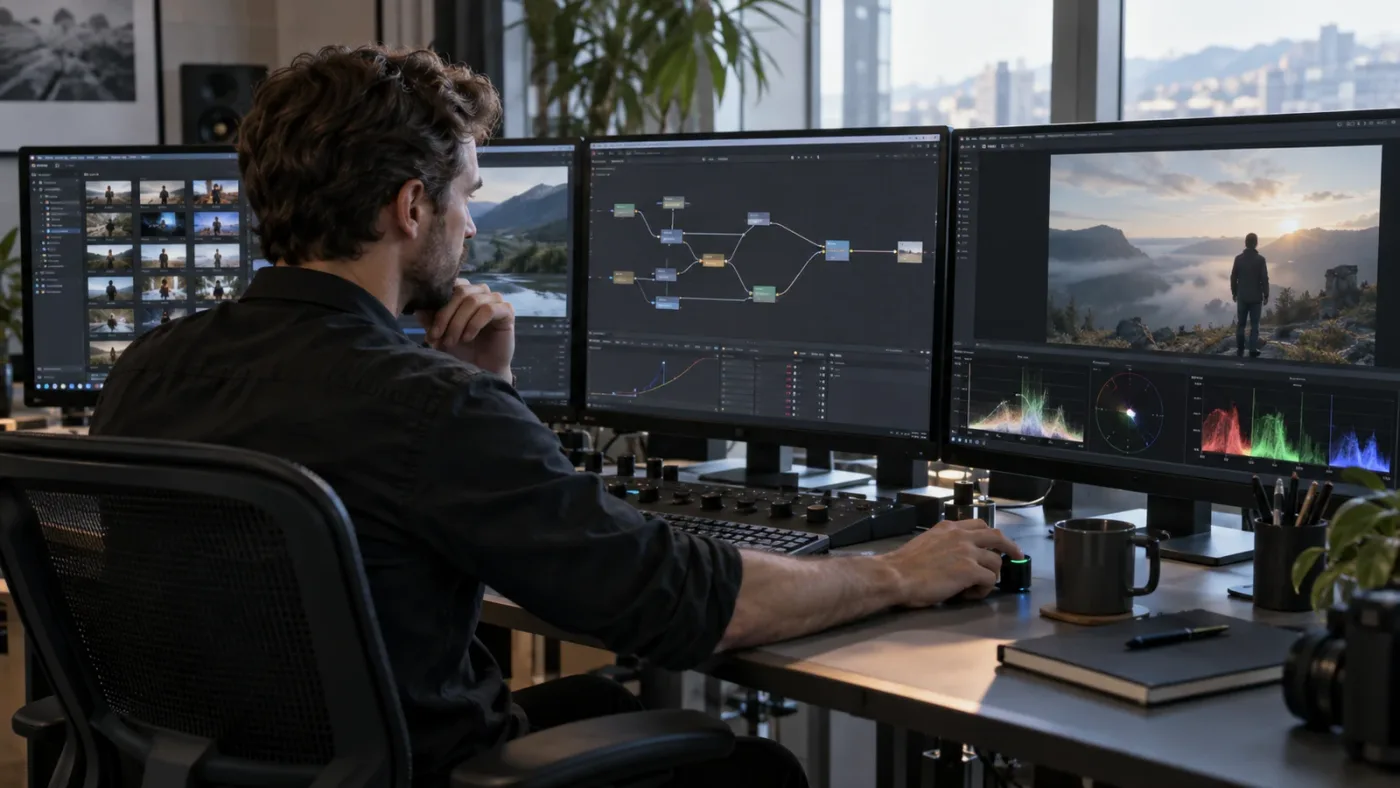
Fusion feels harder for a generic AI assistant because the same visible result can come from several node structures, and the correct answer depends on connections, frame range, image domain, masks, transforms, and viewer state. A text-only answer can be technically true and still fail in your project.
Consider a simple request such as “make the title follow the screen.” That may involve planar tracking, a tracker, a transform, a merge, a mask, or a 3D camera depending on the shot. A chatbot can describe each option. It cannot know which option best matches your clip unless you provide enough visual and technical detail.
The same issue appears with keying. “Remove the green background” sounds like one action, but the result depends on the footage, the keyer, despill, garbage mattes, edge treatment, motion blur, and the background you will composite behind the subject. A screen-aware assistant can at least see which page, node, or Inspector you have open. A generic chatbot sees only the words you type.
Node graphs also have hidden relationships. A Merge node has a foreground input and a background input. A mask can affect a tool or an entire branch. A transform placed before a merge behaves differently from a transform placed after it. A viewer can show one node while the output is connected to another. A response that says “connect the node” without naming the exact input may send a beginner in the wrong direction.
Version drift adds another layer. DaVinci Resolve 21 and 21.1 add tools, controls, and integration behavior that did not exist in earlier releases. The official Resolve 21 features guide says the Krokodove toolset brought more than 70 new graphics to Fusion in the initial release, while the 21.1 release describes more than 25 new Krokodove tools and additional APIs. If a tutorial is older, the underlying concept may still work, but the path to the control may not.
This is why the phrase “AI assistant for Fusion” should not be evaluated by how impressive the demo sounds. Ask whether the product can see your current page, understand the node graph, identify the control, explain the reasoning, and leave the final decision with you. Those are separate tests.
How do I use an AI assistant without letting it damage a Fusion composition?
Use an AI assistant on a duplicate project or saved version, ask for an explanation before an action, and verify every changed node, connection, keyframe, mask, and render setting. The safest Fusion workflow treats AI output as a suggestion until the comp survives a visual and technical check.
Start with a reversible question. Ask, “What is wrong with this node graph?” before asking, “Fix this comp.” A useful answer should name the likely cause, the control or connection involved, and the reason the change would help. If it cannot explain the change, do not let it make the change on a client project.
Then narrow the request. Fusion questions improve when you include:
- The DaVinci Resolve version, such as 21.1.
- Whether you are using the free edition or Studio.
- The intended result, such as “put text behind the tracked subject.”
- The node types already in the graph.
- The input and output that currently connect the branch.
- The frame range where the problem appears.
- Whether the issue is visual, technical, or a control-location problem.
Avoid prompts that mix five decisions into one sentence. “Track this, key it, make it cinematic, fix the edges, and render it for Instagram” is not a precise instruction. Break it into stages: inspect the source, create the track, apply the track to the object, refine the matte, composite the result, then deliver the output.
Before accepting a change, inspect the graph at three levels. First, check the node order and input colors. Second, check the Inspector controls and keyframes. Third, check the viewer at the beginning, middle, and end of the shot. A comp can look correct on one frame while drifting or breaking later.
Also check the render path. A Fusion preview can look correct while the final output uses a different frame range, resolution, color management setting, or cache state. The assistant may help you find a setting, but it cannot sign off on the creative and technical result for you.
For project safety, keep the original composition untouched until the new version has passed review. Name versions clearly. Save before testing. If you use scripts or a native assistant integration, read the permissions and make sure you understand which project elements can change. Blackmagic's 21.1 announcement specifically mentions assistant access to tasks such as organizing media, adjusting settings, and batch rendering, so the scope deserves attention.
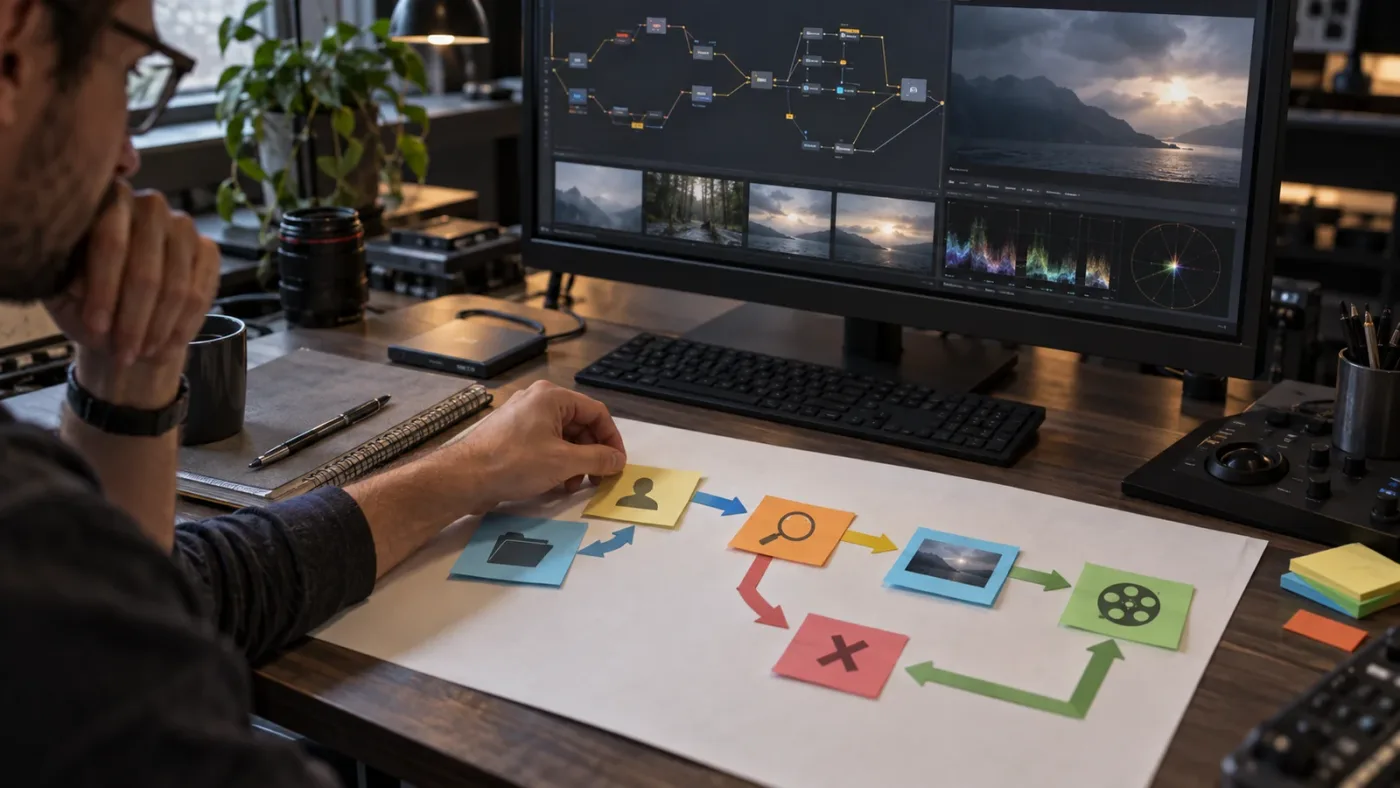
Uncle can point at the exact button in your own Fusion project while you work.
Can ChatGPT or Claude explain Fusion better than a Resolve-specific assistant?
ChatGPT and Claude can be useful for concepts, terminology, promptable checklists, and interpreting documentation, but a Resolve-specific assistant has an advantage when the question is about the exact screen, node graph, or control in front of you. Neither category should be treated as automatically correct.
A general chatbot is strong when you want to ask broad questions. You can request a plain-language explanation of alpha channels, a comparison between a planar tracker and a point tracker, or a checklist for preparing a Fusion title template. You can also paste a short error message and ask what it usually means. That work helps you form a mental model.
The weakness is context translation. You must describe what you see, identify the right page, and often transcribe node names and settings. The chatbot can then produce a confident answer based on incomplete information. If your description leaves out a mask connection or a viewer selection, the assistant may solve a different problem from the one you have.
Resolve 21.1 changes the conversation because Blackmagic now describes direct assistant integration for selected tasks. The important phrase is “selected tasks.” A native integration may know more about project objects than an ordinary chat window, but you still need to confirm which assistant, edition, permissions, and commands are supported in your build. A feature described in a release announcement is not the same thing as a promise that every Fusion operation is available through natural language.
A screen-aware assistant occupies a different place. It can reduce the friction of describing the interface because it can see the current screen and point to the control. That makes it useful for questions such as:
- “Where do I open the Spline editor?”
- “Which input on this Merge node is the foreground?”
- “Where do I change the frame range for this comp?”
- “Which Inspector field controls the text size?”
- “Why is the mask affecting the whole branch?”
The assistant still needs a correct explanation, and you still need to decide whether to follow it. Seeing the screen helps with location and context. It does not grant perfect knowledge of artistic intent.
If you are choosing between a general chatbot and a screen-aware assistant, use the general chatbot to study away from the project and the screen-aware assistant when the project is open and the problem is local to what you see. The two workflows can complement each other, especially for a learner who wants both a concept and a concrete next click.
Is Sottocut a good AI assistant for Fusion?
Sottocut is a better fit for local-first editing assistance than for learning Fusion node graphs. Its public description says it lives inside an open Resolve project, scores footage, proposes a cut, and verifies changes by reading them back from the timeline.
That is a coherent product boundary. Sottocut addresses the assistant-editor problem: finding useful material, proposing an edit, and keeping the timeline changes governed. If your bottleneck is a two-hour interview, it is closer to the problem than a Fusion tutor is.
But Fusion is not only an extension of timeline editing. A Fusion composition can include a media input, masks, keyers, transforms, merges, trackers, text, particles, 3D tools, and multiple viewers. The challenge may be understanding why the graph is built a certain way rather than choosing which clip should come next.
Sottocut can still be part of a larger workflow. You might use it to get from rushes to a rough cut, then open Fusion for a tracked title or a screen replacement. At that point, a tutorial, the official manual, a chatbot, or a screen-aware guide becomes the more relevant help.
Choose Sottocut when you want local-first editing assistance, reviewable timeline changes, and a tool focused on footage selection and rough-cut work. Do not choose it because the words “AI assistant” sound like a promise to teach every Resolve page.
Is Eddie AI a good AI assistant for Fusion?
Eddie is a stronger option for footage analysis and rough-cut work than for live Fusion instruction. Eddie's Resolve workflow page describes importing clips, multicams, or timelines from a Resolve bin, creating proxies for analysis, generating rough cuts, and exporting edits back to Resolve with relinking.
That can be valuable before Fusion. An editor who spends less time logging and assembling interviews may have more time for compositing, graphics, and finishing. The product also describes support for professional codecs such as BRAW and R3D, multicam and timeline support, preserved timecode, frame rate, and resolution, and automatic relinking. Those are workflow details worth evaluating if your primary problem is getting a usable edit into Resolve.
The boundary is equally useful. Eddie is not presented as a teacher that watches the Fusion node graph and points at the exact Inspector field. It acts as a bridge between media analysis and the editing application. Once the rough cut is back in Resolve, you still do the Fusion work yourself or use a different kind of guide.
Eddie can be the right choice if your decision is “which assistant can turn interviews and b-roll into a rough Resolve project?” It is not the first choice if your decision is “which assistant can help me understand why this Fusion node is not producing the result I expect?”
Eddie's platform details also show why current research matters. Its public v4 page lists browser, iPhone, Claude, ChatGPT, macOS, and Windows access, while its Resolve workflow page describes the helper extension as a bridge. Do not collapse those into one claim about every feature being native to Resolve. Read the current workflow documentation for the exact direction of import and export.
Does PremiereCopilot help with Fusion in DaVinci Resolve?
PremiereCopilot is not a direct Fusion option because its public product page describes a native text-to-edit assistant for Adobe Premiere Pro. It is relevant as a category comparison, not as a Resolve plug-in choice.
PremiereCopilot says it can perform timeline edits such as cuts, captions, and transitions from a prompt, and it gives examples including synchronizing clips, creating social sequences, removing filler words, and adding dynamic text. The page also states that prompts, transcripts, and timeline metadata are sent to a selected AI provider.
That makes the product useful for understanding what a text-to-edit assistant is designed to do. It operates on an edit timeline in Premiere. Fusion in DaVinci Resolve is a node-based compositing environment. The user problem may sound similar because both involve video, but the data model is different.
If you are deciding between PremiereCopilot and a Resolve workflow, first ask whether you are willing to work in Premiere for the automated timeline tasks. If your project must stay in Resolve, compare Resolve-native tools, Resolve bridges, and assistants that operate alongside the screen. Do not choose a Premiere product expecting it to teach Fusion nodes inside Resolve.
The comparison also raises a privacy question. Whenever an assistant sends prompts, transcripts, screenshots, timeline metadata, or project information to a provider, read the vendor's current policy and your client's requirements. A client NDA may impose stricter rules than a product's default terms. That is true for every screen-aware or cloud-connected assistant, including products that make useful promises.
What about Sottocut, Eddie, heyeddie.ai, and cutagent.ai?
Sottocut, Eddie, heyeddie.ai, and cutagent.ai belong in the comparison because editors encounter them when searching for AI help with Resolve, but they do not all solve the same problem. The honest comparison is about workflow boundaries, not a single ranking.
Sottocut presents itself as a local-first assistant editor inside an open Resolve project. Its focus is scoring footage, proposing a cut, and verifying timeline changes. That makes it relevant to assistant-editor work.
Eddie presents a broader media-to-edit workflow. Its Resolve integration page describes moving clips, multicams, and timelines into Eddie for analysis and moving the resulting cuts back to Resolve. Its v4 page describes native project handoff to several editing applications. That makes it relevant when your goal is a rough cut or media organization.
heyeddie.ai is the product site behind Eddie, so those names should not be treated as two unrelated competitors. When you see both in a search result, check whether the page describes Eddie's core app, the Resolve helper, or a support article about a specific workflow.
cutagent.ai is another name editors may encounter when searching for AI editing agents. Before relying on a feature claim, check the current product page, supported host application, operating system, project write behavior, and export format. Search snippets and social posts can outlive a product's actual feature set.
The important comparison for Fusion is not simply whether a product mentions Resolve. Ask these five questions:
- Does the tool read or change the Fusion node graph, or does it focus on media and timelines?
- Does it teach the reason for a change, or does it apply an action and leave you to inspect it?
- Can it identify controls in the current screen, or must you describe them?
- Does it run inside Resolve, bridge to Resolve, or create a separate project for later import?
- Does the vendor document Mac and Windows support separately?
Those questions keep the category honest. An editing agent can be excellent without being a Fusion tutor. A chatbot can explain compositing without seeing your comp. A screen-aware assistant can show a button without making the creative decision. Each strength has a matching limitation.
How do I use Blackmagic's free Fusion training with an AI assistant?
Use Blackmagic's free training to build the foundation, then use an AI assistant for the question that appears in your own project. Official training is the stable map; context-sensitive help is the shortcut when your road differs from the example.
Blackmagic's support center lists a DaVinci Resolve 21.1 reference manual and a Fusion 21.1 user manual. The Fusion manual covers visual effects, animation, paint, keying, rotoscoping, compositing with 2D and 3D elements, lighting, and particles. Those primary sources are the right place to confirm what a control is supposed to do.
A practical study loop looks like this:
- Learn one concept from official training, such as masks, keying, tracking, or text animation.
- Recreate the example with a small personal clip.
- Change one variable so the example stops behaving like the tutorial.
- Ask the assistant to explain the difference, not just to repair it.
- Write down the node order and the reason for each branch.
- Rebuild the result from an empty composition on another short clip.
The fourth step is the part most people skip. If you only ask an assistant to fix the comp, you may finish the shot without learning the pattern. Ask questions such as “what changed when the mask moved after the Merge?” or “why does this tracker need a transform before the merge?” The answer becomes useful only when you can predict the next result.
The official manual also gives you a vocabulary. When you know the difference between a tool, a modifier, a mask, a spline, a tracker, and a node, your question gets more precise. Better questions reduce the chance that a chatbot or on-screen assistant guesses what you mean.
An assistant should make practice easier, not remove practice. Fusion skill comes from seeing how a graph behaves when you change one part. If the tool always makes the change for you, you lose the feedback loop that teaches you why the comp works.
The strongest Fusion learning loop combines official documentation, deliberate practice, and help that uses the learner's actual project.
Why is my Fusion Merge node showing the foreground behind the background?
Your Fusion Merge node is usually showing the foreground behind the background because the image streams are connected to the wrong inputs or because the viewer is displaying a different node than the one you are inspecting. Check the Merge node's foreground and background inputs, then confirm the viewer selection.
This is a good example of where an on-screen assistant can help. The conceptual answer is short, but the exact fix depends on your graph. You might have the correct Merge inputs but be viewing a downstream branch. You might have a mask attached to the wrong tool. You might have premultiplied alpha creating an edge that looks like a layer-order problem.
Use this diagnostic sequence:
- Select the Merge node and identify the background and foreground inputs.
- Temporarily view the foreground branch and the background branch separately.
- View the Merge result by selecting the correct output viewer shortcut.
- Disable masks and transforms one at a time to isolate the branch that changes the result.
- Check whether the foreground has an alpha channel and whether the edge behavior is expected.
- Restore the intended connections and label the node if the graph is becoming difficult to read.
The point is not to memorize one color-coded cable. The point is to identify the input, isolate the branch, and verify the viewer. If you ask a chatbot without describing those three things, it may give you a general Merge explanation while your real problem is viewer selection.
This diagnosis also shows the limit of automation. An assistant may be able to reconnect the inputs, but you still need to decide whether the subject should be in front, behind, or partially occluded. In a client composite, that creative decision matters more than the click.
How do I track text or an object in Fusion with AI help?
Use AI help to identify the tracking workflow and controls, but let the editor judge the track, solve, and composite. A typical Fusion tracking question involves the tracker type, the feature being tracked, the reference frame, the transform or corner pin, and the final merge.
Start by naming the shot. Is the subject moving in a flat plane? Is the camera moving in 3D? Does the object rotate, change perspective, disappear behind something, or become blurred? Those details decide whether a point tracker, planar tracker, camera tracker, or another method is appropriate.
Then separate the workflow into stages:
- Track the useful feature or plane.
- Review the track through the full shot, not only the first few frames.
- Apply the track to text, a transform, a mask, or a corner pin.
- Composite the tracked element into the scene.
- Check edges, motion blur, scale, occlusion, and color.
An AI assistant can explain where the tracker controls live and can help you interpret a failed track. It should not persuade you that a bad solve is good because the first frame looks convincing. Track quality is judged over the shot.
The assistant also needs to distinguish between “I cannot find the tracker” and “the tracker is failing.” The first is a navigation problem. The second is a shot-analysis problem. A screen-aware guide is well suited to the first and can help structure the second. It cannot change the physics of a low-detail or heavily blurred shot.
If the task is a tracked title, work on a short range first. Test the result before building a reusable template. Once the composition works, save it as a macro or template where appropriate. The official Fusion 21 product page describes effect templates that can be applied from the Edit and Cut pages, which is useful when the same title treatment returns across projects.
How do I make a reusable Fusion composition with AI help?
Make a reusable Fusion composition by separating the controls an editor should change from the internal node logic, then test the template in more than one clip and frame size. AI help is useful for locating macro controls and checking a template plan, but the template still needs deliberate design.
The reusable composition problem is different from the one-off shot problem. A one-off comp can depend on a specific clip, frame, scale, and timing. A template must survive changes in text length, aspect ratio, resolution, frame rate, and background footage.
Before asking an assistant for help, write the interface you want. For a title template, that might be:
- Text content.
- Font and size.
- Fill and outline color.
- In and out animation duration.
- Position and scale.
- Background visibility.
- A control for optional blur or glow.
Then identify which nodes own those controls. Keep the internal graph readable. Use labels. Avoid exposing every technical parameter if the template user needs only five decisions.
An assistant can help you find the Macro Editor, explain a modifier, or suggest how to expose a control. The result still needs tests. Try a short word, a long word, a two-line title, a vertical composition, and a clip with a different subject position. If the template breaks when the title contains more characters, the problem is not solved.
For a deeper workflow, read our guide to making a Fusion composition reusable in DaVinci Resolve. The important decision is whether you are creating a template for yourself or an interface for other editors. The second requires stricter naming, defaults, and failure handling.
Can an AI assistant create Fusion nodes from a text prompt?
An AI assistant may be able to suggest node structures or automate selected Resolve operations, but a text prompt is not a reliable substitute for designing and checking a Fusion composition. Treat generated nodes as a draft, especially when masks, 3D space, tracking, or expressions are involved.
The attraction is obvious. You could ask for “a glow behind animated text with a soft shadow” and receive a list of nodes or a script. The problem is that a visual request leaves many choices unstated. How soft is the glow? Should it follow the text transform? Does the shadow live in 2D or 3D? Should the animation use linear or eased timing? What happens when the text changes length?
The more ambiguous the visual decision, the less useful a one-shot prompt becomes. Start with a plan instead. Describe the input, output, branch order, exposed controls, and test cases. Ask the assistant to critique the plan before asking for code or node changes.
Resolve 21.1's added scripting APIs may make automation more capable, and Blackmagic's release says there are 20 new scripting APIs with built-in console support. That is a meaningful version fact. It does not mean every script is safe, portable, or appropriate for a client project. APIs can change, scripts can target the wrong composition, and generated code can create a graph that renders differently from the preview.
If you use scripts, test on a disposable project. Save the generated text outside the project notes so you can inspect it. Run one small operation at a time. Confirm the active composition and frame range. Keep a rollback path.
The right standard is not “did the AI create nodes?” The standard is “can I explain the graph, change it safely, and verify the output?” If the answer is no, the automation has made the project harder to own.
What are the privacy risks of a screen-aware Fusion assistant?
The main privacy risk is that a screen-aware assistant may capture images of the Resolve interface and send the screenshot, prompt, or related metadata to cloud providers for processing. Review the product's permission model, retention policy, providers, and your client's obligations before using it on confidential material.
Fusion work can reveal more than the viewer. A screenshot may include project names, bin names, file paths, client logos, notes, timeline markers, or a confidential shot. A screen recording permission can also be broader than the moment you think you are asking a question. Read what the tool captures and when it captures it.
The same principle applies to native integrations. An assistant that can organize media, adjust settings, or batch render may need access to project context beyond a single visible control. That can be convenient. It also means you should understand the scope before enabling it.
Use this checklist:
- Does the tool capture a screenshot, a video stream, accessibility metadata, project files, or only typed text?
- Which providers process the request?
- How long are screenshots and messages retained?
- Are inputs used to train the vendor's own models?
- Can you disable the assistant for a specific project or screen?
- Does your client contract permit third-party AI processing?
- What happens if the assistant loses network access?
Do not assume that a paid tool is private by default. Do not assume that a free tool is unsafe by default either. Read the current policy and compare it with the risk of the footage. If the project is under a strict NDA, ask the client or production owner before enabling a screen-aware tool.
Privacy is part of the product comparison, not a footnote. The assistant that points at the right node is not the right assistant if you are not allowed to share the screen it can see.
Should you choose a screen-aware assistant such as TryUncle for Fusion?
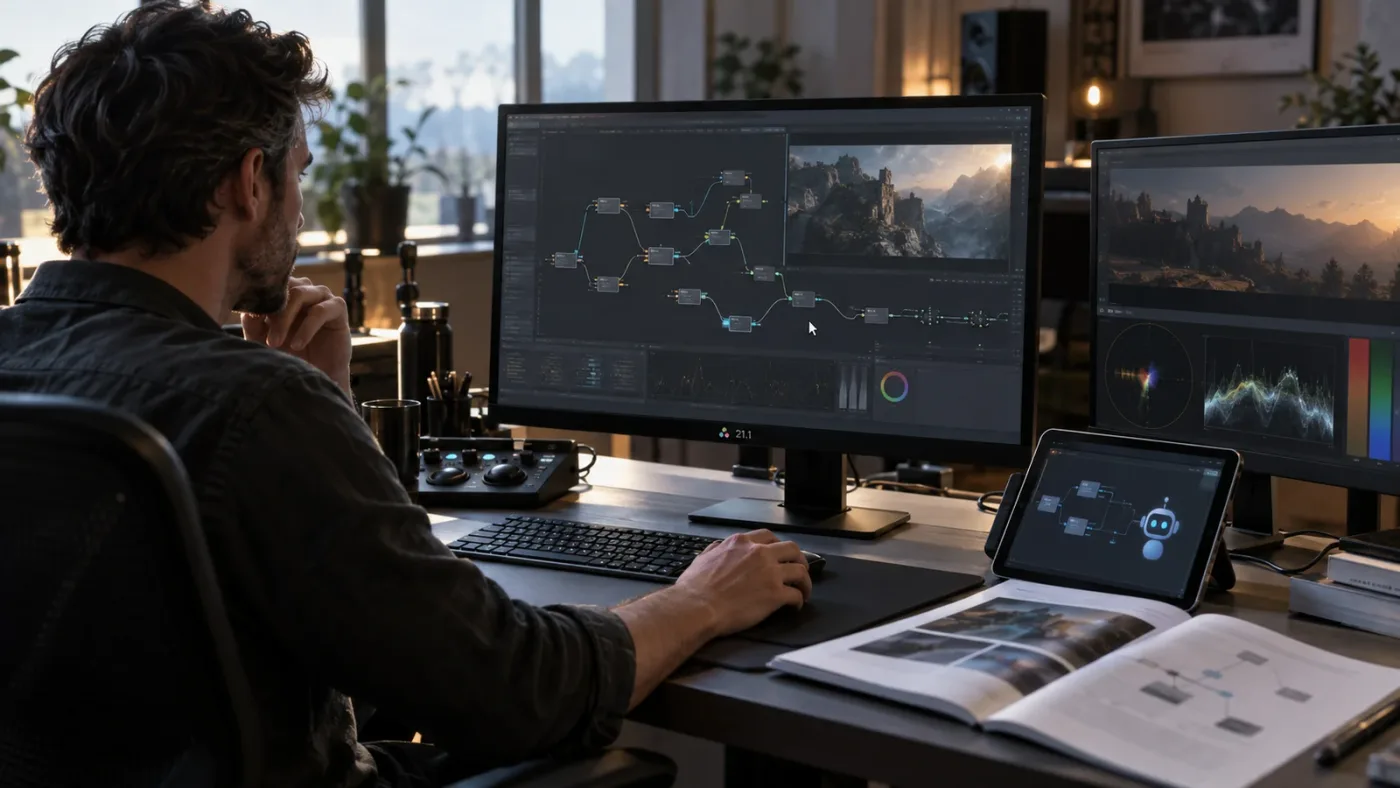
Choose a screen-aware assistant such as TryUncle when the main friction is translating a Fusion question into the exact control on your screen. Do not choose it expecting automatic editing, a finished composition, or a replacement for learning the node system.
The product category is built around a simple moment: the tutorial's screen does not match yours, the project is open, and you need the next click. That is different from a course, which gives you a fixed sequence, and different from an editing agent, which aims to change media or a timeline.
For Fusion, the screen-aware model is most useful for navigation and context. You can ask where a control is, which page or panel contains it, or what the visible node configuration suggests. The assistant can point at the relevant part of the screen while you keep ownership of the edit.
That model has limits. A screen does not contain your entire creative intent. The assistant may see a node graph but not know the client's preferred style. It may understand the visible problem but not the downstream render requirement. You still need to test and make the decision.
TryUncle is paid, not free, and the current founder pricing stated for this publication is $29.99 per month. Platform details and current terms can change, so check the main product page before subscribing. The useful question is not whether a monthly assistant is cheaper than every course. The useful question is whether live help on your own project fits the way you learn and work.
If you want the on-screen Resolve assistant for Mac and Windows, check TryUncle for the current rate and platform details. Keep the product link to that one decision point. The rest of this comparison should help you decide whether the category is right at all.
Is the best way to learn DaVinci Resolve fast an AI assistant?
An AI assistant can help you learn DaVinci Resolve fast when it turns a real stuck point into a small, explainable practice step, but it cannot replace repetition, structured lessons, or project review. Speed comes from reducing wasted searching while keeping the work in your hands.
If you want to learn fast, use a narrow loop. Pick one task. Make a small comp. Ask one question. Apply one change. Check the result. Then rebuild it without help. The rebuild is the part that converts a solved problem into a skill.
A good assistant answer should contain four parts:
- The likely cause.
- The exact control, node, or connection to inspect.
- The reason the change affects the result.
- A quick test that proves whether the diagnosis is correct.
If an answer only gives you a button name, ask one more question: “How will I know this fixed the problem?” That question protects you from following instructions blindly.
The phrase “learn DaVinci Resolve fast” can also hide a curriculum problem. You cannot become comfortable with Fusion by collecting isolated fixes forever. Learn the common patterns: image flow, masks, merges, transforms, keyers, trackers, animation curves, and templates. Then use the assistant to connect those patterns to the project in front of you.
Our DaVinci Resolve learning roadmap is a useful companion for sequencing the pages. It is not a substitute for practice. The best path is the one you can repeat on real footage without needing the same answer every time.
Guided practice inside Resolve beats watching courses about Resolve when the problem is a control you cannot find.
What should you test before trusting any Fusion AI assistant?
Test an AI assistant on a small, non-confidential Fusion composition before trusting it with a client project. The test should measure context, explanation, precision, reversibility, and privacy instead of relying on a polished demo.
Use one short clip and five tasks:
- Ask where to find a visible control, such as a text or mask parameter.
- Ask it to explain a simple Merge problem without changing the graph.
- Ask it to identify what the selected node does.
- Ask it to propose a troubleshooting sequence for a failed track.
- Ask what it can see and where the captured information goes.
Score the responses in plain language. Did the assistant identify the correct page? Did it name the exact control? Did it explain the reason? Did it suggest a check? Did it avoid pretending to know what was not visible? Did it respect your request not to change the project?
For a native Resolve integration, add two more tests: which commands are available in your version, and whether the assistant can act on the project or only answer questions. For an editing agent, test round-trip behavior, relinking, timecode, frame rate, and whether the imported result matches your expectations. For a screen-aware tool, test multi-monitor behavior, permissions, capture boundaries, and the response when the relevant panel is closed.
Do not use a production project as the benchmark. A tool can pass a demo and fail on the edge case that matters to you. Test a long title, a vertical frame, an unusual aspect ratio, a masked subject, a moving camera, and a shot with an alpha edge if those cases are normal in your work.
The test should also include failure language. Ask, “What would make this advice wrong?” A trustworthy assistant should be able to name conditions that change the answer. Fusion has enough interacting systems that certainty without conditions is a warning sign.
Which assistant should you choose for your Fusion workflow?
Choose the assistant that matches the bottleneck you can name in one sentence. The table below gives the practical decision, including where each option loses.
| If your bottleneck is... | Choose first | Why it fits | Choose something else if... |
|---|---|---|---|
| Organizing media or batch rendering in a current Resolve workflow | DaVinci Resolve 21.1 assistant integration | Blackmagic's current release explicitly describes conversational help for selected repetitive tasks | You need a step-by-step Fusion lesson or visual explanation |
| Getting from interviews to a rough cut | Eddie or a comparable editing agent | The workflow centers on analyzing footage and returning a Resolve project or timeline | Your question is about masks, keyframes, trackers, or node order |
| Proposing and verifying timeline changes locally | Sottocut | Its public positioning focuses on a local-first assistant editor inside an open Resolve project | You need a general-purpose Fusion tutor |
| Finding the right Fusion control while your project is open | A screen-aware assistant such as TryUncle | The product category is designed around live, project-specific guidance | Your client forbids screen processing or you want a full course first |
| Understanding compositing concepts | Blackmagic training plus the Fusion manual | Primary documentation gives the stable vocabulary and intended behavior | You are stuck because your screen differs from the example |
| Planning a node graph or comparing approaches | A general chatbot with the official manual open | A chatbot can help structure questions and explain alternatives | You need exact awareness of the current node graph |
| Building a reusable title or effect | Manual, practice, then optional assistant support | Reusability requires design decisions and testing across inputs | You expect one prompt to produce a production-ready template |
The best answer for most editors is not one product. It is a small stack with clear boundaries: official documentation for truth, practice for skill, a general chatbot for explanation, native Resolve assistance for supported repetitive work, an editing agent for footage-heavy work, and screen-aware help for the moment when the open project does not match the tutorial.
That stack only works if you know which layer you are using. Do not ask a rough-cut agent to teach node compositing. Do not ask a general chatbot to infer a hidden graph connection. Do not let a screen-aware assistant make a creative decision that you have not understood.
What is the final verdict on an AI assistant for Fusion in DaVinci Resolve?
The final verdict is that there is no single best AI assistant for Fusion in DaVinci Resolve. DaVinci Resolve 21.1 is the strongest starting point for native conversational automation, Eddie and Sottocut are stronger for footage and timeline assistance, and a screen-aware assistant is the closest fit when you need live guidance on the exact Fusion control in your own project.
Use Blackmagic's free training and current Fusion manual as the foundation. Use an assistant to reduce searching, clarify a node graph, or point out a control. Save versions before any automated change. Review the whole shot. Protect confidential work. Keep the final creative and technical decision with the editor.
Fusion becomes less intimidating when the next step is small enough to test. Ask what the selected node does. Isolate one branch. Check one input. Change one variable. Render a short range. Then make the next decision.
That is the practical answer to the query. The best AI assistant for Fusion is the one that solves the bottleneck you actually have, with a clear boundary around what it can see, change, and explain.
Frequently asked questions
- What is the best AI assistant for Fusion in DaVinci Resolve?
- For repetitive Resolve tasks, the native AI assistant integration in DaVinci Resolve 21.1 is the most direct option. For learning Fusion and finding controls in your own project, a screen-aware assistant such as TryUncle is a better match. Editing agents such as Eddie and Sottocut are stronger for footage logging and rough cuts than for teaching node graphs.
- Can ChatGPT control Fusion in DaVinci Resolve?
- ChatGPT can explain Fusion concepts and, in supported Resolve 21.1 workflows, assist with some conversational tasks, but it is not the same as a tutor that points at the exact node or Inspector control in your project. Check the current Resolve integration and permissions before assuming it can edit a Fusion composition.
- Is there an AI tool to learn DaVinci Resolve Fusion?
- Yes. You can combine Blackmagic Design's free training, Fusion documentation, searchable tutorials, and a screen-aware assistant. The assistant is most useful for context-sensitive questions such as why a Merge node is backward, where a mask control lives, or which Inspector field is active.
- Does an AI assistant automatically build Fusion compositions?
- Some AI tools can generate or change project elements, and DaVinci Resolve 21.1 adds assistant integration for selected tasks. That does not guarantee a correct Fusion composition. Node order, masks, coordinate spaces, render settings, and version differences still need human review.
- Which AI assistant works on Mac and Windows for DaVinci Resolve?
- As of October 2026, the options differ by product and integration. DaVinci Resolve 21.1 supports Mac, Windows, and Linux, while TryUncle is positioned as an on-screen assistant for Mac and Windows. Verify the current platform and privacy terms before installing any screen-aware tool.
Sources
- Blackmagic Design Support Center, DaVinci Resolve 21.1 and Fusion 21.1 manuals
- Blackmagic Design announces DaVinci Resolve 21.1
- Blackmagic Design Fusion 21
- Blackmagic Design DaVinci Resolve Fusion page
- DaVinci Resolve 21 New Features Guide
- Grant Petty statement in the DaVinci Resolve 21.1 release
- Sottocut, AI assistant editor for DaVinci Resolve
- Eddie AI for DaVinci Resolve
- Eddie v4
- PremiereCopilot Copilot
- TryUncle
- TryUncle pricing plans
- Blackmagic Design DaVinci Resolve Studio comparison
- Blackmagic Design Fusion compare page
Learn by doing, not watching
Stop translating tutorials to your timeline.
TryUncle stays beside Resolve on Mac and Windows. When you ask, Uncle sees your screen and points at the exact control you need. No hunting through tabs, timestamps, or mismatched tutorials.
Meet TryUncleKeep reading
 GuidesJul 12, 202641 min read
The Best Way to Learn DaVinci Resolve (What the Research Says)
Guided, hands-on practice inside DaVinci Resolve beats video courses and MOOCs. Here's the learning-science research behind why, and how to apply it.
 GuidesOct 3, 202639 min read
How to Make a Fusion Composition Reusable in DaVinci Resolve
Learn how to make a Fusion composition reusable in DaVinci Resolve with macros, templates, exposed controls, reference compositions, folder paths, and testing steps.
 GuidesJul 29, 202637 min read
What Is the Neural Engine in DaVinci Resolve? Explained Simply
What the DaVinci Neural Engine is, which AI tools it powers, whether you need Resolve Studio, and how it differs from Apple's Neural Engine chip.