
Learn / DaVinci Resolveupdated for DaVinci Resolve 21.0.3 (July 2026)
How to Uninstall DaVinci Resolve Completely (Mac and Windows)
Quick answer
Run DaVinci Resolve's own uninstaller first (Uninstall Resolve on Mac, Apps & Features on Windows), then manually delete the Application Support, Preferences, and Caches folders it always leaves behind on Mac, or the ProgramData, AppData, and registry entries it leaves on Windows. Your project database survives in a separate location either way.
I've spent seven years cutting professional, commercial work in DaVinci Resolve, and running a video-editing community of more than 100,000 members means this exact question comes up every time Blackmagic ships a new point release: how do you actually get rid of the old install before you put the new one on. The honest answer is that DaVinci Resolve's own uninstaller does about sixty percent of the job on purpose, and the rest is a short, specific list of folders and registry keys you have to go find yourself.
This guide covers all of it. Mac and Windows, the built-in uninstaller and what it deliberately skips, the third-party tools people reach for when the native one gets stuck, and the one thing every version of this guide needs to say clearly up front: your projects are almost certainly safe, because DaVinci Resolve stores them somewhere the uninstaller doesn't touch.
What actually happens when you uninstall DaVinci Resolve?
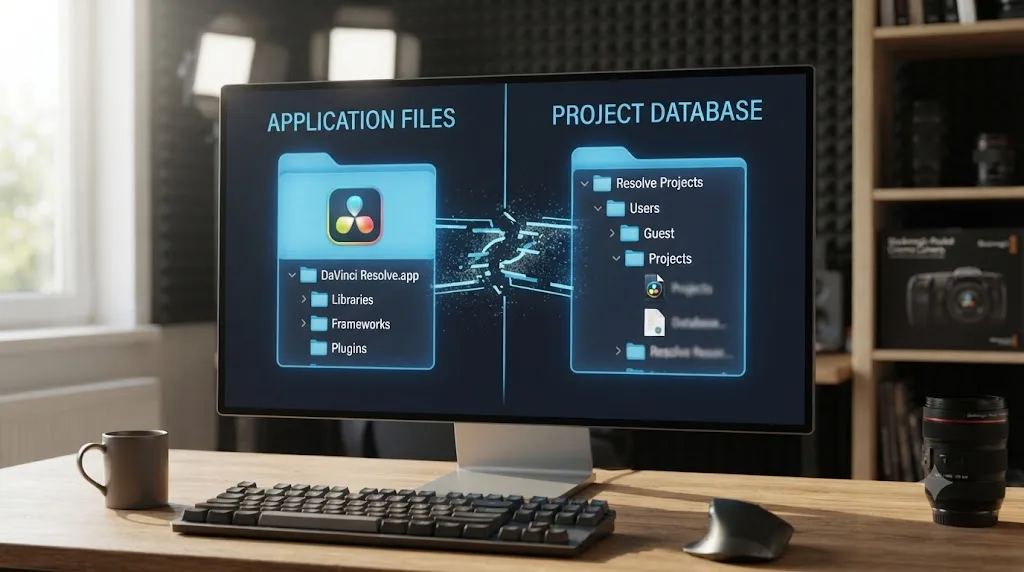
Uninstalling DaVinci Resolve removes the application itself, but it does not remove your project database, your render cache, or your preferences, because Blackmagic stores all three in a separate location the built-in uninstaller was never designed to touch.
That separation is deliberate, not an oversight. A Blackmagic Forum thread asking directly, "Will I lose my projects if I uninstall?", confirms the pattern that shows up across dozens of similar reports: the database sits in its own folder structure, independent of the app binary, specifically so a bad update or a routine reinstall can't wipe out months of edit decisions by accident (Blackmagic Forum). On Mac, that database defaults to ~/Library/Application Support/Blackmagic Design/DaVinci Resolve/Resolve Disk Database. On Windows, the equivalent path is C:\Users\[Username]\AppData\Roaming\Blackmagic Design\DaVinci Resolve\Support\Resolve Disk Database.
DaVinci Resolve's uninstaller removes the program. It does not remove your work, because your work was never stored inside the program's own folder in the first place. That single fact is why a clean uninstall and a destructive one look almost identical from the outside, right up until the moment you go looking for your projects again after a reinstall and either find them waiting or don't, depending entirely on whether you deleted that Application Support folder along the way.
This matters practically because "completely uninstall" means two different things depending on your goal. If you're troubleshooting a corrupted install or a plugin conflict and want a genuinely clean slate for the application while keeping your projects, you leave the database folder alone. If you're wiping DaVinci Resolve off a machine entirely, maybe before selling it or handing it to someone else, you delete the database folder too, on purpose, as a separate and final step. Our guide on preventing DaVinci Resolve project corruption covers the flip side of this same database, keeping it healthy while you're actively using it.
Do you need to deactivate your DaVinci Resolve Studio license first?
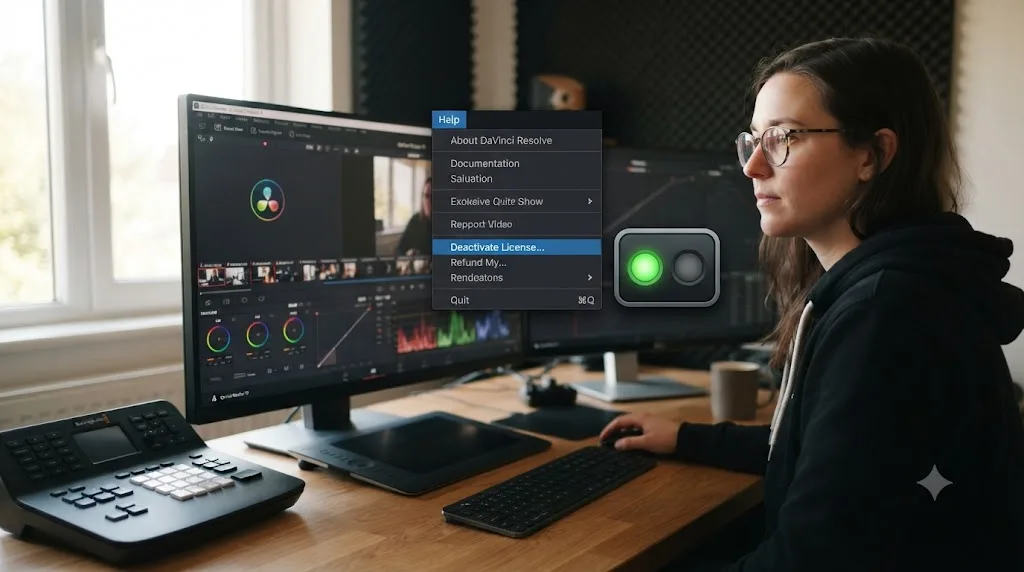
You don't strictly have to, but Blackmagic gives you a dedicated menu option for exactly this reason, and forum guidance consistently recommends using it before you uninstall or move to a new machine.
A DaVinci Resolve Studio activation key ships with two activation seats per the documented behavior discussed across Blackmagic Forum threads on license management, and adding a third activation automatically kicks one of the existing two offline rather than blocking the new one (Blackmagic Forum). That auto-kill exists as a safety net for a genuinely dead machine you can't deactivate from anymore, not as a substitute for doing it properly when you have the choice. Inside DaVinci Resolve Studio, the option lives at Help > Deactivate License, and running it before you uninstall frees that seat cleanly instead of relying on the two-seat buffer to absorb the loss.
If you're on Linux, the equivalent is a command-line call rather than a menu item, since Resolve on Linux typically runs without the same GUI license manager: /opt/resolve/bin/resolve -deactivate, executed before you run the uninstall script.
Deactivating your license before you uninstall costs you thirty seconds and removes any ambiguity about whether your two activation seats are both still accounted for. Skip it occasionally and the auto-kill mechanism covers you. Skip it as a habit across multiple machines and reinstalls, and you're the exact case that mechanism was built to catch, which means eventually it catches you at a worse moment than this one.
The free version of DaVinci Resolve carries no license to deactivate at all, since it doesn't require activation. If you're only running the free version, skip this step entirely and go straight to the uninstall itself.
How do you completely uninstall DaVinci Resolve on a Mac?
Start with DaVinci Resolve's own uninstaller before touching anything manually, since it removes the application bundle correctly and safely, and the exact tool you use depends on how you originally installed Resolve.
If you installed DaVinci Resolve by downloading it directly from Blackmagic's site, the process is:
- Quit DaVinci Resolve completely. Check the Dock and Activity Monitor for any lingering Resolve or Fusion Render Node processes before continuing.
- Open Finder, go to Applications, and open the DaVinci Resolve folder. Inside it sits a utility named Uninstall Resolve, separate from the main app itself.
- Double-click Uninstall Resolve and enter your administrator password when prompted. This removes the application bundle and its immediate installer artifacts cleanly.
- Empty the Trash and restart your Mac before reinstalling or considering the removal complete.
If you installed the free version through the Mac App Store instead of Blackmagic's direct download, there's no separate Uninstall Resolve utility bundled with it, because App Store apps use Apple's own removal mechanism. In that case: open Launchpad, press and hold the DaVinci Resolve icon until it wiggles and an X appears, then click the X and confirm. A guide from Dr.Buho on this exact distinction notes plainly that "Launchpad only removes the DaVinci Resolve app from the Applications folder, leaving behind associated files in various system directories" (Dr.Buho), which is exactly why the next section exists regardless of which install method you used.
Which uninstall method you used to remove the app changes nothing about what gets left behind afterward. Both the direct-download uninstaller and the App Store's Launchpad removal skip the same set of Library folders, because neither one is designed to touch user data that might include your preferences or a database you want to keep.
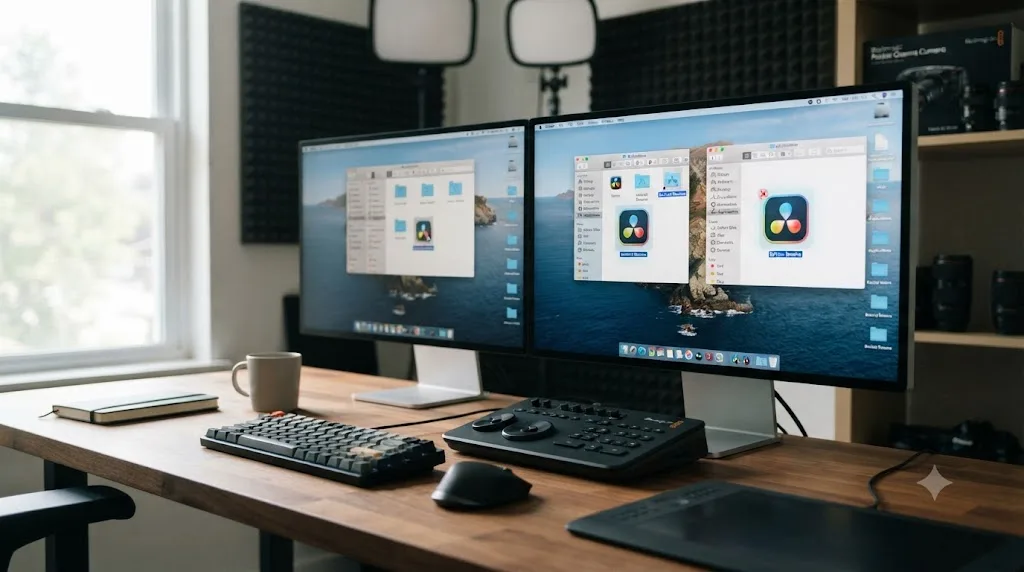
What does DaVinci Resolve leave behind on a Mac after you uninstall it?
Even after running the built-in uninstaller or removing the app through Launchpad, DaVinci Resolve leaves preferences, caches, and support files scattered across several Library folders that macOS shows you by default only if you know to go looking.
A Blackmagic Forum thread specifically about a fully clean uninstall confirms this is expected behavior, not a bug: settings are intentionally left behind by most uninstallers for convenience, so a future reinstall picks up exactly where you left off, and getting a genuinely fresh installation means manually deleting those configuration files yourself (Blackmagic Forum). Here's every location worth checking, compiled from that thread alongside MacPaw's and Dr.Buho's uninstall guides:
| Location | What's usually there | Safe to delete for a clean uninstall? |
|---|---|---|
~/Library/Application Support/Blackmagic Design | Preferences, Fusion templates, LUTs, and (if present) your project database | Only if you've already backed up anything in the Resolve Disk Database subfolder |
~/Library/Preferences/com.blackmagic-design.* | App preference plist files | Yes |
~/Library/Caches/com.blackmagic-design.* | Cached UI state and temporary data | Yes |
~/Library/Saved Application State/com.blackmagic-design.* | Window position and session-restore data | Yes |
~/Library/Logs/ (search for DaVinci or Blackmagic) | Crash logs and diagnostic output | Yes |
/Library/Application Support/Blackmagic Design (system-wide, not your user folder) | Shared components, sometimes present on older installs or multi-user Macs | Yes, if no other user account on the machine needs Resolve |
MacPaw's Mac uninstall guide, written by Daryna Radko, walks through the same set of Library folders and frames the reasoning behind bothering with any of this plainly: removing an app you're done with "will free up space and ensure that it doesn't conflict with anything you install on your Mac in the future" (MacPaw). That's the practical case for going manual at all. The built-in uninstaller alone won't cause a conflict with a future install, since it removes the app correctly, but leftover preference files can occasionally carry forward a setting or corrupted cache entry you were specifically trying to clear by reinstalling in the first place.
To find these folders quickly, open Finder, press Command-Shift-G, and paste each path directly rather than clicking through nested Library folders by hand, since ~/Library is hidden from the Finder sidebar by default on modern macOS.
A standard app uninstall on Mac and a completely clean uninstall on Mac are two different operations, and DaVinci Resolve's own tools only perform the first one. Everything past that first pass requires you to go into Library folders macOS hides from casual browsing by design, which is exactly why so many "how to uninstall" guides for this specific app exist at all.
How do you completely uninstall DaVinci Resolve on Windows?
Start with Windows' own app removal tool rather than deleting the Program Files folder by hand, since a proper uninstall runs Blackmagic's uninstall routine, which cleans up shortcuts, services, and some registry entries a manual deletion would just leave dangling.
The standard process:
- Close DaVinci Resolve completely, and check Task Manager for any lingering Resolve, Fusion Render Node, or Blackmagic Cloud helper processes still running.
- Open Settings > Apps > Installed apps on Windows 11 (or Control Panel > Programs and Features on Windows 10 and earlier).
- Find DaVinci Resolve in the list, click the three-dot menu or right-click it, and choose Uninstall.
- Follow the prompts to completion, and restart your PC once it finishes.
If the app doesn't show up in that list, or the uninstall process starts but never finishes, a Blackmagic Forum thread on this exact failure recommends locating the raw uninstall command directly: open the Registry Editor, navigate to Computer\HKEY_LOCAL_MACHINE\SOFTWARE\Microsoft\Windows\CurrentVersion\Uninstall, find the DaVinci Resolve key, and copy the value from its UninstallString field. Paste that string into the Run dialog (Windows key + R) and execute it directly, bypassing whatever is causing the Settings app entry to stall (Blackmagic Forum).
That same forum thread, discussing a Windows attempt to fully clean out an old install before reinstalling, includes a warning worth taking seriously: randomly deleting bits of the program folder here and there will cause problems, and you must ensure the C:\Program Files\Blackmagic Design\DaVinci Resolve folder is genuinely gone before starting a new install, since a partial leftover install folder is a documented cause of a broken subsequent installation (Blackmagic Forum).
On Windows, a half-finished uninstall is worse than no uninstall at all, because a new installer can silently merge with leftover files from the old one instead of failing cleanly. That's the specific scenario the registry-based manual uninstall exists to prevent, by giving you a working path when the graphical one gets stuck partway through.
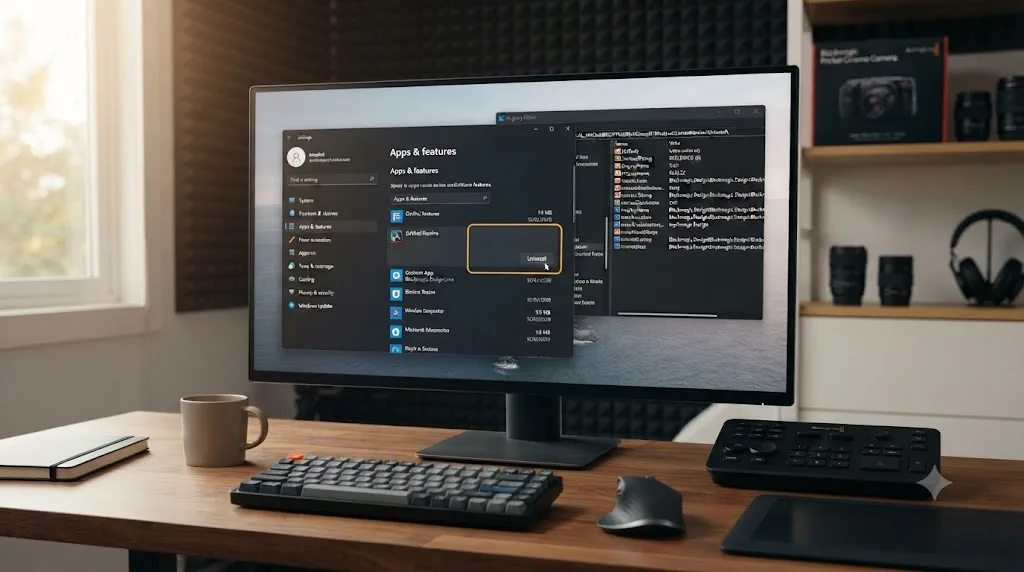
What does DaVinci Resolve leave behind on Windows after you uninstall it?
Windows' uninstall routine for DaVinci Resolve removes the program files it registered during install, but several folders and registry traces persist afterward, split across three different Windows directories that don't get cleared by a standard uninstall.
Here's the complete list, compiled from the Blackmagic Forum threads on clean installs plus Toolfarm's uninstall guide:
| Location | What's usually there | Safe to delete for a clean uninstall? |
|---|---|---|
C:\Program Files\Blackmagic Design\DaVinci Resolve | The main application folder, occasionally left partially intact after a failed uninstall | Yes, confirm this is fully gone before any reinstall |
C:\ProgramData\Blackmagic Design\DaVinci Resolve | Shared preferences and support files (ProgramData is a hidden folder directly on the C: drive) | Only if you don't need the settings preserved for a future reinstall |
C:\Users\[Username]\AppData\Roaming\Blackmagic Design\DaVinci Resolve | Per-user preferences, Fusion templates, and (on some setups) your project database | Only after confirming your database location and backing it up |
Computer\HKEY_LOCAL_MACHINE\SOFTWARE\Blackmagic Design\DaVinci Resolve | Registry keys tracking install paths and settings | Yes, search "Resolve" in Registry Editor and remove related entries carefully |
Computer\HKEY_LOCAL_MACHINE\SOFTWARE\Microsoft\Windows\CurrentVersion\Uninstall (DaVinci Resolve subkey) | The uninstall entry itself, occasionally orphaned after a manual removal | Yes, once you've confirmed the app is actually gone |
ProgramData is hidden by default in File Explorer. Turn on "Hidden items" under the View tab, or type %ProgramData% directly into the File Explorer address bar to jump straight there.
Registry edits carry real risk if you're not careful, since Windows uses the same registry hive for entries belonging to completely unrelated software. If you'd rather not hand-edit the registry, a third-party uninstaller (covered next) scans and highlights only the keys tied to the specific program you're removing, which is meaningfully safer than a manual search-and-delete pass through the full registry tree.
Every leftover Windows location traces back to the same three root folders, Program Files, ProgramData, and your user AppData, plus one registry hive, and none of the four get fully cleared by the standard Apps & Features uninstall. Knowing those four locations by name turns "completely uninstall" from a vague goal into a short, specific checklist.
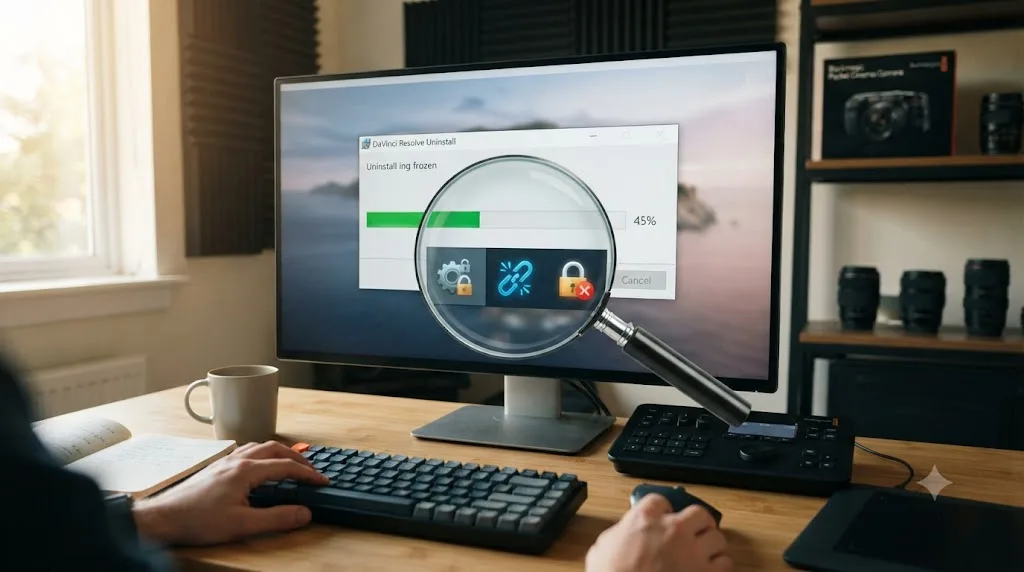
Why won't DaVinci Resolve uninstall, and how do you fix a stuck uninstall?
A stuck uninstall almost always comes down to one of a small handful of causes: a background process Windows or macOS thinks is still using the app, a registry entry pointing at a folder that no longer matches what's on disk, a permissions conflict on a system folder the uninstaller needs to write to, or, more often than people expect, security software quietly holding a file open at the exact wrong moment.
On Windows, Microsoft publishes a free, official Program Install and Uninstall Troubleshooter specifically for this category of problem. It runs a detection pass first, and if it doesn't automatically find the issue, it asks whether you're having trouble installing or uninstalling, lets you select the specific app from a list, including DaVinci Resolve if it's still partially registered, and attempts an automatic repair of the broken uninstall entry (Microsoft Support). Multiple Windows 11 users troubleshooting a stuck DaVinci Resolve uninstall specifically have reported success with this exact tool before resorting to manual registry surgery (Eleven Forum).
If the troubleshooter doesn't resolve it, work through these in order:
- Confirm Resolve is fully closed, including any Fusion Render Node or Blackmagic Cloud background service, then restart your PC before trying again. A process holding a file open is one of the most common silent causes of an uninstaller that hangs or fails partway through.
- Check whether antivirus or endpoint security software is holding a file lock. Blackmagic Forum threads describe Microsoft Defender occasionally treating DaVinci Resolve's background processes as suspicious, spiking Antimalware Service Executable CPU use to the point that the app disappears from Task Manager mid-launch (Blackmagic Forum). The same behavior can stall an uninstall, not just a launch, because Defender or a third-party antivirus scanning the install folder in real time holds a file open for inspection right as the uninstaller tries to delete it. Temporarily turning off Controlled Folder Access in Windows Security, or adding
C:\Program Files\Blackmagic Designto your antivirus's scan exclusions, clears this specific stall. Turn the protection back on once the uninstall finishes. You don't need a permanent exclusion unless you're reinstalling into the same folder repeatedly and hitting the same wall every time. If you're on a managed work machine rather than a personal one, this usually needs your IT team rather than your own admin account, since you likely can't add exclusions yourself. Ask them to exclude the Blackmagic Design path for the duration of the uninstall and reinstall rather than disabling protection company-wide. Mac users rarely hit an equivalent wall, since Gatekeeper checks app signatures on launch rather than locking files during removal, but the same "quit everything, including background helpers, before you try again" logic still applies. - Check folder permissions on
%ProgramData%andC:\Users\Public\Documents. Toolfarm's knowledge base on this specific failure notes that on Windows, you need full permissions on both locations, and if the Documents folder doesn't exist under Public, you may need to create it manually before Resolve's installer or uninstaller can complete properly (Toolfarm). - Use the registry UninstallString method covered in the Windows uninstall section above if the app no longer appears in Settings or Control Panel at all but files remain on disk.
- Fall back to a third-party uninstaller (next section) if the built-in tools genuinely can't complete the job, since these are built specifically to detect and force-remove a partial or orphaned install.
On Mac, a stuck uninstall is rarer, since macOS doesn't run a registry-dependent install system the way Windows does, but it does happen when the Uninstall Resolve utility itself won't launch. In that case, quit DaVinci Resolve and any related background processes through Activity Monitor, then drag the entire /Applications/DaVinci Resolve folder to the Trash directly rather than relying on the uninstaller, followed by the manual Library cleanup covered earlier in this guide.
A stuck uninstaller is a symptom of something specific, a locked file, a stale registry pointer, a permissions wall, or security software doing its job at an inconvenient time, not a sign that the app is somehow unremovable. Every documented case of this resolves through one of a small handful of known fixes, which is exactly why it's worth working through them in order rather than jumping straight to deleting files by hand and hoping for the best.
Should you use a third-party uninstaller tool instead of doing it manually?
A dedicated uninstaller tool is worth using specifically when you want the leftover-file and registry cleanup done for you, verified against what the specific program actually created, rather than you searching folder by folder and guessing at what's safe to delete.
On Windows, Revo Uninstaller is the tool most frequently recommended for this across forum threads and uninstall guides. Its process runs in stages deliberately built around not touching anything unrelated to the program you picked: it shows leftover registry entries "found first, with Registry keys and values found as created by the uninstalled program displayed in bold," and the explicit guidance is to avoid deleting registry keys highlighted in red, since those may affect other applications, and only remove the bolded black labels that Revo has actually traced back to the program you selected (Revo Uninstaller). After the registry pass, it moves to a second stage identifying leftover files and folders the same way.
On Mac, MacPaw's CleanMyMac and Dr.Buho's BuhoCleaner both offer a similar workflow aimed specifically at apps: scan installed applications, select DaVinci Resolve, and the tool locates and removes the associated Library folders in one pass instead of you hunting through Application Support, Preferences, and Caches individually.
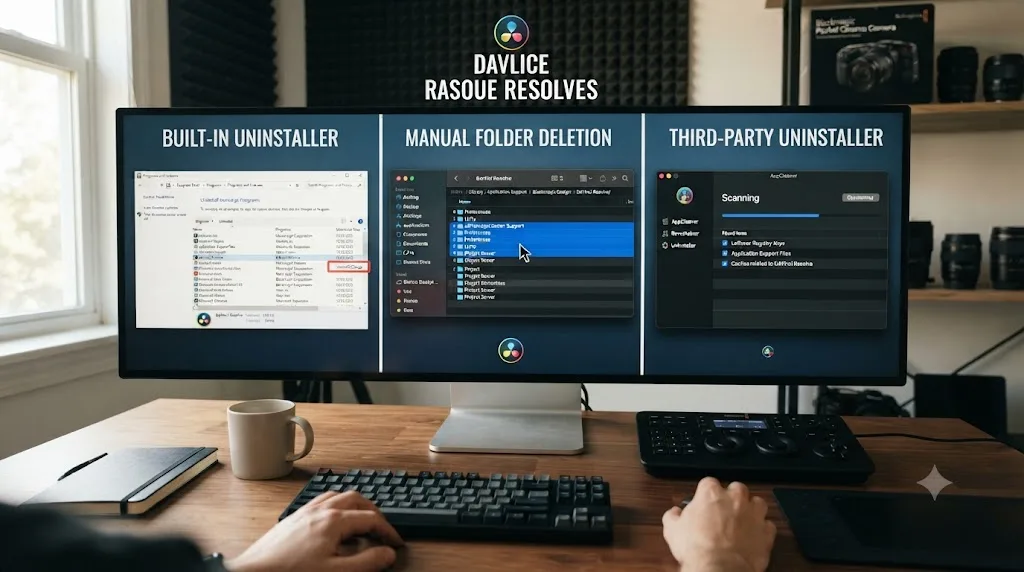
Here's how the three approaches actually compare:
| Method | What it removes | Risk level | Best for |
|---|---|---|---|
| Built-in uninstaller only (Mac or Windows) | The application itself, safely | Lowest | Reinstalling and keeping your current settings and database |
| Manual folder and registry deletion | Whatever you specifically find and delete | Highest, if you delete the wrong thing | Someone comfortable navigating Library folders or the registry directly |
| Third-party uninstaller (Revo, CleanMyMac, BuhoCleaner) | App-specific leftovers, verified against what that program created | Low to moderate | A thorough clean removal without manually hunting every path yourself |
A third-party uninstaller doesn't do anything you couldn't do by hand. It just does it faster and with less risk of deleting a registry key or folder that belongs to something else entirely. That's the actual value proposition, not some deeper cleaning power the built-in tools lack. If you're comfortable with the manual paths listed earlier in this guide, you don't need one. If you're not, a dedicated tool is a reasonable trade of a small download for meaningfully lower risk.
Do you need to remove your GPU drivers too when uninstalling DaVinci Resolve?
Not as a routine step, but if you're uninstalling specifically to fix a crash, a GPU processing error, or a corrupted install rather than just removing the app, a clean GPU driver reinstall alongside it is a documented fix worth doing at the same time.
DaVinci Resolve leans hard on your GPU for nearly everything, playback, color, Fusion effects, and export, and a corrupted or conflicting GPU driver produces symptoms that look exactly like an application problem: crashes on launch, "Unsupported GPU Processing Mode" errors, or Resolve simply refusing to detect a GPU that's clearly installed. Troubleshooting guides for these crashes consistently point to a clean driver reinstall as one of the standard fixes, specifically because outdated or conflicting graphics drivers are a documented cause of DaVinci Resolve instability, alongside performing a genuinely clean installation of the driver itself rather than an in-place update (Windows Report).
The safest way to do this on Windows is Display Driver Uninstaller, known as DDU, which removes a GPU driver more thoroughly than Windows' own uninstall path, including hidden driver components a standard uninstall leaves behind. Run it in Safe Mode, restart, then reinstall the latest driver directly from NVIDIA or AMD rather than through Windows Update. For NVIDIA GPUs specifically, choosing the Studio Driver over the Game Ready Driver is the option most editing-focused guides recommend, since Studio Drivers prioritize stability for creative applications over gaming performance.
If you're not actively chasing a GPU-related crash, skip this step. Reinstalling drivers is a targeted fix for a specific class of problem, not a routine part of removing DaVinci Resolve. If Resolve keeps crashing after a driver update specifically, our Nvidia driver crash fix goes deeper into that failure mode.
A GPU driver conflict and a DaVinci Resolve installation problem produce nearly identical symptoms, which is exactly why "just uninstall and reinstall Resolve" sometimes fixes nothing, because the real problem was never the application in the first place. Diagnose which one you're actually dealing with before you spend an evening reinstalling the wrong piece of software.
What about Fusion Studio, ResolveFX, and third-party plugins?
DaVinci Resolve's main uninstaller doesn't remove separately installed components: Fusion Studio (the standalone app), third-party OFX plugins, and Fuse scripts each live in their own locations and need their own cleanup pass if you want everything genuinely gone.
Fuse scripts, the Fusion-page scripting plugins many colorists and motion designers install from third-party creators, live at ~/Library/Application Support/Blackmagic Design/DaVinci Resolve/Fusion/Fuses on Mac, and at one of several possible Windows locations depending on how they were installed: C:\Program Files\Blackmagic Design\DaVinci Resolve\Fusion\Fuses, C:\ProgramData\Blackmagic Design\DaVinci Resolve\Fusion\Fuses, or %AppData%\Blackmagic Design\DaVinci Resolve\Support\Fusion\Fuses. None of these get cleared by uninstalling Resolve itself.
OFX plugins, the broader category covering most third-party color and effects tools, install into a system-level location rather than a per-user one on Mac, specifically the system /Library folder rather than your user Library, which means they persist independently of your user account entirely and need checking separately if multiple accounts share the same Mac.
Fusion Studio, the free standalone version of Resolve's compositing page, installs and uninstalls as a completely separate application from DaVinci Resolve itself, even though the two share plugin folders in several cases. Uninstalling DaVinci Resolve does not remove Fusion Studio, and vice versa. If you have both installed and want a genuinely clean machine, they're two separate uninstall passes, not one.
Fusion Studio, OFX plugins, and Fuse scripts are three separate installations wearing the same Blackmagic Design folder name, and removing DaVinci Resolve removes exactly none of the other two. Treat "uninstall DaVinci Resolve completely" and "remove every Blackmagic-related tool from this machine" as two different jobs, because they genuinely are, even though the folder names make them look identical at a glance.
What should you back up before you uninstall DaVinci Resolve?
Back up three things before you touch anything: your project database, an exported .drp file of any project with unsaved-to-database work, and a note of your current preferences if you've customized keyboard shortcuts, color management settings, or Fusion templates you'd hate to reconfigure from scratch.
Your project database is the one that matters most, and it's worth confirming its exact location rather than assuming, since Resolve lets you point it somewhere nonstandard. Open Resolve, go to Project Manager, right-click your current database in the gray sidebar area, and check its listed path directly rather than trusting a generic guide's default location for your specific setup. If you're archiving a project with linked media before removing anything, our guide on archiving a DaVinci Resolve project without losing media covers the full Export Project Archive workflow that packages everything, media included, into one self-contained file.
Beyond the database itself, a plain Export Project for any actively open project costs you almost nothing in time or disk space. It produces a small .drp file that sits completely outside the database, meaning it survives even if you accidentally delete the database folder during cleanup, which is exactly the scenario this backup step exists to protect against.
If you're moving to a new machine rather than just reinstalling on the same one, copy the entire Resolve Disk Database folder to external storage or a network drive before you uninstall anything, then copy it back into the same relative path once DaVinci Resolve is reinstalled on the new machine. Resolve will pick it up automatically the next time you open Project Manager, provided the folder structure inside is intact.
The five minutes it takes to confirm your database location and export a fresh .drp file is the single highest-value step in this entire guide, because it's the only one that turns "I deleted the wrong folder" from a disaster into a minor inconvenience. Everything else here is about cleanliness. This step is about not losing actual work.
Do you need to do anything extra if your facility uses a PostgreSQL database instead of a Disk Database?
Yes, and it's worth checking before you uninstall anything, because a shared PostgreSQL setup behaves nothing like the personal Disk Database default this guide has covered so far.
Every fresh install of DaVinci Resolve since version 12 creates a Disk Database automatically, a project database stored as an ordinary folder structure that lives in the same Application Support or AppData path covered earlier (Mixing Light). That's the setup nearly every solo editor and small team runs, and it's the one every section above assumes.
Some facilities, especially ones running Resolve's Project Server across multiple edit bays, set up a PostgreSQL database instead. PostgreSQL uses an IP address rather than a file path, which is exactly what makes it shareable across machines on a network or, with the right setup, outside the building entirely, in a way a folder-based Disk Database simply can't be (Mixing Light). If you don't know which one you're on, open Project Manager and look at the database list in the left-hand panel. A Disk Database shows a small folder-style icon. A PostgreSQL or Project Server database shows a small server icon instead, and its listing usually includes an IP address or hostname rather than a local file path. If Project Manager doesn't make the distinction obvious at a glance, right-click the database name and look for a Location or Connection option in its context menu. A visible folder path confirms Disk Database. Host and port fields, with nothing that resembles a file path at all, confirm PostgreSQL.
Uninstalling DaVinci Resolve never removes a PostgreSQL database, because Postgres runs as its own independent service that Resolve only ever connects to, the same way a web browser doesn't uninstall the website it points at. Blackmagic Forum threads on removing a Postgres installation confirm the same pattern: Postgres has to be stopped and removed as its own separate piece of software, on its own separate uninstall path, regardless of what happens to the DaVinci Resolve application sitting on top of it (Blackmagic Forum).
On Windows, that means PostgreSQL shows up as its own entry inside Settings > Apps > Installed apps, completely separate from the DaVinci Resolve entry, and needs its own Uninstall click. On Mac, Postgres for Resolve typically installs as a standalone background service rather than anything Blackmagic ships directly, so removing it means quitting that service first, then deleting the Postgres application and its data directory the same way you'd remove any other Mac app that runs a background service, not through DaVinci Resolve's own uninstaller.
Here's the part that actually matters before you touch any of it. If you're on a single personal machine and you set up Postgres yourself at some point, out of curiosity or to test project sharing, removing it alongside Resolve is your call and reasonably low risk. If you're on a shared facility machine where other edit bays connect to that same Postgres server, removing it takes down project access for everyone else pointed at it, not just your own workstation. Check with whoever manages the facility's edit infrastructure before you remove a shared Postgres install for this exact reason. That single email costs you two minutes and saves someone else's afternoon.
| Database type | Where it lives | Does uninstalling DaVinci Resolve remove it? |
|---|---|---|
| Disk Database (default since Resolve 12) | A folder inside Application Support (Mac) or AppData/ProgramData (Windows) | No, and it's covered entirely by the backup and leftover-folder steps earlier in this guide |
| PostgreSQL, single-user | A local Postgres service you or someone else installed separately | No. Uninstall it separately, through its own Windows entry or by quitting and removing the Mac Postgres background service |
| PostgreSQL, facility Project Server | A shared Postgres service other workstations connect to over the network | No, and you should not remove it without checking whether other edit bays still depend on it |
What if Project Manager shows more than one database, and you're not sure which one is yours?
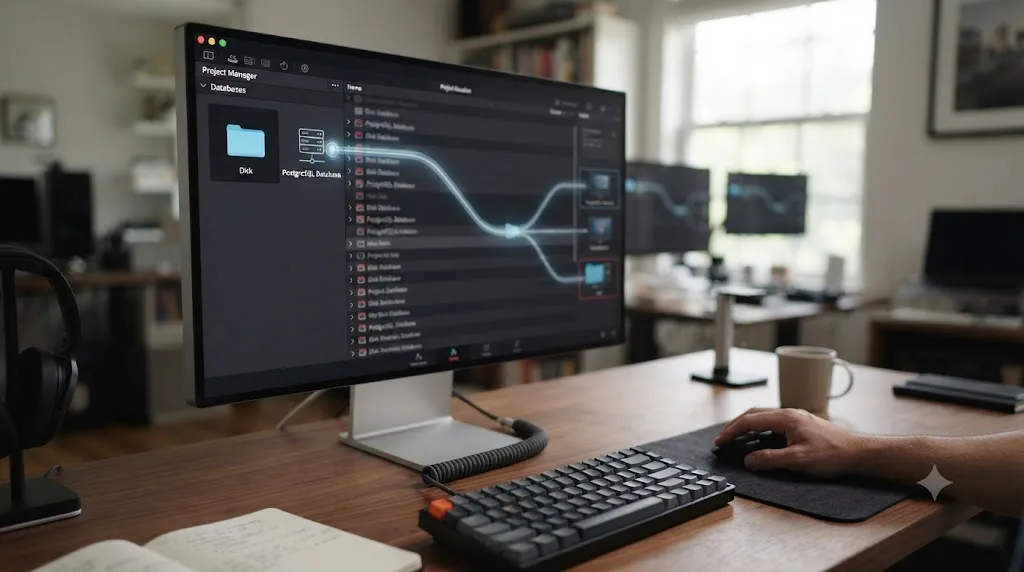
It's common to open Project Manager after months of using DaVinci Resolve and see two, three, or more entries in the database list on the left, not just the one you remember setting up. That's not corruption, and it's not a sign anything is wrong. Every time you or an installer points Resolve at a new folder, a Studio license migration, an external drive, a network share, a second Postgres server, it adds that location as a new entry in the list without removing the old ones automatically.
This matters specifically during an uninstall because deleting the Resolve Disk Database folder on disk and removing its entry from Resolve's database list are two completely different actions, and doing one doesn't do the other. Delete the folder without removing the list entry first, and the next time you open Resolve, that entry either shows an error or an empty database with no projects in it, which can look alarming even though nothing about your other databases changed. Remove the list entry without deleting the folder, and the folder sits there taking up disk space indefinitely, invisible to Resolve but still fully intact if you ever want to reconnect it.
Before you delete anything, right-click each database entry in Project Manager and check its path or connection details specifically. On a Disk Database, this shows a real, visible file path. On the default install, that path matches ~/Library/Application Support/Blackmagic Design/DaVinci Resolve/Resolve Disk Database on Mac or the equivalent AppData path on Windows, covered earlier in this guide. Any entry pointing somewhere else, an external drive letter, a mapped network location, a different user account's folder, is a separate database with its own separate set of projects, and deleting the wrong one because you assumed there was only ever one is exactly the mistake this section exists to prevent.
If you're migrating to a new machine and want to bring every database with you rather than just the default one, repeat the backup step covered earlier for each entry individually rather than assuming the default database is the only one that matters. A quick way to confirm you haven't missed one: if a project you know you worked on recently doesn't show up under any currently listed database, there's very likely an orphaned database entry somewhere that never made it into your backup plan.
A DaVinci Resolve project database list and the actual folders on your disk are two separate systems that happen to usually match up, and "usually" is exactly the word that gets people in trouble during a cleanup. Check both before you delete either one.
Should you uninstall the free version before installing DaVinci Resolve Studio?
No. Installing DaVinci Resolve Studio over an existing free installation is the supported, standard path, and uninstalling the free version first just creates unnecessary extra setup work for no real benefit.
DaVinci Resolve Studio and the free version share the same application structure, the same project database format, and the same preferences system. When you install Studio on a machine already running the free version, the installer upgrades the existing application in place rather than creating a separate, parallel installation. Once you enter a valid activation key inside Resolve's activation screen, or plug in a dongle if that's your license type, the Studio-only features unlock immediately, using the exact same projects, preferences, and cache locations you already had configured.
If you uninstall the free version first, you lose your existing preferences and any customization you'd done, and you gain nothing in exchange, since the Studio installer would have upgraded cleanly over the top of it anyway. The only scenario where uninstalling first genuinely makes sense is if your free installation is already broken or corrupted in a way that's causing install failures, in which case the goal isn't "clean because you're upgrading," it's "clean because the existing install is the actual problem," which is a different diagnosis entirely.
Going the other direction, downgrading from Studio back to the free version, works the same way in reverse. Install the free version over Studio (or simply stop entering your activation key), and your projects and preferences carry forward unchanged. You lose access to Studio-only features and export options, but nothing about your existing work is affected.
Switching between DaVinci Resolve Free and Studio is an activation change, not a reinstall, and treating it like a reinstall just costs you time reconfiguring settings the actual upgrade path would have preserved automatically. Save the uninstall-and-reinstall approach for when something is actually broken, not as a routine step in a licensing change.
Has the uninstall process changed across DaVinci Resolve versions?
The core mechanism, an application uninstaller paired with a separate, untouched database folder, has held steady across every major Resolve release covered in forum reports going back to at least version 14. What's shifted release to release is mostly platform-specific packaging detail, not the underlying database-separation principle.
| Version | Notable uninstall-related detail |
|---|---|
| DaVinci Resolve 12 | Disk Database introduced as the new default project database type, which is why solo editors and small teams rarely ever need to install, let alone later remove, a PostgreSQL environment at all (Mixing Light) |
| DaVinci Resolve 14 (free version) | Early forum threads on uninstalling the free version confirm the same Applications-folder uninstaller pattern already in place |
| DaVinci Resolve 15 | Blackmagic Forum thread specifically walks through a "totally clean" removal for a fresh reinstall, the same manual Library-folder cleanup this guide covers |
| DaVinci Resolve 16 | Database location shifted for new installs to sit under the current user's Library rather than the system-wide /Library, though upgraded installs from pre-16 systems may retain the older system-wide path |
| DaVinci Resolve 18 through 19 | Windows uninstall-stuck reports increase in this window, largely tied to Windows 11's Settings app handling of legacy uninstall entries rather than anything specific to Resolve itself |
| DaVinci Resolve 20 | Forum reports of Windows uninstalls failing to complete cleanly on 20.0.1 specifically, resolved through the registry UninstallString method covered earlier |
| DaVinci Resolve 21 (current, 21.0.3 as of July 2026) | No structural change to the uninstall process; the database-separation and Library/AppData leftover pattern remains identical to prior versions |
Blackmagic Design released DaVinci Resolve 21.0.3 on July 21, 2026, with coverage describing it as an update that "adds new ease modes for retime speed and frame curves, improved handling of interlaced media, and QuickSync encode options for older Intel systems" (Matthew Allard ACS, Newsshooter). The initial DaVinci Resolve 21 release itself introduced a new Photo page and a range of AI-assisted tools when it launched in June 2026 (PetaPixel). None of that changes anything in this guide's uninstall steps, since the application-versus-database separation this entire guide is built around predates Resolve 21 by several major releases.
If you're reading a five-year-old forum thread about uninstalling DaVinci Resolve, the specific screenshots may look dated, but the underlying database-and-preferences-survive-the-uninstall principle it describes is still exactly how DaVinci Resolve 21 behaves today. That consistency is actually useful information: it means old troubleshooting advice on this specific topic ages far better than advice about, say, export settings or GPU compatibility, which shift release to release in ways that do matter.
Does DaVinci Resolve on Linux need a different uninstall process?
Yes. DaVinci Resolve on Linux typically installs through Blackmagic's own installer script rather than your distribution's package manager, which means removal goes through a matching uninstall script rather than an apt remove or equivalent package command.
The installer package Blackmagic distributes for Linux includes an uninstall script alongside the install one, generally run from the same directory you originally extracted the installer into. Running that script removes the application from /opt/resolve, the standard installation path on most Linux distributions running Resolve.
What it may not fully clear, depending on your specific distribution and how long you've had Resolve installed, is your user-level configuration and cache data, typically under ~/.local/share/DaVinciResolve or a similarly named hidden folder in your home directory. Check there manually after running the uninstall script if you want a genuinely clean removal rather than assuming the script caught everything, since Linux package behavior varies meaningfully across distributions in a way Mac and Windows installs generally don't.
If you're deactivating a Studio license on Linux before uninstalling, remember the command-line deactivation covered earlier in this guide, since there's no GUI Help menu to fall back on the way there is on Mac and Windows if the app is already partially removed.
Worked example: uninstalling DaVinci Resolve completely before selling a MacBook used for years of client work
Here's how this actually plays out end to end, using a specific, common situation: you've been cutting client work on the same MacBook for three years, you're upgrading to a new machine, and you want the old one wiped clean enough to hand off or sell without leaving a single client project, preference, or license seat behind.
Start with the goal, not the tools. You're not troubleshooting a bug here, and you're not trying to keep anything on this machine. Every step from here on assumes the database folder gets deleted too, not just the app, which is the one branch point in this entire guide where "clean" means something more final than in every other scenario covered above.
First, before touching the uninstaller at all, open Project Manager and check every database entry in the sidebar, not just the one you remember using most recently. Say you find two: the default Disk Database, and a second entry pointing at an external drive you used for a specific client project two years ago that's no longer connected. Export a .drp file for anything currently open in the default database, then reconnect that external drive briefly and export from the second database too. Skipping the disconnected one is exactly the kind of gap the previous section warned about, and it's the single most common way people discover eighteen months later that a specific project simply vanished with the old machine.
Next, deactivate your DaVinci Resolve Studio license through Help > Deactivate License, if you're running Studio. This machine is leaving your hands. Whoever buys it doesn't need your seat sitting dormant on it, and you'll want that seat free the moment you activate Studio on your replacement machine rather than relying on the two-seat buffer to sort itself out later.
Now here's a complication worth planning for. Say the buyer wants the machine within the hour, and you don't have time to babysit a manual Library cleanup on top of everything else you're doing to prep the sale. That's a real constraint, not a hypothetical one, and it changes the plan: skip the folder-by-folder manual pass through Library and Preferences entirely, and instead run a dedicated uninstaller tool, CleanMyMac or BuhoCleaner on Mac, which finds and removes the DaVinci Resolve application bundle along with its associated Library folders in one scan rather than you hunting each path by hand under time pressure. Under time pressure is exactly when a manual cleanup is most likely to miss something or, worse, delete the wrong thing.
Once the app and its Library leftovers are gone, go back to Project Manager one more time, if it will still open, or check the file paths directly in Finder if it won't. Locate the Resolve Disk Database folder for each entry you backed up earlier, and delete both, the default one and the external-drive one you reconnected specifically to catch. This is the step nothing else in this process does for you automatically. The built-in uninstaller, and even a third-party cleanup tool, both stop short of touching your project database on purpose, because for every other use case in this guide, keeping that folder is exactly the right call. Selling the machine is the one case where deleting it, deliberately and only after confirming your backup, is the correct choice too.
Last, before you hand the machine over, confirm the .drp files you exported earlier actually made it off the machine, onto external storage or cloud storage you control, not just sitting in a Downloads folder you're about to wipe along with everything else. Then restart the Mac and do one final check: open Finder, search for "Blackmagic" and "Resolve" across the whole disk, and confirm nothing meaningful turns up beyond system caches you can't do anything about anyway.
The entire sequence takes maybe twenty minutes longer than just running the uninstaller and calling it done, and every extra minute of it exists for one reason: making sure the machine leaving your hands doesn't take a client's unfinished work with it, and doesn't leave your own license seat stranded on hardware you no longer control.
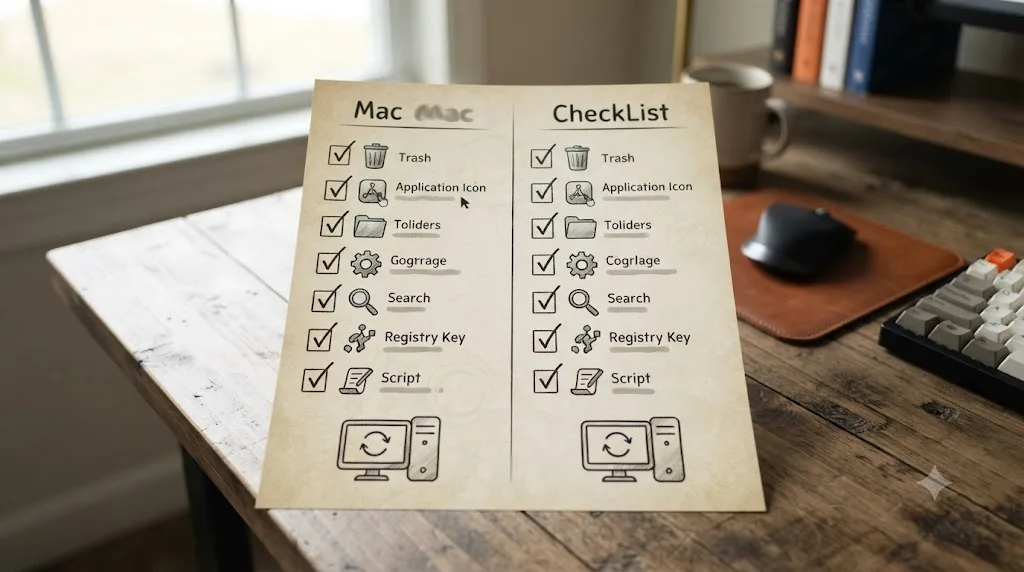
The complete uninstall checklist, step by step
Use this as the actual walkthrough once you've read the reasoning above and know which parts apply to your situation.
On Mac:
- Deactivate your Studio license through Help > Deactivate License, if applicable.
- Export a fresh .drp file for any project with recent work, in every database entry Project Manager lists, not just the default one.
- Quit DaVinci Resolve and confirm no related background processes remain, using Activity Monitor.
- Run Uninstall Resolve from
/Applications/DaVinci Resolve, or remove the app through Launchpad if you installed via the Mac App Store. - Open Finder, press Command-Shift-G, and check
~/Library/Application Support/Blackmagic Design,~/Library/Preferences,~/Library/Caches,~/Library/Saved Application State, and~/Library/Logsfor anything named Blackmagic or DaVinci Resolve. - Decide whether to delete the Resolve Disk Database subfolder specifically, based on whether you're reinstalling or removing Resolve permanently.
- Empty the Trash and restart your Mac.
On Windows:
- Deactivate your Studio license through Help > Deactivate License, if applicable.
- Export a fresh .drp file for any project with recent work, in every database entry Project Manager lists, not just the default one.
- Close DaVinci Resolve and confirm no related processes remain in Task Manager.
- Uninstall through Settings > Apps > Installed apps (or Control Panel > Programs and Features on older Windows versions).
- If the uninstall fails or the app doesn't appear in the list, check whether antivirus or endpoint software is holding a file lock, run Microsoft's Program Install and Uninstall Troubleshooter, or use the registry UninstallString method as a fallback.
- Check
C:\Program Files\Blackmagic Design\DaVinci Resolve,C:\ProgramData\Blackmagic Design\DaVinci Resolve, andC:\Users\[Username]\AppData\Roaming\Blackmagic Design\DaVinci Resolvefor anything left over. - Search "Resolve" in Registry Editor and remove leftover keys under the Blackmagic Design and Uninstall hives.
- Restart your PC.
Both checklists assume you're keeping your project database. If you genuinely want every trace of DaVinci Resolve and your prior work gone from a machine, add one final step to either list: locate and delete the Resolve Disk Database folder itself, after confirming you have a backup elsewhere if you want to keep it, since this is the one folder in this entire guide where "delete it" and "lose real work permanently" are the same action.
Can an on-screen assistant help you avoid uninstall mistakes while you're doing this?
Most of the risk in this guide isn't the uninstall itself. It's the manual cleanup step where you're deciding, folder by folder, whether a specific path is safe to delete or is actually your project database in disguise.
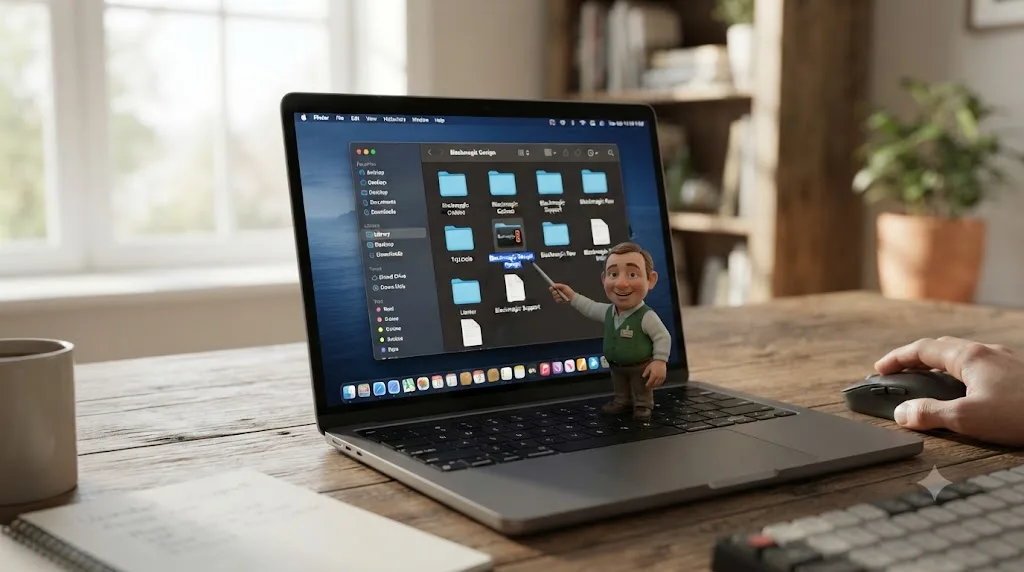
TryUncle is the on-screen assistant for DaVinci Resolve on macOS. Ask in plain words, and Uncle points at the exact control on your screen. That's a genuinely different use case than most of what people mean by "AI tool to learn DaVinci Resolve." If you're staring at Finder wondering whether the folder you're looking at is your actual Resolve Disk Database or just a cache folder safe to delete, or you're not sure your current Project Save and Load preferences match what you think you configured before this whole process started, that's exactly the kind of live, on-your-actual-screen question Uncle answers, rather than you cross-referencing a written guide's generic folder path against your specific, possibly nonstandard setup.
It's worth naming where this fits against the other tools people reach for when learning or troubleshooting Resolve, since pretending the category doesn't exist wouldn't be honest. Blackmagic's own free training and Casey Faris's widely recommended YouTube channel remain the best starting points for structured, ground-up learning, and Reddit's r/DaVinciResolve is a genuinely good source for exactly this kind of "is this normal" troubleshooting question. Where those differ from Uncle is live context: a course video or a forum thread can't see your actual screen, your actual folder structure, or your actual preferences panel, so you're always translating generic advice onto your specific situation by hand. Sottocut and cutagent.ai automate specific editing tasks directly on your timeline rather than answering setup questions. heyeddie.ai and general chat assistants answer typed questions with no view of your actual project. PremiereCopilot targets a different NLE entirely. Uncle's whole design is watching your screen and pointing, which makes it suited to exactly this kind of "where is this actually located on my machine" moment as much as it is to learning a new effect. Our comparison of AI tools to learn DaVinci Resolve goes deeper on where each of these genuinely fits.
Guided practice inside Resolve beats guessing at a Library folder alone at midnight, unsure whether the thing you're about to delete is a safe cache file or six months of project history. That's the specific moment a live, on-screen assistant earns its keep over even a thorough written guide, because a guide can describe the general path. It can't confirm what's actually sitting at that path on your specific machine right now.
TryUncle is a paid macOS-only subscription at $39 a month, cancel anytime, so check TryUncle directly for the current rate. If you're on Windows or Linux, none of this section applies to your setup directly, since Uncle currently runs on macOS only, and the manual steps earlier in this guide are your actual path either way.
Decision table: match your situation to the right uninstall approach
Use this if you've skimmed the sections above and want the short version for your specific case.
| Your situation | What to do |
|---|---|
| Reinstalling to fix a bug, want to keep your database | Run the built-in uninstaller only, skip the manual Library/AppData cleanup entirely, reinstall |
| Reinstalling to fix a bug, want a genuinely fresh app config too | Built-in uninstaller, then delete Preferences, Caches, and Saved Application State (Mac) or ProgramData and registry entries (Windows), keep the database folder untouched |
| Windows uninstall won't complete or the app doesn't appear in Settings | Check for an antivirus file lock first, then run Microsoft's Program Install and Uninstall Troubleshooter, then the registry UninstallString method if both fail |
| Suspect a GPU driver issue, not an app issue | Diagnose with our Nvidia driver crash guide before uninstalling Resolve itself |
| Upgrading from Free to Studio, or the reverse | Don't uninstall at all, just install the other version over the top and activate or deactivate the license |
| Selling or handing off the machine entirely | Deactivate your license, back up every database entry Project Manager lists, then delete each database folder too as a final, separate step |
| Your facility runs a shared PostgreSQL or Project Server setup | Confirm with whoever manages it before removing anything Postgres-related, since uninstalling DaVinci Resolve itself never touches it |
| Want the whole process automated rather than manual | Use Revo Uninstaller (Windows) or CleanMyMac/BuhoCleaner (Mac) instead of hunting each folder by hand |
| Running DaVinci Resolve on Linux | Use the bundled uninstall script from your original installer package, then manually check ~/.local/share/DaVinciResolve |
Uninstalling DaVinci Resolve completely isn't a complicated job. It's a short list of specific folders and one registry hive that the built-in uninstaller deliberately leaves in place, on both Mac and Windows, so a future reinstall doesn't cost you your settings or your projects. Know which folders those are, back up every database you're running before you touch anything, and the rest of this is a checklist rather than a guessing game.
Frequently asked questions
- Does uninstalling DaVinci Resolve delete my projects?
- No. Your project database lives in a separate location from the application itself, in Application Support on Mac or AppData/ProgramData on Windows, and neither Resolve's own uninstaller nor manually deleting the app touches it unless you specifically go into that folder and delete it too. Reinstall Resolve afterward and your projects reappear exactly as you left them.
- Do I need to deactivate my DaVinci Resolve Studio license before uninstalling?
- It's not strictly required, since a Studio license key carries two activation seats and you can reactivate it on a new install without deactivating first, but Blackmagic's own Help menu includes a Deactivate License option specifically for this, and using it before you uninstall or move to a new machine is the documented, forum-recommended habit rather than relying on the auto-kill of a third activation.
- Why won't DaVinci Resolve uninstall on Windows?
- The most common cause is a Windows Installer service that thinks the program is still running, a leftover registry entry pointing at a moved or deleted install folder, or insufficient permissions on ProgramData. Microsoft's free Program Install and Uninstall Troubleshooter fixes most of these automatically, and it's the first thing to try before editing the registry by hand.
- What's the best way to learn DaVinci Resolve after a clean reinstall?
- Blackmagic's own free training and Casey Faris's YouTube channel are the two most-recommended starting points, and both work equally well whether you're brand new or reinstalling after a wipe. If you want guided practice inside your actual project instead of watching a course video in a separate window, TryUncle's on-screen assistant Uncle points at the exact control you're asking about, live, on your own screen.
- Should you uninstall the DaVinci Resolve free version before installing DaVinci Resolve Studio?
- No, and doing so is unnecessary extra work. Studio installs over the free version and simply unlocks the paid features once you enter a valid activation key inside the app, using the same project database and preferences you already have. Uninstalling first just means reconfiguring settings you didn't need to touch.
- Is there an app that helps you while you're using DaVinci Resolve, instead of reading through a guide like this one?
- Yes. TryUncle is a paid macOS app whose assistant, Uncle, watches your DaVinci Resolve screen and can point at your actual Preferences, Media Storage, or Project Save and Load settings live, on your own project, rather than you translating a written path from an article onto your own screen by hand.
- Does DaVinci Resolve on Linux need special uninstall steps?
- Yes. Resolve on Linux typically installs through its own installer script rather than a package manager, and Blackmagic ships an accompanying uninstall script in the same installer package. Run that script, then manually check /opt/resolve and your home directory's .local/share/DaVinciResolve for anything left behind, since Linux distributions vary in what a script cleans up automatically.
Sources
- Blackmagic Forum: How to remove DaVinci Resolve 15 totally for clean install
- Blackmagic Forum: Uninstall completely DaVinci Resolve
- Blackmagic Forum: Workaround for getting Resolve to Uninstall / reinstall
- Blackmagic Forum: Unable to Uninstall Resolve 20.0.1 successfully (Windows)
- Blackmagic Forum: Tried to completely uninstall and reinstall Davinci Resolve
- Blackmagic Forum: remove studio licence
- Blackmagic Forum: Will I lose my projects if I uninstall?
- Blackmagic Forum: Where is the DR16.2 Database location in MacOS?
- Blackmagic Forum: Uninstall Postgres
- Blackmagic Forum: Postgres vs Disk database
- Blackmagic Forum: Microsoft Defender Blocks DaVinci Resolve Application
- Mixing Light: Creating a Shared DaVinci Resolve Database Server
- Toolfarm Knowledge Base: How to Uninstall DaVinci Resolve / Resolve Studio Key Won't Register
- MacPaw: How to uninstall DaVinci Resolve: Mac user guide
- Dr.Buho: How to Uninstall DaVinci Resolve on Mac | Complete Guide
- Revo Uninstaller: Uninstall DaVinci Resolve with Revo Uninstaller
- Microsoft Support: Fix problems that block programs from being installed or removed
- Newsshooter: DaVinci Resolve 21.0.3 Update
- PetaPixel: DaVinci Resolve 21 Officially Released With New Photo Editing, AI Tools, and Much More
- CoreMicro: Do I Lose My Project If I Uninstall DaVinci Resolve?
- Daniel Grindrod: Databases Explained - Getting started in DaVinci Resolve (Part 1)
- Windows Report: Fix: DaVinci Resolve Keeps Crashing on Startup [5 Ways]
- Eleven Forum: Unable to install or uninstall Davinci Resolve
Learn by doing, not watching
Stop translating tutorials to your timeline.
TryUncle stays beside Resolve on Mac and Windows. When you ask, Uncle sees your screen and points at the exact control you need. No hunting through tabs, timestamps, or mismatched tutorials.
Meet TryUncleKeep reading
 FixesJul 16, 202630 min read
How to Prevent DaVinci Resolve Project Corruption
The real causes of DaVinci Resolve project corruption, from cloud-synced databases to power loss, and the exact habits that prevent it in 2026.
 GuidesJul 12, 202638 min read
How to Archive a DaVinci Resolve Project Without Losing Media
The right way to archive a DaVinci Resolve project so every clip travels with it: Export Project Archive vs Media Management vs Backups, compared.
 FixesJul 17, 202627 min read
DaVinci Resolve NVIDIA Driver Crash on Windows: The Real Fix
DaVinci Resolve crashing on Windows with an NVIDIA GPU almost always traces to the Game Ready vs Studio Driver split. Here's the diagnosis and every fix branch.