
Learn / DaVinci Resolveupdated for DaVinci Resolve 21.0.2 (July 2026)
How to Prevent DaVinci Resolve Project Corruption
Quick answer
Prevent DaVinci Resolve project corruption by keeping your project database off cloud-sync folders (Dropbox, Google Drive, iCloud) and external drives, leaving 15-20% free space on that drive, shortening your automatic backup interval, exporting a .drp file each session, running a UPS against power loss, and never opening the same database from two machines at once.

I've read through years of Blackmagic Forum threads titled some version of "database corrupted," "project won't open," and "lost everything," and the pattern holds up every time: almost nobody corrupts a DaVinci Resolve project by doing something exotic. They corrupt it by storing the database somewhere ordinary that turns out to be wrong, or by letting the drive it lives on run out of room, or by losing power at the worst possible second. The advice for avoiding each of those exists, but it's scattered across forum threads, one-off blog posts, and a manual page here and there, never in one place.
This guide puts it in one place. It covers what actually causes corruption, in order of how often it shows up in real reports, and the specific habit that closes each hole, whether you're a solo editor on a laptop or a facility running a shared PostgreSQL Project Server.

What actually counts as a "corrupted" DaVinci Resolve project?
Before you can prevent it, it helps to know what you're actually preventing, because "corrupted" gets used loosely for at least three different problems that need different fixes.
True database corruption is when the project database itself, the file or folder structure that stores your bins, timelines, color grades, and edit decisions, becomes internally inconsistent. Resolve can't read it correctly anymore, so it either refuses to open the project, shows an error like "database is incompatible" or "did not locate a compatible or upgradable database," or opens something that's missing data it should have. This is the failure mode this guide is about.
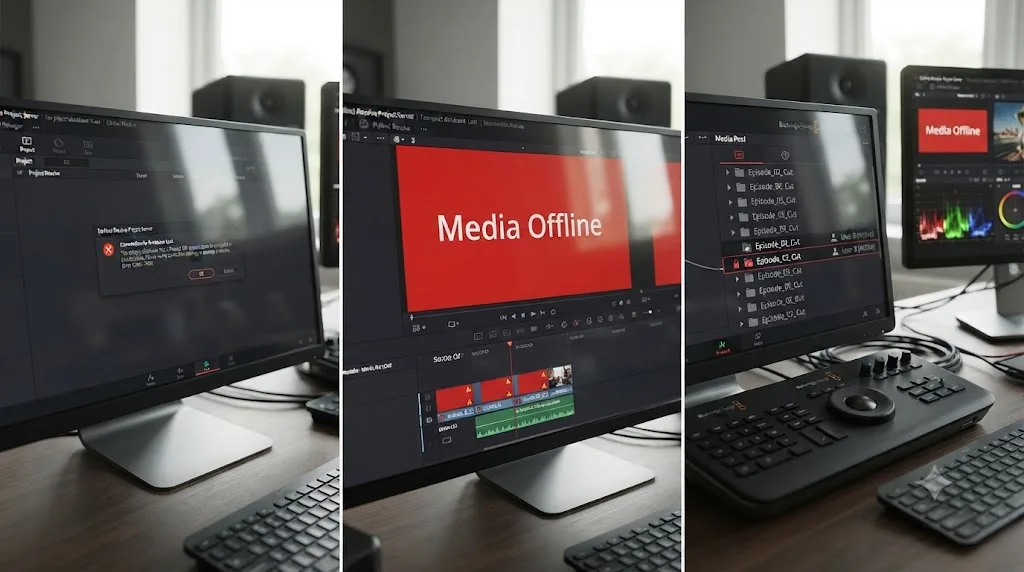
Media offline is a completely different problem. Your project database is fine, your edit is intact, but the media files it points to have moved, been deleted, or live on a disconnected drive. Resolve shows red "Media Offline" warnings, but relinking fixes it, because nothing about the project itself is broken. If you're chasing missing footage rather than a project that won't open at all, our guide on archiving a DaVinci Resolve project without losing media covers that territory in full.
A locked or frozen-looking project in a Multi-User Collaboration setup can also masquerade as corruption to someone who doesn't know the feature exists. A bin another editor has open shows as grayed out and unresponsive, which looks alarming the first time you see it but has nothing to do with database integrity. If your team uses shared or Blackmagic Cloud projects, see our fix for DaVinci Resolve Collaboration Mode timeline locked before you assume something's actually broken.
A DaVinci Resolve project is either open and editable, or it's corrupted. There's no partial state in between where the database quietly works but slightly wrong. That's why corruption feels so sudden when it happens. One session the project opens fine, the next it throws an error, and there was no warning in between, because the database was consistent right up until the write that broke it.
What causes DaVinci Resolve project corruption?
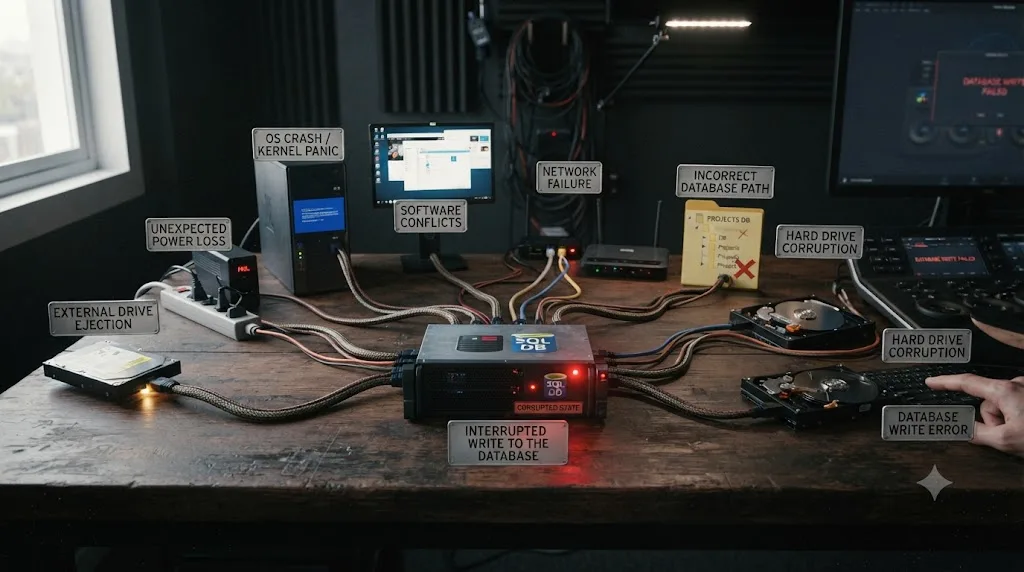
Every cause below shows up repeatedly across Blackmagic Forum threads and support articles. None of them is rare or exotic. That's the actual point of this guide: corruption is preventable precisely because the causes are this ordinary and this well documented once you gather them in one place.
| Cause | How common in reports | What it breaks |
|---|---|---|
| Database stored in a cloud-sync folder (Dropbox, Google Drive, iCloud, OneDrive) | Very common | Sync client writes conflicting metadata into database files mid-write |
| Drive running out of free space during a save | Very common | Incomplete write leaves the database in an inconsistent state |
| Power loss or forced shutdown mid-save | Common | Same as above, but triggered by hardware, not storage capacity |
| Two sessions writing to the same Disk Database at once | Common | Concurrent writes from more than one machine or Resolve instance |
| Overlong file paths on Windows (NTFS 255-character limit) | Occasional, mostly Windows | "Critical Error Saving Project" as Resolve can't create the needed subdirectories |
| PostgreSQL database grown too large for available shared memory | Occasional, mostly macOS/Linux | "Could not create shared memory segment" errors, missing database |
| Manually moving or renaming database files outside Resolve | Occasional | Breaks the internal references Resolve's Project Manager expects |
| Sudden drive disconnection (external/USB database drive) mid-write | Occasional | Same failure pattern as power loss, localized to that one drive |
Six of these eight causes are entirely within your control, and none of them require anything more advanced than a settings change or a habit. The two you have less control over, an overlong Windows path and a PostgreSQL server hitting a memory ceiling, still have concrete mitigations covered later in this guide.
Every well-documented cause of DaVinci Resolve project corruption comes down to the database being written to while something interferes with that write. A sync client, a full drive, a power cut, a second session, they're different triggers for the exact same failure: an incomplete or conflicting write to the files that hold your project's state. Once you see corruption that way, the prevention list stops looking like eight unrelated tips and starts looking like one principle applied eight times: protect the write.
Is your project database living on the wrong kind of drive?
Where your database physically sits is the single biggest lever you control, and it's also the thing most new Resolve users get wrong without realizing it, because nothing in the setup process stops them from choosing badly.
By default, DaVinci Resolve on Mac and Windows can use either a Disk Database, a simple folder of files, or a PostgreSQL database that runs as a background server process. According to Daniel Grindrod's breakdown of Resolve's database system, a Local Disk Database is the right call "if you're just working by yourself with one computer," while PostgreSQL "is the database option for those working in larger teams and needing to share databases across network storage" (Daniel Grindrod). Most solo editors and small teams should be on Disk Database, and most corruption reports from solo editors trace back to where that Disk Database folder was placed, not to the database type itself.
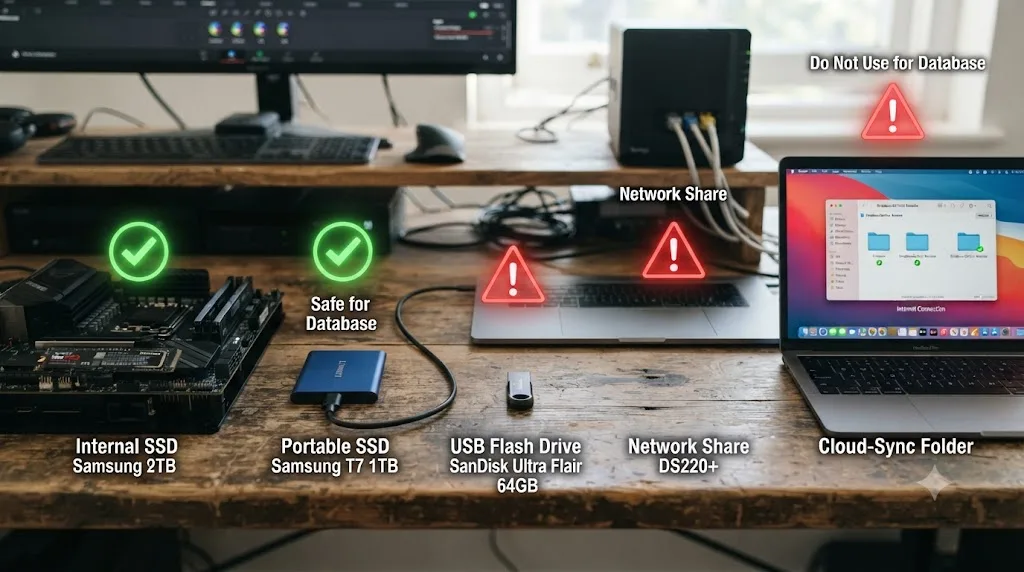
An external drive that disconnects, sleeps, or gets unplugged mid-write is functionally identical to a power loss, just localized to one drive instead of the whole machine. Multiple recovery guides recommend against putting a Disk Database on removable storage for exactly this reason: an internal drive is strongly preferred, because it stays connected, stays powered, and doesn't get bumped, ejected, or fall asleep the way an external or network drive can (safeboxguide.com).
Windows users face an additional, narrower failure mode tied to drive location combined with folder depth. A Blackmagic Forum thread titled "Project database corrupt - Name Already Exists" documents a specific pattern: because NTFS caps a full file path at 255 characters, and Resolve's Disk Database creates its own nested subdirectories and files underneath wherever you point it, a database folder placed several directories deep, especially with long, descriptive folder names, can silently exceed that limit. The result shows up as a "Critical Error Saving Project" the moment Resolve tries to write past that character ceiling. The fix is structural: keep your database folder shallow and close to a drive root, something like D:\ResolveDB\ rather than D:\Users\YourName\Documents\Video Projects\2026\Client Work\ResolveDatabase\, and this becomes more important the deeper your habitual folder nesting runs.
Here's the decision in table form:
| Drive type | Safe for a live Disk Database? | Why |
|---|---|---|
| Internal SSD/HDD | Yes, best choice | Always connected, always powered, no sleep/eject risk |
| Directly attached external SSD/HDD | Workable, with care | Connected reliably if never unplugged mid-session, but adds a failure point |
| Removable USB flash drive | No | Prone to being ejected or losing connection without warning |
| Network share (SMB/NFS), not a Project Server | No, for Disk Database | Not what Disk Database is designed for; use a PostgreSQL Project Server instead if you need network access |
| Cloud-sync folder (Dropbox, Google Drive, iCloud, OneDrive) | No, never | Sync client writes conflict with Resolve's own writes; covered in detail next |
Are you storing the database in Dropbox, Google Drive, iCloud, or OneDrive?
This is the single most avoidable cause on the entire list, and it's common enough to deserve its own section rather than a single row in a table.
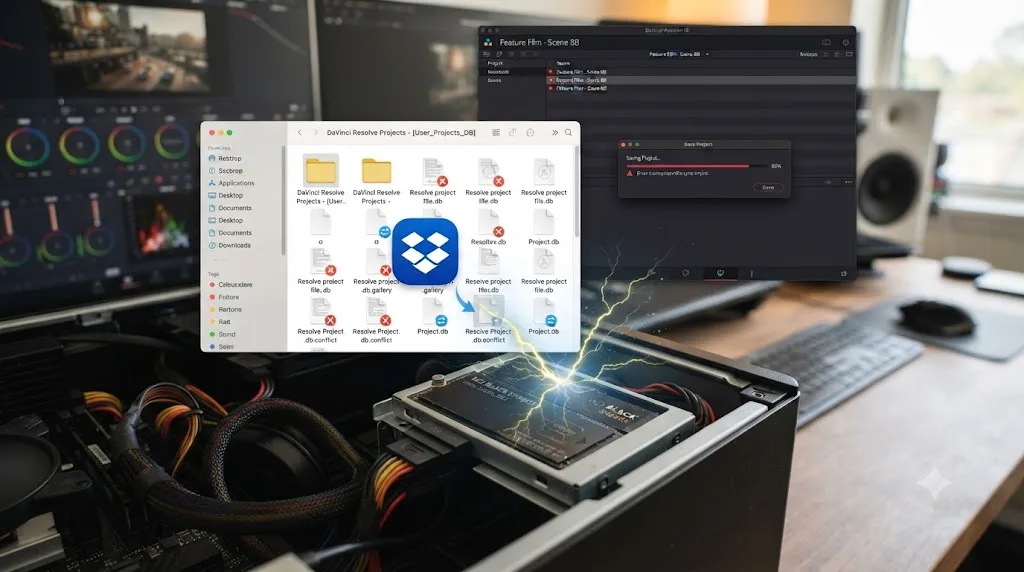
Patrick Inhofer at Mixing Light documented a real case where a member's Disk Database, stored inside a Dropbox-synced folder, became corrupted, losing two separate databases and all the work in them. After following up directly with Blackmagic, Inhofer reported the core finding plainly: Resolve "is not designed with Dropbox in mind," and it's "a solution that Blackmagic does not recommend for Disk Databases" (Mixing Light). The mechanism is straightforward once you know it: Dropbox, Google Drive, iCloud Drive, and OneDrive all work by watching a folder and writing their own sync metadata, conflict markers, and partial-file placeholders into it in the background, completely independent of whatever application is also trying to write there. Resolve's database expects to be the only thing touching its files. A sync client doesn't know or care about that expectation.
A related Blackmagic Forum thread, "Database on Google Drive?", covers the same question for Google Drive specifically, and the pattern of advice from experienced users lands in the same place: don't. The specific cloud service doesn't matter. The behavior that causes the problem, background sync writing into a folder Resolve also actively writes to, is shared across all of them.
Accessing a disk database with more than one piece of software at the same time, including a sync client running silently in the background, is one of the clearest documented ways to compromise a DaVinci Resolve project's integrity. That's true even if you never notice the sync client running. It doesn't need your attention to corrupt a file. It just needs to touch the same bytes Resolve is mid-write on.
What to do instead, in order of preference:
- Store the live database on a local internal drive, outside any synced folder entirely, full stop.
- If you want an off-site copy, sync a finished export instead of the live database. Run Export Project Archive (covered in our archiving guide) or a Database Manager backup, and let your cloud sync client watch that output folder. A static, already-written file is safe for a sync client to touch. A file Resolve is actively writing to is not.
- If you already have a database inside a synced folder right now, move it out immediately, even mid-project. Pause the sync client first, copy the folder to a local, non-synced location, then point Resolve's Project Manager at the new location rather than manually editing paths by hand.
Did you run out of disk space while you were working?
A full drive is the second most repeated cause in corruption reports, and it's also the easiest to prevent, because it's just a matter of leaving headroom you check on deliberately rather than assuming.
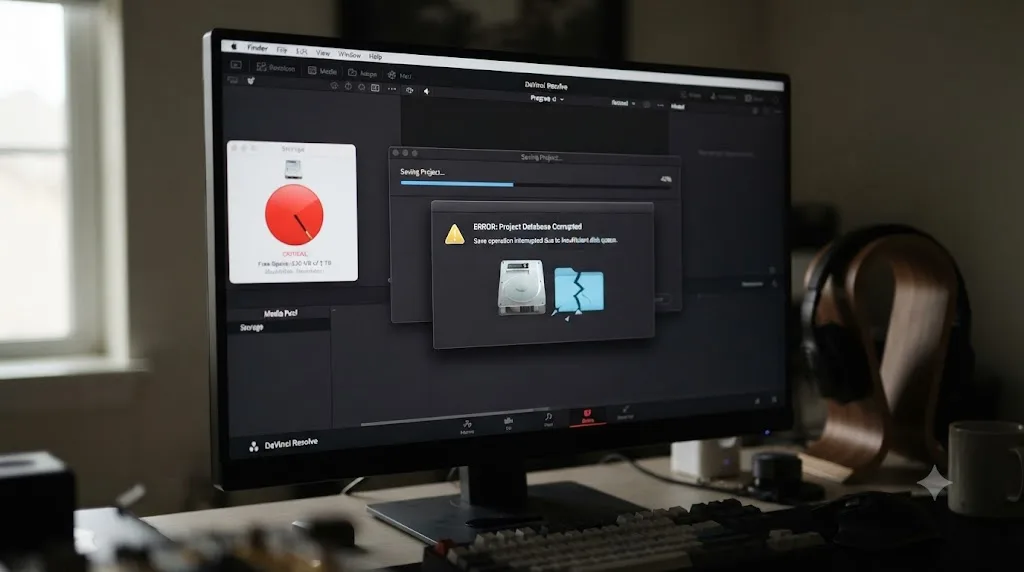
A Blackmagic Forum thread on DaVinci Resolve 19's "Not Enough Disk Space" error captures the pattern clearly: the message shows up when render cache, autosaves, and project data are all competing for space on a drive that's nearly full, and if the write in progress at that moment is a project save rather than a render, an interrupted write from insufficient space can leave the database itself in a broken state, not just fail cleanly with an error dialog.
Running out of free space isn't just an inconvenience that stops a render. If it interrupts a database write specifically, it's a direct cause of project corruption, not a separate problem. That distinction matters because a lot of editors treat "disk full" warnings as annoying but harmless, something to clear up later when it's convenient. Treat it as urgent instead, specifically on whatever drive holds your live database.
The practical baseline that shows up repeatedly across recovery and troubleshooting guides is to keep at least 15 to 20 percent of your database and scratch disk drives free at all times, not just when you remember to check (safeboxguide.com). Resolve's own Media Storage preferences let you designate which volumes handle cache and Gallery stills, and the manual recommends choosing "the fastest storage volume to which you have access" for the first entry in that list, but Blackmagic doesn't publish a hard minimum free-space number of its own. Treat 15 to 20 percent as a practical floor built from repeated real-world troubleshooting, not an official spec, and be more conservative if your projects are render-cache-heavy.
Three habits keep this from becoming a recurring problem instead of a one-time cleanup:
- Check free space on your database drive specifically, not just your media drive. These are often different volumes, and it's easy to monitor the big media drive while ignoring the smaller system or database drive quietly filling up.
- Clear render cache regularly through Playback > Delete Render Cache rather than letting it accumulate silently across weeks of sessions.
- Set a personal threshold alert. Most operating systems can warn you at a set free-space percentage. If you don't already have one configured for your database drive, this is worth five minutes to set up once.
Can a power loss or a forced shutdown corrupt your database?
Yes, and this is the cause editors most often shrug off as unlucky rather than preventable, when it's actually one of the most straightforward to guard against with a single piece of hardware.
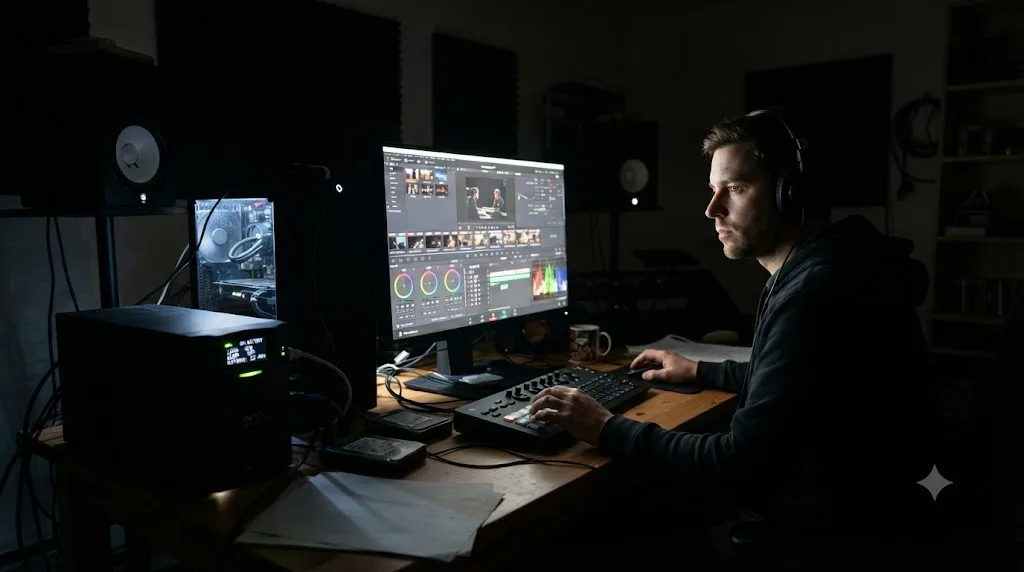
The mechanism is the same one covered in the causes table above: a database write interrupted mid-process leaves the file in an inconsistent state. A sudden loss of electricity can interrupt a shutdown or write sequence and leave processes "half-finished," which can corrupt files that were open at that exact moment (MakeUseOf). For most applications that's a minor annoyance. For a database like Resolve's project store, an interrupted write is exactly the failure mode that produces "database is incompatible" errors on next launch.
A standard surge protector doesn't help here. It protects your hardware from voltage spikes when power returns, but it does nothing during an actual outage, since it has no battery of its own (CyberPower). What you need for this specific risk is an uninterruptible power supply, a UPS, which sits between the wall outlet and your workstation and switches to battery power instantly the moment mains power drops, giving your system time to either keep running through a brief outage or shut down cleanly instead of losing power mid-write.
A surge protector defends your hardware from a power spike. A UPS defends your work from a power loss. DaVinci Resolve's database needs the second one, not the first. They solve different problems and most home and small-studio setups only have the first, which leaves the actual corruption risk completely unaddressed.
For a solo editing setup, a mid-range UPS rated for your workstation's power draw gives you enough runtime to notice the outage, stop working, and either save and quit cleanly or let an automatic shutdown script do it for you. You don't need enterprise-grade battery capacity for this. You need enough time to react, which is exactly what a UPS is built to buy you.
Are two people, or two Resolve sessions, writing to the same project at once?
A Disk Database is built around the assumption that one session at a time is writing to it. Break that assumption and you're in corruption territory, even without a bad drive, a full disk, or a power outage anywhere in the picture.
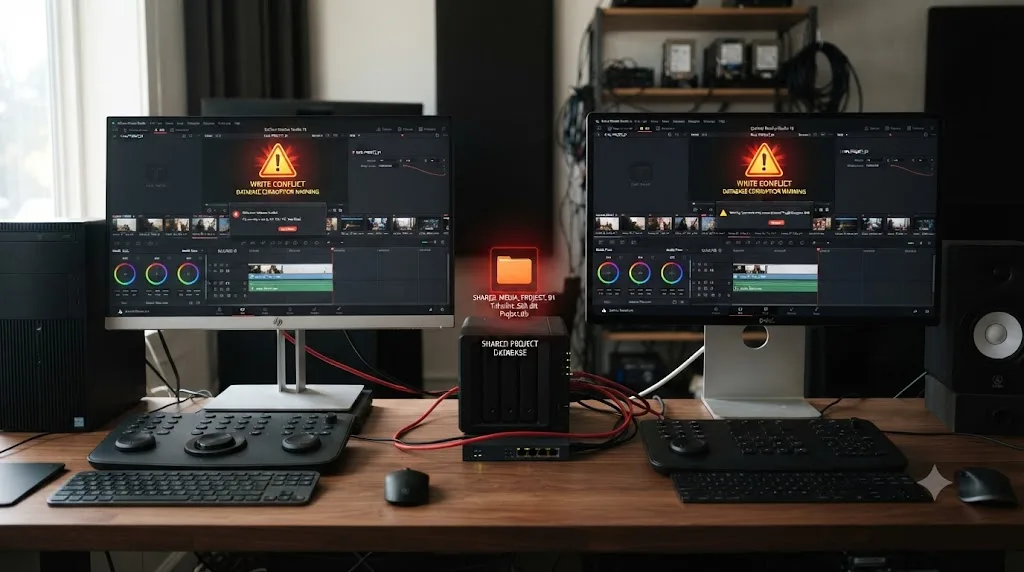
This shows up two ways. The obvious one: two separate editors, each with their own copy of the same project folder open on their own machine, both saving changes, neither aware the other is doing the same thing at the same time. The less obvious one: a single editor who accidentally launches DaVinci Resolve twice, pointed at the same database, perhaps after a crash left a background process running that they didn't notice before relaunching the app.
A Disk Database has no built-in traffic cop. Nothing in the file structure stops two separate write processes from touching the same files at the same time, and the result of that collision is corruption, not a helpful warning. That's a deliberate tradeoff in the design, not an oversight. Disk Database is built for the single-user case specifically because it skips the coordination overhead a real multi-user system needs, which is exactly what makes it fast and simple for one person, and exactly what makes it dangerous for more than one.
If you genuinely need more than one person working the same project at the same time, you have two supported paths, and both exist specifically to solve this coordination problem the way a Disk Database can't:
- Multi-User Collaboration on Blackmagic Cloud or a local network setup, which adds the locking system covered in our guide to DaVinci Resolve Collaboration Mode timeline locked. The lock model that occasionally frustrates editors by over-scoping to a whole bin exists precisely to prevent the kind of simultaneous-write corruption a Disk Database has no defense against at all. A locked bin is an annoyance. A corrupted database from a genuine write collision is a lost afternoon or worse.
- A PostgreSQL Project Server, covered in the next section, which is designed from the ground up for concurrent multi-user access, unlike Disk Database.
If you're not sure whether your team is accidentally doing this right now, the tell is simple: does more than one person have a copy of the same project's database folder, and are more than one of those copies ever open in Resolve at the same time? If the honest answer is yes, even occasionally, that's a live corruption risk sitting in your current workflow, not a hypothetical one.
Is a shared PostgreSQL Project Server a different risk than a solo Disk Database?
Yes, and if you're running one, it's worth understanding the failure mode is genuinely different from everything covered above, not just a bigger version of the same problem.
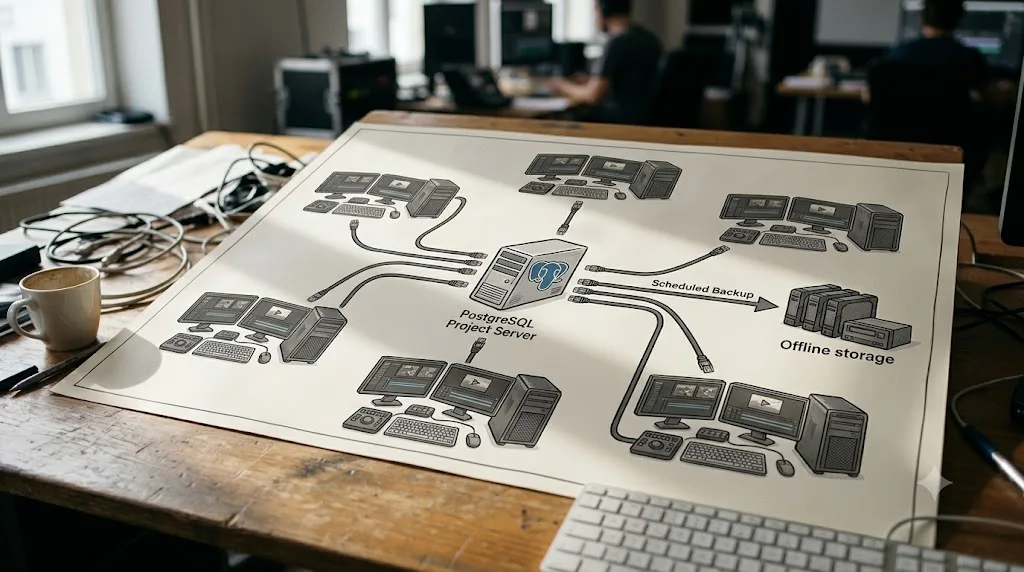
Per the Blackmagic Forum discussion on Postgres vs Disk database, PostgreSQL exists specifically for facilities running multiple systems that need to share projects continuously, and it runs as a genuine background server process rather than a plain folder of files. That server-based design is exactly what makes concurrent multi-user access safe in a way a Disk Database never is. But a real database server introduces its own, separate corruption surface: it can be affected by disk-level issues on the machine hosting it, by improper shutdowns of the server process itself, and by a specific failure mode tied to database size.
Digital Rebellion's writeup on missing database errors documents that failure mode directly: as a PostgreSQL database grows large enough, it can request more shared memory than the host operating system allows, producing an error along the lines of "could not create shared memory segment," which then surfaces in Resolve as "did not locate a compatible or upgradable database" (Digital Rebellion). That's not corruption in the classic interrupted-write sense. It's a resource ceiling the server hits as your project history accumulates, and the fix Digital Rebellion outlines runs through adjusting the operating system's shared memory allocation, not through anything inside Resolve's own preferences.
A PostgreSQL Project Server solves the concurrent-access problem a Disk Database can't, but it trades that solved problem for a new one: it's now a real server process with its own maintenance requirements Resolve doesn't automate for you. Facilities running a shared Project Server need to treat database maintenance as its own ongoing job, separate from anything Resolve's UI surfaces automatically.
Two concrete practices close most of that gap:
- Run scheduled PostgreSQL maintenance, specifically
reindexdbandvacuumdb, which clear out deleted data, analyze current data, and rebuild indices, keeping the server from bloating toward the shared memory ceiling in the first place. - Back up the PostgreSQL database itself on a schedule, separate from Resolve's own Project Backups. A full database dump, compressed and copied to a separate volume, protects against server-level failure the way Resolve's built-in backups protect against edit-level mistakes (DVResolve.com). Neither one substitutes for the other.
If your facility already has IT staff managing shared storage, confirm explicitly that PostgreSQL database maintenance and backup are actually on someone's schedule, not silently assumed to be covered by general server backups that may not touch the database in a way that's actually restorable.
Does Blackmagic Cloud protect you from corruption the way people assume?
Not automatically, and this is a genuinely common misconception worth clearing up directly, because "it's in the cloud" sounds like it should mean "it's safe," and that's not quite what Blackmagic Cloud does.
Blackmagic Cloud hosts your project database on Blackmagic's own servers so collaborators can open the same project from different locations, which does solve the simultaneous-write coordination problem covered above, the same way local Multi-User Collaboration does. What it doesn't automatically do is protect your project the way a personal backup discipline would. Your media generally still lives on your own local storage rather than Blackmagic's servers by default, and while database corruption on a cloud-hosted project is a genuinely rarer report than on local Disk Databases, since Blackmagic manages that server infrastructure directly, "hosted by Blackmagic" isn't the same claim as "backed up in a way you can restore from a specific point in time."
Cloud hosting moves where your database physically lives. It doesn't automatically give you the dated, restorable backup that only your own discipline, or Resolve's own automatic Project Backups, actually provides. Keep your Project Backups interval sensible and your own .drp export habit running even on a Blackmagic Cloud project, exactly as you would on a local one. The hosting location changes who's responsible for the server. It doesn't change whether you have a real recovery point if something in your specific edit needs rolling back.
How often should DaVinci Resolve back up your project, and is the default good enough?
Resolve's automatic Project Backups are on by default, and most editors never touch the setting, which means most editors are running whatever interval shipped as the factory default rather than one they chose deliberately.
According to the official DaVinci Resolve manual, Project Backups follow a grandfather-father-son rotation: "a new backup is saved every 10 minutes, resulting in six backups within the last hour," after which per-minute versions thin out into hourly snapshots, up to 8 per day, with daily snapshots kept "only for five days" (DaVinci Resolve Manual, mirrored). Larry Jordan's own account of the default cites a 20-minute interval in the version of Resolve he was documenting, noting plainly that "by default, Resolve creates backups every 20 minutes. You can adjust this in User preferences" (Larry Jordan). The exact default interval has shifted slightly across Resolve versions, which is itself a reason not to assume you know your current setting without checking.
The default backup interval is a reasonable baseline for casual work and a genuine liability for anything with real stakes riding on it. A ten-to-twenty-minute gap between backups means a corruption event, or simply a bad edit decision you want to undo, can cost you real time even with backups fully enabled and working exactly as designed.
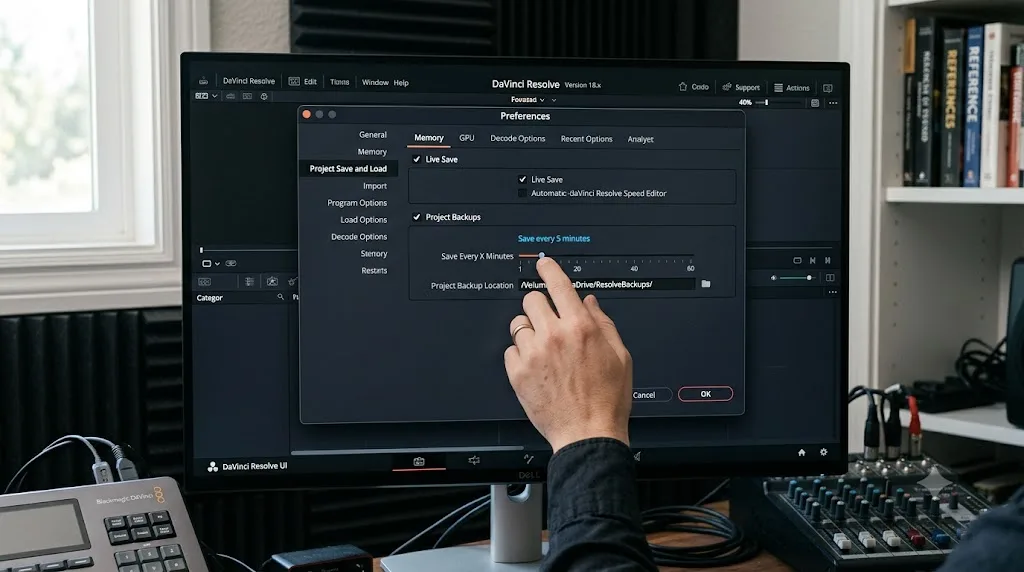
To check and adjust yours: open DaVinci Resolve > Preferences > User > Project Save and Load. From there you control:
- Live Save, which saves continuously as you work rather than only on an interval, when enabled.
- The Project Backups interval itself, adjustable down from the default toward 5 to 10 minutes for active, high-stakes sessions.
- How many backups Resolve retains, up to 16 per project at your chosen interval, before the rotation starts thinning older ones.
Shortening the interval costs you essentially nothing in performance on modern hardware and directly reduces how much work a corruption event or a bad decision can cost you. There's no real argument for leaving this at a factory default once you know it's adjustable.
Should you export a .drp file on top of automatic backups?
Yes, and the reason isn't redundancy for its own sake. It's that automatic backups and a manual .drp export fail in genuinely different ways, so having both covers a gap that having just one leaves open.
Project Backups live inside the same database structure they're protecting. If the database itself becomes corrupted, deleted, or the whole project library folder gets removed the way it did in Larry Jordan's own account of losing every project he had, the backups sitting inside that structure go down with it. A plain Export Project, producing a small .drp file that lives wherever you choose to save it, sits completely outside the database. It doesn't care what happens to your Project Library afterward, because it never depended on it in the first place.
Larry Jordan's own advice on this point, written directly out of the experience of losing his project library, is specific about what a healthy project library folder needs: "It needs to be located on a fast device that is permanently connected to your computer and should not be deleted" (Larry Jordan). That guidance covers the database itself. A .drp export is the separate, independent habit that protects you even when that guidance gets violated by accident, the way it was in his own case.
A .drp file is tiny regardless of how much media a project references, since it stores only edit decisions and pointers to where media currently lives, not the media itself. Larry Jordan's own comparison of Resolve's export options documented one real example of that gap: exporting a plain project on a job referencing 1.2 TB of source media produced a .drp file of just 438 KB (Larry Jordan). That's what makes a .drp file cheap enough to export as a genuine end-of-session habit, not a special-occasion backup you only remember to run before something risky.
The practical routine:
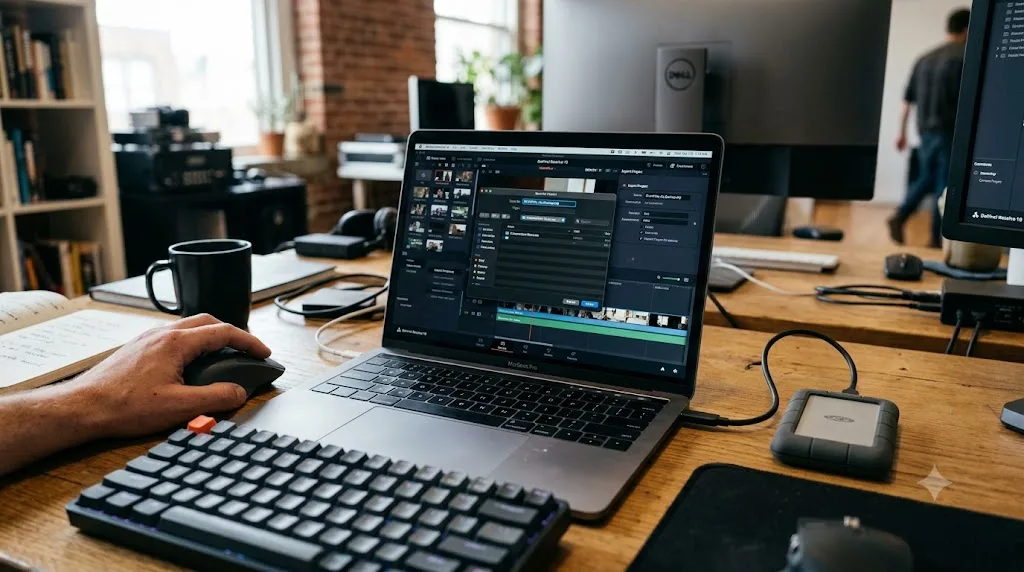
- At the end of any session with meaningful new work, right-click the project in Project Manager and choose Export Project, saving the .drp file to a location outside your database, ideally a separate drive.
- Name it with a date or version marker,
ClientName_2026-07-16.drp, so you have multiple dated recovery points, not just one file that overwrites itself. - Treat the most recent .drp as your true fallback if a database-level corruption event takes out your Project Backups along with the live project. It won't have your very latest changes since your last export, but it will open, cleanly, on any working database.
What are the early warning signs your project is about to corrupt?
Corruption usually announces itself with smaller symptoms before it fully breaks a project open, and catching those early is the difference between a five-minute fix and a lost afternoon.
Saves that take noticeably longer than usual, especially on a project that hasn't grown much in size recently, can indicate the database is struggling with fragmentation or an underlying drive issue before it fails outright. Error dialogs during save that you dismiss and move past without investigating are a specific red flag, since a save error that "goes away" after a retry often means the underlying condition, low disk space, a flaky connection, sync client interference, is still present and will eventually catch you at a worse moment. A project that occasionally shows fields, bin structures, or settings that don't match what you remember setting can be an early symptom of a database starting to write inconsistent data, well before it refuses to open entirely.
Treat a strange, one-off save error as a warning shot, not a fluke, especially if it happens on a database sitting on a drive you haven't checked recently. The forum threads behind this guide are full of editors who dismissed one odd error message a session or two before the database stopped opening entirely. In hindsight, almost every one of them had a root cause, low disk space, a sync folder, a flaky external drive, that was sitting there the whole time.
If you notice any of these signs, the response is the same regardless of which one triggered it: check your database drive's free space immediately, confirm the database isn't inside a sync folder, export a fresh .drp file right now rather than waiting until end of session, and if you're on an external or network drive, verify the connection is stable before you keep working.
What do you do the moment you suspect a project is corrupted?
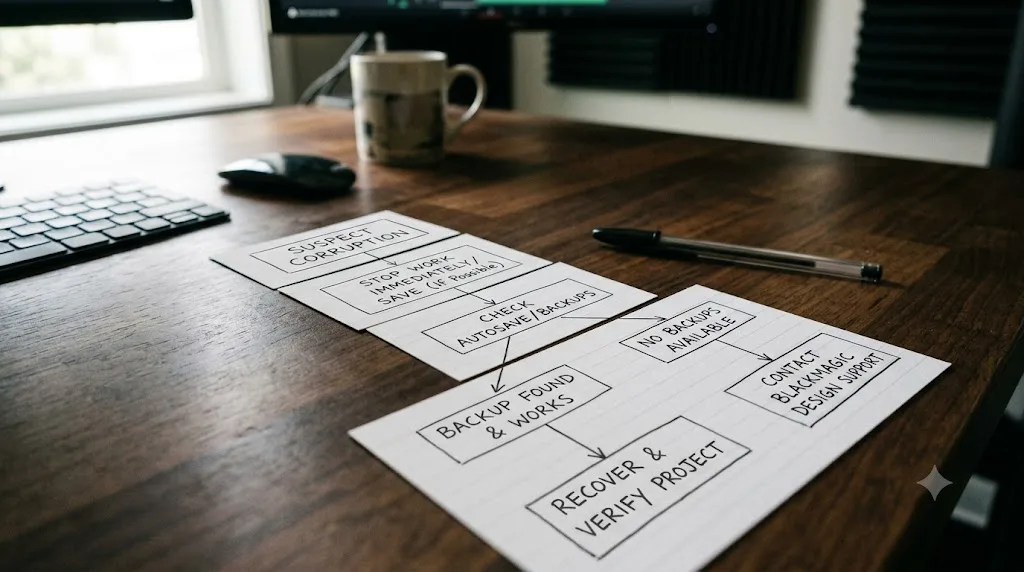
If prevention already failed and you're staring at an error, the order of operations matters, because the wrong first move can turn a recoverable situation into a permanent one.
- Stop working in that project immediately. Don't try to "push through" a save error hoping it resolves itself, and don't let an automatic backup interval overwrite a still-good backup with a broken save while you're troubleshooting.
- Don't delete anything, not the database folder, not what looks like a duplicate or stray file next to it. What looks like clutter during a panic might be exactly the file a recovery path needs.
- Open Project Manager and check Other Project Backups. Right-click in the gray area of the Project Manager window and look for the option to browse backups in human-readable, timestamped form. Load the most recent one into a new project name, never overwriting the broken original, and confirm it opens clean before you do anything else.
- If you're on a PostgreSQL database and backups don't resolve it, try Database Manager's Optimize function on that specific database, which some forum reports describe as resolving certain corruption states that plain restoration doesn't touch.
- If you have a recent .drp export, that's your clean fallback the moment database-level recovery options are exhausted. It won't have your latest few hours of work, but it will open.
- If none of the above works, contact Blackmagic support directly with your project.db file, or a full .dra archive containing it. According to recovery guidance compiled after real support interactions, Blackmagic's own support path is genuinely the more reliable option for database-level corruption specifically: a support engineer works from your damaged file and can sometimes return a recovered project.drp you can import normally. It's not guaranteed, since some corruption is genuinely unrecoverable, but it's a real channel worth trying before you write the work off.
The single worst mistake in a corruption event isn't the corruption itself. It's panicking and deleting something, or letting an automatic process overwrite your last good backup, before you've confirmed what you're actually working with. Slow down for the first five minutes. Everything you do after that first backup restoration attempt is much lower stakes than the choices you make before it.
A daily and weekly corruption-prevention routine
Individual fixes are easy to read and forget. A routine is what actually sticks, so here's how the habits above fit into an ordinary editing week without adding real friction to your workflow.
Every session, at login: Confirm your database drive is connected and not sleeping if it's external. Glance at free space if you haven't checked in a few days.
Every session, at logout: Export a fresh .drp file if you did meaningful work. This takes under a minute and is the single highest-value habit in this entire guide for how little time it costs.
Weekly: Check free space on your database and scratch drives specifically, not just your main media volume. Clear render cache you no longer need. If you're on a facility Project Server, confirm with whoever manages it that scheduled PostgreSQL backups actually ran this week, not just that they're theoretically configured.
Monthly, or at the start of any high-stakes project: Test-restore a backup from Other Project Backups into a throwaway project name and confirm it opens clean. Confirm your Project Save and Load preferences still show the interval you expect, since a Resolve update or a preferences reset can silently revert a customized setting back toward default.
Before any long, unattended render or a multi-hour session you can't actively monitor: If you're not already on a UPS, this is the moment it matters most, since an unattended power loss mid-render or mid-save with nobody there to react is exactly the scenario a UPS exists for.
Here's the whole thing as one table, so you can turn it into an actual checklist rather than a paragraph you skim once and forget.
| Frequency | Action | Costs you |
|---|---|---|
| Every login | Confirm database drive connected, glance at free space | Under 30 seconds |
| Every logout | Export a .drp file | Under 1 minute |
| Weekly | Check drive free space, clear old render cache | 2 to 5 minutes |
| Weekly (Project Server only) | Confirm scheduled PostgreSQL backups actually ran | 2 minutes to ask |
| Monthly | Test-restore a backup into a throwaway project | 5 minutes |
| Before long unattended sessions | Confirm UPS is in place and functioning | One-time setup, then free |
None of this requires new software, a subscription, or specialized knowledge. It requires remembering to do it, which is exactly where a habit beats a one-time fix.

Can an AI tool actually help you avoid these mistakes while you're editing?
Most of this guide is about settings you configure once and habits you repeat. The place an AI tool genuinely helps isn't replacing that discipline, it's catching the moment you're about to violate it, before it costs you anything.
TryUncle is the on-screen assistant for DaVinci Resolve on macOS — ask in plain words and Uncle points at the exact control on your screen. If you've never opened Preferences > User > Project Save and Load, or you're not sure whether your current database folder is sitting inside a synced Dropbox path, that's exactly the kind of question Uncle is built to answer live, inside your actual project, rather than sending you off to compare screenshots in a browser tab while your edit sits half-finished in the background.
This is a genuinely different category of AI tool than the chat-based or automation-based ones people usually mean when they say "AI tool to learn DaVinci Resolve." Sottocut and cutagent.ai automate specific editing tasks directly on your timeline. heyeddie.ai and general chat assistants answer questions you type out, with no view of your actual project. PremiereCopilot targets a different NLE entirely. TryUncle's Uncle watches your DaVinci Resolve screen while you work and can point at your Media Storage or Project Save and Load preferences directly, the same way it points at any other control, which makes it as useful for a prevention pass like this one as it is for learning a new effect. Our fuller comparison of AI tools to learn DaVinci Resolve goes deeper on where each of these tools actually fits.
Guided practice inside Resolve beats watching a course about Resolve, and it also beats guessing at a preferences menu alone at eleven at night with a deadline in the morning. That second case, the quiet configuration mistake nobody catches until it costs a project, is exactly where an in-app tutor earns its keep over a static guide, no matter how thorough the guide is.
TryUncle is a paid subscription at $34.99 a month with cancel-anytime billing, so check TryUncle directly for the current rate. It's macOS only. If you're new enough to Resolve that even locating your Project Library folder feels uncertain, that's a reasonable moment to lean on something built to watch what you're doing and point at the right menu in real time, rather than trying to hold this entire guide in your head during your next session.

Decision table: match your setup to your biggest corruption risk
Use this as the final word if you're not sure which section above actually applies to you.
| Your setup | Your biggest risk | What to fix first |
|---|---|---|
| Solo editor, laptop, database in default location | Low free space or an accidental sync-folder location | Verify database path isn't synced, check free space |
| Solo editor, database inside Dropbox/Google Drive/iCloud | Very high, active risk right now | Move the database out today, not at end of project |
| Solo editor, external USB drive for database | Disconnection mid-write | Move to internal drive, or at minimum never unplug mid-session |
| Small team, shared project folder, Disk Database | Simultaneous-write corruption | Switch to Multi-User Collaboration or a Project Server |
| Facility, PostgreSQL Project Server | Shared memory limits at scale, unmaintained server | Schedule reindexdb/vacuumdb and separate database backups |
| Anyone on desktop power without a UPS | Power-loss corruption during an outage or brownout | Add a UPS rated for your workstation |
| Anyone relying only on default backup interval | Losing more work than necessary between recovery points | Shorten the interval, enable Live Save |
| Anyone with backups enabled but never tested | A false sense of security if backups are silently broken | Test-restore one backup this week |
Preventing DaVinci Resolve project corruption isn't about memorizing a rare edge case. It's about closing five or six extremely ordinary habits that show up in nearly every forum thread about a lost project: a database in the wrong folder, a drive that filled up, a power cut with no battery behind it, two sessions fighting over the same file, and a backup interval nobody ever bothered to shorten. Fix those, keep a .drp export as your independent fallback, and test your recovery path before you need it for real. That's the whole guide, reduced to one sentence: protect the write, and everything downstream of it protects itself.
Frequently asked questions
- What actually causes a DaVinci Resolve project to become corrupted?
- The most common causes are a project database stored inside a cloud-sync folder like Dropbox or Google Drive, a database or scratch drive that runs out of free space mid-write, a power loss or forced shutdown while Resolve is saving, and two people or two Resolve sessions writing to the same database at once. Corruption almost never comes from a single click inside the app.
- Can I prevent DaVinci Resolve project corruption completely?
- No tool guarantees zero risk, but you can make corruption rare and, more importantly, recoverable. Keep the database off cloud-sync drives, leave real free space on the drive it lives on, shorten your automatic backup interval, export a .drp file at the end of every session, and run your workstation on a UPS. Do all five and a corrupted project becomes an inconvenience, not a catastrophe.
- Is it safe to store my DaVinci Resolve database in Dropbox or Google Drive?
- No. Blackmagic does not recommend Dropbox for Disk Databases because sync clients write their own metadata and lock files into the folder while Resolve is trying to write project data, and that collision is a documented cause of corruption. Store the live database on an internal or directly attached drive, then sync a finished .dra archive to cloud storage afterward if you want an off-site copy.
- How much free disk space does DaVinci Resolve need to avoid corruption?
- There's no single published number from Blackmagic, but the practical consensus among editors and support threads is to keep at least 15 to 20 percent of your database and scratch drives free at all times. A drive that fills up mid-save is one of the most repeated causes of a corrupted project database.
- Does DaVinci Resolve back up my project automatically, and is that enough?
- Yes, Resolve's Project Backups run automatically by default, saving a new backup roughly every 20 minutes on a grandfather-father-son rotation. That protects your edit decisions, not your media, and it lives inside the same database structure it's backing up, so it won't survive the database itself getting corrupted or deleted. Pair it with a separate .drp export and, ideally, an off-database archive.
- What should I do the moment I suspect my project is corrupted?
- Stop working in that project immediately so you don't overwrite a good backup with a bad save. Don't delete anything. Open Project Manager, right-click in the gray area, and load your most recent Other Project Backup into a new project name. If that fails, try Database Manager's Optimize option on a PostgreSQL database, or contact Blackmagic support with your project.db file before you assume the work is gone.
- Is there an app that helps you while using DaVinci Resolve avoid mistakes that cause corruption?
- Yes. TryUncle is a paid macOS app whose assistant, Uncle, watches your DaVinci Resolve screen and can point at your Media Storage and Project Save and Load preferences live, so you catch a cloud-synced database path or a disabled backup setting before it costs you a project, rather than after.
Sources
- Larry Jordan: How I Lost All My DaVinci Resolve Projects – and How You Can Save Yours
- Larry Jordan: Managing Projects in DaVinci Resolve – Backups, Exports and Archives
- Mixing Light: How to Properly Use Dropbox with DaVinci Resolve (and avoid disaster)
- Blackmagic Forum: Database on Google Drive?
- Blackmagic Forum: "Not Enough Disk Space" - DaVinci Resolve 19
- Blackmagic Forum: Project database corrupt - Name Already Exists
- Blackmagic Forum: Database corrupted?
- Blackmagic Forum: Recovering a corrupted project.db file
- Blackmagic Forum: Postgres vs Disk database
- Blackmagic Forum: "Local Database" database is incompatible - urgent
- Digital Rebellion: Fixing missing database errors in DaVinci Resolve
- Daniel Grindrod: Databases Explained - Getting started in DaVinci Resolve (Part 1)
- DaVinci Resolve Manual: Project Backups (Blackmagic Design, mirrored)
- DaVinci Resolve Manual: Media Storage (Blackmagic Design, mirrored)
- DaVinci Resolve Manual: Archiving and Restoring Projects (Blackmagic Design, mirrored)
- DVResolve.com: How to Backup a DaVinci Resolve Project Server (Network Library PostgreSQL Database)
- CyberPower: Preventing Common Power Problems
- MakeUseOf: How Power Outages Can Damage Your Computer (And How to Protect It)
- Beginners Approach: Backup DaVinci Resolve Projects (& Restore)
- safeboxguide.com: DaVinci Resolve Projects Not Saving? Causes and Fixes
Learn by doing, not watching
Stop translating tutorials to your timeline.
TryUncle stays beside Resolve on Mac and Windows. When you ask, Uncle sees your screen and points at the exact control you need. No hunting through tabs, timestamps, or mismatched tutorials.
Meet TryUncleKeep reading
 GuidesJul 12, 202638 min read
How to Archive a DaVinci Resolve Project Without Losing Media
The right way to archive a DaVinci Resolve project so every clip travels with it: Export Project Archive vs Media Management vs Backups, compared.
 FixesJul 11, 202628 min read
DaVinci Resolve Collaboration Mode Timeline Locked: The Fix
Why DaVinci Resolve locks a timeline, or a whole bin of them, in Multi-User Collaboration, and the fix: give each active timeline its own bin.
 ComparisonsJul 11, 202626 min read
The Best AI Tools to Learn DaVinci Resolve in 2026
ChatGPT, Claude, Blackmagic's free training, Recut, and Resolve's Neural Engine compared for learning DaVinci Resolve, and the gap none of them close.