
Learn / DaVinci Resolveupdated for DaVinci Resolve 21.0.2 (July 2026)
DaVinci Resolve NVIDIA Driver Crash on Windows: The Real Fix
Quick answer
DaVinci Resolve crashes with NVIDIA on Windows almost always trace to a Game Ready driver instead of the required Studio Driver, or a driver below Blackmagic's published minimum (570.65 or newer for Resolve 21). Clean-install the current NVIDIA Studio Driver with DDU, confirm the version in About DaVinci Resolve Studio, and the crash stops.
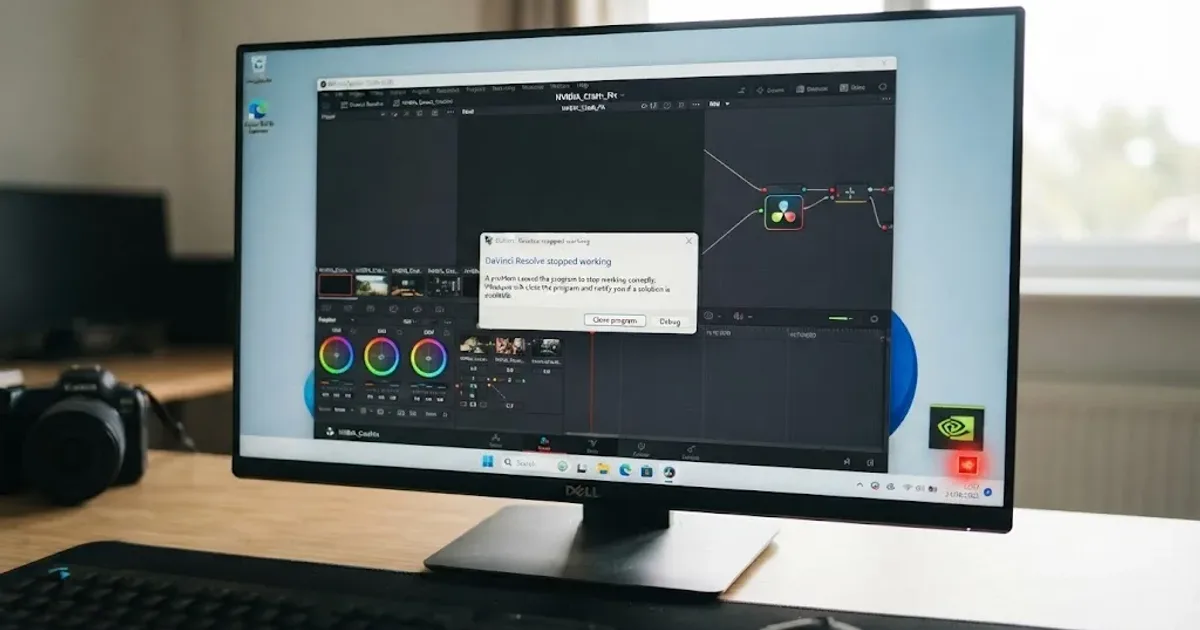
Your timeline is playing fine. Then, on the exact same clip you scrubbed past ten minutes ago, DaVinci Resolve just disappears. No warning dialog, no error you can read, just a desktop staring back at you and an autosave from twenty minutes ago as your only proof the last half hour of work existed.
If you're on Windows with an NVIDIA card, there's a specific, well-documented reason this keeps happening, and it isn't your project file. It's almost certainly the driver, and more specifically, it's very likely the wrong kind of driver. NVIDIA ships two separate driver families for the same GPU, and Windows will happily install the one that's wrong for Resolve without ever telling you it did.
Why does DaVinci Resolve crash specifically with NVIDIA GPUs on Windows?
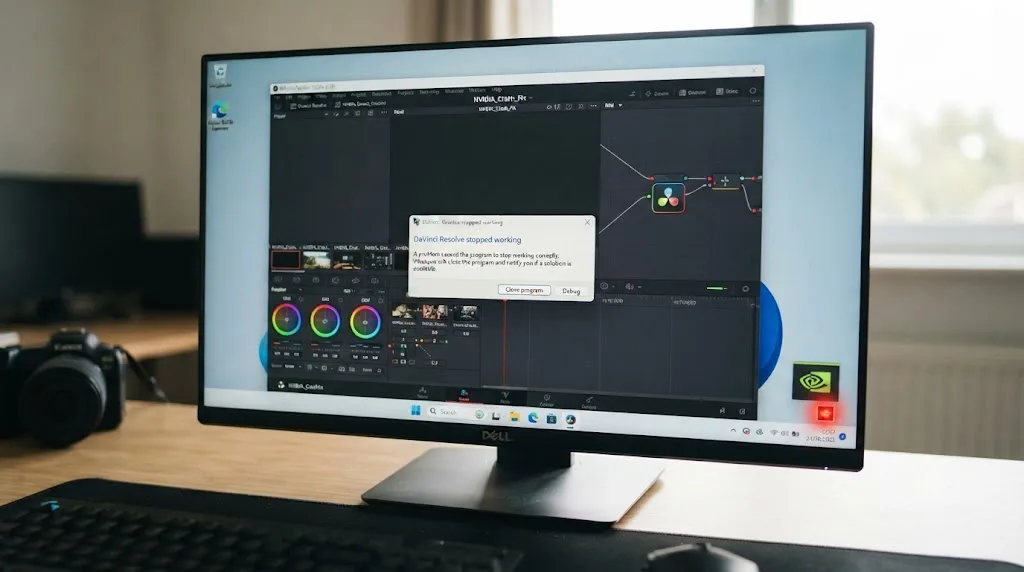
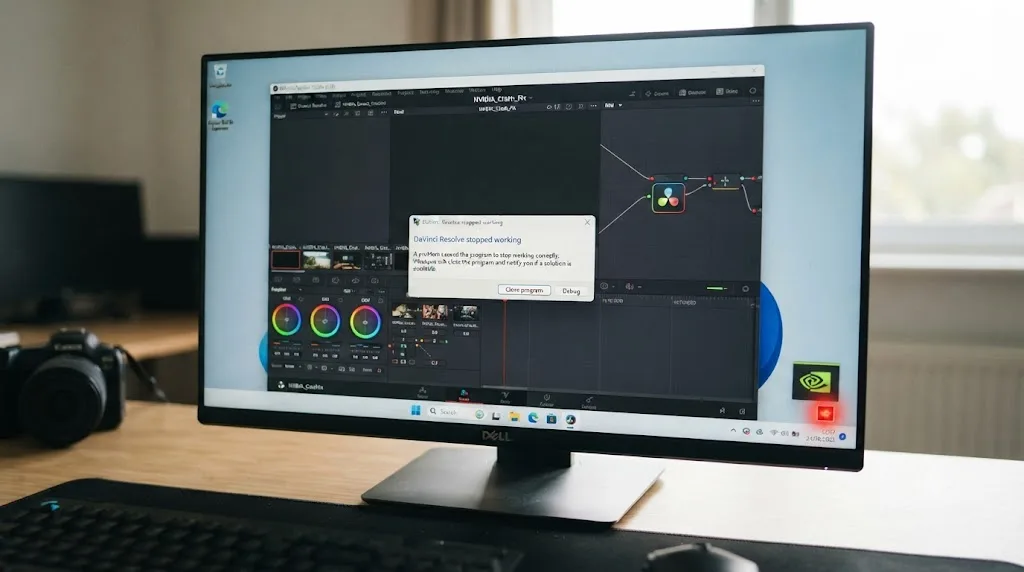
DaVinci Resolve leans on your GPU harder than almost any other application you'll run on that machine. Every node in the color page, every Fusion effect, every frame of playback, and the entire Deliver page render pipeline routes through CUDA or OpenCL on your NVIDIA card. When Photoshop or a browser has a rough driver interaction, you get a glitch. When Resolve does, the whole app usually goes down, because there's no fallback path once the GPU stops answering correctly.
That dependency is exactly why driver problems hit Resolve harder than almost anything else on your system, and why the fix usually isn't inside Resolve at all. A DaVinci Resolve crash that only happens with GPU-heavy work, Fusion, noise reduction, color nodes, or export, and never on a simple cuts-only timeline, is a driver problem until proven otherwise. That single distinction should shape everything you try next.
There are a handful of distinct NVIDIA-driver failure modes that all get lumped together as "Resolve keeps crashing," and they need different fixes:
| Failure mode | What it looks like | Root cause |
|---|---|---|
| Wrong driver family | Random crashes on GPU-heavy tasks, worse after a Windows Update | Game Ready driver installed instead of Studio Driver |
| Below minimum version | Resolve won't launch, or crashes immediately opening a project | Studio Driver installed but older than Blackmagic's published floor |
| Stale or conflicting install | Crashes started right after a driver update, inconsistent behavior | Leftover files from a prior driver a normal uninstall didn't clear |
| GPU timeout (TDR) | Full blue screen, "video_tdr_failure," desktop briefly flickers black then recovers | Windows resetting a GPU it thinks has hung mid-task |
| Wrong GPU selected | Crashes on a laptop specifically, fine on desktops with the same project | Resolve or Windows defaulting to an integrated GPU instead of the dedicated NVIDIA card |
Every section below maps to one row in that table. Work through them in order, since the first two account for the large majority of reports across NVIDIA's own developer forums, Blackmagic's forum, and independent testing labs like Puget Systems.
Are you running a Game Ready driver instead of a Studio Driver?
Check this first, before anything else on this page, because it's the single most common cause and the easiest to confirm. Open NVIDIA Control Panel, go to Help > System Information, and look at the driver name and version listed there. Or open the NVIDIA App or GeForce Experience and look at what it calls the currently installed driver.
If it says "Game Ready Driver" anywhere, you've very likely found your entire problem. Most new Windows PCs, and most machines that let NVIDIA's own driver updater run on autopilot, end up on Game Ready by default, because that's the driver family NVIDIA promotes hardest and updates most often. Nobody chose it maliciously. It's just the path of least resistance, and it happens to be the wrong path for a professional editing app.
This isn't a new problem, and it isn't a rare one. Puget Systems, which builds and benchmarks video editing workstations for a living, documented a specific, well-known incident back in January 2021 where a Game Ready driver, version 461.09, broke creative applications broadly enough that it generated its own dedicated support article. According to Puget Systems' write-up of that incident, authored by senior hardware analyst Matt Bach, the driver caused "application and system freezing/crashes, or simply poor performance" specifically in Premiere Pro and DaVinci Resolve, with complaints piling up across Reddit and the Adobe forums within days of release.
Bach's conclusion from that incident is the same conclusion NVIDIA's own marketing makes, just delivered without the sales pitch attached. "The Studio drivers are far more stable in creative applications, and there is almost never a performance advantage to using the Game Ready drivers," Bach wrote, in Puget Systems' guide to the 461.09 driver issue. That's not a hedge. It's a direct recommendation from a firm whose entire business is benchmarking exactly this kind of workstation, and it holds up years later across driver generations.
Game Ready and Studio Driver are the same GPU running two different pieces of software, and only one of them is built for a timeline that has to stay open for eight hours straight. If you've never deliberately chosen Studio Driver on this machine, assume you're on Game Ready until you check, and go check now.
What's the actual difference between NVIDIA Game Ready and Studio drivers?
Once you know the driver family matters, it's worth understanding why, because it changes how you'll think about every driver update from here forward.
NVIDIA created the Studio Driver line specifically because Game Ready drivers are built and shipped around a different priority entirely. According to NVIDIA's own announcement of the program, Studio Drivers exist to give "all creators the best performance and reliability when working with creative apps," built through what NVIDIA describes as "extensive testing against multiple revisions of the top creative apps" and "exhaustive multi-app testing for each type of creative workflow." NVIDIA's own current marketing puts the stability claim even more directly: "Designed for creators, NVIDIA Studio Drivers are GPU-tuned updates that ensure rock-solid stability and peak performance for every creative workflow."
Game Ready drivers are optimized for something completely different: shipping day-one performance tuning for the newest AAA game releases, as often as NVIDIA can manage it. That cadence is the whole point of the Game Ready line, and it's also exactly why it's a worse fit for Resolve. A driver rushed out to hit a game's launch day has had far less time sitting in front of creative-app test suites than a Studio Driver does, and Resolve is a demanding, long-session creative app if there ever was one.
| Game Ready Driver | Studio Driver | |
|---|---|---|
| Release cadence | Frequent, timed to game launches | A handful of releases per year |
| Testing priority | Latest games, day-one performance | Creative apps including Resolve, Premiere, Blender |
| Typical session length tested | Short gaming sessions | Long, sustained creative workloads |
| Recommended for Resolve | No | Yes |
Vagon's independent troubleshooting guide for DaVinci Resolve crashes reaches the identical conclusion from a different angle entirely, calling driver problems "the biggest villain" behind Windows crashes and stating plainly that the "Studio Driver is usually the safer choice for editing, color work, Fusion, and long exports," according to Vagon's guide to DaVinci Resolve crashes and fixes. Three independent sources, NVIDIA itself, a workstation-benchmarking lab, and a general troubleshooting guide, all land on the same answer without contradicting each other anywhere.
Switching from a Game Ready driver to a Studio Driver changes nothing about your GPU's raw horsepower and everything about whether Resolve can trust it for eight hours straight. That's the whole tradeoff, and for anyone doing paid editing or color work rather than gaming on the same machine, it isn't really a tradeoff at all.
Which NVIDIA driver version does DaVinci Resolve actually require?
Getting the driver family right solves most cases. The second most common cause is running the correct Studio Driver family, but a version older than what your specific Resolve build actually needs.
Blackmagic doesn't publish one permanent number. It moves the floor forward with releases, sometimes on major version bumps, sometimes mid-cycle on a point release. As of Resolve 21 on Windows, the published requirement is a GPU with at least 4GB of VRAM supporting CUDA 12.8 or OpenCL 1.2, alongside NVIDIA Studio Driver 570.65 or newer, according to DaVinci Resolve Club's 2026 system requirements breakdown, which stresses that this figure "is not a suggestion" and that Blackmagic republishes the exact current floor in every release's own documentation.
The only reliable way to check this for your actual installed build is inside the app itself:
- Open DaVinci Resolve and go to DaVinci Resolve > About DaVinci Resolve Studio (or About DaVinci Resolve on the free edition).
- Look for the minimum supported GPU driver version listed for your exact build.
- Open NVIDIA Control Panel > Help > System Information and compare that number against your installed driver's version.
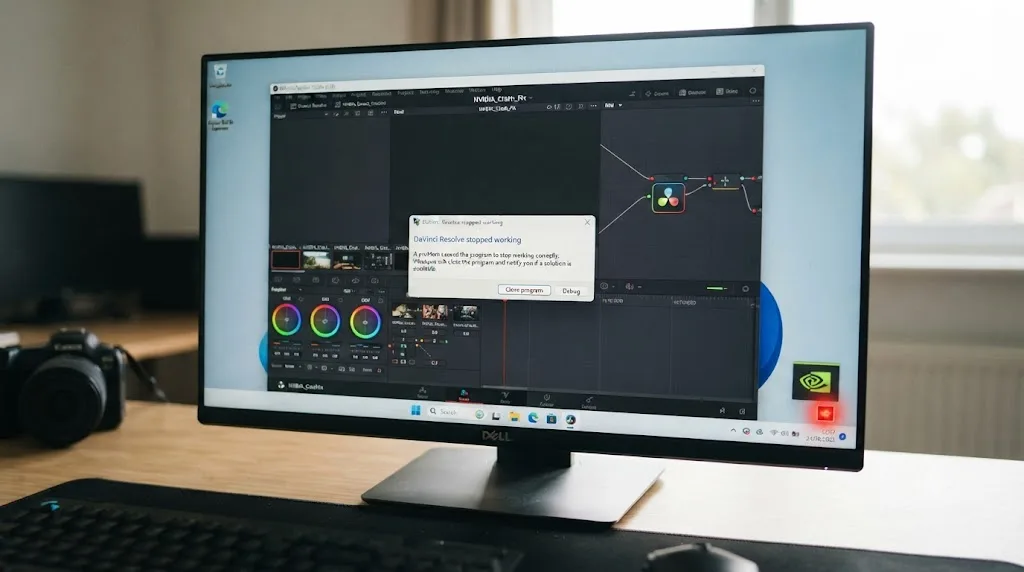
- If your installed version is older than the number in About DaVinci Resolve Studio, that gap alone can produce crashes, hangs on launch, or a GPU that Resolve refuses to initialize at all, even though the driver family is correctly set to Studio.
Never trust a driver version number you read on a forum or in an old article, including this one, over what your own copy of About DaVinci Resolve Studio actually says. Blackmagic changes this floor between releases specifically because newer Resolve builds depend on newer CUDA or OpenCL capabilities that only ship in newer drivers, and a number that was correct for Resolve 20 can be stale the moment you update to 21.
How do you do a clean driver install with DDU, step by step?
If you've confirmed you're on the wrong driver family, or the right family but an old version, don't just install the new one over the old one. A normal NVIDIA installer, even a Studio Driver installer, leaves fragments of the previous driver behind, and those fragments are a well-documented, independent cause of crashes that look identical to a fresh driver problem.
A June 2026 guide on clean GPU driver installation puts the mechanism plainly: "Those fragments are the real cause of most post-update stutter and crashes. The new driver loads, sees conflicting files from the previous version, and starts to choke," according to Eat Create Sleep's guide to clean GPU driver installs with DDU. That's exactly the pattern people describe when they say "I already updated my driver and it's still crashing." Updating isn't the same as cleaning.
Here's the process that actually clears those fragments, using Display Driver Uninstaller (DDU), a free, widely trusted tool built specifically for this:
- Download the correct Studio Driver for your GPU first, before you uninstall anything, and save the installer somewhere you can find it offline. Go to NVIDIA's driver download page, select your exact card model, and choose Studio Driver as the driver type, not Game Ready.
- Download DDU from Wagnard's site (the tool's official source) and extract it somewhere accessible.
- Reboot Windows into Safe Mode. Hold Shift while clicking Restart from the Start menu, or use Settings > Recovery > Advanced Startup, then choose Enable Safe Mode after the reboot.
- Run DDU inside Safe Mode. Select NVIDIA as the device type, and choose "Clean and restart" from the options DDU presents. This removes the driver itself along with leftover registry entries, cached shader files, and control panel settings that a standard Windows uninstall doesn't touch.
- Once Windows restarts normally, run the Studio Driver installer you downloaded in step 1.
- Choose Custom Install, not Express Install, when the NVIDIA installer asks, and check the box for Clean Install. This skips carrying over any leftover profile settings that could reintroduce the exact problem you're trying to clear.
- Restart once more, then relaunch DaVinci Resolve and test the specific project or workload that was crashing before.
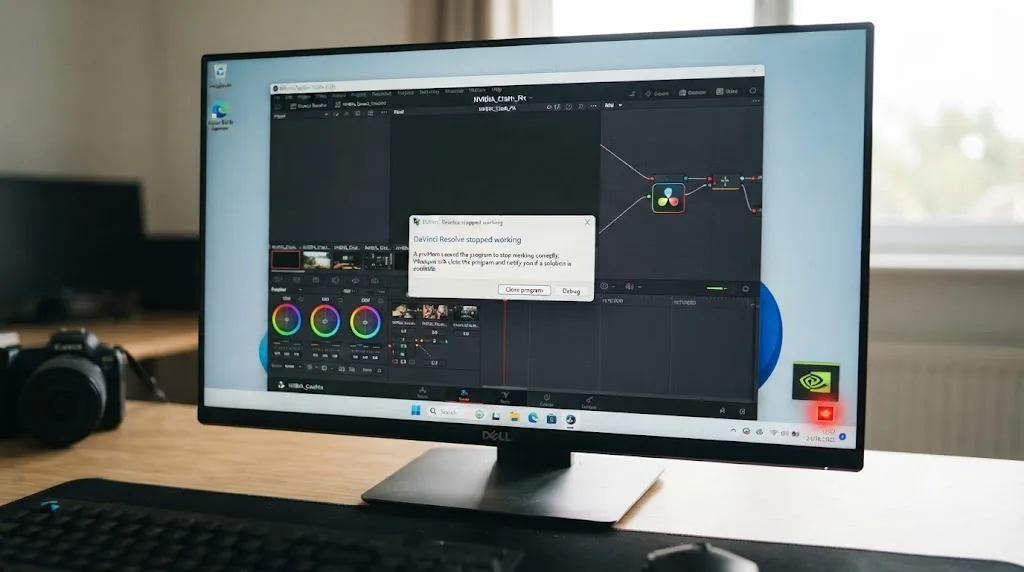
A driver update that installs on top of a previous driver's leftover files is not the same thing as a clean install, and only one of those two actually clears a driver-conflict crash. If you've updated your driver multiple times and the crash keeps coming back in slightly different forms, that pattern itself is a strong signal you're accumulating fragments rather than replacing them.
Why does your clean install keep reverting after you fix it?
This is the part that makes editors feel like they're losing their minds. You do the full DDU process above, Resolve runs perfectly for a day, maybe two, and then the exact same crash comes back, seemingly for no reason at all.
The reason is almost always Windows Update, working exactly as designed for a general consumer PC and exactly wrong for a machine you use for professional GPU work. Windows automatically detects connected hardware and can silently push its own cached driver version for that hardware overnight, without asking, and without telling you it happened. That cached driver is very often an older, generic version, sometimes a Game Ready build, sitting in Microsoft's own update catalog independent of whatever NVIDIA currently recommends.
The same June 2026 guide on DDU clean installs names this directly as "the single biggest reason a clean GPU driver install with DDU 'didn't work'", according to Eat Create Sleep's DDU guide, noting that Windows Update's automatic hardware detection quietly undoes a manual clean install by pushing an older driver back onto the same GPU. You didn't imagine the fix working. Windows just reversed it while you weren't looking.
There are two ways to stop this, depending on which edition of Windows you're running:
| Windows edition | How to block driver auto-updates |
|---|---|
| Windows 10/11 Pro or Enterprise | Open Group Policy Editor (gpedit.msc), navigate to Computer Configuration > Administrative Templates > Windows Components > Windows Update, and disable driver updates through Windows Update entirely |
| Windows 10/11 Home | Add the equivalent registry value manually, since Home editions don't include Group Policy Editor by default, or use Settings > Windows Update > Advanced Options > Additional settings to exclude driver updates where available |
Do this immediately after your clean install, not after the crash comes back a second time. The most frustrating version of an NVIDIA driver crash on Windows isn't the first one, it's the one that comes back a week after you already fixed it, because Windows Update quietly restored the exact driver you removed. Blocking driver auto-updates is the step that makes a clean install actually permanent instead of temporary.
Is your crash actually a TDR timeout instead of a driver crash?
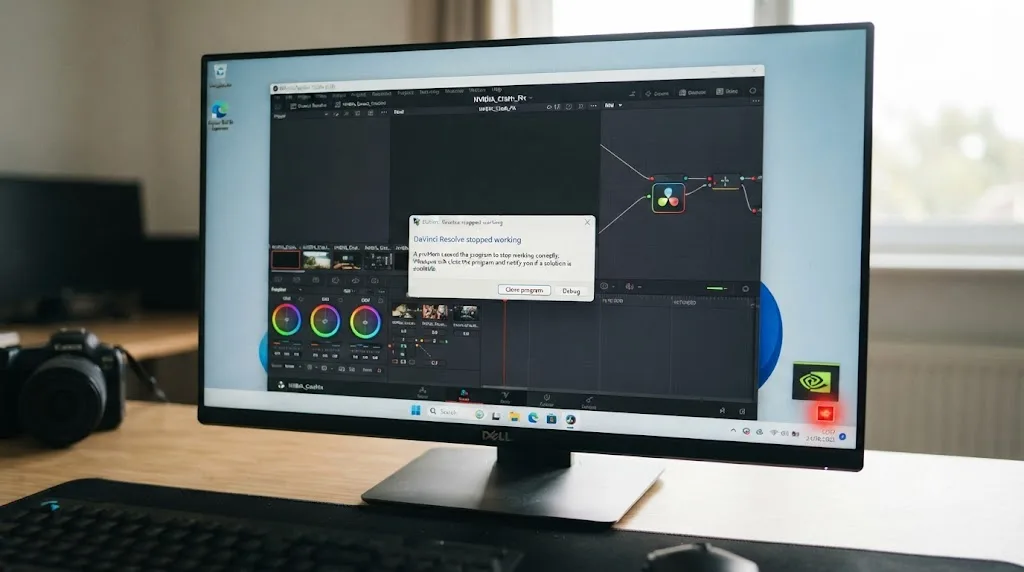
Not every NVIDIA-related failure on Windows is Resolve itself crashing. Sometimes it's Windows deciding your GPU has stopped responding and forcibly resetting it, which is a different mechanism with a different fix, even though it can look and feel similar from inside Resolve: a freeze, then a black flicker, then either recovery or a hard crash.
This is called TDR, Timeout Detection and Recovery, and it's a Windows operating system feature, not an NVIDIA one, though NVIDIA's own developer documentation describes exactly how it interacts with GPU drivers. Per NVIDIA's own GameWorks documentation on TDR, the feature works by detecting "response problems from a graphics card, and recover[ing] to a functional desktop by resetting the card," and critically, "if the operating system does not receive a response from a graphics card within a certain amount of time (default is 2 seconds), the operating system resets the graphics card."
Two seconds is a genuinely short window for some of the work Resolve asks a GPU to do. A heavy Fusion composition with several 3D nodes, a complex noise reduction pass, or an Optical Flow retime on 4K footage can legitimately take longer than two seconds to compute a single frame on an underpowered or driver-mismatched card, and when that happens, Windows doesn't wait patiently. It assumes the GPU has hung and resets it mid-task, which from inside Resolve can present as anything from a frozen UI that eventually recovers to a full crash to a genuine Windows blue screen citing nvlddmkm.sys and VIDEO_TDR_FAILURE.
Dell's own support documentation on TDR carries a warning worth taking seriously before you touch anything here: "If done incorrectly, modifying the Windows Registry can lead to data loss and/or operating system corruption. Dell recommends that you back up data before proceeding with any Windows Registry edit," according to Dell's troubleshooting guide for TDR. That's not a reason to avoid the fix, it's a reason to back up first and edit carefully.
The registry adjustment itself, documented across multiple independent sources and Microsoft's own TDR registry key documentation, works by extending the timeout window:
- Open Registry Editor (regedit) and navigate to
HKEY_LOCAL_MACHINE\SYSTEM\CurrentControlSet\Control\GraphicsDrivers. - If a
TdrDelayvalue doesn't already exist, create a new DWORD (32-bit) Value with that exact name. - Set its value, in decimal, to a higher number of seconds, commonly 8 or 10 rather than the 2-second default, giving genuinely heavy GPU work more time to finish before Windows assumes it's hung.
- Restart your computer for the change to take effect.
It's worth being honest about what this fix actually does and doesn't fix. Extending the TDR timeout buys a struggling GPU more time before Windows gives up on it, but it doesn't make an underpowered card faster or a mismatched driver correct. If you're extending TDR regularly to get through normal color grading work, not just an occasional extreme Fusion comp, that's a sign your actual bottleneck is GPU horsepower or a driver problem elsewhere on this page, not something a longer timeout should be papering over indefinitely.
If Resolve is stuttering rather than crashing outright on GPU-heavy timelines, our guide on DaVinci Resolve's mixed frame rate timeline jitter covers a related, separate GPU headroom problem: Optical Flow retiming pushing a card past what it can comfortably deliver, which is a performance ceiling issue rather than a driver crash, but shows up on the same underpowered hardware.
Is DaVinci Resolve using the wrong GPU on your laptop?
If you're troubleshooting this on a laptop rather than a desktop, there's a fifth failure mode worth checking specifically, and it's easy to miss because the driver itself can be perfectly correct, Studio family, right version, and Resolve will still crash.
Most gaming and creator laptops ship with two GPUs: a weaker integrated chip built into the CPU for everyday tasks and battery life, and a dedicated NVIDIA card for real workloads. Windows and individual applications are each supposed to pick the right one automatically for the task at hand, and that handoff doesn't always work the way it should for a demanding, sustained GPU application like Resolve.
On a laptop with both integrated and dedicated graphics, DaVinci Resolve crashing under a heavy timeline while running fine on simple cuts is a strong signal it's running on the wrong GPU, not a signal your dedicated card is failing. The integrated chip simply isn't built to sustain Resolve's GPU workload the way the dedicated NVIDIA card is, and it will crash or stall under exactly the load that would be routine for the card actually meant to handle it.
Fix this from two directions, since either one alone can be incomplete depending on how your laptop's switching is configured:
- Inside Resolve, go to Preferences > System > Memory and GPU. If GPU Processing Mode or the selected GPU shows Auto and it's picked the integrated chip, manually select your dedicated NVIDIA card instead.
- In NVIDIA Control Panel, go to Manage 3D Settings, open the Global Settings tab, and set Preferred Graphics Processor to "High-performance NVIDIA processor" rather than leaving it on the auto-select default.
- If crashes persist after both changes, some laptops let you disable the integrated GPU entirely through Windows Device Manager: press Windows key + R, type
devmgmt.msc, find the integrated GPU under Display Adapters, right-click it, and choose Disable Device. Treat this as a last resort rather than a first step, since some laptops need the integrated GPU active for display output on certain ports.
Does the RTX 50-series have its own DaVinci Resolve driver issues?
If you're on a newer NVIDIA Blackwell-generation card, an RTX 5090, 5080, or similar, it's worth knowing this generation shipped with its own specific, documented compatibility gap that isn't the same problem as the Game Ready versus Studio question above, even though it presents similarly.
Puget Systems, which tracks known software issues across GPU generations as part of its workstation benchmarking work, documented that DaVinci Resolve Studio 19.1 had two distinct problems on RTX 50-series cards at launch: the application could hang on the "Optimizing Neural Engine" process, and the new 4:2:2 10-bit hardware decoding and encoding features on Blackwell cards weren't supported yet. According to Puget Systems' tracking of RTX 50-series known software issues, the fix wasn't a driver update at all: "Full support for NVIDIA Blackwell GPUs is available in BlackMagic DaVinci Resolve 20," which resolved both the launch hang and the missing codec support in one application update.
That's a meaningfully different fix path than everything else on this page. If you're on an RTX 50-series card, running an older Resolve build (19.x) alongside the newest Blackwell driver, and you're seeing hangs specifically tied to Neural Engine features like Speed Warp, Magic Mask, or Super Scale, updating your Resolve build itself, not just your driver, is the actual fix. Running Resolve 20 or newer alongside a current Studio Driver clears this cleanly.
Beyond that specific application-side gap, general driver stability on the RTX 50-series launch generation has been rockier than prior generations across creative and gaming workloads alike, independent of Resolve specifically. If you're on a Blackwell card and still seeing crashes after confirming Studio Driver, the correct version floor, and a current Resolve build, trying the two or three most recent Studio Driver releases in sequence, rather than assuming the newest one is automatically the most stable one, is a reasonable next step specific to this GPU generation.
A DaVinci Resolve hang on an RTX 50-series card at launch was a Resolve-side compatibility gap that a driver update alone couldn't fix, and it needed a Resolve version update instead. That's worth knowing before you spend an afternoon reinstalling drivers for a problem the application update already solved months ago.
What does a real crash log actually look like, and how do you read one?
Everything above is diagnosis by symptom. If you want to confirm the cause directly instead of working through branches, Windows keeps a record of exactly what killed Resolve, and it's worth learning to read it once.
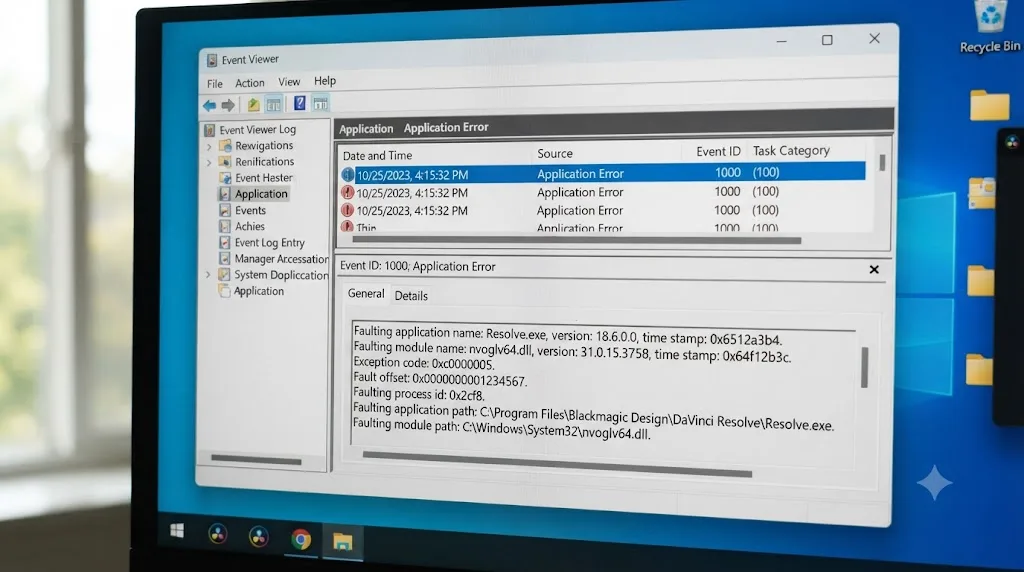
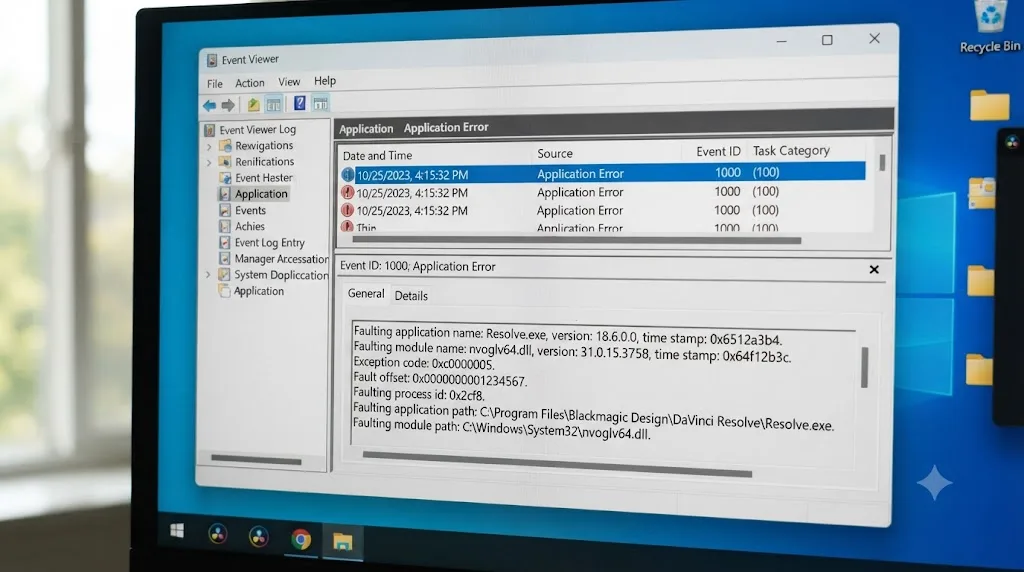
A user on NVIDIA's own developer forums documented a specific, real example of this: persistent crashes in DaVinci Resolve Studio 20 Beta while working on GPU-intensive Fusion effects. According to the thread on NVIDIA Developer Forums covering DaVinci Resolve crashes caused by nvoglv64.dll, the crash dump identified exception code 0xc0000409, a stack buffer overrun or security check failure, faulting inside vk_gr2608GetInstanceProcAddr within nvoglv64.dll, NVIDIA's own OpenGL driver module, triggered specifically during OpenGL rendering and buffer validation on a heavy Fusion composition. Windows logged the event plainly as FAIL_FAST_FATAL_APP_EXIT_c0000409_nvoglv64.dll.
That level of detail is genuinely useful, and you can pull the same kind of information yourself:
- Open Windows Event Viewer (search "Event Viewer" from the Start menu).
- Navigate to Windows Logs > Application, and look for Error-level entries timestamped right around when Resolve crashed.
- Look for a faulting module name. Anything referencing
nvoglv64.dll,nvcuda64.dll, ornvlddmkm.syspoints squarely at the NVIDIA driver as the crash's origin, not Resolve's own code, project corruption, or unrelated system instability. - Note the exact exception code and faulting function, if listed, since that's exactly the information a Blackmagic support ticket or an NVIDIA developer forum post will ask for if you need to escalate beyond the fixes on this page.
In the forum thread above, an NVIDIA moderator's response is worth knowing about because it's honest rather than reassuring: since the report involved a beta build of Resolve specifically, the moderator noted "since we are talking about the 'Beta' version of Resolve here, I do not think we have any public incompatibilities or issues to share," and recommended updating to the newest driver and contacting Blackmagic's own developer relations team directly. That's a useful reminder on its own: if you're troubleshooting a beta or public-beta build of Resolve, treat driver compatibility reports for it as provisional, since neither NVIDIA nor Blackmagic has necessarily finished validating that specific combination yet the way they have for a shipped, stable release.
A crash log naming nvoglv64.dll, nvcuda64.dll, or nvlddmkm.sys as the faulting module is Windows telling you directly that the NVIDIA driver is where the failure actually happened, not a guess you have to make from symptoms alone. Check Event Viewer before you assume you're stuck guessing between the branches on this page.
Should you roll back your driver instead of updating it?
Sometimes the honest answer isn't "update to the newest Studio Driver," it's "go back to the one before it." This matters because not every Studio Driver release is flawless, and assuming newest is always safest can send you in exactly the wrong direction.
If your crashes started immediately after a specific driver update, and you were stable before it, that timing is itself strong diagnostic evidence, often stronger than anything else on this page. Vagon's troubleshooting guide makes this same point directly, recommending you roll back specifically "if everything broke right after an update," according to Vagon's guide to DaVinci Resolve crash causes and fixes. A regression in a specific driver build is a real, recurring category of NVIDIA driver problem, not a hypothetical one, and it isn't limited to Game Ready releases.
To roll back cleanly rather than just installing an older file over a newer one:
- Identify the driver version you were stable on before the update, if you know it, or the version immediately prior to your current one if you don't.
- Download that specific version's Studio Driver from NVIDIA's driver archive, not just the current default download.
- Run the same DDU clean-install process covered earlier in this guide, using the older driver as your target install rather than the newest one.
- Block Windows Update from silently pushing you back to the newer version afterward, using the same Group Policy or registry fix from earlier.
Newest is not automatically safest when it comes to GPU drivers, and a specific driver release regressing for creative applications is a documented, recurring pattern, not a one-off. If you can point to a specific update as the moment things broke, rolling back to the version before it is a legitimate fix, not a workaround you should feel bad about using.
A worked example: diagnosing and fixing a real driver crash, start to finish
Here's how this plays out on an actual project, walking through the branches above in the order they'd realistically come up.
A freelance colorist upgrades their desktop PC's graphics card to a new RTX card and lets Windows Update handle the driver installation automatically, since the PC otherwise "just works" and they've never had a reason to think about driver types before. For a few weeks, everything runs fine on straightforward color grading. Then they take on a job with heavy Fusion compositing, several 3D nodes, particle effects, deep noise reduction, and the app starts crashing reliably within twenty minutes of opening that specific project.
- They check NVIDIA Control Panel's System Information and confirm what they suspected: the driver installed automatically by Windows Update is a Game Ready driver, not Studio. Nobody chose it deliberately; it's just what Windows picked when it detected the new card.
- They check DaVinci Resolve's About dialog and note the minimum Studio Driver version required for their exact build, then confirm on NVIDIA's site which current Studio Driver release meets that floor.
- They download that Studio Driver, then boot into Safe Mode and run DDU with "Clean and restart" selected, clearing every fragment of the Game Ready driver Windows had installed.
- They install the Studio Driver with Clean Install checked, restart, and immediately go into Group Policy Editor to disable automatic driver updates through Windows Update, since that's exactly what put them on the wrong driver in the first place.
- They reopen the Fusion-heavy project and push it the same way that crashed before. It holds for the full session. A week later, they check Windows Update history and confirm no driver changes have been silently applied since.
Total real cause: an automatic Windows Update installing the wrong driver family with nobody's direct input, surfacing only once a genuinely GPU-heavy project pushed the card hard enough to expose it. Total real fix: identify the driver family, clean-install the correct one at the right version, then block the exact update mechanism that caused the problem from doing it again. None of it required a new graphics card, a Resolve reinstall, or starting the project over.
Quick reference: symptom, cause, and fix
Bookmark this table and match your actual symptom to a row before changing settings, since several of these look identical from the outside but need different fixes.
| Symptom | Likely cause | Fix |
|---|---|---|
| Crashes on GPU-heavy work only (Fusion, color, export), fine on simple cuts | Game Ready driver installed instead of Studio | Clean-install the current Studio Driver with DDU |
| Resolve won't launch, or crashes immediately on opening a project | Studio Driver installed but older than Blackmagic's published minimum | Check About DaVinci Resolve Studio, download the required version |
| Crash returns days after a clean install fixed it | Windows Update silently reinstalled an older driver overnight | Block driver updates via Group Policy or registry |
| Full blue screen naming nvlddmkm.sys or VIDEO_TDR_FAILURE | Windows TDR resetting the GPU mid-task, default 2-second timeout too short | Raise TdrDelay in the registry, back up first |
| Crashes only on a laptop, dedicated GPU is present | Resolve or Windows defaulted to the integrated GPU | Set dedicated GPU in Resolve Preferences and NVIDIA Control Panel |
| Hangs on "Optimizing Neural Engine" on an RTX 50-series card | Resolve 19.x lacking Blackwell support, not a driver problem | Update to Resolve 20 or newer |
| Event Viewer names nvoglv64.dll, nvcuda64.dll, or a similar module | Confirmed NVIDIA driver-level crash | Follow the clean-install and version-check steps above |
| Crashes started right after a specific driver update | A regression in that specific driver release | Roll back to the previous stable Studio Driver version |
Does this happen on the free version of DaVinci Resolve too, or only Studio?
Yes, and identically. The Studio Driver requirement, the minimum version floor Blackmagic publishes, and the underlying CUDA and OpenCL processing pipeline are the same code whether you're running the free edition or paid DaVinci Resolve Studio. None of the failure modes covered in this guide, the wrong driver family, a stale version, TDR timeouts, or a laptop defaulting to the wrong GPU, are gated behind the paid tier in any way.
The one real difference is a performance ceiling, not a crash-cause difference: the free edition is limited to a single GPU, while Studio can spread work across multiple GPUs, up to eight according to Blackmagic's own documentation, though Puget Systems' testing has found performance in practice tends to plateau around three or four cards. If you're troubleshooting a driver crash on a multi-GPU workstation and you're on the free edition, confirm first that the extra cards aren't even the issue, since Resolve Free won't use them regardless of how correctly they're driven.
The verdict
An NVIDIA driver crash on a DaVinci Resolve Windows machine is almost never a hardware fault and almost never random, even though it feels that way in the moment. It's a driver mismatch you can name specifically once you know where to look: the wrong driver family, a version below Blackmagic's published floor, a stale install Windows Update quietly restored, a GPU timeout Windows triggered on its own, or a laptop routing Resolve to the wrong chip entirely.
Fixing an NVIDIA driver crash on DaVinci Resolve for Windows starts with one check that takes thirty seconds: confirm you're on a Studio Driver, not Game Ready. That single fact resolves the majority of cases documented across NVIDIA's own forums, Puget Systems' benchmarking work, and Blackmagic's community. If that check comes back clean and you're still crashing, work down through the version floor, the clean install, the Windows Update reversion, and the TDR and wrong-GPU branches in order, since each one has a distinct fingerprint once you know to look for it.
If you'd rather have something point directly at which of these settings is actually wrong on your specific machine instead of working through a checklist by hand, that's exactly the gap TryUncle is built to close on the editing side once your system is stable. TryUncle is the on-screen assistant for DaVinci Resolve on macOS, ask in plain words and Uncle points at the exact control on your screen, though it's worth being direct here since this guide is a Windows fix: TryUncle runs on macOS only, so it won't diagnose an NVIDIA driver on a Windows PC. What it does mean is fewer of your future "why is this button doing that" moments turning into a forum search in the first place, once your GPU is actually driving Resolve the way it's supposed to. And if you're rebuilding your workflow around a machine that finally holds steady, our guide on DaVinci Resolve export settings for YouTube is the natural next stop, since a stable GPU driver is also what keeps a long Deliver page render from failing at the ninety percent mark. If a crash mid-save has you worried about your project file itself rather than just the app, how to prevent DaVinci Resolve project corruption covers the backup habits that make a driver crash an annoyance instead of lost work.
Frequently asked questions
- Why does DaVinci Resolve crash specifically with NVIDIA GPUs on Windows?
- Nine times out of ten it's a driver mismatch, not a hardware fault. Resolve requires the NVIDIA Studio Driver, not the Game Ready driver most Windows PCs ship with or auto-update to, and it also enforces a minimum Studio Driver version per release (570.65 or newer for Resolve 21). Running the wrong driver type, or a version below that floor, produces exactly the symptoms people describe as random crashes: freezes on playback, GPU errors on export, and outright failure to launch.
- Should I use the NVIDIA Game Ready driver or Studio Driver for DaVinci Resolve?
- Studio Driver, with no real exception for a video editing workflow. NVIDIA builds Game Ready drivers around day-one game performance and ships them far more often, which means less testing time against creative apps before release. Studio Drivers release only a handful of times a year specifically because NVIDIA runs extensive testing against Resolve, Premiere Pro, and similar software first. Puget Systems, which benchmarks editing workstations for a living, put it plainly: there is almost never a performance advantage to Game Ready for this kind of work, only a stability cost.
- What NVIDIA driver version does DaVinci Resolve actually require?
- It changes with every release, so there's no single number to memorize. Blackmagic publishes the exact floor in the About DaVinci Resolve Studio dialog and in each version's release notes. As a checkpoint, Resolve 21 on Windows requires NVIDIA Studio Driver 570.65 or newer alongside CUDA 12.8 or OpenCL 1.2 support. Always verify against your installed build rather than a number you read somewhere, since Blackmagic moves this floor forward on major and sometimes minor releases.
- How do I clean install my NVIDIA driver with DDU?
- Download Display Driver Uninstaller (DDU) from Wagnard's site, boot Windows into Safe Mode, run DDU, select NVIDIA as the driver type, and choose Clean and restart. Once Windows reboots normally, install the NVIDIA Studio Driver you downloaded ahead of time, selecting Custom Install and checking Clean Install rather than Express Install. This removes leftover driver fragments a normal uninstall leaves behind, which are a common reason a driver update doesn't actually fix a crash.
- Why does my clean driver install keep reverting after I fix it?
- Windows Update runs its own device driver detection independent of what you manually installed, and on a fresh boot it can silently push an older, cached driver back onto your GPU overnight. This is one of the most common reasons a DDU clean install appears to stop working within a day or two. Block it with Group Policy's driver update setting on Windows Pro or Enterprise, or with the registry equivalent on Windows Home, so your manually installed Studio Driver actually sticks.
- What is a VIDEO_TDR_FAILURE crash and is it the same thing as a driver crash?
- It's related but distinct. TDR (Timeout Detection and Recovery) is a Windows feature that resets your GPU if it doesn't respond within two seconds by default, and DaVinci Resolve's heaviest GPU nodes, Fusion compositions especially, can legitimately need longer than that on an underpowered or driver-mismatched card. A VIDEO_TDR_FAILURE blue screen naming nvlddmkm.sys is Windows killing a GPU it thinks has hung, which is a different failure path than an application crash, though a bad driver often triggers both.
- Is my laptop crashing because Resolve is using the wrong GPU?
- Very possibly, and it's a separate problem from the driver type question. Laptops with both an integrated GPU and a dedicated NVIDIA GPU sometimes hand Resolve to the integrated chip by default, which isn't built for Resolve's GPU workload and crashes under a real timeline. Check Preferences > System > Memory and GPU inside Resolve and set NVIDIA Control Panel's Preferred Graphics Processor to the dedicated card under Manage 3D Settings, rather than leaving either on Auto.
- Does this happen on the free version of DaVinci Resolve too, or only Studio?
- Yes, identically. The Studio Driver requirement, the minimum version floor, and the GPU processing pipeline underneath both are the same code whether you're running the free edition or DaVinci Resolve Studio. The free edition does cap you to a single GPU where Studio can use several, but that's a performance ceiling, not a difference in what causes a driver crash or how you fix one.
Sources
- DaVinci Resolve Studio Crashes Caused by nvoglv64.dll (Fatal App Exit), NVIDIA Developer Forums
- Premiere Pro & DaVinci Resolve issues with NVIDIA Game Ready driver 461.09, Puget Systems (Matt Bach)
- Hardware Recommendations for DaVinci Resolve, Puget Systems
- NVIDIA GeForce RTX 50-Series: Known Software Issues, Puget Systems
- Available Now: NVIDIA Studio Drivers Supercharge Creative Apps, NVIDIA GeForce News
- How a Clean GPU Driver Install With DDU Fixes Stutter and Crashes, Eat Create Sleep
- DaVinci Resolve 21 System Requirements: Windows, Mac & Linux, DaVinci Resolve Club
- DaVinci Resolve Keeps Crashing? Common Causes and Fixes by Crash Type, Vagon
- Timeout Detection & Recovery (TDR), NVIDIA GameWorks Documentation
- Troubleshooting the Timeout Detection and Recovery Feature Within Windows, Dell Support
Learn by doing, not watching
Stop translating tutorials to your timeline.
TryUncle stays beside Resolve on Mac and Windows. When you ask, Uncle sees your screen and points at the exact control you need. No hunting through tabs, timestamps, or mismatched tutorials.
Meet TryUncleKeep reading
 FixesJul 12, 202629 min read
DaVinci Resolve Mixed Frame Rate Timeline Jittery: The Fix
DaVinci Resolve timeline jitters when clips have mixed frame rates. Here's why it happens, the setting that locks after import, and every real fix.
 FixesJul 16, 202630 min read
How to Prevent DaVinci Resolve Project Corruption
The real causes of DaVinci Resolve project corruption, from cloud-synced databases to power loss, and the exact habits that prevent it in 2026.
 GuidesJul 7, 202632 min read
DaVinci Resolve Export Settings for YouTube (Copy These Exactly)
The exact DaVinci Resolve export settings YouTube recommends: codec, bitrate, resolution, audio, and the Deliver page steps that avoid soft uploads.