
Learn / DaVinci Resolveupdated for DaVinci Resolve 21.0.2 (July 2026)
Organize Client Feedback and Revision Rounds in DaVinci Resolve
Quick answer
Organize client feedback in DaVinci Resolve with a written round limit (2 to 3 rounds is standard), one review tool per project (Presentations, Vimeo Review, or Krock.io), a three-color marker convention for must-fix, optional, and approved notes, and a new timeline Version for every round so past feedback and past cuts never get lost.
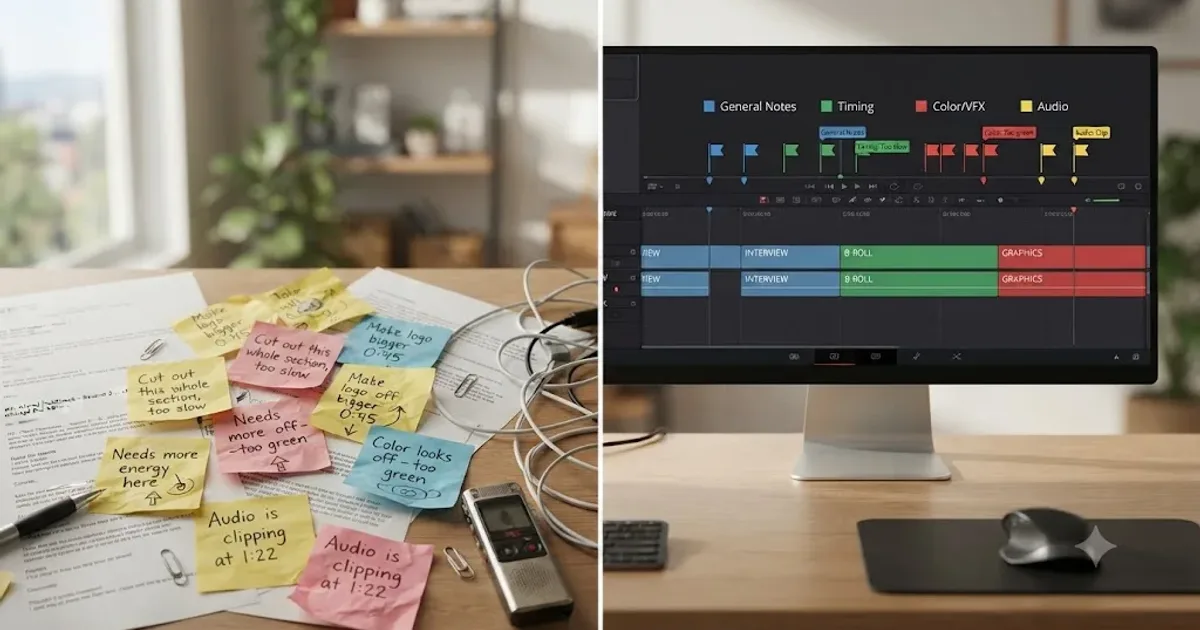
A client sends "just a few small notes" over three separate emails, one voice memo, and a text with a screenshot that has no timestamp on it. You open DaVinci Resolve, stare at a timeline with no markers on it, and start reconstructing what they actually meant from memory. Round two arrives before you've finished round one. By round four, nobody remembers which cut the approval was even for.
None of that is a DaVinci Resolve problem, exactly. It's what happens when a real workflow question, how do you turn scattered human feedback into a specific, trackable set of changes on a specific timeline, gets no answer at all. This guide gives you one: how many rounds to agree to before you start, where feedback should actually live, how DaVinci Resolve's own tools handle it, and the marker and versioning system that keeps round two from erasing round one.
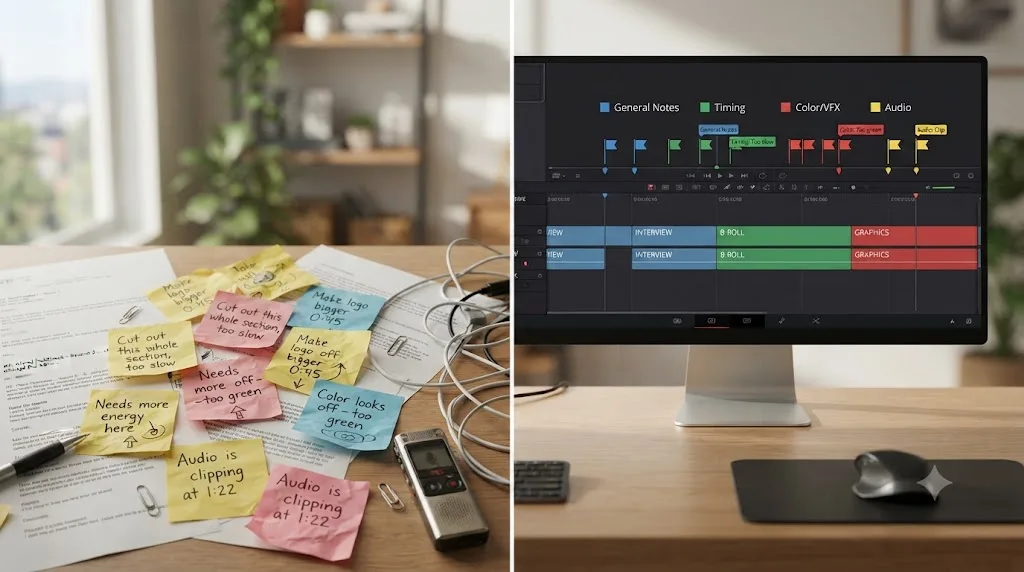
What actually breaks when client feedback isn't organized in DaVinci Resolve?
Three things, and they compound. The first is scope: a review with no defined boundary doesn't end, it decays into an open-ended stream of "one more thing" that nobody agreed to pay for or work on. The second is memory: feedback that lives in an inbox, a group chat, and a call transcript at the same time is feedback that gets partially applied, because no single artifact captures all of it. The third is trust: a client who has to repeat a note they already gave you starts to wonder what else got dropped, and that doubt shows up in every future round, whether or not it's fair.
DaVinci Resolve doesn't create any of these problems. But it also doesn't solve them by default. A fresh project opens with no review tool connected, no marker convention applied, and no round counter anywhere in the interface. Every safeguard described in this guide is something you build, not something the software hands you on install.
A revision round with no written limit isn't generous. It's a project with no finish line. That's true whether you're a solo freelancer taking a note over text or a post house running Presentations through Blackmagic Cloud. The fix starts before you ever open the timeline.
<!(-- IMAGE: An illustration of a frustrated editor at a DaVinci Resolve workstation surrounded by floating, disconnected feedback bubbles from email, text, and a phone call, none of them landing on the timeline. alt: "Illustration of a DaVinci Resolve editor surrounded by disconnected feedback bubbles from email, text, and phone calls". filename: how-to-organize-client-feedback-and-revision-rounds-in-davinci-resolve-chaos.webp -->
How many revision rounds should you build into a DaVinci Resolve project?
Two to three, according to the freelance contract guides that actually put a number on it. Bonsai's video editor contract template states plainly that "a common approach is to offer two included revision rounds and bill any extra rounds at a rate such as $75 per hour or a daily rate," while OneSuite's video editing contract guide notes that "most freelancers offer 1 to 2 rounds, enough to refine the video without starting from scratch." Both numbers point at the same practical range: somewhere between one and three rounds, written down, before the client sees a cut.
The real-world nuance sits in what different editors actually bill for within that structure. On a long-running Creative COW forum thread on defining rounds of revisions, Todd Terry, creative director at Fantastic Plastic Entertainment, described the split he uses on a typical 30-second project: "We usually budget a day (8 hours) of suite time to cut a :30 project... we are usually totally comfortable giving away an hour or so of suite time for revisions." He draws a hard line on what's inside that free hour versus what isn't: "If they are aesthetic revisions, those tend to fall in the freebie category... But script revisions are different... well, none of those are freebies. That all gets billed."
Rich Rubasch of Tilt Media Inc. builds the number directly into his estimate instead of treating it as a floating goodwill hour: "We actually put a number of hours for revisions in the proposal. If there are none and all the rest of the estimate came in as planned then we don't invoice for those hours." Ned Miller, a Chicago-based videographer on the same thread, uses the phrase "two rounds of reasonable revisions" in his own agreements, with an explicit caveat attached: "You can't change what you previously approved and you can not ask for something more that wasn't in the estimate."
| Source | Round count | What's included | What gets billed separately |
|---|---|---|---|
| Bonsai contract template | 2 rounds | Minor tweaks within the original brief | Extra rounds at $75/hour or a daily rate |
| OneSuite contract guide | 1 to 2 rounds | Refinement of the existing cut | Any request beyond that, per hour or per revision |
| Todd Terry, Fantastic Plastic Entertainment | ~1 hour of suite time | Aesthetic notes, small trims and swaps | Script revisions and structural rewrites |
| Rich Rubasch, Tilt Media Inc. | A fixed hour count in the proposal | Whatever fits inside the budgeted hours | Hours beyond the budgeted number, plus any new outside costs like a second narrator |
| Ned Miller, Chicago videographer | 2 "reasonable" rounds | Notes within the original scope | Anything reopening a previously approved decision |
None of these numbers is the official answer, because there isn't one. The number of revision rounds you offer is a business decision, not a DaVinci Resolve setting, and the mistake is leaving it undecided until the third round is already underway. Pick a number that matches your actual margin on the project, write it down, and hold to it the same way you'd hold to a delivery date.
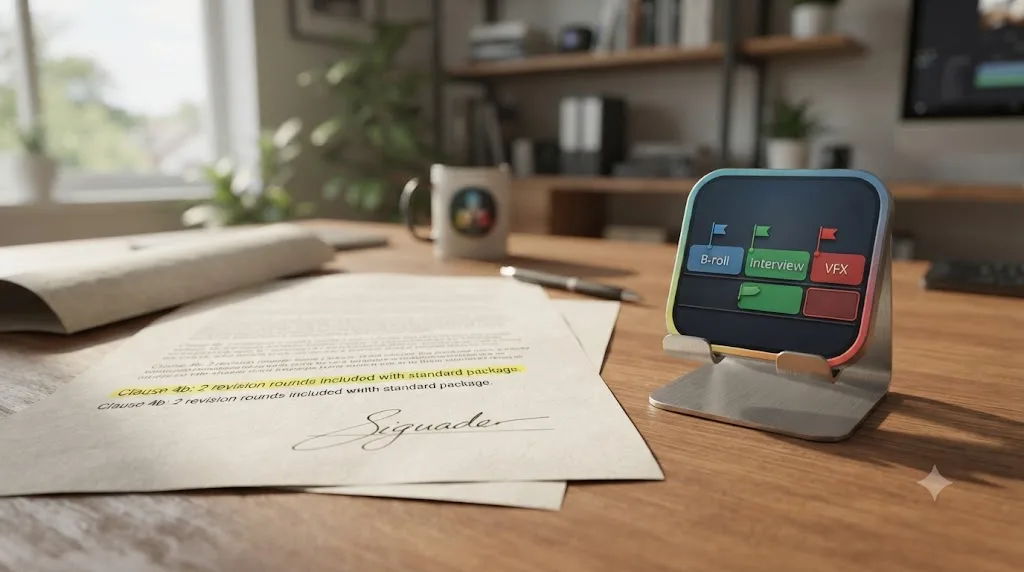
What actually counts as one "round," and how do you stop it from becoming ten?
A round is a single, consolidated batch of feedback delivered at one time, not a running conversation that trickles in over a week. That distinction is the entire fix for the most common way revision counts spiral: a client sends three notes Monday, two more Wednesday, and one more Friday, and if you treat each message as its own micro-round, you've effectively given away six rounds for the price of one.
PlayPause's guide to getting client feedback on video edits recommends defining rounds upfront by purpose, typically a rough-cut pass for structure and pacing, a fine-cut pass for polish, and a final approval pass, and briefing the client not to send fine-cut notes on a rough assembly, since that mismatch is a repeat source of wasted cycles. Increditors, a remote video editing agency, frames the fix even more directly for solo client relationships: "Watch the full video. Collect all your notes. Organize them. Send them in one message or document. Done."
That watch-note-organize-send sequence matters more than it sounds like it should, because skipping straight from watching to messaging is where scattered, contradictory notes come from in the first place. A client typing reactions in real time as they watch sends you their first impression of each moment, not their considered opinion of the whole cut, and those two things frequently disagree with each other by the time they reach the end.
Here's the practical rule worth putting in writing with every client, right next to your round count: one round means one message, containing every note that project stakeholder has, sent after they've watched the entire cut once. If new feedback shows up two days after you already started round two, that's not automatically a new round, it's feedback that arrived late for the round you're already working, and you get to decide whether it waits for the next batch or gets folded in now.
Increditors also puts a number on what happens once this discipline is actually in place: "If you're currently averaging 4-5 revision rounds, implementing this system can bring you down to 1-2 within a month." Take that as one agency's own claim about its own process rather than a guarantee, but the mechanism behind it, fewer scattered, drip-fed notes means fewer separate passes through the timeline, holds up on its own logic even without the specific number attached.
| What arrives | Is it a new round? | What to do |
|---|---|---|
| One consolidated message covering the whole cut | Yes, this is round one, complete | Start working through it |
| A second message two hours later adding "oh, one more thing" | No | Fold it into the current round if you haven't started, flag it for the next round if you have |
| A different stakeholder's separate notes on the same cut | Depends on your agreement | Consolidate before you start, per the multi-stakeholder section below |
| Notes on a section the client already approved in a prior round | A scope question, not automatically a new round | Confirm whether this reopens an approved decision, which several of the quotes above treat as outside the normal round count |
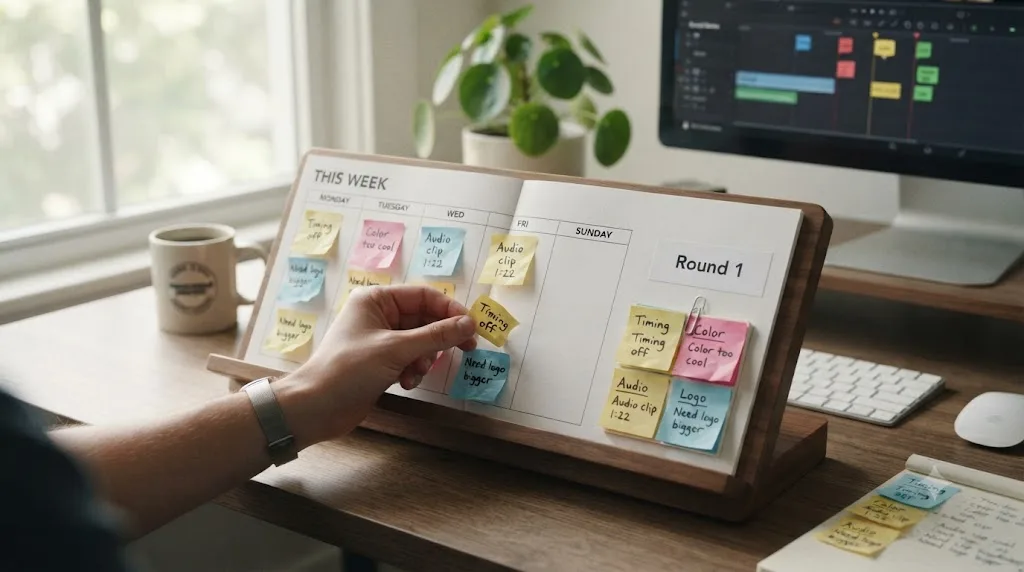
Where should client feedback actually live: a review tool, markers, or a shared doc?
One place, and it should be the same place every time, for every project, so you're never guessing where the real notes are. The three realistic options for a DaVinci Resolve workflow each trade off differently, and picking the wrong one for your situation is a common, avoidable source of the chaos this whole guide exists to prevent.
| Option | How feedback reaches you | Syncs to Resolve markers? | Cost | Best fit |
|---|---|---|---|---|
| DaVinci Resolve Presentations | Client comments on a shared link | Yes, bidirectionally and automatically | Free Blackmagic Cloud ID; paid Project Library tiers for larger teams | Solo editors and small teams already inside the Resolve and Blackmagic Cloud ecosystem |
| Frame.io (legacy integration) | Client comments on a Frame.io review link | Yes, but only on the older v3 API and Studio edition | Frame.io's own paid tiers | Teams already committed to Frame.io before its Adobe acquisition, with eyes open about the risk |
| Vimeo Review | Client comments directly on the frame | No native Resolve sync; syncs to Adobe Premiere Pro instead | Included on all Vimeo plans, advanced controls on paid tiers | Teams already hosting on Vimeo who don't mind a manual marker step |
| A native Resolve plugin (Krock.io and similar) | Client comments on a shareable link, no account required | Yes, synced back as markers through the plugin | Around $10/user/month on Krock.io's Pro tier, cheaper than Frame.io Pro or Team seats | Studio users who want a review flow that doesn't depend on Frame.io's uncertain future |
| Email, text, or a shared doc | However the client feels like sending it that day | No, manual only | Free | Nobody, honestly, unless the project is a five-minute favor for a friend |
That last row deserves a direct answer rather than a diplomatic one. Email and text work as a review channel exactly as well as your own memory and typing speed allow, which is to say they work fine for a single quick note and fail predictably the moment a project needs more than that. A feedback channel that requires you to manually transcribe every note onto your timeline is a feedback channel that's actively working against you, one typo at a time.
The other four options share one real advantage over a doc or an inbox: comments attach to a specific frame instead of a vague description of one, which is the single biggest source of wasted back-and-forth in any review process. "The logo looks off around the middle" costs you a guessing game. A comment pinned to frame 4,201 costs you nothing.
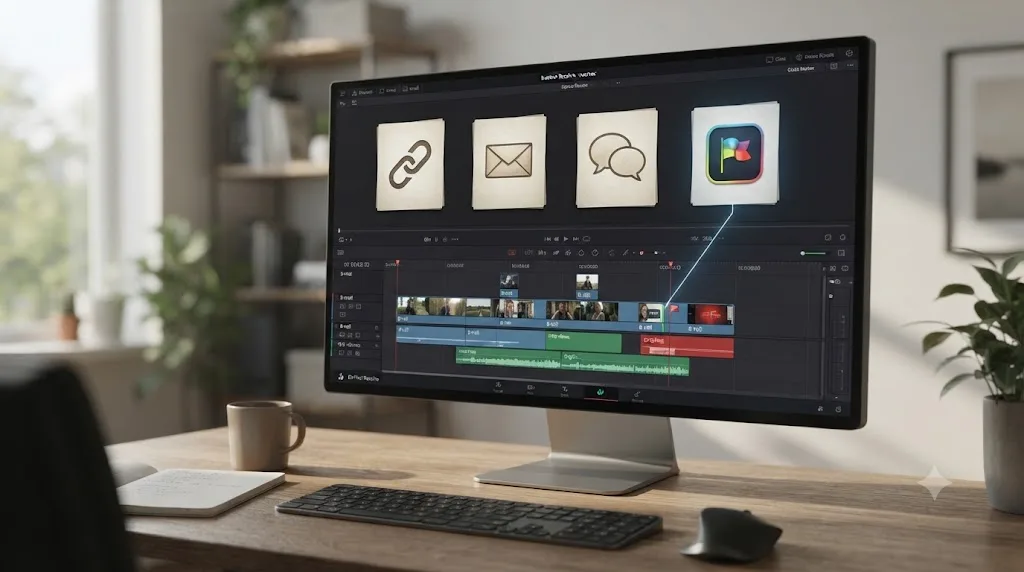
How does DaVinci Resolve Presentations work for client review?
Presentations is Blackmagic's own built-in answer to the "where does feedback live" question, and it's worth understanding in detail because it's the one option on the table that requires nothing outside DaVinci Resolve itself. You publish a timeline or a clip directly from Resolve into Presentations, share access through a Blackmagic Cloud ID, and a reviewer, your client, a producer, another editor, can leave comments and markers without ever opening a project file or connecting to a VPN, per Blackmagic Design's own collaboration page.
The mechanism worth knowing in detail is how markers move between the two. Blackmagic's manual on using markers between Presentations and DaVinci Resolve states it directly: "once a timeline has been uploaded to a presentation, it's automatically linked behind the scenes and any markers added, either in the Presentations app or in DaVinci Resolve, will sync with each other." That sync happens whenever the timeline is open and you're logged into Blackmagic Cloud, which covers both a client leaving notes overnight that appear the next time you open the project, and a live session where changes show up in real time.
Presentations markers look visually distinct from your ordinary Resolve markers so you can never confuse a client note with your own working notes: "Presentations markers are circular in shape and are synced between the timeline and its associated Presentations clip," in contrast to the standard triangular marker shape, and per the manual, they "will also reflect the color of the member creating the marker" automatically. That last detail is a small but real convenience: if three stakeholders are commenting on the same cut, their notes arrive already color-separated by author, without you setting anything up.
A client review comment that syncs straight into your timeline as a circular marker skips the entire manual transcription step that eats time on every other channel. That's the practical payoff of building a review process around a tool that talks to Resolve natively instead of one that requires you to bridge the gap yourself.
A few things worth knowing before you commit a project to this workflow:
- Cost. Creating a Blackmagic Cloud ID and using Presentations for basic review costs nothing, per Blackmagic's own compare page, which states the free version of Resolve "includes multi-user collaboration." Paid tiers only enter the picture for a Blackmagic Cloud Project Library, priced at $5 per month per library, with only the project host paying, per Blackmagic's cloud storage pricing update, and cloud media storage itself at $15 per terabyte per month, cut in half from its original $30/TB rate.
- No file transfers. Reviewers watch a hosted link rather than downloading an export, which removes a common source of a client reviewing an outdated version by accident.
- Real limitations reviewers have reported. A hands-on review of the feature by editor and workflow writer Orson Lord notes real friction points worth knowing before you rely on it for a demanding client: it currently "lacks playback speed controls, version stacking, and comment status indicators" that more mature review platforms offer, and the same review calls the comment system itself "the most user-friendly and comprehensive comment system I've ever used" despite those gaps, a genuinely mixed verdict worth taking at face value rather than picking only the positive half.
If you're already dealing with locked bins or timelines on a multi-editor project, Presentations runs on the same underlying Blackmagic Cloud collaboration system covered in our guide to DaVinci Resolve's collaboration mode timeline locked issue, which is worth reading before you add client review on top of an already-active multi-editor setup.
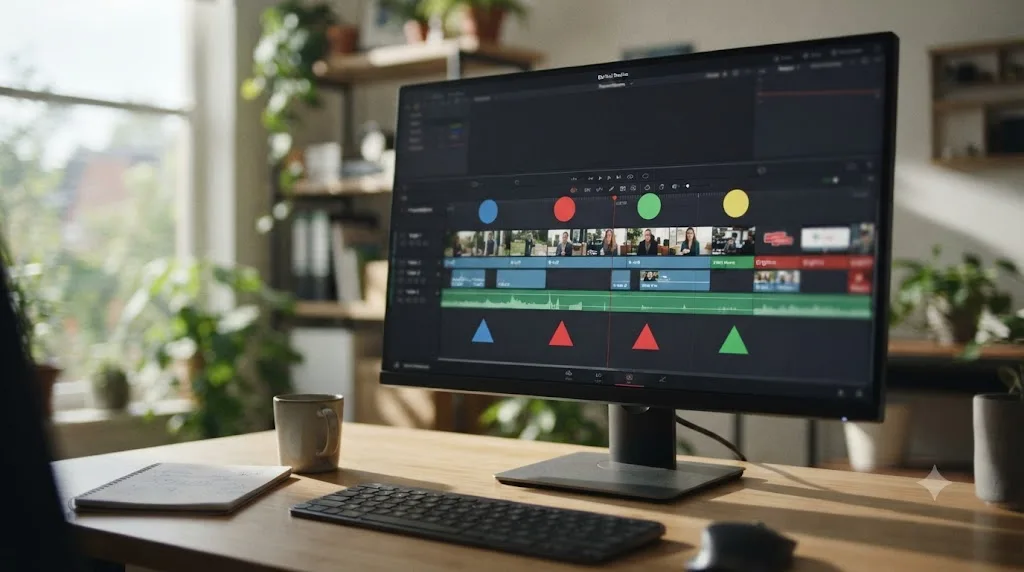
Is Frame.io still worth using with DaVinci Resolve in 2026?
Cautiously, and only if you already have a reason to. Blackmagic built its native Frame.io plugin using Frame.io's earlier public API, and per Frame.io's own legacy support documentation, that integration only works on DaVinci Resolve Studio 16 and 17, never the free edition. It lets you drag Frame.io clips straight into your Media Pool, and per that same documentation, "Frame.io comments, replies, and annotations are automatically synced to your DaVinci Resolve timeline," a workflow genuinely similar to Presentations in what it delivers.
The problem is what happened after Adobe acquired Frame.io. A Blackmagic Forum thread titled "Concern about Frame.io integration in DaVinci Resolve 20" confirms the integration hasn't been meaningfully updated since, and Frame.io's v4 public API isn't backward compatible with the older API Blackmagic's plugin was built against. In practice, that means the integration still functions today, but only as long as your Frame.io account stays on the older API version, and it will likely stop working the moment you or your organization upgrades to Frame.io v4, with no guarantee Blackmagic ships a fix.
A review integration nobody's actively maintaining is a review workflow with a countdown timer on it, even while it still technically works today. That's not a reason to rip out an existing Frame.io-based workflow overnight if it's working for your team right now. It is a reason not to build a brand-new client review process around it in 2026.
If your reason for wanting Frame.io was specifically its polish and maturity as a review platform rather than any particular Adobe-side feature, KROCK.IO's comparison of Frame.io alternatives for DaVinci Resolve is worth reading directly: it positions itself as a native Resolve plugin built specifically to avoid this exact deprecation risk, at roughly $10 per user per month on its Pro tier against Frame.io's own $15 Pro or $25 Team seat pricing. Both platforms offer free client-side access through share links, so the real cost difference sits entirely on your side of the relationship, not the client's.
| Frame.io (legacy Resolve integration) | Krock.io | |
|---|---|---|
| Requires DaVinci Resolve Studio | Yes | Yes (per Krock.io's own setup guide) |
| Works on the free version of Resolve | No | No |
| Actively maintained by Blackmagic | No, deprecated | N/A, third-party plugin maintained independently |
| Client needs an account to comment | No | No |
| Approximate cost per editor seat | $15/month Pro, $25/month Team | $10/month Pro |
| Risk if you upgrade your review platform | Integration breaks on Frame.io v4 | Independent of Frame.io's API changes entirely |
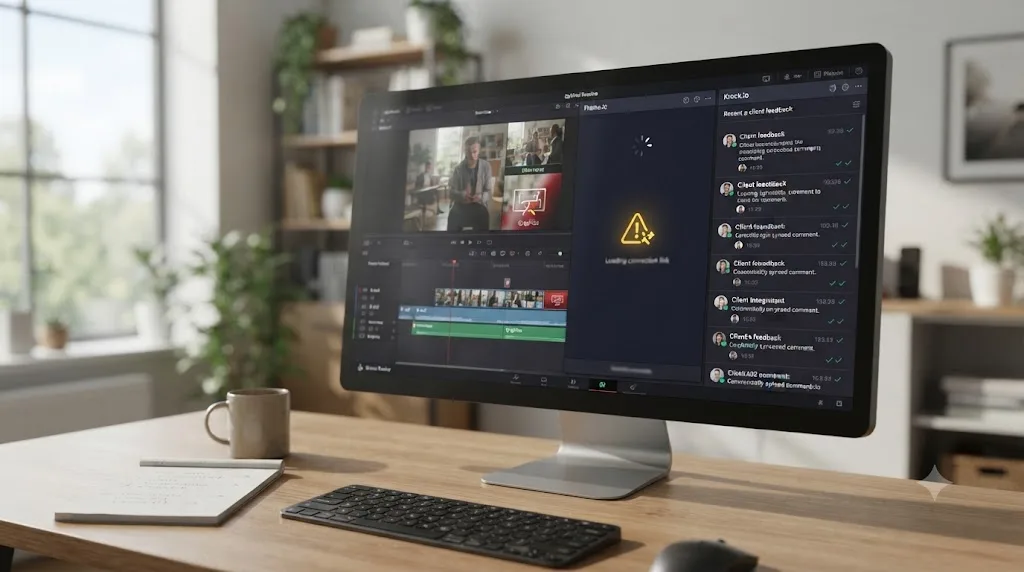
Should you use Vimeo Review instead of a native Resolve tool?
If you're already hosting your deliverables on Vimeo, it's a genuinely strong option, just not a native one. Vimeo's own blog post announcing its simplified review tools describes the timestamp system directly: "all comments on a review link now have a timestamp, so every note lands at the exact moment it's referring to. Just click on a comment to see which frame it relates to." Reviewers click any frame in the video to leave a note, and per Vimeo's guide to getting the most out of its review pages, users "can address feedback faster with time-stamped comments they can easily sort, filter, and resolve."
Vimeo Review also ships features neither Presentations nor the Frame.io legacy plugin currently match on the polish front: status labels and version history so "every teammate knows which cut is current," custom review links per recipient with passwords and expiration dates, and guest commenting with no Vimeo account required. It's genuinely one of the more mature review interfaces on this list.
The gap is the one that matters most for this guide: none of that syncs back into DaVinci Resolve as markers automatically. Vimeo's Adobe integration syncs feedback directly into Premiere Pro, not Resolve, which means a Vimeo-hosted review round for a Resolve project requires you to manually re-create each timestamped note as a marker yourself, the exact transcription step Presentations and Krock.io are built to remove.
Vimeo Review is the better standalone review interface. DaVinci Resolve Presentations is the better fit if you want that feedback to land on your timeline without you typing it there by hand. Neither claim cancels the other out, and the honest choice depends on whether your priority is reviewer experience or editor time saved on transcription.
A workable middle path some teams use: host the deliverable on Vimeo for the client-facing polish and the sort-and-filter comment view, then spend fifteen minutes converting the approved notes into Resolve markers yourself before you start cutting. That costs you the manual step Presentations avoids, but it's a reasonable trade if your client relationship or your existing hosting setup already runs through Vimeo for other reasons.
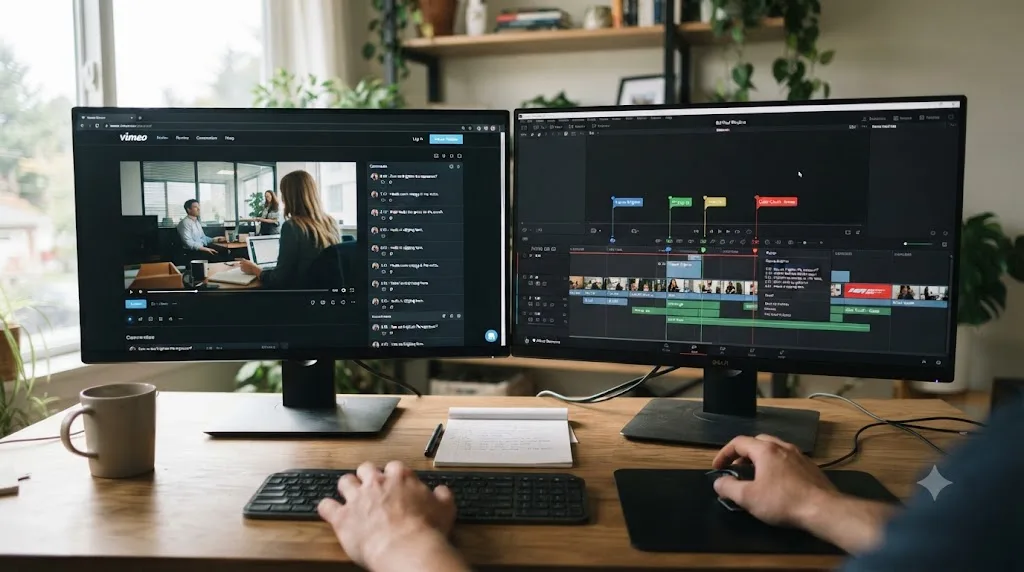
What marker color convention actually works for a client revision round?
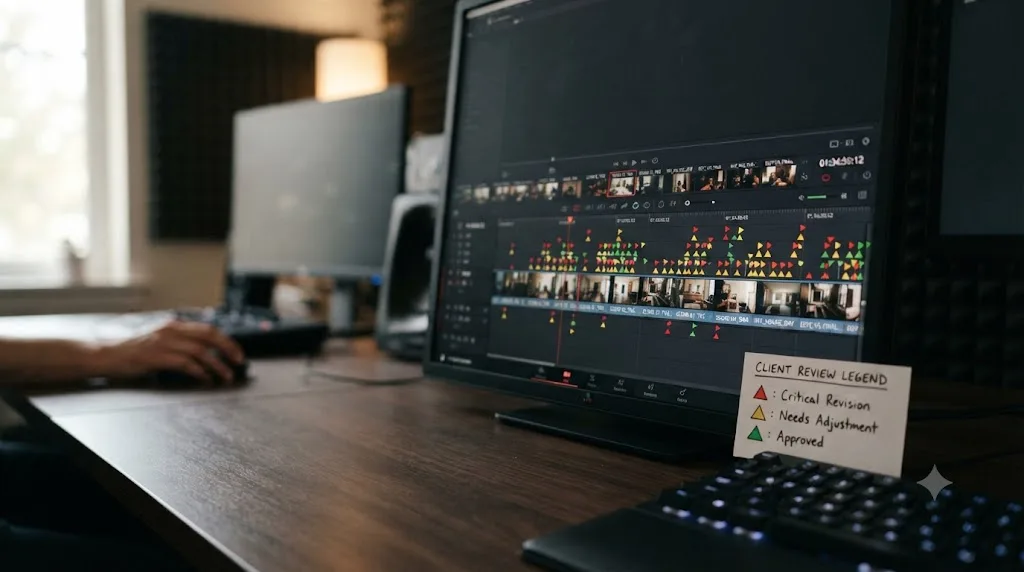
Three colors, tied to what a note means for approval, not to which round it belongs to. DaVinci Resolve itself assigns zero meaning to any of its sixteen available marker colors, a fact our full guide to DaVinci Resolve's marker color meaning covers in more depth if you want the complete picture, including how Premiere Pro, Avid, and Final Cut handle the same blank-palette problem. For a client-facing review specifically, the practical version of that guidance narrows down to one workable three-color shape:
- A must-fix color. A problem that blocks approval entirely: a factual error, a brand or legal issue, footage that needs replacing outright. Nothing in the next round should ship without every must-fix marker resolved.
- An optional or discretionary color. A suggestion worth considering, not a blocker. The client, or you, can take it or leave it without holding up delivery.
- An approved color. Confirms a section the reviewer explicitly signed off on, so a later, less careful pass through the timeline doesn't accidentally reopen something that was already settled.
That's one workable shape, drawn from the general marker-convention research in our companion guide, adapted specifically for the approval-status use case this post is about. Some teams add a fourth color for "needs discussion" separate from a straightforward must-fix. Others treat the absence of any marker on a clip as implicit approval and skip the third color entirely. The specific shape matters less than everyone using the same one, and writing it down somewhere durable: the email you send with the cut, a note pinned to the shared review link, or read aloud at the start of the review call and then typed into a message immediately after, since a verbal agreement nobody wrote down stops being a convention the moment the call ends.
A marker color that means something only inside your own head is a marker color that fails the instant your client, or a colorist you hand the project to, looks at the timeline. That's true whether you picked red for must-fix or something else entirely. The convention only works once it's written somewhere other than your memory.
If your review round involves multiple stakeholders leaving notes on the same cut, and you're using Presentations, remember that Presentations markers already color-code themselves by which reviewer left the comment. That's a genuinely useful signal for tracking who said what, but it's a separate system from your own must-fix, optional, approved convention, and mixing the two without a clear plan for how they interact is a fast way to end up with markers that are colored two different, contradictory ways at once. Decide up front whether reviewer-identity color or approval-status color takes priority in your own notes, and stay consistent about it.
How do you turn a client's call or email into markers on your timeline fast?
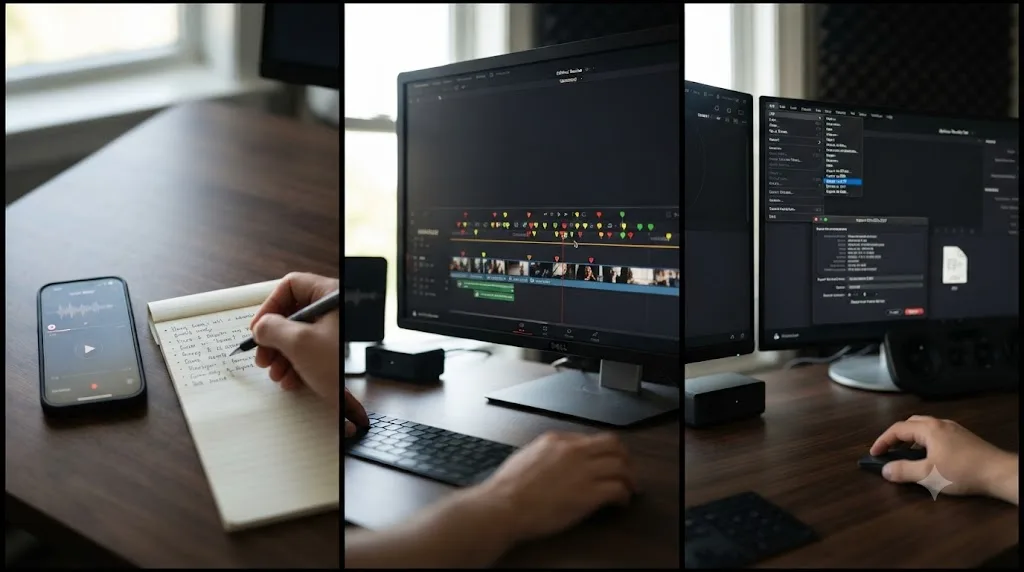
If your review channel doesn't sync automatically, the watch-note-organize-send framework from earlier in this guide is what turns a messy phone call or a rambling email into something you can actually work from on the timeline, and the reverse of that process is what gets those notes onto your clips fast once you have them.
Follow this sequence, whether the feedback arrived as a synced comment thread or a voice memo you have to transcribe yourself:
- Read or listen to every note once, start to finish, before you touch the timeline. This is the same discipline PlayPause's guide recommends asking clients to follow when watching the cut, and it applies just as directly to you processing their notes. Jumping straight into the timeline on the first note you read means you'll place that marker before you know whether a later note contradicts or supersedes it.
- Group the notes by timeline position, not by the order they were mentioned. A client giving verbal feedback rarely talks through a video in chronological order. Sort their notes by where they land on your actual timeline before you start placing markers, so you're moving through the cut in one direction instead of jumping back and forth.
- Place a marker at the exact frame each note refers to, using your must-fix, optional, approved convention. Resolve's manual on flags, clip colors, and markers confirms markers are frame-accurate, unlike flags or clip colors which apply to a whole clip, which is exactly the precision you need to pin a note like "the cut feels early here" to the specific frame the client meant.
- Type the note itself into the marker's note field, not just the color. A red marker with no text tells you something's wrong but not what. The marker's note field is where the actual instruction lives, and it's the field that shows up in the Edit Index export covered next.
- Export the Edit Index as a durable record once every note is placed. Resolve's manual on exporting the Edit Index confirms you can save the full marker list as a CSV or TXT file from the Additional Options menu on the Edit Index panel, which the manual notes displays "the name of the marker... before a hyphen, while any additional notes... after the hyphen." That export is your paper trail, independent of whatever review tool the client used, and it survives even if a shared link expires or an account gets deactivated.
A client note that only exists as a voice memo on your phone is a note that's one lost phone away from disappearing entirely. Getting it onto the timeline as a marker, with the text typed into the note field, is what turns an ephemeral comment into a permanent, searchable part of the project.
How do you version your timeline so a round never overwrites the last one?
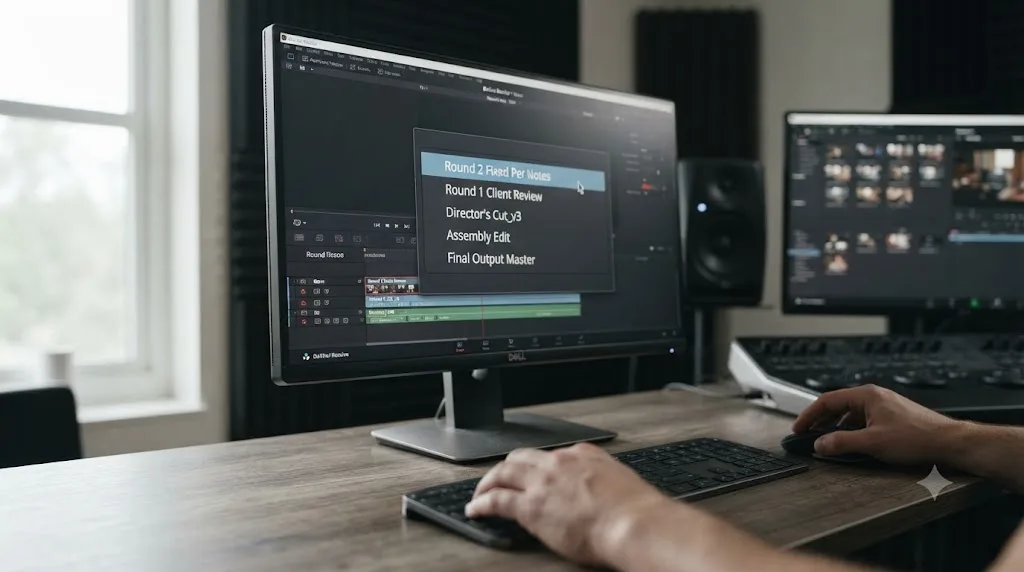
DaVinci Resolve's built-in timeline Versions feature exists specifically for this, and it's underused by editors who don't know it's there. Per UMA Technology's walkthrough of the feature, a version is "essentially a saved state of your timeline," and you create one by right-clicking the timeline name and choosing Add Version, or through the Timeline menu. Every version is independent: as UMA Technology's guide puts it, "any adjustments you make will not influence other versions," so you can start incorporating a client's Round 2 notes with zero risk of accidentally mangling the exact cut they approved in Round 1.
The practical habit worth building is simple: add a new Version at the start of every revision round, before you make a single change, not after. Right-click the version name and rename it something specific to that round, "Round 1 Client Review" or "Round 2, Fixed Per Notes 07/14," rather than a vague default. A Creative COW forum thread on managing versions between revisions echoes this exact point from working editors' own experience, warning against messy, unmemorable names like "Timeline1_mod.Def.Final" that tell you nothing about what's actually inside a version a year later.
This solves a real, specific failure mode: a client asks in Round 3 to revert one specific change from Round 1 that they've since decided they preferred. Without versions, that means scrolling back through your undo history hoping it goes deep enough, or worse, reconstructing the old cut from memory. With versions, it means opening the dropdown next to the timeline name, selecting "Round 1 Client Review," and looking at exactly what the client actually saw.
A distinction worth being precise about, since it trips up editors moving from other tools: Resolve's timeline Versions feature is not the same as duplicating an entire project, and it's not the same as the Color page's separate grading versions system. Timeline Versions live inside one timeline in one project, letting multiple cuts of the same sequence coexist side by side. If you need to preserve the entire project state, media relinking and all, at a specific approval milestone, that's a job for Export Project Archive instead, which our guide to archiving a DaVinci Resolve project without losing media covers if you're not already familiar with the difference.
| Tool | What it preserves | When to use it for a revision round |
|---|---|---|
| Timeline Versions (Add Version) | One timeline's cut, as a named, independent state | Before starting every new round of client notes |
| Duplicate Timeline | A full copy of the timeline, kept separately in the Media Pool | If you want the old cut visible outside the version dropdown, e.g. for a side-by-side client comparison |
| Export Project Archive | The entire project, media and all, bundled into one file | At major approval milestones, or before a risky structural change you might need to fully roll back |
The single cheapest insurance policy in a revision-heavy DaVinci Resolve project is adding a new timeline Version before every round starts, not after you've already made changes you can't cleanly separate from the last approved cut. It costs one click and a rename. The alternative costs an afternoon of guesswork the day a client asks for something back.
How do you handle multiple stakeholders giving conflicting feedback on the same cut?
Establish an order before the notes arrive, not after two of them contradict each other on your timeline. Increditors' guide to giving actionable feedback recommends exactly this for teams with several reviewers: a consolidation hierarchy where feedback moves through a defined sequence, content review, then marketing, then a creative lead, so contradictions get resolved by the people who actually have to live with the decision, before you ever see them.
The failure mode without that hierarchy is specific and predictable: two stakeholders leave contradictory notes on the same clip, in whatever tool you're using, and you're now the one deciding whose opinion wins, a job that isn't yours and that puts you in an awkward position no matter which way you guess. Increditors frames the cost of this plainly: "When feedback contains contradictions, the editor has to guess which instruction takes priority, and they'll guess wrong about half the time."
The practical fix that works whether you're using Presentations, Vimeo Review, or a plugin: designate one person on the client side as the single point of contact for consolidated feedback, and make clear to them, gently, that it's their job to resolve internal disagreements before the notes reach you, not yours to referee after the fact. If Presentations is your review tool, its automatic per-reviewer marker coloring actually helps here: you can see at a glance whether a contradiction is coming from two different people or one person changing their mind mid-review, which changes how you handle it.
If a genuine, unresolved conflict does land on your desk anyway, don't guess and don't silently pick one side. Flag it back to the consolidating stakeholder with both notes quoted directly and ask them to make the call. Resolving a stakeholder disagreement is a five-minute email. Guessing wrong and re-cutting the same section twice is not. That's a trade worth making every time, even when it feels slower in the moment.

What happens when a client blows through their revision rounds?
You enforce the number you already wrote down, and you do it before resentment builds on either side, not after you've quietly absorbed six unpaid rounds and started to dread the client's name in your inbox. Bonsai's contract template puts this in concrete terms: once the included rounds are used up, extra rounds bill "at a rate such as $75 per hour or a daily rate," a structure that gives both sides a predictable number instead of an awkward, undefined negotiation mid-project.
The harder judgment call, and the one that actually separates a fair revision policy from a rigid one, is distinguishing a revision from a scope change. Todd Terry's split from earlier in this guide is the clearest version of this distinction: aesthetic notes, small trims, a color tweak, a music swap within the existing track, reasonably fall inside a free or included round. Structural notes, a new script direction, a different narrator, a fundamentally different edit, don't, because they're not refining the thing you already built, they're asking for a different thing.
Rich Rubasch's approach to outside costs specifically is worth adopting directly if your projects involve any third-party element, voice talent, licensed music, stock footage: "If they approve Narrator A and later change their mind and ask for Narrator B, I bill for both narrators stating that it is an outside cost." That's not punitive. It's accurate: a narrator swap after approval is a new cost you're incurring on the client's behalf, not a free editorial tweak you're absorbing out of goodwill.
A Creative COW contributor on the same thread, Mark Suszko, adds one more piece of practical armor worth building into your process from day one: document every change via email before billing for it as outside the included scope, so there's a written record distinguishing a revision from a scope change if the conversation ever gets tense. That written trail, combined with the marker and Version records this guide already covers, means you're never relying on memory alone to justify an invoice.
| Situation | Typically included in a standard round | Typically billed separately |
|---|---|---|
| Trim a section for pacing | Yes | No |
| Swap a music track within the same style | Yes | No |
| Change the narrator after one was already approved | No | Yes, as an outside cost |
| Rewrite the script's structure or message | No | Yes, treated as a scope change |
| Fix a factual error the client missed the first time | Yes, this is a must-fix, not a preference | No |
| Reopen a section explicitly marked approved in a prior round | Depends on your agreement | Often billed, since it reverses a prior sign-off |
A revision policy that only exists in your head is a revision policy you'll enforce inconsistently, which is worse for the client relationship than having no policy at all. Write the round count, the definition of a round, and the extra-round rate into the same document the client signs, and refer back to it calmly the first time it gets tested, rather than negotiating the boundary fresh every time.
What does a full round-by-round workflow look like, start to finish?
Here's how the pieces in this guide fit together on a real, if hypothetical, project: a two-minute product launch video for a small SaaS company, two revision rounds included in the contract, one marketing lead as the client's single point of contact.
Before the first cut. The contract specifies two rounds, defines a round as one consolidated batch of notes per stakeholder, and sets a $100/round rate for anything beyond that. The client gets a Blackmagic Cloud ID invite ahead of time so there's no delay the day the first cut is ready.
Round 1. You publish the rough cut to Presentations and send the link with a short legend: red markers mean must-fix, yellow means optional, green means approved. Before you touch anything, you add a new timeline Version named "Round 1 Client Review" as a clean snapshot. The client's marketing lead consolidates notes from two internal stakeholders into one message, and their comments sync in as circular markers, colored per reviewer automatically by Presentations. You read every note once, sort them by timeline position, and work through them in order, converting anything ambiguous into your own red, yellow, or green marker with a clear note field. Once every must-fix marker is resolved, you export the Edit Index as a CSV before moving to Round 2, giving you a durable record independent of the review link.
Round 2. You add a second Version, "Round 2, Post-Notes 1," before making a single change, so Round 1's approved-but-not-yet-final cut still exists exactly as delivered. The client's notes this round are lighter, two optional tweaks and one must-fix: a factual error in an on-screen stat. You fix the must-fix, apply one of the two optional tweaks, and explain in your reply why you're holding off on the second, since it reopens something already marked approved in Round 1. That's the two included rounds, used exactly as agreed.
A hypothetical Round 3. The client comes back a third time wanting a different narrator entirely. This is the moment the written policy earns its keep: you point to the contract's two-round limit, quote Rich Rubasch's framing back in spirit if not in words, a narrator swap is an outside cost, not a revision, and offer it as a separately billed addition rather than either refusing outright or quietly absorbing it. The client agrees to the extra charge, you add a third Version, and the project moves forward on a clear, mutually understood footing instead of an awkward unspoken resentment.
What made this work wasn't any single tool. It was every round starting from a written limit, landing in one place, and leaving behind a version and a record that outlived the conversation that produced it. Swap Presentations for Vimeo Review or Krock.io and the shape of the workflow barely changes; the discipline is what's doing the actual work, not the specific software.
What's the best way to learn DaVinci Resolve fast enough to run this process well?
There's a real, well-established set of answers here, and naming them fairly matters before pointing at anything else. Blackmagic Design publishes its own free training guides, downloadable PDFs covering editing, color, audio, and visual effects, each with lesson project files and a free exam. YouTube channels like Casey Faris are a genuinely strong resource for learning the mechanics of markers, versions, and the Edit Index step by step, in the order this guide describes them. Udemy's DaVinci Resolve courses add structured, paced curricula for editors who prefer a guided path over piecing tutorials together themselves, and Reddit's r/editors community is a good source of unfiltered, practitioner-level opinions on how working editors actually structure client review, worth reading even if you never post there yourself.
None of that is wrong, and none of it is worth skipping past. What all of it shares is the same limitation for a workflow question like this one: a training PDF or a YouTube walkthrough can teach you what the Edit Index does in general, but it can't look at your specific project's bin structure, your specific client's communication habits, or the specific marker color you used on clip 47 three weeks ago and tell you why it's there.
The fastest practical path combines both halves. Use a short, targeted lesson, Blackmagic's own guide or a Casey Faris walkthrough, for whichever specific piece you're missing, timeline Versions, the Edit Index export, Presentations setup. Then apply it immediately to your actual, real client project rather than a lesson file built to avoid exactly the messy edge cases your real project will have. Watching a tutorial about the Edit Index is not the same skill as using it correctly on a real client's third round of notes under a deadline. The gap between the two is where most editors lose the most time, and it's the gap a general course was never built to close for your specific project.
Can an AI tool help you keep client feedback organized while you edit?
Some can, and which kind matters, because two genuinely different things currently get marketed under "AI tool for DaVinci Resolve." TryUncle is the on-screen assistant for DaVinci Resolve on macOS. Ask in plain words and Uncle points at the exact control on your screen. If you've forgotten which marker color your team agreed meant must-fix, or you're not sure which timeline Version holds the client's last approved cut, or you just need to find the Edit Index export option without hunting through menus from memory, that's the kind of live, in-project question Uncle answers while you're actually working, rather than making you cross-reference a guide like this one against your own timeline by hand.
Timeline-editing agents solve a different problem entirely. CutAgent, Sottocut, PremiereCopilot, and Eddie AI all take a typed instruction and execute a cut directly on your timeline. That's genuinely useful for pure execution speed, applying a simple, well-defined change fast. It's a worse fit for the specific problem this guide is about, which isn't "make this one change quickly," it's "keep an accurate, durable, well-organized record of what a client asked for across multiple rounds," a job none of those tools are built to do, since they act on your timeline rather than helping you track what's already there.
| Tool | What it does | Touches your timeline? | Helps organize revision rounds? |
|---|---|---|---|
| TryUncle | Watches your screen, points at the control, marker, or version you need | No | Yes, by helping you find and use Resolve's own organizational tools live |
| CutAgent | Executes typed editing instructions | Yes | No, it's built for execution, not tracking |
| Sottocut | Executes typed editing instructions | Yes | No, same tradeoff |
| PremiereCopilot | Executes typed editing instructions (built for Premiere Pro's ecosystem) | Yes | No, and it targets a different NLE's tools entirely |
| Eddie AI | Executes typed editing instructions | Yes | No, same tradeoff as the other execution tools |
Our fuller comparison of AI tools to learn DaVinci Resolve covers where each of these fits into a broader learning workflow, beyond just the revision-tracking problem this guide focuses on. And if you're building a freelance portfolio alongside client work, our guide to DaVinci Resolve portfolio tips for freelance editors covers the same Presentations feature from the angle of showing off a finished, well-organized project to a future client.
Guided practice inside your actual project beats outsourcing the organization entirely, because a revision history someone else's tool built for you isn't a revision history you can defend when a client asks why a change happened. TryUncle is a paid subscription at $39 a month, cancel anytime, so check TryUncle directly for the current rate. It's macOS only and needs an internet connection to work. If you're the editor juggling three client projects' worth of markers, versions, and round counters at once, that's a reasonable moment to have something point at the actual control on your actual timeline instead of trusting a guide to describe it perfectly.
What are the most common mistakes that blow up a revision round?
Most of these show up repeatedly because they're easy to make under deadline pressure and easy to miss until they've already cost you an afternoon.
No written round limit. The single biggest predictor of an endless review cycle. Fix it before the contract is signed, not after round four starts.
Feedback split across three channels at once. Email for the "official" notes, a text for "one more thing," a phone call for the rest. Pick one channel and redirect everything else back to it, kindly but consistently.
Treating every incoming message as its own round. Covered in detail above: a round is a consolidated batch, not a running conversation. Batch it yourself if the client won't.
Making changes before adding a new timeline Version. The single fastest way to lose a clean record of what the client actually approved in the prior round.
A marker convention that only lives in your head. If a colorist, a second editor, or the client themselves opens the project and can't tell what a color means, the convention has already failed, no matter how consistently you personally used it.
No durable record independent of the review tool. A shared link can expire. An account can get deactivated. The Edit Index CSV export, saved somewhere outside the review platform itself, is what survives when the tool doesn't.
Silently absorbing scope creep instead of naming it. Every editor's quote in this guide, from Todd Terry to Rich Rubasch to Ned Miller, treats naming the boundary out loud, and billing across it clearly, as a normal, unremarkable part of professional practice, not an awkward confrontation to avoid.
Letting one contradiction between two stakeholders turn into a guessing game. Flag it back to whoever's supposed to be consolidating feedback. Don't quietly pick a side and hope nobody notices.
Fixing one platform's problem doesn't fix a different problem you also have. If your review notes sync fine but your project itself keeps getting corrupted or you're losing work between sessions, that's a separate, worse problem no marker convention solves, and it's worth ruling out early rather than assuming a messy revision round is purely a communication issue.
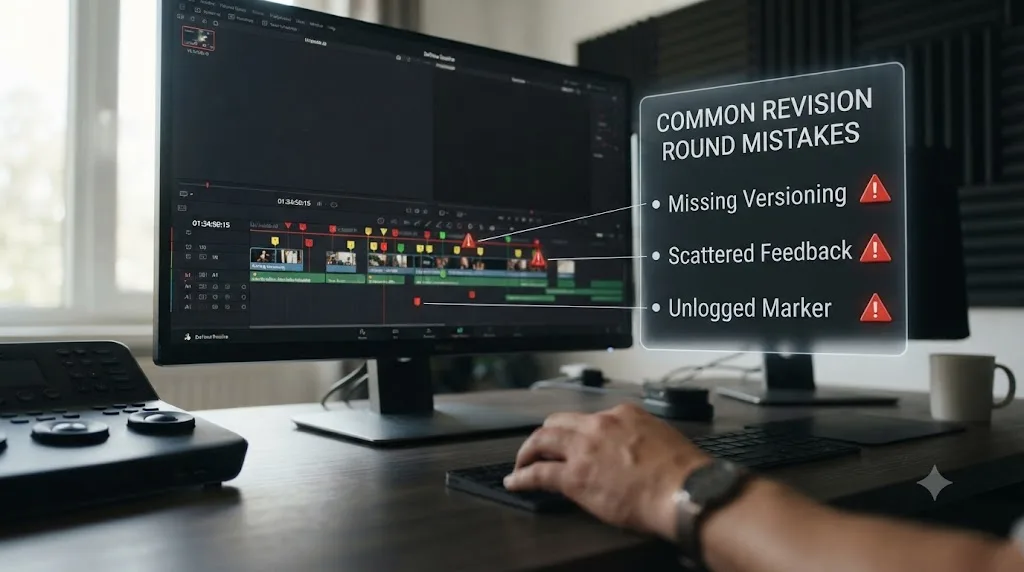
Quick reference: putting the whole system together
If you're starting a new client project this week and want the compressed version, in order:
- Write the revision round count, 2 to 3 is standard, into the contract or agreement before the first cut goes out, along with what counts as one round and your rate for anything beyond it.
- Pick one review channel, DaVinci Resolve Presentations, Vimeo Review, or a native plugin like Krock.io, and route every note through it.
- Ask your client to name one point of contact who consolidates internal feedback before it reaches you, especially on any project with more than one stakeholder.
- Add a new timeline Version before you touch anything for a new round.
- Build a three-color marker convention, must-fix, optional, approved, and write the legend into the message you send with the cut.
- Turn every note into a marker with real text in the note field, using the watch-note-organize-send order rather than reacting to notes as they arrive.
- Export the Edit Index to CSV once a round is resolved, as a durable record independent of the review platform.
- Enforce the round limit the moment it's crossed, distinguishing a genuine revision from a scope change before you agree to do either for free.
None of that requires anything beyond features already built into DaVinci Resolve, or freely available alongside it. It requires deciding the rules before the first cut ships, which is the part most chaotic revision processes never get around to.
Verdict
Client feedback in DaVinci Resolve doesn't get organized by accident, and it doesn't get organized by the software itself. It gets organized by a written round limit, one review channel instead of three competing ones, a marker convention simple enough that a stranger could read it, and a new timeline Version at the start of every round so last week's approved cut is never one accidental edit away from disappearing. Presentations, Vimeo Review, and Krock.io each do a real, useful piece of this job. None of them replaces the discipline of deciding, in writing, before the first cut ships, what a round is, how many you're offering, and what happens the moment that number gets crossed. Set that up once, and every project after it gets easier, not harder, the more clients you take on.
Frequently asked questions
- How many revision rounds should I include in a DaVinci Resolve client project?
- Two to three is the industry standard, according to multiple freelance contract guides, though most solo editors offer one to two to stay profitable, per OneSuite's video editing contract guide. Write the number into your agreement before the first cut goes out, define what counts as one round, and set a rate for anything beyond it, $75 to $200 per extra round or an hourly rate, per Bonsai's contract template.
- What's the best way to organize client feedback in DaVinci Resolve?
- Pick one tool where every comment lives, DaVinci Resolve Presentations, Vimeo Review, or a plugin like Krock.io, so nothing arrives by email or text on the side. Turn every comment into a timeline marker with a consistent three-color convention, then export the Edit Index to a CSV before you start cutting so you have a durable record of what the client actually asked for.
- Does DaVinci Resolve have a built-in client review tool?
- Yes. Presentations is built into DaVinci Resolve and Blackmagic Cloud. You publish a timeline, a reviewer leaves comments, and those comments sync back into your project as circular markers automatically, in both directions, without exporting a file or setting up a VPN, per Blackmagic Design's collaboration page.
- Is Frame.io still usable with DaVinci Resolve in 2026?
- It still runs, but Blackmagic has not updated the integration since Adobe acquired Frame.io, and it works only with Frame.io's older v3 API on the Studio edition, not the free version, per Frame.io's own legacy support page. If you upgrade your Frame.io account to v4, the DaVinci Resolve link breaks. Native plugins like Krock.io, or Presentations itself, are the safer bet going forward.
- What marker colors should I use for a DaVinci Resolve revision round?
- Three colors, no more, is the workable convention that shows up across real editor workflows: one for must-fix issues that block approval, one for optional suggestions, and one for sections the reviewer explicitly approved. DaVinci Resolve assigns no meaning to any marker color on its own, so write your three-color legend into the email you send with every cut.
- How do I keep old cuts from getting overwritten between revision rounds?
- Use DaVinci Resolve's built-in timeline Versions feature. Right-click the timeline name and choose Add Version before you start incorporating a new round of notes. Each version is an independent saved state, so Round 1's cut still exists exactly as the client saw it, even after you've made twenty changes for Round 2.
- What's the best way to learn DaVinci Resolve fast enough to run a professional review process?
- Blackmagic's own free training guides and YouTube channels like Casey Faris teach the editing mechanics fastest, but neither one looks at your specific project's bin structure or your specific client's feedback. The practical path is a short lesson per skill, immediately applied to your real project, with something able to point at your actual timeline when a specific step doesn't match what a tutorial assumed.
- Is there an app that helps you while you're using DaVinci Resolve to track revision rounds?
- Yes. TryUncle is a paid macOS app whose on-screen assistant, Uncle, watches your DaVinci Resolve session and can point at the Edit Index, a specific marker, or the Versions dropdown live, on your actual project. It does not touch your timeline or make edits for you. Tools like CutAgent, Sottocut, and Eddie AI execute editing instructions directly on your timeline instead, which is a different job.
Sources
- DaVinci Resolve - Collaboration (Blackmagic Design product page)
- DaVinci Resolve Manual: Using Markers Between Presentations and DaVinci Resolve (Blackmagic Design, mirrored)
- DaVinci Resolve Manual: Exporting the Edit Index as a CSV or TXT File (Blackmagic Design, mirrored)
- DaVinci Resolve Manual: Flags, Clip Colors, and Markers (Blackmagic Design, mirrored)
- DaVinci Resolve free vs Studio comparison (Blackmagic Design)
- How to Use Versions in DaVinci Resolve 18.5 (UMA Technology)
- Defining rounds of revisions (Creative COW forum, quotes from Todd Terry, Rich Rubasch, Ned Miller, Mark Suszko)
- How do you manage versions between revisions? (Creative COW forum)
- Video Editing Contract Template (OneSuite)
- Video Editor Contract Template (Bonsai)
- How to Set Up a Client Review Workflow Inside DaVinci Resolve Studio (KROCK.IO)
- Frame.io DaVinci Resolve: Status and Best Alternatives 2026 (KROCK.IO)
- DaVinci Resolve Studio 17 Integration (Legacy) (Frame.io Support)
- Blackmagic Forum: Concern about Frame.io integration in DaVinci Resolve 20
- Introducing the new, simplified Vimeo Review (Vimeo Blog)
- How to make the most out of our video review pages (Vimeo Blog)
- How to Get Client Feedback on Video Edits (PlayPause)
- How to Give Feedback to Your Video Editor (Without Being Annoying) (Increditors)
- New lower price for Blackmagic Cloud media storage (Blackmagic Design)
- The Best Collaboration Tool for DaVinci Resolve? Blackmagic Presentations Review (Orson Lord)
- Cloud Presentations with DaVinci Resolve (VFX Study)
- CutAgent (product site: features, pricing, FAQ)
- Sottocut (product site: features, pricing, platform requirements)
- PremiereCopilot pricing
- Eddie AI for DaVinci Resolve (native integration workflow page)
- DaVinci Resolve Training (Blackmagic Design)
- Casey Faris - Instructor page (CreativeLive)
- Top DaVinci Resolve Courses Online (Udemy)
- TryUncle
- TryUncle FAQ
Learn by doing, not watching
Stop translating tutorials to your timeline.
TryUncle stays beside Resolve on Mac and Windows. When you ask, Uncle sees your screen and points at the exact control you need. No hunting through tabs, timestamps, or mismatched tutorials.
Meet TryUncleKeep reading
 FixesJul 11, 202628 min read
DaVinci Resolve Collaboration Mode Timeline Locked: The Fix
Why DaVinci Resolve locks a timeline, or a whole bin of them, in Multi-User Collaboration, and the fix: give each active timeline its own bin.
 GuidesJul 18, 202619 min read
DaVinci Resolve Timeline Marker Color Meaning: The Real Answer
DaVinci Resolve doesn't assign meaning to marker colors. Here's the default, the full 16-color list, real editor conventions, and how to build your own.
 GuidesJul 19, 202638 min read
DaVinci Resolve Portfolio Tips for Freelance Editors
How freelance editors build a DaVinci Resolve portfolio that lands work: project count, reel length, niches, export settings, hosting, and rates.