
Learn / DaVinci Resolveupdated for DaVinci Resolve 21.0.2 (August 2026)
DaVinci Resolve Workflow for Corporate Training Videos
Quick answer
A DaVinci Resolve workflow for corporate training videos runs: script and get SME sign-off first, record screen capture and webcam audio separately, fix mismatched mic audio, cut for 2-5 minute microlearning chunks, caption for Section 508 and ADA compliance, add chapter markers, then export MP4 at LMS-safe bitrates for SCORM packaging or direct hosting.
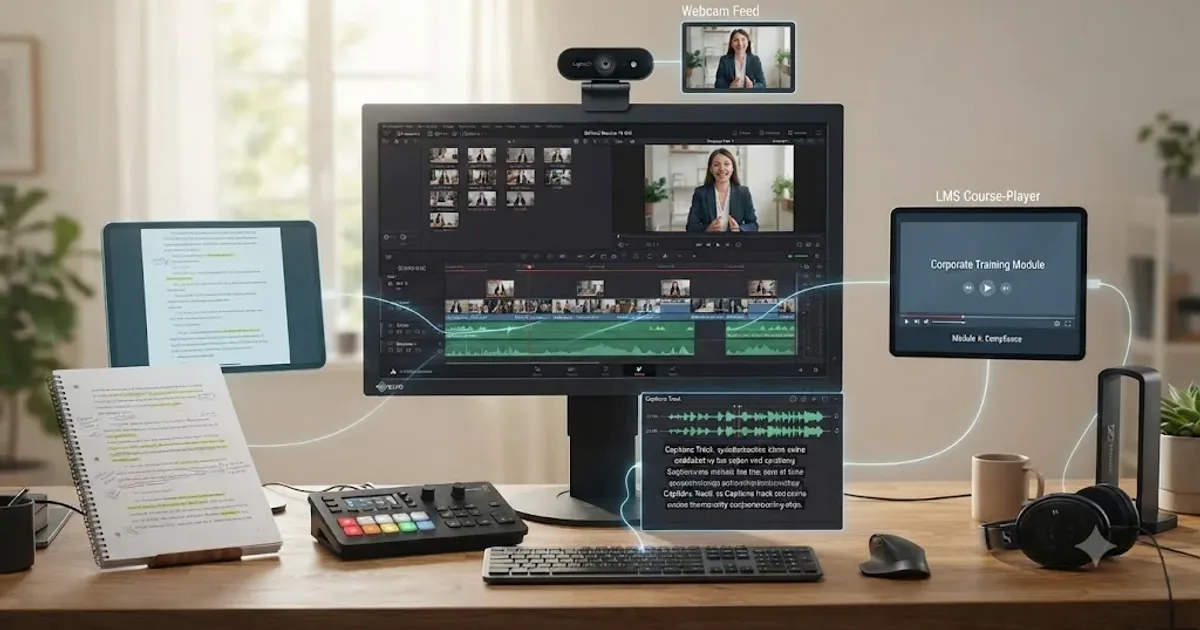
You've got a script three stakeholders already argued over, a subject matter expert who recorded their walkthrough on a laptop webcam from a spare bedroom, and a legal team asking whether the video is captioned yet, because it has to be before it goes live. None of that is a normal edit. It's a compliance document wearing a video's clothes, and DaVinci Resolve was built for neither footage recorded by someone who isn't a presenter nor a deliverable that has a legal captioning requirement attached to it before launch.
This is the workflow that actually handles it, not a general Resolve tutorial with "corporate" pasted on top. Script and sign-off first, record the SME and the screen separately, fix audio that was never going to be clean, cut for the length research says people actually finish, caption because the law says so more often than most editors realize, and export at settings your specific LMS will actually accept. We've spent seven years cutting professional commercial and corporate video, and we run a 100,000+ member video editing community where a version of this exact question, "how do I get a training video out of Resolve and into our LMS," comes up on a regular basis. Every setting below is something Resolve genuinely offers, sourced to Blackmagic's own documentation, official government accessibility guidance, or a named person's real, verifiable statement, not guessed at. As of August 2026, this workflow is current for DaVinci Resolve 21.0.2.
What actually makes a corporate training video workflow different from any other edit?
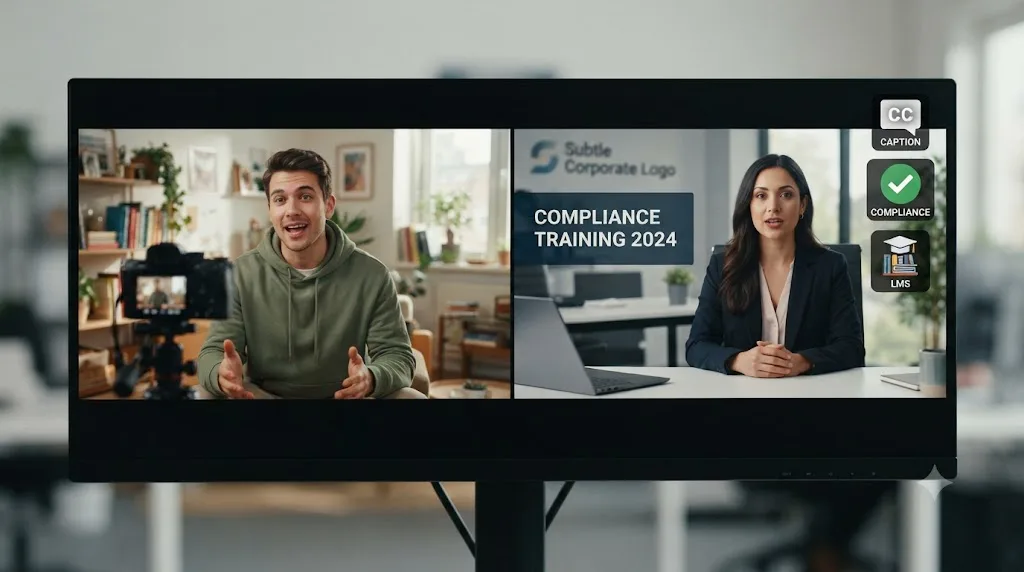
A corporate training video has a legal captioning obligation, a multi-stakeholder sign-off chain, and a destination system, an LMS, that dictates file size and format before you even open Resolve. None of those three things apply to a YouTube video or a UGC ad, and pretending they don't is what turns a straightforward edit into a launch delayed by legal review.
The footage itself is different too. You're rarely shooting a presenter in a controlled studio. More often you're capturing a subject matter expert, an engineer, a salesperson, a compliance officer, who has zero interest in being on camera and recorded their walkthrough on whatever microphone was closest. A screen recording of actual software sits next to that talking-head footage, shot at a completely different resolution and frame rate. And the finished file doesn't get uploaded to a platform that just plays video. It gets ingested by a Learning Management System that tracks completion, sometimes inside a SCORM package with a hard file size ceiling that has nothing to do with how good your export looks.
| What changes | Normal creator edit | Corporate training video edit |
|---|---|---|
| Who's on camera | You, or someone comfortable on camera | A subject matter expert who isn't a presenter |
| Audio source | One mic, one room, one setup | Webcam mics, home offices, conference room speakerphones |
| Legal requirement | None specific to the edit | ADA and, often, Section 508 captioning obligations |
| Approval chain | You, maybe a client | SME, compliance, legal, brand, L&D lead, sometimes in sequence |
| Delivery target | A video platform that just plays the file | An LMS that tracks completion, sometimes via a SCORM package with a file size limit |
| Video length | Whatever the format calls for | Research-backed microlearning chunks, usually under 5 minutes each |
A training video that isn't captioned is a liability before it's a deliverable. That single fact reorders this entire workflow away from a standard edit, because everything downstream, from how you cut to how you export, has to leave room for a legal requirement most creator-focused workflows never have to think about.
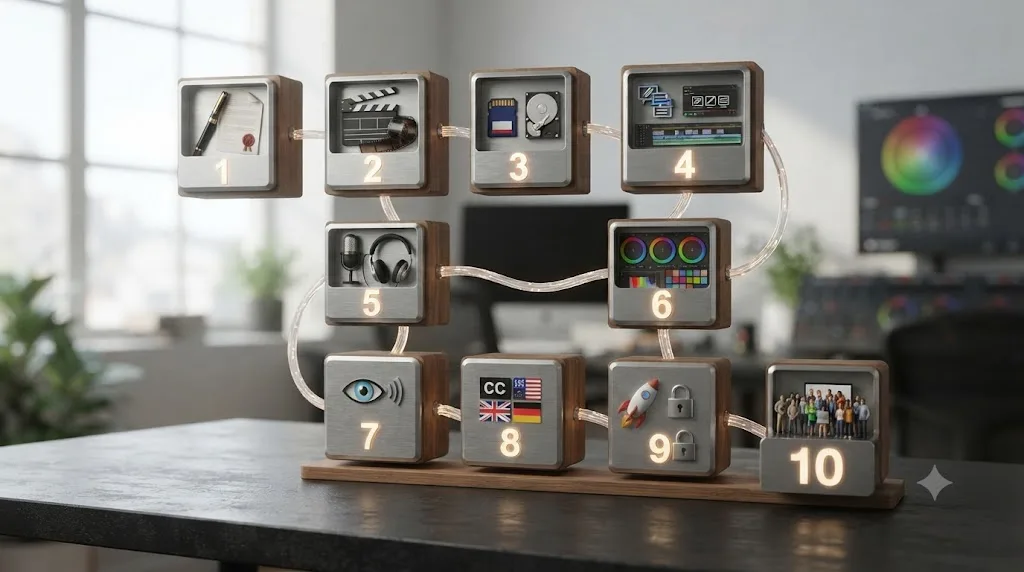
What does the full ten-stage workflow look like, start to finish?
Ten stages, and skipping their order costs real time later, the same way it does in a DaVinci Resolve editing workflow for YouTube creators or a DaVinci Resolve workflow for UGC ad content creators. Cut before the script has SME and legal sign-off and you're re-editing around a fact someone in compliance flags after the fact. Export before captions are added and you're re-rendering a file that's already been through an approval chain once.
| Stage | What happens | Why it exists specifically for training video |
|---|---|---|
| 1. Script and sign-off | Written script cleared by the SME and compliance before recording | A factual error caught after the edit means re-shooting, not re-cutting |
| 2. Record separately | Screen capture and webcam or on-camera SME footage shot as separate passes | Different resolutions, frame rates, and audio sources rarely combine cleanly live |
| 3. Organize by course and module | Bin by course, then module, then revision round | Training content ships in a curriculum, not a single video |
| 4. Fix SME audio | Level Matcher, Voice Isolation, Dialogue Leveler | SMEs record on whatever mic was nearest, not a controlled setup |
| 5. Cut for microlearning length | Trim to 2-5 minute chunks per topic | Research-backed length beats one long module for completion |
| 6. Caption for compliance | Subtitle track built to meet ADA and Section 508 | Often a legal requirement, not a nice-to-have |
| 7. Localize if needed | Translated subtitle tracks or dubbed audio per language | Global workforces need the same training in more than one language |
| 8. Add chapter markers | Markers at topic changes | Converts into LMS navigation points or video timestamps |
| 9. Export for the LMS | MP4 at bitrate and size the specific LMS accepts | SCORM packages and LMS uploaders enforce hard file size ceilings |
| 10. Manage stakeholder review | Route feedback through one tool, version the file | Multiple approvers, often in sequence, not in parallel |
Two stages here don't exist in a typical creator workflow at all: the sign-off gate before recording, and the compliance captioning stage. Neither is optional once the video is genuinely mandatory training rather than optional reference material, and both get covered in full further down.
How do you plan a training video before you ever open DaVinci Resolve?
Write the script against one stated learning objective, then get it cleared by the subject matter expert and, where it touches a regulated process, compliance, before anyone records anything. A training video edit is the wrong place to discover that a step in the script is factually wrong, because fixing it after the fact usually means a reshoot, not a re-cut, and reshoots are the single most expensive failure mode in this entire workflow.
Build a simple storyboard that names, for each section, what's on screen (talking head, screen recording, a diagram) and what the learner should be able to do afterward. This matters more here than in a YouTube edit because a training video's success is measured by whether someone can actually perform the task afterward, not by watch time or engagement. If the video teaches a five-step software process, the storyboard should have five clearly marked sections, one per step, because that structure becomes the backbone of both your rough cut and, later, your chapter markers.
Confirm the delivery target before you set up your DaVinci Resolve project. Whether the finished video is going into a SCORM package, embedding directly inside Docebo or TalentLMS, or hosting on Vimeo behind a link shared in an email, changes your export settings later, and it's a five-minute conversation now instead of a re-render after the fact. The export section further down in this guide covers exactly which numbers matter for which destination.
Match your timeline settings to what you're actually delivering rather than defaulting to whatever Resolve suggests. Most corporate training content ships at 1920x1080, 30fps, Rec.709, the same practical defaults a YouTube tutorial edit would use, since there's rarely a reason to deliver 4K training content that just inflates file size against an LMS's upload ceiling for no visible benefit to the learner.
How do you record SME interviews and screen captures for a training video?
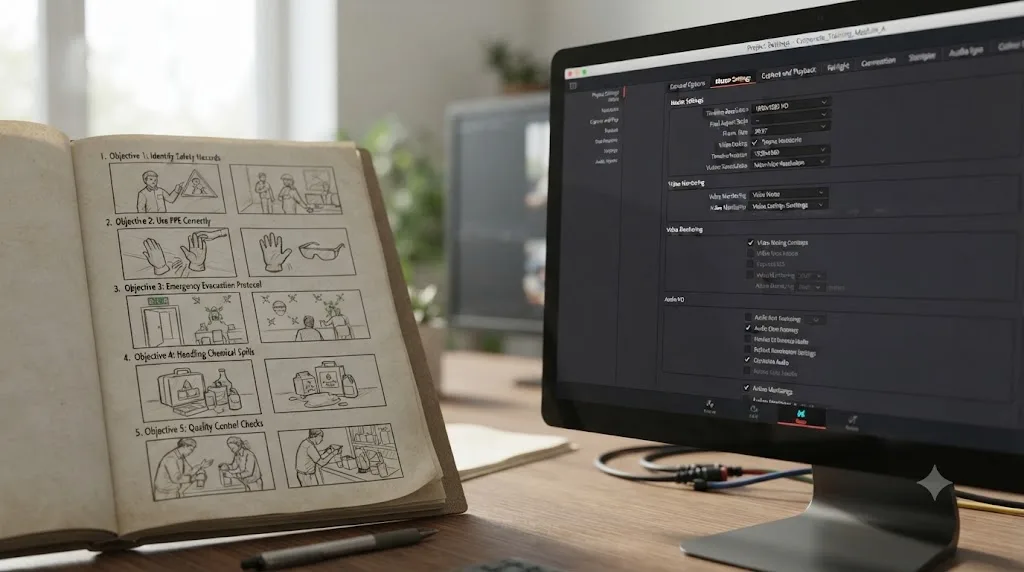
Record the subject matter expert and the screen capture as two separate passes, not one live combined shot, whenever the content allows it. A live screen recording of someone narrating their own mouse movements captures both at once, but the audio quality, framing, and the ability to fix one without touching the other all suffer for it. Splitting the two passes gives you a clean software walkthrough you can speed up, slow down, or annotate independently of the narration track that plays over it.
For screen capture, OBS Studio remains the standard free tool, and its output settings matter more than most tutorials admit. Record in Fragmented MP4 or MKV rather than a format Resolve struggles to ingest natively; MKV is the safer choice against a crash mid-recording since a corrupted OBS session more often stays recoverable in that container. Match your OBS frame rate exactly to the frame rate your DaVinci Resolve timeline will use, 30fps for most training content, since a mismatch here is what causes audio drift on a long screen recording that a YouTube-style B-roll clip never has time to develop.
For the SME, treat remote capture as the default, not the exception. Most SMEs record from a home office or a company laptop over Zoom or Teams rather than in front of a studio camera, which means the workflow needs to plan for webcam-quality video and whatever microphone happened to be plugged in, not for a controlled interview setup. Set a locked audio source per person the same way a DaVinci Resolve multicam workflow for interviews does for a two-camera podcast, since a training video with three different SMEs contributing over separate weeks needs a consistent audio approach across all of them or the mismatch becomes obvious the moment you cut between speakers.
| Capture type | Typical source | What to lock down before recording |
|---|---|---|
| Screen recording | OBS Studio, native OS recorder, or Camtasia's capture tool | Frame rate matched to timeline, resolution matched to what learners will actually view at |
| SME on webcam | Laptop or built-in camera, home office or office desk | A single, tested audio input, not whatever the video call app defaults to |
| SME on a proper camera | Company studio or a mobile setup | Standard mic and camera checks, same as any on-camera interview |
| Voiceover narration | Recorded separately in Resolve's own Voiceover tool | A quiet room and the same input device used for every session in that course |
DaVinci Resolve's own Voiceover tool, added to both the Edit and Cut page toolbars, is worth using directly for narration passes recorded after the fact, since it saves the file straight into the project's media folder with no separate app needed. Position the playhead, click record, and the narration lands on a new audio track ready to trim against your visuals immediately.
How do you organize footage from SMEs, stakeholders, and revision rounds without losing track?
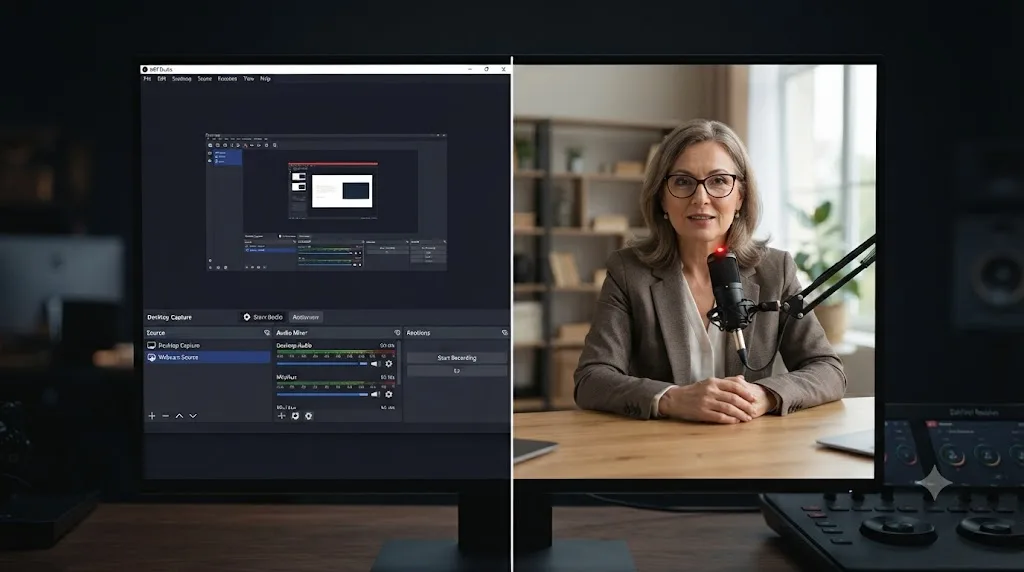
Build the bin structure around the course first, the module second, before a single file lands on the drive. A training video project rarely ships as one file; it ships as a curriculum, several modules that share a visual style, a narrator, and a review chain, and a folder structure that only makes sense for a single video falls apart the moment a second module starts.
Inside DaVinci Resolve, mirror that hierarchy: one top-level bin per course, sub-bins per module inside it, and a dedicated bin for shared assets, the company's intro bumper, a standard disclaimer slide, a lower-third template carrying the SME's name and title. A Power Bin holding those shared assets persists across projects in the same database, so a course's recurring branding gets built once and reused across every module instead of rebuilt from scratch each time.
Name files with a convention that survives getting pulled out of context: module-topic-take, not IMG_0842.mov, since a laptop webcam recording's default filename tells you nothing once it's sitting in a Media Pool next to a dozen others that look identical. Keep revision rounds in dated sub-bins rather than overwriting an SME's original take. Compliance-driven training goes through more review cycles than a typical creator project, and the ability to pull an earlier take back when a reviewer prefers the original phrasing is worth the extra folder every time.
A course that ships as five separate modules needs a bin structure built for five modules from the first file, not retrofitted after the third one arrives. Retrofitting a folder structure mid-course costs real hours hunting for which take a specific reviewer already approved.
How do you fix audio when your SME recorded on a laptop webcam mic?
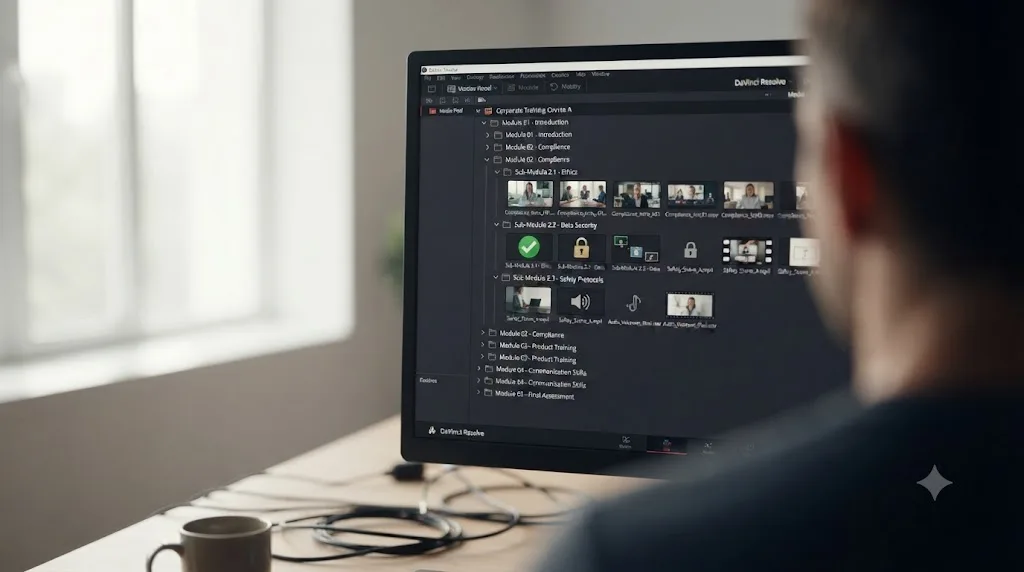
Start with Level Matcher, introduced as part of DaVinci Resolve's Fairlight audio enhancements. It analyzes the loudness profile of a reference clip you choose, then applies that same profile across other clips, which matters enormously in this niche since a course with three SMEs recording independently over separate weeks routinely arrives at three different volumes. Pick the SME clip with the cleanest recording as your reference, apply it across the rest, and a batch that sounded wildly inconsistent lands at one usable level without you riding gain manually on every clip.
Run Voice Isolation next on anything with inconsistent room tone, which in this workflow means home-office HVAC, a laptop fan under load, or an open-plan office in the background. It's a machine-learning tool built into Resolve specifically to separate spoken voice from background noise, and Resolve 20's version specifically improved separation on dense noise with fewer audio artifacts than earlier passes. An SME recording from home with a dog barking two rooms away is exactly the case this tool exists for, and it's a genuinely faster fix than asking a busy subject matter expert to re-record their segment because a delivery truck happened to idle outside.
The Dialogue Leveler, added to both the free and Studio editions of Resolve back in version 18.1, handles a third, more subtle problem: an SME who leans toward the laptop mic during the confident parts of their explanation and drifts away from it when they're thinking through a harder step. Enable it from the Inspector or the Fairlight mixer's track FX section and start with the "Optimize most sources" preset, letting it smooth that drift automatically instead of manually keyframing gain on a take you can't easily ask the SME to redo before a launch date.
| Problem | Tool | Availability |
|---|---|---|
| Three SMEs recorded at wildly different volumes | Level Matcher | Free and Studio |
| Home-office background noise, HVAC, laptop fan | Voice Isolation | Free and Studio |
| Volume drifting within one SME's take | Dialogue Leveler | Free and Studio |
| Target loudness for the platform you're exporting to | Fairlight Loudness Meter, Target Loudness setting | Free and Studio |
A subject matter expert is rarely a trained presenter, and their audio setup reflects that every time. None of the tools above ask a busy SME to reshoot on a proper microphone. They close the gap between what got recorded and what a learner needs to be able to hear clearly, which is the actual job here, not chasing a broadcast-quality mix nobody asked for.
How do you edit a training video so people actually finish it?
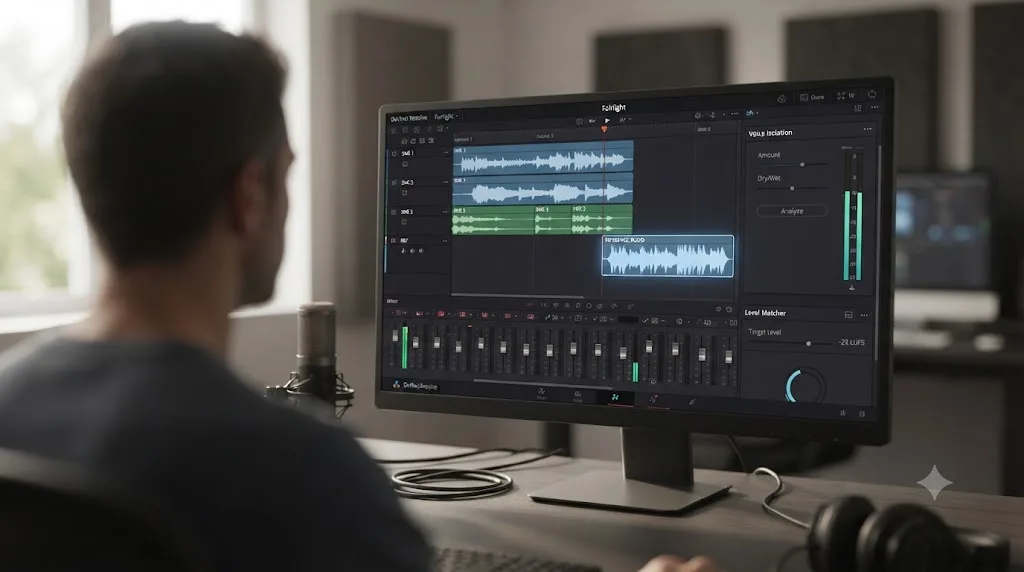
Cut to a stated length target before you start, and that target should usually be shorter than the SME's raw explanation runs. ATD's own microlearning research, drawn from a survey of 228 organizations already using microlearning, found that 59 percent of respondents rated something longer than two minutes but shorter than five minutes as the most effective length for a microlearning activity, with learners themselves saying 10 minutes felt like a reasonable outer limit before engagement dropped. That's a meaningfully different target than a YouTube video, where length gets decided by the content rather than by a completion-rate study.
Practically, this means one long 20-minute training video usually edits better as four or five separate 3 to 5 minute modules, each covering one topic and mapping to one learning objective from your original storyboard. An LMS tracks completion per module in most setups, so splitting content this way isn't just a pacing choice, it directly improves the completion data L&D teams actually report on. A learner who completes three of five short modules shows more progress in that data than one who abandoned a single 20-minute video at the eight-minute mark.
Cut filler words, false starts, and dead air more aggressively than you would on a creator video. An SME thinking through a technical explanation on camera produces far more "ums," restarts, and long pauses than a scripted presenter does, and training content has none of the entertainment pacing that makes a little dead air feel natural in a vlog. Third-party tools like AutoSubs can generate a rough transcript to work against for finding filler words fast, and Studio's Create Subtitles from Audio does the same job automatically, but either way, plan to cut on a script pass before you touch pacing, since removing a filler word usually shifts the timing of everything after it.
Keep on-screen text and callouts tied to the actual learning objective rather than decorative. A YouTube edit uses B-roll and pattern interrupts to reset a viewer's attention; a training video uses on-screen callouts, a highlighted UI element during a screen recording, a bullet point that reinforces what the SME just said, to reinforce retention of the specific fact being taught. Text+ handles both jobs, but the intent behind each is different enough that copying a YouTube titling pattern onto training content usually adds noise instead of clarity.
Research says 2 to 5 minutes per topic beats one long module, and completion data confirms it every time an L&D team actually checks. Cutting one 20-minute training video into five focused chunks isn't padding the course, it's the single edit decision most likely to move a completion rate that a stakeholder will actually ask about.
Do corporate training videos actually need closed captions, or is that optional?
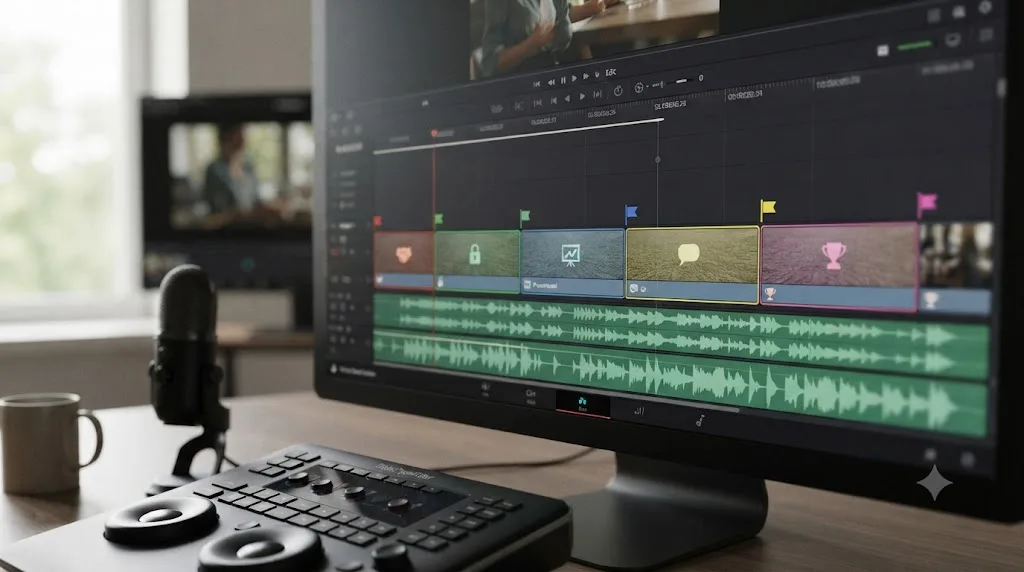
Often yes, and treating it as optional is the single most common compliance mistake in this workflow. Two overlapping legal frameworks apply. The ADA requires private employers to provide effective communication with employees who are deaf or hard of hearing, and courts and the EEOC have applied that requirement directly to training video captions. Section 508 separately requires that any organization doing business with the U.S. federal government provide user controls for closed captions and audio descriptions at the same menu level as volume controls, aligned to WCAG 2.0 Level AA. If your organization touches federal contracts or grants at all, Section 508 almost certainly applies to your training content specifically.
This isn't a hypothetical risk. In 2020, FedEx Ground agreed to pay 3.3 million dollars to settle an EEOC disability discrimination lawsuit that named, among other failures, a lack of captioned video and interpreting for mandatory training, orientation, and safety meetings. Thomas D. Rethage, Senior Trial Attorney in the EEOC's Philadelphia District Office, said of the resulting consent decree:
"The consent decree promotes effective and consistent accommodations for deaf and hard-of-hearing package handlers, including for safety, equipment and communication of job-related information."
That case involved safety and mandatory training content specifically, the exact category most corporate training video falls into. Caption everything by default rather than deciding case by case which video is "important enough" to caption, since the deciding factor in a real enforcement action was never the video's production budget, it was whether a deaf or hard-of-hearing employee could access the same job-related information as everyone else.
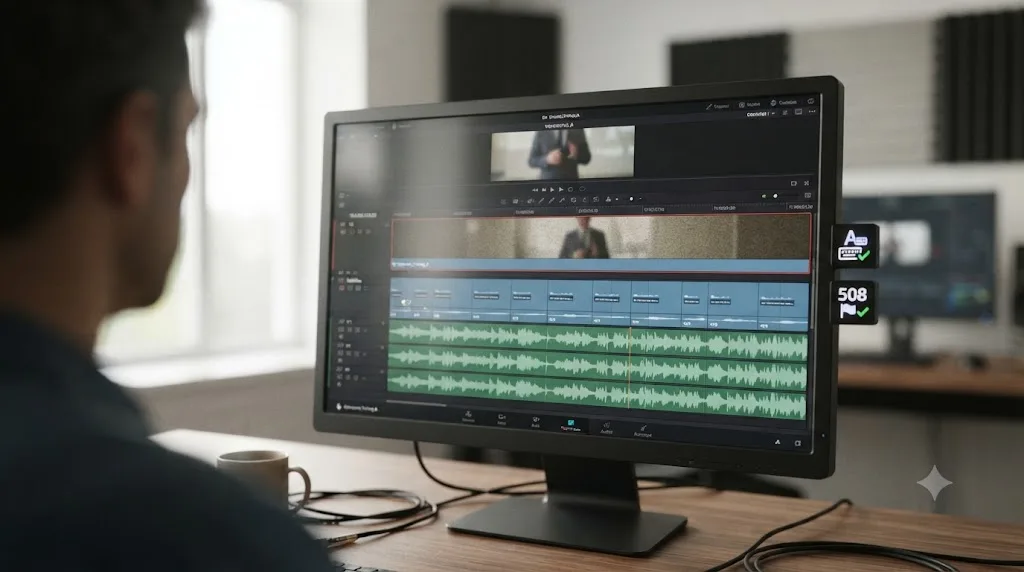
In DaVinci Resolve, add a subtitle track from the Edit page's Timeline menu and type or time captions manually in the free version, which works fine for a single training module. Studio's Create Subtitles from Audio, a one-time cost bundled into the 295 dollar Studio license, auto-transcribes an entire timeline's dialogue into a subtitle track using AI, correcting punctuation and capitalization as it goes, which is a genuine time saver once you're captioning a full course rather than one video. Either way, proofread before export. A caption error on a safety training video isn't just embarrassing, it's the exact gap a compliance audit is designed to catch.
| Method | Availability | Best for |
|---|---|---|
| Manual subtitle track, typed and timed by hand | Free and Studio | A single module, or content with technical terms an automated pass will mis-transcribe |
| Create Subtitles from Audio | Studio only, one-time 295 dollar license | A full course, where auto-transcription across many modules saves real hours |
| SRT import from a third-party transcription service | Free and Studio | Teams already using a dedicated captioning vendor for compliance sign-off |
For the full range of manual and AI subtitle methods, styling, and export formats, how to add subtitles in DaVinci Resolve covers every option in depth, including exporting SRT and WebVTT files separately from a burned-in caption track, which matters here since some LMS platforms expect a separate caption file rather than captions baked into the video itself.
How do you build multi-language versions for a global workforce?
Decide between translated subtitles and a fully dubbed audio track early, since the two solve different problems and cost very different amounts of production time. Translated subtitles are the faster, cheaper option: add a second subtitle track per language, import a translated SRT file once a translator or localization vendor has worked from your English transcript, and toggle between tracks per learner. Resolve itself doesn't translate a subtitle file automatically, so plan for a human or a dedicated translation service to produce the actual translated text, which also protects you from mistranslating a technical term a machine translation tool would get wrong.
A dubbed audio track is the heavier option, genuinely worth it when a workforce's reading literacy in the training's secondary language is uncertain, or when the content is dense enough that reading captions while also watching a screen recording overloads a learner. Record the dubbed narration the same way you'd record any voiceover pass, through Resolve's own Voiceover tool or an external recording, then swap it in on its own audio track per language version of the timeline, keeping video and any on-screen text separate from the audio decision entirely.
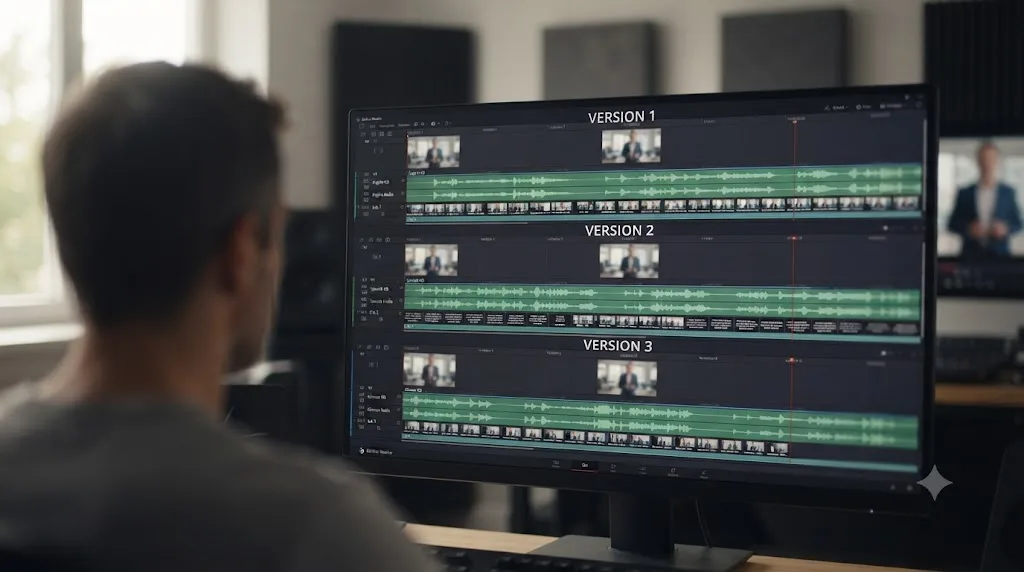
Keep every language version as its own timeline duplicated from a locked master, the same discipline a DaVinci Resolve UGC ad workflow uses when exporting one ad to multiple aspect ratios. Lock the cut and the visuals first, then duplicate, swap audio or subtitles, and export each language version from that locked base. Editing the cut separately per language multiplies your revision workload by however many languages you're supporting, for zero benefit, since the visuals rarely need to change at all.
Can DaVinci Resolve add quizzes or branching, or do you need another tool?
No, and this is worth stating plainly instead of glossing over. DaVinci Resolve edits and exports video. It has no quiz builder, no branching logic, and no SCORM export of its own, and no amount of node work or Fusion compositing changes that. If a training module needs a knowledge check, a branching scenario, or SCORM tracking data beyond simple video playback, that interactivity gets built in a separate authoring tool after Resolve's job is finished.
This is the honest tradeoff against a tool like Camtasia, which is built specifically for this niche and can export a complete SCORM package with quizzes attached directly from its own timeline. Camtasia's paid tiers add customizable quizzes inserted directly onto a screen recording, along with AI-powered hesitation removal and script-based editing, features Resolve simply doesn't have because Resolve was never built as an e-learning authoring tool in the first place.
| DaVinci Resolve | Camtasia | |
|---|---|---|
| Editing depth | Full node-based color, multi-track Fairlight audio, Fusion compositing | Timeline editing with training-specific templates, more limited color tools |
| Screen recording | Requires OBS or a native OS recorder as a separate capture step | Built-in screen and webcam recording in the same app |
| Quizzes and interactivity | None, requires a separate authoring tool | Built-in customizable quizzes on Create and Pro tiers |
| SCORM export | None | Direct SCORM package export built into the app |
| Audio tools for SME mismatches | Level Matcher, Voice Isolation, Dialogue Leveler, 6-band Clip EQ | Basic audio cleanup and AI-powered noise removal |
| Pricing | Free, or 295 dollars one-time for Studio | Subscription tiers from roughly 39 to 599 dollars a year depending on features |
| Best for | Courses needing real color correction, multicam SME interviews, or complex audio fixes across many contributors | A single editor producing straightforward screen-recording tutorials who wants SCORM and quizzes in one app |
The practical pattern most L&D teams settle on: cut, grade, and mix the video in DaVinci Resolve when the project needs real audio repair across multiple SMEs or any color work, then hand the finished, captioned file to Storyline, Rise, or Camtasia to add quizzes, branching, and SCORM packaging on top of it. Resolve does the parts it's genuinely better at, node-based grading and Fairlight-level audio tools neither Camtasia nor Storyline attempt to match, and the authoring tool does the parts Resolve was never designed for.
Don't reach for Resolve's full complexity on a project that's really a single, simple screen-recording tutorial with a couple of quiz questions attached. Camtasia's all-in-one workflow genuinely wins there, the same way CapCut wins over Resolve on a single simple UGC cutdown. Resolve earns its complexity the moment a course involves multiple SMEs whose audio needs real repair, a color pass to make footage from different cameras and rooms look consistent, or a curriculum large enough that Compound Clips and a shared Power Bin start saving real time across modules.
What does SCORM and xAPI packaging actually require from your video file?
SCORM, short for Sharable Content Object Reference Model, is a technical standard, not an instructional design framework, that governs how a course package communicates with an LMS. It's purely a technical interoperability layer: content built to the SCORM standard can play in any SCORM-conformant LMS, the same way a properly formatted DVD plays in any brand of DVD player. SCORM 1.2 and SCORM 2004 3rd Edition remain the two most widely adopted versions, and SCORM itself sets no maximum file size for the video content wrapped inside a package. The limit comes entirely from whichever LMS you upload the finished package to.
That limit varies more than most L&D teams expect until they hit it mid-launch.
| LMS platform | SCORM upload limit |
|---|---|
| TalentLMS | 600MB paid tier, 100MB free tier |
| Docebo | 1GB |
| Absorb LMS | 1GB |
| SAP Litmos | 1GB |
| D2L Brightspace | 2GB |
| Cornerstone OnDemand | 2GB |
| Blackboard Learn | 2.5GB, configurable |
| LearnUpon | 2.5GB |
| SAP SuccessFactors | Up to 2GB, configurable, defaults to 10MB |
| Canvas | 5GB for files, 500MB for embedded media |
| Adobe Learning Manager | 600MB |
| LearnWorlds | 400MB |
| SmarterU | 350MB |
A practical guideline that holds across nearly every platform on that list: keep the video inside a course package well under 250MB. That headroom protects you against the tightest common limits, TalentLMS's free tier and LearnWorlds among them, without forcing you to check every platform's specific ceiling before every export. Cornerstone specifically recommends source video no wider than 1024x768 or 1080x720 with a bitrate above 134 kbps but under 2500 kbps, numbers that map cleanly onto a standard MP4 H.264 export from Resolve's Deliver page at a moderate bitrate rather than a maximum-quality setting nobody watching a training video on a laptop screen actually needs.
xAPI, also called the Experience API or Tin Can API, is a newer, separate standard worth knowing about if your LMS or content strategy is moving past SCORM. Unlike SCORM, xAPI tracks learning experiences as structured statements, an actor performing a verb on an object, sent to a Learning Record Store, and it works offline, across mobile apps, and even for real-world tasks a video alone can't capture. Andy Whitaker, an xAPI strategist at Rustici Software, one of the standards' own maintaining organizations, put SCORM's staying power this way on the LifterLMS podcast: SCORM support, he said, isn't something his organization expects to be asked for less every year, and every year that expectation has been wrong. For a training video specifically, xAPI doesn't change what you export from Resolve; it changes how the LMS tracks what happens after a learner presses play, which matters for course strategy but not for your render settings.
SCORM sets no video size limit at all. Your LMS does, and every platform draws that line somewhere different. Confirm your specific LMS's ceiling before your final export, not after a package upload fails the night before launch.
What export settings does an LMS actually need, and how do you host the video?
Two real paths exist once your course is edited, captioned, and locked, and picking between them earlier saves a re-export later. Package the video into a SCORM zip through an authoring tool, covered in the section above, or host the finished video directly and link or embed it inside your LMS's course page. Docebo, for one, natively supports embedding video hosted on YouTube, Vimeo, or Wistia directly as a training material at no extra packaging cost at all, which is often the simpler path when your course doesn't need quiz tracking tied to the video specifically.
For direct hosting, Vimeo and Wistia both target this use case deliberately rather than as an afterthought to consumer video hosting. Vimeo's business tier supports SSO, domain-level privacy so a video only plays on approved internal sites, and SOC 2 Type 2 compliance with AES-256 encryption, all genuinely relevant when the content is internal-only training rather than public marketing. Wistia leans on private link sharing, password protection, and gated Channels that require an email before a viewer can access a collection of course videos, useful when you want basic access logging without a full SSO integration. Neither platform requires SCORM packaging at all if your LMS just needs a playable, trackable-by-view link.
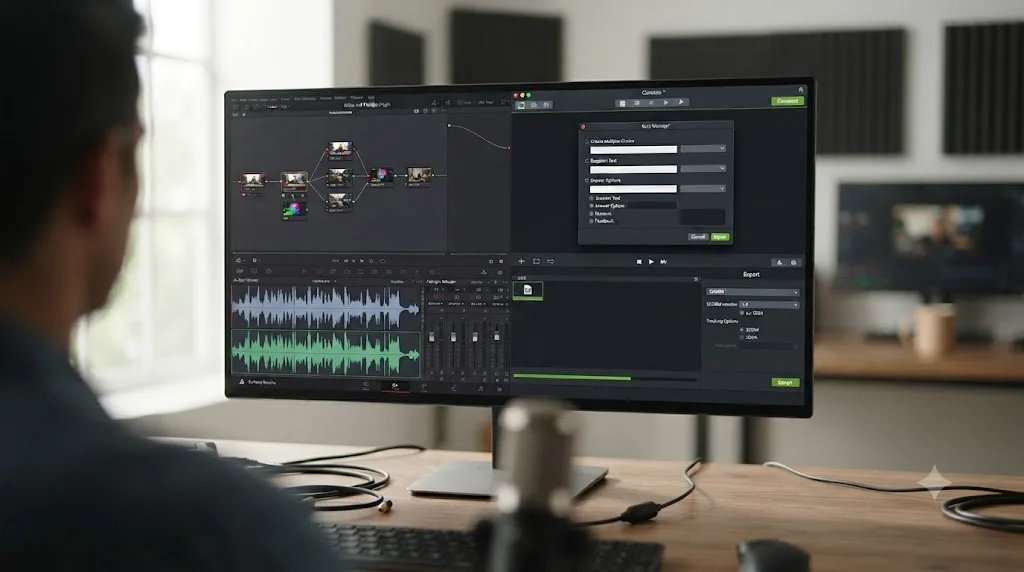
From Resolve's Deliver page, select a standard MP4 H.264 export rather than defaulting to the highest bitrate the codec supports. Set Render Settings to Single Clip and the render range to Entire Timeline so the module renders as one file. Match your resolution to what learners actually watch on, almost always 1920x1080 rather than 4K, since a heavier file buys you nothing perceptible on a laptop screen and works directly against whichever LMS ceiling you're trying to stay under.
| Destination | Format | Typical size target | Notes |
|---|---|---|---|
| SCORM package via an authoring tool | MP4 H.264 | Well under 250MB per module | Confirm your specific LMS's ceiling from the table above first |
| Direct LMS embed via Vimeo or Wistia link | MP4 H.264, hosted at the platform's own settings | No hard ceiling, the hosting platform handles delivery | Set privacy to domain-restricted or password-protected for internal-only content |
| Internal file share or email delivery | MP4 H.264, moderate bitrate | Small enough to download without frustration, usually under 200MB | Rare for a finished course, more common for a stakeholder review copy |
If a stakeholder is staring at Resolve's Deliver page mid-launch trying to remember which render preset actually maps to their LMS's upload limit, that's exactly the moment TryUncle can point at the specific setting on their own screen instead of sending them out to search a manual against a deadline.
How do you manage stakeholder review and approval without endless revision rounds?
Route every round of feedback through one review tool instead of scattered email threads and screenshots with timestamps typed in manually. This is, in our experience running a large editing community, one of the recurring questions that comes up around corporate and training video specifically, more often than almost any purely technical Resolve question: not "how do I do X in Resolve" but "how do I stop five people from sending conflicting notes on five different copies of the same file."
Frame.io and Vimeo Review solve this differently, and picking the wrong one for your team's size wastes time either way. Frame.io covers the fuller scope of collaboration, timestamped comments, task assignment that can trigger a notification in a tool like Asana, and deep version history, which earns its cost once a course involves several reviewers across compliance, brand, and an SME, each needing to see exactly what changed between versions. Vimeo Review is lighter: since 2024 it's included a formal approval button that lets a reviewer mark a specific version approved with a clear timestamp, which is often enough for a smaller team already paying for Vimeo hosting and doesn't need Frame.io's deeper task-management layer.
Whichever tool you pick, structure the review chain deliberately rather than sending one cut to everyone at once and hoping the notes reconcile themselves. A sequential chain, SME first for factual accuracy, then compliance for anything regulated, then brand for tone and visuals last, catches a factual error before someone spends time giving notes on a slide's color that's about to change anyway. A parallel chain, all three reviewing the same cut at once, is faster in wall-clock time but routinely produces conflicting notes, brand wants a graphic simplified while compliance wants more detail on the same screen, that someone then has to adjudicate before you can act on either note.
Keep your project's stage separation working for you here the same way it does on any Resolve workflow: the grade lives in a node graph, the mix lives in Fairlight, captions live on their own track, and a late note about one of those rarely forces you to touch the others. A brand note asking for a different lower-third font doesn't require reopening your audio mix, and a compliance note about a captioning error doesn't require re-grading a single clip.
Should you use an AI tool anywhere in this workflow?
Depends entirely on which kind of tool, because "AI tool for DaVinci Resolve" currently covers two genuinely different jobs, and conflating them in a compliance-sensitive workflow like this one is a bigger mistake than it would be on a casual creator project.
One category executes edits for you from a typed instruction. CutAgent connects to Resolve and turns a natural-language instruction into an actual timeline operation with a review step before anything lands, which is a real time saver on mechanical tasks like trimming dead air out of a long SME take. Sottocut runs a similarly agentic flow but requires Resolve Studio 21 on an Apple Silicon Mac specifically. PremiereCopilot is worth naming and ruling out here, since its own pricing page confirms it's built exclusively for Adobe Premiere Pro with no Resolve support. Eddie AI bridges into Resolve, Premiere, and Final Cut Pro through an installed extension. All four hand the editorial decision to the tool, which is a reasonable tradeoff on a mechanical assembly pass and a worse one on a compliance-reviewed training module, where you want to be certain exactly what changed and why before it goes to legal for sign-off.
The other category doesn't touch your timeline at all. TryUncle is the on-screen assistant for DaVinci Resolve on macOS. Ask in plain words and Uncle points at the exact control on your screen. It watches your project live across the Edit, Color, and Fusion pages, and instead of executing a change, it shows you exactly where the control you're looking for actually lives. Say you're mid-course, trying to remember whether the Target Loudness setting for a compliance-mandated audio spec lives in Project Settings or the Fairlight mixer, TryUncle answers that directly on your own screen rather than sending you out to search a manual against a stakeholder's deadline.
Neither category replaces the two things that still teach this workflow's Resolve fundamentals best: Blackmagic's own free training guides, six downloadable PDF courses with lesson files and a free online exam, and structured YouTube channels like Casey Faris, whose tutorials remain a solid, well-regarded way to get oriented on a Resolve page you've never used before. ATD's own Filming and Editing Training Videos Certificate goes further, teaching the filming and editing side specifically for L&D content with a free editing tool, though it doesn't cover DaVinci Resolve's specific interface. None of these teach the corporate-training-specific parts covered in this guide, SME audio repair, captioning compliance, SCORM export, since those are workflow habits this article covers directly, not app features a general tutorial demonstrates by default.
TryUncle isn't free. It's a paid subscription at $39 a month, cancel anytime, with a 14-day refund guarantee, macOS only, so check TryUncle for the current rate before deciding it fits your team's production workflow. It doesn't cut anything on your timeline, caption your video, or repair SME audio on its own, that's still Level Matcher's job. It just removes the seconds you'd otherwise lose hunting a menu mid-course, while you stay the one making every editorial call a compliance-reviewed video actually needs a human to make.
What breaks most often in this workflow, and how do you fix it?
A handful of problems account for most of the lost time in this specific ten-stage sequence, and each one has a known, specific fix rather than a shrug and a re-shoot.
An SME's screen recording and webcam audio drift out of sync. This is almost always a sample rate mismatch between the screen recorder and whatever captured the webcam audio separately, or drift from an inaccurate clock in consumer-grade recording software over a long take. Match sample rates on both sources before the next session, and use Elastic Wave retiming to stretch the existing audio back into alignment on footage you've already got rather than asking the SME to re-record an entire module.
A caption gets flagged as inaccurate during compliance review. Nearly always a technical term or acronym an automated transcription pass mangled, since Create Subtitles from Audio is trained on general speech, not your organization's internal jargon. Proofread every AI-generated caption pass specifically against the technical terms in your script before it goes to compliance, not after, since a wrong term in a caption reads as a factual error even when the spoken content was correct.
A course video fails to upload into its SCORM package. Check the file size against the specific LMS's ceiling from the export table above before assuming the render itself is broken. A 400MB module that renders and plays perfectly locally will still fail a TalentLMS free-tier upload at 100MB, and that's a settings problem, not a corrupted file.
Stakeholder notes contradict each other between compliance and brand. This is a review-chain problem, not an editing problem. Switch from a parallel review, where every stakeholder sees the same cut at once, to a sequential one, SME for accuracy first, then compliance, then brand last, so each reviewer's notes build on an already-approved layer instead of colliding with someone else's notes on the same cut.
Voice Isolation makes an SME's voice sound processed or robotic. This shows up most on already-clean audio that didn't need the tool, or Voice Isolation pushed too aggressively on a genuinely noisy home-office recording. Back off the intensity, or skip it entirely on a clip clean enough that the Dialogue Leveler alone handles it.
A screen recording stutters or drops frames on playback during editing. Turn on Proxy or Optimized Media in Project Settings, since a 4K screen recording scrubs poorly on mid-range hardware the same way any high-resolution source does. Generate proxies in ProRes rather than the recorder's native H.264 output, since Long GOP compression formats scrub poorly regardless of the content.
What does this workflow look like on an actual project, start to finish?
Take a concrete case: a five-module compliance training course on a new safety procedure, built from one SME's screen recording of the software involved plus a webcam interview explaining the reasoning behind each step, destined for a Cornerstone OnDemand LMS with a 2GB SCORM upload limit.
Script and sign-off: the SME and the company's safety compliance officer both review a written script against the actual procedure before a single frame gets recorded, catching one outdated step the original draft still described.
Capture: the SME records their screen walkthrough in OBS at 1080p, 30fps, matched to the eventual timeline settings, then records a separate webcam explanation of the reasoning on a laptop from a home office, locked to one microphone across both sessions.
Organize: one course-level bin holds five module sub-bins, each with its own SME footage and screen recording, plus a shared assets bin for the company's standard safety disclaimer slide and lower-third template.
Fix audio: Level Matcher runs the home-office webcam clips against the SME's cleanest take as reference, and Voice Isolation cleans up an air conditioner audible throughout one module's recording.
Cut: each of the five modules gets trimmed to its own 3 to 4 minute segment, one procedure step per module, filler words and thinking pauses cut aggressively against a rough transcript pulled from Create Subtitles from Audio.
Caption: the same auto-transcription pass becomes the base subtitle track for each module, proofread specifically against the procedure's technical terminology before compliance review, since two acronyms were mistranscribed on the first pass.
Chapters: markers dropped at each procedure step within a module convert into timestamps noted in the module's description for learners who want to jump back to a specific step during on-the-job reference later.
Export: each module renders as MP4 H.264 at 1080p, well under the 250MB practical target, individually small enough that all five modules combine to a fraction of Cornerstone's 2GB SCORM ceiling even before the authoring tool adds its own quiz and packaging overhead.
Review: SME reviews first for factual accuracy, then the safety compliance officer reviews the captioned, near-final cut, then brand does a final pass on the disclaimer slide and lower-third styling, each round routed through one shared review tool instead of five separate email threads.
Nothing in this example needed Fusion compositing or a complicated node tree. It's the same ten stages as the master workflow above, run against a real compliance course with a real file size ceiling and a real legal captioning requirement attached to it.
What does this look like across a whole training video library, not just one course?
An L&D team producing multiple courses a quarter rarely runs this workflow one module at a time in isolation. Most batch by stage instead of by course: a block of time dedicated to intake and organizing every new SME recording across active courses, a separate block for audio fixes across all of them, and dedicated cutting and captioning sessions per course once the groundwork is already done. Batching the mechanical stages, intake, audio repair, captioning, this way keeps the actual editorial decisions, how to structure a module, what to cut, happening with a clear head instead of squeezed between file management tasks.
Build a shared Power Bin per course, or even per organization if your branding stays consistent across courses, holding the intro bumper, disclaimer slide, and lower-third template every module reuses. That habit pays for itself the moment a second editor picks up a module mid-course without needing a verbal handoff explaining where the standard assets live. Save your Node 1 correction as a PowerGrade once you've dialed in a look for a given SME's typical lighting setup, since a subject matter expert recording five separate modules over a month rarely changes their home-office lighting between sessions, and rebuilding that grade from scratch every time wastes time a PowerGrade eliminates entirely.
A written handoff note between editors or courses helps more than it sounds like it should: which reference clip Level Matcher used for a given SME, which PowerGrade is active, which modules are through compliance review and which are still pending. It costs a few minutes to write and saves the next person from re-deriving decisions someone already made, especially with a launch date nobody has time to slip.
Volume also changes how you think about the review chain covered earlier. A sequential SME-then-compliance-then-brand chain that works fine on one course becomes a genuine bottleneck across five courses running in parallel if the same compliance reviewer is the single approval gate for all of them. Flag that capacity constraint to whoever's scheduling launches before it becomes the reason a finished, captioned course sits waiting for a signature it can't get fast enough.
What hardware and project settings keep this workflow smooth?
A bin full of 4K screen recordings and multiple SMEs' webcam footage stutters on hardware that handles a normal single-camera edit fine, and the fix is usually a project setting, not a machine upgrade. Apple Silicon Macs include hardware decoders for ProRes and H.264/H.265, which is why an M-series machine scrubs screen recordings that would choke an older Intel system running the same software. On Windows, a GPU with at least 4GB of VRAM and OpenCL 1.2 or CUDA 12.8 support is the practical floor, per Blackmagic's own published minimum system requirements, and that's a floor for running the software at all, not a comfortable spec for scrubbing several simultaneous SME clips while Fairlight runs Voice Isolation in the background.
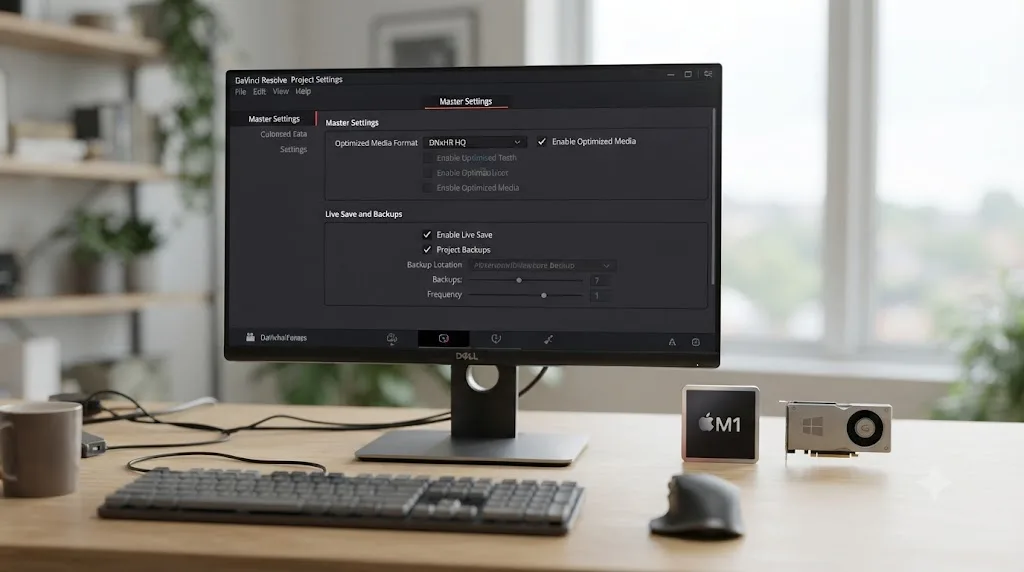
Turn on Proxy or Optimized Media the same way you would on any high-resolution project, generating proxies in ProRes rather than the H.264 or H.265 output most screen recorders default to, since Long GOP compression scrubs poorly regardless of resolution. A solo editor working through one course on a single machine benefits more from Optimized Media, which stays local and requires no export step of its own. A team passing projects between two or three editors, common on a larger L&D team, should reach for Proxy Media instead, since it travels with the project via metadata rather than staying locked to whichever machine generated it.
Turn on Live Save and Project Backups both, and treat them as non-negotiable on a compliance project specifically. Live Save covers a project you've never manually saved at all, so a crash mid-session doesn't wipe out an SME interview you can't easily schedule a second take of. Project Backups keeps a rolling set of restore points on a schedule, saving every 10 minutes within the last hour by default, protecting against a bad automated save overwriting a good earlier state. Point those backups at a second drive if you can, since a single drive failure taking out both your source footage and your only backup defeats the entire point of having one.
If your team is running Collaboration Mode so more than one editor can work the same project simultaneously, budget for its locking behavior explicitly rather than discovering it under a deadline. Resolve's collaborative workflow supports shared markers, flags, and clip metadata edits, but it introduces genuine contention around who can edit which bin or timeline at a given moment, worth a short team conversation before a launch week rather than during one.
What do you do if a stakeholder requests changes after the course is already live in the LMS?
This workflow's stage separation is what makes a late change survivable instead of a full re-launch. Resolve keeps each stage's work reasonably independent: the grade lives in a node graph, the mix lives in Fairlight, captions live on their own track, and markers exist independent of all of it. That separation is what saves you from rebuilding an entire module most of the time, but a live course adds one wrinkle a YouTube video never has: the LMS itself may need a new SCORM package version, not just a swapped file, before learners see the update.
| Change requested after launch | What's already been done | The least destructive fix |
|---|---|---|
| A procedure step in the script was updated after the SME's original recording | Full module cut, graded, and captioned | Re-record only the affected segment, re-cut that section into the existing timeline, recaption just the new audio |
| A caption error gets flagged by compliance after launch | Captions already exported and baked into the SCORM package | Fix the subtitle track, re-export, and check whether your LMS requires a new SCORM package version or accepts a file swap |
| A new language version is requested | English master already locked and exported | Duplicate the locked timeline, swap in translated subtitles or a dubbed track, export only the new language version |
| The compliance disclaimer wording changes company-wide | Disclaimer slide already baked into every module across several courses | Swap the shared asset in your Power Bin and re-render only the affected slide's segment across modules, not a full re-edit |
| A module's audio mix comes in too hot after launch, caught by an accessibility audit | Video already live in the LMS | Re-render from Deliver only; the cut, captions, and color don't need to be touched, since the mix lives in Fairlight independent of them |
The pattern across every row holds: a change confined to one stage's data, a script correction, a caption fix, a shared asset, usually has a fix confined to that same stage, not a rebuild of everything downstream. The one genuine wrinkle specific to this workflow is checking whether your LMS treats a swapped file as automatically live for learners who already started the course, or whether it requires publishing a new SCORM version that resets in-progress completion records. That's an LMS administration question worth confirming with whoever manages your specific platform before you assume a quick re-render is the whole fix.
Where do you go from here?
Run this workflow once, start to finish, on your next module before optimizing any single stage of it. The order matters more than any individual setting in this guide, because it's the order that keeps a factual error from surviving into a graded, captioned cut, and keeps a captioning pass from becoming an afterthought squeezed in the night before launch instead of a planned stage with its own review step.
Once the sequence feels familiar, the stage worth tightening first is almost always the one this workflow treats as non-negotiable and most creator-focused workflows skip entirely: captions. Get a subtitle pass into your default process on every module regardless of whether a specific video feels "important enough" to require it, and the accessibility review that currently feels like a last-minute scramble against a launch date turns into a checkbox that was already handled three stages earlier. If a specific stage keeps stalling a course mid-production, not before you start but staring at a menu you can't find while a compliance deadline sits on the calendar, that's the exact gap an in-app assistant is built for rather than another PDF training guide read from the beginning.
Frequently asked questions
- What is the best DaVinci Resolve workflow for corporate training videos?
- Script the content and get subject matter expert and compliance sign-off before you record. Capture screen recordings and webcam or on-camera SME footage separately, with one locked audio source per person. Fix mismatched mic audio with Level Matcher, Voice Isolation, and the Dialogue Leveler, then cut for 2-5 minute microlearning chunks rather than one long video. Caption for Section 508 and ADA compliance, add chapter markers, route stakeholder review through one tool, and export at the bitrate your LMS or SCORM package actually accepts.
- How long should a corporate training video be?
- ATD's own microlearning research found 59 percent of respondents rated 2 to 5 minutes as the most effective length for a microlearning activity, with learners saying 10 minutes felt like an acceptable ceiling. Cut one long training video into several 3 to 5 minute chunks by topic rather than delivering it as a single 20-minute module; each chunk maps to one learning objective and one LMS completion record.
- Do corporate training videos legally need closed captions?
- Often yes. The ADA requires private employers to provide effective communication, which the EEOC has applied directly to training video captions, and Section 508 mandates captions and audio description controls for any organization doing business with the federal government. EEOC v. FedEx Ground, a 2020 case over uncaptioned mandatory training video, settled for 3.3 million dollars. Caption every training video by default rather than deciding case by case.
- Do you need DaVinci Resolve Studio to produce corporate training videos?
- No. Screen recording import, multi-track editing, manual subtitle tracks, the Dialogue Leveler, Voice Isolation, Level Matcher, chapter markers, and MP4 export all run in the free version. Studio, a 295 dollar one-time license, adds Create Subtitles from Audio for AI-generated captions and Collaboration Mode for a team editing the same project at once, both genuine time savers at volume but not required to finish a single course video.
- How do I get a DaVinci Resolve video into an LMS like Cornerstone, Docebo, or TalentLMS?
- Two paths. Host the finished MP4 on Vimeo or Wistia and embed or link it inside a course page, which Docebo supports natively at no extra cost. Or package it into a SCORM zip with an authoring tool like Storyline or Camtasia for tracking and quizzes, keeping the video itself well under 250MB since SCORM upload limits vary from 100MB on TalentLMS's free tier to 5GB on Canvas.
- Can DaVinci Resolve add quizzes or SCORM packaging on its own?
- No. DaVinci Resolve edits and exports video; it has no quiz builder, no branching logic, and no SCORM export. Camtasia can export a SCORM package with built-in quizzes directly from its timeline, which is the honest tradeoff against Resolve. Most L&D teams cut and grade the video in Resolve, then hand the finished file to Storyline, Rise, or Camtasia to add interactivity and package it.
- What's the best way to learn DaVinci Resolve fast enough to run this workflow on deadline?
- Blackmagic's own free training guides cover the fundamentals in a few hours, and YouTube channels like Casey Faris are a solid way to get oriented on a page you've never used. Neither one teaches the L&D-specific parts, SME audio, captioning compliance, and SCORM export, since those are workflow decisions, not app features, and running this workflow once on a real course module teaches it faster than a general tutorial.
- Is there an app that helps you while you're using DaVinci Resolve for training video production?
- Yes. TryUncle is the on-screen assistant for DaVinci Resolve on macOS. Ask in plain words and Uncle points at the exact control on your screen, live, on the Edit, Color, and Fusion pages. It doesn't touch your timeline or caption anything for you, it just answers where a setting lives the moment a stakeholder is waiting on a revision.
Sources
- DaVinci Resolve product page and Studio pricing (Blackmagic Design)
- DaVinci Resolve - What's New (Blackmagic Design, Resolve 21)
- DaVinci Resolve Training (Blackmagic Design)
- Blackmagic Design Announces DaVinci Resolve 20 (official press release, Voice Isolation, Dialogue Leveler, Voiceover Palette)
- DaVinci Resolve Reference Manual: Collaborative Workflow (Blackmagic Design, mirrored)
- DaVinci Resolve Reference Manual: Enabling Multiple User Collaboration (Blackmagic Design, mirrored)
- DaVinci Resolve Reference Manual: Subtitles and Closed Captioning (Blackmagic Design, mirrored)
- DaVinci Resolve Reference Manual: Create Subtitles from Audio, Studio Version Only (Blackmagic Design, mirrored)
- DaVinci Resolve Reference Manual: Compound Clips (Blackmagic Design, mirrored)
- DaVinci Resolve Reference Manual: Target Loudness Level (Blackmagic Design, mirrored)
- DaVinci Resolve Reference Manual: Using Proxy Media (Blackmagic Design, mirrored)
- DaVinci Resolve Reference Manual: Using the Render Queue (Blackmagic Design, mirrored)
- DaVinci Resolve Reference Manual: Rendering Jobs from Multiple Projects at Once (Blackmagic Design, mirrored)
- DaVinci Resolve Reference Manual: Live Save (Blackmagic Design, mirrored)
- DaVinci Resolve Reference Manual: Project Backups (Blackmagic Design, mirrored)
- DaVinci Resolve 20 Minimum System Requirements (Blackmagic Design, official PDF)
- SCORM Explained 101: One Minute SCORM Overview (Rustici Software)
- SCORM Versions: The evolution of the eLearning standards (Rustici Software)
- What is xAPI aka the Experience API or Tin Can API
- Exploring eLearning Standards for the WordPress LMS Industry with Andy Whitaker at Rustici Software (LifterLMS podcast)
- Video and Other Synchronized Media (Section508.gov)
- Captioning Corporate Training Videos: What You Need to Know (3Play Media)
- FedEx Ground to Pay $3.3 Million to Settle EEOC Disability Discrimination Lawsuit (EEOC official press release)
- Just How Micro Is Microlearning? (ATD)
- Filming and Editing Training Videos Certificate (ATD)
- Video Marketing Statistics 2026 (Wyzowl)
- Video Streaming help documentation (Cornerstone OnDemand)
- SCORM File Size Limits by LMS: Moodle, Canvas, and more (Slate)
- Vimeo vs. Wistia: Which video hosting site should you choose? (Vimeo)
- Video Privacy and Security: 4 Ways to Control Access to Your Videos in Wistia
- Which Review Platform Is Right for Your Video Team? Wipster vs Frame.io vs Vimeo (Beverly Boy Productions)
- Best OBS Settings for DaVinci Resolve
- Camtasia Pricing 2026 (eLearning Industry)
- Docebo Help: Creating a video training material from a video URL
- CutAgent (product site: features, pricing, FAQ)
- Sottocut (product site)
- PremiereCopilot pricing
- Eddie AI for DaVinci Resolve (native integration workflow page)
- Casey Faris - YouTube channel
- TryUncle
- TryUncle FAQ
Learn by doing, not watching
Stop translating tutorials to your timeline.
TryUncle stays beside Resolve on Mac and Windows. When you ask, Uncle sees your screen and points at the exact control you need. No hunting through tabs, timestamps, or mismatched tutorials.
Meet TryUncleKeep reading
 GuidesJul 16, 202635 min read
DaVinci Resolve Editing Workflow for YouTube Creators
The complete DaVinci Resolve workflow for YouTube: project setup, organizing footage, rough cut, audio, color, chapters, and export, in the right order.
 GuidesJul 22, 202641 min read
DaVinci Resolve Workflow for UGC Ad Content Creators
DaVinci Resolve workflow for UGC ad creators: bin footage by brand, fix phone audio, cut once and swap hooks, caption, then export for every platform.
 GuidesJul 16, 202640 min read
DaVinci Resolve Multicam Editing Workflow for Interviews
A full DaVinci Resolve multicam workflow for interviews: camera and audio setup, syncing, live cutting, keyboard shortcuts, color matching, and fixes.