
Learn / DaVinci Resolveupdated for DaVinci Resolve 21.0.3 and Vrew 4.0.0 (August 2026)
DaVinci Resolve vs Vrew for Auto Subtitle Editing (2026)
Quick answer
Vrew is a standalone, credit-metered editor built around auto-captions from the start, cheaper to start ($0-$35.99/month) but recurring. DaVinci Resolve's Create Subtitles from Audio needs the one-time $295 Studio license, then runs unlimited forever, but only inside a full five-page NLE. Choose Vrew for fast, dialogue-only rough cuts; choose Resolve if you also grade, mix, or composite.
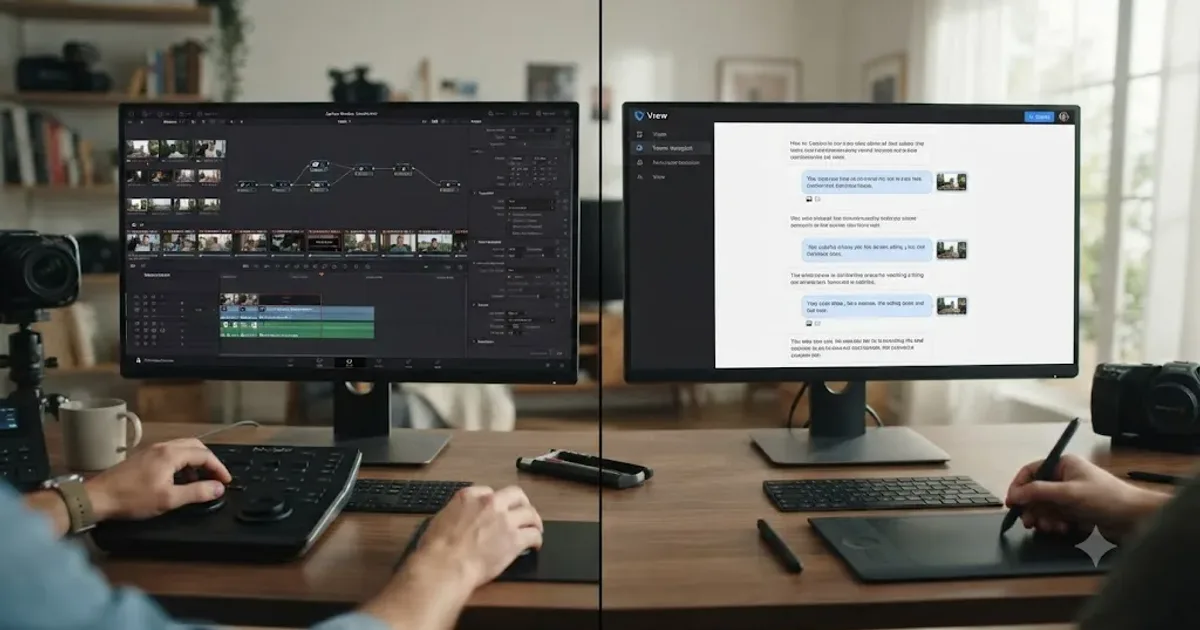
You've got dialogue to caption, and two completely different tools promising to do it automatically. One is a standalone editor built entirely around a transcript. The other is a subtitle feature buried inside a five-page professional suite you may already own. As of August 2026, here's the honest, sourced comparison between DaVinci Resolve's Create Subtitles from Audio and Vrew's auto-caption workflow, with real prices, real credit math, and an honest verdict on which one actually gets a caption track done faster.
After seven years of professional, commercial video editing and having taught more than 100,000 students on Udemy as an official Udemy Business Partner, we've watched editors bounce between exactly these two tools for the same reason: they want captions done in minutes, not hours, and they don't want to guess which one actually delivers that.
DaVinci Resolve vs Vrew for auto subtitle editing: the quick verdict
Before the details, here's the whole comparison in one table. Every row gets its own section below, with sources.
| Category | Winner | Why |
|---|---|---|
| Cost to start | Vrew | Free tier exists with 200 monthly credits; Resolve's AI captions need the $295 Studio upgrade first |
| Cost over time, heavy use | DaVinci Resolve | One-time $295 payment, unlimited auto-captions forever; Vrew's credits reset monthly whether you own the Studio license or not |
| Speed to a first caption draft | Vrew | Built around transcription from the first screen you see; no separate license gate |
| Manual subtitle typing for free | DaVinci Resolve | Full subtitle track system, styling, and SRT export are free with no Studio purchase |
| Auto-transcription languages | Roughly tied | Vrew's native STT covers Korean, English, Japanese, and Chinese; Resolve covers 14 languages including several Vrew's STT doesn't |
| Subtitle translation reach | Vrew | Translates existing subtitles into 100+ languages; Resolve has no built-in subtitle translation feature at all |
| Local, on-device processing | DaVinci Resolve | Neural Engine transcription runs on your own machine; Vrew's own site describes AI processing running in isolated cloud environments |
| Color grading | DaVinci Resolve | Node-based Color page, scopes, qualifiers, free at the entry tier |
| Audio mixing | DaVinci Resolve | Fairlight is a full DAW; Vrew's audio tools are cleanup, not a mix |
| VFX and compositing | DaVinci Resolve | Fusion is a built-in node compositor; Vrew has none |
| Recurring cost, ongoing use | Vrew has one, Resolve doesn't | Vrew's paid tiers run $8.99 to $35.99+ a month; Resolve Studio is one payment, ever |
| Platform support | Roughly tied | Vrew runs Mac, Windows, and Linux; Resolve runs Mac, Windows, and Linux too |
Neither tool is a worse version of the other. They're built for different jobs, and which one wins depends entirely on whether captions are the whole task or one step in a bigger edit.
What is Vrew, and how does its auto-subtitle workflow actually work?
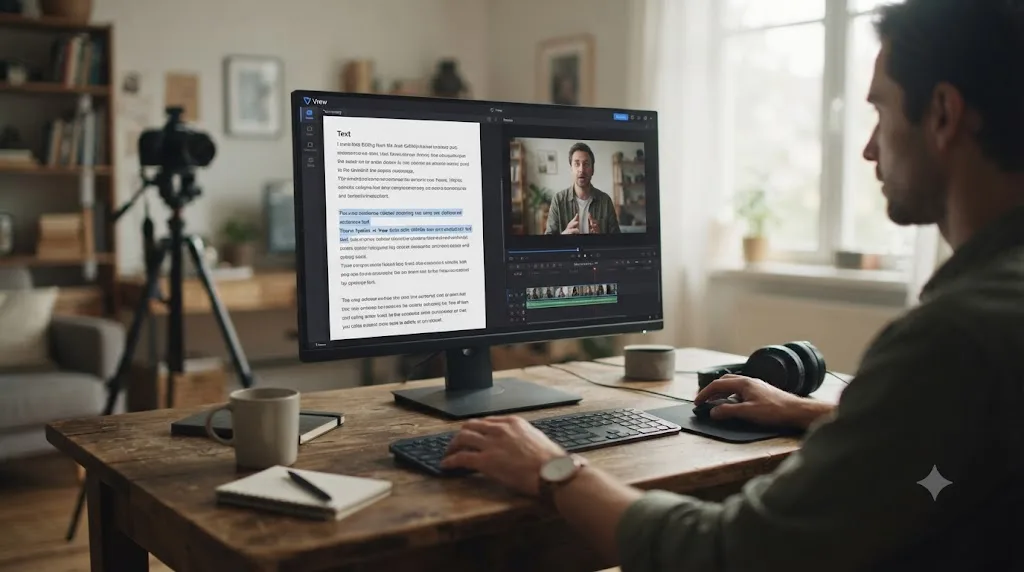
Vrew is a standalone AI video editor, built by the Korean startup VoyagerX, that treats your footage as a transcript from the moment you import it. Import a clip, Vrew's speech-to-text engine transcribes the dialog automatically, and captions appear as a synced document you edit like text rather than a separate track you type by hand. (source)
VoyagerX was co-founded in 2017 by Chang Byung-gyu, chairman of the game developer Krafton, and Nam Se-dong, who previously built the Say Club chat service and the B612 camera app. The company raised roughly $26.4 million in a Series A round led by SoftBank Ventures, Altos Ventures, and Yellowdog, and had already passed one million monthly active users across Korea, India, and the US by the time of that raise. (source) Vrew itself has been public since 2018, and usage has kept growing since: according to The Korea Economic Daily, nearly 1.2 million users made more than 20 million videos with Vrew in 2025 alone. (source)
The mechanical pitch is close to Descript's document-first model, if you've used that tool: delete a sentence from the transcript, and the matching seconds of footage disappear too. Vrew adds a dedicated auto-caption layer on top of that same transcript, plus a Speech Editor that regenerates AI voice audio when you retype a line, and a Silence Remover that strips dead air in one click. (source) None of that lives inside a timeline-first NLE the way Resolve's subtitle tools do. Vrew is the whole editor, not a plugin you add to one.
Vrew treats your video as a document you edit by deleting words, and its auto-captions are a byproduct of that same transcript, not a separate feature bolted on afterward. That single design choice explains almost everything else in this comparison, including why it's fast for dialogue and thin for anything visual.
What is DaVinci Resolve's Create Subtitles from Audio, and how does it work?
Create Subtitles from Audio is DaVinci Resolve's built-in AI transcription tool, tucked under the Timeline menu, that generates a complete, timed subtitle track from a clip's dialog using the DaVinci Neural Engine, the same AI backbone behind Magic Mask and Super Scale. Blackmagic Design shipped it in Resolve 18.5 in 2023, and it's remained a Studio-exclusive feature through every version since, including 21.
Here's the mechanical difference from Vrew that matters most: Resolve isn't a document-first editor. It's a timeline-first NLE with five pages, Cut, Edit, Fusion, Color, and Fairlight, all inside one project file, and subtitles are one track type among several. You still cut on a timeline. The auto-subtitle tool builds a track that sits alongside your video and audio tracks rather than replacing your editing model with a transcript the way Vrew does.
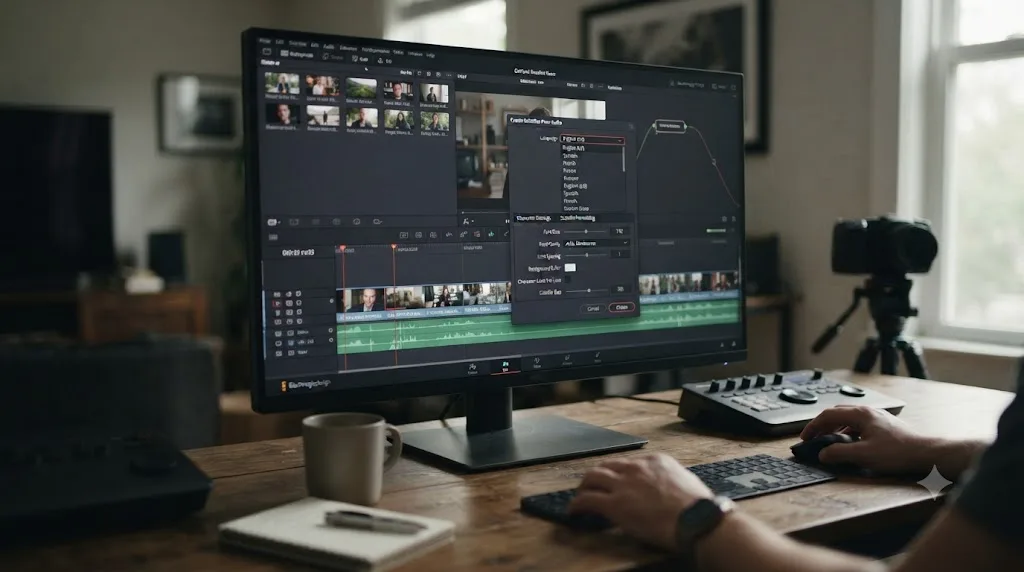
To run it: mark a range or leave nothing selected to process the whole timeline, open Timeline > Create Subtitles from Audio, choose a language or leave it on Auto, pick a Caption Preset, set Max Characters per Line and the Gap Between Subtitles, then click Create. Resolve builds a subtitle track with punctuation added and speaker pauses used to break up timing, attempting to skip background music rather than transcribing it as garbage text.
DaVinci Resolve's auto-subtitle tool generates a track that lives inside the same project as your color grade, your audio mix, and your Fusion composite, while Vrew generates a caption inside a document that has no equivalent to any of those three. That's the trade a Resolve user makes for staying in one app, and it's the trade a Vrew user avoids by never opening a second one for the caption pass.
How much does auto subtitle editing actually cost in each tool?
Vrew runs on a metered, credit-based subscription; DaVinci Resolve's auto-subtitle tool is a one-time purchase with no metering at all. These are two structurally different pricing models, not just two different numbers, and the difference matters more than either headline price.
Vrew's official 4.0.0 update notes describe a unified credit system where 1 credit equals 1 minute of transcription, 100 characters of AI voice, or 300 characters of translation, all drawn from the same monthly pool. (source) That same source lists monthly credit allocations by tier: Free gets 200 credits, Light gets 2,000, Standard gets 10,000, and Business gets 12,000. According to a 2026 breakdown of Vrew's pricing page, those tiers carry monthly prices of $0, $8.99, $16.99, and $35.99 respectively. (source)
Do the math and the free tier is more generous than it sounds at first: 200 credits spent entirely on transcription is roughly 200 minutes, a little over three hours, of auto-captioning a month. Spend some of those same credits on AI voice or translation instead, and your transcription minutes shrink accordingly, since every feature draws from one shared pool.
DaVinci Resolve's free edition includes the entire manual subtitle track system: adding a track, typing and timing captions, styling them, importing and exporting SRT, all for $0, forever, per Blackmagic's own product page. (source) What's gated is specifically Create Subtitles from Audio, which needs DaVinci Resolve Studio, a $295 one-time payment with no subscription attached. (source) Once you've paid it, auto-subtitle generation has no monthly limit, no credit meter, and no recurring bill, ever again.
| Plan | Monthly price | What it buys for captions |
|---|---|---|
| Vrew Free | $0 | 200 credits/month, roughly 200 minutes of transcription if spent entirely on captions |
| Vrew Light | $8.99 | 2,000 credits/month, roughly 2,000 minutes (about 33 hours) |
| Vrew Standard | $16.99 | 10,000 credits/month, roughly 10,000 minutes (about 166 hours) |
| Vrew Business | $35.99 | 12,000 credits/month, roughly 12,000 minutes (about 200 hours) |
| DaVinci Resolve free edition | $0 forever | Manual subtitle typing, styling, SRT export; no AI transcription |
| DaVinci Resolve Studio | $295 one-time | Unlimited Create Subtitles from Audio, forever, no monthly cap |
A one-time $295 DaVinci Resolve Studio license buys unlimited auto-subtitle generation forever, while Vrew meters every transcription minute against a monthly credit allowance that resets whether you used it or not. Run your own math against how many hours of footage you actually caption in a typical month before assuming either path is cheaper. A creator captioning two hours of dialog a month stays comfortably inside Vrew's free tier indefinitely. A creator captioning ten hours a month burns through Vrew's Standard tier every single month, while Resolve Studio's cost stopped accumulating the day you paid it.
What does a full year of captioning actually cost, side by side?
The monthly numbers above are the input. Here's what they add up to once you run them out across a year, for three usage profiles: light (roughly 2 hours of footage a month), medium (roughly 8 hours a month), and heavy (roughly 20 hours a month).
| Usage profile | Vrew tier that covers it | Vrew cost over 12 months | DaVinci Resolve Studio cost |
|---|---|---|---|
| Light, ~2 hrs/month | Free (200 credits covers ~3.3 hrs) | $0 | $295, paid once, in month one |
| Medium, ~8 hrs/month | Light, 2,000 credits covers ~33 hrs | $107.88 (12 x $8.99) | $295, paid once, whenever you buy it |
| Heavy, ~20 hrs/month | Standard, 10,000 credits covers ~166 hrs | $203.88 (12 x $16.99) | $295, paid once, whenever you buy it |
Run the same math out to 24 months and the picture sharpens further. A light user stays on Vrew's free tier the whole time and spends $0 against Resolve Studio's $295, so Vrew simply wins on cost for that profile, full stop. A medium user spending $107.88 a year on Vrew doesn't cross Resolve's $295 total until partway through year three; before that point, Vrew is genuinely the cheaper tool in absolute dollars, even though it's a recurring bill instead of a one-time one. A heavy user spending roughly $204 a year on Vrew's Standard tier crosses Resolve Studio's $295 one-time cost before the 18-month mark, and every month after that, Resolve is the cheaper tool by a growing margin, since its cost stopped moving the day it was paid.
The break-even point between a $295 one-time Resolve Studio license and Vrew's recurring credits isn't a fixed number. It depends entirely on how many hours you caption every month, and it can land anywhere from year three to under two years depending on your actual usage. Don't take either tool's headline price as the real cost until you've run your own monthly hours through this math.
Which languages does each tool transcribe automatically?
Neither tool transcribes every language, and the two lists don't fully overlap. Third-party testing of Vrew's native speech-to-text reports coverage of Korean, English, Japanese, and Chinese, with Korean recognition described as particularly strong given VoyagerX's home market. (source) DaVinci Resolve's Create Subtitles from Audio covers 14 languages per Blackmagic's own reference manual: Danish, Dutch, English, French, German, Italian, Japanese, Korean, Mandarin (Simplified and Traditional), Norwegian, Portuguese, Russian, and Spanish. (source)
Lay those two lists side by side and Resolve's native transcription reaches more languages outright, but the overlap covers the languages most creators actually caption in: English, Japanese, Korean, and Chinese all transcribe automatically in both tools.
Where the picture flips is subtitle translation, not transcription. Vrew's AI Subtitle Translator, powered by a choice of a GPT-based engine or Google Translate, converts existing subtitles into more than 100 languages. (source) DaVinci Resolve has no equivalent built-in subtitle translation feature at all. If your workflow is transcribe once, then deliver a dozen language versions of the same subtitle track, Vrew covers that job natively and Resolve simply doesn't.
| Task | Vrew | DaVinci Resolve |
|---|---|---|
| Auto-transcribe from spoken audio | Korean, English, Japanese, Chinese (native STT) | 14 languages including French, German, Italian, Russian, Portuguese, Scandinavian languages |
| Translate an existing subtitle track | 100+ languages (GPT or Google Translate engine) | No built-in translation; requires a third-party tool or manual retyping |
| Auto-detect the spoken language | Not confirmed in Vrew's own documentation | Yes, an "Auto" language option in Create Subtitles from Audio |
If your project needs one accurate transcript and a dozen translated caption files for global delivery, Vrew's built-in translator covers a job DaVinci Resolve has no native answer for at all. If your project is French, German, or Russian dialogue that needs transcribing in the first place, Resolve's 14-language native STT reaches languages Vrew's own speech recognition doesn't.
Which one generates more accurate auto-subtitles on a first pass?
Neither company publishes a formal word-error-rate figure for its subtitle feature, so treat any specific accuracy percentage you see quoted online, including some of the numbers below, as one source's testing rather than a guaranteed result on your own audio.
The clearest independently tested number available comes from DaVinci Resolve's side. Kunal Ganglani, who ran hands-on tests of Resolve 21's AI feature set against a real project, found the automatic subtitle generation running at roughly 90 to 95 percent accuracy on a first pass, finishing in about three minutes for a 12-minute video. His own verdict on that result was direct: he called it "more than good enough" for YouTube, internal videos, and social clips, while explicitly noting it isn't built for broadcast-grade accuracy requirements. (source)
On Vrew's side, reviewer Nicole, writing for Beverly Boy Productions, described the underlying engine plainly: "Its powerful speech recognition engine produces highly accurate subtitles, speeding up one of the most time-consuming aspects of post-production." (source) That's a real, positive verdict from a named reviewer, though it stops short of a specific tested percentage the way Ganglani's Resolve review does.
What both tools share, and what every speech-to-text system shares regardless of vendor, is the same predictable failure pattern: proper nouns, brand names, and industry jargon are the words most likely to come out wrong on a first pass, since a general speech model has rarely seen them in training. Clean, single-speaker audio with minimal background noise produces the best result in either tool. Overlapping dialogue and heavy accents degrade both.
An AI-generated subtitle track from either Vrew or DaVinci Resolve is a rough draft, not a finished one, and treating either as finished is the single most common subtitle mistake regardless of which app you used. Budget a review pass in either tool before you export anything you're putting your name on.
Does your footage stay on your machine, or does it go to the cloud?
This is a real, checkable difference, and it matters most for anyone editing under an NDA or a client confidentiality clause. DaVinci Resolve's Neural Engine, including Create Subtitles from Audio, runs its inference locally on your own hardware. Kunal Ganglani's hands-on testing of Resolve 21's AI tools confirmed this directly: the Neural Engine processes on your own machine and isn't sending your footage anywhere for transcription. (source)
Vrew's own data-protection page describes something different. It states that AI-powered processing, including transcription, takes place in "secure, isolated environments designed to prevent unauthorized access or reuse," language that describes cloud-side processing safeguards rather than confirming on-device inference the way Blackmagic does for Resolve. (source) VoyagerX holds ISO/IEC 27001 and ISO/IEC 27701 certifications for information security and privacy management, verified by SGS, and its policy states that content is never used for AI model training unless a user explicitly opts in. (source) Those are real, meaningful safeguards, but they describe how cloud data is protected, not an absence of cloud processing.
Local, on-device processing is the quiet reason DaVinci Resolve's auto-subtitle tool is the safer default for sensitive footage, not just the more convenient one. A wedding videographer under an NDA, a corporate comms team cutting an unreleased announcement, or a documentary crew protecting a source's identity all have a real reason to check this before choosing either tool, not just a cost reason.
If footage confidentiality is a hard requirement for a specific project, confirm current data-handling practice directly on Vrew's own site before uploading anything, since privacy policies change and this guide reflects what's published as of August 2026.
Is Vrew a full video editor, or just a captioning add-on?
Vrew is a genuine standalone video editor, not a plugin or a caption-only utility, and that distinction is easy to miss from marketing copy alone. You import raw footage, cut on the transcript, add auto-captions, mix in generative AI voiceovers or images, and export a finished video, all inside Vrew itself. (source) It's a real editing tool with its own timeline view for anything the document model doesn't cover well.
Where it stops is basic color and audio correction. Third-party reviews describe Vrew's color tools as workable for a quick fix, brightness, contrast, white balance, but nothing resembling a node graph, scopes, or secondary color isolation. Its audio tools focus on cleanup rather than a real mix.
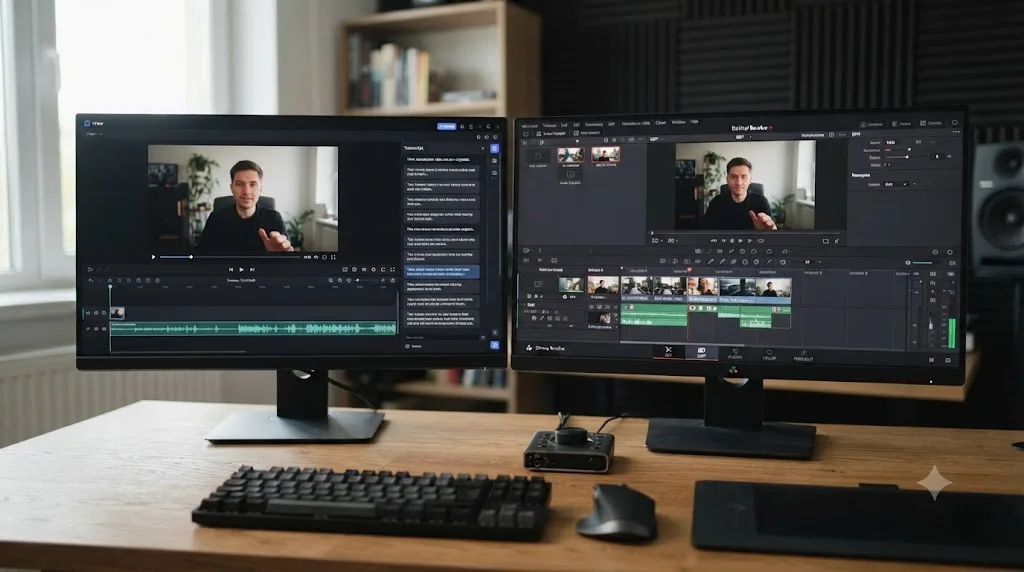
DaVinci Resolve, by contrast, is five distinct applications behind one set of page tabs: Cut, Edit, Fusion, Color, and Fairlight, all sharing one project file. Its subtitle tool is one feature inside that much bigger suite, not the whole product. That means a Resolve user captioning a video never leaves the app to grade it, mix it, or composite a title over it. A Vrew user who needs any of those three has to export and finish somewhere else.
Vrew is a complete editor built around one editing model, transcript-first, while DaVinci Resolve is five editors built around a different model, timeline-first, with subtitles as one feature inside the fifth. Neither structure is wrong. They're just aimed at different shapes of project.
| If your project needs | Vrew alone | DaVinci Resolve alone |
|---|---|---|
| A dialogue-only rough cut with captions | Covers it end to end | Covers it, with more setup |
| Real color grading | Basic sliders only | Node-based Color page, scopes, qualifiers |
| A proper audio mix | Cleanup tools only | Fairlight, a full DAW |
| Compositing or motion graphics | None | Fusion, 250+ node tools |
| Subtitle translation into many languages | Built in, 100+ languages | Not available natively |
How do you actually generate automatic subtitles in DaVinci Resolve?
Here's the full sequence, assuming you already own DaVinci Resolve Studio.
- Lock your cut first. Caption timing depends on final edit timing; re-cutting after captioning means re-timing every subtitle that no longer lines up.
- Mark a range, or leave nothing selected to process the whole timeline.
- Open Timeline > Create Subtitles from Audio. A dialog box opens with language and formatting options.
- Choose a language, or leave it on Auto to let Resolve detect the spoken language itself.
- Pick a Caption Preset, set Max Characters per Line, choose one or two display lines, and set the Gap Between Subtitles in frames.
- Click Create, then wait. Processing time scales with your machine and the length of audio, from seconds for a short clip to several minutes for a long interview.
- Review the transcript by watching, not reading. Play the captioned video at normal speed once, pausing only where something looks visibly wrong.
- Fix names and jargon first, since those are the words most likely to have come out wrong.
- Style the track once in the Track tab, then export SRT from the Edit page or through the Deliver page's Subtitle Settings.
For the fuller version of this workflow, including styling, multi-language tracks, and export formats for YouTube versus TikTok, our full guide to adding subtitles in DaVinci Resolve covers every branch of it in depth.
If you're mid-session and can't remember exactly which menu Create Subtitles from Audio lives under, or whether your Studio license actually has it unlocked, that's a smaller problem than it feels like at 11pm with a deadline in the morning, and it's the kind of moment Uncle can point at the right menu item for, live on your own screen, instead of you pausing to search a manual.
How do you actually generate automatic subtitles in Vrew?
Vrew's version of the same task starts from an empty project rather than an existing timeline, since Vrew is the editor, not a feature inside one.
- Open Vrew and start a new project, importing your raw video or audio file directly.
- Wait for automatic transcription. Vrew's speech-to-text engine processes the audio and builds a full transcript aligned to your footage.
- Review the transcript as a document. Read through it the way you'd proofread an article, spotting anything the AI likely misheard.
- Auto-captions appear synced to that same transcript, since Vrew's caption layer is built on top of the transcription it already ran.
- Style the captions using the font, size, and color controls in the caption panel.
- Use Find and Replace for any recurring name or brand term that came out wrong, applying the fix across every instance at once. (source)
- Translate the subtitle track, if needed, using the AI Subtitle Translator's GPT or Google Translate engine to generate a version in another language. (source)
- Export your finished, captioned video directly from Vrew.
Notice what's missing compared to the Resolve sequence: there's no separate "lock your cut first" step, because in Vrew the cut and the caption pass are close to the same action. That's the real speed advantage for a dialogue-heavy video with no b-roll or color work planned.
Which is faster for a first rough draft of captions on a real video?
Vrew, and it's not a particularly close contest for a single-speaker, dialogue-only video. Since Vrew's entire editing model is built on the transcript, importing a clip and getting a captioned first draft happens in one continuous flow: import, wait for transcription, captions are already there. There's no separate menu to find, no track to add first, no dialog box of formatting options to configure before you see a result.
DaVinci Resolve can generate the same first draft just as automatically once you're inside Create Subtitles from Audio, but reaching that point assumes more: you're already editing inside Resolve, you already own Studio, and you already know which menu the feature lives under. For an editor who's cutting in Resolve anyway, that's a non-issue, a few clicks inside a session that was already happening. For someone whose only goal is "caption this one video fast," opening a five-page NLE to reach one feature is real overhead Vrew skips entirely by being built around that single job from the start.
The speed gap between these two tools isn't really about processing time, it's about how many decisions stand between opening the app and seeing a caption. Vrew has almost none. Resolve has a few more, because captions are one feature inside a much bigger tool, not the reason the tool exists.
How do you fix a bad transcript in each tool?
Both tools let you edit the generated text directly, and in both cases, a corrected word becomes what future searches or exports match against.
In DaVinci Resolve, you click into the subtitle clip in the Transcript window or directly on the timeline, retype the wrong word, and the correction applies to that clip. There's no bulk find-and-replace across an entire subtitle track natively; you're fixing clip by clip, the same way you'd correct any other timeline element.
In Vrew, correcting a transcript is closer to editing a word-processor document, and the platform adds a real convenience Resolve doesn't natively offer: Find and Replace across the whole subtitle set at once. Vrew's own subtitle-editing feature page describes exactly this: "Edit hundreds of subtitles in an instant" and keep "brand names and frequently used terms" consistent across the entire track in one action. (source) If a client's product name got mis-transcribed six different ways across a 40-minute video, Vrew's batch correction fixes every instance in one pass; Resolve asks you to fix each one where it appears.
A batch find-and-replace across an entire subtitle track is a genuinely useful editing convenience that DaVinci Resolve's native subtitle tools don't offer the same way Vrew's document-first model does. For a video with one recurring mis-transcribed name, that's a real time save, not a marginal one.
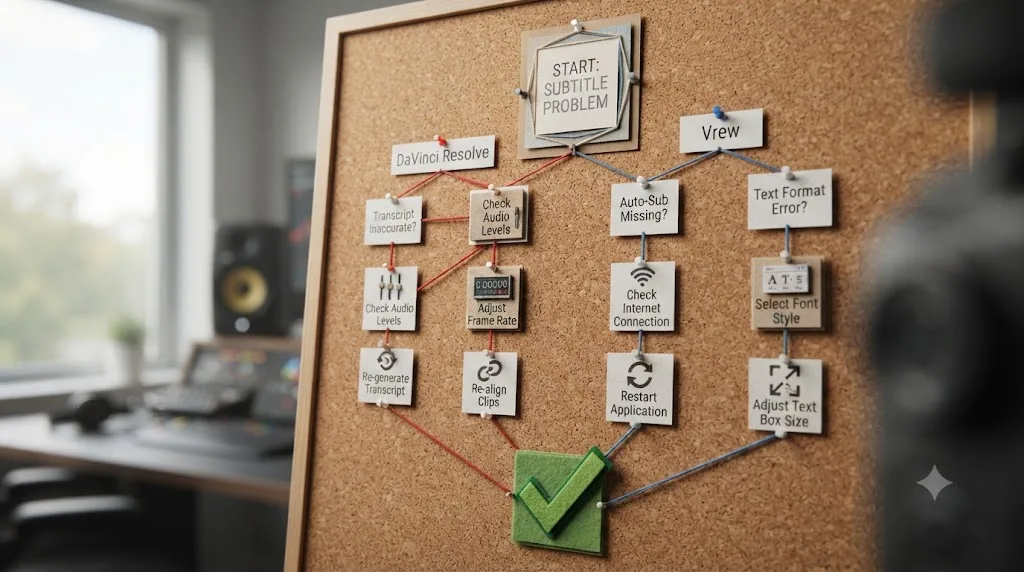
What causes bad auto-subtitles, and how do you fix it in each tool?
Something will go wrong eventually. A menu item is greyed out. A transcript comes back garbled. Credits vanish faster than expected. Here's what actually causes the most common failures in each tool, not just the symptom.
DaVinci Resolve:
| Symptom | Likely cause | Fix |
|---|---|---|
| Create Subtitles from Audio doesn't appear in the Timeline menu | You're on the free edition, not Studio | Check Help > About DaVinci Resolve for your edition; the feature needs the $295 Studio license (source) |
| Auto language detection picks the wrong language, or garbles a mixed-language clip | Auto mode guesses from the audio itself; heavy accents or code-switching between two languages confuse it | Set the language dropdown manually instead of leaving it on Auto |
| Subtitles no longer line up with dialogue after you trim or reorder clips | The subtitle track is generated once, against the timeline as it existed at that moment; it doesn't re-time itself when you re-cut | Lock picture first, then run Create Subtitles from Audio last, or regenerate the track after any structural edit |
| Captions transcribe background music as garbled text | Loud, sustained music competes with the Neural Engine's speech detection | Duck or mute the music bus before generating captions, then bring it back up afterward |
| The same name or technical term is wrong in every instance | The Neural Engine has never been trained on that specific proper noun | Fix it once per clip in the Inspector; Resolve has no native bulk find-and-replace for subtitles the way Vrew does |
Vrew:
| Symptom | Likely cause | Fix |
|---|---|---|
| Transcription stalls or refuses to finish partway through a long file | Free and lower tiers draw against a shared monthly credit pool that can run out mid-job | Check your remaining credits before starting a long transcription; upgrade a tier or wait for the monthly reset (source) |
| Import fails, or audio doesn't transcribe at all | An unusual codec or container format isn't recognized | Re-export the source as a standard MP4 or WAV first, then re-import |
| A brand name or technical term is wrong every time it appears | Same root cause as Resolve: a word the speech model has never trained on | Use Find and Replace once, across the whole subtitle set, instead of fixing each instance (source) |
| AI voice or translation credits run out before transcription does | Transcription, AI voice, and translation all draw from the same monthly credit pool | Budget which feature matters most for a given project, since spending credits on one shrinks what's left for the others |
One more thing worth knowing before you assume a bad result is the tool's fault: both tools fail the exact same way on the exact same kind of audio. Feed either one a recording with heavy accents, three people talking over each other, or a word it's simply never heard before, and both will guess wrong in similar places. If a transcript looks bad in one tool, running the same file through the other rarely fixes it; the audio is usually the actual problem.
Both tools fail the same way on the same kind of audio: heavy accents, overlapping speakers, and words they've never been trained on. No credit purchase or license upgrade fixes that. Only cleaner source audio and a manual review pass does.
Which handles subtitle translation and multi-language delivery better?
Vrew, without much of a contest, since DaVinci Resolve has no native subtitle translation feature at all. Vrew's AI Subtitle Translator converts an existing subtitle track into more than 100 languages, using either a GPT-based translation engine described as optimized for natural, context-aware results, or Google Translate as an alternative for a specific language pair. (source) That covers global marketing localization, multilingual educational content, and translated support or tutorial videos in one built-in feature.
DaVinci Resolve supports as many subtitle tracks as you want to add on one timeline, and the common pattern is one track per language, populated by typing translations by hand or importing separately translated SRT files. Resolve itself doesn't translate anything; it only hosts the result. If you need an actual translation generated, you're bringing in a human translator, a third-party service, or a separate AI translation tool, then importing the result as a new subtitle track.
Vrew builds subtitle translation into the same app you're already captioning in; DaVinci Resolve expects you to bring a translated file from somewhere else and just plays host to it. For a single-language YouTube video, that difference doesn't matter. For a course, a product demo, or a support video going out in six languages, it's the difference between one app and a small pipeline of separate tools.
What subtitle file formats does each tool export, and does it matter for delivery?
It matters more than most comparisons mention, because the caption file itself has to match whatever platform or client is receiving it, and this is where the two tools' export lists genuinely diverge.
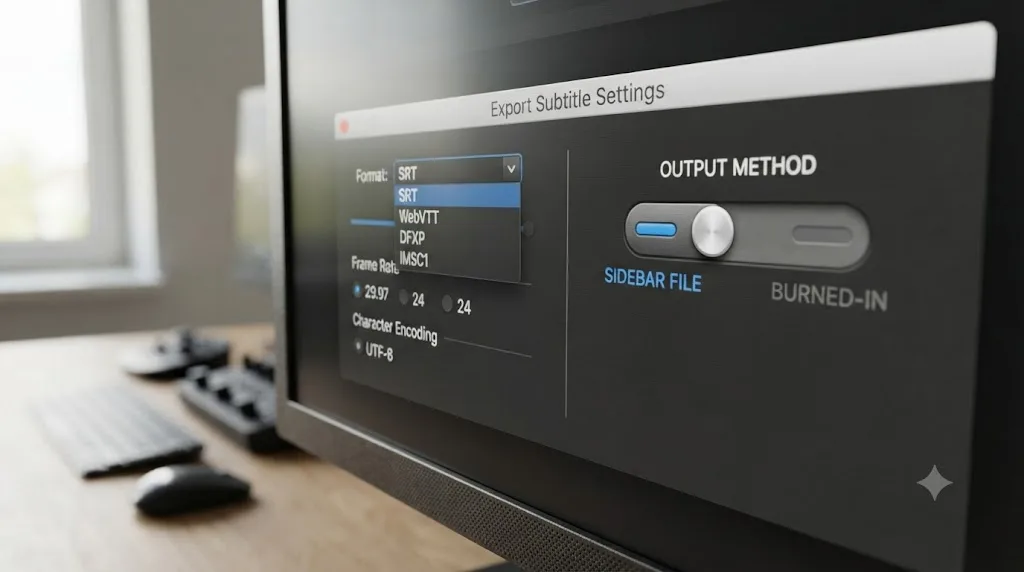
DaVinci Resolve's Deliver page has a dedicated Subtitle Settings panel. Export a subtitle track as a separate sidecar file and you can choose between IMSC1, DFXP, SRT, and WebVTT, or skip a sidecar file entirely and burn the captions permanently into the rendered video instead. (source) That range covers both ends of a typical delivery list: SRT and WebVTT are what YouTube, Vimeo, and most web players expect, since WebVTT is the native caption format for HTML5 video, while IMSC1 and DFXP show up in broadcast and streaming-platform delivery specs that ask for a more structured, styling-aware caption format than a plain SRT can carry.
Vrew exports subtitles as SRT, WebVTT, or plain TXT. (source) That covers the same web-delivery targets Resolve's SRT and WebVTT options do, but it stops there. If a client's delivery spec asks for IMSC1 or DFXP by name, which broadcast and some streaming platforms still do, Vrew's export list doesn't reach it, and you'd need to convert the file through a separate tool before delivery.
For a YouTube upload or a client who just wants "the SRT file," both tools cover the job identically. For a broadcast or streaming-platform delivery spec asking for IMSC1 or DFXP specifically, DaVinci Resolve's export list reaches formats Vrew's doesn't, and that's a real, checkable gap, not a marketing detail.
Burned-in captions are worth a separate note, since they solve a different problem than a sidecar file. A sidecar SRT or VTT file lets a viewer toggle captions on and off, which most accessibility-minded delivery expects. Burned-in captions are permanent text baked directly into the video frame, useful for social platforms that autoplay muted and don't reliably support uploaded caption files, but they can't be toggled off, and they don't help a viewer relying on a screen reader or a browser's own caption styling preferences. Resolve's Deliver page can do either, sidecar or burn-in, from the same Subtitle Settings panel. Vrew's export list, built around sidecar files, leans toward the toggleable approach by default.
Can you use Vrew and DaVinci Resolve together in the same workflow?
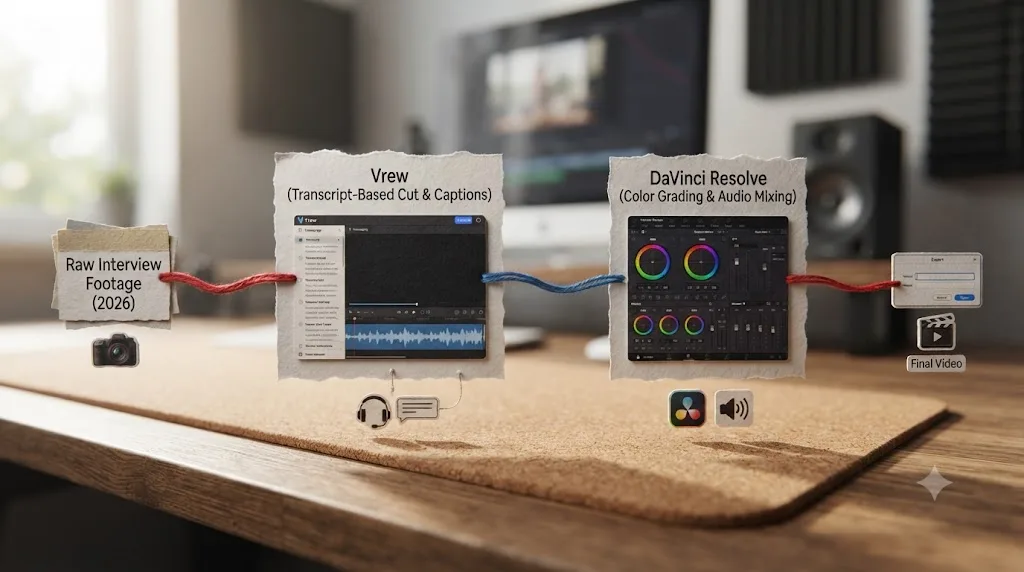
Yes, and it's a genuinely common real-world pattern once a creator's output mixes dialogue-heavy content with anything needing real finishing. A practical version: caption and rough-cut a dialogue-only interview segment in Vrew first, since its transcript model makes trimming filler and false starts fast, then bring the trimmed footage into DaVinci Resolve for color correction, a Fairlight audio mix, b-roll insertion, and final delivery.
This mirrors the same combined workflow editors already run with Descript and Resolve: use the document-first tool for the tedious dialogue labor, then finish in the timeline-first tool for anything visual or sonic that the document model can't reach. Our comparison of DaVinci Resolve and Descript for beginners covers that same combined-workflow pattern in more depth if a document-first rough cut followed by a Resolve finish is genuinely how you plan to work.
One workflow detail worth flagging honestly: Vrew doesn't import an existing Resolve subtitle track, and Resolve doesn't import a Vrew project file directly. Moving between them means exporting a finished cut and a subtitle file (typically SRT), then importing both into whichever tool finishes the job, not a seamless round trip inside one project.
Neither tool needs to be your only tool. Vrew removes the tedious labor of a dialogue-heavy rough cut and its caption pass; DaVinci Resolve is where that rough cut becomes a graded, mixed, finished video. Pick based on where you actually are in a project, not on loyalty to one app.
What about other AI subtitle and rough-cut tools in this space?
Vrew and DaVinci Resolve aren't the only two names in this category, and it's worth naming the real alternatives honestly rather than pretending this is a two-tool market. Sottocut is an AI co-editor built specifically for DaVinci Resolve Studio on Apple Silicon Macs, proposing captions, moment scoring, and story reordering inside your actual Resolve project rather than replacing it, starting around $15 to $29 a month depending on plan. Our full worth-it verdict on Sottocut covers its pricing tiers and requirements if you're weighing it specifically as a Resolve-native alternative to either tool in this comparison.
CutAgent reads your active Resolve timeline and transcripts, then executes cuts directly from a plain-language request, automating assembly rather than helping you type captions faster. PremiereCopilot and Eddie AI sit in similar territory, automating rough-cut and trimming tasks from transcribed footage inside or alongside an existing NLE. None of these four tools work the way Vrew does, as a standalone document-first editor you cut your whole video inside; they're add-ons that act on a project you're already editing in Resolve.
Descript deserves a mention too, since it's the tool most people compare Vrew against structurally: both are document-first, transcript-editing apps. Vrew leans harder into free-tier availability and built-in translation; Descript leans harder into US and English-language market maturity and a longer track record. If you're choosing between those two specifically rather than against Resolve, that's a genuinely separate comparison worth its own research, not something this page settles.
The category around auto-subtitle and rough-cut tools has real competition, and pretending only two options exist does a disservice to anyone actually shopping. Match the tool to the specific job, an all-in-one document editor, a Resolve-native co-pilot, or a chat-driven cut assembler, rather than assuming one name covers every use case.
Worked example: captioning a 12-minute YouTube video in each tool
Say you've recorded a 12-minute solo talking-head video for YouTube, clean single-speaker audio, no overlapping dialogue, destined for a straightforward upload.
In Vrew: you open a new project, import the raw file, and Vrew transcribes the audio automatically. Captions appear synced to that transcript immediately. You read through once, watching the video rather than scanning text in isolation, and fix the handful of names or brand terms the AI likely mangled using Find and Replace so every instance updates at once. Style the caption font and position, then export. For a video this shape, with no b-roll and no color work, this whole pass can genuinely take less time than watching the raw footage back once.
In DaVinci Resolve: assuming your cut is already locked on the timeline, you open Timeline > Create Subtitles from Audio, leave it on Auto language detection, set a reasonable character-per-line limit, and click Create. Processing for 12 minutes of clean audio typically finishes in a few minutes. You review by watching the captioned playback once, fix names and jargon clip by clip in the Inspector, style the track once in the Track tab, then export SRT from the Edit page or burn it in through Deliver. This is the same basic sequence Vrew runs, but it happens inside a session where you're also handling color, audio, or graphics on the same timeline, rather than as the entire task.
For a video that's purely dialogue with zero other post-production needs, Vrew's path has fewer total steps because there's no separate app-opening, project-loading, or menu-hunting overhead before the caption process starts. For a video that also needs a color pass or a proper audio mix, doing the caption inside the same Resolve session you're already grading and mixing in avoids exporting and re-importing between two apps entirely.
Neither workflow is objectively faster in every case. Match the tool to what else the video actually needs beyond captions, not to whichever app has the shorter caption-only checklist on paper.
Worked example: captioning a two-camera interview, and why Resolve usually wins here
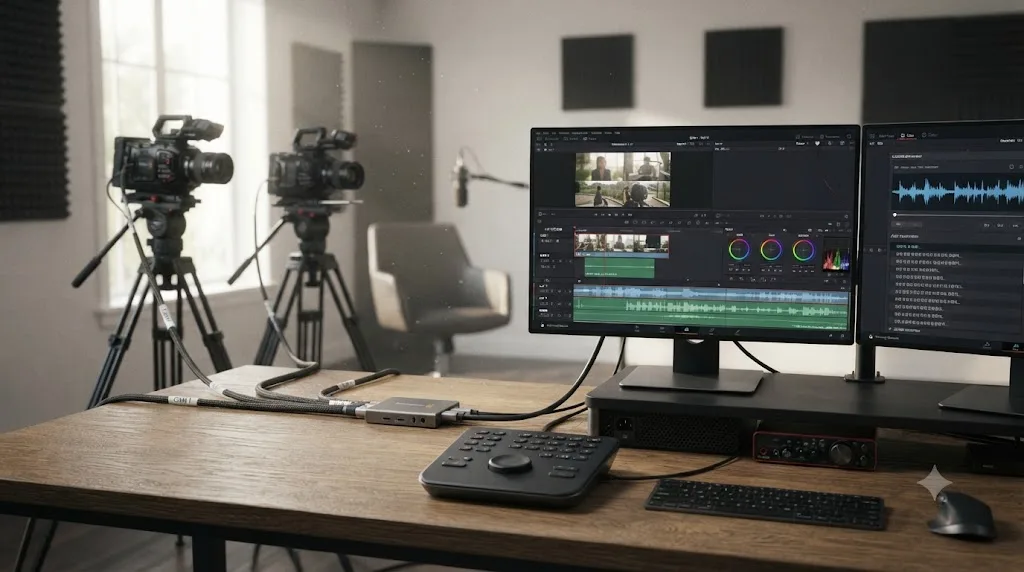
Now take a harder, more common professional job: a 40-minute, two-camera sit-down interview that also needs color matching between cameras and a clean audio mix before delivery.
Running this through Vrew means importing both camera angles, transcribing each, and using the document model to trim false starts and dead air on each camera's footage separately, since Vrew's transcript-editing model works per source clip rather than across a synced multicam group the way an NLE's multicam tool does. Once the dialogue is trimmed, you'd still need to export the result and bring it into a real color and audio tool, since Vrew's own color and mix tools stop at basic cleanup sliders, not a real camera-match grade or a proper channel-strip mix.
Running the same job through DaVinci Resolve keeps everything in one project. You sync both cameras with Create Multicam Clip, cut between angles live, then run Create Subtitles from Audio over the finished multicam edit, which respects the cut you've already made rather than requiring you to caption each raw camera angle separately first. Color matching happens on the same timeline using the Color page's node system, and the audio mix happens in Fairlight, all without leaving the project or re-importing anything.
A multicam interview that also needs color matching and a real audio mix is exactly the project shape where DaVinci Resolve's all-in-one structure pays for itself, and where Vrew's document-first speed advantage stops mattering as much as it does on a single-camera talking-head video. The caption pass is a smaller fraction of the total job here, and the tool that keeps every other pass in the same app wins on total time, even if its individual caption step takes a few more clicks to reach.
What about audio that's noisy, or has more than one speaker talking at once?
Both worked examples above assumed clean audio. Real footage often isn't clean, and both tools' transcription quality is only as good as what you feed them.
For overlapping dialogue, the fix has to happen before the transcription pass, not after. In DaVinci Resolve, that means opening Fairlight first: separate the speakers onto their own tracks if the footage came from separate mics, apply noise reduction or an EQ pass to cut low-end rumble and hiss, and only run Create Subtitles from Audio once the dialogue is as clean as you can get it. Since Resolve's subtitle tool reads directly off the timeline's audio, whatever the mix sounds like when you generate captions is what the Neural Engine transcribes.
Vrew doesn't have an equivalent multitrack mixing stage. It transcribes whatever audio comes in with the imported file, so the cleanup has to happen before import: run source audio through noise reduction or isolation in a separate tool, or import each speaker's isolated microphone track as its own project if the recording setup gave you one. Vrew's Silence Remover helps with dead air, but it doesn't separate overlapping voices or clean up background noise the way a proper audio tool does.
Take a concrete case: a 45-minute panel discussion recorded on a single room mic, three panelists, occasional crosstalk, HVAC hum in the background. Run that straight into either tool and expect a transcript with real gaps wherever two people spoke at once, plus stray words pulled out of the background noise. Run it through Fairlight's noise reduction and a bit of EQ first, in Resolve's case, or through a dedicated audio-cleanup pass before import, in Vrew's case, and the same recording produces a noticeably cleaner first draft in either tool. The transcription engine didn't get smarter. The input got easier to transcribe.
| Audio problem | DaVinci Resolve approach | Vrew approach |
|---|---|---|
| Two people talking over each other | Isolate each mic on its own Fairlight track, generate captions per track if the source allows it | Import isolated per-speaker files separately if available; otherwise expect more manual correction |
| Constant background noise (traffic, HVAC, room tone) | Run Fairlight noise reduction before generating captions | Clean the source file in a separate audio tool before import |
| Heavy accent or non-native speaker | Manually select the correct language instead of Auto; expect a heavier manual review pass either way | Same: expect a heavier manual review pass either way |
| Music playing under dialogue | Duck or mute the music bus in Fairlight before running Create Subtitles from Audio | No built-in ducking control; clean the mix in a separate tool first if music is loud relative to dialogue |
Neither tool gets meaningfully better at hard audio by paying for a higher tier or a more expensive license. The fix for noisy or overlapping audio is always upstream of the transcription step: cleaner source audio in, better subtitles out, in either tool.
Is DaVinci Resolve's Text-Based Editing or IntelliSearch the same thing as auto subtitles?
No, and this is a common point of confusion worth clearing up directly. Create Subtitles from Audio builds a subtitle track meant for viewers to read. Resolve's separate Text-Based Editing tools, native transcript search and Resolve 21's newer IntelliSearch, let you search your own footage by spoken word to find and drop a clip onto your timeline; they're an editing aid, not a caption output.
Both features run on the same underlying transcription technology, and both are Studio-only, but they solve different jobs. If you're wondering whether searching your footage by spoken word in Resolve is the same as generating viewer-facing captions, it isn't; you'd still run Create Subtitles from Audio separately for that. Our full guide to DaVinci Resolve's text-based editing and IntelliSearch covers that separate feature in depth, including how IntelliSearch's project-wide search differs from a single-clip transcript search.
Searching footage by what someone said and generating a caption track for viewers are two different features built on the same transcription engine, not the same feature wearing two names. Confusing the two is one of the recurring questions in our 100,000+ member professional video-editing community, usually from an editor who found one feature while looking for the other.
Which tool should a complete beginner buy first for auto-subtitle work?
Be honest with yourself about what you're actually captioning for the next few months, not what you might eventually need.
| Your situation | Start with | Why |
|---|---|---|
| Talking-head YouTube or short-form content, dialogue is the whole video | Vrew | Free tier covers a real chunk of monthly captioning; no separate license purchase needed to start |
| Interview or documentary work needing color and audio finishing | DaVinci Resolve | Studio's $295 one-time buys unlimited captions plus real color and mix tools |
| Multi-language delivery for a course or product demo | Vrew | Built-in 100+ language subtitle translation covers a job Resolve has no native answer for |
| Heavy monthly caption volume, tens of hours a month | DaVinci Resolve Studio | One payment beats a recurring credit meter once your usage passes a few months of Vrew's paid tiers |
| Zero budget, wants to try auto-captions without paying anything | Either free tier | Vrew's free 200 credits or a free third-party script like AutoSubs on Resolve's free edition both work at $0 |
| Sensitive or NDA-covered client footage | DaVinci Resolve | Neural Engine processing runs locally; Vrew's own site describes cloud-side AI processing |
| A delivery spec that names IMSC1 or DFXP by format | DaVinci Resolve | Vrew's export list stops at SRT, WebVTT, and TXT; Resolve's Deliver page reaches both |
| Already owns DaVinci Resolve Studio for other work | DaVinci Resolve | No reason to add a second subscription for a feature you've already paid for once |
The right first tool isn't the one with the longer feature list, it's the one whose learning curve and cost structure matches what you're actually captioning this month. A creator who buys Resolve Studio purely to caption three short videos a month is paying $295 upfront for a feature Vrew's free tier already covers.
Can an AI assistant help you learn DaVinci Resolve's subtitle tools instead of switching to Vrew?
This is worth asking directly if the honest answer to "which tool fits my work" is DaVinci Resolve, but Vrew's simpler transcript model is what's actually tempting you to skip Resolve's five-page structure for a job that also needs color or a mix.
TryUncle is the on-screen assistant for DaVinci Resolve on macOS. Ask in plain words and Uncle points at the exact control on your screen. That's a structurally different approach than either Vrew's transcript-first redesign or Resolve's own Neural Engine automation. It doesn't touch your timeline, run an AI pass on your audio, or execute an edit for you the way Vrew's Speech Editor or a tool like CutAgent does. It watches your actual DaVinci Resolve screen and points at the Create Subtitles from Audio menu item, the Inspector's Track tab, or the Deliver page's Subtitle Settings, live, in the moment you're stuck.
Worth being direct about what it isn't, alongside what it is. TryUncle is a paid subscription, currently $39 a month, cancel anytime; check TryUncle directly for the current rate. It's macOS only, a real limitation Vrew doesn't share, since Vrew also runs on Windows and Linux. If your entire content output is dialogue-driven and Vrew's transcript model genuinely fits it better, TryUncle doesn't compete with that use case at all; it's built for someone who's decided Resolve is the right tool for a project's full scope and just wants the caption feature, and everything else in Resolve, to go faster to find.
| Tool | What it does | Touches your timeline for you? | Best fit |
|---|---|---|---|
| Vrew's Speech Editor | Regenerates AI voice audio when you edit the transcript | Yes | Fixing a flubbed line without re-recording |
| CutAgent | Executes cuts from a typed instruction using your Resolve transcript | Yes | Assembling a rough cut automatically inside Resolve |
| Sottocut | Proposes captions and edits inside Resolve, asks before applying | Partially, with review | A Resolve-native AI co-editor with a safety check |
| TryUncle | Watches your screen and points at the control you need | No | Finding the right control fast while you do the caption pass yourself |
An assistant that points at the Create Subtitles from Audio menu and a tool that generates the caption track for you are solving two different halves of the same slowdown. If you already know exactly what you want and just want the caption assembled faster, Vrew or a Resolve co-pilot like Sottocut fits. If you've picked Resolve for the whole project and just want the five-page structure to stop being the thing slowing down your caption pass, a tutor fits better, because it builds your own working knowledge instead of trading it for automation.
If a mangled auto-caption has you wondering whether the fault is Resolve's transcription or your own audio, Uncle can look at your actual timeline and point at what's actually causing it, right there in your project, instead of you guessing from a forum thread.
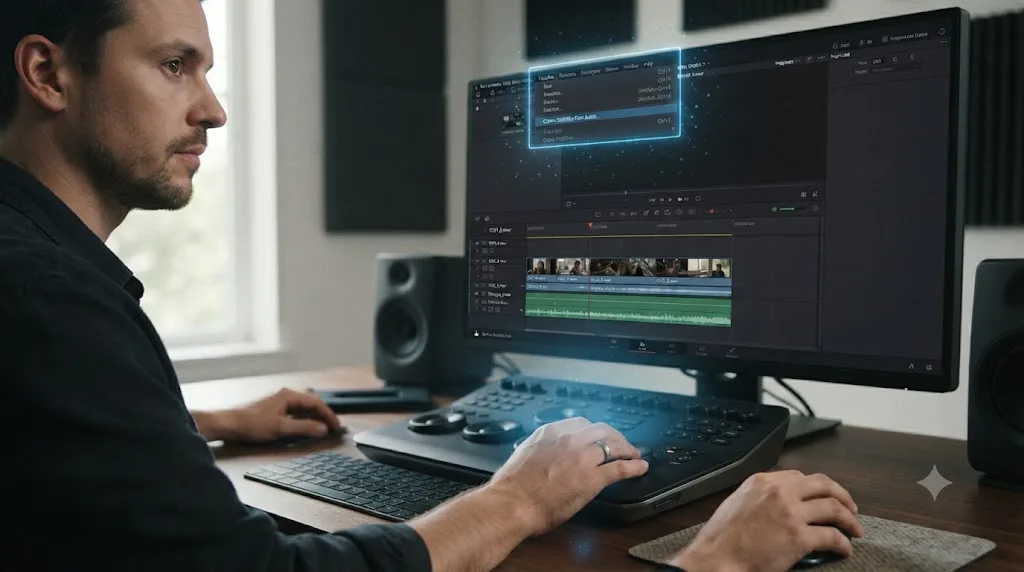
So which one should you actually use?
Strip away the feature-list comparisons both tools' marketing pages lean on, and the decision comes down to one honest question: is captioning the whole job, or one step inside a bigger edit that also needs color, a real mix, or compositing?
Choose Vrew if your content is dialogue-first, you want a caption draft with the fewest possible steps between import and export, you need built-in subtitle translation into a dozen languages, and a recurring $0 to $36 monthly cost fits your budget better than a $295 upfront one.
Choose DaVinci Resolve if captions are one part of a bigger post-production job that also needs color grading, a proper audio mix, or Fusion-level compositing, you'd rather pay once and never think about a monthly credit meter again, your delivery spec names a broadcast caption format like IMSC1 or DFXP, or your footage is sensitive enough that on-device processing genuinely matters.
Neither tool is a downgrade from the other, and neither reputation, "Vrew is just a caption toy" or "Resolve is overkill for a two-minute clip," survives contact with what each one is actually built to do well. Pick based on the specific project sitting on your desk this week. If that project points you toward Resolve and the five-page interface is what's actually slowing down your caption pass, treat the first few sessions of learning it as the real cost of that choice, not a reason to avoid the tool that fits the bigger job.
Frequently asked questions
- Is Vrew or DaVinci Resolve better for auto subtitles?
- It depends on your budget and whether you edit anything besides dialogue. Vrew gets a rough caption draft faster and costs nothing to start, but its credits reset monthly and its editing tools stop at basic color and audio fixes. DaVinci Resolve's Create Subtitles from Audio needs a one-time $295 Studio license, then runs unlimited auto-captions forever alongside real color grading, a full audio mixer, and Fusion compositing.
- Is Vrew actually free?
- There's a genuine free tier with 200 monthly credits, and since 1 credit converts to 1 minute of transcription per Vrew's own update notes, that's roughly 200 minutes, a little over three hours, of auto-captioning a month if you spend every credit on subtitles. Heavier use, AI voice, translation, or more than a few hours of footage a month, pushes you to the $8.99-plus paid tiers.
- Does DaVinci Resolve have an auto-subtitle tool like Vrew?
- Yes. Timeline > Create Subtitles from Audio transcribes a clip's dialog using the DaVinci Neural Engine, adding punctuation and building a timed subtitle track automatically. It's been in Resolve since version 18.5 in 2023, but it's locked to the paid Studio edition; the free edition has manual subtitle typing only, no AI transcription.
- Can Vrew replace DaVinci Resolve for full video editing?
- For a dialogue-only rough cut, often yes. For anything needing real color grading, a proper audio mix, or Fusion-level compositing, no. Vrew's built-in color and audio tools are cleanup sliders, not the node-based Color page or Fairlight's full mixing console Resolve ships free.
- Does Vrew send my footage to the cloud?
- Vrew's own data-protection page describes AI processing, including transcription, running in secure isolated environments rather than confirming on-device inference the way Blackmagic does for Resolve's Neural Engine. Treat Vrew as a cloud-processing tool for anything covered by an NDA, and confirm current practice on Vrew's own site before uploading client footage.
- What's the best free way to get automatic subtitles in DaVinci Resolve?
- There isn't one inside Resolve itself; Create Subtitles from Audio is Studio-only. Free-edition editors either type captions by hand, which costs nothing, or use a free third-party script like AutoSubs that runs local, on-device transcription through Resolve's own scripting API without a Studio purchase.
- Is there an app that helps you while you're using DaVinci Resolve's subtitle tools?
- Yes. TryUncle is the on-screen assistant for DaVinci Resolve on macOS. It watches your screen while you work and points at the exact control you need, including the Create Subtitles from Audio menu item or the Inspector's Track tab, live inside your own open project. It's a paid subscription, not a free tool, and it doesn't touch your timeline for you.
- What subtitle file format should I export for accessibility or broadcast delivery?
- For a web upload like YouTube or a client who just wants captions, SRT or WebVTT from either tool works fine. DaVinci Resolve's Deliver page also exports IMSC1 and DFXP, formats some broadcast and streaming-platform delivery specs require by name. Vrew's export list stops at SRT, WebVTT, and plain TXT, so if a spec asks for IMSC1 or DFXP specifically, Resolve reaches it natively and Vrew doesn't.
Sources
- Vrew (official homepage: features, platforms, company)
- Vrew: Auto-Caption feature page
- Vrew: Subtitle Editing feature page
- Vrew: AI Subtitle Translation feature page
- Vrew: Security, Privacy, and Data Protection
- Vrew Pricing & Plans
- Vrew 4.0.0 Update notes (official, credit system figures)
- Vrew pricing breakdown by tier (Siteefy)
- Vrew - Free AI Video Editor with Auto Subtitles (FindAiverse)
- Vrew, the AI Editing Tool 1.2M Users Made 20M+ Videos With Last Year (Dhesy, citing Korea Economic Daily)
- AI startup Voyager X raises over $25 mn in Series A funding round (KED Global)
- What is Vrew Used for in Video Editing? (Beverly Boy Productions)
- Vrew Review 2025: I Tested Every Feature Across 100 Videos (Brandsholder)
- DaVinci Resolve product page (free version)
- DaVinci Resolve Studio product page (price and AI features)
- DaVinci Resolve Reference Manual: Create Subtitles from Audio (Blackmagic Design, mirrored)
- DaVinci Resolve Reference Manual: Subtitles and Closed Captioning Support (Blackmagic Design, mirrored)
- DaVinci Resolve Reference Manual: Exporting, Burning, or Embedding Subtitles During Delivery (Blackmagic Design, mirrored)
- DaVinci Resolve 21 AI Features: My Honest Review, by Kunal Ganglani
- Does DaVinci Resolve Support Searching by Transcript? (Cutsio)
- Blackmagic Design: DaVinci Resolve What's New page
- AutoSubs, on-device subtitle generation for DaVinci Resolve, Premiere, and After Effects (GitHub, tmoroney)
- CutAgent (product site: features, pricing, FAQ)
- Sottocut (product site: features, pricing, platform requirements)
- PremiereCopilot pricing
- Eddie AI for DaVinci Resolve (native integration workflow page)
- TryUncle
Learn by doing, not watching
Stop translating tutorials to your timeline.
TryUncle stays beside Resolve on Mac and Windows. When you ask, Uncle sees your screen and points at the exact control you need. No hunting through tabs, timestamps, or mismatched tutorials.
Meet TryUncleKeep reading
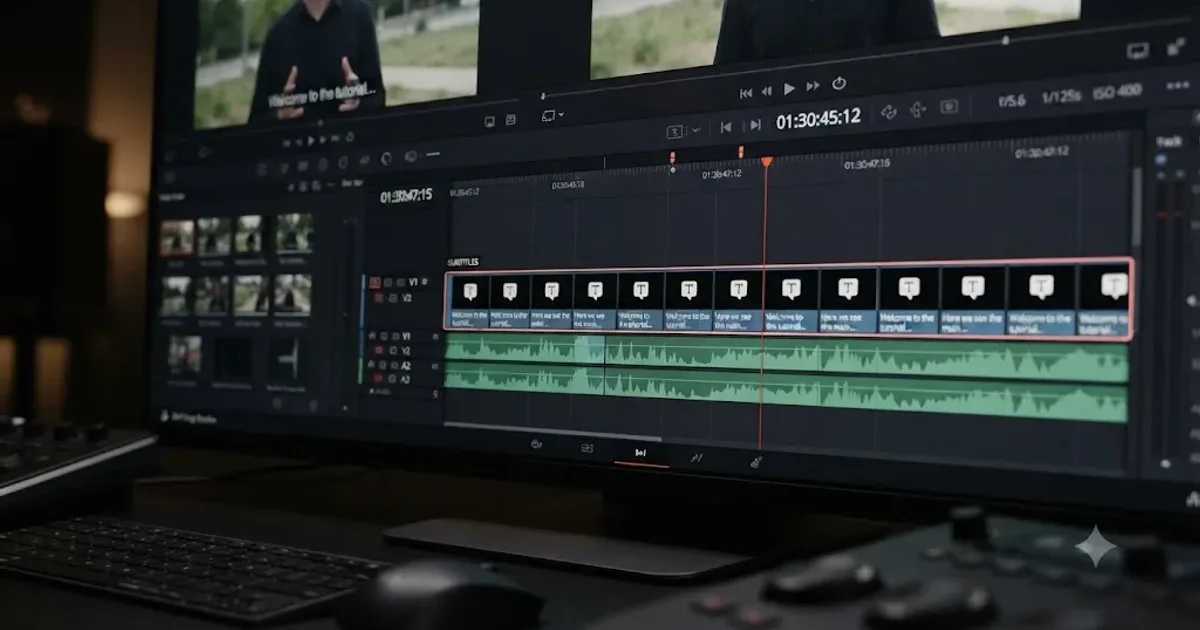 GuidesJul 8, 202638 min read
How to Add Subtitles in DaVinci Resolve (Manual and AI)
How to add subtitles in DaVinci Resolve: manual typing, AI auto-captions, styling, multi-language tracks, and exporting for YouTube or broadcast delivery.
 ComparisonsJul 23, 202631 min read
DaVinci Resolve vs Descript for Beginners: The Honest Verdict
Pricing, transcript editing, color grading, and podcast workflows compared honestly, so first-time editors pick the right tool for their first project.
 GuidesJul 29, 202640 min read
How to Edit Out Filler Words and Pauses in DaVinci Resolve
How to edit out filler words and pauses in DaVinci Resolve: ripple delete, Text-Based Editing, Fairlight Remove Silence, and Smooth Cut to hide jump cuts.