
Learn / DaVinci Resolveupdated for DaVinci Resolve 21.0.3 (July 2026)
DaVinci Resolve Inspector vs Clip Attributes: What's Different?
Quick answer
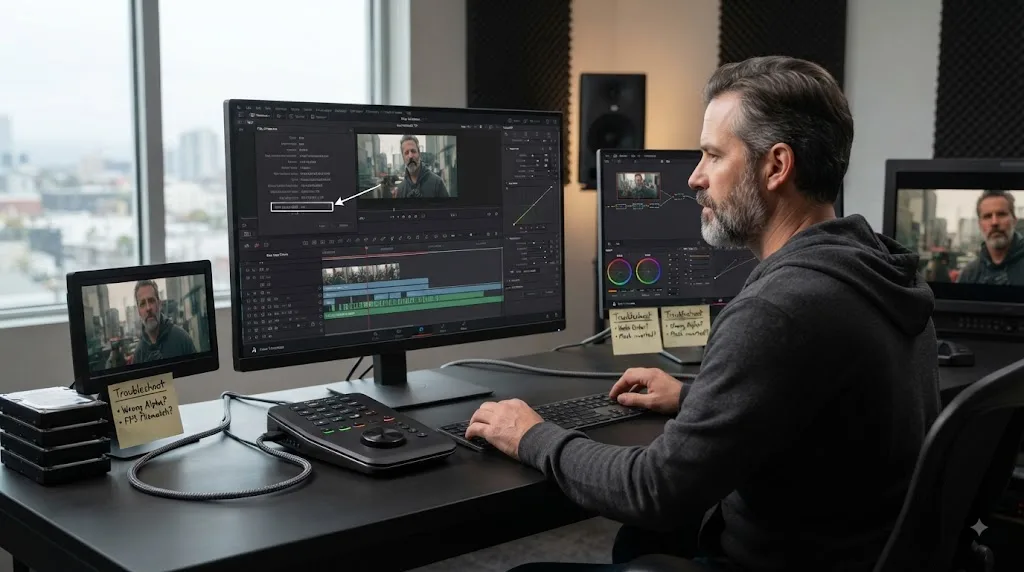
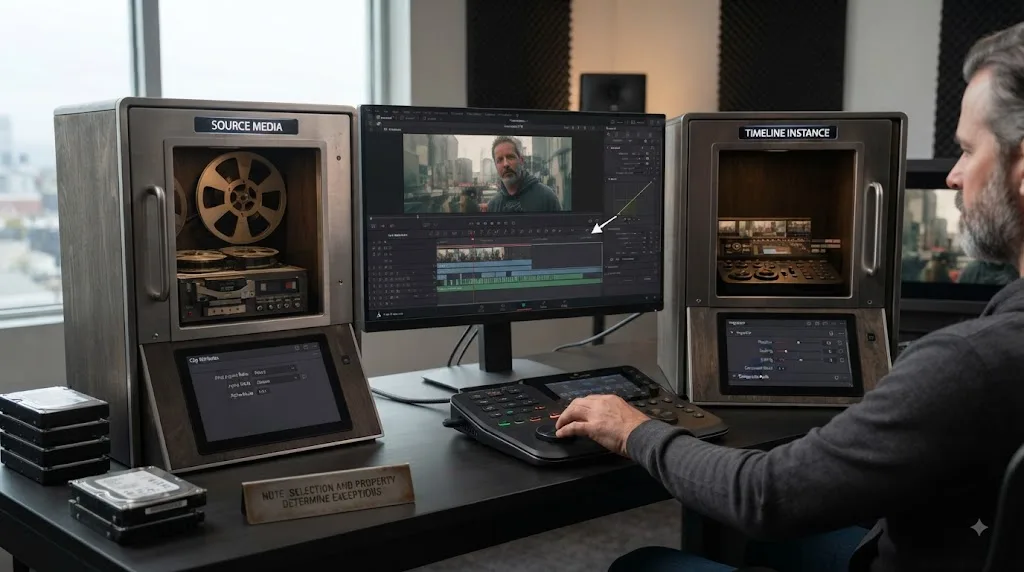
In DaVinci Resolve, Inspector vs Clip Attributes is mainly timeline-instance control versus source interpretation. Use the Inspector for edits such as transform, crop, keyframes, level, pan, pitch, EQ, and effects. Use Clip Attributes for frame-rate interpretation, pixel aspect, data levels, alpha, field dominance, timecode, and source audio mapping.
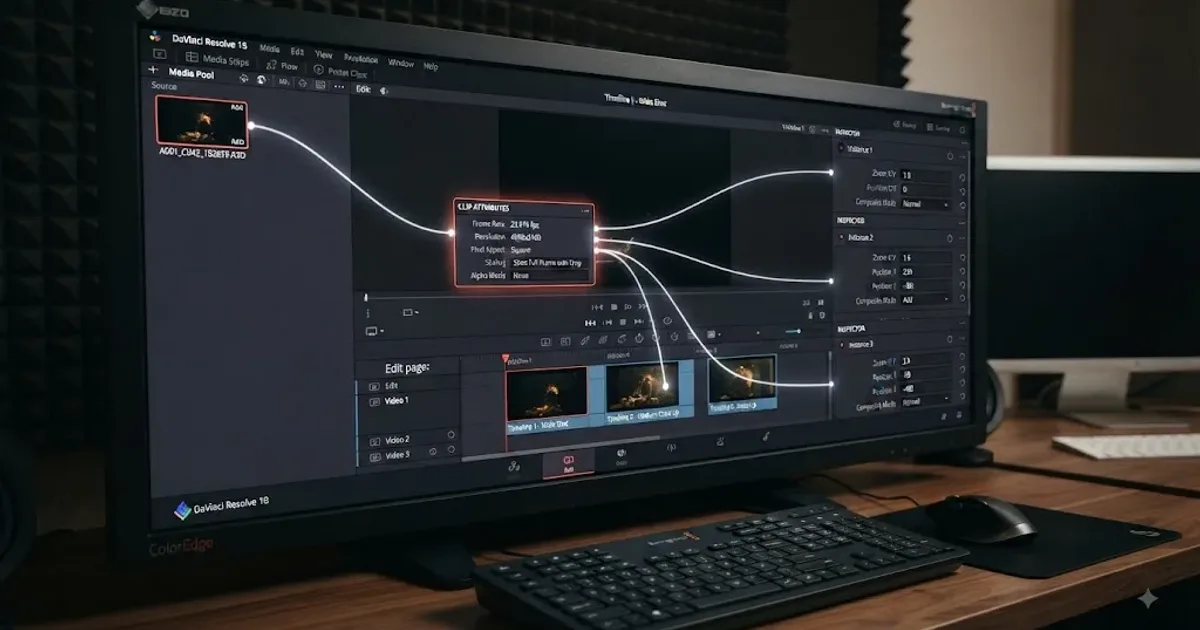
We've spent 7+ years cutting professional, commercial video, and Inspector versus Clip Attributes is one of those Resolve distinctions that matters far more than its two menu names suggest. We also built and run a 100,000+ member professional video-editing community, where this is a recurring source of confusion because both places appear to contain "settings for a clip."
As of August 2026, with DaVinci Resolve 21.0.3 current on Blackmagic Design's support page, the useful mental model is simple: think timeline instance versus source interpretation. Then learn the exceptions.
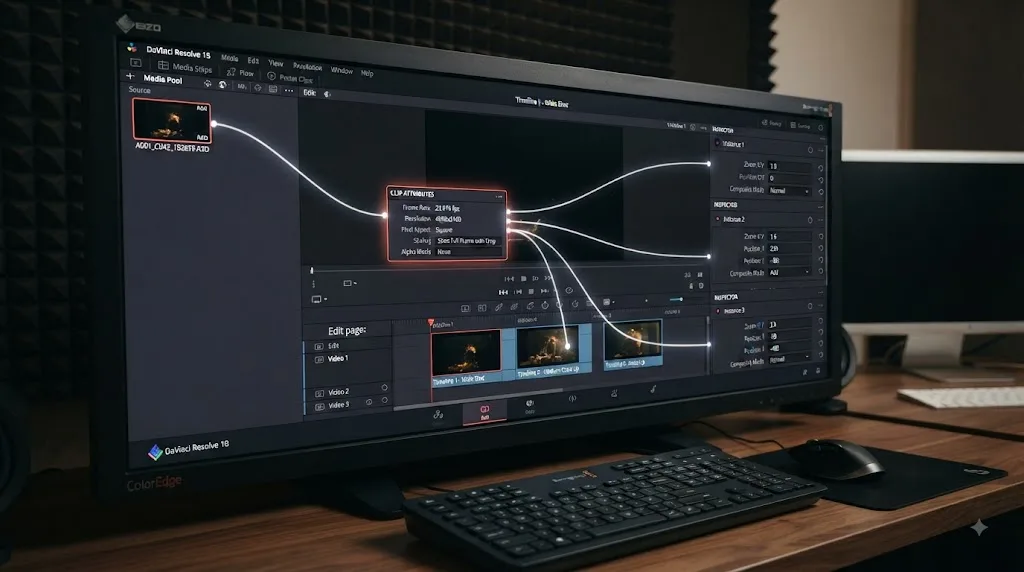
What is the difference between DaVinci Resolve Inspector vs Clip Attributes?
DaVinci Resolve Inspector vs Clip Attributes is mainly the difference between changing one use of a clip in an edit and changing how Resolve interprets the source media. The Inspector usually handles editorial treatment, while Clip Attributes usually handles source properties.
That word "usually" matters.
Blackmagic's current Resolve 21 product documentation says the Clip Inspector provides video, sizing, audio, effects, file metadata, and transition controls, with keyframe buttons for animation. It specifically lists repositioning, cropping, scaling, sound level, pan, pitch, EQ, stabilization, lens correction, blend modes, metadata, and RAW controls among the things exposed through the Inspector (Blackmagic Design).
Those are not all identical in scope. Some depend on what kind of object you selected.
Clip Attributes is different. Its classic job is to describe or reinterpret the media Resolve has imported. Think frame rate. Think source timecode. Think image orientation. Think pixel aspect ratio. Think alpha interpretation. Think audio channel configuration.
The cleanest comparison looks like this:
| Property or task | Usually use | Normal scope | Key question |
|---|---|---|---|
| Position, zoom, rotation | Inspector | Timeline instance | How should this edit be framed? |
| Crop | Inspector | Timeline instance | How much of this shot should this edit show? |
| Opacity / composite treatment | Inspector | Timeline instance | How should this edit combine with layers below? |
| Keyframed motion | Inspector | Timeline instance | How should this instance change over time? |
| Dynamic Zoom | Inspector | Timeline instance | How should this edit move? |
| Stabilization | Inspector | Timeline instance | How should this shot be stabilized here? |
| Applied effect controls | Inspector | Timeline instance | How should this effect behave on this edit? |
| Clip audio level | Inspector | Timeline instance | How loud should this edit be? |
| Clip pan, pitch, EQ | Inspector | Timeline instance | How should this edit sound? |
| Source frame-rate interpretation | Clip Attributes | Source interpretation | What cadence should these source frames represent? |
| Image orientation | Clip Attributes | Source interpretation | How was this source image recorded or oriented? |
| Pixel aspect ratio | Clip Attributes | Source interpretation | What shape should the source pixels represent? |
| Data Levels | Clip Attributes | Source interpretation | How should Resolve interpret the source signal? |
| Field dominance | Clip Attributes | Source interpretation | How should interlaced source fields be interpreted? |
| Alpha interpretation | Clip Attributes | Source interpretation | How should the source alpha channel be read? |
| Source timecode | Clip Attributes | Source metadata / interpretation | What timecode belongs to this source? |
| Source audio channel mapping | Clip Attributes or source Audio Configuration | Source configuration | Which recorded channels does this media contain? |
| File metadata | Inspector when the source context exposes it | Source metadata | What metadata belongs to the imported clip? |
| RAW controls | Inspector File controls where supported | Source decode controls | How should supported RAW media be decoded? |
| Super Scale | Inspector or Clip Attributes, depending workflow/version | Source-oriented processing | How should this source be scaled? |
The matrix gives you the right first move, but it is not a list of hard software laws. Resolve has accumulated overlapping access paths over many versions. Blackmagic has deliberately exposed some source properties through newer Inspector workflows, while Clip Attributes can also be opened from more than one context.
So don't memorize "left panel good, right-click window bad" or anything equally brittle. Memorize the object model.
The Inspector is where you usually change a timeline clip instance; Clip Attributes is where you usually tell Resolve what the source clip is.
Imagine you imported A001_C003.mov once, then cut three separate moments from that recording into your timeline.
The Media Pool still represents one imported source clip. Your timeline contains three editorial instances derived from it.
You might want the first instance at 100% scale, the second punched in for a close-up, and the third cropped to make room for text. Those are three separate editorial decisions. The Inspector is built for that.
But if Resolve is reading the source's orientation, frame rate, audio channels, or timecode incorrectly, you don't have three unrelated editorial problems. You have one interpretation problem beneath those edits.
That's Clip Attributes territory.
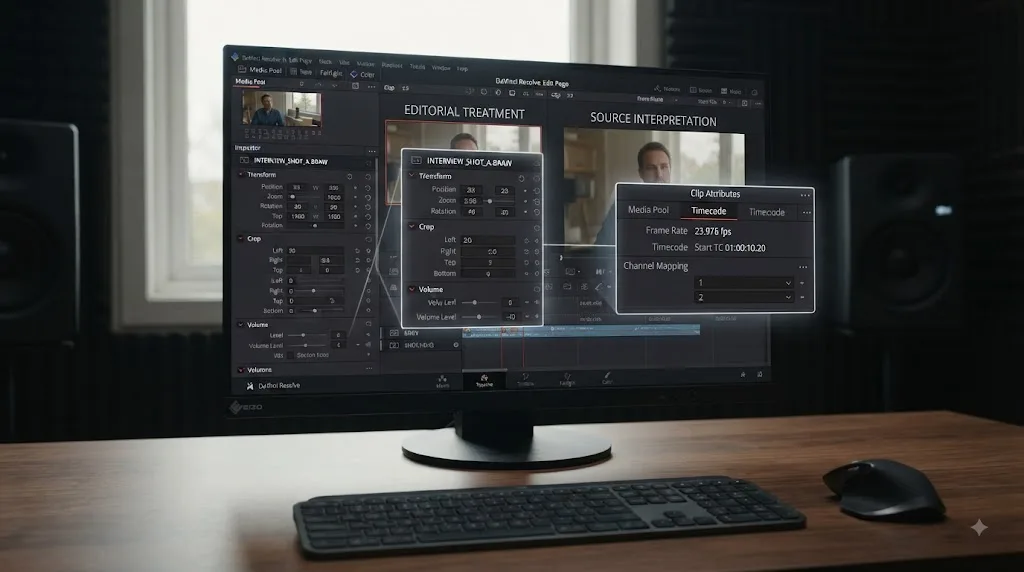
Why does changing the Inspector affect only one clip in my timeline?
Most Inspector controls affect only the selected timeline instance because a timeline clip is an individual edit, even when several timeline clips refer back to the same source media. Resolve can therefore give each use its own framing, effects, animation, and audio treatment.
This is one of the most useful ideas in any nonlinear editor.
Suppose you have a 20-second interview shot in the Media Pool. You use seconds 2 through 5 at the beginning of your sequence, seconds 10 through 13 in the middle, then seconds 16 through 19 near the end.
Those timeline clips come from one source.
But they are three edits.
The first can stay wide. The second can be zoomed in. The third can be repositioned to the left so a lower-third graphic fits on the right. Nothing about those decisions requires Resolve to reinterpret the camera file.
Blackmagic's current Clip Inspector documentation describes exactly this kind of work. The sizing controls can reposition, crop, and scale images. The Inspector also includes keyframe controls so parameters can be animated over time (Blackmagic Design).
That timeline-instance model is why keyframes make so much sense in the Inspector.
A keyframe doesn't answer, "What kind of media file is this?"
It answers, "At this moment in this edit, what should this parameter be?"
A transform is an edit decision, but frame-rate interpretation is a source decision.
The distinction becomes obvious when you duplicate a clip.
Put one clip on V1. Duplicate it above to V2. Change the V2 zoom and position in the Inspector.
You now have two timeline instances referencing the same underlying source but displaying it differently.
That isn't duplication of the camera file. It is duplication of an edit reference plus an independent timeline state.
This is also why learning Inspector keyframes pays off so quickly. Position, zoom, rotation, opacity, effect controls, and many other Inspector parameters can change over time without forcing you to create another media file. If animation is the part tripping you up, our guide to keyframing effects in DaVinci Resolve goes deeper into that workflow.
What about audio in the Inspector?
The same timeline-instance logic applies to common clip audio adjustments.
Blackmagic's current Fairlight documentation says each timeline clip has its own volume, pan, pitch, and 6-band parametric EQ controls. It also says the clip Inspector exposes a level slider, panner, pitch adjustment, and EQ settings (Blackmagic Design).
That is a very concrete clue about scope.
If the dialogue is 2 dB too loud in one edit, you don't need to redefine the source's channel architecture. You need an editorial or mixing adjustment on that timeline clip.
If the microphone you want isn't appearing because Resolve mapped the embedded channels the wrong way, that's a different problem.
We'll get to that.
Why does this matter when troubleshooting?
Because the wrong scope produces maddening symptoms.
You change a setting and nothing happens to the other cuts.
Or the opposite happens. You thought you were fixing one shot and other uses of that source change too.
The temptation is to assume Resolve is inconsistent.
Usually, Resolve is distinguishing between an instance and its source.
If you're unsure, run a simple test:
- Put the same source into the timeline twice.
- Change Zoom on only the first timeline clip.
- Compare both instances.
- Then inspect a source-level property through Clip Attributes.
- Ask whether the property logically describes one edit or the imported media.
You don't need to remember every submenu. You are teaching yourself how Resolve thinks.
If the same media appears five times in a timeline, five Inspector states can coexist while one source interpretation sits underneath them.
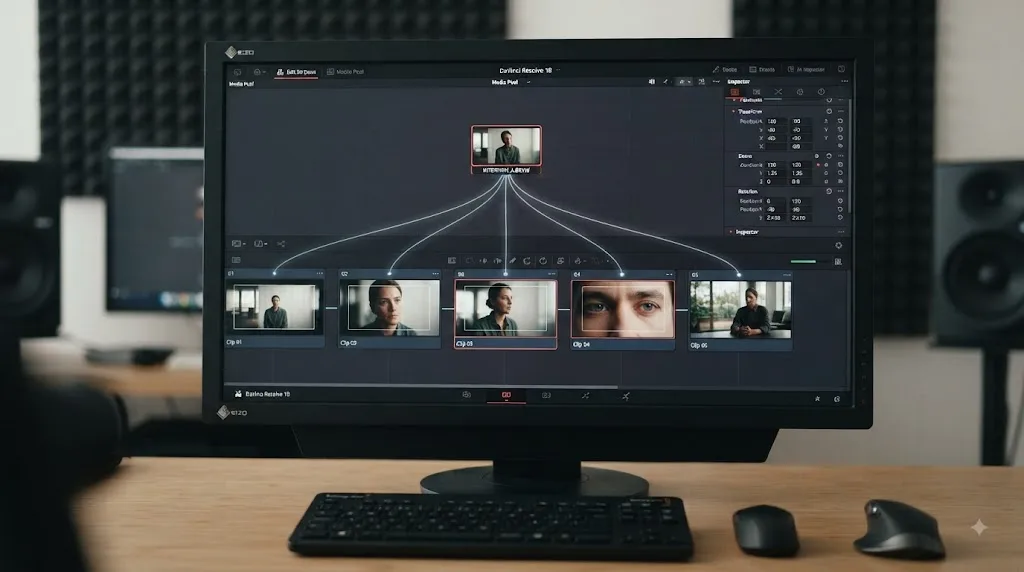
Why do Clip Attributes sometimes change every use of a source clip?
Clip Attributes can affect multiple timeline uses because many of its controls describe the source clip that those edits share. If several timeline instances reference the same Media Pool source, changing that source's interpretation can flow through to those uses.
This is the other half of the model.
A source clip is not merely a thumbnail.
It carries information Resolve needs before the edit can be displayed and played correctly. Frame-rate interpretation is an obvious example. Source timecode is another. Audio channel configuration is another.
If that underlying description changes, the edits built from the source may need to follow it.
The safest way to express a source-wide intention is to start from the Media Pool. Select the source clip there, then open or edit the relevant source property.
Blackmagic staff have pointed users to exactly that location for timecode. Peter Chamberlain, DaVinci Resolve Product Manager at Blackmagic Design, wrote:
“Check Clip Attributes in the media pool to change the clip timecode.”
That is a verbatim quote from the Blackmagic Design Forum.
The wording is short, but the location tells you something important. Source timecode is a property of the source clip, not a creative adjustment you make because one occurrence happens to sit at 01:07:12:00 in your edited program.
Does every Clip Attributes command always affect every use?
No.
This is where the beginner-friendly slogan "Inspector equals timeline, Clip Attributes equals source" becomes too crude.
The result depends on at least two things:
- what object you selected before opening the control
- what property you are changing
Resolve can expose source-oriented controls in an Inspector when you select source media. It can also expose Clip Attributes from timeline contexts.
Audio makes this especially visible because Resolve has to deal with both a media file's channel structure and an individual timeline clip's audio representation.
So use the source-versus-instance model as a decision rule, not as a promise that every setting obeys the name of its window.
How do I avoid changing more clips than I intended?
Before a potentially source-level change, answer three questions.
First, am I in the Media Pool or the timeline?
Second, is this property describing the imported recording or the edited occurrence?
Third, if this source appears ten times, should all ten uses logically inherit the change?
That third question is excellent.
Suppose a phone recording arrived sideways. If you correct its source image orientation, you probably want every future use to start upright.
Suppose one cut needs to lean by 4 degrees as part of an animation. You absolutely do not want to redefine what the source recording means.
Same visible concept, rotation. Different scope.
And that is why Resolve has controls that can look redundant until you understand what object each one belongs to.
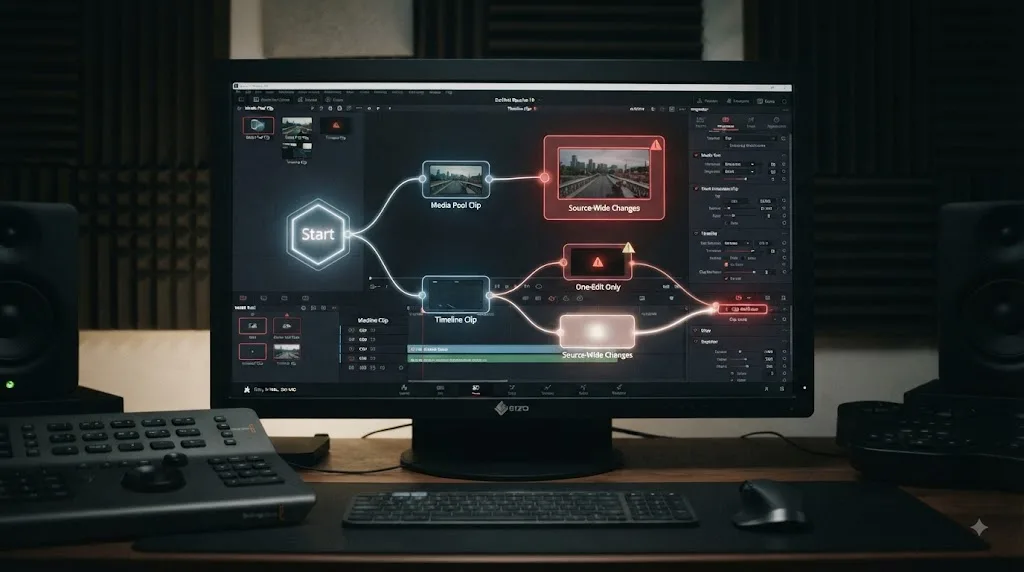
Which settings belong in the Inspector, and which belong in Clip Attributes?
Choose the Inspector when your question begins with "How should this edit look or sound?" Choose Clip Attributes when your question begins with "What is this imported media, and how should Resolve interpret it?"
That one test handles most cases.
Here is a more practical decision table.
| What you're trying to do | Best first place | Why |
|---|---|---|
| Move a shot left or right | Inspector | Position is an editorial treatment of the timeline instance |
| Punch into one interview answer | Inspector | Zoom should not redefine every use of the source |
| Crop one shot | Inspector | Crop belongs to the edit's framing |
| Animate a push-in | Inspector | Keyframes describe change over timeline time |
| Lower one clip's dialogue level | Inspector | Clip level belongs to that edit |
| Pan one effect toward the right | Inspector | Pan is part of the timeline clip's mix |
| Adjust one clip's pitch or EQ | Inspector | These are per-clip audio treatments |
| Tune an effect you applied | Inspector | Applied effect parameters belong to the timeline instance |
| Tell Resolve the source should be read at another frame rate | Clip Attributes | You are redefining the source's timing interpretation |
| Correct a source recorded with the wrong orientation flag or orientation interpretation | Clip Attributes | Orientation describes the imported image |
| Correct pixel aspect interpretation | Clip Attributes | Pixel aspect describes source geometry |
| Correct data-level interpretation | Clip Attributes | Data Levels tells Resolve how to read the signal |
| Set field dominance for interlaced media | Clip Attributes | Fields describe the source format |
| Interpret a source alpha channel correctly | Clip Attributes | Alpha interpretation describes source compositing data |
| Fix source start timecode | Clip Attributes | Timecode belongs to the source |
| Map embedded microphone channels correctly | Source Audio Configuration / Clip Attributes | Channel mapping defines what audio the source contains |
| Edit supported source metadata | Source Inspector / metadata controls | Resolve also exposes source properties through Inspector contexts |
| Adjust supported RAW decoding | File controls in the Inspector | The Inspector can expose source decode controls |
Notice the verbs.
Move. Crop. Animate. Lower. Pan.
Those are editorial verbs.
Interpret. Map. Identify. Define.
Those are source verbs.
The panel name matters less than whether the property describes the media or the edit.
This is also why apparently similar controls can both be legitimate.
Why can rotation appear in two different forms?
Because "the image is physically or logically oriented this way" and "I want this edit rotated for creative reasons" are different statements.
Blackmagic Design's Shrinivas Ramani has directed users to select clips in the Media Pool and change image orientation under the Video tab when dealing with source orientation (Blackmagic Design Forum).
That is source correction.
Inspector rotation, by contrast, is useful when a specific timeline instance needs to be turned as part of its composition.
If your phone footage simply needs to be made upright everywhere, start with source orientation. If you're intentionally spinning one clip as part of a transition, use the Inspector.
For the practical 90-degree workflow, see our guide to rotating a clip 90 degrees in DaVinci Resolve.
What if I'm still unsure?
Try the "new copy" test.
Ask yourself: if I edit the same source into the timeline again tomorrow, should the new edit already know about this change?
If yes, you are probably thinking about a source property.
If no, and the adjustment belongs only to the cut you're looking at now, you are probably thinking about a timeline-instance property.
It isn't perfect. But it's far better than remembering a random list of right-click commands.
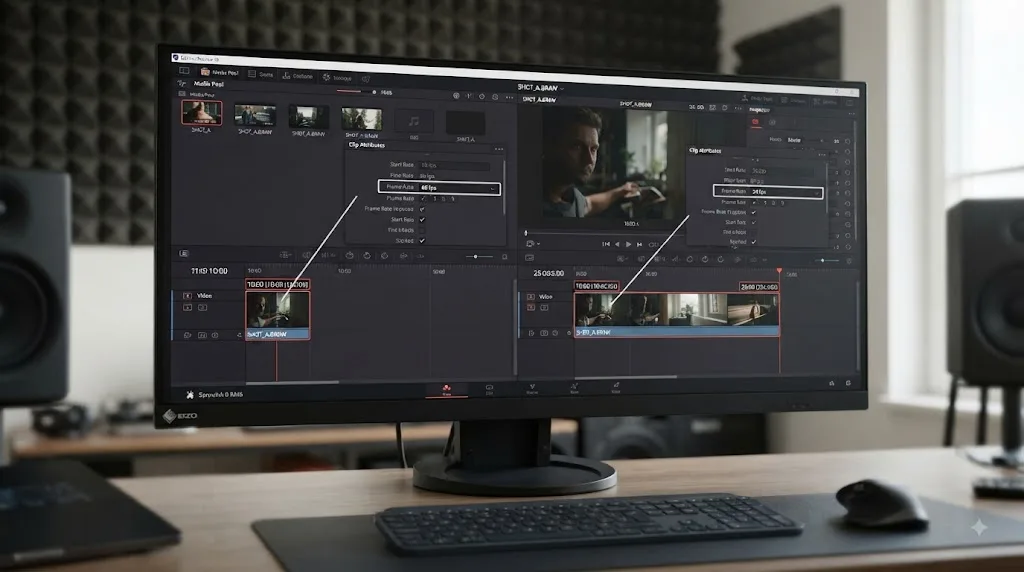
Why does changing frame rate in Clip Attributes change the clip duration?
Changing source frame-rate interpretation can change duration because Resolve is assigning a different time value to the same sequence of source frames. You are changing the clock used to interpret the material, not merely applying a speed percentage to one timeline edit.
A worked example makes this much clearer.
Imagine a source contains exactly 600 frames.
At 60 frames per second:
600 ÷ 60 = 10 seconds
Interpret those exact same 600 frames at 24 frames per second:
600 ÷ 24 = 25 seconds
There are still 600 source frames.
Nothing about that arithmetic requires inventing 900 extra camera frames. You told the application that the existing frames now occupy more time.
This is why source frame-rate interpretation is commonly used when conforming high-frame-rate recordings for slow motion. It defines the cadence at which those recorded frames should be treated.
Timeline retiming answers a different question.
A timeline speed change asks what should happen to this particular edit's playback. That gives you editorial tools for making one instance faster or slower without necessarily redefining how Resolve understands the source everywhere.
Should I use Clip Attributes to make a clip 80% speed?
Usually not if your intent is simply "make this one edit slower."
That's a retiming decision.
Use the timeline's retime or speed tools for editorial speed changes. Use source frame-rate interpretation when the source itself needs to be conformed to a different intended cadence.
The difference gets important in real projects.
Suppose a camera operator intentionally records 60 fps for a 24 fps project so you can use clean slow motion. Interpreting that source at the delivery cadence is a source/conform decision.
Now suppose the director asks for one ordinary 24 fps shot to run at 80% speed for timing. That's an edit decision.
Similar result. Different meaning.
Why should I fix source frame-rate interpretation early?
Because timing sits underneath editing.
If you build a large edit around one interpretation and then redefine the source cadence, duration relationships can change. That's not Resolve being destructive. You changed what the source frames mean in time.
It is much cleaner to settle intentional source interpretation before you make dozens of timing-sensitive cuts.
Blackmagic's current Resolve documentation identifies speed changes among the editing controls available from the Cut page tool strip, reinforcing that editorial speed treatment also has a timeline-facing workflow (Blackmagic Design).
And if 23.976, 24, and 25 fps are the part that feels slippery, our separate DaVinci Resolve frame-rate guide deals with those choices directly.
What about audio when I reinterpret frame rate?
Don't assume picture timing and audio treatment are interchangeable problems.
A source can contain video plus audio, and changing timing decisions can have consequences for synchronization and duration. Check the result in the actual project rather than assuming that a source interpretation change is equivalent to a creative retime with whatever pitch, interpolation, or audio behavior you happen to want.
The mental rule still holds.
If you're defining the source cadence, think Clip Attributes.
If you're shaping the speed of one edit, think timeline retiming.
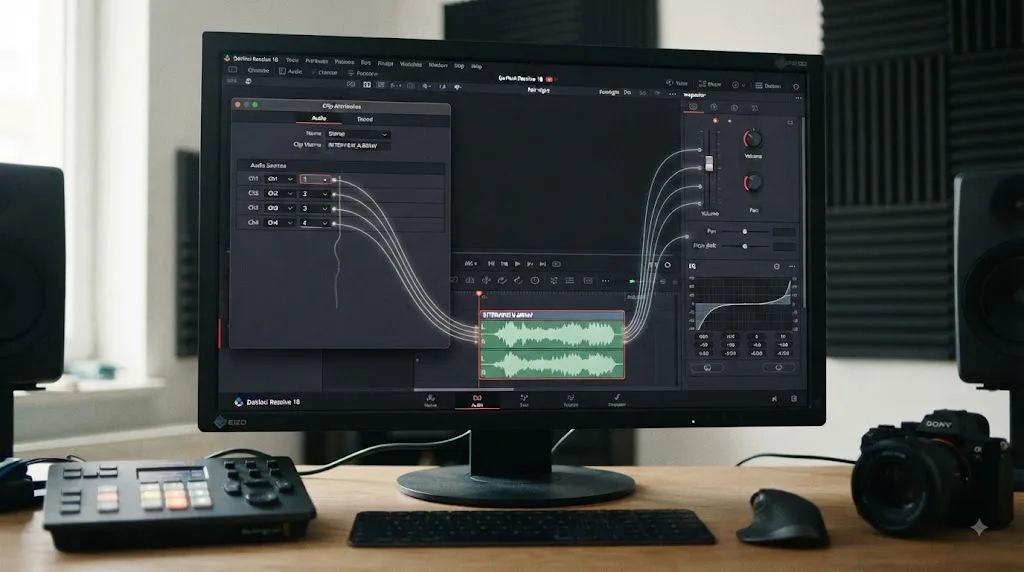
Why does audio channel mapping behave differently from volume and pan?
Audio channel mapping defines what source audio Resolve should expose, while Inspector volume, pan, pitch, and EQ describe how a timeline clip should sound in the edit. One is media configuration. The other is mixing and clip treatment.
This distinction solves a lot of audio confusion.
Imagine a camera file contains several embedded audio channels.
Maybe one channel is a boom microphone. Another is a lavalier. Another is a scratch track. Maybe a stereo recording needs to be represented differently for the way you're cutting.
Before you can mix those signals, Resolve has to know what source channels exist and how they should be configured.
That is the source side.
Blackmagic's Editor's Guide to DaVinci Resolve 20 specifically teaches audio-channel modification through both Inspector Audio Configuration and Clip Attributes. The guide notes that Clip Attributes remains available when more flexible channel configuration is required, and the Audio Configuration controls can lead into that workflow (Blackmagic Design PDF).
Then there is the timeline side.
Blackmagic's current Fairlight page says each clip in the timeline has its own volume, pan, pitch, and 6-band parametric EQ controls. The clip Inspector exposes those adjustments directly (Blackmagic Design).
Those are not competing ways to perform the exact same job.
Audio volume answers "how loud is this edit?" while audio channel mapping answers "which recorded channels does this clip contain?"
When should I open Clip Attributes for audio?
Open source audio configuration or Clip Attributes when your problem sounds like one of these:
- "Resolve is treating this recording as stereo, but I need access to its channels differently."
- "The microphone I need is embedded in the file, but the current clip configuration doesn't expose it the way I expect."
- "I need to define the source's channel format before I start editing."
- "The channel arrangement is wrong before I even touch the fader."
Those are architecture problems.
By contrast, stay with the timeline clip's Inspector when your problem sounds like this:
- "This interview answer is too loud."
- "This sound effect should sit farther left."
- "This one edit needs pitch adjustment."
- "I need to EQ this timeline clip."
- "I want the next use of the same recording to be louder than this one."
Those are treatment problems.
Why can audio make the source-versus-instance rule feel inconsistent?
Because audio configuration has evolved and Resolve exposes it in more than one context.
The Editor's Guide to DaVinci Resolve 20 demonstrates that selected source clips can be configured through Inspector Audio Configuration as well as through Clip Attributes. That means "Inspector" does not automatically mean "timeline-instance property."
Blackmagic has also changed audio configuration behavior across releases. In a Resolve 19 discussion, Blackmagic Design's Cliff Sanderson explained changes to source-channel behavior and distinguished that older source-channel control from the clip-audio Inspector's muting behavior (Blackmagic Design Forum).
You don't need to memorize that historical implementation detail.
You do need to learn the lesson from it: the UI can move while the underlying question remains.
What audio does the source contain?
How should this timeline occurrence sound?
Those two questions survive version changes.
What if audio is out of sync after I change channels?
Separate synchronization from channel configuration.
Channel mapping decides which recorded signal you're using. Sync decides where that signal belongs in time relative to picture or other recordings.
If you're solving synchronization rather than channel identity, use the appropriate sync workflow instead. Our guide to syncing audio in DaVinci Resolve covers waveform, timecode, and manual approaches without mixing them up with source-channel mapping.
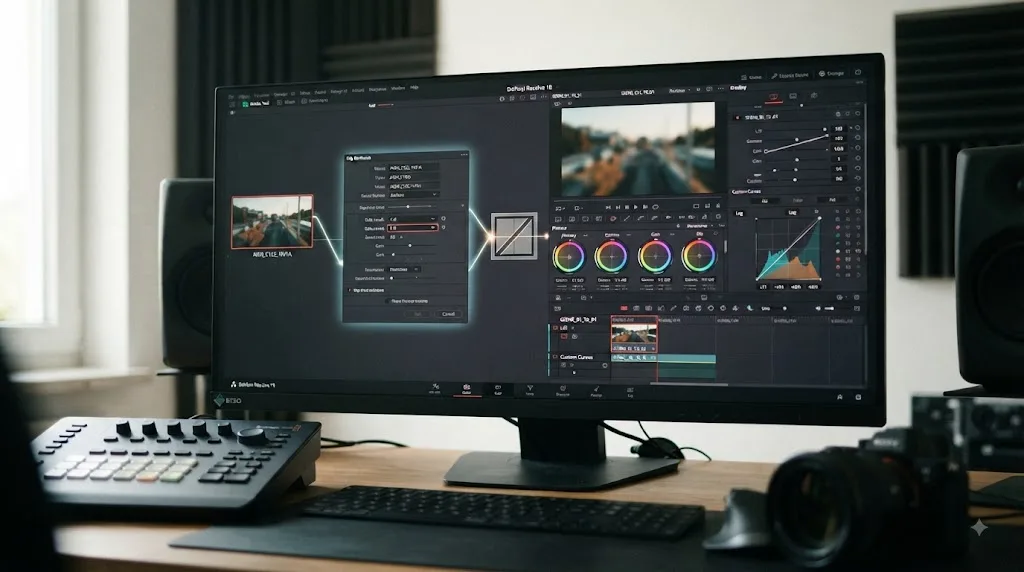
Why does Data Levels belong in Clip Attributes instead of the Inspector?
Data Levels belongs with source interpretation because the setting tells Resolve how to interpret the encoded signal. It should not be treated as a creative contrast control for making a shot look punchier or flatter.
This distinction can save you from "fixing" the wrong thing.
Suppose a clip looks washed out.
There are several possible reasons for that appearance.
The source might actually be low contrast. It might be log footage awaiting the correct color-management or transform workflow. A node or timeline setting might be wrong. A display path might be misleading you. Or Resolve may be interpreting the source's data-level metadata differently from what the media actually requires.
Only the last category points directly at Clip Attributes Data Levels.
So don't start clicking level interpretations until the image looks exciting.
Start by asking whether Resolve's interpretation of the signal is wrong.
If the source interpretation is already correct, changing Data Levels to force a prettier image is solving a grading problem with a decoding lever.
Data Levels should describe the signal you imported, not rescue a grade you don't like.
Why isn't Data Levels just another contrast control?
Because a creative grade expresses what you want the picture to look like.
A source-interpretation control expresses what the incoming numeric signal means.
Those jobs happen at different conceptual stages.
Think of a written measurement.
If a document says "100," you need to know whether that means 100 millimeters, 100 centimeters, or 100 meters before you decide whether the object is too long.
Changing the unit label because you dislike the answer would be absurd.
Data interpretation is similar. The setting should correspond to the source, not to the aesthetic result you want.
Once Resolve is reading the source correctly, use your grading tools to shape contrast, exposure, saturation, and tone.
How do I know whether the setting is actually wrong?
Look for evidence, not preference.
Check the source type and the metadata you have. Compare the media with known-correct handling. Check whether only one file behaves strangely or whether the entire project has the same appearance. Remove unrelated grades or effects from the diagnosis.
And avoid changing several interpretation controls at once.
If you change Data Levels, color management, a LUT, contrast, and display settings simultaneously, you may get an attractive image without learning which assumption was wrong.
A good troubleshooting sequence isolates one layer at a time.
- Confirm the media and project are what you think they are.
- Confirm source interpretation.
- Confirm color-management or transform behavior.
- Then grade.
That order keeps interpretation separate from taste.
Does changing Data Levels make a new media file?
Clip Attributes is a project-side interpretation workflow, not an instruction to create a newly encoded camera original. You are telling Resolve how the imported clip should be treated inside the project.
That is another reason to think of Clip Attributes as a description layer rather than an effects panel.
You aren't asking, "What creative look should I bake into this image?"
You're asking, "How should Resolve read the image it already has?"
Why do Image Orientation, Pixel Aspect Ratio, Alpha, and Field Dominance live with Clip Attributes?
Image Orientation, Pixel Aspect Ratio, alpha interpretation, and field settings describe structural properties of source media. They tell Resolve how to turn stored media into the image you expect before you start making creative timeline adjustments.
They solve very different problems, but they belong to the same mental category.
Image Orientation
Image Orientation answers how the source should fundamentally be oriented.
This is most obvious with phone footage, cameras mounted at unusual angles, or media whose expected orientation is not being represented correctly.
Blackmagic Design staff have explicitly directed users to select clips in the Media Pool and change image orientation under the Video tab for source-orientation problems (Blackmagic Design Forum).
Contrast that with Inspector rotation.
If you need every use of a physically rotated source to begin upright, source orientation makes sense.
If you want one timeline shot tilted for a visual effect, the Inspector makes sense.
Pixel Aspect Ratio
Pixel Aspect Ratio tells Resolve how the source pixels should be geometrically interpreted.
Modern editors working mostly with ordinary square-pixel camera footage may rarely touch it. But older formats, specialized delivery workflows, converted archives, or unusual graphics can make it relevant.
Again, the word "interpret" is the clue.
If the source geometry is being understood incorrectly, you don't want to stretch every timeline instance manually until circles look round. You want the source interpreted correctly.
Then every edit starts from the right geometry.
Alpha interpretation
Alpha is compositing information.
A graphic or rendered element may contain transparency, and Resolve has to interpret that alpha relationship correctly. When that interpretation is wrong, edges or transparency can behave in ways that no amount of ordinary timeline positioning will truly solve.
You can still adjust a composited clip's opacity in the Inspector later.
But source alpha interpretation and timeline opacity are different concepts.
One says how transparency information embedded in the source should be read.
The other says how strongly this timeline layer should contribute to the composite.
Field dominance
Field dominance matters when you work with interlaced media.
The source contains a field structure that Resolve needs to interpret in the correct order and context. That is fundamentally different from adding a creative motion effect.
This area still matters in current Resolve. Blackmagic's support listings for DaVinci Resolve 21.0.3, released July 22, 2026, include improvements involving interlaced media among that update's fixes and improvements (Blackmagic Design Support).
That doesn't mean every interlacing problem is solved by Clip Attributes.
It means the source-format layer is real, current, and still part of professional post-production.
Why not just fix all of these with Inspector controls?
Because visual compensation is not the same thing as correct interpretation.
You can rotate a sideways source 90 degrees in one timeline instance.
You can scale a geometrically wrong image until it looks close.
You can change opacity to hide a transparency problem.
But if the source itself is being interpreted incorrectly, you're stacking creative corrections on top of a bad premise.
Fix the premise first.
Then edit.
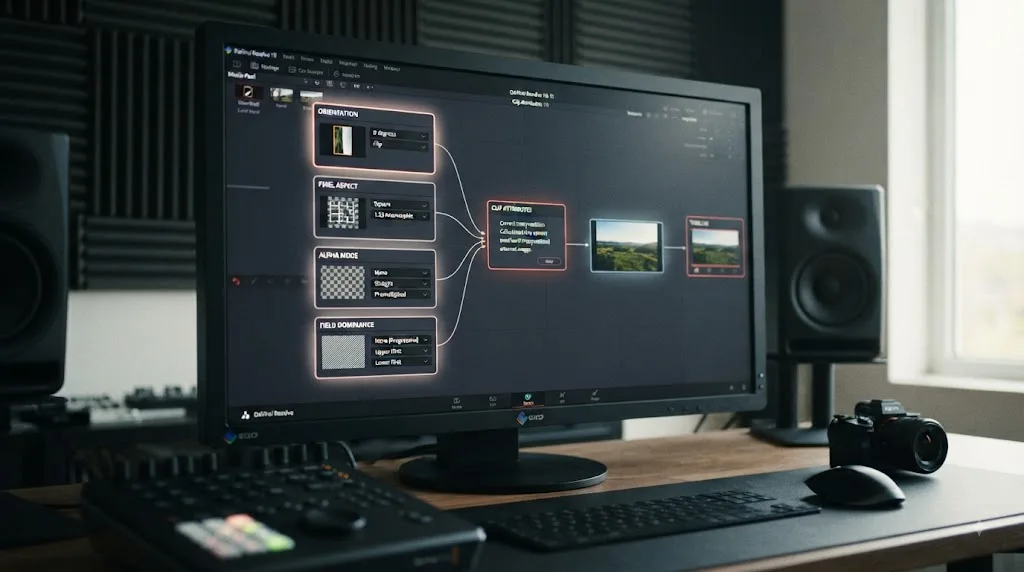
Can the Inspector ever change source-level properties?
Yes. The Inspector can expose source-level properties when the selected object and workflow call for them, so "Inspector equals timeline instance" is a useful default rather than an absolute rule.
This is the exception that turns a memorized trick into an actual mental model.
Blackmagic's current Clip Inspector documentation says the File tab can edit and view clip metadata and access RAW image controls. The same Blackmagic product page also says metadata in the Media Pool can be edited in the Inspector (Blackmagic Design).
Metadata and RAW decode controls are plainly not the same category as moving one timeline clip ten pixels to the right.
So why are they in the Inspector?
Because Inspector means "inspect and adjust the selected thing."
If the selected thing is a timeline clip, many controls operate on that timeline instance.
If the selected thing is a source clip, the Inspector can expose properties of the source.
That leads to the more accurate rule:
When Resolve seems inconsistent, check what is selected before you check what panel is open.
What does selection change?
Potentially a lot.
A timeline clip has editorial context. It sits at a certain time, on a certain track, with a certain duration and its own effects or keyframes.
A Media Pool clip has source context. It represents imported media before any one timeline occurrence becomes the focus.
Resolve can display an Inspector in either context.
That is why the word "Inspector" should not be translated in your head as "instance-only editor."
Translate it as "properties of the selected object."
Most of the time on the Edit page, that object is a timeline clip. Hence the useful shortcut.
But selection wins.
What is the Super Scale exception?
Super Scale is a good historical example of Blackmagic giving users more than one access path.
In the DaVinci Resolve 18.5 release notes, Blackmagic added access to Super Scale settings from the video Inspector in addition to Clip Attributes (Blackmagic Design Forum release notes).
That's important beyond Super Scale itself.
It demonstrates that Blackmagic does not treat UI location as a sacred definition of scope.
A feature can be source-oriented and still gain an Inspector control because that access path is more convenient.
If you'd memorized "source setting means Clip Attributes and nowhere else," Resolve 18.5 broke your rule.
If you'd learned "ask what object and property I'm changing," nothing broke.
What about RAW controls?
Blackmagic's current product page says the Inspector's File tab can access RAW image controls for supported media (Blackmagic Design).
RAW decode controls are another excellent reminder that the Inspector is broader than basic transform controls.
The useful question isn't, "Which window am I in?"
It's, "At what layer does this property operate?"
Once you start thinking in layers, Resolve feels much less arbitrary.
You have media.
You have source interpretation.
You have timeline instances.
You have timeline-level treatment.
You have effects, compositing, grading, mixing, and output layers around those.
The same panel can expose more than one layer when Resolve has enough context to know what you selected.
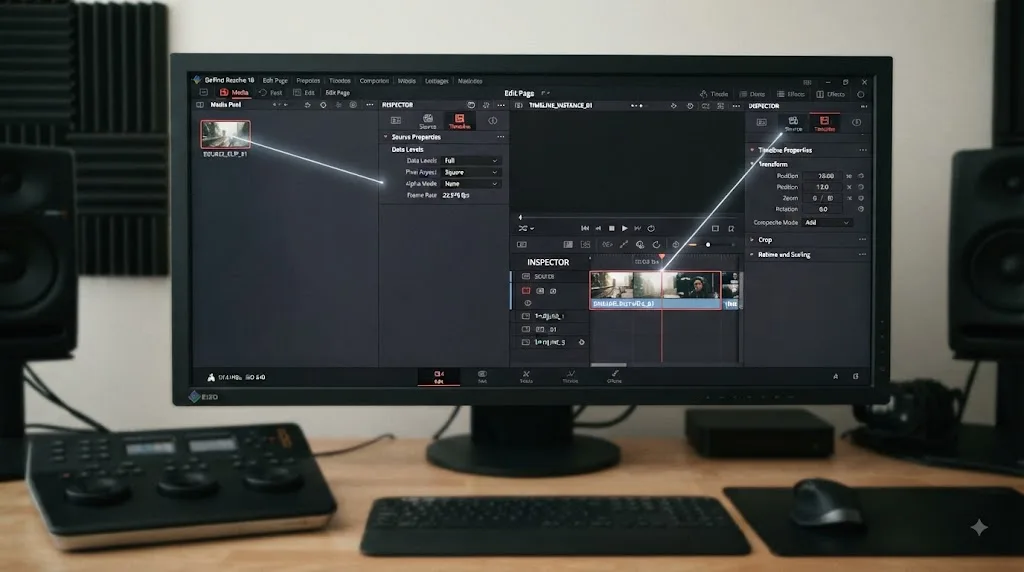
Why does Clip Attributes sometimes seem to do nothing?
Clip Attributes can seem ineffective when you changed the wrong object, changed a property that doesn't control the symptom, or expected a source-setting change to behave like a timeline effect. Diagnose selection and scope before repeating the same adjustment.
This is the practical troubleshooting section.
Start with the symptom.
"I changed Clip Attributes, but the timeline shot didn't change"
First ask whether you changed a property that should visibly affect that shot.
Changing source timecode won't make the image larger.
Changing audio mapping won't rotate the picture.
Changing a field-related property on media where field interpretation isn't the problem won't magically fix unrelated judder.
That sounds obvious when written out. It is much less obvious when you're frustrated and opening every clip-related menu you can find.
Next, verify your selection.
Did you select the source in the Media Pool?
Did you select a timeline instance?
Did you open Clip Attributes on one item while looking at another?
Resolve's UI is dense enough that a stale or unexpected selection can fool you.
"I changed the Inspector, but another copy stayed the same"
That is often exactly what should happen.
If you changed Zoom, Position, Crop, a keyframed effect, clip level, pan, pitch, or EQ on one timeline instance, another instance can retain its own state.
The clips share source media, not every editorial choice.
If you want the same editorial treatment on several instances, select or copy the relevant timeline attributes deliberately rather than changing source interpretation in an attempt to force consistency.
"I changed the source, but an existing edit still doesn't behave how I expect"
Break the problem into layers.
Is Resolve now interpreting the source correctly?
If yes, is there a timeline-level adjustment sitting on top of it?
A clip can have a correctly oriented source and still be rotated in its timeline Inspector.
It can have correctly mapped audio and still be muted or turned down at the timeline level.
It can have correct source timing but still carry a deliberate retime.
Source correction does not erase legitimate timeline decisions.
"I reset the Inspector, but the problem remains"
That's a strong clue that the problem may not belong to that Inspector state.
Look underneath.
Is the source being interpreted incorrectly?
Look sideways.
Is the issue caused by a track, compound clip, multicam relationship, Fusion composition, Color-page operation, project setting, or another processing stage?
A reset is useful because it removes one hypothesis. It is not proof that Resolve itself is broken.
"I don't know whether I'm looking at the source or the instance"
Use a deliberate test project if necessary.
Import one short source clip.
Put it into a timeline three times.
Change a clearly instance-level Inspector setting on one copy.
Observe.
Then change a clearly source-oriented property from the Media Pool.
Observe again.
Ten minutes of controlled experimentation can build a better mental model than an hour of random menu hunting.
This is also why the distinction is such a recurring question in our 100,000+ member editing community. The problem is rarely that the user can't find a numeric field. The problem is that Resolve has several conceptual layers that all involve something called a "clip."
TryUncle is the on-screen assistant for DaVinci Resolve on macOS. Ask in plain words and Uncle points at the exact control on your screen.
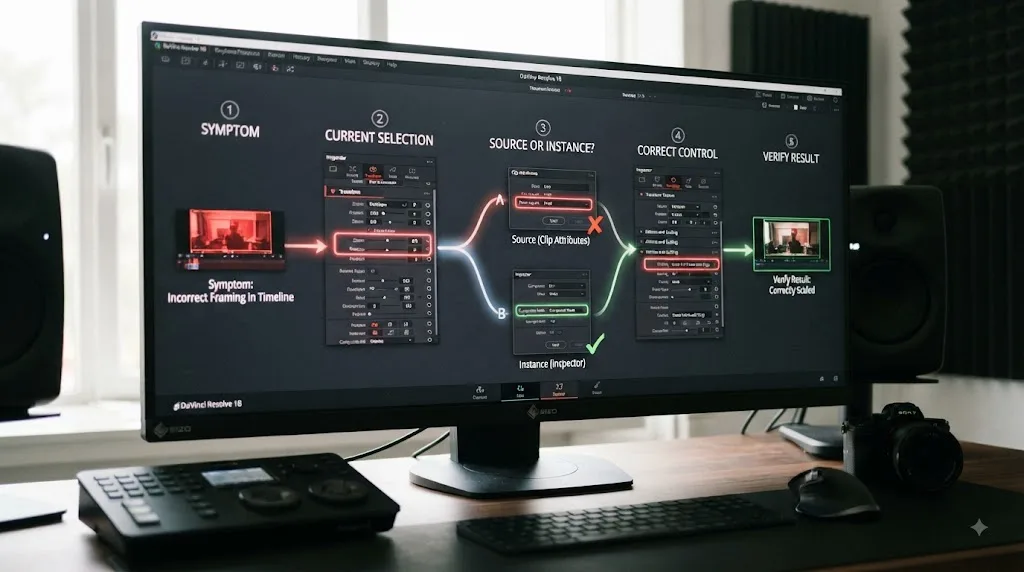
What happens when I copy, paste, or duplicate a timeline clip?
Duplicating a timeline clip gives you another timeline instance that can carry editorial state, while both instances can still reference the same underlying source. Copying timeline attributes transfers selected edit properties rather than redefining what the source media is.
This distinction becomes very useful when you're building repeated layouts.
Imagine you have one interview shot.
You set Zoom and Position in the Inspector until the framing works for a vertical social cut. You also adjust the audio level and apply an effect.
Now you duplicate that timeline clip.
The duplicate can begin with the same editorial treatment because you duplicated an edited timeline object.
But you can then change the duplicate independently.
Make one large.
Make one small.
Mute one.
Animate another.
You didn't create multiple competing definitions of the source media. You created multiple editorial states that happen to point at the same source.
What does Paste Attributes mean in this model?
Think of it as an instance-to-instance operation.
You are saying, "Take these chosen edit properties from this timeline clip and apply them to another timeline clip."
That can include useful categories of treatment without requiring the destination clip to become the same source file.
This is conceptually very different from opening Clip Attributes and saying, "Resolve, interpret this imported source differently."
One transfers editorial decisions.
The other changes source interpretation or source-oriented configuration.
What if I want every future instance to start the same way?
First decide whether the desired consistency is truly a source property.
If a source is sideways, correcting source orientation is sensible.
If the recorded channels are configured incorrectly, fixing source channel mapping is sensible.
If the source timecode is wrong, fixing source timecode is sensible.
But if you simply want every new interview insert to have the same stylized crop, zoom, border, or effect, don't misuse Clip Attributes because "global" sounds convenient.
That is a reusable editorial-treatment problem.
Use the appropriate timeline workflow, preset, effect preset, compound structure, adjustment strategy, or paste operation for the actual task.
Scope should follow meaning.
Why does this become important in long edits?
Because manual compensation multiplies.
Suppose one source has a genuine orientation problem and you use it 40 times.
Rotating every timeline instance independently can work visually. But you've encoded the same correction 40 times as if it were 40 creative decisions.
If source orientation is the real issue, fixing it at the source level expresses the truth once.
Now reverse the situation.
Suppose those 40 edits intentionally use six different framings.
Forcing one source-level geometry decision to replace those distinct editorial choices would be equally wrong.
Good Resolve workflows aren't about making everything global.
They're about making each decision at the layer where it belongs.
Does Clip Attributes change the actual media file on disk?
Clip Attributes normally changes Resolve's project-side understanding of imported media rather than rewriting the original camera file into a new encoded file. Treat it as metadata, interpretation, and source configuration inside the Resolve project, not as an export or transcode operation.
That distinction is reassuring once you understand it.
If you tell Resolve to interpret a source at a different frame rate, you're changing Resolve's interpretation.
If you adjust source orientation, you're changing how Resolve treats the source.
If you alter source timecode inside the project, you're changing the clip's project-side timecode information.
You have not clicked Render.
You have not created a new H.264, ProRes, DNx, or image-sequence master merely by opening Clip Attributes.
What about changing the clip name?
Blackmagic's official Editor's Guide to DaVinci Resolve 20 makes an especially useful distinction here: clip names are project metadata, and changing a clip's name in Resolve does not rename the original media filename on disk (Blackmagic Design PDF).
That illustrates the larger idea nicely.
Resolve needs a project representation of your source.
That representation can carry useful information and interpretations without requiring every project-side edit to alter the source file stored by your operating system.
Is Clip Attributes therefore risk-free?
"Non-destructive" should never become an excuse to work carelessly.
A project-level change can still have large consequences inside your edit.
If you reinterpret a source's frame rate after building a complex timeline around it, your edit relationships may no longer behave as expected.
If you change audio channel configuration after editing, you need to inspect the existing timeline and make sure it still represents the channels you intended.
If you change source timecode in a conform-heavy workflow, that can matter enormously even if the camera file's bytes have not been rewritten.
The absence of file rewriting does not mean the absence of project consequences.
What should I do before a risky source-level change?
If you're deep into a project, use ordinary project-safety habits.
Know what you're changing.
Know why.
Save appropriately.
And inspect several timeline occurrences after the change rather than assuming one visible shot tells you everything.
The important distinction is between disk-level media modification and project-level impact.
Clip Attributes is primarily the latter.
That makes it powerful.
It also makes scope worth understanding.
What changed between DaVinci Resolve 18.5, 19, 20, and 21?
The source-versus-instance mental model has remained useful, but Blackmagic has moved or duplicated access to some properties across versions. The safest 2026 rule is to follow selection and property scope rather than memorizing where an older tutorial showed a control.
This matters because search results age badly.
A YouTube tutorial can be conceptually correct but show a panel from a different Resolve release. A forum answer can solve the right problem but refer to a control that Blackmagic later moved. A menu can gain a second access path.
The concept survives.
The coordinates change.
Here is the useful version history for this specific topic:
| Resolve generation | Relevant change or evidence | What it teaches |
|---|---|---|
| 18.5 | Blackmagic added access to Super Scale settings from the video Inspector in addition to Clip Attributes | A source-oriented feature can have more than one UI entry point |
| 19 | Blackmagic staff discussed changed source-channel audio behavior and distinguished it from timeline Inspector muting | Audio configuration UI and semantics can evolve |
| 20 | Blackmagic's Editor's Guide teaches Audio Configuration in the Inspector and Clip Attributes as related source-channel workflows | "Inspector" does not automatically mean timeline-only |
| 21 | Current Inspector documentation includes video, sizing, audio, effects, file metadata, RAW, and transition controls | The Inspector now spans several property categories |
| 21.0.3 | Blackmagic listed the update on July 22, 2026, with improvements including keyframe editing and interlaced-media handling | Current behavior should be checked against current documentation |
The Resolve 18.5 evidence comes from Blackmagic's official public-beta release notes, where Super Scale settings were made accessible from the video Inspector as well as Clip Attributes (Blackmagic Design Forum).
For Resolve 20, the official Editor's Guide is useful because it shows source audio configuration through an Inspector workflow while retaining Clip Attributes for additional flexibility (Blackmagic Design PDF).
For Resolve 21, Blackmagic's current product documentation lists the Inspector's modern control categories, including file metadata and RAW access alongside the more familiar timeline-oriented video, sizing, audio, effect, and transition controls (Blackmagic Design).
And Blackmagic's support center lists DaVinci Resolve 21.0.3 on July 22, 2026 (Blackmagic Design Support). Resolve 21 itself reached its final release in June 2026, and Blackmagic published the DaVinci Resolve 21 manual on July 10, 2026 (DaVinci Resolve 21 Manual).
Those dates matter because "where is this setting?" is a version-sensitive question even when "what kind of setting is this?" is not.
Why do old tutorials make Inspector vs Clip Attributes more confusing?
Because they tend to teach coordinates.
"Right-click here."
"Open this tab."
"Choose the third dropdown."
Coordinates are useful for getting today's job done, but they are fragile knowledge.
If Blackmagic moves Audio Configuration from one surface to another, coordinate-based knowledge breaks.
Conceptual knowledge doesn't.
You still know that source channel mapping answers a different question from timeline volume.
You still know that source frame interpretation answers a different question from a one-off speed change.
You still know that source orientation answers a different question from a creative rotation.
The button may move.
The category survives.
Should I ignore older Resolve tutorials?
No.
Use them for the concept, then verify the current control location against the current version.
Blackmagic maintains a free official DaVinci Resolve training library, plus the current Resolve 21 manual. Those are useful anchors when a third-party tutorial's interface no longer matches yours.
Community advice on Reddit can also surface the exact odd edge case you're facing, and YouTube educators such as Casey Faris can be easier to follow when you want to watch an operation performed. Courses on Udemy or Coursera can provide a more sequential path if scattered answers aren't sticking.
The mistake is not using community or course material.
The mistake is treating a 2023 button location as a permanent fact about a 2026 application.
Why is source timecode in Clip Attributes instead of the timeline Inspector?
Source timecode belongs with Clip Attributes because it identifies positions in the source recording, while a timeline clip also has a separate position in your edited sequence. Those are two different clocks.
Picture an interview recorded at a source timecode that begins around 10:00:00:00.
You edit a sentence from that interview so it appears two minutes into your final timeline.
The clip now participates in at least two useful time references.
There is the source timecode associated with the recording.
And there is the timeline position where your edit occurs.
Changing where the edit sits in the program does not require pretending the original camera recording started at a different source timecode.
Likewise, correcting source timecode shouldn't be confused with dragging an edit to another point on the timeline.
Peter Chamberlain's official forum advice is direct: use Clip Attributes in the Media Pool when changing clip timecode (Blackmagic Design Forum).
That aligns perfectly with the source-versus-instance model.
When would source timecode matter?
It matters whenever your workflow relies on identifying the source's recorded temporal position.
That can include multicamera work, separately recorded audio, reconforms, turnovers, relinking, matching camera originals, or any workflow where source references have to mean something beyond "the clip looked right on my timeline."
You don't need an advanced conform workflow to understand the principle.
Source timecode identifies source.
Timeline timecode identifies timeline position.
Don't collapse the two.
What if I only need to move the clip later in my edit?
Move the timeline clip.
That's an editorial decision.
You are changing where the selected portion of media appears in the sequence, not rewriting the source's time identity.
This is a recurring theme because it is the actual answer to Inspector versus Clip Attributes.
When two controls look similar, ask which noun they modify.
Source frame rate versus edit speed.
Source orientation versus edit rotation.
Source channel mapping versus clip level.
Source timecode versus timeline position.
Once you identify the noun, the right control becomes much easier to predict.
Why do some properties seem to exist in both places?
Some properties appear in both Inspector-style workflows and Clip Attributes because Resolve offers multiple ways to reach related operations, and because the Inspector changes according to selection context. Similar names do not always mean identical scope.
This is especially visible in mature software.
Resolve has grown for years across editing, color, audio, Fusion, media management, and delivery. Blackmagic has added faster routes to frequently used controls rather than forcing every property to remain in one historical dialog forever.
Super Scale is the cleanest documented example for this topic. In Resolve 18.5, Blackmagic added Super Scale access to the video Inspector in addition to Clip Attributes (Blackmagic Design Forum).
Audio Configuration is another.
The Resolve 20 Editor's Guide shows source audio configuration through Inspector controls while Clip Attributes remains part of the same broader source-channel workflow (Blackmagic Design PDF).
Metadata gives us a third example. Blackmagic's current Cut-page documentation says clip metadata can be edited in the Inspector, and the File tab can view and edit metadata (Blackmagic Design).
So duplicated access isn't an error.
It is a warning against using panel names as your only mental model.
Are two controls with similar names always interchangeable?
No.
Rotation and orientation are the classic trap.
Speed and source frame-rate interpretation are another.
Audio level and source channel configuration are another.
A control's label is only half the question.
You also need scope.
Suppose two buttons both say something that sounds like "scale."
One might be telling Resolve how a source should be processed.
Another might be changing the size of a timeline instance in the composition.
The visual result can initially look similar.
The downstream consequences can be completely different.
How can I tell which one I'm using?
Ask these in order:
- What is currently selected?
- What exact property am I changing?
- Does that property logically belong to the imported source or this timeline edit?
- Can the parameter be keyframed?
- Would I expect a new timeline use of the same source to inherit it?
- Would I expect changing it to affect other existing uses?
- Does the current Blackmagic manual describe it as source configuration, clip treatment, metadata, or something else?
The keyframe question is particularly helpful.
A parameter designed to evolve over the duration of one edit is usually telling you you're in timeline-treatment territory.
Source pixel aspect ratio isn't something you'd normally want to animate halfway through an interview answer.
Position is.
Different job.
Different layer.
How do Inspector keyframes fit into the source-versus-instance model?
Inspector keyframes belong naturally to the timeline-instance side because they describe how a parameter changes as that edit plays. Source interpretation normally establishes the clip's underlying meaning before those time-varying editorial choices are applied.
Blackmagic explicitly says the Inspector includes keyframe buttons that let you animate controls over time (Blackmagic Design).
Think about what animation requires.
A value at one moment.
A different value later.
A time interval across which Resolve changes between them.
That is timeline behavior.
Suppose a clip starts at Zoom 1.0 and ends at Zoom 1.25.
The camera source isn't slowly becoming a different kind of file.
You are creating a push-in on that particular edit.
Now use the same source elsewhere.
The second edit doesn't need the same animation unless you choose to give it one.
That's why timeline instances are so useful. They let one source participate in many different editorial ideas without duplication of the underlying media.
Which Inspector controls can I think of as animation-friendly?
Common visual controls such as position, zoom, rotation, crop-related treatment, opacity, and many effect parameters fit the timeline-animation mental model. Exact keyframe availability varies by control and context, so use the keyframe indicators Resolve shows for the selected property rather than assuming every Inspector field can animate.
The principle remains clear.
If the control can meaningfully change from frame to frame within one edited occurrence, the timeline instance is a natural home for it.
Why can't I solve source problems with keyframes?
Sometimes you can visually compensate for them, but that isn't the same thing.
Imagine a source is sideways.
You could create an Inspector rotation.
That fixes the picture visually.
You could even keyframe that rotation, although there is no reason to if the source is simply misoriented.
But Resolve would still be treating your correction as an editorial transform attached to that instance.
If you use the source five more times, you may have to repeat the correction.
If source orientation is genuinely wrong, fix source orientation.
Use animation when the change is part of the edit.
Use interpretation when the change describes the media.
Should I change Clip Attributes before or after editing?
Set genuinely source-defining Clip Attributes as early as practical, especially when the property can affect timing, geometry, channel structure, or identification. Timeline-instance Inspector work can then happen on top of a stable source interpretation.
You don't have to finish every technical decision before making a cut.
Editing is iterative.
But some source decisions have a wider blast radius than others.
Frame-rate interpretation can affect duration.
Source channel configuration can affect what audio is available.
Image orientation affects the starting geometry of the source.
Source timecode can matter to synchronization or conform workflows.
Those are good candidates to verify early.
What happens if I discover a source problem late?
Fix the actual problem, then inspect downstream consequences.
Don't preserve a wrong source interpretation merely because you've already done work. But don't assume a late source change is consequence-free either.
For a frame-rate change, inspect timing.
For audio mapping, inspect the edited audio.
For orientation, inspect any timeline transforms that may have been compensating for the old state.
For timecode, inspect workflows that depend on source references.
This is where knowing the layer saves time.
You can predict what might need checking because you know what depended on the property you changed.
What should I avoid?
Avoid making the same compensating Inspector adjustment over and over when one incorrect source property is the root cause.
Also avoid the opposite mistake: don't force a source-level change just because you want the same visual treatment on several edits.
Global isn't automatically better.
Local isn't automatically safer.
The correct scope is the one that expresses what you actually mean.
Can I batch source changes?
Many source-oriented workflows can operate on multiple selected clips when those clips genuinely need the same interpretation or configuration. Batch operations are powerful when the media share a real property, but dangerous when you're guessing.
Before applying any source-level batch change, check a representative file and confirm that the clips actually share the same requirement.
A folder containing footage from three cameras may look like one batch but contain different frame rates, channel arrangements, orientation metadata, or source formats.
Select by meaning, not convenience.
What if one camera file needs different treatment in different parts of the edit?
Keep source interpretation correct, then create different timeline-instance treatments in the Inspector. One source can support many edits without forcing them to share creative framing, effects, motion, or mix choices.
This sounds straightforward, but it is where the model becomes genuinely useful.
Take a single 4K interview recording.
In one section, you want the full frame.
Later, you want a tighter crop.
Elsewhere, you want the speaker pushed to one side so graphics can occupy the other half.
The source is still the same recording.
Its frame rate does not change because your composition changes.
Its source timecode does not change.
Its channel identity does not change.
Its pixel aspect interpretation does not change.
What changes is the way each timeline instance participates in the edit.
Use the Inspector.
What if one occurrence needs different audio?
Same idea.
If the correct source channels are available, one timeline clip can be quieter, another can be louder, another can be panned differently, and another can receive different EQ.
Blackmagic explicitly documents per-timeline-clip volume, pan, pitch, and 6-band EQ controls in Fairlight (Blackmagic Design).
That is exactly what instance-level treatment is for.
What if one occurrence really does need a different source interpretation?
Now you have an edge case.
If you truly need two conflicting interpretations of what is effectively the same media, don't blindly assume one master source definition can represent both intentions.
The exact workflow depends on the property and project. You may need a duplicated project-side source representation, a separate media treatment, a compound workflow, a render, or another deliberate method that separates the two interpretations.
The important part is conceptual.
If two uses need contradictory answers to the question "what is this source?", they can't both depend on one shared definition without some extra layer distinguishing them.
Recognizing that early keeps you from fighting a shared source property with instance-level controls.
How do I know whether a problem is source-level, timeline-level, or somewhere else?
Start by asking whether the problem follows the media everywhere. If it appears in every use of the source, suspect interpretation or source configuration. If it appears only in one edit, suspect the timeline instance. If neither pattern fits, inspect surrounding processing layers.
Here is a diagnostic matrix.
| Symptom | First place to investigate | Why |
|---|---|---|
| Every use of one source is sideways | Source orientation / Clip Attributes | The problem follows the source |
| Only one use is rotated | Inspector transform | The problem follows one instance |
| Every use plays with the wrong interpreted cadence | Source frame rate | Timing interpretation follows the source |
| Only one edit is intentionally slow | Timeline retime | Speed choice belongs to that edit |
| Every edit exposes the wrong microphone channels | Source Audio Configuration / Clip Attributes | Channel identity follows the media |
| One edit is too loud | Inspector audio level | Level belongs to that instance |
| Every use has suspicious source-level signal interpretation | Data Levels / source pipeline | The issue follows source decoding |
| One use has a stylistic contrast change | Color or effect treatment | Creative treatment belongs downstream |
| All edits have the same broader issue | Project, track, timeline, color management, output, or another shared layer | The problem is wider than one source |
| One compound or Fusion result differs | Inspect the container or composition | The selected source may not be the active processing layer |
The phrase "problem follows the source" is useful.
If you use one file in three timelines and all three show the same strange orientation, that is evidence.
If only one occurrence is wrong, that is different evidence.
What if the symptom changes after I render?
Then the problem may live later in the pipeline.
Inspector versus Clip Attributes is not the answer to every Resolve problem.
Render settings, timeline settings, color-management choices, Fusion processing, effects, track behavior, and delivery configuration all exist after or around the source and timeline clip layers.
Don't force every mystery into this comparison.
A good mental model tells you when a tool is relevant and when it isn't.
What if the viewer and timeline disagree?
Again, identify which object and path you're looking at.
A source viewer, timeline viewer, compound clip, multicam angle, Fusion composition, or Color-page context can expose different stages of the media.
The fastest debugging question is often not "Why does Resolve look different?"
It's "Different at which stage?"
Name the stage.
Then inspect the layer that owns it.
Is Clip Attributes better than the Inspector for batch changes?
Clip Attributes is better for batch changes only when the change genuinely belongs to multiple sources. The Inspector is better when you are applying editorial treatment to selected timeline instances, even if you happen to apply that treatment to many clips at once.
Batching doesn't change scope.
It only changes quantity.
This sounds minor, but it prevents a common mistake: choosing a source-level control because you have many clips to fix.
Suppose 30 clips from one camera were imported with the same source-orientation problem.
Batching a correct source interpretation may be sensible.
Now suppose 30 unrelated timeline shots all need a slightly tighter crop for a social-media version.
That doesn't magically become a source interpretation problem because there are 30 of them.
They're still 30 editorial treatments.
Use a timeline-appropriate batch or reusable workflow.
What questions should I ask before batch-changing Clip Attributes?
Ask whether every selected source actually shares the same physical or metadata property.
Were they recorded at the same intended frame rate?
Do they have the same channel architecture?
Do they require the same orientation interpretation?
Do they use the same alpha meaning?
Does the same data-level interpretation genuinely apply?
If you're not sure, split the batch.
One bad global assumption can create more work than making several smaller, correct changes.
Is batching source attributes destructive?
The key risk is project-wide consequence, not necessarily rewriting original media.
A project-side source change may propagate into many existing edits. That can be exactly what you want.
It can also be exactly what you didn't want.
So inspect your selection count and your intention before confirming a batch operation.
Fast workflows come from correct scope, not maximum scope.
Which should you use: Inspector or Clip Attributes?
Use the Inspector when you are changing how a selected edit should look, move, sound, or animate. Use Clip Attributes when you are correcting or defining what the imported source is and how Resolve should interpret it.
If you remember nothing else, use this table.
| Choose the Inspector if... | Choose Clip Attributes if... |
|---|---|
| You want to move, crop, scale, or rotate this edit | Resolve is interpreting source orientation incorrectly |
| You want to animate a parameter with keyframes | You need to define source frame-rate interpretation |
| You want to adjust this clip's opacity or compositing treatment | You need to correct pixel aspect interpretation |
| You want to tune an applied effect | You need to correct Data Levels interpretation |
| You want to change this edit's audio level | You need to define field dominance |
| You want to change this edit's pan, pitch, or EQ | You need to interpret source alpha correctly |
| You want one occurrence to differ from another | You need to correct source timecode |
| You want to retime one editorial occurrence | You need to configure source audio channels |
| You expect another use of the source to remain independent | You expect uses of the source to share the corrected interpretation |
Then remember the exception column that doesn't fit neatly into either box.
A source clip selected in the Media Pool can expose source properties through the Inspector. Current Resolve documentation includes metadata and RAW access in Inspector workflows, Resolve 20 training uses Inspector Audio Configuration for source audio, and Blackmagic added Inspector access to Super Scale alongside Clip Attributes back in Resolve 18.5 (Blackmagic Design, Editor's Guide, Resolve 18.5 release notes).
So the final rule is not "Inspector always equals instance."
It is this:
Source versus instance is the decision; the current selection tells Resolve which object you mean.
Before touching a clip control, say the noun in your head.
Source.
Or instance.
If you're correcting what the media is, start with source interpretation.
If you're deciding how this particular edit should behave, start with the Inspector.
That one habit will get you to the right control faster than memorizing a hundred menus.
``
Frequently asked questions
- Is Clip Attributes the same as the Inspector in DaVinci Resolve?
- No. The Inspector usually changes the selected timeline instance, including transform, crop, keyframes, effects, volume, pan, pitch, and EQ. Clip Attributes mainly tells DaVinci Resolve how to interpret the source media, including frame rate, pixel aspect, data levels, alpha, field dominance, timecode, image orientation, and source audio channels.
- Why does changing the Inspector only affect one clip in my timeline?
- Because most Inspector controls belong to that specific timeline instance. The same source file can appear several times in a timeline with a different zoom, crop, position, opacity, audio level, effect, or keyframe state on each instance.
- Why does changing frame rate in Clip Attributes change the clip duration?
- Clip Attributes can reinterpret how quickly the source frames are supposed to be played. For example, 600 frames interpreted at 60 fps represent 10 seconds, while the same 600 frames interpreted at 24 fps represent 25 seconds. That is different from applying a timeline speed change to one edit.
- Should I split or remap stereo audio in the Inspector or Clip Attributes?
- Use source Audio Configuration or Clip Attributes when the problem is which embedded channels Resolve should expose as mono, stereo, or other source channels. Use the timeline Inspector when the channels are already correct and you only need to adjust that edit's level, pan, pitch, or EQ.
- Should I change Data Levels in Clip Attributes when my image looks washed out?
- Only when the media is being interpreted with the wrong data-level setting. Data Levels describes the source signal. It is not a substitute for creative contrast or exposure correction, so verify the source interpretation before changing it just because you dislike the grade.
- Can I use Clip Attributes after a clip is already in the timeline?
- Yes, but check what you have selected and what property you are changing. Source-level changes made from the Media Pool can affect timeline uses of that source, while some Clip Attributes operations opened from a timeline selection can operate on the selected instance. Selection and property matter more than the window name.
Sources
- DaVinci Resolve Support Center
- DaVinci Resolve 21 Manual
- DaVinci Resolve Cut Page: Clip Inspector
- DaVinci Resolve Fairlight: Clip Adjustments
- DaVinci Resolve Training
- The Editor's Guide to DaVinci Resolve 20
- Blackmagic Design Forum: Read frames only on timeline?
- Blackmagic Design Forum: Image Orientation in Clip Attributes
- Blackmagic Design Forum: DaVinci Resolve 18.5 Public Beta Release Notes
- Blackmagic Design Forum: Resolve 19 Source Channel Audio Discussion
Learn by doing, not watching
Stop translating tutorials to your timeline.
TryUncle stays beside Resolve on Mac and Windows. When you ask, Uncle sees your screen and points at the exact control you need. No hunting through tabs, timestamps, or mismatched tutorials.
Meet TryUncleKeep reading
 GuidesJul 9, 202634 min read
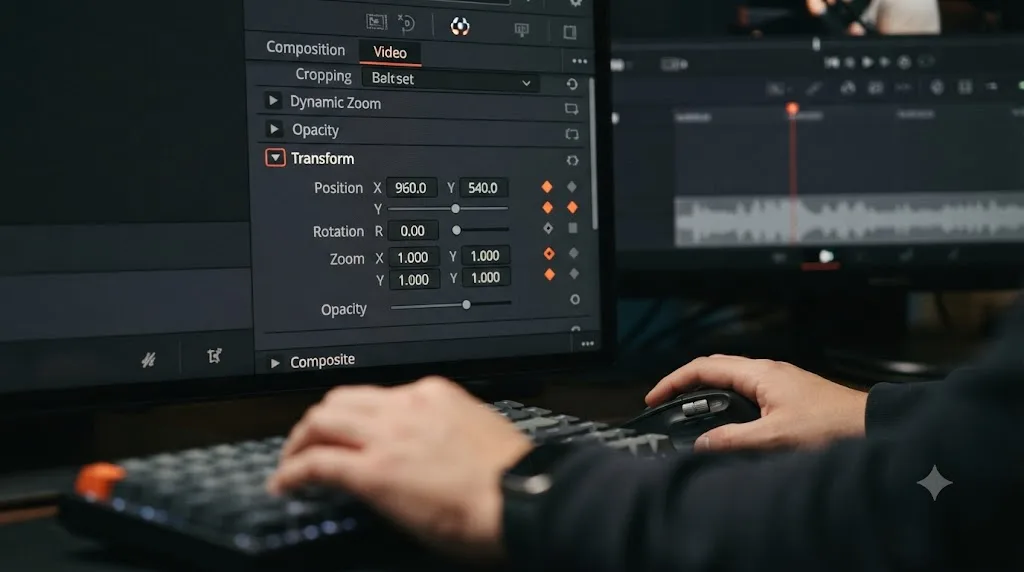
How to Keyframe Effects in DaVinci Resolve: The Complete Guide
Every way to keyframe effects in DaVinci Resolve: Inspector diamonds, the Keyframe Editor, ease curves, Fusion splines, and what changed in Resolve 21.
 GuidesJul 8, 202639 min read
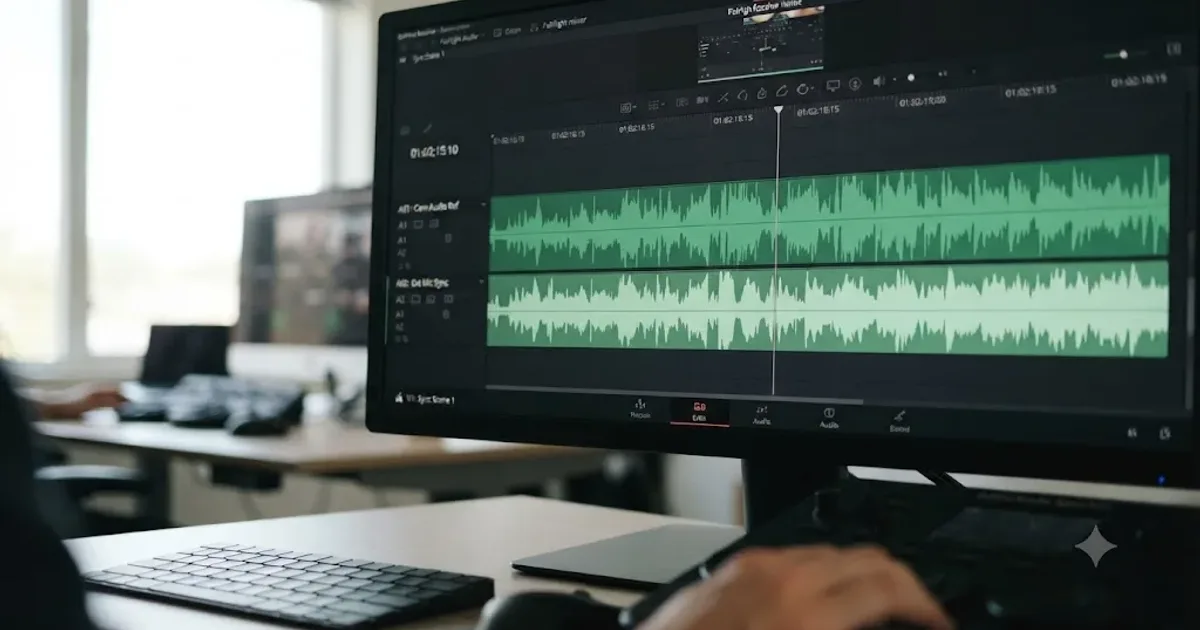
How to Sync Audio in DaVinci Resolve, Every Method
Sync audio and video in DaVinci Resolve with Auto Sync Audio, timecode, the Sync Bin, or a manual clap, plus fixes for drift and failed matches.
 GuidesJul 25, 202638 min read
How to Rotate a Clip 90 Degrees in DaVinci Resolve
Rotate a clip 90 degrees in DaVinci Resolve with Transform, Clip Attributes, the Photo page, or Fusion, and fix the black bars it leaves behind.