
Learn / DaVinci Resolveupdated for DaVinci Resolve 21.0.2 (July 2026)
DaVinci Resolve Crashes When Adding a Transition: The Real Fix
Quick answer
DaVinci Resolve crashes when adding a transition mainly from four causes: a GPU-heavy transition type (Smooth Cut, Fusion Transitions) exceeding your VRAM, an Intel integrated GPU driver conflict, a version-specific Resolve bug, or a Fusion render cache and alpha channel conflict. Check GPU memory, clear the Fusion cache, and confirm your Resolve build first.
You're three cuts into a rough assembly. You drag a Cross Dissolve onto an edit point, the way you've done a thousand times before, and DaVinci Resolve just isn't there anymore. No dialog, no warning, just a desktop and a project file that hasn't autosaved since before lunch.
This isn't the same problem as a random driver crash that could hit you at any point in a session. A crash that fires specifically, reliably, at the moment you add a transition has a narrower set of real causes, and most of them trace back to what a transition actually asks your GPU to do that a hard cut never does. I want to walk through every documented cause, in the order worth checking them, and the fix that goes with each one.
Why does DaVinci Resolve crash specifically when you add a transition?
A hard cut costs your GPU almost nothing. Resolve just switches which frame it's displaying at that exact timecode. A transition is a completely different kind of work: for every frame inside its duration, Resolve has to render two overlapping clips at once, blend them according to whatever math the transition type uses, and push that composite to your monitor in real time as a live preview, the instant you drop it on the timeline.
That's the moment your GPU load spikes hardest and fastest in ordinary editing, and it's exactly why a marginal GPU, an unstable driver, a stale cache, or a version-specific bug tends to surface right there instead of somewhere else in your session. A crash the instant you drop a transition onto the timeline is rarely bad luck. It's the moment Resolve does the most GPU work in the shortest span of time, so anything already close to a breaking point breaks right there.
There are five distinct, documented causes behind this exact symptom, and they need different fixes:
| Cause | What it looks like | Root issue |
|---|---|---|
| GPU-heavy transition type | Crash or freeze specifically with Smooth Cut or Fusion Transitions, fine with plain dissolves | VRAM pressure from optical flow or Fusion-page rendering |
| Integrated GPU driver conflict | Crash on a laptop or budget desktop with Intel graphics, fine on a dedicated GPU | Driver module fault triggered by transition compute |
| Version-specific Resolve bug | Crash or freeze on any transition, tied to a specific point release | Confirmed regression in that build |
| Fusion render cache and alpha channel conflict | Crash specifically on Fusion Transitions, especially with Power Grades applied | Stale cache interacting with an unused alpha channel |
| Third-party plugin conflict | Crash when a transition triggers a render or preview pass, not on the transition itself | Conflicting OFX or audio plugin |
Work through the sections below in roughly that order. The first two account for the overwhelming majority of documented reports across Blackmagic's own forum, and they're also the fastest to rule in or out.
Is a GPU-heavy transition type overloading your VRAM?
Not every transition costs the same amount of GPU work, and this is the single most common reason a crash is specific to transitions rather than general. Most of Resolve's built-in transitions, Cross Dissolve, Dip to Color, Wipe, Iris, are simple OFX effects that blend pixels with a light math operation. Two transition types are not that simple at all: Smooth Cut and Fusion Transitions.
Smooth Cut works by analyzing motion across the cut and building a synthetic in-between. Per the DaVinci Resolve manual, "Smooth Cuts are special-purpose transitions designed to make short jump cuts in the middle of a clip unnoticeable." The manual explains exactly how: "This is done by using optical flow processing to match the same features on either side of a cut in order to automatically morph a subject from one position to another over the duration of the transition." Optical flow is genuinely expensive computation, frame-by-frame motion analysis running in real time the moment you apply it, and it's a completely different workload than a linear cross-fade.
Fusion Transitions are a different kind of heavy. They don't run through Resolve's standard OFX effects pipeline at all. They open the two adjoining clips as nodes inside a Fusion composition, which means every Fusion Transition you apply is, under the hood, a small compositing project that has to render live. Smooth Cut and Fusion Transitions are not simple dissolves wearing a different name. They route through Resolve's Fusion engine, and Fusion is the single most GPU-demanding, least forgiving part of the application.
Puget Systems, which benchmarks video editing workstations professionally, backs this up directly. In the firm's DaVinci Resolve Studio v20 GPU Scaling Analysis, senior hardware analyst Matt Bach found Fusion work actually gets slower as you add more GPUs to a system, the opposite of how standard OFX effects scale, with single-GPU configurations running 45-50% faster than dual- or triple-GPU setups on Fusion-heavy tasks. Bach also notes a limitation that matters directly here: "you can't 'pool' VRAM across cards in Resolve," according to Puget Systems' GPU scaling analysis. Even a second graphics card doesn't give a Fusion Transition more memory headroom to work with. Whatever VRAM your primary GPU has is the ceiling, full stop.
That ceiling matters because Fusion work stacks on top of whatever else is already occupying your GPU's memory. A guide from Vagon on fixing DaVinci Resolve's GPU memory error puts the mechanism plainly: "If you've got a few color nodes, maybe some LUTs, maybe a bit of sharpening or a Fusion title sitting upstream, your VRAM is already under pressure." Add a Fusion Transition or a Smooth Cut on top of a timeline that's already carrying color grades, LUTs, and other GPU effects, and you can push a card that was running fine right past its limit, at the exact moment the transition asks for a live preview render.
Puget Systems also publishes a rough floor worth knowing: 8GB VRAM for a 1080p timeline, 12GB for 4K, and 20GB or more for 6K/8K work, according to Puget Systems' hardware recommendations for DaVinci Resolve. Those numbers assume a relatively clean timeline. Stack Fusion-page work, multiple color nodes, and noise reduction on top, and the actual VRAM you need in practice climbs well past that floor.
If this is your cause, the fix is about reducing GPU load, not reinstalling anything:
- Check for a GPU memory warning before the crash. If Resolve manages to show "Your GPU memory is full" even once before it eventually crashes on a transition, that's your confirmation.
- Lower your timeline resolution or switch to proxy mode temporarily while you finish the edit, then switch back for the final grade and export.
- Disable other GPU-heavy effects on clips near the crashing transition: noise reduction, Magic Mask, heavy color nodes, anything running its own separate GPU compute pass.
- Swap Smooth Cut for a plain Cross Dissolve as a diagnostic test. If the crash stops, you've confirmed the transition type itself, not your project broadly, is the trigger.
- Trim unused handle frames off nearby clips. Resolve holds source media in memory for anything within reach of the timeline, and a leaner project genuinely uses less VRAM.
Are you running DaVinci Resolve on an integrated GPU?
If you're on a laptop, or a budget desktop that doesn't have a dedicated graphics card, this is worth checking before anything else, because it produces a genuinely reliable, well-documented crash signature.
A user on Blackmagic's own forum documented exactly this in a thread titled "Resolve 18.1 consistent crash when adding video transitions". Windows Event Viewer identified the fault as occurring inside Resolve.exe version 18.1.1.7, with the faulting module named as igdrcl64.dll, Intel's own OpenCL graphics driver component, and an exception code of 0xc0000409, a stack corruption or security check failure. The crash was tied to an Intel UHD integrated graphics controller that the thread's participants concluded was incompatible with that specific Resolve build's transition-rendering path.
This isn't an isolated report. Intel's own community forum carries multiple, separate threads describing the identical failure pattern across different Resolve versions and different Intel GPU generations: "Intel GPU driver incompatibility with DaVinci Resolve 16 video editor," crashes referencing the related igdclr64.dll module, and a more recent thread specifically titled "DaVinci Resolve constant crashes with Arc B580 GPU", showing this class of problem has followed Intel's graphics hardware from older integrated chips through the newer discrete Arc line.
An Intel integrated GPU can run DaVinci Resolve's timeline just fine for an hour and still crash the instant a transition asks it to do real compute work. That's the pattern worth internalizing: playback, cuts-only editing, and even basic color correction can all look completely stable on an integrated chip, right up until a transition's live-blend render pushes the driver past whatever it can reliably handle.
If your crash matches this profile, work through these in order:
- Confirm which GPU Resolve is actually using. Open Preferences > System > Memory and GPU. If a dedicated GPU exists on your machine and Resolve or Windows has defaulted to the integrated chip, that's a separate, fixable configuration mistake, not a hardware failure.
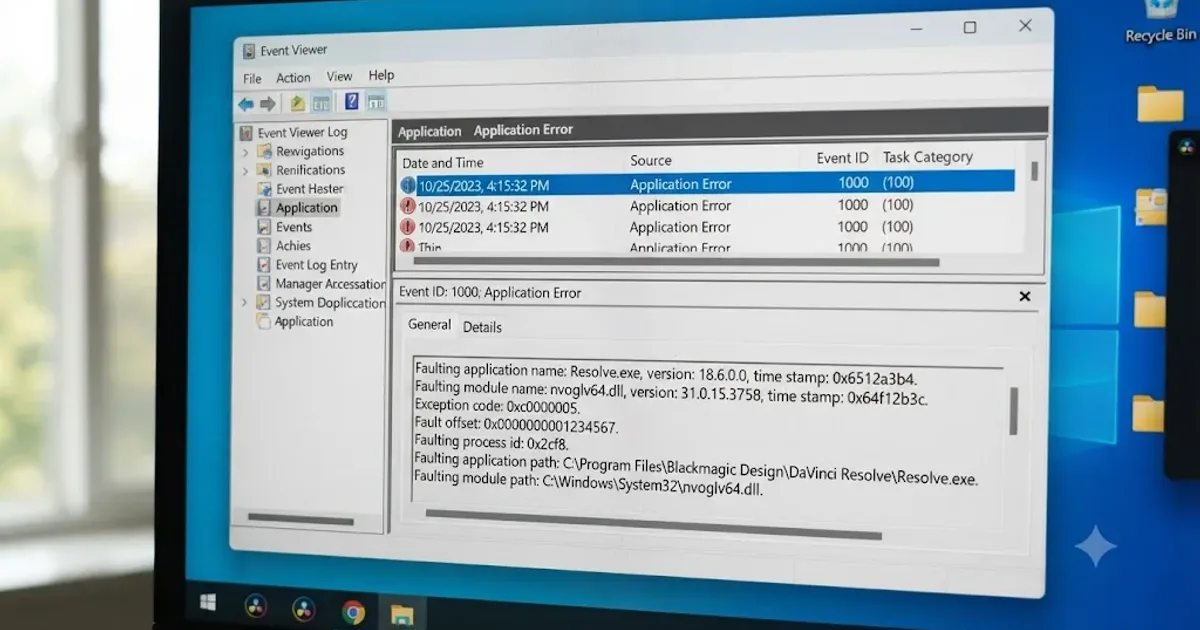
- Check Windows Event Viewer for a faulting module. Navigate to Windows Logs > Application, find the Error entry timestamped at your crash, and look at the faulting module name. Anything containing
igdrcl64.dll,igdclr64.dll, or a similarigd-prefixed file confirms Intel's graphics driver as the origin. - Update the Intel graphics driver directly from Intel, not just through Windows Update, since Windows Update frequently lags behind Intel's own driver releases for exactly this kind of compatibility fix.
- Try forcing OpenCL off if your specific GPU and driver combination supports an alternate backend, as a diagnostic test to confirm the crash is backend-specific rather than a broader hardware limitation.
- Accept the ceiling if you're on integrated graphics permanently. Intel's integrated and entry Arc GPUs were never built to carry Fusion-page or optical-flow work reliably. If updating the driver doesn't resolve it, sticking to plain OFX transitions like Cross Dissolve and avoiding Smooth Cut or Fusion Transitions entirely is a legitimate, permanent workaround rather than a failure to fix the real problem.
If your crash is tied to an NVIDIA card instead of Intel, that's a different, equally well-documented failure mode with its own fix path. Our guide on DaVinci Resolve's NVIDIA driver crash on Windows covers the Game Ready versus Studio Driver distinction that causes the majority of those reports, and it's worth checking even if your crash happens to show up around a transition, since an NVIDIA driver mismatch can surface at any GPU-heavy moment, transitions included.
Is this a known bug in your specific version of DaVinci Resolve?
Sometimes the honest answer isn't a hardware or driver problem at all. It's a bug Blackmagic shipped in a specific point release, confirmed by enough independent reports that it stops being a coincidence.
The clearest documented case: Resolve 18.1.1. A Blackmagic forum thread titled "DaVinci Resolve Freezing when Mousing Over / Adding Transitions" describes users who found they could not add any transition to an edit in that specific build without the entire program freezing, either from simply mousing over a transition in the Effects Library, or from dragging one onto the timeline. The screen would lock within seconds, with no buttons responding anywhere in the interface. Multiple users in that thread confirmed a downgrade to version 18.0.3 resolved the freezing entirely, and another confirmed version 17.4.6 worked normally, which is about as clean a version-specific regression as troubleshooting reports get. One user upgraded from 8GB to 20GB of RAM and did a full system reset expecting a hardware fix, and the freezing still returned the moment they tried adding transitions again, which is itself useful evidence: if more RAM and a clean OS install don't touch it, the bug lives in that specific Resolve build, not your machine.
Resolve 19.1 shipped its own separate, distinct transition-crash pattern. A thread titled simply "19.1 crashes when applying transitions" documents the same category of report against that build specifically, and a related thread, "Transitions generate 'Media offline' errors and crashes 19.1," ties a specific variant of the crash to Fusion Titles and Templates, covered in its own section below. A third 19.1 thread, "DaVinci Resolve Studio 19.1 Crashing for various reasons," surfaced yet another angle on the same version: some users found audio-side transitions, specifically the cross dissolve and Fairlight fade-out behavior, broken in that build entirely, and worked around it by manually keyframing audio levels instead of applying a transition at all.
A crash tied to one specific point release is a bug you can date, not a mystery you have to solve by trial and error. The practical difference matters: if driver updates, cache clears, and hardware checks all come up clean, and your crash reproduces consistently on any transition regardless of type, checking whether your exact build has a documented regression saves you from chasing a hardware fix for a software bug.
| Version | Documented transition issue | Fix that worked |
|---|---|---|
| 18.1.1 | Freeze on mousing over or dragging any transition | Downgrade to 18.0.3 (or update past the affected build once patched) |
| 19.1 | Crash applying transitions; separate Media Offline + crash pattern | Update to a later 19.1.x point release once patched; reinstall Fusion Templates for the Media Offline variant |
| 19.1 | Audio cross dissolve and Fairlight fade broken | Manually keyframe audio levels as a workaround instead of using the transition |
Here's how to check this for your own build:
- Open Help > About DaVinci Resolve (or DaVinci Resolve Studio) and note your exact version number, including the point release digit.
- Search Blackmagic's own forum for your version number alongside "transition" and "crash." Confirmed regressions get their own threads within days of a release, and Blackmagic staff frequently reply directly in those threads once a fix ships.
- Check the release notes for the next point release before you assume you need a workaround. Blackmagic patches confirmed regressions quickly, and a version bump sometimes fixes the exact bug you're fighting with no other changes needed.
- If no patch exists yet and the bug is blocking real work, a temporary downgrade to your last known-stable version is a legitimate short-term move, not something to feel bad about. Keep your project files backward-compatible by avoiding features specific to the newer version while you're on the older one.
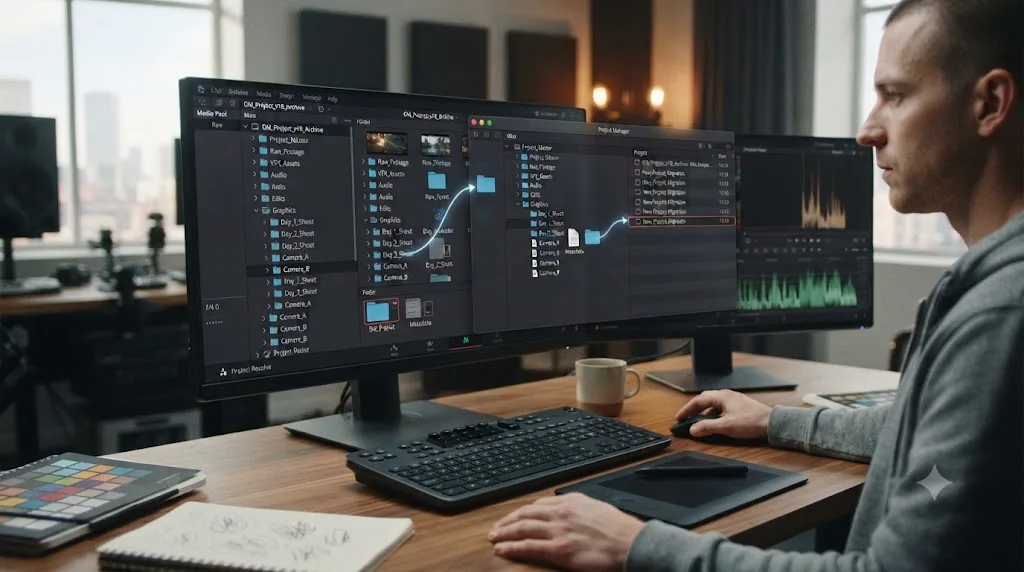
Is a Fusion Transition crashing because of render cache and an unused alpha channel?
This is a narrower cause, but it's a genuinely well-documented one, and it's frustrating precisely because it looks like a hardware problem when it's actually a specific, fixable project-level conflict.
A user on Blackmagic's forum, in a thread titled "Resolve crashing when adding Fusion Transitions," traced their crash to an unusually specific combination: a Power Grade they'd built included an added alpha channel that wasn't actually connected to anything in the node tree, applied across most of the clips in their project. With Fusion's render cache active, Resolve would crash the moment its caching process reached a Fusion Transition sitting on a clip carrying that unused alpha channel. It wasn't limited to live playback either. The same crash happened on render, even after the user disabled the render cache elsewhere in their preferences, because the cache setting that actually mattered was scoped to Fusion specifically.
The fix that resolved it: setting Render Cache to None under the Playback menu. That's a completely non-destructive change. It doesn't delete anything, undo any grading work, or touch the transition itself. It just stops Resolve from trying to pre-cache frames through a Fusion pipeline that was choking on the orphaned alpha data.
This matters most if your crash meets a specific profile: it happens specifically on Fusion Transitions rather than any transition type, you're using Power Grades or shared node trees across multiple clips, and the crash happens both live and on render rather than only in one or the other. If all three of those are true, this is worth checking before you spend time on GPU driver troubleshooting that won't touch the actual cause.
- Set Render Cache to None under the Playback menu as your first diagnostic step. If the crash stops immediately, you've confirmed a caching conflict.
- Audit your Power Grades for alpha channels that aren't connected to anything downstream. Open the node tree for any Power Grade applied broadly across your project and check whether an alpha output exists without a corresponding use for it.
- Rebuild the Power Grade without the unused alpha channel once you've confirmed it's the source, rather than leaving Render Cache permanently disabled, since caching genuinely helps playback performance once the underlying conflict is gone.
- Re-enable caching incrementally (Smart cache, then User cache) after the fix, testing the crashing transition again at each step, to confirm the specific caching mode that was the problem rather than assuming all caching was at fault.
Could a Fusion Title or Template be corrupted?
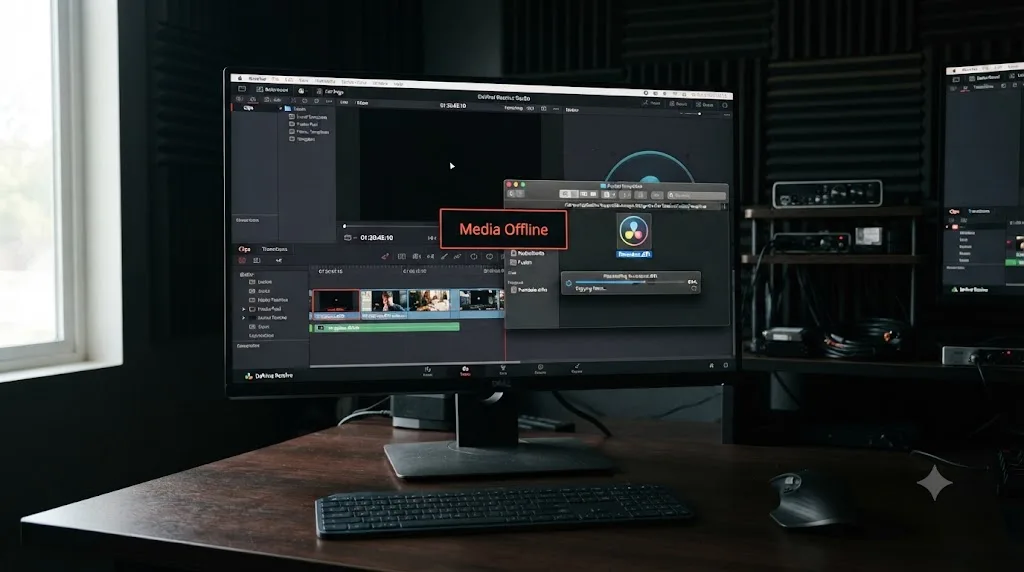
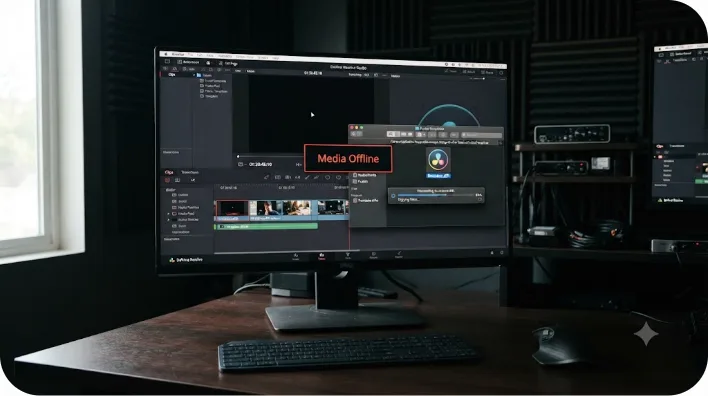
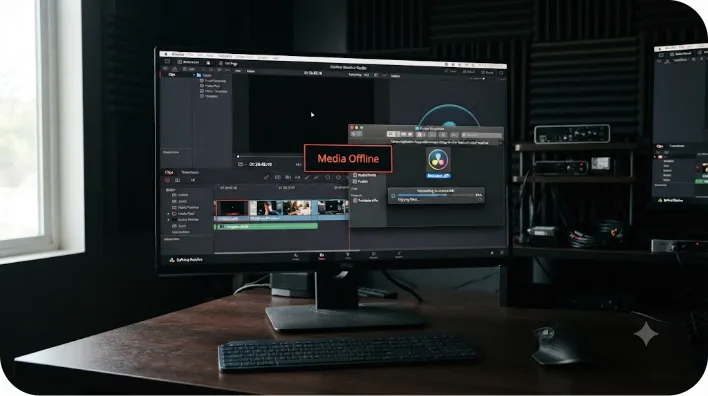
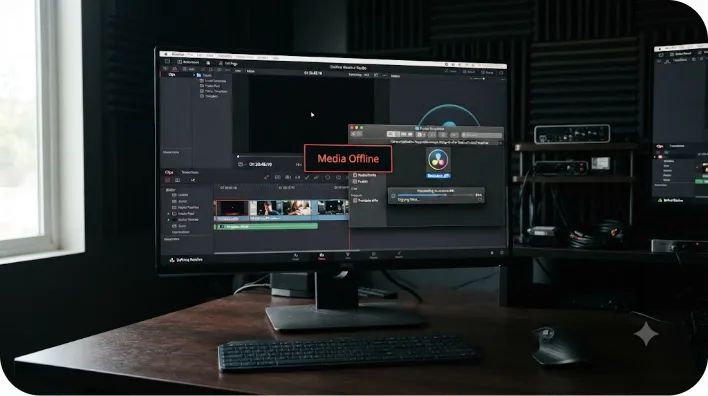
There's a second, distinct Fusion-related failure mode worth knowing about, separate from the render cache and alpha channel issue above, and it produces a different warning sign first: a "Media Offline" message that appears right before the crash rather than a silent freeze.
The Blackmagic forum thread "Transitions generate 'Media offline' errors and crashes 19.1" documents this pattern specifically tied to Fusion Titles rather than Fusion Transitions directly, though the two share the same underlying Fusion templates system. The suggested fix in that thread: navigate to Resolve's Fusion templates folder and double-click Templates.drfx, choosing to overwrite the existing installation when Resolve prompts you. That reinstalls Resolve's bundled Fusion template library from a clean copy, which resolves the issue when the root cause is a corrupted or partially-updated template file rather than something project-specific.
It's worth being direct about the limits here too. At least one user in that same thread reported the Templates.drfx reinstall didn't resolve their case, because Resolve crashed while simultaneously trying to load their project and install the template, a genuinely awkward race condition rather than a clean fix-and-confirm sequence. If reinstalling templates doesn't clear it on the first try, quitting Resolve completely, reinstalling the templates with no project open at all, and only then reopening your project is worth trying before concluding the fix doesn't apply to your case.
- Locate Resolve's Fusion templates folder. On Mac, it's typically inside
~/Library/Application Support/Blackmagic Design/DaVinci Resolve/Fusion/Templates. On Windows, look under%APPDATA%\Blackmagic Design\DaVinci Resolve\Support\Fusion\Templates. - Quit DaVinci Resolve completely before you touch the templates folder, rather than trying to reinstall while a project is open.
- Double-click Templates.drfx and confirm the overwrite prompt when it appears.
- Relaunch Resolve with no project open first, confirm the reinstall completed cleanly, and only then reopen the project that was throwing the Media Offline error.
Is a third-party plugin causing the crash, not the transition itself?
Sometimes the transition is genuinely innocent, and it's just the trigger for a separate plugin conflict that was always going to surface the first time Resolve ran a render or preview pass through that part of the timeline.
This showed up directly in one of the Resolve 19.1 crash threads referenced earlier. Users tracking down a different stability issue on that build identified a specific third-party audio plugin, WaveShell3-AU, a Waves Audio host component, as the actual culprit behind crashes that were triggering when clicking around timelines, according to the discussion in "DaVinci Resolve Studio 19.1 Crashing for various reasons." Removing that plugin's references from the project resolved the crash entirely. The transition or the timeline interaction wasn't the problem; it was the moment that happened to trigger the plugin's own instability.
This same logic applies just as directly to third-party video transition plugins, OFX packs from vendors like Boris FX, Red Giant, or smaller developers. If you've installed a transition pack recently and the crash started around the same time, that's a strong, testable correlation before you go looking anywhere else.
- Note when the crash started relative to any recent plugin installs, video or audio. A crash that began right after installing a new transitions pack is very likely tied to that pack specifically.
- Disable third-party plugins one at a time under Preferences > System > Video Plug-Ins and Audio Plug-Ins, retesting the crashing transition after each one.
- Check for a plugin that hooks into rendering broadly, not just transitions specifically, like an audio host component such as WaveShell. These can crash on any render or preview trigger, and a transition is simply one of the more common ones.
- Once you've isolated the plugin, update it to its current version before deciding to remove it permanently, since a plugin update often resolves exactly this kind of host-application incompatibility.
If you're chasing a plugin that Resolve reports as flat-out missing rather than crashing, that's a related but separate problem with its own dedicated fix. Our guide on DaVinci Resolve's plugin not found and missing effect error covers the OFX install paths, the plugin cache, and how to identify exactly which clip is carrying an unrecognized effect.
Could this actually be the handle-overlap dialog, crashing instead of showing up?
There's one more edge case worth ruling out before you go deep into GPU and driver troubleshooting, because it has a completely different, much simpler fix: your clips genuinely don't have enough overlapping frames for the transition, and instead of showing the normal warning dialog, something in your specific build or project state is causing that moment to crash outright rather than prompt you.
Every transition needs extra frames beyond your visible cut, called handles, to actually blend. Normally, when Resolve can't find enough of them, it offers to trim your clips automatically, skip that edit point, or cancel, covered in full in our complete guide to adding transitions in DaVinci Resolve. That dialog is supposed to appear instead of a crash. If your crash happens specifically on clips trimmed right down to their absolute limit, especially proxy media, pre-trimmed exports, or clips relinked to a shorter replacement file than the one the edit was built against, it's worth testing whether the crash still happens on a clip with generous untrimmed handles.
- Pick a clip with plenty of untouched source media on both sides of the cut and try applying the same transition there instead.
- If it works cleanly on that clip, your original crash is very likely tied to the handle-overlap edge case rather than GPU, driver, or version causes.
- Check whether your original clips are relinked or offline in the Media Pool, since a relinked file with less material than the original is a common, easy-to-miss reason handles run out on a clip that worked fine yesterday.
- Manually trim the clips to create overlap yourself before applying the transition, rather than relying on Resolve's automatic Trim Clips option, if the automatic dialog itself seems to be part of what's triggering the crash.
How do you read DaVinci Resolve's own crash log to confirm the actual cause?
Everything above is diagnosis by symptom and pattern-matching against documented reports. If you want to confirm your specific cause directly instead of working through branches one at a time, Resolve and your operating system both keep a record of exactly what failed, and it's worth learning to pull it once.
DaVinci Resolve ships with a built-in log capture tool specifically for this. According to Colourlab.ai's help center guide on generating a Resolve log, on Mac you navigate to the DaVinci Resolve application folder and run the CaptureLogs app, which places a compressed logs file on your desktop. On Windows, the equivalent is a CaptureLogs.bat file in the Resolve install directory, which produces a zip file the same way. The critical detail: run this immediately after the crash, before you relaunch Resolve. Relaunching first can overwrite or roll the exact log data you need to see what failed.
- Immediately after the crash, before reopening Resolve, locate and run CaptureLogs (Mac) or CaptureLogs.bat (Windows) from Resolve's installation folder.
- Open the generated log file and search for entries timestamped right around your crash, looking specifically for a named module, a plugin identifier, or a Fusion-related process name.
- On Windows, cross-reference with Event Viewer (Windows Logs > Application) for the same timestamp, since Resolve's own log and the OS-level crash log sometimes surface different, complementary detail about the same event.
- Match whatever module or process name you find against the causes covered above. A graphics driver DLL points to the GPU and driver sections. A Fusion-related process name points to the render cache and alpha channel section. A named third-party plugin points to the plugin conflict section.
The best diagnostic tool for a transition crash is the one built into your own machine, not a forum thread written for someone else's project. A log entry naming the actual failing component turns a guess into a confirmed cause, and it's the fastest way to skip straight to the right section of this guide instead of working through every branch in order.
A worked example: diagnosing a real transition crash, start to finish
Here's how this actually plays out on a project, working through the branches in the order they'd realistically come up.
A wedding videographer is assembling a highlight reel on a mid-range laptop with an NVIDIA GPU alongside Intel integrated graphics, the common dual-GPU laptop setup. Cuts-only editing has been smooth for two hours. They apply a Smooth Cut to tighten a jump cut in the ceremony footage, and Resolve locks up hard, no warning, no dialog.
- They reproduce it on a different clip with a plain Cross Dissolve instead of Smooth Cut, and it works fine. That immediately narrows the cause toward the GPU-heavy transition type section rather than a general driver or project problem.
- They check Preferences > System > Memory and GPU and find Resolve set to Auto, which on this laptop has picked the Intel integrated chip rather than the dedicated NVIDIA card, exactly the wrong-GPU pattern covered in the integrated GPU section.
- They manually select the dedicated NVIDIA GPU in that same preferences panel and reapply the Smooth Cut. It completes without incident.
- They also update the NVIDIA driver to the current Studio Driver, confirming they're not running a Game Ready driver either, since that's a related, separate cause worth ruling out on any NVIDIA laptop while they're already in the driver settings.
- They finish the edit and export a test render covering the section that was crashing, to confirm the fix holds under render load, not just live preview.
Total real cause: a laptop's automatic GPU switching defaulting to the weaker integrated chip specifically for a GPU-heavy transition type, something the earlier cuts-only editing never exposed because it never demanded that level of compute. Total real fix: manually forcing the correct GPU in Resolve's own preferences, a two-minute change that required no reinstall, no downgrade, and no new hardware.
A second, shorter example lands on a completely different branch. A colorist finishes a project built around a shared Power Grade applied to nearly every clip, including several Fusion Transitions used for scene breaks. Rendering the final export crashes reliably at the same timecode every time, always on a Fusion Transition.
- They confirm it's render-specific and cache-related by testing playback past that same point with Render Cache set to None, which plays through cleanly where it previously crashed with caching active.
- They open the Power Grade's node tree and find exactly the pattern from the render cache section: an alpha channel output left over from an earlier version of the grade, never connected to anything downstream.
- They rebuild the Power Grade without the orphaned alpha node, re-enable Smart Cache, and re-render the same section. It completes cleanly.
Same starting complaint, "it crashes on a transition," and two shots that needed completely different fixes: one needed the correct GPU selected, the other needed a stale alpha channel removed from a shared grade. That's the pattern worth carrying forward from this whole guide: match the fix to the specific cause your own crash actually points to, rather than working through every troubleshooting step you can find regardless of whether it applies.
Quick reference: symptom, cause, and fix
Bookmark this table and match your actual symptom to a row before changing settings, since several of these look nearly identical from the outside but need different fixes.
| Symptom | Likely cause | Fix |
|---|---|---|
| Crashes or freezes on Smooth Cut or Fusion Transitions specifically, fine on plain dissolves | GPU memory overload from optical flow or Fusion-page rendering | Lower timeline resolution, disable other GPU-heavy effects, trim unused handles |
| Crash on any transition, laptop or budget desktop with Intel graphics | Integrated GPU driver conflict | Manually select dedicated GPU, update Intel driver directly, check Event Viewer for igd-prefixed module |
| Freeze on mousing over or dragging any transition | Confirmed regression in a specific point release (18.1.1 documented) | Update past the affected build, or temporarily downgrade to last stable version |
| Crash applying transitions on Resolve 19.1 specifically | Documented version-specific bug | Update to a patched 19.1.x release |
| "Media offline" error followed by a crash after adding a transition | Corrupted or mismatched Fusion Titles/Templates | Reinstall Templates.drfx with no project open |
| Crash on Fusion Transitions, live and on render, with Power Grades applied broadly | Fusion render cache conflicting with an unused alpha channel | Set Render Cache to None, remove the orphaned alpha channel |
| Crash triggered by a transition but tied to recent plugin install | Third-party OFX or audio plugin conflict | Disable plugins one at a time under Preferences > System |
| Crash instead of the normal "not enough handles" dialog | Clips trimmed too tight, possibly relinked to shorter media | Test on a clip with full handles; check Media Pool for relinked/offline media |
Does this happen on the free version of DaVinci Resolve too, or only Studio?
Yes, identically, across every cause covered in this guide. The GPU memory pipeline, the Fusion render engine, the OFX plugin system, and the transition rendering code itself are the same underlying software whether you're running the free edition or paid DaVinci Resolve Studio. None of the failure modes here, GPU overload, integrated GPU driver conflicts, version-specific bugs, Fusion cache issues, or plugin conflicts, are gated behind the Studio license in any way.
The one place licensing enters the picture at all: some third-party OFX transition packs are sold or licensed specifically for Studio's higher resolution and bit-depth support, which can indirectly correlate certain plugin conflicts with Studio projects more often. That's a decision made by the plugin vendor, not something DaVinci Resolve itself enforces differently between editions.
Does this differ on Mac versus Windows or Linux?
The core mechanics, the GPU compute demands of Smooth Cut and Fusion Transitions, the render cache and alpha channel interaction, and version-specific regressions, are identical across all three platforms, since they live in Resolve's own rendering code rather than anything OS-specific.
What genuinely differs by platform is the driver layer. Windows users are the ones who hit the Intel integrated GPU pattern covered above, since Intel's discrete and integrated graphics lineup is far more common on Windows laptops than on Mac hardware. Mac users on Apple Silicon are largely insulated from that specific failure mode, since Apple's own GPU and Metal drivers don't carry the same Game Ready versus Studio Driver, or integrated versus dedicated, split that trips up Windows NVIDIA and Intel users. Linux users, with a smaller Resolve installation base overall, see fewer forum reports of any of these specific patterns, though the underlying GPU memory and Fusion cache mechanics apply identically whenever the hardware and driver stack are otherwise capable of running Resolve at all.
The verdict
A DaVinci Resolve crash that fires specifically when you add a transition is not random, and it's rarely your project file's fault. It happens at that exact moment because a transition is the single heaviest, most sudden GPU demand in otherwise ordinary editing, and whatever was already close to a breaking point, VRAM headroom, an unstable integrated GPU driver, a version-specific bug, a stale Fusion cache, or a conflicting plugin, breaks right there instead of somewhere less obvious.
Match your symptom to the specific transition type, GPU, and version involved before you start troubleshooting broadly, since the fix for a Smooth Cut crash and the fix for an Intel integrated GPU crash have nothing in common. Work through the causes in the order this guide covers them: rule out a GPU-heavy transition type first, check your GPU and driver next, confirm whether your exact Resolve build has a known regression, then move to the narrower Fusion cache, template, and plugin causes if the common ones come up clean.
TryUncle is the on-screen assistant for DaVinci Resolve on macOS, ask in plain words and Uncle points at the exact control on your screen. That's a genuinely different approach than most of the AI tools now circling this space. Tools like Sottocut, PremiereCopilot, and cutagent.ai focus on automating the edit itself, and chat-based helpers like heyeddie.ai answer questions about Resolve without actually looking at your project. Uncle does neither of those things. It watches your real Color, Edit, and Fusion pages live and points at the specific setting causing a problem while you're staring at it, which matters most exactly in a moment like the one this guide covers: confirming whether your GPU processing mode is actually set the way you think it is, or whether a Render Cache setting is doing something different than you expected. TryUncle is a paid macOS app at $34.99 a month, cancel anytime; check TryUncle for the current rate.
Once your transitions are stable, our full guide on adding and troubleshooting transitions in DaVinci Resolve covers the handle-overlap dialog, keyboard shortcuts, and every transition type's actual use case in depth. And if crashes anywhere in your session have you worried about the project file itself rather than just a specific effect, how to prevent DaVinci Resolve project corruption covers the backup habits that turn any crash, transition-triggered or otherwise, into an annoyance instead of lost work.
Frequently asked questions
- Why does DaVinci Resolve crash the instant I drag a transition onto the timeline?
- Because that drag is the single most GPU-intensive moment in ordinary editing. Resolve has to generate a live preview of two overlapping clips blending together in real time, and if your GPU is already close to its VRAM ceiling, running an unsupported driver, or hitting a version-specific bug, that spike is what tips it over into a crash rather than a slowdown.
- Is Smooth Cut more likely to crash Resolve than a plain Cross Dissolve?
- Yes, meaningfully so. Smooth Cut uses optical flow processing to analyze and morph frames on both sides of the cut, which is a heavier computation than a simple cross-fade blend. On a GPU that's already under memory pressure, or a laptop's integrated graphics, Smooth Cut is far more likely to be the transition that tips a marginal system into a crash.
- Why does my crash only happen with Fusion Transitions, not regular ones?
- Fusion Transitions route through DaVinci Resolve's Fusion engine instead of the standard OFX effects pipeline that regular transitions use, and Fusion is documented as the most GPU-demanding, least forgiving part of the application. A Fusion Transition crash is also the specific failure tied to unused alpha channels combined with an active Fusion render cache, a documented and fixable cause.
- Does updating my GPU driver fix a transition crash?
- Sometimes, but only if the crash traces to a driver problem in the first place. If Windows Event Viewer or Resolve's own crash log names a graphics driver module as the faulting component, a clean driver update is the right fix. If the log points to Fusion, a render cache, or a specific plugin instead, a driver update won't touch the actual cause.
- Why does DaVinci Resolve say 'Media offline' and then crash after I add a transition?
- This pattern has been tied specifically to corrupted or mismatched Fusion Titles and Templates in recent Resolve point releases. Reinstalling the Templates.drfx file from Resolve's Fusion templates folder resolves it for some users, though it isn't a guaranteed fix if the crash happens while the project is already loading.
- Should I switch my GPU processing mode from Auto to CUDA or OpenCL?
- It's a legitimate diagnostic step, not a permanent fix on its own. If Auto has picked an unstable backend for your specific driver and GPU combination, manually forcing CUDA (NVIDIA), OpenCL (AMD), or Metal (Mac) can immediately confirm whether the crash is backend-specific, which narrows your troubleshooting a lot faster than guessing.
- Does this happen on the free version of DaVinci Resolve too, or only Studio?
- Yes, identically. Every cause covered here, GPU memory pressure, Fusion's render pipeline, integrated GPU driver conflicts, and version-specific bugs, lives in code shared by both the free edition and Studio. None of it is gated behind the paid license.
Sources
- Blackmagic Forum: DaVinci Resolve Freezing when Mousing Over / Adding Transitions
- Blackmagic Forum: Resolve 18.1 consistent crash when adding video transitions
- Blackmagic Forum: Crash while previewing video transitions
- Blackmagic Forum: Resolve crashing when adding Fusion Transitions
- Blackmagic Forum: Transitions generate "Media offline" errors and crashes 19.1
- Blackmagic Forum: DaVinci Resolve Studio 19.1 Crashing for various reasons
- Blackmagic Forum: 19.1 crashes when applying transitions
- How to Fix DaVinci Resolve GPU Memory Full Error, Vagon
- DaVinci Resolve Studio v20 GPU Scaling Analysis, Puget Systems (Matt Bach)
- Hardware Recommendations for DaVinci Resolve, Puget Systems
- DaVinci Resolve manual: Adding Smooth Cuts (Blackmagic Design, mirrored)
- Intel Community: Intel GPU driver incompatibility with DaVinci Resolve 16 video editor
- Intel Community: DaVinci Resolve constant crashes with Arc B580 GPU
- How to Generate Davinci Resolve Log, Colourlab.ai Help Center
Learn by doing, not watching
Stop translating tutorials to your timeline.
TryUncle stays beside Resolve on Mac and Windows. When you ask, Uncle sees your screen and points at the exact control you need. No hunting through tabs, timestamps, or mismatched tutorials.
Meet TryUncleKeep reading
 GuidesJul 8, 202636 min read
How to Add Transitions in DaVinci Resolve: The Complete Guide
How to add, resize, and troubleshoot transitions in DaVinci Resolve: shortcuts, duration, alignment, Fusion transitions, and the handles error fix.
 FixesJul 17, 202627 min read
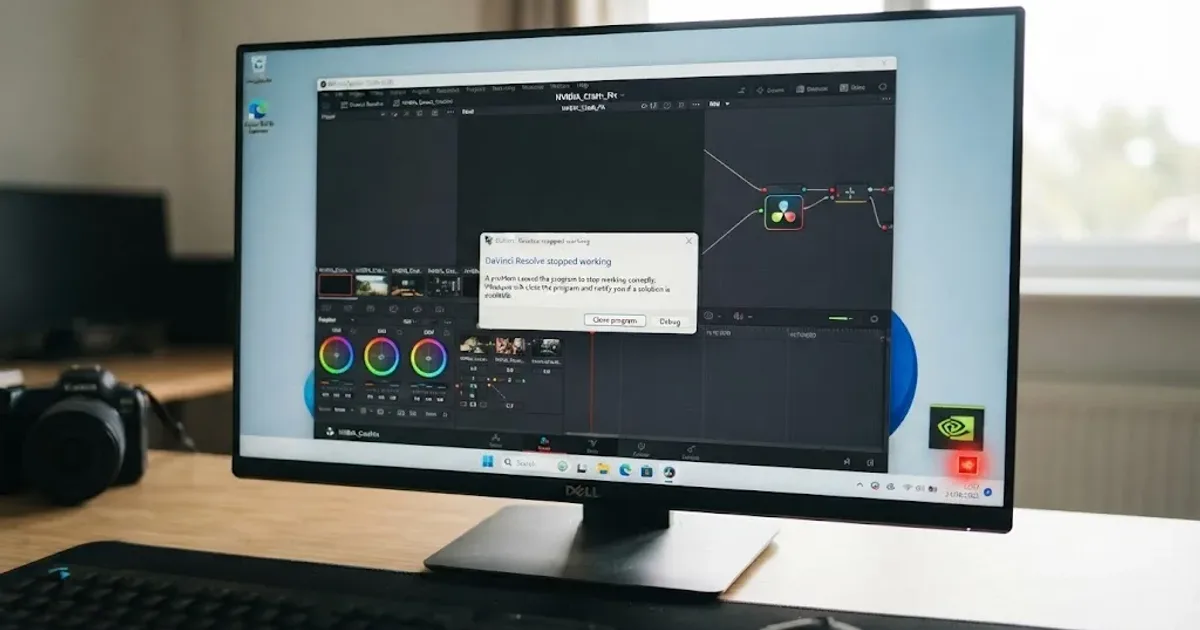
DaVinci Resolve NVIDIA Driver Crash on Windows: The Real Fix
DaVinci Resolve crashing on Windows with an NVIDIA GPU almost always traces to the Game Ready vs Studio Driver split. Here's the diagnosis and every fix branch.
 FixesJul 17, 202631 min read
DaVinci Resolve Plugin Not Found or Missing Effect: The Fix
Why DaVinci Resolve shows a plugin not found or missing effect error, and the install path, cache, and Video Plugins fixes that actually solve it.