
Learn / DaVinci Resolveupdated for DaVinci Resolve 21.0 and current course/tool pricing (July 2026)
The Cheapest Way to Learn DaVinci Resolve in 2026
Quick answer
The cheapest way to learn DaVinci Resolve is free: the software itself costs $0, Blackmagic's official training guides are free, and Casey Faris and other YouTube channels teach every page at no cost. That path works, but it is slower and has no correction. Reddit help, $2 to $5 Gumroad guides, and paid tools each trade cash for speed differently.
I get asked some version of this question constantly: "I don't have money for a course, what's the actual cheapest way to learn DaVinci Resolve?" The honest answer surprises people. It's free. Not free-with-an-asterisk, not free-trial free. The software, the official training, and a working path to real competence all cost nothing if you're willing to trade money for time.
But "cheapest" and "free" aren't always the same decision, and this post is the blunt version nobody selling you a course wants to write. I'm going to walk through every option, what it actually costs in dollars, what it actually costs in time, and where spending a little money buys you something free options structurally can't.
What's the actual cheapest way to learn DaVinci Resolve?
Zero dollars, if you're patient: download the free edition of DaVinci Resolve, read Blackmagic's own official training guides, and watch a handful of free YouTube videos for orientation. That combination genuinely works. People have learned professional color grading and editing this way for years, with nothing but the free software and their own footage.
Here's the full landscape, cost first, so you can see where your options actually sit before reading the reasoning behind each one.
| Method | Real cost | What it's actually good for | Where it falls short |
|---|---|---|---|
| DaVinci Resolve (free edition) | $0 | The entire application, no watermark, no time limit | Nothing, it's the software itself |
| Blackmagic's official training guides | $0 | Structured, accurate fundamentals from the people who built it | No correction on your specific footage |
| YouTube (Casey Faris and others) | $0 | Broad orientation, specific technique videos | No correction, quality varies by channel and age |
| Reddit, Discord, and Facebook groups | $0 | Community feedback on your actual work | Slow, inconsistent, depends on who's online |
| A public library card (LinkedIn Learning) | $0 | Structured video courses on transferable fundamentals | Thin on DaVinci-Resolve-specific content, availability varies by library |
| Gumroad guides | ~$2-$5 | Low-stakes, narrow topics | Unvetted, often duplicates free content |
| Udemy course (on sale) | ~$9.99-$20 | A single structured curriculum, lifetime access | Passive video, same completion problem every MOOC has |
| Skillshare subscription | ~$14-$32/month | Unlimited creative classes if you watch a lot | Subscription creep if you stop watching |
| DaVinci Resolve Studio | $295 one-time | Neural Engine AI tools, higher frame rates | Doesn't teach you anything the free edition doesn't |
| TryUncle | $39/month | Live correction on your own project, inside the app | Not free, macOS only, doesn't replace orientation from zero |
| AI automation tools (CutAgent, Eddie AI) | $15/credit to $1,250+/month | Cuts footage for you | Automates the edit instead of teaching you to do it |
DaVinci Resolve itself has never been the expensive part of learning it. Every dollar anyone spends on "learning DaVinci Resolve" goes toward instruction, correction, or automation, never the app. Keep that separation in your head through the rest of this post, because almost every pricing question people ask about Resolve confuses the two.
Is DaVinci Resolve itself free to learn on?
Yes, completely, and it's worth being precise about what "free" means here because a lot of software calls itself free while gating the features you'd actually need. DaVinci Resolve's free edition includes the full editor, the node-based Color page, Fusion visual effects, and the Fairlight audio suite, with no watermark, no trial countdown, and no feature-gated core tools, working with virtually all 8-bit video formats up to Ultra HD 4K at 60fps, according to Blackmagic Design's own product page. It even includes multi-user collaboration and HDR grading, features that plenty of competing paid software charges extra for.
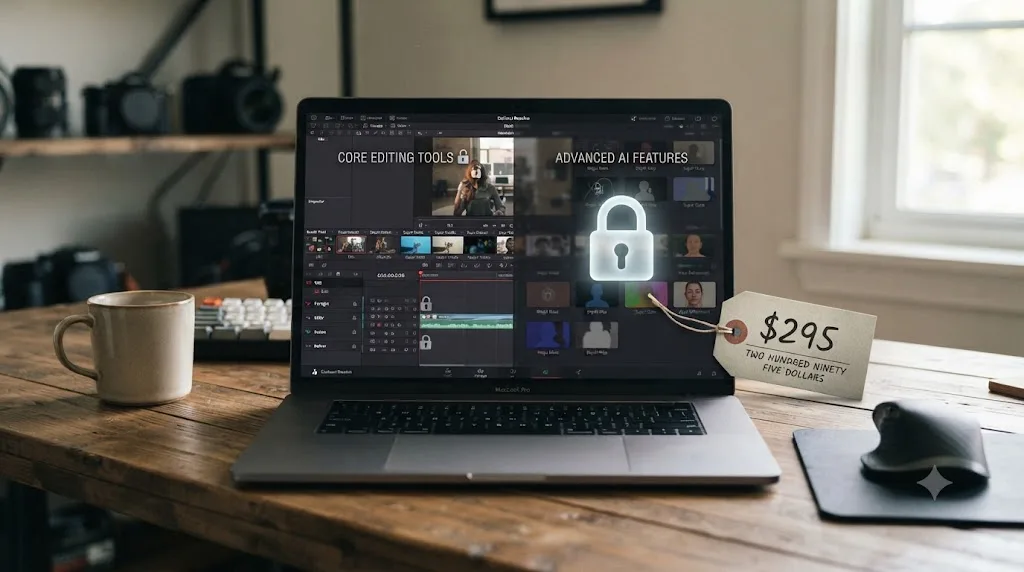
The paid version, DaVinci Resolve Studio, costs $295 as a one-time perpetual license, not a subscription, and adds the DaVinci Neural Engine's AI tools (facial recognition, Super Scale uprezzing, speed retiming), roughly 45 extra Resolve FX, Dolby Vision and HDR10+ grading, stereoscopic 3D support, and performance up to 120fps at higher resolutions with multi-GPU acceleration, per Blackmagic's Studio page. None of that is required to learn the software. It's required to do specific advanced jobs the free edition genuinely can't do, mostly high-end delivery specs and AI-assisted automation that beginners aren't touching in their first year anyway.
This is not a recent, temporary marketing move. Blackmagic Design's founder and CEO Grant Petty built the company's entire pricing philosophy around undercutting an industry he saw pricing working creatives out of the tools they needed. In a Hollywood Reporter interview about the company's approach to pricing, Petty put it plainly:
"I'm trying to make it so the creatives can afford it and can take control of their lives."
That's not a slogan someone in marketing wrote for him. It's the same reasoning that turned what used to be a six-figure Hollywood color suite into a free download anyone can install tonight. A $295 one-time license does not teach you anything a $0 download does not already include. Studio buys you specific advanced features. It doesn't buy you a faster path to competence, and conflating the two is the single most common expensive mistake beginners make before they've cut a single real timeline.
Do you need new hardware to run DaVinci Resolve for free?
Sometimes, yes, and it's the cost every "it's all free" answer conveniently skips. The software has no price tag. Your computer still has to be capable of running it, and for one specific, common group of people, that stopped being automatic this year.
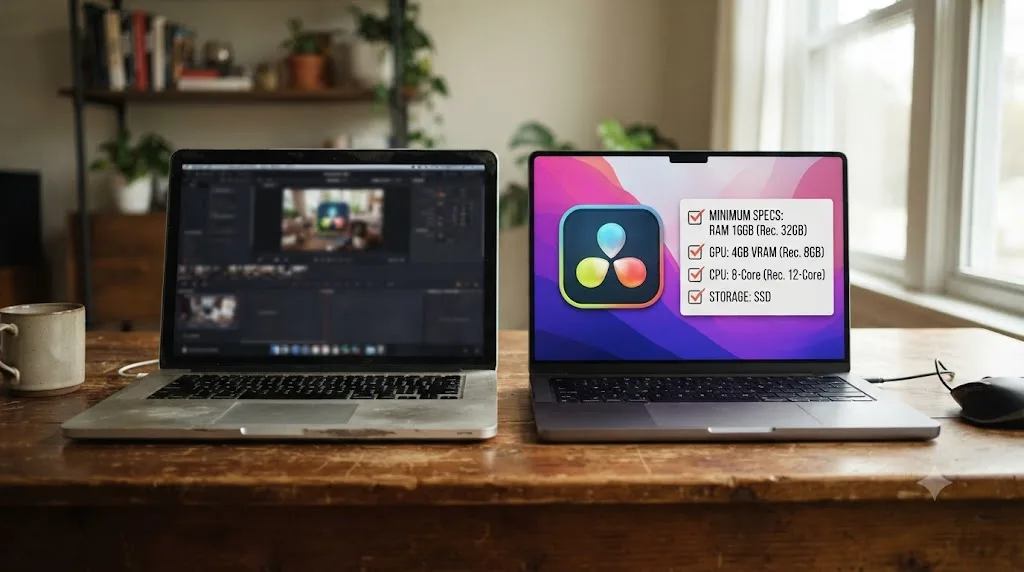
Blackmagic's published minimums are genuinely modest: 8GB of RAM as an absolute floor, an integrated or discrete GPU with at least 2GB of VRAM, and a quad-core processor roughly in the class of an Intel Core i5 6th-generation or AMD Ryzen 5, running Windows 10/11, macOS, or a supported Linux distribution, according to system requirement trackers referencing Blackmagic's own specs. Sixteen gigabytes of RAM is a more realistic working minimum for anything past a short HD clip, and most Windows and Linux machines bought in the last six or seven years already clear this bar without upgrading anything.
Mac users hit a wrinkle that has nothing to do with money and everything to do with timing. DaVinci Resolve 21, which shipped in June 2026, dropped support for Intel-based Macs entirely. It now requires an Apple Silicon chip (M1 or later) running macOS 15 Sequoia, according to hardware guides tracking the DaVinci Resolve 21 release. If you're still on an Intel Mac, you're not locked out of learning DaVinci Resolve for free. You're locked out of version 21 specifically. DaVinci Resolve 20 remains a free, fully capable download with the complete editor, Color page, Fusion, and Fairlight audio suite, and none of the fundamentals this post is about, cutting, grading, node-based compositing, sound mixing, changed between 20 and 21.
DaVinci Resolve's price tag has rarely been the actual barrier for a beginner; their hardware occasionally is, and that's a separate problem free software can't solve. Here's how that plays out by situation:
| Your hardware | Cheapest realistic move |
|---|---|
| Windows or Linux machine, 4+ years old, 8GB+ RAM | Install the free edition now. No upgrade needed for fundamentals. |
| Apple Silicon Mac (M1 or later) | Install DaVinci Resolve 21's free edition directly, full feature access. |
| Intel Mac | Stay on free DaVinci Resolve 20, still fully capable for learning fundamentals, or use a library or school lab machine if you specifically need a 21-only feature. |
| Machine genuinely below minimum specs (under 8GB RAM, no compatible GPU) | Free software can't fix underpowered hardware. A public library or school computer lab with Resolve-capable machines is usually the cheapest real path, not a purchase. |
That last row matters more than it looks. Public libraries and school media labs increasingly stock creative-software workstations specifically because tools like DaVinci Resolve are free to install but still need hardware some patrons don't personally own. It's worth a phone call to your local branch before assuming your only option is a new laptop.
If none of those workarounds fit and you genuinely need to buy something, keep the comparison honest with yourself: a secondhand machine that just clears Blackmagic's minimums is usually a one-time cost, the same category as Studio's $295 license rather than a recurring subscription. It's a real expense, but it's not really a "learning DaVinci Resolve" expense so much as a "can this computer run any modern creative software at all" expense, and it would show up whether you were learning DaVinci Resolve, Premiere Pro, or Photoshop.
Is Blackmagic's official free training actually enough on its own?
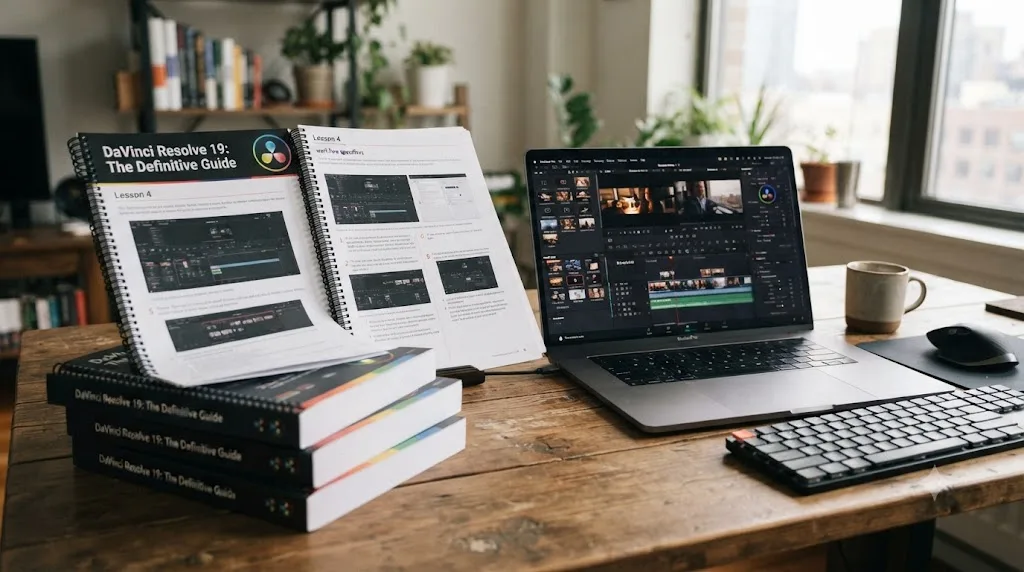
For the fundamentals, yes, and it's the free resource most beginners never find because it isn't the first search result. Blackmagic Design publishes a full curriculum of official training guides as free downloadable PDFs, covering editing, color grading, Fairlight audio, and visual effects, each with lesson project files attached and a free online certification exam, all from Blackmagic's own training page. These aren't marketing pamphlets. They're the same books used in DaVinci Resolve's official certified training program, written by the people who built the software.
That last part matters more than it sounds. Written documentation has one advantage nothing else on this list shares: it can't hallucinate a menu path that moved three versions ago, and it doesn't drift based on which YouTuber happened to be confident on the day they recorded. When a paid course or a free video disagrees with what Blackmagic's own guide says, believe the guide.
Here's the honest limitation, the same one that shows up everywhere else on this page. The guides teach you declarative facts efficiently: where a setting lives, what a term means, the order operations usually happen in. They cannot tell you whether your specific qualifier pull, on your specific shot, is actually clean. A PDF has never seen your footage and never will. Our deeper research on the best way to learn DaVinci Resolve covers exactly why that judgment gap is the real bottleneck, not the facts a manual or a guide can hand you for nothing.
The practical rule: read the free guides once, early, as a map. Don't read all six cover to cover before you've opened your own project. Past the point where you roughly know where things live, more reading stops teaching orientation and starts teaching recognition of steps you haven't needed yet, at zero marginal benefit for zero marginal cost.
Which free YouTube channels are actually worth your time?
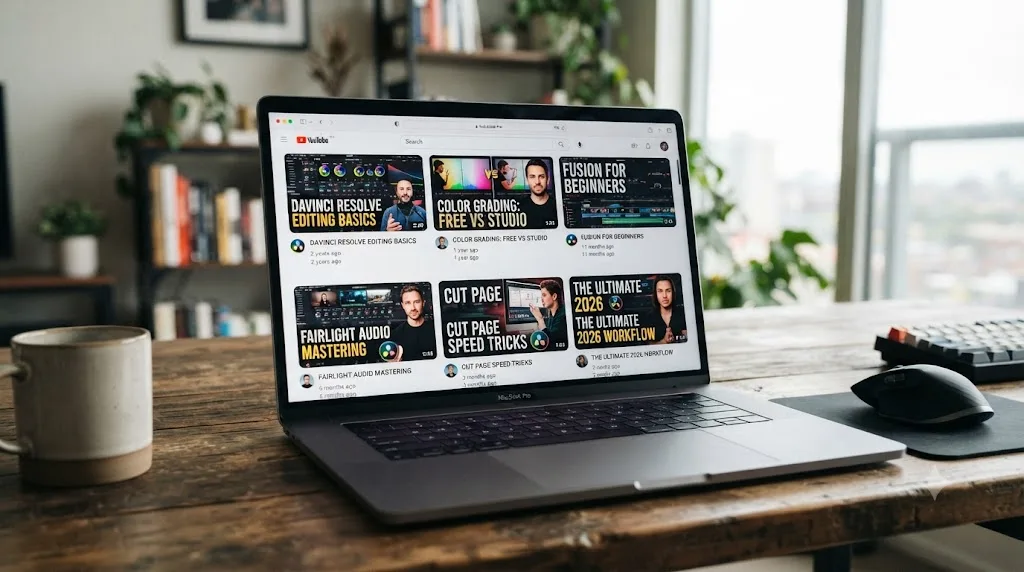
A handful, and picking the right one matters more than picking several. Casey Faris is the strongest single free resource for broad, all-page orientation. His channel has taught DaVinci Resolve and Fusion since December 2014 and has grown to close to 590,000 subscribers, according to his channel's public stats, and he's a Blackmagic Certified Trainer, which means his content gets checked against the same standard the official guides use. Our own roundup of the best YouTube channels to learn DaVinci Resolve covers a longer list, including dedicated colorists and Fusion-focused channels, if you want to go deeper into a specific page.
The trap with free YouTube isn't a lack of good material. It's the sheer volume of it, all ranked by watch time rather than accuracy. DaVinci Resolve 21 shipped in June 2026 with a new Photo page, IntelliSearch content search, CineFocus, and dozens of Fusion effects that older tutorials never covered, per PetaPixel's coverage of the release. YouTube's ranking algorithm rewards accumulated watch time, so a video built on Resolve 18's interface from three years ago can still outrank a fresh one made for 21. Check the upload date before trusting a top result blindly, especially for anything touching a menu location or a keyboard shortcut, since those are exactly the things version updates move around.
There's a second cost hiding inside "free" YouTube that people rarely account for. You're the editor deciding which of thirty tutorials on the same topic is worth your time, and that curation cost is real even though the video itself costs nothing. You'll watch three minutes of a video before realizing it's teaching an outdated version, back out, try another, and burn twenty minutes finding the right one. Multiply that across an entire skill and free content starts costing you something after all, just not in dollars.
Free video does not mean free time, and time is the actual currency every learning method spends. That's not an argument against YouTube. It's a reminder to treat it the way most experienced editors already do: a lookup tool for a specific stuck moment, not a structured curriculum you sit through start to finish.
Is Reddit and forum advice a legitimate free resource?
Yes, with a specific caveat worth knowing before you post. Communities like r/DaVinciResolve, dedicated Discord servers, and Facebook groups are genuinely useful for the one thing solo free resources structurally can't provide: a second set of eyes on your actual project. Post a specific frame with a specific question, "why does this qualifier selection look ragged on the edge," and you'll usually get a better, faster answer than searching for a video that happens to cover your exact problem. Discord communities in particular tend to move faster than a Reddit thread since replies happen in real time rather than whenever someone next scrolls past your post.
The catch is consistency, not cost. A Reddit thread doesn't come with a confidence score attached, and free advice from a stranger ranges from expert-level to confidently wrong in the same comment section. The practical rule that separates a useful forum answer from a misleading one: check anything measurable first. DaVinci Resolve's own scopes, waveform, vectorscope, and parade, don't lie the way tired eyes on an uncalibrated monitor do. If a forum comment tells you your exposure is off and the waveform agrees, fix it. If three strangers who don't know each other independently flag the same pacing problem, that's a pattern worth acting on. A single confident opinion about warmth or "vibe" is worth logging, not chasing immediately.
This is also where a specific question beats a vague one, every time, for free. "What's wrong with this cut" invites a specific, actionable answer. "Thoughts?" invites a generic compliment that teaches you nothing. The cost of asking well is zero. The cost of asking badly is a wasted post and a false sense that you got feedback when you didn't.
Are the $2 to $5 Gumroad guides worth buying?
Rarely, and it's worth explaining why the math doesn't usually work in your favor even at that low a price. A quick look through Gumroad's marketplace turns up a steady supply of independently published DaVinci Resolve guides priced in the two-to-five-dollar range, like this one, alongside similar listings from other individual sellers. At that price, the financial risk is trivial. The actual risk is time and trust, not money.
Here's the structural problem. These guides are built by one person, with no editorial review, no version-update commitment, and no refund process comparable to Udemy's stated 30-day policy or a subscription platform's cancel-anytime terms. Some are genuinely well made and cover a narrow, specific niche efficiently, like a quick shortcut cheat sheet or a single workflow walkthrough. A meaningful share of them repeat, almost verbatim, what Blackmagic's own free guides already cover, just repackaged and reformatted. You can't tell which kind you're getting from a thumbnail and a five-star claim on the seller's own page, since Gumroad reviews aren't independently verified the way a platform like Trustpilot's are.
The honest verdict: at $2 to $5, buying one isn't a financial risk worth agonizing over. It's also not a shortcut that reliably beats the free official guides sitting one click away on Blackmagic's own site. If a specific guide covers a genuinely narrow gap you can't find covered for free, like a shortcut sheet formatted the way you personally think, it can be worth the couple of dollars. Treat it as a convenience purchase, not an investment in your actual skill level, because the skill still forms the same way it always does: by attempting something real and getting corrected on it.
What does a genuinely $0 learning path look like, start to finish?
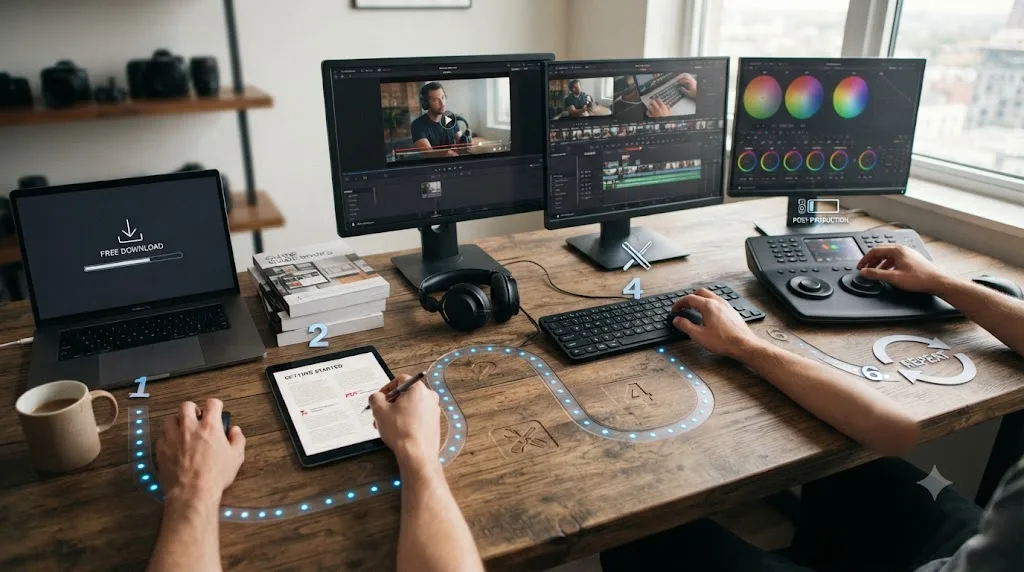
Concrete and repeatable, if you follow it in order instead of jumping straight to advanced material. Here's the sequence that actually gets someone from zero to competent on a real project, using nothing but free resources.
- Download the free edition of DaVinci Resolve. No trial, no card required, no watermark. Install it straight from Blackmagic Design's product page.
- Read one free official guide, not all six. Pick the Editor's Guide or Beginner's Guide from Blackmagic's training page and skim it once before touching the timeline. You're building a rough map, not memorizing every page.
- Watch a single orientation video, not a playlist. One well-made beginner video from Casey Faris or a similar channel, thirty to sixty minutes, gets you the three things you need: where things generally live, the rough order operations happen in, and the one setting that will break your first attempt if you don't know it exists.
- Cut something real from your own footage, immediately. Not a demo clip chosen because it cooperates. Ten seconds of anything you actually filmed. Constructionism and deliberate-practice research both point at the same requirement: it has to be real and yours, or the motivation to push through the ugly middle disappears.
- Post it somewhere for a specific critique. A Reddit thread, a Discord server, or a Facebook group, asking what's wrong with one specific frame or cut, not asking for general feedback. This closes the gap every free resource above it can't close on its own: correction.
- Repeat with a slightly bigger project. Apply the one correction you actually got, then finish another small edit instead of watching more tutorials. The loop closes when you finish and get corrected, not when you feel ready.
None of these six steps cost a cent. What they cost is time, and a willingness to finish something imperfect instead of consuming more material that feels productive but isn't.
What does the free path actually look like for one specific skill?
Abstract steps are easy to nod along to and hard to actually follow. Here's what that six-step loop looks like applied to one specific, common beginner skill: getting a shot's exposure and white balance right using nothing but scopes and free guides, no paid tool anywhere in the process.
Start narrow. Read just the primary color correction section of Blackmagic's free Color page guide, not the whole book, the part explaining how the Color Wheels panel's Lift, Gamma, and Gain map to shadows, midtones, and highlights. That's a fifteen-to-twenty-minute read, not an afternoon.
Then open the waveform monitor on your own clip, not a demo clip that was shot and lit to cooperate. The waveform shows you exposure as a shape instead of a guess: if the brightest values are climbing off the top of the graph, your highlights are clipped no matter how the image looks on an uncalibrated laptop screen at night. Pull the Gain wheel down until the peak sits back inside the graph. Do the same check at the bottom for crushed blacks.
White balance gets the same objective treatment through the vectorscope instead of your eyes. Find a skin tone in frame and check where it falls relative to the scope's skin-tone line; if it's sitting well off that line, the shot is carrying a color cast the eye adjusts to and stops noticing after a few seconds of staring at it. Nudge the Color Boy or temperature control until it lines back up, then step away from the shot for a minute before judging the result, since your eyes recalibrate to whatever you've been staring at.
Post the result somewhere specific. Not "how's my grade," but "does the white point look clipped in this frame, waveform attached." That question is answerable in one reply. A vague one isn't.
That's roughly forty-five minutes to an hour, split across three free resources, the guide, the video, and a specific question to a community, and it costs zero dollars. The same four-move loop applies to any other single skill on this page: audio levels, transitions, a basic Fusion tracker. Swap the specific technique, keep the structure. Read only the relevant section of the guide, watch one narrow video on that exact technique, apply it to your own footage with an objective check (a scope, a meter, a measurable reference) instead of trusting tired eyes, then post one specific, answerable question instead of a general one.
Where does "free" quietly start costing you?
At the correction step, every time. This is the part free-learning guides usually leave out, and it's the honest reason "cheapest" and "fastest" aren't the same word. Free resources are excellent at declarative facts and orientation. None of them, not the guides, not the videos, not even the free forums, can look at your specific timeline the moment you're stuck and tell you what's actually wrong with it, on your schedule, without waiting for someone else's free time.
Here's what that gap looks like in practice, because it's easy to underestimate until you've hit it. You finish a small edit. You think the color looks fine. You post it somewhere free, and either nobody comments, or the comments are vague enough to be useless. You move to the next project having learned nothing specific about what was actually wrong, because nothing in the process told you. Repeat that pattern fifteen times and you get someone with fifteen finished projects and the same blind spot in all fifteen, because unsupervised practice without correction doesn't just fail to improve a weak spot. It can quietly reinforce it.
That's the real hidden cost of the fully free path: not money, but the number of cycles it takes to stumble into good correction by luck, versus getting it on demand. A beginner who happens to post in an active community at the right hour might get corrected within minutes, for free. A beginner who posts into a quiet thread at 2 a.m. might wait days, or never hear back at all, for the exact same $0.
Watching a free video and getting stuck on your own footage costs the same zero dollars as never watching it at all. The video isn't wasted, but the value only shows up once something closes the loop between watching and doing. This is exactly the gap every paid option on the rest of this page is actually selling, whether it's a structured course, a subscription, or a live in-app assistant: not better content than what's free, but a more reliable, faster correction cycle than waiting on a stranger's free time.
You did the free path and you're still stuck. What's actually wrong?
Common enough to deserve its own breakdown. If you've read this far, tried the six-step free path, and you're still not finishing projects with any confidence, the problem usually isn't a missing resource. It's usually one of a handful of specific, diagnosable snags, and each one has a specific, still mostly free fix.
| What it looks like | What's actually wrong | Cheapest fix |
|---|---|---|
| You've watched twenty-plus tutorials but haven't finished a real edit of your own | You're stuck in a passive-consumption loop; watching feels like progress but never closes the correction gap | Stop watching. Cut ten seconds of your own footage today, per step 4 of the free path above, before opening another video |
| You finish edits but can't tell if the color grade is actually right | You're judging by tired eyes on an uncalibrated screen late at night | Pull up DaVinci Resolve's own waveform and vectorscope and check exposure and saturation numerically, free, before trusting your own eyes |
| You post for feedback and get replies like "looks good!" | You're asking a vague question that invites a vague, useless answer | Ask about one specific frame or cut, per the section above, not for general feedback |
| You know the theory but freeze the moment you try to apply it to your own footage | The gap is between recognition and application, not missing information | Shrink the project. Cut a single ten-second clip, not a whole video, and finish it imperfectly rather than researching more |
| Every tutorial assumes shortcuts or a layout that doesn't match what's on your screen | Platform or version mismatch between the free video and your actual install | Fall back to Blackmagic's own official guide for that page, which documents menu paths rather than shortcut-only steps that drift by platform and version |
| You finish projects fine but have no idea if you're actually improving | No consistent metric of progress, just a feeling | Keep every finished cut instead of deleting it, and compare your fifth attempt directly against your first, not against your memory of it |
Notice the pattern across all six rows. None of these are information problems, so more free tutorials won't fix any of them. They're all judgment or process problems, and the fix is either a mechanical habit change (ask specific questions, use scopes, shrink scope) or, if the same pattern repeats project after project despite trying these fixes, the kind of live, specific correction covered in the paid-option sections below.
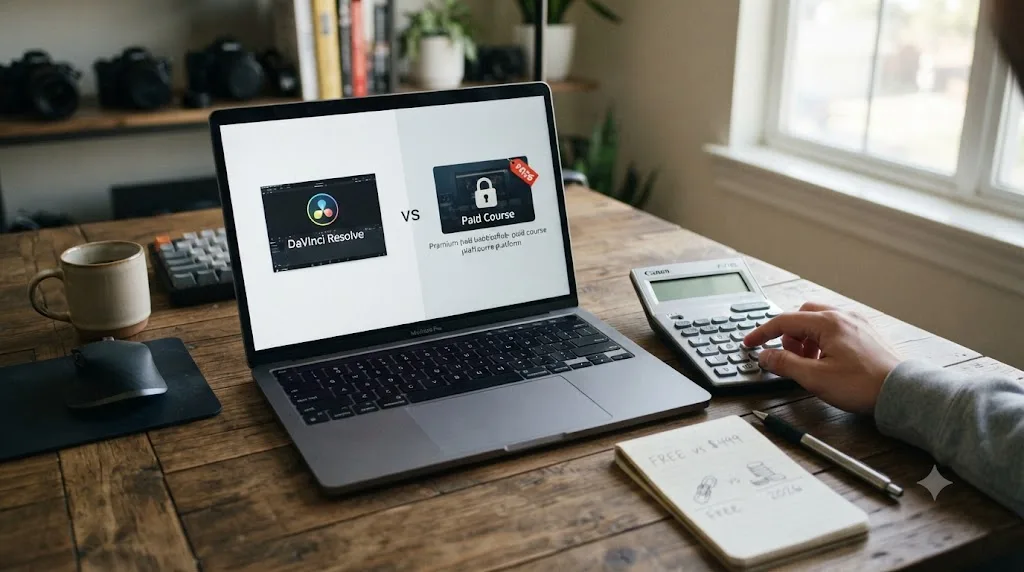
Is Udemy or Skillshare actually cheaper than piecing together free resources yourself?
Depends entirely on how much of the free path you were realistically going to finish. Run the real numbers instead of guessing. Udemy's individual courses run roughly $9.99 to $20 during a typical discount, up to a $199.99 list price nobody actually pays, according to Udemy's own pricing page, with a Personal Plan subscription running about $14 to $32 a month depending on billing cycle. Skillshare runs about $13.99 a month billed annually, or $17.99 to $32 a month billed monthly, per Skillshare's pricing page.
Here's the comparison stripped to what actually matters: what does the money buy that free doesn't.
| Option | Real cost | What the money actually buys over the free path |
|---|---|---|
| Free path (Blackmagic guides + YouTube + forums) | $0 | Nothing extra. Same content quality, more assembly work on your part |
| One discounted Udemy course | $9.99-$20, one time | A single curated sequence someone already assembled, lifetime access, a 30-day refund window |
| Udemy Personal Plan | ~$14-$32/month | Access to many courses, useful if you'll actually watch more than one or two |
| Skillshare | ~$14-$32/month | Unlimited creative classes, no per-course purchase decision |
The honest verdict: a single discounted Udemy course rarely teaches you anything Blackmagic's free guides and a good YouTube video don't already cover for DaVinci Resolve specifically. What it buys is convenience: someone already decided the order, cut the redundant parts, and packaged it into one sitting instead of five separate free sources you have to find and sequence yourself. If your actual bottleneck is decision fatigue about where to start, not information you can't otherwise find, a $9.99 course during a sale is a fair trade for a Saturday afternoon of searching. Worth knowing before you buy: Udemy agreed to a $4 million class-action settlement over allegations it advertised inflated "original" prices next to steep discounts, covering purchases between August 2017 and April 2023, according to Class Central's reporting. Treat the list price as theater and the sale price as the real number, every time.
Skillshare and a subscription-model platform only pay for themselves if you're actually going to watch more than one or two classes a month. Our full Udemy alternatives comparison breaks down a dozen platforms this way if DaVinci Resolve is one of several things you're trying to learn at once, not your only goal.
Can you get Skillshare-style courses free through a library card?
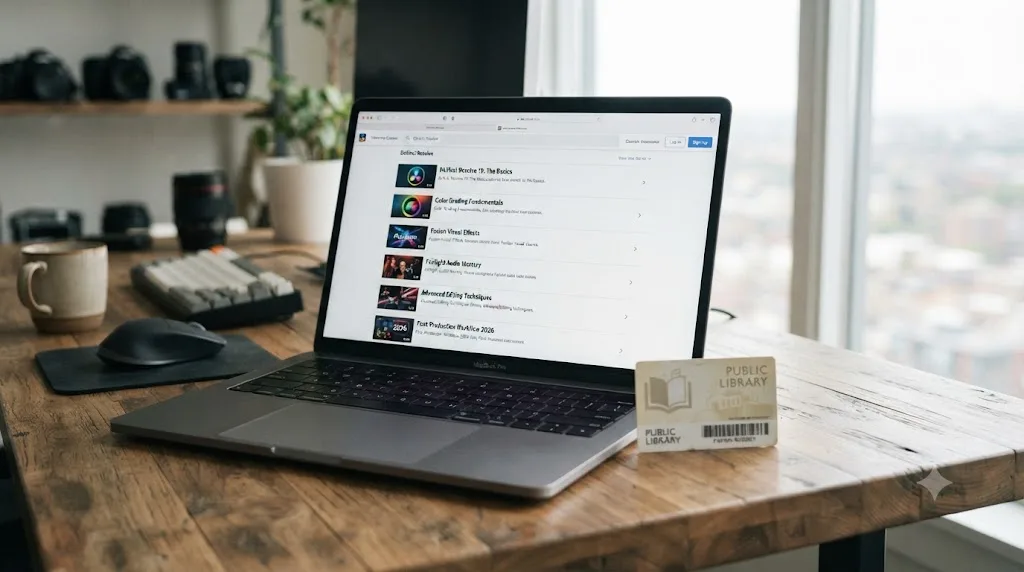
In a lot of places, yes, and it's the specific budget move most "cheapest way" guides skip entirely, because it isn't a DaVinci-Resolve product at all. It's a library benefit sitting quietly underneath.
Many public library systems, including large ones like the Los Angeles Public Library, give any active cardholder free, unlimited access to LinkedIn Learning's full course catalog under a program the library itself funds, no LinkedIn profile, credit card, or trial countdown required, according to the Los Angeles Public Library's own LinkedIn Learning page. If your library participates, you sign in with your card number, not a LinkedIn account, and access keeps working for as long as your card stays active.
Here's the honest limitation: LinkedIn Learning's catalog leans heavily toward Adobe's ecosystem, Premiere Pro, After Effects, Photoshop, rather than DaVinci Resolve specifically, so don't expect a Resolve-equivalent to Casey Faris's channel sitting there waiting for you. What it's genuinely good for is the transferable fundamentals that apply regardless of which app is on screen: color theory, audio mixing basics, story structure and pacing, camera and lighting fundamentals if you're shooting your own footage too. Those skills carry directly into DaVinci Resolve even when the software teaching them isn't Resolve.
A library card is the only entry on this entire page that turns a subscription-style course platform into a genuine $0, no discount code, no trial that expires. Not every library participates, and not every participating library's catalog includes LinkedIn Learning specifically, some route through different platforms entirely, so check your own library's website under "digital resources" or "online learning" before counting on this, and call the reference desk if the site doesn't make it obvious. It's a five-minute check against a real, ongoing saving, and it's worth doing before paying for a Udemy or Skillshare subscription covering ground a library card might already unlock for free.
Should you spend $295 on DaVinci Resolve Studio to learn faster?
No, and this is one of the most common expensive mistakes beginners make before they've even finished their first real edit. Studio's $295 one-time price buys Neural Engine AI tools like Magic Mask, Super Scale, and Speed Warp, higher frame rate and resolution ceilings, multi-GPU rendering, and Dolby Vision/HDR10+ delivery, per Blackmagic's Studio page and confirmed in Storyblocks' free-vs-Studio breakdown. None of those features teach you anything about cutting, grading, or compositing that the free edition doesn't already let you practice fully.
Run the math on what that $295 actually buys against the alternative. A full year of TryUncle costs $468, well past Studio's one-time price. A full year of Skillshare runs close to Studio's price too. But none of that comparison matters if you haven't finished a single real project yet, because Studio doesn't accelerate the part where you're actually stuck: figuring out whether your grade looks right, whether your cut breathes, whether your Fusion node tree is doing what you meant. That's a correction problem, not a feature problem, and Studio doesn't touch it.
The one legitimate reason to buy Studio early: a specific paid feature is blocking a specific real project you're already committed to delivering, like a client asking for HDR grading or Speed Warp retiming on drone footage. If that's not your situation yet, the $295 is better spent later, once you know exactly which Studio-only feature you're actually missing, or spent instead on something that closes the correction gap covered earlier in this post. A tool that unlocks more features is not the same purchase as a tool that teaches you to use the ones you already have.
Are AI editing tools like CutAgent or Eddie AI a cheap way to learn?
No, and it's worth being precise about why, because these tools solve a completely different problem than learning does. CutAgent turns natural-language instructions into DaVinci Resolve timeline edits directly, according to CutAgent's own site, and Eddie AI turns raw interview footage into a structured rough cut, with pricing starting around $15 per export credit on a pay-as-you-go basis, or subscription tiers from roughly $167 a month up to $1,250 a month for high-volume professional use, per Eddie AI's own pricing. PremiereCopilot runs a similar automation model for Adobe Premiere Pro rather than DaVinci Resolve specifically.
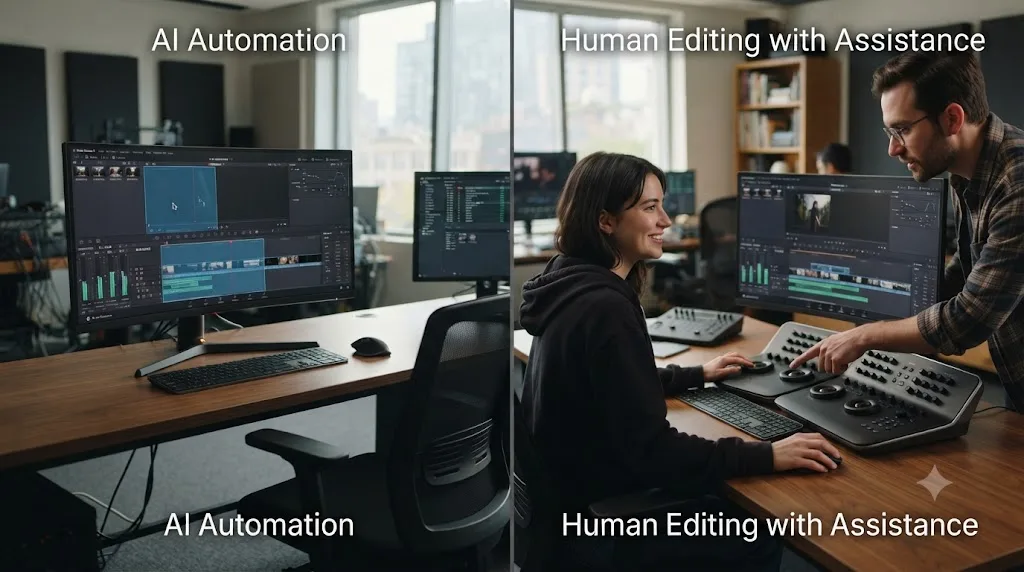
Here's the distinction that matters if you're actually trying to learn: these tools do the edit for you. That's genuinely useful for a working editor trying to save hours on a repetitive task, like turning forty minutes of interview footage into a rough assembly. It is close to useless for someone trying to learn DaVinci Resolve, because the entire value of the tool is skipping the exact decisions that build the skill you're after. Ask CutAgent to trim your silence and it trims your silence. You still don't know how to trim silence yourself afterward.
A tool that automates your edit is not the same purchase as a tool that teaches you to make it yourself. That distinction is also the honest answer to how TryUncle fits into this same category of "AI tool to learn DaVinci Resolve," and why it doesn't belong on the same shelf as CutAgent or Eddie AI despite all three running on AI underneath. TryUncle is the on-screen assistant for DaVinci Resolve on macOS, ask in plain words and Uncle points at the exact control on your screen, live, inside the Edit, Color, and Fusion pages. It never touches your timeline for you. It watches while you attempt the edit yourself and corrects the specific thing you got wrong, which is the opposite job from an automation tool that cuts the footage so you never have to.
If your actual need is saving hours on a rough assembly you already know how to finish, an automation tool like CutAgent or Eddie AI might be worth its price, though none of that spend teaches you anything. If your need is learning the software, an automation tool is money spent in the wrong direction entirely, no matter how cheap or expensive the plan.
Is TryUncle actually a cheap way to learn, or overkill on a budget?
Neither extreme, and the honest answer depends entirely on where you're stuck. TryUncle isn't free, and it shouldn't be confused with the zero-dollar path covered above. It's a paid macOS subscription, $39 a month, cancel anytime, with a 14-day refund window, according to TryUncle's own FAQ. See TryUncle directly for the full details.
For a complete beginner who hasn't opened DaVinci Resolve yet, TryUncle is overkill, and it's more honest to say so than to pretend otherwise. It has nothing to react to before you've attempted a real task, and the free orientation step (one video, one guide) covers that ground for nothing. That's exactly what the free path earlier in this post is for. Where the calculation flips is the moment you've finished the free orientation and you're stuck on your own footage at 11 p.m., not knowing whether your qualifier selection is clean, and the free options available to you are a forum post that might get answered by morning or another tutorial that doesn't match your specific shot.
Compared against the paid alternatives on this page, not against free, TryUncle's $39 a month sits a little above the Skillshare or Udemy monthly range, but without asking you to sit through video content that doesn't match your actual stuck moment. It doesn't replace the free path. It sits after it, for the specific gap the free path structurally can't close: correction, live, on your actual project, the moment you need it instead of whenever a stranger happens to be online. Our full TryUncle pricing breakdown covers the exact numbers, refund terms, and how it stacks up against every course platform if you want the complete picture before deciding.
One limitation worth naming plainly: TryUncle only covers DaVinci Resolve, only runs on macOS, and needs an internet connection, no offline mode. If you're on Windows or Linux, or you edit somewhere without reliable wifi, this section doesn't apply to you, and the free and Udemy paths above are your realistic options regardless of budget.
What's the cheapest way to learn if you have exactly zero dollars to spend?
Follow the six-step free path above, in order, and be strict about the two steps most beginners skip. Step 4, cutting real footage instead of a demo clip, and step 5, posting for a specific critique instead of general feedback, are the two steps that actually determine whether the free path works or stalls. Skip either one and you get the common failure mode: someone who's watched dozens of free hours and still can't finish a project with confidence, not because the free content was bad, but because nothing ever corrected their specific attempt.
If you genuinely can't find an active community to post in, DaVinci Resolve's own scopes are a free substitute worth knowing about. The waveform and vectorscope don't lie the way tired eyes do late at night, so pull them up before trusting your own judgment on exposure or saturation. Let a finished edit sit for a day before you judge it, since your in-the-moment sense of "this looks right" is measuring familiarity, not accuracy, and familiarity peaks right after you finish something. Neither of those substitutes for a real second opinion, but they close some of the gap for the price of patience alone.
Realistic timeline on the fully free path: expect it to take longer than any paid option on this page, not because the free content is worse, but because correction arrives on someone else's schedule instead of yours. That tradeoff is completely fine if money is the binding constraint. It's worth naming honestly rather than pretending the free path is equally fast, because setting the wrong expectation is how people quit halfway through, convinced the software is harder than it actually is.
What's the cheapest way if you can spend $20 to $50?
Spend it on correction, not more content. This is the budget tier where people most often make the wrong call, buying a second or third course when they already have more free content than they've watched. At $20 to $50, you have real options: one discounted Udemy course covering a specific gap in your knowledge, a single month of Skillshare if you'll genuinely finish more than one class, or roughly one month of TryUncle if your actual bottleneck is correction rather than orientation.
Here's a simple rule that keeps this budget from getting wasted: if you don't yet know roughly where things live in DaVinci Resolve, spend the money on structured orientation, a specific Udemy course or a month of Skillshare works fine here. If you already know where things live and you're stuck on whether your specific decisions are correct, spend the same money on correction instead, since more orientation content won't fix a judgment problem. Most beginners in this budget tier are further along than they think and would get more value from correction than from a third course covering the same fundamentals a second time.
| Your actual gap | Best $20-$50 spend |
|---|---|
| Don't know where anything is yet | One discounted Udemy course, or a month of Skillshare |
| Know where things are, unsure if your decisions are right | About a month of TryUncle |
| Stuck on one specific technique (a transition, a keyframe type) | A single narrow Udemy course, not a full bootcamp |
| Want structure and accountability more than content | Skillshare or Udemy's Personal Plan for a month |
What's the cheapest way if you're already editing in another program?
Cheaper than starting from zero, because you're not paying for orientation you don't need. If you already edit in Premiere Pro, Final Cut, or another NLE, your editing judgment, knowing a cut needs to breathe, that a level shouldn't clip, transfers completely for free. What doesn't transfer is Resolve's specific vocabulary: the node-based color page has no Premiere Lumetri equivalent, the keyboard shortcuts are different, and the page-based workflow (Cut, Edit, Fusion, Color, Fairlight, Deliver) has no direct analog in a single-timeline editor.
The cheapest realistic path here skips almost the entire free orientation step above. Read just the interface-mapping section of Blackmagic's free guide, the part explaining where your old shortcuts moved, and spend your actual practice time on the node-based Color page and Fusion specifically, since those are the two areas with no transferable muscle memory from anywhere else. Our full DaVinci Resolve learning roadmap for beginners covers this exact starting-point difference in more depth if you want the complete stage-by-stage order.
Practically, this means someone switching editors rarely needs to spend anything beyond the free path, because the gap they're closing is narrower than a total beginner's gap. If correction is still worth paying for anywhere, it's narrowly on the Color page and Fusion's node graph, not on the parts of editing you already know cold from another tool.
What's the cheapest way if you're trying to go pro or freelance fast?
Spend a little, deliberately, because the math changes once real invoices are involved. If you're learning DaVinci Resolve to take paid client work, the fully free path is still viable, but the calculation around paying for correction shifts. A freelancer billing $200 to $500 for a graded delivery, a figure TryUncle itself uses on its own site when framing its subscription against freelance rates, only needs to close one paid job to cover a month or two of a paid learning tool multiple times over. Weigh that framing with real skepticism, since it's the company's own math, not an independently audited case study, but the underlying logic (one paid delivery covering more than a month of a $30 subscription) holds regardless of which specific tool you use.
The cheapest path to going pro fast usually looks like this: the free orientation steps first, since there's no reason to pay for facts a free guide already covers accurately. Then, once you're building an actual portfolio piece meant for a client or a demo reel, add paid correction specifically on that project, whether that's a narrow paid course covering exactly the delivery spec you're missing, or a live tool that corrects your grading and node-tree decisions in real time. Buying Studio's $295 license only becomes worth it once a specific client need requires a Studio-only feature, not before.
The cheapest way to learn DaVinci Resolve is never the version that skips correction, it's the version that gets you corrected for the least money. For a hobbyist, that's a patient free path with community feedback. For someone racing toward billable work, a small, deliberate paid spend on correction usually pays for itself faster than the time saved makes it look expensive.
What's the fastest way to learn DaVinci Resolve without spending more than you have to?
Combine the free path with targeted, small paid correction exactly where you get stuck, rather than choosing one lane and staying in it. This is the answer to "learn DaVinci Resolve fast" that most cost-focused advice skips, because it requires admitting that pure free and pure paid both waste something. Pure free wastes time waiting for correction. Pure paid wastes money buying content you could have gotten for nothing.
The fast, still-cheap version looks like this: free orientation (one guide, one video), immediately followed by a real project on your own footage, immediately followed by paid correction only on the specific thing that's actually stalling you, not a full course covering material you already know. That's a fraction of what a full course subscription costs, and it's faster than the fully free path because you're not waiting on a stranger's schedule for the one thing that's actually blocking you.
Here's the pattern worth remembering across every section on this page: the free resources and the paid ones aren't competing for the same job. Free is excellent at facts and orientation. Paid options earn their price only when they're solving correction, not when they're re-teaching something a free guide already covers. Confuse the two and you either overspend on content you didn't need, or underspend on the one gap that was actually stopping you.
So here's the actual verdict, stated as plainly as the numbers support it. The cheapest way to learn DaVinci Resolve is, without any hedging, free: the software costs $0, Blackmagic's own training costs $0, and a good YouTube channel costs $0. That path works, and plenty of working editors learned exactly that way. What it costs instead of money is time, specifically the time spent waiting for someone, somewhere, to correct your specific attempt for free.
Every paid option on this page, a $9.99 Udemy course, a Skillshare month, DaVinci Resolve Studio's $295 license, or TryUncle's subscription, is really buying one of two things: pre-assembled content you could technically find yourself, or faster correction than free channels reliably deliver. Neither is required. Both can be worth the money, depending entirely on whether your actual bottleneck right now is information or judgment. Figure out which one you're actually missing before you spend anything, and you'll rarely overpay for DaVinci Resolve again.
Frequently asked questions
- What is the cheapest way to learn DaVinci Resolve?
- DaVinci Resolve itself is free, Blackmagic's own training guides are free, and YouTube channels like Casey Faris's teach the whole app for nothing. That combination is the actual cheapest way to learn it, at $0. It's not the fastest way, since none of those free resources can look at your specific footage and tell you what's wrong with it.
- Is DaVinci Resolve completely free to learn on?
- Yes. The free edition has no watermark, no trial countdown, and no feature gate on core editing, color grading, Fusion visual effects, or Fairlight audio, up to Ultra HD 4K at 60fps. Studio, the $295 one-time paid version, adds Neural Engine AI tools, higher frame rates, and multi-GPU support, none of which you need to learn the fundamentals.
- Is it worth paying for a DaVinci Resolve course if the official training is free?
- Only if the paid course solves a problem the free guides don't, mainly a fixed schedule, video pacing that suits you better than a PDF, or a specific niche like wedding editing or motion graphics that Blackmagic's general guides don't cover deeply. For the fundamentals, Blackmagic's own free books, written by the people who built the software, cover the same ground a $9.99 Udemy course does.
- Are the $2 to $5 DaVinci Resolve guides on Gumroad worth buying?
- Rarely, and it's worth knowing why before you spend even a few dollars. Most are unofficial PDFs or short video bundles built by a single creator with no editorial vetting, no refund guarantee comparable to Udemy's, and content that often just repeats what Blackmagic's own free guides already cover. A few are genuinely good and cheap. You can't tell which from the thumbnail, and at that price the downside of guessing wrong is small but real.
- Is TryUncle a cheap way to learn DaVinci Resolve?
- It's not the cheapest option, since it's a paid subscription and DaVinci Resolve itself is free. It's cheap relative to what it replaces: a live, in-app assistant that answers your specific stuck moment costs less per month than most course subscriptions and doesn't require you to already know what to search for. It's the right tool for someone stalling on their own footage, not for someone who hasn't opened the app yet.
- Should I buy DaVinci Resolve Studio to learn faster?
- No. Studio's $295 one-time price buys Neural Engine AI features, higher frame rates, and multi-GPU rendering, not a better learning experience. Every core skill worth learning first, cutting, color, Fusion basics, Fairlight audio, works identically in the free version. Buy Studio later, once a specific paid feature (like Magic Mask or Speed Warp) is actually blocking a real project, not to speed up learning.
- What's the cheapest way to learn DaVinci Resolve fast?
- Pair the free path with targeted, paid correction only where you get stuck. Watch one free orientation video, work on your own footage immediately, and spend money only on the specific gap that's actually slowing you down, whether that's a $9.99 Udemy course on one topic or a subscription tool that corrects your specific attempt. Paying for everything up front is rarely the fast path; paying for nothing is rarely the fast path either.
Sources
- DaVinci Resolve product page and free vs Studio comparison (Blackmagic Design)
- DaVinci Resolve - Studio (Blackmagic Design)
- DaVinci Resolve Training (Blackmagic Design)
- DaVinci Resolve free vs Studio: What's included in each version (Storyblocks)
- Conversation Series: Blackmagic CEO Grant Petty Talks Pricing and 4K (The Hollywood Reporter)
- Casey Faris (YouTube)
- Casey Faris YouTube Channel Stats (vidIQ)
- Compare Udemy Plans and Pricing
- Udemy's Refund Policy - Udemy Support
- Udemy Agrees to Pay $4 Million Settlement Over Deceptive Pricing Practices (Class Central)
- Skillshare Pricing
- DaVinci Resolve 21 Officially Released With New Photo Editing, AI Tools, and Much More (PetaPixel)
- Eddie AI - The Assistant Video Editor for Pros
- CutAgent - AI video editing for DaVinci Resolve
- A DaVinci Resolve beginner guide listing on Gumroad (example of marketplace pricing)
- TryUncle
- TryUncle FAQ
- DaVinci Resolve System Requirements for Windows, macOS, and Linux (CodeItBro)
- DaVinci Resolve 21 System Requirements: 2026 Hardware Guide (Cinapex)
- LinkedIn Learning (Los Angeles Public Library)
Learn by doing, not watching
Stop translating tutorials to your timeline.
TryUncle stays beside Resolve on Mac and Windows. When you ask, Uncle sees your screen and points at the exact control you need. No hunting through tabs, timestamps, or mismatched tutorials.
Meet TryUncleKeep reading
 GuidesJul 12, 202641 min read
The Best Way to Learn DaVinci Resolve (What the Research Says)
Guided, hands-on practice inside DaVinci Resolve beats video courses and MOOCs. Here's the learning-science research behind why, and how to apply it.
 GuidesJul 15, 202639 min read
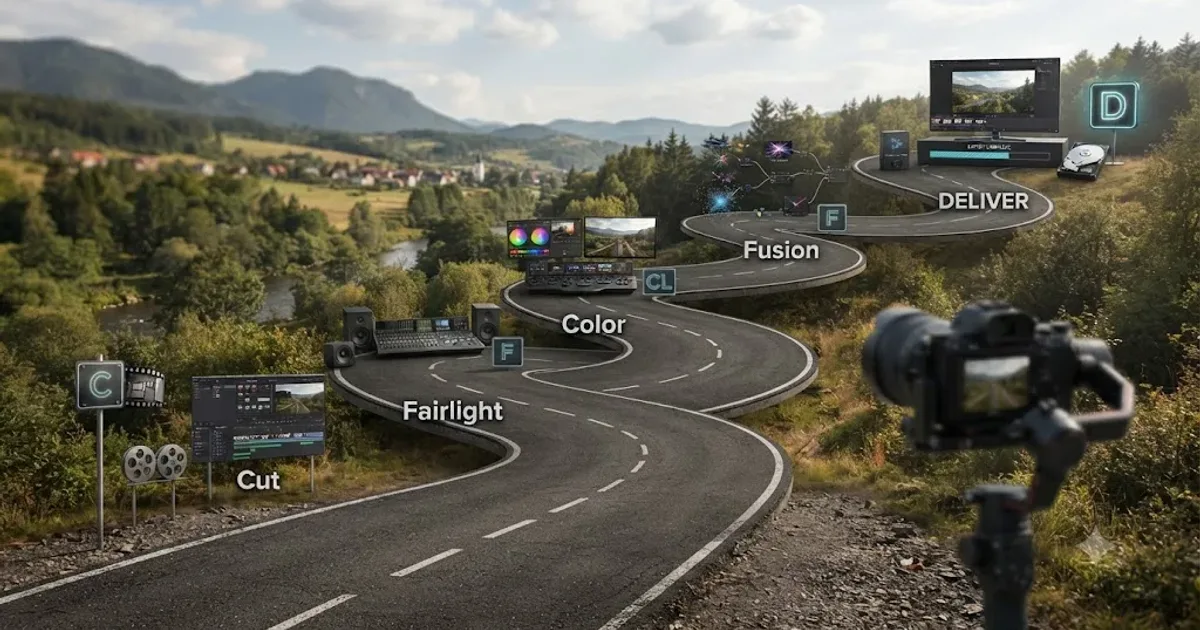
The DaVinci Resolve Learning Roadmap for Beginners
The right order to learn DaVinci Resolve: Cut or Edit, then Fairlight, Color, and Fusion, checked against Blackmagic and Ripple Training's own paths.
 ComparisonsJul 8, 202633 min read
12 Best Udemy Alternatives in 2026 (Free and Paid)
We compared 12 Udemy alternatives, free and paid, to help you pick the right one for what you're actually trying to learn.