
Learn / DaVinci Resolveupdated for DaVinci Resolve 21.0.2 and ChromeOS as of July 2026
Can You Learn DaVinci Resolve on a Chromebook?
Quick answer
No. DaVinci Resolve has no ChromeOS build, and Chromebooks can't run it reliably through Linux mode because GPU acceleration isn't stable there. You can still learn on a Chromebook by streaming Resolve from a cloud PC like Shadow, using free browser editors to learn cutting fundamentals, or borrowing time on a real Windows, Mac, or Linux machine.
You've got a Chromebook, you want to learn DaVinci Resolve, and every forum thread you've found gives you a different half-answer. Some say it's impossible. Some link you to a cloud PC ad. None of them tell you plainly what's actually going on under the hood, or what to do instead.
Here it is, plainly. DaVinci Resolve does not run on ChromeOS, full stop, and it's not close to running on ChromeOS. But "learn DaVinci Resolve" and "run DaVinci Resolve" aren't quite the same question, and there's real daylight between them worth walking through before you decide your Chromebook is dead weight. This guide covers every path people actually try, why each one fails or works, and exactly what to do at each stage of learning, whether you're testing the water or already committed.
Can DaVinci Resolve run on a Chromebook at all?
No, not natively, and not through any setting you can flip on. Blackmagic Design's own technical specifications page and its download page list exactly three supported operating systems: Windows 10 or 11, macOS 13 Ventura or later, and Rocky Linux 8.6. ChromeOS isn't there. It has never been there.
DaVinci Resolve has never shipped a ChromeOS build, and Blackmagic Design has given no indication that it plans to. That's not a gap waiting to be filled by an update. Blackmagic builds Resolve around GPU-accelerated color science, real-time debayering for camera raw formats, and a Fusion compositing engine, all of which assume a full desktop operating system with proper driver access to the graphics card. ChromeOS was built around the opposite assumption: a lightweight browser-first OS running on hardware that's cheap, thin, and rarely has a discrete GPU worth accelerating anything with.
| Path | Runs real DaVinci Resolve? | What you get instead |
|---|---|---|
| Direct install on ChromeOS | No | Nothing. No installer target exists. |
| Linux mode (Crostini) | Rarely, poorly | An installer that may launch, GPU acceleration that usually doesn't |
| ChromeOS Flex | No | Same Crostini wall, on repurposed old hardware |
| Cloud PC (Shadow, similar services) | Yes | The real app, running on a rented remote GPU, streamed to your screen |
| Chrome Remote Desktop into your own PC | Yes | The real app, running on hardware you already own, for free |
| Browser-based editors (CapCut, Clipchamp, WeVideo) | No, different software entirely | A real, usable editor, just not DaVinci Resolve |
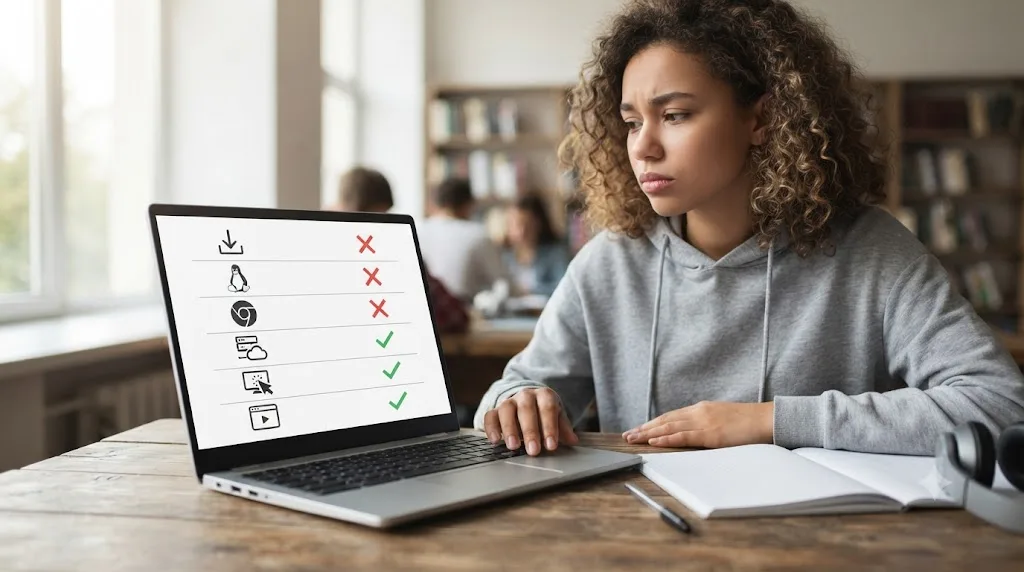
Why doesn't DaVinci Resolve support ChromeOS?
Because ChromeOS was never built to hand over the thing Resolve needs most: direct, reliable GPU access. Every page in Resolve, Cut, Edit, Color, Fusion, Fairlight, Deliver, leans on the graphics card for something. Scrubbing a 4K timeline, applying a node-based color grade, rendering a Fusion composite, even just displaying accurate scopes, all of it routes through OpenCL or CUDA calls to the GPU. Those are two competing standards for letting an application hand heavy math off to a graphics card instead of the CPU, and Resolve depends on one or the other being available and exposed cleanly by the operating system, every single session.
ChromeOS is architected around sandboxed, low-privilege app execution. Its native Android and web apps never get that kind of raw hardware access, by design, because that sandboxing is a big part of why Chromebooks are cheap, fast to boot, and resistant to the malware that plagues traditional Windows machines. It's a reasonable tradeoff for a device built to browse, write documents, and run lightweight apps. It's a dealbreaker for an app built around real-time, GPU-heavy color science. Windows and macOS both grant desktop applications direct, low-level access to graphics drivers as a baseline assumption. ChromeOS treats that same access as something to be walled off and rationed out, one narrow exception at a time, which is a fine philosophy for security and a poor one for professional creative software.
Blackmagic isn't being stubborn here. Building and maintaining a ChromeOS port would mean solving the exact GPU access problem ChromeOS was designed to avoid, for a user base that's a rounding error next to Resolve's core audience of editors and colorists already on Windows, Mac, or Linux workstations.

What about Linux mode? Can't you just install the Linux version?
This is where most people get their hopes up, and where most of those hopes get dashed. Many Chromebooks include a feature called Crostini, a built-in Linux container that lets you run Linux applications inside a virtual machine on top of ChromeOS. Since Resolve has an official Rocky Linux build, it seems like a straightforward path: enable Linux mode, download the Linux installer, run it.
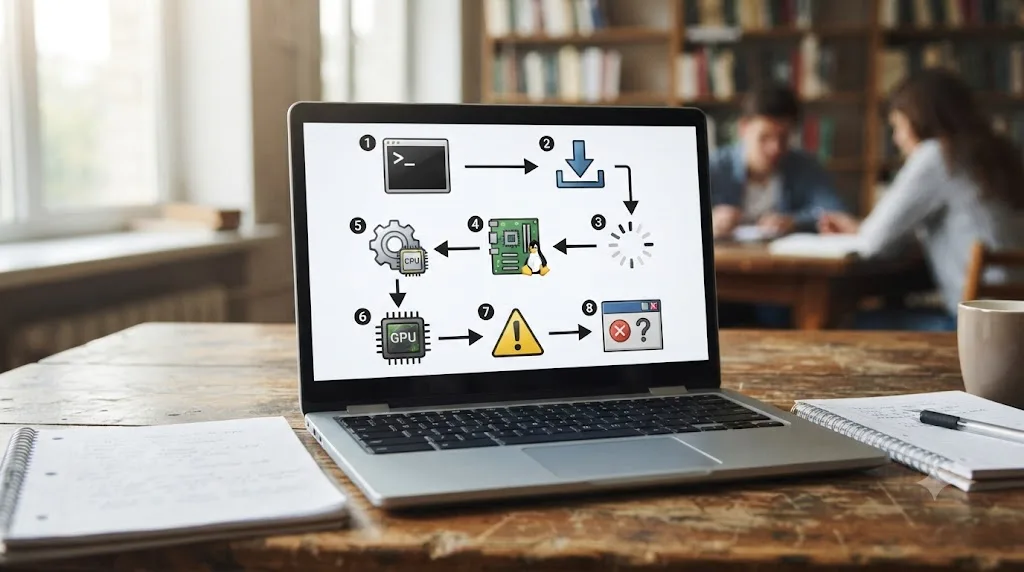
There's a wrinkle before you even get that far. Blackmagic packages the Linux build of Resolve as a .run installer built for Rocky Linux, CentOS, and RHEL, the RPM family of Linux distributions. Crostini's container is Debian-based, and Debian expects .deb packages, so the official installer often refuses to behave cleanly inside Linux mode without extra steps. Linux hobbyists have built workarounds for exactly this, like MakeResolveDeb, a community script that repackages the official .run archive into a Debian-friendly install, because Blackmagic never built Crostini into its own testing matrix in the first place. Getting past that step solves a packaging mismatch. It does nothing about the GPU wall waiting on the other side.
Some people have gotten that installer to launch anyway. A Blackmagic Forum thread specifically about Resolve on Chromebook walks through exactly this attempt, and the pattern repeats: install completes, app opens, and then GPU acceleration fails to pass through the virtual machine correctly, landing Resolve in what the community calls an unsupported GPU processing mode. In that state, the app might technically run, but playback stutters, renders crawl, and some effects simply won't display.
Crostini's GPU passthrough support is real but narrow. It depends on your specific Chromebook's processor, its graphics driver stack, the Mesa drivers ChromeOS ships, and which ChromeOS build you're running, and even when every piece lines up, it's tuned for lighter 3D workloads like game emulators or CAD previews, not a professional color grading engine chewing through 4K ProRes footage. Under memory pressure or thermal throttling, which most Chromebooks hit fast under any sustained heavy load, even a working GPU-enabled setup drops frames or falls back to slow software rendering.
The GPU acceleration DaVinci Resolve depends on for every render is exactly the piece Crostini handles worst. That's not a coincidence. It's the single hardest problem in running any serious creative app inside a Linux container, and it's the first thing that breaks.
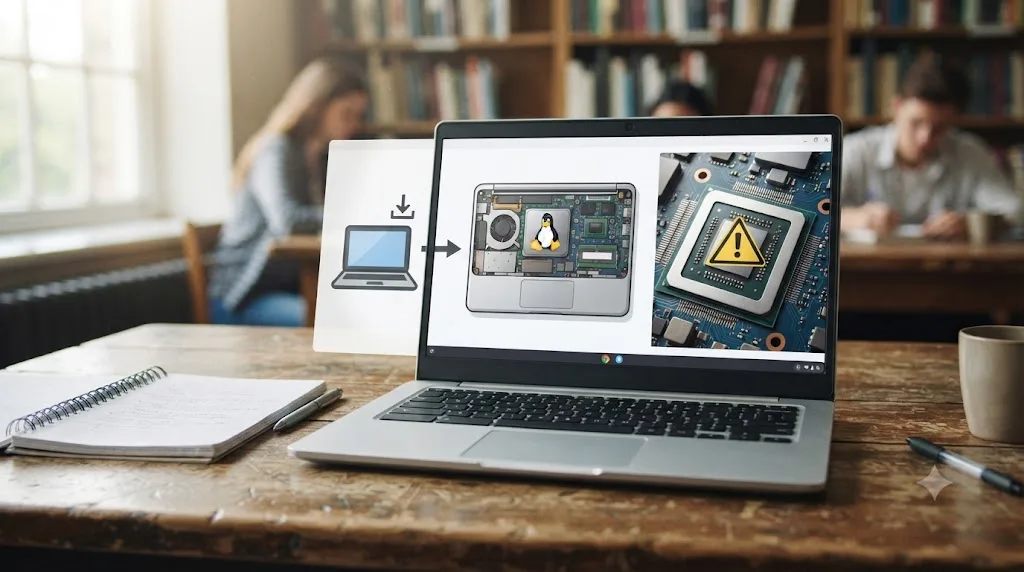
What actually happens if you try to install DaVinci Resolve through Crostini anyway?
Here's the walkthrough people actually report, pieced together from forum threads and troubleshooting guides, step by step:
- You turn on Linux (Beta) in ChromeOS Settings, which provisions a small virtual machine and a Debian container inside it.
- You download DaVinci Resolve's Linux
.runinstaller from Blackmagic's site inside that container. - You repackage or extract it, often with a community tool like MakeResolveDeb, because the installer targets Rocky Linux rather than Debian.
- The installer runs, and Resolve appears in your app launcher.
- You open it, and either it crashes on launch, or it opens into a dialog reading "Unsupported GPU processing mode."
- You go into Resolve's Preferences, System tab, Memory and GPU section, and try switching between OpenCL and CUDA processing modes, because that's the standard fix for this exact error on real Linux desktops.
- Neither option sticks, because Crostini's virtual GPU, built on a compatibility layer that Chromium's own developers document as Virgl, never exposes real OpenCL or CUDA acceleration to the container, only a generic rendering path meant for lightweight desktop graphics.
- Resolve either refuses to open the Color or Fusion pages, or it opens them at a frame rate closer to a slideshow than a working timeline.
Every documented Crostini attempt at running DaVinci Resolve ends at the same GPU wall, just reached by a slightly different route. Here's what the specific errors people search actually mean:
| What you see | What it actually means | Does it have a fix? |
|---|---|---|
| Installer won't run, or a wrong-package-format error | Resolve's installer expects an RPM-based distro; Crostini is Debian-based | Yes, community tools like MakeResolveDeb work around this specific step |
| "Unsupported GPU processing mode" on launch | Resolve can't find a GPU it recognizes as OpenCL or CUDA capable | No reliable fix inside Crostini |
| App opens but panels stay grey or blank | Fusion or Color page rendering failed to initialize on the virtual GPU | No |
| Playback stutters badly past a basic cut | Falling back to software rendering instead of GPU acceleration | Not meaningfully; lowering resolution helps marginally, not enough for real work |
Does ChromeOS Flex change anything?
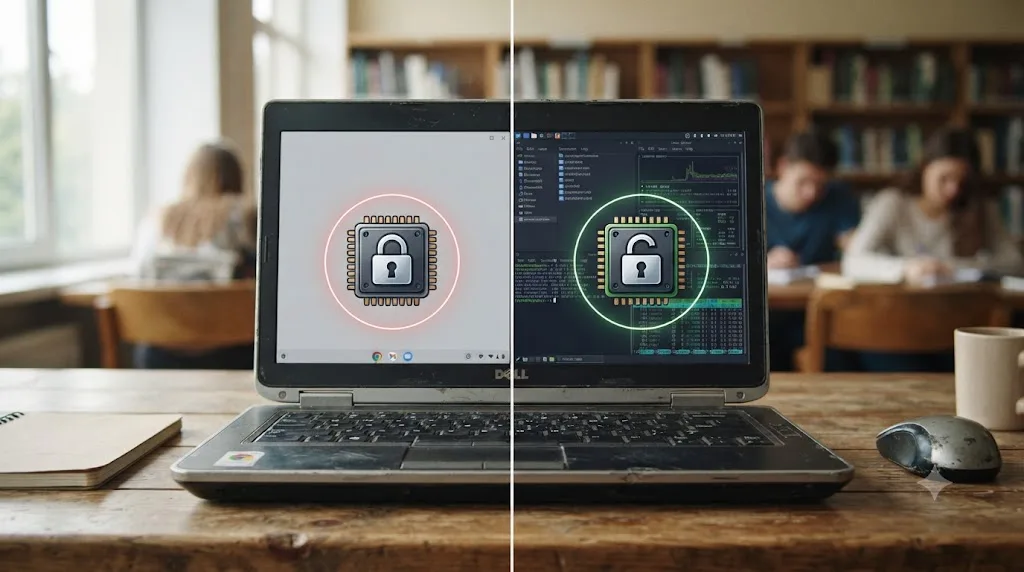
No, and it's worth ruling this out specifically because it comes up constantly in forum threads about reviving old laptops. ChromeOS Flex is Google's free operating system that turns an old Windows or Mac laptop into something that looks and feels like a Chromebook, installed from a USB drive. Some people assume that because Flex runs on real x86 laptop hardware, maybe with a real discrete GPU sitting unused underneath, it sidesteps the Chromebook GPU problem entirely.
It doesn't, because ChromeOS Flex still uses the same Crostini Linux container architecture as a physical Chromebook. A second Blackmagic Forum thread, this one specifically about a Chrome OS Flex install attempt, documents someone hitting the identical wall: the Resolve installer runs inside Flex's Linux layer, but the GPU never passes through the virtual machine cleanly, landing in the same unsupported processing mode.
João Carrasqueira, a technology writer at XDA Developers who tested ChromeOS Flex against a full Linux distribution on the same old laptop, put the underlying limitation bluntly in his comparison:
"Any app for ChromeOS is little more than a web wrapper, showing you a web page in a way that makes it look like a proper app. And yes, you can do a lot with web apps these days, but you can't do everything, and it may not always be the most comfortable."
His conclusion after testing was to install a full Linux distribution instead of ChromeOS Flex on that same repurposed laptop, specifically because a real Linux desktop environment gives you actual GPU driver access and lets genuine desktop software, including Resolve, run the way it's meant to. ChromeOS Flex, by design, keeps you inside the same sandboxed model as a store-bought Chromebook, no matter how capable the underlying hardware happens to be.
If your old laptop has a real discrete GPU sitting idle, putting a full Linux distribution on it beats putting ChromeOS Flex on it, every time you actually want to run desktop creative software. That's a different laptop project than a Chromebook, but it's the honest answer for anyone holding spare hardware and hoping ChromeOS Flex was a shortcut.
Why could some Chromebooks play Steam games when DaVinci Resolve can't run at all?
This confuses people who remember Chromebook gaming headlines, and it's worth clearing up because it looks like a contradiction. It isn't.
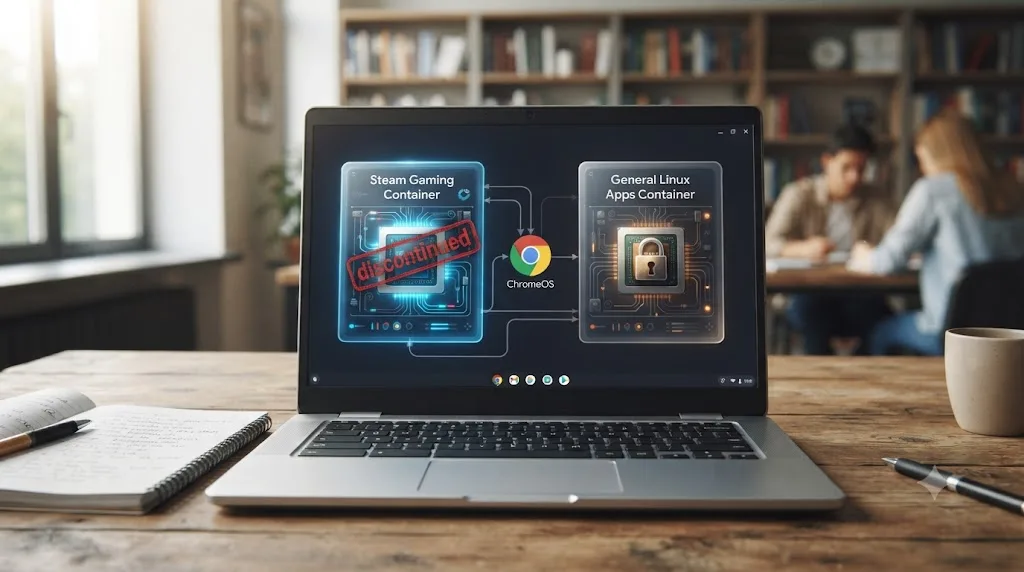
Google didn't run Steam through Crostini. It built an entirely separate container called Borealis, based on Arch Linux rather than Crostini's Debian, running directly as its own virtual machine image instead of a container bolted onto the general-purpose Linux environment. Borealis existed specifically to give Steam and its games privileged, direct access to the GPU, the exact kind of access Crostini was never built to hand out to general Linux apps like DaVinci Resolve. It was a purpose-built exception, not a general GPU fix that other Linux software could ride along on.
DaVinci Resolve never had a Borealis-style path on ChromeOS, and now neither does Steam. Google shut down the Steam for Chromebook Beta program on January 1, 2026, ending the beta after roughly four years without it ever exiting testing. Even the one workload Google engineered custom, privileged GPU access for on ChromeOS didn't survive as a permanent feature. That's a signal, not a coincidence. Building and maintaining real GPU access on ChromeOS, even for a single blessed use case with a huge, enthusiastic user base behind it, was still enough ongoing work that Google walked away from it. A specialized creative app like Resolve, serving a far smaller ChromeOS audience than PC gaming ever did, was never going to get that same investment, and the fact that Google didn't keep funding the one exception it did build only reinforces that.
Does it matter if your Chromebook has an ARM or Intel chip?
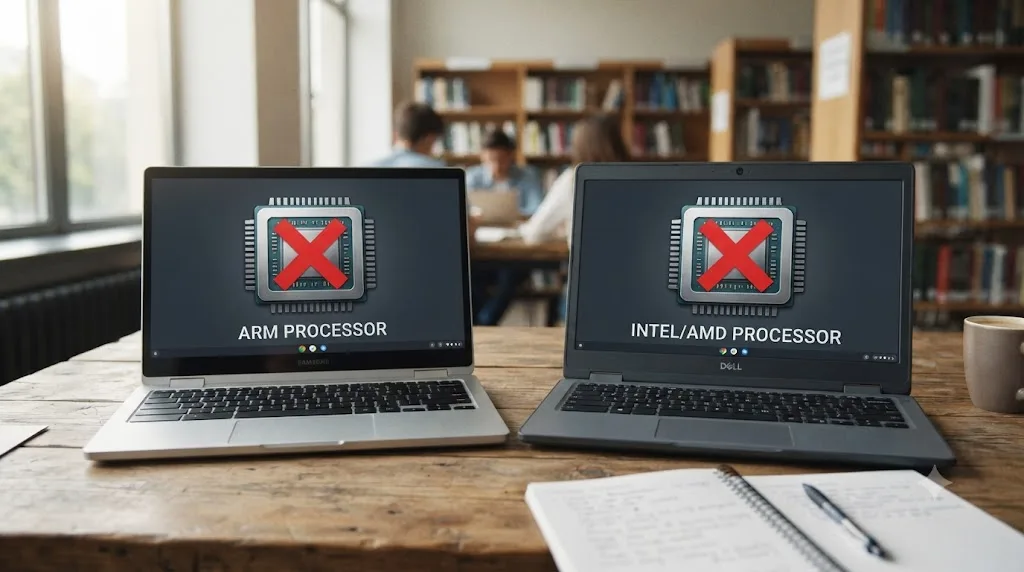
A little, though it's mostly academic here since neither chip gets you a working Resolve install. Chromebooks split between two chip families: ARM processors from Qualcomm and MediaTek, and x86 processors from Intel and AMD. As of the most recent market data, x86 chips still power roughly 71 percent of Chromebooks sold, with ARM concentrated in the cheapest and most education-focused models, though ARM has been climbing steadily as chips like MediaTek's Kompanio Ultra line push into higher price tiers.
That architecture split matters a lot for general Linux app compatibility. Linux software, including things like development tools and lighter creative apps, tends to have better driver and package support on x86 hardware, since that's what most Linux distributions and their hardware vendors have optimized for over the last two decades. An ARM Chromebook running Crostini faces an extra layer of compatibility friction that an Intel or AMD Chromebook doesn't.
None of that changes the Resolve answer, though. DaVinci Resolve's official Linux build targets x86-64 hardware specifically, so even the more Linux-friendly x86 Chromebooks are still trying to squeeze a desktop-class GPU workload through the same narrow Crostini pipe that fails on ARM. On an ARM Chromebook, there isn't even a theoretical path forward, since Resolve's Linux binary won't run on that chip architecture at all, GPU access or not. The chip architecture decides whether basic Linux tools run smoothly. It doesn't decide whether Resolve's GPU-hungry rendering pipeline gets through, because that wall exists in the container layer itself, above the chip.
Does Chromebook RAM matter here too, separate from the GPU problem?
Yes, and it's worth naming because the GPU wall isn't even the only wall. Blackmagic's stated minimum for DaVinci Resolve is 16GB of system RAM, and that's a floor, not a comfortable working amount. Most Chromebooks ship well under that. Budget and mid-range models commonly ship with 4GB or 8GB of RAM, tuned for a browser-and-web-apps workload, not a professional NLE. Even Google's premium Chromebook Plus certification tier, meant to signal a more capable machine, is built around a smoother browsing and light-productivity experience, not around clearing the RAM baseline serious desktop creative software expects.
Even a hypothetical Chromebook with perfect GPU passthrough would still fail DaVinci Resolve's minimum RAM requirement in most configurations sold today. That's worth sitting with, because it means the GPU sandboxing covered above isn't the only thing standing between a Chromebook and a working Resolve install. It's just the first wall you'd hit. Clear that one somehow, hypothetically, and the RAM ceiling on most Chromebook hardware is waiting right behind it.
What if your Chromebook is school-issued or managed by an employer?
Then the Crostini path is probably closed before you even try it, and that's worth knowing before you spend an evening troubleshooting a wall that isn't there for technical reasons at all. Crostini ships disabled by default on Chromebooks enrolled in Google's Admin Console, the management system schools and employers use to control their Chromebook fleets. Turning Linux mode on requires an IT administrator to explicitly allow it at the organization level. Most school districts never do, partly because Linux mode opens a door around the content filtering and app restrictions that managed ChromeOS is built to enforce in the first place.
If you check ChromeOS Settings on a school or work Chromebook and the Linux toggle is greyed out, that's not a bug and it's not something you can fix from the settings menu. It means an administrator switched it off, deliberately, at the organization level, and getting it turned back on means asking that administrator, not searching for a workaround. Some students try unenrolling a managed Chromebook to strip the restrictions entirely, but that typically requires a factory reset and admin-level unenrollment permissions that most school-issued devices lock down specifically to prevent it.
A greyed-out Linux toggle on a school Chromebook is an administrative decision, not a technical limitation you can route around. Even on the rare managed device where Crostini is allowed, you're still walking into the same GPU wall covered above. Loosening the policy gets you access to a Linux container. It doesn't get you a working copy of DaVinci Resolve.
Can cloud streaming let you run DaVinci Resolve on a Chromebook?
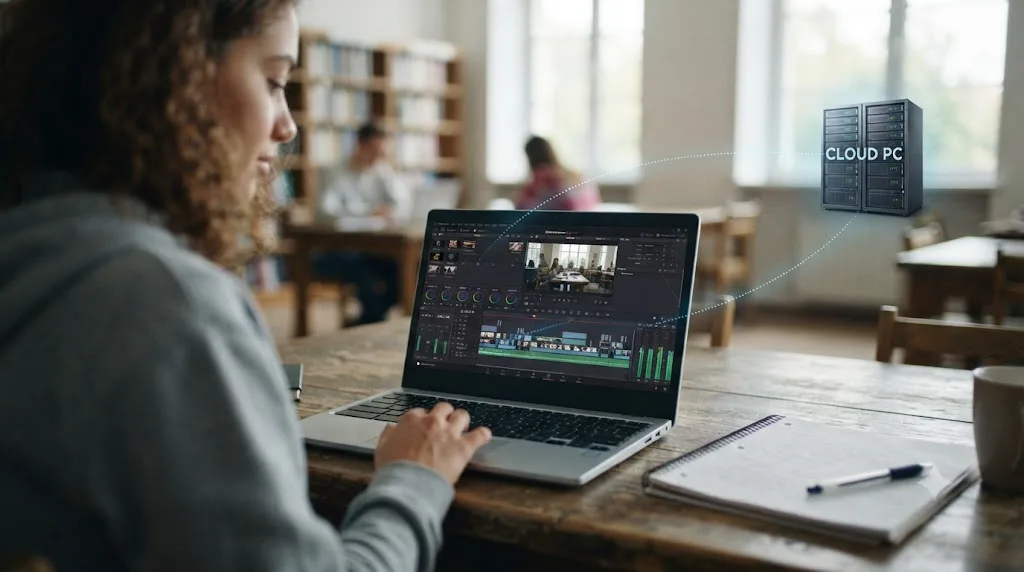
Yes, and this is the one path that actually runs the real application rather than a substitute. Services like Shadow and Vagon rent you a full remote Windows PC with a dedicated GPU, sitting in a data center somewhere, and stream its screen to your Chromebook over the internet. DaVinci Resolve installs and runs entirely on that remote machine. Your Chromebook is just the window you're looking through, along with your keyboard and mouse input going the other direction.
A Chromebook that streams a cloud desktop isn't running DaVinci Resolve. It's watching someone else's computer run it. That distinction matters because it changes what you're actually paying for and what breaks when things go wrong. You're not troubleshooting your Chromebook's GPU drivers anymore. You're troubleshooting your internet connection, since Vagon's own guidance recommends at least 20Mbps of upload and download bandwidth with low latency for a usable experience, and any hiccup in that connection shows up as stutter or input lag rather than a crash.
Latency matters more here than most first-timers expect, and it matters differently depending on what you're doing. Cutting a timeline tolerates a little lag just fine, since a half-second delay between a click and a cut barely registers. Fine-tuning a color wheel doesn't hide it nearly as well, because you're watching the image respond to a small adjustment and judging the result by eye, in real time. A remote session adds a round trip on top of Resolve's own processing time: your input travels to the remote machine, Resolve renders the change, and the new frame streams back to your screen. On a fast, low-latency connection, that round trip is close to invisible. On a slower or congested one, it becomes a visible half-beat delay between moving a wheel and seeing the result, which makes fine color work noticeably harder to judge, even when the video stream itself looks smooth.
| Service | What you rent | Notes |
|---|---|---|
| Shadow | A configurable Windows cloud PC, tiers up to a Quadro RTX 6000 with 24GB VRAM | You still need your own DaVinci Resolve license; DaVinci Resolve Studio isn't bundled with the subscription |
| Vagon | A cloud computer sized to your project, billed by usage or plan | Built specifically around creative workloads, with cloud file upload tools for footage |
| GeForce NOW and similar game-streaming services | Individual supported games and apps only | Not built for running arbitrary desktop software like Resolve |
Cloud PC pricing changes often enough that quoting a specific number here would be stale within a season, so check each provider's current plans directly before committing. What stays true regardless of the exact price: you're paying a recurring subscription to rent hardware you don't own, on top of whatever DaVinci Resolve license you're using, in exchange for skipping the ChromeOS wall entirely.
Renting a cloud PC to run software that's free to download is a strange kind of expensive, right up until you compare it to the cost of a laptop capable of running it locally. For someone testing whether video editing is even a path worth pursuing, that monthly fee can still be the cheaper, lower-commitment option. For someone editing every week for the next two years, buying hardware usually wins the math, and the section below on cheap real laptops walks through why.
Can you remote into your own computer instead of paying for a cloud PC?
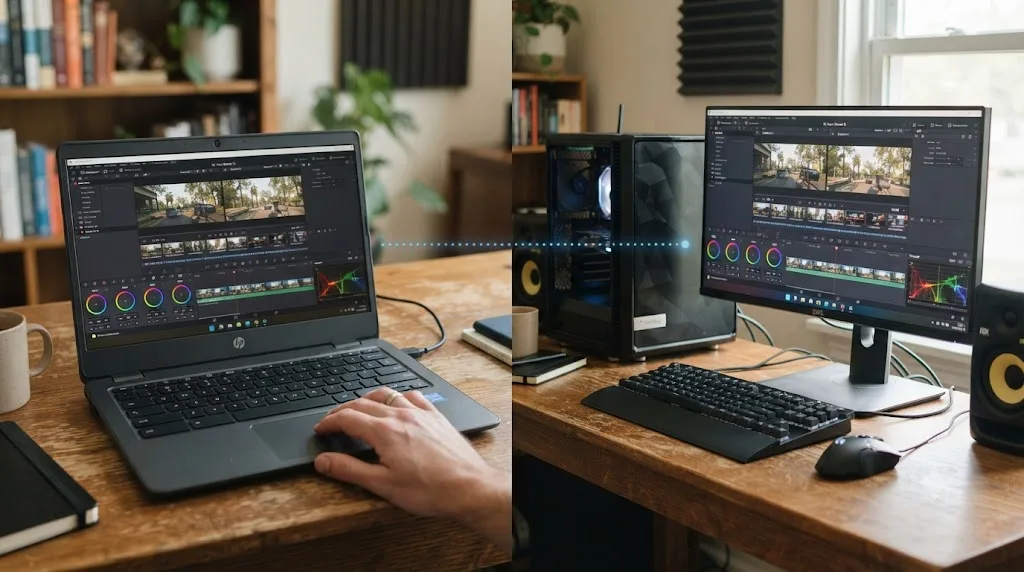
Yes, if you already own a Windows or Mac machine capable of running Resolve and you just need to reach it from wherever your Chromebook is. Chrome Remote Desktop, Google's free remote access tool, lets you install a small app on your home computer, sign in with the same Google account on your Chromebook, and pull up that computer's full desktop in a browser tab. DaVinci Resolve runs on your home machine exactly as it always has. Your Chromebook just becomes a window into it, the same idea as a paid cloud PC service, minus the monthly bill.
This only works within real limits, and they're worth naming plainly:
- Your home computer has to stay on and awake. Sleep settings that shut the machine down when you close the lid or after a period of inactivity will drop your remote session, so you need to configure it to stay available while you're working.
- You're bound by your home upload speed, not your Chromebook's download speed. The computer you're controlling is doing the uploading, streaming its screen out to wherever you're sitting with the Chromebook, so a slow home connection creates the same stutter and lag issues covered above.
- It's still just remote control of a real desktop, not magic. If that home machine doesn't already clear Blackmagic's minimum specs, covered further down, remoting into it doesn't fix that. You're just moving the same underpowered machine into a different room.
- Free doesn't mean unlimited. Chrome Remote Desktop is free to use, but it's a consumer tool built for general remote access, not tuned specifically for the color-accurate, high-bitrate demands of a professional grading session the way a paid cloud PC service markets itself as being.
If you already own a real Windows or Mac desktop at home, Chrome Remote Desktop is a genuinely free way to reach DaVinci Resolve from a Chromebook, with no subscription required. It's the one path through this whole problem that costs nothing beyond hardware you may already own, and it's worth trying before you sign up for a paid cloud PC service if you have any real computer sitting idle somewhere.
How do you get your footage onto a cloud PC without losing a whole afternoon to uploading?
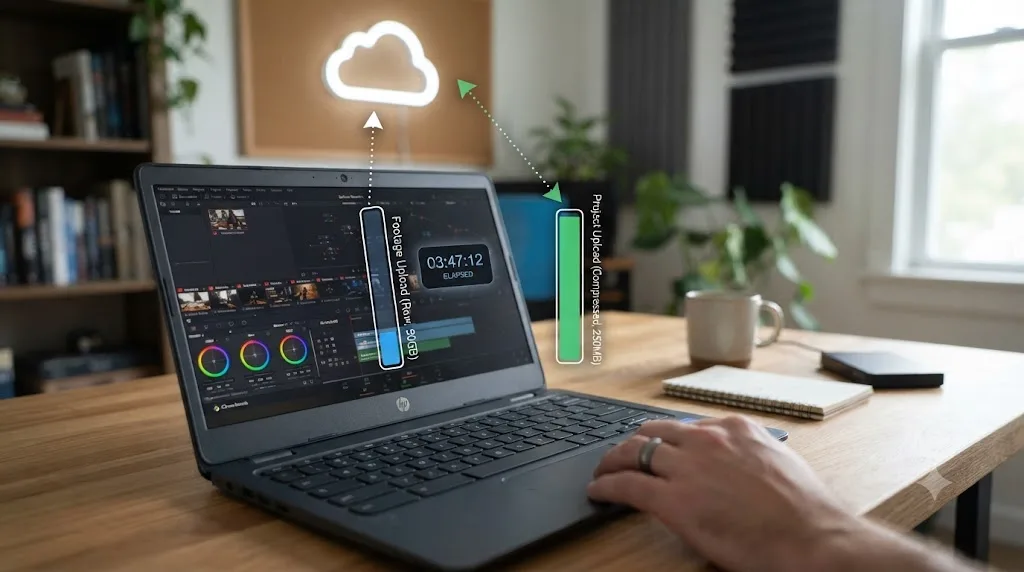
This is the part cloud PC marketing pages tend to skip, and it trips people up on their first real project. Whether you're using a paid service like Shadow or Vagon, or your own home computer through Chrome Remote Desktop, your source footage has to get onto that remote machine before you can edit a single frame, and 4K footage is heavy.
A minute of 4K ProRes footage runs roughly 4.4 to 6.6GB, depending on the camera and the specific ProRes variant, with heavier variants like ProRes 4444 running higher still. Here's what that means in practice for a modest project's worth of source clips:
| Footage | Approx. size | Upload time at 20Mbps | Upload time at 100Mbps |
|---|---|---|---|
| 10 minutes of 4K ProRes 422 HQ (~6GB/min) | ~60GB | About 6.7 hours | About 80 minutes |
| 30 minutes of 4K ProRes 422 HQ | ~180GB | About 20 hours | About 4 hours |
| 10 minutes of 4K H.264 (typical camera/phone footage, ~130MB/min) | ~1.3GB | About 9 minutes | About 2 minutes |
Vagon's own guidance for running Resolve on a Chromebook recommends at least 20Mbps of upload bandwidth just to keep the remote session itself responsive, before you've uploaded a single clip. But the average US household upload speed sits well behind download speeds on the most common home connection type, cable, often closer to 20 to 25Mbps even where download speeds run into the hundreds. At that ceiling, uploading raw ProRes footage competes directly with the bandwidth your remote session needs to stay smooth, and a big transfer running in the background can make the whole cloud PC feel laggy mid-edit.
A 10-minute clip of 4K ProRes footage can take longer to upload to a cloud PC than it does to actually edit once it's there. Three things make this workable instead of miserable:
- Transcode heavy camera formats to a lighter proxy or delivery codec before upload, if your camera shoots something more efficient than ProRes. Most consumer cameras and phones actually shoot H.264 or H.265, which run a fraction of ProRes's size for the same footage, so check your camera's format before assuming you're stuck with the heaviest numbers above.
- Upload overnight or in batches, rather than trying to move a whole project's footage right before a session, so the transfer doesn't compete with your actual editing time.
- Check whether your chosen service offers a desktop uploader with resume support, since Vagon markets cloud upload tools built specifically around creative workflows, precisely because this is a known pain point for their customers, not an edge case.
What can you actually learn on a Chromebook while you wait for real hardware?
More than nothing, and it's worth separating "learning DaVinci Resolve's specific interface" from "learning the editing and color skills that transfer into it." A Chromebook handles the second category fine.
Free browser-based editors like Clipchamp, CapCut's web version, and WeVideo run entirely in ChromeOS's native environment, no Crostini required, and Filmora's own roundup of Chromebook video editors confirms they handle trimming, transitions, text, and basic color adjustments without hardware compromises.
| Browser editor | Runs natively on ChromeOS | Multi-track timeline | Keyframing | Closest DaVinci Resolve skill it builds |
|---|---|---|---|---|
| Clipchamp | Yes | Yes | Basic | Trimming, transitions, basic color |
| CapCut Web | Yes | Yes | Yes | Keyframed effects, pacing for short-form cuts |
| WeVideo | Yes | Yes | Basic | Multi-track structure, the closest to a "real NLE" feel among the three |
| Kapwing | Yes | Limited | Basic | Captioning and quick social-format edits |
None of them are DaVinci Resolve, and none of them will teach you Resolve's node-based color page or its Fusion compositing tools, which have no real equivalent in a simplified browser editor. But cutting a timeline for rhythm, understanding basic color correction concepts like exposure and white balance, and getting comfortable with a keyframe are skills that carry over regardless of which app you learned them in first.
Blackmagic's own free training guides and YouTube channels teaching Resolve, Casey Faris among the best known, also work perfectly on a Chromebook, since you're just watching video, not running the app. Our DaVinci Resolve learning roadmap for beginners walks through the right order to tackle each page once you do have access to the real app, and there's no reason you can't study that order and watch the corresponding tutorials on a Chromebook today, then apply them the first time you sit at a machine that actually runs Resolve.
You can learn the theory of color grading and cutting on a Chromebook. You cannot learn DaVinci Resolve's actual interface without running DaVinci Resolve. That's the honest line between what a Chromebook gets you and what it doesn't, and pretending otherwise just sets up a frustrating first session whenever you finally get in front of the real app.
What should you actually do with a Chromebook for the next month while you figure out your hardware plan?
A concrete plan beats vague advice, so here's a realistic four-week ramp that treats the Chromebook as what it is: a placeholder, not a workaround.
- Week 1: Work through Blackmagic's own free training modules and a beginner playlist from a creator like Casey Faris, entirely in your browser, no installs required. Focus on understanding what each of Resolve's seven pages, Media, Cut, Edit, Fusion, Color, Fairlight, and Deliver, is actually for, conceptually, before you ever touch the real interface.
- Week 2: Cut a real project, start to finish, in a free browser editor like Clipchamp or WeVideo. Pick something with actual footage, even just phone clips, and force yourself through trimming, ordering, basic titles, and an export. The goal isn't the output. It's building the muscle memory of finishing an edit.
- Week 3: Study color correction and grading theory specifically, separate from any software: exposure, white balance, contrast, the basics of primary versus secondary correction. YouTube has extensive theory-only content that never touches Resolve's interface directly and still teaches the underlying skill.
- Week 4: Book a session, whether that's a cloud PC trial, a library computer, a school lab slot, or a friend's machine, and open real DaVinci Resolve for the first time with that theory and editing muscle memory already in place, instead of learning both the software and the concepts at once.
Learning Resolve's concepts before you ever open the real app turns your first hands-on session into practice instead of a crash course. That's the actual value a Chromebook offers here, not a workaround for running the software, but a low-stakes place to front-load everything that doesn't require running it.
What about an iPad or tablet instead of a Chromebook?
Worth a quick detour, since Chromebook shoppers often cross-shop tablets too. DaVinci Resolve does have an actual iPad app, unlike ChromeOS, but it's a deliberately reduced version of the desktop software, missing Fusion entirely and running a trimmed set of Color page tools. Our full breakdown of DaVinci Resolve on iPad covers exactly what that app can and can't do, and which iPad models handle it well.
An iPad running the real DaVinci Resolve app beats a Chromebook running nothing at all, but it's still not the full desktop experience. If you're choosing between a budget Chromebook and a budget iPad specifically to learn Resolve, the iPad gets you closer, because it runs an actual, if limited, version of the software instead of nothing.
What's the cheapest real laptop that runs DaVinci Resolve, if not a Chromebook?
Cheaper than most people assume, and worth pricing out before you commit to a cloud PC subscription that outlasts the cost of buying real hardware. Blackmagic's stated minimum for DaVinci Resolve is a 64-bit Windows 10 or Windows 11 machine, or a Mac on macOS 13 Ventura or later, with a quad-core CPU, at least 16GB of RAM, and a GPU carrying at least 2GB of VRAM with OpenCL or CUDA support.
That bar is lower than the hardware most creators end up wanting for comfortable 4K work, but it's a real, working floor, not a marketing minimum that quietly fails in practice. A three or four-year-old Windows laptop with a discrete GPU, even an entry-level one, clears it. A used Apple Silicon Mac mini, the base M1 or M2 model, clears it easily and tends to hold resale value better than an equivalent Windows laptop, making it one of the more forgiving used-hardware bets if you later decide editing isn't for you.
The breakeven logic here is simple, even without pinning down exact dollar figures that would go stale within a season. A cloud PC subscription is a recurring cost that resets to zero owned equipment the moment you cancel. A used Mac mini or budget Windows laptop is a single upfront cost that you keep, with resale value if you ever walk away from editing. If you're only testing whether video editing interests you, renting for a month or two costs less than buying hardware you might never touch again. If you already know you're editing weekly for the next year or more, that monthly rental adds up past the price of real hardware faster than most people expect, and you're left with nothing to show for it afterward.
Our cheapest way to learn DaVinci Resolve breaks down the full cost picture, software, training, and hardware together, and the software and training half of that equation costs nothing regardless of what you're running it on. The hardware is the one line item a Chromebook genuinely can't substitute for, no matter how good the free tutorials are.
| Minimum spec (Blackmagic's stated floor) | Typical budget laptop that clears it |
|---|---|
| 64-bit Windows 10/11 or macOS 13+ | Most Windows laptops from 2021 onward with a discrete GPU |
| Quad-core CPU | Nearly any laptop CPU sold in the last five years |
| 16GB RAM | Common on mid-range laptops; some budget models still ship 8GB, check before buying |
| 2GB VRAM, OpenCL/CUDA support | Entry-level discrete GPUs (GTX/RTX 30-series or later, Radeon RX equivalents); Apple Silicon integrated GPUs qualify |
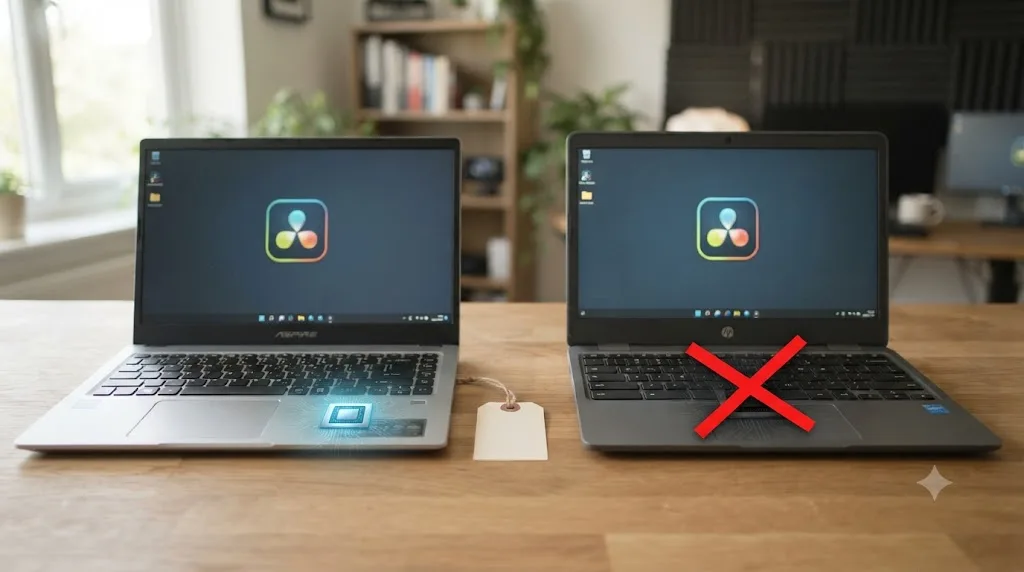
Can an AI tool help you learn DaVinci Resolve if you're stuck on a Chromebook?
Only once you've cleared the hardware problem first, and it's worth naming that limit rather than glossing over it. TryUncle is the on-screen assistant for DaVinci Resolve on macOS. Ask in plain words, and Uncle points at the exact control on your screen. It works by watching your actual DaVinci Resolve session through macOS's screen and accessibility permissions, then answering your question by pointing directly at the button, panel, or menu you're asking about, live, inside the app you're using.
That mechanism only exists because there's a real DaVinci Resolve session running on a real Mac for it to watch. A Chromebook, whether it's stuck on a browser, a half-working Crostini install, or a streamed cloud session, doesn't give TryUncle, or any comparable tool, that same foothold. The same limit applies to the rest of the category people search for when they type "AI tool to learn DaVinci Resolve": CutAgent and Sottocut automate parts of the edit for you inside a running desktop timeline, PremiereCopilot and Eddie AI answer questions or drive edits through a desktop plugin, and every one of them assumes the same thing TryUncle does, a real copy of Resolve running on real desktop hardware they can see or connect to.
Worth being precise about what TryUncle actually is here, since it gets confused for other things: a paid macOS app at $39 a month, cancel anytime, never free and never marketed as free. Check TryUncle directly for the current rate. Our full roundup of AI tools to learn DaVinci Resolve covers where each of these tools, and free options like ChatGPT and Claude for declarative questions, actually fit into a learning workflow, once you're at a machine that can run the software they're all built to watch.
If you do get to a cloud PC or a remote home desktop running real Resolve on macOS, though, that machine can run TryUncle exactly as it would if you were sitting in front of it locally, since the app is watching whatever's on screen, not caring how you got your input there. A Chromebook streaming into a Mac mini through Chrome Remote Desktop is, from TryUncle's point of view, indistinguishable from someone sitting at that Mac mini directly.
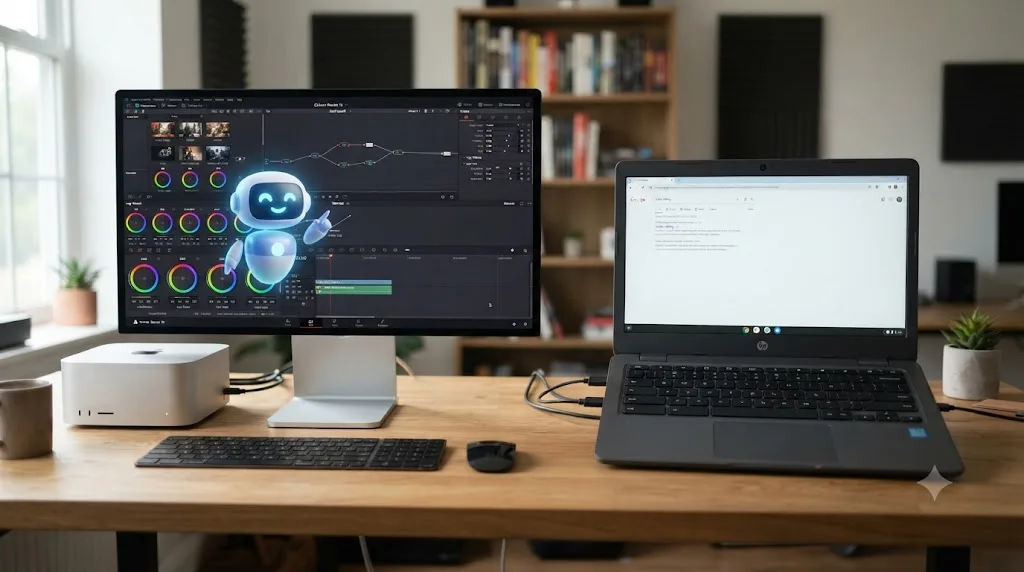
Which path actually fits your situation?
Four real scenarios cover most people asking this question. None of them get a Chromebook running actual DaVinci Resolve, because none of them can, but each ends somewhere different depending on what you're actually trying to do.
Scenario 1: You want to find out if you even like video editing before spending money. Stick with your Chromebook for now. Work through free tutorials and a browser editor like Clipchamp or CapCut Web to learn cutting rhythm and basic color concepts. When you're ready to touch real Resolve, a single free trial month of a cloud PC service, or a few sessions on a library or school lab computer, is enough to find out whether the deeper toolset clicks for you. Don't buy hardware yet.
Scenario 2: You know you want to learn Resolve specifically, and you're doing it consistently, weekly or more. A cloud PC subscription adds up fast at that cadence, and you'll hit the bandwidth and footage-upload friction covered above on every single session. This is the point where a budget Windows laptop or a used Mac mini that clears Blackmagic's stated minimums earns its cost back, usually well within a year of weekly use, and you avoid re-uploading footage every time you sit down to edit.
Scenario 3: You're traveling, or your only device on hand for a stretch of time is a Chromebook, but you own real hardware at home. Chrome Remote Desktop, covered above, is the answer, not a paid cloud PC. You already own the machine that runs Resolve. You just need a window into it, and that's free.
Scenario 4: Your Chromebook is school-issued or managed, and Crostini is locked down by policy. None of the local workarounds apply to you, since the block is administrative, not technical. Cloud PC streaming or a library or lab computer are your only real options until you own an unmanaged device.
Troubleshooting quick reference: what each wall actually means
Different attempts hit different walls. This table pulls every failure mode covered in this guide into one place, so you can match what you're seeing to what's actually happening.
| What you're trying | What you'll hit | Root cause | Any real fix? |
|---|---|---|---|
| Direct install on ChromeOS | No installer, nothing downloads | ChromeOS isn't a supported OS; no build exists | No |
Crostini install of Resolve's Linux .run file | Wrong package format error | Installer targets RPM-based Rocky Linux/CentOS; Crostini is Debian-based | Yes, tools like MakeResolveDeb work around this specific step |
| Resolve launching inside Crostini | "Unsupported GPU processing mode" dialog | Crostini's virtual GPU doesn't expose real OpenCL/CUDA acceleration | No |
| ChromeOS Flex install attempt | Same GPU wall as physical Chromebooks | Flex uses the same Crostini architecture regardless of the underlying hardware | No, unless you install full Linux instead of Flex |
| Steam via Borealis (historical) | Games ran, but the whole program was discontinued January 2026 | Google decided even a purpose-built, privileged-GPU container wasn't worth maintaining long term | Not applicable; the feature no longer exists |
| Managed or school Chromebook, Linux toggle greyed out | Can't even reach a Crostini attempt | IT admin policy disabled Linux mode at the organization level | Only by an admin re-enabling it |
| Cloud PC session, choppy video or input lag | Not a Resolve problem at all | Insufficient upload/download bandwidth or high latency to the remote machine | Yes, a faster or more stable connection |
| Large footage upload to a cloud PC crawling | Not a Resolve problem at all | ProRes and similar formats run 4-7GB per minute of footage; home upload speeds average 20-25Mbps | Yes, transcode to a lighter format first, or upload overnight |
Could this change in the future? Will ChromeOS or DaVinci Resolve ever bridge this gap?
Nothing points that direction right now, and the trend line this year points the other way. Google spent years building Borealis specifically to give one privileged workload, Steam gaming, real GPU access on ChromeOS, and still shut the whole program down in January 2026 rather than keep maintaining it. That's a company deciding that direct GPU access on ChromeOS wasn't worth the ongoing engineering cost, for the one use case it had already built custom infrastructure for. A professional color grading and compositing app serving a smaller, more specialized audience than PC gamers isn't a stronger case for that kind of investment. It's a weaker one.
On Blackmagic's side, there's no public roadmap item, beta program, or stated interest in a ChromeOS build, and the company's own tech specs page hasn't changed its three supported operating systems in years. Nothing currently in development on either side points toward DaVinci Resolve running natively on ChromeOS. If that changes, it'll show up first as an announced beta, not a rumor, and there's no evidence of one right now. Plan around the Chromebook you have today, not a hypothetical one from a future ChromeOS release.
Should you buy a Chromebook if you're planning to learn DaVinci Resolve?
Not if that's the only device you're planning to own. If you already have a Chromebook and you're just starting to explore whether editing is something you want to pursue, keep it. Use it for the free tutorials, the theory, the browser-based practice on Clipchamp or CapCut, and treat the actual Resolve sessions as something you'll get through a cloud PC trial, a library computer, a school lab, or a friend's machine until you know this is worth investing in.
| If you are... | Then... |
|---|---|
| Curious but unsure if editing is for you | Keep the Chromebook, use free browser editors and tutorials, try one cloud PC trial before buying anything |
| Committed and editing weekly | Budget hardware (used Mac mini or entry Windows laptop) beats an ongoing cloud PC subscription within a year |
| Traveling with real hardware waiting at home | Use Chrome Remote Desktop into your own machine, free, no new purchase needed |
| On a school or work managed Chromebook | Crostini is likely blocked by policy; use a cloud PC or a lab/library computer instead |
| A hobbyist with an old spare laptop with a discrete GPU | Install a full Linux distribution on it instead of ChromeOS Flex, and run Resolve's official Linux build directly |
If you're past the exploring stage and you know you want to learn Resolve specifically, the Chromebook stops being useful the moment you sit down to actually practice, and a cloud PC subscription adds up faster than most people expect over a full year of weekly sessions. At that point, a budget Windows laptop or a used Mac mini that clears Blackmagic's stated minimums is the more durable choice, and it's very likely cheaper over twelve months than an ongoing cloud PC rental, on top of giving you a machine that also handles everything else a laptop needs to do.
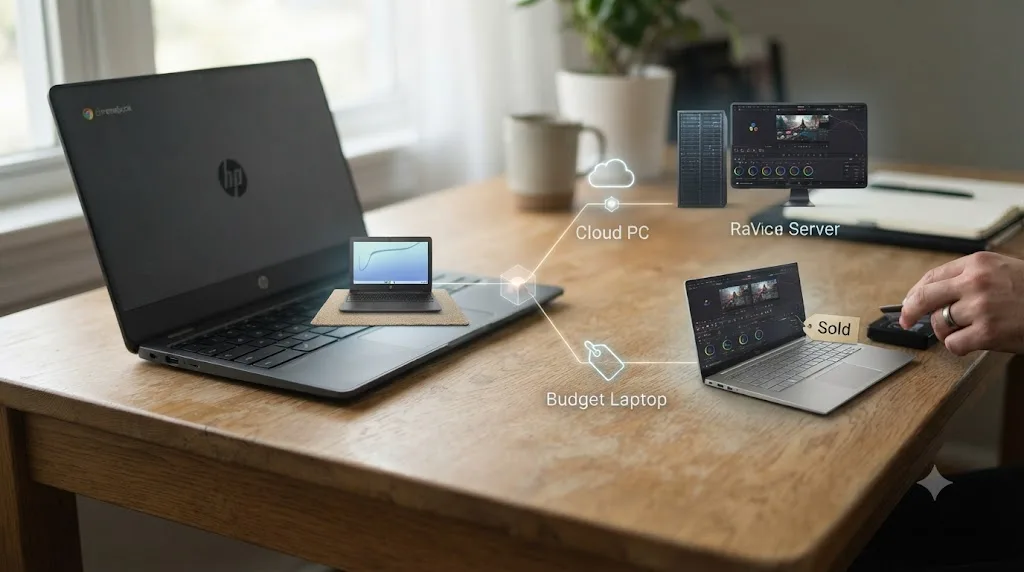
The verdict
DaVinci Resolve does not run on a Chromebook, not through Crostini, not through ChromeOS Flex, and not through any setting buried in developer options. Blackmagic Design supports Windows, Mac, and Rocky Linux, full stop, and the GPU sandboxing baked into ChromeOS's design is exactly the thing Resolve's rendering pipeline can't work around. Even Google's one attempt at carving out real GPU access on ChromeOS, the Borealis container built for Steam, didn't survive past January 2026. That's how narrow this gets.
That doesn't make your Chromebook worthless in this. It's a fine machine for the free training, the theory, and the browser-based practice that builds real editing instincts before you ever touch Resolve's interface. When it's time to actually run the software, you've got real options: rent a cloud PC and stream the real app, remote into a Windows or Mac machine you already own for free through Chrome Remote Desktop, or spend a few hundred dollars on used or budget hardware that clears Blackmagic's stated minimums and owns the machine outright. Every one of those paths gets you there. Pretending a Chromebook alone will is the only path that doesn't.
Frequently asked questions
- Can you install DaVinci Resolve on a Chromebook?
- No. Blackmagic Design's own technical specifications list Windows, macOS, and Rocky Linux 8.6 as the only supported operating systems for DaVinci Resolve. ChromeOS isn't on that list, has never been on that list, and Blackmagic has given no public sign it plans to add it. There is no download, no beta, and no workaround that installs the real desktop app directly on ChromeOS.
- Does DaVinci Resolve work through a Chromebook's Linux (Crostini) mode?
- Rarely, and not well enough to be worth the setup time. Some Chromebooks let you enable a Linux container called Crostini and install Linux software inside it, and a small number of people have gotten a Resolve installer to launch this way. But Crostini's GPU passthrough is inconsistent across devices and Chrome OS versions, and Resolve leans on GPU acceleration for nearly everything it does, from the timeline preview to color science. Most attempts end in an unsupported GPU processing mode or a program that opens but stutters on anything past a basic cut.
- What's the best way to learn DaVinci Resolve if you only own a Chromebook?
- Rent the hardware instead of buying it. A cloud PC service like Shadow gives you a real Windows machine with a dedicated GPU that you access through a browser tab or app on your Chromebook, and DaVinci Resolve runs on that remote machine exactly as it would on a desktop sitting in your room. It costs a monthly fee on top of whatever DaVinci Resolve license you're using, so it's not free, but it's the only route that runs the actual application rather than a substitute.
- Can ChromeOS Flex run DaVinci Resolve?
- No, for the same reason Crostini fails. ChromeOS Flex is Google's free operating system for repurposing old Windows or Mac laptops into Chromebook-like machines, and it uses the same Linux container system underneath. Forum reports from people who tried installing Resolve through ChromeOS Flex's Linux layer describe the identical wall: the installer runs, but the GPU never passes through cleanly, so the app can't do the work it exists to do.
- Is there an AI tool to learn DaVinci Resolve on a Chromebook?
- Not directly, and it's worth being honest about why. TryUncle is a macOS app whose AI tutor watches your DaVinci Resolve session and points at the control you're asking about, but that only works because macOS grants the accessibility and screen access it needs, on a machine actually running Resolve. Competing tools like CutAgent, Sottocut, PremiereCopilot, and Eddie AI have the same requirement: real desktop Resolve running somewhere they can see or connect to. A Chromebook running only a browser doesn't give any of them that foothold.
- What laptop should I buy instead of a Chromebook if I'm serious about learning DaVinci Resolve?
- You don't need to spend a fortune. Blackmagic's stated minimum is a 64-bit Windows 10 or Windows 11 machine, or a Mac on macOS 13 or later, with at least 16GB of RAM and a GPU with 2GB of VRAM and OpenCL or CUDA support. Plenty of budget Windows laptops from the last three or four years clear that bar, and a used Mac mini with an Apple Silicon chip is one of the cheapest ways to get consistently smooth playback.
- Do ARM-based Chromebooks make this even harder than Intel Chromebooks?
- A little, though it barely matters since neither runs Resolve at all. Roughly 70 percent of Chromebooks on the market still ship Intel or AMD x86 chips rather than ARM, and Linux app compatibility through Crostini is generally more reliable on x86 hardware. But that compatibility gap is about whether basic Linux software launches at all, not about whether DaVinci Resolve specifically will run well, since GPU acceleration is the real blocker on every Chromebook regardless of chip architecture.
Sources
- DaVinci Resolve Tech Specs (Blackmagic Design)
- DaVinci Resolve Download, system requirements (Blackmagic Design)
- Blackmagic Forum - DaVinci Resolve - Chromebook
- Blackmagic Forum - Chrome OS flex install
- Blackmagic Forum - Davinci Resolve Says "Unsupported GPU Processing Mode"
- I Didn't Like ChromeOS Flex, and I Prefer This Linux Distro to Revive an Old Laptop, by João Carrasqueira (XDA Developers)
- chrome://flags/#crostini-gpu-support: How to Enable Crostini GPU Support on Chrome OS (About Chromebooks)
- Chrome OS 76 adds a flag to enable GPU support for Linux apps (XDA Developers)
- MakeResolveDeb (Daniel Tufvesson)
- Run DaVinci Resolve 17 on Chromebook (Vagon)
- DaVinci Resolve Studio on Shadow PC (Shadow.tech)
- Chromebook Performance Across Price Segments Statistics 2026 (About Chromebooks)
- Best Free Chromebook Video Editors 2026 (Filmora, Wondershare)
- Manage Crostini (Linux) access for managed ChromeOS devices (Google Chrome Enterprise Help)
- Access another computer with Chrome Remote Desktop (Google Chromebook Help)
- Google ending Steam for Chromebook support in 2026 (9to5Google)
- 'Borealis' may be the key to bringing Steam to Chromebooks but what is it? (Chrome Unboxed)
- 4K Video File Sizes of Popular Cameras (MASV)
- The Average Upload and Download Internet Speeds in the United States (HomeLinkd)
- CutAgent (product site)
- Sottocut (product site)
- PremiereCopilot pricing
- Eddie AI for DaVinci Resolve (native integration workflow page)
- TryUncle
- TryUncle FAQ
Learn by doing, not watching
Stop translating tutorials to your timeline.
TryUncle stays beside Resolve on Mac and Windows. When you ask, Uncle sees your screen and points at the exact control you need. No hunting through tabs, timestamps, or mismatched tutorials.
Meet TryUncleKeep reading
 GuidesJul 17, 202621 min read
Does DaVinci Resolve Work on iPad? (2026 Guide)
DaVinci Resolve for iPad is real, free to download, and separate from desktop. What it can do, what's missing, pricing, requirements, and how projects sync.
 GuidesJul 15, 202639 min read
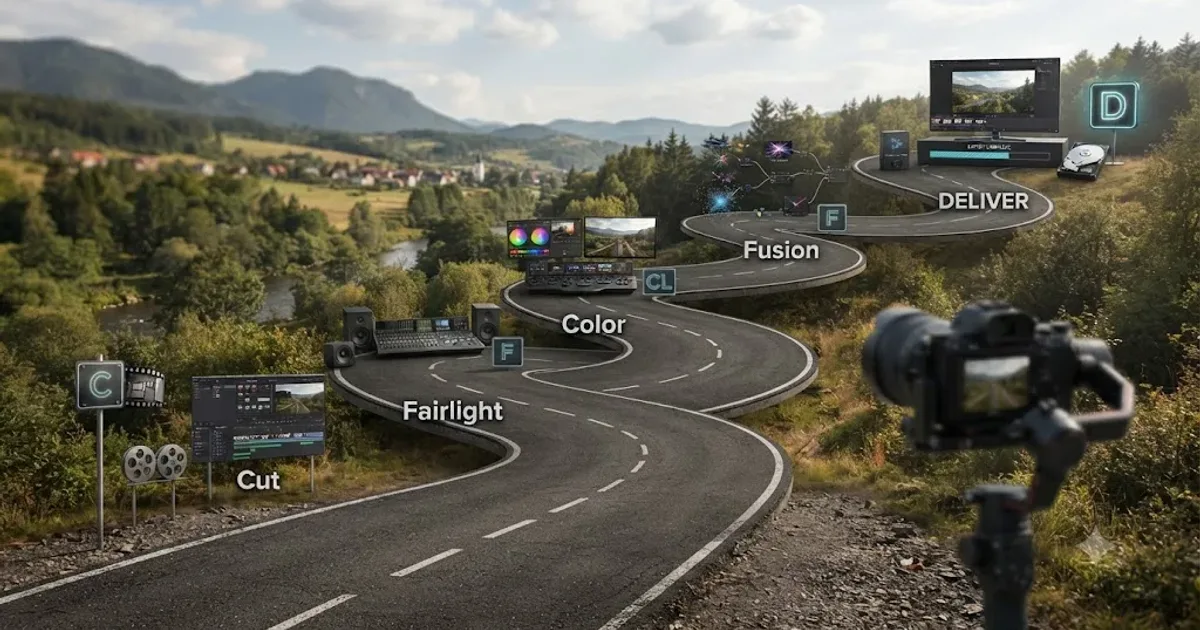
The DaVinci Resolve Learning Roadmap for Beginners
The right order to learn DaVinci Resolve: Cut or Edit, then Fairlight, Color, and Fusion, checked against Blackmagic and Ripple Training's own paths.
 GuidesJul 22, 202636 min read
The Cheapest Way to Learn DaVinci Resolve in 2026
DaVinci Resolve, official training, and YouTube cost $0. Here's a full cost breakdown of every free and paid way to learn it, ranked by real price.