
Learn / DaVinci Resolveupdated for DaVinci Resolve 21.0.3 (July 2026)
Best Mouse for DaVinci Resolve Editing in 2026
Quick answer
The best mouse for DaVinci Resolve editing is the Logitech MX Master 3S ($99), an 8,000 DPI wireless mouse with buttons you can remap to Resolve's trim and node shortcuts. Editors with wrist pain do better with a vertical mouse or trackball. Colorists grading for hours get more from a Blackmagic control panel than from any mouse at all.
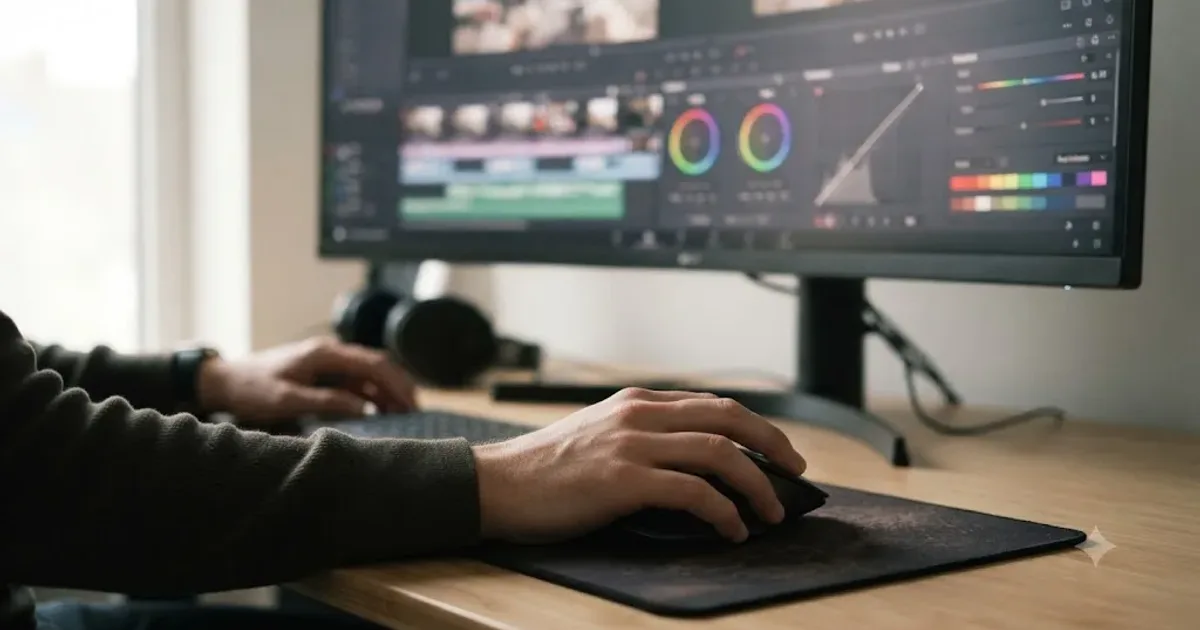
We've spent seven years cutting professional video inside DaVinci Resolve, and "what mouse should I buy" is still one of the recurring questions in our 100,000+ member DaVinci Resolve Learning Group on Facebook. Editors ask it the way they'd ask about a car. They want one answer, one box to check, one purchase that ends the conversation.
There isn't one. There's a right mouse for how you actually work, and it changes depending on whether you're cutting a rough assembly, grading for six hours straight, or nursing a wrist that already hurts. This guide sorts through the real options, general-purpose mice, vertical mice, trackballs, gaming mice, pen tablets, and Blackmagic's own hardware, with actual prices, actual specs, and an honest account of where each one falls apart.
What's the best mouse for DaVinci Resolve editing right now?
For most editors, it's the Logitech MX Master 3S. At $99, it pairs an 8,000 DPI sensor with buttons and a gesture wheel you can remap through Logi Options+ to Resolve-specific commands, and it's the mouse that shows up most often in editor forum threads and workflow write-ups as the default upgrade from whatever came in the box (Logitech MX Master 3S; Creative Video Tips: Logitech MX Master 3 for DaVinci Resolve).
That's the default, not the universal answer. Your actual best pick depends on what you spend most of your Resolve hours doing.
| Your situation | Best pick | Price | Why |
|---|---|---|---|
| Mixed cutting and light grading | Logitech MX Master 3S | $99 | Best all-around button count, sensor quality, and Resolve-specific remapping support |
| Existing wrist or forearm pain | Logitech MX Vertical | $119.99 | 57-degree vertical angle cuts forearm pronation, the twisting motion behind most flat-mouse fatigue |
| Heavy color grading, hours a day | Logitech MX Ergo trackball or a Blackmagic control panel | $99 (trackball) / starts well above a mouse (panel) | Removes wrist travel almost entirely; a panel goes further and redistributes work to your whole hand |
| Heavy keyboard-shortcut users who want fewer keyboard reaches | Razer Naga V2 Pro or Logitech G600 | $179.99 / roughly $60-80 | 12 to 20 programmable buttons for node types, page switches, and macros |
| Tight budget, occasional editing | Logitech MX Anywhere 3S or any $30-40 wired office mouse | $30-70 | A stable, jitter-free sensor matters more than a big feature list at this tier |
| On-location or laptop-only editing | Wacom Intuos (small) | Roughly $80-100 depending on size | Pressure-sensitive pen work for masks and curves, packs flat in a bag |
| Left-handed | Logitech MX Master 3S (ambidextrous shape) or a symmetrical gaming mouse | Varies | Most ergonomic mice are right-hand-only; check shape before buying |
A mouse that fits your hand disappears. A mouse that doesn't, you feel by the third hour. Keep that table as a starting point, not a final answer, and read on for the reasoning behind each row, because the reasoning is what tells you which row actually applies to you.
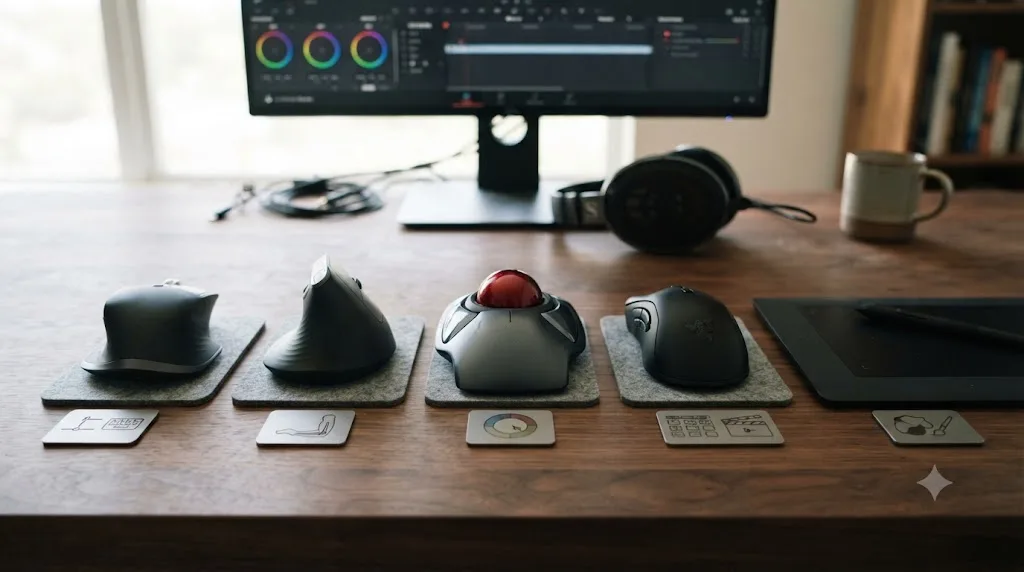
What actually makes a mouse good for editing in DaVinci Resolve?
A good editing mouse tracks smoothly at moderate speed, has buttons you can remap to real Resolve commands, and doesn't force your wrist into a bad angle for the number of hours you'll actually hold it. None of that is the same checklist a gaming mouse review uses, and none of it is the same checklist an office productivity mouse review uses either.
Resolve asks a mouse to do three distinct jobs, and they stress different things:
Timeline trimming is thousands of small, precise drags. Every ripple trim and roll edit is a click-and-hold with fine positioning at the pixel level. A sensor that tracks smoothly at low-to-moderate DPI matters here more than raw top speed, since you're making small, controlled movements, not sweeping across a mousepad.
Color grading is sustained, pinched precision. Dragging color wheels, curve points, and qualifier windows happens with a tight grip held for minutes at a time without your hand ever fully relaxing. This is exactly why Blackmagic sells dedicated hardware panels for color work in the first place, a tacit admission that mouse-only grading has a real physical cost, not just a speed one (Blackmagic Design: DaVinci Resolve Panels).
Fusion node work adds navigation on top of manipulation. Building a node tree means dragging connections and constantly panning the workspace, usually with the middle mouse button held down. That's a different repetitive pattern than trimming or grading, layered onto the same hand in the same session.
A mouse built for one of those three jobs isn't automatically good at the other two. A gaming mouse with a blazing-fast sensor doesn't help you drag a Fusion node connection any more precisely than a $30 office mouse does, because node dragging isn't a speed problem. A trackball that's fantastic for grading can feel sluggish for fast timeline scrubbing until you've spent real hours on it. The "best" mouse question only has a clean answer once you know which of these three jobs eats most of your week.
Film editor Jonny Elwyn, who's tested editing peripherals for years and writes openly about switching away from a standard mouse after developing hand pain, put it plainly when describing what changed once he stopped relying on one: "As RSI related tingles? They totally disappeared and never came back" (Jonny Elwyn: The Best Mouse for Film and Video Editing). That's one editor's experience, not a universal outcome, but it's a useful reminder that the "best" mouse isn't a spec sheet contest. It's whichever device gets you through your actual job without your hand becoming the bottleneck.
Is the Logitech MX Master 3S still the best all-around choice?
Yes, for the majority of editors who split their time across cutting, light grading, and general navigation. It's a wireless mouse with an 8,000 DPI optical sensor adjustable from 200 to 8,000 DPI in 50 DPI increments, MagSpeed electromagnetic scrolling rated at up to 1,000 lines a second, and up to 70 days of battery life on a full charge, with three hours of use from a single one-minute quick charge (Logitech MX Master 3S). It weighs 141 grams and connects over both Bluetooth and a USB receiver, so it works whether you're at a fixed workstation or moving between a laptop and a desk setup.
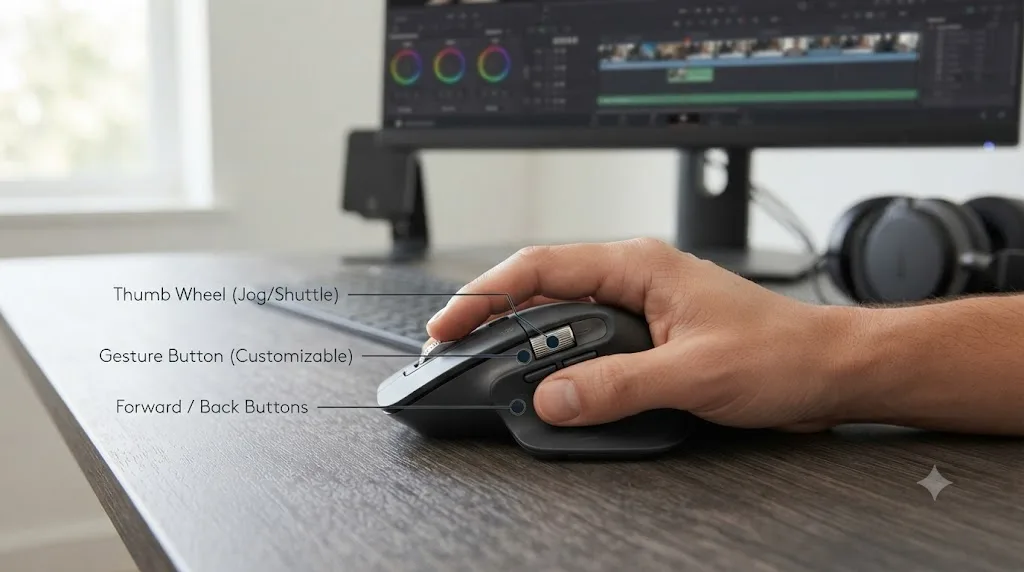
What actually matters for Resolve isn't the headline DPI number, it's the button count and the software behind it. Logi Options+ lets you build a per-application profile specifically for DaVinci Resolve, assigning distinct actions to the thumb wheel, the forward and back buttons, and the gesture button under your thumb. One widely referenced setup guide maps the wheel's mode-shift button to a ripple-delete shortcut, the gesture button to a "select everything forward from playhead" command, and the forward and back buttons to trim start and trim end, describing that last mapping as "one of the best ways to speed up your video editing" (Creative Video Tips: Logitech MX Master 3 for DaVinci Resolve). None of those are default Resolve shortcuts triggered by a mouse out of the box. They're keystrokes the mouse software sends on your behalf, which means the mapping only works after you've set it up deliberately, not automatically the moment you plug the mouse in.
It isn't perfect. The horizontal scroll wheel behaves inconsistently against Resolve's timeline in some configurations, and editors who want more than four or five programmable buttons find the MX Master 3S's total button count limiting compared to a dedicated gaming mouse. It also costs more than a basic office mouse, and RTINGS' independent testing of the model backs up what most hands-on reviews conclude: strong ergonomics and build quality, at a price premium over a plain wired mouse (RTINGS: Logitech MX Master 3S Review).
The best editing mouse isn't the one with the most buttons. It's the one whose buttons you actually remember. That's the real case for the MX Master 3S over a 20-button gaming mouse for most editors: five or six well-placed, well-remembered mappings beat twenty buttons you have to think about before pressing.
Should you switch to a vertical mouse instead?
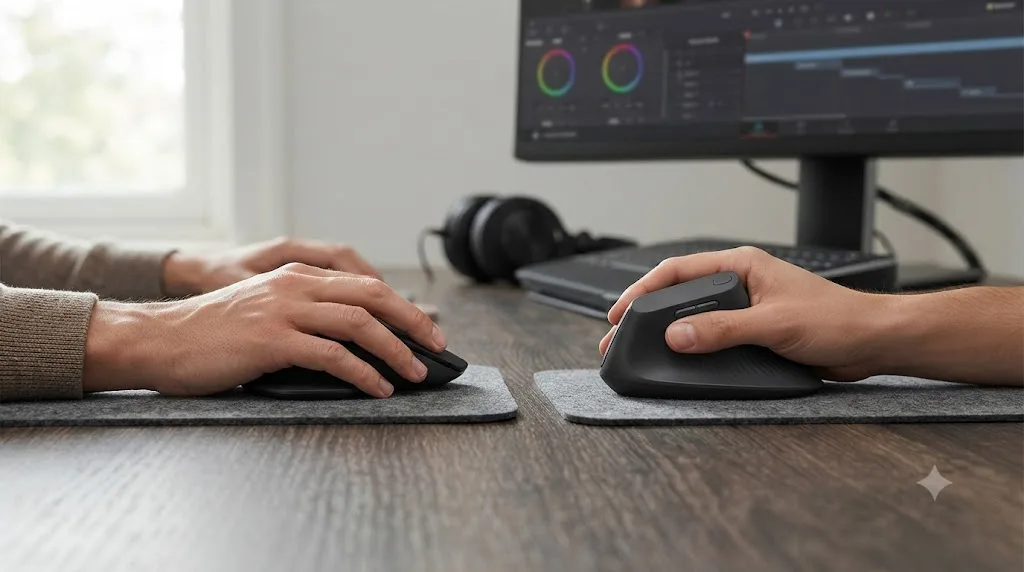
If you already have wrist or forearm discomfort, yes, and it's a lower-risk first move than a trackball. A vertical mouse turns your hand roughly 90 degrees from the flat position a standard mouse forces, so your palm faces inward instead of down, which cuts forearm pronation, the twisting motion that's one of the more fatiguing postures in sustained mouse use.
The Logitech MX Vertical is the most-cited option in this category: a 57-degree vertical angle, a 4,000 DPI sensor, wireless range up to 32 feet, and up to four months of battery life, priced at $119.99 (Logitech MX Vertical). That 4,000 DPI ceiling is noticeably lower than the MX Master 3S's 8,000, and for editing purposes that gap doesn't matter, since Resolve work rarely benefits from cursor speeds anywhere near either number. What matters is that Logitech markets the reduced hand movement, not raw speed, as the actual selling point, and the mechanism behind that claim is straightforward: less forearm rotation per movement means less repeated strain across a full editing day.
The adjustment period is short. Most editors report feeling comfortable within a few days, since you're still moving your whole arm and wrist the way you would with a standard mouse, just without fighting rotation on top of it. That's the trade-off against a trackball: a vertical mouse is a faster adjustment but doesn't reduce your total arm travel across a session the way a trackball does.
One honest limitation worth naming: a vertical mouse doesn't fix everything a flat mouse gets blamed for. It reduces rotation, not the sheer number of trims a cut requires or the number of color wheel drags a grade takes. If your pain comes specifically from twisting your forearm all day, this is close to a direct fix. If it comes from the sheer volume of repeated motion regardless of grip angle, a trackball or a control panel addresses that more directly.
Is a trackball better than a mouse for color grading?
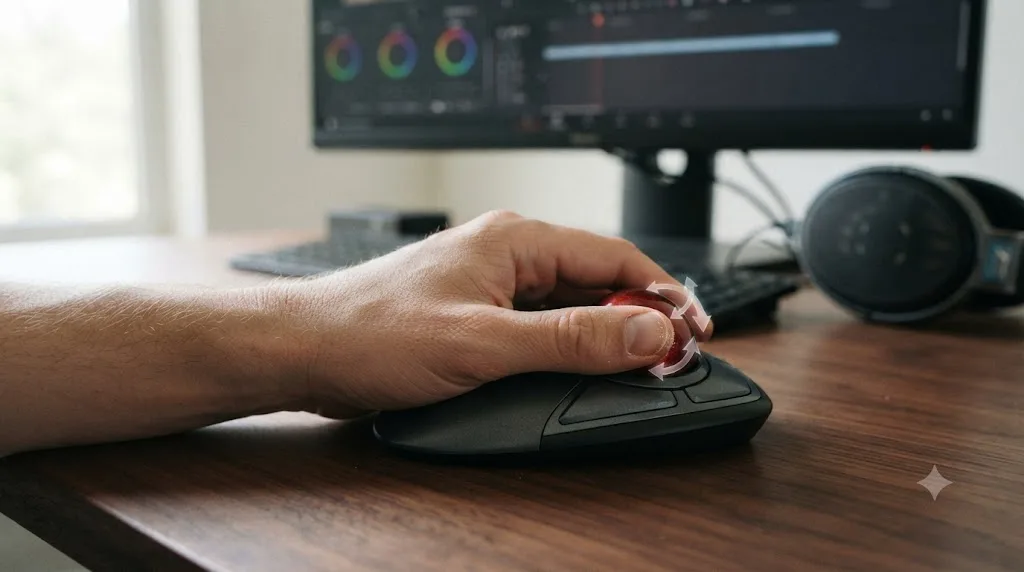
For colorists doing hours of grading a day, often yes, once you're past the learning curve. A trackball removes wrist and forearm movement almost entirely, since the device stays still on the desk and your thumb or fingers roll the ball while your hand barely travels. For an editor dragging color wheels and clip edges for hours, that shrinks the actual distance your wrist moves across a session dramatically, from sweeping a mouse across a pad to rolling a ball a few millimeters.
The Logitech MX Ergo is the most common recommendation in this category: 8 buttons, a 0-or-20-degree adjustable tilt plate, up to four months of battery life, and Logitech's own figure that a trackball produces 20% less muscle fatigue in the hand, wrist, and forearm than a regular mouse, priced at $99 (Logitech MX Ergo). Kensington's Expert Wireless Trackball is the other name that comes up regularly among editors, with Diamond Eye optical tracking, four customizable buttons, a detachable wrist rest, and an ambidextrous shape that works for left-handed editors too, priced around $105 (Kensington Expert Wireless Trackball). One editor describing their own setup called a Kensington trackball "sturdy, stays in one place, comfortable," with programmable buttons mapped to cut, copy, paste, play, and stop, exactly the kind of Resolve-specific remapping that makes a trackball worth the adjustment period.
The trade-off is real and worth stating plainly. A trackball has a genuine learning curve, often a week or two before precision work like fine trim points feels natural again, and thumb-operated models can shift strain onto the thumb if you overuse it the way you overused your wrist. If you're on a deadline this week, this isn't the week to switch. If you have breathing room before your next big project, it is.
A trackball doesn't make you faster on day one. It makes you faster on day thirty. That's the honest framing colorists need before buying one: budget for a real adjustment period, not an instant upgrade, and don't judge it on your first afternoon.
Do you need a gaming mouse with extra buttons for DaVinci Resolve?
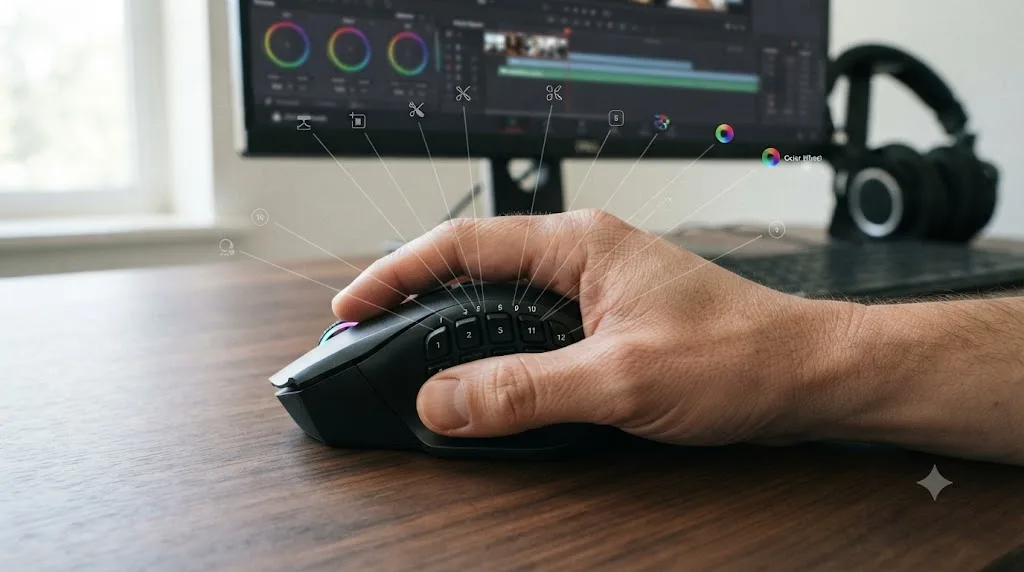
Not need, but for editors who already think in shortcuts, a gaming mouse with a large button array can genuinely cut keyboard reaching. Two models come up repeatedly in editor discussions specifically because their side-panel buttons map cleanly onto Resolve's node commands, page switches, and clip actions.
The Razer Naga V2 Pro, the current generation of Razer's MMO-focused line, ships with up to 20 programmable buttons across three magnetically swappable side plates in 2, 6, and 12-button configurations, a 30,000 DPI Focus Pro optical sensor, and up to 150 hours of battery life over 2.4GHz wireless or 300 hours over Bluetooth, priced at $179.99 (Razer Naga V2 Pro; Razer Newsroom). The Logitech G600 MMO Gaming Mouse is the budget-tier equivalent, with a 12-button thumb panel plus a clickable, tilting scroll wheel and a G-shift key for a total of 20 MMO-tuned buttons, a 200-8,200 DPI range, and a 1,000 Hz report rate, launched at $79.99 with street prices often lower on the older model (Logitech G600).
Elwyn's own testing echoes this: after cataloging his options for reducing mouse-related pain, he specifically names a 19-button wireless MMO mouse as a workable option for Windows-based editors, noting that "once you've got your shortcuts set up in an efficient manner, you can edit a lot faster using the 19 programmable buttons" (Jonny Elwyn: The Best Mouse for Film and Video Editing).
The honest limit of this category is setup cost, not price. Twelve to twenty buttons only help once every one of them fires a command you actually remember without looking. Get that wrong and you've bought a $180 mouse that behaves like a confusing keyboard bolted to your palm. The category rewards editors who already have a strong shortcut habit and want fewer keyboard reaches, and it punishes editors who haven't built that habit yet, since the mouse can't teach you which command lives where.
30,000 DPI, incidentally, is wild overkill for anything Resolve does. No editing task benefits from cursor movement at that sensitivity, and most editors who buy these mice set the DPI down near 800-1,600 and rely on the button count, not the sensor speed, for the actual workflow gain.
Is the Apple Magic Mouse good enough for editing in Resolve?
It works, but it's the weakest common option on this list for anything beyond light, occasional cutting. Apple's own tech spec page for the Magic Mouse doesn't market it as ergonomic at all, describing only "an optimized foot design that lets it glide smoothly across your desk," with no claims about hand comfort or extended use (Apple Support: Magic Mouse Tech Specs). The current USB-C model keeps the same low-profile shape and adds roughly a month of battery life per charge, along with a charge cable that also functions as a wired pairing connection (Apple Support: Magic Mouse (USB-C) Tech Specs).
The design problem is the flat, glass-like top surface. It has no palm rest and almost no height, which forces a pinched, flattened grip that spreads your fingers wide and low across the surface, the opposite of the relaxed, arched grip an MX Master 3S or a gaming mouse allows. That grip is fine for the light gestures Apple designed it around, swiping between pages, scrolling documents, Mission Control gestures. It's a worse starting position for the sustained trimming, dragging, and clicking a real editing session asks of your hand.
It also has essentially no button customization beyond gesture assignment in System Settings. There's no equivalent to Logi Options+ or Razer Synapse that lets you map a physical button to a specific Resolve keystroke, since the Magic Mouse doesn't have discrete side buttons in the first place, just a multi-touch top surface. For an editor who wants Resolve-specific remapping, that's a hard ceiling, not a missing feature you can work around with software.
If it's the mouse you already own and you're doing light cutting on a laptop for an hour here and there, there's no urgent reason to replace it. If you're spending real hours a day in Resolve, this is the mouse to upgrade away from first, ahead of any of the more specialized options on this page.
Is a trackpad ever a better choice than a mouse for editing in Resolve?
Sometimes, and only for specific motions, not for the whole session. A trackpad's real strength in Resolve is two-finger scrubbing and pinch-to-zoom, gestures that let you fly across a timeline or zoom in on a waveform without picking a device up or repositioning your hand at all. For a MacBook editor working from the built-in trackpad on the go, that's a genuine advantage a mouse doesn't have.
It runs out of usefulness fast once you get into fine trim work. Apple's own Magic Trackpad, the standalone version most desktop editors would consider, ships as "a large edge-to-edge glass surface" with Multi-Touch gestures and Force Touch pressure sensing, and no discrete side buttons at all (Apple Support: Magic Trackpad Tech Specs). That's the same ceiling the Magic Mouse hits above: nothing to remap in Logi Options+ or Razer Synapse, because there's no physical button to assign a Resolve keystroke to beyond the tap-to-click gesture itself.
Precision is the bigger problem. Dragging a color wheel or landing a keyframe on an exact frame means translating a flat fingertip swipe on glass into pixel-accurate cursor movement, and that's a less controlled motion than a mouse's whole-hand grip gives you. Editors who use a trackpad as their only pointing device tend to notice it most on the Color page, where qualifier windows and curve points reward small, deliberate drags rather than a swipe.
The physical fatigue problem is real too, and it's a different flavor than a Magic Mouse's pinched grip. A trackpad has no palm rest and effectively zero height, so your whole hand rests flat and low on a hard glass plane for as long as you're touching it, with even less natural arch to your wrist than a low-profile mouse allows. Force Touch trackpads on newer MacBooks let you set a firmer "click" that doesn't require an actual mechanical press, which helps a little, but it doesn't change the flat resting posture underneath it. Windows precision touchpads on ultrabooks have the same basic problem: great for gestures, with no equivalent to a physical side button for Resolve remapping.
A trackpad is a good second input for navigation gestures, not a good first input for the whole job. The editors who get the most out of one keep a mouse or trackball as their primary pointer and reach for the trackpad specifically to scrub or pinch-zoom, the same layered approach that works for a pen tablet alongside a mouse. Used as your only pointing device for a full editing day, it's a worse choice than every other option on this page, including the Magic Mouse it usually ships next to.
Should you use a Wacom pen tablet instead of a mouse?
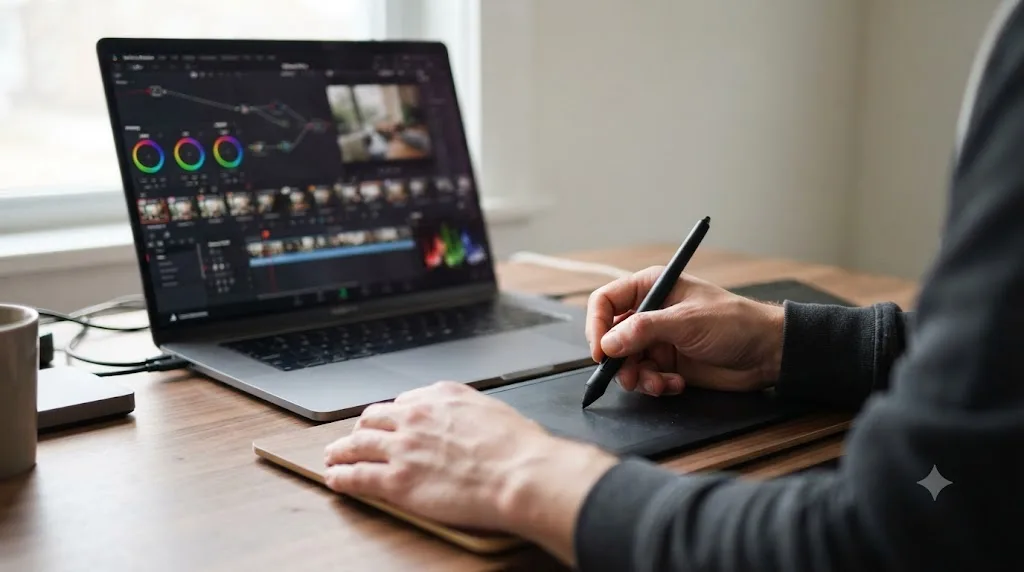
For colorists doing detailed mask work and curve adjustments, a pen tablet is worth adding alongside a mouse, not necessarily instead of one. Pressure sensitivity gives you control over brush size and stroke weight that a mouse simply can't replicate, which matters directly for Power Windows, qualifier refinement, and Fusion paint work, and the pen grip relies on larger arm and shoulder muscles instead of the small muscles in your wrist, which some editors find genuinely restful after a long mouse session.
A Wacom Intuos is the model most often recommended for this, priced roughly $80 to $100 depending on size, and it's specifically praised by editors who cut on location, since a small tablet packs flat into a bag in a way no mouse setup does. One reviewer working with Resolve on a laptop described the tablet as making "editing videos in DaVinci Resolve... a bit of a breeze" for on-location work, while noting that default settings need real customization before the tablet feels native to Resolve's tools (Creative Video Tips: Wacom Tablet Setup & Tips for DaVinci Resolve). Editors moving up to a Wacom Cintiq, which builds the display directly into the tablet surface, report it working particularly well for colorists spending long days in the Color page specifically, since you're drawing and adjusting directly where you're looking instead of translating hand movement to a separate screen.
The honest limit is the same one that applies to a trackball: expect a genuine adjustment period, commonly cited at one to two weeks before pen-based navigation feels as fast as mouse-based navigation for ordinary trimming and clip selection. A pen tablet is not a faster general-purpose pointer than a mouse for most Resolve tasks. It's a more precise, less fatiguing tool for the specific subset of tasks that reward pressure sensitivity and fine curve control, mask painting, node graph placement, detailed color adjustment, and a worse tool for fast, repetitive timeline navigation where a mouse's click-and-drag speed still wins.
Most working colorists who own both keep the mouse for cutting and general navigation and reach for the tablet specifically when they open the Color or Fusion page, treating the switch itself as a break in motion pattern rather than a wholesale replacement.
Is a Blackmagic Speed Editor or control panel a replacement for a mouse?
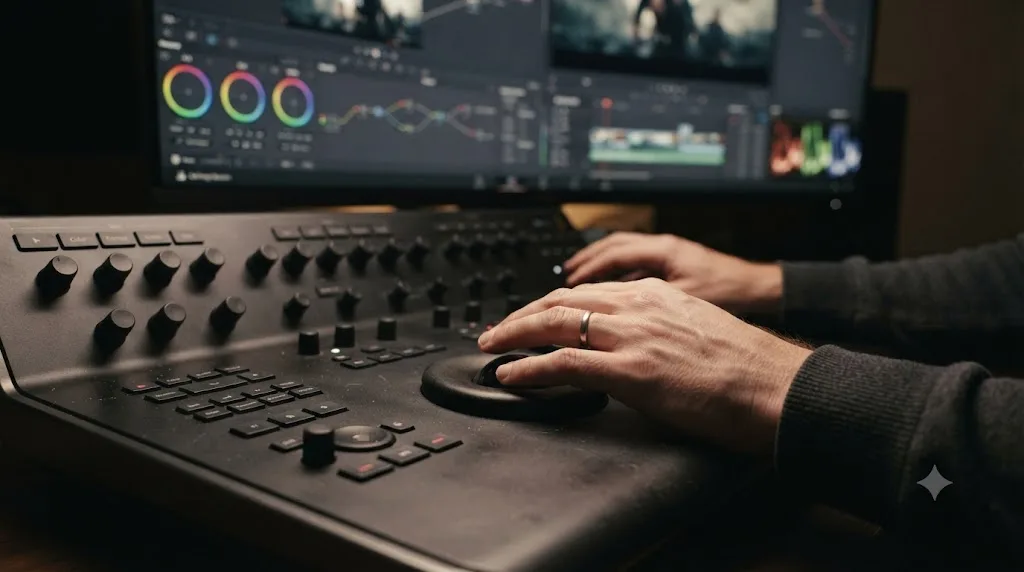
For pure cutting, no, a Speed Editor sits alongside a mouse rather than replacing it. For color grading done for hours a day, a full control panel gets close to replacing a mouse for the grading work specifically, even though you'll still reach for a pointer to navigate the interface around it.
The DaVinci Resolve Speed Editor is a dedicated keyboard with dedicated buttons for cuts, transitions, and markers, plus a jog wheel for scrubbing and trimming, priced around $435 with bundled Studio software from most retailers. Its jog wheel gets consistent praise for tactile quality, smooth, weighted, satisfying for long stretches of trim work, and its layout deliberately puts the space bar in the middle of the keyboard, which forces your hand to move to reach it and, incidentally, builds small posture breaks into a session whether you intend them or not (Blackmagic Design: DaVinci Resolve Speed Editor). It reduces menu-diving on the Cut and Edit pages. It does nothing for color grading, since it has no trackballs or dials.
Blackmagic's actual control panel lineup, the Micro, Mini, and Advanced panels, is built for exactly that gap. Each puts weighted trackballs and dedicated dials directly under your fingers, turning lift, gamma, and gain adjustments into a rolling motion of the whole hand instead of a pinched, precise mouse drag repeated for every single correction (Blackmagic Design: DaVinci Resolve Panels). That's a genuinely different motion pattern, not just a faster version of the same one, which is exactly the kind of redistribution that helps when the same joint has been doing the same motion all day.
A control panel doesn't grade faster than a good mouse. It grades differently, and different is what your wrist actually needs after hour three. The honest cost consideration: panels start well above the price of a mouse and keyboard combined, so this is a purchase that makes sense once you already know color work is where your session hours concentrate, not a first purchase for a mixed editing workflow.
For editors managing existing wrist pain specifically, this decision matters even more than it does for speed alone. Once numbness, night pain, or nerve-related symptoms show up, hardware choices stop being purely a productivity question, and our full guide to DaVinci Resolve ergonomics for editors with RSI or wrist pain covers the posture, break-scheduling, and medical-referral side of that decision in more depth than a buying guide can. TryUncle can't fix a bent wrist or replace a control panel, but the next time you're mid-grade and can't remember which panel gives you access to a specific qualifier setting, Uncle can point at the exact control on your own project while your hands stay where they already are.
Is a TourBox or Stream Deck worth adding next to your mouse?
Indirectly useful, and the mechanism is the same one behind the Speed Editor: fewer clicks, less menu hunting, less mouse travel per task, without replacing the mouse itself. These control surfaces map physical dials, buttons, and a wheel to software functions you'd otherwise reach through an on-screen menu.
The TourBox NEO, priced at $169, uses three rotary wheels and roughly a dozen buttons in an ergonomic shape that fits either hand, running through TourBox Console software compatible with Resolve, Premiere, Photoshop, and most other creative applications. In a hands-on review, industry trainer Larry Jordan describes testing it directly against his existing editing workflow, and the category's actual value proposition, small, precise adjustments replacing repeated menu trips, comes through clearly in that kind of direct comparison rather than in spec-sheet marketing alone (Larry Jordan: Review, TourBox Neo).
Here's the honest limit, the same one that applies to any control surface: it relocates repetition, it doesn't eliminate it. You're still turning dials and pressing buttons repeatedly, just smaller, more efficient motions than a full mouse drag across a menu tree. That's a real improvement for an editor already managing wrist strain, less total movement, more of it concentrated in low-strain motions like a dial turn instead of a drag, but it's not a substitute for fixing your primary pointing device if that device itself is the problem.
If your budget only stretches to one purchase beyond a mouse, a TourBox or a Stream Deck competes directly with a dedicated control panel for that slot, and the deciding factor is your specific workflow. Repetitive keyboard shortcuts and menu navigation on the Edit page point toward a TourBox or Stream Deck. Color wheel dragging specifically points toward a dedicated panel instead, since a panel changes the motion itself rather than just shortening the path to triggering it.
Does wired vs wireless actually matter for editing latency?
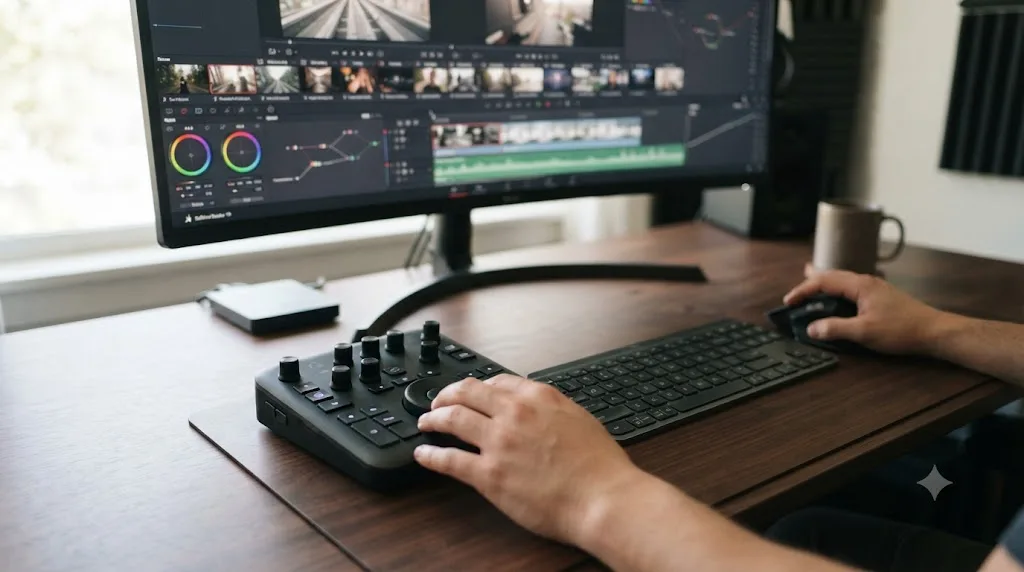
No, not at the level any human editor can perceive, as long as you're buying a mouse released in the last several years from a mainstream vendor. This is one of the more persistent myths carried over from gaming culture into editing gear discussions, and it's worth retiring directly.
Every mouse discussed in this guide, whether wired or wireless, reports its position at a 1,000 Hz polling rate as a baseline standard, meaning it sends an update to your computer every millisecond. The theoretical latency difference between a modern 2.4GHz wireless connection and a wired USB connection measures in single-digit milliseconds at most, a gap that matters in competitive first-person shooters where reaction windows are measured in frames, and matters not at all when you're dragging a clip edge or a color wheel, tasks with no reaction-time component whatsoever.
What wireless actually costs you is battery management, not precision. A dead battery mid-session is a real interruption; a millisecond of theoretical input lag is not. What wireless gains you is a cleaner desk and the freedom to reposition your hand without a cable catching on anything, which matters more over an eight-hour session than most editors expect until they've tried it.
Bluetooth specifically introduces slightly more latency than a dedicated 2.4GHz USB receiver in side-by-side lab testing, but again, that gap is invisible in editing work. Reserve any real concern about wireless latency for competitive gaming setups, not for a mouse you're using to trim clips and drag nodes. If you have a genuine reason to distrust wireless, an unreliable office Wi-Fi environment with heavy interference, for instance, buy wired and move on. Otherwise, pick based on ergonomics and button layout, and let the wired-vs-wireless question go.
What if your cursor jitters, skips, or lags inside DaVinci Resolve?
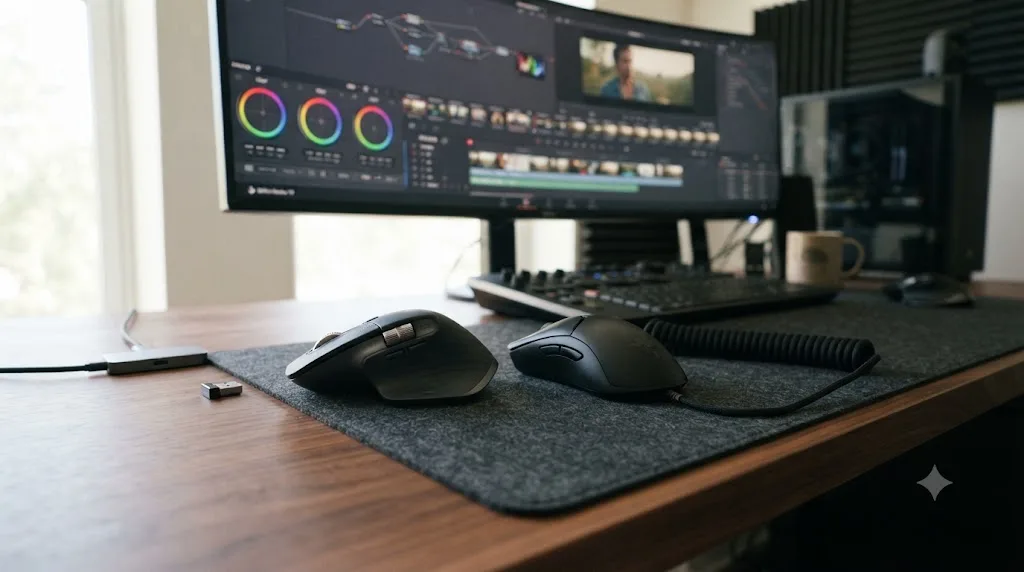
If your cursor is stuttering, jumping, or lagging behind your hand, the fix is almost never a more expensive mouse. It's almost always one of a handful of specific, fixable causes, and most of them have nothing to do with sensor quality.
USB 3.0 ports generate radio noise in the same 2.4GHz band your wireless mouse uses to talk to its receiver, and that noise causes exactly the stutter and delayed clicks editors blame on the mouse itself. Logitech's own support documentation describes this directly: a USB 3.0 device or cable placed near a 2.4GHz wireless receiver can cause "delayed response to mouse or keyboard inputs" and "missing... mouse commands," and the fix isn't a new mouse, it's separating the receiver from the interference (Logitech Support: Wireless product not working properly when also using a USB 3.0 device). If your wireless receiver plugs directly into a USB 3.0 port, or sits within a few inches of a USB 3.0 hub, external drive, or capture card, that's worth testing before anything else. Move the receiver to a USB 2.0 port, or onto a USB extension cable positioned closer to the mouse itself and farther from the interference source, and the stutter often disappears completely.
Work through the rest of the list in order, since each cause has a different fix:
- A worn or reflective mousepad surface. Optical and laser sensors both struggle on glass, high-gloss desks, and mousepads that have gone shiny with wear. Swap to a matte cloth pad and see if the jitter clears.
- Low battery on a wireless mouse. Tracking quality degrades before a battery fully dies on some models, well before the low-battery warning fires. Charge it fully and retest.
- A crowded 2.4GHz environment. Office Wi-Fi, Bluetooth headphones, and other wireless peripherals all share the same band. If you're on Bluetooth specifically, try a dedicated USB receiver instead, since it's a cleaner dedicated connection than Bluetooth's shared radio stack.
- Outdated vendor software or firmware. Logi Options+, Razer Synapse, and similar apps occasionally ship sensor firmware updates that fix tracking bugs on specific surfaces. Check for an update before assuming the hardware itself is failing.
- It isn't the mouse at all. Resolve's own UI can stutter under GPU load, particularly with heavy Fusion compositions, high-resolution proxies disabled, or a timeline full of debayer-heavy RAW footage. If the playhead and render preview both stutter along with the cursor, that's a performance problem inside Resolve, not a pointing-device problem, and no mouse upgrade will fix it.
A jittery cursor is a wiring and radio problem nine times out of ten, not a reason to buy a new mouse. Work through interference and surface first. Save the upgrade budget for a device that actually solves an ergonomics or button-count problem, not a stutter that a $5 USB extension cable would have fixed for free.
Do DPI and polling rate matter for DaVinci Resolve, or is that just gaming marketing?
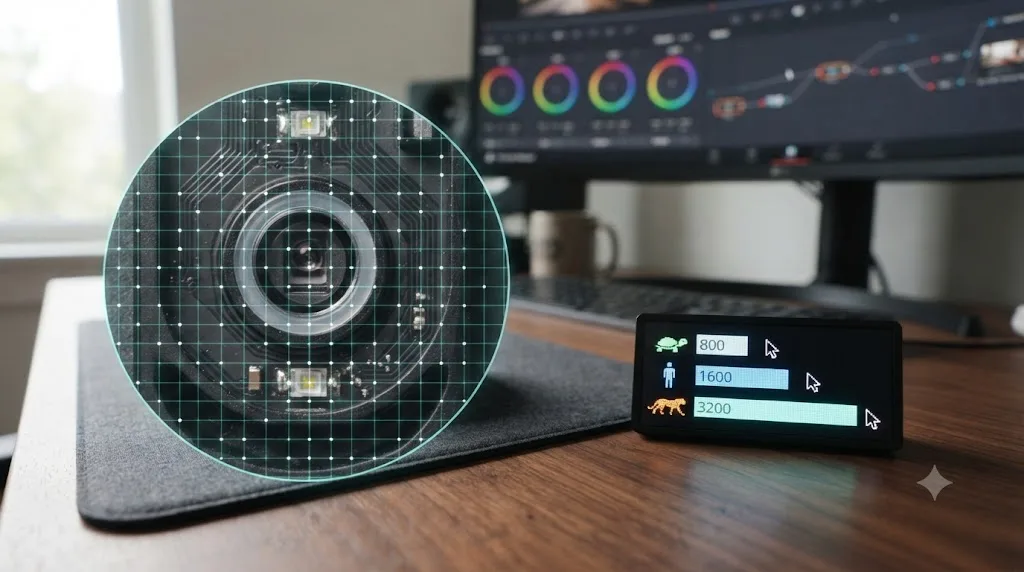
Mostly gaming marketing, once you're past a fairly low bar. DPI, sometimes labeled CPI, counts per inch, by manufacturers like Logitech, measures how many position counts a sensor reports for every inch of physical mouse movement. Razer and SteelSeries call it DPI; Logitech occasionally uses CPI. They're the same measurement under different marketing labels (Attack Shark: DPI vs. CPI Explained).
Higher DPI moves your cursor further across the screen for the same physical hand movement. That's a sensitivity setting, not a precision setting, and the two get conflated constantly in marketing copy. A mouse advertising 30,000 DPI, like the Razer Naga V2 Pro's Focus Pro sensor, isn't more precise for editing work than one advertising 4,000 DPI, like the MX Vertical. It's capable of moving the cursor faster if you crank the setting up, which is a genuinely useful trait for a 4K gaming monitor and a competitive shooter, and mostly irrelevant for dragging a keyframe or trimming a clip edge, tasks that reward small, controlled movements far more than raw cursor speed.
What actually matters for editing is sensor tracking quality at low-to-moderate DPI, the range where most editors actually run their mouse, typically somewhere between 800 and 1,600. A cheap sensor can jitter or skip at those settings on certain surfaces, and that jitter is what makes fine trim points and node placement genuinely harder to land, not the DPI ceiling printed on the box. Every mouse discussed in this guide, from the $99 MX Master 3S to the $180 Naga V2 Pro, uses a sensor good enough that jitter isn't a real concern at editing-appropriate DPI settings. Below roughly $30, sensor quality control gets noticeably less consistent, which is the actual reason to avoid the cheapest possible mouse, not the DPI number on its packaging.
Polling rate, how many times per second the mouse reports its position, measured in Hz, matters even less for editing than DPI does. A 1,000 Hz polling rate, now standard on nearly every mouse above roughly $40, updates your cursor position every millisecond. Resolve's interface doesn't reward anything faster than that, and the difference between 1,000 Hz and the newer 4,000 or 8,000 Hz rates some gaming mice now advertise is invisible outside of competitive gaming benchmarks.
DPI controls how far the cursor travels. It has nothing to do with how precisely you can drop a keyframe. If a spec sheet is trying to sell you on a DPI number in the tens of thousands as an editing benefit, that's marketing copy borrowed from a different hobby, not a real advantage for anything Resolve asks a mouse to do.
Does your monitor setup change what mouse settings you should use?
Yes, more than DPI marketing does. The math is straightforward: a 4K or 5K display has roughly four times the pixels of a 1080p screen in the same physical space, and a two or three-monitor Resolve setup, common for colorists running a separate scopes display, stretches that even further. Moving a cursor edge-to-edge across that much screen real estate at a DPI tuned for a single 1080p monitor means either a lot of physical hand travel or an uncomfortably slow crawl.
The fix isn't chasing a higher DPI ceiling, it's matching your DPI to your actual desk-to-screen ratio. An editor running dual 4K displays side by side generally wants a higher DPI setting, often in the 1,600 to 2,400 range, than someone on a single 1080p monitor at 800 to 1,200, simply so a comfortable hand movement covers the wider span. That's a real, practical reason to want a mouse with adjustable DPI and a dedicated button to cycle between settings on the fly, since you might want a lower, more precise DPI for fine color work and a higher one for flicking across two monitors to check a scope.
Resolve's own interface scaling matters here too. If you're running the UI at 150% or 200% scaling on a high-resolution display to keep menu text readable, your effective click targets get physically larger on screen even though the underlying resolution hasn't changed, which can mask a genuinely worn sensor for a while and make a real interference problem, like the USB 3.0 issue covered above, harder to notice until it gets worse.
Multi-monitor colorists benefit from DPI-cycling buttons more than from any other single mouse feature on this page. It's a specific, practical reason to prefer a mouse like the MX Master 3S or a gaming mouse with a dedicated DPI-shift button over an otherwise-similar mouse that buries the setting in a menu you'd only check once, since you're the editor most likely to actually use it, switching several times a session between fine grading work and wide-screen navigation.
How should you map your mouse buttons for DaVinci Resolve specifically?
Open your mouse's vendor software, Logi Options+, Razer Synapse, or KensingtonWorks, and build a Resolve-specific profile that maps your five most-used commands to keystrokes, since Resolve itself has no native awareness of extra mouse buttons beyond a standard left, right, and middle click. Every extra button you use in Resolve is a keystroke the vendor software is sending on your behalf, which means the mapping only works after you've configured it deliberately.
Start by checking which shortcuts your mouse can even send. Most vendor software lets you assign a single keystroke or a short combination to a button, which means you need to already know your Resolve shortcuts before you can map anything. If you haven't customized Resolve's own Keyboard Customization panel yet, open it first, Option-Command-K on Mac or Alt-Control-K on Windows, since that's where the underlying shortcuts live that your mouse buttons will eventually trigger (WriteDirect: How to Create Custom Keyboard Mappings in DaVinci Resolve).
A practical starting layout, built around commands editors fire dozens of times an hour:
| Mouse control | Suggested mapping | Why this one |
|---|---|---|
| Forward button | Trim end (Shift + Right Bracket) | Fires constantly during rough trimming; keeping it under your thumb avoids a keyboard reach |
| Back button | Trim start (Shift + Left Bracket) | Pairs naturally with the forward button for two-handed-feel trimming with one hand |
| Gesture button (if present) | Ripple delete | High-frequency action during assembly editing; worth a dedicated button rather than a keyboard combo |
| Thumb wheel or extra scroll | Zoom timeline in/out | Frequent, low-precision action that doesn't need a keyboard key at all |
| Side button (gaming mice) | Add serial node (Color page) | For colorists, this is the single most repeated command on the Color page |
| Second side button (gaming mice) | Bypass grade (Shift+D equivalent) | Fast A/B comparison against the original footage without reaching for the keyboard |
This isn't about mapping every available button. It's about moving the handful of actions you already do constantly onto a button your hand can hit without leaving its resting position, which is a strain and speed question at once, not a knowledge question. A mapping you have to think about before pressing doesn't save you anything, even if it's technically available.
Save your finished mapping as a named profile in the vendor software, the same way Resolve lets you save a named keyboard preset, so a software update, a new machine, or a shared workstation doesn't wipe the work you put into it. And revisit it after your next different project type. A layout built for a fast-turnaround YouTube cut isn't the layout you want mid-grade on a commercial project, and a mapping that never gets revisited slowly turns into five buttons you've half-forgotten the purpose of.
The next time you're staring at Logi Options+ or Razer Synapse trying to remember which Resolve command lives on which key, Uncle can point at the exact setting inside Resolve itself, live, on your own project, instead of you digging through a settings menu from memory.
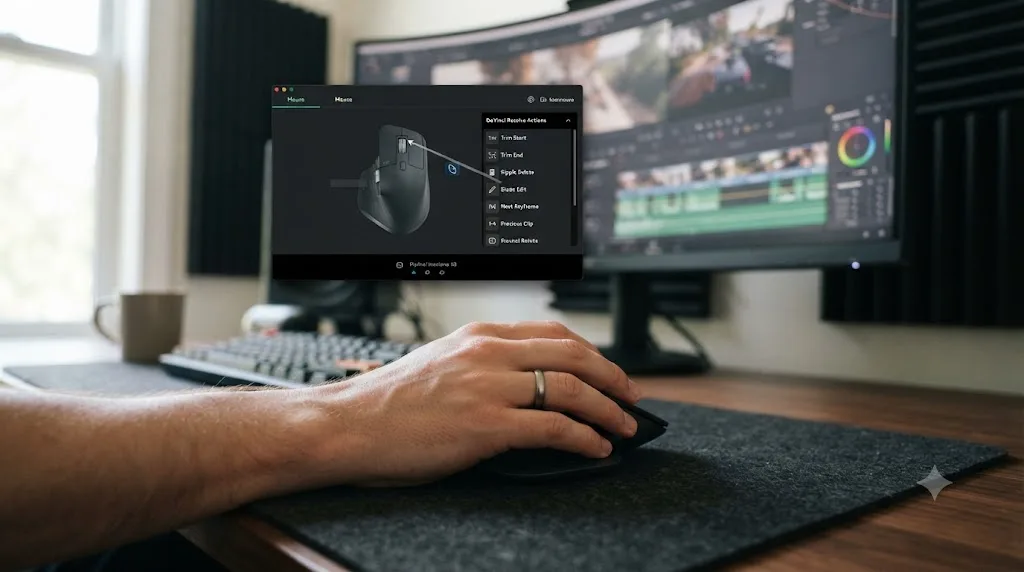
A worked example: mapping the MX Master 3S for a color-heavy project in under fifteen minutes
Here's what that setup actually looks like in practice, start to finish, for an editor moving from a mixed cutting week into a multi-day color grade.
Step one: build a second profile, not one profile that tries to do everything. Logi Options+, Razer Synapse, and KensingtonWorks all trigger a custom profile off the active application, DaVinci Resolve itself, not off which page inside Resolve is open. Resolve is one process regardless of whether you're looking at the Edit page or the Color page, so the vendor software has no built-in way to tell those two contexts apart automatically. If you want different mappings for cutting and grading, and most editors eventually do, you need two named profiles under the same "DaVinci Resolve" application entry and a way to switch between them by hand.
Step two: assign the switch itself to something you'll actually remember. A common approach is mapping the mode-shift button, held for a beat rather than tapped, to cycle between the "Resolve - Edit" and "Resolve - Color" profiles. That turns a context switch you'd otherwise do by opening a settings menu into a single physical gesture, which matters because you're going to do it every time you move between pages, not just once at setup.
Step three: map the grading-specific actions to your easiest-reach buttons. For a serial-node-heavy grading pass, that typically means the gesture button to "add serial node," the forward and back thumb buttons to "bypass all grades" and "toggle still image comparison," and the thumb wheel to horizontal scroll through the node graph instead of the vertical timeline scroll it does in the Edit profile. None of these are default Resolve mouse behaviors. Every one of them is a keystroke the vendor software sends after you've told it to.
Step four: test it on a real grade, not a test clip. Open an actual multi-shot sequence, one with mixed lighting across shots, and run a full pass: add nodes, flip through comparisons, and bypass the grade to check against the original. Twenty minutes in, you'll know which mappings you reach for constantly and which ones you set up out of habit and never touch. Cut the ones you don't use. A profile with six buttons you actually remember beats one with ten you don't.
Step five: save both profiles somewhere that survives a machine change. Vendor software occasionally resets custom per-application profiles after a major OS update or a fresh install, and a color-specific mapping you spent fifteen minutes building is exactly the kind of setup you don't want to rebuild from memory. Export the profile file if the software supports it, and keep a note of the mappings themselves somewhere outside the app.
The whole setup takes less time than a single client revision round, and it pays that time back on the first serial node you add without reaching for a menu.
What if you're left-handed?
Your options narrow, and it's worth knowing that before you buy anything. Most of the mice built specifically for ergonomics, the MX Vertical, most vertical mice from other brands, and several gaming mice with a heavily sculpted right-side thumb panel, are right-hand-only shapes. A left-handed editor picking one up will find the thumb rest, the side buttons, and the overall grip contour all built for the wrong hand.
Your realistic options are narrower but real. The Logitech MX Master 3S is symmetrical enough in its core shape that many left-handed users adapt to it without much trouble, even though its side buttons sit on the right panel by default. The Kensington Expert Wireless Trackball is genuinely ambidextrous by design, with a symmetrical dome and buttons accessible from either hand, which makes it one of the few devices on this list that doesn't force a compromise. Most standard symmetrical gaming mice, ones without a heavily sculpted side panel, also work fine regardless of handedness, though you lose the 12-to-20-button MMO-style side panels entirely, since those are built as right-hand thumb clusters almost without exception.
If a vertical mouse's ergonomic benefit is what you actually want, check for a left-handed model specifically before buying rather than assuming a "universal" listing covers you. Several vendors sell mirrored versions of their vertical mice as separate SKUs, and buying the wrong one means returning a mouse you've already broken the seal on.
How do you keep an editing mouse working well for years, not just months?
A good editing mouse is a tool you'll use for thousands of hours, and most of what shortens its working life is neglect, not hardware failure. A few habits keep it performing the way it did on day one.
Clean the sensor lens, not just the outside of the mouse. A speck of dust, a coffee-cup ring, or built-up hand oil on the optical sensor window is one of the more common causes of the exact jitter and tracking skips described earlier in this guide, and it's invisible until you look closely. Power the mouse off, flip it over, and wipe the sensor opening with a dry microfiber cloth every few months, more often if you eat at your desk.
Watch the glide feet, not the sensor, when the mouse starts feeling rough. The PTFE pads on the underside of a mouse, sometimes called skates, wear down with years of movement across a desk or pad. A mouse that used to glide smoothly and now catches, drags, or feels noticeably heavier to push almost always needs new feet, not a new sensor or a new mouse entirely. Replacement skate kits exist for most popular models and cost a fraction of a new mouse.
Learn to recognize the double-click bug before it costs you a trim. Mechanical switches age, and a common failure mode is a single physical click registering as two clicks in software, an aging spring or worn contact firing twice instead of once. In Resolve, that's not a cosmetic annoyance. It can turn a single trim click into an accidental double-select, or a single mark-in press into a mark-in-and-out. If a mouse starts double-firing occasionally, that's your signal to either retire it from precision work or look into a switch replacement, a common and inexpensive repair on mice with accessible, socketed switches.
Back up your vendor software profile the way you'd back up a project file. The custom per-application mappings you build in Logi Options+, Razer Synapse, or KensingtonWorks live in that app's local settings, not in Resolve itself, and a major OS update, a fresh install, or a switched machine can wipe them without warning. If the software supports exporting a profile, do it right after you finish building one, the same fifteen minutes of setup from the worked example above is not something you want to redo from memory mid-project.
None of this is expensive or time-consuming. It's the difference between a $99 mouse that still feels new after three years and one you're quietly blaming for problems that are actually a dirty lens or a worn switch.
What should you actually buy at each budget level?
Match your spend to your actual session length and job type, not to the most feature-dense option available. A $180 gaming mouse doesn't help an editor who cuts a ten-minute social clip once a week, and a $30 office mouse won't hold up for a colorist grading eight hours a day.
| Budget | What to buy | What you're actually getting |
|---|---|---|
| Under $40 | A basic wired office mouse with a name-brand sensor (Logitech, Microsoft) | A jitter-free sensor at low DPI and two or three usable extra buttons. Skip anything below this tier; sensor quality control gets inconsistent |
| $60-100 | Logitech MX Master 3S, MX Ergo, or Logitech G600 | The sweet spot for most editors: real remapping software, a good sensor, and either general-purpose comfort or MMO-style button count |
| $100-180 | Logitech MX Vertical or Razer Naga V2 Pro | Specialized ergonomics (vertical) or maximum button count (gaming), for editors who already know which problem they're solving |
| $170+ | TourBox NEO alongside your existing mouse | Adds a dedicated dial-and-button layer for repetitive adjustments; doesn't replace your pointing device |
| $400+ | Blackmagic DaVinci Resolve Speed Editor | A dedicated cutting keyboard with a jog wheel, for editors doing enough Cut and Edit page work to justify a second dedicated input device |
| Panel pricing (starts well above a mouse and keyboard combined) | Blackmagic Micro, Mini, or Advanced Panel | Necessary once color grading is genuinely most of your working day, not a first purchase for a mixed workflow |
No mouse fixes a bad node tree habit, and no mouse fixes bad trim discipline either. Buy for the job you actually do most, not the job you imagine yourself doing once you own better gear. An editor who spends 90% of their time in the Edit page gets more real value from a well-mapped $99 mouse than from a $435 device built around a Color page workflow they touch twice a month.
Do AI tools change what mouse you need for DaVinci Resolve?
No, not directly, and it's worth being precise about why before anyone tells you otherwise. AI tools built for Resolve fall into two real categories right now, and neither one changes which physical device belongs in your hand.
Automation tools execute editing work from a typed or spoken instruction, which is a different job than pointing and clicking. Sottocut works inside DaVinci Resolve Studio on Apple Silicon Macs, transcribing footage locally and proposing edits through a co-editor chat interface gated behind your approval before anything writes to the timeline (Sottocut). CutAgent takes natural-language instructions and applies them directly to your Resolve timeline with a review step, compatible with both the free and Studio editions (CutAgent). DavinciClaude, built by PremiereCopilot, runs as a docked chat panel where a typed instruction like "cut every silence longer than half a second" executes directly, covering silence removal, captions, and multicam auto-cut (DavinciClaude). Eddie AI offers a similar chat-driven automation layer built as a native Resolve workflow integration (Eddie AI Pricing). All four genuinely reduce mouse mileage for the specific mechanical tasks they cover, silence trimming, rough assembly, caption placement, and that's a real, honest reduction in hand movement, not a marketing claim.
TryUncle is the on-screen assistant for DaVinci Resolve on macOS. Ask in plain words and Uncle points at the exact control on your screen. That's a different job entirely from the automation tools above. It doesn't touch your timeline, doesn't execute an edit, and doesn't reduce the number of clicks a task takes. What it removes is the time spent hunting, scrubbing a paused tutorial, digging through a forum thread, guessing which menu a setting lives in, time that adds its own layer of unnecessary mouse movement on top of the editing itself. Ask by voice or by typing, and Uncle shows you, live, on your actual project, exactly where the control lives, on the Edit, Color, and Fusion pages.
Neither category changes the buying advice in this guide. A vertical mouse still reduces forearm rotation whether or not you're also running an AI assistant. A trackball still removes wrist travel for color grading regardless of how your rough cut got assembled. What both categories share is the same underlying goal as a well-mapped mouse button: cutting out motion and searching that doesn't contribute to the finished project. TryUncle is $39 a month, macOS only, paid subscription, no free tier (TryUncle, source: TryUncle's FAQ). For the fuller landscape of AI tools built around DaVinci Resolve, including where automation tools and a live tutor each fit, our guide to AI tools for learning DaVinci Resolve covers the category in more depth than a hardware guide can.
The verdict
Buy the Logitech MX Master 3S if you don't already know which specific problem you're solving. It's the closest thing to a safe default on this entire list, and its remapping software gets you real Resolve-specific value the moment you spend twenty minutes setting it up properly. Buy a vertical mouse or a trackball if your wrist already hurts, and don't wait for the pain to get worse before making that switch. Buy a Blackmagic panel only once you already know color grading eats most of your week, since it's the highest-cost item here and the one whose value depends entirely on how you actually spend your hours, not on how good the product is in the abstract.
Money spent on a control panel buys you a different motion, not a faster one, and that distinction is the whole point. None of the devices in this guide edit for you. They change how much your hand suffers for the editing you were always going to do anyway, which is a real, worthwhile thing to spend money on, and also not a substitute for fixing posture, taking real breaks, or seeing a doctor if numbness or night pain shows up. Pick the device that matches your actual job, map its buttons to commands you'll actually remember, and give it the adjustment period it honestly needs before judging whether it worked.
Frequently asked questions
- What's the best mouse for DaVinci Resolve editing right now?
- For most editors, the Logitech MX Master 3S. It's $99, uses an 8,000 DPI sensor, and its buttons and gesture wheel can be remapped through Logi Options+ to Resolve-specific actions like ripple delete or trim start and trim end. It isn't the right pick for every workflow, heavy colorists and anyone with existing wrist pain should look at a control panel or a vertical mouse instead, but as a general-purpose editing mouse it's the one most working editors land on.
- Is a vertical mouse or a trackball better for DaVinci Resolve than a regular mouse?
- They fix different problems. A vertical mouse keeps your forearm from twisting into pronation, which is the fastest source of fatigue in a flat mouse grip, and it has almost no learning curve. A trackball removes wrist and arm travel almost entirely, since your thumb rolls the ball while your hand stays still, but it takes a week or two to feel natural for fine trim work. If you cut mostly on the Edit page, start with a vertical mouse. If you grade for hours on the Color page, a trackball's reduced travel usually pays off faster.
- Do I need a gaming mouse with extra buttons for DaVinci Resolve?
- Not need, but it helps if you already think in shortcuts. A mouse like the Razer Naga V2 Pro or Logitech G600 gives you 12 to 20 programmable buttons you can map to Resolve commands, node types, or page switches, which cuts keyboard reaching for editors who already have a strong shortcut habit. If you're still learning Resolve's shortcut layer, the extra buttons add complexity before they add speed.
- Is the Apple Magic Mouse good enough for editing in DaVinci Resolve?
- It works, but it's the weakest common option for sustained editing. Apple's own spec sheet doesn't market it as ergonomic, and its flat, low-profile shape forces a pinched grip that gets uncomfortable well before a Logitech or Razer mouse does over a multi-hour session. It's fine for light cutting on a laptop. For anything closer to a full workday in Resolve, it's the mouse to upgrade away from first.
- Should I buy a Blackmagic Speed Editor or control panel instead of a better mouse?
- For pure cutting, a Speed Editor is a nice-to-have on top of a good mouse, not a replacement for one. For color grading, a control panel with trackballs and dials is closer to a necessity once you're doing it for hours a day, since it moves the work off a pinched mouse grip and onto your whole hand. Buy the mouse first. Add a panel once you know color work is where your session hours actually go.
- Do DPI and polling rate matter for DaVinci Resolve editing, or is that just gaming marketing?
- DPI matters less than gaming marketing suggests, since Resolve doesn't reward raw cursor speed the way a shooter does. What actually matters is a sensor that tracks smoothly at low-to-moderate DPI without jitter, since a jittery cursor makes fine trim points and node placement harder to land. A 1,000 Hz polling rate, standard on nearly every mouse above $40 today, is more than enough for anything Resolve asks a mouse to do.
- Is there an app that helps you while you're actually using DaVinci Resolve, not just a mouse recommendation?
- Yes. TryUncle is the on-screen assistant for DaVinci Resolve on macOS. It watches your screen while you edit and points at the exact control you're looking for, live, inside your own project, instead of sending you back to a paused tutorial or a forum thread. It doesn't change what mouse you should buy, but it does cut the minutes you'd otherwise spend hunting for a setting with whatever mouse is already in your hand.
- Is TryUncle free?
- No. It's a paid subscription at $39 a month, macOS only, cancel anytime.
Sources
- MX Master 3s Wireless Mouse, 8K Optical Sensor (Logitech)
- Logitech MX Master 3S Review (RTINGS.com)
- Wireless product not working properly when also using a USB 3.0 device (Logitech Support)
- MX Ergo Wireless Trackball Mouse (Logitech)
- MX Vertical Ergonomic Wireless Mouse (Logitech)
- Kensington Expert Wireless Trackball Mouse (K72359WW)
- Razer Naga V2 Pro (official product page)
- The MMO King Is Back: Razer Launches the Razer Naga V2 Pro (Razer Newsroom)
- G600 MMO Gaming Mouse, 20 Buttons (Logitech)
- Review: TourBox Neo from TourBox Tech, by Larry Jordan
- Wacom Tablet Setup & Tips for DaVinci Resolve (Creative Video Tips)
- Magic Mouse, Tech Specs (Apple Support)
- Magic Mouse (USB-C), Tech Specs (Apple Support)
- Magic Trackpad, Tech Specs (Apple Support)
- DaVinci Resolve Speed Editor (Blackmagic Design)
- DaVinci Resolve Panels (Blackmagic Design)
- The Best Mouse for Film and Video Editing, by Jonny Elwyn
- Ergonomics Principles for Video Editors, From an Instagram PT (Descript)
- eTools: Computer Workstations, Pointer/Mouse (OSHA)
- Step 1: Identify Risk Factors (NIOSH Ergonomics, CDC)
- Logitech MX Master 3 Mouse for DaVinci Resolve (Creative Video Tips)
- How to Create Custom Keyboard Mappings in DaVinci Resolve (WriteDirect)
- DPI vs. CPI: Gaming Mouse Resolution Explained (Attack Shark)
- Sottocut (product site: features, requirements, pricing)
- CutAgent (official site)
- DavinciClaude (PremiereCopilot): How to Use Claude AI in DaVinci Resolve
- Eddie AI: Pricing
- TryUncle
- TryUncle FAQ
Learn by doing, not watching
Stop translating tutorials to your timeline.
TryUncle stays beside Resolve on Mac and Windows. When you ask, Uncle sees your screen and points at the exact control you need. No hunting through tabs, timestamps, or mismatched tutorials.
Meet TryUncleKeep reading
 GuidesJul 19, 202634 min read
DaVinci Resolve Ergonomics: RSI and Wrist Pain Tips for Editors
Ergonomic fixes for DaVinci Resolve editors with wrist pain: mouse and keyboard alternatives, control panels, voice input, and break schedules that stick.
 GuidesJul 20, 202638 min read
DaVinci Resolve Keyboard Shortcuts Every Colorist Should Know
Every keyboard shortcut a DaVinci Resolve colorist needs: node commands, bypass and compare keys, gallery stills, and how to customize your own layout.
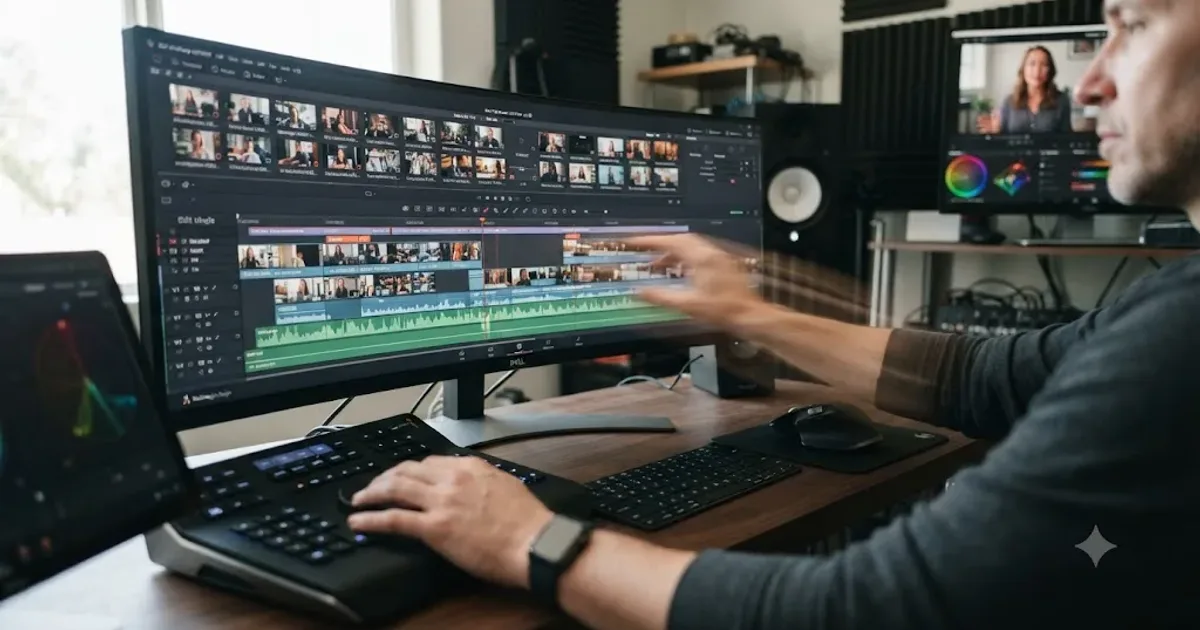 GuidesJul 15, 202638 min read
How to Edit Faster in DaVinci Resolve: A Workflow Guide
The workflow fixes that actually speed up DaVinci Resolve editing: proxy media, render cache, GPU/decode settings, hardware controllers, batch tools, and where AI helps.