
Learn / DaVinci Resolveupdated for DaVinci Resolve 21.0.2 (July 2026)
DaVinci Resolve Ergonomics: RSI and Wrist Pain Tips for Editors
Quick answer
RSI in DaVinci Resolve editors comes from constant mouse dragging, bent-wrist typing, and long uninterrupted sessions. Fix wrist posture first (OSHA's neutral-wrist standard), then cut mouse load with a vertical mouse, trackball, or control panel, remap shortcuts to reduce reach, and take short breaks every 20-30 minutes, the interval NIOSH research backs for reducing strain.
Your wrist hurts by the third hour of a color pass, and it's not from anything dramatic. It's from the thousandth small drag of a trackball wheel that isn't there, the thousandth flick of a mouse across a timeline, the thousandth time your hand bent up to reach a key it shouldn't have to reach. Nothing about editing in DaVinci Resolve looks like manual labor. It behaves like manual labor on your wrist anyway, because repetition doesn't care how the work looks from the outside.
This guide covers what actually helps, in the order it actually helps: posture first, then input devices, then software changes, then breaks, then when to stop treating it as a setup problem and see a doctor. None of it requires you to slow down your editing to protect your hands. Most of it makes you faster too.
How common is RSI among people who edit video for a living?
More common than most editors assume, and more common than the industry talks about openly. Editing isn't singled out in national health data the way, say, meatpacking or nursing is, but the numbers for computer-heavy work in general are not small. During 2021, 9% of U.S. adults reported experiencing a repetitive strain injury in the past three months, and of those, 44% had to limit their usual activities for at least 24 hours because of it, according to a CDC/NCHS report on repetitive strain injuries in adults. Of that group, just over half went on to see a doctor or medical professional about it.
Editors sit inside almost every risk factor that report names. NIOSH's own breakdown of ergonomic risk factors for computer users points to body posture, workstation design, repetitive movements, and prolonged static posture as the core drivers, according to CDC's ergonomics risk factor guidance. A ten-hour wedding edit or a multicam sync session checks every one of those boxes at once: one posture held for hours, one set of motions repeated thousands of times, one hand doing almost all of the fine motor work.
Two demographic patterns from that same CDC data matter if you're trying to figure out whether your pain is "normal." Adults aged 35 to 64 report RSIs at higher rates than younger adults, and women report higher rates of both RSI and resulting activity limitation than men, patterns the report's author, Matthew Garnett, frames plainly: these injuries "have consequences that can impact their day-to-day lives and require medical attention" (source: CDC/NCHS). Editing careers tend to compress a lot of screen hours into exactly that 35-to-64 range, right when the underlying injury risk is already climbing.
None of this is unique to Resolve. It's unique to sustained, repetitive computer work, and editing happens to sit near the high end of that spectrum because a timeline is never really "done" the way a spreadsheet task is done. There's always one more trim, one more grade pass, one more version, and each of those passes is another few thousand repetitions on the same joints.
What's the single fastest fix if you only have twenty minutes today?
Start with the free changes before you spend a dollar on hardware. In order:
- Set your wrists to neutral. Adjust your chair or keyboard height until your wrists sit straight, in line with your forearms, not bent up, down, or angled to either side. OSHA's computer workstation guidance describes this exact posture, hands, wrists, and forearms straight and roughly parallel to the floor, as the baseline for reducing musculoskeletal strain (OSHA eTools).
- Bring the keyboard and mouse close. Both should sit close enough that your elbows stay near your body, bent between 90 and 120 degrees, rather than reaching forward. OSHA lists this elbow angle specifically as part of a neutral computer posture.
- Loosen your mouse grip. You don't need to press a mouse down to click it. A light touch, with your hand resting rather than gripping, cuts a surprising amount of tension out of a full editing day.
- Raise your monitor to eye level. A screen positioned too low pulls your neck and shoulders forward, which changes how your arms hang and how your wrists angle when you reach the keyboard.
- Set a recurring break timer. One minute every 20 to 30 minutes, away from the mouse entirely. This single habit shows up repeatedly in NIOSH's own research as one of the higher-leverage, zero-cost interventions available (source: NIOSH archive on strategic rest breaks).
None of that requires buying anything. It's also the part most editors skip, because it's less satisfying than ordering a new mouse. Do it anyway, before you spend money on the sections below, since equipment on top of bad posture just changes what shape the strain takes.
What in DaVinci Resolve itself actually causes wrist pain?
Resolve isn't uniquely dangerous to your wrists. It's uniquely demanding in a specific way: it asks for more sustained, fine-grained mouse and keyboard interaction, for longer uninterrupted stretches, than most other software most people use for a living. A few patterns inside the app compound the general computer-work risk factors NIOSH names.
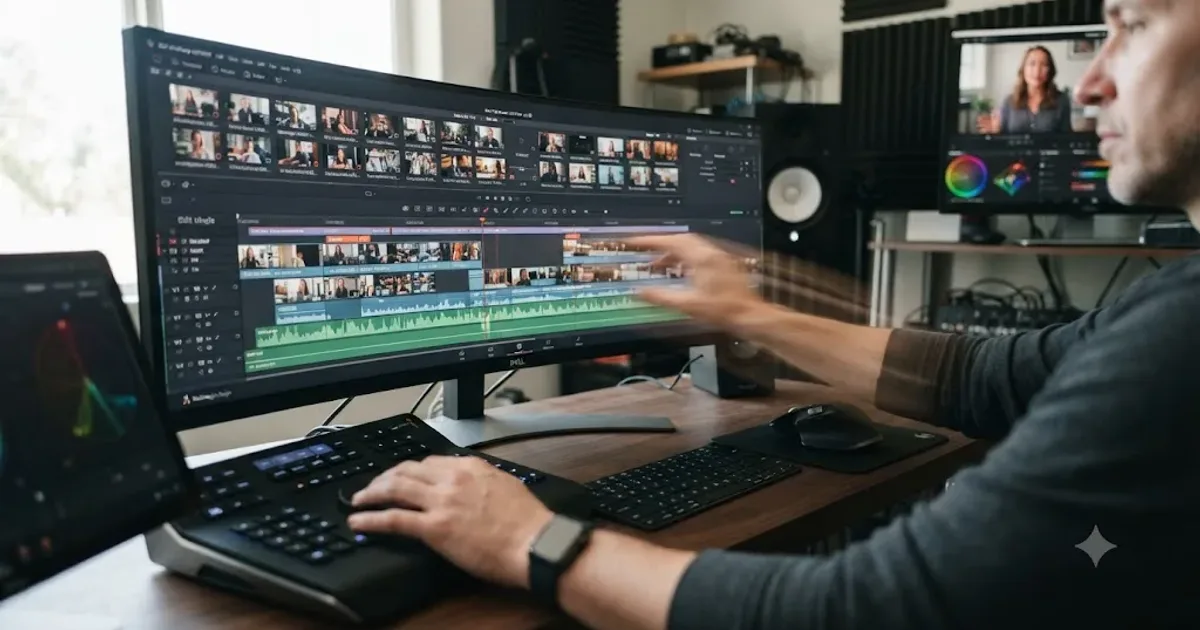
Timeline trimming is thousands of tiny drags, not one motion. Every ripple trim, every roll edit, every J-cut adjustment is a click-and-drag with your wrist doing fine positioning work at the pixel level. One trim is nothing. A four-hour cutting session is several thousand of them, on the same tendons, in the same repeated motion pattern.
Color grading multiplies the fine-motor load. Dragging on-screen color wheels, dragging curve points, dragging qualifier windows, all of it happens with a pinched, precise mouse grip held for long stretches without the hand ever fully relaxing. This is exactly why Blackmagic sells dedicated hardware control panels for color work, a signal that the company itself recognizes mouse-only grading as a real ergonomic bottleneck, not just a speed one.
Fusion node work adds navigation on top of manipulation. Building a node tree means dragging connections, repositioning nodes, and constantly panning and zooming the workspace, typically with the middle mouse button held down while you drag. That's a different repetitive pattern layered on top of the same wrist, on the same session.
Keyboard shortcuts change meaning by page, which sounds unrelated to wrist pain until you notice what it actually causes: hesitation. A shortcut you're not sure will do the right thing gets checked, second-guessed, or abandoned for the mouse, and every one of those small detours is more mouse travel and more grip-and-click cycles than a shortcut that fires cleanly the first time.
Sessions run long because the software rewards flow state. Once you're deep in a grade or a cut, stopping to stretch feels like it costs you the thread of what you were doing. That psychological pull toward "just one more clip" is exactly what turns a two-hour session into a five-hour one with no break in between.
A neutral wrist is a straight line from knuckles to forearm, not a bent one, and almost nothing in a default editing setup holds that line for you automatically. None of the causes above are exotic. They're the ordinary mechanics of the job, stacked up across a long enough session that the repetition itself becomes the problem.
What does a neutral wrist position actually look like at an editing desk?
"Neutral" gets used a lot in ergonomics advice without much explanation of what it actually looks like in a chair, at a desk, in front of a timeline. OSHA's computer workstation eTool is specific about it: hands, wrists, and forearms should be straight, in line, and roughly parallel to the floor, and elbows should stay close to the body, bent between 90 and 120 degrees (OSHA eTools: Positions).
Translate that into an editing bay setup and you get a short checklist:
| Body part | Neutral position | Common editing-bay mistake |
|---|---|---|
| Wrists | Straight, in line with forearms, not bent up or down | Resting wrists on a hard desk edge while reaching up to a keyboard set too high |
| Elbows | 90 to 120 degrees, close to the body | Keyboard and mouse pushed far forward, forcing arms to extend |
| Shoulders | Relaxed, not shrugged | Chair armrests set too high, pushing shoulders up toward the ears |
| Neck | Monitor top at or slightly below eye level | Laptop-only setup with the screen well below eye line, head tilted down for hours |
| Grading hand | Loose grip, resting weight, not gripping | Pinching a mouse tightly while dragging a color wheel for precision |
Two of Resolve's own workflow habits fight against that table more than general office work does. Reaching for a second monitor to keep a scopes panel visible often means twisting your torso and reaching sideways with the mouse hand for hours, which pulls the wrist out of the straight line OSHA describes even when your desk setup is otherwise correct. And a laptop-only editing setup, common for editors who cut on set or on the road, almost guarantees a too-low screen and a keyboard positioned wherever the laptop happens to sit, since there's no independent adjustment for either one.
A wrist rest helps less than most people expect, and OSHA's own guidance on wrist and palm supports is more cautious than the marketing around them suggests: a support is meant to rest the heel of your palm between typing bursts, not to be leaned on constantly while you type or move a mouse, since continuous pressure on that spot can itself irritate the same nerve pathway you're trying to protect (OSHA eTools: Wrist/Palm Support). If you use one, treat it as a resting pad between actions, not a permanent base your wrist stays pressed against while you drag a clip edge.
The cheapest fix in this entire guide is also the one editors skip most: raise your monitor. A stack of books, a $20 monitor arm, or just tilting a laptop stand changes your neck and shoulder angle, which changes how your arm hangs, which changes how your wrist has to bend to reach the keyboard. Fix the top of the chain and the bottom often needs less correcting.
Should you switch to a vertical mouse or a trackball?
This is the single change colorist and Mixing Light founder Patrick Inhofer credits with fixing a real, ongoing problem in his own hands. Writing about rebuilding his color grading setup after developing shoulder and wrist pain, Inhofer states plainly that switching to a vertical mouse "practically eradicated the carpal tunnel I'd get in my right wrist" (source: Mixing Light, Color Correction Ergonomics). He's not a physical therapist. He's a working colorist who edits and grades for a living, which makes the account more useful for an editor's specific situation than generic office ergonomics advice, not less.
The two device categories solve slightly different parts of the problem, and it's worth understanding the difference before you buy either one.
A vertical mouse turns your hand roughly 90 degrees from the flat position a standard mouse forces, so your palm faces inward instead of down. That change reduces forearm pronation, the twisting motion your forearm does to keep a flat mouse under your palm all day, which is one of the more fatiguing postures in sustained mouse use. You still move your whole arm and wrist to move the cursor, but you're not fighting rotation on top of that movement.
A trackball removes wrist and forearm movement almost entirely. The device stays still on the desk; your thumb or fingers roll a ball to move the cursor, and your hand barely travels. For an editor spending hours dragging clip edges and color wheels, a trackball can cut the actual distance your wrist moves across a session dramatically, since the motion shrinks from "move your whole arm across the mousepad" to "roll a ball a few millimeters with your thumb."
Trade-offs run the other way too, and pretending otherwise wouldn't be honest. A trackball has a real learning curve, often a week or two before precision work like fine trim points feels natural again, and thumb-operated models can shift strain to the thumb if you overuse it the same way you overused your wrist. A vertical mouse is a shorter adjustment, usually a few days, but it doesn't reduce overall arm travel the way a trackball does, since you're still sweeping the whole device across the desk.
A vertical mouse doesn't just change your grip. It changes how much rotation your forearm performs a thousand times a day, and that rotation, not the grip itself, is often the actual source of the ache. If you spend most of your Resolve time cutting and trimming on the Edit page, a vertical mouse is the lower-friction starting point. If you spend most of your time on the Color page, dragging wheels and windows for hours, a trackball's reduced travel distance tends to pay off faster, even with the adjustment period.
One more practical note specific to Resolve: some editors report sticking with a standard high-DPI mouse like the Logitech MX Master 3 simply because Resolve's scrubbing and trim precision responds well to its scroll wheel and gesture buttons, remapped through Resolve's own shortcut system to reduce reach (Creative Video Tips: Logitech MX Master 3 for DaVinci Resolve). A better mouse doesn't have to mean an unusual-looking one. It has to mean one that reduces the specific repeated motion that's hurting you, whatever shape that takes for your actual workflow.
Does a split or ergonomic keyboard actually help, or is it hype?
There's real research behind this one, not just marketing copy. A moderately tented keyboard, meaning the two halves angle upward toward the middle rather than sitting flat, has been shown to reduce the pain associated with forearm pronation, and computer users with existing musculoskeletal complaints have shown measurable improvement in hand function and pain severity after several months on an alternative split keyboard, according to research summarized by Kinesis, a company that's built split keyboards for over two decades and cites the underlying studies directly.
The mechanism is straightforward. A standard keyboard forces your hands together and your wrists into a slight inward angle to reach the far side of the layout, a posture called ulnar deviation. A split design lets each hand sit at shoulder width, wrists straight, without one hand crossing over toward the other's territory. Add tenting, raising the center of each half, and you also cut down on forearm pronation, the same twisting motion a vertical mouse addresses on the pointing-device side.
It's not a magic fix, and the research is honest about that. Studies on whether specific alternative layouts, like ortholinear key grids, reduce RSI on their own show mixed results; professional ergonomic setup and consistent posture often matter more than the layout choice itself. And there's a real cost to switching: most users take 7 to 10 days to get back to 80% of their normal typing speed on a split keyboard, which is a real productivity dip during a deadline week, not a theoretical one.
For an editor specifically, a compact keyboard, even without a full split, often solves half the problem on its own. A smaller footprint means the mouse sits closer to the keyboard rather than reaching past a number pad and a row of unused function keys, which shortens the distance your mouse hand travels every single time it moves between typing and clicking. That single change, going from a full-size keyboard to a compact one, is one of the specific fixes Inhofer names as part of rebuilding his own setup after developing pain (source: Mixing Light).
If you're deciding where to start: a compact keyboard is the lower-risk, lower-cost first move. A fully split, tented keyboard is the higher-investment option worth trying once you know posture and a compact layout alone aren't enough, since it asks for a genuine adjustment period you'll want to schedule around a lighter workload, not a deadline week.
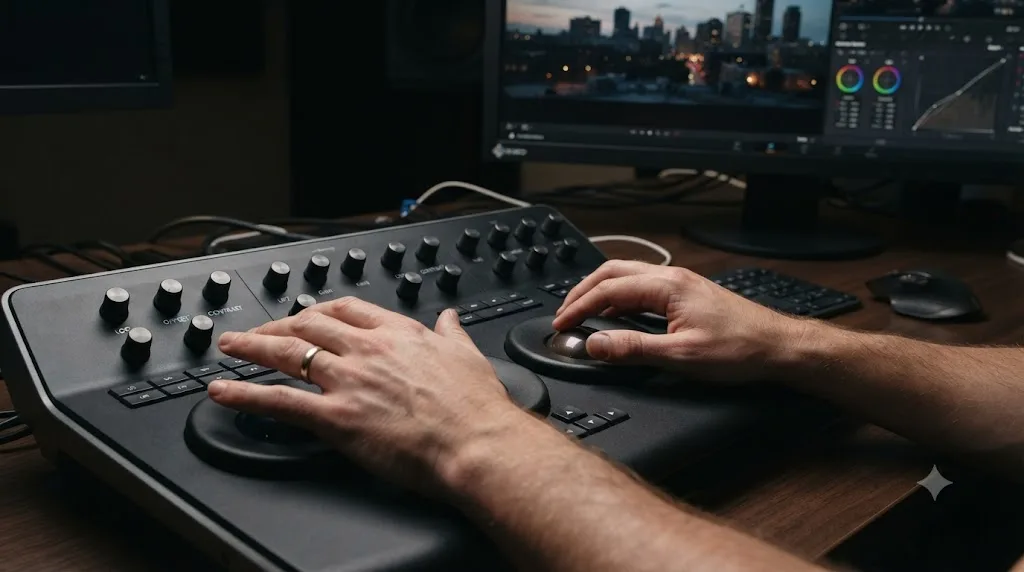
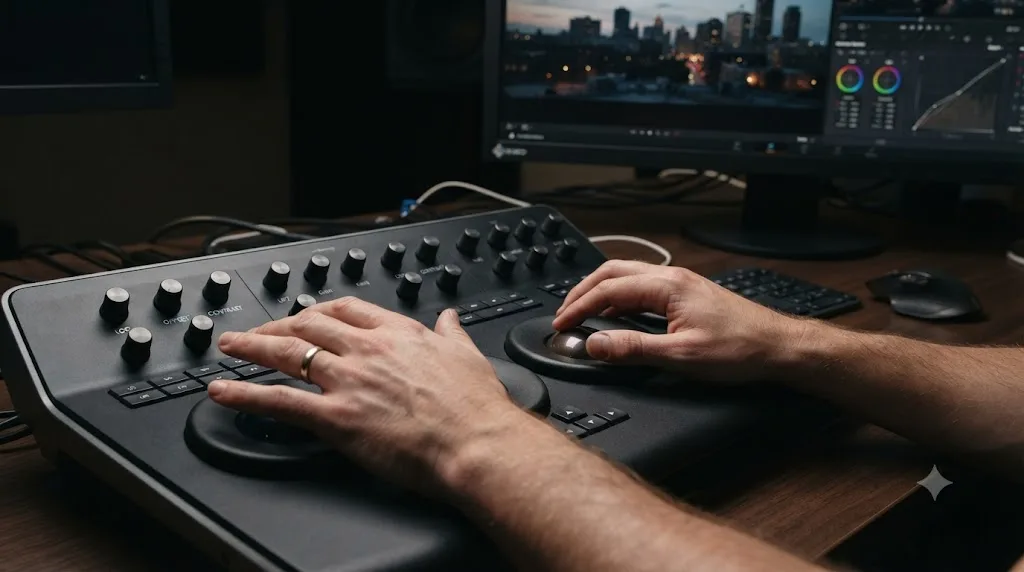
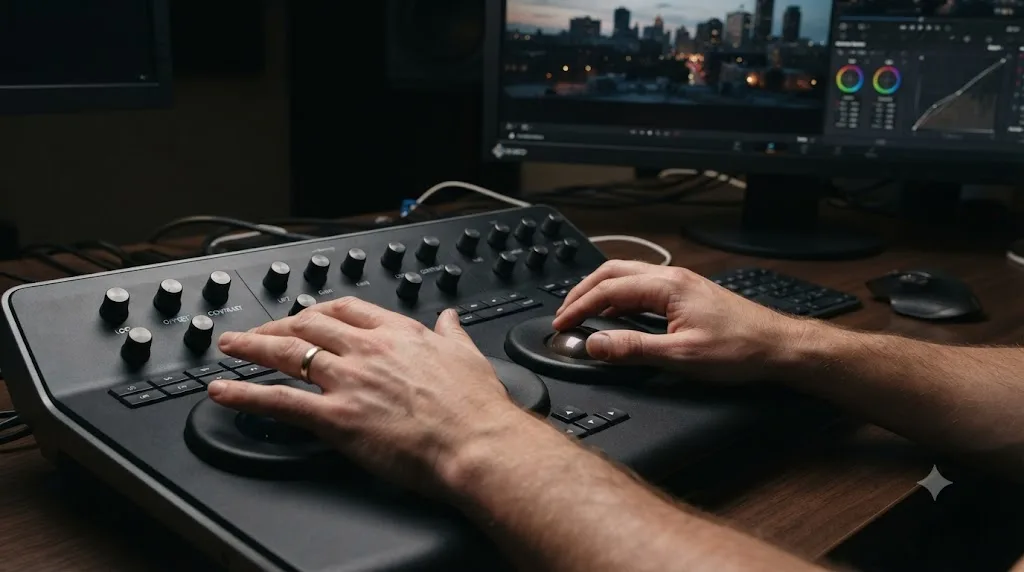
Is a DaVinci Resolve Speed Editor or color panel worth it for wrist pain?
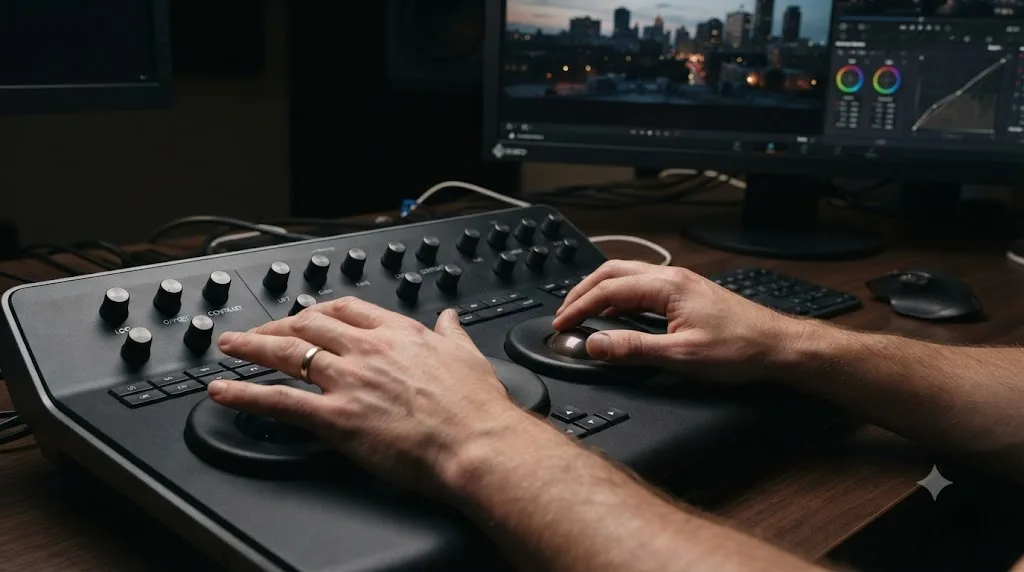
For pure cutting, a Speed Editor is a nice-to-have. For color-heavy work, a control panel is closer to a necessity if wrist pain is already a problem, and here's the actual mechanism behind why.
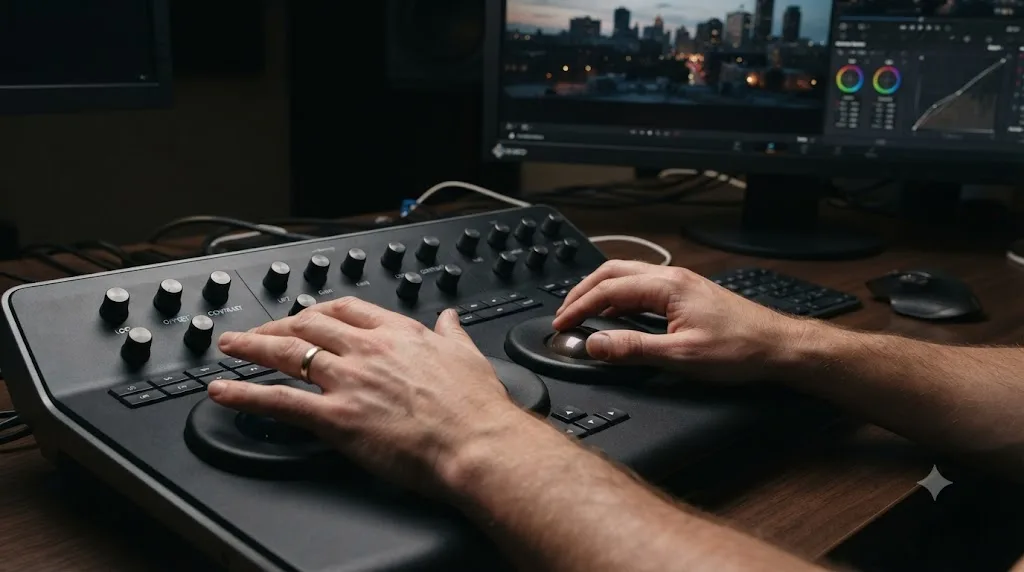
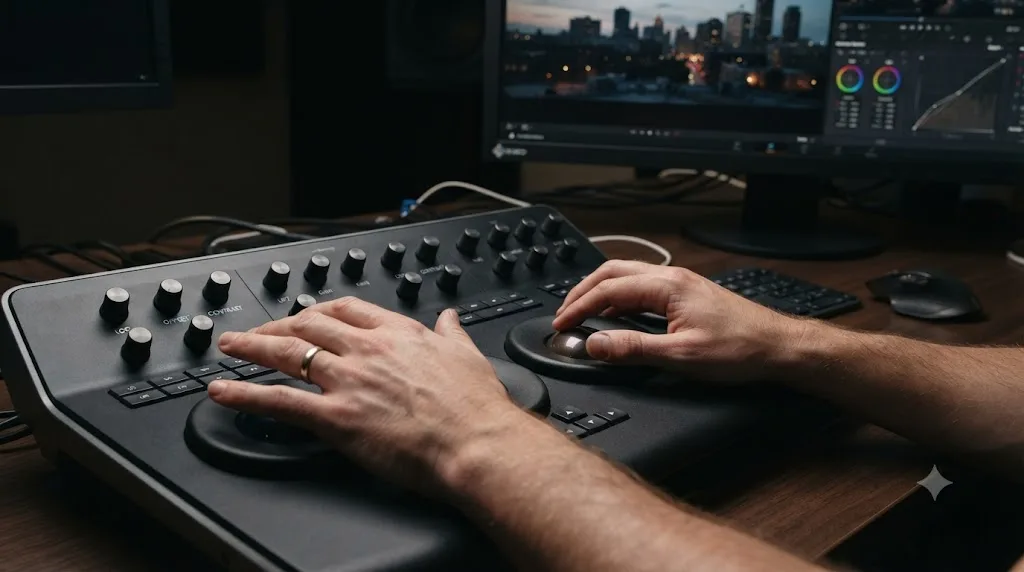
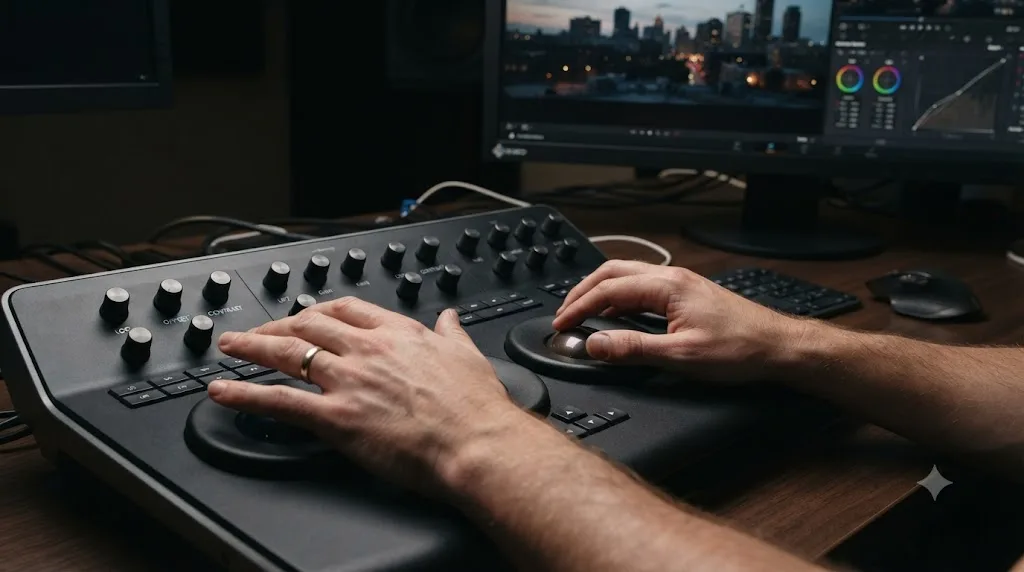
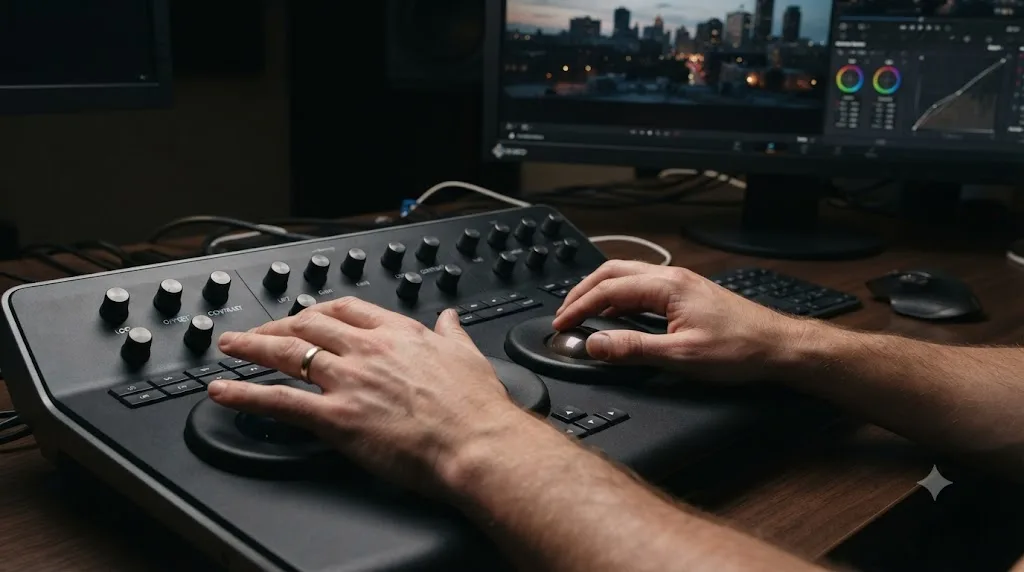
A mouse asks your wrist to do two jobs at once during color work: position the cursor precisely, and hold a click while dragging, for every single wheel, curve point, and qualifier window you touch. A physical panel splits that job across your whole hand and arm instead. Blackmagic's own DaVinci Resolve panel lineup, the Micro, Mini, and Advanced panels, puts weighted trackballs and dedicated dials directly under your fingers, so adjusting lift, gamma, and gain becomes a rolling motion of the whole hand rather than a pinched, precise drag with two fingers (Blackmagic Design: DaVinci Resolve Panels). That's a meaningfully different motion pattern, and different motion patterns spread the repetition instead of concentrating it in one joint for an entire session.
The Speed Editor solves a narrower, edit-specific problem: menu diving. Its dedicated buttons for cuts, transitions, and markers, along with a jog wheel for scrubbing and trimming, mean fewer trips into submenus and less back-and-forth between keyboard and mouse for common actions. Reviewers consistently note the jog wheel's tactile quality, smooth, weighted, satisfying to use for long stretches, and its physical design puts the space bar in the middle specifically so your hand has to move to reach it, which incidentally forces small posture breaks throughout a session (source: DaVinci Resolve Speed Editor, Blackmagic Design). That said, ergonomic opinion on the Speed Editor itself is genuinely mixed. Some editors find its layout awkward to place next to an already crowded desk, and the jog wheel, while pleasant, can be replicated by ordinary keyboard shortcuts for editors who don't specifically like the tactile feel.
A control panel takes color grading off the wrist entirely and puts it back on the whole hand, which is exactly the redistribution repetitive strain relief depends on. That's the honest case for buying one specifically for pain, not just speed. The cost is real, panels start well above a mouse and keyboard combined, so this is a purchase that makes the most sense once you already know color work is where your session hours and your pain both concentrate.
Can a Stream Deck, Loupedeck, or Tourbox reduce your RSI risk?
Indirectly, yes, and the mechanism is the same one behind the Speed Editor: fewer clicks, less menu hunting, less mouse travel per task. These control devices map physical buttons, dials, and sliders to software functions you'd otherwise reach through a menu or an on-screen control, which matters for RSI because every menu dive is extra mouse movement and extra fine-motor clicking layered on top of the editing itself.
The time savings this category advertises are usually framed around speed, not ergonomics, but the two are connected more directly than they look. A dial-mapped adjustment that takes 2 seconds instead of 10 isn't just faster, it's also fewer total mouse movements across a session, and fewer total movements is the entire point of ergonomic intervention. TourBox in particular is marketed around photo and video editing specifically, with users reporting meaningful per-image time savings on repetitive adjustment tasks that scale up across a full project.
Here's the honest limit of this category: it relocates repetition, it doesn't eliminate it. You're still pressing buttons and turning dials repeatedly, just smaller, more efficient motions than a full mouse drag across a menu tree. For an editor already in pain, that's a real improvement, less total movement, more of it concentrated in low-strain motions like a dial turn instead of a drag. It's not a substitute for fixing your baseline posture or your primary pointing device, the way both of those directly address the biggest sources of strain rather than just shrinking them.
If your budget only stretches to one purchase from this guide, a control surface like this competes directly with a control panel or a split keyboard for that slot, and the deciding factor is usually your specific workflow. If most of your pain comes from repetitive keyboard shortcuts and menu navigation on the Edit page, a Stream Deck or Loupedeck addresses that directly. If it comes from color wheel dragging, a dedicated color panel usually helps more, since it changes the motion itself rather than just shortening the path to it.
How should you set up DaVinci Resolve's keyboard shortcuts to cut down on reach?
Most editors either ignore Resolve's shortcut customization entirely or import someone else's preset built for a completely different hand and desk setup. Both approaches leave real ergonomic value on the table, because the entire point of custom shortcuts, from a strain perspective, is moving your most-repeated actions onto keys your hand can reach without stretching.
Open Keyboard Customization from the DaVinci Resolve menu, or the keyboard shortcut Option-Command-K on Mac and Alt-Control-K on Windows, and you get a full list of every command in the app with a search box above it (WriteDirect: How to Create Custom Keyboard Mappings in DaVinci Resolve). Since Resolve 15.2, you can assign multiple keys to the same command and map the numpad separately from the number row, which matters more for ergonomics than it sounds: it means you can put a frequently used command on a comfortable key without giving up whatever default assignment you're used to elsewhere.
A practical remap process that actually targets strain, not just speed:
- Identify your five most-repeated actions. Not the ones you use occasionally, the ones your hand executes dozens of times an hour: cut, trim, mark in/out, add edit, play/stop.
- Check where each one currently lives. If any of them requires a pinky stretch to a corner key, a two-hand combo, or a reach across the keyboard, it's a candidate for remapping regardless of whether it "already works."
- Move them to home-row-adjacent keys. Keys your fingers can reach without your hand leaving its resting position beat keys that require a visible hand shift, every time, for repetitive-use purposes.
- Save the result as a named preset, using the three-dot menu in the Keyboard Customization window, so the setup travels with you to another machine instead of living only on one workstation.
- Revisit it after a month. Your most-repeated actions on a wedding cut aren't the same as your most-repeated actions on a color-heavy commercial project. A shortcut layout tuned for one workflow can leave your hand stretching unnecessarily on another.
This isn't about memorizing more shortcuts. It's about making the ones you already use every few seconds require less physical reach to fire, which is a strain question, not a knowledge question. A shortcut that's technically available but requires an awkward stretch to hit doesn't help your wrists even if it saves you a menu click, since the stretch itself is the thing doing the damage over a full session.
Can you edit DaVinci Resolve with voice control to give your hands a break?
Not natively inside Resolve, but the underlying capability exists, and it's worth understanding honestly rather than either oversold or dismissed. Resolve itself has no built-in command system for controlling the app by voice, its only voice-adjacent feature is dictation-based subtitle transcription, which is a different thing entirely from voice-driven navigation and control.
The real option here is Talon Voice, a free, community-maintained hands-free control system originally built for programmers with severe RSI who needed to keep working without touching a keyboard or mouse at all. Talon provides voice control, noise control, and eye tracking together, and can drive any desktop application on Windows, macOS, or Linux, not just code editors, through a combination of dictation, custom voice commands, and a grid-based system that lets you click anywhere on screen by voice (Talon Voice, official site). It ships its own on-device speech engine, so there's no subscription requirement and no cloud dependency for the recognition itself.
Here's the honest limit: Talon has no official, out-of-the-box DaVinci Resolve profile the way it has mature community scripts for code editors like VS Code. Getting real value out of it for Resolve work means building or adapting your own voice command grammar for Resolve-specific actions, cut here, add a marker, open the color page, which is a genuine setup investment, not a five-minute install. For an editor with mild, occasional discomfort, that setup cost probably isn't worth it yet. For an editor managing a diagnosed RSI condition where a doctor has recommended reducing hands-on input entirely, it's one of the only tools that can actually take editing off your hands rather than just making the motions smaller or more efficient.
A lighter-weight middle ground: OS-level dictation, built into both macOS and Windows, handles text entry, titles, notes, project names, without any Resolve-specific setup at all. It won't drive the timeline, but it removes typing from tasks that don't need to involve your hands in the first place, which is a smaller win but a genuinely free one.
Does editing DaVinci Resolve on an iPad rest your hands, or make things worse?
It depends entirely on what you're doing with it. DaVinci Resolve for iPad is a real, free, separate app that shares the Cut and Color pages with the desktop version, and it can be controlled with touch gestures alone, though reviewers consistently note the on-screen buttons run small and fiddly, especially for setting precise in and out points with a fingertip. For rough cuts, review passes, and light color work, our full breakdown of DaVinci Resolve on iPad covers what it can and can't do on the desktop-parity front.
For the specific ergonomic question, an Apple Pencil changes the calculus more than the iPad itself does. Trimming, drawing masks, and adjusting color curves with a pencil grip uses a different set of muscles and a different motion pattern than a mouse drag, which can genuinely feel like a break for a wrist that's fatigued from hours of mouse work, the same logic behind switching input devices during the day rather than sticking with one for an entire session. It's a change of motion, not a removal of motion, so treat it as a rotation option within your workday rather than a cure.
Pure touch-only trimming on a small screen, without a pencil, tends to trade one strain pattern for another: repeated small taps and pinch gestures on a flat glass surface, held at an angle that often isn't much better for your wrist and neck than a laptop was. If you're reaching for an iPad specifically to rest your hands, pair it with a pencil and prop the device at a comfortable angle rather than holding it flat in your lap for an hour of touch-only editing.
The practical takeaway: an iPad session is a genuinely useful rotation tool, a different motion pattern to break up a long desktop day, not a wholesale ergonomic upgrade on its own. Treat it the way you'd treat switching from a mouse to a trackball mid-session: a change that spreads the load, not a device that removes strain by existing.
How often should you actually take breaks, and does the 20-20-20 rule apply?
The 20-20-20 rule, look at something 20 feet away for 20 seconds every 20 minutes, is genuinely useful advice, but it was designed for eye strain, not wrist strain, and conflating the two leads editors to think they're covering their bases when they're only covering one of them.
For musculoskeletal strain specifically, the research points to a slightly different rhythm: microbreaks of roughly one minute every 20 to 30 minutes, combined with longer breaks of 5 to 9 minutes between larger blocks of work, according to research on rest-break scheduling for computer tasks. NIOSH's own archived research on this is direct: strategic rest breaks reduce visual display terminal discomfort "without impairing productivity," and a specific NIOSH study found that supplementing conventional breaks with four 5-minute breaks spread through the workday led to consistently less eye soreness, visual blurring, and upper-body discomfort, with no drop in output (NIOSH archive: Strategic Rest Breaks Reduce VDT Discomforts). That last point matters most to anyone worried that stopping to rest will cost them billable hours: the research says it doesn't.
A practical break structure for a full editing day, built from that research rather than guesswork:
| Break type | Frequency | What to actually do |
|---|---|---|
| Micro-break | Every 20-30 minutes | Hands off the keyboard and mouse for 30-60 seconds. Shake out your hands, look away from the screen. |
| Movement break | Every 60-90 minutes | Stand up, walk for a few minutes, change your seated posture entirely. |
| Extended break | Every 2-3 hours | 5-9 minutes, away from the desk, ideally with a full change of activity, not scrolling a phone at the same desk. |
| Session cap | Once a day | Cap continuous timeline work at a set number of hours, with a genuine activity change in between, not just a shorter task. |
The biggest obstacle to actually doing this isn't knowledge, it's flow state. A break in the middle of a color grade feels like it costs you the thread of the look you were building, and a break mid-trim feels like it costs you momentum. Pain that shows up at the end of every session is your body's error message, not something to push through until the project ships. A timer that fires regardless of what you're mid-task on is the only reliable way most editors actually follow through on this, since willpower alone consistently loses to deadline pressure.
What stretches and exercises help, and which ones are just internet advice?
There's a real, well-supported category of exercise advice here, and it's more modest than most wellness content makes it sound. General guidance from ergonomics and medical sources, including OSHA's own recommendation to stretch throughout the day and Mayo Clinic-aligned advice on wrist and forearm care, points to a small, consistent set of movements rather than an elaborate routine.
Wrist and forearm care that shows up consistently across credible sources:
- Wrist extensor and flexor stretches. Extend one arm, palm down, and gently pull the fingers back with the other hand for 15-20 seconds, then repeat palm up. This targets the same tendons that get repeatedly loaded during mouse dragging and keyboard reaching.
- Finger flexing and spreading. Make a loose fist, then spread your fingers wide, repeated slowly for 10-15 reps. This counteracts the sustained partial-grip position a mouse or trackball holds your hand in for hours.
- Shoulder rolls and neck stretches. Strain rarely stays isolated in the wrist. A tight shoulder or forward-leaning neck changes how your arm hangs, which changes how your wrist angles at the keyboard, so treating the whole chain matters, not just the joint that hurts first.
- Tendon gliding exercises. A sequence of hand positions, straight fingers, hook fist, full fist, straight fist, moves the tendons through their full range without resistance, which some occupational therapy guidance recommends specifically for computer-heavy work.
What's worth being skeptical of: elaborate stretch routines marketed as a cure, and any claim that stretching alone offsets hours of unaddressed bad posture or an unfixed input device. Stretching is maintenance, not correction. It helps a system that's already reasonably set up stay loose. It won't undo the damage a bent-wrist typing position or an ill-fitting mouse does for eight hours a day, no matter how consistently you do it.
If you already have diagnosed nerve involvement, tingling, numbness, or a formal carpal tunnel diagnosis, generic internet stretch routines aren't a substitute for exercises prescribed by a physical or occupational therapist who's actually assessed your specific hand and wrist mechanics. That's not a hedge. It's the difference between maintenance advice for a healthy wrist and treatment for an injured one, and the two categories genuinely call for different guidance.
When should you stop adjusting your setup and see a doctor instead?
Every fix in this guide assumes your pain is still in the range that ergonomic and behavioral changes can address. There's a point past which that assumption stops holding, and knowing where that line sits matters more than any piece of hardware on this list.
See a doctor if you notice any of the following, according to symptom guidance from Cleveland Clinic's overview of repetitive strain injury (Cleveland Clinic: Repetitive Strain Injury):
- Numbness or tingling, especially in the thumb, index, or middle finger specifically, which points toward median nerve involvement rather than general muscle fatigue.
- Pain that wakes you up at night or is present first thing in the morning before you've touched a keyboard, since that pattern suggests inflammation or nerve compression rather than simple overuse from that day's session.
- Weakness or dropping things, a sign the nerve signal to your hand's muscles is being affected, not just the sensation of pain.
- Symptoms that don't improve after one to two weeks of consistent posture and equipment changes. If you've genuinely fixed your wrist position, swapped your mouse, and started taking real breaks, and nothing's changed, the problem has likely moved past what self-directed ergonomics can fix.
- Swelling, stiffness, or sensitivity to temperature in the affected area, general RSI symptoms Cleveland Clinic lists that can indicate tissue-level inflammation beyond simple fatigue.
Cleveland Clinic's guidance is also direct about the limits of workplace accommodation alone: for established conditions, medical treatment, which can range from splinting to physical therapy to, in severe cases, surgery for conditions like carpal tunnel syndrome, is what actually resolves the underlying nerve or tendon issue, not a better mouse on its own. An occupational therapist can also do something none of the general advice in this guide can: assess your specific hands, your specific desk, and your specific editing habits, and build a plan around all three together rather than generic recommendations.
The pattern worth internalizing is simple. Ergonomic changes are prevention and early intervention. Once numbness, night pain, or weakness show up, you've likely crossed from "prevent this from getting worse" into "this needs a professional diagnosis," and waiting to see a doctor while trying five more product fixes tends to cost more time than the appointment would.
Do long-form editing sessions like weddings or multicam need to be restructured?
Yes, and the fix here is scheduling, not equipment. Some of the longest, most sustained editing sessions in the industry happen in formats where the deadline pressure actively works against taking breaks: our wedding video editing workflow guide covers a process that commonly runs 30 to 60 hours of total editing time per film, often compressed into a tight delivery window by a solo editor handling sync, audio, color, and delivery alone. That's exactly the kind of workflow where "just take more breaks" sounds reasonable in a guide and completely unrealistic against an actual deadline.
The realistic fix is restructuring the work itself, not adding willpower on top of an unchanged schedule. A few concrete moves that reduce total repetitive strain without adding calendar time:
- Batch similar tasks instead of context-switching. Doing all of your multicam sync in one block, then all of your rough trimming, then all of your color, uses more consistent motion patterns per block than jumping between task types constantly, and batching naturally creates transition points where a break fits without breaking flow.
- Use Color Groups and PowerGrades to cut repeated grading motions. Grading one representative clip per camera and propagating that grade to the rest of the footage, rather than manually adjusting every single clip by hand, directly cuts the number of repetitive color-wheel drags a full wedding or multicam project requires.
- Split delivery into phases with natural stopping points. A rough cut delivered for approval before the final color and audio pass creates a built-in break in the schedule, not just the session, giving your hands genuine multi-day recovery between phases instead of one continuous grind.
- Treat sync and technical setup as a separate, lower-strain block. Multicam sync and organizing footage involve less continuous fine mouse control than trimming and grading. Scheduling that lower-intensity work for the start or end of a long day, rather than sandwiching high-strain grading in the middle of a marathon session, spreads the load across the day instead of concentrating it.
None of this requires you to work fewer total hours on a deadline project, which is the objection editors usually raise first. It requires organizing those hours so the same joint isn't doing the same motion for the entire stretch. A YouTube creator's weekly workflow and a multicam interview shoot both benefit from the same principle: structure the session around motion variety, not just task completion order.
Can AI editing tools reduce the physical toll of working in DaVinci Resolve?
Some of them genuinely can, and it's worth being specific about which category actually reduces hand movement versus which one just moves where you type instead of click. AI tools built for Resolve split into two real categories right now, and they solve different problems.
Automation tools execute editing work from a typed or spoken instruction. Sottocut works inside DaVinci Resolve Studio on Apple Silicon Macs, transcribing footage locally, scoring key moments, and proposing edits through a co-editor chat interface that gates every change behind your approval before it writes to the timeline (Sottocut). CutAgent takes natural-language instructions and applies them directly to your Resolve timeline, with a review step before changes land, compatible with both the free and Studio editions (CutAgent). DavinciClaude, built by PremiereCopilot, runs as a docked chat panel where you type an instruction like "cut every silence longer than half a second" and it executes the edit directly, covering silence removal, caption generation, and multicam auto-cut (DavinciClaude). Eddie AI offers a similar chat-driven automation layer built specifically as a native Resolve workflow integration.
What all four of those tools have in common, from a strain perspective, is real and worth naming honestly: they replace hands-on mechanical labor, trimming silence, generating captions, assembling a rough cut, with a typed or spoken instruction. That's a genuine reduction in mouse mileage for the specific tasks they cover. It's not nothing, and pretending the only AI option in this category is a tutor would be dishonest.
TryUncle is the on-screen assistant for DaVinci Resolve on macOS - ask in plain words and Uncle points at the exact control on your screen. That's a different job. It doesn't touch your timeline, doesn't execute edits, and doesn't reduce the number of clicks a given task takes. What it removes is the time spent hunting, scrubbing a tutorial video, digging through a forum thread, guessing which menu a setting lives in, time that adds its own layer of unnecessary mouse movement and clicking on top of the editing itself. Ask by voice or by typing, and Uncle shows you live, on your actual project, where the fix lives, inside the Edit, Color, and Fusion pages.
Which category actually helps your specific wrist pain depends on where your hours go. If most of your strain comes from mechanical, repetitive tasks, silence removal, caption placement, rough assembly, an automation tool cuts real mouse time by doing that work for you. If most of your strain comes from long, precise sessions you're doing yourself, color grading, fine trims, Fusion compositing, an automation tool doesn't touch that work at all, since none of the four tools above claim to grade or composite for you. In that case, the fixes earlier in this guide, input devices, panels, shortcut remapping, breaks, do more for your wrists than any AI layer currently can.
Is TryUncle worth it specifically if you're managing RSI or wrist pain?
Judge it on what it actually does, not what the category promises. TryUncle doesn't reduce your click count and it isn't marketed as an ergonomic product. What it targets is a specific, real source of extra mouse movement: the time you spend searching for a control instead of using one, minutes that add up across a session and that, unlike a color grade, contribute nothing to the finished project.
That gap gets worse, not better, once wrist pain is already a factor. An editor managing pain has less margin to burn on unnecessary movement than one who doesn't, since every extra minute of scrubbing a tutorial or hunting a forum thread is a minute of extra mouse use layered on top of a session that's already at your limit. If you're deliberately trying to shorten your total time at the mouse each day, cutting out search-and-hunt time is a legitimate, if modest, part of that effort, even though it's a smaller lever than switching your input device or fixing your posture.
It's worth being honest about where TryUncle doesn't help too. It won't reduce the number of trims a cut requires. It won't reduce the number of color wheel drags a grade takes. It won't replace a vertical mouse, a trackball, or a control panel, all of which change the physical motion itself rather than the time spent deciding what motion to make next. Treat it as one item on a list that starts with posture, input devices, and break scheduling, not a replacement for any of them.
TryUncle is $34.99 a month, macOS only, and it's a paid subscription with no free tier, so weigh the specific gap it fills, less time hunting for controls mid-session, against the other fixes in this guide before deciding where your budget goes first. Check TryUncle's current pricing and how it works here if the search-and-hunt problem is genuinely part of what's driving your session length.
For editors weighing this against the broader AI tools category, our guide to AI tools for learning DaVinci Resolve covers the full landscape, including where automation tools and a live tutor each fit, in more depth than the strain-specific angle covered here.
The verdict
The fastest editor in the room is not always the one who never stopped. Wrist pain in DaVinci Resolve isn't caused by one bad habit. It's the sum of a bent wrist, a mouse doing more work than it should, shortcuts that force a stretch, and sessions that run long because the software makes it easy to lose track of time. Fix them in order: posture first, because it's free and it's the foundation everything else sits on; input devices second, because they change the actual motion your wrist repeats thousands of times a day; software and shortcuts third, because they cut unnecessary movement on top of the necessary kind; breaks always, because NIOSH's own research says they cost you nothing in output and save you real discomfort. And if numbness, night pain, or weakness show up along the way, stop treating it as a setup problem. That's a signal to see a doctor, not to buy one more piece of gear.
None of this asks you to edit less or care less about the work. It asks you to build a setup and a rhythm that lets you keep doing this job for years, not just finish this week's deadline.
Frequently asked questions
- What's the fastest ergonomic fix for wrist pain in DaVinci Resolve?
- Fix your wrist posture before you buy anything. Keep your wrists straight and in line with your forearms, not bent up, down, or sideways, the neutral position OSHA's own computer workstation guidance describes as the baseline for reducing strain. That's free, takes ten minutes to set up, and does more than any single piece of hardware on its own.
- Does DaVinci Resolve cause carpal tunnel syndrome?
- DaVinci Resolve itself doesn't cause anything. Carpal tunnel and other repetitive strain injuries come from how you interact with any software for long stretches, bent wrists, constant fine mouse movement, no breaks, not from Resolve specifically. Color grading and Fusion node work involve more sustained, precise mouse control than plain cutting, which is why colorists report wrist issues often enough that Blackmagic sells dedicated control panels partly to address it.
- Is a vertical mouse or a trackball better for editors with wrist pain?
- Both remove different parts of the strain. A vertical mouse keeps your forearm from rotating into pronation the way a flat mouse forces it to. A trackball goes further and removes forearm and wrist movement almost entirely, since your thumb or fingers roll the ball while your hand stays still. Editors who scrub timelines and drag clip edges all day often prefer the trackball once they adjust to it; editors who mostly click and want a shorter learning curve tend to start with a vertical mouse.
- Do I need a Speed Editor or color panel to protect my wrists?
- Not for basic cutting, but it helps a lot for color-heavy work. A physical panel with trackballs and dials lets you adjust multiple parameters with your whole hand instead of clicking and dragging tiny on-screen wheels with a pinched mouse grip, which is exactly the kind of repetitive fine motion that causes strain. If you spend more time in the Color page than the Edit page, a panel is one of the highest-leverage ergonomic purchases available.
- Can I edit DaVinci Resolve hands-free with voice control?
- Not natively, no. Resolve has no built-in voice command system beyond dictation for subtitles. Talon Voice, a free, community-built hands-free control system originally built for programmers with severe RSI, can drive any desktop application including Resolve through custom voice commands and grid-based mouse control, but it takes real setup work and isn't something Blackmagic supports or documents.
- Is there an app that helps you while you're actually using DaVinci Resolve, not just another course?
- Yes. TryUncle is the on-screen assistant for DaVinci Resolve on macOS. It watches your screen while you edit and points at the exact control you're looking for, live, inside your own project. It doesn't reduce the number of clicks a task takes, but it cuts out the minutes you'd otherwise spend hunting through menus or scrubbing a tutorial video, hunting time that adds unnecessary mouse mileage on top of the editing itself.
- When should wrist pain from editing send me to a doctor instead of just changing my setup?
- See a doctor if you get numbness or tingling in your thumb, index, or middle finger, pain that wakes you up at night, weakness that makes you drop things, or symptoms that don't ease up after a week or two of posture and equipment changes. Those are signs of nerve involvement, like carpal tunnel syndrome, that ergonomic adjustments alone won't fix once they're established.
Sources
- Q & A from the Report Author of Repetitive Strain Injuries in Adults (CDC/NCHS Blogs)
- Step 1: Identify Risk Factors (NIOSH Ergonomics, CDC)
- Strategic Rest Breaks Reduce VDT Discomforts Without Impairing Productivity (NIOSH, CDC archive)
- eTools: Computer Workstations - Positions (OSHA)
- eTools: Computer Workstations - Pointer/Mouse (OSHA)
- eTools: Computer Workstations - Keyboards (OSHA)
- Repetitive Strain Injury (RSI): Causes, Symptoms & Treatment (Cleveland Clinic)
- Color Correction Ergonomics: Working Faster and Comfortably, by Patrick Inhofer (Mixing Light)
- Get Rid of Wrist and Back Pain with These 6 Tools for Video Editors and Power Users, by Colette Nichol (Story Envelope)
- Why Use a Split Keyboard (Kinesis)
- DaVinci Resolve - Panels (Blackmagic Design)
- DaVinci Resolve Speed Editor (Blackmagic Design)
- How to Create Custom Keyboard Mappings in DaVinci Resolve (WriteDirect)
- Logitech MX Master 3 Mouse for DaVinci Resolve (Creative Video Tips)
- Talon Voice (official site)
- DaVinci Resolve for iPad (App Store, Apple)
- Sottocut (product site: features, requirements, pricing)
- CutAgent (official site)
- Eddie AI: Pricing
- DavinciClaude (PremiereCopilot): How to Use Claude AI in DaVinci Resolve
- TryUncle
- TryUncle FAQ
Learn by doing, not watching
Stop translating tutorials to your timeline.
TryUncle stays beside Resolve on Mac and Windows. When you ask, Uncle sees your screen and points at the exact control you need. No hunting through tabs, timestamps, or mismatched tutorials.
Meet TryUncleKeep reading
 GuidesJul 15, 202638 min read
How to Edit Faster in DaVinci Resolve: A Workflow Guide
The workflow fixes that actually speed up DaVinci Resolve editing: proxy media, render cache, GPU/decode settings, hardware controllers, batch tools, and where AI helps.
 GuidesJul 17, 202621 min read
Does DaVinci Resolve Work on iPad? (2026 Guide)
DaVinci Resolve for iPad is real, free to download, and separate from desktop. What it can do, what's missing, pricing, requirements, and how projects sync.
 GuidesJul 16, 202645 min read
DaVinci Resolve Wedding Video Editing Workflow: Tips That Work
A practical DaVinci Resolve workflow for wedding editors: multicam sync, vow audio cleanup, camera color matching, delivery, and backup.