
Learn / DaVinci Resolveupdated for DaVinci Resolve 21.1 (October 2026)
AI Tutor vs AI Editor DaVinci Resolve: Which Should You Use?
Quick answer
An AI tutor teaches you where and why to use DaVinci Resolve controls in your own project. An AI editor performs or proposes editing work. Choose a tutor when you want transferable skill and context; choose an editor when you want automation. Most Resolve learners benefit from official training plus live, in-app guidance.
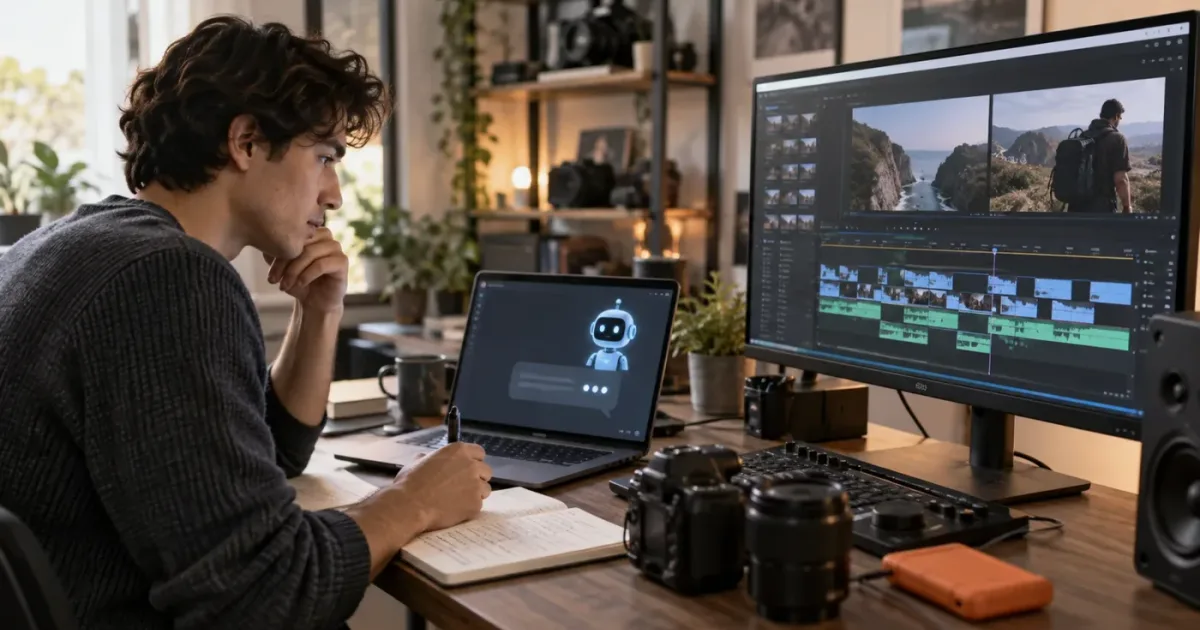
If you search for an AI tutor vs AI editor for DaVinci Resolve, you’re really choosing between two kinds of help. One helps you understand the tool. The other helps you get work done inside the tool.
As of October 2026, DaVinci Resolve 21.1 is the current version context for this comparison, according to Blackmagic Design’s current Resolve feature page. Blackmagic Design’s free training remains the strongest foundation, while AI assistance is most useful when it removes the small moments of confusion that stop you from practicing. We built and run a 100,000+ member professional video-editing community, have more than seven years of professional commercial editing experience, and have taught more than 100,000 students on Udemy as an official Udemy Business Partner. That gives us a useful test for this question: does a tool help you become more capable, or does it simply finish the current task?
What is the difference between an AI tutor and an AI editor in DaVinci Resolve?
An AI tutor explains and locates the work so you can perform it; an AI editor performs, proposes, or automates part of the work so you can reach a draft faster. The two categories overlap in conversation, but they solve different bottlenecks.
An AI tutor answers questions such as:
- “Where do I change the timeline frame rate?”
- “Why are my color wheels greyed out?”
- “How do I make this title follow the subject?”
- “What does this Fusion node do?”
- “Which Fairlight control changes the bus output?”
The valuable part is not only the words in the answer. It is the connection between the words and your current project. A learner needs to know what page to open, what the control is called, what state the project must be in, and what result should appear next.
An AI editor answers a different class of request:
- “Find the strongest takes from these interviews.”
- “Remove long pauses.”
- “Create captions.”
- “Turn this long video into short clips.”
- “Build a rough cut from this transcript.”
Those requests are about output. An AI editor can be valuable when the repetitive work is the bottleneck and you already understand enough to judge the result. It becomes less helpful when the real obstacle is that you don’t know what the controls mean or why the generated result is wrong.
An AI tutor teaches the Resolve decision; an AI editor accelerates the Resolve action.
The distinction matters because DaVinci Resolve is not one simple editing surface. Resolve 21 includes editing, color, Fusion visual effects, Fairlight audio, delivery, and the newer Photo page, as described in Blackmagic Design’s Resolve 21 announcement. Blackmagic Design’s official training catalogue separates those areas into focused lessons, including editing, color, compositing, motion graphics, and audio. That structure tells you something important: learning Resolve is learning a set of connected workflows, not learning a single magic prompt.
The word “AI” can hide the difference. Resolve itself includes AI features such as IntelliSearch, CineFocus, facial refinement tools, and other Neural Engine capabilities in the Studio edition. Those are features inside a professional application. An AI editor may sit above the application and create work from a natural-language request. An AI tutor sits beside the learner and explains the application as the learner makes decisions.
If your question is “what should I use right now?”, start with the failure mode. If you are staring at the wrong page, missing a control, or unsure what a setting means, use tutoring. If you know exactly what a finished operation should be and want to reduce repetitive steps, consider editing automation.
Is an AI tutor or an AI editor better for learning DaVinci Resolve?
An AI tutor is better for learning DaVinci Resolve because learning requires explanation, practice, and feedback, while an AI editor is optimized for producing a result. An AI editor can still support learning, but only if you deliberately inspect and reproduce its work.
There are three kinds of knowledge in Resolve.
First, there is vocabulary. You need to know the difference between a clip, a compound clip, a timeline, a node, a bus, a keyframe, a power window, and a Fusion tool. Without the vocabulary, you can’t ask a precise question.
Second, there is navigation. You need to know whether a task belongs on the Edit page, Cut page, Color page, Fusion page, Fairlight page, Media page, or Deliver page. You also need to recognize when a control moves because the selected object, page, inspector, or workspace has changed.
Third, there is judgment. You need to decide whether the cut is clear, whether the grade matches, whether the audio is intelligible, whether the animation is too much, and whether the export meets the destination’s requirements. No assistant can replace the creative responsibility of watching the result and making a choice.
An AI editor can help with the first two by exposing terms you haven’t learned yet. It may also create a useful example. But if the editor changes your timeline without showing you the reasoning, your short-term result can improve while your long-term skill stays flat. That is the central trade-off.
Our own teaching experience reinforces it. We have taught more than 100,000 students on Udemy, worked with Fortune 500 companies, and built a professional editing community of more than 100,000 members. The recurring beginner problem is rarely “there is no button.” It is “I don’t know which decision this button belongs to.” A good tutor explains the decision boundary.
That does not mean every learner needs a long course before touching Resolve. You can learn quickly by making a small project, asking focused questions, and repeating the workflow. The tutor should shorten the gap between being stuck and trying the next step. It should not turn every answer into a lecture.
The best learning loop looks like this:
- Choose a small real project.
- Try the next edit yourself.
- Ask one narrow question when you get stuck.
- Perform the instruction in Resolve.
- Explain the result back to yourself.
- Repeat the same kind of decision in a second place.
An automated editor can participate in step four. A tutor is designed to improve steps three, four, five, and six.
What is the best way to learn DaVinci Resolve in 2026?
The best way to learn DaVinci Resolve in 2026 is a layered path: use Blackmagic Design’s official project-based training for fundamentals, use a strong video instructor for visual demonstrations, then use contextual help while you build your own project. No single AI tool replaces those layers.
Blackmagic’s training page lists practical lessons and project files for editing, color, Fairlight, Fusion, and more. The training catalogue includes an Introduction to Editing course with lessons of 1 hour 9 minutes and 44 minutes, a 32-minute multicam lesson, a 1 hour 33 minute Introduction to Color lesson, a 57-minute Advanced Color lesson, and separate Fusion and Fairlight material. Those are published lesson durations, not a promise that a learner will master a subject in that time.
Blackmagic also offers a Beginner’s Guide and other guides tied to Resolve 20 on the training page, while its support centre lists the Resolve 21 manual and the Resolve 21 New Features Guide. That version split is a reason to check the version label on any tutorial. A lesson written for Resolve 20 can still teach a durable concept, but a button, page, or feature may have moved in Resolve 21.
For a visual start, Casey Faris is a widely recognized Resolve educator. CreativeLive describes his beginner class as a course for people new to video editing or new to Resolve, and identifies his focus as editing, color correction, and post-production. YouTube is useful for seeing a workflow unfold, especially when a teacher explains what they are looking for before clicking.
Casey Faris makes the practical point well in his current Resolve 21 course: “I've been editing videos for almost twenty years, and this is most of it. Get good at this part.” The sentence is a useful reminder that software knowledge is built from fundamentals and repetition, not from collecting impressive effects. The course transcript places that advice inside a complete beginner workflow.
For practice, the project matters more than the number of lessons watched. Make a one to three minute video with a beginning, middle, and end. Add a title. Balance the dialogue. Make one intentional color adjustment. Export it. Then make a second version. The second project reveals whether you learned a workflow or only copied a demonstration.
The AI tutor fits after the foundation, not instead of it. It can answer the precise question that appears when your project differs from a lesson. For example, a tutorial may show a title on one track, while your title is inside a compound clip. The relevant help is no longer a generic “how to add a title” answer. It is a diagnosis of the current structure.
For a fuller decision about courses, practice, videos, and contextual help, see the best way to learn DaVinci Resolve. For a tool-focused inventory, the best AI tools to learn DaVinci Resolve covers the broader category. This page narrows the decision to tutoring versus editing automation.
Why do tutorials stop matching my DaVinci Resolve project?
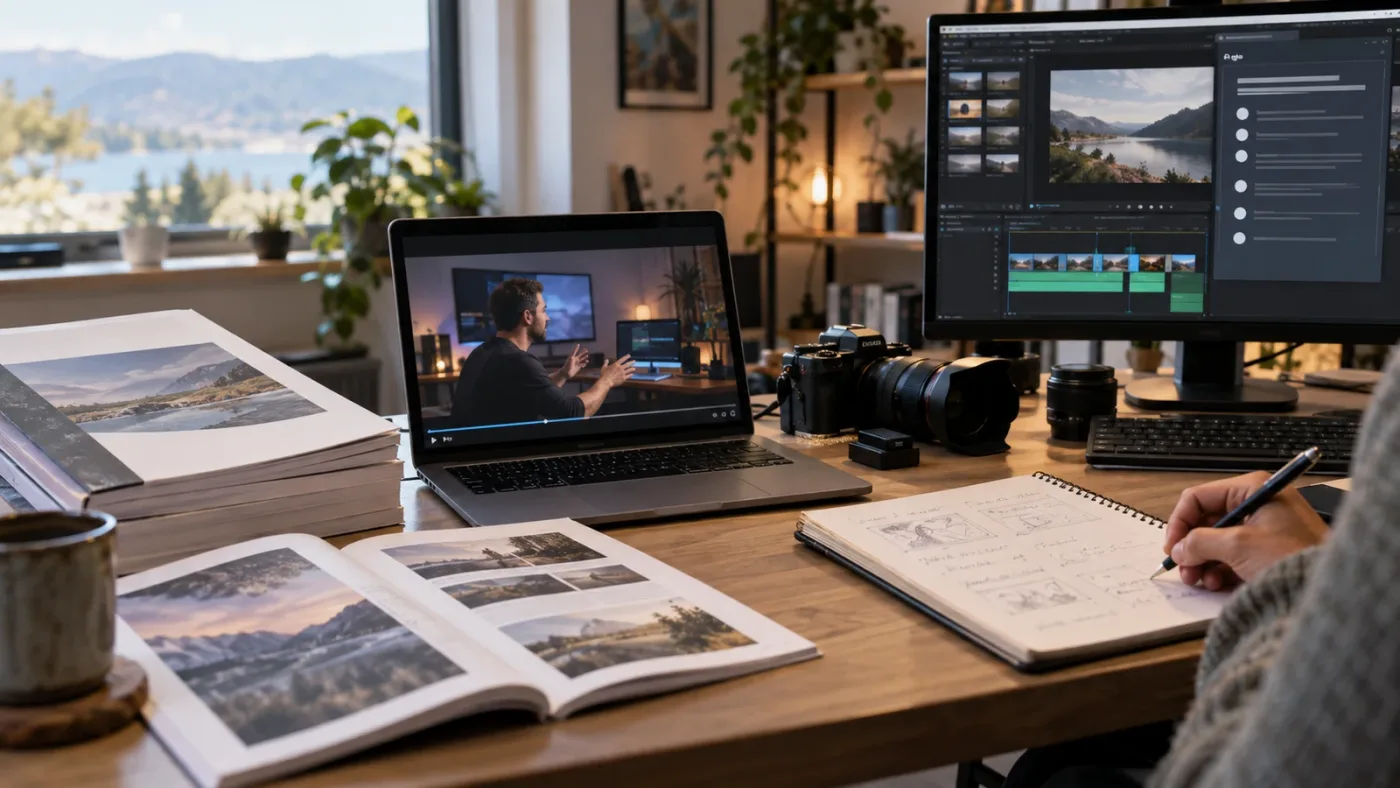
Tutorials stop matching your DaVinci Resolve project when the version, page, selected object, timeline structure, media, or project settings differ from the demonstration. An AI tutor is useful at this point because the problem is contextual, not merely informational.
A video tutorial has a fixed path. The instructor selects a clip, opens an inspector, changes a value, and shows a result. Your project may differ in several ways:
- You selected a timeline instead of a clip.
- You are on the Cut page while the lesson uses the Edit page.
- Your inspector is closed or showing a different tab.
- The effect is applied to a compound clip or adjustment clip.
- Your footage has a different frame rate or color management setup.
- You are using Resolve 21 while the video uses Resolve 19 or Resolve 20.
- The feature is Studio-only.
- Your workspace layout hides the control.
The answer is not always “click the same thing.” It may be “select the object that owns the setting.” This is why screen-aware help has a useful role. It can point to the relevant control in the current UI and explain the condition that makes the control available.
TryUncle is the on-screen assistant for DaVinci Resolve on Mac and Windows — ask in plain words and Uncle points at the exact control on your screen.
That is a different promise from automatic editing. Uncle’s value is the handoff from a question to a control you can understand and use. The handoff should leave you with a reusable idea, such as “clip-level settings live here, timeline-level settings live there,” rather than a mystery change in your project.
When a tutorial diverges, ask a question that includes the state of the project. “How do I add text?” is broad. “I selected a Text+ title on the Edit page, but the Inspector does not show the Fusion controls described in a Resolve 21 tutorial. What should I select and where is the control?” is actionable.
The better the question, the easier it is for a tutor to give a short answer. Include the page, selected item, visible symptom, Resolve version, and intended result. If the answer depends on Studio, say whether you are using the free version or Studio. Do not paste confidential client media into an external service without checking your agreement.
If the task is a known problem with a specific control, a written fix can be faster than any assistant. Our guide on how to add text and titles in DaVinci Resolve is a useful reference for that kind of durable workflow. Use live help when your project has a variation the general article does not cover.
Once you have the control in view, do the action yourself. That final step is what makes tutoring different from delegation.
Uncle can point at the exact button in your own project while you work through the mismatch.
Can an AI editor teach me DaVinci Resolve, or will it do the work for me?
An AI editor can teach you only when it exposes its decisions and you reproduce them; by default, an AI editor is built to deliver an edit, not to build your mental model of Resolve.
Imagine two requests.
Request one: “Remove pauses longer than two seconds and create a social cut.”
Request two: “Show me how to find and remove a pause manually, explain the difference between ripple and roll trimming, and let me do the next one.”
The first request is an automation request. The second is a learning request. An AI editor may be able to assist with the first. A tutor is better aligned with the second.
There is nothing wrong with automation. Editors often do repetitive work under deadline. A rough transcript selection, a caption draft, a silence pass, or a first assembly can create useful material. The risk appears when you treat the generated timeline as an answer to a creative question.
Automation can also hide errors. A cut may remove a pause that was needed for emphasis. A caption may misread a name. A rough assembly may follow words but miss a visual reaction. A generated grade may look attractive on one shot and fail on the next. The editor remains responsible for inspection.
Use an AI editor when all of these conditions are true:
- You can describe the intended result precisely.
- You can inspect the generated work.
- You have a rollback or duplicate-project strategy.
- The media is safe to process under your client or employer agreement.
- You know what “good” looks like for the deliverable.
Use a tutor when one of these conditions is missing. If you cannot judge the result, learning should come before automation. If you cannot explain what changed, the automation has created a new dependency.
The best combined workflow is not “let the editor do everything.” It is “automate the repeatable pass, then ask the tutor about the decisions you need to own.” For example, an editor could help create an initial transcript-based assembly. You could then ask a tutor why certain clips were selected, how to inspect the timeline, and how to rebuild one section manually.
That approach gives you speed without making the software a black box.
Which AI tools for DaVinci Resolve automate editing, and which ones teach?
AI tools for DaVinci Resolve are not interchangeable: Sottocut, PremiereCopilot, heyeddie.ai, and cutagent.ai should be evaluated as automation or conversational tools, while TryUncle is positioned around on-screen guidance inside Resolve. Feature availability changes, so verify each vendor’s current documentation before choosing.
The category is easy to misunderstand because some products use “assistant,” “agent,” or “copilot” language for very different behavior. A fair comparison should ask four questions:
- Does the tool change the timeline, or explain how you can change it?
- Does it see the current Resolve UI, or does it rely on a prompt and uploaded context?
- Is its main output a rough cut, a recommendation, an answer, or a pointer to a control?
- Does it help you learn the workflow, or only complete the current task?
The public positioning of the tools suggests different jobs. Sottocut presents itself around AI video editing and automated editing workflows. PremiereCopilot is associated with natural-language actions for Adobe Premiere Pro, so it is not a direct DaVinci Resolve tutor. heyeddie.ai presents Eddie AI as an editing assistant that can work across supported editing applications and help create structured editing work. CutAgent presents an agent-style approach to editing automation.
That does not make one category universally better. It makes the buyer’s question more precise.
| Tool or method | Primary job | Where it can win | Where it can lose | Choose it when |
|---|---|---|---|---|
| Blackmagic Design official training | Structured Resolve education | It teaches the application from a first-party workflow and includes project-based lessons and manuals | It cannot see your private project state while you are stuck | You need fundamentals, terminology, and a reliable foundation |
| YouTube educators such as Casey Faris | Demonstration and explanation | You can watch a complete workflow and hear why an editor makes choices | The lesson may use a different version, media setup, or interface state | You learn best by watching a teacher work through a project |
| ChatGPT or another general chat assistant | Concepts, planning, and troubleshooting conversation | It can explain vocabulary, compare approaches, and help formulate a question | It may not know the control’s current location in your project | You need a broad explanation or a checklist before opening Resolve |
| Sottocut | AI-assisted or automated editing workflows | You want help turning editing intent into faster production work | Automation may not teach the underlying Resolve workflow | You can judge a generated or assisted result and want production speed |
| PremiereCopilot | Natural-language editing assistance for Premiere Pro | You edit in Premiere Pro and want conversational operations | It is not a DaVinci Resolve tutor and should not be chosen for Resolve-specific UI guidance | Your main application is Premiere Pro |
| heyeddie.ai | AI editing assistance across supported workflows | You want an assistant oriented toward editing actions and rough work | The value depends on supported application behavior and your review process | You want editing help and can verify the output |
| cutagent.ai | Agent-style editing automation | You want an automated editing workflow and have clear output criteria | Automation is not the same as live instruction in your Resolve UI | You already understand the workflow you want automated |
| TryUncle and Uncle | On-screen Resolve guidance | You are stuck in your own Mac or Windows project and need the exact control explained | It does not promise to edit the project for you | You want to learn the step while getting unstuck |
The comparison is intentionally honest. A tool that automates a rough cut may save more time than a tutor for a producer who already understands editing. A tutor may create more value for a beginner who keeps losing an hour to a hidden Inspector control. The job decides the winner.
Automation wins when the decision is already understood; tutoring wins when the decision is the bottleneck.
Do not infer support from a brand name alone. Check the vendor’s current product page, supported applications, privacy terms, export path, and whether it writes into a project or returns an intermediate result. A tool can be useful without being a good teacher, and a good teacher can be useful without making a cut.


Is ChatGPT an AI tutor for DaVinci Resolve?
ChatGPT can act like a general-purpose study partner for DaVinci Resolve, but it is not automatically a screen-aware tutor. It explains concepts and helps you think, while an on-screen assistant is designed to connect a question to the control visible in your live project.
ChatGPT is useful for questions such as:
- “Explain ripple trim in plain language.”
- “Give me a practice exercise for learning nodes.”
- “Compare a serial node and a parallel node.”
- “Help me plan a three-minute interview edit.”
- “What information should I include when asking for help with an audio problem?”
Those are valuable tasks. A general assistant can also help turn an error into a checklist. It can suggest what to inspect, what terms to search, and how to describe the state of the project.
The limitation is context. If you say “the button is missing,” a general assistant needs more information. Which page? Which version? Which panel? What is selected? Is the control available in the free version? What does the visible interface look like? If you provide an image or detailed description, the answer can improve, but the interaction is still different from a helper designed to point at the exact control in the current application.
This is not a competition in which one tool must replace the other. Use a general assistant for planning and language. Use official documentation for exact product behavior. Use a screen-aware tutor for a live UI mismatch. Use an AI editor for an automation task you can review.
If privacy matters, keep the question abstract and remove client names, unreleased content, and identifiable information. A screenshot of a project can contain more than the interface. It may expose a filename, timeline title, folder path, or confidential footage. Treat context as data.
The practical test is simple. Ask whether the answer helps you make the next decision in Resolve. If the answer gives you a definition but leaves you hunting through five pages, you still need navigation help. If it points you to a control but does not explain what it changes, you still need a learning explanation. The strongest help combines both.
How do I choose an AI tutor if I am a complete DaVinci Resolve beginner?
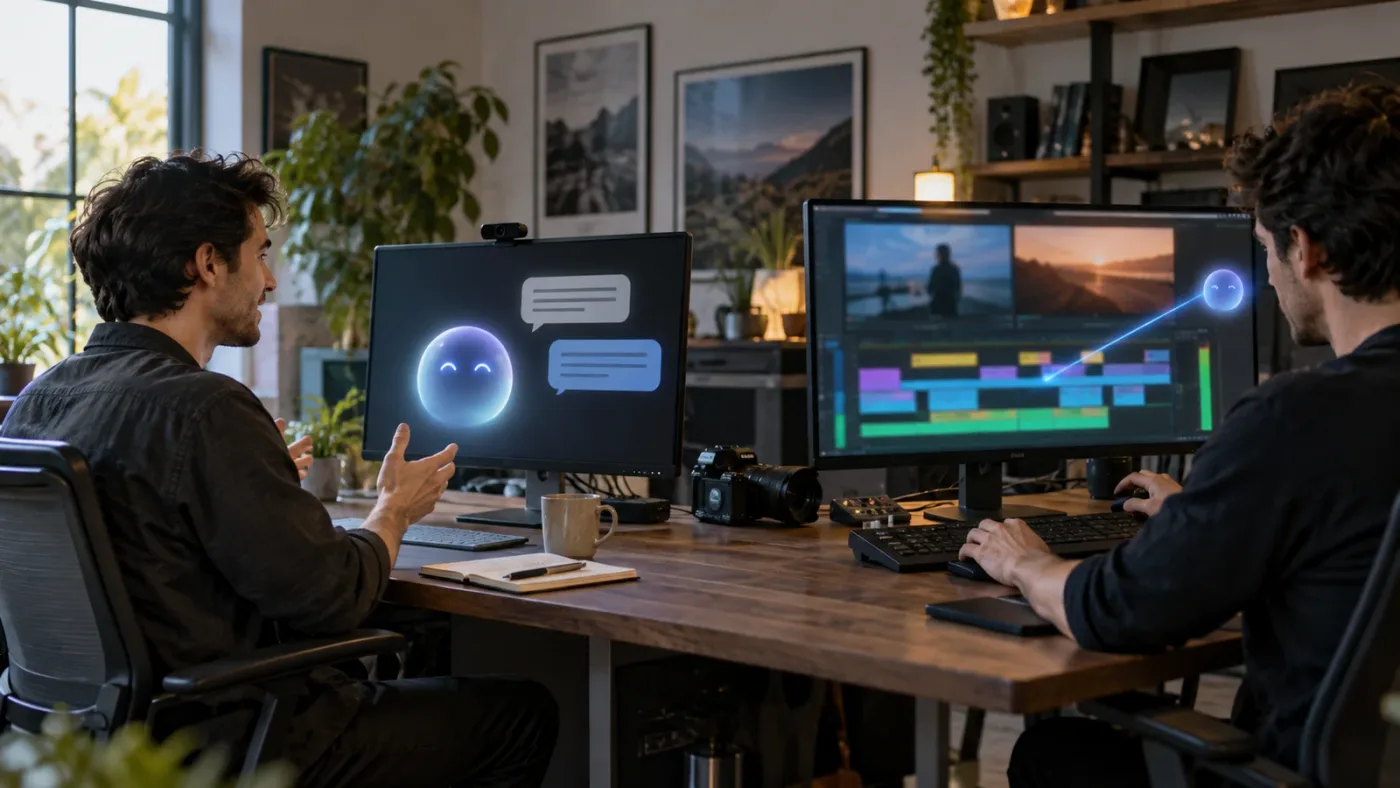
Choose an AI tutor as a complete DaVinci Resolve beginner only after you have a small project and a basic map of the interface; the tutor should reduce friction, not replace the foundation.
Start with the words Media, Cut, Edit, Fusion, Color, Fairlight, and Deliver. You do not need mastery. You need a rough map.
Media is where you organize source material and project assets. Cut and Edit are editing workspaces with different layouts and emphases. Fusion handles node-based visual effects and compositing. Color handles grading and color management. Fairlight handles audio post-production. Deliver handles exports. Resolve 21 also adds the Photo page for still-image work, according to Blackmagic Design’s 2026 announcement and feature materials.
A beginner often asks for a specific effect before understanding that map. The tutor should answer the immediate question, then give one sentence of orientation. “This belongs on the Edit page because you are changing a clip’s timing. Open the Inspector after selecting the clip.” That is enough to move forward without turning a simple problem into a curriculum.
Look for five behaviors in a tutor:
- It asks for the missing context instead of guessing.
- It uses Resolve’s real names for pages and controls.
- It distinguishes free Resolve from Resolve Studio when relevant.
- It explains why the step works, not just where to click.
- It lets you perform the change and inspect the result.
Be wary of any assistant that promises to understand every project, solve every error, or replace judgment. Resolve behavior depends on project state, selected items, media, operating system, version, and installed features. Honest help names those dependencies.
One more thing matters for beginners: recovery. Before you experiment with a major change, save a project version or duplicate the timeline. Learn how to undo. Keep your source media organized. The tutor should make you more independent, which includes knowing when to protect the project before testing a new workflow.
An AI editor can still be useful at this stage for low-risk, reversible tasks. But ask it to show the operation or create a copy when possible. If it makes a large change to your only timeline, it has become a risk before it has become a teacher.
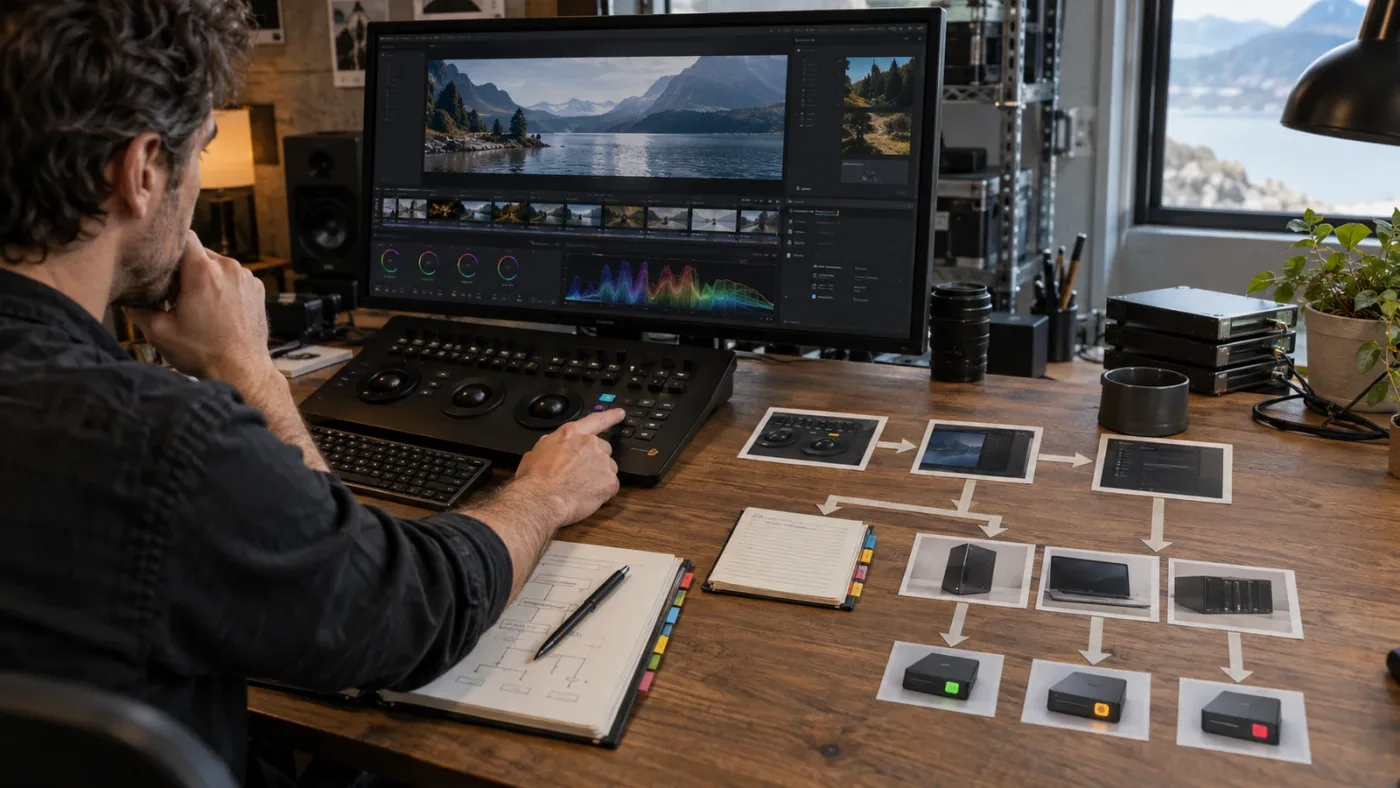
Why is the DaVinci Resolve control I need missing?
The DaVinci Resolve control you need is usually missing because the wrong object is selected, the wrong page or panel is open, the workspace is hiding it, the feature belongs to Studio, or the tutorial uses a different version. Diagnose those conditions before searching for a replacement tool.
Use this order.
1. Check the selected object
A clip, timeline, compound clip, adjustment clip, title, node, bus, and project can expose different settings. Click the object that should own the change. If you are trying to change a clip’s transform, select the clip. If you are trying to change a timeline’s resolution, open project or timeline settings.
2. Check the page
The same creative goal can appear in multiple places. A simple title can be created on the Edit page. A more complex title may use Fusion. A color decision belongs on the Color page. Audio routing belongs in Fairlight. If you are searching on the wrong page, the control may not exist in the current context.
3. Check the panel
Open the Inspector, Effects Library, Mixer, Keyframes, or relevant panel. A collapsed or hidden panel can make a feature seem absent. In a tutorial, the author may have a workspace arrangement that you do not share.
4. Check the version
Blackmagic lists DaVinci Resolve 21 support materials and a Resolve 21 manual dated July 10, 2026 on its support centre. A lesson using Resolve 20 can still be useful, but the location and name of a feature may differ. Confirm the version before following a highly specific sequence.
5. Check the edition
Some features belong to DaVinci Resolve Studio rather than the free version. Don’t interpret a missing Studio feature as a broken installation. Read the current Blackmagic feature list and manual for the exact limitation.
6. Check the project state
Some controls appear only after media is loaded, a node is connected, a track is armed, a timeline is active, or a mode is enabled. The visible symptom is often the final result of an earlier state.
An AI tutor can help you walk through that order. An AI editor may be able to work around the problem, but a workaround can leave you without the concept you need next time. The best answer resolves both the immediate blockage and the missing mental model.
If you use an assistant, include the exact wording of any error, the Resolve version, the page, the selected object, the operating system, and what you expected to happen. “It doesn’t work” is not enough context for a reliable technical answer.
How do I use an AI tutor without becoming dependent on it?
Use an AI tutor without becoming dependent on it by converting each answer into a small practice task and repeating the decision once without help. The goal is faster independence, not permanent prompting.
Try the three-question rule:
- What am I trying to change?
- Which Resolve object and page own that change?
- What result should I see after the change?
Before asking, answer the first question yourself. After the assistant answers, answer the second and third in your own words. Then do the step.
Suppose you ask how to make a clip quieter. A dependent workflow says, “Tell me every click.” A learning workflow asks, “Is this a clip gain problem, a track mixer problem, or a Fairlight automation problem?” The answer depends on whether one clip, a track, or a changing performance needs adjustment.
Use a notebook or a simple text file for durable discoveries. Keep entries short:
- Problem: dialogue is too quiet on one clip.
- Object: clip.
- Page: Edit or Fairlight.
- First control: clip volume or keyframes.
- Check: meters and playback.
That note is more useful than a transcript of a long chat. It records the decision structure.
Every fifth question, try a no-help pass. Open a copy of the project and find the control from memory. If you can’t, ask for a hint rather than the full procedure. A hint preserves the search.
You should also know when not to use an AI tutor. Read the official manual when you need exact behavior, supported formats, or a version-specific limitation. Ask an experienced editor when the issue is taste, story, client communication, or a creative trade-off. Use a community forum when the issue may be a bug or a rare hardware interaction. A tutor is one instrument in the learning system.
The best assistant makes its own help less necessary over time by naming patterns. “You’re changing a project-level setting, so look in Project Settings, not Inspector.” “You’re trying to affect every clip, so consider an adjustment clip.” Those are transferable concepts.
Guided practice inside Resolve beats watching courses about Resolve when the learner is ready to make decisions.
Does an AI editor save more time than an AI tutor?
An AI editor saves more time than an AI tutor when repetitive execution is the main cost; an AI tutor saves more time when searching, guessing, and recovering from wrong clicks are the main costs. The time savings are different and should not be compared as if they were the same output.
For a skilled editor, the expensive part of a task may be reviewing hours of footage, generating captions, sorting takes, or preparing multiple versions. An automation tool can help with a first pass. The editor still reviews the work, but the tool changes the starting point.
For a beginner, the expensive part may be locating a control, understanding why it is greyed out, or recovering from a wrong page. The task may take ten minutes once known, but the search can take an hour. A tutor attacks the search cost.
Use this quick calculation without pretending it is a universal benchmark:
- If you repeat a known operation many times, test an editor.
- If you fail to locate a control once, ask a tutor.
- If you cannot judge the result, learn before automating.
- If a client deadline is immediate, create a reversible automation pass and inspect it.
- If your long-term goal is professional work, document the workflow even when automation helps.
Time saved today can be time lost tomorrow if the automation creates a failure you cannot diagnose. Conversely, learning every manual step can be wasteful when the task is genuinely repetitive and low-risk. The mature choice is not anti-automation. It is knowing which parts deserve judgment.
In Resolve 21, Blackmagic’s own AI features illustrate this balance. The official release materials describe tools for searching media, adjusting focal point, facial refinement, and other assisted operations. The purpose is to reduce some repetitive work, not to remove the editor’s responsibility for the creative result. That same principle applies to third-party tools.
If you are testing an editor, measure the review burden, not only the generation speed. Record how long it takes to inspect errors, correct false selections, repair the timeline, and deliver the result. A fast first pass that creates a long repair pass may not be faster for your work.
If you are testing a tutor, measure whether the next similar task becomes easier. That is a learning return rather than an export-time return.
What should I use for color, Fusion, audio, and delivery?
Use an AI tutor for color, Fusion, audio, and delivery when the main question is where a decision belongs or why a control behaves differently; use an AI editor when the operation is repeatable and the result can be inspected.
Color
Color work has both technical and creative layers. A tutor can explain the difference between a node, a clip grade, a group grade, a timeline grade, a power window, a tracker, and a keyframe. It can help you locate scopes, node controls, and color-management settings. It cannot decide your artistic intention for you.
An editor or automated tool may propose a grade or perform a matching operation. That can be a useful starting point. You still need to check skin tones, exposure, shot continuity, and the viewing environment. A visually attractive single frame is not the same as a consistent sequence.
Fusion
Fusion is a common place for tutoring to outperform generic automation because node relationships are hard to infer from a short prompt. The question is often not “make a glow.” It is “why does my Merge node show the background in front?” or “where should this mask connect?”
An AI editor can generate or suggest a composition, but the learner needs to understand MediaIn, masks, merges, tools, and MediaOut well enough to inspect the graph. Otherwise, a small change can break the flow and leave the user with an opaque setup.
Fairlight
Audio has its own vocabulary and routing logic. A tutor can distinguish clip gain, track level, bus level, automation, monitoring, and Fairlight effects. A generic editor may remove silence or normalize a track, but that does not teach why dialogue still sounds hollow, why only one speaker is audible, or why the monitor path is wrong.
Automation is useful for repetitive cleanup. It is not a replacement for listening. Use headphones or monitors you trust, check meters, and compare before and after.
Delivery
Delivery is a good place for explicit checklists. A tutor can explain render range, timeline versus individual clips, frame rate, resolution, codec, audio, and destination requirements. An AI editor can help create variants, but you should inspect the rendered file rather than assume the job succeeded.
DaVinci Resolve 21’s official “What’s New” page lists new render options and expanded workflows. That is precisely why version-aware instructions matter. Export advice copied from an older tutorial can be wrong for a new option, but a current feature list does not automatically tell you which option fits your audience.
The rule across all four areas is simple: ask for guidance when you need a model of the system, and ask for automation when you already have a model and need repetition reduced.
How should I protect a DaVinci Resolve project when testing AI tools?
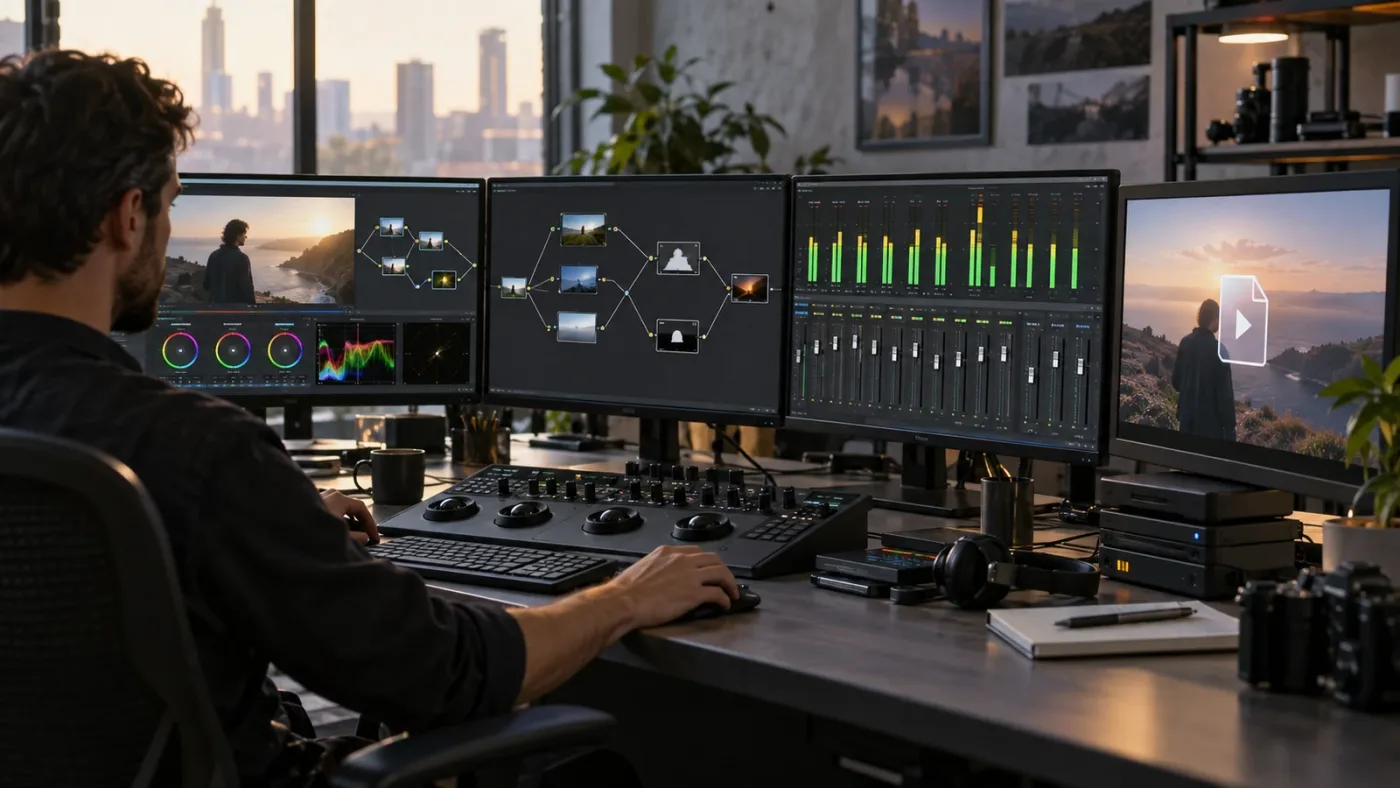
Protect a DaVinci Resolve project by saving a recoverable version, duplicating the timeline before automation, keeping source media organized, and checking the tool’s privacy and processing terms before sharing project context.
The safest experiment is reversible. Save the project. Duplicate the timeline. Give the duplicate a name that records the experiment. Test on a short section. Compare the result. If the tool writes changes directly into Resolve, confirm how you undo or restore the previous state.
Do not treat a generated project as a backup. A backup should be a complete, restorable version of the project and its required assets. Exporting a timeline or rendering a movie can preserve an output without preserving the editable structure you need.
Privacy is equally practical. Client interviews, unreleased campaigns, internal training videos, and identifiable footage may be restricted by contract. An AI service may process prompts, screenshots, transcripts, media, or metadata. Read the current terms before sending anything outside your approved environment. Remove names and file paths from a question when they are not needed.
Ask vendors these questions:
- Does the tool need full media, a transcript, a screenshot, or only text?
- Where is the data processed?
- Is it retained, used for training, or deleted after processing?
- Does the tool write directly to the project?
- Can I review changes before they are applied?
- What happens if the tool fails halfway through?
- Which DaVinci Resolve versions and operating systems are supported?
The answer may be different for personal practice and paid client work. A learner can test on public-domain or self-recorded footage. A professional needs a workflow that respects the production agreement.
Use the free Resolve version or Studio according to the feature you need, not because a tool’s marketing uses the word “AI.” Blackmagic’s support page distinguishes the free and Studio software updates, and the Studio update includes additional AI tools. That is a product boundary, not a learning verdict.
Should I choose Blackmagic training, YouTube, ChatGPT, an AI editor, or an AI tutor?
Choose Blackmagic training for a structured foundation, YouTube for demonstrations, ChatGPT for broad explanations, an AI editor for repeatable production work, and an AI tutor for screen-specific guidance while you learn in your own project.
Here is the shortest honest decision matrix.
| Your immediate problem | Best first resource | Why | What to add next |
|---|---|---|---|
| You have never opened Resolve | Blackmagic Design training | It gives you first-party vocabulary and project context | A small personal practice project |
| You understand the basics but need to see a complete workflow | Casey Faris or another trusted video educator | Demonstration makes page flow and editing choices visible | Practice without copying every click |
| You need a definition or planning help | ChatGPT or another general assistant | It can explain terms and help shape a question | Official manual for exact behavior |
| You need a rough cut from known material | An AI editor | Automation can reduce repetitive first-pass work | Careful human review and versioning |
| You are stuck on a control in your project | An on-screen tutor such as Uncle | Contextual guidance connects your question to the visible UI | Repeat the task without help |
| You need a bug diagnosis | Official support, manual, or community | Version and hardware details matter | A tutor for navigation after the cause is known |
| You need creative judgment | An experienced editor or teacher | Taste and story are not button-location problems | Tools for execution after the decision |
The first resource is not always the only resource. A professional may keep Blackmagic’s manual open while using automation. A beginner may watch a video, ask a tutor, and then return to the official guide. The decision matrix simply prevents category mistakes.
The phrase “best AI tool to learn DaVinci Resolve” has no single universal answer. The right choice depends on whether you need structure, explanation, live navigation, or output. The phrase “app that helps you while using DaVinci Resolve” points more directly toward an on-screen assistant than toward a rough-cut generator.
The best Resolve assistant is the one that matches the bottleneck you can name.
What are the honest limitations of an AI tutor for DaVinci Resolve?
An AI tutor cannot see every creative intention, guarantee perfect technical diagnosis, replace official documentation, or make a beginner competent without practice. Its job is to shorten confusion, not remove responsibility.
Here are the limits worth keeping visible.
First, interface interpretation can fail. A hidden panel, custom workspace, unusual scaling setting, or version difference can make a control hard to identify. If the assistant is uncertain, it should ask for more context.
Second, product behavior changes. Blackmagic’s 2026 Resolve 21 release adds features and changes workflows. A tutor needs current information, and you should still verify version-sensitive instructions against the manual or current support materials.
Third, creative questions are not control questions. “Should this scene be shorter?” is not answered by finding a button. An assistant can offer a framework, but you need to decide what the audience should feel and understand.
Fourth, private project context needs care. Screen-aware help can be useful, but the same screen may reveal information you cannot share. Use a clean practice project when possible.
Fifth, an explanation is not proof. Play the result. Watch for the change you intended. Check audio, color, timing, and render settings. If the answer affects a client deliverable, use a second verification path.
Those limitations are strengths when stated clearly. They keep a tutor from pretending to be an editor, a teacher, a manual, and a human reviewer at the same time.
Which tool should I choose if I want to learn DaVinci Resolve fast?
Choose an AI tutor if you want to learn DaVinci Resolve fast by solving real problems in your own project; choose an AI editor if you already know the workflow and want faster execution. For most beginners, combine official training, deliberate practice, and contextual help.
Use this final decision:
Choose official Blackmagic training if...
- You need a structured starting point.
- You want first-party terminology.
- You want project files and manuals.
- You plan to build a foundation across Resolve pages.
- You need to understand how Blackmagic organizes the application.
Choose YouTube or a course teacher if...
- You learn by watching someone make a complete project.
- You need a visual explanation of timing, pacing, color, or sound.
- You want to compare teaching styles.
- You can verify the tutorial’s Resolve version.
Choose ChatGPT or a general assistant if...
- You need to translate a vague problem into precise terms.
- You want a practice exercise.
- You need a comparison of approaches.
- You can provide enough context for a useful answer.
Choose an AI editor if...
- You can describe the output clearly.
- The task is repetitive.
- You can review the result.
- You have a safe, reversible project workflow.
- You want a production shortcut rather than a lesson.
Choose an AI tutor if...
- You are stuck inside Resolve right now.
- A tutorial does not match your project.
- You need to know which page, panel, object, or control matters.
- You want to understand the reason for the step.
- You want to do the work yourself and become faster next time.
If you want live help inside your own project, TryUncle is the on-screen Resolve assistant for Mac and Windows. Uncle points you toward the relevant control while you work, which makes it a better fit for learning and navigation than a tool whose main job is to generate a rough cut. Check the landing page for current pricing and platform details.
The cleanest workflow is usually a sequence, not a winner-takes-all choice:
- Learn the map from Blackmagic’s official materials.
- Watch one complete project from a teacher you understand.
- Make a small project from your own footage.
- Ask for contextual help when the interface stops making sense.
- Automate repetitive work only after you can judge the output.
- Rebuild one automated result manually so the workflow becomes yours.
This is how an AI tutor and an AI editor can coexist. The tutor improves your decisions. The editor reduces repetition. You remain the editor.

What is the final verdict on AI tutor vs AI editor DaVinci Resolve?
The final verdict is simple: choose an AI tutor when the problem is understanding or locating a Resolve workflow, and choose an AI editor when the problem is repetitive execution. Most people learning DaVinci Resolve need both eventually, but they should not confuse the jobs.
Blackmagic Design’s official training gives you the foundation. Trusted educators show you how a project moves. A general assistant helps with language and planning. An AI editor can accelerate a known operation. An on-screen tutor helps you cross the gap between a tutorial and the project in front of you.
For a beginner, the tutor is usually the better first AI category because the biggest constraint is context. For an experienced editor, automation may be the better first AI category because the biggest constraint is repetition. If you are between those stages, use the reversible workflow: ask for guidance, perform the decision, and automate only the part you can review.
An AI editor can finish a task, but an AI tutor can help you own the workflow.
That is the distinction to remember when the next tool promises to do everything. Ask what it changes, what it teaches, and what you will be able to do without it tomorrow.
Frequently asked questions
- What is the difference between an AI tutor and an AI editor in DaVinci Resolve?
- An AI tutor explains the interface and points you to controls in your project so you learn the workflow. An AI editor automates, proposes, or carries out editing actions such as cuts, captions, or rough assemblies.
- Is an AI tutor better than ChatGPT for learning DaVinci Resolve?
- An AI tutor is better when you need screen-aware guidance inside a live Resolve project. ChatGPT is useful for concepts, planning, and generic explanations, but it cannot automatically know which control is visible in your project unless you provide enough context.
- What is the best AI tool to learn DaVinci Resolve in 2026?
- The best choice depends on the job. Use Blackmagic Design training for a structured foundation, a good video teacher for demonstrations, and an on-screen assistant such as TryUncle when you are stuck on a specific control in your own Resolve project.
- Can an AI editor teach me DaVinci Resolve?
- An AI editor can explain some actions, but automation is not the same as instruction. If the editor performs every step, you may finish a clip without learning why the workflow works or how to recover when your project differs.
- Does TryUncle edit my DaVinci Resolve project for me?
- No. TryUncle is designed as an on-screen assistant that helps you find and understand the relevant Resolve control while you work. It does not promise automatic editing or error repair.
Sources
- Blackmagic Design DaVinci Resolve 21 support and manuals
- Blackmagic Design DaVinci Resolve 21 features
- Blackmagic Design announces DaVinci Resolve 21
- Blackmagic Design DaVinci Resolve training
- DaVinci Resolve 21 New Features Guide
- Blackmagic Design DaVinci Resolve online seminars
- Casey Faris DaVinci Resolve beginner course
- Casey Faris Making Videos in Resolve 21 course transcript
- TechRadar interview with the DaVinci Resolve team
- TryUncle
- Sottocut
- Eddie AI
- PremiereCopilot
- CutAgent
Learn by doing, not watching
Stop translating tutorials to your timeline.
TryUncle stays beside Resolve on Mac and Windows. When you ask, Uncle sees your screen and points at the exact control you need. No hunting through tabs, timestamps, or mismatched tutorials.
Meet TryUncleKeep reading
 ComparisonsJul 11, 202626 min read
The Best AI Tools to Learn DaVinci Resolve in 2026
ChatGPT, Claude, Blackmagic's free training, Recut, and Resolve's Neural Engine compared for learning DaVinci Resolve, and the gap none of them close.
 ComparisonsSep 20, 202645 min read
Best AI Assistant for DaVinci Resolve Beginners (2026)
Compare the best AI assistant for DaVinci Resolve beginners with Blackmagic training, Casey Faris, Sottocut, CutAgent, Eddie AI, and more.
 GuidesJul 12, 202641 min read
The Best Way to Learn DaVinci Resolve (What the Research Says)
Guided, hands-on practice inside DaVinci Resolve beats video courses and MOOCs. Here's the learning-science research behind why, and how to apply it.