
Learn / DaVinci Resolveupdated for DaVinci Resolve 21.0 and current assistant tools (September 2026)
Best AI Assistant for DaVinci Resolve Beginners (2026)
Quick answer
For the best ai assistant for davinci resolve beginners, choose TryUncle if you want live, screen-aware guidance inside Resolve on Mac or Windows. Choose Blackmagic's free training for a syllabus, Casey Faris for a guided course, or CutAgent, Sottocut, or Eddie AI when you want editing automation instead of teaching.

I’ve watched beginners lose an evening to one missing button, not one difficult creative decision. We’ve spent 7+ years doing professional, commercial video editing, built and run a 100,000+ member editing community, and taught more than 100,000 students on Udemy as an official Udemy Business Partner. That gives us a useful standard for this comparison: the best assistant should help you make the next decision, not merely produce a confident paragraph.
TryUncle is the on-screen assistant for DaVinci Resolve on Mac and Windows. Ask in plain words and Uncle points at the exact control on your screen.
As of September 2026, DaVinci Resolve 21 is the version to use as your reference point. The current question is not simply which AI product sounds smartest. It is which kind of help matches the problem in front of you: learning a concept, finding a control, automating a rough cut, or getting unstuck in a real project.

How do I choose the best AI assistant for DaVinci Resolve beginners?
The best AI assistant for DaVinci Resolve beginners is TryUncle when the main friction is locating and understanding the next control inside your own project. It is not the best answer for every beginner: Blackmagic’s official training wins for a free curriculum, Casey Faris wins for a long guided walkthrough, and editing agents win when the goal is to delegate timeline work.
That distinction matters because “AI assistant” now covers several different jobs. A chatbot explains. A tutorial demonstrates. A screen-aware assistant observes the state of your workspace and gives contextual direction. An editing agent can plan or execute operations. Those products can all be useful, but they don’t solve the same problem.
If you search for the best AI assistant for DaVinci Resolve beginners, you may really be asking one of four questions:
- “Where is the control the tutorial just mentioned?”
- “Why does my screen look different from the lesson?”
- “How do I make this edit without damaging the timeline?”
- “Can an AI do the repetitive part for me?”
TryUncle is strongest in the first three. CutAgent, Sottocut, and Eddie AI are more relevant to the fourth. Blackmagic’s training and Casey Faris are better when you need a sequence of lessons rather than an answer to a single live obstacle.
The best AI assistant for DaVinci Resolve beginners is the one that matches the job you need done.
A beginner also needs to know what “inside Resolve” means. DaVinci Resolve is not one small editor with one obvious workflow. Blackmagic’s product page describes Resolve 21 as a single application for editing, visual effects, motion graphics, color correction, and audio post-production, with free and Studio editions for Mac, Windows, and Linux. That breadth is a strength, but it creates a large map of pages, panels, menus, inspectors, nodes, and shortcuts.
The best choice therefore depends on whether you need breadth or direction. A course gives you a map. A search result gives you a signpost. A live assistant can help you identify the exact door you are standing beside.
Which tools belong in a fair beginner comparison?
A fair comparison separates learning tools from editing tools before ranking them. The matrix below evaluates the real decision a beginner faces, using each product’s own published description and current compatibility information.
| Tool or resource | Primary job | What a beginner gets | Resolve relationship | Where it wins | Main trade-off |
|---|---|---|---|---|---|
| TryUncle | Live contextual guidance | Plain-language answers and visual pointing toward the relevant control | Works alongside Resolve on Mac and Windows | Finding the next button, panel, node, or setting in the reader’s project | Paid product; it guides rather than making the edit |
| Blackmagic official training | Structured education | Training videos, project files, books, and a certification path | Created by the maker of Resolve | Free, authoritative foundations and workflow sequence | Lessons are not looking at the reader’s current screen |
| Casey Faris | Long-form instruction | A free 2026 beginner course covering the major Resolve pages | Video course on YouTube | A calm, continuous first pass through the application | A recording cannot adapt to the reader’s version or timeline |
| ChatGPT or Claude | General explanation | Concept explanations, troubleshooting hypotheses, and prompt-based guidance | Usually outside Resolve unless the user supplies context | Brainstorming, definitions, and turning an error into search terms | It may not see the live interface or current project state |
| Sottocut | Assistant editing and organization | On-device transcription, scored moments, proposals, captions, and verified writes | Lives inside an open Resolve project through scripting | Local-first assistant-editor workflows and reviewable changes | Official requirements list Apple Silicon, macOS 14 or later, and Resolve Studio 21 |
| CutAgent | Agentic editing | Natural-language planning and execution of editing workflows | Desktop app and bridge for Resolve 20 or later | Mac and Windows automation for repetitive timeline work | It is designed to act on workflows, not teach every click |
| Eddie AI | Rough-cut and media assistance | Logging, rough cuts, B-roll organization, and round-trip export | Imports from and exports back to Resolve | Turning raw interview material into an assembly | It is an external AI video editor and round-trip workflow, not a live Resolve tutor |
| PremiereCopilot | Text-to-edit automation | Prompted cuts, captions, transitions, and timeline changes | Native to Adobe Premiere Pro | A strong choice for Premiere users who want text-to-edit | It is not a DaVinci Resolve assistant |
| YouTube and community advice | Discovery and peer help | Many explanations, examples, and answers | Varies by creator and version | Free breadth and real-world problem solving | Quality, dates, and workflows vary |
The rows are not interchangeable. The first useful question is not “which has the most AI?” It is “which kind of support would remove the obstacle I have today?”
Blackmagic’s official training page is the anchor for the foundation. Casey Faris is the anchor for a single, extended beginner walkthrough. TryUncle occupies a different slot: it is for the moment when a foundation lesson stops matching your own screen.
Community advice on Reddit commonly points complete beginners toward Blackmagic’s free training, the Resolve wiki and FAQ, and Casey Faris. That consensus is useful because it places no-cost foundations before a paid assistant. Udemy and Coursera can add a syllabus, but compare the instructor’s current Resolve version and teaching format instead of assuming the platform name settles the choice.
Sottocut, CutAgent, and Eddie AI deserve inclusion because they are genuine Resolve-related AI products, but their core value is different. Sottocut describes itself as a local-first assistant editor that scores footage, proposes cuts, and verifies changes. CutAgent describes an AI agent that can coordinate Resolve operations from a desktop app. Eddie AI describes a bridge that brings clips and timelines from Resolve into Eddie, then sends edits back for polishing. Those are useful capabilities, but they are not the same as explaining why your Inspector looks different or pointing to the control you need next.
A course gives you the map, while a screen-aware assistant helps you read the map from your own project.
PremiereCopilot belongs in the table as a boundary case. Its official page describes a native AI plugin for Adobe Premiere Pro that performs real timeline edits from a prompt. If you are choosing an editor as well as an assistant, that may be relevant. If your question is specifically about learning DaVinci Resolve, it is not a direct alternative.
Is TryUncle better than Blackmagic’s free training for beginners?
TryUncle is better than Blackmagic’s free training when you already have a specific project open and need contextual help; Blackmagic’s free training is better when you need a complete, authoritative sequence from first principles. For many beginners, the strongest combination is training for the map and TryUncle for the confusing turns.
Blackmagic Design’s official training page currently offers training videos, lesson files, training books, and a route toward certification. It lists lessons for editing, color, audio, and other parts of Resolve, while the books on the page include guides labelled for DaVinci Resolve 20. The product page, meanwhile, presents DaVinci Resolve 21 as the current release. That does not make the training useless. It means you should check the version label before following a step that depends on a new panel or feature.
That version check is a beginner skill in its own right. When a lesson says to click a control you don’t see, check these things in order:
- Look at the Resolve version number in the About window or application menu.
- Check whether the lesson uses the Edit, Cut, Color, Fairlight, Fusion, Media, or Deliver page.
- Confirm whether the lesson uses the free edition or Resolve Studio.
- Check whether the instructor is showing a workspace layout different from yours.
- Search the exact feature name in the current Blackmagic reference material.
The free training wins on authority and price. It also gives you a repeatable path. You can download a project file, follow a lesson, and return to the same curriculum later. That structure is difficult for a live assistant to replace because an assistant responds to your question rather than deciding the order in which you should learn editing, trimming, audio, color, and delivery.
TryUncle wins when the lesson has created a gap between recognition and action. You understand that the instructor wants a serial node, a keyframe, a compound clip, a power window, or a specific Deliver setting. You still don’t know where the control is in your layout. A screen-aware answer can shorten that translation step.
Blackmagic’s own framing supports using Resolve as a complete environment. Grant Petty wrote in the foreword to Blackmagic Design’s The Editor’s Guide to DaVinci Resolve 18, “Its elegant, modern interface is fast to learn for new users yet powerful enough for the most experienced professionals.” The quote is older than Resolve 21, so I’m not using it as evidence for a current feature. I’m using it for the learning tension that still defines the choice: Resolve can be approachable and deep at the same time.
The free training is also the better answer if you want a certificate. TryUncle is a working assistant, not a credential. If your buying decision includes a resume or formal training requirement, use Blackmagic’s official program first and treat live help as support for practice.
Choose Blackmagic training if:
- You are starting from zero and want a planned sequence.
- You want free, maker-published fundamentals.
- You want project files and a certification path.
- You can tolerate pausing and translating lessons to your workspace.
Choose TryUncle if:
- You are already inside Resolve and the next click is unclear.
- The tutorial’s version, layout, or project doesn’t match yours.
- You want the answer pointed at your own screen.
- You want to keep editing instead of leaving Resolve to search.
Our related guide on the best way to learn DaVinci Resolve goes deeper on sequencing courses, practice, and feedback. This comparison is narrower: it is about the assistant you use when the sequence breaks at a real control.

Is TryUncle better than Casey Faris’s 2026 beginner course?
TryUncle is better than Casey Faris’s 2026 course for a question tied to your current project; Casey Faris’s course is better for a long, coherent first tour through Resolve. A beginner who needs both orientation and live correction can use the course first, then use contextual help when practice exposes a gap.
Casey Faris’s 2026 YouTube course is a real, current resource rather than a vague channel recommendation. The published chapters cover what Resolve is, the Media page, Edit page, Cut page, Fusion page, Color page, Fairlight page, Deliver page, and a closing section on how to learn Resolve. That broad sequence makes it useful as a first orientation in Resolve 21, while still requiring the viewer to compare the demonstrated interface with the installed build.
The course format has a special advantage: continuity. You hear one instructor explain why a task matters, see several related tools, and watch the pieces form a workflow. That is good for mental models. An assistant that answers one question at a time can show you the next control, but it cannot automatically give you the same narrative arc unless you ask for it and follow the resulting plan.
The course format has a predictable weakness too. A recorded lesson shows the instructor’s project, not yours. If the instructor has a different timeline, panel arrangement, screen size, operating system shortcut, or Resolve build, you may understand the idea and still fail to repeat the click. You can pause and scrub, but the video cannot inspect the state that caused your result.
TryUncle is designed for that gap. You can ask a concrete question such as “How do I put this clip above the background without replacing the shot?” or “Which panel contains the keyframe controls for this title?” The value is not that the assistant has a longer lesson. The value is that it can point at the relevant part of the workspace in front of you.
That makes the products complementary rather than rivals in every situation. Use Casey Faris when you want to watch a full process. Use TryUncle when you stop the video, open your own project, and discover that your problem is not “what is a timeline?” but “why did this edit land on the wrong track?”
The difference becomes sharper on pages beginners often postpone. The Color page introduces wheels, curves, qualifiers, power windows, scopes, tracking, and nodes. Fusion introduces a node graph rather than a simple stack of clips. Fairlight introduces audio routing, buses, plugins, and monitoring decisions. A long course can introduce each area. A live assistant can help you locate a control when your project has a different state.
Do not mistake live help for a replacement for practice. If Uncle points at the Inspector, you still need to understand why the setting belongs there. If the assistant explains a serial node, you still need to decide whether the correction should be isolated, shared, or placed later in the node tree. The point is to remove navigation friction so you can spend more attention on the decision.
Choose Casey Faris if:
- You want a free, long-form course with a page-by-page tour.
- You learn well by watching one complete workflow.
- You want to see vocabulary and interface regions before starting a project.
- You are willing to pause and adapt the lesson to Resolve 21.
Choose TryUncle if:
- You’ve watched the concept but cannot find the control.
- Your question depends on the clip, timeline, node graph, or page already open.
- You learn faster by attempting the move and asking at the point of failure.
- You want assistance that stays beside your work rather than becoming another tab.
The best beginner workflow is often simple: watch a short part of the course, reproduce it on your own footage, ask for help only when the translation fails, then repeat the move without help. That pattern gives you the structure of a course and the relevance of a live assistant.
What is the best way to learn DaVinci Resolve fast?
The best way to learn DaVinci Resolve fast is to combine a structured foundation with deliberate practice on a small real project and contextual help at the exact point where a concept stops transferring. Speed comes from reducing wasted searching while preserving the decisions you need to learn.
“Fast” should not mean memorizing every page in one weekend. Resolve 21 includes editing, visual effects, motion graphics, color, and audio in one application. Blackmagic’s current product page also describes new Resolve 21 features such as the Photo page, more than 100 new motion graphic effects, over 50 new features, and the Krokodove toolset in Fusion. The official New Features Guide is the place to verify a version-specific step. That is a lot of surface area for a beginner to hold at once.
Use a narrow first project instead. A useful beginner project can be a short talking-head edit, a small travel sequence, a simple product video, or a one-minute social cut. The point is to exercise the same loop several times:
- Import and organize a few clips.
- Make a rough cut on the Edit page.
- Trim the story until the pacing makes sense.
- Add a title or simple graphic.
- Balance dialogue and music.
- Make a restrained color correction.
- Render a version and watch it outside Resolve.
You do not need to master Fusion before you can finish an edit. You do not need a complex color pipeline before you can make a clean first export. You need a project small enough that you can notice cause and effect.
TryUncle fits the fast-learning method when your lost time is navigational. Ask about the specific state, not a broad wish. “Teach me DaVinci Resolve” is too broad for any assistant to answer usefully in one turn. “I selected the title on the timeline and I’m on the Edit page. How do I show its keyframes?” gives a clearer job. “I’m on the Color page and I want to isolate the sky. Which tool should I open first?” gives you a concrete next move.
The same rule applies to general chatbots. ChatGPT or Claude can be useful for defining “ripple edit,” comparing a codec, turning a vague error into precise search terms, or creating a practice plan. They become less reliable when you expect a generic answer to know your project’s selected clip, active page, node state, version, or track targeting without that context.
Use the phrase “learn DaVinci Resolve fast” as a filter for bad advice. A tool that automates the entire edit may give you a finished timeline quickly while teaching you little about why the choices work. A tool that only gives theory may leave you stuck on a basic control. The useful middle is guided action: enough help to proceed, enough work left for the skill to become yours.
Our community has more than 100,000 members, and one recurring beginner problem is not a lack of motivation. It is a mismatch between the tutorial language and the editor’s current screen. That is exactly where screen-aware guidance earns its place. It doesn’t make the learning path unnecessary. It makes practice less brittle.
If you want a full sequence after the first project, use the DaVinci Resolve learning roadmap for beginners. If your immediate problem is “which control do I click right now?”, use the matrix and decision rules in this post.
Guided practice inside Resolve beats watching courses about Resolve when the problem is a missing next click.

Why is an AI tool to learn DaVinci Resolve different from an AI editing agent?
An AI tool to learn DaVinci Resolve teaches or explains the next decision, while an AI editing agent plans or performs a workflow; the two categories overlap in language but differ in what they change. Beginners should decide whether the desired outcome is understanding, execution, or both.
The word “assistant” hides an important control boundary. A tutor can point, explain, and ask you to make the change. An agent can inspect a project, propose an operation, call tools, and write to a timeline. The safest choice depends on the task and on how much of the result you need to understand yourself.
Sottocut’s official site describes a local-first assistant editor inside an open Resolve project. It says the product can transcribe on-device, score moments, propose a cut, produce captions, and verify changes by reading the timeline back. The same site lists Apple Silicon, macOS 14 or later, and DaVinci Resolve Studio 21 as requirements. That makes Sottocut interesting for an editor who wants an assistant-editor pipeline and has the required Mac and Studio setup.
Sottocut can be a strong choice when the beginner’s problem is a large amount of interview footage and a need for a reviewable string-out. It is not the first choice when the beginner asks, “What is the difference between the Inspector and Clip Attributes?” or “Where is the tracker on the Color page?” Those are teaching and orientation questions.
CutAgent’s official site describes an AI agent for DaVinci Resolve that can coordinate editing tasks from a desktop application, read project context, work with selected clips and transcripts, and provide summaries of changes. It states compatibility with Resolve 20 or later, with both the free and Studio editions, and availability on macOS and Windows. Those are practical advantages for a mixed-platform user who wants automation without leaving the Resolve workflow.
CutAgent is the more natural answer if your request is “turn these notes and transcript into an initial edit” or “repeat this workflow across several pieces of content.” It is not automatically the best answer if the request is “show me why this timeline behaves this way.” An agent can accelerate a task without teaching the underlying model unless you deliberately review and question its work.
Eddie AI takes another route. Its Resolve workflow page says the Eddie helper extension acts as a bridge, allowing clips, multicam clips, and timelines to move from a Resolve bin into Eddie, where the application can log footage and create rough cuts, then send cuts back to Resolve for polishing. The page also names support for pro codecs such as BRAW and R3D, proxy workflows, timecode, frame rate, resolution, and automatic relinking. Eddie’s main site describes a broader workflow around raw interview footage, rough cuts, B-roll, captions, and exports.
Eddie is a reasonable choice for a beginner who has more raw interview material than editing confidence and wants to see an assembly quickly. The trade-off is that the beginner must understand a round-trip workflow and still learn to polish the returned timeline in Resolve. That is a different learning experience from asking a guide where a native Resolve control lives.
PremiereCopilot shows the category boundary from the other direction. Its official page says it is a native AI plugin for Adobe Premiere Pro that can perform cuts, captions, and transitions from a prompt. It is relevant if you are considering Premiere as the editing environment. It does not answer the question of how to learn DaVinci Resolve because it is not a Resolve tool.
The practical test is to classify your prompt:
| If your prompt begins with... | You probably need... | Best-fit category |
|---|---|---|
| “Where is...” | Location and orientation | Screen-aware guide or manual |
| “Why is...” | Diagnosis and explanation | Guide, documentation, or experienced human |
| “How do I...” | A procedure adapted to your state | Screen-aware guide or structured lesson |
| “Make Resolve...” | An operation or workflow | Editing agent, macro, or manual process |
| “Find the best...” | Research and comparison | Independent guide, official documentation, and community evidence |
If you want to learn, keep the final click in your hands. If you want to reduce repetitive work, consider an agent, make a backup first, and review what changed. Both choices can be sensible. They simply protect different goals.
How do I use a screen-aware assistant without knowing the Resolve interface?
A beginner can use TryUncle without knowing every Resolve panel, but the assistant is most useful when the beginner can identify the immediate goal and name the page or visible object involved. It can reduce navigation friction; it cannot replace the need to describe what you want to create.
The strongest beginner prompt has four parts:
- Current page: “I’m on the Edit page.”
- Current object: “I selected a title clip.”
- Desired result: “I want the text to appear after the first beat.”
- Constraint or confusion: “I can’t find the keyframe control.”
That is enough to make a question concrete without requiring Resolve vocabulary you don’t yet have. You can also start with ordinary language: “I want to make the person brighter without changing the whole frame.” The assistant can help map that goal to a Color page operation, but you still need to judge whether the result looks right.
Beginners often ask questions that are too large because they are trying to avoid the first mistake. “What are the best settings for my whole project?” sounds responsible, but the right answer depends on frame rate, resolution, delivery destination, source media, color management, audio, and the required format. A better question is, “I’m delivering a 1080p talking-head video for a web upload. Which Deliver page settings should I inspect first, and what should I verify before rendering?”
The assistant also benefits from a visible state. If you ask while a clip, node, or panel is selected, the answer can stay close to what is in front of you. If you ask from a blank project and expect a complete personalized workflow, you’ll receive less useful guidance because there is less context to inspect.
Here are useful beginner prompts by page:
| Page | Prompt to try | Skill you retain |
|---|---|---|
| Media | “How do I organize these imported clips into a bin without changing the files on disk?” | Media organization and file awareness |
| Cut | “What does this source tape view do, and when should I use it instead of the Edit page?” | Choosing an editing workspace |
| Edit | “I selected this clip. How do I trim its outgoing edge without moving the rest of the timeline?” | Trim behavior and timeline consequences |
| Color | “I want to correct exposure before changing the look. Which control should I use first?” | Separating correction from styling |
| Fusion | “I have a MediaIn and a Text node. Where should the Merge node go for this composite?” | Node flow and image order |
| Fairlight | “The dialogue is quiet but the music is loud. Which Fairlight control should I inspect?” | Basic audio balance and monitoring |
| Deliver | “I need to export this timeline for review. Which settings control format, resolution, and file location?” | Delivery decisions and verification |
Do not treat the assistant’s pointer as proof that the answer is correct. The product’s own public explanation says Uncle can be wrong sometimes and that screen context is sent for an answer. As with any cloud-connected assistant, do not ask it to inspect confidential client material unless your permissions and workflow allow that use. Keep backups. Confirm the result.
This is also where an expert’s role matters. We have taught and worked with Fortune 500 companies, taught more than 100,000 students on Udemy, and seen how often a technically correct instruction fails because it omits the state of the timeline. A good answer names the current object and the consequence of the click. A beginner should learn to ask for both.
TryUncle does not make the creative decision for you. That is a feature for a learner who wants the knowledge to remain usable after the subscription or lesson ends. You still decide whether the cut is stronger, the grade is appropriate, the transition belongs there, and the delivery file is safe to send.
How does a screen-aware assistant differ from ChatGPT or Claude?
A screen-aware assistant differs from ChatGPT or Claude by using the live Resolve workspace as context, while a general chatbot usually depends on the text, images, and version details the user supplies. General chat is useful for concepts and planning; screen-aware help is useful for locating and interpreting the current control.
ChatGPT and Claude are flexible because they are not limited to one page of Resolve. You can ask for a glossary, practice plan, checklist, explanation of codecs, or critique of a workflow. You can paste a short error message and ask what it might mean. You can ask for three ways to approach a simple edit and compare the risks.
That flexibility comes with a context burden. If the chatbot cannot see the relevant state, you must describe it accurately. A beginner may not know whether a panel is the Inspector, Effects Library, Media Pool, Node Editor, or Viewer. They may not know which clip is selected, which track is targeted, whether a compound clip is active, or whether the timeline is in a different mode. The answer can be fluent and still miss the actual cause.
Use a general chatbot when the question is primarily conceptual:
- “What is a ripple edit?”
- “What is the difference between a codec and a container?”
- “Why does a node tree help separate corrections?”
- “Can you make a seven-day practice plan for a short interview edit?”
- “Turn these client notes into a revision checklist.”
Use a screen-aware assistant when the question is primarily locational or state-specific:
- “Which button on this page adds a serial node?”
- “Where do I turn on the keyframe panel for this selected title?”
- “Why did this trim change the following clips?”
- “Which control am I missing in the current Deliver page?”
- “Am I looking at the right Fusion node for this composite?”
Use both when the question has two layers. Ask the chatbot to explain the concept in plain language. Then ask the screen-aware assistant to point at the relevant control in your own project. Finally, make the change yourself and describe what happened.
There is another important difference: a generic chatbot can help you compare options, but it may not know which option is safe for the exact timeline without a complete description. A screen-aware assistant can see more of the visible state, but it still cannot judge your story, taste, client preference, or whether a correction looks good on a calibrated monitor. Context improves navigation, not creative certainty.
Privacy matters too. The current TryUncle product explanation says it takes a screenshot when you ask a question, and its FAQ says media files and project files are not uploaded. The current CutAgent security page describes a separation between local desktop operations and hosted services, while noting that hosted features may receive prompts, context, transcripts, audio, metadata, command outputs, and verifier results when needed. Sottocut describes on-device transcription and says its assistant text and pasted screenshots are the items that can leave the machine. These are different data paths. Read the current policy of whichever tool you choose.
If a client has strict confidentiality rules, ask three questions before installing any assistant:
- Does the tool capture a screen, project metadata, transcripts, audio, or media?
- Which of those items leaves the computer, and for how long?
- Can the workflow be used without exposing client information?
Do not reduce privacy to the phrase “local AI.” Local transcription, local timeline operations, and cloud reasoning are separate claims. A tool can be local-first and still send prompts or selected context to a hosted service. A tool can avoid uploading video files and still capture a screen containing sensitive information. The exact data path is more useful than the slogan.

Which AI assistant is best for Resolve on Mac?
For Resolve on Mac, choose TryUncle for live teaching, Sottocut for local-first assistant-editor workflows, or Eddie AI for rough-cut and media work; choose Blackmagic training if your priority is free, official education. Mac compatibility alone does not make tools equivalent.
TryUncle’s role on Mac is contextual guidance. It works alongside Resolve and points at the control that matches the question. The published product positioning is built around asking in plain words while editing, rather than leaving Resolve to search a tutorial. That is the strongest fit for a beginner who gets lost in Color, Fusion, Inspector, or Deliver controls.
Sottocut’s Mac requirements are narrower. Its official site lists an Apple Silicon Mac, macOS 14 or later, and DaVinci Resolve Studio 21. It also describes a local-first assistant-editor workflow with on-device transcription and proposal-gated writes. This is attractive if you want to score footage, assemble a string-out, generate captions, and review changes. It is a poor fit if you use an Intel Mac, the free Resolve edition, or you want a teacher rather than an editor.
Eddie AI is broader across computer platforms and editing applications. Its own site says the desktop app integrates with DaVinci Resolve, Premiere Pro, and Final Cut Pro, and its Resolve workflow explains import and export through a helper extension. On a Mac, Eddie can be useful if the main challenge is turning interviews into a rough assembly or organizing B-roll before a Resolve polish pass.
Blackmagic’s official training is the safest baseline for a Mac beginner who wants to understand the application’s own vocabulary. It doesn’t matter whether the lesson file is opened on a Mac or another supported operating system for the conceptual foundation. The controls and shortcuts may differ, so check the course’s operating system notes when a keystroke is involved.
A Mac buyer should also separate hardware from software decisions. Resolve 21 has broad capabilities, but performance depends on source media, timeline resolution, effects, storage, and the installed system. An assistant can show where a setting lives. It cannot turn a machine that struggles with the media into a fast workstation. If playback stutters, learn proxy and optimized-media concepts separately from the assistant comparison.
Use this Mac decision path:
- If you are starting from zero, begin with Blackmagic’s official introductory material or Casey Faris’s 2026 course.
- If you are practicing and repeatedly cannot locate controls, add TryUncle.
- If you want transcript-driven editing and verified timeline changes, inspect Sottocut’s requirements.
- If you want rough cuts and media organization with round-trip export, inspect Eddie AI’s Resolve workflow.
- If you want an agent to execute repeatable Resolve operations, compare CutAgent on its published compatibility and data terms.
Don’t buy a Mac tool just because its demo looks impressive. Ask whether its primary output is an explanation, a pointer, a proposal, a rough cut, or a changed timeline. Your beginner stage may change the answer. A learner doing a first personal project has a different need from a freelance editor preparing repeatable client deliverables.
Which AI assistant is best for Resolve on Windows?
For Resolve on Windows, choose a cross-platform tool such as TryUncle or CutAgent if your priority is live help or workflow automation, and use Blackmagic’s official training for the foundation. Sottocut’s published requirements are Mac-specific, while Eddie AI also advertises a Windows desktop workflow.
CutAgent’s official site explicitly says it works with Resolve 20 or later, including the free and Studio editions, on macOS and Windows. It positions the product around natural-language requests, active project context, workflow execution, and verification summaries. That makes it one of the clearest automation alternatives for a Windows user.
Eddie AI’s site describes a desktop application with Mac and Windows downloads and a Resolve integration that moves selected clips, multicam clips, or timelines through a helper workflow. If your goal is to get from interview footage to a rough assembly, its round-trip model may be more relevant than a live tutor. If your goal is to learn how to trim, organize, grade, and deliver natively in Resolve, you will still need to work through the Resolve concepts.
TryUncle’s stated Mac and Windows positioning makes it the most direct fit in this comparison for a Windows beginner who wants an assistant to point at the exact control while Resolve stays open. Verify the current requirements before paying because a platform statement does not tell you every version, permission, or network condition.
Blackmagic Resolve 21 itself is available for Mac, Windows, and Linux according to the official product page. That makes the free training and official documentation the platform-neutral starting point. It also means that a tool built for only one operating system should be compared honestly against the user’s machine, not against a generic idea of “Resolve support.”
Windows users should be especially careful with keyboard language. A Mac lesson may say Command, Option, and Control where a Windows lesson says Ctrl, Alt, and another modifier. Some shortcuts are identical in spirit but not in keys. A screen-aware question can be more useful than copying a shortcut from a video because you can ask for the command by name and then confirm the current mapping in Resolve’s Keyboard Customization window.
Windows decision examples:
- You have never edited before and want to learn the vocabulary: Blackmagic training or Casey Faris.
- You know how to import and cut but cannot find the Color page controls: TryUncle.
- You have hours of interviews and want a first assembly: Eddie AI or CutAgent.
- You want an assistant editor with the published local-first Mac requirements: Sottocut is not your fit.
- You want Premiere-specific text-to-edit: PremiereCopilot requires a different NLE, so don’t treat it as a Resolve option.
The platform answer is therefore conditional. Windows is not a reason to skip contextual assistance. It is a reason to check the product’s actual compatibility and to distinguish live guidance from automation.
Platform compatibility is a buying requirement, not proof that two AI assistants teach the same way.

Can these tools help with Resolve 21’s new features?
These tools can help with Resolve 21 features only to the extent that their documentation, models, and workflow integrations understand those features; beginners should verify any version-sensitive instruction against Blackmagic’s Resolve 21 materials. A current app name is not enough evidence that every new panel or feature is supported.
The version question matters because Resolve 21 changes the map. Blackmagic’s official product page highlights the Photo page, more than 100 new motion graphic effects, more than 50 new features, IntelliSearch, CineFocus, facial refinement tools, improved keyframing, the Krokodove Fusion toolset with more than 70 new graphics, Fairlight folder functions, and other workflow changes. The official New Features Guide is the source to use when a task depends on what changed between versions.
A beginner should treat version support in three levels:
- Interface location. A screen-aware assistant may point to what is visible even when the exact build differs.
- Conceptual explanation. A course or chatbot may explain a feature family even if button names moved.
- Native automation. An editing agent or extension must support the specific Resolve build and operation it intends to control.
TryUncle’s screen-aware model is useful for the first level because the question is tied to what is visible. It is not a guarantee that every Resolve 21 behavior is understood perfectly. Ask which version the answer assumes, read the official feature guide for major changes, and confirm the result with a small project.
Blackmagic training is strongest for authoritative feature definitions, but the current training page may show materials labelled Resolve 20 while the product page and New Features Guide describe Resolve 21. That creates a simple beginner rule: use the training books for durable foundations, then use the current release notes for version-specific additions.
CutAgent’s site says it works with Resolve 20 or later. That is useful evidence of a compatibility floor, not proof that every Resolve 21 feature is automated. Sottocut’s site names Resolve Studio 21 in its requirements, which is a stronger version statement for its own workflow but still not a guarantee that every new feature is available through the assistant. Eddie AI’s Resolve workflow describes round-trip functions and codec support rather than claiming complete Resolve 21 coverage.
Use a version check before relying on any assistant for:
- New Resolve 21 pages or panels.
- Studio-only AI tools.
- New Fusion toolsets.
- Deliver presets that changed between releases.
- Keyboard commands that your current preset may remap.
- Features whose behavior depends on project settings.
If a tool gives a menu path that does not exist, don’t immediately conclude that your installation is broken. Compare the Resolve version, page, edition, and workspace. Ask the assistant to identify the current visible control. Then open the official manual or New Features Guide when the behavior affects a client delivery.
The right freshness signal is not “AI-powered” language. It is a dated version statement, a current compatibility page, and a source you can revisit. This post is dated September 15, 2026, and uses Resolve 21 as the reference point. Recheck the linked first-party pages before making a paid decision after a major release.
Which assistant is safest for a beginner’s project?
The safest assistant is the one that makes its boundary clear, keeps you in control of irreversible changes, and fits a backup-first workflow. A screen-aware guide is usually easier to audit because you make the click; an editing agent requires more deliberate review because it may alter project state.
“Safe” has three meanings here:
- Project safety: can the tool change or delete timeline content?
- Learning safety: will you understand the decision or merely accept an output?
- Data safety: what project context, screen content, transcript, audio, or media leaves the computer?
TryUncle’s published product description says Uncle points at controls and does not make the edit for you. That creates a clear project boundary: your hands make the change. It does not remove the need to verify the instruction or protect sensitive screen content, but it reduces the risk of silently rewriting a timeline.
Sottocut says its writes are proposal-gated and verified by reading the result back from Resolve, and that destructive operations such as deleting clips or timelines are excluded by policy. Those are meaningful safeguards for an assistant-editor product. The same site still recommends keeping backups, which is the right advice for every tool that interacts with an editing project.
CutAgent’s site describes verification summaries and controlled Resolve workflows. Its security page, effective May 12, 2026, says many Resolve operations run locally through the desktop app and bridge while hosted features may receive prompts, context, transcripts, audio, metadata, command outputs, and verifier results when needed. That is not a reason to reject it. It is a reason to decide which projects are appropriate for hosted processing.
Eddie AI’s site describes a round-trip where clips and timelines leave Resolve for analysis and then return for polishing. Its FAQ says media is not used to train its models, and it describes credits for importing footage, edits, and generated extras. A beginner should still review the returned timeline, relinking, trims, captions, and audio before treating the assembly as final.
Use this project-safety routine with any assistant:
- Save the project before asking for a complex operation.
- Export a project archive or backup when the work matters.
- Duplicate the timeline before testing an agentic workflow.
- Ask the tool to explain what it will change before approving it.
- Inspect the result at the beginning, middle, and end of the timeline.
- Check media links, track targeting, transitions, keyframes, and audio routing.
- Render a short review section before committing to a long export.
The routine is deliberately boring. Boring is good around client work.
A beginner should never confuse an assistant’s confidence with proof that a timeline change is safe.
Learning safety deserves equal attention. If your aim is to become competent in Resolve, don’t outsource every beginner decision. Let an agent organize a large set of selects if that is the bottleneck, but study why a clip belongs in the story. Let a guide point at the Inspector, but read the parameter and change it yourself. Skill comes from connecting intention, control, and result.
How should a beginner choose between guidance and automation?
A beginner should choose guidance when the goal is to learn Resolve, and automation when the goal is to reduce repetitive editing work; choose a hybrid when the project contains both unfamiliar decisions and tedious volume. The best product can change from one project to the next.
Use guidance for decisions that you want to own later:
- Choosing a trim that changes the story.
- Understanding why a clip moved after a ripple edit.
- Learning how nodes pass an image through a grade.
- Deciding whether a qualifier or power window fits a correction.
- Understanding why a render setting changes the output.
- Locating a command so you can repeat it without help.
Use automation for work that is repetitive and reviewable:
- Logging long interviews.
- Finding speech or transcript moments.
- Producing a rough assembly.
- Creating captions that you will check.
- Repeating an approved structure across variations.
- Moving an edit between an AI video tool and Resolve for finishing.
The boundary is not moral. There is nothing wrong with wanting a rough cut quickly. There is also nothing wrong with wanting to understand every step. The issue is whether the product’s output matches the outcome you bought it for.
Here are four realistic beginner scenarios.
Scenario 1: You are cutting your first talking-head video
Start with Blackmagic’s official training or Casey Faris’s beginner course. Import a small amount of footage and practice the Edit page. If you understand the lesson but cannot find a keyframe, transition, or Inspector control, TryUncle is the direct fit. Eddie AI may create a rough cut, but that could skip the very trimming decisions you need to learn.
Scenario 2: You have a two-hour interview and a deadline
Eddie AI, CutAgent, or Sottocut may be more relevant because they describe transcript, logging, scoring, rough-cut, or workflow capabilities. Create a copy or duplicate timeline. Review the assembly. Then use Resolve and a guide to learn why the best moments work and how to polish the structure.
Scenario 3: You want to learn color grading
Blackmagic’s official Color training gives the conceptual base. Practice on a few shots. Use TryUncle if you cannot find the correct wheel, scope, qualifier, power window, tracker, or node control in your layout. An editing agent may save time on other tasks, but it does not replace taste and observation.
Scenario 4: You make regular social clips from longer videos
If the workflow is repeated and transcript-driven, an agent may be worth evaluating. If you are still learning timeline structure, keep the first versions manual and use an assistant for navigation. The more you automate, the more important the review checklist becomes.
The product question can also change over time. A complete beginner may need a course for vocabulary, then a live guide for the first independent project, then automation after the workflow becomes familiar and repetitive. That is normal. You are not choosing an identity. You are choosing the support that removes the current bottleneck.
Is TryUncle worth paying for as a Resolve beginner?
TryUncle is worth paying for a beginner when the cost of repeated context switching is higher than the subscription and the reader wants to keep making the edits themselves; it is not worth paying for someone who learns well from free structured lessons or needs a formal certificate. The honest test is whether live pointing changes your practice behavior.
TryUncle is a paid product, not a free tool. The current brief lists $39 per month and says to check the main product page for the current rate. Pricing, platform details, and guarantees can change, so confirm them before checkout. The product is aimed at Mac and Windows Resolve users, and the landing page owns the current installation details.
Paying for a screen-aware assistant makes more sense when:
- You already open Resolve regularly.
- Your questions are about the project in front of you.
- You lose time locating controls rather than choosing a creative direction.
- You want an answer without hunting through a long video.
- You prefer to make the final click yourself.
- You want help across Edit, Color, Fusion, or delivery as your work grows.
It makes less sense when:
- You have not yet tried the official free training.
- You want an entire curriculum and accountability system.
- You need a recognized certificate.
- You want an AI agent to make rough cuts or edit timelines for you.
- You cannot use a cloud-connected screen workflow for confidential projects.
- You rarely open Resolve and have no immediate practice project.
The value is not “AI” in the abstract. It is the reduced distance between a question and the control that answers it. If you normally leave Resolve, search a video, scrub for a timestamp, discover a different version, return to the project, and still don’t know which clip or panel the instruction assumes, live pointing addresses that specific loop.
The best trial question is small and observable. Open your own project and ask one question about a control you genuinely cannot find. Then make the change, undo it, and repeat it without help. Try a second question from another page. If the product helps you understand the location and consequence, you have evidence. If it only gives a vague answer or points at the wrong object, don’t rationalize the purchase.
We built and run a 100,000+ member professional video-editing community, have taught more than 100,000 students on Udemy, and have taught and worked with Fortune 500 companies. Those credentials don’t make every product recommendation right. They explain why we care about the difference between an answer that sounds good and an answer that gets a learner through the next action.
The relevant product comparison already exists in more depth in TryUncle vs Blackmagic DaVinci Resolve training. This page adds the broader alternatives because the buying query asks about the category, not only one head-to-head choice.
If TryUncle matches that live, screen-aware need, check TryUncle for the current rate and Mac or Windows details. Keep the expectation precise: Uncle points and explains; you remain responsible for the edit.

What should a beginner ask an AI assistant inside Resolve?
A beginner should ask one visible, testable question at a time and include the page, selected object, desired outcome, and current obstacle. Specific prompts produce more useful guidance than asking an assistant to teach all of Resolve in one answer.
Start with location questions when you are learning the interface:
- “I’m on the Edit page. Where is the Inspector for the selected clip?”
- “Which area contains the Effects Library?”
- “Where can I see the current timeline resolution?”
- “Which panel holds the keyframe controls for this title?”
Move to cause-and-effect questions when the location is no longer the main obstacle:
- “Why did this ripple trim move the clips after the selected edit?”
- “Why does my Fusion Merge show the wrong image in front?”
- “Why did changing the clip attribute alter the image interpretation?”
- “Why is the audio meter moving on one track but not the bus?”
Then ask for a minimal next action:
- “Show me the safest next step, not a full redesign.”
- “Tell me what will move if I make this edit.”
- “Explain what I should verify after the click.”
- “Give me the Resolve 21 name of this control.”
That last question is useful when tutorials use informal language. “Make the clip bigger” could mean scale in the Inspector, a crop, a zoom effect, a timeline resolution change, or a reframing operation. Ask the assistant to map the creative intention to the exact Resolve control and state what the control changes.
For Color, ask about order and scope rather than copying a look:
- “I want to balance exposure before styling. Which control should I inspect?”
- “How can I isolate the subject without affecting the background?”
- “What does this qualifier select, and how can I view the matte?”
- “Where do I track this window through the shot?”
For Fusion, describe the image flow:
- “My background and text are separate. Which node combines them?”
- “Which input should receive the foreground in this Merge?”
- “How do I tell whether the MediaIn is connected to the output?”
- “Can you explain the node I should add before I change anything?”
For Deliver, specify the destination and what you must verify:
- “I need a review file, not a final master. Which settings should I compare?”
- “Where do I confirm the output resolution and frame rate?”
- “How do I check the render range before I start the queue?”
- “What should I verify if the exported file looks different from the Viewer?”
The best assistant behavior is not a flood of options. It is a small answer that names the control, explains why it is relevant, and tells you what to inspect after using it. If an answer gives ten alternatives, ask it to choose one for the visible situation and explain the trade-off.
You should also ask for uncertainty. “What part of this answer depends on Resolve 21 or Studio?” is a high-value question. “What would make this advice wrong?” is even better. A confident assistant that never names conditions teaches bad habits.
If the assistant points to the wrong place, correct the context in plain language. Say which object you meant, which page you are on, and what result you expected. Then recheck. Never continue with a destructive edit just because the pointer looked confident.
What should you choose if you only want one resource?
If you only want one resource, choose the resource that matches your bottleneck. Blackmagic’s official training fits a free foundation, Casey Faris fits a continuous video course, TryUncle fits live screen-aware guidance, and CutAgent, Sottocut, or Eddie AI fit automation.
If you are not sure, begin with the smallest experiment that exposes your bottleneck. Try one official lesson and one edit. If the stop is conceptual, use the lesson or a chatbot. If it is navigational, use a screen-aware guide. If it is repetitive volume, consider an agent.
What are the honest limitations of this comparison?
The honest limitation is that no text comparison can replace a live trial on your own computer, because interface layouts, versions, permissions, project states, and learning preferences change the result. The matrix narrows the decision; it does not manufacture hands-on benchmark data.
We are not presenting a timed benchmark, a star rating, or invented savings claim. We have not run every tool through the same project under controlled conditions, and product pages change. Where this post states a compatibility requirement or feature description, it uses the linked first-party source. Where it makes a recommendation, it is a fit judgment based on the product’s stated job.
That distinction matters for AI tools. A demo can show a successful prompt. It may not show a confused timeline, an unsupported version, a missing permission, a confidential project, an ambiguous creative request, or a bad relink. A beginner needs to ask what happens on the second attempt, not only admire the first.
Before buying, check:
- Resolve version and edition.
- Mac or Windows support.
- Required operating system version.
- Whether Studio is required.
- Whether the tool is a plugin, a bridge, a desktop app, or a separate web service.
- Whether it guides, proposes, edits, or exports.
- What data is captured or sent.
- Whether pricing is subscription, credits, one-time, or custom.
- Whether a refund or trial is currently offered.
- Whether you can keep a backup and review changes.
These are not tedious details. They are the difference between buying a teacher, an editor, and a course while thinking all three are “an AI assistant.”
There is also a limit to what a live assistant should answer. It can help you locate a node, but it cannot decide whether a cut respects a person’s story. It can explain a qualifier, but it cannot guarantee that a skin tone looks right on every display. It can identify an export control, but it cannot know your client’s delivery specification unless you provide it. The human decision remains the center of the workflow.
The same caution applies to “learn fast” claims. The fastest route for one person may be a 20-minute official lesson and manual repetition. For another, it may be a six-hour course. For a third, it may be asking about each control inside a live project. The useful measure is not how quickly an app answers. It is how reliably you can repeat the skill afterward.
So, which AI assistant should a DaVinci Resolve beginner choose?
Choose TryUncle if you want the best fit for live, screen-aware guidance inside DaVinci Resolve on Mac or Windows. Choose Blackmagic’s official training or Casey Faris if you need a structured foundation. Choose Sottocut, CutAgent, or Eddie AI when your main job is assistant editing, workflow automation, or rough-cut preparation rather than learning the next control.
Here is the final decision in plain language:
- Best live guide for a beginner working in Resolve: TryUncle.
- Best free official foundation: Blackmagic Design training.
- Best free long-form beginner tour: Casey Faris’s 2026 course.
- Best local-first assistant-editor option for its published Mac requirements: Sottocut.
- Best cross-platform Resolve automation option in this comparison: CutAgent.
- Best rough-cut and round-trip option for interviews: Eddie AI.
- Best Premiere text-to-edit option, not a Resolve option: PremiereCopilot.
- Best general explanation layer: ChatGPT or Claude, with the project context supplied clearly.
The recommendation is light because it should be. TryUncle is paid, and it only makes sense if your actual bottleneck is live navigation and contextual explanation. If you want a course, use a course. If you want an agent to execute a rough cut, use an agent. If you want to learn Resolve while finishing your own project, a guide that can point at the next control is the closest match.
Start with one small project in Resolve 21. Learn the foundation from an official lesson or current beginner course. When the tutorial stops matching your screen, ask a specific question. Make the click yourself. Verify the result. Repeat until you no longer need the pointer.
That is the buying decision. Not the loudest AI demo. The next skill you can use again tomorrow.
Frequently asked questions
- What is the best AI assistant for DaVinci Resolve beginners?
- TryUncle is the strongest fit when you want an assistant to see your Resolve screen and point at the next control on Mac or Windows. Blackmagic's free training is the better choice for a structured syllabus, while CutAgent, Sottocut, and Eddie AI fit beginners who want automation.
- What is the best way to learn DaVinci Resolve fast?
- Use Blackmagic's official training or a structured beginner course for the foundations, then practice on your own project. Add a screen-aware assistant such as TryUncle when the problem is finding the exact control or translating a tutorial to your version and layout.
- Is there an AI tool to learn DaVinci Resolve while I use it?
- Yes. TryUncle is designed for live, on-screen guidance: you ask in plain words and Uncle points at the relevant control in your Resolve window. General chatbots can explain concepts, while editing agents such as CutAgent focus more on performing workflows.
- Does TryUncle work on Windows and Mac?
- TryUncle is intended for DaVinci Resolve on Mac and Windows. Check the main TryUncle page for current platform requirements, pricing, and installation details because those details can change.
- Should a beginner choose an AI tutor or an AI editing agent?
- Choose an AI tutor when you want to understand the next click and keep making the edit yourself. Choose an AI editing agent when you want software to plan or execute repetitive timeline work, then review the result yourself.
Sources
- DaVinci Resolve 21 product page
- DaVinci Resolve official training
- DaVinci Resolve 21 New Features Guide
- DaVinci Resolve Edit page
- Grant Petty foreword in The Editor's Guide to DaVinci Resolve 18
- Casey Faris, Introduction to DaVinci Resolve for Beginners (2026)
- DaVinci Resolve: Beginner to Advanced in DaVinci
- DaVinci Resolve community beginner recommendation thread
- Sottocut official site
- CutAgent official site
- CutAgent security and data use
- Eddie AI DaVinci Resolve workflow
- Eddie AI official site and FAQ
- PremiereCopilot official product page
- TryUncle official product page
- TryUncle help and FAQ
Learn by doing, not watching
Stop translating tutorials to your timeline.
TryUncle stays beside Resolve on Mac and Windows. When you ask, Uncle sees your screen and points at the exact control you need. No hunting through tabs, timestamps, or mismatched tutorials.
Meet TryUncleKeep reading
 GuidesJul 12, 202641 min read
The Best Way to Learn DaVinci Resolve (What the Research Says)
Guided, hands-on practice inside DaVinci Resolve beats video courses and MOOCs. Here's the learning-science research behind why, and how to apply it.
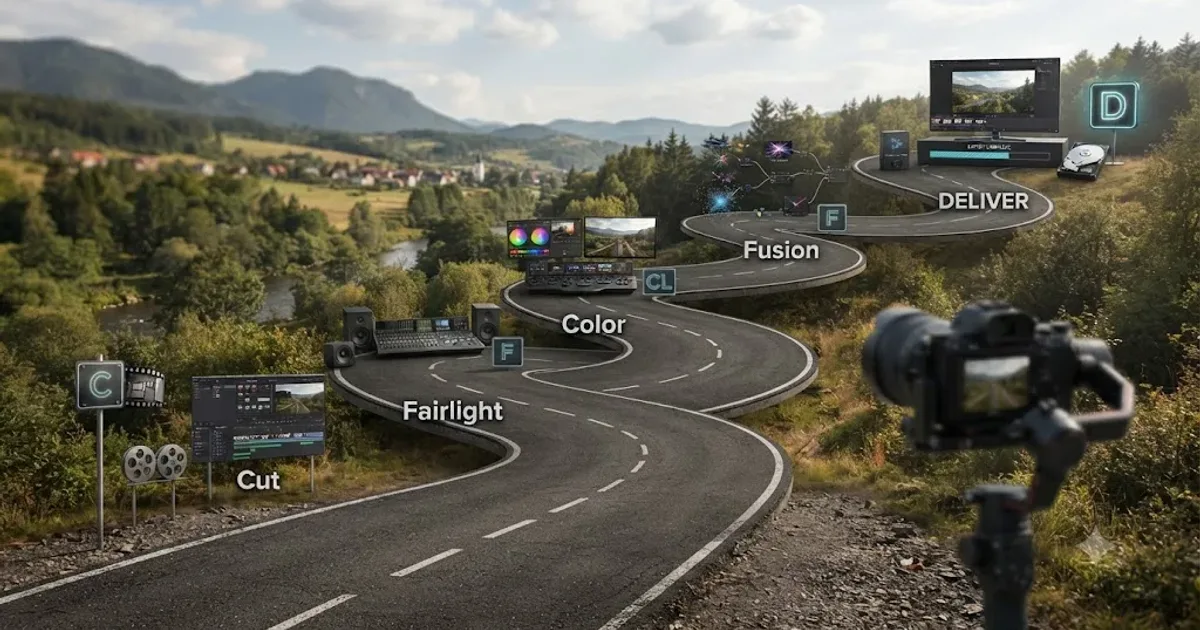 GuidesJul 15, 202639 min read
The DaVinci Resolve Learning Roadmap for Beginners
The right order to learn DaVinci Resolve: Cut or Edit, then Fairlight, Color, and Fusion, checked against Blackmagic and Ripple Training's own paths.
 ComparisonsAug 12, 202642 min read
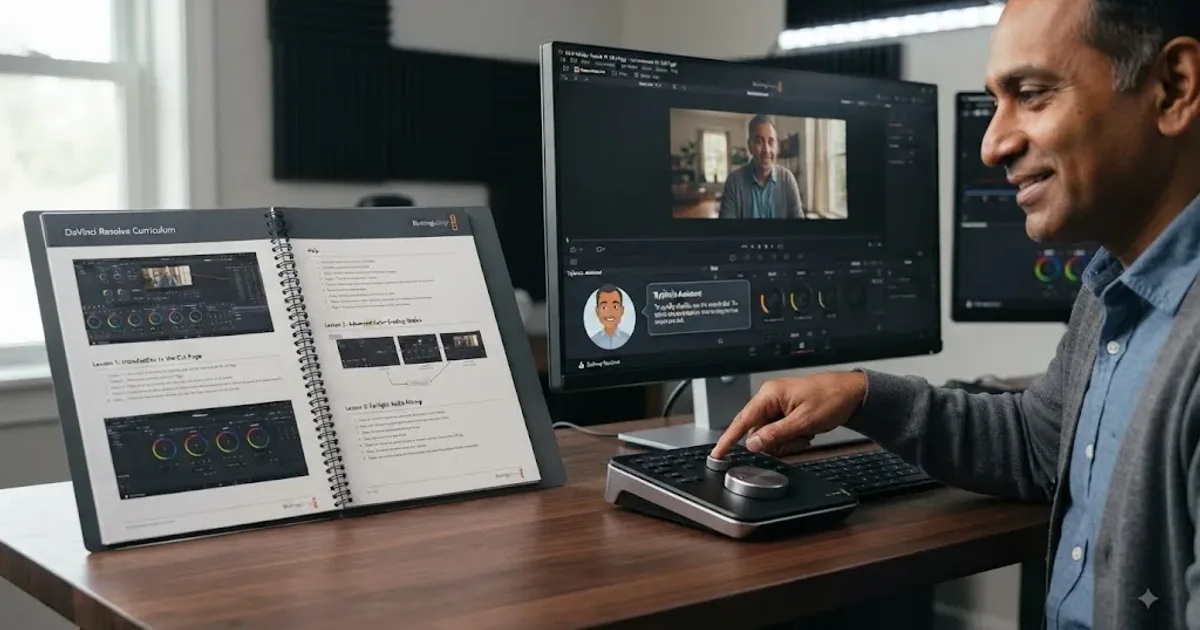
TryUncle vs Blackmagic DaVinci Resolve Training: Which Wins?
TryUncle vs Blackmagic DaVinci Resolve training compared on cost, curriculum, live help, platforms, certification, Resolve 21, and who each fits.