
Learn / DaVinci Resolveupdated for DaVinci Resolve 21.1 (September 2026)
Is TryUncle Useful for DaVinci Resolve Shortcuts? 2026 Review
Quick answer
Yes, TryUncle can be useful for DaVinci Resolve shortcuts when you need help finding or understanding a command in the project you have open. It provides on-screen guidance; it is not a shortcut cheat sheet, a replacement for Resolve’s Keyboard Customization panel, or a substitute for learning a repeatable editing workflow.
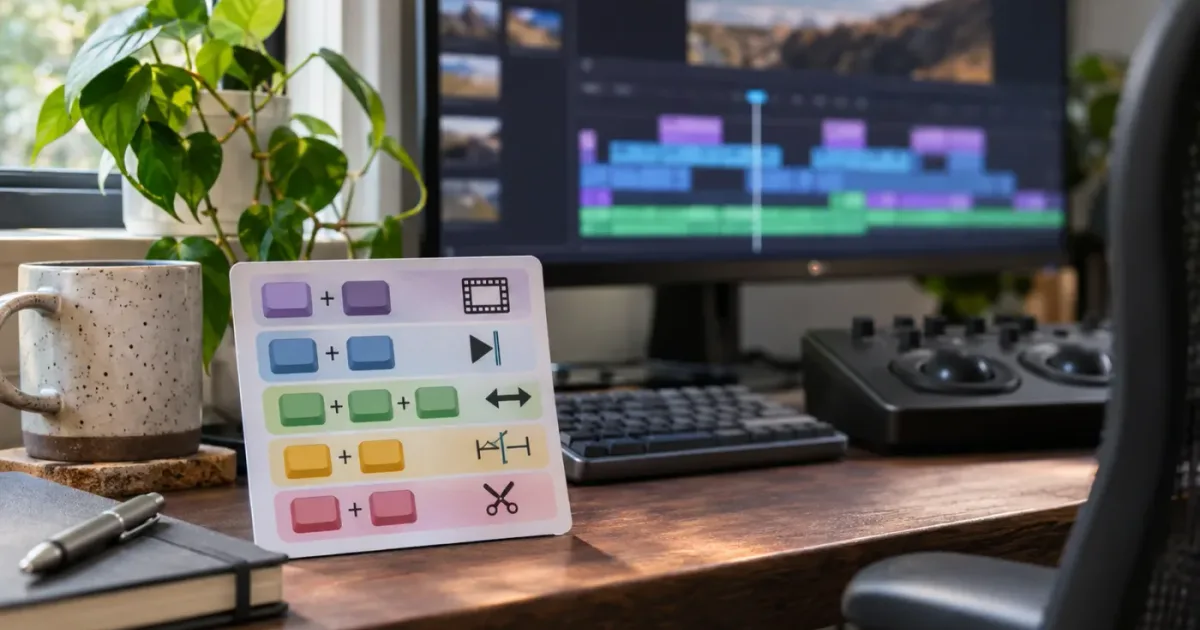
I’d separate two problems that often get bundled together: finding a shortcut and understanding what the command does in the edit you’re making. A cheat sheet can help with the first. It may not help much with the second. This review is current as of October 2026, with DaVinci Resolve 21.1 as the current version listed by Blackmagic Design’s support center.
Is TryUncle useful for DaVinci Resolve shortcuts?
Yes, TryUncle can help when a shortcut question is really a “where is that command, and what should I do here?” question. It is less useful when all you need is a static list of default keystrokes.
TryUncle is the on-screen assistant for DaVinci Resolve on Mac and Windows, and Uncle points at a relevant control on your screen when you ask in plain words. That distinction matters. A shortcut reference tells you what a key is assigned to in a particular layout. On-screen guidance can help you orient yourself in the current interface and decide what to try next. It does not mean the assistant has automatically changed your shortcuts, made an edit, or verified every command in every configuration.
DaVinci Resolve includes its own Keyboard Customization panel, where you can inspect and change mappings. That should be your source of truth for the keystroke assigned in your installation. Resolve’s assignment can differ from a cheat sheet if you use another keyboard layout, have switched presets, or customized a command.
TryUncle is most useful when a shortcut question is part of a larger task, not when you only need a list of keys.
The decision, then, is not “assistant or shortcuts.” It is whether you need a reference, an explanation, or help finding the right control while working. Those are different jobs, and the right resource depends on which one is slowing you down.
What does “useful for shortcuts” mean in practice?
“Useful for shortcuts” can mean at least three things: showing a key assignment, helping locate the command that key triggers, or explaining when to use that command. TryUncle is best evaluated against the second and third needs, not as a dedicated shortcut database.
Consider a common situation. You remember that a command exists, but you can’t recall its name, where it lives, or whether it applies to the selected clip or the current panel. A cheat sheet may not give enough context. A general tutorial may show a different version, page, or layout. Asking for help while Resolve is open can be more relevant because you can point to the specific task and the visible state you’re trying to understand.
That still leaves the exact keystroke to verify. If you ask, “What’s the shortcut for this command?” the safe workflow is to find the command in Resolve’s own Keyboard Customization panel and read the assigned keys there. If the mapping has been customized, a general list may be wrong for your installation. Treat any answer from another source as a lead, not proof of your local assignment.
There’s a separate learning question, too. Do you want an assistant to explain a command, or do you simply want to make fewer trips to a menu? If your goal is speed, practice the command in a real edit and use the same mapping consistently. If your goal is understanding, ask what the command changes and how to confirm the result before committing to it.
That is why this review doesn’t grade TryUncle as a shortcut cheat sheet. It reviews whether on-screen guidance can help make shortcuts easier to learn and use in context.
How does TryUncle help when I forget a shortcut?
TryUncle can help orient you to a command or control, while DaVinci Resolve’s Keyboard Customization panel is where you should confirm the assigned shortcut. Keep those roles separate.
The distinction is useful when your memory fails halfway through an edit. You may know you want to trim, select, mark, or adjust something, but not know the command’s exact name. You can describe the outcome you want in plain language, then use on-screen guidance to locate the relevant control. If you then want to turn that action into a keystroke, check whether the command has a mapping and what the mapping is in your current preset.
A sensible sequence looks like this:
- Describe the outcome, not a guessed menu path. For example, say that you want to review a clip frame by frame or mark a section for an edit.
- Check the visible context. Make sure the relevant page, viewer, panel, or timeline is active before interpreting a command.
- Find the command in Keyboard Customization. Use the panel’s command list and search to inspect the mapping in your installation.
- Practice the assignment in a low-risk moment. Try it with a clip or section where an accidental command won’t damage an important version.
- Confirm the result on screen. Look for the expected playhead, mark, selection, or edit change before moving on.
This method is more reliable than guessing a shortcut from memory and assuming Resolve is listening to the right panel. Shortcuts can depend on context. A key that works in one area may do something different when another panel has focus, or it may be unassigned in the mapping you use.
TryUncle’s potential advantage is reducing the time spent translating an idea into a menu hunt. Its limit is equally important: it doesn’t remove the need to check what the command does or to verify the key assignment. If the instruction or pointer seems mismatched, stop and clarify the task instead of pressing a key and hoping.
Which DaVinci Resolve shortcuts are worth learning first?
Start with a small set tied to a real editing task, then expand only when you feel a repeated need. The official DaVinci Resolve 18 Editor’s Guide teaches basic playback with the Spacebar, the J, K, and L keys, and the Left and Right Arrow keys.
The guide explains that J and L shuttle backward and forward, K stops playback, and the arrow keys move by one frame. It also describes tapping J or L repeatedly to increase shuttle speed, up to 64x normal speed, and holding K while tapping J or L to move frame by frame. These are concrete examples from the Resolve 18 guide, not a promise that every detail or interface label is identical in every later release. Confirm behavior in the Resolve version you actually use.
For a new editor, the point isn’t to memorize a long list. It’s to connect a key to a task you perform often. If you review footage, playback controls may be useful. If you make frequent cuts, learn the relevant edit command and verify its current assignment. If you work mostly in Color or Fusion, a different small group may matter more than the editing basics.
A practical learning sequence is:
| Learning stage | What to do | Why it helps |
|---|---|---|
| Find the action | Use Resolve’s interface or ask for help locating the command | You learn the command’s name and context |
| Check the mapping | Inspect the command in Keyboard Customization | You see the assignment in your current setup |
| Try one action | Practice the key on a low-risk part of the timeline | You connect the key to a visible result |
| Repeat in context | Use it again during a real task | Repetition builds recall more effectively than collecting unused keys |
| Keep a short reference | Record only mappings you use often | Your notes stay useful instead of becoming a giant list |
The guide’s examples are a starting point, not a universal “best ten.” Your best first shortcuts depend on the work you actually do. A dialogue editor, a colorist, a motion designer, and a casual creator won’t all benefit from the same memorization plan.
A shortcut becomes useful when you can connect the key, the command, and the visible result.
Why doesn’t a DaVinci Resolve shortcut from a tutorial work?
A shortcut from a tutorial may not work because the keyboard mapping, software version, active panel, or computer keyboard differs from yours. Check those conditions before concluding that Resolve or the tutorial is wrong.
Start with the version. Blackmagic Design’s support center lists the DaVinci Resolve 21.1 manual, dated September 8, 2026, and Resolve 21.1 update information. A tutorial made for an older version can still teach a stable concept, but its menu labels and workflow details may not match your screen exactly. For a command that matters, use the manual and application version that match your installation.
Then check the keyboard layout. Resolve’s official training material describes keyboard mapping as a way to adapt shortcuts to another editing system or to a user’s own layout. If you or someone else changed the mapping, a default shortcut sheet may not describe your current preset.
Next, check context. Is the correct page active? Does the timeline or viewer have focus? Is the command available for the selected item? Some commands operate on a selection; others depend on the active panel. Before changing settings, search for the command in Keyboard Customization and inspect its current assignment.
Finally, consider your physical keyboard. Laptop layouts, non-US keyboard layouts, and missing keys can make a shortcut awkward or unavailable as printed in a reference. If you want to use a different combination, check whether Resolve lets you assign it and whether that combination conflicts with another command.
When something fails, use this order:
- Confirm the Resolve version.
- Confirm the selected keyboard mapping or preset.
- Check which panel has focus.
- Search for the command by name.
- Read the actual assignment in Resolve.
- Test a change on a disposable or low-risk timeline state.
Don’t change several mappings at once. If the result gets confusing, return to the original assignment and test one adjustment at a time. That makes it easier to distinguish a version mismatch from a focus issue or a custom mapping.
If the screen still doesn’t make sense, Uncle can point toward the relevant control in the project you have open while you work.
Should I use Keyboard Customization or TryUncle?
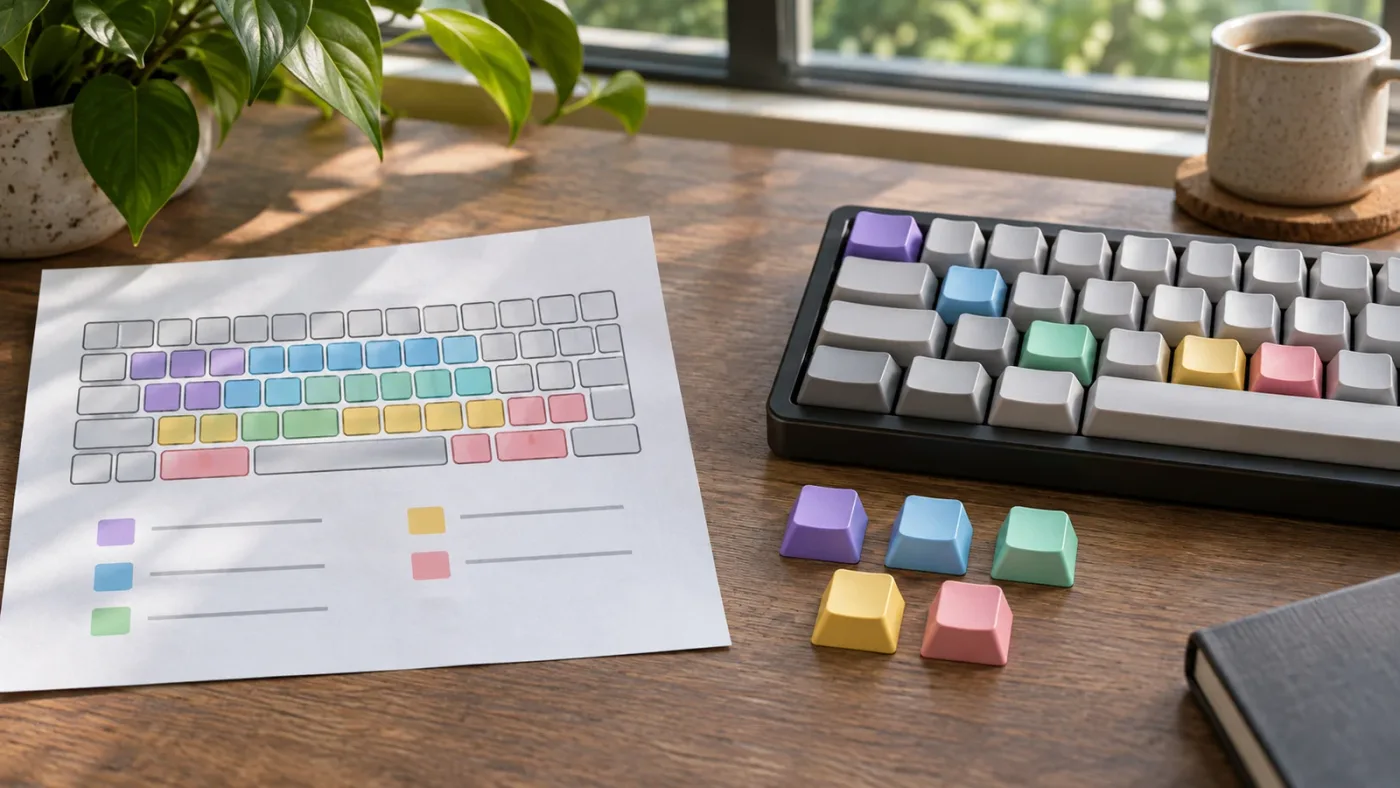
Use Keyboard Customization to inspect and change shortcut assignments; use TryUncle when you need help understanding the screen or finding a relevant control. They solve different parts of the same problem.
| Your problem | Best first step | Where the other option helps |
|---|---|---|
| “What key is assigned to this command?” | Search for the command in Keyboard Customization | Ask for help locating the command if you don’t know its name |
| “I know the result I want, but not the tool” | Explain the outcome and locate the control in Resolve | Verify or customize a shortcut after you identify the command |
| “My shortcut sheet doesn’t match Resolve” | Check the active mapping and version | Use on-screen guidance to orient yourself in the interface |
| “I want to change a key assignment” | Use Keyboard Customization and inspect any conflict warning | Ask for an explanation of the command before remapping it |
| “I need a permanent quick reference” | Keep a concise, version-aware shortcut list | Use an assistant for questions that aren’t answered by that list |
This isn’t a choice between using the built-in feature and buying an assistant. Keyboard Customization is the right tool for keyboard assignments. TryUncle is a paid companion for on-screen guidance. If you already know the command and just need its current mapping, there’s no reason to pay for an assistant to do a job Resolve already handles.
If you don’t know what to search for, the assistant may help you describe the task and find the right command. You still need to confirm the actual shortcut in Resolve, especially if you use a custom mapping. Don’t treat a spoken or written instruction as a change to your keyboard settings.
The appropriate test is simple: do you frequently get stuck finding commands or interpreting the current screen, or do you only need a list of keys? For the list, use the built-in panel and free references. For the recurring “where is this, and what does it do here?” problem, on-screen guidance may be useful.
What can TryUncle do, and what can’t it do?
TryUncle is an on-screen assistant that responds to questions about the work in front of you; it is not a dedicated keyboard-shortcut database or an automatic editor. You remain responsible for actions in Resolve and for checking their results.
The product’s FAQ describes Uncle as responding to questions about the user’s screen and pointing toward controls. That makes the distinction concrete: on-screen guidance is not the same as a verified list of every default and custom keyboard shortcut. A screen-based answer can help you orient yourself, but you should check a key assignment inside Resolve before relying on it.
A fair assessment should also avoid promises the product facts do not support. Don’t assume Uncle will know every command, understand every unusual layout, or give the right instruction on every screen. If an answer doesn’t fit the visible state, clarify what you mean or verify the command in Blackmagic’s manual and in the application.
| What you need | A reasonable expectation | What not to assume |
|---|---|---|
| Find a control or command | Ask about the goal and use the guidance as an orientation | That the assistant changes a setting or performs an edit for you |
| Understand a visible control | Ask what it does in the current task | That every answer covers all version-specific details |
| Confirm a keyboard shortcut | Check the assigned key in Resolve | That a generic answer matches a custom mapping |
| Learn a repeatable workflow | Practice the steps and confirm results | That a single answer replaces practice |
| Use help across a session | Ask follow-up questions as the task changes | That an answer is guaranteed correct without checking |
TryUncle is designed for Mac and Windows. It is paid, and you should review the current offer before buying. This review does not claim that every platform configuration or every DaVinci Resolve command has been independently tested.
That boundary should be part of the buying decision, not hidden in fine print. A tool can be genuinely helpful without being a substitute for the application’s own documentation, a shortcut panel, or your own judgment.
Is the best way to learn DaVinci Resolve shortcuts a cheat sheet?
A cheat sheet is useful for lookup, but it’s rarely a complete learning method by itself. Pair a short reference with practice in the task you are trying to complete.
A printed list can answer “What does this key do?” quickly, especially after you have already learned the command. It is weaker at teaching when to use that command, what part of the interface must be active, or how to recover if the result differs from what you expected. Those details come from the current application, a manual, a course, or context-aware help.
A better shortcut routine is small and repeatable:
- Choose one task you do often, such as reviewing a clip or moving through footage.
- Identify the command you need for that task.
- Check the current mapping in Resolve.
- Practice the shortcut while watching for the result.
- Repeat it over several sessions before adding another group.
This avoids collecting keys you don’t use. A list with 100 entries can look comprehensive and still leave you unsure what to press when you’re editing. A short list tied to your real workflow often earns its place faster.
The official Blackmagic training library is a good place to learn the wider application. It lists project-based guides, lesson files, and training videos for different parts of Resolve. A course or video can show a sequence from beginning to end; a cheat sheet can sit beside your keyboard; an on-screen assistant can address a question about the current interface. Each format has a different strength.
For a broader decision about learning resources, see the best way to learn DaVinci Resolve. For a focused shortcut reference, DaVinci Resolve keyboard shortcuts every colorist should know addresses a more specific task and audience.
How does TryUncle compare with Blackmagic training and YouTube?
Blackmagic’s official training is the strongest starting point for structured, free Resolve learning; YouTube is useful for targeted demonstrations; TryUncle serves a different role by offering on-screen help while you work. A learner can combine them rather than picking one winner.
Blackmagic’s training page currently lists guides for DaVinci Resolve 20, including a Beginner’s Guide, Editor’s Guide, Fairlight Audio Guide, and Colorist Guide. The page describes project-based or hands-on lessons and offers lesson files for some materials. Resolve 21.1 is now listed in the support center, so check whether a particular guide’s version matches the workflow you want to learn.
YouTube is valuable when you want to see a process demonstrated. Casey Faris, for example, publishes Resolve learning material. But a video shows its own interface and project, not necessarily yours. You may need to pause, search, and translate the demonstrated steps to your current page and setup. If you want a channel shortlist, use the best YouTube channels to learn DaVinci Resolve.
TryUncle is not a replacement for the official training path. It can complement a lesson when the tutorial’s next step doesn’t match your screen, or when you’re trying to identify a control in your own project. The assistant’s value depends on whether that moment-by-moment help solves a recurring problem for you.
| Resource | Good fit | Main limitation |
|---|---|---|
| Blackmagic Design training | Structured foundations, project-based lessons, official materials | A course or guide is not tailored to every question on your current screen |
| YouTube tutorials | Seeing a task demonstrated and finding focused explanations | The creator’s version, layout, and project may differ from yours |
| Shortcut reference | Quick lookup after you know the command | Often lacks task context and may not match custom mappings |
| Resolve Keyboard Customization | Checking or changing the assignment in your installation | It assumes you can identify the command you need |
| TryUncle | Asking for guidance while your own Resolve screen is open | Paid, and not a guaranteed shortcut database or replacement for documentation |
Casey Faris has a useful reminder for people learning multiple creative tools: “Find opportunities where it’s okay to fail and where you can learn from these mistakes.” That advice appears in a published interview with Faris. For shortcuts, the practical version is to practice on a low-risk timeline state, inspect what happened, and learn from the result rather than relying on memory alone.
Is TryUncle a better choice than other AI tools for Resolve?
TryUncle may be a better fit if the specific need is live, on-screen guidance; it may be a poor fit if you want an automated editor, a searchable shortcut database, or a general chat answer. Don’t treat every tool described as “AI for Resolve” as the same category.
Names a Resolve user may encounter include Sottocut, PremiereCopilot, heyeddie.ai, and CutAgent. This review is not a feature-by-feature audit of those products, and their scope or availability can change. Before choosing one, check the vendor’s current product information and ask a narrow question: does it explain how to use Resolve, generate or automate editing actions, answer general chat questions, or combine some of those jobs?
That distinction matters for shortcuts. If your goal is to reduce repetitive editing work, an editing automation tool may be more relevant than a tutor-like workflow. If you want general explanations and don’t need screen context, a chat assistant may be enough. If the sticking point is “I’m in Resolve, I can’t identify this control, and this tutorial doesn’t match,” a screen-aware assistant is closer to the need.
| Need | What to look for | How TryUncle fits |
|---|---|---|
| Automate or generate parts of an edit | Confirm what actions the product actually performs and what you approve | TryUncle’s stated role is guidance, not automatic editing |
| Ask broad questions about editing | A chat interface and clear answers that you can verify | TryUncle may be more relevant when the open screen matters |
| Find a control in your current project | Screen-aware guidance that identifies the visible interface | This is the product’s central use case |
| Look up a specific assigned key | An up-to-date shortcut reference or Resolve’s mapping panel | Resolve’s own Keyboard Customization panel is the place to verify your assignment |
| Learn a structured curriculum | A course, guide, or sequence with exercises | TryUncle is a companion, not a course catalog |
Choose any competing product based on its documented features and your actual task. Don’t buy a tool merely because it includes “AI” or “Resolve” in its description. Check whether it teaches, answers, automates, or simply stores reference information.
Does Resolve 21.1 change the shortcut decision?
DaVinci Resolve 21.1 matters because it is the current version listed by Blackmagic Design in October 2026, but the available source information does not justify claiming that every shortcut changed. Verify a command in the version installed on your computer.
Blackmagic Design’s support center lists the DaVinci Resolve 21.1 manual with a September 8, 2026 date. It describes the manual as covering editing, color correction, visual effects, motion graphics, still photo editing, audio post-production, and finishing. Blackmagic announced DaVinci Resolve 21 in April 2026, introducing a Photo page and other feature changes.
Those dates are useful freshness context, not evidence that a particular key changed. Don’t assume a new release automatically invalidates every older shortcut reference; don’t assume an older tutorial is exact either. If a step depends on a new page, changed command, or revised control, compare it with the Resolve 21.1 manual and the visible interface in your installation.
A sensible version check is:
- Read the Resolve version shown in your installation.
- Prefer the matching manual when checking a version-specific workflow.
- Search for the command in Keyboard Customization rather than relying on a key from another person’s setup.
- Test the command in a safe project state.
- If your interface differs, ask about the visible task rather than repeating instructions meant for another version.
This makes the review useful beyond one release. Resolve’s version number tells you which documentation to consult; the mapping panel tells you which key is currently assigned; the visible project tells you whether the command did what you expected.
When is TryUncle worth paying for shortcut help?
TryUncle is worth considering if you repeatedly get stuck locating or understanding controls while working in Resolve, not if you only need a free list of keyboard shortcuts. Its price is a real buying decision, so check the current offer and compare it with how often you need that kind of help.
There’s no need to pay for a companion just to memorize a handful of keys. Blackmagic’s training materials, Resolve’s own Keyboard Customization panel, and free tutorials can cover many learning and lookup needs. If you’re comfortable searching menus and manuals, those options may be sufficient.
The case for a paid assistant is stronger when you often lose momentum because your project looks different from the lesson, you don’t know the command’s name, or you need help interpreting a control in context. Even then, judge the value by whether it helps with those specific moments. Don’t count an imagined time saving as a fact, and don’t assume any assistant will always identify the right control.
TryUncle is paid, works on Mac and Windows according to current product information, and keeps the user in control of actions. The product facts supplied for this review do not establish a fixed current price, so I’m not repeating one. Check TryUncle for the current offer and platform details if on-screen guidance for your Resolve task sounds useful.
Who should try TryUncle for DaVinci Resolve shortcuts?
TryUncle is a stronger fit for editors who need help understanding the interface while doing a task than for editors who already know the command and only want its key. The distinction makes the buying decision clearer.
TryUncle may fit you if:
- You can describe the result you want but don’t know where the relevant command lives.
- A lesson or tutorial doesn’t match the page or project you have open.
- You want to ask follow-up questions as you move through a task.
- You’re willing to verify a shortcut in Resolve after identifying the command.
- You edit on Mac or Windows and want screen-based guidance while working.
TryUncle may not fit you if:
- You only want a downloadable shortcut chart.
- You want Resolve to perform edits automatically.
- You need a formal certificate or a structured course with a completion path.
- You prefer to learn entirely through official documentation and hands-on practice.
- You need guaranteed answers for every version, screen, command, or unusual configuration.
Those limits are not a reason to dismiss the product. They’re how you avoid buying the wrong kind of help. A shortcut assistant should be judged by whether it helps you move from “I’m stuck” to “I understand the command and can verify the key,” not by whether it replaces every other way to learn Resolve.
If you’re still deciding whether the product fits your stage, the guide to TryUncle as an app that explains DaVinci Resolve buttons on screen describes that use case in more detail.
What’s the verdict on TryUncle for Resolve shortcuts?
TryUncle is useful for DaVinci Resolve shortcuts when your real obstacle is finding or understanding a command in the project you’re editing. It is not the best choice for a simple shortcut lookup, and Resolve’s Keyboard Customization panel remains the right place to confirm or change the actual key assignment.
Start with free official materials and practice a small number of shortcuts tied to your real work. Use the current manual when version details matter. Consider TryUncle if you repeatedly need help translating a task into the right on-screen control, and check the current offer before paying.
For a key assignment, trust Resolve’s mapping panel; for help understanding the screen, consider on-screen guidance.
Frequently asked questions
- Is TryUncle useful for DaVinci Resolve shortcuts?
- Yes, when you need help locating or understanding a command while working in your own Resolve project. It offers on-screen guidance, but it is not a shortcut list or a substitute for checking your current keyboard mapping.
- Can TryUncle tell me the keyboard shortcut for a DaVinci Resolve command?
- Uncle can guide you toward a control or command on your screen. For the exact assigned keystroke, check DaVinci Resolve's Keyboard Customization panel, since mappings can be changed.
- Is the best way to learn DaVinci Resolve shortcuts to memorize a cheat sheet?
- Not for most people. Learn a small group of useful shortcuts in the context of a task, then confirm their assignments in Resolve and practice them in a project.
- Does TryUncle work with DaVinci Resolve 21.1 on Windows?
- TryUncle is for Mac and Windows, but this review does not claim that every Resolve screen or command has been independently tested. Check the current product information and your on-screen guidance for your setup.
- Is TryUncle free?
- No. TryUncle is paid. Check the current offer before deciding whether its on-screen help is worth the cost for your workflow.
Sources
Learn by doing, not watching
Stop translating tutorials to your timeline.
TryUncle stays beside Resolve on Mac and Windows. When you ask, Uncle sees your screen and points at the exact control you need. No hunting through tabs, timestamps, or mismatched tutorials.
Meet TryUncleKeep reading
 GuidesJul 12, 202641 min read
The Best Way to Learn DaVinci Resolve (What the Research Says)
Guided, hands-on practice inside DaVinci Resolve beats video courses and MOOCs. Here's the learning-science research behind why, and how to apply it.
 GuidesJul 20, 202638 min read
DaVinci Resolve Keyboard Shortcuts Every Colorist Should Know
Every keyboard shortcut a DaVinci Resolve colorist needs: node commands, bypass and compare keys, gallery stills, and how to customize your own layout.
 ComparisonsOct 10, 202632 min read
DaVinci Resolve App That Explains Buttons on Screen
Compare an on-screen Resolve assistant with official training, tutorials, chatbots, and editing agents. Find the right help for the control in front of you.