
Learn / DaVinci Resolveupdated for DaVinci Resolve 21.1.1 (November 2026)
Is TryUncle Good for Learning Fusion? An Honest Review
Quick answer
TryUncle can help you learn Fusion when you need guidance applying an idea to the Resolve screen and node graph in front of you. It isn’t a sequenced Fusion course, so start with Blackmagic Design’s free training for a curriculum, then consider an on-screen assistant when you get stuck applying a lesson in your own project.
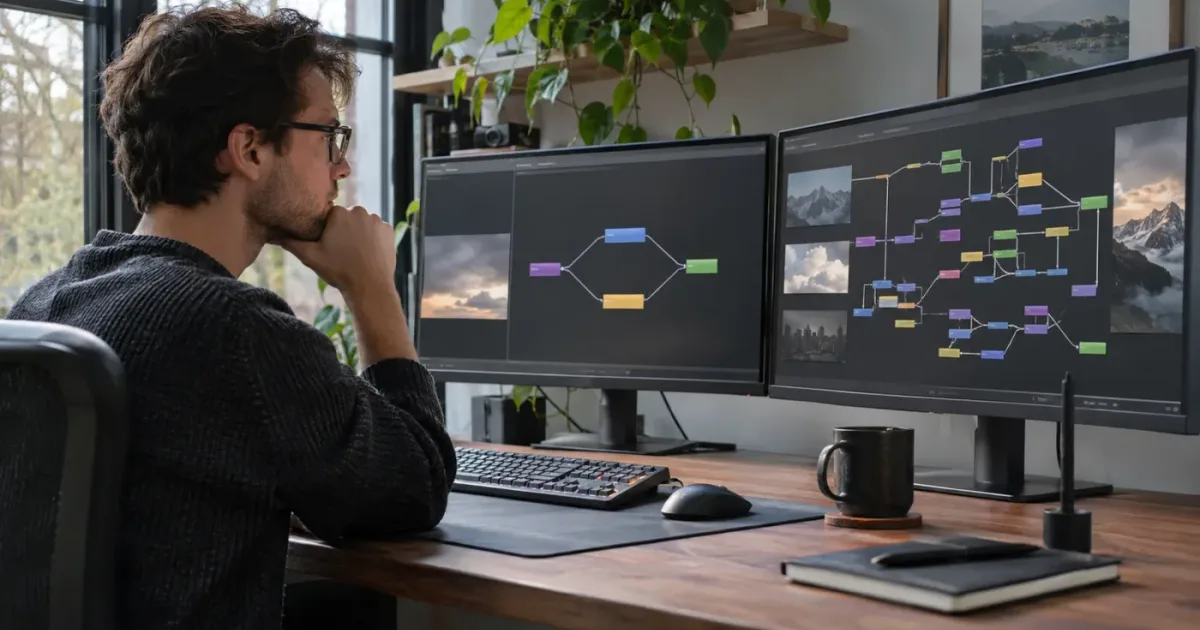
Fusion can make a simple title feel like a puzzle. The hard part often isn’t finding a button. It’s understanding what the nodes are doing, and how to apply a lesson to the project you have open. That’s the standard I use to judge whether an assistant can help you learn.
Is TryUncle good for learning Fusion?
Yes, if you mean help while practicing in DaVinci Resolve. TryUncle can respond to your question and current screen, which may help when you understand a lesson but can’t work out how it applies to your graph. It isn’t a complete, sequential Fusion course, so it’s not the best single resource for learning the subject from the beginning.
The difference is the kind of problem each resource solves. A course can lead you through concepts in an intended order. A manual can help you verify how a tool works. A video can show someone building an effect. An on-screen assistant is aimed at the moment you’re in your own project and need help figuring out what to inspect or do next.
For example, you might follow a lesson about merging text with footage, then find that your graph doesn’t resemble the instructor’s. Perhaps you opened a different kind of composition, selected the wrong node, or can’t tell which branch is reaching the output. That’s a contextual question. You can ask TryUncle about the screen you’re working in, then make the changes and check the result yourself.
The distinction matters. Getting pointed toward a control isn’t the same as understanding compositing, tracking, masks, or animation. You still have to learn what the tools do and how to judge the output.
TryUncle is a companion for Fusion questions that come up during practice, not a replacement for a structured Fusion curriculum.
If you’re choosing one resource to teach you Fusion in order, start with Blackmagic Design’s free training or a well-organized course. If you already learn from lessons but often get stuck applying them to your own graph, an on-screen assistant may be useful in that narrower gap.
This is a practical assessment of what the tool is for, not a controlled test of learning outcomes. I can’t promise that every question gets the right answer, that every screen or project state will be understood, or that using an assistant will make you proficient by a particular date. Treat it as guidance to check, not as a guaranteed result.
What does learning Fusion actually involve?
Learning Fusion means understanding how to build and adjust a node-based composite, not just remembering where a control lives. Blackmagic Design’s DaVinci Resolve 21.1 Reference Manual describes distinct topics including the Node Editor, viewers, Inspector parameters, keyframes, masks, tracking, and 3D compositing. That spread gives you a sense of why one shortcut or quick answer can’t teach the whole application.
A practical beginner’s map looks like this:
- Inputs bring material into a graph. When you open a timeline clip in Fusion, an input node represents the material coming from that clip.
- Processing nodes do specific jobs. A node may transform an image, create text, apply a mask, or change another property.
- Connections show the path. They aren’t decoration. They determine how image data moves through the composition.
- Outputs pass the result onward. For a timeline clip, the graph needs to send its finished result back toward the timeline.
- Viewers let you inspect images. You can compare points in a graph to understand where a change becomes visible.
- The Inspector exposes selected-node controls. A connection may be correct even when a parameter needs work.
These are learning cues, not a complete technical account of every node or workflow. A node’s role depends on the task and its settings. Use the manual to verify exact behavior, especially when working with an unfamiliar tool or version.
Casey Faris offers a helpful plain-language analogy in his DaVinci Resolve beginner course: “so really all we're doing with nodes is we're making a flowchart.” He’s describing the idea that a graph lays out operations in sequence. It’s a starting point, not a claim that every graph is a simple line. Branches, masks, and different compositing arrangements can make a real graph more involved.
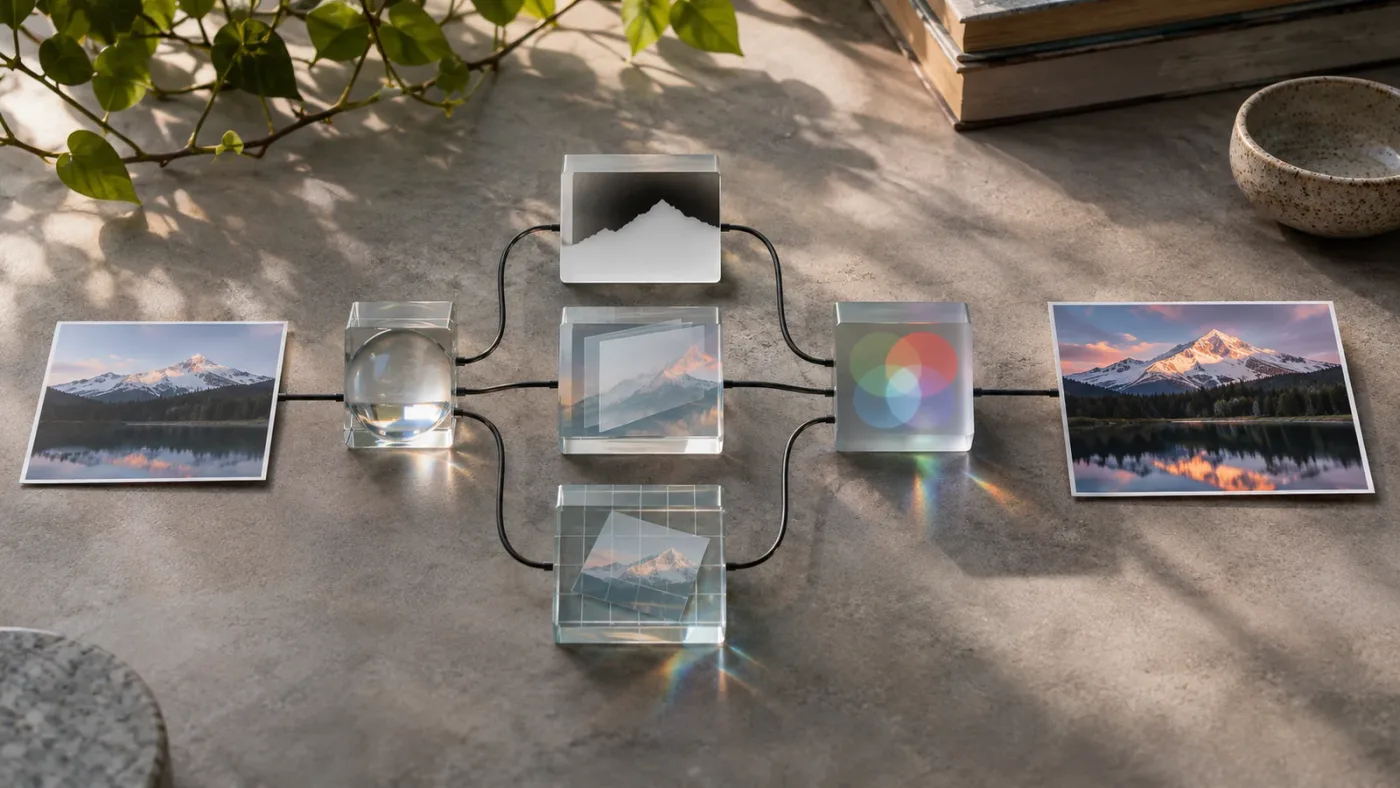
In Fusion, following connections and understanding their jobs is more useful than memorizing a list of node names.
You can turn that map into a small test. Select a node, look at its controls, and predict what might change if you adjust one setting. Then make one change and inspect the viewer. If the image changes, try to explain why. If it doesn’t, check whether you’re viewing the right point in the graph and whether that branch reaches the output.
That practice builds more than button memory. You’re learning to connect a visual result with the operation that produced it. A tutorial can get you started, but repeating that reasoning on a different clip is what shows whether you can transfer the idea.
How does TryUncle help when a Fusion tutorial doesn’t match?
TryUncle can be useful when the question is, “How do I apply this idea to the screen in front of me?” A tutorial shows the instructor’s project and interface. Your project may have a different node selected, a panel hidden, or an entirely different starting point.
That mismatch can interrupt a lesson. The instructor adds a mask, but you don’t know which branch it affects. They animate a control, but the Inspector shows something else because you selected another node. Or their graph begins with a Fusion Composition, while you opened a timeline clip. The names may sound familiar, but the visible steps don’t line up.
A general chat answer depends on how clearly you describe all those details. TryUncle’s approach is to use the current screen and your question as context. Uncle can guide you toward a relevant part of the interface; you perform the action and decide whether the result matches what you intended. It doesn’t remove the need to understand the change.
A focused question gives you a better chance of learning than a broad request. For example:
- “I want this title over the footage. What should I inspect to understand how these branches are combined?”
- “I added a blur, but I can’t see a change. What should I check before I adjust anything else?”
- “I want to mask part of this image. Which node or branch should I understand before drawing the shape?”
- “This graphic needs to follow a surface. What’s the difference between tracking a point and tracking a plane?”
- “I’m looking at a 3D graph. What should I find out about the roles of Merge3D and Renderer3D?”
Those questions name a goal and an uncertainty. “How do I use Fusion?” doesn’t. A useful answer should help you understand what to check, not just hand you a click to copy.
Try this learning loop:
- Describe the visual result you want.
- Ask what the relevant node or connection contributes.
- Change one thing at a time.
- Compare the image before and after the change.
- Explain the cause in your own words.
- Try the same principle on a different frame or composition.
The last step matters. Copying clicks can finish one task while leaving you unable to adapt the idea. Change a safe detail, such as the position or timing of an element, and see if your understanding still holds. If it doesn’t, ask a smaller question.
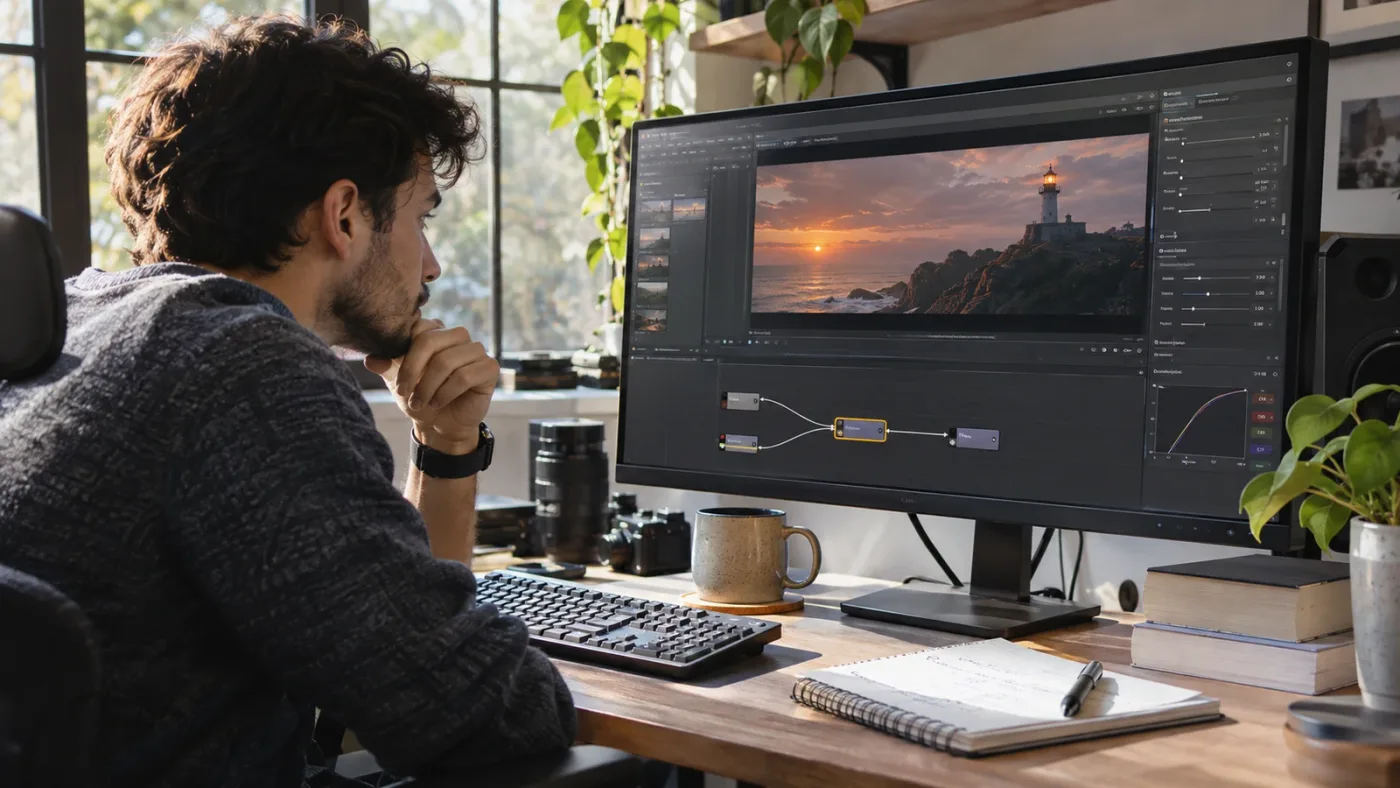
Is TryUncle better than Blackmagic Design’s free Fusion training?
Blackmagic Design’s training is a better starting point when you want organized instruction. TryUncle is aimed at questions that arise while you work in your own project. They can complement each other, but they don’t do the same job.
Blackmagic Design’s training page provides learning materials and training videos. Its Resolve 21.1 manual serves as a reference for the application’s features. The training page is the place to check which Fusion resources and project files are currently available.
| Learning option | Best fit | Main advantage | Trade-off |
|---|---|---|---|
| Blackmagic Design training and manuals | You want official instruction or a reference | Materials are made by the software publisher and organized around Resolve topics | You still have to apply the lesson to your own project |
| YouTube tutorials | You learn well by watching a process | You can pause, replay, and see a graph develop | The instructor’s version, selection, and project may differ from yours |
| TryUncle | You have a specific question while working in Resolve | Guidance can take your current screen into account | It isn’t a sequenced course; you must perform and check the work |
| Community discussions | You want other users’ explanations or examples | A specific question can prompt practical perspectives | Answers vary and may not match your project or software version |
This isn’t a contest between “free” and “paid.” Free official training may be the best foundation. A contextual tool makes sense only if its kind of help addresses a recurring problem you actually have.
One sensible sequence is to start with an official lesson, then follow a video demonstration of a small effect. Practice the idea without the video playing. When you hit a problem, identify whether you lack the underlying concept or simply can’t find or apply the relevant control. If you lack the concept, return to the lesson or manual. If you understand the idea but can’t map it onto your current graph, screen-aware guidance may help.
For exact steps, check documentation that matches your version. A video can be clear and still use an older interface. The Resolve manual and current release notes are better sources for confirming a version-specific name or behavior.
Blackmagic Design’s training gives you a planned way into Resolve; TryUncle is for questions that arise while you practice in your own project.

Can TryUncle help you understand Fusion nodes?
It can help you ask questions about a graph, but you learn the graph by understanding and testing its connections. Start by inspecting what’s there before adding more nodes. Find the input and output, follow a connection, select a node, and see what controls appear in the Inspector.
Try these questions as you inspect:
- What is this selected node doing to the image?
- What feeds its input?
- Where does its output go?
- If I bypass or change this node, what should I expect to see?
- Which part of the graph reaches the final output?
This approach keeps the focus on cause and effect. Asking for a list of “the best Fusion nodes” might produce names, but names alone don’t tell you when to use a tool. Pick a concrete goal instead: soften a background, put text over a shot, or isolate a shape. Then work out which operation belongs in the graph and why.
Consider a simple worked example, not a measured test. You want a title over a background. There are two image branches: one supplies the background, the other the title. A compositing node combines them, and the final result must reach the output. If the title disappears or appears behind the wrong image, inspect the connections and the roles of the inputs. Don’t assume that the software is broken or randomly change unrelated controls.
If you want to make the title move, first confirm that the static composite works. Then choose one property to animate and inspect more than one frame. If the title is correct at the start but wrong later, the problem may be timing or the animation rather than the compositing structure. Keeping those questions separate makes troubleshooting easier.
Try explaining the graph aloud: “This branch creates the title. This one provides the footage. This node combines them. The output carries the result back.” If you can’t describe a node’s job, that’s a useful signal. Pause and investigate it before stacking on more effects.

How can you learn Fusion by making a small project?
Choose a small effect with a visible result and a limited number of moving parts. A short title over a shot is a good worked example because it lets you practice the graph, viewer, Inspector, and timeline without needing an elaborate composite.
This is a practice plan, not a test result or a promise about how long learning will take.
- Choose a short clip and a simple title. Keep the visual goal clear. You’re learning the path from source to output, not trying to impress anyone.
- Open the clip in Fusion and observe the existing graph. Find the input and output before you add anything. Inspect what’s visible in the viewer.
- Add or create the title element. Select it and identify the controls available in the Inspector. Change one property at a time.
- Combine the title with the footage. Look at how the branches connect and where the result goes. If the image order seems wrong, inspect the connections rather than changing unrelated settings.
- Check the viewer. Confirm that the title appears over the image, is legible, and sits where you intended.
- Animate one property if the static result works. Check the title at the start, during the movement, and near the end. Don’t judge the animation at a single frame.
- Return to the timeline. Make sure the composition appears where expected in the edit.
- Save a separate copy before bigger experiments. A clean version makes it easier to compare if the graph becomes hard to follow.
If something looks wrong, ask which part of the task failed. Is the title missing from the viewer? Does it appear in the viewer but not the timeline? Does it show at the first frame and disappear later? Those observations point to different things to inspect. One broad question about “a broken title” doesn’t distinguish them.
A second practice task could be a simple mask. The learning goal is to understand which image the mask affects and how the edge appears, not to create perfect rotoscoping on the first attempt. A third could be a graphic attached to a moving surface. Focus on what is being tracked, whether the track remains appropriate across the shot, and how the result is connected to the graphic. Don’t make the task harder by adding several unfamiliar effects at once.
After each project, write a short note:
- What result did I want?
- Which node or connection did I change?
- What did I expect to happen?
- What actually changed in the viewer?
- What did I learn about the node’s role?
- What would I test differently next time?
Those notes turn a one-time answer into something you can reuse. They also help you ask a better follow-up because you can name the intended result and the part that surprised you.

What should you do when the Fusion node graph feels confusing?
Stop adding nodes and trace the image path. A graph can look complicated, but following one connection at a time is a more useful first move than searching for a magic setting.
- Select one node. Read its name and inspect its available controls.
- Follow an incoming connection. Ask what image or operation feeds the node.
- Follow an outgoing connection. Find where its result goes.
- Inspect the viewer. Check what appears at the relevant point in the graph.
- Undo, bypass, or change only one thing at a time. That makes it easier to identify which change affected the result.
- Describe the visible problem. “The title is missing after I combine the branches” is more useful than “Fusion is broken.”
Use what you see to choose what to inspect next:
| What you observe | A useful next question |
|---|---|
| The graph appears empty or unfamiliar | What did I open in Fusion, and what graph is present for this clip or composition? |
| A node is selected but its controls seem unrelated | Is this the node I intended to change? |
| The viewer shows the wrong image | Which connection is feeding the viewer, and at what point in the graph? |
| The result looks right in one viewer but not on the timeline | Does the graph’s final output reach the timeline result I expect? |
| A change has no obvious effect | Is the selected node on the image path I’m inspecting, and am I looking at the right frame? |
| An animated effect looks right at one point only | What happens at the start, middle, and end of the relevant range? |
This table is a way to isolate your question, not a universal repair guide. If the viewer shows the expected image but the timeline doesn’t, don’t keep changing a node that already looks correct. If a mask seems to do nothing, check which image branch it affects before redrawing it. If the graph is hard to read, use the manual’s Node Editor and viewer sections as a reference.
The starting point matters, too. A timeline clip and a Fusion Composition may present different initial states. Rather than forcing a tutorial’s exact layout onto yours, identify the intended result and ask what each step contributes in the graph you actually have.
Version differences can make a mismatch look like a learning problem. As of the draft’s November 2026 reference point, DaVinci Resolve 21.1.1 is the update discussed here. Blackmagic Design’s release notes say 21.1 added, among other changes, new Fusion tools and updated macro controls. The 21.1.1 notes mention better control over clips with multiple Fusion effects. Those details may matter if a lesson refers to a changed control, but they don’t mean the fundamentals of image flow have become useless.
Check the 21.1 manual or the current release notes when you suspect a version difference. The manual’s contents show where to look: node editing, viewers, Inspector controls, animation, masks, tracking, and 3D compositing each have their own sections.

Are AI tools useful for learning Fusion?
An AI tool can help explain a concept or guide you through a specific task, but you still need to practice and check the result. A Fusion answer depends on what you’re building, which node is selected, how the graph is connected, and what you want the image to do. A confident answer to a vague question can send you toward the wrong operation.
It helps to separate different kinds of tools. A general chat assistant can answer a conceptual question based on the details you provide. A video lesson shows a workflow. An on-screen assistant can take the current screen into account. An editing automation tool is designed for a different job: changing or producing an edit rather than helping you understand why a node is connected in a particular way.
TryUncle is an on-screen assistant for Mac and Windows. You ask by voice or text, describe what you want to achieve, and Uncle uses the current screen and conversation to guide you. You remain in control and carry out the actions. That makes it relevant when you need help applying an idea to your own project, but it doesn’t make it a complete Fusion course or a guarantee that every suggestion is right.
When judging any assistant as a learning aid, ask:
- Does it explain why the suggested step might help?
- Can you relate its answer to your current project?
- Does it tell you what result to look for afterward?
- Can you ask a follow-up when the answer doesn’t fit?
- Does it leave the project change and creative decision with you?
- Can you verify exact behavior in Resolve or its manual?
A bare node name isn’t enough. Ask what the node receives, what it changes, where the output goes, and what should become visible. If the answer depends on an exact control or version-specific behavior, check Blackmagic Design’s documentation.
Screen context also raises a practical privacy question. A screen image can show footage, project names, messages, or other information you didn’t intend to share. TryUncle’s privacy policy explains what screen and request information may be processed and how the service handles it. Before using any screen-aware product with confidential or client material, review that policy and your own obligations. Close or hide information you don’t want included.
For a broader comparison of learning assistants and editing tools, see AI Assistant for Fusion in DaVinci Resolve. This article’s narrower question is whether contextual guidance fits your learning process.

Should you choose TryUncle, YouTube, or official training?
Choose official training when you need a curriculum, YouTube when you want a demonstration you can replay, and TryUncle when you need help relating a question to your current screen. You don’t have to pick only one.
| Your main problem | A useful place to start | Why |
|---|---|---|
| “I don’t understand what Fusion is for.” | An introductory lesson or Blackmagic Design training | Start with concepts before searching for controls |
| “I want to see someone build this effect.” | A focused video tutorial | You can pause and replay the process |
| “I understand the lesson but can’t find the relevant control.” | Guidance that can use your current screen | Your question is about applying an idea in your own interface |
| “I need to confirm what a tool does.” | The Resolve or Fusion manual | The manuals are primary software documentation |
| “I keep copying steps without understanding them.” | A small practice project | A small variation tests whether you can transfer the principle |
| “I need formal instruction or a credential.” | A course or certification path that explicitly offers it | Screen-aware help is not a credential |
A practical sequence is straightforward:
- Learn the basic idea of nodes from a beginner lesson.
- Follow a short demonstration and reproduce it.
- Check unfamiliar tool behavior in the manual.
- Make one variation so you’re not only copying.
- Ask for contextual help if you can’t map the concept to your graph.
- Explain the graph in your own words before moving on.
For broader advice on building a Resolve learning routine, see the best way to learn DaVinci Resolve. If your immediate goal is a composition you can reuse, the guide to making a reusable Fusion composition is a more focused next step.
A strong Fusion learning setup pairs clear instruction with hands-on practice and a way to resolve questions about your own project.
Is TryUncle worth considering if you’re a beginner?
It may be worth considering if you’re actively practicing and often need help interpreting your current screen. But if you haven’t learned what a node is or how connections form a graph, start with an introductory lesson and official training. A contextual answer can’t supply an entire course structure just because you need one.
A common beginner trap is following directions without understanding them. That may get one composition working, but it won’t necessarily help you adapt the idea to another clip. Ask what the suggested node changes, what feeds it, where its output goes, and what should look different afterward. A useful explanation should help you form a mental model, not just send you hunting for a button.
Screen-aware guidance may be more relevant if:
- You can’t locate a panel or control in the layout you have open.
- A lesson’s project state differs from yours.
- You understand the concept but aren’t sure which part of the graph to inspect.
- You want to ask a follow-up while checking the result.
- You’re willing to test a suggestion instead of accepting it blindly.
It’s a poor fit if what you want is a fixed set of lessons, a completion certificate, a guaranteed finished effect, or a tool that makes the creative decisions for you. TryUncle doesn’t remove the need to build the graph, make changes, or judge the output.
Before paying for any learning aid, try a small routine with free training. Pick one simple Fusion outcome, follow a lesson, and write down where you got stuck. If the difficulty is understanding a concept, look for another explanation. If you understand the concept but repeatedly struggle to apply it to your own screen, compare that need with what TryUncle currently offers.
This is a better buying question than “Is an assistant good?” Ask instead: “Does this kind of help address the point where my learning currently breaks down?” For current product and platform information, check TryUncle.

What are the limits of learning Fusion with TryUncle?
TryUncle can guide you toward controls, but it can’t guarantee that every answer is right or that your creative result will work. You’re responsible for checking the suggestion against your project, Resolve version, and what you see in the viewer.
Fusion covers many kinds of work. Blackmagic Design’s Resolve 21.1 manual separates node editing, animation, image channels, masks, tracking, 3D compositing, and other topics into distinct sections. That’s a reminder that a screen-aware assistant isn’t a replacement for documentation, a full course, or repeated practice. Nor does seeing your screen mean a tool necessarily understands every detail of the footage, graph, or intended result.
Before accepting a suggestion, ask:
- Does it address the result I want? If not, clarify the goal.
- Can I identify the control it refers to? Confirm the selected node and panel.
- Does the explanation match my version? Check the manual or current release notes.
- Can I test it without risking important work? Change one thing and inspect the output.
- Does the result work across the relevant frames? A single still may hide a timing or tracking problem.
- Is sensitive material visible? Review the product’s privacy terms and your project obligations.
The safest mental model is that an assistant may help you find or understand a next step, while you remain responsible for the project. Verify precise instructions, especially when the task involves a complex composite, tracking, or a version-specific control. Save a separate project copy before experimenting with work you can’t afford to disrupt.
So, is TryUncle good for learning Fusion?
Yes, if you want contextual guidance while practicing in DaVinci Resolve. No, if you expect it to replace a structured course, the official manual, or the work of learning how a node graph behaves.
Start with Blackmagic Design’s free training and one focused tutorial. Build a small composition, change one thing at a time, and explain what each node contributes. If your recurring problem is applying what you’ve learned to the screen and project in front of you, consider whether TryUncle’s on-screen guidance fits that need.
Frequently asked questions
- Is TryUncle good for learning Fusion?
- It can help when you need guidance about the Fusion controls or node graph on your current screen. It is not a full, sequenced Fusion course. For a planned curriculum, start with Blackmagic Design’s free training and use contextual help when you get stuck applying a lesson.
- Can TryUncle teach me Fusion nodes?
- TryUncle can respond to questions about the node graph and screen you bring to it. You still connect nodes, change settings, and check the result yourself. Ask what a node contributes, then verify that explanation by observing the graph and viewer.
- Is Blackmagic Design’s Fusion training free?
- Blackmagic Design publishes free DaVinci Resolve training materials, including Fusion-focused resources. Check its training page for the current lessons, manuals, and project files.
- Should I learn Fusion from YouTube or TryUncle?
- YouTube works well for demonstrations you can replay and follow in order. TryUncle is more relevant when you need help relating a question to the Resolve screen and project you already have open. They serve different learning needs.
- Does TryUncle work on Windows for learning Fusion?
- TryUncle is a desktop companion for Mac and Windows. Check its current product information for supported setup details before deciding whether to use it.
Sources
Learn by doing, not watching
Stop translating tutorials to your timeline.
TryUncle stays beside Resolve on Mac and Windows. When you ask, Uncle sees your screen and points at the exact control you need. No hunting through tabs, timestamps, or mismatched tutorials.
Meet TryUncleKeep reading
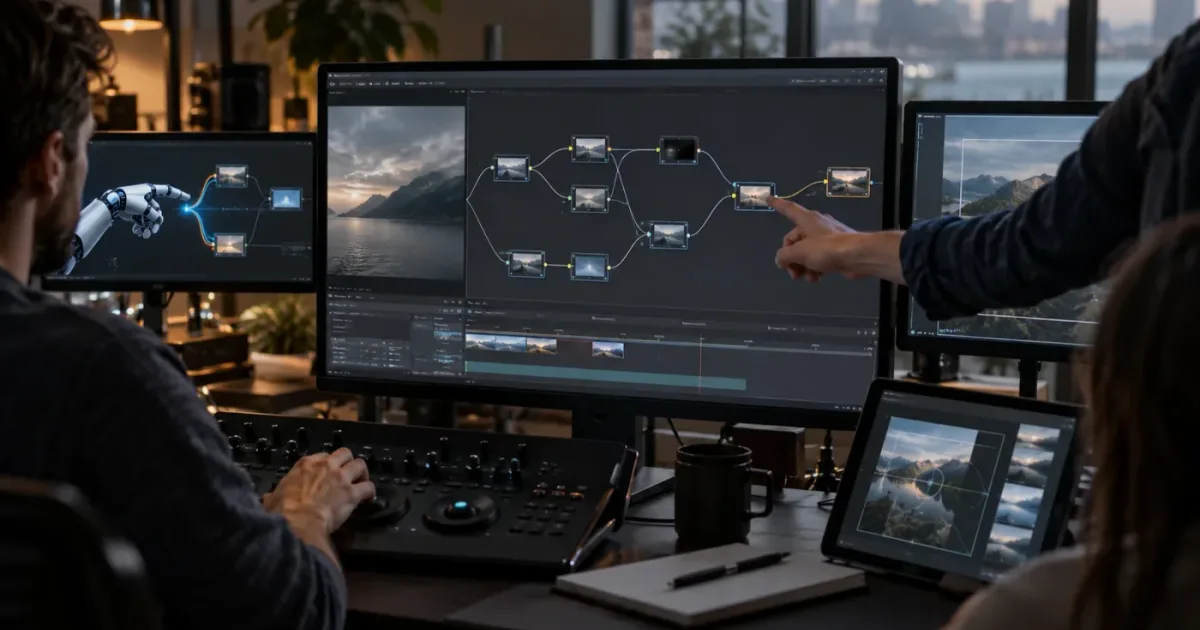 ComparisonsOct 6, 202634 min read
AI Assistant for Fusion in DaVinci Resolve: 2026 Guide
Compare AI assistants for Fusion in DaVinci Resolve 21.1, from native Resolve tools to screen-aware help.
 GuidesJul 12, 202641 min read
The Best Way to Learn DaVinci Resolve (What the Research Says)
Guided, hands-on practice inside DaVinci Resolve beats video courses and MOOCs. Here's the learning-science research behind why, and how to apply it.
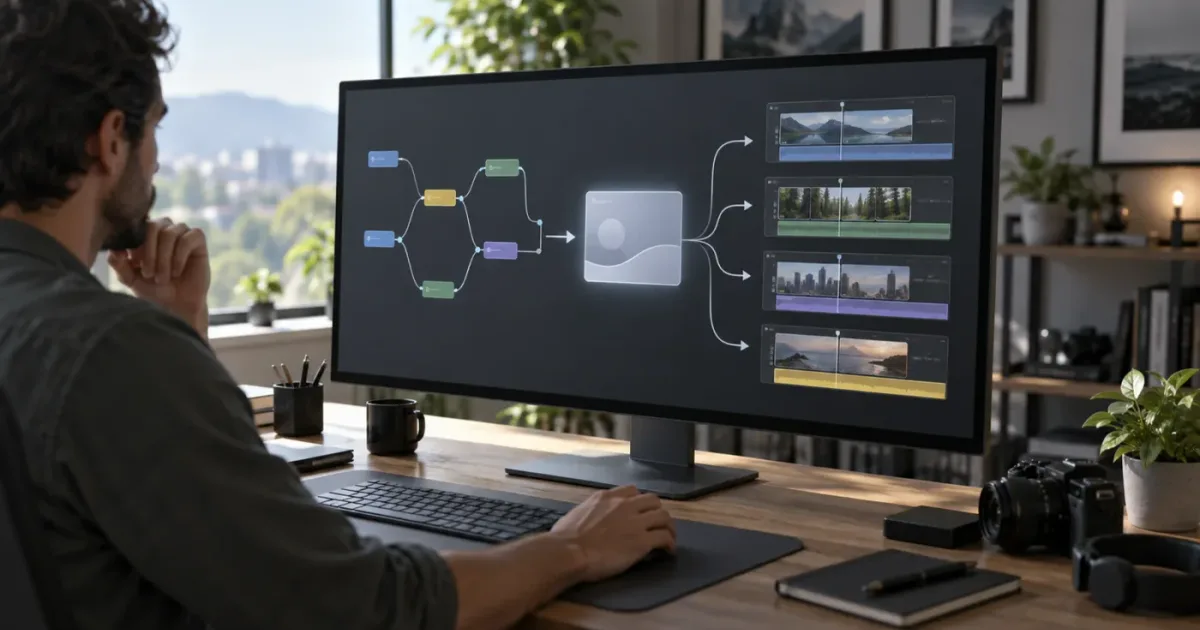 GuidesOct 3, 202639 min read
How to Make a Fusion Composition Reusable in DaVinci Resolve
Learn how to make a Fusion composition reusable in DaVinci Resolve with macros, templates, exposed controls, reference compositions, folder paths, and testing steps.