
Learn / DaVinci Resolveupdated for DaVinci Resolve 21.1 (October 2026)
How to Use an AI Tutor While Learning DaVinci Resolve
Quick answer
To use an AI tutor while learning DaVinci Resolve, ask one specific question about the screen or task in front of you, follow one step, then check the result yourself before continuing. Use tutorials and Blackmagic Design’s training for structured lessons, and use an on-screen assistant when you need help translating a lesson into your own project.
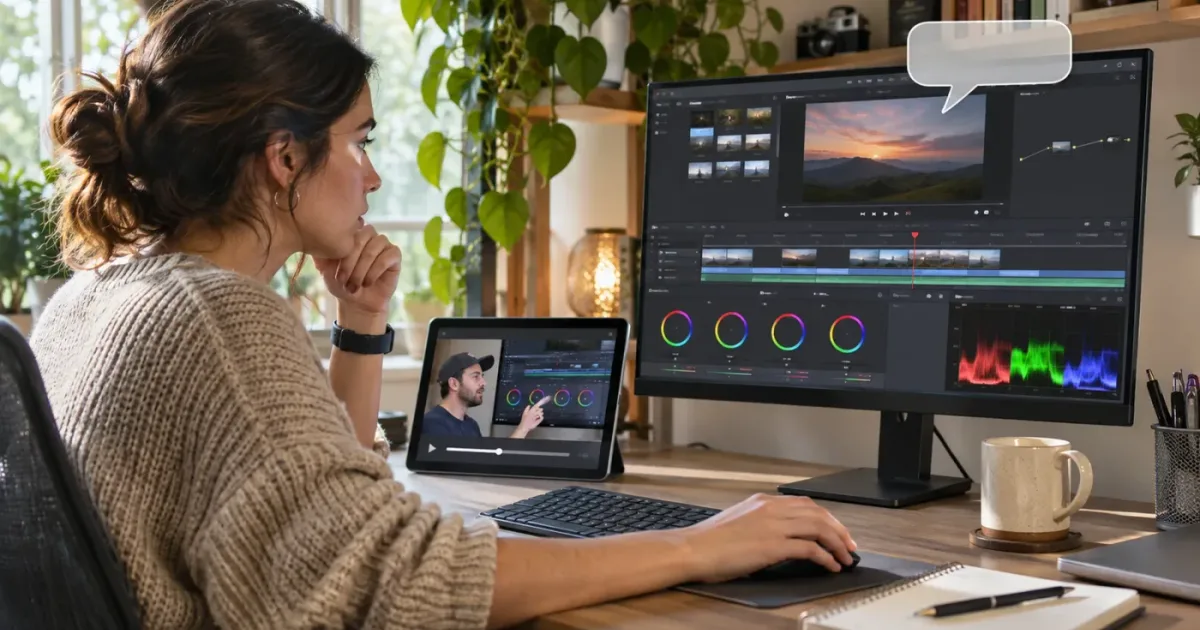
I know the moment: the tutorial says click a control, but your screen looks different. You pause the video, hunt through panels, and wonder whether you missed a step or opened the wrong page. As of October 2026, DaVinci Resolve 21.1 is the current version listed in Blackmagic Design’s support updates, so a useful tutor should help with the task in front of you, not pretend every version or workspace looks identical.
How do I use an AI tutor while learning DaVinci Resolve?
Use an AI tutor as a guide for the next small step, not as a substitute for learning the editing task. Ask about one visible problem, try the suggested action in your own project, and check whether the viewer, timeline, or selected control shows the expected result.
A useful question gives the tutor something specific to work with. “Teach me DaVinci Resolve” is too broad to answer in a way you can test. “I’m on the Edit page, I selected a clip, and I want to make a simple title appear over it. What should I do first?” gives the assistant a task, a location, and a limit.
Then move through a short loop:
- Name the result you want. Say what should change on screen, not just which tool you think you need.
- Ask for one step. Request the next action rather than a long list of instructions.
- Make the change yourself. You should be the person clicking, dragging, trimming, and deciding.
- Check the visible result. Look at the viewer, timeline, Inspector, or other relevant panel.
- Ask what the action did. A quick explanation helps you connect the control to the result.
- Try again without help. Repeating the task from memory is a better check than simply recognizing the steps.
This approach is deliberate: it lets you use help without handing over the part you came to learn. The tutor can reduce the search for an unfamiliar control, but you still need to decide whether a cut works, whether a title fits, or whether the audio sounds right.
In teaching research, Barak Rosenshine argued that practice needs to become independent, not remain guided forever. He wrote, “Students need extensive, successful, independent practice in order for skills and knowledge to become automatic.” That principle doesn’t mean you should refuse help. It means the help should eventually leave room for you to do the task alone. (Rosenshine’s article)
An AI tutor is most useful when it helps you do the next step, then lets you do the step after that yourself.
What to ask when you feel stuck
Use a prompt that makes the problem easy to inspect. You don’t need to write a perfect prompt or know Resolve’s vocabulary. Describe what you see and what you want to happen.
| Situation | A useful question | What to check after the answer |
|---|---|---|
| You don’t know which page to use | “I want to trim the start of this clip. I’m on the Edit page. Which area should I use?” | The clip’s new in-point and whether other clips moved |
| A tutorial’s panel is missing | “The tutorial shows an Inspector panel, but I can’t see one. What should I check on my current screen?” | Whether the panel appears and whether the correct clip is selected |
| You want to add a title | “I want a simple title above my footage. What is the first step, and what should I see when it works?” | A title clip on the timeline and title text in the viewer |
| You need to understand a control | “What does this setting change, and what’s a safe way to test it?” | Whether the change affects the intended clip or parameter |
| A result looks wrong | “I tried this, but the viewer is still black. What should I check first?” | Whether the playhead is over the right clip and the clip is enabled |
| You want to repeat a task | “Give me one hint, not the full answer. I want to try the next step.” | Whether you can continue without copying a complete recipe |
Treat the suggested action as something to check, not a command you must obey. If the instruction mentions a control that doesn’t appear on your screen, say so. Include the page you’re on, the type of item selected, and the result you see. Don’t guess at a menu item just because a chatbot sounds certain.
For a task with a risk of disrupting your work, ask how to make a reversible test. A copy of a project or a duplicate timeline can be a sensible place to practise an unfamiliar operation. Keep the original intact until you understand the change. This is especially useful when learning Fusion node connections, color management, audio routing, or a batch of edits where one mistaken selection could affect more than one clip.
The goal isn’t to turn every click into a lesson. It’s to make the confusing part specific enough that you can move forward and remember what happened.
What should I ask an AI tutor before following its instructions?
Ask the tutor to state its assumptions and give you a way to verify the result. If the answer depends on your Resolve version, page, selected clip, or project settings, that context matters more than the confidence of the response.
A vague question invites a generic answer. A useful question contains four pieces:
- Your goal: “I want the title to fade in.”
- Your location: “I’m on the Edit page.”
- Your current state: “The title is on a track above the video.”
- Your question: “How can I add a fade, and what should I check afterward?”
When the advice seems to refer to a different layout, ask the tutor to slow down and identify the control from the visible state. You can say, “I don’t see that label. What are you assuming I selected?” or “Can you give me a way to confirm I’m on the right page before I change anything?” Those follow-ups expose misunderstandings before they turn into extra troubleshooting.
How to tell a useful answer from a bad guess
A useful answer points to a control or action you can inspect and gives you a way to confirm whether it worked. A bad answer is too broad to test, skips a crucial assumption, or tells you to change multiple settings without explaining the expected result.
Ask yourself:
- Does this answer name the page, panel, or selected item that matters?
- Can I see the control it describes?
- Does it give me a small first action instead of a large chain of clicks?
- Does it explain what should change if I’m right?
- Does the result match what I asked for?
- Can I undo or safely test this change?
If you can’t answer those questions, don’t proceed blindly. Ask for a single check first. For example: “Before I change anything, how can I tell whether the selected item is the timeline clip or the source clip?” Or: “I’m using Resolve 21.1. Is your instruction for this version, and what should be visible when I reach the correct control?”
That last question matters because versions and layouts change. Blackmagic Design’s support page lists DaVinci Resolve 21.1 among its updates, and its Resolve 21 New Features Guide documents the release’s additions. Neither source means every AI tool has up-to-date knowledge of every version. If an assistant gives a path that doesn’t match your interface, verify it against the current manual or ask it to work from the screen you have open.
When should you stop and verify elsewhere?
Stop if the answer conflicts with the controls you see, asks you to alter a setting you don’t understand, or could change a large part of your project. Look at Blackmagic Design’s official manual or training material, ask a focused question in the Blackmagic Design community, or test the idea in a copy of your project.
The same caution applies to advice about color-critical work, audio delivery specifications, and project sharing. A conversational answer can explain a concept; it doesn’t automatically know your client’s delivery requirements, monitor setup, codec constraints, or project-library configuration. Check the project and the requested deliverable.
If you’re stuck on a specific error rather than learning a technique, keep those two jobs separate. First identify and fix the error. Then ask why it happened and how you can recognize it next time. For more on using an assistant to investigate a particular Resolve error, see Can TryUncle Explain DaVinci Resolve Errors?.
What is the best way to learn DaVinci Resolve with an AI tutor?
The best approach combines structured instruction with practice on real or practice footage, and uses the tutor to bridge the gap between a lesson and your own screen. No single format has to teach every skill.
Blackmagic Design’s official training is a strong starting point because it provides training videos and project-based guides for editing, color, Fairlight, and Fusion. Its training page lists videos with their durations and project files, plus downloadable guides such as The Beginner’s Guide to DaVinci Resolve 20. The specific training material listed there may not yet match every Resolve 21.1 change, so check version-sensitive steps against current documentation. (Blackmagic Design training)
A YouTube creator such as Casey Faris can be useful when you want to watch an instructor demonstrate a task. A structured course can give you a sequence and a clear start and finish. Community discussions can show how other editors approach a problem, but a forum answer may depend on a different version, project, or editing goal. An on-screen assistant can help when you need to map an explanation to the panel or control currently in front of you.
| Learning option | Best for | Main limitation | Add an AI tutor when |
|---|---|---|---|
| Blackmagic Design’s official training | A structured foundation, project files, and lessons organized around Resolve areas | Training guides and examples may not reflect every change in a newer release | You need help applying a lesson to a different project or version |
| YouTube, including Casey Faris | Watching a technique demonstrated from beginning to end | You may need to pause, search, or translate the instructor’s layout to your own | The video and your workspace don’t match, or you have a specific follow-up |
| A paid online course | A guided curriculum and a more complete sequence of topics | A course may move too quickly or too slowly for your current task | You want to ask about an individual step instead of rewatching a lesson |
| Community forums and Reddit | Comparing approaches or getting help with a narrow problem | Replies may be incomplete, outdated, or based on a different setup | You want to explain your exact on-screen state while you troubleshoot |
| A general-purpose chatbot | Plain-language explanations and planning practice tasks | It may not see your current screen or know which control you selected | You need to translate a correct explanation into a specific on-screen action |
| An on-screen assistant such as TryUncle | Getting guidance in the context of your open desktop app | It doesn’t replace a full course, editorial judgment, or verification | You want help locating a control and will still make the change yourself |
Courses give you a route through the software; an on-screen tutor helps you deal with the turn you’re facing now.
As of October 2026, version context is worth stating when you ask about a feature: Blackmagic Design’s support page lists DaVinci Resolve 21.1, while its training page still presents several guides for Resolve 20. That doesn’t make the guides useless. It means the version number belongs in your question when the steps might differ.
Try this simple division of labor:
- Use a course or training guide to pick the skill. For example, learn basic editing before attempting a complicated Fusion composition.
- Use your own practice timeline to apply it. Follow the lesson with media you can safely change.
- Ask the tutor about the point of friction. Tell it what the lesson says, what you see, and what you want the screen to show.
- Check the result and explain it back. Say, in your own words, which control changed the result and why.
- Recreate the task later without prompts. If you can’t, make the next practice session smaller rather than replaying the whole course.
If you’re choosing a learning route before you start, The Best Way to Learn DaVinci Resolve discusses how to combine structured material and practice. For a closer look at the categories of available assistants, see The Best AI Tools to Learn DaVinci Resolve in 2026.
How do I learn DaVinci Resolve fast without skipping the fundamentals?
Choose a narrow task that produces a complete, visible result, then practise that task until you can explain the main steps without a prompt. “Fast” should mean fewer unproductive detours, not skipping the judgment that makes an edit work.
A first project could be a short sequence made from a few phone clips. Import the media, select a handful of usable moments, arrange them, trim the rough edges, add a simple title, balance the voice and music, and export a review copy. You’ll touch several parts of Resolve without pretending to master every page in one session.
Treat that project as a worked example, not a promise that one exercise will make you proficient. Its purpose is to give each question a context. When you ask, “How do I add a title?”, you can connect the explanation to the clip already on your timeline. When you ask, “Why can’t I hear the music?”, you can check whether the track is muted, whether the playhead is over the right section, and whether the audio level is appropriate.
A practice session that leaves something useful behind
A productive learning session doesn’t need a complicated schedule. It needs a goal, a chance to make a decision, feedback, and a check that you can do the task again.
| Session part | Your action | Tutor’s role | Evidence of learning |
|---|---|---|---|
| Pick one goal | Choose one small result, such as trimming a clip or adding a title | Help clarify the first step | You can describe the goal in plain language |
| Try the task | Make the first change yourself | Give a hint if you get stuck | The viewer or timeline changes as expected |
| Inspect the result | Play it back and look for an unwanted change | Explain what a control affects | You can explain why the result looks or sounds different |
| Repeat the task | Try it again on another clip or in a duplicate timeline | Offer less help than before | You can reproduce the action without reading a complete recipe |
| Record a reminder | Note the name of the control or a useful warning | Help clarify a term | Your note is short enough to use next time |
Keep the exercise small enough that you can see the result. If you’re learning a cut, don’t change color-management settings at the same time. If you’re learning to move a clip, don’t turn the exercise into a full sound mix and export workflow.
The check is important. A successful click doesn’t necessarily mean you understand the task. Play the edit. Does the cut start where you intended? Did the title appear above the correct shot? Does the dialogue remain clear when the music comes in? Those are editing decisions, not merely interface checks.
You can ask the tutor to test your understanding without making the change for you: “Ask me what I think the next step is, then tell me whether I’m missing something.” Or ask for a hint that preserves the problem: “Give me the panel name first, not the full sequence.” That gives you a chance to recall the workflow and catch a gap.
Do not race through pages to collect feature names. DaVinci Resolve brings editing, color, audio, and visual effects work into one application, and those areas have different tools and ways of thinking. The official training materials reflect that breadth by presenting separate editing, color, Fairlight, and Fusion lessons. You can explore them over time; you don’t need to learn them all before making a simple video.
A small finished edit teaches more than a long list of controls you haven’t used.
What should I do when the AI tutor gives the wrong DaVinci Resolve steps?
Pause, describe the mismatch, and ask for a smaller instruction based on what is actually visible. If the answer still doesn’t match, verify the step with official documentation or test it in a duplicate project rather than changing controls at random.
An AI tutor can misunderstand what you mean, infer the wrong selection, or provide a generic answer that doesn’t fit your Resolve version. That’s a reason to keep the interaction grounded in observable facts.
Try this recovery sequence:
- Don’t keep clicking through a mismatched recipe. If the named panel isn’t visible, stop at that step.
- Restate what you can see. Name the page, selected item, visible panel, and the result you want.
- Ask the tutor what it assumed. For example: “Are you assuming I selected a timeline clip or a media-pool clip?”
- Request one check. Ask how to confirm that you’re in the right state before continuing.
- Compare the instruction with the current manual or training material. Use the official source when the question is about Resolve behavior.
- Test a risky change on a copy. Keep the original project untouched until you know the effect.
This method is useful when the difference is subtle. The Inspector may show different controls depending on what you selected. A tutorial may show a particular page or panel arrangement. A shortcut may depend on keyboard mapping. The tutor can explain what it believes is happening, but you need to verify that description against the screen.
Don’t let an answer’s fluent wording stand in for evidence. Ask, “What should change in the viewer if this worked?” If you can’t find that change, say exactly what happened instead. “I selected the clip, but the title still doesn’t appear in the viewer” is better information than “It’s broken.”
If the advice could overwrite, delete, or broadly alter work, don’t use an unfamiliar instruction on the only copy. A project backup or duplicate timeline gives you a controlled way to learn. That habit matters beyond AI: it’s a sound way to experiment with unfamiliar editing workflows.
If the issue is a technical bug or a version-specific behavior, a tutor may help you describe the problem, but the official manual, release notes, and Blackmagic Design support channels are better places to confirm what the software supports. Blackmagic Design’s support page links to its community forum and technical support information; its page also distinguishes support availability for the free version. (Blackmagic Design Support Center)
When an instruction doesn’t match your screen, stop and check the assumption before changing the project.
For a practical stuck point in your own project, TryUncle is the on-screen assistant for DaVinci Resolve on Mac and Windows; ask in plain words and Uncle points at the exact control on your screen. You make the edit, then inspect the result. If you want that kind of current-screen guidance while you work, check TryUncle for the current offer and platform details.

Is an AI tutor the same as an AI video editor?
No. An AI tutor explains a task and helps you work through it; an AI video editor or agent may analyze footage, plan a cut, or change a timeline. The labels overlap in product marketing, so compare the actual job each tool performs.
The distinction matters if your goal is to learn. If a tool makes a timeline change for you, that may save time on a repetitive task, but it can also remove the decision you hoped to practise. If a tool points out a control and explains the action, you still have to do the work and judge its quality. Neither approach is inherently best. It depends on whether today’s goal is producing an edit or building your own editing skill.
| Tool or category | What its public product information emphasizes | When it may fit | What it does not mean |
|---|---|---|---|
| TryUncle | On-screen guidance from Uncle while you work in desktop apps | You want help interpreting the current screen and finding a relevant control | It is not a substitute for a full curriculum or your editing judgment |
| Sottocut | A Resolve assistant editor that scores footage, proposes edits, and describes verification of changes | You want help with assistant-editor tasks inside a Resolve project | Its public description is about editing workflows, not teaching every Resolve skill |
| CutAgent | AI-assisted editing workflows that coordinate Resolve operations | You want to hand off or coordinate parts of an edit | An editing agent is not automatically a step-by-step tutor |
| Eddie AI | Uploading footage, asking for an edit, and exporting or handing work to an editor | You want help creating or preparing edits from footage | An edit-focused tool is different from learning a control by doing it yourself |
| PremiereCopilot | A text-to-edit product for Adobe Premiere Pro | You edit in Premiere and want its timeline changes | It is not a DaVinci Resolve tutor |
These descriptions are based on the vendors’ own public pages: Sottocut, CutAgent, Eddie AI, and PremiereCopilot. Product features can change, and a vendor’s description is not an independent test of quality. Check the current requirements and terms before choosing a tool.
A useful test is to ask, “Who performs the decision I want to learn?” If the tool finds selects or creates a rough cut, it’s helping produce the edit. If it identifies where a control is and explains a step while you click, it’s supporting learning through guided practice. Some products may do more than one job, but don’t assume one category from the word “AI.”
That distinction also applies to a general chatbot. ChatGPT or another chat tool can explain terminology, help plan a practice exercise, or suggest questions to ask while editing. But unless it can see the relevant screen, you may need to explain which page, panel, and item you’re working with. An answer can be conceptually right and still point you to the wrong control for your current state.
For more detail on the category difference, read AI Tutor vs AI Editor DaVinci Resolve: Which Should You Use?.
How should I use AI without becoming dependent on it?
Use assistance to get unstuck, then gradually remove it from tasks you’ve already practised. The measure of progress isn’t how many answers the tutor provides; it’s whether you can make the next decision yourself.
A simple rule: before asking, take a moment to name what you think the next step might be. You can be wrong. That’s useful information. Ask the tutor for a hint, then compare the explanation with your guess. If the tutor always supplies a full recipe before you try, you may become good at following instructions without understanding the workflow.
You can make the help lighter:
- First attempt: Ask for the first step and a check for success.
- Second attempt: Ask for a hint about the panel or tool, not a complete sequence.
- Later attempt: Say what you plan to do and ask the tutor to check your reasoning.
- Independent attempt: Complete the same task without opening the assistant, then inspect your result.
This isn’t a strict learning schedule or a claim that a fixed number of repetitions guarantees skill. It’s a practical way to shift from supported practice toward independent work. Rosenshine’s guidance on independent practice supports that general principle; it doesn’t prescribe a special DaVinci Resolve method. (Barak Rosenshine, “Principles of Instruction”)
Some tasks also depend on taste. A tutor can point to where you adjust a title’s size, but it can’t decide whether that title feels right for your video. It can explain how to adjust a music level, but you need to listen for whether the words remain clear. It can help locate a color control, but a good-looking image still depends on the footage, display, intended look, and your judgment.
When you get an answer, try to restate it in your own words: “I changed this control because it affects the selected clip, and I checked the viewer to see whether the title appeared.” If you can’t explain the action or identify its result, ask one more question before moving on.
A tutor should also be allowed to say it doesn’t know. If an answer conflicts with your screen or the official guide, don’t keep pushing until it produces a confident guess. Switch to a manual, a verified course, a knowledgeable community member, or a controlled experiment.

Which app helps while I’m using DaVinci Resolve?
An app that helps while you’re using DaVinci Resolve should answer a specific question about the task in front of you, fit your computer and Resolve setup, and leave you in control of important changes. “AI tool to learn DaVinci Resolve” can describe very different products, so decide whether you need instruction, editing automation, or a structured course.
Use this decision check before installing or paying for anything:
| Your need | Look for | Ask before choosing |
|---|---|---|
| I want to learn a control while I work | On-screen guidance that can respond to your current state | Does it guide me through the action, or make the change for me? |
| I want a complete foundation | Lessons, project materials, and a clear sequence | Does the course match my version and preferred pace? |
| I want the first cut assembled | A tool that describes its editing workflow and what it can change | Can I review changes and keep a separate original? |
| I want an explanation of an error | A tool that can use the visible context or a precise description | What information does it need, and how can I confirm its answer? |
| I work on a particular computer or edition | Current platform and software requirements | Does the tool support my operating system and version? |
| I work with client media | Clear privacy and data-handling information | What screen, media, or project information leaves my computer? |
TryUncle is suited to the on-screen guidance use case: ask about a task in plain language, get help in the context of your desktop, and make the change yourself. That can help when a tutorial’s layout differs from yours or you don’t know the name of a control. It doesn’t turn every question into a structured Resolve course, and it doesn’t remove the need to check what the software did.
Don’t buy or install an assistant just because it calls itself a tutor. Check that it supports your platform, identify whether it reads the screen or requires you to describe it, and understand whether it changes the timeline or only explains the next action. For client work, review its privacy information before using it with sensitive material. Don’t assume that a tool’s ability to see an application screen means it needs or receives your entire media library.
If you’re unsure, start with an existing project that contains no sensitive material or use a practice project. Ask a basic question, see how the assistant responds, and check whether its guidance matches the visible controls. That small evaluation tells you more than a product label does.
What is a sensible first week of learning Resolve with an AI tutor?
Make one small video and use the tutor only when you reach a question you can’t answer from the current lesson or documentation. A compact project gives your practice a purpose and makes it easier to see whether you’re learning the workflow.
Here’s a worked example, not a test result or a guaranteed timetable:
- Choose a simple subject. Record a short process, a walk, or a conversation using footage you have permission to use.
- Create a project and import the clips. If you don’t know where to begin, ask for the next step and what should appear when the media is available.
- Build a rough sequence. Choose a few moments that make sense together. Ask for help with a control only when you reach a real obstacle.
- Trim and review. Play the cut. Decide whether the beginning, ending, and transitions between shots make sense.
- Add one title. Keep the design simple. Ask how to place it, then adjust it yourself.
- Balance the sound. Listen on your usual headphones or speakers. Don’t rely only on a meter or an assistant’s description.
- Export a review file. Check the rendered video outside Resolve so you can spot anything the timeline view didn’t make obvious.
- Repeat one unfamiliar step. Recreate the title or trim in a different section without asking for the same complete instructions.
This exercise stays deliberately modest. It doesn’t require you to learn color grading, advanced Fusion work, professional audio mixing, and delivery standards all at once. You can build toward those skills when your projects call for them.
If you already have a specific goal, build your practice around that instead. Someone learning Resolve to edit interviews needs to practise selecting and arranging dialogue. Someone making travel videos may need to learn how to organize clips and build a clear sequence. A student exploring visual effects can work through a Fusion example, but should expect that node-based work involves a different kind of problem-solving from basic timeline editing.
Pick practice footage that you can safely experiment with. If the material belongs to a client or another person, follow your agreement and avoid sending confidential material to a service unless its data practices are acceptable to you. An AI tutor can explain an interface without needing to make your creative decisions or handle your project as an autonomous editor.
Use AI to shorten the distance between a question and a useful practice attempt, not to skip the attempt.
What should I do next if I’m stuck in DaVinci Resolve?
Start with the work you want to complete, not with a list of every feature Resolve contains. Write down the next result you need, ask one focused question, and check the answer against the software on your screen.
If you’re choosing a learning path, begin with Blackmagic Design’s official training and a small project. Add a YouTube lesson, course, or community discussion when it fits the skill you’re learning. Use an AI tutor when you need help translating an explanation into the specific control or panel you’re looking at. The formats complement each other; one doesn’t have to replace the rest.
If an answer doesn’t match your interface, stop and verify. If it does match, make the change yourself, check the result, and try the task again later without the prompt. That’s how help becomes knowledge you can use on the next edit.
Frequently asked questions
- How do I use an AI tutor while learning DaVinci Resolve?
- Ask one concrete question about your current screen or editing goal. Try the suggested step yourself, check the visible result in Resolve, and ask a follow-up that helps you understand why the control worked.
- Can an AI tutor teach me DaVinci Resolve faster than YouTube?
- An AI tutor can help with questions about your particular screen, while YouTube is better for watching a complete technique demonstrated from start to finish. Use a course or tutorial for structure, then ask for help when the example and your project differ.
- What is the best way to learn DaVinci Resolve with AI?
- Start with a small, real editing goal, ask for one step at a time, and do the work yourself. Use AI to explain controls and clarify mistakes, not to make decisions you need to learn to make.
- Is an AI tutor the same as an AI video editor?
- No. An AI tutor explains a task and guides you while you work; an AI editor or agent may analyze footage or make changes to a timeline. Check what each product actually does before choosing one.
- Can I use an AI tutor with DaVinci Resolve 21?
- Yes, depending on the tool. DaVinci Resolve 21.1 is listed on Blackmagic Design’s support page as an update released in September 2026, but any assistant’s compatibility and screen-reading capabilities should be checked with its current documentation.
Sources
Learn by doing, not watching
Stop translating tutorials to your timeline.
TryUncle stays beside Resolve on Mac and Windows. When you ask, Uncle sees your screen and points at the exact control you need. No hunting through tabs, timestamps, or mismatched tutorials.
Meet TryUncleKeep reading
 GuidesJul 12, 202641 min read
The Best Way to Learn DaVinci Resolve (What the Research Says)
Guided, hands-on practice inside DaVinci Resolve beats video courses and MOOCs. Here's the learning-science research behind why, and how to apply it.
 ComparisonsJul 11, 202626 min read
The Best AI Tools to Learn DaVinci Resolve in 2026
ChatGPT, Claude, Blackmagic's free training, Recut, and Resolve's Neural Engine compared for learning DaVinci Resolve, and the gap none of them close.
 ComparisonsOct 7, 202634 min read
AI Tutor vs AI Editor DaVinci Resolve: Which Should You Use?
AI tutor vs AI editor DaVinci Resolve explained for 2026. Compare live instruction, automated editing, official training, and the right workflow.