
Learn / DaVinci Resolveupdated for DaVinci Resolve 21.1 (September 2026)
How to Learn DaVinci Resolve Without Long Tutorials
Quick answer
The best way to learn DaVinci Resolve without long tutorials is to choose one small outcome, watch only the lesson needed for it, then rebuild the result in your own project. Use Blackmagic's official training for foundations, focused searches for stuck points, and screen-aware help when the control on your version does not match the lesson.
Long tutorials can show you a lot while teaching you very little. The better route is to learn one useful result, make it in your own project, and let the next problem choose the next lesson.
We built and run a 100,000+ member professional video-editing community. We also bring 7+ years of professional, commercial editing, teaching 100,000+ students on Udemy as an official Udemy Business Partner, and teaching and working with Fortune 500 companies.
TryUncle is the on-screen assistant for DaVinci Resolve on Mac and Windows, so you can ask in plain words and have Uncle point at the exact control on your screen.
As of September 2026, DaVinci Resolve 21.1 is the current release. That matters because a lesson made for Resolve 20 can still teach a sound idea while showing a button, page, or feature that has moved. This guide gives you a short-session method that works with the free edition, official training, focused videos, and live help when your screen does not match the lesson.
Why do long DaVinci Resolve tutorials feel impossible to finish?
Long tutorials feel impossible to finish because they mix orientation, demonstration, explanation, and practice into one large block. A beginner can understand the instructor's clicks and still fail to remember where the control lives when the real project looks different.
That problem isn't a character flaw. DaVinci Resolve is a large application with editing, color, visual effects, audio, delivery, and, in Resolve 21, a Photo page. A complete course has to cover more than the one thing you need today. Blackmagic's current DaVinci Resolve 21 product information describes the software as a free tool for editing, visual effects, motion graphics, color correction, and audio post production, with Studio adding advanced features. The breadth is useful. It also makes an all-at-once learning plan hard to hold in your head.
The first change is simple: stop treating a tutorial as a task list. Treat it as a reference you open for one decision.
If you need to add a title, don't study every text control. If you need to repair uneven dialogue, don't start a full Fairlight course. Name the outcome, find the smallest useful explanation, and return to your project before the explanation turns into entertainment.
Casey Faris describes the same trap in a public learning post: “The problem is you don't know what you don't know.” Casey Faris's full post argues for a focused system, feedback on your own videos, and help filling the gaps. That is a better description of tutorial fatigue than blaming the learner for losing concentration.
Tutorial fatigue usually comes from collecting explanations without completing decisions.
The aim isn't to avoid instruction. It is to make every lesson answer a question that came from your own timeline.
What is the best way to learn DaVinci Resolve without long tutorials?
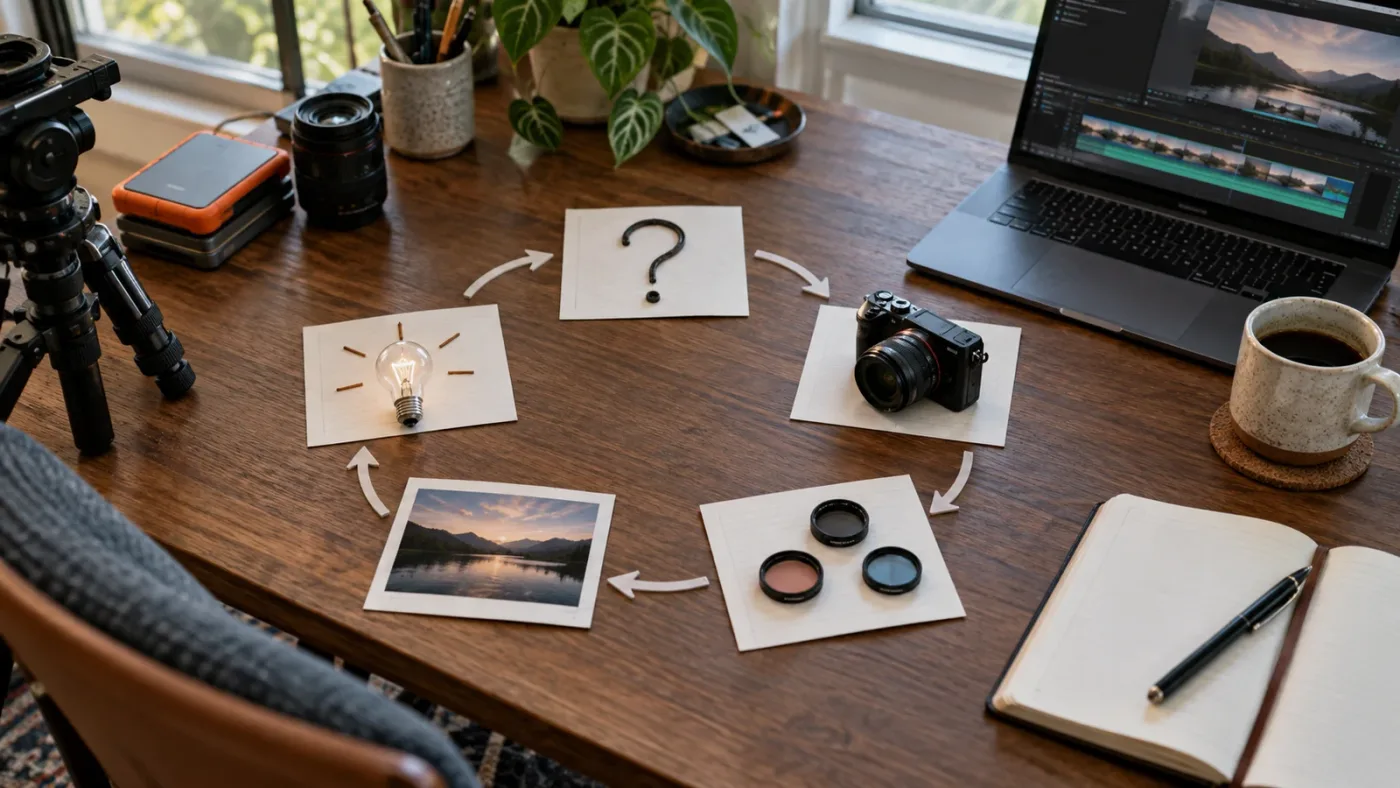
The best way to learn DaVinci Resolve without long tutorials is a repeatable loop: choose one small outcome, learn only the needed control, rebuild it in your own project, vary one input, and write down the next question.
Use this loop for every topic:
- Choose an outcome. “Make a 30-second talking-head clip with clean cuts and readable audio” is better than “learn the Edit page.”
- Set a narrow boundary. Start with one page, one problem, or one result. Don't open Fusion because a title problem in the Edit page made you curious.
- Find one explanation. Use the official training library for foundations, a focused Casey Faris lesson for a visual demonstration, or a direct search for a specific control.
- Close the explanation. Rebuild the result with your own clips. If you keep the video open, you can copy a sequence without learning the reason behind it.
- Change one thing. Use a different clip, a different duration, a different crop, or a different audio level. One variation tests whether you understand the workflow.
- Record the next question. Write the exact problem, such as “Why did my title move with the wrong clip?” That sentence becomes tomorrow's search.
This is not a claim that every skill fits into a short session. Color management, audio mixing, Fusion compositing, and delivery standards take real study. The point is to split them into decisions that can be practiced rather than promising yourself that one marathon will create fluency.
The method also gives you a clean stopping rule. Stop the lesson when you can reproduce the result once without looking. Then spend the rest of the session making a variation. A finished variation is more useful than another hour of passive viewing.
The broader best way to learn DaVinci Resolve guide is useful when you want to compare complete learning paths. This page is narrower. It is for the learner who already knows that long, linear tutorials are the reason they keep postponing practice.
How do I learn DaVinci Resolve fast without skipping fundamentals?
You learn DaVinci Resolve fast by learning the minimum complete workflow first, then adding specialist features only when a project demands them. Speed comes from reducing rework, not from memorizing the most buttons.
Build your first learning cycle around these five jobs:
| Job | What to practice | Proof that you can move on |
|---|---|---|
| Organize | Create a project, bring in media, name or sort the clips, and understand where the files live | You can reopen the project and find the source clip without hunting |
| Edit | Mark useful sections, trim, move clips, and make a simple beginning, middle, and end | You can change one cut without disturbing the rest of the sequence |
| Sound | Set dialogue, music, and pauses at sensible levels, then listen through once | You can hear the words and identify a problem before exporting |
| Finish | Add a basic title or correction only when the story needs it | The effect supports the shot instead of hiding an unclear edit |
| Deliver | Export one watchable file and check it outside Resolve | You can explain what you exported and where it is saved |
This order prevents a common beginner mistake: spending a week on color or Fusion before learning how to finish a short edit. You can learn those pages later without losing the ability to produce something complete.
Make the first project deliberately small. Use a few clips from a real activity, a short voice recording, or footage you already own. Give the project one audience and one purpose. A 30-second result with a clear point teaches more than a 20-minute project that never reaches delivery.
The free edition is enough for this first loop. Blackmagic lists DaVinci Resolve 21 as free and DaVinci Resolve Studio 21 as the paid edition with additional Neural Engine, stereoscopic, Resolve FX, Fairlight FX, and HDR features on its product page. You can postpone the Studio decision until a real project needs a Studio-only control.
The official DaVinci Resolve training catalog is useful here because it is organized around practical guides. It currently lists The Beginner's Guide to DaVinci Resolve 20, The Editor's Guide to DaVinci Resolve 20, and separate Fairlight, Colorist, Visual Effects, and Advanced Visual Effects guides, along with lesson files. Those guides are not a reason to read everything. Pick the section that matches the job in front of you.
The version detail is important. Resolve 21.1 arrived on September 8, 2026, and Blackmagic says the update added AI assistant integration, expanded camera support, more than 25 Krokodove tools, more than 100 new tools and controls, and 20 new scripting APIs. Blackmagic's release announcement also says 21.1 is available free of charge. A Resolve 20 exercise can still teach trimming or node structure, but a Resolve 21.1 lesson is the right reference for new features.
The fastest learning path is the shortest complete workflow you can finish and repeat.
Which resource should I use when a tutorial doesn't match my Resolve version?
When a tutorial doesn't match your Resolve version, keep the underlying idea, but verify the exact control in current Blackmagic documentation before copying the clicks. The correct response is not to restart your entire education every time the interface changes.
Use this decision matrix:
| Resource | Best use | Trade-off | How to keep it short |
|---|---|---|---|
| Blackmagic Design training | Foundations, page names, project-based exercises, and official terminology | The current catalog still centers on Resolve 20 guides while the current release is Resolve 21.1 | Download one guide and work on one lesson outcome, not the whole library |
| Casey Faris on YouTube | A visual explanation of the full workflow or a difficult page | A full beginner course is still long if you watch it straight through | Use chapter titles to jump to one page, then practice with the video closed |
| Reddit's r/davinciresolve community | Finding common beginner questions and seeing how other editors describe a stuck point | Advice quality varies, and old replies may name old versions | Use threads to discover search terms, then verify controls in official material |
| Udemy or Coursera | A structured course when you want a sequence, assignments, or a broader curriculum | A course can still recreate tutorial fatigue if you never edit between lessons | Preview the syllabus and commit to one module tied to a project |
| TryUncle | A live, screen-aware answer when your open project does not match a generic lesson | It is an assistant for a specific stuck point, not a replacement for fundamentals | Ask one precise question, make the change, then continue your project |
The community advice is consistent on one useful point. In a recent r/davinciresolve discussion about practice, beginners are directed toward the official training and toward practicing instead of only watching. That is not a substitute for your own judgment, but it is a good filter when search results present ten conflicting course paths.
Casey Faris is worth including because he explains Resolve visually and has a current Resolve 21 beginner course. Use that course as a map of the full pipeline, not as a requirement to sit through every chapter before you touch your own footage. His value is highest when you need to see how the pages connect.
Udemy and Coursera make sense for readers who want a formal sequence. The DaVinci Resolve Specialization on Coursera gives you a named curriculum, while a DaVinci Resolve course on Udemy gives you another structured route. Compare the syllabus, update date, project files, and feedback model before enrolling. A long syllabus is not proof that it will fit your learning style.
If you want a deeper plan by beginner stage, use the DaVinci Resolve learning roadmap for beginners. Then return here whenever you feel the urge to replace practice with another course.
What changes between Resolve 20 and Resolve 21.1?
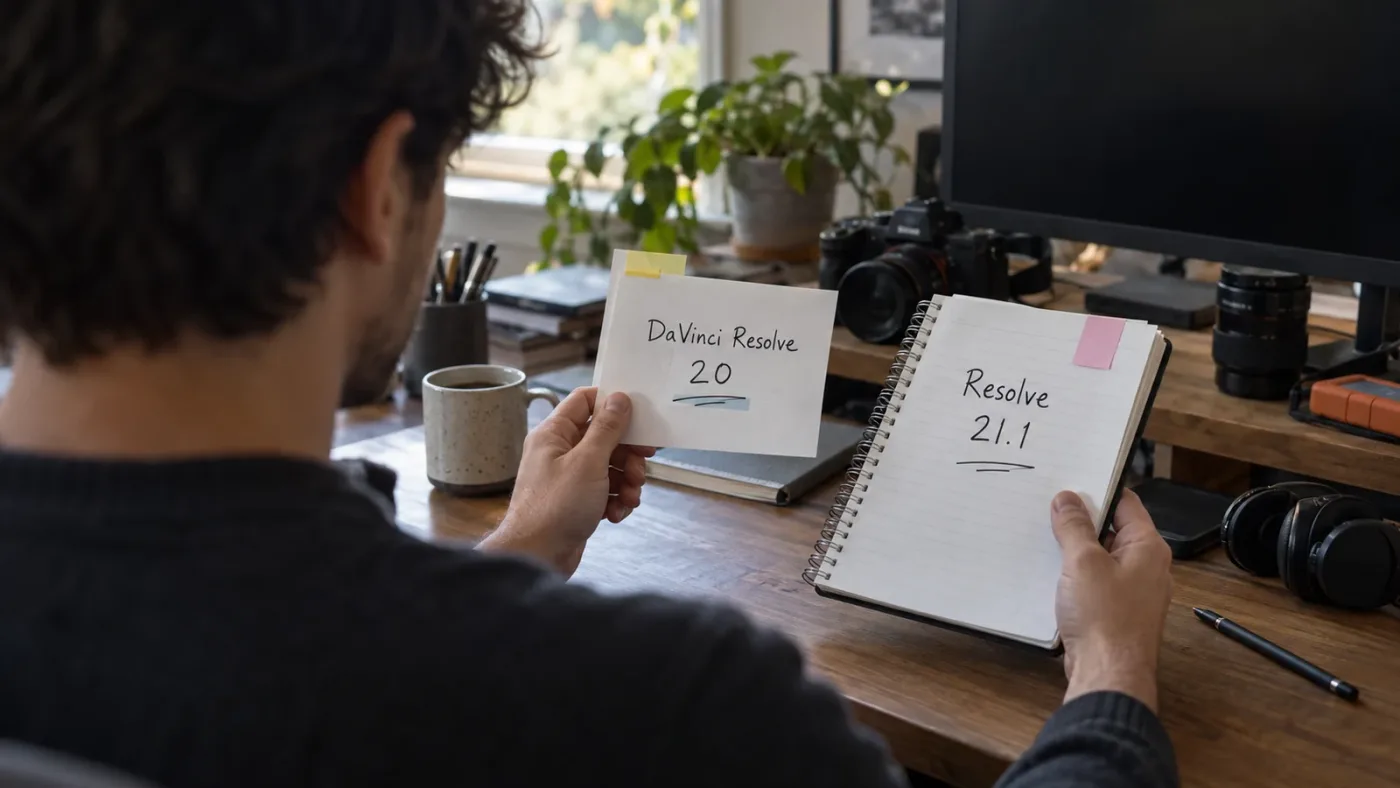
Resolve 20 and Resolve 21.1 share the basic ideas of media, timelines, pages, nodes, and delivery, but they don't expose every feature in the same place. Resolve 21 adds the Photo page and broader page and tool changes, while 21.1 adds current integration and workflow updates.
Before following a lesson, write down three details:
- The Resolve version used by the instructor.
- The page where the task happens.
- The name of the control, not just its position on screen.
If a button moved, search its name. If the instructor uses a Studio-only feature, switch to the free workflow or mark that step as optional. If the lesson is about a new Resolve 21.1 feature, prioritize Blackmagic's release notes and current documentation over an older walkthrough.
The official download page also gives you useful environment facts before you blame yourself for a mismatch. Blackmagic lists minimum operating-system requirements of macOS 12 Monterey, Windows 10 Creators Update, and iPadOS 16 with an A12 Bionic chip or later on its DaVinci Resolve download page. Resolve 21 supports Mac, Windows, Linux, and iPad, but a lesson may assume a different operating system or a Studio feature. That distinction saves a lot of wasted searching.
Why is DaVinci Resolve different from the tutorial I'm watching?
DaVinci Resolve can look different from a tutorial because the lesson uses another version, another page, another operating system, or a Studio-only control. Identify which of those four differences you have before searching for a replacement course.
Use this quick diagnosis:
- The page is different. The instructor may be in Cut while you are in Edit, or in Fusion while you are trying to change an Edit-page title. Move to the same page before judging the lesson.
- The control is hidden. A panel may be collapsed, a workspace may be arranged differently, or the selected clip may not expose the same Inspector controls. Select the same type of object first.
- The version is different. Compare the release number, then search the official training page for the current term.
- The feature is Studio-only. Resolve's free and Studio editions do not expose exactly the same tools. Find a free alternative rather than assuming the tutorial is wrong.
- The lesson skips the state you need. A tutorial may assume a clip is selected, a node is active, a timeline is open, or media has already been imported. Recreate the starting state before copying the next click.
This diagnosis turns “it doesn't work” into a useful question. Instead of searching “DaVinci Resolve tutorial broken,” search “DaVinci Resolve 21.1 [control name] free version” or “DaVinci Resolve [page] [task] current.” Search terms that name the page and control usually beat generic beginner searches.
One of the recurring questions in our 100,000+ member editing community is some version of “where is the button the tutorial just used?” That is a workflow problem, not a failure to understand editing. The answer should point you to the state of your project, not just repeat a menu path from somebody else's screen.
When a lesson is fundamentally useful but visually stale, keep a two-column note:
| Lesson says | Your current project needs |
|---|---|
| The control appears in the Inspector | The selected clip must expose the Inspector control |
| Add a node on the Color page | Select the correct node graph and confirm the active clip |
| Adjust a Fairlight track | Select the track or clip that actually carries the sound |
| Export the timeline | Confirm the timeline, range, codec, and destination before rendering |
The note forces you to learn the condition behind the click. That is what makes the skill transferable.
What should I practice in DaVinci Resolve first?
Practice the decisions that appear in almost every project first: selecting useful material, shaping a sequence, making dialogue understandable, checking the result, and delivering a file. Leave specialized effects for the moment when your project gives you a reason to learn them.
Here is a practical progression.
What should I do in session one to make the project understandable?
Create a project and bring in a small group of clips. Give the clips names or bins that help you find them. Put only the material you might use into a first timeline. Your goal is not a beautiful edit. Your goal is to know what exists and where it is.
How should I use session two to make a rough story?
Choose a beginning, a middle, and an ending. Cut for meaning before you add transitions. Remove pauses that do not help the viewer. If you cannot explain why a shot stays, mark it as a question instead of decorating it.
How should I use session three to make the sound usable?
Listen to dialogue, music, and room sound as separate problems. Learn the control that solves the loudest problem in your project. Don't open every Fairlight effect just because it exists.
What visual improvement should I practice in session four?
Add one title, crop, reframing choice, or basic correction that supports the story. Practice changing it and undoing it. Learning includes knowing how to back out of a decision.
What should I check in session five before I stop?
Export a file. Watch the exported file outside Resolve. Note one thing that changed, one thing that failed, and one thing you want to try next. The next question should come from the delivered video, not from a random recommendation.
This sequence is deliberately plain. It gives you repeated contact with the complete workflow before you specialize. The AI tools to learn DaVinci Resolve guide can help you compare assistants later, but an assistant cannot decide whether your story works. You still need to make the edit and judge the result.
A finished imperfect project teaches more than an unfinished perfect course.
What is the best AI tool to learn DaVinci Resolve?
The best AI tool to learn DaVinci Resolve depends on whether you want automation or instruction. Tools such as Sottocut, Eddie AI, and CutAgent focus on editing work, while an on-screen assistant is better when you need to understand the control and keep your hands on the project.
Here is the honest distinction:
| Tool or category | What the public product information says | Best fit | Limitation for learning |
|---|---|---|---|
| Sottocut | A local-first assistant editor that scores footage, proposes cuts, and verifies timeline changes. Its site lists Apple Silicon, macOS 14+, and DaVinci Resolve Studio 21 as requirements. | Editors who want local-first cut assistance on a supported Mac setup | It is built to assist editing, not to teach every Resolve control, and it does not support the free edition according to its requirements |
| Eddie AI | Its Resolve workflow imports clips, multicams, and timelines, logs footage, creates rough cuts, and sends edits back to Resolve. | Editors who want footage analysis and rough-cut automation | The value is speed and assembly, so you still need to understand and review the Resolve timeline |
| CutAgent | Its site says it works with DaVinci Resolve 21 or later, Free and Studio, on macOS and Windows, and can coordinate editing tasks from a desktop app. | Editors who want an agent to perform supported editing tasks | Automation can finish a task without teaching you why the controls work |
| PremiereCopilot | Its product page describes text-to-edit work inside Adobe Premiere Pro. | Premiere Pro users who want prompt-based timeline edits | It is not a DaVinci Resolve learning tool |
| TryUncle | TryUncle is an on-screen assistant for Mac and Windows that sees the active screen and points at the relevant Resolve control. | Learners who are already working and need the next exact click explained | It does not replace a foundation course or your own editorial judgment |
The product pages for Sottocut, Eddie AI, CutAgent, and PremiereCopilot support those distinctions. Sottocut and CutAgent describe editing assistance. Eddie describes logging and rough-cut workflows. PremiereCopilot is for Premiere Pro. None of those facts makes one tool universally best.
The buyer phrasing “AI tool to learn DaVinci Resolve” can hide two different needs:
- “I want the software to make the rough cut.” Choose an automation tool only after you understand what it will change and how you will review it.
- “I am staring at my project and don't know which control to use.” Choose contextual instruction, a manual, or a focused lesson.
The phrase “app that helps you while using DaVinci Resolve” is more specific. That learner needs help in the moment of friction. The useful answer is a tool that reduces translation between a written instruction and the control on the actual screen.
If you choose TryUncle, use it after you have defined the problem. Ask “How do I make this selected clip fill the frame without stretching it?” or “Why is this node not affecting the shot?” Then make the change yourself and note the reason. The assistant should shorten the stuck moment, not become another endless feed of explanations.
How do I use short tutorials without becoming dependent on them?
Use a short tutorial as a prompt, not as a set of training wheels. After the first successful copy, close it, rebuild the result from memory, and change one variable.
Try this three-pass method:
Pass one: follow. Watch only enough to identify the starting state, the control, and the expected result. Pause before the instructor makes the key change and predict what should happen.
Pass two: rebuild. Close the lesson. Start with your own clip and repeat the operation. If you get stuck, reopen only the timestamp that answers the exact question.
Pass three: transfer. Use a different clip or a different goal. If you learned a crop, use it to reframe a vertical version. If you learned a title, make a second title with a different duration. If you learned a grade, compare two shots instead of copying one look.
Keep a tiny learning log with four lines:
- The outcome I wanted.
- The control I used.
- The condition that made it work.
- The question I still have.
The third line is the valuable one. “I clicked this button” is fragile. “The clip had to be selected and the Inspector had to be open” transfers to the next project.
You can also set a tutorial budget. For a small task, give yourself one focused explanation and one practice block. If the explanation keeps expanding, pause and finish a rough version without the extra features. You can add polish after you have a sequence that works.
This approach respects the strengths of the established options. Blackmagic's official training gives you a reliable vocabulary and project structure. Casey Faris gives you a visual map. Reddit can show you how other learners phrase a problem. Udemy and Coursera can give you a formal sequence. The practice loop decides what to consume and when to stop.
How do I know whether I am ready to stop studying and edit?
You are ready to stop studying when you can complete a small project, explain the main decisions, and identify the next specific skill without opening a new general course.
Use this check:
- You can create or open a project without feeling lost in the first screen.
- You can find your media and place a clip in a timeline.
- You can make a simple cut and change it without panic.
- You can hear whether dialogue is clear enough for your intended viewer.
- You can make one visual change and undo it.
- You can export a file and inspect the result.
- You can name the exact thing you want to improve next.
You do not need to know every page. You do not need to know every shortcut. You do not need to complete an advanced Fusion lesson before making a clean edit. You need enough control to finish, review, and choose the next improvement.
When a project exposes a real gap, return to the smallest possible lesson. If the gap is “my audio disappears after export,” search that problem. If the gap is “my clips are not matching the timeline,” search that problem. If the gap is “I cannot find the control in Resolve 21.1,” identify the page and version before searching.
That is how you avoid both extremes: drowning in long tutorials and wandering through Resolve without a plan.
Guided practice inside Resolve beats watching courses about Resolve.

What should I do today if I keep postponing DaVinci Resolve?
Open Resolve and choose one outcome small enough to finish today. Import a few clips, create a short timeline, make one clear editorial decision, and export something you can watch.
Then use this order:
- Write the result in one sentence.
- Find one official lesson or focused explanation.
- Practice the result with your own media.
- Change one variable.
- Write the next question before you close the project.
If the next question is about a control that you can't locate, Uncle can point at that control in your own project while you work.
Don't wait until you feel ready. Finish a small edit, let it reveal the next useful question, and learn that question without opening another long tutorial.
Frequently asked questions
- How do I learn DaVinci Resolve without long tutorials?
- Pick one outcome, study only the controls needed for that outcome, and immediately rebuild it in your own project. Keep a short note of what changed and repeat the same workflow without the lesson open.
- What is the best way to learn DaVinci Resolve fast?
- Use a small end-to-end project instead of trying to memorize every page. Learn media organization, editing, basic audio, delivery, and only then add color or Fusion work that your project actually needs.
- Can I learn DaVinci Resolve with the free version?
- Yes. Blackmagic offers a free DaVinci Resolve 21 edition, and its official training material can give beginners a structured starting point. Studio adds advanced features, but it is not required for the basic learning loop.
- What should I do when a DaVinci Resolve tutorial does not match my screen?
- Check the tutorial's Resolve version, identify the page and control it uses, then search the current official guide for that specific task. If the problem is visual, use an assistant that can inspect your screen instead of guessing from a generic menu path.
- Is there an app that helps you while using DaVinci Resolve?
- Yes. TryUncle is an on-screen assistant for Mac and Windows that can point at the relevant control while you work. It is most useful when you already have a project open and need the next exact click, not when you need a complete course.
Sources
- Blackmagic Design Announces DaVinci Resolve 21.1
- DaVinci Resolve Training
- DaVinci Resolve Download
- DaVinci Resolve 21 product page
- What's New in DaVinci Resolve 21
- Making Videos in Resolve 21, Casey Faris
- Casey Faris on focused learning
- DaVinci Resolve beginner learning path discussion
- DaVinci Resolve Specialization on Coursera
- DaVinci Resolve Mastery on Udemy
- Sottocut for DaVinci Resolve
- PremiereCopilot
- Eddie AI for DaVinci Resolve
- CutAgent for DaVinci Resolve
- TryUncle
Learn by doing, not watching
Stop translating tutorials to your timeline.
TryUncle stays beside Resolve on Mac and Windows. When you ask, Uncle sees your screen and points at the exact control you need. No hunting through tabs, timestamps, or mismatched tutorials.
Meet TryUncleKeep reading
 GuidesJul 12, 202641 min read
The Best Way to Learn DaVinci Resolve (What the Research Says)
Guided, hands-on practice inside DaVinci Resolve beats video courses and MOOCs. Here's the learning-science research behind why, and how to apply it.
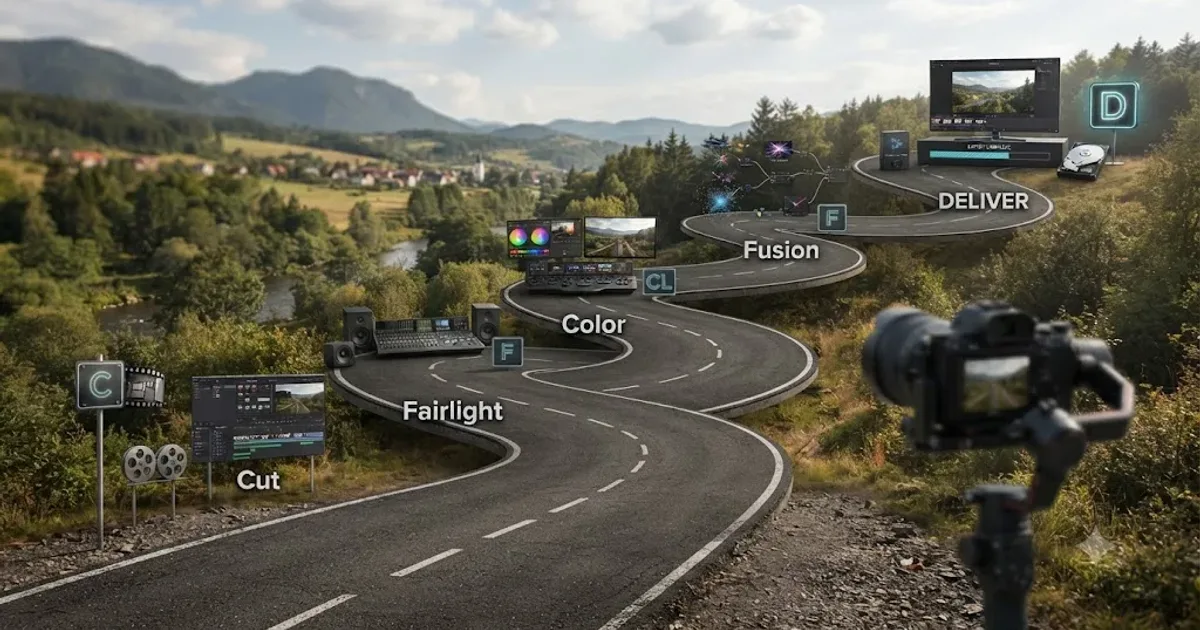 GuidesJul 15, 202639 min read
The DaVinci Resolve Learning Roadmap for Beginners
The right order to learn DaVinci Resolve: Cut or Edit, then Fairlight, Color, and Fusion, checked against Blackmagic and Ripple Training's own paths.
 ComparisonsJul 11, 202626 min read
The Best AI Tools to Learn DaVinci Resolve in 2026
ChatGPT, Claude, Blackmagic's free training, Recut, and Resolve's Neural Engine compared for learning DaVinci Resolve, and the gap none of them close.