
Learn / DaVinci Resolveupdated for DaVinci Resolve 21.0.2 (July 2026)
How to Build a Reusable B-Roll Library for Client Work
Quick answer
Split your library into a global folder for footage you own outright and per-client folders for anything under exclusivity. Tag every clip at ingest with subject, shot type, and setting, mirror that structure in DaVinci Resolve bins, and confirm your contract's reuse rights before you drop old client footage into a new edit.
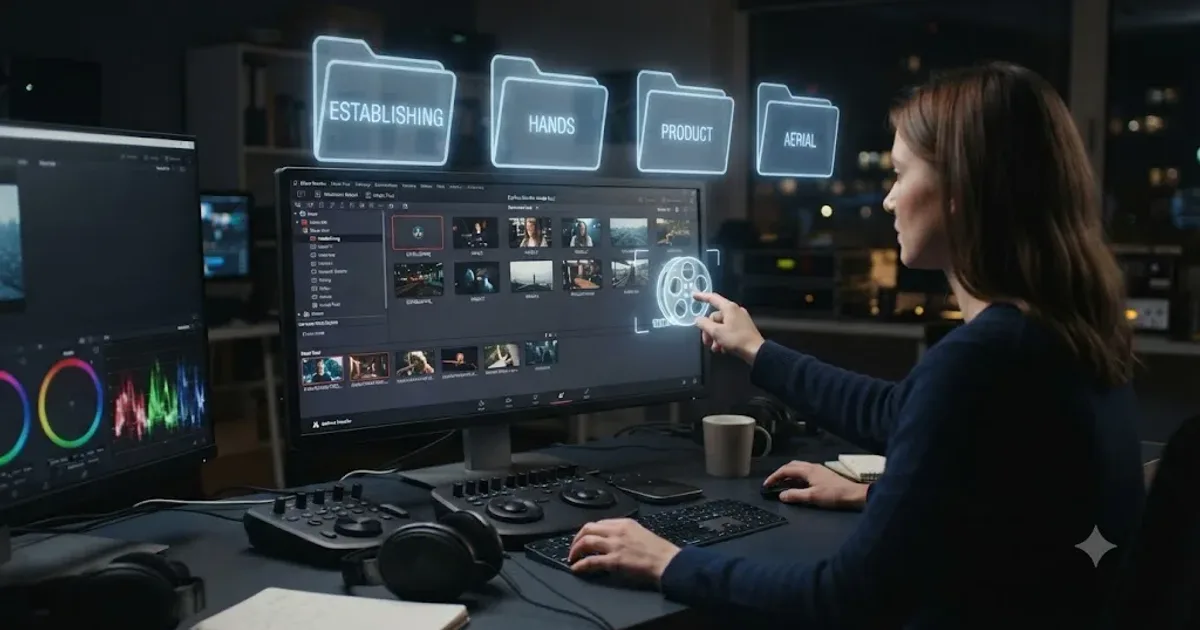
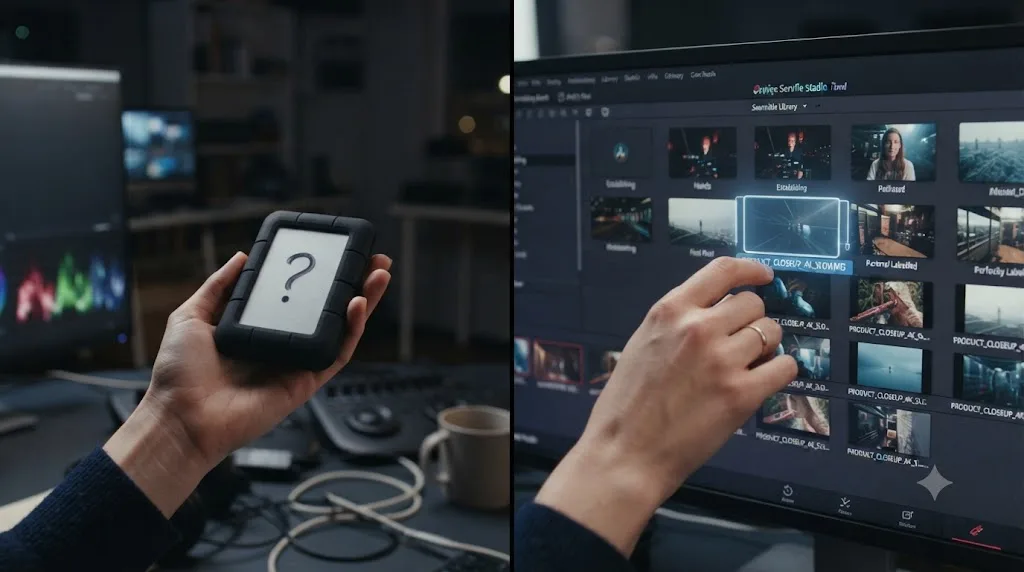
You shoot the same establishing shot of a laptop on a desk for the fourth different client this year. You know you have it somewhere. You just spent twenty minutes not finding it, so you reshot it instead. That twenty minutes wasn't free. It came out of a job you already priced, and it'll come out of the next one too, because nothing about today's search made tomorrow's search any faster.
A reusable B-roll library fixes that specific problem, not "get more organized" in the abstract, but a system that turns generic footage into something you can find and legally reuse across every client project you take on. This guide covers how to build one: what to organize by, how to tag it, what DaVinci Resolve gives you for free, what you're actually allowed to reuse from client work, and where the whole thing breaks if you skip a step.
What is a reusable B-roll library, and why does client work need one?
A reusable B-roll library is footage you keep outside any single project, organized and tagged well enough that you can find and drop a specific clip into a brand-new timeline without reshooting it or scrubbing through a graveyard of old project folders. It's different from a project's media bin, which gets archived or deleted once that job delivers. A library survives the project. That's the entire point.
Client work generates an unusual amount of reusable footage almost by accident. Every corporate shoot produces a few seconds of hands typing, a lobby shot, a coffee cup on a desk. Every real estate walkthrough produces a driveway approach and a kitchen pan. Every wedding produces ring shots and detail close-ups that look nearly identical from one couple to the next. None of that footage is specific to the deliverable it was shot for. All of it is specific enough that reshooting it from scratch, on a different job, for a different client, costs real time you're not billing anyone for.
The B-roll you reshoot for the fourth time this year is the clearest sign your footage has no address. It exists somewhere on a drive. You just can't find it fast enough for finding it to beat reshooting it, and that gap is exactly what a library closes.
The economics matter more the more client work you take on. A freelance editor charging by the project, not the hour, eats the cost of a slow search directly out of their own margin, a dynamic Cutjamm's 2025 rate survey puts in concrete terms: entry-level editors bill $20 to $45 an hour and mid-level editors $45 to $85, so twenty minutes lost to a search that a searchable library would have made instant is real, specific money, not an abstraction. Multiply that across a year of client work and the library pays for the afternoon it took to set up many times over.
Should you organize by client, by category, or both?
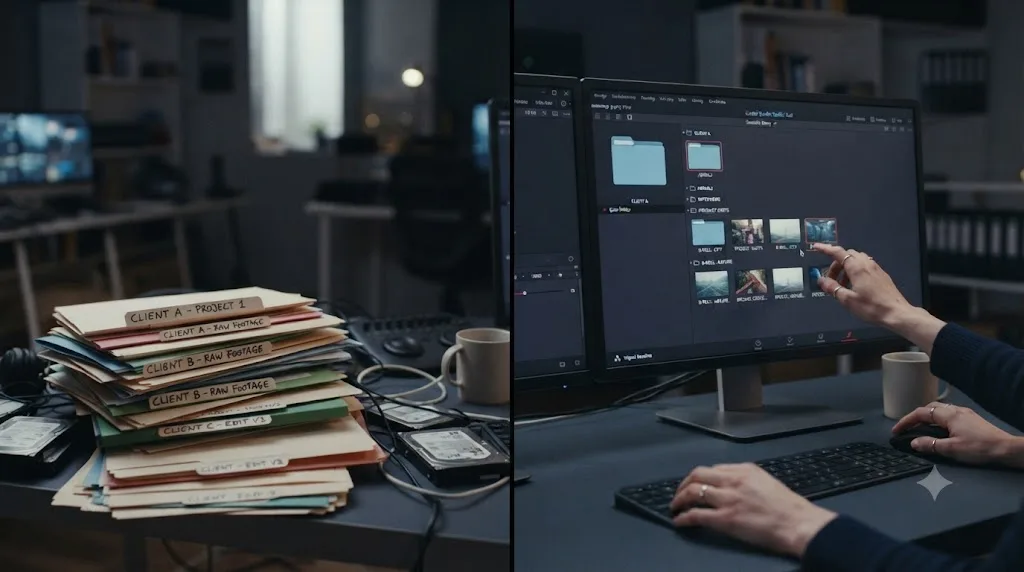
Both, kept in separate tiers, and mixing them into one flat structure is the single most common mistake editors make when they try to build this for the first time.
A category-first structure (Establishing, Hands, Product, Aerial, Interiors) is what makes footage reusable across clients in the first place. If your library is organized entirely by client name, "Acme Corp 2025," "Smith Wedding," "Downtown Realty Q3," you can only find a shot if you already remember which client's shoot it came from, which defeats the purpose of a library meant to serve future, unrelated jobs. Category-first organization is what lets you type "kitchen pan" and get every kitchen pan you've ever shot, regardless of which job it came from.
But a pure category structure has a blind spot: it doesn't tell you what you're legally allowed to do with a given clip. Footage still under a client's exclusivity window has to stay quarantined from footage you own outright, or you risk pulling something into a new edit that your contract doesn't actually clear you to reuse yet. That's what the client tier is for, not day-to-day browsing, but a gate that footage passes through before it's allowed into the global library at all.
| Structure | What it's good for | What it misses |
|---|---|---|
| By client only | Finding everything from one specific job fast | Cross-client reuse, since you have to remember the source job to find a shot |
| By category only | Fast reuse across every client and project | No signal on what you're actually cleared to reuse |
| Hybrid (client-gated, category-organized) | Both: fast search, and a checkpoint before footage crosses into general use | Slightly more setup, one extra folder tier |
The practical version: every new shoot lands first in a per-client folder, tagged and reviewed against that client's contract. Once you've confirmed a specific clip is cleared for reuse, whether the contract transferred full rights, the exclusivity window has expired, or the client explicitly agreed, it graduates into the global, category-organized library. Footage that's still exclusive, or that you're not sure about, stays in the client folder and out of anything you'd drop into someone else's timeline.
A library organized only by client is a filing cabinet. A library organized only by category, with no rights tracking, is a lawsuit waiting for a deadline. You need the hybrid, not because it's tidier, but because it's the only version that answers both questions a client edit actually asks: where's the shot, and am I allowed to use it here.
What folder structure and naming convention actually survives a year of client work?
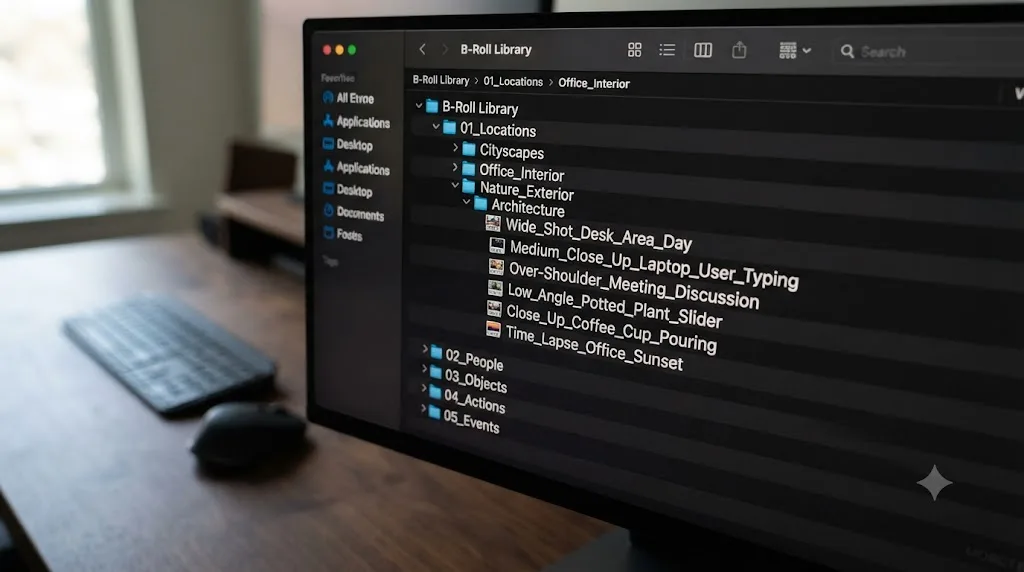
A shallow one. The instinct when you first build a library is to nest categories inside subcategories inside sub-subcategories, and that instinct is what kills the system by month three, because a five-level-deep folder tree takes longer to navigate than the search you were trying to avoid in the first place.
Wideframe's research on creator B-roll libraries recommends capping the top level at 8 to 12 broad categories, with one subcategory level below that for shot type, and individual clips at the third level with no further nesting. Translated for client-work footage instead of a single creator's channel content, that structure looks like this:
01_Global-Library/
  Establishing/
    Skyline-Aerial/
    Storefront/
  Hands/
    Typing/
    Product-Handling/
  Product/
    Close-Up/
    Rotating-Turntable/
  Interiors/
    Office/
    Residential/
  People/
    Walking/
    Meeting/
02_Client-Gated/
  ClientName-Year/
03_Audio/
04_Graphics/
Two folders that don't fit the category tree deserve their own top-level spot rather than getting buried: the client-gated tier for anything not yet cleared for reuse, and a general Audio and Graphics folder for reusable stingers, music beds, and logo animations that follow the exact same reuse logic as B-roll footage.
Naming the files matters as much as the folders. Video Asset Manager's guide to B-roll organization recommends putting the date first, in YYYY-MM-DD_Topic format, so files sort chronologically across every file browser and NLE without any manual reordering. Combine that with a category tag and you get something searchable even outside Resolve: 2026-03-14_hands-typing-closeup-4k-001.mp4. A name that specific tells you what the clip is, when it was shot, and its resolution before you've even opened it, which matters the day you're searching a drive on a different machine without Resolve's metadata to lean on.
A folder tree five levels deep is a maze you built for yourself. Cap it at three: category, subcategory, clip. If a shot doesn't fit an existing subcategory, that's a signal to add one, not a reason to nest another nine.
One rule matters more than the structure itself: once a file lands in its folder, don't move it and don't rename it. Editor Austen Menges' file management guide is blunt about why: "Once you put a file into one of these folders, don't move it and don't rename it," because your NLE links to media by its location on disk, and moving a clip after you've started referencing it in a project breaks that link and turns "find the shot" back into "find the shot, then reconnect it."
How do you tag footage so you can find a clip in seconds, not minutes?
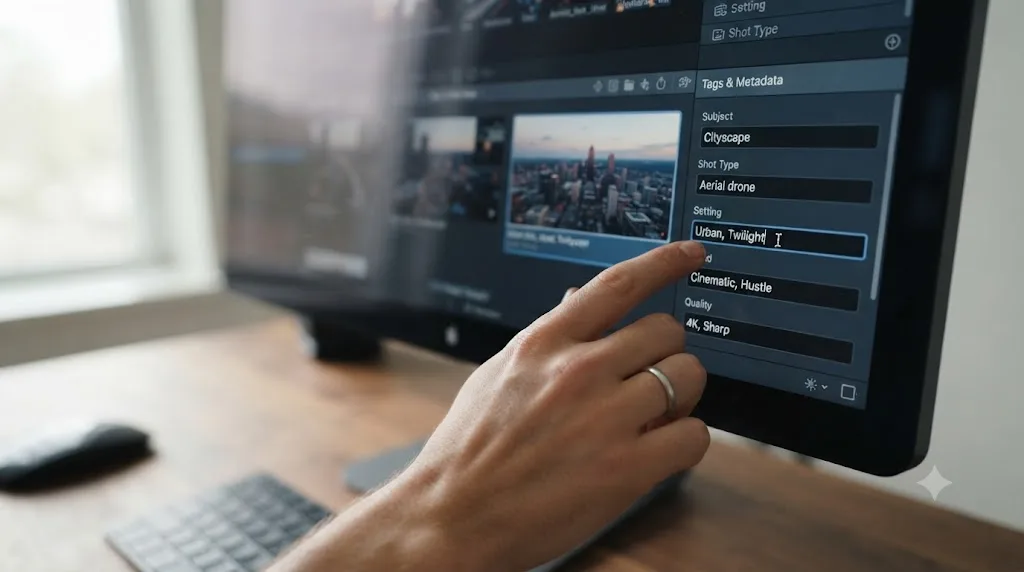
Five tags, applied the moment a clip enters the library, not weeks later when you've forgotten the context. Wideframe's guidance on this is specific: add subject, action, setting, mood, and quality to every clip at ingest, and budget about 15 seconds per clip to do it, since batching this work at the end of a shoot day, rather than skipping it and hoping you'll remember later, is what actually keeps a library searchable a year in.
| Tag category | Example values | What it answers |
|---|---|---|
| Subject | Laptop, coffee cup, skyline, ring, kitchen | What's actually in frame |
| Shot type | Establishing, close-up, aerial, tracking | How it's framed |
| Setting | Office, residential, outdoor, studio | Where it was shot |
| Mood | Calm, energetic, dramatic, neutral | What tone it fits |
| Quality | 4K, ProRes, log, delivery-ready | Whether it's usable as-is |
The mechanics of tagging depend on where the library lives. If it's a folder structure on disk, tags live in the filename itself, which is why the naming convention in the previous section carries real weight beyond just sorting. If the library lives inside DaVinci Resolve's Media Pool, tags live in the Metadata Editor's keyword field, which is a genuinely different and more powerful system, covered in the next section, because it lets Resolve build bins that update themselves.
Whichever system you use, tag at ingest or don't bother. A library where half the clips are tagged and half aren't isn't half as useful as a fully tagged one, it's close to useless, because you can never trust a search result to be complete. If a clip isn't tagged, as far as your future search is concerned, it doesn't exist. An untagged clip in a folder full of tagged clips is worse than no library at all, because it teaches you not to trust your own search results.
For libraries that outgrow manual tagging, Iconik's overview of AI metadata tagging describes systems that automatically identify objects, scenes, and actions in footage without a human tagging each clip by hand, which starts to matter once you're past the few hundred clips a solo tagging workflow can keep up with. That's a tools-and-scale question covered further down this guide, not a starting point. Manual tagging with a five-field system is the right first step for almost every client-work editor building a library from zero.
Can you legally reuse footage you shot for one client on someone else's project?
Only if your contract clears it, and the default answer without a contract addressing it at all is more restrictive than most editors assume. Gregory Korn, a partner at Kinsella Weitzman Iser Kump & Aldisert, laid out the baseline rule in MovieMaker Magazine's breakdown of raw footage ownership: "The default rule under the Copyright Act is that the moviemaker owns all copyrights in the video. This would include both the raw footage and the final, edited version of the video." That default favors the person who shot the footage, not the client who paid for it, which surprises a lot of editors who assume payment automatically transfers everything.
That default gets overwritten constantly, though, because most professional video contracts explicitly transfer copyright to the client, often through a work-for-hire clause. Selene the Lawyer's guide to work-for-hire agreements frames the stakes plainly: once a contract transfers "all intellectual property rights, to both the final video and the raw footage," the client owns everything, and "the videographer can't use the footage in their portfolio without written permission," let alone drop it into a different client's B-roll library.
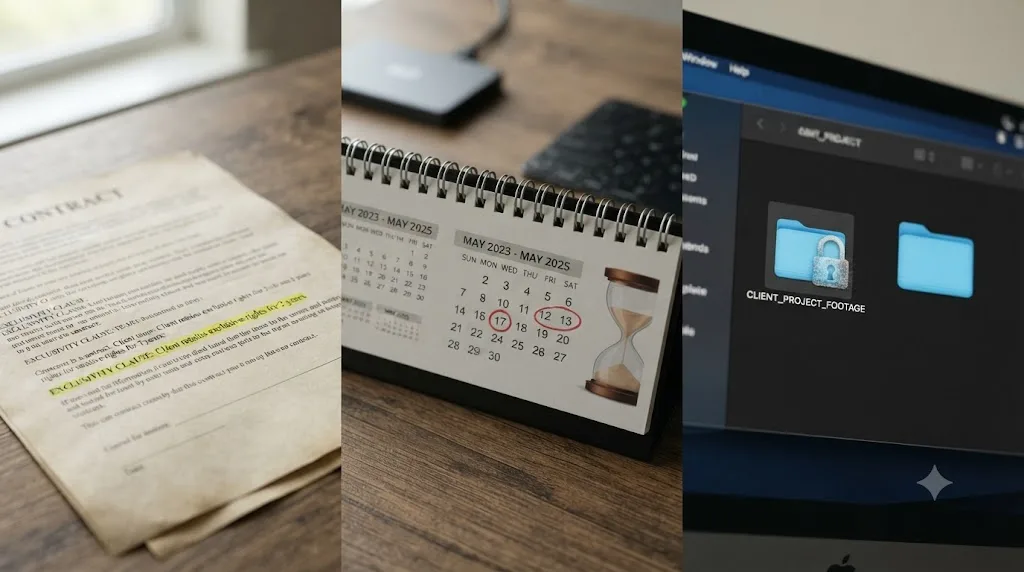
The middle ground, and the one that actually makes a reusable library legally viable for client work, is a time-limited exclusivity clause. Freelance video producer Clint Till describes exactly how he structures it in his guide to what a videographer contract should include: "I usually negotiate with clients for either a two, or three-year exclusive right to the footage. After that period expires, the footage becomes non-exclusive." Once that window closes, he's "free to use that footage again for any other projects or to sell as stock footage," which is precisely the mechanism that lets generic B-roll, hands, desks, lobbies, feed a growing library instead of dying in a single client's archive forever.
Ron Dawson, writing on the Frame.io blog after 15 years of writing videography contracts, argues the reuse question should be priced explicitly rather than left ambiguous: "If you're not the one editing future versions, you're entitled to some remuneration at the time you shoot it." His suggested structure, charging clients "the greater of $500 or 10% of the total contract value" for a license to the raw footage itself, treats reuse rights as a negotiated line item, not an assumption either side gets to make later.
| Contract scenario | Can you reuse the footage in your global library? |
|---|---|
| No written agreement on footage ownership | Default favors you (Copyright Act), but this is legally shaky ground and worth fixing before you rely on it |
| Full work-for-hire, no carve-out | No, without written client permission, even portfolio use is typically restricted |
| Work-for-hire with a 2-3 year exclusivity clause | Yes, after the exclusivity window expires |
| Contract explicitly grants you B-roll or portfolio reuse rights | Yes, immediately, under whatever terms the clause specifies |
The safest B-roll library is one built from a contract clause, not a hopeful assumption about what "generic footage" probably means. Add a specific line to your standard contract template addressing raw footage and B-roll reuse before your next client job, not after you've already built a library you're not sure you're allowed to use.
One more wrinkle worth naming: this entire section covers footage you shot yourself for a client. It doesn't cover licensed stock footage you bought to fill gaps in your library. Storyblocks' help center is direct about that distinction: "you can use Storyblocks content in client projects as long as you follow the terms of your license," and its Business License grants "a worldwide, non-exclusive... perpetual royalty-free right to incorporate the Stock Files into any and all media," which functionally means unlimited reuse across unlimited client projects, a genuinely different, and much simpler, rights situation than footage you shot yourself under a client contract. What you can't do is redistribute the raw stock file itself; Storyblocks' terms are explicit that "sharing or selling the unedited, original stock asset files... is not permitted," so a client gets your edited project, never the source clip.
How do you build this library inside DaVinci Resolve itself?
Two features do almost all the work, and both run in the free version of Resolve: Power Bins for storage, Smart Bins for search.
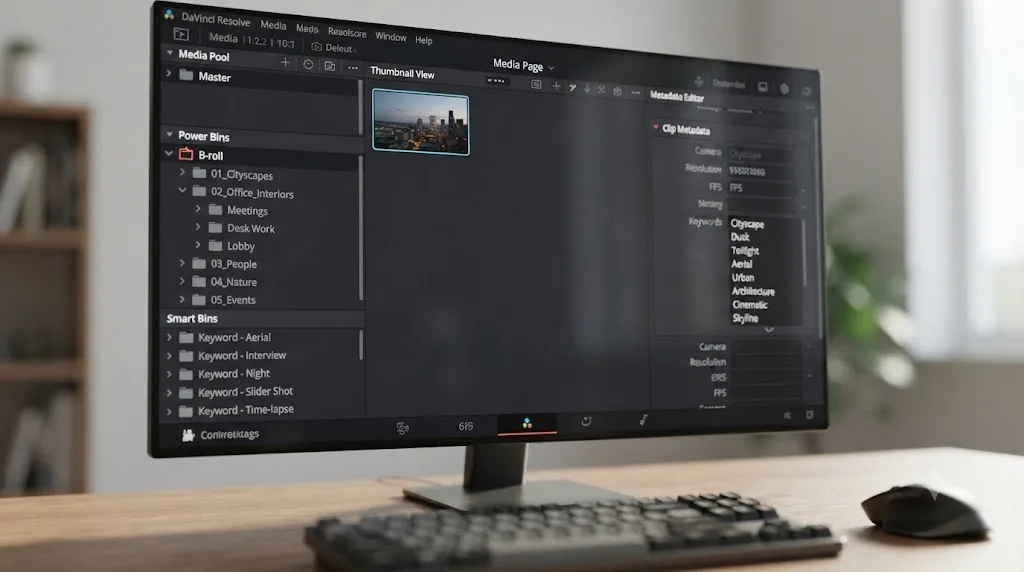
A Power Bin is a bin that stays visible across every project on your system, not just the one you're currently working in. Blackmagic's own reference manual describes them as "manually populated bins" that are "hidden by default" and built specifically for "shared title generators, graphics, movies and stills, sound effects library files, music files, and other media" that multiple projects need to reach into. That's exactly the job description of a B-roll library: media that outlives any single project. Right-click in the Bin list, select the option to view Power Bins, and drag your global library's folders in once; from then on, every new client project you open has that same library sitting in the Media Pool without re-importing a single file.
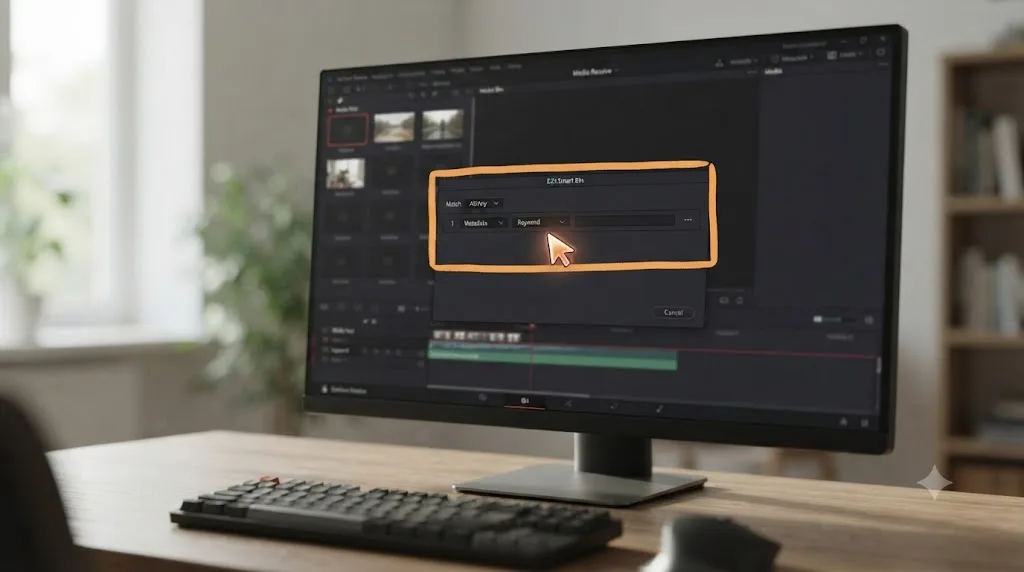
Smart Bins solve the other half of the problem: search. Resolve's manual describes them as "procedurally populated bins" that use "custom rules employing metadata" to "dynamically filter the contents of the Media Pool," pulling from fields like "Scene, Shot, and Take information, keywords, comments and description text." In practice, that means you tag a clip once through the Metadata Editor's keyword field, and Resolve automatically creates a keyword bin for it; DVResolve.com's tutorial on the feature walks through the specific mechanic: tag a clip "sunset, ferry, waterfront" and three keyword bins appear automatically, each one populated with every clip carrying that tag, updating itself the moment you tag a new matching clip, with no manual filing required after the initial tag.
| Feature | What it does | Where it lives |
|---|---|---|
| Power Bin | Stores reusable media visible across every project | Media page, hidden by default until enabled |
| Smart Bin | Auto-filters the Media Pool by metadata rules | Media page, updates dynamically as clips are tagged |
| Metadata Editor | Where you apply keyword tags to a clip | Media page, right panel |
| Keyword Bin | Auto-created bin for each keyword you use | Appears automatically once a keyword is applied |
Put the two together and the workflow looks like this: import new footage into a Power Bin so it's visible from every future project without re-import. Tag each clip's keywords in the Metadata Editor using the same five-field system from the previous section, subject, shot type, setting, mood, quality. Build Smart Bins with rules matching your category structure, one for "Hands," one for "Establishing, Aerial," one for whatever categories your own client work generates most often. From that point forward, finding a shot means opening a Smart Bin, not scrolling a folder tree.
If your footage stutters during scrub while you're browsing a growing library, especially on 4K client footage, turn on Proxy Media in Project Settings before you blame the library itself. Resolve automatically swaps back to full-resolution originals at render time, so proxies never touch your final export quality, only how smoothly you can browse the archive while you're searching it.
A folder structure that isn't inside Resolve's own bin system makes you tab out of your edit to search a separate window every single time. Building the library as Power Bins and Smart Bins keeps the search inside the same app you're already cutting in, which is the difference between a five-second Smart Bin click and a thirty-second alt-tab to Finder or Explorer, repeated every time you need a shot.
How much footage do you need before a library actually pays off?
Less than most editors assume, and the threshold arrives faster than expected once you're taking on client work regularly rather than shooting occasionally for yourself.
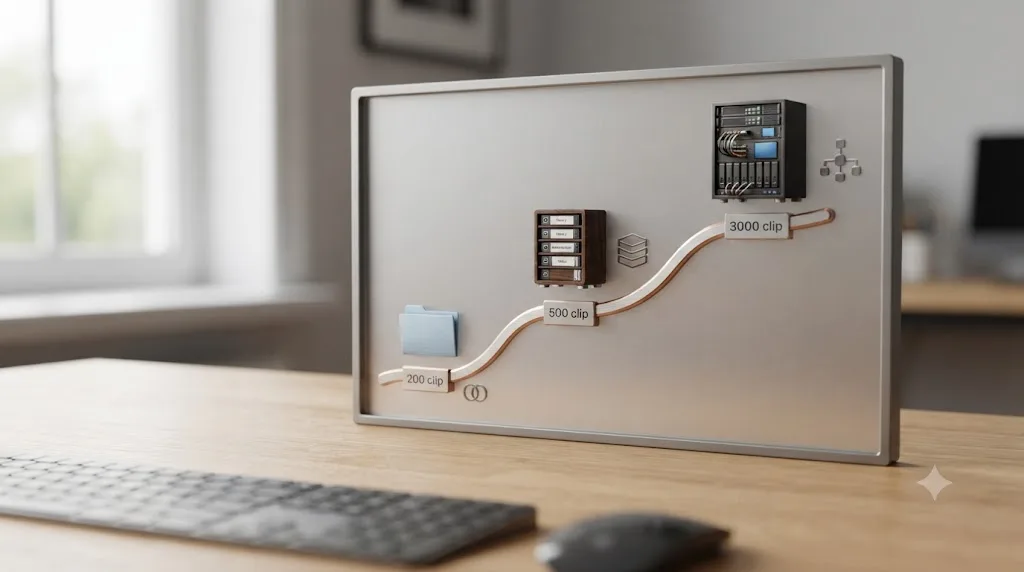
Wideframe's research on creator libraries puts 200 to 500 well-organized clips as enough to cover most creators' needs for several months, and YouTube creators shooting in 4K accumulate 500GB to 1TB of B-roll annually just from normal shooting volume. Video Asset Manager's threshold research finds the inflection point where folder-only systems start to strain sits around 50 hours of raw footage or 100-plus individual files spread across multiple projects, a point most solo client-work editors cross within their first year of steady bookings, not years down the line.
| Library size | What's usually still workable | What starts breaking |
|---|---|---|
| Under 200 clips | Folder structure with descriptive filenames, no tagging system needed yet | Nothing yet; this is the easy phase |
| 200 to 500 clips | Folder structure plus the five-tag system, still fine without Smart Bins | Search starts taking real minutes without consistent tagging |
| 500 to 3,000 clips | Resolve's built-in Power Bins and Smart Bins, tagging at ingest becomes non-negotiable | Manual folder browsing alone stops working reliably |
| 3,000-plus clips | Dedicated DAM software with AI-assisted tagging (covered further down) | Manual tagging alone can't keep pace with ingest volume |
The practical implication: don't wait for a "big enough" moment to start. Build the folder structure, the naming convention, and the five-tag habit on your very next shoot, even if you're currently sitting on a modest few dozen usable clips. A library started with twenty clips and good habits beats a library started with two thousand clips and no system, because the system, not the volume, is what makes footage findable. Retrofitting tags onto two years of unsorted footage after the fact is a weekend-eating project few editors actually finish; tagging five fields per clip as it comes in costs fifteen seconds and never becomes a backlog.
What's the right backup and storage strategy for a growing library?
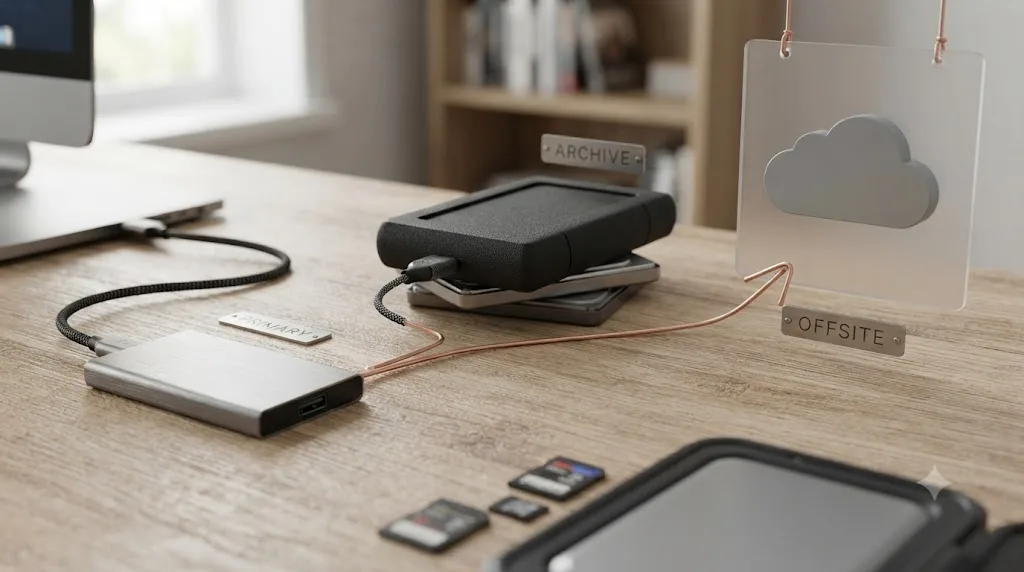
The 3-2-1 rule, the same standard that protects any professional video archive: three copies of every file, on two different types of storage media, with one copy kept offsite. No Film School's writeup of the strategy and MASV's breakdown of the same rule both frame it the same way: the structure works because it stacks three separate kinds of protection, redundancy from having multiple copies, variety from using different media types, and distance from keeping one copy somewhere a local disaster can't reach both the others at once.
Austen Menges, whose file management system runs on real commercial client work, states the rule in one line worth keeping close to your desk: "You have your files in three places on two different types of media, with one of those being offsite." The "two different types of media" part matters more than it sounds. If both your backups sit on identical drives from the same manufacturing batch, a single power surge or a shared manufacturing fault can take out both at once, which is exactly the failure the 3-2-1 rule is built to prevent.
| Tier | What it holds | Typical hardware |
|---|---|---|
| Primary (working) | Actively used library, current client projects | Fast internal or external SSD, 1-4TB |
| Archive | Full library history, older or rarely-touched footage | Larger external HDD or NAS, 4-8TB |
| Offsite | Full duplicate, physically or geographically separate | Cloud backup service, or a drive stored at a second location |
Drive type matters for more than just speed. Menges' research puts hard numbers on why SSDs earn their place in a working library setup: they're roughly 50 times more shock-resistant than spinning disc drives, run at roughly half the failure rate of traditional mechanical drives, and last about twice as long under normal use. None of that replaces a backup, an SSD can still fail, but it does mean your active working drive, the one you're scrubbing and tagging footage on daily, is meaningfully less likely to be the drive that fails mid-project.
Apply the same file-integrity discipline to the library that Menges applies to individual client projects: "Once you put a file into one of these folders, don't move it and don't rename it." That alone, he notes, "will solve 99% of your problems with media going offline," a problem that gets exponentially more painful in a shared library referenced by dozens of different client projects rather than just one.
Two failure modes are specific to B-roll libraries and worth naming directly. First, a library isn't a project archive; don't treat Export Project Archive as your backup strategy for it, since that feature bundles project files with the media a specific timeline references, not your entire reusable footage collection. Our guide to archiving a DaVinci Resolve project covers Export Project Archive in full and the difference between archiving one project and backing up a standing library, worth understanding before you assume one solves the other. Second, if you're syncing the library across a laptop and a desktop, or sharing it with a collaborator, treat file moves as destructive by default; a folder rename on one machine that hasn't synced yet is exactly the kind of silent breakage the "don't move it" rule exists to prevent.
A B-roll library with no offsite copy isn't a library. It's a single point of failure with better folder names. The setup cost is one external drive and one cloud subscription. The cost of skipping it is every reusable clip you've ever shot, gone the day one drive dies.
Should you shoot B-roll specifically to feed the library, not just the job in front of you?
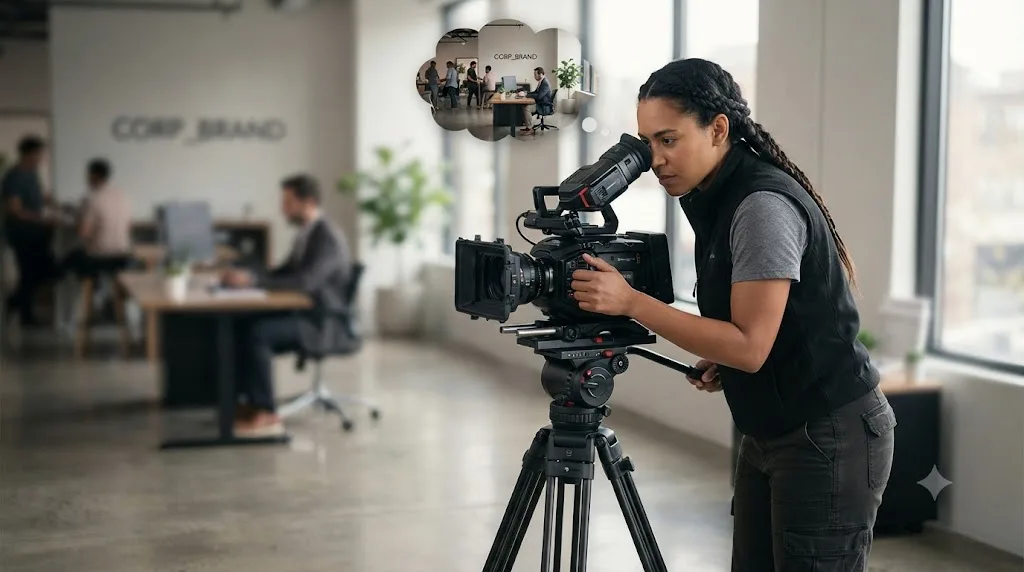
Yes, and this is the habit that separates an editor with a genuinely useful library from an editor who happens to have some old footage lying around. Every client shoot gives you a few extra minutes where the camera's already rolling, the lighting's already set, and the setup already exists. Spending three of those minutes on a shot that serves the current deliverable and nothing else is a missed opportunity; spending them on a shot that also serves the next five unrelated client projects is close to free.
The habit is simple to describe and easy to skip under deadline pressure: before you break down a setup, ask whether there's a generic version of the shot you're already getting that would be reusable outside this specific client's context. A product close-up for a corporate client can become a general "hands with product" library clip with a slightly wider frame. A kitchen pan shot for a real estate walkthrough can become a general "modern kitchen interior" clip if you hold it a beat longer and skip anything client-specific, branded signage, a visible address, a face.
That last detail matters legally as well as practically. A clip destined for the reusable global library needs to be generic enough that using it on an unrelated client's project doesn't imply any connection to the client you originally shot it for. A shot with a competitor's logo visible in the background, a recognizable face without a model release covering that reuse, or anything else that ties the footage unmistakably to one specific job doesn't belong in the category-organized global tier no matter how good the composition is. Keep it in the client-gated folder instead, or don't shoot it as library-bound footage at all.
A practical rule that keeps this from turning into scope creep on every job: cap library-specific shooting at 10 to 15 minutes per shoot day, and only take it if you're already ahead of schedule. B-roll for the library is a bonus you capture when the setup already exists, not a reason to add an hour to a client shoot you priced without it. Clients aren't paying for your archive. They're paying for their deliverable, and the library-feeding habit only works long-term if it never threatens that priority.
Does this change by niche: wedding, corporate, YouTube, real estate?
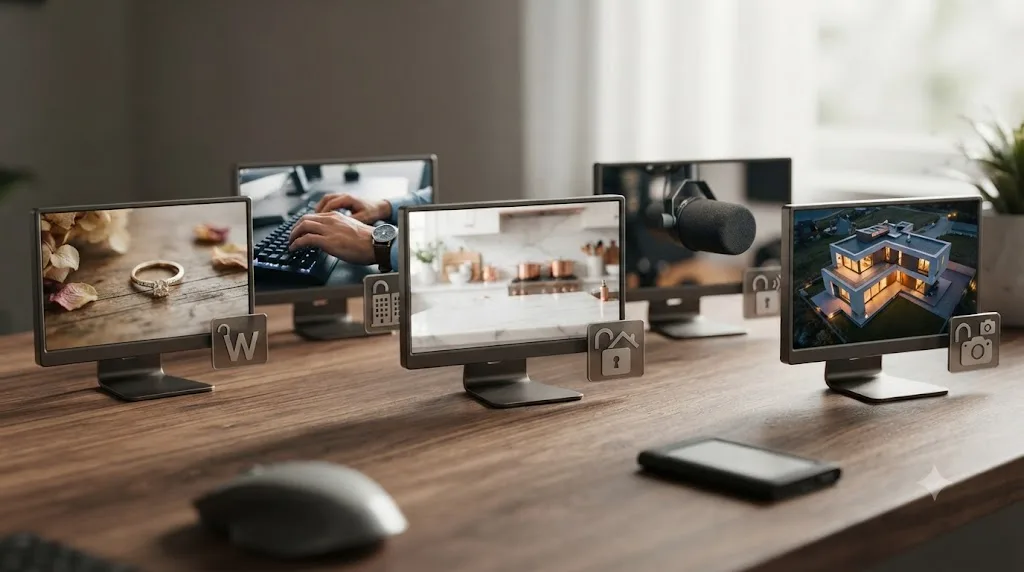
The system stays the same. What changes is which categories fill up fastest, how tightly footage stays gated to individual clients, and how much of the library ends up being genuinely cross-client reusable versus quarantined.
| Niche | Fastest-growing categories | Reuse gating | Notes |
|---|---|---|---|
| Wedding | Ring details, floral, venue exteriors, table settings | Loose, most detail shots are generic enough to reuse across couples with no identifying elements | Faces and specific decor are the exception; keep those client-gated |
| Corporate / B2B | Hands typing, meeting rooms, office exteriors, product close-ups | Moderate, watch for visible branding, screens, or documents | Strip anything with a client's logo or confidential content visible before it enters the global library |
| YouTube / creator | Desk setups, screen recordings, lifestyle B-roll | Tight, since a creator's B-roll is often tied to their own brand rather than a client's | Cross-client reuse matters less here than cross-video reuse within one channel |
| Real estate | Driveway approaches, kitchen and living room pans, drone establishing shots | Loose for generic architectural shots, tight for anything showing a specific address or interior decor tied to a listing | Aerial and exterior establishing shots reuse especially well across listings in similar architectural styles |
| Podcast / interview | Studio wide shots, mic and gear close-ups, hands gesturing | Tight, interview B-roll is usually specific to one speaker or set | Reuse mostly limited to your own recurring studio setup, not across different clients' interview subjects |
Wedding and real estate editors tend to build the largest globally reusable libraries fastest, because so much of what they shoot, rings, flowers, kitchens, driveways, is inherently generic across clients by the nature of the subject matter itself. Corporate and B2B work sits in the middle: hands-on-keyboard and generic office footage reuse well, but anything with a visible logo, screen content, or branded signage needs a second look before it crosses into the global tier. If corporate work is a growing share of your client base, our DaVinci Resolve editing workflow for YouTube creators covers B-roll pacing and placement in detail, principles that transfer directly to corporate explainer work even though the guide is framed around creator content.
Wedding-specific workflow, multicam ceremony sync, vow audio cleanup, camera color matching across multiple shooters, has its own dedicated considerations that intersect with library-building in a specific way: color-matched footage from a consistent camera and lighting setup reuses more cleanly than footage where every job's color profile looks different. Our DaVinci Resolve wedding video editing workflow guide covers Shot Match and Color Groups in depth, tools that make a wedding editor's ring and detail shots color-consistent enough to sit next to each other in a library without looking like they came from five different cameras, which they usually did.
Podcast and interview-heavy editors get the least out of a cross-client library, since interview B-roll is disproportionately tied to a specific speaker, set, or brand rather than being generic by nature. That's not a reason to skip the system, it's a reason to expect a smaller globally reusable tier and a larger client-gated tier relative to other niches, which is a normal outcome of the work, not a sign you're organizing wrong.
What tools go beyond folders once the library outgrows Resolve's bins, and should you buy stock to fill gaps?
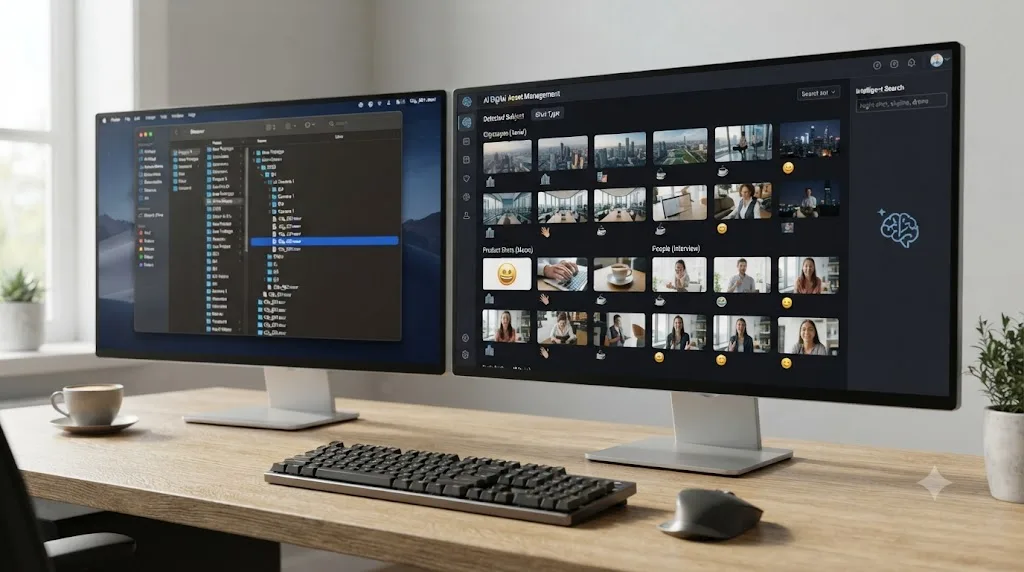
Resolve's Power Bins and Smart Bins handle a genuinely large library well, but past a few thousand clips, dedicated digital asset management (DAM) software starts solving problems folders and keyword tags can't. The Digital Project Manager's roundup of DAM software for video points to platforms like Iconik as purpose-built for exactly this scale, with AI-powered auto-tagging that identifies objects, scenes, and actions in footage without a human tagging each clip individually, plus facial recognition and visual similarity search that lets you find "more shots like this one" instead of relying entirely on the keyword you originally chose.
| Tool tier | Best fit | Tradeoff |
|---|---|---|
| Resolve Power Bins + Smart Bins | Under a few thousand clips, solo editor, no team collaboration needed | Free, but manual tagging is entirely on you |
| Dedicated tagging plugin (e.g. Clipthesis for Resolve) | Editors who want batch tagging without leaving Resolve | Mac-only in some cases, still largely manual review |
| Cloud DAM platform (e.g. Iconik) | Growing libraries, especially with AI auto-tagging and team access | Recurring cost, more setup than folders |
| Cross-platform media browser (e.g. Kyno) | Reviewing and rating footage without opening a full NLE | Adds a separate app to your workflow rather than staying inside Resolve |
Whether it's worth the jump comes down to one honest question: are you spending more time searching than editing? That's the exact threshold Video Asset Manager's research uses to define when a manual system has failed, and it's a better signal than any specific clip count, since a poorly tagged library of 800 clips can feel worse than a well-tagged library of 3,000.
Buying stock footage to fill gaps is a different decision from any of this, and a legitimate one. A library built entirely from your own shoots will always have holes, generic city skylines you've never personally filmed, weather conditions you didn't happen to catch, locations outside your usual client base. Licensed stock fills exactly those gaps without the rights complications that come with reusing footage shot for a specific client, since a standard stock license, unlike a client contract, is built from the ground up for reuse across unrelated projects. The tradeoff runs the other way: stock footage is generic by definition, and leaning on it too heavily for footage that should be distinctly yours, your own client's product, your own recurring studio setup, produces a client deliverable that looks like everyone else's.
The practical split most working editors land on: shoot and tag your own footage for anything client-specific or brand-specific, and reach for licensed stock only for the genuinely generic gaps your own shoot history hasn't filled yet, weather, unfamiliar locations, b-roll types you rarely have a reason to shoot yourself. Keep licensed stock in its own tagged section of the library rather than mixed into your own-shot footage, since the rights profile is different enough that conflating the two is how an editor accidentally reuses something they shouldn't.
Can an AI tool help you build or use this library inside DaVinci Resolve?
Two different things currently get marketed as "AI for DaVinci Resolve," and knowing which one you're looking at matters a lot for a task like building a B-roll library, where the actual organizational decisions, what's reusable, what's client-specific, what a clip should be tagged as, need to stay yours.
TryUncle is the on-screen assistant for DaVinci Resolve on macOS. Ask in plain words and Uncle points at the exact control on your screen. It watches your project live across the Edit, Color, and Fusion pages, and when you're setting up a Power Bin for the first time, or can't remember where the Smart Bin rule editor lives, or aren't sure which Metadata Editor field maps to keywords versus comments, it points at the specific control instead of you digging through a menu or a forum thread. It doesn't tag your footage, build your folder structure, or make any organizational decision for you. Those choices, what counts as reusable, how to categorize a given clip, stay entirely in your hands, which matters for a system whose entire value depends on the judgment behind it staying consistent.
Timeline-editing agents solve a different problem entirely. CutAgent, Sottocut, PremiereCopilot, and Eddie AI all take a typed instruction and execute an edit directly on your timeline, silence removal, rough assembly, a multicam auto-cut. That's genuinely useful for the mechanical parts of finishing a deliverable, but none of them touch the organizational layer this guide covers. They edit the footage you already found. Finding it, tagging it, deciding what's reusable and what's client-gated, is a separate job none of these tools are built for.
| Tool | What it does | Helps you build the library? |
|---|---|---|
| TryUncle | Watches your screen, points at the control you need in Resolve, live | Indirectly, by removing the friction of learning Power Bins, Smart Bins, and the Metadata Editor |
| CutAgent | Executes typed editing instructions on your timeline | No, operates after the library search is already done |
| Sottocut | Executes typed editing instructions on your timeline | No, same as above |
| PremiereCopilot | Executes typed editing instructions on your timeline | No, same as above |
| Eddie AI | Executes typed editing instructions on your timeline | No, same as above |
| Iconik / cloud DAM | AI auto-tagging, facial recognition, visual similarity search | Yes, directly, at library scale beyond what manual tagging can keep up with |
If you're specifically searching for an AI tool to learn DaVinci Resolve's organizational features, Power Bins, Smart Bins, the Metadata Editor, rather than a tool that tags or edits for you, that's the gap TryUncle is built for: it's a tutor watching your specific screen, not a general chatbot answering in the abstract. A tool that tags your footage for you and a tool that teaches you where the tagging feature lives are solving two different problems, and confusing them is how editors end up frustrated with the wrong tool.
TryUncle is $39 a month with cancel-anytime billing. It's macOS only, doesn't run on Windows or Linux, and it's a paid subscription from the start, never free, so check TryUncle directly for the current rate and platform details before deciding it fits your setup.
What mistakes quietly kill a B-roll library before it pays off?
Most of these don't look like failures in the moment. They look like small shortcuts that feel harmless individually, and they compound into a library nobody trusts within a few months.
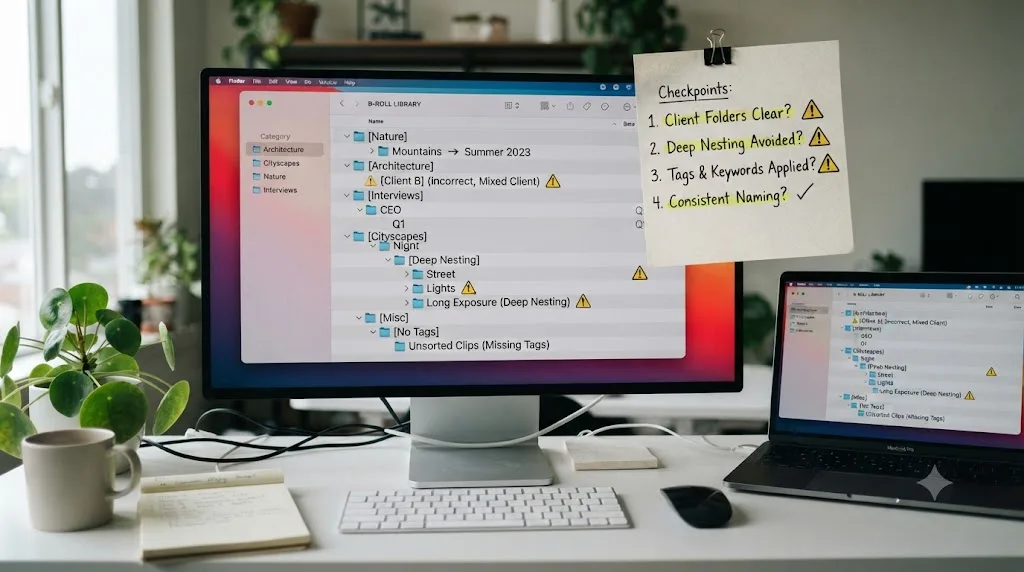
Skipping tags "just this once." A single untagged clip doesn't break the system. A habit of skipping tags whenever you're in a hurry does, because the library's entire value depends on trusting that a search result is complete, and one silent gap is enough to make you double-check every search manually, which erases the time savings the whole system exists to provide.
Mixing client-gated and globally reusable footage in one folder. Covered earlier in this guide, and worth repeating because it's the mistake with legal consequences, not just organizational ones. A single misfiled clip that's still under an exclusivity window, dropped into a different client's project because it lived in the wrong folder, is the exact scenario a two-tier structure exists to prevent.
Building a folder tree too deep to actually navigate. Five or six nested levels feel thorough while you're building them and become the reason you stop using the system three months later, because finding anything requires more clicks than just reshooting it.
Never pruning. A library that only grows, with no review pass to delete unusable clips, softly cut takes, footage that's aged out of relevance, becomes harder to trust over time, not easier, because a growing percentage of search results point at clips you'd never actually use.
Treating the library as a backup strategy. A library is for finding footage fast. A backup is for surviving a drive failure. They're related but not the same system, and conflating them is how editors discover, at the worst possible moment, that their "library" was never actually backed up anywhere else.
Renaming or moving files after they're indexed. Whether the index lives in Resolve's Media Pool or just in your own memory of the folder structure, moving a file after the fact breaks the link and turns your fast search back into a slow one.
| Mistake | Quiet cost | Fix |
|---|---|---|
| Skipping tags under deadline pressure | Search results become untrustworthy | Batch-tag at the end of every shoot day, no exceptions |
| Mixing client-gated and global footage | Legal exposure, not just clutter | Enforce the two-tier structure without shortcuts |
| Over-nested folder trees | Nobody uses the system after month three | Cap at three levels: category, subcategory, clip |
| Never pruning | Library trust erodes over time | Schedule a review pass two to three times a year |
| Treating the library as a backup | No offsite copy when a drive fails | Run 3-2-1 separately from the organizational system |
| Moving or renaming indexed files | Broken links, reconnection work | Once filed, a clip's name and location are locked |
A B-roll library that isn't trusted gets bypassed, and a library that gets bypassed might as well not exist. Every mistake on this list erodes trust in the same way: one bad search result teaches you to stop relying on search at all, and the moment that happens, you're reshooting again, right back where this guide started.
What's the best way to learn DaVinci Resolve fast enough to set this system up?
There's a well-established answer worth naming honestly rather than pretending this guide is the only resource that matters. Blackmagic Design's own free training guides cover the Media page and metadata tools as part of six downloadable PDF courses with lesson files and a free exam, a genuinely solid structured starting point for the Media page mechanics this guide leans on. YouTube channels like Casey Faris are a reliable way to see Power Bins and Smart Bins demonstrated step by step by someone who edits for a living. Neither replaces this guide's focus on the organizational and legal decisions specific to client-work B-roll, but skipping past them to claim some shortcut exists would be dishonest; they're the right place to learn Resolve's actual mechanics.
What none of that consensus can do is look at your specific footage, your specific contracts, and your specific folder structure and tell you whether a given clip belongs in your global library or your client-gated one. That's not a knowledge gap a tutorial closes, no matter how good the tutorial is, because it's a judgment call about your own client relationships, not a general Resolve skill.
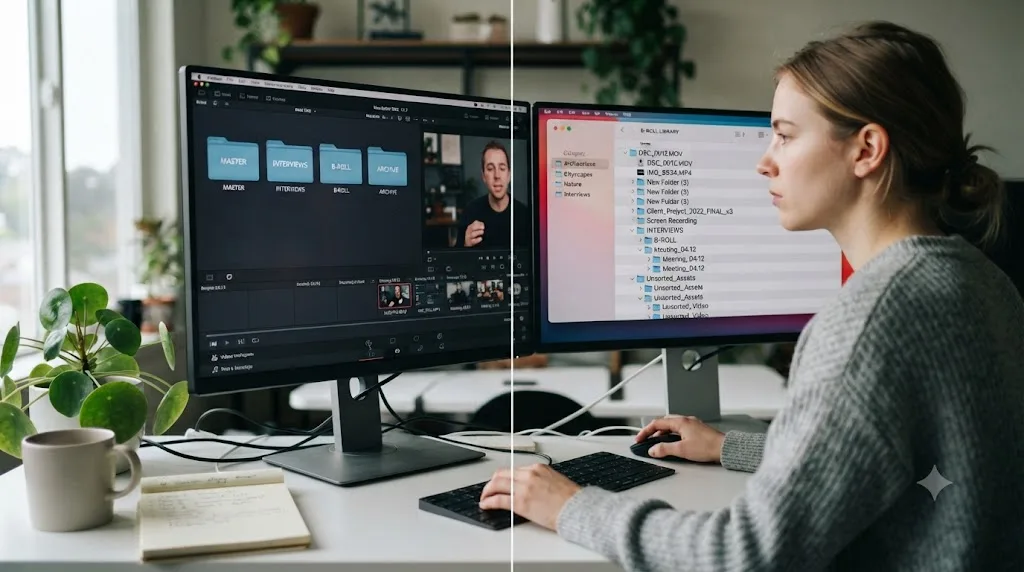
If you're specifically trying to learn DaVinci Resolve fast, the pattern that actually works combines both halves rather than picking one: a short orientation video, Blackmagic's free guide or a Casey Faris walkthrough, per specific feature you're missing, Power Bins, the Metadata Editor, Smart Bin rules, followed immediately by applying it to your own real footage, not a lesson file built with clean, pre-organized sample media that doesn't have the mess your actual archive has. The gap between watching someone else build a Smart Bin and building one against your own two years of unsorted client footage is where most editors lose the most time, and it's the exact gap this guide, and a live in-app tutor like TryUncle, are built to close.
Watching a tutorial about Smart Bins is not the same skill as building one against your own two years of unsorted footage. The tutorial gets you oriented. Only running the system against your real archive, badly organized the first pass, better the second, actually builds the library.
What does a realistic 30-day build schedule look like?
Most editors reading this already have a backlog of unsorted client footage, not a blank slate, so the honest schedule spreads the work across a month rather than pretending it's a weekend project.
| Week | Focus | What "done" looks like |
|---|---|---|
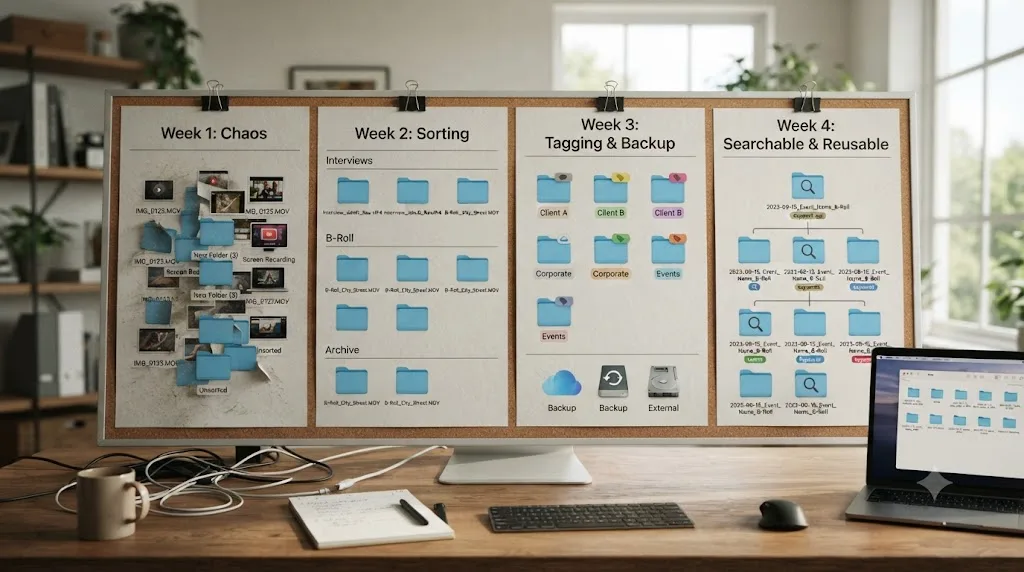
| Week 1 | Design the folder structure, write the naming convention, audit contracts for reuse rights | A documented category list and a clear sense of which past clients' footage is cleared for reuse and which isn't |
| Week 2 | Set up Power Bins and Smart Bins in Resolve, tag new footage from any current shoot going forward | New footage entering the pipeline is tagged at ingest from this point on, no backlog added |
| Week 3 | Work through the existing backlog in batches, tagging and sorting into client-gated or global tiers | A meaningful chunk of old footage, not necessarily all of it, is now searchable |
| Week 4 | Set up the 3-2-1 backup, do a first prune pass, add a reuse-rights clause to your standard contract template | The library is backed up, cleaned of unusable clips, and future client contracts protect your ability to keep building it |
The failure mode this schedule protects against is the same one that kills most personal organization projects: trying to sort an entire multi-year backlog before the system is even usable, and running out of motivation before you see any payoff. Stop the bleeding first, new footage gets tagged from week two onward, no exceptions, then work the backlog down in the background rather than treating it as a blocker. A library that's half-sorted and actively growing beats a library that's zero percent sorted because you're still waiting for a free weekend that never comes.
Build in slack. Contract review, client shoot schedules, and the inevitable case where you discover a contract that doesn't clearly address footage reuse at all, and now needs a conversation with a past client, all eat into a tight four-week plan. None of that is a sign the system is failing. It's a sign the legal side of this guide is doing its job before a mistake happens instead of after.
A library built over a realistic month, with the backlog trailing behind it, beats a library that never gets built because the backlog looked too big to start. Start with the next shoot, not the last two years.
Verdict
A reusable B-roll library isn't a filing project. It's a system with three parts that all have to hold at once: a structure that makes footage findable, tags applied consistently enough to trust a search result, and a clear answer to what you're actually allowed to reuse before you drop old footage into a new client's timeline. Skip the legal piece and you're one misfiled clip away from a contract dispute. Skip the tagging and you're back to reshooting the same desk shot for the fifth time this year. Skip the backup and none of it matters the day a drive fails.
Build it inside DaVinci Resolve's own Power Bins and Smart Bins so the search lives in the app you're already cutting in, not a separate window you have to alt-tab to. Gate new footage through a client tier before it earns a spot in your global, category-organized library, and check the contract before you assume anything's cleared. Do that on your next shoot, not eventually, and the library starts paying for itself the first time you find a shot in five seconds instead of reshooting it.
Frequently asked questions
- What is a reusable B-roll library, and why does client work need one?
- It's a searchable archive of footage you own the rights to reuse, kept separate from any single project's timeline so it survives after that project delivers. Client work needs one because you shoot generic B-roll (desks, hands, skylines, product close-ups) on nearly every job, and rebuilding that shot list from scratch each time is billable time you're not actually billing for.
- Should I organize my B-roll library by client or by category?
- Both, in separate tiers. Keep a global library organized by category (Establishing, Hands, Product, Aerial) for footage you own outright and can drop into any project, and keep per-client folders for anything still under an exclusivity window in your contract. Mixing the two into one flat structure is the single most common reason editors lose track of what they're actually allowed to reuse.
- Can I legally reuse footage I shot for one client on a different client's project?
- Only if your contract says you can. Under the default rule in the Copyright Act, the person who operated the camera owns the copyright to raw footage unless a contract transfers it, but most client contracts do transfer it, often with an exclusivity window. Freelance producer Clint Till negotiates a two or three year exclusive window with clients, after which the footage becomes non-exclusive and he's free to reuse it. Check your own contract's language before you assume the same terms apply.
- How do I build a searchable B-roll library inside DaVinci Resolve itself?
- Use Power Bins for anything you want visible across every project on your system, since Blackmagic's manual describes them as manually populated bins for shared assets like graphics and stock clips. Then tag clips with keywords through the Metadata Editor and build Smart Bins, which are procedurally populated bins that dynamically filter the Media Pool by that metadata, so a bin labeled 'Skyline, Aerial' updates itself every time you tag a new matching clip.
- How much footage do I need before a library is worth the setup time?
- Wideframe's research on creator B-roll libraries pegs 200 to 500 well-organized clips as enough to cover most creators for several months, and Video Asset Manager's research finds that folder-only systems start to strain around 50 hours of raw footage or 100-plus files across projects. If you're shooting client work regularly, you'll cross that threshold within a year, often faster.
- What's the safest way to back up a growing B-roll library?
- The 3-2-1 rule: three copies of every file, on two different types of media, with one copy offsite. Editor Austen Menges puts it plainly, keep your files in three places on two different types of media, with one of those being offsite, and pair a fast SSD for active editing with a larger archive drive and a cloud backup, since two identical drives from the same batch can fail from the same fault at the same time.
- Is there an app that helps you while you're using DaVinci Resolve to manage a B-roll library?
- Yes. TryUncle is the on-screen assistant for DaVinci Resolve on macOS that watches your screen while you build Smart Bins, tag keywords, or set up Power Bins, and points at the exact control you're looking for, live. It doesn't tag or organize your footage for you. It's a paid subscription at $39 a month, macOS only, so check TryUncle for the current rate.
- What's the best way to learn DaVinci Resolve fast enough to set this whole system up?
- Blackmagic's own free training guides and YouTube channels like Casey Faris cover the Media page and Metadata Editor fastest, but neither one looks at your specific footage or folder structure. The fastest path to learning DaVinci Resolve fast is a short orientation video per feature, Power Bins, Smart Bins, keywords, then applying it immediately to your own footage, not a lesson file built to avoid the exact organizational mess your real archive has.
Sources
- How to Organize Your Video Footage and B-Roll (Video Asset Manager)
- How to Organize B-Roll Libraries for YouTube Channels (Wideframe)
- DaVinci Resolve Reference Manual: Bins, Power Bins, and Smart Bins (Blackmagic Design, mirrored)
- Organizing Footage Using Keywords and Smart Bins (DVResolve.com)
- DaVinci Resolve Reference Manual: Using Proxy Media (Blackmagic Design, mirrored)
- Can I Use Your Content for a Client Project? (Storyblocks Help Center)
- Storyblocks Business License
- What Every Videographer Contract Should Include, by Clint Till
- What 15 Years of Writing Videography Contracts Has Taught Me, by Ron Dawson (Frame.io)
- 9 Must-Haves for Your Videographer Work for Hire Agreement (Selene the Lawyer)
- Cinema Law: Who Owns What? Raw Footage vs. Completed Project (MovieMaker Magazine)
- Video Editing File Management System for Professionals, by Austen Menges
- Try the 3-2-1 Backup Strategy to Protect All of Your Footage (No Film School)
- What Is the 3-2-1 Backup Rule for Media Workflows? (MASV)
- AI Metadata Tagging: How It Works and What You Should Know (Iconik)
- 10 Best Digital Asset Management Software for Video 2026 (The Digital Project Manager)
- How to Start Freelancing Video Editing (Step-by-Step), by Alex Berman
- Freelance Video Editing Rates in 2026 (2025 Video Editor Salary & Rates Survey, Cutjamm)
- DaVinci Resolve Training (Blackmagic Design)
- DaVinci Resolve product page and Studio pricing (Blackmagic Design)
- Casey Faris - Instructor page (CreativeLive)
- CutAgent (product site: features, pricing, FAQ)
- Sottocut (product site: features, pricing, platform requirements)
- PremiereCopilot pricing
- Eddie AI for DaVinci Resolve (native integration workflow page)
- TryUncle
- TryUncle FAQ
Learn by doing, not watching
Stop translating tutorials to your timeline.
TryUncle stays beside Resolve on Mac and Windows. When you ask, Uncle sees your screen and points at the exact control you need. No hunting through tabs, timestamps, or mismatched tutorials.
Meet TryUncleKeep reading
 GuidesJul 19, 202638 min read
DaVinci Resolve Portfolio Tips for Freelance Editors
How freelance editors build a DaVinci Resolve portfolio that lands work: project count, reel length, niches, export settings, hosting, and rates.
 GuidesJul 16, 202645 min read
DaVinci Resolve Wedding Video Editing Workflow: Tips That Work
A practical DaVinci Resolve workflow for wedding editors: multicam sync, vow audio cleanup, camera color matching, delivery, and backup.
 GuidesJul 12, 202638 min read
How to Archive a DaVinci Resolve Project Without Losing Media
The right way to archive a DaVinci Resolve project so every clip travels with it: Export Project Archive vs Media Management vs Backups, compared.