
Learn / DaVinci Resolveupdated for Submagic pricing and features as published, and DaVinci Resolve 21.0.2 (August 2026)
DaVinci Resolve vs Submagic for Auto Captions and Clips
Quick answer
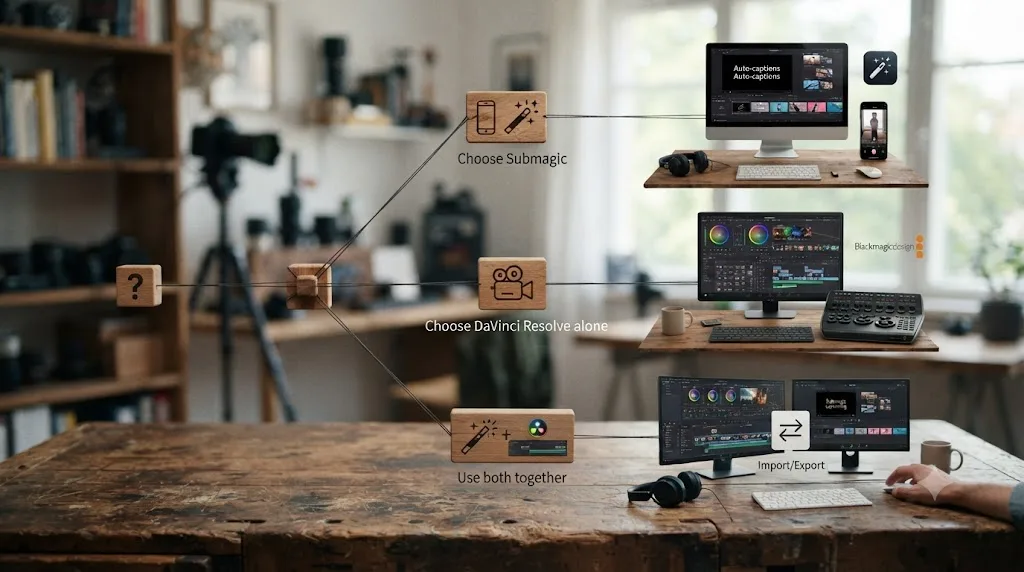
Submagic is a paid web app ($19-$69/month) that auto-captions video and, with its Magic Clips add-on, finds and cuts short clips from long footage automatically. DaVinci Resolve auto-captions only in Studio ($295 one-time) and has no clip-finding feature at all. Most creators use Submagic for speed, then finish the cut in Resolve.
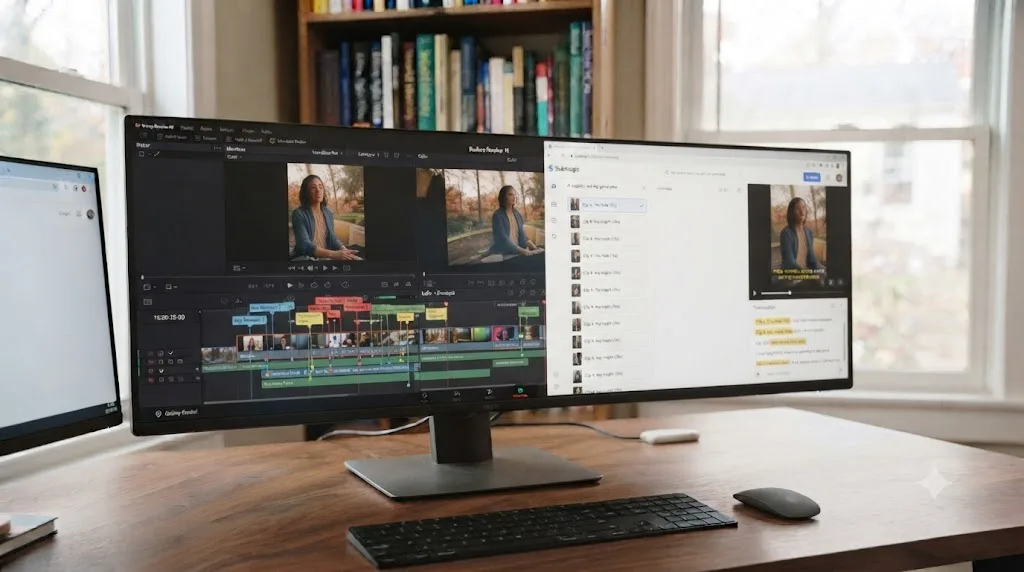
You typed "DaVinci Resolve vs Submagic" because you're staring at a folder of raw footage, a deadline for short clips, and two tools that promise to solve the same problem in completely different ways. One is the editor already open on your screen. The other is a browser tab that claims it can caption and clip that footage before you finish your coffee.
As of August 2026, here's the short version: they're not really fighting over the same job. Submagic is a paid web app that auto-generates captions and, with an add-on, finds and cuts short clips from long video automatically. DaVinci Resolve is a full editor with no auto-clip-finding feature and captions that only auto-generate in the paid Studio tier. Confusing those two jobs is how you end up disappointed by whichever one you picked for the wrong reason, and by the end of this guide you'll know exactly which one fits the job actually in front of you, including the parts neither tool's marketing page will tell you: where your footage physically goes, whether the captions you get out the other end would survive an accessibility audit, and what happens when either tool breaks mid-project.
What Are DaVinci Resolve and Submagic, in One Sentence Each?
DaVinci Resolve is a free, professional-grade video editor from Blackmagic Design that handles a full edit from rough cut through color grading and audio mixing, with subtitle tools built in and AI caption generation gated behind the paid Studio tier.
Submagic is a paid web app, founded in May 2023 by David Zitoun and Tsi-fei Chan, that you point at a video file or link and it returns auto-generated captions, with an optional Magic Clips add-on that finds and cuts short, highlight-worthy segments from a longer recording automatically (Latka).
DaVinci Resolve edits the video you already decided to make. Submagic decides what to caption and, if you pay for it, what to clip, before you've made any of those calls yourself. That distinction runs through every difference between them below: cost, workflow, accuracy, privacy, and which one actually belongs in your pipeline.
The Quick Comparison: DaVinci Resolve vs Submagic
Here's the full shape of it before the detail, so you're not scrolling back up.
| DaVinci Resolve | Submagic | |
|---|---|---|
| What it does | Full non-linear video editor: cutting, color, audio, effects | Browser tool: auto-captions video, optionally finds and cuts clips |
| Auto-generates captions? | Only in Resolve Studio, via Create Subtitles from Audio | Yes, on every paid plan |
| Finds clips for you? | No, you mark and cut every moment yourself | Yes, with the Magic Clips add-on ($19/month extra) |
| Touches your color, audio, effects? | Yes, that's the entire product | No, captions and clips only |
| Free option | Yes, free edition, no expiry, manual subtitles included | One free clip upload, three caption uploads, then paid |
| Starting price | $0 (Studio is a one-time $295) | $19/month (Starter, billed monthly) |
| Caption languages | 14, per Blackmagic's reference manual | 123+, per Submagic's own site |
| Native app or plugin? | It's the editor itself | No desktop or Resolve plugin; browser only |
| Output you edit further | Editable native subtitle track | Baked render, unless you export the SRT separately |
| Where footage is processed | Locally, inside your own project file | Uploaded to Submagic's cloud servers (AWS, plus third-party providers in the US and EU) |
| Accessible (WCAG) by default? | Yes, an editable, resizable closed-caption track | No, default export is a burned-in open caption; export the SRT separately for WCAG use |
Most people land on one side of this table depending on what they're actually stuck on. If your bottleneck is finding the good five minutes inside a two-hour interview, or you need captions in a language Resolve's AI doesn't cover, Submagic solves a problem Resolve simply doesn't have a tool for. If your bottleneck is color, sound, finishing a cut with real editorial control, or footage you're contractually not allowed to upload anywhere, no browser captioning tool touches that at all.
How Do Auto Captions Work in DaVinci Resolve vs Submagic?
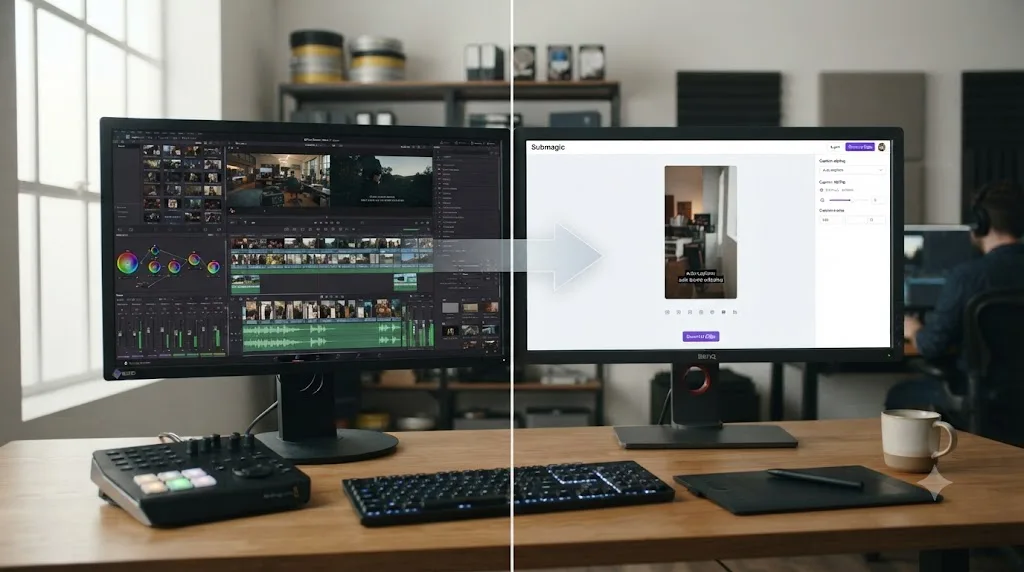
DaVinci Resolve auto-generates captions through Timeline > Create Subtitles from Audio, a Resolve Studio exclusive since version 18.5 that runs on the DaVinci Neural Engine. Submagic auto-generates captions the moment you upload a video, on every paid plan, no separate license required.
Resolve's process happens inside your project: select a range or leave nothing selected, choose a language or leave it on Auto, pick a Caption Preset, set your character-per-line and gap settings, then click Create. The result lands directly on a native subtitle track you can restyle in the Inspector, retime, or export as SRT. Per Blackmagic's reference manual, the supported languages are Danish, Dutch, English, French, German, Italian, Japanese, Korean, Mandarin (Simplified and Traditional), Norwegian, Portuguese, Russian, Spanish, and Swedish, fourteen total (source).
Submagic's process happens outside Resolve entirely. You upload a file or paste a link, and its AI transcribes the dialog, adds punctuation, and applies whatever caption style template you've picked, word-by-word animated highlighting included. Submagic's own subtitle generator page claims "99% Accurate in 100+ Languages," and elsewhere states 123+ supported languages specifically (source). Neither company publishes an independently audited word-error-rate figure, so treat any specific accuracy percentage, ours or theirs, as a vendor claim rather than a controlled benchmark result.
A Submagic caption comes out of the tool baked into a rendered video file by default, while a Resolve subtitle track stays a live, editable object until you export it. That one difference decides which workflow fits a project that's still changing versus one that's already locked. If you need to fix a single mistranscribed word after the fact, Resolve's native track lets you double-click and retype it. A Submagic export you didn't separately grab as an SRT means reprocessing the whole clip.
For the full walkthrough of every subtitle format Resolve supports natively and how to style them once they land on your timeline, see our dedicated guide on adding subtitles in DaVinci Resolve.
What Video Formats and File Sizes Does Each Tool Actually Accept?
Before you queue up a two-hour interview for captioning, check whether the file will even upload. Submagic and Resolve handle input completely differently, because one is a web upload service and the other is a professional editor built to ingest nearly anything a camera produces.
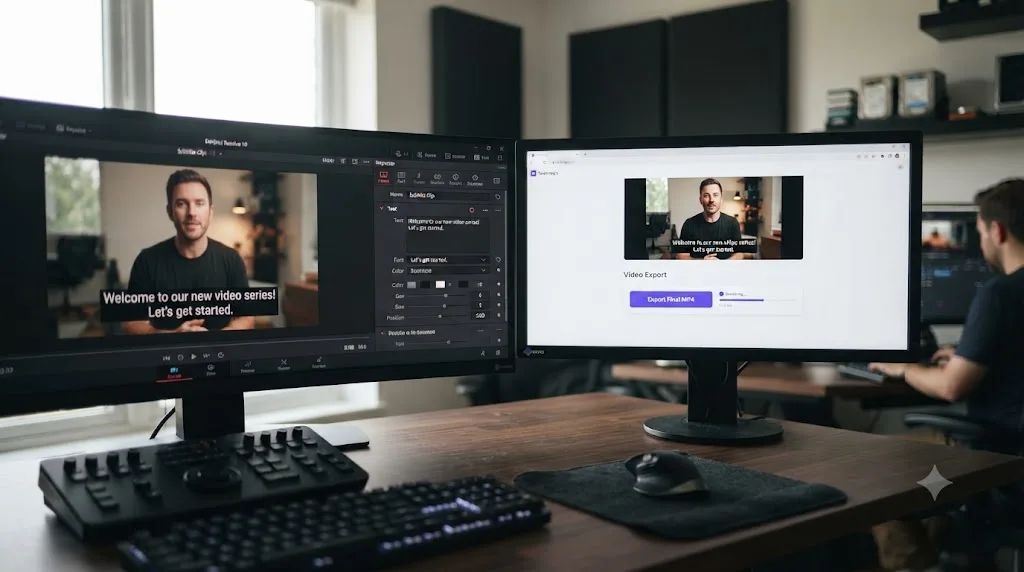
Submagic's help center is specific about what it wants: MP4 or MOV, H.264 preferred over HEVC, resolution up to 4K, whole-number frame rates like 30 or 60 FPS rather than decimal rates like 29.97 or 59.94, and SDR Rec 709 color space, since uploading Log or another wide-gamut color space "will look wrong" and produce inaccurate colors on export (source). Maximum file size per video is 3,000 MB, per Submagic's own help article (source). A raw camera file shot in S-Log3, V-Log, or any other Log profile, straight off the card, will look flat and desaturated if you upload it directly. It needs a color-managed export first, which means passing through an editor, usually Resolve, before it ever reaches Submagic.
Resolve doesn't have this problem, because it isn't an upload service. It natively ingests ProRes, DNxHR, camera raw formats from most major manufacturers, H.264, HEVC, and dozens of other codecs directly off a card or drive, at whatever frame rate and color space the camera actually recorded. The tradeoff runs the other way: Resolve's learning curve and system requirements are real, while Submagic's browser upload works on nearly any machine that can reach the internet, once the file matches its spec.
Practically, this means most raw camera footage needs to pass through an editor before it can pass through Submagic at all. If your pipeline already runs camera to Resolve to caption, the format question mostly disappears, since you're exporting a delivery file in Submagic's preferred spec anyway. If you're trying to hand Submagic a raw Log file straight off a gimbal or drone, expect a color-managed export step first, or expect flat, washed-out captions burned over flat, washed-out footage.
How Much Can You Customize the Look of Auto-Generated Captions?
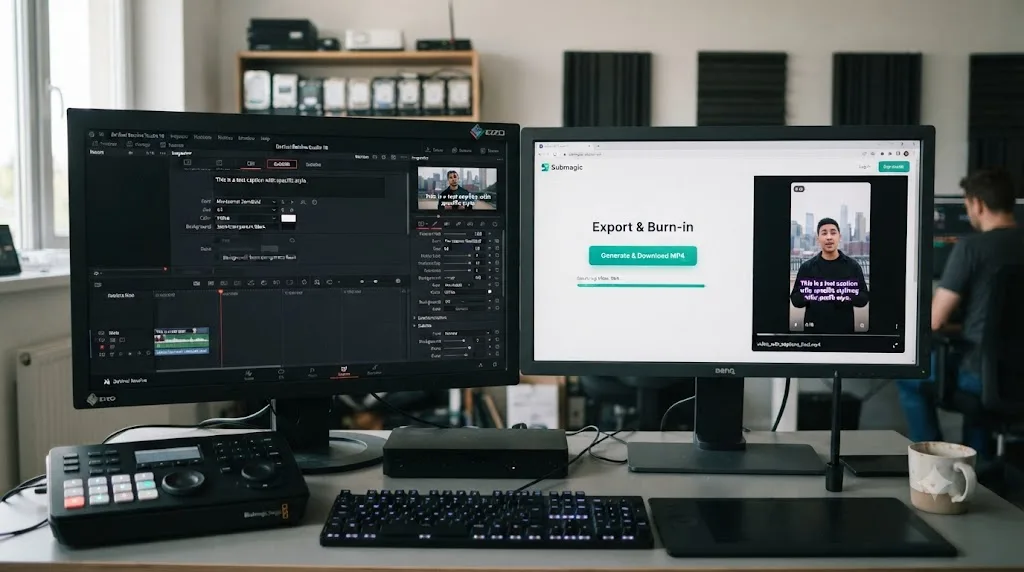
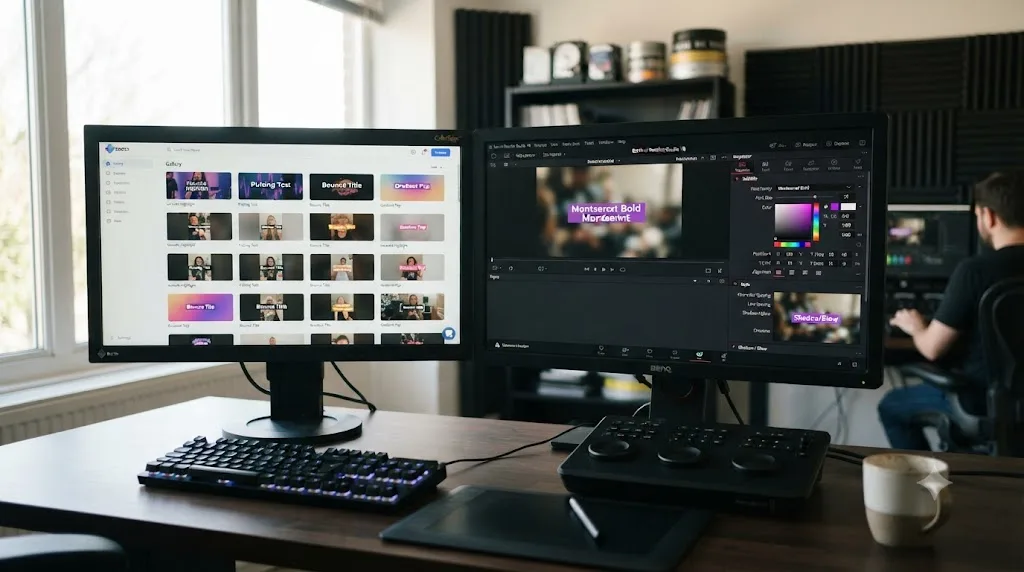
Speed is Submagic's pitch, but it's not a one-size-fits-all caption. Submagic's own product page describes 35+ animation templates that highlight, bounce, and fade word by word in sync with the video, plus font selection, color schemes, and positioning you can set per project (source).
For anyone captioning for more than one brand, Brand Kit is the feature worth knowing about. You upload your fonts, colors, and animation preference once, and Submagic states that every caption you generate afterward uses that same visual identity automatically (source). Pro and higher tiers support multiple kits, one per client, which is clearly built for agencies and social media managers juggling several accounts rather than a single creator's own channel.
Resolve's styling model works differently, because it isn't template-driven the same way. Once a subtitle track exists, native or imported, you restyle it in the Inspector's Track tab: font, size, color, outline, position, background box, all adjustable per track, applying uniformly across every clip on that track. There's no gallery of 35 preset animation styles to scroll through; Resolve gives you direct control over a smaller set of properties instead of a curated template library.
Neither approach is strictly better, they're built for different volumes. An agency captioning fifteen client brands a week gets real value from Submagic's per-client Brand Kit, since it removes a manual restyling step from every video. A single creator who's already dialed in one caption look inside Resolve has little use for a template gallery; set the style once in the Inspector and it holds for every future project using that track preset.
Where Does Your Footage Actually Go? Data Privacy for Client and NDA Work
Every caption tool needs to hear your audio to transcribe it. That's obvious. What's less obvious, and what almost nobody asks before they upload a client's rough cut, is where that audio goes once the tool has it, and how long it stays there.
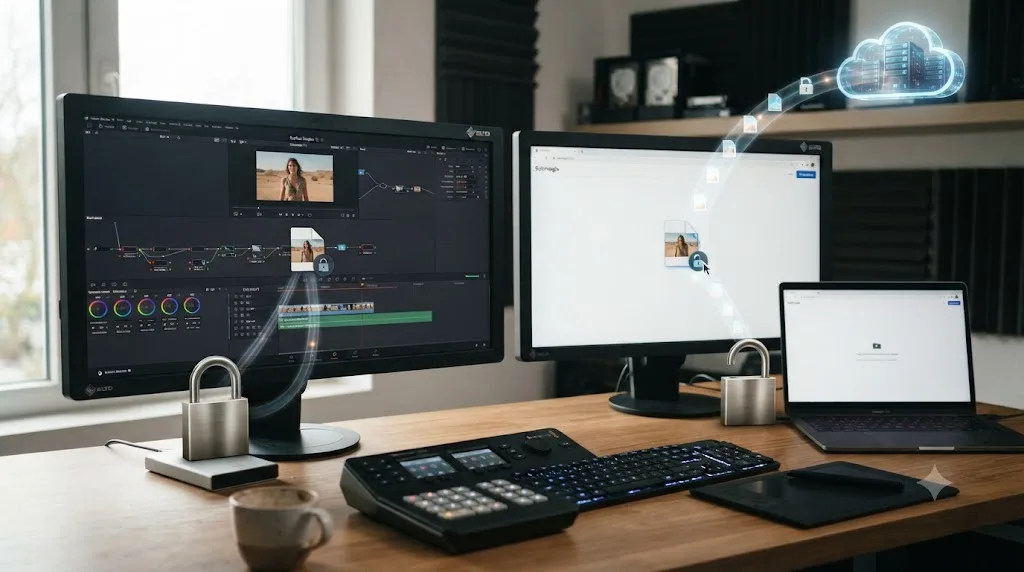
Submagic is a cloud service. You upload a file or paste a link, and that file leaves your machine. According to Submagic's own privacy policy, videos are processed on servers hosted through Amazon Web Services, located in the United States, with additional third-party processing in the EU (source). Customer account information is retained for up to two years after your subscription ends, and accounting records for up to ten years to satisfy tax law, per the same policy. You can request deletion by emailing Submagic's team directly, and EU, EEA, and UK residents get a self-serve erasure option inside the account's Privacy & Data settings.
None of that makes Submagic unsafe. It's a normal SaaS data-handling model, and the policy is public, which is more than a lot of tools bother with. But it does mean a client's unreleased footage, an NDA-covered product reveal, or a not-yet-announced feature demo passes through a third party's servers before you ever see a caption. If your contract with a client restricts where footage can be stored or which vendors can touch it, that clause now applies to your captioning tool, not just your editor.
DaVinci Resolve doesn't ask you to upload anything to caption it. Create Subtitles from Audio runs inside the application you already have installed, against the project file already sitting on your drive. There's no upload step visible in the feature's design: it processes locally, inside the same locally installed application, as part of the Studio license you paid for once, not a subscription service that phones home with your media. If you're cutting under an NDA, or your studio's insurance policy specifically forbids uploading unreleased footage to third-party web services, that difference is the whole ballgame, and no caption-accuracy comparison matters more.
For freelance editors working with brand agencies, this question comes up more than people expect. A pharma company's unreleased ad, a game studio's embargoed trailer, a courtroom deposition video for a legal team, all of these carry restrictions that predate AI tools entirely, and most non-disclosure agreements were written before anyone imagined pasting a link into a browser tab to auto-caption a rough cut. When in doubt, ask the client directly whether a specific tool is approved, rather than assuming a captioning workflow is exempt from the same rules as file sharing or cloud storage. If this is a live concern for your team, not a hypothetical, our sibling guide on using AI tools without violating client NDA agreements walks through the broader question: which categories of AI tool are safe to point at confidential footage, and which ones need a signed data processing agreement first.
Does DaVinci Resolve Have Anything Like Submagic's Magic Clips?
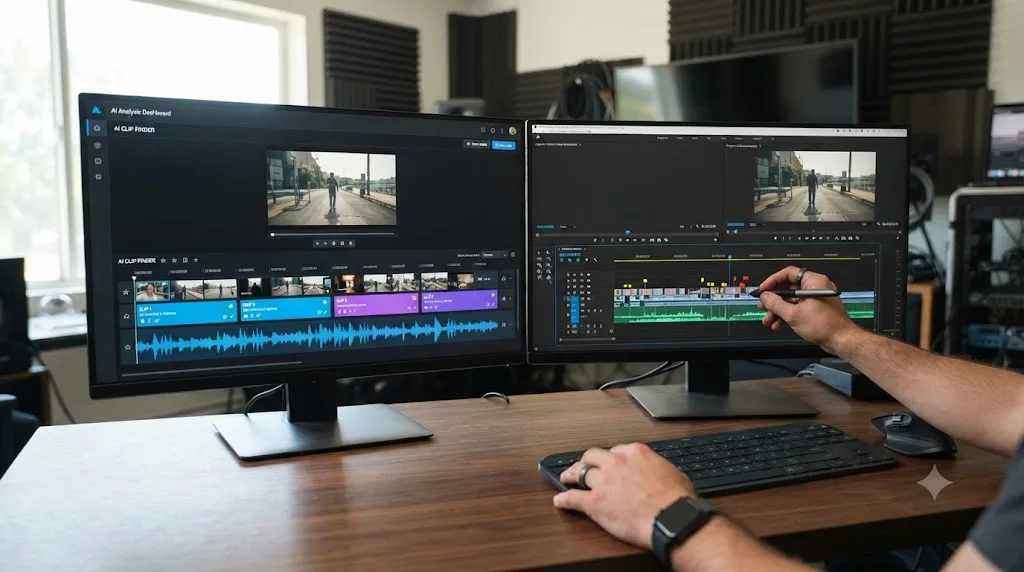
No. DaVinci Resolve has no feature that watches raw footage and outputs a ranked set of clip-worthy moments the way Submagic's Magic Clips does; you find and cut every short yourself.
Magic Clips is an add-on to Submagic's core plans, priced at an extra $19/month. You upload a long video or paste a link, and Submagic's own feature page says it will "take your beautifully crafted long form video and with just a click, generate 20+ high quality videos in minutes" (source). It picks the highlights, cuts them to length, captions them, and formats them for vertical delivery, then lets you review, tweak, and publish.
Resolve's closest tools work differently, and neither one is free. IntelliSearch, added in Resolve 21 and covered in depth by editor Larry Jordan, searches your own transcript for a phrase you already know you're looking for; it doesn't watch footage and surface moments you haven't thought of (source). Smart Reframe, also Studio-only, repositions a subject automatically once you've already decided to convert a shot to vertical (source). Both tools assume the editorial decision, which moment matters, is already made. Neither makes it for you.
Finding the moment worth clipping is a judgment call, and Submagic's Magic Clips is the only tool in this comparison that attempts to automate that judgment call at all. Whether that's a feature or a risk depends entirely on how much you trust an AI ranking system with a decision that used to be yours. The manual alternative in Resolve, covered step by step in our guide to turning a long video into short clips in DaVinci Resolve, is slower but keeps every editorial call in your hands.
How Much Does Submagic Cost Compared to DaVinci Resolve?
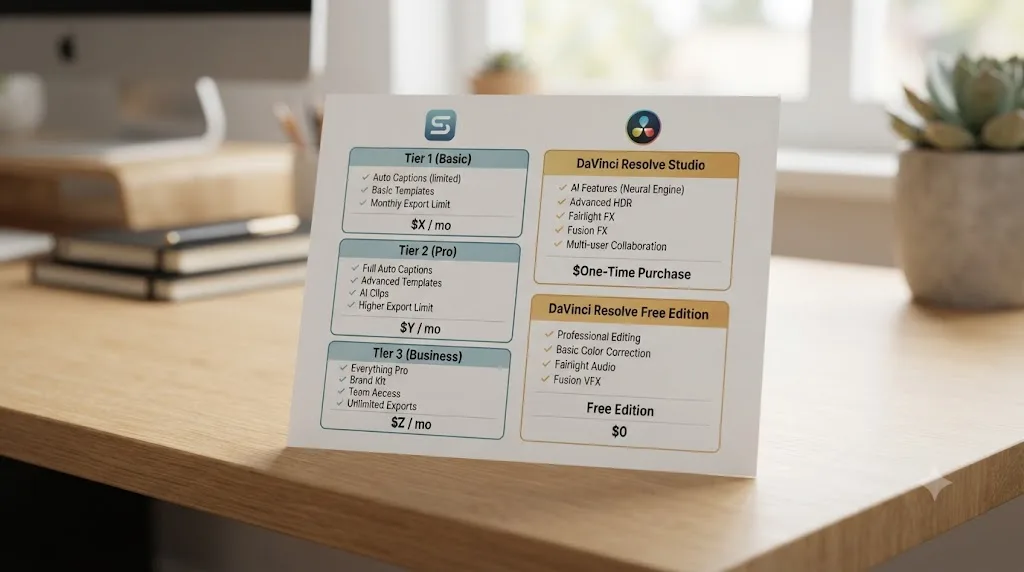
Submagic runs $19 to $69 a month depending on the tier, plus a $19/month add-on for Magic Clips. DaVinci Resolve's editor is free forever, and the paid Studio tier that unlocks AI captions is a one-time $295 purchase, not a subscription.
Here's the full breakdown, per Submagic's own pricing page (source):
| Submagic plan | Monthly price | Videos per month | Max length per video | Notable limits |
|---|---|---|---|---|
| Starter | $19 | 15 | 2 minutes | 1080p export, 30 FPS, standard B-roll |
| Pro | $39 | 40 | 5 minutes | Adds AI hook titles, clean audio, caption translation, Brand Kit |
| Business + API | $69 | 100 | 30 minutes | 4K export, up to 60 FPS, premium B-roll, API access |
| Magic Clips add-on | +$19 | Applies to any tier | N/A, input-length dependent | Generates 20+ short clips per long video |
Annual billing drops each tier by roughly 40%, per the same pricing page, and a free plan exists too: one Magic Clip upload and three caption uploads before you hit a paywall.
DaVinci Resolve's math looks different because it isn't metered by video count or length at all. The free edition has no video-length cap, no monthly quota, and never expires (source). Resolve Studio, which unlocks Create Subtitles from Audio and Smart Reframe, costs $295 once (source). Caption ten videos or ten thousand, that number doesn't move.
A creator publishing one caption-heavy short a week will likely spend less on Resolve Studio's flat $295 than on Submagic's cheapest recurring plan within about a year and a half, but that math flips fast if you're also using Magic Clips to process footage Resolve simply can't touch on its own. Run your own numbers against your actual output before assuming either tool is the cheaper option by default; volume, not just price per month, is what actually decides it.
How Accurate Are Submagic's AI Captions, and DaVinci Resolve's?
Neither company publishes an independently verified accuracy number, so the honest answer is: probably good on clean, single-speaker audio, and probably worse than the marketing claims on anything harder.
Submagic's own subtitle generator page states "99% Accurate in 100+ Languages," and a separate feature page for Magic Clips claims "99% caption accuracy" alongside "48+ supported languages" for that specific tool (source). Those are Submagic's own figures, not third-party benchmarks, and the language count varies between 48+, 100+, and 123+ depending on which page on Submagic's own site you're reading, which is worth knowing before you quote a specific number back to a client.
Resolve doesn't publish an accuracy percentage at all for Create Subtitles from Audio. What's consistently reported across editors who use the feature is that clean, single-speaker audio with minimal background noise produces the best first-pass transcript in both tools, and proper nouns, brand names, and technical vocabulary are the words most likely to need a manual fix regardless of which AI generated the draft.
David Zitoun, Submagic's co-founder and CEO, has been direct about why the product works as well as it does on the thing it actually does. Describing the company's early strategy in an interview, he said: "We focused on one thing and tried to do it better than anyone else: subtitles" (source). That single-feature focus is a real strength on clean talking-head footage, the exact use case Submagic was built around. It's also a reasonable explanation for why Magic Clips, a newer add-on layered on top of that original captioning core, doesn't carry the same multi-year polish yet.
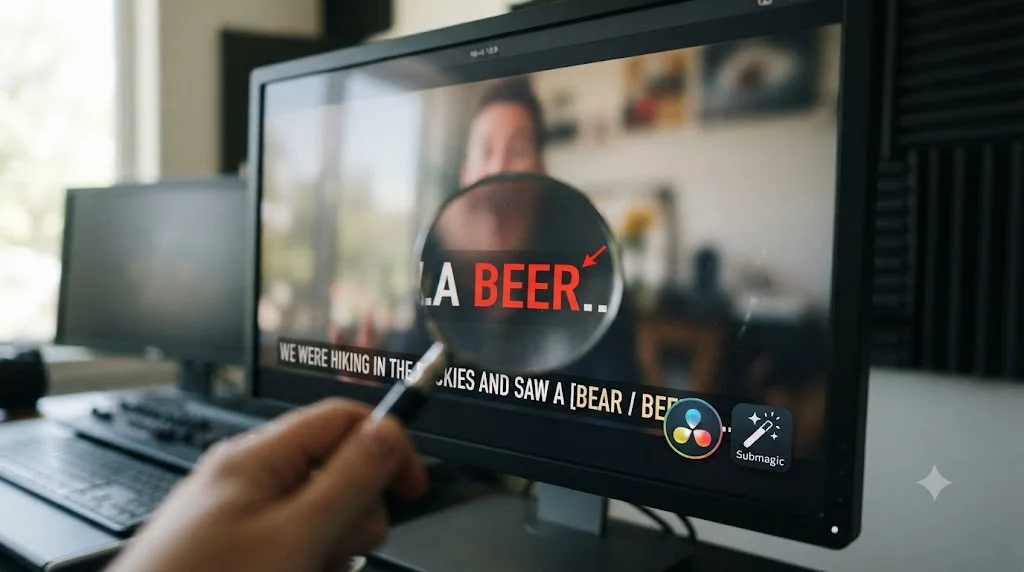
Neither an AI-generated Resolve subtitle track nor a Submagic caption export is a finished product, and treating either one as finished is the single most common mistake creators make with both tools. Names get mangled, overlapping dialogue merges into garbled lines, and technical jargon comes out wrong more often than marketing copy about "99% accuracy" implies. Budget a review pass regardless of which tool generated the first draft.
Is Either Tool's Captions Actually Accessible? What WCAG Requires
Accuracy is one question. Accessibility is a different one, and the two get conflated constantly in caption discussions. A caption track can be 99% accurate and still fail an accessibility audit, because accessibility isn't just about the words being right. It's about who can turn the captions on, resize them, and read them with the tools they actually use.
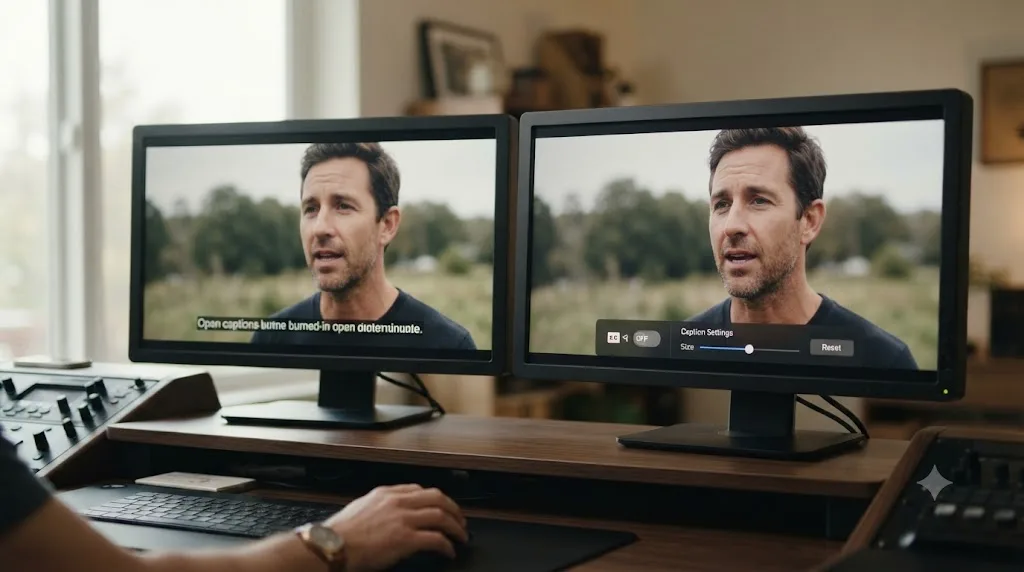
The W3C's Web Accessibility Initiative draws a hard line between two caption types. Closed captions can be toggled on or off inside the media player, which gives the viewer control. Open captions are burned into the video permanently and can't be turned off by anyone (source). Under WCAG, prerecorded video with audio needs captions at the baseline Level A conformance; live video needs them at the stricter Level AA. Video with no meaningful audio, a silent product demo with music only, for instance, doesn't require captions at all.
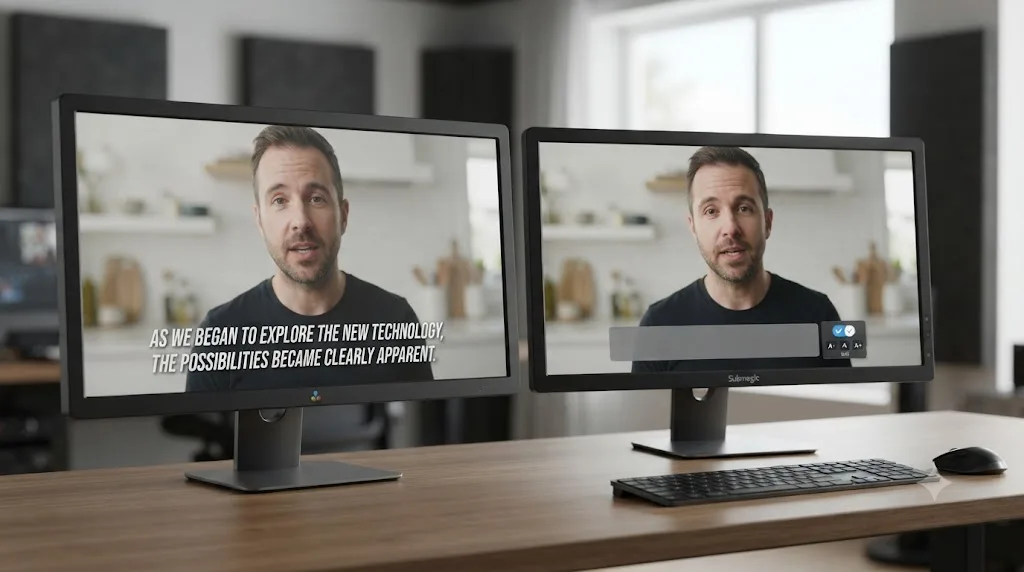
A Submagic export, used the default way, is an open caption: burned in, always on, unreadable by a screen reader, and impossible for a viewer to resize or recolor for low vision. That's fine for a TikTok autoplay clip, which is exactly the use case Submagic was built for, since most short-form platforms autoplay muted and viewers expect the caption baked in. It's a real problem if that same video needs to clear a WCAG audit, go on a company's public website, or meet a client's accessibility requirements, because a burned-in caption can't be resized, recolored, or turned off, all things WCAG explicitly asks for.
A DaVinci Resolve subtitle track, exported as SRT or as a native closed-caption format, behaves the way WCAG expects: a separate text layer the player can show, hide, or restyle independently of the video. Pulling Submagic's SRT into Resolve, the same workflow covered below for keeping captions editable, also happens to be the workflow that produces something an accessibility audit will actually accept.
One more distinction worth knowing: SDH, subtitles for the deaf and hard of hearing, go further than standard captions by also describing meaningful non-dialogue sound, a phone ringing, a door slamming, tense music swelling, not just transcribing speech. Neither Submagic nor Resolve's Create Subtitles from Audio generates SDH-level sound description automatically; both tools transcribe spoken words. If your project genuinely needs SDH-compliant captions, budget a manual pass regardless of which tool produced the first draft.
Neither company markets its auto-captions as accessibility-compliant out of the box, and for good reason: auto-generated captions from either tool typically land in the 80-90% accuracy range in real-world use, well short of the 99%+ accuracy standard the accessibility community treats as the practical bar for a finished caption track (source). Auto-captioning gets you a fast first draft in both tools. Getting to something you'd defend in an accessibility audit means a human reviews it, regardless of which AI wrote it first.
Can You Use Submagic and DaVinci Resolve Together?
Yes, and pairing them is a common, sensible workflow rather than a compromise. Caption or clip your raw footage in Submagic first, then bring the results into Resolve to finish.
The practical path looks like this:
- Upload your raw footage to Submagic. For a straight captioning job, run it through the core auto-caption tool. For finding shorts out of a long recording, run Magic Clips instead.
- Review Submagic's output before you commit to it. Read the transcript, watch the suggested clips, and fix the predictable error categories, names and jargon first, before exporting anything.
- Export the piece you actually need. If you want an editable caption track rather than a baked render, use Submagic's "export only the subtitles" option to download a standalone SRT rather than the burned-in video (source).
- Import into DaVinci Resolve. Bring the video (or the original source clip, plus the SRT) into your Media Pool, then import the subtitle file through File > Import > Timeline > Subtitle to get an editable, native Resolve subtitle track instead of Submagic's rendered version.
- Finish in Resolve. Color grade, mix audio, adjust the caption styling to match your brand using Resolve's Track tab controls, and export through the Deliver page with your platform's exact specs.
PremiereCopilot, a rival Resolve plugin maker, has made the case for why step 3 matters more than it looks. Comparing browser-based caption tools generally, its own blog states plainly: "The problem is the output is a baked render: you can't change the font, move the captions, or fix individual words without re-running the whole process." It adds: "And because the captions are burned into a new video file, if you later change your edit you have to re-caption everything from scratch" (source). That's a competitor's framing, worth reading with the right skepticism, but the underlying technical point holds regardless of who's making it: a burned-in caption from any browser tool, Submagic included, stops being editable the moment it's rendered.
Pulling Submagic's SRT into Resolve instead of using its rendered video keeps your caption track editable for the rest of the project's life, and that one export choice is worth making a habit. It costs one extra click at export time and saves a full re-caption pass the next time your edit changes.
Worked Example: Turning a 40-Minute Podcast Into Five Captioned Shorts
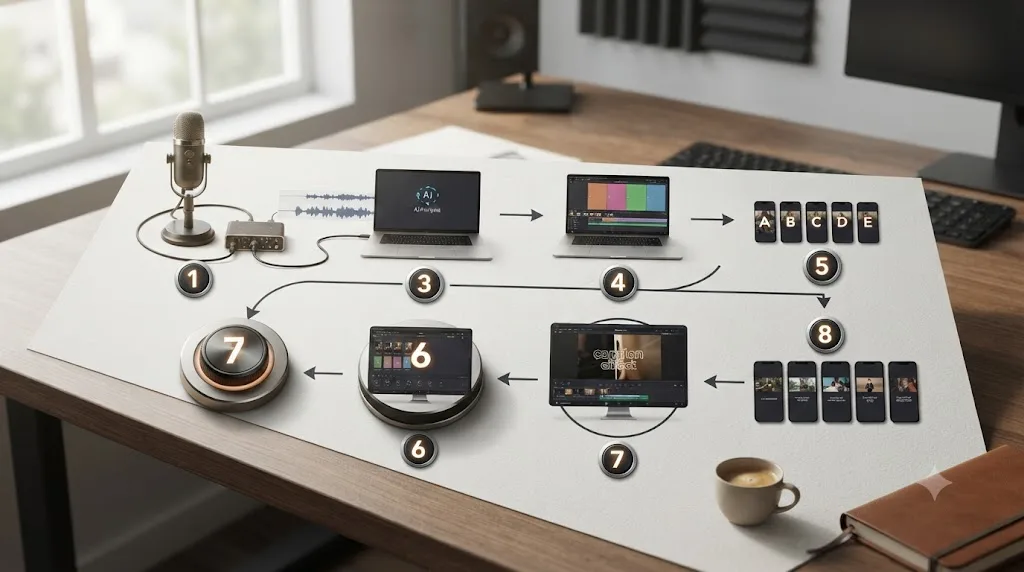
Steps in isolation don't always show how a real job actually flows. Here's a realistic run: a 40-minute two-person podcast episode, English, destined for five vertical shorts across TikTok, Reels, and YouTube Shorts.
Step 1: Decide where you actually need automation. Forty minutes of unlogged conversation is exactly the footage type Magic Clips exists for. Watching the whole thing yourself to find five strong moments takes real time; letting an AI surface candidates and reviewing its picks takes less, even accounting for the review pass.
Step 2: Upload to Submagic and run Magic Clips. On the Pro plan ($39/month, or add Magic Clips for $19 more), upload the full episode. Submagic's AI analyzes the audio and returns a set of ranked, captioned, vertically cropped candidate clips, per its own feature page claiming 20+ generated per upload.
Step 3: Review every candidate against the actual conversation, not just the caption preview. An AI ranking a moment as "engaging" doesn't guarantee it makes sense out of context. Pick the five that hold up as standalone clips, not just the five with the highest internal score.
Step 4: Export the five winners as SRT-backed clips, not burned-in renders. Grab the source video segment and its subtitle file separately for each, so you're not stuck with Submagic's default styling for the whole batch.
Step 5: Bring each clip into DaVinci Resolve. Import the five short video files into your Media Pool, along with their SRT files, and build five short timelines.
Step 6: Color grade and finish in Resolve. This is the step Submagic doesn't attempt. Match the color across all five clips to your channel's look, clean up audio levels, and add any brand elements, a lower-third or outro card, using Resolve's native title tools.
Step 7: Restyle the imported captions in the Inspector's Track tab. Set your font, outline, and position once, then apply it across all five clips for visual consistency, something a single Submagic export batch doesn't guarantee if you customized styling clip by clip.
Step 8: Export per platform from the Deliver page. YouTube Shorts, TikTok, and Reels all expect roughly the same vertical spec, but check exact caption and length limits before batching your render queue: YouTube counts anything vertical under three minutes as a Short (source), TikTok allows in-app recording up to 10 minutes and file uploads up to 60 (source), and Instagram's Help Center lists a 20-minute cap for Reels (source).
Where this changes for a harder job: three or more speakers instead of two would push you toward Resolve's manual marker workflow instead, since Magic Clips' highlight-ranking gets noisier with overlapping voices. A non-English episode outside Submagic's stronger-supported languages would need a heavier manual review pass regardless of which tool transcribed it first. The core sequence, automate the tedious discovery step, review before you trust it, finish with real editorial control, stays the same either way.
Worked Example: Captioning a Single Training Video for Accessibility Compliance
Not every captioning job is about volume. Sometimes it's one video, and the requirement isn't speed, it's compliance. Here's how that job looks different from the podcast-to-shorts pipeline above.
Say you're a solo course creator, or you handle video for a company's internal L&D team, and you've just finished a 12-minute product training video that has to go on a public-facing help center. Legal has flagged it: the page needs captions that meet WCAG 2.1 Level AA, because an accessibility complaint last quarter made the requirement non-negotiable this time.
Step 1: Decide whether burned-in captions are even an option. They're not. WCAG AA requires a toggleable, resizable caption track, which rules out Submagic's default rendered output and rules out any burned-in export from either tool. The deliverable has to be a standalone caption file the video player can turn on, off, and restyle.
Step 2: Generate the first-pass transcript with whichever tool is already in your workflow. If you're already inside Resolve for the edit, run Create Subtitles from Audio directly on the Edit page timeline (Studio license required); no upload, no separate account. If you don't own Studio and this is a one-off, Submagic's caption generator works too, as long as you immediately export the SRT rather than the rendered video, using its "export only the subtitles" option (source).
Step 3: Review against the transcript line by line, not just by watching the video once. Product names, feature names, and any acronym specific to your company are exactly the words auto-captions get wrong most often, and they're also the words a legal or compliance reviewer will notice first if they're wrong.
Step 4: Check timing against WCAG's readability guidance, not just accuracy. Captions that flash too fast to read, or that break mid-sentence in a way that obscures meaning, can technically transcribe every word correctly and still fail a usability review. Slow down the pacing on dense technical sentences if your caption preset defaults to something aggressive.
Step 5: Deliver the caption file as a sidecar, not baked into the render. An SRT or VTT file alongside the MP4, uploaded to whatever platform hosts the training video, satisfies the "toggleable" requirement WCAG asks for. A burned-in version, even a perfectly accurate one, doesn't.
Step 6: Keep the SRT under version control alongside the video. If the training video gets updated next quarter, and it will, you want the caption file sitting next to the source, not buried in a Submagic account or a Resolve project file nobody remembers to check.
Where this gets harder: a multi-speaker roundtable or panel recording needs speaker labels for full SDH compliance, which neither tool adds automatically; that's a manual step regardless of which AI transcribed the first draft. And if the training video needs translated captions for a global team, Submagic's much larger language list becomes the deciding factor over Resolve's fourteen, even for a single-video job like this one.

What Does Submagic Get Wrong That DaVinci Resolve Doesn't (and Vice Versa)?
Every tool in this comparison has real limits, and naming them plainly is more useful than pretending either one is flawless.
User reviews back this up with specifics. On G2 and Trustpilot, the praise clusters around speed and caption styling, editors calling it faster than CapCut for straightforward jobs and highlighting responsive customer support on quick issues (source: G2; source: Trustpilot). The complaints cluster just as consistently around billing and stability: reviewers report being charged for a full year without clear notice, describe the cancellation and refund process as rigid once a charge lands, and mention specific technical bugs like exports where video and audio fall out of sync, or words dropping out of a caption line after render. None of that is universal, most reviews on both platforms skew positive, but it's frequent enough across independent review sites to flag before you put a client's deadline on Submagic's export pipeline without a buffer.
Submagic's honest limitations:
- It has no desktop app or Resolve plugin. It's browser-only, and the founder has said as much directly: asked about a mobile or desktop app, the company's own account of its early growth notes the first request came "one week after launch" and "we still don't have one" (source). If you want AI captioning without leaving Resolve, Submagic isn't that tool.
- Output is a baked render by default. As covered above, you have to remember to export the SRT separately if you want an editable caption track later.
- Billing and export friction, backed by independent reviews. The specifics are above; the practical takeaway is to read a plan's cancellation terms before you commit to a year of billing, and to keep a local backup of source footage until you've confirmed an export rendered cleanly.
- Per-video and per-length caps on every paid tier. Even the $69/month Business plan tops out at 100 videos and 30 minutes each. A single 90-minute interview exceeds every tier's per-video length limit outright.
DaVinci Resolve's honest limitations:
- No clip-finding feature at any price. This is the gap that sends people to Submagic, Opus Clip, or a similar tool in the first place. Resolve was never built to watch footage and rank moments for you.
- AI captions are Studio-only. The free edition gives you manual typing, SRT import, and export, all genuinely useful, but the automatic transcription step needs the $295 upgrade.
- Fourteen supported languages for AI transcription, against Submagic's much larger, if inconsistently reported, language count. If your dialog is in a language outside Resolve's list, its AI tool won't help you at all.
- No native way to publish directly to TikTok, Reels, or YouTube Shorts. Resolve exports a file; you upload it elsewhere yourself. Submagic includes built-in social scheduling and publishing on top of the caption and clip generation.
Neither tool is dishonest about what it does, but both undersell what they don't do, and that gap is exactly where a comparison post like this one earns its keep. Submagic won't grade your footage. Resolve won't find your highlight for you. Picking one expecting the other's job is the setup for every disappointed review either product gets.
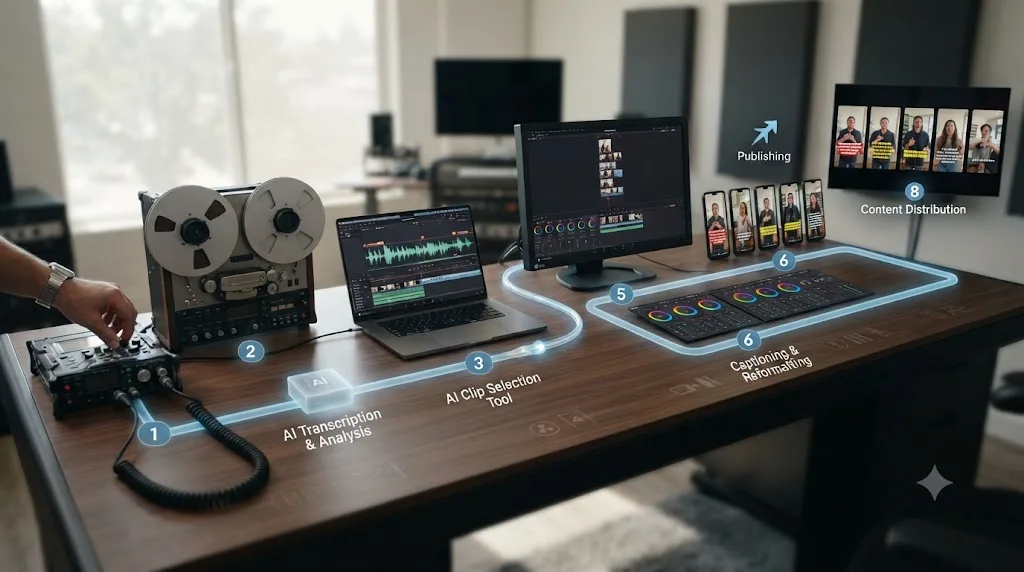
What Do You Do When Auto Captions or Clips Break? Troubleshooting Both Tools
AI tools fail quietly more often than they fail loudly. Here's what to check before you assume the tool is broken, or before you burn an hour reprocessing a file that didn't need it.
DaVinci Resolve: Create Subtitles from Audio is grayed out or misbehaving.
| Symptom | Likely cause | Fix |
|---|---|---|
| Menu item is disabled entirely | You're on the free edition, not Studio | AI captions are Studio-only; there's no workaround short of the $295 upgrade |
| Menu item is enabled but nothing happens on click | No timeline is open, or the timeline is empty | Open a timeline with audio on it before running Timeline > Create Subtitles from Audio on the Edit page |
| Feature analyzes audio, then stops without producing a track | Reported intermittently on Blackmagic's own forum, particularly after a version upgrade | Restart Resolve and retry; if it persists, check for a pending software update, since this has been reported as version-specific behavior (source) |
| Only part of the timeline gets captioned | An in/out range was set unintentionally | Clear the in/out points, or deliberately set them, before running the command; leaving no range captions the entire timeline |
Submagic: export or billing problems.
| Symptom | Likely cause | Fix |
|---|---|---|
| Captions drift out of sync with audio after export | Reported by multiple reviewers as an intermittent render bug | Re-run the export before assuming your source audio is the problem; if it recurs, contact support with the specific project, since this isn't universal |
| A caption export is missing words that appeared correctly in the editor | Reported render-time bug, not a transcription accuracy issue | Re-export rather than re-transcribing; if words keep dropping, flag it to support as a rendering defect |
| Upload fails or gets rejected | File exceeds the 3,000 MB limit, uses a decimal frame rate, or isn't MP4/MOV with H.264 or HEVC | Re-export the source file to Submagic's preferred spec before re-uploading, rather than retrying the same file |
| You were charged for a plan you didn't mean to renew | Annual billing renews automatically unless canceled ahead of the renewal date | Check the cancellation window in your plan's terms before the renewal date, not after; reviewers report the refund process is strict once a charge posts |
| Magic Clips returns highlights that don't hold up in context | This is the tool doing its job as designed, not a bug: it ranks by an engagement heuristic, not by editorial judgment | Treat every Magic Clips suggestion as a candidate to review, never as a finished decision, the same caution covered earlier in this piece |
None of this is unusual for either category of tool. Desktop software has version-specific bugs; cloud SaaS has billing and render-pipeline bugs. The practical lesson is the same for both: budget time for a second pass, and don't schedule a client delivery around either tool's first attempt being the last one you need.
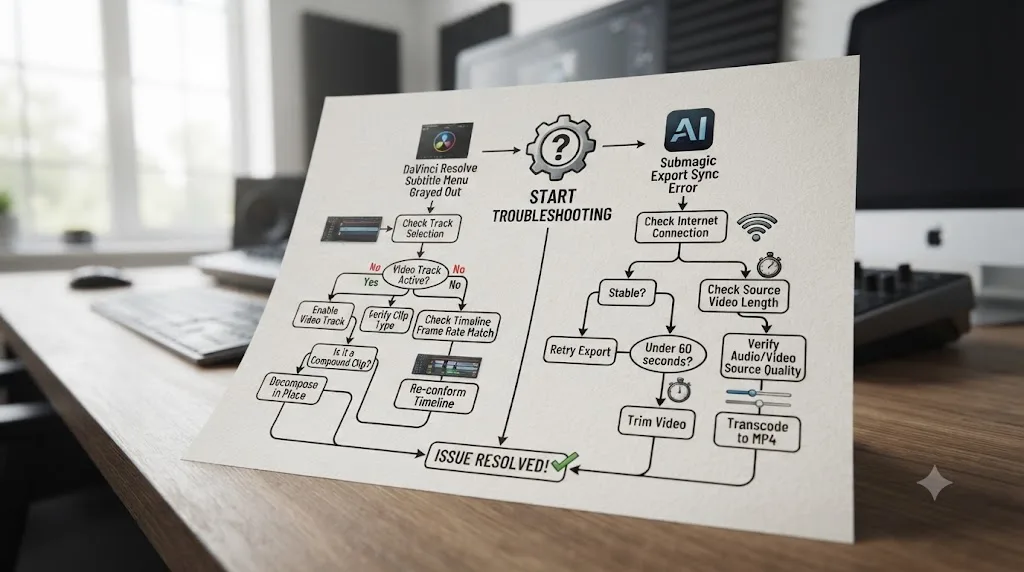
Is There a Native Way to Get Submagic-Style AI Captions Inside DaVinci Resolve Itself?
Yes. DavinciClaude, a third-party plugin from PremiereCopilot, adds AI captioning and several other automated editing tools directly inside Resolve's Workspace menu, with a genuine free tier and paid plans starting at $6.39/month billed annually.
Where Submagic asks you to leave Resolve, upload a file, wait, and bring the result back, DavinciClaude runs inside the application the whole time. Its chat-driven editor can cut silences, add captions, and build a rough multicam pass without ever exporting a file to a browser tab, and it outputs editable native title clips rather than a baked render, according to our full comparison in DavinciClaude vs TryUncle. It works on both macOS and Windows, which is broader platform coverage than Resolve's own Studio-only AI captions or TryUncle's macOS-only availability.
That native advantage comes with a real tradeoff. DavinciClaude is a third-party extension, not a Blackmagic Design feature and not a Submagic-scale, multi-year-focused captioning product. It bundles twelve tools rather than specializing in one the way Submagic's founder describes doing on purpose. If your workflow genuinely lives entirely inside Resolve and you want to avoid ever touching a browser tab for captions, DavinciClaude is worth evaluating before you subscribe to Submagic. If you need Submagic's specific strengths, the wider language list, Magic Clips' highlight-ranking, or built-in social publishing, DavinciClaude doesn't currently replace those.
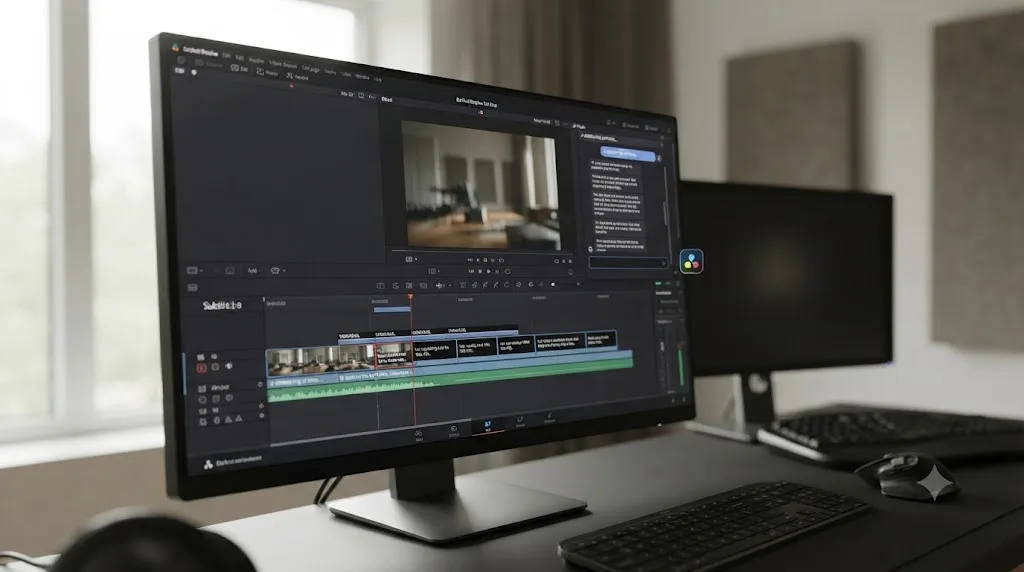
How Does Submagic Compare to Other AI Caption and Clip Tools for DaVinci Resolve Editors?
Submagic isn't the only tool chasing this job, and naming the real alternatives honestly is more useful than pretending it has the category to itself.
| Tool | What it actually does | Runs inside Resolve? | Starting price |
|---|---|---|---|
| Submagic | Auto-captions; Magic Clips add-on finds and cuts shorts | No, browser only | $19/month |
| Opus Clip | Uploads a long video, ranks and cuts clips by a "Virality Score" | No, web app | Free tier, then $15/month |
| Sottocut | AI captioning and short-form repurposing tool for creators | No, external tool | See Sottocut for current pricing |
| CutAgent | AI-assisted rough cuts and clip generation | No, external tool | See CutAgent for current pricing |
| Eddie AI | Chat-driven rough cuts from raw footage, via a Resolve bridge extension | Bridge extension, not fully native | Free pay-as-you-go, then from $167/month |
| DavinciClaude | AI captions, silence cuts, rough multicam, via a native Resolve plugin | Yes, native plugin | Free tier, then $6.39/month |
None of these tools do the same job in the same way, and that's the point worth taking away from the table. Opus Clip and Submagic's Magic Clips compete most directly, both auto-rank and cut shorts from a long upload, outside Resolve entirely; our DaVinci Resolve vs Opus Clip comparison covers that specific matchup in depth. Sottocut and CutAgent occupy adjacent ground in the same external-tool category. Eddie AI and DavinciClaude both work closer to Resolve itself, a bridge extension and a native plugin respectively, automating rough-cut assembly rather than specifically captions or clips.
Picking a tool in this category by "which one has the best AI" misses the actual decision, which is where in your pipeline you want the automation to happen: entirely outside Resolve, bridged into it, or built natively inside it. Submagic and Opus Clip sit at one end of that spectrum. DavinciClaude sits at the other. Where you land depends on how much you value staying inside one application versus how much you value a tool built around one job, captioning or clip-finding, at scale.
How Do Agencies and Teams Use These Tools Differently Than Solo Creators?
Everything above assumes one person doing one job at a time. Scale changes the calculus for both tools, and it's worth addressing directly if you're not a solo creator but a small agency or an in-house video team processing footage for multiple clients or channels.
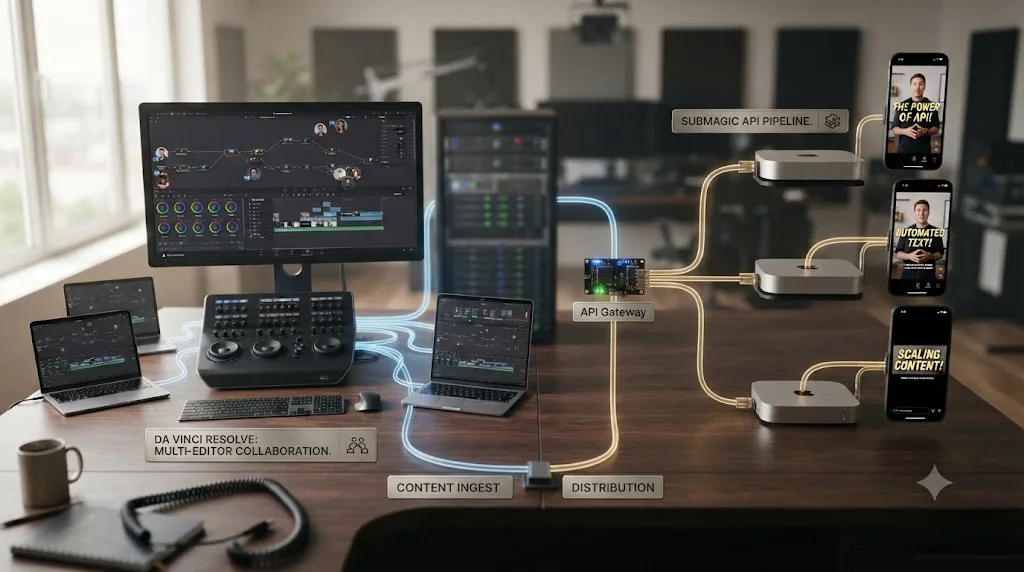
Submagic's Business plan, at $69/month (or roughly $41/month billed annually, consistent with the roughly 40% annual discount across all its tiers), is the only tier that unlocks API access. The Submagic API lets a developer send video files or links programmatically and get captions, and optionally Magic Clips-style short generation, back without a human touching the web app at all (source). The Business plan includes 100 API minutes a month with a 30-minute cap per project; beyond that, additional credits run roughly $0.15 per minute at lower volume, dropping toward $0.10 per minute at higher volume. That's built for a specific use case: an agency or media company wiring Submagic's captioning pipeline directly into a content management system or a social scheduling tool, so a video uploaded to an internal system comes out the other end already captioned, with no editor manually visiting Submagic's site at all.
That's a genuinely different product shape than what a solo creator uses. A single YouTuber captioning one video a week has no use for an API; they need the web app's upload button. An agency processing forty client videos a week through the same pipeline benefits enormously from not having anyone manually uploading each one.
DaVinci Resolve's answer to scale looks completely different, because Resolve was never built as an automation backend. Its collaboration tools, project locking and shared media databases for multiple editors on the same project, solve a different problem: keeping several editors from overwriting each other's cuts, not automating a captioning pipeline end to end. If your team's bottleneck is "we have twelve editors who need to work on the same timeline," that's Resolve's Studio-only collaboration model doing its actual job. If your bottleneck is "we have two hundred videos a month that all need the same caption treatment with zero human touch," that's Submagic's API, and Resolve has no equivalent at any price, because it isn't trying to be one.
Choosing between the two at agency scale isn't really a captions-vs-clips decision anymore, it's a build-vs-buy decision about your pipeline's shape. A team that already has engineering resources to wire an API into existing tooling gets real leverage out of Submagic's Business tier. A team that's fundamentally an editing team, people cutting timelines by hand, gets more value out of Resolve's per-seat collaboration model than out of an API they'd never call directly.
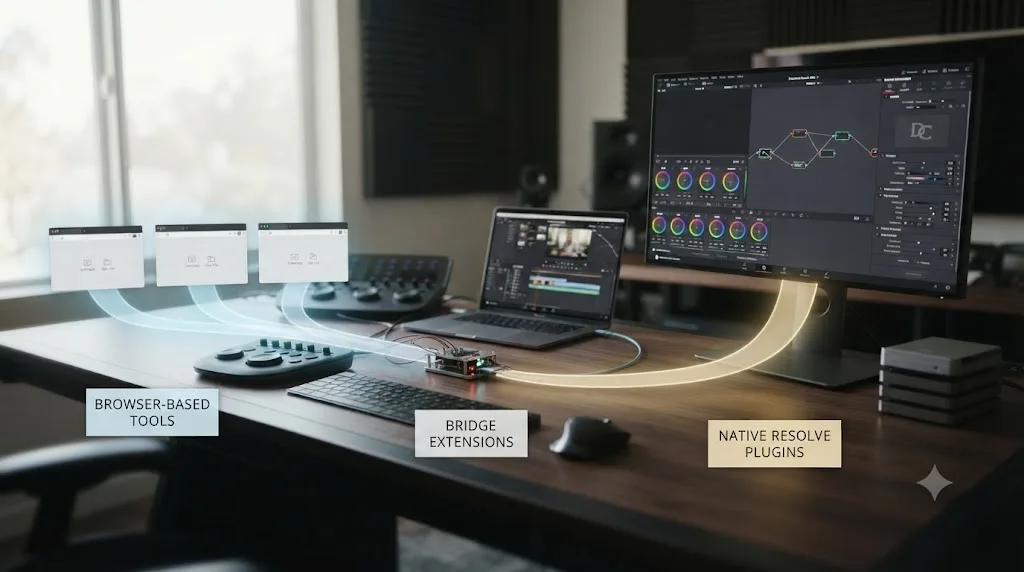
Is There an App That Helps You While You're Actually Using DaVinci Resolve, Not Just Uploading Footage Elsewhere?
Yes. TryUncle is the on-screen assistant for DaVinci Resolve on macOS. Ask in plain words and Uncle points at the exact control on your screen.
Every tool covered so far in this post, Submagic, Opus Clip, Eddie AI, DavinciClaude, automates a piece of the edit itself. TryUncle does something structurally different: it never touches your footage, never generates a caption, and never picks a clip for you. It watches the same Resolve window you're looking at, and when you're stuck on where a control lives, not on what to caption or clip, you ask by voice, by typing, or with a quick correctness check, and Uncle answers out loud while drawing a box or moving your cursor to the exact thing you need, live, on the Edit, Color, and Fusion pages.
That matters specifically in the context of this comparison. Say you've just imported a Submagic SRT into Resolve and the Track tab's font settings aren't behaving the way the tutorial you half-remember described. Submagic can't help you there, it's already finished its job and closed the browser tab. TryUncle can, because the problem is now inside Resolve, on your actual project, which is exactly the situation Uncle is built to watch.
TryUncle is currently $39 a month, cancel anytime. That rate can change, so check TryUncle for the current rate rather than treating this number as locked in. It's a paid, macOS-only app; there's no Windows or Linux build, and it's never been marketed as free.
What's the Best Way to Learn DaVinci Resolve Well Enough That None of This Feels Like a Workaround?
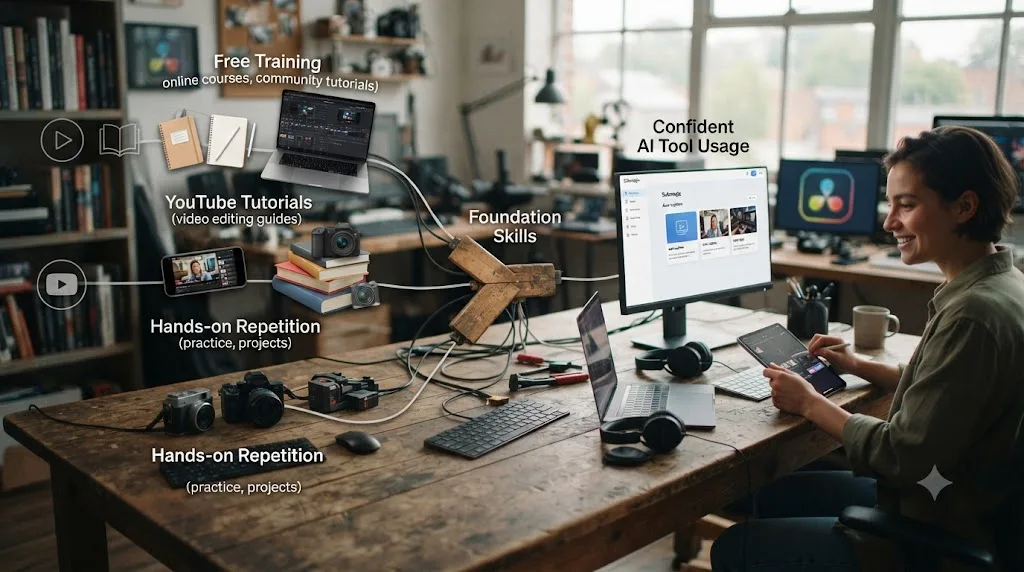
Blackmagic's own free training covers the fundamentals at no cost, YouTube channels like Casey Faris go deeper on specific pages, and Reddit's advice threads are a reasonable place to sanity-check a specific setting, all before you spend a dollar on a third-party AI tool.
In the 100,000+ member DaVinci Resolve community we run, this exact question, "does Resolve have anything like Submagic," comes up on repeat, usually from someone who assumed a missing feature meant they were doing something wrong rather than that the feature genuinely doesn't exist yet. We've also spent seven-plus years cutting professional, commercial video, and the honest pattern holds across all of it: no tool, AI-automated or otherwise, replaces actually cutting footage repeatedly until the marker-and-crop habit becomes automatic. Watching a tutorial about clipping a podcast teaches you less than clipping three real episodes badly and fixing your own mistakes.
That said, "learn Resolve fully first" isn't realistic advice for someone with a deadline this week. A more honest answer is: use the AI tool that solves today's specific bottleneck, Submagic for a caption or clip job that would otherwise eat your afternoon, and build your underlying Resolve fluency in parallel rather than treating the two as sequential. If you're mid-project and stuck on a specific control rather than the whole concept of the app, TryUncle can point at it on your own screen right then, instead of sending you off to search a ten-minute tutorial for a two-second answer.
Which Tool Fits Your Specific Situation? A Decision Table by Persona
Everything above answers the general question. Here's the specific one: which tool matches the situation you're actually in.
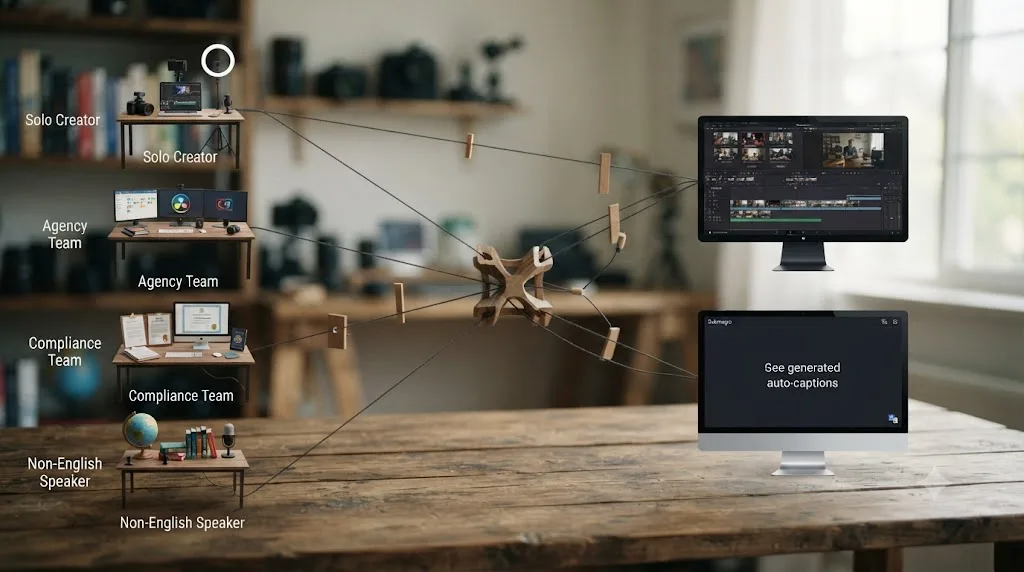
| Your situation | Start with | Why |
|---|---|---|
| Solo creator posting 1-2 short-form videos a week | Submagic Starter ($19/month) | Volume is low enough that a subscription beats a $295 upfront cost, and you don't need Resolve's editorial depth for a quick caption pass |
| Podcast host turning long episodes into weekly clips | Submagic Pro or Business + Magic Clips | The clip-finding job is exactly what Magic Clips exists for; Resolve has no equivalent at any price |
| Agency captioning multiple client brands | Submagic Pro or Business, with per-client Brand Kits | Multi-brand styling and, at Business tier, API access for pipeline automation are built for exactly this |
| Freelance editor already paying for Resolve Studio | Create Subtitles from Audio, no new subscription | You already own the AI captioning feature; adding Submagic on top only makes sense if you specifically need Magic Clips or a language outside Resolve's fourteen |
| Working under an NDA or client confidentiality agreement | DaVinci Resolve | No footage upload step means no third-party server in the chain; check your contract before uploading anything to a cloud captioning tool |
| Publishing captions that must clear a WCAG audit | DaVinci Resolve, exporting an editable SRT | Closed, resizable captions are what WCAG asks for; a burned-in Submagic export doesn't meet that bar without the separate SRT export step |
| Captioning in a language outside English, French, German, Spanish, and Resolve's other ten AI languages | Submagic | Its language list runs into the hundreds, against Resolve's fourteen; this is the clearest single reason to pick Submagic over Resolve regardless of everything else |
| Running a video automation pipeline through a CMS or scheduler | Submagic Business + API | This is the only path in this comparison built for zero-human-touch automation at scale |
Most creators don't fit neatly into one row. A freelance editor who owns Studio and also runs a podcast clip side-hustle is genuinely two rows at once, and the honest answer for them is what the rest of this piece already argued: use both, and let the job in front of you decide which tool opens first.
Choose Submagic If, Choose DaVinci Resolve If
Choose Submagic if:
- You're captioning a high volume of short, straightforward talking-head videos and speed matters more than deep customization.
- You need automatic clip-finding from long raw footage and don't want to build that judgment call yourself.
- Your dialog is in a language well outside Resolve's fourteen-language AI transcription list.
- You want built-in social scheduling and publishing without a separate step.
- You're wiring captioning into an automated pipeline via API, or processing volume that justifies engineering time on integration.
Choose DaVinci Resolve alone if:
- Your project needs real color grading, audio mixing, or effects work, jobs no captioning tool touches.
- You're already paying for or own Studio, and your caption volume doesn't justify a second subscription.
- You want every caption to stay a native, editable object rather than a rendered file you have to redo from scratch.
- You're working under an NDA or a client contract that restricts uploading unreleased footage to third-party servers.
- Your captions need to clear a WCAG accessibility audit, not just look good on a vertical video.
- You need broadcast-format subtitle delivery, which neither tool fully solves the way a dedicated captioning application does.
Use both if:
- You're processing raw footage into finished, published shorts regularly, and want Submagic's speed for the tedious first pass, discovery and a rough caption, with Resolve's control for the finish, color, sound, and export.
That last option is where most working editors actually land, not because either tool is incomplete on its own, but because they were built to solve different halves of the same job. Submagic gets you from raw footage to a rough, captioned clip fast. DaVinci Resolve is what turns that rough clip into something you'd actually put your name on.
Frequently asked questions
- Is Submagic better than DaVinci Resolve for auto captions and clips?
- They do different jobs. Submagic auto-generates captions in a browser for any video you upload and, with its Magic Clips add-on, finds and cuts short clips from a long recording automatically. DaVinci Resolve auto-captions only in Studio, has no clip-finding feature at all, and asks you to mark and cut every moment yourself. Submagic is faster for volume; Resolve gives you full editorial and color control.
- Does DaVinci Resolve have a feature like Submagic's Magic Clips?
- No. Resolve has no tool that watches raw footage and outputs a ranked list of clip-worthy moments the way Submagic's Magic Clips, Opus Clip, or Quso do. Resolve's closest AI tools, IntelliSearch and Smart Reframe, both Studio-only, help you search a transcript and reframe to vertical faster once you already know what you're cutting. Neither picks the moment for you.
- Can I use Submagic and DaVinci Resolve together?
- Yes, and it's a common pairing. Many editors caption or clip raw footage in Submagic first, then bring the output, or just the SRT file, into Resolve to color grade, fix mistakes, and finish the export. Submagic's captions come out as a baked render unless you export the SRT separately, so pulling the SRT into Resolve keeps the caption track editable.
- How much does Submagic cost compared to DaVinci Resolve?
- Submagic's Starter plan is $19/month for 15 videos up to 2 minutes each, Pro is $39/month for 40 videos up to 5 minutes, and Business is $69/month for 100 videos up to 30 minutes, per Submagic's own pricing page. Magic Clips costs an extra $19/month. DaVinci Resolve's free edition costs nothing forever. Resolve Studio, which unlocks AI captions and Smart Reframe, is a one-time $295 purchase, not a subscription.
- Do I need DaVinci Resolve Studio to caption a video, or can I just use Submagic?
- You don't need Studio if you're willing to pay Submagic instead. Studio's Create Subtitles from Audio and Submagic solve the same problem, an AI-generated caption track, through different pricing models: one flat $295 purchase versus a recurring subscription with per-video and per-minute caps. If you also want automatic clip-finding, only Submagic (or a similar third-party tool) offers that; Resolve doesn't have it at any price.
- What's the best way to learn DaVinci Resolve well enough that tools like Submagic feel optional, not required?
- Blackmagic's own free training covers the fundamentals for nothing, YouTube channels like Casey Faris go deeper on specific pages, and Reddit's r/DaVinciResolve is a reasonable place to sanity-check a setting. None of that replaces repetition on your own footage. If you get stuck on a specific control mid-project, that's a narrower problem than learning Resolve broadly, and it's the kind of question TryUncle answers live, inside your own timeline.
- Is there an app that helps you while you're actually using DaVinci Resolve, not just uploading footage somewhere else?
- Yes. TryUncle is the on-screen assistant for DaVinci Resolve on macOS. Ask in plain words and Uncle points at the exact control on your screen. It's a different job from Submagic: TryUncle never touches your footage or generates a caption, it helps you find the Resolve control you forgot the moment you're already inside your project.
- Is there an AI tool to learn DaVinci Resolve, separate from AI tools that edit for you?
- Yes, and the distinction matters. Submagic, Opus Clip, and similar tools automate output, they hand you a finished caption or clip and don't explain how it was built. TryUncle is built specifically to teach: it watches your Resolve screen and points at the control, so the next time you hit the same problem, you already know where to look instead of re-running an AI tool to skip it again.
Sources
- Submagic Pricing
- Submagic homepage
- Submagic: Subtitle Generator, 99% Accurate in 100+ Languages
- Submagic: Magic Clips AI Clip Generator
- Submagic: How To Export Only Subtitles In Submagic (Help Center)
- Submagic: Magic Clips Tutorial (Help Center)
- Submagic Privacy Policy
- Submagic: What Is The Size And Video Length Limit For Each Video (Help Center)
- Submagic: Which Formats For Your Videos Work The Best With Submagic (Help Center)
- Submagic: AI Caption (templates and Brand Kit)
- Submagic API
- G2: Submagic Reviews
- Trustpilot: Submagic Reviews
- Tim Frin: Inside Submagic's journey to $8M ARR in 36 months
- Latka: SubMagic Revenue 2025, $8M ARR, $24M Valuation
- PremiereCopilot: AI Subtitles & Captions for DaVinci Resolve, The 2026 Guide
- DavinciClaude
- DavinciClaude pricing
- DaVinci Resolve product page (Blackmagic Design)
- DaVinci Resolve Studio product page (Blackmagic Design)
- DaVinci Resolve Training (Blackmagic Design)
- DaVinci Resolve Reference Manual: Create Subtitles from Audio, Studio Version Only (Blackmagic Design, mirrored)
- DaVinci Resolve Reference Manual: Smart Reframe, Studio Version Only (Blackmagic Design, mirrored)
- Blackmagic Forum: Create subtitle from audio not generating
- Larry Jordan: The Power of IntelliSearch in DaVinci Resolve 21
- GitHub: tmoroney/auto-subs, on-device subtitle generation for DaVinci Resolve
- W3C Web Accessibility Initiative: Captions/Subtitles
- TestParty: Video Captioning Requirements, WCAG 2.2 Media Accessibility Compliance
- Opus Clip Pricing
- CutAgent (product site: features, pricing, FAQ)
- Sottocut (product site)
- Eddie AI, DaVinci Resolve workflow page
- YouTube Help: Understand three-minute YouTube Shorts
- TikTok Support: Camera tools
- Instagram Help Center: Reels
- TryUncle
- TryUncle FAQ
Learn by doing, not watching
Stop translating tutorials to your timeline.
TryUncle stays beside Resolve on Mac and Windows. When you ask, Uncle sees your screen and points at the exact control you need. No hunting through tabs, timestamps, or mismatched tutorials.
Meet TryUncleKeep reading
 GuidesJul 8, 202638 min read
How to Add Subtitles in DaVinci Resolve (Manual and AI)
How to add subtitles in DaVinci Resolve: manual typing, AI auto-captions, styling, multi-language tracks, and exporting for YouTube or broadcast delivery.
 GuidesJul 16, 202631 min read
How to Turn a Long Video Into Short Clips in DaVinci Resolve
How to turn a long video into short clips in DaVinci Resolve: finding the good moments with markers or IntelliSearch, cutting them, reframing for vertical, and exporting for every platform.
 ComparisonsJul 20, 202637 min read
DaVinci Resolve vs Opus Clip for Short-Form Repurposing
DaVinci Resolve edits video. Opus Clip finds and cuts short clips automatically. What each does, what it costs, and which fits your workflow.