
Learn / DaVinci Resolveupdated for DaVinci Resolve 21.0 (September 2026)
DaVinci Resolve Stereo Clip One Channel Silent: Fix It Fast
Quick answer
When a DaVinci Resolve stereo clip has one channel silent, open Clip Attributes > Audio, choose Mono, set Tracks to 1, and map the working embedded channel. If both channels are valid but playback is one-sided, reset the audio attributes, center the pan, and match the clip and track format.
If a stereo clip suddenly talks from one speaker, stop touching the volume knob. Volume cannot repair a channel assignment. The useful question is whether the audio is missing in the file or merely mapped to the wrong place.
As of September 2026, this guide uses the DaVinci Resolve 21 interface and Fairlight terminology. We built it around the quickest safe repair, then the checks that keep the problem from returning.
TryUncle is the on-screen assistant for DaVinci Resolve on Mac and Windows. Ask in plain words and Uncle points at the exact control on your screen.
Why is one channel silent in a DaVinci Resolve stereo clip?
A DaVinci Resolve stereo clip can have one silent channel for three different reasons: the source recording has signal on only one embedded channel, Clip Attributes maps the channels incorrectly, or a mono clip is sitting on a stereo track. The first two are source or clip configuration problems. The third is a clip-to-track mismatch.
That distinction matters because the fixes are different. If the file contains a good left channel and a blank right channel, choose the good channel and use it as mono. If both source channels contain signal but the timeline places one somewhere you cannot hear, repair the mapping or pan. If the source itself is blank on one side, Resolve has no missing waveform to recover.
Blackmagic's Fairlight guide describes the key behavior plainly: a mono clip on a stereo track can play from only the left channel or left speaker, while a mono clip on a mono track is sent equally to both speakers. That is why a file can look fine in the bin and still sound one-sided in the timeline. (The Fairlight Audio Guide to DaVinci Resolve 20)
One Blackmagic Design employee, Shrinivas Ramani, explains the underlying model this way:
“The way a clip's channels map to a track's channels is determined by its audio clip attributes. These are 1-1 or many-1 channel mappings.”
That is the mental model to keep. You are deciding which embedded source channel should feed which timeline channel.
A silent stereo side is usually a channel-mapping problem before it is a volume problem.
How do I tell whether the original audio channel is actually silent?
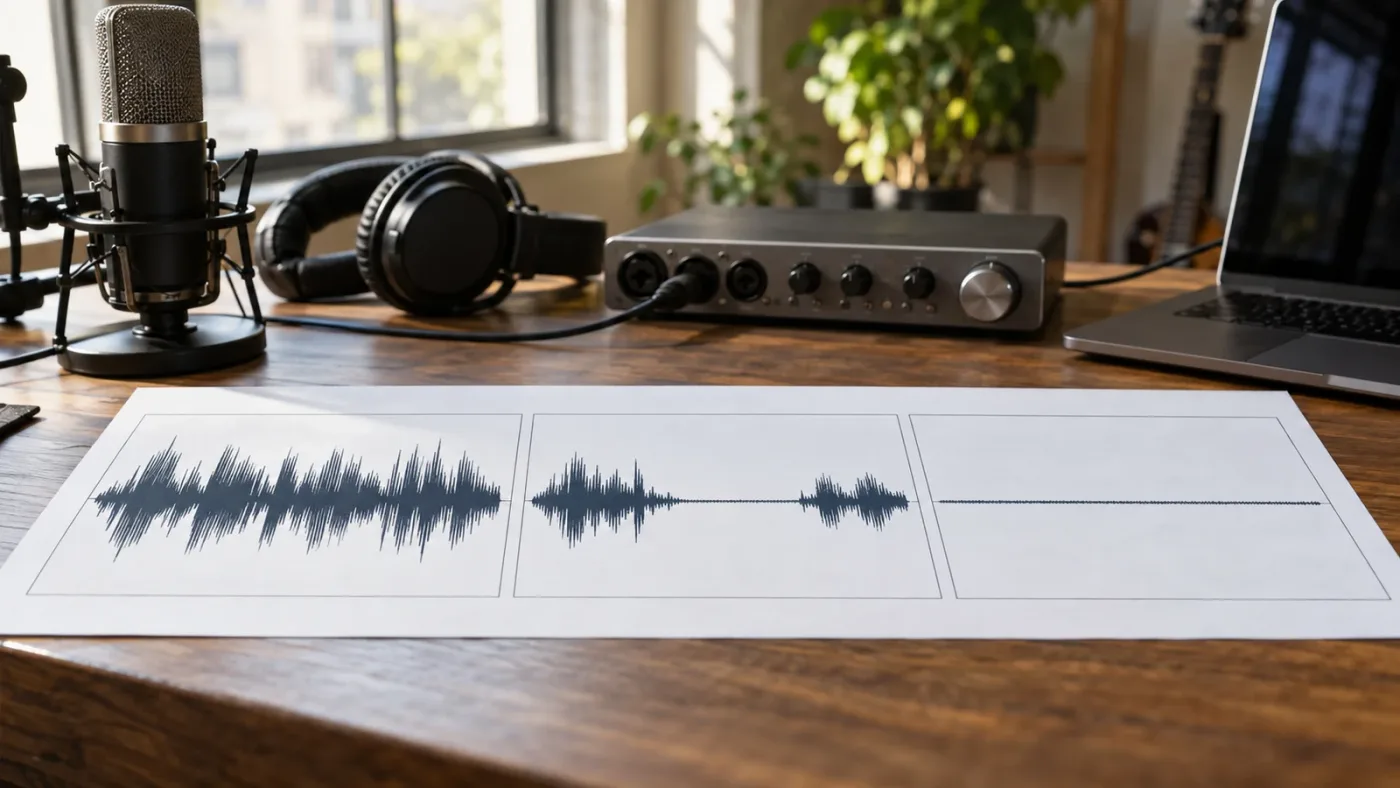
You can tell whether the source channel is silent by comparing the separate channel waveforms or meters before you change any settings. If one embedded channel stays flat while the other has speech or room tone, the recording is one-sided. If both channels show activity in the source but only one reaches the track or bus, the problem is in Resolve's mapping or routing.
Use this short diagnostic in order:
- Select the source clip in the Media Pool and preview it before relying on the timeline instance.
- Look for separate left and right waveform activity. A flat side across the whole clip is different from a side that drops out for part of the recording.
- Play the clip and watch the clip or source meters. Note whether the signal appears on channel 1, channel 2, or both.
- Watch the timeline track meter, then the main bus meter. If signal leaves the clip but disappears at the track, inspect the track format, mute state, and pan.
- Listen with headphones and one other output. A bad cable, adapter, monitor input, or speaker can imitate a silent Resolve channel.
Write down the exact source channel that has signal. Resolve's Clip Attributes dialog calls the options Embedded Channel 1, Embedded Channel 2, and so on. You will use that name in the repair.
If neither the clip meter nor the source waveform shows activity on the silent side, do not start with Fairlight effects. The channel was likely not recorded, or it is empty in the media file. If the clip meter shows both channels but your speakers do not, read the track and bus as separate stages. That is the same kind of check you need when DaVinci Resolve's audio meters are not moving at all.
The four common patterns look like this:
| What you observe | Most likely cause | First repair to try |
|---|---|---|
| Embedded Channel 1 has signal, Embedded Channel 2 is flat | The file is effectively one-channel audio | Map Embedded Channel 1 as Mono |
| Embedded Channel 2 has signal, Embedded Channel 1 is flat | The other source channel is the usable recording | Map Embedded Channel 2 as Mono |
| Both embedded channels have signal, one speaker is silent | Clip mapping, pan, track format, or output route | Reset attributes, then check pan and track format |
| Clip meter has signal but bus or headphones do not | Track mute, bus routing, monitor output, or hardware | Follow the signal from track to bus to output |
This check also protects the original media. You are changing how Resolve presents the clip, not rewriting the source file.
How do I fix a DaVinci Resolve stereo clip with one channel silent?
The fastest reliable fix is to remap the clip in Clip Attributes: choose Mono, set one track, and select the embedded channel that contains the usable audio. This turns a two-channel presentation with one dead side into a single-channel clip that can play from both speakers when it is placed on a mono track.
Follow these steps:
- Find the original source clip in the Media Pool. If you are starting from a timeline instance, use the clip's command to find the source in the Media Pool.
- Right-click the source clip and choose Clip Attributes.
- Open the Audio tab. This is where Resolve shows the clip format, tracks, source channels, and channel-in-track assignments.
- Set Format to Mono.
- Set Tracks to 1.
- In the source-channel menu, choose Embedded Channel 1 if channel 1 has the signal. Choose Embedded Channel 2 if channel 2 has the signal.
- Apply the change and play the clip on a mono track. Watch both the track meter and the main bus meter.
The settings should look like this:
| Source condition | Format | Tracks | Source channel | Channel in track |
|---|---|---|---|---|
| Left side works, right side is silent | Mono | 1 | Embedded Channel 1 | Mono |
| Right side works, left side is silent | Mono | 1 | Embedded Channel 2 | Mono |
| One usable microphone is hidden in a multichannel file | Mono | 1 | The embedded channel containing the mic | Mono |
| Both stereo sides are valid and must remain separate | Stereo | 1 | Embedded Channels 1 and 2 | Left and Right |
Labels vary by version. Select the source channel with waveform activity and give it a track format that can play it correctly. Do not confuse Tracks with the number of embedded channels in the file. A two-channel source can be presented as one mono track while the source keeps its original embedded channels.
The cleanest repair for one-sided production audio is usually one good embedded channel mapped to one mono track.
If you need to separate both stereo sides into two independent mono tracks, that is a different job. Use two mono mappings, one for each embedded channel, and place them on separate tracks. Blackmagic's Fairlight materials describe mono, stereo, 5.1, and adaptive channel formats as separate ways to organize the source and timeline. (Blackmagic Design Fairlight)
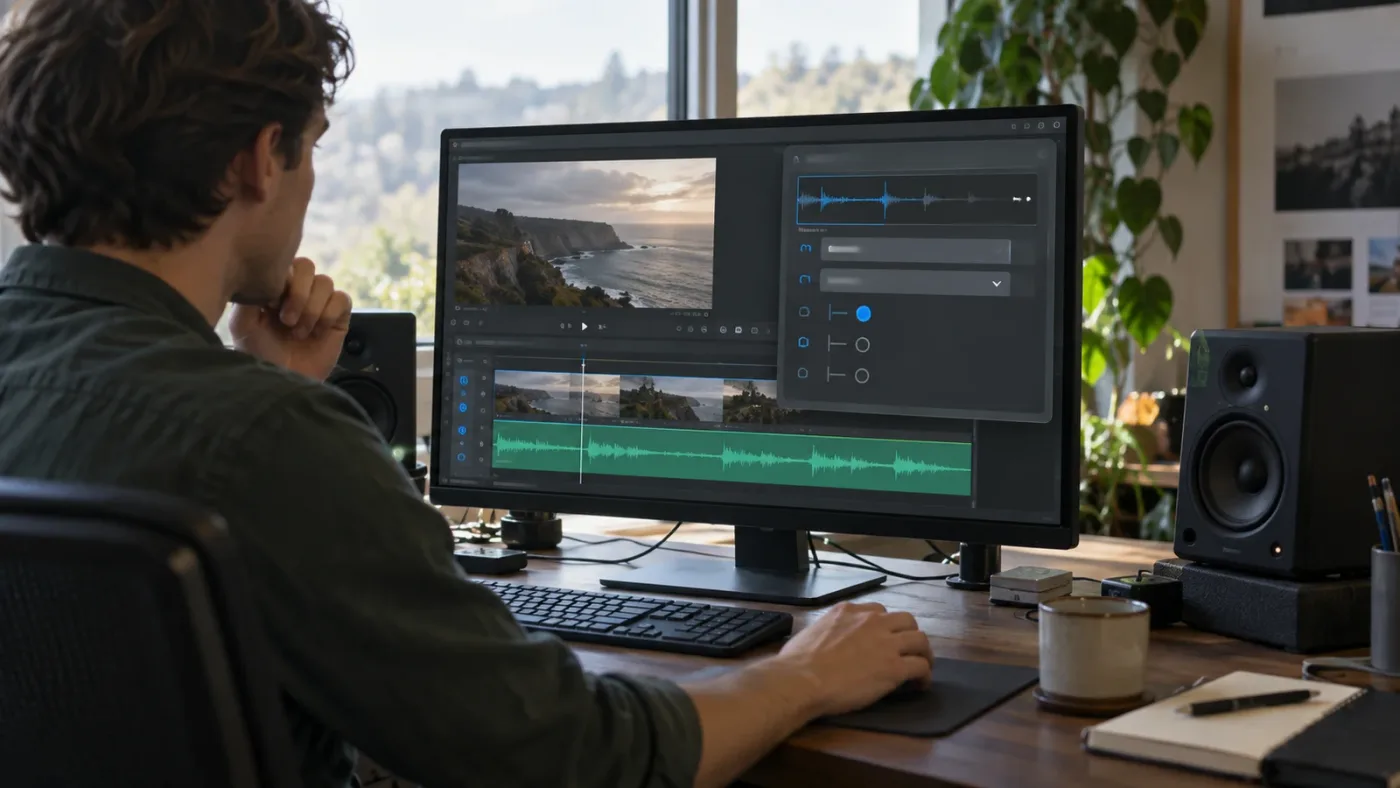
Clip Attributes selects the source channel, while the track format controls how that signal is carried.
Uncle can point at the exact Clip Attributes control in your own project while you work.
Should I make the clip mono or keep it stereo?
Make the clip mono when one source channel contains the complete usable recording and the other channel is empty or unwanted. Keep the clip stereo only when the two channels contain different information that you need to preserve, or when the rest of the project has a deliberate stereo design.
| Choose this | When it is the right decision | What it prevents |
|---|---|---|
| Mono clip on a mono track | A lav or camera mic was recorded on only one source channel | One speaker playback caused by a mono clip in a stereo track |
| Same good source channel mapped to left and right | The project must stay on a stereo track or stereo bus | A blank side without changing the useful recording |
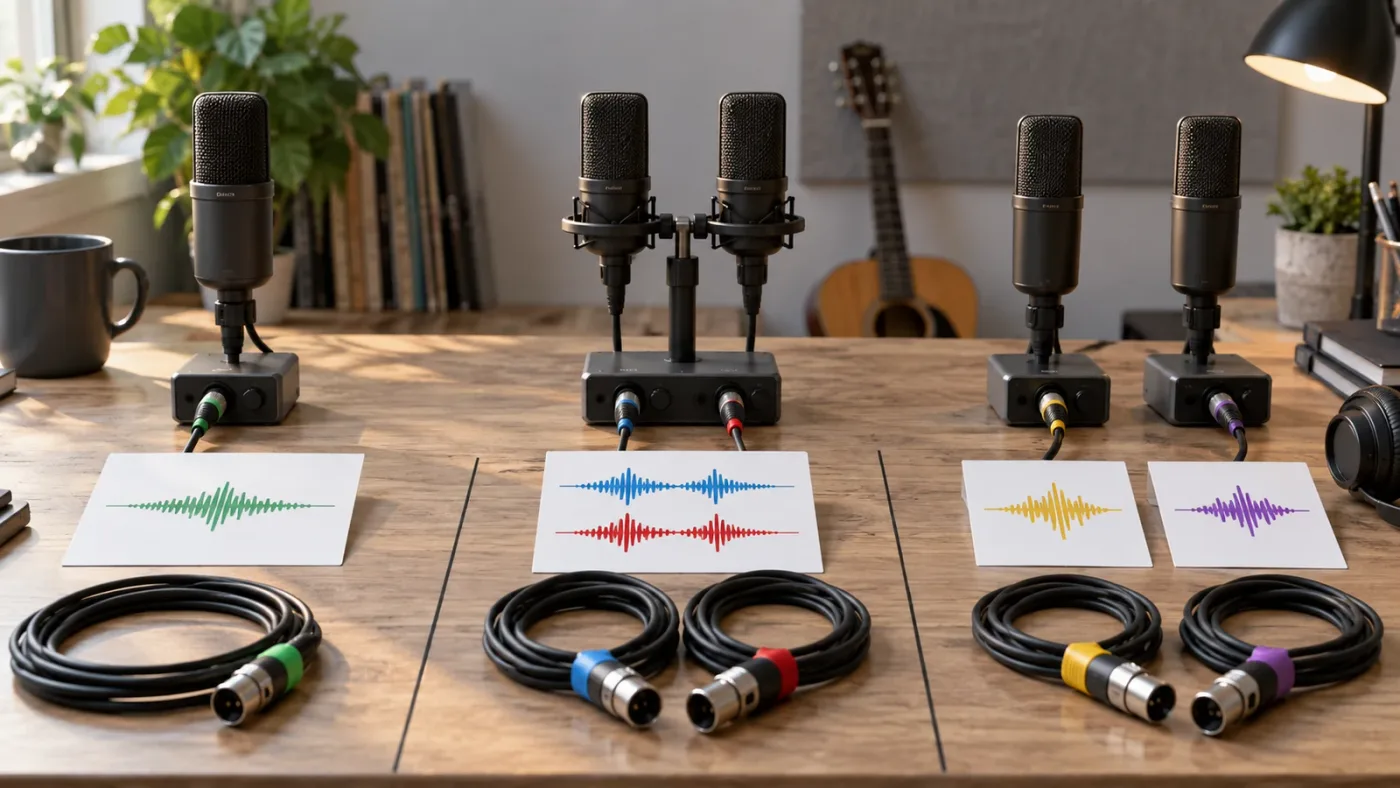
| Two mono tracks | Left and right contain separate microphones or separate takes | Losing the ability to mix each source independently |
| Original stereo mapping | Both channels are valid ambience, music, or a true stereo recording | Collapsing intentional stereo width into mono |
Do not choose mono just because the word “stereo” is confusing. A genuine stereo recording can have meaningful differences between left and right. Two microphones may be recorded as two embedded channels, with a different person or source on each side. Collapsing that clip to one channel would hide a production choice, not fix a fault.
The practical test is simple. Solo or inspect each embedded channel. If one channel carries the whole sentence and the other is flat, mono is a repair. If each channel carries different material, split the channels into separate mono tracks and mix them intentionally.
Blackmagic describes Fairlight channel mapping as useful for eliminating an unwanted channel or isolating dialogue from a multichannel clip. Fairlight also supports adaptive tracks for nonstandard formats, with the current product page describing support for up to 36 channels. (Blackmagic Design Fairlight channel mapping)
That 36-channel ceiling is an edge case here, but it explains why a field-recorder file can carry more sources than two. Do not assume channel 1 and channel 2 are the only audio worth checking.
Why is only one side silent after I changed the clip to mono?
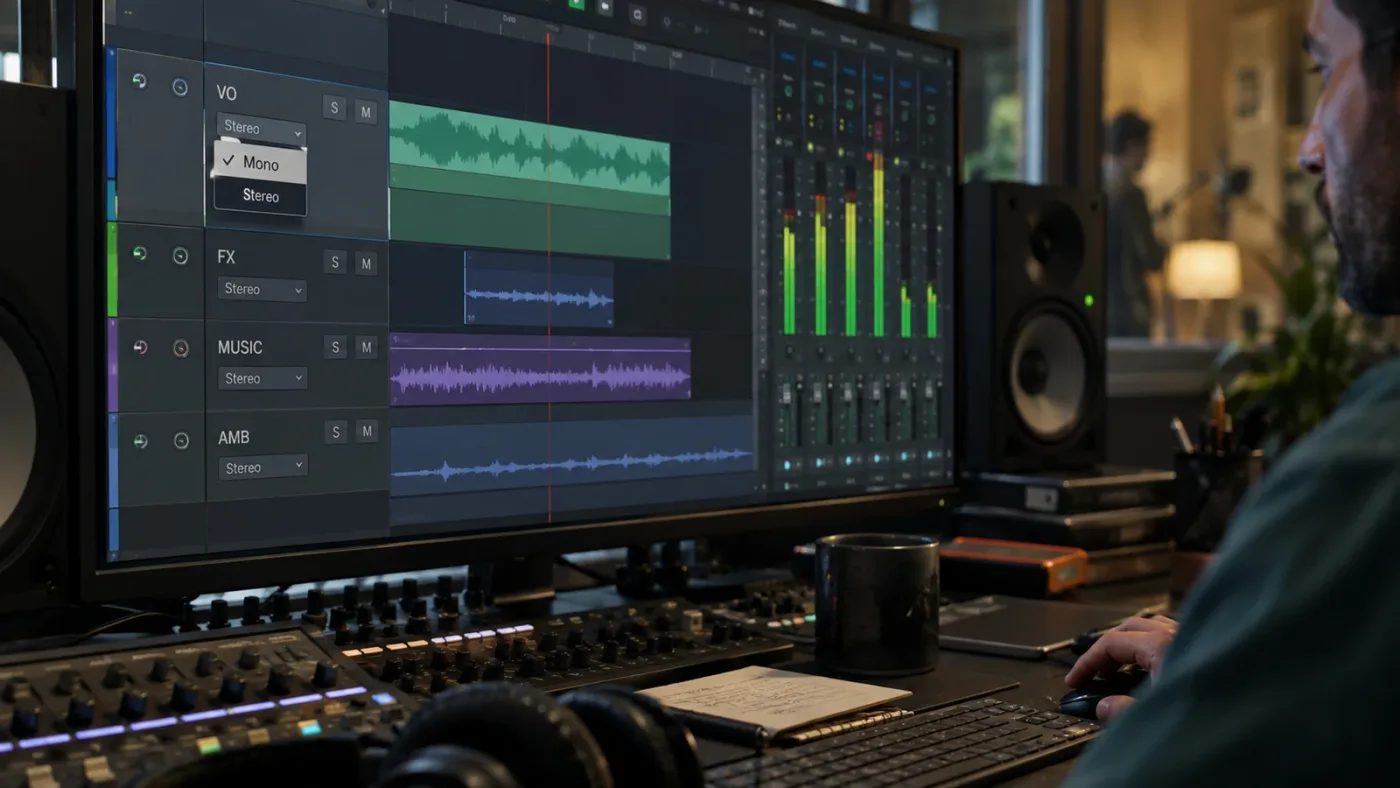
If only one side is still silent after the source is mapped to mono, the timeline track is the next suspect. A mono clip on a stereo track can be heard from only the left side, according to Blackmagic's Fairlight guide, so make the track format match the clip or explicitly route the mono signal to both sides.
Check these points in order:
- Select the audio track header and inspect its channel format.
- If the track is stereo, use the track's context menu to change its type to Mono, when that suits the project.
- Check the clip pan and track pan. A hard-left or hard-right pan can make a healthy mono signal sound like a missing channel.
- Check mute and solo states on the clip, track, and bus.
- Watch the track meter and bus meter while the clip plays. Signal on the track but not the bus points to routing or bus-state trouble.
- Play a known-good stereo clip in the same output path. If it is also one-sided, the problem is not this source clip.
Changing a track type is not the same as changing Clip Attributes. Clip Attributes decides which embedded source channels feed the clip. The track type decides how that clip is carried and mixed in the timeline. Both levels have to agree.
If you need to keep the track stereo, use a stereo mapping that feeds the working embedded channel to both sides. The Blackmagic Design forum documents this approach for a stereo clip with audio present on only the left channel: assign that useful source to both left and right. Treat that as a deliberate duplication of the existing signal, not as a recovery of a missing recording. (Blackmagic Design forum: copying one stereo channel to both sides)
Do not use a stereo width plug-in or a gain boost as the first fix. Those tools can change level or presentation, but they cannot correct a source-to-track assignment you have not identified.
How do I repair a stereo clip if the good side must play from both speakers?
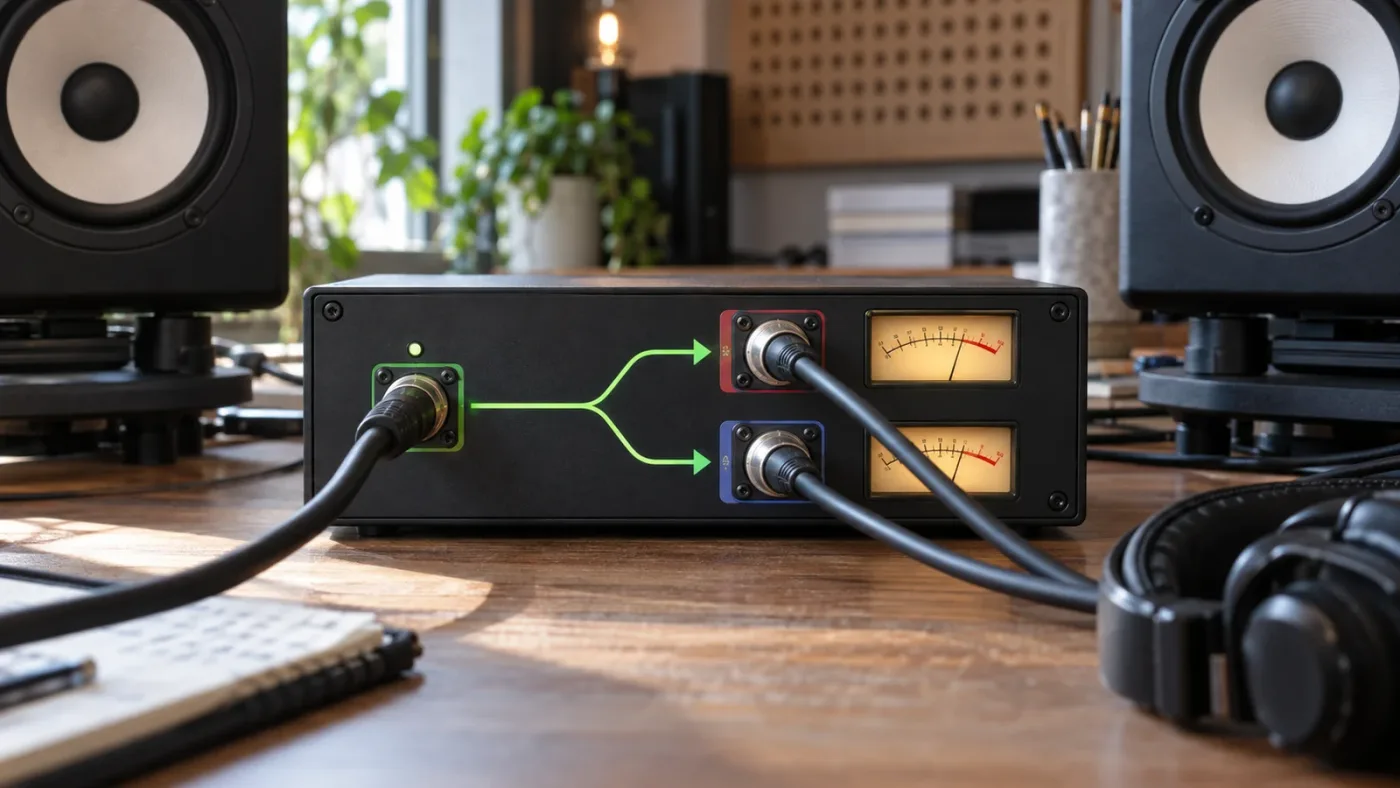
Map the good embedded channel to both left and right outputs, or convert the clip and track to mono. Use the first option when the timeline must retain a stereo track; use the second when the recording is really one-channel material and there is no reason to preserve a two-sided container.
For an existing stereo timeline, map the same working embedded channel to both left and right destinations. This duplicates the recorded signal without changing the track type.
The mono method is easier to understand later. The clip has one channel and the track has one channel, so the bus can place that mono track in the center of the stereo listening field.
Use the duplicate method when:
- the audio track already contains a mix of stereo clips and you do not want to change its type;
- the delivery timeline expects a stereo track layout;
- you have verified that one source channel is the complete recording.
Use the mono method when:
- the clip is dialogue, narration, a single lav, or a single camera microphone;
- one embedded channel is empty or unusable;
- you want a predictable center image in future edits.
Neither method is appropriate when the silent side should contain a different person, instrument, or ambience. In that case, find the original source, map both channels separately, and mix them instead of hiding the second source.
What if only one channel is silent in the original recording?
DaVinci Resolve cannot reconstruct audio that was never recorded.
If the original media has a flat channel, choose the usable channel, duplicate it to both sides when required, or return to the camera, recorder, or external audio source for a replacement.
There are three different kinds of silence:
A channel that was never used
Some cameras and recorders create a two-channel file even when one input was empty. The waveform on one side stays flat from start to finish. Map the live channel as mono.
A channel that failed during part of the take
If the side is healthy for the first half and flat for the second, do not convert the whole file without listening. You may need to use the good channel for the complete take, patch the damaged passage from another recording, or keep two channels so you can make a time-based decision.
A channel that is present but very quiet
A quiet channel is not the same as a silent channel. Check the meters and listen before discarding it. Raising gain, normalizing, or repairing noise may be appropriate when the waveform is present. Those are audio-restoration decisions, not channel-mapping decisions.
If this clip came from a multicam, synced clip, compound clip, or nested timeline, inspect the source that created it. A timeline wrapper may show a channel arrangement that does not tell you how the original media was recorded. For a deeper sync problem, use How to Sync Audio in DaVinci Resolve, Every Method, but do not confuse sync drift with a silent channel. Sync changes timing. It does not create a missing waveform.
Does DaVinci Resolve 21 change the one-silent-channel fix?
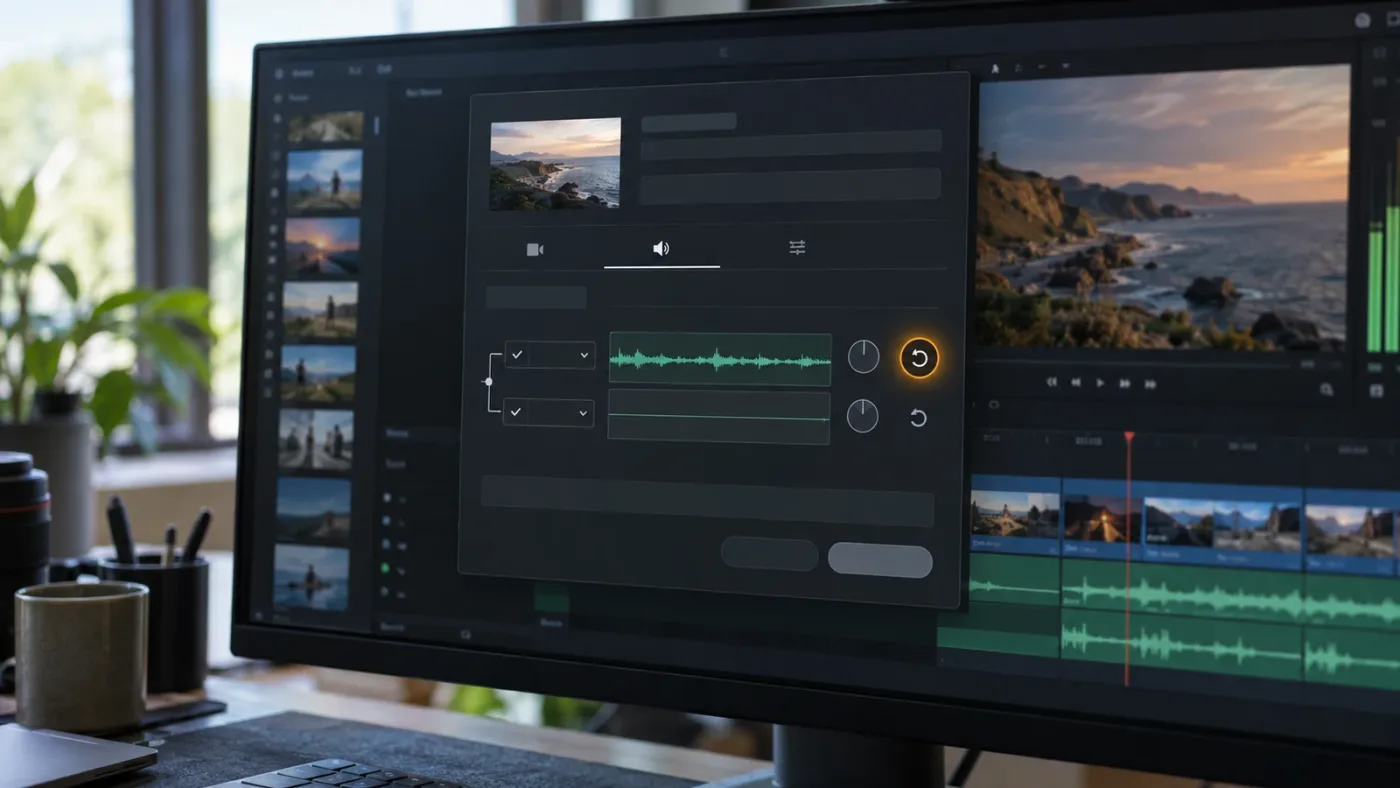
DaVinci Resolve 21 keeps the same core Clip Attributes and channel-mapping logic, but it adds a reset icon for audio clip attributes. That reset is useful when an earlier remap, sync operation, or project handoff left a clip with an unexpected channel presentation. (DaVinci Resolve 21 New Features Guide)
In Resolve 21, use the reset control when you want to return the clip's audio attributes to their original state before diagnosing it again. Then inspect the embedded channels and make one deliberate change. Do not reset blindly after you have built a useful custom mapping, because the reset removes that custom presentation.
The version distinction is small but useful:
| Resolve version context | What to know |
|---|---|
| DaVinci Resolve 21 | The New Features Guide documents a reset icon in Clip Attributes for returning audio attributes to their original state. |
| DaVinci Resolve 20 | The Fairlight guide documents the mono-versus-stereo track behavior and source-channel workflow used in this repair. |
| Older projects | Menu labels and panel placement can differ, so use the same channel logic even if the button is in another place. |
Blackmagic's current product materials present DaVinci Resolve 21 as the current major release. The repair is still about mapping source channels to the correct clip and track format, not about applying a new Fairlight effect. (DaVinci Resolve 21 product page)
Is an app that helps me while using DaVinci Resolve useful for this fix?
An on-screen helper is useful when you understand the symptom but cannot find Clip Attributes, the Audio tab, or the track-format menu in your own version of Resolve. It is not a substitute for checking the source meters, because no assistant can restore a channel that the recorder never captured.
For this narrow problem, the choices are different:
| Option | Best use | Honest limitation |
|---|---|---|
| Blackmagic's manuals and Fairlight guides | Learning the channel model and checking version-specific controls | You still have to translate the instructions onto your own timeline |
| YouTube or a course | Seeing a complete workflow from start to finish | The example project may not match your clip, version, or audio routing |
| Sottocut, PremiereCopilot, heyeddie.ai, or cutagent.ai | Exploring tools that automate edits or answer project questions | They are not the same as a tutor that points at the exact Resolve control while you work |
| TryUncle | Finding the control in your current Resolve window while you keep editing | It can point to the setting, but you still need to choose whether mono or stereo is correct for the recording |
“AI tool to learn DaVinci Resolve” can mean two different things. Some tools automate an editing task. An app that helps you while using DaVinci Resolve can show you where the control is and leave the decision with you. TryUncle belongs in the second category. (The Best AI Tools to Learn DaVinci Resolve in 2026)
We run a 100,000+ member professional video-editing community, have more than 7 years of professional commercial video-editing experience, have taught more than 100,000 students on Udemy as an official Udemy Business Partner, and have taught and worked with Fortune 500 companies. That experience is why we keep this fix centered on signal flow: first find the live channel, then decide how it should reach the listener.

If you want help locating the control in your own project, TryUncle is the on-screen assistant for DaVinci Resolve on Mac and Windows. Uncle points at the setting while you make the repair.
How do I verify the fix before I export?
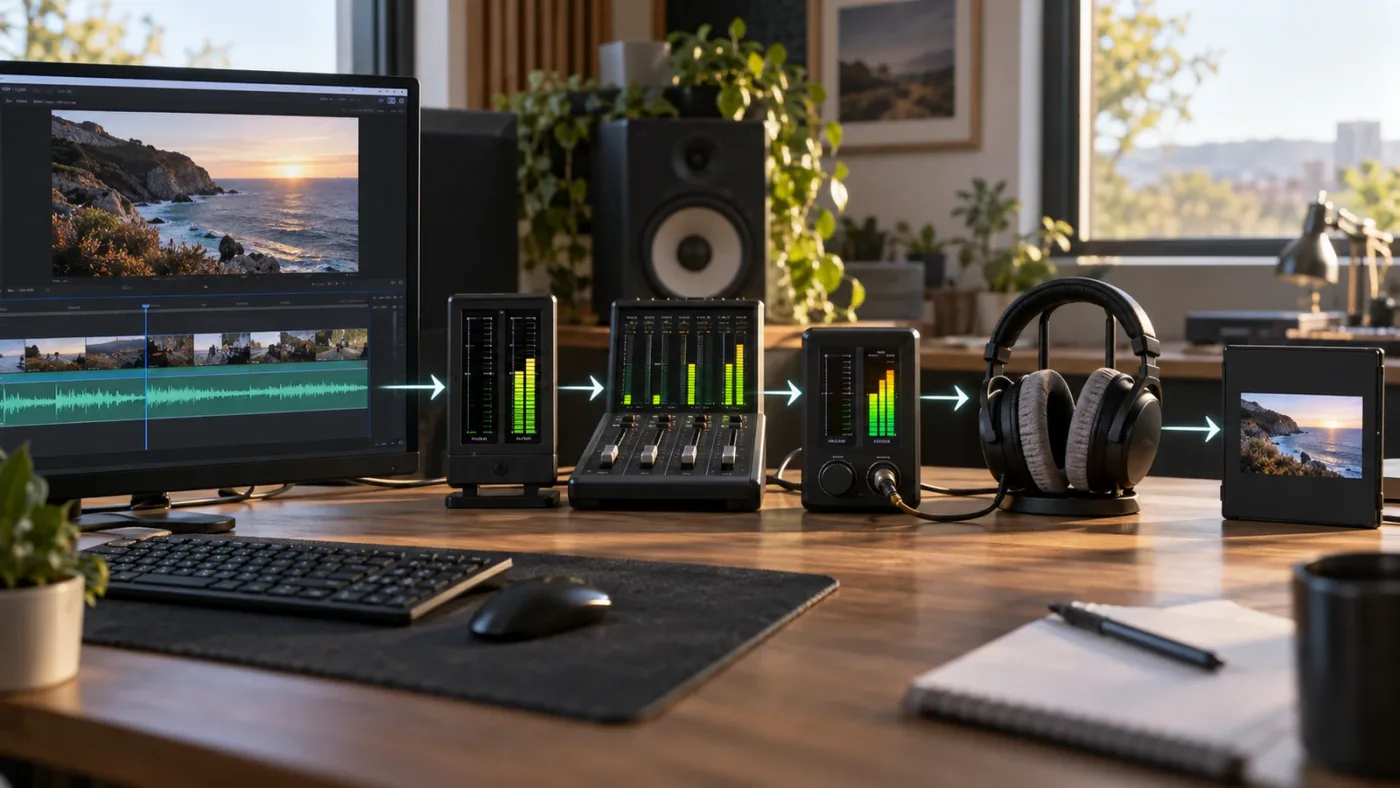
Verify the repair at the source, track, bus, and rendered-file levels. A clip can sound correct in the timeline and still fail after an export if the output route or channel layout is wrong.
Use this final check:
- Play the repaired clip with the meters visible.
- Confirm the selected source channel has activity.
- Confirm the timeline track receives activity.
- Confirm the main bus receives activity on the expected sides.
- Listen in headphones, then on the speakers you normally use for delivery.
- Render a short test section and play the rendered file outside Resolve.
- If the rendered file is one-sided but the timeline is not, inspect the delivery channel layout and monitor path.
If every clip is one-sided, this is probably not a single-clip mapping issue. Follow the output device and monitor checks in DaVinci Resolve Monitor Audio Wrong Output Device: The Fix. If only this clip is one-sided, return to Clip Attributes and compare its source-channel mapping with a known-good clip.
A short test render is the safest proof that the repair survived delivery.
You do not need to render the whole project to prove that a dialogue passage now reaches both sides.
What is the final fix for a DaVinci Resolve stereo clip with one channel silent?
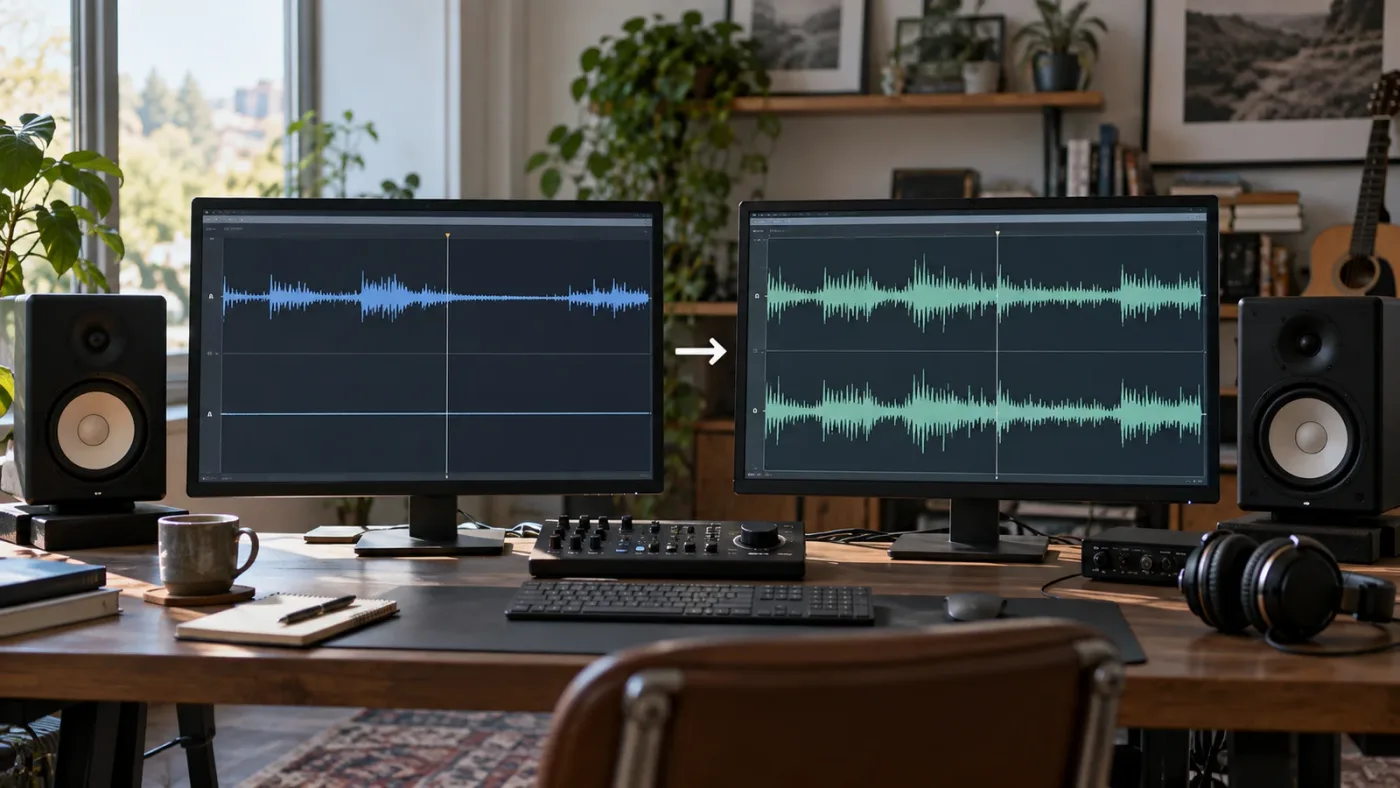
Find the channel with real signal, map that embedded channel as Mono in Clip Attributes, and place the clip on a mono track. If the timeline must stay stereo, map that same good channel to both left and right. Then verify the track, bus, and short render.
Frequently asked questions
- Why is one side of my stereo clip silent in DaVinci Resolve?
- The source may contain audio on only one embedded channel, or Resolve may be mapping a mono clip into a stereo track. In Clip Attributes, inspect the Audio tab, select the channel with signal, and map it as mono or to both stereo sides.
- How do I make a one-channel audio clip play in both speakers in DaVinci Resolve?
- Set the clip to Mono and map the working embedded channel, then place it on a mono track. If you need to keep a stereo track, map the same working embedded channel to both left and right outputs.
- How do I fix a stereo clip that is only playing on the left in Resolve?
- Check whether the clip is mono on a stereo track. Change the track to Mono or remap the clip in Clip Attributes, then confirm that the clip pan and track pan are centered.
- Can DaVinci Resolve restore a silent audio channel?
- No. Resolve can remap, duplicate, or center an existing channel, but it cannot recreate audio that was never recorded. Use the working channel or return to the original recording if the missing side contains unique material.
Sources
- DaVinci Resolve 21 product page
- DaVinci Resolve 21 New Features Guide
- The Fairlight Audio Guide to DaVinci Resolve 20
- DaVinci Resolve Fairlight channel mapping
- Shrinivas Ramani on audio clip attributes
- Blackmagic Design forum: copying one stereo channel to both sides
- Blackmagic Design forum: separate stereo channels into mono tracks
- The Best AI Tools to Learn DaVinci Resolve in 2026
Learn by doing, not watching
Stop translating tutorials to your timeline.
TryUncle stays beside Resolve on Mac and Windows. When you ask, Uncle sees your screen and points at the exact control you need. No hunting through tabs, timestamps, or mismatched tutorials.
Meet TryUncleKeep reading
 FixesJul 25, 202627 min read
DaVinci Resolve Audio Meters Not Moving: Every Fix
DaVinci Resolve's audio meters frozen or flat during playback? Here's every real cause, in check order: routing, patching, mute, and monitor style.
 FixesJul 23, 202623 min read
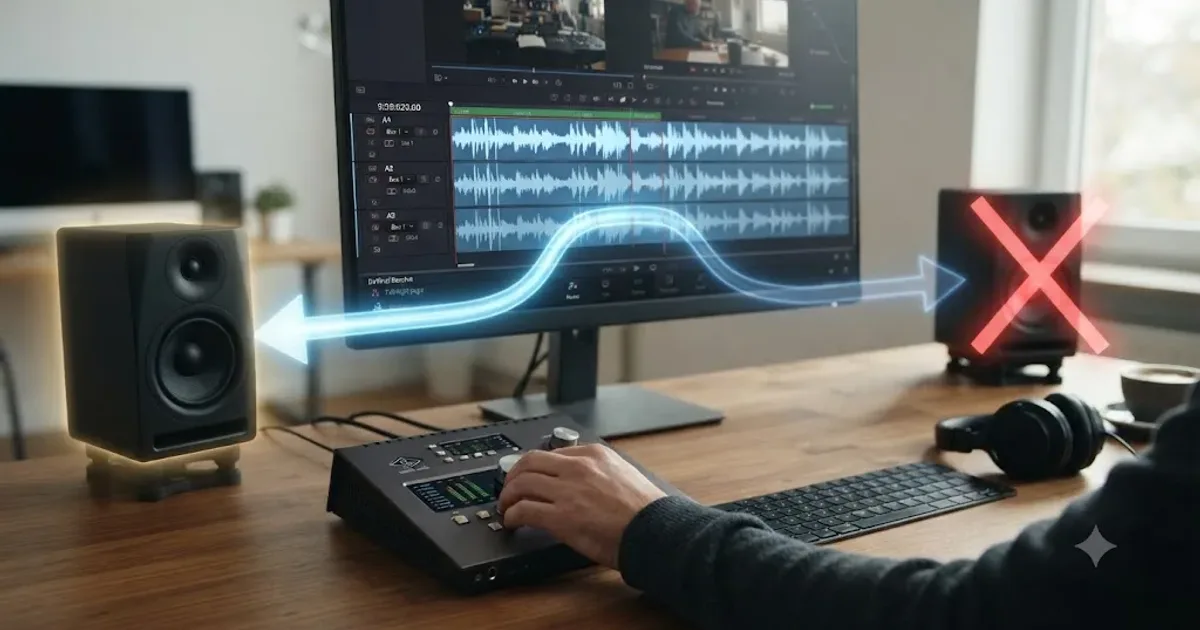
DaVinci Resolve Audio Going to the Wrong Output Device: The Fix
DaVinci Resolve sending sound to the wrong speakers, headphones, or HDMI monitor? Here's every setting that controls output routing, and the exact fix.
 ComparisonsJul 23, 202637 min read
TryUncle vs Clicky vs YouTube Tutorials for DaVinci Resolve
TryUncle, Clicky, and YouTube tutorials compared for learning DaVinci Resolve: an honest table on price, platform, and what each one actually does.