
Learn / DaVinci Resolveupdated for DaVinci Resolve 21.0.3 (July 2026)
DaVinci Resolve Audio Meters Not Moving: Every Fix
Quick answer
DaVinci Resolve's audio meters usually stay flat because a track isn't routed to a bus, a bus isn't patched to an output, a track is muted or soloed, or Input Monitor Style is wrong on an armed track. Check Bus Output routing first, then Fairlight > Patch Input/Output, then mute and solo states.
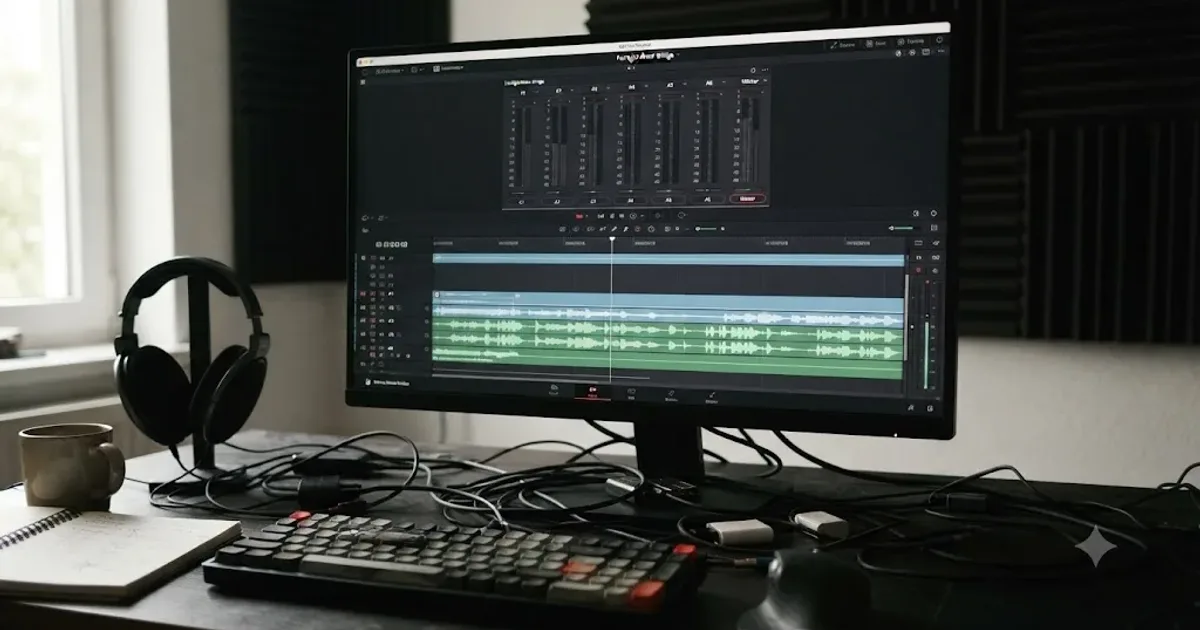
You press play. The timeline moves, the picture plays, and every meter on the Fairlight page sits dead flat, like the mix has been muted by a ghost. Or you're recording, the track is armed, you're talking right into the mic, and the input meter doesn't so much as twitch.
After seven years of cutting commercial work in Resolve, and running a 100,000+ member editing community where this exact question comes up on a regular basis, we can tell you the one thing this almost never is: a broken app. A flat meter is DaVinci Resolve reporting, accurately, that no signal is currently reaching that specific point in the chain. Your job is finding which point. Below is every real cause, checked in the order that clears the most cases fastest.
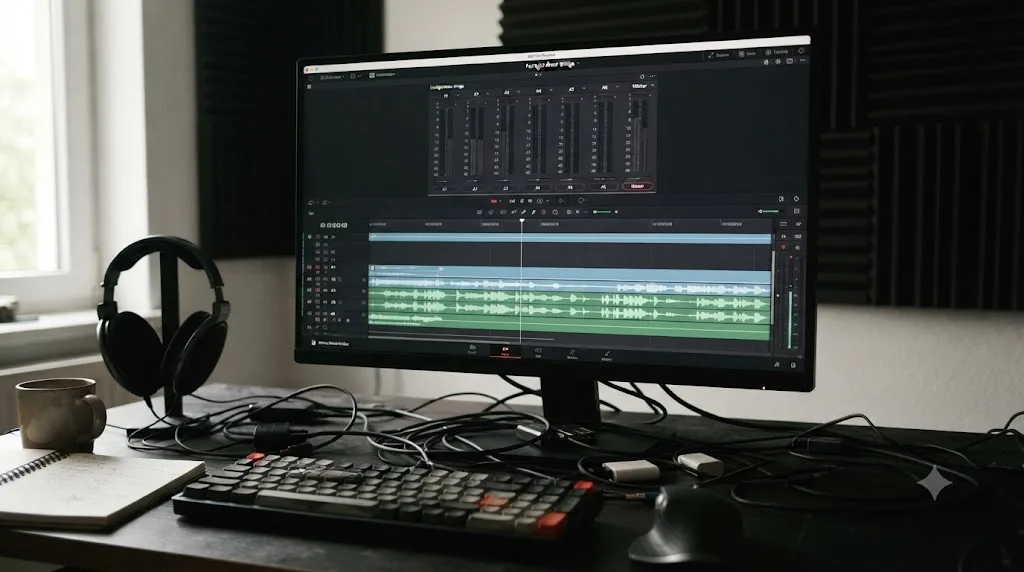
Why are DaVinci Resolve's audio meters not moving?
A meter that won't move means no signal is currently reaching that meter's position in the audio chain, and that position is almost always one of several places: an unrouted track, an unpatched bus, a muted or soloed track, a clip with its own channels muted, a compound clip that never mapped its audio to Bus 1, the wrong Input Monitor Style on an armed track, or a speaker configuration mismatch in Preferences.
This isn't one bug wearing many disguises. It's several genuinely separate settings that all happen to produce the identical visible symptom, a flat bar where you expect movement. That's exactly why this problem generates so many Blackmagic Forum threads with near-identical titles and completely different accepted fixes inside them. At least five separate threads on the forum carry titles like "No audio and meters aren't moving", "Audio Meter not working", "No Audio not even meters working", and "No Audio - Meters show nothing - after upgrading to studio", and each one traces back to a different link in the chain.
A flat meter in DaVinci Resolve is a report, not a malfunction. It's telling you the truth about where the signal currently is, which is usually nowhere near where you assumed it would be. Once you accept that, troubleshooting stops being guesswork and starts being a checklist.
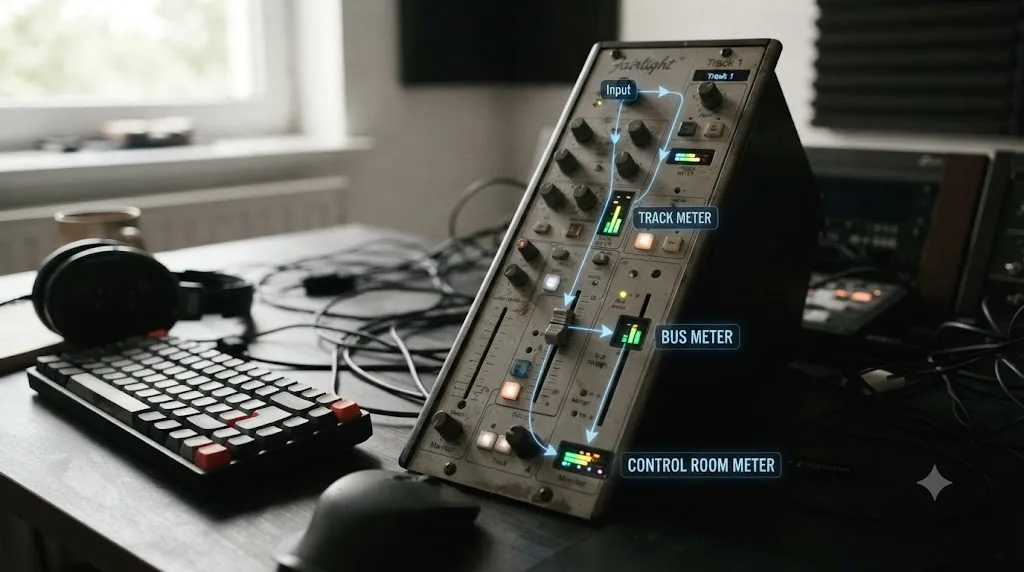
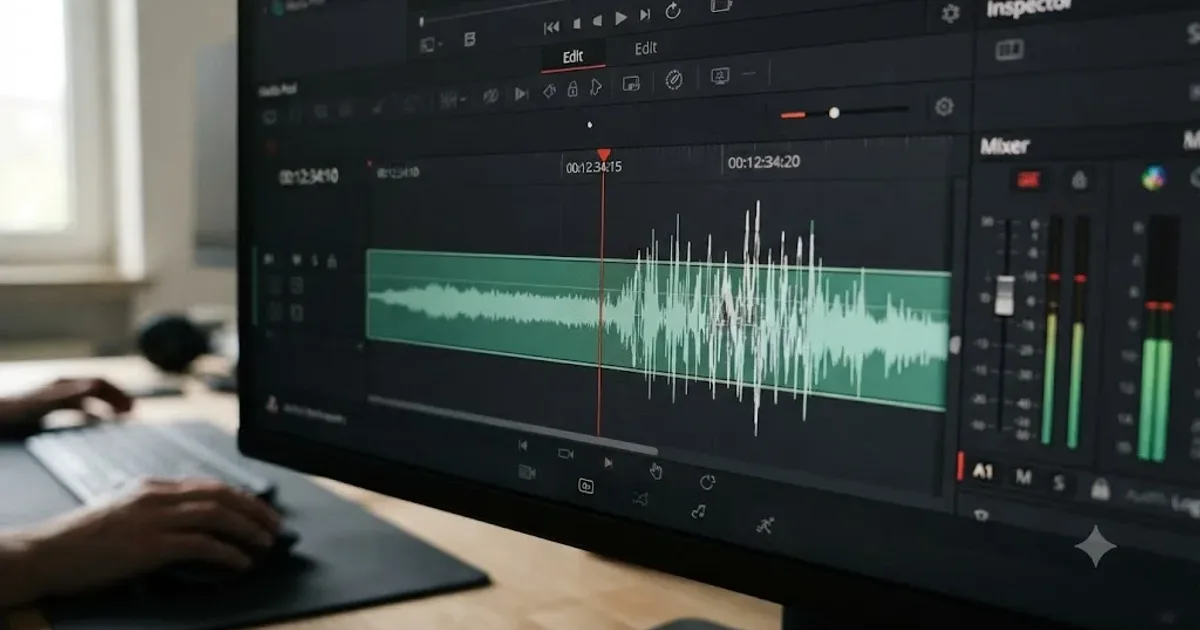
The DaVinci Resolve manual describes what the Meters panel is supposed to be showing you in the first place: "The Meters panel, which appears at the top of the Fairlight page when it's enabled, provides a visual reference of the levels of each track in your mix, along with specialized meters showing the busses, monitoring mix, loudness, and a Viewer for seeing the video of the current project as you work," according to the DaVinci Resolve manual's chapter on Audio Meters and Audio Monitoring. Notice how many separate meter types are packed into that one sentence: track meters, bus meters, a monitoring mix meter, and a loudness meter. A fix that clears a frozen track meter won't necessarily touch a frozen bus meter, because they're reading different stages of the same signal path.
Is there actually no audio, or just no meter movement?
Run this test before you touch a single setting, because it decides which half of this guide applies to you. Put on headphones, or turn your speakers up, and play the section of timeline where you expected meter activity. Actually press play. Don't just drag the playhead back and forth to check, since that's a different behavior covered further down.
If you can hear sound and the meter still looks flat, you have a display or metering problem, not a signal problem, and it's usually a Meter Type mismatch or a Loudness Meter glitch, both covered further down. If you hear nothing at all and the meter is flat, the meter is correctly reporting silence, and the real problem is upstream: routing, patching, mute, or monitor style.
Hearing nothing and seeing a flat meter is not two problems. It's one problem showing up in two places at once. Chase the actual silence first. The meter will start moving on its own the moment real signal reaches it, without you touching a single metering preference.
Why does a track's meter stay flat while the timeline plays?
Usually because that track was never routed to a bus in the first place. In DaVinci Resolve's Fairlight page, a track's meter and the meter of the bus it feeds only light up once a routing assignment actually exists between them, and a freshly created or imported track doesn't always inherit one automatically.
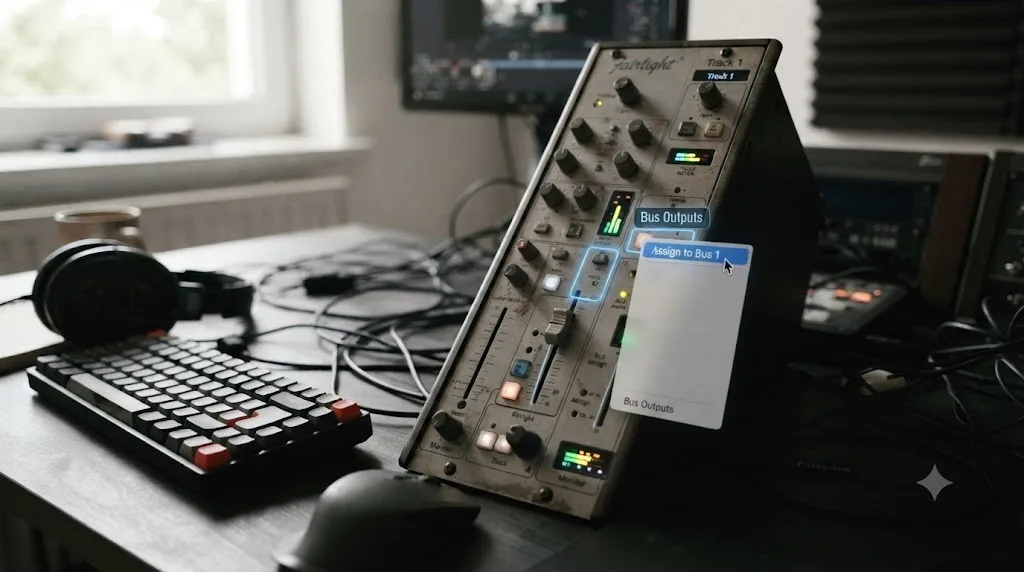
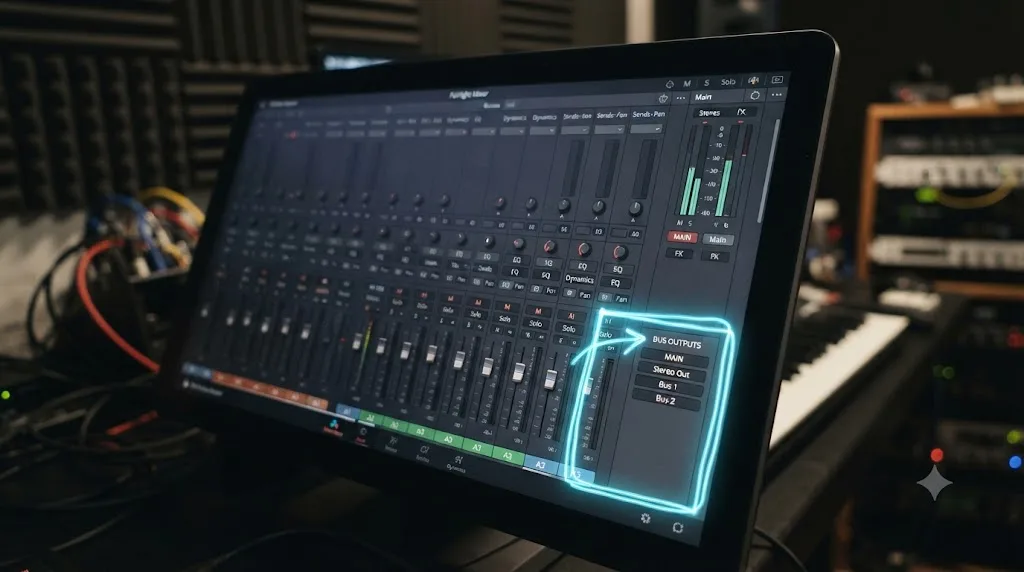
The fix, confirmed across multiple troubleshooting write-ups covering this exact symptom, is to open the Fairlight Mixer, find the track in question, and check its Bus Outputs field just above the meter. For a normal stereo project, click the plus button next to Bus Outputs and assign the track to Bus 1, the same bus your Control Room is monitoring. Once that assignment exists, the track's own meter and Bus 1's meter both start reflecting real signal the next time you play the timeline.
An unrouted track produces a permanently flat meter that looks identical to a broken one, and it isn't broken at all. It simply has nowhere to send its signal yet. This is the single most common cause of a flat individual track meter, ahead of anything involving drivers, hardware, or corrupted preferences.
How is patching different from routing, and why does it matter here?
Routing and patching solve two different problems that both happen to sit inside the Fairlight page, and confusing them is the second most common reason a meter stays flat after routing is already correct.
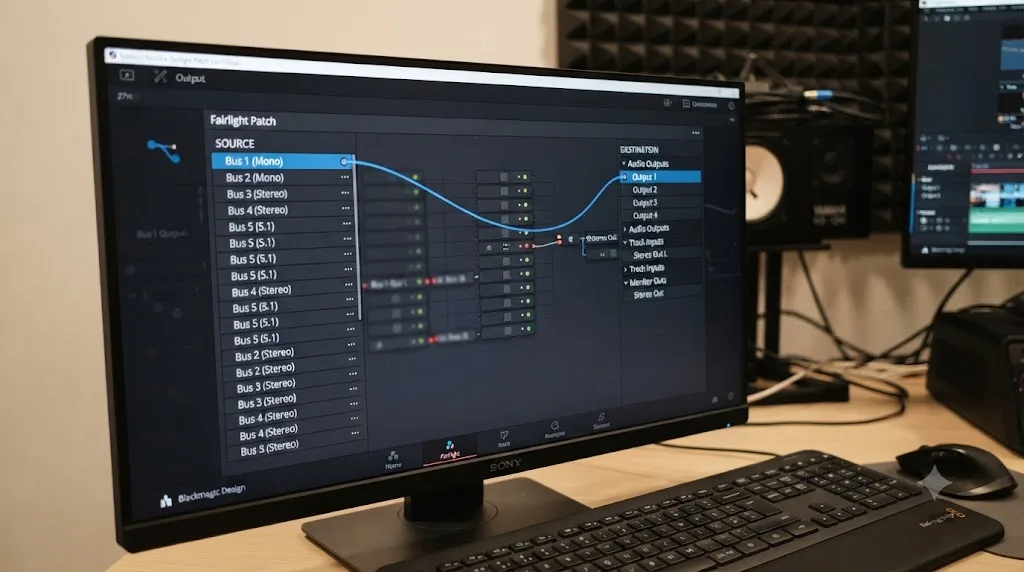
Routing decides which bus a track's signal reaches. Patching decides where that bus's signal physically leaves DaVinci Resolve, whether that's your built-in speakers, an audio interface, or a monitoring device. A track can be perfectly routed to Bus 1, and Bus 1 can still be patched to nothing, or patched to hardware you're not actually listening through, which produces a bus meter that moves correctly while you hear nothing and, depending on your monitoring setup, a Control Room meter that stays flat regardless of what the bus itself is doing.
To check patching, open Fairlight > Patch Input/Output. Set the Source dropdown to Bus Outputs and the Destination dropdown to Audio Outputs, then confirm the left and right channels of the bus you're monitoring are patched to the device you're actually listening through.
| Step | What it controls | Where to check it |
|---|---|---|
| Routing | Which bus a track's signal reaches | Fairlight Mixer, Bus Outputs field on the track |
| Patching | Which physical output a bus reaches | Fairlight > Patch Input/Output |
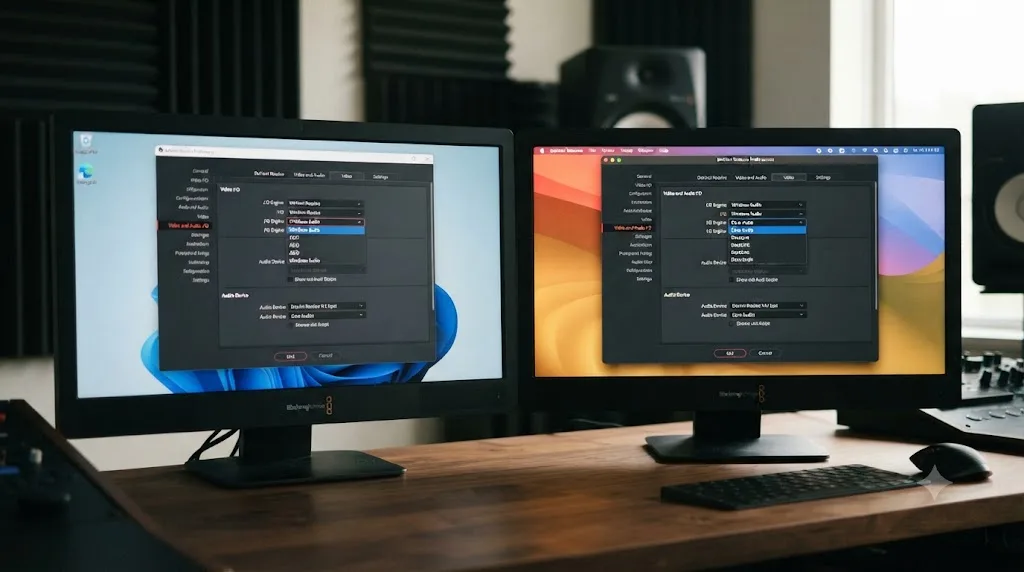
| Speaker configuration | How many channels Resolve expects, and how meters map to them | Preferences > System > Video and Audio I/O |
Routing and patching are two separate steps, and DaVinci Resolve will not warn you when one of them is missing. A project can look completely correct in the Mixer, with every fader and bus label exactly where it should be, and still produce silence and flat meters because the patch to hardware was never made.
Why do Control Room meters stay flat while individual track meters move fine?
This split symptom, where every track meter is clearly alive but the master Control Room meter refuses to react, points at something further downstream than routing or patching: your speaker configuration.
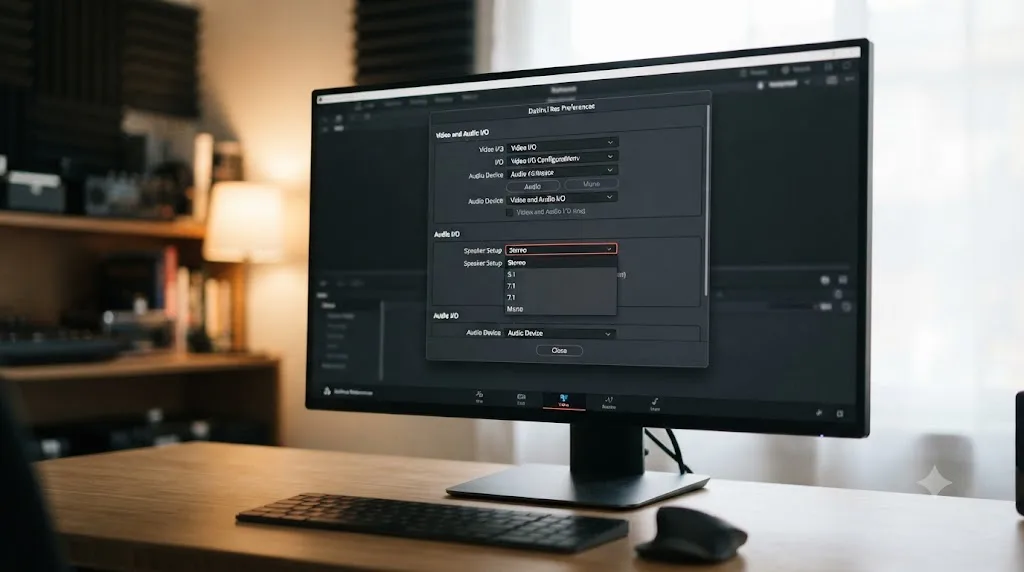
A real case of this played out on the Creative COW forum, in a thread specifically about Fairlight bus format. David Baud, a colorist and finishing editor at Kosmos Productions, described the exact symptom: "Control Room meter in the EDIT page does not show 5.1 tracks out," and wondered aloud whether it was a bug. It wasn't. Simon Ubsdell identified the actual cause in the same thread: the control room's channel configuration is set in the Video and Audio I/O preferences panel, not inside the Fairlight page's own bus format settings, and the project's speaker configuration there needs to match the channel layout you're actually trying to monitor, in this case 5.1 rather than the default stereo. Editor Oliver Peters confirmed the fix worked once applied: "Bingo. That's it."
A track meter and a Control Room meter can disagree because they're reading two different points in the signal chain, not because one of them is broken. If you're working on anything beyond a plain stereo mix, surround, a multichannel dialogue stem setup, or an unusual channel count, check Preferences > System > Video and Audio I/O and confirm the speaker configuration actually matches your project before you assume Fairlight's routing is at fault.
Why don't Fairlight meters move even though a track is armed?
This is a different problem from playback meters staying flat, because it happens while you're recording, not while you're playing back an edited timeline. You've patched your microphone, armed the track, the red R button is lit, and you're speaking, singing, or playing directly into the mic, and the input meter just sits there.
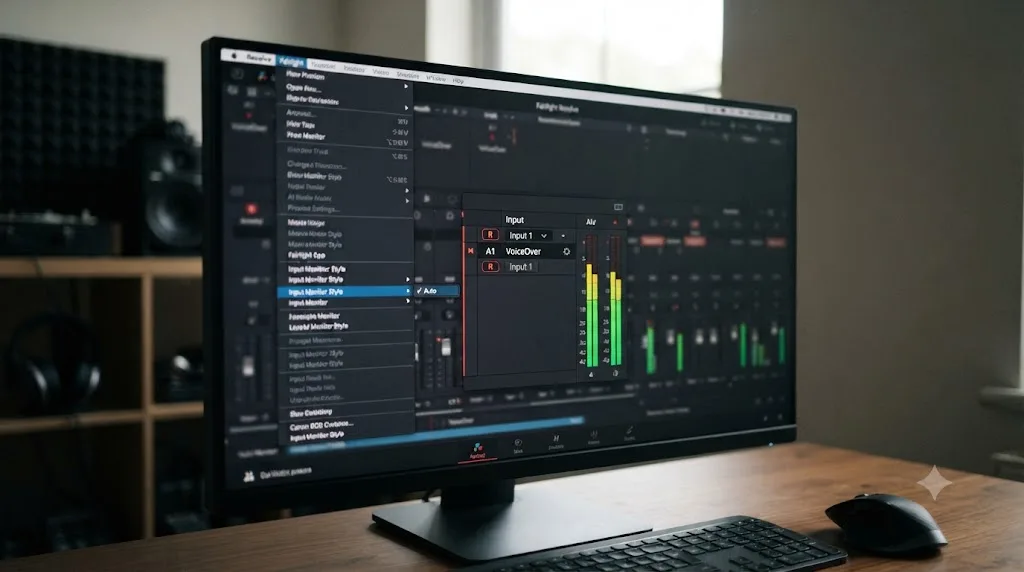
The setting responsible lives in the Fairlight menu, under Input Monitor Style. This controls whether the live signal coming into an armed track actually passes through to that track's meter and to your monitoring output while you're recording, as opposed to only appearing after the take is captured. If Input Monitor Style is set to something other than the option that passes live input through, usually labeled Auto, you can have a correctly patched, correctly armed track that still shows no meter activity at all during the take itself.
This is a large enough source of confusion that it has its own dedicated Blackmagic Forum thread, titled "fairlight input monitor style 'mute' while keeping meters?", where editors specifically ask how to keep meters live while muting the actual monitored sound, which tells you how tightly meter visibility and audio monitoring are tied together in this one setting.
If you're setting up a multi-mic recording session rather than troubleshooting an existing one, our guide to recording a podcast in DaVinci Resolve using Fairlight walks through patching, arming, and monitoring from a blank project, including the related failure where the Arm button itself is greyed out.
A correctly armed, correctly patched track can still show a flat input meter if Input Monitor Style is set wrong, and nothing about the Arm button's red glow will tell you that. The two settings look related on the surface and are actually independent of each other.
Why did my meters freeze right after upgrading to DaVinci Resolve Studio?
This one has its own named thread on the Blackmagic Forum: "No Audio - Meters show nothing - after upgrading to studio." The pattern is specific enough to be worth calling out separately from a generic freeze: everything worked before the upgrade, and the moment the Studio license activated, meters across the board go flat.
The most likely explanation isn't anything about the Studio license itself, since Studio doesn't touch audio routing or metering permissions differently from the free version. It's that an in-place version upgrade sometimes fails to carry your audio device selection cleanly, leaving Preferences > System > Video and Audio I/O pointed at a device that no longer matches what your system actually has connected, or at a speaker configuration that got reset to a default during the install.
The fix is the same one covered in our guide to DaVinci Resolve sending audio to the wrong output device: reopen that Preferences panel and manually reselect your Output Device and speaker configuration rather than trusting whatever the installer carried over. Don't assume the upgrade preserved a setting correctly just because it didn't throw an error.
An upgrade that completes without an error message has not necessarily preserved every audio preference correctly. Silent success and silent misconfiguration look identical until you actually open the panel and check.
Do mute, solo, or DIM explain a meter that won't move?
Check these before anything more involved, because they're the fastest to rule out and the easiest to forget you set.
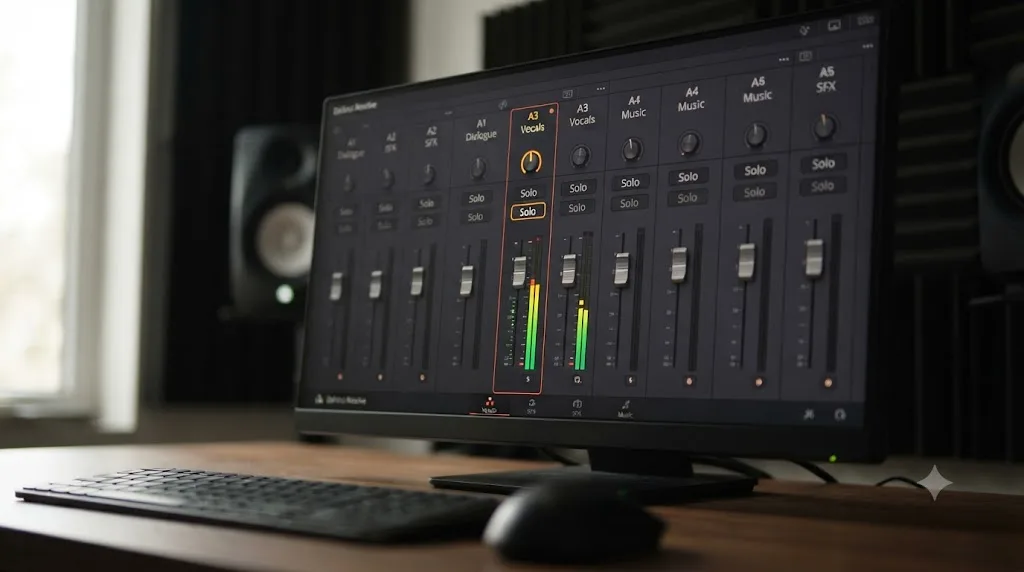
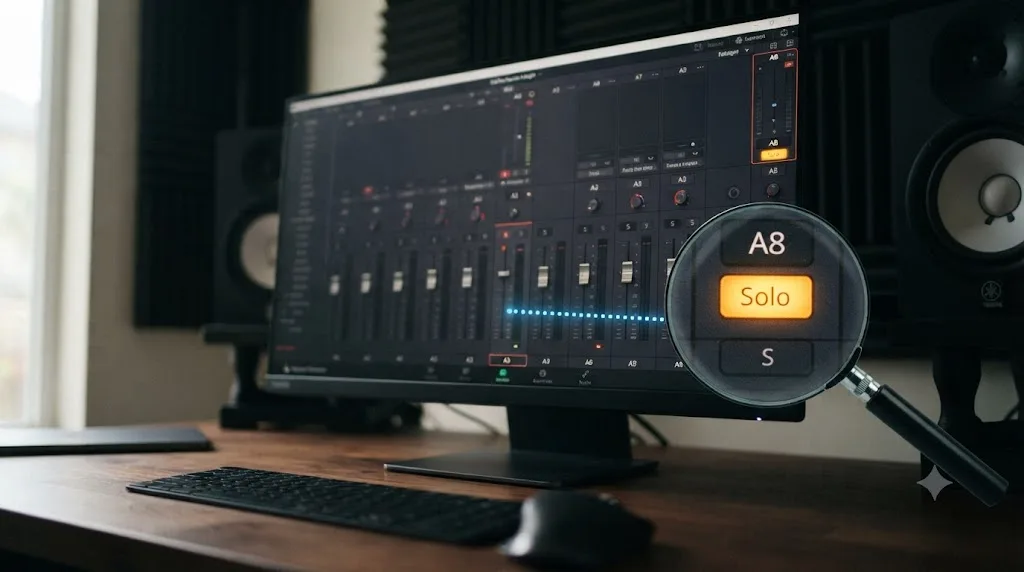
DaVinci Resolve's manual is direct about what Mute and Solo actually do: "Solo: Mutes all tracks other than ones that are soloed. Mute: Disables that audio track. When you use the Mute or Solo controls of the Audio Mixer, track audio is disabled both during playback and delivery for output," according to the manual's section on muting and soloing tracks for output. A muted track's meter goes flat because the track is genuinely disabled, not because anything is broken. And if any other track on the timeline is soloed, every track you didn't solo gets muted automatically, including its meter, even if you never touched that specific track's own controls.
A single soloed track anywhere on your timeline silences the meter of every other track, whether or not you remember soloing it. This is the quiet cause behind a surprising number of "half my meters are dead" reports, since the soloed track itself looks and sounds completely normal, giving no visual hint that it's suppressing everything around it.
DIM is a different control entirely and worth separating out so you stop chasing it as a meter cause. DIM reduces your Control Room monitor volume by a user-defined amount, useful for quickly cutting playback level without changing any fader position. It does not mute anything and does not stop a meter from moving. If your meters are active but just quiet-sounding through your speakers, DIM is worth checking. If the meters themselves are flat, DIM isn't your culprit.
The manual also flags a consequence worth remembering before you export anything: "re-enabled any tracks you need before heading to the Deliver page," since a track muted for a quiet review pass stays muted straight through to your final render if you forget to turn it back on.
Could a single clip's audio channels be muted, without the track being muted at all?
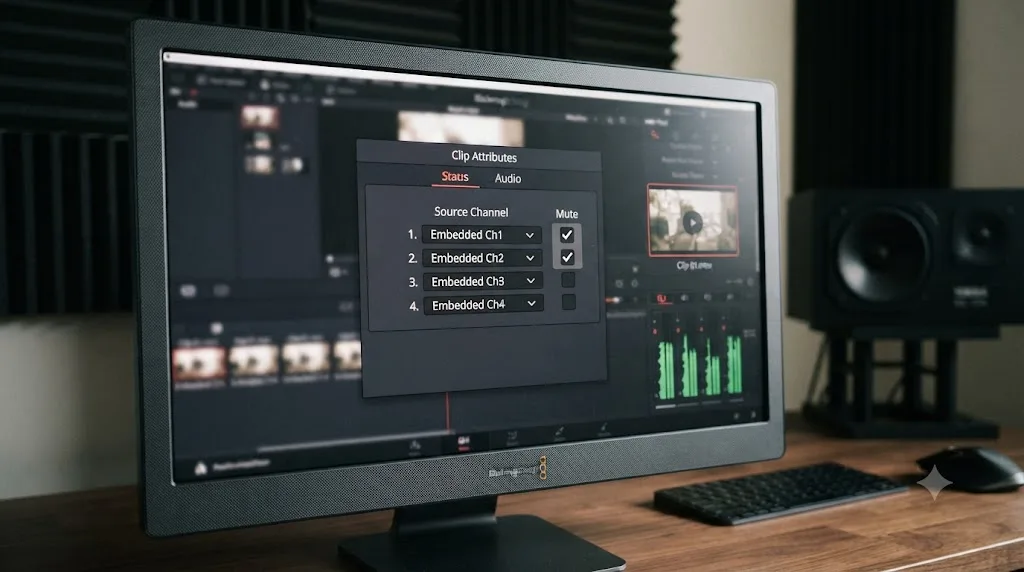
Yes, and this one hides especially well because nothing on the track header changes. Track Mute and Solo buttons are the obvious suspects, but DaVinci Resolve also lets you mute individual audio channels on a single clip, independent of anything at the track level.
That control lives in Clip Attributes. Right-click the clip in question, choose Clip Attributes, and open the Audio panel. According to the manual's chapter on assigning audio channels, you can, for example, choose "to mute the four individual microphone channels and only monitor the top mixdown channel," and this is "accomplished by setting channels 2-5 to mute." That's a legitimate, useful feature for a multichannel field recorder file where you only want the mixdown track active. It's also exactly the kind of setting an editor forgets they touched three weeks ago, on one specific clip, long after the reason for muting it has stopped mattering.
The giveaway is scope. A track-level mute silences everything on that track, every clip, every meter reading, for the whole timeline. A clip-level mute in Clip Attributes silences only that one clip, on a track where every other clip plays and meters normally. If your flat meter appears and disappears as the playhead crosses specific clips rather than staying flat for the whole track, stop looking at the Mixer and start right-clicking clips instead.
A track's meter can look perfectly healthy overall and still go flat for two seconds at a time, because one specific clip has its own channels muted in Clip Attributes. Track headers won't show you this. Only opening that clip's own Audio panel will.
Why is the meter flat only on a compound clip or a nested timeline?
Compound clips and nested timelines add a layer between the audio and Bus 1, and that layer doesn't always inherit routing the way you'd expect.
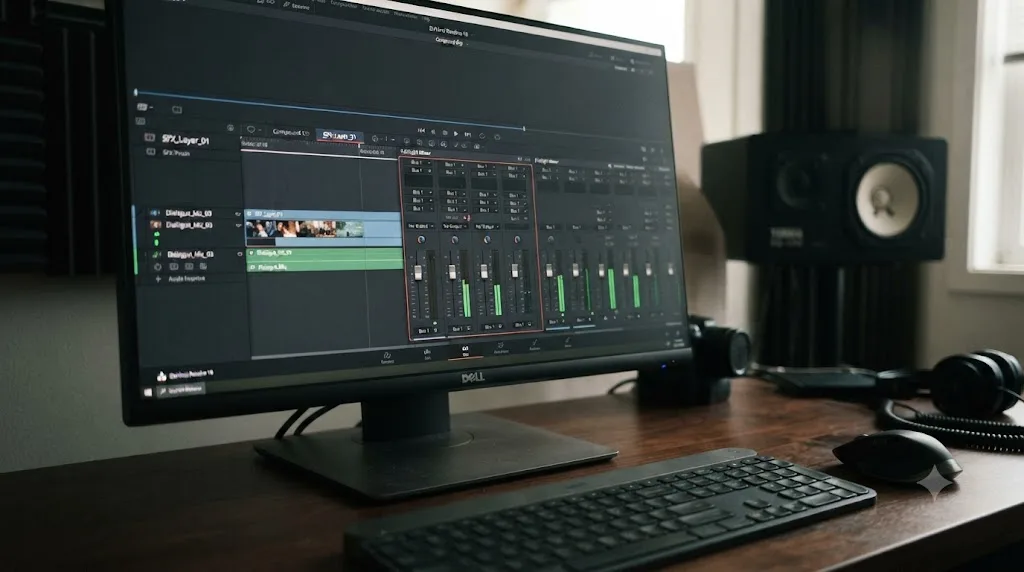
Multiple threads on the Blackmagic Forum describe the same pattern: a compound clip that plays fine when you open it and work inside it directly, but goes silent, meter included, the moment you back out to the timeline that contains it. Editors troubleshooting one such case, in a thread about a compound clip with no audio, traced it to the compound clip's internal audio never having been mapped to Bus 1 of that compound clip in the first place, especially when the compound clip contains more than one audio track. From the outside, on the parent timeline, that shows up exactly like every other flat-meter symptom in this guide: the clip is there, the picture plays, and nothing moves on the audio side.
The fix mirrors the routing check from earlier in this guide, just one level deeper. Double-click into the compound clip to open it as its own timeline, open the Fairlight Mixer inside that context, and confirm every audio track inside it is actually routed to that compound clip's own Bus 1. If the routing looks correct and the meter is still flat, the workaround multiple editors report using is unfolding the compound clip's audio back onto the main timeline as individual clips, which sidesteps the internal bus mapping entirely.
A compound clip or nested timeline is, from Fairlight's point of view, a small project living inside your project, with its own bus that has to be set up correctly. A flat meter on a compound clip is rarely about the parent timeline at all. It's almost always something unrouted one layer down, inside the compound clip itself.
Why don't meters move while you're scrubbing or shuttling through the timeline?
If you've been testing for sound by dragging the playhead back and forth instead of pressing play, this section might solve your entire problem in ten seconds.
DaVinci Resolve calls this behavior Audio Scrubbing, and it's controlled from Timeline > Audio Scrubbing, with the keyboard shortcut Shift-S. According to the manual's page on enabling and disabling audio scrubbing, "Audio scrubbing is enabled by default, meaning that you'll hear audio when dragging the playhead with the mouse back and forth." Plenty of editors turn it off on purpose, since it can get distracting when you're focused on picture rather than sound. If someone, possibly you, three projects ago, turned it off, dragging the playhead produces silence and a flat meter, even though normal playback with the spacebar works completely correctly.
This is worth checking before anything else in this guide specifically because it's so easy to mistake for a genuine bug. You open a project, drag the playhead across a section to check something quickly, see nothing on the meters, and assume routing or hardware is broken. Press play instead, and the meters move exactly as expected.
If your meters only go flat while you're dragging the playhead, and move normally the instant you press play, the problem isn't a meter problem at all. It's a single toggle, Audio Scrubbing, and it takes one keystroke to fix.
What do the different Fairlight meter types show, and could the wrong one look "frozen"?
Sometimes a meter isn't flat at all, it's just responding in a way that doesn't match what you expect from the meter type you're used to, and reads as broken when it's actually working correctly under a different standard.
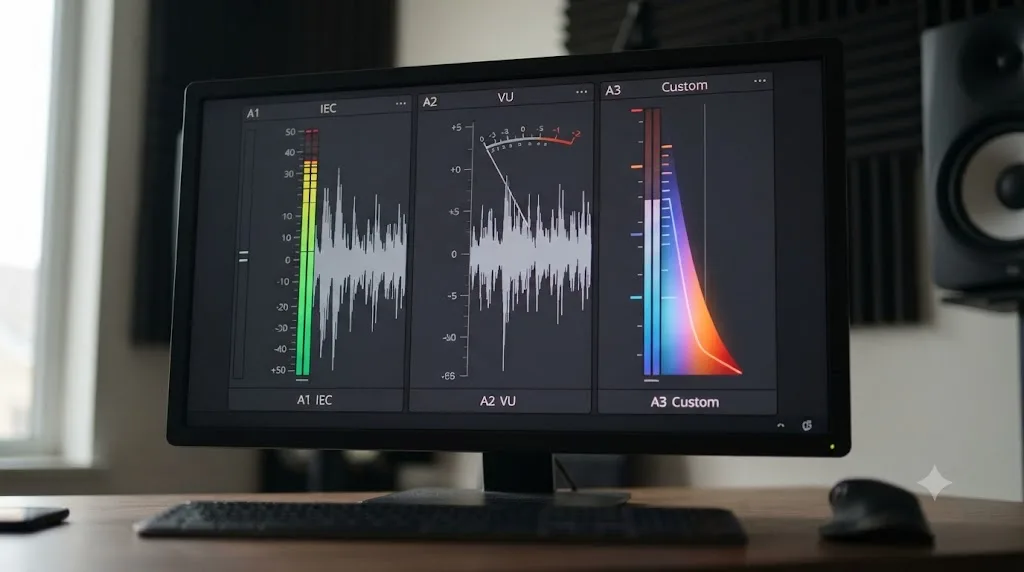
DaVinci Resolve's Fairlight page offers three Meter Type options, set in Project Settings > Fairlight, on the Audio Metering pane. According to the manual's page on Metering Options, these settings affect "mixer, Fairlight effects, or master metering on the Cut and Edit pages."
| Meter Type | What it shows | Behavior that can look "frozen" to the wrong eye |
|---|---|---|
| IEC 60268-18 | A digital PPM-type meter, reference standard of -18 dBFS, fast response to peaks, slower release | Default in Resolve. Its slower release can make quiet passages look like the meter is lagging behind the actual audio. |
| Digital VU | A dual-value meter: peak shown as a single fast segment, RMS shown as a bar graph | The RMS bar moves more slowly and smoothly than a PPM meter, which reads as sluggish if you're expecting IEC 60268-18 behavior. |
| Custom | Every aspect configurable: level detector, scale, peak, deck, and peak indication | Misconfigured custom settings, especially level detector, can produce a meter that barely moves even with strong signal present. |
A working professional's perspective is useful here, since the difference between "slow" and "broken" is exactly the kind of thing that trips up editors switching tools. Woody Woodhall, a Supervising Sound Editor and Rerecording Mixer writing for ProVideo Coalition, put it plainly: "The meters in Fairlight are comprehensive and allow the user to define various different measures with the click of a button," in his overview of Fairlight's features in DaVinci Resolve 17. That flexibility is the point, and it's also exactly why a meter set to an unfamiliar type can look wrong to an editor who hasn't gone looking for the Meter Type dropdown yet.
A meter reading correctly under an unfamiliar standard looks identical to a meter that's actually stuck, until you know which standard it's using. If your meters seem sluggish rather than completely flat, check Meter Type before you assume anything is broken.
Why do meters stop responding mid-session with no error at all?
This is the hardest version to diagnose, because nothing changed on purpose, no setting was touched, and no error message appeared. One meter, or every meter, simply stops reacting partway through a working session.
A real example of this played out on the DaVinci Resolve Forum, where a user posting as DavidOnEarth, running DaVinci Resolve 21, reported in June 2026 that the "Fairlight loudness meter doesn't seem to be working." No setting had visibly changed. The fix that eventually worked wasn't a settings change at all. In the user's own words: "It's fixed now. Black Magic, I guess. I closed the project. Opened previous project to find that it was working with that one. Then went back to my current project.... and now it's working."
That workaround, closing the project, opening a different one to confirm the app itself is functioning, then reopening the original project, is worth trying specifically when you've already ruled out routing, patching, mute, solo, and Input Monitor Style, and the meter still won't move for no apparent reason. It points at a session-level glitch in Fairlight's rendering of the meter display rather than a genuine configuration problem, and reloading the project resets whatever internal state got stuck.
If meters freezing coincides with Resolve becoming unresponsive rather than just quiet, that's a different and more serious symptom, closer to a Fairlight engine hang than a metering glitch, and it deserves a full restart rather than a project reload.
A meter that freezes with no error message and no obvious cause is often a display glitch in that session, not a configuration problem you need to hunt down and fix permanently. Closing and reopening the project costs you thirty seconds and clears a real share of these reports before you touch a single preference.
Symptom to cause: the fast lookup table
Use this table to jump straight to the likely cause instead of working through every section in order.
| Symptom | Likely cause | Where to look |
|---|---|---|
| One track's meter flat, others fine | Track not routed to a bus | Fairlight Mixer, Bus Outputs field |
| Bus meter moves, no sound, Control Room flat | Bus not patched to hardware | Fairlight > Patch Input/Output |
| Control Room flat, all track meters fine | Speaker configuration mismatch (common on surround projects) | Preferences > System > Video and Audio I/O |
| Every meter on one track flat, sound is silent there | Track muted, or a different track is soloed | Fairlight Mixer or track header |
| One clip silent, others on the same track play fine | Channels muted in that clip's own Clip Attributes | Right-click clip > Clip Attributes > Audio |
| Compound clip or nested timeline plays fine inside itself, flat on the parent timeline | Internal audio never mapped to that clip's own Bus 1 | Open the compound clip, check Bus Assign inside it |
| Flat only while dragging the playhead, fine on real playback | Audio Scrubbing turned off | Timeline > Audio Scrubbing (Shift-S) |
| Recording, track armed, input meter flat | Input Monitor Style not set to Auto | Fairlight menu > Input Monitor Style |
| Meters flat right after upgrading to Studio | Stale audio device or speaker config from the upgrade | Preferences > System > Video and Audio I/O |
| Meters look sluggish, not fully flat | Meter Type mismatch (IEC vs VU vs Custom) | Project Settings > Fairlight > Audio Metering |
| Meter froze mid-session, no error, no clear cause | Session-level display glitch | Close and reopen the project |
| Speakers sound quiet but meters move fine | DIM is engaged | Control Room panel |
Twelve distinct causes can produce a meter that looks flat or silent, and only one of them, a stuck session, doesn't have a permanent setting behind it. Work through the table top to bottom rather than trying every fix you've heard of in a random order.
Has Blackmagic actually fixed frozen meters in a recent update?
Partially, and it's worth knowing exactly what was and wasn't addressed so you don't assume an update alone will solve every cause in this guide.
DaVinci Resolve 21.0.1, a maintenance release, shipped a change described in release coverage as addressing "occasional Fairlight loudness meter issues," according to CineD's report on the 21.0.1 release. RedShark News recorded the same fix in near-identical language: "Addressed occasional issue with Fairlight loudness meters." That's specifically the loudness meter, the LUFS-style compliance meter, not the general track or Control Room level meters covered through most of this guide.
As of DaVinci Resolve 21.0.3, released in July 2026, the changelog reported by Newsshooter covers retiming, interlaced media, QuickSync encoding, and Fusion updates, with nothing further about metering specifically. That doesn't mean the routing, patching, mute, solo, or Input Monitor Style causes covered above have anything to do with a bug Blackmagic needs to patch. Those are configuration states, not defects, and no future update is going to auto-route an unassigned track for you.
Updating DaVinci Resolve can fix a loudness meter glitch. It cannot fix a track you forgot to route to a bus. Know which category your problem falls into before you spend time on an update that was never going to touch it.
What's different on Windows versus macOS for this specific problem?
Most of the causes in this guide are identical on both platforms, since routing, patching, mute, solo, and Input Monitor Style all live inside Fairlight itself rather than in anything operating-system-specific. A few differences are still worth knowing.
On Windows, DaVinci Resolve's I/O Engine setting, in the same Video and Audio I/O preferences panel as speaker configuration, adds ASIO as an option for editors using a dedicated audio interface. If your interface has its own ASIO control panel and you're getting flat meters specifically on Control Room or master output, confirm the I/O Engine is set to match your actual hardware setup, System Audio for standard playback or ASIO for a dedicated interface, per the manual's Video & Audio I/O section. A mismatch here can produce a Control Room meter that behaves exactly like the speaker configuration mismatch covered earlier, for a completely different underlying reason.
On macOS, the same panel offers System Audio, Desktop Video for Blackmagic capture hardware, and Fairlight Audio Accelerator for editors with that specific card installed. If you've recently added or removed any Blackmagic I/O hardware, that's worth checking before assuming a routing problem, since Resolve can quietly default the I/O Engine to hardware you didn't intend to use for monitoring.
Neither platform has a metering advantage over the other. The failure points differ slightly, which engine option applies, not what's actually wrong when a meter goes flat.
A worked example: how the checklist actually plays out on a real timeline
It helps to see the logic run start to finish, so here's a typical case worked through in order, the way you'd actually hit it while editing.
Say a dialogue track's meter sits flat while the timeline plays, and every other track looks and sounds normal. First, headphones on, press play, actually listen: there's genuinely no sound on that track, not just a missing meter. That rules out a display-only issue and points upstream.
Next, the Fairlight Mixer. The track's Bus Outputs field isn't empty, it's already assigned to Bus 1, same as everything else. Routing checks out, so that's not it.
Third, Patch Input/Output. Bus 1's left and right channels are both patched to the correct output device, matching every other bus on the project. Patching checks out too.
Fourth, scan every track header for Mute or Solo. Nothing on this specific track is lit red. But two tracks over, a reference music track has its Solo button on from a review session two days ago, and that's exactly what's silencing everything else on the timeline, including the dialogue track's meter. Turning off that stray Solo button brings every other meter on the timeline back to life immediately, dialogue included.
That's the entire diagnosis: not a bug, not a corrupted preference, not a driver issue. One forgotten Solo button, two tracks away from the one that looked broken. This is why the checklist runs in the order it does. Routing and patching get ruled out fast because they're either obviously right or obviously wrong once you look. Mute and Solo take one more step, because the culprit isn't always on the track that's actually silent.
The fastest path to moving meters again
If you're in the middle of a session and just want signal moving, work this list top to bottom rather than reading every section above first.
- Put on headphones and confirm whether sound is actually missing during real playback, not just while scrubbing. If you've only tested by dragging the playhead, check Timeline > Audio Scrubbing first.
- Open the Fairlight Mixer and check the affected track's Bus Outputs field.
- Open Fairlight > Patch Input/Output and confirm the monitored bus reaches your actual hardware.
- Scan every track header for a lit Mute or Solo button, on the flat track and on every other track.
- Right-click the specific silent clip and open Clip Attributes' Audio panel to rule out a channel muted at the clip level.
- If it's a compound clip or nested timeline, open it and check its own Bus Assign, or unfold its audio onto the main timeline.
- If you're recording, open the Fairlight menu and set Input Monitor Style to Auto.
- Open Preferences > System > Video and Audio I/O and confirm speaker configuration matches your project's channel layout.
- Close and reopen the project if nothing above explains what you're seeing.
- Update to DaVinci Resolve 21.0.1 or later if you're still on the initial 21.0 release.
Most sessions get resolved somewhere in steps two through four. Steps five and six are specific enough to individual clips and compound clips that most editors on a simple, flat timeline structure will never need them.
What if you're still stuck after all of this?
Everything above lives in a menu you have to already know exists to find it, and Fairlight spreads the relevant settings across at least four separate places: the Mixer, the Patch Bay, Clip Attributes, and System Preferences. That's the real reason this generates so many nearly identical forum threads with different accepted answers inside them. The problem isn't that any single fix is hard. It's knowing which of ten or so settings is the one actually responsible for what you're looking at.
TryUncle is the on-screen assistant for DaVinci Resolve on macOS. Ask in plain words and Uncle points at the exact control on your screen. If you've worked through this guide and you're still not sure whether your flat meter is a routing problem, a patching problem, a clip-level mute, or a speaker configuration mismatch, you can ask Uncle directly, by voice or by typing, and it looks at your actual DaVinci Resolve window and points at the specific setting involved, live, in your own project. It doesn't route tracks or change preferences for you. It's a paid macOS app at $39 a month, worth comparing honestly against the alternatives: tools like Sottocut, PremiereCopilot, heyeddie.ai, and cutagent.ai automate edits or answer chat questions about your footage, while Uncle's job is narrower, showing you where a control lives inside Resolve itself while you're stuck looking at it.
If your meters are frozen mid-session right now, the fastest single check is still the Bus Outputs field on the affected track's Mixer strip. Start there before anything else on this page.
The verdict
Start with routing and patching, since they explain the largest share of flat meters: an unassigned Bus Output on the track, or a bus that's never actually patched through to your hardware. If those check out, look for a lit Mute or Solo button anywhere on the timeline, not just on the track that's silent, and check whether the specific clip has its own channels muted in Clip Attributes. If you're working with compound clips or nested timelines, remember they carry their own internal bus that has to be routed separately. If you're recording rather than editing, Input Monitor Style is a separate setting from arming and needs its own check. And if a meter freezes with no error and no obvious cause, closing and reopening the project clears more of these than any preference change will.
A frozen meter in DaVinci Resolve is never actually random, even on the sessions where it feels that way. It's a small, fixed set of places where signal can fail to arrive, spread across the Mixer, the Patch Bay, Clip Attributes, and two different Preferences panels, and once you know all of them, a flat meter stops being a mystery and starts being a two-minute check.
Frequently asked questions
- Why are DaVinci Resolve's audio meters not moving?
- The most common causes, in order of likelihood, are a track that isn't routed to a bus, a bus that isn't patched to a physical output under Fairlight > Patch Input/Output, a track left muted or soloed from an earlier session, the wrong Input Monitor Style on a record-armed track, or a mismatched speaker configuration in Preferences > System > Video and Audio I/O. None of these are bugs. Each one is a setting with a specific fix.
- Why don't Fairlight meters move even though a track is armed?
- An armed track's input meter is controlled separately by Fairlight's Input Monitor Style setting, found in the Fairlight menu. If that's set to a style that doesn't pass the live input through to the meter and speakers, you can be correctly armed and correctly patched and still watch a flat meter while you speak. Setting Input Monitor Style to Auto resolves this for most editors.
- Why do Control Room meters stay flat while individual track meters move fine?
- Because they read two different points in the signal chain. Track meters show what's arriving on that track. Control Room meters show what's reaching your monitored output after bus routing and patching. On Creative COW's forum, colorist David Baud and editor Oliver Peters traced this exact symptom on a 5.1 project to the speaker configuration set in Preferences > System > Video and Audio I/O, not to anything inside the Fairlight page itself.
- Why did my audio meters freeze right after upgrading to DaVinci Resolve Studio?
- This is a documented pattern on the Blackmagic Forum, in a thread titled 'No Audio - Meters show nothing - after upgrading to studio.' An in-place upgrade can carry over a stale audio device preference or fail to re-detect your interface correctly. Reopening Preferences > System > Video and Audio I/O and manually reselecting your output device, rather than trusting whatever the upgrade carried over, clears it for most editors.
- Do mute, solo, or DIM explain a meter that won't move?
- Yes, and they're worth checking before anything more complicated. DaVinci Resolve's own manual states plainly that when you use the Mute or Solo controls, 'track audio is disabled both during playback and delivery for output,' which includes the meter for that track going flat. DIM is separate: it only lowers your Control Room monitor volume by a set amount, it doesn't stop the meter itself from moving.
- Has Blackmagic fixed the frozen meters bug in DaVinci Resolve 21?
- Partially. DaVinci Resolve 21.0.1 shipped a fix described as addressing an 'occasional issue with Fairlight loudness meters,' according to release coverage from CineD and RedShark News. That fix targets loudness metering specifically, not every cause of a flat meter covered in this guide. If you're still on DaVinci Resolve 21.0, updating to 21.0.3 or later is worth doing before you troubleshoot anything else.
- Do you need DaVinci Resolve Studio to fix meters not moving?
- No. Every setting in this guide, bus routing, Patch Input/Output, mute and solo, Input Monitor Style, and speaker configuration, is available in the free version. Studio adds Fairlight FX plugins and immersive mixing tools, not the underlying routing and metering system that's causing your meters to sit flat.
- Is there an app that helps you while you're actually using DaVinci Resolve to fix something like this?
- TryUncle watches your DaVinci Resolve screen and points at the exact control, whether that's the Bus Output assignment on a track, the Input Monitor Style menu, or the speaker configuration field in Preferences, if you're not sure where to look. Tools like Sottocut, PremiereCopilot, and cutagent.ai automate edits or answer chat questions about your footage; Uncle doesn't touch your project, it shows you where the fix lives on your own screen, live.
Sources
- Blackmagic Forum: No audio and meters aren't moving
- Blackmagic Forum: Audio Meter not working
- Blackmagic Forum: No Audio not even meters working
- Blackmagic Forum: No Audio - Meters show nothing - after upgrading to studio
- Blackmagic Forum: fairlight input monitor style "mute" while keeping meters?
- Blackmagic Forum: No audio from inside compound clip
- DaVinci Resolve Forum: Fairlight Loudness Meter not responding
- DaVinci Resolve Manual: Displaying Audio Meters (Blackmagic Design, mirrored)
- DaVinci Resolve Manual: Audio Meters and Audio Monitoring (Blackmagic Design, mirrored)
- DaVinci Resolve Manual: Metering Options (Blackmagic Design, mirrored)
- DaVinci Resolve Manual: Mute and Solo Tracks For Output (Blackmagic Design, mirrored)
- DaVinci Resolve Manual: Video & Audio I/O (Blackmagic Design, mirrored)
- DaVinci Resolve Manual: The Fairlight Page (Blackmagic Design, mirrored)
- DaVinci Resolve Manual: How to Assign Audio Channels (Blackmagic Design, mirrored)
- DaVinci Resolve Manual: Enabling and Disabling Audio Scrubbing (Blackmagic Design, mirrored)
- ProVideo Coalition: Fairlight New Features in DaVinci Resolve 17, by Woody Woodhall
- Creative COW Forum: Fairlight bus format question
- CineD: DaVinci Resolve 21.0.1 Released
- RedShark News: DaVinci Resolve 21.0.1: what's new
- Newsshooter: DaVinci Resolve 21.0.3 Update
Learn by doing, not watching
Stop translating tutorials to your timeline.
TryUncle stays beside Resolve on Mac and Windows. When you ask, Uncle sees your screen and points at the exact control you need. No hunting through tabs, timestamps, or mismatched tutorials.
Meet TryUncleKeep reading
 FixesJul 23, 202623 min read
DaVinci Resolve Audio Going to the Wrong Output Device: The Fix
DaVinci Resolve sending sound to the wrong speakers, headphones, or HDMI monitor? Here's every setting that controls output routing, and the exact fix.
 FixesJul 12, 202632 min read
DaVinci Resolve Audio Crackling and Popping During Playback: Every Fix
DaVinci Resolve audio crackling or popping during playback? The real causes, in the order to check them: sample rate, buffer size, ASIO, frame rate, GPU, and hardware.
 GuidesJul 17, 202632 min read
How to Record a Podcast in DaVinci Resolve Using Fairlight
Record a podcast directly inside DaVinci Resolve's Fairlight page: patch mics, arm tracks, set gain and monitoring, capture multi-guest audio, and avoid the common failures.