
Learn / DaVinci Resolveupdated for DaVinci Resolve 21.0.2 (July 2026)
DaVinci Resolve Audio Crackling and Popping During Playback: Every Fix
Quick answer
DaVinci Resolve crackles or pops during playback because of a sample rate mismatch, a playback buffer set too small, a non-ASIO driver, or a mismatched timeline and playback frame rate. Match your Fairlight sample rate to your source audio, raise the buffer to 512 or 1024 samples in Preferences > System > Video and Audio I/O, and switch to ASIO.
Your timeline sounds fine for the first ten seconds. Then a pop. Then a stretch of clean audio. Then a burst of static right under someone's dialogue, gone as fast as it came. You scrub back to check it and it's not there, then it comes back three seconds later like nothing happened.
I pulled apart the forum threads where editors have been chasing this exact symptom for years, on the Blackmagic Forum and on the RME User Forum where audio interface owners compare notes, and the pattern holds up: there isn't one cause. There are at least six, and they don't all announce themselves the same way. Below is the order to check them in, starting with the two-minute test that tells you whether you're even looking at a playback problem at all.
Is the crackle actually in your audio, or just in playback?
Before you touch a single setting, run this test. It takes two minutes and it tells you which half of this guide actually applies to you.
Render a short section of the crackling timeline, just thirty seconds is enough, and play the exported file back in a media player outside DaVinci Resolve entirely. Two outcomes, and they point in completely different directions.
If the exported file plays back clean, the crackle lives in your real-time playback pipeline, not in your audio. That's genuinely good news, because it means nothing about your source files, your levels, or your edit is actually broken. Resolve simply can't keep up with decoding video and processing audio in real time fast enough to hand your speakers a clean signal every single time, and every fix in this guide from here on targets that bottleneck.
If the crackle is still there in the rendered file, you're looking at a different problem entirely: something in the audio itself, whether that's clipping, a bad source recording, or corrupted media, and no buffer size or driver setting will touch it. CodeWithSusan's own troubleshooting notes on this exact symptom put it plainly: "If you export the project and the distortion disappears in the rendered file, the issue is playback-related... If it's still there in the export, it's in the audio itself," according to CodeWithSusan's guide to audio clipping on playback. That one test sorts almost every report on this page into one of two buckets before you've changed anything.
This guide covers the playback bucket in depth, since it's both the more common report and the one with the most branches. If your exported file is also distorted, jump straight to the section on clipping and levels below, since that's the one part of this guide that applies to your case.
Why does DaVinci Resolve's audio crackle during playback in the first place?
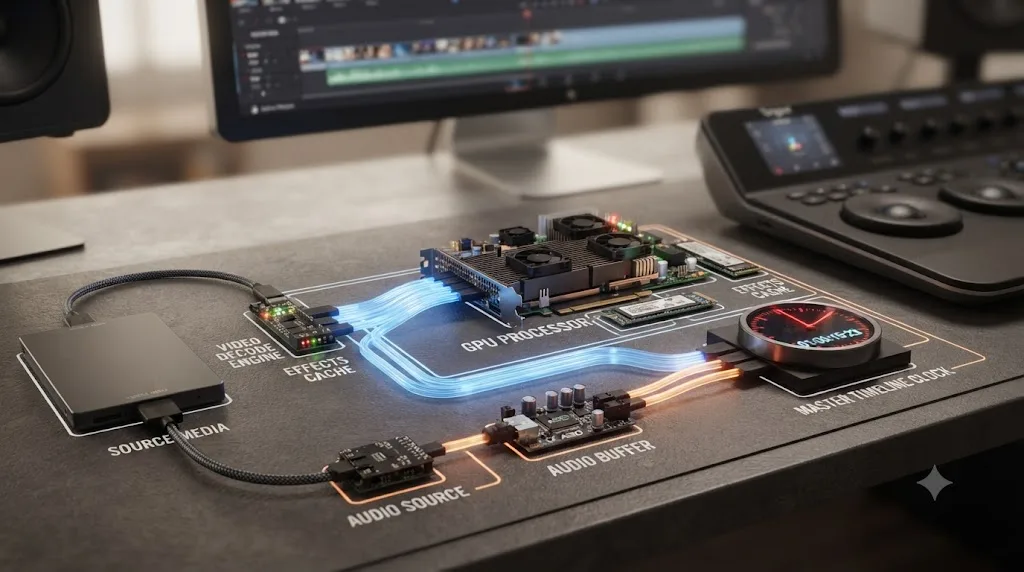
Real-time playback in Resolve asks a lot of your computer at once. It has to decode video, apply any color grades or effects on the timeline, composite whatever's happening on the Fusion page, and process every audio track through the mixer, all inside the tiny window of time each frame allows before the next one has to arrive. Audio in particular is unforgiving about this: a single missed or late chunk of audio data doesn't just look wrong, it makes an audible click or pop, because your speakers received silence, or garbage, for a fraction of a second where they expected sound.
A crackle or pop during playback almost always means some part of that real-time chain, sample rate conversion, buffering, driver communication, frame rate handling, or raw processing power, briefly failed to keep up. That's the whole story in one sentence, and it's why this problem has so many different fixes depending on which link in the chain is actually breaking for you. Two editors can report the exact same symptom, an audible pop every few seconds, for two completely unrelated reasons, one from a sample rate mismatch and one from an overloaded GPU, and the fix for one does nothing for the other.
That's also why this guide is built as a diagnostic order rather than a list you try randomly. The causes below are roughly sorted from most common to least, based on how frequently each one shows up across the forum threads referenced throughout this piece, but your setup might not follow that order exactly. A hardware buzz can look identical to a software buffer issue until you actually test for it.
Do your project and system sample rates actually match?
This is the single most frequently cited cause across every forum thread on this exact symptom, and it's worth checking first because it takes under a minute.
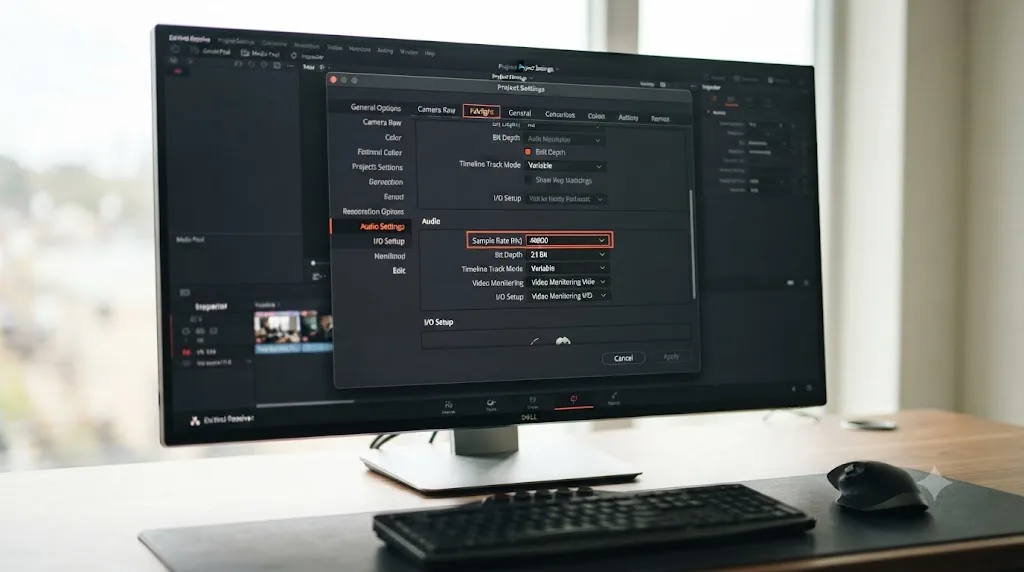
DaVinci Resolve's Fairlight page has its own Audio Sample Rate setting, separate from your operating system's own audio device settings, and separate again from whatever sample rate your source files were actually recorded at. According to DaVinci Resolve's manual page on Timeline Sample Rate, this setting defaults to 48000 Hz, described as "typical for broadcast and cinema work," and it can be raised to 96000 or 192000 for higher-precision mixing. The manual also notes something worth knowing before you go looking for this setting mid-project: it can only be changed prior to the creation of your first timeline, and once you've built one or more timelines, the Audio Sample Rate is locked to whatever was chosen at the start.
Here's where the mismatch actually happens. If your source audio was recorded at 44.1 kHz, the standard rate for a huge amount of consumer audio gear and music production tools, but your project's timeline sample rate is 48 kHz, Resolve has to resample that audio in real time on every single playback pass. One user on the RME User Forum, posting under the handle sarasotafoh while troubleshooting exactly this symptom with an RME interface, described the result bluntly: "Resolve's default playback sample rate is 48khz and for some reason Resolve does a piss poor job resampling to other rates (hence the clicks & pops)," as recorded in the RME forum thread on crackling audio when recording using DaVinci Resolve 17. That single sentence, from a real editor who'd already spent time isolating the cause on their own system, matches almost exactly what other reports describe independently.
Here's how to check it yourself:
- Select the crackling clip in the Media Pool and open the Inspector, or check the metadata panel, to find the source file's actual sample rate.
- Open Project Settings and go to the Fairlight tab.
- Compare the Audio Sample Rate field against what you found in step 1.
- If they don't match and you haven't built a timeline yet, change the project's rate to match your source audio before you start editing.
- If you've already built timelines and the rates don't match, your options are to conform new audio to the existing project rate before you import it, or start a fresh project at the correct rate and bring your edit across, since the setting itself won't budge mid-project.
A source file recorded at 44.1 kHz played back on a 48 kHz DaVinci Resolve timeline forces real-time resampling on every playback pass, and that resampling is a documented source of clicking and popping. This single mismatch, more than any other cause covered in this guide, explains the largest share of "randomly crackles a few times a minute" reports across both the Blackmagic Forum and the RME community.
Does your operating system's own sample rate setting also need to match?
Even after your project and source sample rates agree with each other, there's a third rate in play that trips people up specifically on Windows: whatever your OS itself has your audio device configured to. A mismatch between your OS audio device's sample rate and your DaVinci Resolve project rate can cause stuttering during playback, and Resolve doesn't expose a control for this layer at all, since it's handled entirely at the operating system level, a point echoed across multiple troubleshooting guides covering this symptom, including Cutsio's breakdown of audio distortion causes in DaVinci Resolve.
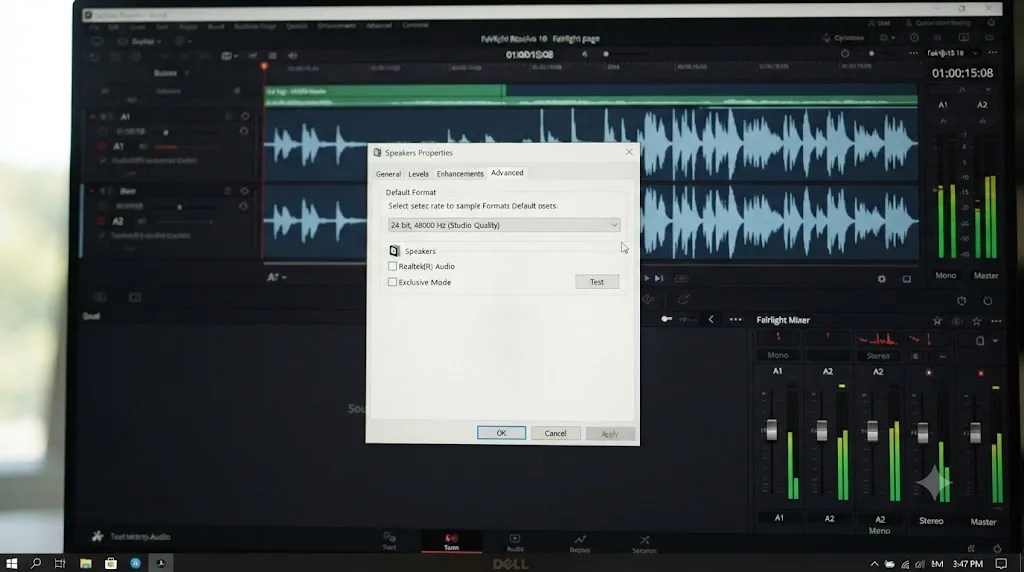
On Windows, this lives in Control Panel > Sound. Right-click your playback device, open Properties, go to the Advanced tab, and check the sample rate listed under "Default Format." It needs to match your Resolve project's Fairlight sample rate, and the same check is worth repeating for the Recording tab if you're recording voiceover directly into Fairlight rather than only playing back existing audio.
On Mac, the equivalent lives in Audio MIDI Setup, found in Applications > Utilities. Select your output device in the left column and confirm the format's sample rate matches your project.
This is a genuinely easy step to miss, because nothing inside Resolve itself will flag the mismatch. Your Fairlight sample rate and your source file's sample rate can agree perfectly, and you'll still get clicks and pops if the OS layer underneath both of them is set to something different, since that's one more resampling step happening outside Resolve's own code entirely.
| Sample rate layer | Where to check it | What happens if it's wrong |
|---|---|---|
| Source audio file | Media Pool inspector or clip metadata | Resolve resamples on every playback pass if it doesn't match the project rate |
| Project / Fairlight timeline | Project Settings > Fairlight > Audio Sample Rate | Locked once a timeline exists; mismatches with source or OS force real-time conversion |
| Operating system audio device | Windows: Control Panel > Sound > Properties > Advanced. Mac: Audio MIDI Setup | Introduces a resampling step Resolve doesn't control or display at all |
Is your playback buffer size too small?
If your sample rates all check out and the crackle persists, buffer size is next, and it's the single most commonly recommended fix across the Blackmagic Forum threads covering this exact symptom.
Every audio system, DaVinci Resolve included, works by processing audio in small chunks rather than one continuous stream, and the buffer is the holding area those chunks sit in while they wait to be played. A useful way to think about it, borrowed from a common explanation among audio engineers: the buffer works like a gas tank that temporarily stores data, and as soon as the tank starts draining, it's automatically refilled. If the tank is too small for the engine, it runs dry before it can refill, and the engine sputters and stutters as it starts to suck air. A buffer set too small for what your system can actually deliver in real time produces exactly that sputtering, as an audible click or pop each time the tank runs empty for a fraction of a second.
Here's where to fix it in DaVinci Resolve:
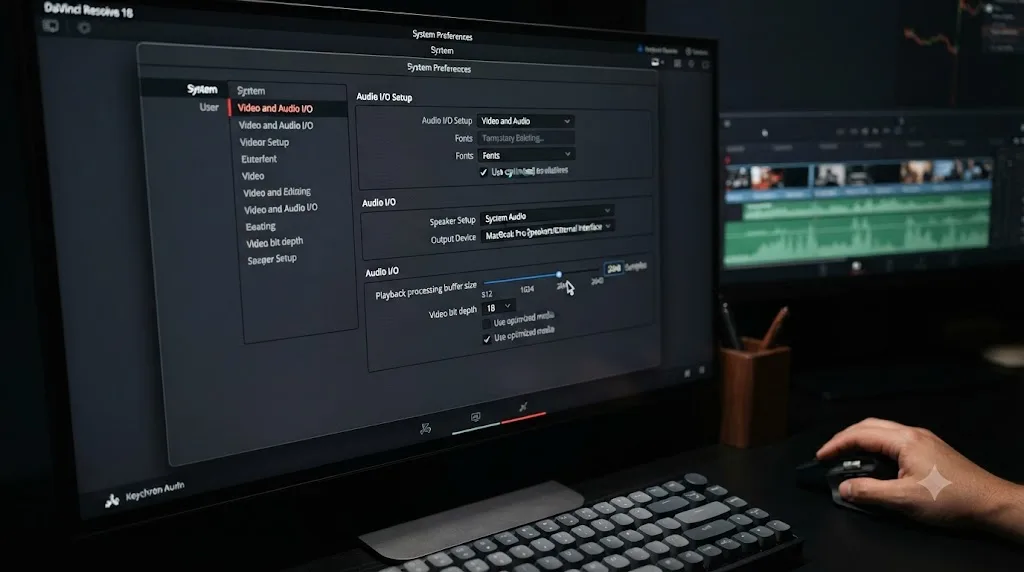
- Open Preferences > System > Video and Audio I/O.
- Find the Audio I/O section and the Playback processing buffer size control.
- Increase it, starting at 512 samples if you're currently on something lower, and going to 1024 if 512 doesn't fully clear the crackle.
- Save and restart DaVinci Resolve for the change to take effect reliably.
A buffer size that's too small for your system's real-time processing load produces the exact clicking and popping this guide is about, and it's fixed by raising one slider. This is deliberately the first purely software-side fix worth trying after sample rates, because it's fast, it's reversible, and according to multiple forum reports it resolves a meaningful share of playback crackling on its own, independent of anything else covered in this guide.
There's a real tradeoff here worth naming honestly: a larger buffer means more latency, the delay between an action and hearing its result. During ordinary timeline playback, watching back a cut you've already made, that latency is imperceptible. It becomes noticeable if you're monitoring live audio input in real time, recording a voiceover directly into Fairlight while listening to yourself through Resolve at the same time, where a buffer of 1024 samples can introduce enough delay to throw off your own timing. If that's your workflow, drop the buffer back down for recording sessions specifically and raise it again for ordinary playback and mixing.
Cutsio's own troubleshooting guide for this exact scenario describes it plainly: increasing the buffer to 512 or 1024 samples "introduces slight latency but stops the CPU from dropping audio packets, eliminating the crackle," a description that matches the gas-tank analogy above from the other direction, according to Cutsio's guide to fixing audio distortion in DaVinci Resolve.
Are you using an ASIO audio interface driver, or something Resolve handles worse?
This is the fix that's most specific to Windows users running a dedicated audio interface, an RME, Focusrite, or similar unit, rather than their motherboard's built-in audio, and it's a genuine version-history milestone worth knowing about.
For years, DaVinci Resolve on Windows had no ASIO support at all, forcing every external interface to communicate through generic WDM drivers instead of the low-latency, purpose-built ASIO protocol most professional audio software relies on. That gap is exactly what a long RME User Forum thread documents: an editor running RME hardware, unable to get clean playback out of Resolve for months, tracked the crackling to Resolve's WDM-only audio path. When DaVinci Resolve 17.3 finally shipped ASIO support, that same user returned to the thread with a direct, unambiguous update: "IT WORKS and solves all of my audio crackling and pop issues! It's wonderful that ASIO audio drivers have now been included in Davinci Resolve," according to the RME forum thread on crackling audio when recording using DaVinci Resolve 17.
Per DaVinci Resolve's own manual page on Video & Audio I/O, the I/O Engine setting lets you choose which audio hardware path Resolve uses, with options including System Audio, Desktop Video, Fairlight Audio Accelerator, and ASIO, the last one specifically Windows-only. Here's how to switch to it:
- Open Preferences > System > Video and Audio I/O.
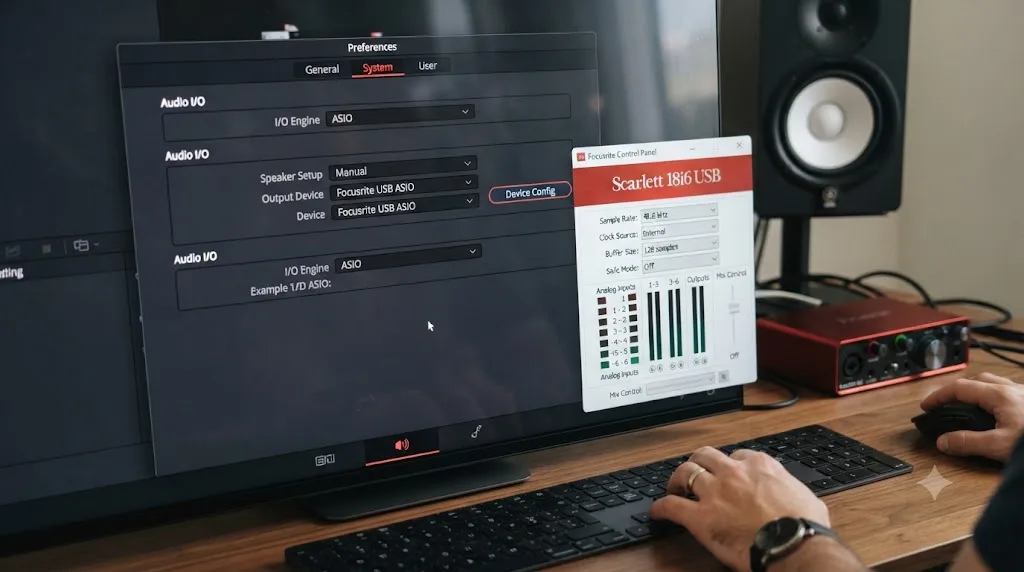
- Set I/O Engine to ASIO.
- Save and restart DaVinci Resolve, since this change requires a full application restart to take effect.
- Back in Preferences, select your specific device under Audio I/O.
- Click Device Config to open your interface's own ASIO control panel directly from inside Resolve, where you can set channels and buffer size using your manufacturer's driver rather than Resolve's generic controls.
- Uncheck Automatic speaker configuration unless you specifically need it, since it can override channel routing you've set up manually.
Switching from a generic WDM audio path to a dedicated ASIO driver has, by multiple independent user accounts, eliminated crackling that persisted for months under Resolve's older audio engine. This isn't a small tweak. It's a change to the entire communication layer between Resolve and your interface, and it's specifically why version matters here: if you're running anything older than 17.3, this option won't exist for you at all, and updating Resolve itself becomes the actual fix.
Mac users don't get an ASIO option, and don't need one. Apple's Core Audio framework handles the equivalent low-latency communication natively at the OS level, which is part of why crackling reports skew noticeably more toward Windows-plus-external-interface setups across these forum threads than toward Mac ones.
One wrinkle worth knowing if you're running an RME interface specifically: a Blackmagic Forum thread on ASIO compatibility observations reports that Resolve's own buffer preference setting has no effect on an RME Fireface once ASIO is active. Instead, you need to set the buffer size directly in the RME control panel itself, then restart Resolve for it to take effect, since changing the buffer in the RME panel while Resolve is still running can actually stop playback from working at all until you restart.
Does your timeline frame rate actually match your playback frame rate?
This cause is less commonly discussed than sample rate or buffer size, but it produces a nearly identical symptom, and it's specific enough to be worth its own check.
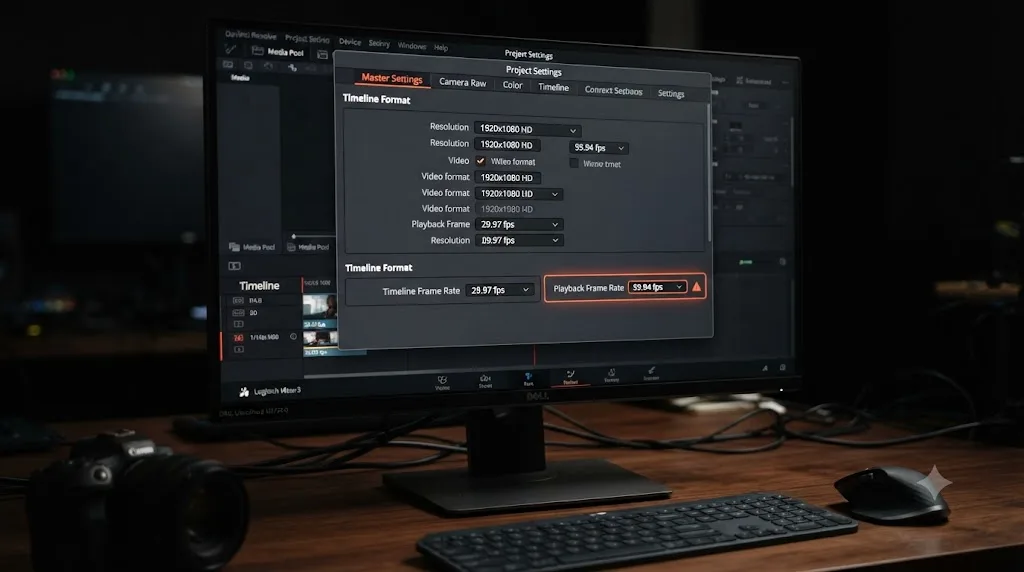
DaVinci Resolve's Master Settings distinguish between your Timeline Frame Rate, the rate your edit was actually built at, and your Playback Frame Rate, the rate Resolve uses to play that timeline back for you while you work. In ordinary use these two values should always agree, but project templates, imported timelines, or a setting changed once and forgotten can leave them mismatched. When they don't match, Resolve has to stretch or compress audio in real time to keep it synced against a video playback rate that doesn't correspond to what the audio was actually cut against, and that real-time stretching is, per multiple troubleshooting sources on this symptom, a documented cause of clicking, clipping, and crackling sound.
One editor's own account of tracking this exact cause down, from CodeWithSusan's notes on audio clipping during playback, describes the specific mismatch that caused it: "my project configs were set to 24fps but the playback frame rate was set to 30 fps." That's a subtle enough setting to overlook, since both numbers look reasonable on their own, and nothing about the timeline itself looks wrong until you specifically compare the two fields against each other.
Here's the check:
- Open Project Settings and go to Master Settings.
- Find Timeline Frame Rate and Playback Frame Rate.
- Confirm they're identical. If they're not, set Playback Frame Rate to match Timeline Frame Rate.
- Save and test playback again.
DaVinci Resolve isn't good at stretching audio in real time, and a mismatched timeline and playback frame rate forces it to do exactly that on every single frame. This cause is worth checking specifically if your sample rates all matched perfectly and the crackle persisted anyway, since it's the other real-time conversion Resolve can silently be doing without any clear on-screen warning that it's happening.
Is your GPU or CPU simply overloaded during playback?
If sample rates, buffer size, ASIO, and frame rate all check out, the next suspect is raw processing headroom, and this cause shows up specifically as crackle that's tied to what's happening on screen, not to your audio settings at all.
A Blackmagic Forum thread on crackling sound during video playback documents a telling pattern: users reported the crackling appearing specifically when higher-quality video was playing, and disappearing entirely when they deactivated the video track and left only audio playing. That's a strong signal the audio hardware itself isn't the bottleneck. Video decoding and GPU processing are competing with audio for the same real-time processing budget, and when video wins that fight for a few milliseconds too long, audio drops a packet and you hear it as a click.
A few settings are worth checking here, in order:
Turn off High Quality playback and Motion Blur preview. Both add real-time processing overhead to every frame of video playback, and a Blackmagic Forum report on audio crackling in Edit and Fairlight specifically resolved a case of Edit-page crackling by deselecting both settings, without touching a single audio setting.
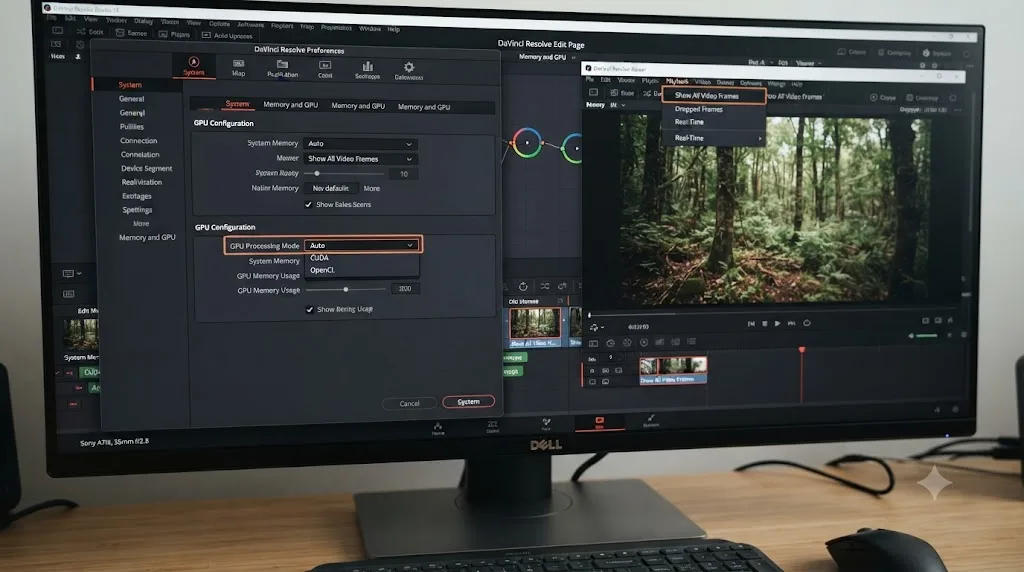
Disable Show All Video Frames in the viewer's playback menu. This setting forces Resolve to display every single frame during playback rather than dropping frames it can't render in time, and on a machine that can't fully keep up, it can push audio processing out of its own real-time window as a side effect, since video and audio share the same playback clock.
Check Preferences > System > Memory and GPU. Confirm your GPU processing mode matches your actual hardware rather than sitting on Auto, especially if you're on a machine with more than one GPU or an unusual driver configuration. A mismatched GPU processing mode has separately been tied to playback and compositing problems elsewhere in DaVinci Resolve, and it's worth ruling out here too.
Check whether a GPU driver update coincided with when the crackling started. Forum discussion of Edit-page crackling specifically flagged that a GPU driver update can affect real-time performance, not always for the better, and rolling back to a previous driver version has resolved playback issues for some users when a specific update introduced a regression.
| Symptom detail | What it points to |
|---|---|
| Crackle only when video is actively decoding; clean with video track muted | GPU or CPU competing with audio for real-time processing budget |
| Crackle got worse right after a GPU driver update | A regressive driver update; consider rolling back |
| Crackle specific to the Edit page, clean in Fairlight | High Quality playback, Motion Blur, or Show All Video Frames overhead |
| Crackle happens on every clip regardless of what's on screen | Less likely GPU-related; recheck sample rate, buffer, and ASIO first |
Could it be a hardware problem that has nothing to do with DaVinci Resolve at all?
This is the branch that's easiest to overlook, because it feels wrong to blame a cable or a power supply when the crackling only ever seems to happen inside one piece of software. But it's real, and one editor's own documented troubleshooting makes the diagnostic test for it completely concrete.
Tim Vervoort, a video producer, described his own version of this exact symptom plainly: "They sound amazing playing music but make crackling noises in Davinci Resolve," referring to his studio monitors, in his Medium article on crackling noises in DaVinci Resolve. That detail alone, monitors that sound perfect for every other application but crackle specifically during scrubbing and rendering inside Resolve, is what usually gets people looking exclusively at software settings. Vervoort's own further testing turned up the actual diagnostic signal: "this problem doesn't occur when using headphones or connecting a screen with built-in speakers."
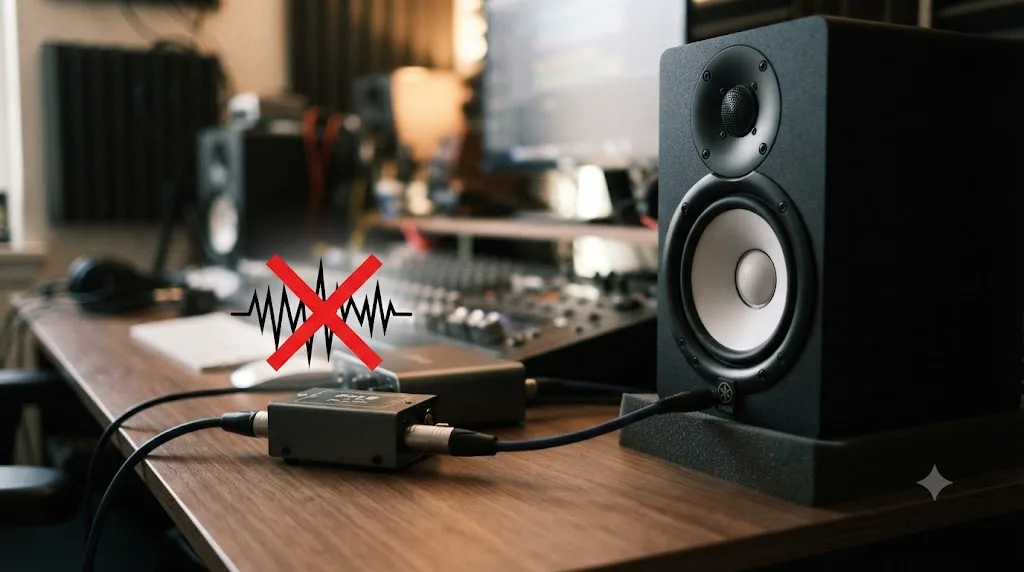
That's the test. If switching your audio output, from studio monitors to headphones, or to a completely different set of speakers, makes the crackle disappear, the cause isn't in DaVinci Resolve's settings at all. It's somewhere in the physical audio path after your computer has already handed off a clean signal: a ground loop, a failing power supply feeding electrical noise into the signal chain, a degraded cable, or in rarer cases a struggling graphics card whose own electrical noise is bleeding into a nearby audio connection.
A crackle that disappears the moment you switch to headphones or different speakers isn't a DaVinci Resolve problem, no matter how consistently it shows up while you're using the app. Vervoort's own fix was a ground loop isolator, a small inline device that breaks the electrical loop between two pieces of equipment sharing a ground connection through different paths, purchased for under ten euros, which resolved the issue completely with no audible impact on sound quality once it was installed between his computer and his monitors.
Worth checking, roughly in order of how cheap and fast each test is:
- Switch to headphones. If clean, the problem is downstream of your computer's audio output, not in Resolve.
- Try a different speaker or monitor setup, even a temporary one, to rule out one specific pair of monitors being the actual point of failure.
- Try a different USB port, specifically switching from a USB3 port to a USB2 port if your interface is plugged into USB3, since some forum reports on the Blackmagic Forum tie this specific port difference to crackling that cleared up on the slower port.
- Add a ground loop isolator between your computer or interface and your monitors if the headphone test points to a ground loop specifically, rather than to a single failing cable.
- Swap the actual cable running to your monitors or interface, since a degraded cable can introduce exactly this kind of intermittent noise without any obvious physical damage visible.
This branch is genuinely worth checking before you spend another evening adjusting buffer sizes that were never going to fix an electrical problem sitting entirely outside the software.
Is your audio actually clipping, not glitching?
If your export test from earlier showed the distortion baked into the rendered file rather than only happening live, this is your section. Clipping and real-time crackling can sound almost identical to an untrained ear, both come across as a harsh, digital-sounding distortion, but they have completely different causes and completely different fixes.
Clipping happens when an audio signal's level exceeds 0 dBFS, the maximum level a digital system can represent. Anything that would go higher than that ceiling gets flattened off instead, and that flattening is what produces the harsh, crackling-sounding distortion, described directly in Cutsio's guide to audio distortion in DaVinci Resolve: "Audio distorts when the volume level exceeds 0dB on the digital scale," resulting in that same harsh crackling character, because digital systems simply cannot process peaks above that threshold.
Here's how to check and fix it:
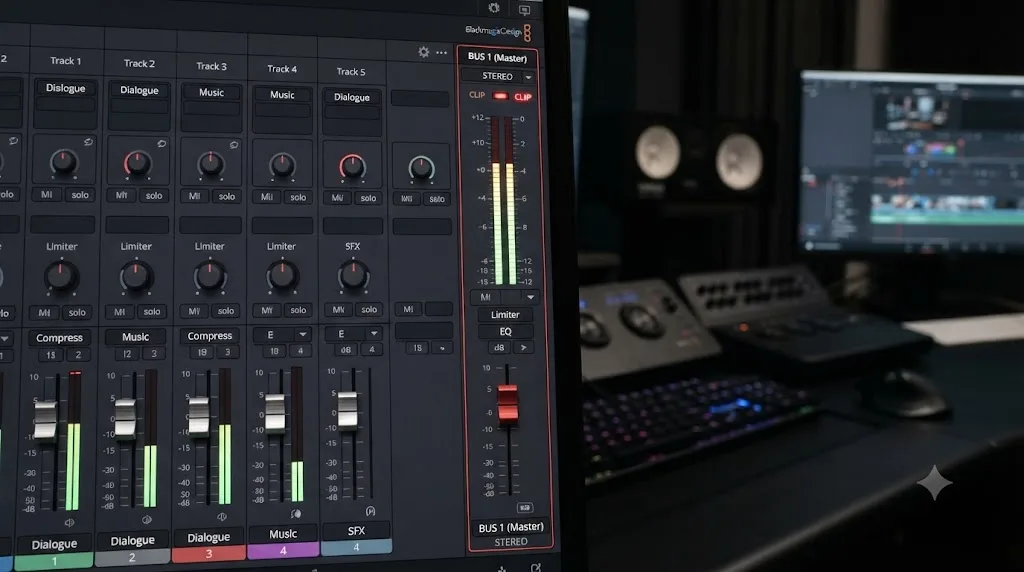
- Open the Fairlight page and locate the Bus 1 output meter in the mixer panel, the meter that reflects your timeline's total combined output level.
- Watch it during playback of the section that's distorting. If it's hitting the red zone at the top, your audio is clipping.
- Lower the master fader on Bus 1, or the individual clip gain on whichever clip is pushing the level too high, until the loudest peaks sit between -3dB and -6dB rather than right at the ceiling.
- Re-render and re-check.
Clipping happens inside the audio signal itself, at a specific level on a specific clip, while real-time crackling happens in the playback pipeline outside the audio, which is exactly why the export test at the start of this guide is the fastest way to tell them apart. If your clip levels are genuinely fine and the export test still showed distortion baked in, the next most likely cause is the source recording itself, a bad microphone preamp gain stage, a clipped in-camera recording, or audio that was already distorted before it ever reached Resolve. No setting inside Resolve recovers information a source file never actually captured.
Could a corrupted render cache or optimized media be the actual source?
This cause is less common than the ones above it, but it's worth knowing about specifically if the crackling is tied to one particular clip rather than your whole timeline, since that pattern points away from a global settings problem and toward something clip-specific.
DaVinci Resolve caches processed audio and video behind the scenes to keep playback smooth, and like any cache, it can occasionally become corrupted, whether from an interrupted render, a crash, or a drive error while the cache file was being written. When that happens on an audio waveform's temporary cache specifically, the symptom is exactly this guide's topic: crackling or distortion tied to one specific clip that plays back distorted no matter what else on the timeline sounds fine.
Here's how to clear it:
- Go to Playback > Delete Render Cache > All to clear cached render data across the whole project.
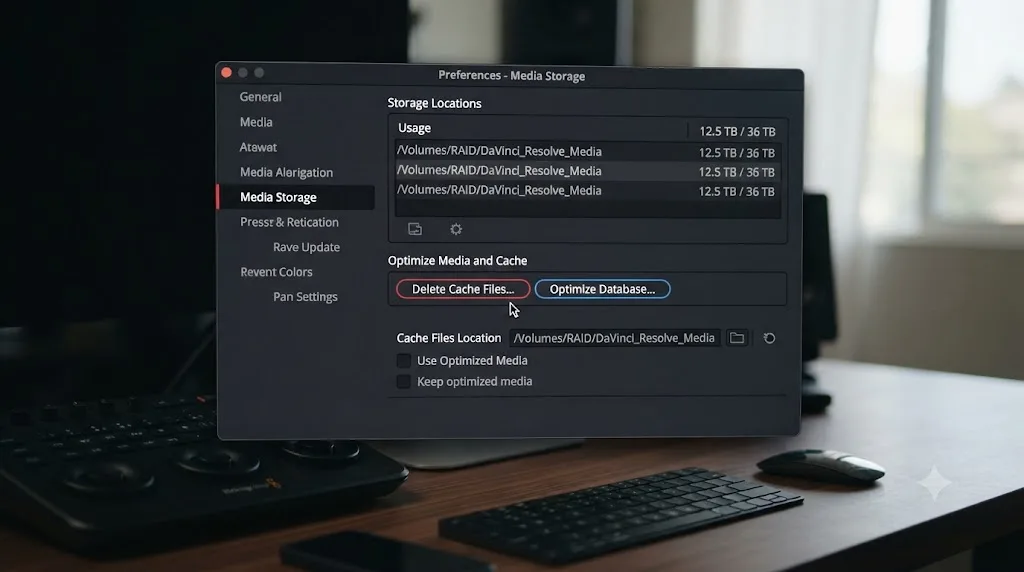
- Open Preferences > Media Storage and click Delete Cache Files to remove all existing cached media at a deeper level than the render cache alone.
- Click Optimize Database in the same panel to clear any lingering database-level corruption tied to the project file itself.
- If you use optimized media for your source clips, right-click the affected clip and choose Generate Optimized Media to rebuild it fresh, rather than relying on whatever version was cached before.
There's a second, narrower fix worth trying if only one specific clip is distorting and a full cache clear feels like overkill: right-click that clip in the Edit page and choose Bounce Audio Effects, which forces Resolve to fully reprocess that clip's audio from scratch rather than continuing to reference whatever was previously cached for it.
A crackle that follows one specific clip around the timeline, rather than showing up everywhere regardless of content, points at a corrupted cache for that clip specifically, not at your buffer size, sample rate, or driver settings. This is a genuinely different diagnostic signal from every cause covered earlier in this guide, and it's worth noticing before you go re-checking global settings that were never actually the problem for this one clip.
Does it matter if your video and audio files live on the same drive?
This is a narrower cause, but it's documented enough on the Blackmagic Forum to be worth a dedicated check, especially if you're editing directly off a laptop's internal drive rather than dedicated storage.
If your video files and your audio files are sitting on the same physical drive, especially a single internal SSD handling both read requests at once, that drive can become a genuine bottleneck during real-time playback. Video files are typically far larger and require more sustained read throughput than audio, and when both are competing for the same drive's read head or the same limited I/O queue at the same moment Resolve needs both delivered in sync, audio is often what loses that race, since a dropped or delayed audio chunk is what produces the audible click this guide is about.
A Blackmagic Forum thread on audio crackling on all playback and recording documents exactly this pattern resolving once video and audio were split across separate drives, alongside a related fix in the same thread: temporarily deactivating VST plugin paths, since a plugin scan or a misbehaving third-party VST loaded into Fairlight was separately identified as a contributing factor in that same report.
If you suspect this is your cause:
- Check where your project's video and audio media actually live, not just where the project file itself is saved.
- If they're on the same physical drive, and especially if that drive is also your OS boot drive, try moving one or the other to a separate physical drive, even a fast external SSD works for this test.
- If you're running any third-party VST audio plugins in Fairlight, temporarily bypass or remove them and test playback again, since a plugin path issue can produce a symptom that looks identical to a drive bottleneck.
This cause is worth checking specifically if you've already ruled out sample rate, buffer size, and ASIO, and the crackling seems tied to how demanding the video playback is, since that's the same signal that also points toward GPU overload covered earlier. The two aren't mutually exclusive. A drive that's already working hard to deliver 4K footage and an underpowered GPU decoding it at the same time compound each other.
What's the full diagnostic order, start to finish?
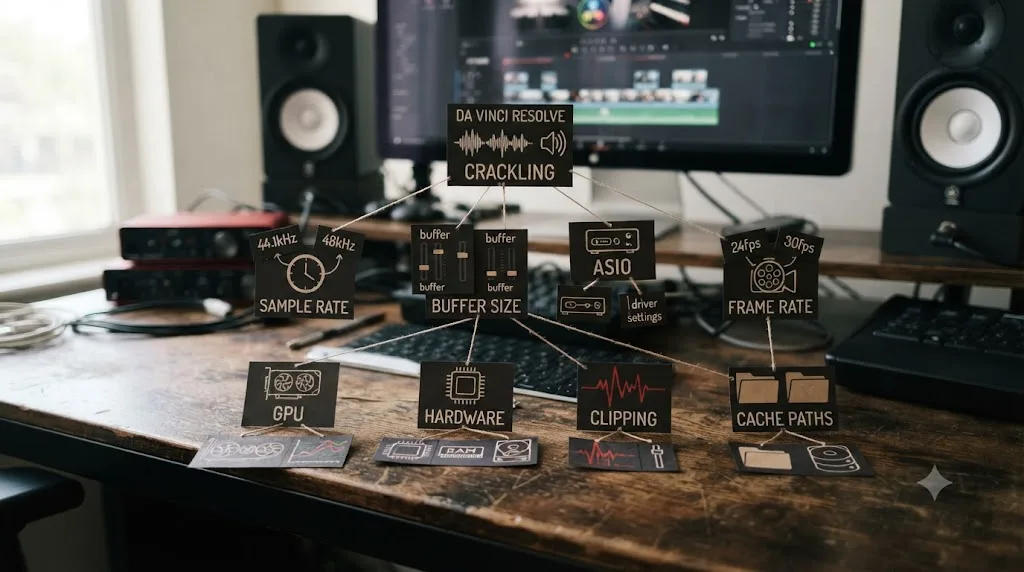
Here's every cause from this guide, in the order worth checking them, with the specific signal that tells you you're looking at the right one.
| Check this first | Signal that confirms it | Where to fix it |
|---|---|---|
| Export test | Distortion vanishes in the rendered file | Confirms this is a playback problem, not an audio problem; proceed below |
| Sample rate mismatch | Source, project, and OS rates don't all agree | Media Pool inspector; Project Settings > Fairlight; OS sound settings |
| Buffer size | Crackle present across most or all clips, not tied to specific content | Preferences > System > Video and Audio I/O |
| ASIO driver (Windows only) | Using a dedicated interface still on WDM or System Audio | Preferences > System > Video and Audio I/O, I/O Engine |
| Frame rate mismatch | Timeline and Playback Frame Rate fields don't match | Project Settings > Master Settings |
| GPU or CPU overload | Crackle tied to video decoding; clean with video muted | Disable High Quality/Motion Blur; check GPU processing mode |
| Hardware and cabling | Crackle disappears on headphones or a different speaker | Ground loop isolator; new cable; different USB port |
| Clipping | Distortion baked into the export, meter hits red | Fairlight Bus 1 meter; lower clip gain or master fader |
| Corrupted cache | Distortion tied to one specific clip only | Delete Render Cache; Delete Cache Files; Bounce Audio Effects |
| Drive contention | Crackle worsens with heavier video; separate drives help | Split video and audio across separate physical drives |
Work through it top to bottom rather than jumping straight to whichever fix you saw mentioned most online. The two most commonly cited causes, sample rate mismatch and buffer size, account for a large share of reports across every forum referenced in this guide, but they're not universal, and testing them out of order just means retracing your steps later.
A full worked example: tracking down an intermittent crackle
Here's how this plays out on an actual project, working through the diagnostic order above the way it's meant to be used.
A freelance editor is cutting a documentary interview, working on a Windows desktop with an RME Babyface Pro connected over USB. Playback crackles intermittently, roughly once every ten to fifteen seconds, worse during wider shots with more visual detail than close-ups.
- Export test first. A thirty-second render of the worst section plays back completely clean in an external media player. This confirms the problem is in playback, not in the audio itself, and every step below applies.
- Check sample rates. The interview audio was recorded at 48 kHz on a separate field recorder, and the project's Fairlight Audio Sample Rate is also 48 kHz. They match. This cause is ruled out.
- Check the buffer size. Preferences shows the Playback processing buffer size at 256 samples. Raised to 512, then to 1024, the crackling reduces noticeably but doesn't fully disappear.
- Check the I/O Engine. It's set to System Audio, the Windows default path, not ASIO, despite the RME interface supporting it directly. Switching I/O Engine to ASIO, restarting Resolve, and selecting the Babyface Pro under Audio I/O clears the remaining crackle almost entirely.
- One remaining occasional pop shows up specifically on the widest establishing shots. Checking Preferences > System > Memory and GPU shows the GPU processing mode set to Auto on a machine with an older, less powerful GPU than the project's 4K footage really wants. Manually setting the GPU processing mode rather than leaving it on Auto, and disabling Motion Blur preview during ordinary playback, clears the last of it.
Total time from first noticing the crackle to a fully clean timeline: about twenty minutes, most of it spent restarting Resolve after each settings change rather than actually diagnosing the cause, since sample rate and buffer size checks each took under a minute once the editor knew exactly where to look.
A second, shorter example lands on a completely different branch. A YouTuber editing on a MacBook Pro reports crackling that only ever happens through their studio monitors, never through the built-in speakers, and never in any other application, only inside DaVinci Resolve.
- Sample rate, buffer size, and frame rate all check out perfectly, and ASIO isn't relevant on a Mac in the first place.
- The headphone test is the one that actually solves it. Switching to headphones, the crackle disappears entirely.
- A ground loop isolator installed between the Mac's audio output and the studio monitors clears the issue completely, confirming it was never a DaVinci Resolve problem to begin with, just one that happened to only reveal itself during the specific kind of continuous, varied playback editing involves.
Two editors, the same reported symptom, and two causes that share nothing in common except how they sound to the ear. That's the pattern worth remembering from this whole guide: crackling and popping during playback is a single symptom with a genuinely wide set of unrelated root causes, and the fastest path through it is testing them in order rather than guessing.
Does this behave differently on Mac, Windows, and Linux?
Most of the causes in this guide apply identically across all three operating systems, since they live inside Resolve's own Fairlight engine rather than in anything platform-specific: sample rate mismatches, buffer size, frame rate mismatches, corrupted cache, clipping, and drive contention all behave the same way regardless of what you're running Resolve on.
Two things genuinely diverge by platform, and both are covered above, but they're worth restating together here since they're the ones most likely to send you down the wrong path if you're troubleshooting on the wrong assumption.
ASIO is Windows-only. Mac users don't have this option in the I/O Engine dropdown at all, because Apple's Core Audio framework already provides the equivalent low-latency communication natively at the operating system level. If you're on a Mac and crackling persists after checking sample rate, buffer size, and frame rate, the next places to look are GPU overload and hardware, not a missing driver setting, since there's no ASIO gap to close in the first place.
GPU processing mode behavior leans more heavily toward causing trouble on Windows and Linux systems with multiple GPUs, unusual driver configurations, or recent driver updates, than on Mac hardware, which typically routes through a single, well-defined GPU path via Metal with far less room for an Auto setting to pick something that doesn't fit your hardware.
Linux users running DaVinci Resolve should expect the same core diagnostic order as Windows minus the ASIO step, since ASIO doesn't exist there either, and audio driver behavior on Linux is generally handled through ALSA or JACK depending on your distribution's configuration, a layer that sits closer conceptually to what Windows WDM handles than to ASIO specifically.
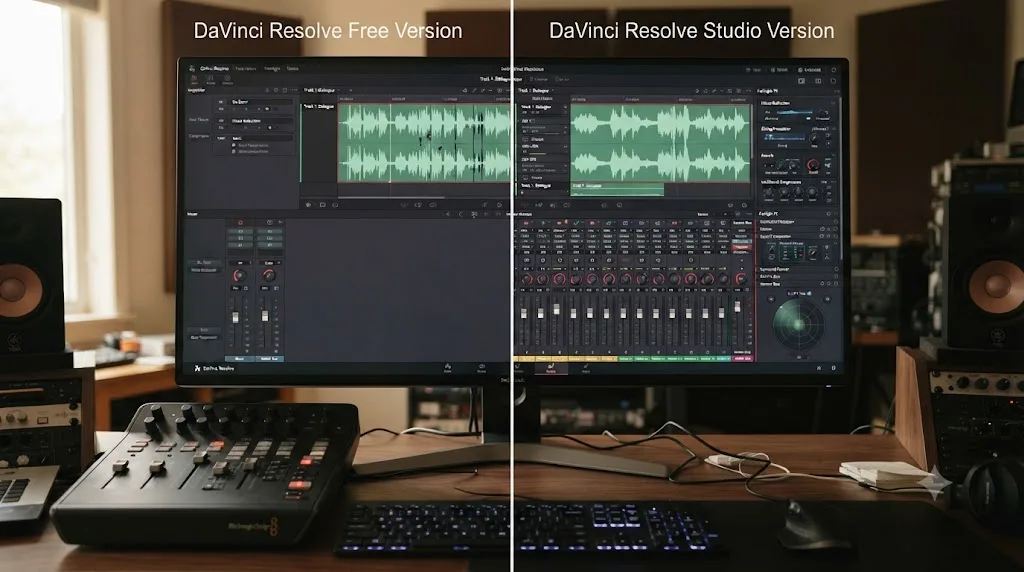
Do you need DaVinci Resolve Studio to fix this?
No, and it's worth confirming directly, since audio processing and mixing tools are exactly the kind of feature that tends to get split between free and paid tiers in other software.
Every setting and fix covered in this guide, the Fairlight Audio Sample Rate, the playback and record buffer size controls, the ASIO I/O Engine option, Master Settings frame rate fields, GPU processing mode, render cache management, and the Fairlight mixer's Bus meters, ships in DaVinci Resolve's free version. None of it sits behind the Studio paywall. A free-version editor troubleshooting exactly this symptom is working with identical tools to a Studio editor doing the same thing.
Studio does add real capability elsewhere on the Fairlight page, additional third-party-style audio plugins, surround sound mixing and panning tools, and more advanced noise reduction processing, none of which relate to the specific real-time playback crackle this guide addresses. If your interest in Studio was specifically about fixing this problem, it isn't the reason to upgrade. If you were already considering Studio for other Fairlight features, that's a separate, valid decision worth making on its own terms.
The verdict
Audio crackling and popping during playback in DaVinci Resolve is a real-time processing problem in the large majority of cases, not a broken file and not something wrong with your edit. Run the export test first. If the rendered file is clean, work down the list in order: sample rate agreement across your source, project, and OS, then playback buffer size, then ASIO if you're on Windows with a dedicated interface, then frame rate matching, then GPU and CPU headroom, then hardware and cabling as the branch software settings can't touch at all. If the export itself is distorted, skip straight to clipping and levels, since that's a different problem with a different fix entirely.
The two causes worth trying first, sample rate mismatch and an undersized playback buffer, clear the problem for a large share of the people who search for this exact symptom, and both take under two minutes to check. Everything past that, ASIO driver setup, frame rate fields, GPU processing mode, a corrupted cache tied to one clip, drive contention, or a ground loop that was never Resolve's fault in the first place, is real, documented, and worth working through in order rather than guessing at.
If you'd rather not open six different preference panels comparing settings against a guide in another tab, that's exactly the moment Uncle is built for: the assistant that watches your actual DaVinci Resolve session and points at the specific setting that's causing your crackle, live, instead of making you match your project against a checklist by hand. Once your playback is clean, our guide to syncing audio in DaVinci Resolve covers the sample rate drift issues that show up between separately recorded video and audio, a related but distinct problem from the playback crackling covered here, and our DaVinci Resolve export settings for YouTube guide picks up once your timeline is ready to render for real.
Frequently asked questions
- Why does DaVinci Resolve's audio crackle only during playback but sound fine in the exported file?
- Because playback crackle and export crackle come from two different places. Playback crackle almost always comes from your computer and audio interface struggling to process sound in real time, a sample rate mismatch, a buffer that's too small, a non-ASIO driver, or a GPU straining to decode video at the same time. Export doesn't have to happen in real time, so Resolve can take as long as it needs per frame, and most of those real-time bottlenecks disappear. If the exported file is clean, the problem is in your playback pipeline, not in the audio itself.
- What's the fastest way to check if a sample rate mismatch is causing my crackling?
- Select the crackling clip in the Media Pool and check its sample rate in the Inspector or the metadata panel, then open Project Settings > Fairlight and compare it to the Audio Sample Rate field. If they don't match, usually 44.1 kHz source audio against a 48 kHz timeline, that mismatch is very likely your cause, since DaVinci Resolve's real-time resampling on playback is known to introduce clicks and pops rather than a clean, transparent conversion.
- What buffer size should I use to stop crackling in DaVinci Resolve?
- Start at 512 samples in Preferences > System > Video and Audio I/O, and go to 1024 if crackling continues. Higher buffer sizes add a small amount of audio latency, noticeable if you're monitoring live input, but during ordinary timeline playback that latency is not something you'll perceive. If you're using an external interface with its own control panel, like an RME or Focusrite unit, set the buffer size there instead, since Resolve's own slider may not affect outboard hardware at all.
- Does ASIO actually fix DaVinci Resolve audio crackling on Windows?
- For a large share of Windows users with a dedicated audio interface, yes. DaVinci Resolve added ASIO driver support in version 17.3, replacing the generic WDM audio path that many interfaces handled poorly, and forum reports from RME interface owners describe crackling that had persisted for months clearing up entirely once they switched their I/O Engine to ASIO in Preferences > System > Video and Audio I/O. Mac users don't have this option since ASIO is Windows-only, and Core Audio handles the equivalent job natively.
- Why does my audio crackle only in the Edit page but sound fine in Fairlight?
- The Edit page and the Fairlight page sometimes route audio through slightly different processing paths, and Edit-page crackle specifically has been tied to real-time video decoding competing for the same CPU and GPU resources as audio playback. Turning off High Quality playback and Motion Blur preview in the Edit page's playback settings, and disabling Show All Video Frames in the viewer's playback menu, has resolved this for multiple users on the Blackmagic Forum without touching a single audio setting.
- Can a bad cable or ground loop cause crackling that has nothing to do with DaVinci Resolve at all?
- Yes, and it's worth ruling out before you spend an evening juggling buffer sizes. If the crackle disappears the moment you switch to headphones or to a monitor's built-in speakers, and only reappears through your studio monitors or an amplifier, you're very likely dealing with a ground loop, a failing power supply, or a degraded cable, none of which Resolve's settings can fix, since the noise is being introduced after the audio has already left your computer cleanly.
- Do I need DaVinci Resolve Studio to fix audio crackling?
- No. Every setting covered in this guide, the Fairlight Audio Sample Rate, the playback buffer size, the ASIO I/O Engine option, frame rate matching, GPU processing mode, and render cache management, is available in the free version. None of it sits behind the Studio paywall. Studio adds extra Fairlight plugins and surround mixing tools, but the core playback pipeline that's causing your crackling is identical in both versions.
Sources
- Blackmagic Forum: Crackling sound in Davinci Resolve when playbacking video
- Blackmagic Forum: Audio crackling on all playback / recording
- RME User Forum: Crackling audio when recording using Davinci Resolve 17
- Blackmagic Forum: Random audio crackling in Edit tab, fine in Fairlight
- Blackmagic Forum: Observations on ASIO compatability
- Blackmagic Forum: Audio crackling in Edit and Fairlight
- Blackmagic Forum: Crackling audio only in fairlight tab
- Blackmagic Forum: Major Crackling Audio sounds in Fairlight
- Blackmagic Forum: Audio popping in Fairlight, not in Edit Page
- Audio Clipping on Playback, DaVinci Resolve (CodeWithSusan.com)
- How to Fix Audio Distortion in DaVinci Resolve (Cutsio)
- Crackling noises in Davinci Resolve, by Tim Vervoort (Medium)
- DaVinci Resolve Manual: Video & Audio I/O (Blackmagic Design, mirrored)
- DaVinci Resolve Manual: Timeline Sample Rate (Blackmagic Design, mirrored)
- DaVinci Resolve Manual: The Fairlight Page (Blackmagic Design, mirrored)
- DaVinci Resolve Audio Choppy: 7 Fixes That Actually Work (Hollyland Store)
Learn by doing, not watching
Stop translating tutorials to your timeline.
TryUncle stays beside Resolve on Mac and Windows. When you ask, Uncle sees your screen and points at the exact control you need. No hunting through tabs, timestamps, or mismatched tutorials.
Meet TryUncleKeep reading
 GuidesJul 8, 202639 min read
How to Sync Audio in DaVinci Resolve, Every Method
Sync audio and video in DaVinci Resolve with Auto Sync Audio, timecode, the Sync Bin, or a manual clap, plus fixes for drift and failed matches.
 GuidesJul 7, 202632 min read
DaVinci Resolve Export Settings for YouTube (Copy These Exactly)
The exact DaVinci Resolve export settings YouTube recommends: codec, bitrate, resolution, audio, and the Deliver page steps that avoid soft uploads.
 GuidesJul 9, 202636 min read
DaVinci Resolve Green Screen Not Working: Every Real Fix
Why a DaVinci Resolve green screen key works in Fusion but not on the timeline, and the Alpha Output, keyer, and export fixes that solve it.