
Learn / DaVinci Resolveupdated for DaVinci Resolve 21.1 (September 2026)
DaVinci Resolve Smart Bin Not Updating? Fix It
Quick answer
If a DaVinci Resolve Smart Bin is not updating, confirm the new clip is in the project Media Pool, inspect the clip's metadata and the Smart Bin rule, then save metadata edits and reselect the bin. Reload the project only if results remain stale. Resolve 21 adds automatic offline and custom-metadata Smart Bin options.
I know the feeling. You tag a clip, return to the Smart Bin, and the clip is still missing. You add another rule, and now the bin is empty. The instinct is to delete the bin and start again, but that usually throws away the useful clue.
As of September 2026, this guide targets DaVinci Resolve 21.1, the current release family shown on Blackmagic Design's DaVinci Resolve pages, and explains the behavior that matters in Resolve 20 and 21 too. We run a 100,000+ member professional video-editing community, and Smart Bin questions come up because the feature looks like a folder but behaves like a saved metadata query. That distinction is the fix.
TryUncle is the on-screen assistant for DaVinci Resolve on Mac and Windows. You ask in plain words, and Uncle points at the exact control on your screen. If you want live help while you test a rule, TryUncle can point you toward the control in your own Resolve workspace.

Why is DaVinci Resolve Smart Bin not updating?
The most likely reason is that the Smart Bin is evaluating a different project-level fact than the one you just changed. DaVinci Resolve Smart Bins use rules against metadata in the project Media Pool, so a file copied into a hard-drive folder, an unsaved keyword, or a rule pointed at the wrong field will not produce the result you expect.
Blackmagic Design describes Smart Bins as metadata-driven bins that stay current as new footage is added to a project in its Media feature documentation. The Resolve 21 New Features Guide is more precise: a Smart Bin is procedurally populated and dynamically filters the Media Pool when you select it. Those two descriptions explain both the promise and the limit. The bin is dynamic, but its world is the Media Pool, not your whole file system.
A DaVinci Resolve Smart Bin updates from project metadata, not from a folder that merely exists on your hard drive.
Think of the process as four checkpoints:
- The media file must be imported into the project.
- The clip must expose the value you think it exposes.
- The Smart Bin rule must check that exact field and value.
- Resolve must redraw or reload the result if the current session is holding an old view.
That gives you a useful order of operations. Check project membership first. Then check the rule. Then check metadata. Refresh last. Rebuilding before those checks can hide the real cause.
The short diagnosis
If a newly imported clip never appears, suspect project membership or the rule. If an existing clip disappears after you edit it, suspect the metadata field, the match mode, or an unsaved change. If the right result appears only after reopening Resolve, suspect a stale session state rather than a bad rule.
The symptoms overlap, but the tests do not. A simple one-rule Smart Bin is the fastest divider. Use a rule that should be obvious, such as File Name contains a distinctive word, and test it with one known clip. If that works, the Smart Bin engine is responding and your original metadata logic needs attention.
What should you check before rebuilding the Smart Bin?
Before deleting a Smart Bin, check the project, the visible bin list, and the current selection. These checks take less time than rebuilding a multi-rule query and preserve a working rule if the problem is only visibility or stale display.
1. Is the clip really in this project?
Open the Media Pool for the project you are editing. Search for the clip by its file name. Blackmagic Design says the Media page is used to import footage into the current project and that the lower part of the page displays footage in that project. A file visible in Finder or File Explorer is not automatically a Media Pool clip.
If you added a file to a folder that Resolve has used before, do not assume the Smart Bin is watching that folder. Import the new file or folder into the project. Then select the Smart Bin again.
This is the most common category error. A manual bin can feel connected to a disk folder because both contain clips, but a Smart Bin is a filter over the project database. The on-disk folder and the project bin are related only when you import and link the media.
2. Is the Smart Bin visible?
The Smart Bin may be hidden rather than empty. In the Media Pool, open the bin options and enable Show Smart Bins. The wording and placement can vary with the page layout and version. A Blackmagic Design forum answer for Resolve 18.5 points users to the Media Pool's additional-options menu, and a later Resolve 19.1.4 user reported that opening the bin in a new window exposed the Smart Bin controls.
In Resolve 21, the Cut page has a Media Bin dropdown that can show and create Smart Bins. That is a version-specific improvement. If you are following an older tutorial that says the Cut page cannot access Smart Bins, the tutorial is out of date for Resolve 21. The New Features Guide documents Cut-page Smart Bin access as a Resolve 21 change.
3. Did you select the Smart Bin again?
Resolve evaluates the Smart Bin when you select it. If you have changed a clip while another bin, page, or window is active, return to the Smart Bin after saving the metadata edit. If the bin is open in a tab, close and reopen the tab if the result looks unchanged.
This is a display check, not a promise that every refresh issue is solved by clicking twice. It tells you whether the result was simply not reselected. If the clip is still absent, inspect the rule and metadata rather than clicking repeatedly.
4. Is the selected project the right one?
Smart Bins belong to a project context. A Smart Bin in one project should not be treated as a global search across every project in a project library. Power Bins are the cross-project container described by Blackmagic Design. That is a different feature with a different purpose.
If you copied a Smart Bin idea from another project, recreate or copy the rule in the project that contains the media. A Smart Bin cannot return clips that are not part of the project being filtered.

How do you confirm the Smart Bin rule matches the clip?
Edit the Smart Bin and read every part of the rule from left to right: metadata group, field, operator, value, and match mode. A Smart Bin can be perfectly healthy and still return nothing because one of those pieces does not describe the clip.
Read the rule as a sentence
Suppose the rule says:
| Rule part | Example | What it means |
|---|---|---|
| Scope | MediaPool Properties | Check a project-level clip property. |
| Field | File Name | Read the clip's file name. |
| Operator | contains | Match a partial text value. |
| Value | interview | Return clips whose file name contains that text. |
| Match mode | All | Every enabled rule must match. |
Read that as, "Show every Media Pool clip whose file name contains interview." If you intended to find clips tagged with the keyword interview, the field must be Keywords, not File Name. The value can be identical while the query remains wrong.
Blackmagic's Smart Bin documentation describes custom rules that use metadata and gives examples based on keywords, comments, descriptions, scene information, and other fields. Its older reference manuals also document All and Any matching for multi-criteria filters. The labels may look slightly different in Resolve 21, but the logic is the same: All narrows the result, while Any broadens it.
All versus Any
Use All when one clip must satisfy every condition. For example:
| Goal | Rule 1 | Rule 2 | Match mode |
|---|---|---|---|
| Interview selects from camera A | Keywords contains interview | Camera contains A | All |
| Interview or b-roll | Keywords contains interview | Keywords contains b-roll | Any |
| High-rated outdoor shots | Rating is 4 or higher | Keywords contains exterior | All |
| Any clip with a marker or flag | Marker exists | Flag is Good | Any |
The exact field names can depend on the metadata group and version. The logic does not. If your Smart Bin is empty after adding a second rule, change the test to one rule. If the one-rule result is correct, the Match mode or second condition is the issue.
Disable a rule before deleting it
The Resolve reference material documents an enable checkbox for filter criteria. Use it. Disable one condition, test the Smart Bin, then re-enable it. This preserves your work and lets you isolate the condition that excludes the clip.
For a large Smart Bin, test from the broadest rule to the narrowest. Start with File Type or a known file name. Add the keyword. Add the camera. Add the rating. The first step at which the clip disappears is the condition to investigate.
Watch for the wrong metadata family
Resolve exposes metadata in groups. A field called Camera, Scene, Shot, Take, Description, Keywords, Rating, Flag, or Clip Color may appear in a different group or under a different rule scope than you expect. Do not choose a field because its label sounds close. Select the clip, open Metadata, and use the same group that the rule uses.
The fastest Smart Bin test is one known clip, one enabled rule, and one unmistakable value.
Why does adding a keyword not put a clip in the Smart Bin?
Adding a keyword fails to update a Smart Bin when the keyword was not saved to the clip, was added in a different metadata context, or does not exactly match the rule's value. Verify the clip in the Media Pool Metadata Editor instead of trusting the text you typed into the previous panel.
The save step matters
Select the clip in the Media Pool and open the Metadata Editor. Choose the view that contains Keywords. Add the keyword, choose the existing dictionary entry when one appears, and click Save. Then select the Smart Bin.
The Blackmagic Design training material shows a keyword being selected from the suggestion list and then applied with the Save button. That is a better model than typing a word and immediately switching pages. A typed value can look present in the field while the project still holds the previous value until you save.
Peter Chamberlain, a Blackmagic Design representative, gave this direct advice in the Blackmagic Forum: “To ensure that the metadata is ingested, please check the Metadata widget in the Media Page.” The point is simple. Inspect the stored metadata, not only the entry control.
Check spelling, spaces, and dictionary entries
interview, Interview, and interview may not behave identically in every metadata field or operator. Use the keyword suggestion when Resolve offers the existing term. Keep a small project vocabulary instead of inventing a new spelling for every clip.
If you have inherited a project with near-duplicate keywords, use Workspace > Keyword Dictionary to inspect the list. In a Blackmagic Design forum answer, Shrinivas Ramani explains that renaming clips selected by an automatic keyword Smart Bin can leave the old keyword and empty Smart Bin visible for the session, then says closing and reloading the project refreshes Smart Bins. That is a useful edge case, especially after cleaning a vocabulary.
Test with a fresh keyword
If you cannot tell whether the original keyword is corrupted or simply inconsistent, create a temporary keyword such as sb_test_2026. Apply it to one clip, save, and create a temporary Smart Bin using Keywords contains sb_test_2026.
The temporary test has three advantages:
- It avoids guessing whether an old keyword contains a hidden spelling difference.
- It gives you a value that should be unique in the project.
- It tells you whether metadata edits are being stored at all.
Delete the temporary keyword and Smart Bin after the test. Do not use the test vocabulary as your permanent organization scheme.
Select multiple clips carefully
When you select multiple clips, the Metadata Editor may show only values common to the selection or enter a multi-clip editing mode. A value that is blank or represented by an ellipsis is not necessarily a value shared by every clip. Select one known clip first, confirm it, then expand the selection.
This matters when you think you tagged ten clips but only saved nine, or when one clip has an additional keyword that makes the multi-clip field look different. Resolve's metadata system is powerful because it supports many fields, but that power makes single-clip verification worthwhile.

Why is the Smart Bin empty after importing footage?
An empty Smart Bin after import usually means the import succeeded but the imported clips do not meet the rule, or the import happened in another project or bin. Separate those possibilities with a file-name rule before you investigate advanced metadata.
Import is not tagging
Importing a file brings its available metadata into Resolve, but it does not automatically invent your editorial keywords. Blackmagic Design says metadata is automatically imported and that you can add custom keywords and tags. Those are two different operations.
Camera metadata may include a camera name, date, frame rate, codec, or other file properties. It may not include your project vocabulary such as hero, select, b-roll, client_pick, or needs_color. A Smart Bin looking for those words remains empty until you add them or use a rule based on a value that the file actually has.
Prove that the import is visible
Create a temporary Smart Bin with:
| Check | Test |
|---|---|
| Membership | Search for the exact file name in the current project's Media Pool. |
| Basic rule | File Name contains a distinctive part of the imported name. |
| Metadata rule | Keywords contains a temporary keyword after saving it. |
| Advanced rule | Camera, scene, rating, or custom metadata only after the basic tests pass. |
If the file-name Smart Bin finds the clip, the project membership is fine. If the keyword Smart Bin does not, inspect the keyword workflow. If neither finds it, confirm the clip is really in the current project's Media Pool and that the Smart Bin is not filtered by another enabled condition.
External folders and removable media
Smart Bins do not replace media ingestion or relinking. If a card, external SSD, or network volume is disconnected, the clip may still exist in the project but be offline. That is a different condition from not being imported.
Do not solve an offline clip by adding a new copy to the Smart Bin manually. A Smart Bin is not a manual bin. Relink the media or use an offline rule when the goal is to find missing media.
Files created by another application
A third-party logger, camera utility, or operating-system tagger may write metadata that Resolve does not map to the field you expect. If the value is important, enter it in Resolve's Metadata Editor or confirm the imported value in the Metadata widget. Blackmagic's Peter Chamberlain specifically recommends checking the Metadata widget when you need to ensure ingestion.
The safe rule is this: if you cannot see the value in Resolve's own metadata view, do not build a Smart Bin around it yet.
How do you fix a Smart Bin that stopped updating?
Use this eight-step repair sequence. It starts with reversible checks, preserves the existing rule, and only reloads the project after the data and logic are confirmed.
Step 1: Confirm the current project and Media Pool
- Open the project that owns the Smart Bin.
- Open the Media Pool on the Media or Edit page.
- Search for the new or changed clip by file name.
- If it is missing, import the media into this project.
Do not continue until the clip is visible in the project's Media Pool. A Smart Bin cannot return a clip that the current project does not contain.
Step 2: Show Smart Bins and select the target
Enable the Smart Bin area from the Media Pool options if necessary. Click the Smart Bin once, then wait for the result to display. If you are using Resolve 21's Cut page, use the Media Bin dropdown. If you are using an older version, return to the Media or Edit page for the clearest comparison with the manual.
Step 3: Edit the rule without deleting it
Right-click or double-click the Smart Bin and inspect the rule. Write down the field and value before changing anything. Check whether the first dropdown is MediaPool Properties or a metadata group, whether the operator is contains, is, is greater than, or another choice, and whether all criteria are enabled.
Set the Match mode to All only when every condition is required. Use Any when either condition should qualify the clip. Temporarily disable every rule except the one you can prove should match.
Step 4: Inspect one clip in Metadata
Select one expected clip in the Media Pool. Open the Metadata Editor and choose the relevant group. Check the actual field the rule reads. If the Smart Bin uses Keywords, check Keywords. If the rule uses Scene, check Scene. If the rule uses Rating, check Rating.
Do not infer the value from the file name or from a column you happen to have visible. The rule and the Metadata Editor must point to the same field.
Step 5: Save the value
If you change a keyword, scene, description, rating, flag, or custom field, click Save in the Metadata Editor. Re-select the Smart Bin. This step is especially important after editing multiple clips, because a multi-clip view can show common values rather than every individual value.
Step 6: Create a one-rule control test
Make a temporary Smart Bin named SB_CONTROL. Use one rule with a distinctive value. File Name contains interview is a practical control if one test file contains that text. A temporary keyword is better when file names are not descriptive.
If the control works, your original Smart Bin has a rule problem. If the control does not work, the project membership, metadata save, visibility, or session refresh remains in question.
Step 7: Refresh the view
Select another bin, then select the Smart Bin again. If the Smart Bin is in a tab, close and reopen the tab. Save the project. If a changed keyword leaves an old empty Smart Bin behind, close and reload the project. Blackmagic forum guidance identifies a project reload as the refresh that updates Smart Bins after keyword changes.
Step 8: Rebuild only the broken part
If the original rule still fails after the control passes, edit the original rule one condition at a time. If the rule is too tangled to audit, create a new Smart Bin with the same name plus -new, test it, and remove the old one only after the new result is correct.
This sequence avoids the worst troubleshooting move: deleting the only copy of a complex query before you know which condition failed.

Why does the Smart Bin show the wrong clips?
Wrong results usually come from a broad operator, an Any match that is wider than intended, stale keyword cleanup, or a field that means something different from its label. An incorrect Smart Bin is often easier to diagnose than an empty one because the returned clips reveal which rule is too broad.
Contains is not an exact match
If a rule says Keywords contains cam, it may include values such as camera-a, camera-b, or campus depending on the field's matching behavior. Use a more specific controlled value when the result must be narrow. If the rule supports an exact operator, use it for exact values. If not, choose a vocabulary that cannot collide with other terms.
The same issue appears in file names. A query for A01 may catch A010, A011, and a folder or reel naming pattern you did not intend. The Smart Bin is doing what the operator says, not what the shorthand meant in your head.
Any can make a bin look haunted
With Any, one matching condition is enough. A clip tagged interview can appear even if it lacks the camera-a value when the rule is interview OR camera-a. If you intended interview AND camera-a, change the match mode to All.
Write the rule as plain language before you edit it:
| Intended result | Natural-language query | Resolve logic |
|---|---|---|
| Both tags required | Interview and camera A | All |
| Either tag accepted | Interview or b-roll | Any |
| Four-star exterior selects | Rating at least 4 and exterior | All |
| Any approved marker | Good flag or green clip color | Any |
Empty bins after keyword cleanup
An old keyword can remain visible as an empty Smart Bin for the session after a rename or batch metadata edit. Shrinivas Ramani's Blackmagic Forum answer says closing and reloading the project will refresh Smart Bins in that case. Do that after saving, not while a metadata operation is still in progress.
The rule may be correct for a different clip type
Audio clips, video clips, still images, timelines, and generated media can expose different fields. A Smart Bin built around a camera field may be useful for camera clips but not for a title generator or timeline. If you want a media-type Smart Bin, start with a Media Pool property that distinguishes the types, then add the metadata condition.
Resolve 21's Photo page adds still-image handling and its own media views. The New Features Guide documents that the Photo page Media Pool view is dedicated to still images, so do not use a Photo-page display as proof that video or audio is absent from the project.
Is DaVinci Resolve 21.1 different from Resolve 20?
Resolve 21 keeps the core Smart Bin model but adds several relevant capabilities. The current Blackmagic Design product pages present DaVinci Resolve 21 and point to 21.1 what's-new material, while the support center lists the Resolve 21 final release on 3 June 2026. Use the version-specific distinctions below when a tutorial and your interface disagree.
| Behavior or control | Resolve 20 and earlier guidance | Resolve 21 behavior | Why it matters for this fix |
|---|---|---|---|
| Smart Bin concept | Metadata rules filter project media. | Same core model. | Do not expect disk-folder watching. |
| Cut page access | Older tutorials may omit it. | Cut page can view and create Smart Bins through the Media Bin dropdown. | A missing Cut-page menu may indicate an older version or wrong view. |
| Offline media | Build a manual offline rule or use available filters. | Automatic Smart Bin for offline clips can be enabled in Preferences > User > Editing > Automatic Smart Bins. | Offline troubleshooting can be centralized. |
| Custom metadata | Availability depends on the release and field setup. | Custom Metadata fields created in Metadata Editor can be used as Smart Bin criteria. | A custom field can become the source of a reliable project vocabulary. |
| Clip rating | Rating workflows varied by version. | Resolve 21 documents 1-to-5 star ratings as Smart Bin criteria. | A selects bin can use a numeric rule instead of keywords. |
| Media Pool tabs | Older tutorials may not show tabbed layouts. | Resolve 21 allows tabs for conventional, Smart, and Power Bins. | Reopen the Smart Bin tab when a view appears stale. |
The Blackmagic Resolve 21 guide documents these Resolve 21 changes. It does not say that every old Smart Bin defect is fixed by upgrading. Version 21 gives you more controls, but the diagnostic order remains the same: project membership, field, value, match mode, save, refresh.
Resolve 21 adds Smart Bin capabilities, but a wrong metadata field still produces a wrong result.
What to do if your tutorial says Smart Bins are unavailable in Cut
Check the version before assuming your project is broken. The Resolve 21 New Features Guide explicitly says that the Cut page can now view and create Smart Bins. A Blackmagic forum thread also shows users on 18.5 and 19.1.4 looking for Smart Bin controls in different layouts.
If you are on Resolve 21, open the Cut page Media Bin dropdown. If you are on Resolve 20 or earlier, use the Media or Edit page to verify the Smart Bin. That comparison avoids mixing a version difference with an update failure.
What if the Smart Bin works in Media but not in Cut?
First confirm the Resolve version and the selected Media Bin. In Resolve 21, the Cut page supports Smart Bin views, so a difference between Media and Cut is more likely to be a selected-bin, tab, or view issue than a missing feature.
Compare the selected bin, not only the clip count
A Media Pool tab can point at one Smart Bin while the Cut page dropdown points at another. The names may be similar. Click the exact Smart Bin in both places and compare the visible criteria and expected clip.
Resolve 21 documents that a bin tab opens a specific bin and that navigating within an open tab replaces the active bin with the newest and most current bin selection. That makes tabs useful, but it also gives you one more state to verify when two pages look different.
Check page-specific filtering
The Cut page is designed around a focused editing view. If you are looking at a media dropdown or source tape, do not assume it presents every Media Pool surface exactly like the Media page. Use the Media page as the reference. If the expected clip appears there, select the same Smart Bin in Cut rather than relying on the last remembered choice.
Use Resolve 21's documented Cut-page route
- Open the Cut page.
- Open the Media Bin dropdown in the upper-left of the Media Pool.
- Select the Smart Bin.
- If the Smart Bin is missing, click the plus control in that dropdown to create one or return to the Media page and show Smart Bins.
If a 20-era tutorial tells you to use a workaround because Cut cannot access Smart Bins, that advice is stale for Resolve 21. If you are on an older release, the workaround may still reflect the product's behavior at that time.
How do offline clips change the diagnosis?
Offline clips are a status problem, not a keyword problem. Resolve 21 adds an automatic Smart Bin for offline clips, so use that when you need to gather missing media across a project rather than forcing an ordinary keyword Smart Bin to do the job.
Enable the automatic offline Smart Bin in Resolve 21
The Blackmagic Resolve 21 New Features Guide gives this path:
- Open DaVinci Resolve Preferences.
- Choose User.
- Choose Editing.
- Open Automatic Smart Bins.
- Enable Automatic smart bin for offline clips.
The guide says this creates a one-bin solution for relinking media regardless of where it is in the project. That is the correct tool when the question is, "Which clips are offline?" It is not a replacement for a keyword bin such as client_pick.
Distinguish offline from missing
A missing Smart Bin result means the clip did not satisfy the rule or was not in the project context. An offline Smart Bin result means Resolve knows about a project clip whose media is unavailable. You can have an offline clip that appears in a keyword Smart Bin, and you can have an online clip that does not appear because its keyword does not match.
That distinction helps with client handoffs. If a project opens with red or offline indicators, first identify the offline clips. Then relink or reconnect the correct volume. After that, return to the metadata Smart Bin and check whether the result is now useful.
Do not confuse cache with source media
Cache files can improve playback, but they do not become source clips simply because they exist on disk. If the issue is cache location or missing cache, use the appropriate cache workflow. If the issue is Smart Bin membership, inspect the project Media Pool and source metadata.
For a separate cache-path reference, see Where to Find DaVinci Resolve Cache Files on Mac and Windows. It is useful when playback is the problem, but it will not repair a Smart Bin rule.
What if the Smart Bin is stale only until I reopen the project?
If reopening the project fixes the result, the underlying rule and metadata may be valid while the current session retains an old Smart Bin state. Save the project, finish the metadata change, then close and reload once. Do not use repeated restarts as the first repair for every missing clip.
The keyword-rename edge case
The Blackmagic Design forum guidance describes a specific case: edit a keyword across clips, see a new keyword bin, and still see the old keyword and an empty Smart Bin during the session. Closing and reloading the project refreshes Smart Bins.
That is different from a rule that never matched. Test the same project after reload:
| Result after reload | Likely diagnosis |
|---|---|
| Correct clips appear | Session state was stale. Keep the rule and continue. |
| Old empty bin remains | The keyword cleanup or rule still needs inspection. |
| New clips still do not appear | Check project membership, saved metadata, and rule field. |
| Control Smart Bin also fails | Investigate the current Media Pool view or project state. |
Save before reload
Reloading without saving can discard the very metadata change you are trying to test. Click Save in the Metadata Editor, save the project, then close and reopen it. If you are collaborating, allow the project library or shared workflow to finish writing before you judge the refreshed result.
Avoid making reload the workflow
A reload is a recovery step, not a tagging technique. If your Smart Bins require a reload after every keyword, simplify the metadata workflow, use the dictionary, and test a one-rule bin. Keep a note of the exact version and reproducible sequence if the issue continues.
How do you use custom metadata in a reliable Smart Bin?
Resolve 21 lets Smart Bins use custom metadata fields created in the Metadata Editor. That turns a project-specific label such as review_status, deliverable, or rights into a queryable field, but reliability still depends on consistent entry and saved values.
Choose fields that describe editorial decisions
Use a custom field for information that your team will filter repeatedly. Examples include:
| Custom field idea | Values | Smart Bin use |
|---|---|---|
| Review status | to-review, approved, hold | Route clips through an editorial review queue. |
| Deliverable | main, vertical, archive | Separate assets by output need. |
| Rights | cleared, verify, restricted | Keep rights-sensitive material visible. |
| Scene purpose | hero, b-roll, texture | Find supporting material without renaming files. |
| Audio state | clean, noisy, sync-check | Isolate clips that need Fairlight work. |
These are workflow examples, not built-in Resolve values. Create the fields and values deliberately, then document the spelling for everyone touching the project.
Use one vocabulary per field
Do not mix approved, Approved, ok, final, and good in one review field unless you intentionally want them treated as different states. Smart Bins reward a small vocabulary because exact filtering is easier to inspect.
Test a custom field before building a network of bins
Create one custom field, apply one value to one clip, save it, and build one Smart Bin. Close and reopen the project only if the result remains stale. Once the test works, add the field to a broader editorial workflow.
Resolve 21's guide says custom metadata fields previously created in the Metadata Editor can be used as criteria for Smart Bins, Clip Filters, Data Burn-ins, and Naming Tags. That means a custom field can carry beyond the bin, but it also means a careless field name can affect more than one part of the workflow. Keep the names clear.
Avoid making one Smart Bin do every job
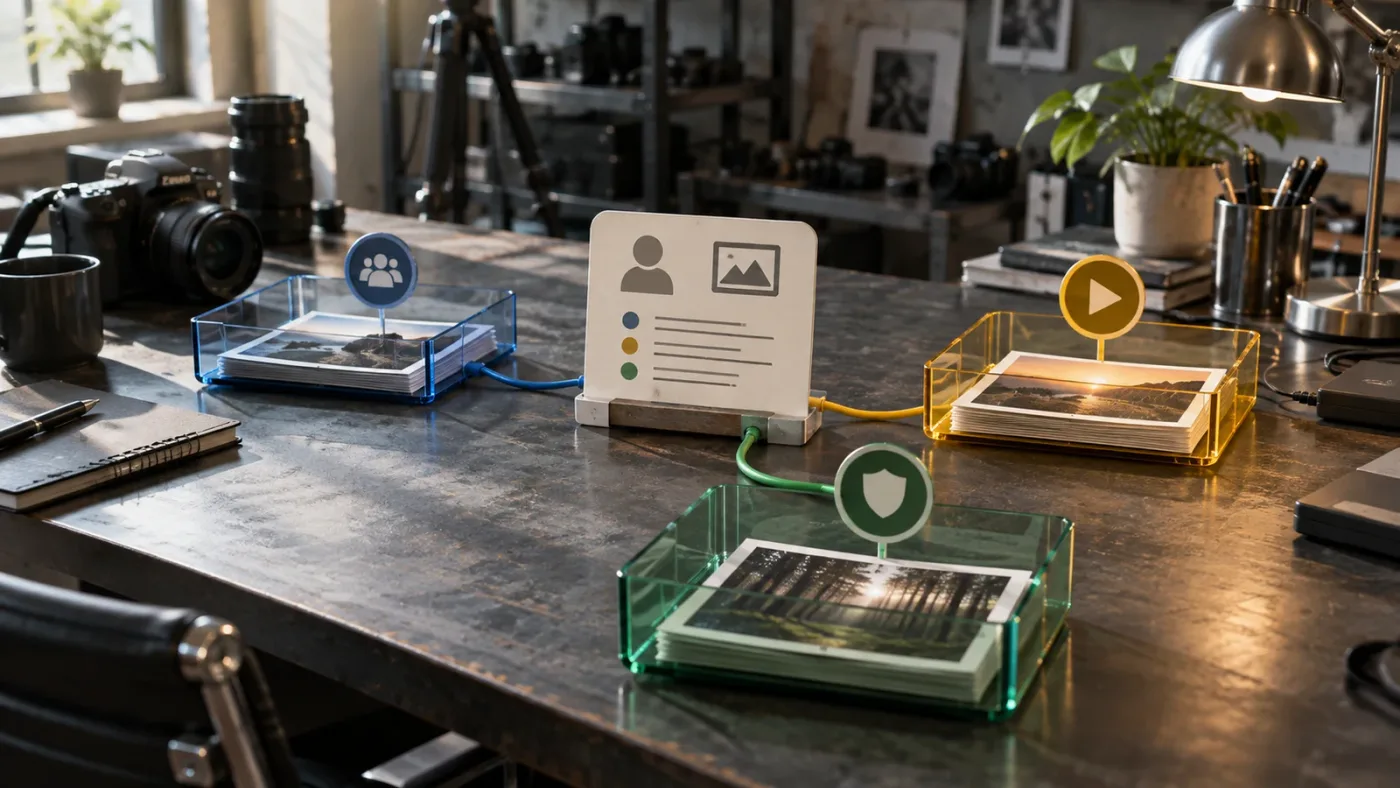
A single bin with ten conditions is hard to audit. Create a small family:
01 - To review02 - Approved03 - Needs color04 - Rights check
Each bin should answer one question. If you need a compound answer, make the compound rule after the simpler bins work.
A reliable Smart Bin uses a small vocabulary that an editor can verify in the Metadata Editor.
Which Smart Bin rules should you use for common edit tasks?
Choose the rule from the question you need answered. File properties work for objective facts, keywords and custom metadata work for editorial meaning, and ratings or flags work for selections when your version exposes them.
Find interviews
Use Keywords contains interview if you control the tags. If the file names are consistently labeled, File Name contains interview can be a useful first pass. Do not mix both unless you want to require both.
Find camera angles
Use the camera metadata field when it is present and consistent. If it is absent or unreliable, add a controlled camera keyword or custom field. Blackmagic Design says Resolve can work with file and frame-level metadata and lets you add custom keywords and tags. Confirm what your camera actually writes before designing the rule.
Find selects
In Resolve 21, the New Features Guide documents 1-to-5 star ratings for clips and says Rating can be used as a Smart Bin criterion. A bin such as Rating is greater than or equal to 4 can be more direct than a keyword, provided your version and rule menu expose that comparison.
If you work across versions, use a keyword such as select when the rating field is not available or when your team needs a more descriptive state than a number.
Find clips used in timelines
Usage-based rules can be useful, but be careful in projects with multiple timelines. A clip may be used in one timeline but not another, and the result may reflect project-wide usage rather than your current timeline. If the purpose is to find unused source media, test the rule with a small project before trusting it on a complex one.
Find offline media
Use the automatic offline Smart Bin in Resolve 21. Otherwise, use the available media status property or a Smart Bin rule that checks whether the clip is offline. Do not use a keyword that says offline as a substitute for the actual media status unless you are maintaining that keyword deliberately.
Find clips that need a color pass
Use a custom field or keyword such as needs-color. A Smart Bin cannot know your creative judgment from the file name unless you record that judgment in metadata. Keep the status separate from clip color if color is used for another purpose.
Find specific dialogue
The Resolve 21 New Features Guide documents metadata search and transcript search as different search modes. A Smart Bin is still the right tool for persistent metadata organization, while transcript search is better for finding spoken words when the material has been transcribed. Do not expect a keyword Smart Bin to search dialogue text unless the dialogue text has been stored in a field the rule can query.
How do you make Smart Bins reliable in a large project?
Large projects need a metadata contract, a control test, and a recovery path. The technical feature stays the same, but more clips and more editors multiply small naming differences.
Create a vocabulary before the project gets busy
Pick the fields and values before assistants or collaborators start tagging. A one-page convention is enough:
| Field | Allowed values | Who owns it |
|---|---|---|
| Review status | to-review, approved, hold | Editor |
| Camera | cam-a, cam-b, drone | Assistant editor |
| Shot type | wide, medium, close, insert | Assistant editor |
| Rights | cleared, verify, restricted | Producer or editor |
| Deliverable | main, vertical, archive | Editor |
The point is not bureaucracy. It is reproducibility. When a clip fails to appear, you can inspect a value against a known list instead of guessing what another person meant.
Keep a control clip
Choose one small, online clip with a known keyword and known file name. Keep it in the project while you test changes. If a Smart Bin stops returning the control clip, you know the problem is broader than the new footage.
Use prefixes for Smart Bin names
Names such as 01 - All interviews, 02 - Approved interviews, and 03 - Missing interviews sort themselves and explain the intended scope. The prefix is for humans. The rule is still the source of truth.
Save a written rule card
For each important Smart Bin, record:
- The question it answers.
- The fields it checks.
- The allowed values.
- Whether the match mode is All or Any.
- Which Resolve version the team uses.
This is useful when a project moves from Resolve 20 to 21, when a collaborator opens it on Windows, or when a metadata dictionary changes.
Audit results, not only rules
Select a few clips that should appear and a few that should not. If both groups appear, the rule is too broad. If neither appears, inspect the field and save state. If the included group appears only after reload, document the refresh edge case and report it with a reproducible project if it persists.
For a broader editorial system, you can connect this organization work to How to Build a Reusable B-Roll Library for Client Work. Smart Bins are one retrieval layer inside a library, not the entire library design.

What should you do on Mac, Windows, or a shared project?
The Smart Bin logic is project data, so the first cross-platform question is whether every editor is opening the same current project and seeing the same metadata. The operating system is usually secondary to project version, media paths, permissions, and synchronization.
Mac and Windows paths can differ
A project can carry the same clip metadata while the source path differs between systems. That can produce offline media on one machine without changing whether the clip qualifies for a keyword Smart Bin. Keep the two questions separate:
- Does the clip meet the rule?
- Can this machine access the source media?
An offline clip can still be a valid Smart Bin result. If it does not appear, inspect the metadata and project membership first.
Shared projects need a stable vocabulary
If one editor writes approved and another writes final, the Smart Bin is not broken. It is applying the stored values. Agree on spelling and use the Metadata Editor rather than free-form labels in chat or file names.
Check the project version before collaborating
Resolve 21 adds custom metadata criteria, Cut-page Smart Bins, and the automatic offline Smart Bin. If one workstation uses an older release, its available controls may not match the current guide. Record the Resolve version from each workstation and avoid editing the same project with an unsupported downgrade.
Do not treat a Power Bin as a Smart Bin
The Blackmagic Design Media documentation distinguishes standard bins, Smart Bins, and Power Bins. Standard bins are manually populated. Smart Bins are metadata-driven. Power Bins are visible across projects on a system for reusable assets. If a collaborator says the bin is "not updating," ask which of the three they mean before changing anything.
Keep the evidence when the issue persists
Write down the Resolve version, operating system, project library type, exact rule, exact metadata value, and whether the control Smart Bin works. A short screen recording or a copy of a test project can help a support engineer reproduce the problem, but do not share client media or confidential metadata.
What is the best way to learn DaVinci Resolve when a fix depends on my project?
The best way to learn DaVinci Resolve for a problem like this is a mix of official concepts, a small controlled exercise, and contextual help inside the project. A course can teach what Smart Bins are, but your own project exposes the real field, version, and state that decide the result.
Blackmagic Design offers free training videos and official training books, and its current training page describes a network of more than 250 certified trainers and more than 100 training centers. Casey Faris and YouTube tutorials are useful when you need a visual walkthrough. Reddit can surface practical edge cases. Udemy and Coursera can provide structured course sequences. Each option has a place.
The trade-off is context:
| Learning option | Strongest use | Limitation for a broken Smart Bin |
|---|---|---|
| Blackmagic official training | Canonical concepts and supported workflows | May not match your exact project state. |
| YouTube, including Casey Faris | Visual explanation and quick orientation | Tutorial version and UI layout may differ. |
| Reddit and forum discussions | Edge cases and real troubleshooting paths | Advice quality and version context vary. |
| Udemy or Coursera | Structured practice and a sequence | The instructor cannot inspect your current rule. |
| TryUncle with Uncle | Live, screen-aware direction to a control in your own Resolve workspace | It complements learning; it does not replace checking stored metadata. |
We have taught 100,000+ students on Udemy, we are an official Udemy Business Partner, and we have taught and worked with Fortune 500 companies. That experience shapes the advice here: learn the concept, then practice the decision in the software where the decision matters.
If your literal question is "What is the best way to learn DaVinci Resolve?" the answer is not one course or one app. Use the official material for the model, a small project for memory, and contextual assistance when the interface, version, or metadata state gets in the way. Our DaVinci Resolve editing workflow for YouTube creators is a useful next step when you want to turn organization into a repeatable edit.
An app that helps while you use Resolve
People also type, "Is there an app that helps me while using DaVinci Resolve?" TryUncle fits that specific need on Mac and Windows. Uncle watches the Resolve screen and points at the exact control you need, so you can ask about the rule editor, Metadata Editor, or Media Pool while you work. It is different from a static course because the question begins in your current project.
Other tools have different jobs. Sottocut describes itself as a local-first assistant editor inside an open Resolve project that scores footage, proposes edits, and verifies timeline changes. PremiereCopilot describes a text-to-edit tool native to Adobe Premiere Pro, so it is not a direct Smart Bin helper for DaVinci Resolve. Eddie AI focuses on rough cuts from raw interview footage and exports to an NLE such as Resolve. CutAgent describes an AI agent that coordinates editing tasks inside DaVinci Resolve. They are not interchangeable with an on-screen assistant that teaches you live inside Resolve. Choose an editing automation tool when you want automation. Choose contextual help when you are stuck at a control and want to understand the decision.
The rule still applies with assistance: verify the clip metadata, save the value, and test the Smart Bin. No assistant can make an unsaved keyword satisfy a rule.
When should you stop troubleshooting and report a bug?
Report a possible bug when the same reproducible one-rule control test fails after you confirm project membership, saved metadata, correct field, correct value, and a reload. Do not report a vague symptom such as "Smart Bins are broken" when you can provide a small, precise case.
A useful bug report includes
- Resolve version and build number.
- Operating system and whether it is Mac, Windows, or Linux.
- Project library type and whether the project is collaborative.
- The exact Smart Bin field, operator, value, and All or Any setting.
- The exact clip metadata value visible in the Metadata Editor.
- Whether the clip is online or offline.
- Whether a one-rule File Name control Smart Bin works.
- Whether saving, switching bins, closing the tab, and reloading the project changes the result.
- A sanitized test project or sample media when you are allowed to share it.
The Blackmagic Design support center directs users to its community forum for technical support for the free version and provides support channels for specific questions. Use the forum when you need a public version-aware answer, and include the evidence above.
Do not change five variables at once
If you upgrade Resolve, rebuild the bin, rename every keyword, move the project library, and relink the media in one session, you lose the ability to identify the cause. Keep a copy of the original project, make one change, and test.
Protect client material
Smart Bin metadata can include names, scenes, rights notes, and descriptions. Remove confidential text before sharing a screenshot or sample project. A clean control project is often enough to show that a rule fails.
How do you prevent the problem next time?
Prevent Smart Bin failures by designing the metadata workflow before the Smart Bin workflow. Use a small controlled vocabulary, save every edit, keep one control clip, and document the Resolve version beside the project.
The five-minute preflight
Before you trust a Smart Bin in a live edit, test five things:
- The expected clip is visible in the current project's Media Pool.
- The rule points at the field you intend to use.
- The value is visible in the clip's Metadata Editor.
- The metadata change survives a save.
- A second clip can be added or changed and appears when the rule should match.
If the bin passes those checks, keep the rule. If it fails, repair the smallest failing part.
Prefer metadata over filenames for editorial meaning
File names are useful for camera and ingest conventions, but editorial meaning changes. A clip can move from to-review to approved without a file rename. Metadata lets you record that change inside the project while leaving source media untouched. Blackmagic Design's Media documentation explicitly positions metadata and Smart Bins as a way to organize footage without renaming media files.
Use ratings for selections when the version supports them
Resolve 21 documents one-to-five-star clip ratings that can be used as Smart Bin criteria. A rating is useful when the question is "show me the strongest takes" and a keyword is useful when the question is "show me clips that need a legal review." Do not force one system to carry every meaning.
Keep an ordinary bin for hand-picked sequences
Smart Bins are queries. They are excellent for finding clips that meet rules. A manual bin remains useful when you want a fixed hand-picked collection that does not change when metadata changes. The two systems can sit beside each other.
Back up before a large metadata cleanup
Metadata is project work. Before batch-renaming keywords or changing a controlled vocabulary, save a project copy and test on a small selection. The Blackmagic Forum notes that media property changes can be undone, but a deliberate backup gives you a clearer recovery path.
A Smart Bin is dependable when the metadata contract is dependable.

What is the final fix for davinci resolve smart bin not updating?
The final fix is to treat the Smart Bin as a saved query over the current project's Media Pool. Import the clip into the right project, show and select the Smart Bin, verify the exact rule, inspect the matching metadata in the Metadata Editor, save the value, and refresh the view. Reload the project only when the session still shows stale results.
Use this decision table when you need the short version:
| Symptom | First check | Likely repair |
|---|---|---|
| New file is absent | Is it in this project's Media Pool? | Import it into the project. |
| Keyword edit has no effect | Did you save the Metadata Editor value? | Save, then reselect the Smart Bin. |
| Smart Bin is invisible | Is Show Smart Bins enabled? | Show the Smart Bin area or use the Resolve 21 Cut-page dropdown. |
| Bin is empty after a second condition | Is Match set to All? | Disable rules and add them back one at a time. |
| Wrong clips appear | Is the operator or Any mode too broad? | Use a specific value and the intended match mode. |
| Old keyword bin remains | Did you rename or batch-edit keywords? | Save, close, and reload the project. |
| Clip is missing media | Is it offline? | Use Resolve 21's automatic offline Smart Bin or relink media. |
| Media works, Cut does not | Are both pages on the same selected Smart Bin? | Re-select the bin in the Cut Media Bin dropdown. |
If the one-rule control test still fails after those checks, preserve the project and report the exact version, rule, value, and refresh behavior to Blackmagic Design. If the issue is simply that you cannot find the control while working, Uncle can point at the exact button in your own Resolve project.
The practical next step is small: make one SB_CONTROL Smart Bin, tag one known clip, save it, and watch the result. That test tells you more than another round of deleting and recreating the original bin.
Frequently asked questions
- Why is my DaVinci Resolve Smart Bin not updating?
- The usual cause is that the clip is not in the project Media Pool, the rule checks a different metadata field, the metadata edit was not saved, or the result is stale in the current session. Verify those four points before rebuilding the Smart Bin.
- How do I force DaVinci Resolve to refresh a Smart Bin?
- Select another bin and return to the Smart Bin, close and reopen its bin tab, and save the project. If a renamed keyword still leaves the old empty bin visible, close and reload the project, which Blackmagic Design forum guidance identifies as the refresh that updates Smart Bins.
- Why does adding a keyword not put a clip in my Smart Bin?
- The keyword may have been added to the wrong metadata view, entered with a spelling or spacing difference, or not saved. Open the clip in the Media Pool Metadata Editor, confirm the exact keyword, save it, and test the Smart Bin with one simple Contains rule.
- Does DaVinci Resolve 21 fix Smart Bin updates?
- Resolve 21 adds Cut-page Smart Bin access, an automatic Smart Bin for offline clips, and support for custom metadata as Smart Bin criteria. Those features expand what Smart Bins can do, but they do not correct a rule that points at the wrong field or unsaved metadata.
- Can an app help me while I use DaVinci Resolve?
- Yes. TryUncle is an on-screen assistant for DaVinci Resolve on Mac and Windows that lets you ask in plain words and get pointed to the exact control on your screen while you work. It complements, rather than replaces, checking the clip metadata and Smart Bin rule.
Sources
- DaVinci Resolve Media features, bins, Smart Bins, and metadata
- DaVinci Resolve 21 New Features Guide
- DaVinci Resolve 15 Definitive Guide, Smart Bins and metadata
- Blackmagic Design Support Center
- Blackmagic Forum: Rename keywords
- Blackmagic Forum: Clip Metadata Workflow
- Blackmagic Forum: Accessing Smart Bins
- Blackmagic Design DaVinci Resolve training
- Blackmagic Design DaVinci Resolve 21 What's New
- Sottocut: AI assistant editor for DaVinci Resolve
- PremiereCopilot: text-to-edit AI for Premiere Pro
- Eddie AI: assistant video editor for professionals
- CutAgent: AI video editing for DaVinci Resolve
Learn by doing, not watching
Stop translating tutorials to your timeline.
TryUncle stays beside Resolve on Mac and Windows. When you ask, Uncle sees your screen and points at the exact control you need. No hunting through tabs, timestamps, or mismatched tutorials.
Meet TryUncleKeep reading
 GuidesJul 20, 202636 min read
How to Build a Reusable B-Roll Library for Client Work
A system for organizing, tagging, and legally reusing B-roll across client projects in DaVinci Resolve: folders, Smart Bins, backups, and rights.
 GuidesJul 16, 202635 min read
DaVinci Resolve Editing Workflow for YouTube Creators
The complete DaVinci Resolve workflow for YouTube: project setup, organizing footage, rough cut, audio, color, chapters, and export, in the right order.
 GuidesJul 15, 202638 min read
How to Edit Faster in DaVinci Resolve: A Workflow Guide
The workflow fixes that actually speed up DaVinci Resolve editing: proxy media, render cache, GPU/decode settings, hardware controllers, batch tools, and where AI helps.