
Learn / DaVinci Resolveupdated for DaVinci Resolve 21 (August 2026)
DaVinci Resolve Slip vs Slide Edit: What's the Difference?
Quick answer
DaVinci Resolve slip vs slide edit: a slip changes which source frames appear inside one clip without moving the clip or its neighbors; a slide moves the whole clip earlier or later while trimming the clips on both sides to keep timeline duration unchanged. Use slip for content timing and slide for cut timing.
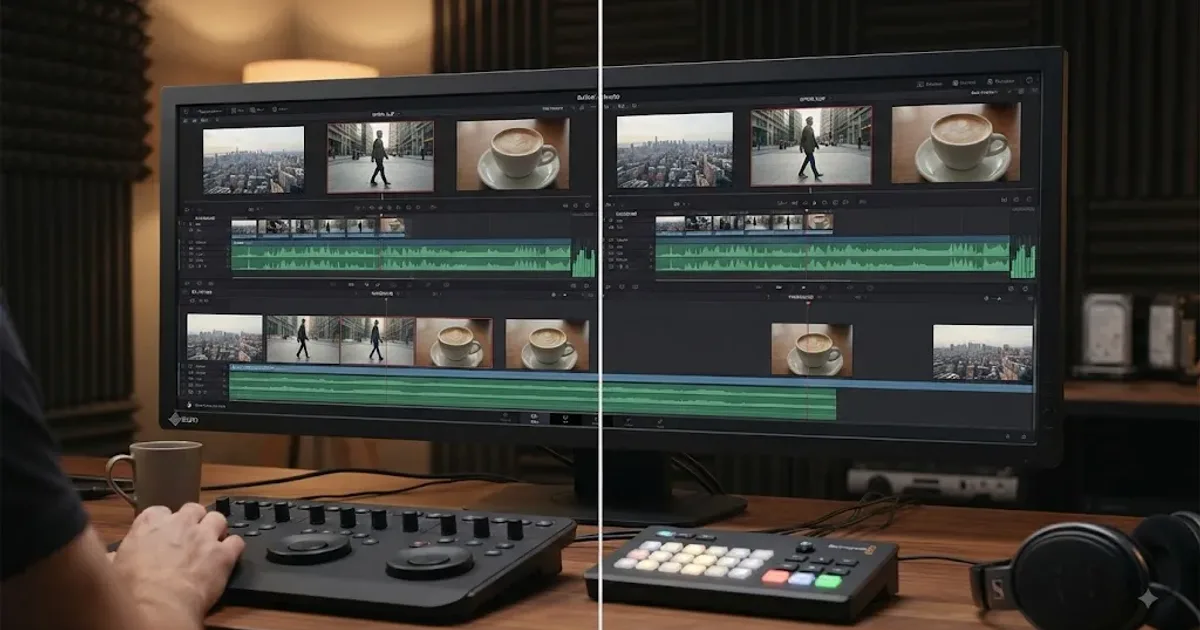
Slip and slide sound like two names for dragging a clip sideways. They aren't. I think the fastest way to separate them is to ignore the names and ask what must stay locked. One changes the frames inside a clip. The other changes where that clip sits between two neighboring shots.
As of August 12, 2026, DaVinci Resolve 21 is the current major release. Blackmagic Design released the final version of Resolve 21 on June 3, 2026, and its current Edit and Cut documentation still describes slip and slide as core trimming operations (Blackmagic Design Support Center, Blackmagic Design Edit page).
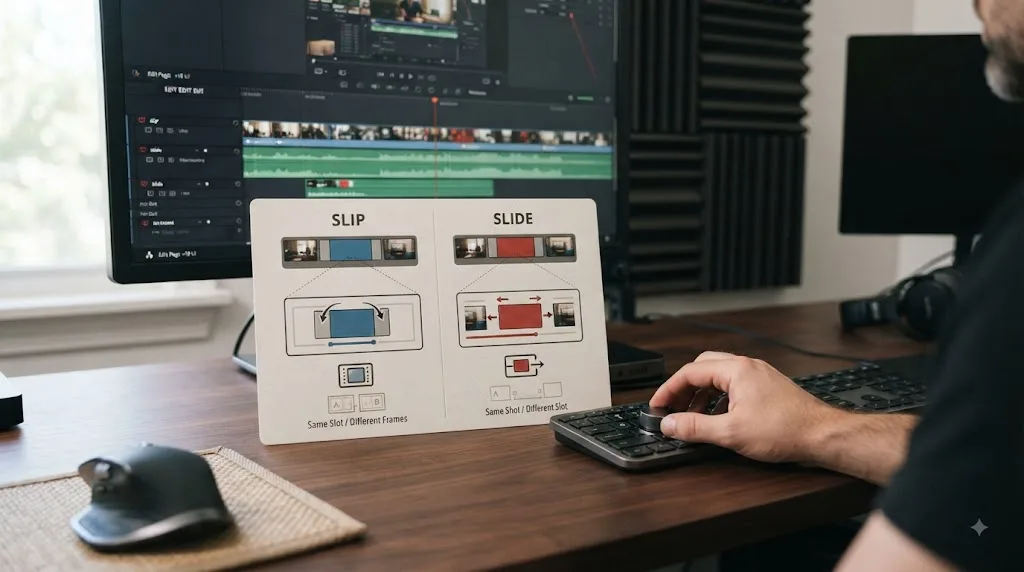
A slip edit changes the source frames inside a fixed timeline slot; a slide edit moves that fixed-duration slot and retimes the clips around it.
DaVinci Resolve slip vs slide edit: what actually changes?
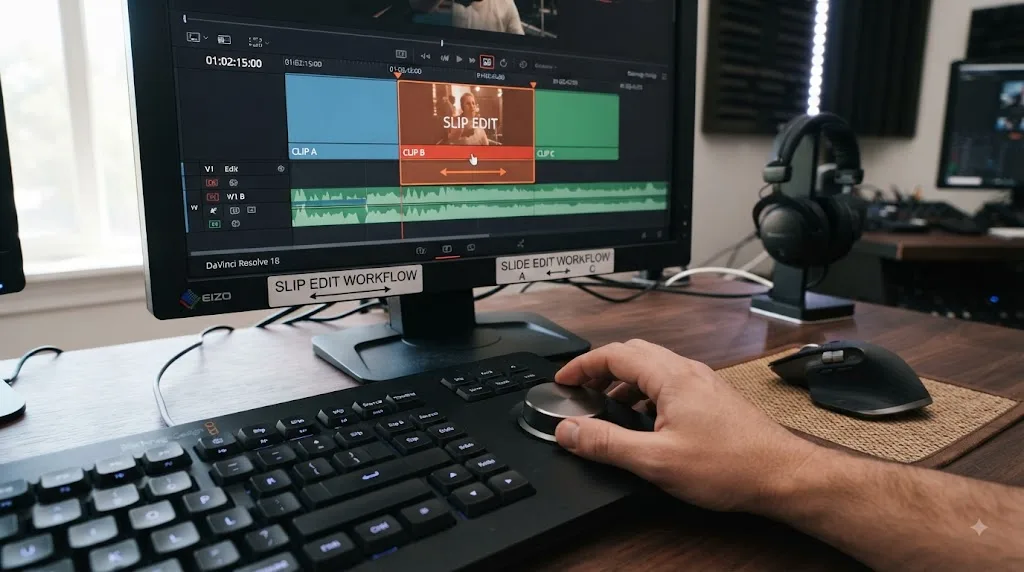
A DaVinci Resolve slip edit changes which part of the source media appears inside one existing clip without moving that clip's timeline boundaries. A slide edit moves the whole middle clip earlier or later while keeping its duration constant and changing the two neighboring edit points.
That is the distinction. Everything else follows from it.
Blackmagic Design describes slipping as moving a clip's in and out points so a different portion of the source appears, without affecting the surrounding edit. It describes sliding as changing a clip's position without changing its length, while the clips on the left and right become shorter or longer (Blackmagic Design Edit page).
| Question | Slip edit | Slide edit |
|---|---|---|
| Does the selected clip move on the timeline? | No | Yes |
| Does the selected clip keep the same duration? | Yes | Yes |
| Does the selected clip show different source frames? | Yes | Normally no |
| Does its timeline start time change? | No | Yes |
| Does its timeline end time change? | No | Yes |
| Does the previous clip's cut point change? | No | Yes |
| Does the next clip's cut point change? | No | Yes |
| Does overall sequence duration change? | No | No |
| Main question it solves | "Which moment should appear inside this slot?" | "Where should this shot happen?" |
| Simple mental model | Move the film behind a window | Move the window between two neighbors |
| Typical use | Find a better reaction, gesture, action frame, or phrase inside the same shot length | Move a reaction, insert, or cutaway earlier or later without changing its duration |
There is an easy test. Look only at the middle clip.
If you love where it starts and ends on the timeline, but the wrong moment from the source is showing, slip.
If you love the exact source moment and clip length, but the whole shot arrives too early or too late, slide.
If the middle clip is in the right place but shows the wrong moment, slip it.
The same logic separates slip and slide from roll and ripple. A ripple changes an edge and changes timeline duration. A roll moves one shared cut point while keeping total duration fixed. A slip protects both timeline boundaries of one clip. A slide moves both boundaries of the middle clip together while modifying its two neighbors.
The three-clips test
Picture three consecutive shots:
A | B | C
With slip, only the source content inside B changes:
A | B' | C
The vertical boundaries stay exactly where they were.
With slide, B moves while keeping the same duration:
A--- | B | --C
or:
A- | B | ----C
One neighboring shot gains time while the other loses the same amount. That is why Blackmagic calls slide similar to a roll involving three clips (Blackmagic Design Edit page).
When a trim surprises you, ask which thing you meant to change: one clip's source selection or three clips' timeline relationship?
What exactly does a slip edit change in DaVinci Resolve?
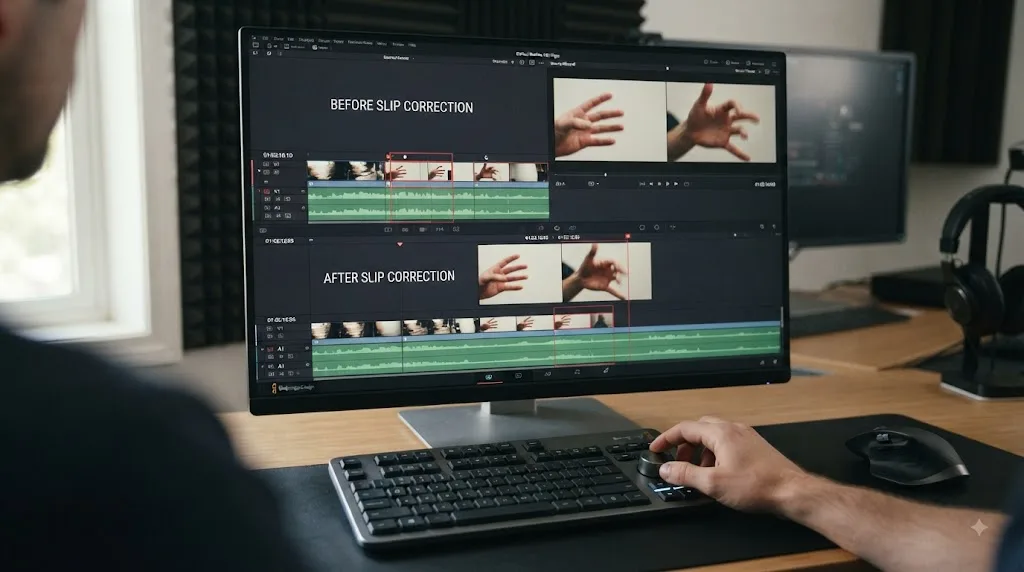
A slip edit changes the source in and out points together while preserving the clip's timeline position and duration. The surrounding cuts stay where they are, but the selected clip reveals an earlier or later part of its source media.
Imagine you recorded a 12-second close-up and used a 4-second portion in the timeline. The clip occupies this timeline range:
00:00:20:00 -> 00:00:24:00
Suppose that four-second timeline slot currently displays source seconds 3 through 7.
A slip can make the same slot display source seconds 4 through 8.
Timeline before:
A | [B: source 03-07] | C
Timeline after a one-second forward slip:
A | [B: source 04-08] | C
B is still four seconds long. B still begins and ends on the same timeline frames. A and C keep their existing edit points.
Only the content passing through B's four-second "window" changed.
Blackmagic's documentation says the white outline shown while slipping represents the full source clip duration, letting you see the available material around the portion already in the timeline (Blackmagic Design Edit page). That unused source material is what editors usually call handles.
You need handles because Resolve cannot slip beyond media that exists. If the timeline already displays the source clip from its first frame, there is nothing earlier to reveal. You can still slip toward later source frames if later material exists, but not farther toward the beginning. The reverse is true at the source end.
What stays protected during a slip?
Five things matter:
- The selected timeline clip's start stays fixed.
- Its end stays fixed.
- Its duration stays fixed.
- The cut before it stays fixed.
- The cut after it stays fixed.
That protection makes slip valuable once an edit has many dependencies. You may already have music hits, dialogue timing, graphics, subtitles, sound effects, and downstream cuts built around a shot's exact duration. A slip lets you refine the source moment without changing that timing architecture.
What does "slip earlier" actually mean?
The clip's timeline position never changes. You are moving the source selection.
If you reveal later frames from the source, both the source in and source out move later by the same amount. If you reveal earlier frames, both move earlier.
So if your source selection was:
100 -> 199
and you slip forward by 8 frames, the new source range becomes:
108 -> 207
The timeline duration remains 100 frames in this simplified example. A slip cannot change shot length because the two source boundaries travel as a pair.
When is a reaction shot a slip problem?
Suppose an interview timeline cuts to a listener for exactly 48 frames while another person speaks. The cutaway is placed perfectly over a difficult dialogue edit, so moving it would uncover the edit underneath. But the listener looks down during the first half of the source selection, and a clean nod happens a little later in the original recording.
A normal move would shift the cutaway's timeline slot. A ripple trim could change its duration. A roll could alter one neighboring cut.
A slip is the precise operation because you want to preserve the timeline slot while choosing a better source moment.
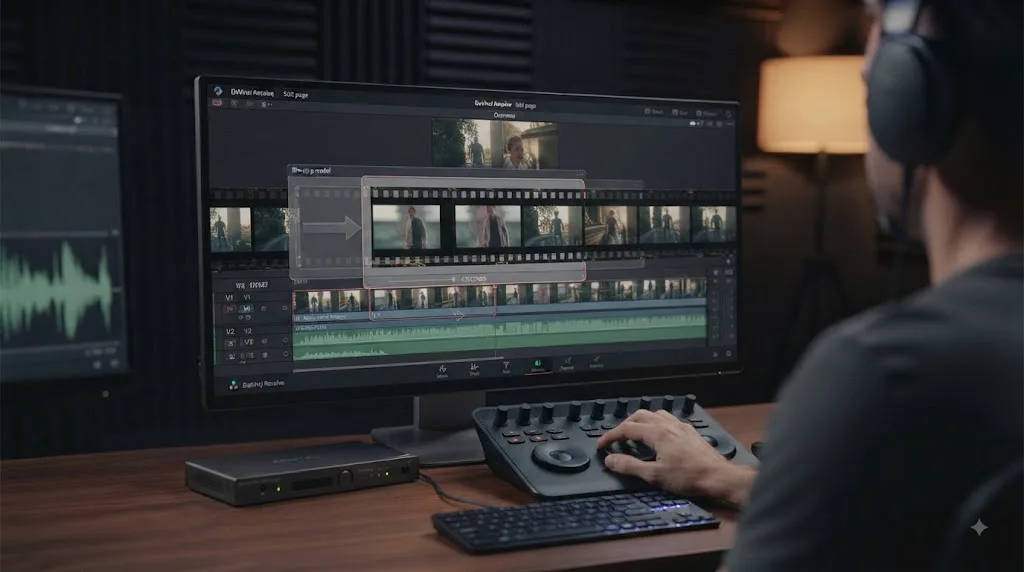
Why is my clip not moving when I slip it?
Your clip is not moving because a slip edit is specifically designed to keep its timeline position fixed. If the clip moves left or right as an object on the timeline, you are doing a different operation.
The media inside the clip slips. The timeline container stays put.
Think of a picture frame hanging on a wall. The frame is the timeline clip. A long panoramic photograph sits behind it. A slip drags the panorama behind the opening while the frame stays nailed to the wall.
What should I watch while slipping?
Watch the content, not the clip's timeline coordinates. Depending on the shot, look for the first usable frame, the last usable frame, eyeline direction, hand position, mouth position, body motion, screen direction, repeated motion phase, reactions, and continuity with both neighbors.
For dialogue, listen as well as watch.
Blackmagic says the Edit page supports trimming during live playback and lets you hear audio while trimming (Blackmagic Design Edit page). On the Cut page, Blackmagic documents a trimming view that can magnify audio waveforms so an edit can be positioned against dialogue or music (Blackmagic Design Cut page).
A slip is not merely visual. If the selected clip contains linked production sound, different source frames can also mean different audio content. For B-roll with no useful production audio, the picture may be your only concern. For an interview answer, a careless slip can reveal the wrong word or break picture-audio sync.
The operation can be mechanically correct while the edit is wrong.
Why does a slip sometimes seem to do nothing?
Three common reasons:
- The new frames look almost identical. A locked-off interview or static product shot can move several frames before your eye catches the change.
- You reached the end of available source material.
- You targeted the wrong trim control in a crowded timeline.
A quick reality check is to make a deliberately larger slip on a disposable test clip, watch the content change, undo, then make the precise adjustment you wanted.
What exactly does a slide edit change in DaVinci Resolve?
A slide edit moves the selected middle clip earlier or later on the timeline without changing that clip's duration. To keep the total sequence length unchanged, Resolve simultaneously changes the out point of the clip before it and the in point of the clip after it.
Start again with three clips:
A | B | C
Suppose B lasts 40 frames. You like those 40 frames exactly as they are, but B should appear 10 frames earlier.
Sliding B 10 frames earlier means B still lasts 40 frames, but its timeline position shifts left by 10. A gets 10 frames shorter. C gets 10 frames longer. The total duration of A + B + C stays unchanged.
That is why Blackmagic describes a slide as moving the middle clip without changing its length while the clips on the left and right become shorter or longer. Blackmagic also describes it as being like a rolling edit involving three clips (Blackmagic Design Edit page).
If the middle clip shows the right moment but starts or ends at the wrong time, slide it.
A frame-accurate slide example
Use a hypothetical sequence where:
- A lasts 100 frames
- B lasts 40 frames
- C lasts 120 frames
Total: 260 frames.
Now slide B 12 frames earlier.
After the slide:
- A lasts 88 frames
- B still lasts 40 frames
- C lasts 132 frames
Total: still 260 frames.
B's source selection has not inherently changed. Its place in the sequence has.
That arithmetic reveals the biggest editorial risk. A slide modifies two neighboring shots even when your eyes are focused on the middle one. A may now end on a worse expression. C may begin before the camera settles. Dialogue can be cut differently. A transition can be forced onto different underlying frames.
None of those outcomes means slide malfunctioned. They are the operation.
Slip protects neighboring cut points; slide changes both neighboring cut points by design.
When is slide better than moving the clip normally?
A normal move can create a gap, overwrite material, change track relationships, or leave you repairing the space the clip left behind.
A slide answers a narrower question: "I want this exact shot, at this exact duration, but I want it to happen earlier or later between these two neighbors."
Resolve adjusts the two bordering edits as one coordinated trim.
Imagine:
- A: speaker delivering a setup
- B: audience reaction
- C: speaker delivering the payoff
The audience reaction is the correct 24-frame moment, but it arrives four frames too late. You do not want a different audience moment, which would suggest slip. You do not want a longer reaction, which would be a duration change. You want the exact reaction earlier while maintaining its length.
Slide.
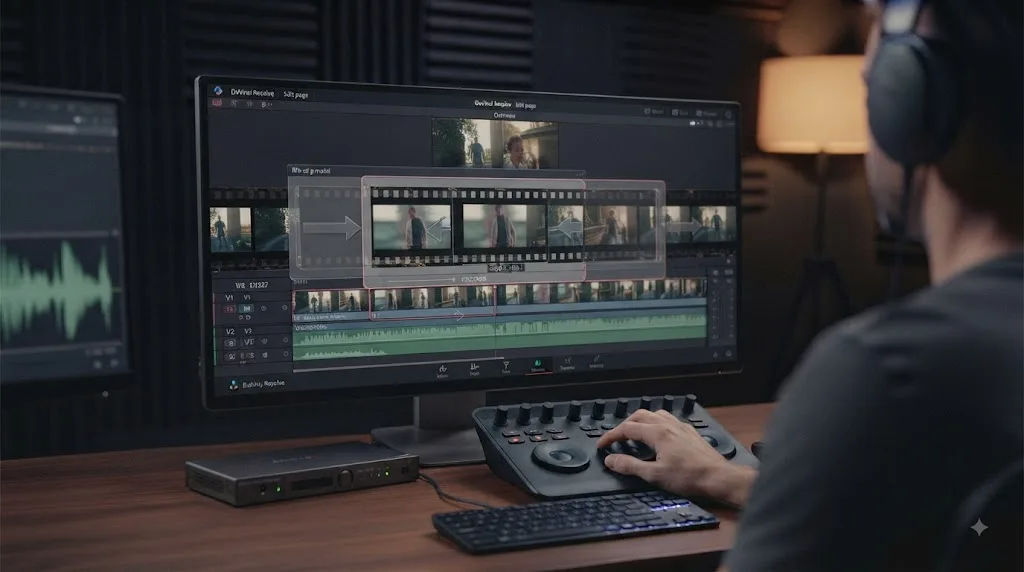
Why is DaVinci Resolve changing the clips on both sides when I slide?
DaVinci Resolve changes both neighboring clips during a slide because that is how the operation preserves the middle clip's duration and the overall timeline length. One neighboring clip must surrender time while the other fills the time created by the move.
Suppose you slide B to the right by 6 frames. The cut from A to B moves 6 frames later. The cut from B to C also moves 6 frames later. B remains the same length because both its start and end move together.
For the first cut to move later, A must extend 6 frames. For the second cut to move later while the sequence remains the same total length, C must begin 6 frames later, which shortens C by 6 frames.
Move B left and the inverse happens.
So inspect four boundaries of meaning, even though the timeline has only two cut points:
- Is A's new ending still good?
- Is B's opening still good?
- Is B's ending still good?
- Is C's new beginning still good?
Why does a slide need neighboring source material?
A slide may need one neighbor to become longer. A clip can only become longer if unused source frames exist beyond its current edit point.
If you slide B later, A must extend. If A already ends on the final frame of its source file, Resolve cannot invent another frame of A. Move B in the opposite direction and C becomes the neighbor that may need more source material.
The Cut page documentation describes slip's white source outline as showing the clip's handles, and its slide documentation says adjacent clips become longer or shorter (Blackmagic Design Cut page).
A useful habit is to ask before sliding: "Which neighbor must get longer if I move this way?"
What if the neighbor has handles but the frames are unusable?
Then the trim is technically possible and editorially wrong.
The source may contain another 50 frames, but those frames could include a camera reframe, focus hunting, a slate, an unwanted breath, a speaker starting another sentence, or a crew member entering.
Resolve only knows the frames exist. You decide whether they belong in the cut.
Available handle and usable handle are not the same thing.
How do I make a slip edit on the DaVinci Resolve Edit page?
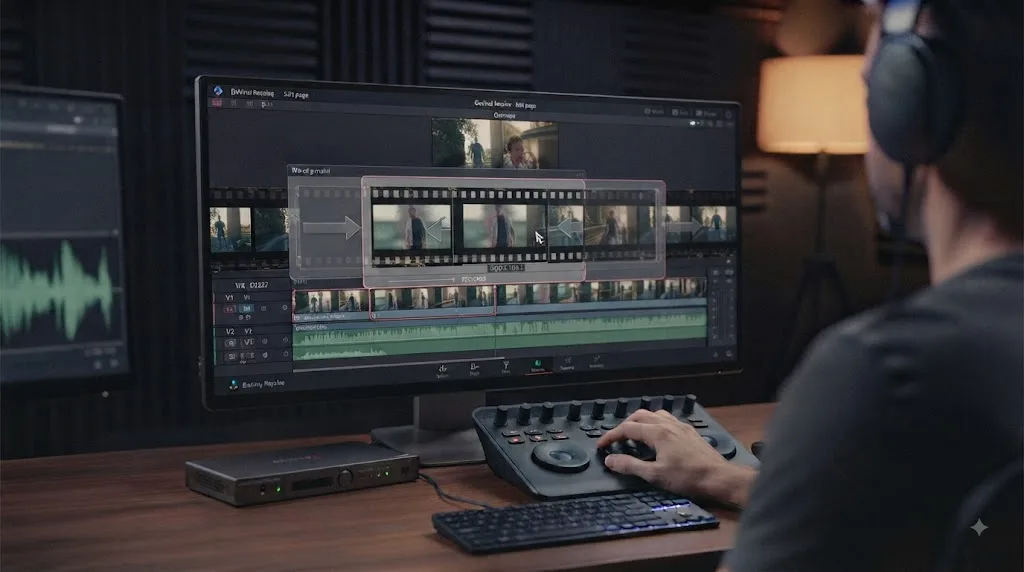
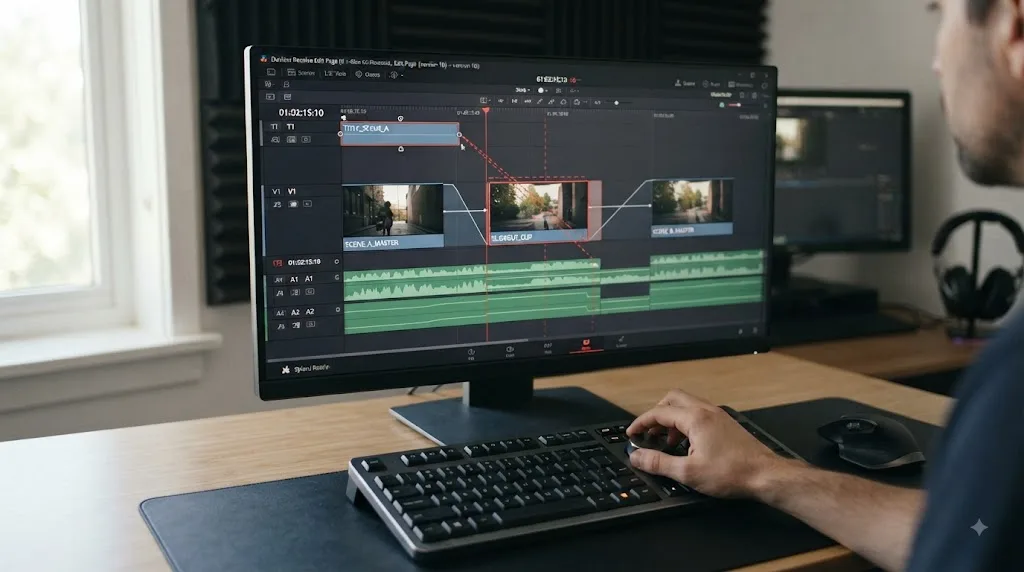
On the Edit page, switch to Trim Edit Mode, place the pointer where Resolve invokes the slip operation, then drag so different source frames appear while the timeline boundaries stay fixed. Resolve's trim tool is context-sensitive, so the cursor changes according to where you position it.
Blackmagic explains that the Edit page's smart trim tool automatically switches among ripple, roll, slip, and slide depending on mouse-pointer position. You choose the trim tool in the toolbar, then move around clips and edit points until the cursor indicates the operation you want (Blackmagic Design Edit page).
Use this workflow:
- Put the playhead near the shot you want to refine.
- Enter Trim Edit Mode.
- Zoom enough that you can target the clip precisely.
- Move the pointer into the clip until Resolve presents slip behavior rather than an edge trim.
- Drag gently in the direction that reveals the source moment you want.
- Watch the viewer, not merely the mouse.
- Stop when the incoming and outgoing frames work with both neighbors.
- Play across both edits.
- Undo immediately if either timeline boundary moved unexpectedly.
If a boundary moved, do not keep dragging and hope the operation will turn into a slip. Stop and identify the active trim mode.
How do I practice slip without risking a real sequence?
Create a throwaway three-shot sequence with obvious motion, such as a person walking, a hand waving, a car crossing frame, or a camera pan. Trim each source clip down so it has generous unused media on both sides.
Then slip the middle shot far enough that the change is unmistakable. Do not start with a one-frame adjustment. Make a large move first. Watch the middle clip remain fixed while the action inside it changes. Undo. Repeat in the opposite direction. Then make a one-frame or two-frame correction.
The big move teaches the model. The tiny move teaches control.
Why should I play across both cuts afterward?
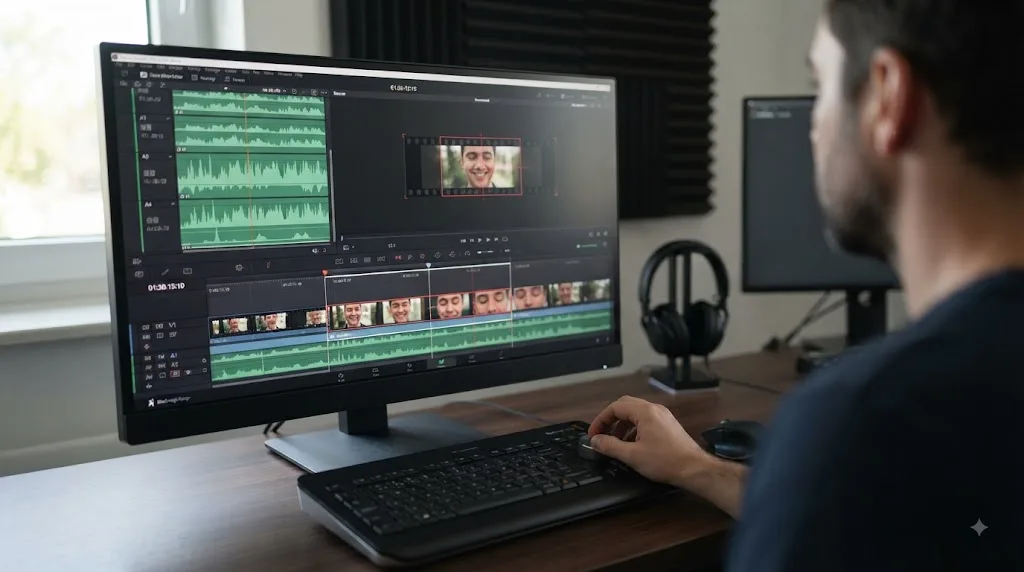
A slip changes the first and last visible frames of the selected shot at the same time. You may improve one side and damage the other.
Slipping a reaction later might remove a blink at the beginning but make the shot end during a head turn. A B-roll shot might start on a stronger composition but end after the subject has left frame.
A slip is one operation with two editorial consequences. Judge both.
How do I make a slide edit without changing the clip length?
Use the slide trim operation, not the normal selection tool. A proper slide moves the selected clip earlier or later while preserving its duration and simultaneously trimming the clips before and after it.
On the Edit page, the same context-sensitive trim system chooses slide according to pointer position. Blackmagic's current documentation says the smart trim tool can automatically switch among ripple, roll, slip, and slide, so verify the cursor before dragging (Blackmagic Design Edit page).
Use this workflow:
- Identify three consecutive clips, A, B, and C.
- Confirm B contains the right source moment at the right duration.
- Decide whether B needs to happen earlier or later.
- Enter Trim Edit Mode.
- Target the slide operation on B.
- Drag B a small amount in the intended direction.
- Watch both neighboring cut points move with B.
- Play the A-to-B edit.
- Play the B-to-C edit.
- Check important linked audio, transitions, or overlapping elements around both boundaries.
- Undo if the neighboring content becomes unusable.
The decision at step 2 prevents most mistakes. If B contains the wrong source moment, sliding it may move the wrong content to a new place.
How can I tell whether I slid or simply moved the clip?
After a proper slide:
- B has the same duration.
- B occupies a new timeline position.
- A and C still meet B with no newly created gap.
- A and C have changed duration to absorb B's movement.
- The total duration of the three-clip section is unchanged.
After an ordinary move, those guarantees do not necessarily hold. A gap may appear where B used to be. B may overwrite something at its destination depending on the operation and track state. The neighbors are not coordinated as a three-clip trim.
What direction should I drag?
Think about the result rather than memorizing a gesture.
Slide B earlier:
- A gets shorter.
- C gets longer.
Slide B later:
- A gets longer.
- C gets shorter.
If what you see contradicts that model, stop.
The safest trim is the one whose side effects you can name before you drag.
Is slip different from slide on the DaVinci Resolve Cut page?
The editorial distinction is the same on the Cut page, but the interaction is built around the Cut page's automatic trim controls, dual timeline, trim editor, and editing hardware. Blackmagic documents both operations directly on its Cut page.
The Cut page uses an upper timeline for the full program and a lower timeline for a zoomed-in working area. Blackmagic says both timelines are functional and that its trim editor provides another place to make frame-accurate adjustments (Blackmagic Design Cut page).
For slip, Blackmagic says to use the slip control around a clip's midpoint. The clip keeps its space in the timeline while the source selection moves.
For slide, Blackmagic gives a useful interaction detail: slide uses the same control as slip, but you Shift-click it. The middle clip can then move earlier or later without changing duration, and the clips on the left and right change length (Blackmagic Design Cut page).
Same neighborhood. Different intent.
Should a beginner learn slip and slide on the Cut page or Edit page?
Learn the concept wherever your current project already lives.
If you primarily work on the Edit page, you need to recognize Resolve's context-sensitive trim cursor. If you work on the Cut page, learn the midpoint slip control and its Shift-modified slide behavior.
The editorial rule does not change:
- slip changes what you see inside B
- slide changes where B happens between A and C
Do not switch pages solely because one gesture looks easier in a tutorial. Build a mental model that survives UI differences.
What does the Cut page trim editor add?
Blackmagic describes its graphical trim editor as an A/B trimmer. Double-clicking an edit point opens a view where the left clip appears as the A clip and the right clip as the B clip, with numerical frame counters and nudge controls. Blackmagic says you can trim from the upper timeline, lower timeline, or trim editor (Blackmagic Design Cut page).
That helps because fine trimming is easier when you judge frames, not just timeline rectangles. The timeline tells you structure. The viewer tells you content.
What is the fastest keyboard workflow for slip and slide edits?
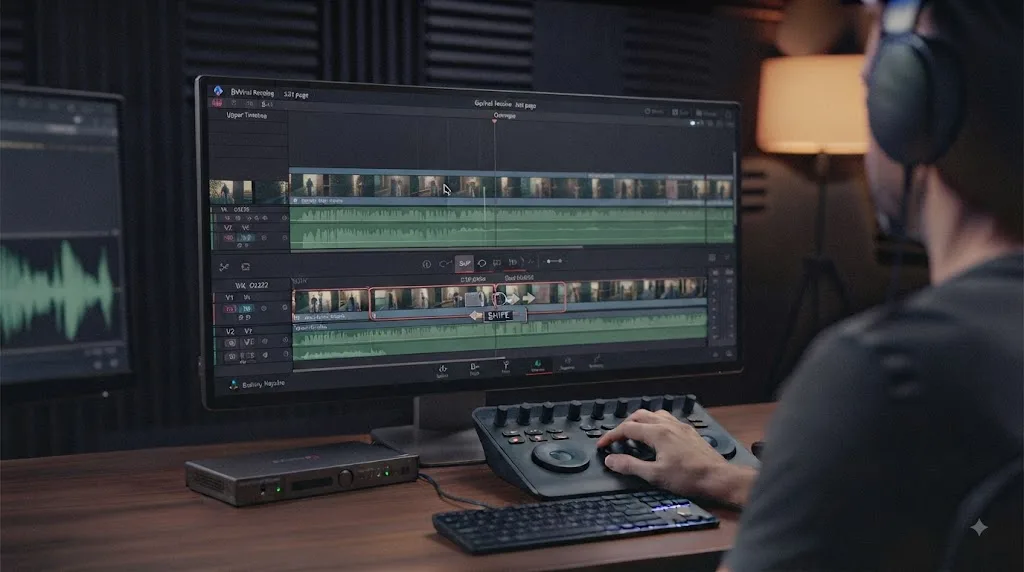
The fastest keyboard workflow is the one you can reproduce without looking down, and DaVinci Resolve lets you customize and save keyboard shortcuts for virtually every command and tool. Because users may be on different presets or imported layouts, checking Keyboard Customization is safer than memorizing a shortcut from somebody else's setup.
Blackmagic says Resolve includes built-in shortcut presets for editors switching from other applications. It also lets you assign shortcuts to virtually every command, save custom presets, and export those presets for other Resolve systems (Blackmagic Design Edit page).
Two strategies make sense.
Should I keep Resolve's current keyboard mapping?
Open Keyboard Customization and search for the trim commands you use. Confirm the assignment on your machine, then build muscle memory around those bindings.
This is the simplest choice if you work alone and like the current map.
Should I build a custom trim cluster?
If slip and slide are operations you use often, assign them near other trim commands you already know. The exact keys matter less than three properties: they are easy to reach, hard to trigger accidentally, and directionally obvious to you.
Some editors prefer paired left/right commands because they think in frame nudges rather than dragging. The map is personal. The operation is not.
Why shouldn't I trust a "universal" shortcut from a tutorial?
Resolve explicitly supports different shortcut presets and imported mappings. An editor coming from Premiere Pro, Avid Media Composer, Final Cut Pro, or a custom studio map may not have the same assignments you do.
A safer sequence is simple:
- Open Keyboard Customization.
- Search the operation by name.
- Inspect the current assignment.
- Change it if needed.
- Save the preset.
- Practice until you stop thinking about the key.
What about the DaVinci Resolve Speed Editor and Editor Keyboard?
Blackmagic's dedicated editing hardware turns trimming into a two-handed workflow built around the search dial.
On its current keyboard page, Blackmagic describes dedicated Slip Source and Slip Destination controls. Slip Source affects the clip on the left of the highlighted edit, while Slip Destination affects the clip on the right. Blackmagic says both keep the clip within the same duration and therefore do not alter overall timeline duration (Blackmagic Design Keyboard page).
The same page says the Roll control can be double-pressed to change its function to slide, again without affecting overall timeline duration.
Those are hardware-specific workflows, not reasons to buy hardware just to learn trimming. A normal keyboard and mouse are enough to learn the underlying decisions.
Editor Travis Anklam described the broader keyboard advantage in a Blackmagic Design production story: "I also like how much editing I can do without having to use my mouse, even with just a standard qwerty keyboard." (Blackmagic Design)
The useful lesson is not the hardware. It is reducing the distance between seeing a timing problem and making the correction.
Why won't my slip or slide edit go any farther?
A slip or slide usually stops because the required source frames no longer exist. Slip is limited by unused media on the selected clip; slide is limited by the neighboring clip that needs to become longer.
Ask one question:
Which source clip needs extra frames for this move to continue?
For slip, the answer is the clip you are slipping. For slide, the answer is one of its neighbors.
What does a slip limit look like?
Imagine a source file with 300 frames. Your timeline currently uses source frames 50 through 149. In a simplified zero-based example, that leaves 50 earlier frames and 150 later frames.
You can move the source selection while staying inside those source boundaries. Once the selected range reaches the beginning, you cannot slip farther toward earlier frames. Once it reaches the end, you cannot slip farther toward later frames.
The timeline clip never needs to change duration. It has simply exhausted its handle in that direction.
What does a slide limit look like?
Use A, B, C again. You want to slide B later by 15 frames. A must become 15 frames longer.
If A has only 7 source frames available after its current out point, the full 15-frame move cannot be supported. The limitation is not B. B is moving. A is the source clip that must fill the newly claimed timeline time.
Move B the opposite way and C becomes the neighbor that must extend.
Why can the timeline still look like there is space?
Because visual space on the timeline is not source media.
A track gap is empty sequence time. A source handle is unused recorded media attached to a clip. You can have ten seconds of empty timeline and zero extra source frames. You can also have no gap while the surrounding clips contain minutes of unused source media.
Slip and slide care about source availability, not empty gray space.
What if I need to move farther than the handles allow?
Then you have an editorial decision, not a trim-tool problem. You may need to choose a different source moment, shorten the middle clip, replace a neighboring shot, use another angle, insert B-roll, restructure the surrounding cuts, or find a longer take.
Do not fight the limit. It is useful information. It tells you the current A-B-C structure cannot support the requested move with the media assigned to those edit points.
Should I use slip or slide for a reaction shot?
Use slip when the reaction occupies the correct timeline interval but you want a different expression from the source recording. Use slide when you already have the right reaction and duration but want the entire reaction to happen earlier or later relative to the surrounding dialogue.
Reaction shots are one of the best exercises for learning the difference because both operations can plausibly improve them.
Suppose a speaker says, "I told him I was leaving," and you cut to a listener for 36 frames.
What if the reaction starts at the right time but the face is wrong?
The 36-frame cutaway covers exactly the dialogue edit you need to hide. Do not move it. Slip it until the listener's facial response works.
You are changing content inside a protected slot.
What if the facial response is perfect but lands late?
Do not slip to another expression. Slide the whole 36-frame reaction earlier so the emotional beat lands against the right word.
You are changing the relationship among the preceding shot, reaction, and following shot.
What if the reaction needs to start earlier and show a later expression?
Now you have two problems. You may need both operations.
First decide where the reaction belongs. Slide for placement. Then decide which 36 source frames should appear inside that slot. Slip for content.
You can reverse the order if the source moment itself is the stronger constraint, but keep the two questions separate:
"What moment do I want?"
"Where do I want it?"
What if the reaction should also last longer?
Neither pure slip nor pure slide solves the whole problem because duration is now wrong. You may need an edge trim, a roll, or another duration-changing operation before you refine source content.
Start with the constraint you want to preserve, not the tool icon.
Should I use slip or slide for B-roll over dialogue?
Use slip when the B-roll already covers the right section of dialogue but the visible action inside the B-roll is poorly timed. Use slide when the B-roll itself is the right shot and length but the entire cutaway needs to sit over a different part of the dialogue.
Consider a tutorial voiceover: "Press the button, choose the preset, and then export." You have a three-second insert showing the cursor clicking Export.
What if the insert covers the right three seconds but the click happens too early?
Slip. Keep the three-second timeline placement and reveal later source frames so the click happens at the right moment.
What if the insert shows the perfect click but appears over "choose the preset"?
Slide. Move the complete three-second insert until it lines up with "export."
What if the insert is perfect but needs another second on screen?
That is a duration problem. Trim the appropriate edge or use another timing operation.
Why do layered timelines make this harder?
B-roll often sits on a video track above dialogue footage. A move that seems harmless can expose or cover material differently. Before trimming, identify whether the timeline slot is doing a structural job such as hiding a jump cut, masking a talking-head edit, synchronizing a visual demonstration to narration, landing on a music beat, or bridging two camera angles.
If the slot has the job, slip is often safer because it preserves that slot. If the source moment has the job and only its sequence timing is wrong, slide is often better.
For the surrounding workflow, the guide to editing faster in DaVinci Resolve covers timeline organization and speed beyond a single trim gesture.
Should I use slip or slide when editing to music?
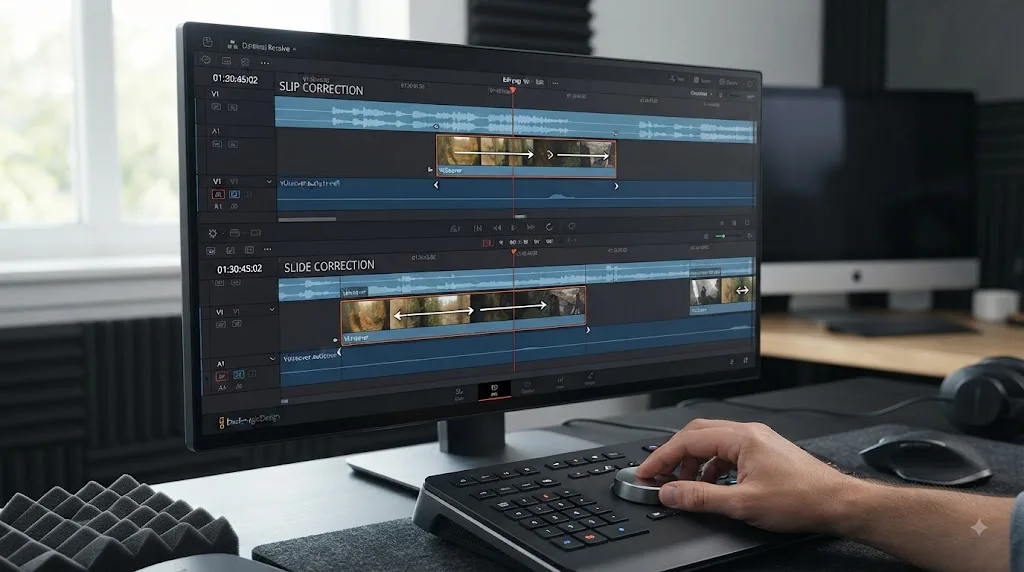
Use slip when the clip already starts and ends on the musical beats you want but the action inside the shot needs a better phase. Use slide when you want the entire fixed-duration shot to move earlier or later against the music while the surrounding shots absorb that shift.
Suppose B lasts exactly eight beats. Its first frame starts on a downbeat and its last frame ends at a transition you like, but the dancer's turn happens between beats instead of on one.
Slip the source content. The eight-beat timeline slot survives. The internal performance moves relative to the music.
Now take the opposite case. The dancer's turn and shot duration are perfect, but the shot enters one beat too soon. Slide the shot later. B stays intact while the neighboring shots change length.
Why is slip useful for repeated motion?
Repeated movement creates many plausible source moments: footsteps, dance cycles, wheel rotations, clapping, typing, blinking lights, waves, machinery, or a person nodding.
If the timeline boundaries are musically strong, a slip lets you phase the internal motion against those fixed boundaries. You are asking, "Which part of this repeated action should pass through this fixed rhythmic window?"
A few frames can change whether movement appears to land with the beat or fight it.
Why can a slide damage a music edit?
If A and C are also cut tightly to musical events, sliding B moves their boundaries. You may improve B's placement while pushing A or C away from another beat.
That does not make slide the wrong tool. It means slide is a three-shot timing operation. Listen beyond the middle clip before you commit.
What does a 24 fps worked example look like?
Imagine a 24 fps timeline. B lasts 48 frames, so it spans two seconds. The action peak inside B occurs 6 frames too early.
If B already occupies the correct two-second section of the music, slipping the source selection by 6 frames can move the visible action peak without changing B's 48-frame timeline duration.
That is arithmetic, not a recommendation to use 24 fps. At 23.976, 25, 29.97, 30, 50, 59.94, or another rate, the same frame-based reasoning applies. The frame count per second changes. The relationship among source frames, timeline position, and duration does not.
What happens to audio, sync, transitions, and multiple tracks?
Slip and slide still obey their core definitions in complex timelines, but linked media, audio, transitions, titles, and other tracks can make the consequences harder to see. Before a precision trim, identify which clips and edit points Resolve is actually targeting.
Blackmagic's Edit documentation says Resolve supports trimming multiple points on the same or different tracks and provides track targeting, locking, and sync tools for complex multitrack editing (Blackmagic Design Edit page).
What happens to synchronized production audio when I slip?
Be cautious. If a video clip and its production audio need to stay synchronized, changing source frames in only one component can create a sync problem.
The correct behavior depends on what you selected, how the clip was built, and which linking or track states are active. Do not assume "slip is safe because the timeline slot does not move." Slip protects timeline boundaries. It does not automatically protect every content relationship in a multitrack project.
After slipping dialogue footage, play across the edit, watch lip movement, listen for consonants, and check any sync indicators you rely on.
If your larger problem is getting picture and sound aligned in the first place, solve the sync problem before you treat it as a slip-or-slide problem.
What happens to transitions during a slide?
A slide moves both edit points surrounding the middle clip. A transition attached to one of those edits deserves inspection afterward.
Whether the transition still works aesthetically depends on source handles, transition duration and alignment, and the motion in the newly exposed outgoing and incoming frames. Resolve may be able to maintain the transition while the new underlying frames make it look worse.
Software validity and editorial validity are different things.
What happens with titles, adjustment clips, and sound effects?
Ask whether each item participates in the trim or merely overlaps it on another track.
A title timed to a spoken word may no longer feel aligned after you slide the underlying shot. An adjustment clip can remain in the same place while you retime clips beneath it. A sound effect may be pinned to a visual action that moves when you slide or when a slip changes the internal action frame.
Inspect the whole local timeline, not only the selected rectangle.
What about multicam?
Multicam adds another distinction: the timeline timing and the chosen camera angle are separate creative decisions.
Blackmagic's Edit page says angles can be changed after the edit while trim points are refined in the timeline (Blackmagic Design Edit page). Before using slip to find a different moment, ask whether the real problem is timing, source position, camera angle, or synchronization.
If the wrong camera is selected, change the angle first. If the right angle is selected but its timing needs refinement, trim it.
Is slip the same as roll, ripple, or moving a clip?
No. Slip, slide, roll, ripple, and a normal clip move protect different parts of the timeline, so choosing the wrong one changes a different set of boundaries.
| Operation | Source content changes? | Selected clip duration changes? | Overall timeline duration changes? | Neighboring edit points change? | Best question |
|---|---|---|---|---|---|
| Slip | Yes | No | No | No | "Which source moment belongs in this existing slot?" |
| Slide | Middle clip normally keeps same source selection | No | No | Both sides of middle clip | "Where should this fixed shot happen?" |
| Roll | Frames around one shared cut change | Neighbor durations change | No | One shared edit point | "Where should the cut between these two shots happen?" |
| Ripple trim | Source boundary changes | Yes | Yes | Downstream material moves | "Should this clip start or end earlier/later, and should the timeline follow?" |
| Normal move | Usually no | No | Depends on resulting layout | Not coordinated as a three-clip trim | "Where should this timeline object sit?" |
Blackmagic defines roll as adjusting the left and right sides of one edit simultaneously. One side gets shorter while the other gets longer by the same number of frames, so timeline length remains unchanged (Blackmagic Design Edit page).
Compare the three operations:
Roll:
A | B
One cut moves.
Slide:
A | B | C
Both cuts around B move together.
Slip:
A | B | C
Neither timeline cut around B moves. Only B's source selection changes.
Slip vs roll: which one should I use?
Use slip when both cut points around B are right. Use roll when one shared cut point between two clips is wrong.
If A cuts to B too early, a roll can move that boundary while keeping the combined duration of A and B unchanged. If both A-to-B and B-to-C happen at the correct timeline times but B shows the wrong source frames, slip.
Slide vs roll: what is the difference?
A roll moves one boundary. A slide moves the two boundaries around the middle clip in the same direction.
B retains its duration during the slide because both sides move together.
Slip vs Match Frame: what is the difference?
Match Frame helps you locate the source media and source position corresponding to a timeline frame. It is useful when you want to understand where a timeline shot came from or inspect surrounding source material.
Slip actually changes which source range the timeline clip uses.
If the problem is "Where in the source is this frame?", use source-location tools. If the problem is "Use a different nearby source range without moving the timeline clip," slip.
The full Match Frame guide for DaVinci Resolve goes deeper on source-to-timeline navigation.
Why did my slide ruin a cut that was already working?
A slide can ruin an existing cut because it deliberately modifies both neighboring edit points. The middle clip may improve while the new end of A or new beginning of C gets worse.
What if A now ends too late?
You slid B later, so A had to extend. The newly exposed tail of A contains an awkward pause.
Mechanically correct slide. Bad result.
What if C now starts too late?
The same slide shortened C. Its strongest opening movement disappeared.
Again, Resolve did exactly what the operation requested.
What if dialogue changes?
If A or C contains dialogue, changing those source boundaries may alter a word, breath, pause, or syllable. A two-frame visual improvement in B may not be worth damaging speech.
What if a transition or sound effect stops feeling right?
A dissolve can still exist while blending different source frames. A separately placed sound effect can stay where it was while B moves away from it.
The timeline may be technically valid and still feel wrong.
What should I play back after a slide?
Audition three things:
- A into B.
- B into C.
- The complete A-B-C passage in context.
The first two catch frame-level problems. The third catches rhythm.
Blackmagic highlights live trimming and dynamic trimming as part of Resolve's trimming workflow (Blackmagic Design Edit page). The practical point is simple: inspect every relationship you changed.
Why did my slip improve the first cut but make the second cut worse?
A slip changes both the first and last visible source frame of the selected clip, so improving the entrance can simultaneously damage the exit. You need a source range whose beginning and ending both work within the fixed timeline slot.
Suppose B is 50 frames long.
Before slipping:
- frame 1 of B has an awkward blink
- frame 50 ends on a clean neutral expression
You slip 8 frames later.
Now:
- frame 1 starts after the blink
- frame 50 lands during a head turn
The first cut improved. The second got worse.
This is normal because a slip moves a fixed-length source window. Whatever enters at the front forces an equal amount of new source material to enter at the back.
How do I solve a slip that fixes only one side?
You have four broad options.
- Find a better source range. Keep slipping until both boundaries work.
- Change the clip duration. If no fixed 50-frame range gives you a good start and end, the slot itself may be wrong.
- Change one neighboring cut. A roll or edge trim may solve the boundary that slip cannot.
- Replace the shot. Sometimes the source simply does not contain a usable range.
Editors can waste time forcing a technically elegant trim onto footage that does not contain the needed moment. The footage wins that argument.
What should I check at both slip boundaries?
At the first boundary, ask whether the new first frame makes sense, whether motion direction is coherent, and whether the subject is already mid-blink or mid-gesture.
At the second, ask whether the final frame gives the next cut somewhere clean to go, whether motion finishes too soon, whether an expression collapses, or whether an object suddenly enters.
A slip succeeds only when the complete source window works.
Does DaVinci Resolve 21 change how slip and slide edits work?
DaVinci Resolve 21 keeps slip and slide as standard editing operations in Blackmagic's current Edit and Cut documentation. Resolve 21 adds many other features, but the core slip-versus-slide distinction remains the same in the current public documentation.
Blackmagic announced DaVinci Resolve 21 in April 2026 and released the final version on June 3, 2026. Its current What's New page highlights additions such as the Photo page, new AI tools, improved keyframing, expanded graphic-format support, Fairlight folders, new Color workflows, and more than 70 Krokodove graphics in Fusion (Blackmagic Design What's New).
For this guide, the important part is what Blackmagic's current Edit and Cut pages still define:
- slip changes the source portion visible inside a fixed timeline clip
- slide moves a fixed-duration clip while its two neighbors become shorter or longer
So if you learned the concept on an older Resolve version, you do not need a new theory just because Resolve 21 exists. UI details can evolve. The editorial math remains the same in Blackmagic's current documentation.
Does Free vs Studio change the decision?
Not for the basic choice between slip and slide. Blackmagic's general Edit and Cut documentation describes these ordinary trim operations without marking them as Studio-only (Blackmagic Design Cut page).
Studio matters for many advanced features. You do not need a Studio-only AI function to decide whether a reaction shot needs a slip or a slide.
Does macOS vs Windows vs Linux change the concept?
No. Blackmagic offers Resolve on Mac, Windows, and Linux, and the mouse-based editorial model stays the same (Blackmagic Design Cut page).
Keyboard labels and mappings can differ because users may load different presets or custom shortcuts. Verify commands in Keyboard Customization instead of assuming another editor's map matches yours.
What about iPad?
This guide focuses on desktop Resolve 21 because the Edit and Cut documentation, keyboard customization workflow, and dedicated editing hardware discussed here are desktop-oriented.
If your interface does not match a desktop tutorial, check platform and version before you troubleshoot the trim itself.
Which edit should I use in common real-world situations?
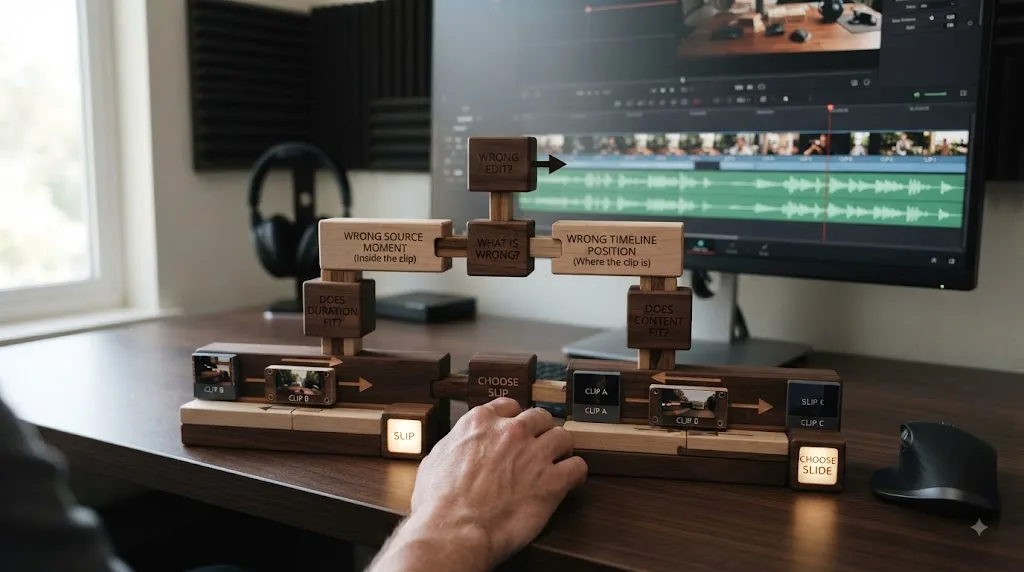
Choose slip when timeline placement is correct and the source moment is wrong. Choose slide when source moment and duration are correct but the entire shot is temporally misplaced between two neighbors.
| Situation | Best first move | Why |
|---|---|---|
| Reaction shot covers the correct dialogue edit but shows a blink | Slip | Preserve the timeline cover, reveal different source frames |
| Reaction itself is perfect but needs to happen 5 frames earlier | Slide | Preserve source moment and duration, change placement |
| B-roll starts and ends on the right narration phrases but the action happens too early inside it | Slip | Keep narration coverage, retime internal source action |
| B-roll clip should sit over a later sentence without changing length | Slide | Move the whole cutaway interval |
| One cut between A and B feels early | Roll | You need one edit point to move |
| Clip B needs to be 12 frames shorter and everything after it should close up | Ripple trim | Duration and downstream timing need to change |
| Middle shot is right but should last longer | Edge trim or another duration edit | Slip and slide both preserve B's duration |
| Wrong camera angle in multicam | Change angle first | Source angle selection is the primary problem |
| Right shot, right position, wrong nearby frame sequence | Slip | Source-range problem |
| Right source range, wrong position between two clips | Slide | Three-clip placement problem |
| You need to discover where the timeline frame came from | Match Frame | Identification problem, not a trim |
| No usable handles exist for the desired adjustment | Rebuild or replace | The source media cannot support the requested trim |
What if I am not sure what is actually wrong?
Do not drag yet. Ask these in order:
- Is the middle clip the right shot?
- Is it the right duration?
- Is it in the right timeline position?
- Is it showing the right source moment?
- Are the two surrounding cut points already good?
If duration, position, and both surrounding cuts are right but source content is wrong, slip.
If source content and duration are right but position is wrong, slide.
If only one boundary between two shots is wrong, roll.
If duration itself is wrong, trim an edge using the appropriate ripple or non-ripple strategy.
No icon memorization required.
Can I use slip and slide together on the same shot?
Yes. Slip and slide solve independent dimensions of a shot, so using both can be the cleanest way to refine a middle clip whose placement and source selection both need work.
Suppose B is a 48-frame reaction and you know three things:
- 48 frames is the right duration.
- B needs to happen 6 frames earlier.
- the current source selection contains the right expression 10 frames too early inside the shot.
One possible sequence is:
- Slide B 6 frames earlier.
- Play A-B-C and confirm the surrounding trims still work.
- Slip B until the expression lands at the desired point inside its unchanged 48-frame slot.
- Play both boundaries again.
The slide solved timeline placement. The slip solved internal source timing. Neither changed B's duration.
Should I slip first or slide first?
Resolve the stronger constraint first.
If B must land on a specific line of dialogue, establish placement first with slide. If one exact source action is non-negotiable, find that source range first, then position it.
There is no universal order, but there should be a reason.
Can I alternate several tiny slip and slide adjustments?
You can, but do not lose track of what each move is solving. A bad pattern is to slide, slip, slide back, slip back, edge trim, drag the clip, undo twice, then forget which cut was originally good.
State the constraints before each edit:
- duration locked
- source moment locked
- left cut flexible
- right cut flexible
Or:
- both cut points locked
- source moment flexible
That turns trimming from tool hunting into constraint management.
How do slip and slide help with continuity editing?
Slip helps continuity when the cuts are in the right places but the source frames inside one shot create a mismatch. Slide helps when the shot itself is correct but its entrance and exit need to occur at different points in the surrounding action.
A hand is down in A. B starts with the hand already raised. C returns to the hand halfway down.
If B's timeline duration and placement are correct, search nearby source frames with a slip. You may find a source interval where the hand position connects more naturally at both cuts.
If B contains the right movement but enters too early relative to A's action, sliding B may improve the timing. But sliding also changes what A shows at its end and what C shows at its beginning.
What continuity question does slip answer?
"Can I find a better run of source frames inside B while preserving both timeline cut times?"
What continuity question does slide answer?
"Can I move this complete B moment earlier or later and let A and C absorb the shift?"
Those are different searches.
Why do small frame changes matter?
A few frames can change whether a foot has planted, an eyeline has settled, a blink crosses the edit, a hand reaches an object, camera motion matches, or a reaction reads as anticipation rather than response.
Video is made of frames. Slip and slide control exactly which frames meet and when they meet.
What is the best way to learn DaVinci Resolve slip and slide edits fast?
The fastest way to learn slip and slide is to perform both on the same three clips while predicting the result before every move. Use official training or a trusted instructor to learn the interface, then practice until you can say what will change before you touch the trim.
Blackmagic provides official free training resources, including editing lessons and project files. Its current training page lists two introductory Edit lessons at 1 hour 16 minutes and 54 minutes, plus a 30-minute multicam editing lesson. Blackmagic also publishes The Editor's Guide to DaVinci Resolve 20 with hands-on project exercises (Blackmagic Design Training).
Those resources are the strongest first stop for the manufacturer's terminology and structured exercises.
Casey Faris is another established route for people who prefer video-led teaching and community learning. His beginner community offers a free introductory Resolve course with downloadable practice media (Casey Faris).
| Learning source | Best at | Limitation for slip vs slide |
|---|---|---|
| Blackmagic Design official training | Canonical terminology, structured training, project files | You still have to map the lesson onto your own project |
| Established Resolve educators | Visual explanation and approachable demonstrations | A video cannot see the exact timeline in front of you |
| Community forums | Strange edge cases and peer troubleshooting | Advice quality varies and may target another version or setup |
| Repeated practice in your own timeline | Building reliable trim intuition | You need a correct mental model first |
| On-screen contextual assistance | Getting unstuck on the control in your current interface | It does not replace repetition and editorial judgment |
For a broader sequence of skills, use the DaVinci Resolve learning roadmap for beginners.
What drill teaches slip vs slide fastest?
Build a short exercise with three long clips. Call them A, B, C. Trim B to a short duration and leave plenty of source media around all three.
Then run these prompts:
- "Keep B in exactly the same timeline slot, but show a later action." Slip B.
- "Keep B's exact action and duration, but make it happen earlier." Slide B earlier.
- "Move only the A-B cut." Roll.
- "Make B shorter and close the sequence." Use a duration-changing trim.
- Undo everything and explain each operation aloud before repeating it.
If you can predict the changed boundaries before making the edit, you understand the tools. If you can only recognize the result after dragging, keep practicing.
Guided practice inside Resolve beats memorizing trim definitions you never apply.
Can an on-screen assistant help with slip vs slide?
Yes, if your problem is locating the right control or understanding what Resolve is showing. It should not replace your judgment about whether the shot needs a slip or a slide.
TryUncle is a paid macOS app whose AI tutor, Uncle, can see your DaVinci Resolve screen when you ask for help and point at the exact control you need on the Edit, Color, and Fusion pages (TryUncle FAQ). That makes it relevant when you understand the idea of a slip or slide but cannot find the correct control in your current interface.
The useful division of labor is simple. The assistant can help you locate the operation. You still decide which constraint matters.
Wrong source moment, fixed slot: slip.
Right source moment, wrong placement: slide.
That distinction should become clearer as you learn, not disappear behind automation.
What mistakes should I avoid when learning slip vs slide?
Avoid judging the tool by the direction of your mouse. Judge it by which timeline properties it protects and which it changes.
What if I think "slip" means move the clip?
It means move the source selection inside the clip's fixed timeline slot. If the clip rectangle travels earlier or later, stop and verify the active operation.
What if I think "slide" affects only the middle clip?
It necessarily affects the neighboring edits because those clips absorb the move. Always inspect A and C.
What if I ignore source handles?
The trim can travel only where real source frames exist. If Resolve stops, ask which clip would need to extend.
What if I try to fix duration with slip or slide?
Slip preserves duration. Slide preserves the middle clip's duration. If B is simply too long, neither operation is the complete answer.
What if I watch only one boundary?
A slip changes the source frames at both the start and end of B. A slide changes both neighboring edit points. Each operation has two boundaries to inspect.
What if I trim linked dialogue without checking sync?
A timeline can look clean while audio and picture no longer match at the same frame. Play it back and verify sync.
What if I copy shortcuts from a tutorial?
Resolve supports custom keyboard maps and presets. Check Keyboard Customization first.
What if the clip is too small to target precisely?
Zoom in. Resolve can make frame-accurate edits, but your pointer still has to target the intended trim mode.
What if a handle exists but the frame is bad?
Resolve checks availability. You check quality. A technically available handle can contain a camera reset, broken eyeline, unwanted word, or unusable motion.
What if I forget what was already correct?
State the constraints before you touch B.
"Duration is right. Position is right. Source moment is wrong."
That means slip.
"Duration is right. Source moment is right. Position is late."
That means slide.
Once you work this way, trim tools stop feeling like mysterious modes. They become answers to explicit editing questions.
Choose slip or slide?
Choose slip when the clip's timeline position and duration are already correct but you need different source frames. Choose slide when the clip's source moment and duration are correct but the entire clip needs to happen earlier or later between its two neighbors.
Before the drag, say what you are protecting.
If you are protecting both surrounding cut times, slip.
If you are protecting the middle clip's content and length while allowing both surrounding cut times to move, slide.
If neither sentence describes your problem, you probably need another trim operation.
Keep this model in your head:
SLIP = same slot, different source frames
SLIDE = same shot and duration, different slot
Then practice it on three clips until you can predict every changed boundary without watching the cursor. That is when slip vs slide stops being DaVinci Resolve terminology and starts becoming editing instinct.
`
Frequently asked questions
- What is the difference between slip and slide edit in DaVinci Resolve?
- A slip edit changes which source frames appear inside a clip while the clip keeps the same timeline position and duration. A slide edit keeps the middle clip's content and duration but moves that clip earlier or later, trimming the neighboring clips to make room.
- Why is my clip not moving when I slip it in DaVinci Resolve?
- That is normal. A slip edit is not supposed to move the clip's timeline boundaries. It moves the source in and out points together so a different section of the source media appears inside the same timeline slot.
- Why is DaVinci Resolve changing both clips beside the clip I slide?
- A slide edit changes both neighboring cut points by design. The middle clip keeps its duration while moving earlier or later, so Resolve lengthens one neighboring clip and shortens the other to preserve the overall timeline duration.
- How do I slide a clip without changing its length in DaVinci Resolve?
- Use the slide trim operation rather than dragging the clip with the normal selection tool. On the Cut page, Blackmagic documents slide as Shift-clicking the same midpoint trim control used for slip, then dragging. The middle clip keeps its duration while its neighbors are trimmed.
- Why won't my slip or slide edit go any farther?
- You have usually reached a source-media trim limit. A slip needs unused source frames before or after the selected portion of the slipped clip. A slide needs enough available source material in the neighboring clips for one side to extend while the other shortens.
- Is slip vs slide the same in DaVinci Resolve 21 Free and Studio?
- The core slip and slide trimming concepts are the same. Blackmagic documents both on its general Edit and Cut pages without marking them as Studio-only operations. Studio adds many advanced features, but ordinary slip and slide trimming does not require an AI or Studio-specific workflow.
- Is there an app that helps you while using DaVinci Resolve?
- Yes. TryUncle is a paid macOS on-screen assistant for DaVinci Resolve. Uncle can see the Resolve screen when you ask for help and point at the exact control you need, which can be useful when a trim tutorial describes a control you cannot locate.
Sources
- Blackmagic Design - DaVinci Resolve Edit
- Blackmagic Design - DaVinci Resolve Cut
- Blackmagic Design - DaVinci Resolve Keyboard
- Blackmagic Design - DaVinci Resolve 21 What's New
- Blackmagic Design Support Center
- Blackmagic Design - DaVinci Resolve Training
- Blackmagic Design - Outpost Production Story
- TryUncle FAQ
- Casey Faris - DaVinci Resolve for Beginners
Learn by doing, not watching
Stop translating tutorials to your timeline.
TryUncle stays beside Resolve on Mac and Windows. When you ask, Uncle sees your screen and points at the exact control you need. No hunting through tabs, timestamps, or mismatched tutorials.
Meet TryUncleKeep reading
 GuidesJul 15, 202638 min read
How to Edit Faster in DaVinci Resolve: A Workflow Guide
The workflow fixes that actually speed up DaVinci Resolve editing: proxy media, render cache, GPU/decode settings, hardware controllers, batch tools, and where AI helps.
 GuidesJul 25, 202634 min read
How to Use Match Frame in DaVinci Resolve: The Complete Guide
Match Frame in DaVinci Resolve explained: the F shortcut, Match Frame to Source Clip, multicam audio limits, Cut page quirks, and what to do when F does nothing.
 GuidesJul 15, 202639 min read
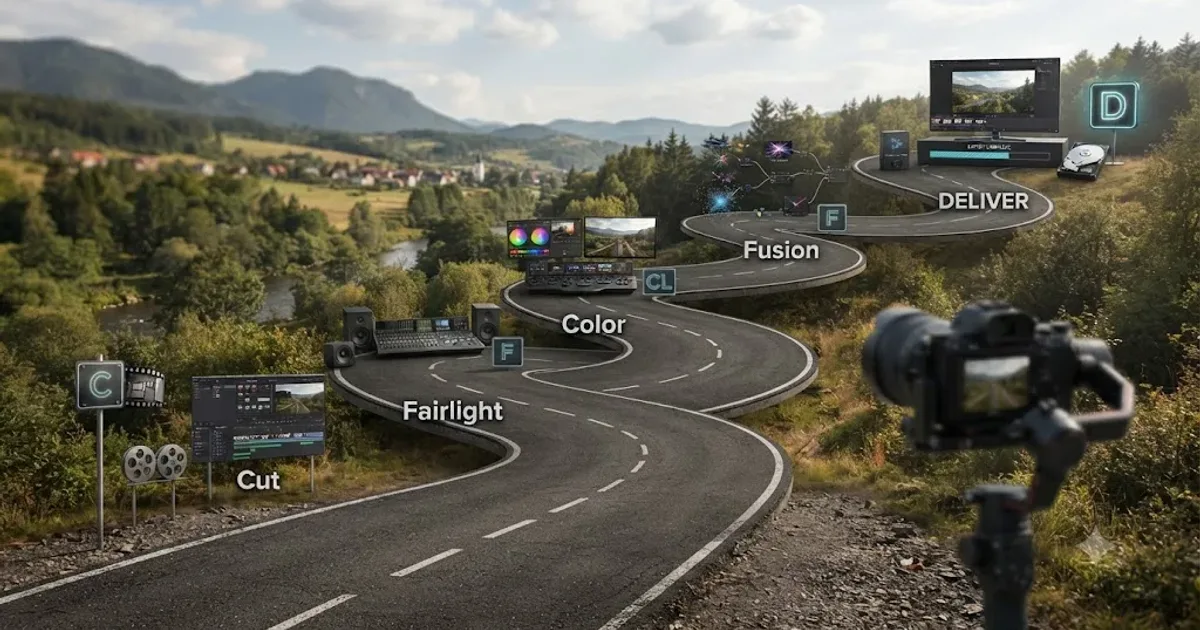
The DaVinci Resolve Learning Roadmap for Beginners
The right order to learn DaVinci Resolve: Cut or Edit, then Fairlight, Color, and Fusion, checked against Blackmagic and Ripple Training's own paths.