
Learn / DaVinci Resolveupdated for DaVinci Resolve 21.0.2 (July 2026)
DaVinci Resolve Quits Immediately After Opening on Mac: Fixed
Quick answer
DaVinci Resolve quitting instantly on Mac almost always traces to one of five causes: an unsupported macOS version or Intel Mac (Resolve 21 needs Apple Silicon on macOS 15 Sequoia), Gatekeeper blocking an unsigned download, corrupt preferences, a crashing third-party OFX plugin, or a firewall blocking activation. Reset preferences first, then work down the list.
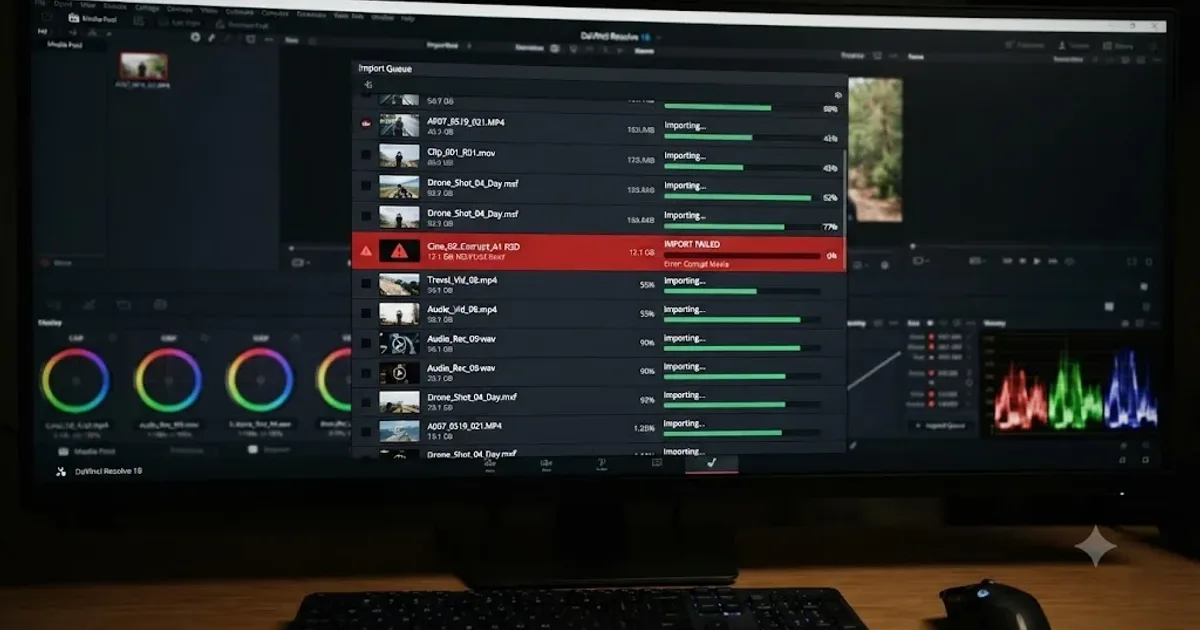
You double-click DaVinci Resolve. The Apple logo bounces once in the Dock. The splash screen flashes, maybe for half a second, maybe not even that long. Then nothing. No error. No crash reporter. Just your desktop, exactly like Resolve was never there.
That's a specific kind of frustrating, because there's nothing to Google. A crash with an error code at least gives you something to search. An instant, silent quit gives you nothing but a blinking cursor and a growing suspicion that you broke something. You didn't. This happens constantly on Mac, and it happens for a short, specific list of reasons, most of which take five minutes to rule out once you know where to look.
Why does DaVinci Resolve quit the instant it opens on Mac?
An instant quit, one that happens before the UI paints, before a project loads, sometimes before the splash screen even finishes its animation, means the app died somewhere in its own startup sequence. Not in your project. Not in a timeline. In the handful of seconds before Resolve has anything to show you at all.
That narrows things down more than it feels like it should. A crash mid-session, while you're grading or editing, usually points at a GPU driver problem, a bad plugin triggered by a specific effect, or a corrupted project. A crash at launch, before any of that machinery has even spun up, points somewhere else entirely: whether macOS will let the app run at all, whether a stored setting is poisoning the very first thing Resolve tries to read, or whether something on your Mac is actively blocking it.
A DaVinci Resolve launch that dies before the splash screen finishes is a startup-sequence problem, not a project problem, and troubleshooting it inside a project file wastes your time. Keep that distinction in your head as you work through this, because it's the difference between fixing this in ten minutes and spending an afternoon poking at settings that were never the cause.
Here's the order that actually works, moving from the checks that take thirty seconds to the ones that take longer, because there's no reason to reinstall a six gigabyte application before you've confirmed your Mac can even run the version you downloaded.
| Cause | What it looks like | Fastest way to confirm |
|---|---|---|
| Unsupported Mac or macOS | Instant quit on any Mac running an unsupported chip or OS version | Check About This Mac against Resolve's published requirements |
| Gatekeeper blocking the app | A dialog about an unidentified developer, or silence if you dismissed it once | System Settings > Privacy & Security > Security |
| Corrupted preferences | Worked before, then started instant-quitting after a settings change or crash | Rename the Preferences/Blackmagic Design folder and relaunch |
| A crashing OFX plugin | Started after installing a new plugin, or after updating one | Rename /Library/OFX/Plugins and relaunch |
| Blocked activation (Studio only) | Free edition opens fine, Studio doesn't, or it did until you installed a firewall tool | Pause Little Snitch, VPN, or similar and relaunch |
| Low disk space or missing Full Disk Access | Started after a big export or after moving files around | Check free space and Privacy & Security > Full Disk Access |
Is your Mac and macOS version actually supported by DaVinci Resolve 21?
Check this first, because it's the fastest thing to rule out and it silently disqualifies every other fix on this page if it's the actual cause.
DaVinci Resolve 21 requires an Apple Silicon Mac, an M1 or newer, running macOS 15 Sequoia or later. That's not a soft recommendation. According to DaVinci Resolve Club's 2026 system requirements breakdown, "Resolve 21 dropped Intel Mac support entirely," and "if you are on an Intel Mac, Resolve 20 is your ceiling." If you're on an Intel Mac, no amount of preference resetting or plugin removal will make Resolve 21 launch, because the binary itself isn't built to run on your hardware in the way it needs to.
Resolve 21 quitting instantly on an Intel Mac isn't a bug you can fix. It's Blackmagic telling you, without an error dialog, that this version was never built for your chip. The good news is there's a real, working fallback: Resolve 20 still runs on Intel Macs and on macOS 14 Sonoma, and it's a legitimate download from Blackmagic's site, not an outdated relic you should feel bad about running.
Check your chip and OS version first:
- Click the Apple menu in the top-left corner and choose About This Mac.
- Look at the chip line. It should say something like Apple M1, M2, M3, or M4, not Intel Core.
- Note your macOS version directly below it. Resolve 21 needs macOS 15 or later.
- If either doesn't match, that's very likely your entire problem, and the fix is downloading Resolve 20 instead of chasing settings inside Resolve 21.
There's a second, subtler version of this same problem: a Mac that technically qualifies but is running an in-between macOS version Blackmagic hasn't fully validated yet. Point releases of macOS sometimes ship ahead of Resolve's own compatibility testing, and a forum thread titled "DaVinci Resolve 18 - not opening macOS Sequoia" documents exactly this pattern with an older Resolve version meeting a newer macOS release before Blackmagic had shipped a patch for it. If you updated macOS recently and Resolve stopped launching right afterward, that timing itself is a real clue, and the fix there is usually updating Resolve to its current point release rather than rolling macOS back.
Is Gatekeeper blocking DaVinci Resolve from launching at all?
If your Mac and macOS check out, the next most common cause is macOS's Gatekeeper, quietly refusing to run an app it can't verify the way it expects to, and sometimes doing it without a dialog you noticed the first time.
The classic version of this shows up as an explicit message: "DaVinci Resolve can't be opened because Apple cannot check it for malicious software." That's Gatekeeper doing exactly what it's designed to do, checking every downloaded app against Apple's notarization system before letting it run. Apple's own documentation is direct about why this check exists at all, and why the override isn't something the system wants you doing casually. Per Apple's support guide on opening apps from unidentified developers, "overriding security settings to open an app is the most common way that a Mac gets infected with malware."
That warning is real, and it's worth taking seriously in general. It's also not a reason to avoid opening a copy of DaVinci Resolve you downloaded directly from Blackmagic's own site. Gatekeeper flags plenty of entirely legitimate software this way, especially disk images downloaded through a redirect, a slow connection that interrupted part of the download, or an installer that got moved between drives before running. Here's the override, straight from Apple's own instructions:
- Open the Apple menu and choose System Settings.
- Click Privacy & Security in the sidebar.
- Scroll down to the Security section. If DaVinci Resolve was blocked, you'll see a message naming it directly, with an Open Anyway button next to it.
- Click Open Anyway.
- Enter your login password when prompted, then click OK.
Apple notes that "the Open Anyway button is available for about an hour after you try to open the app," so if you dismissed the original warning a while ago and it's no longer showing in Security settings, just try opening Resolve again to trigger a fresh prompt.
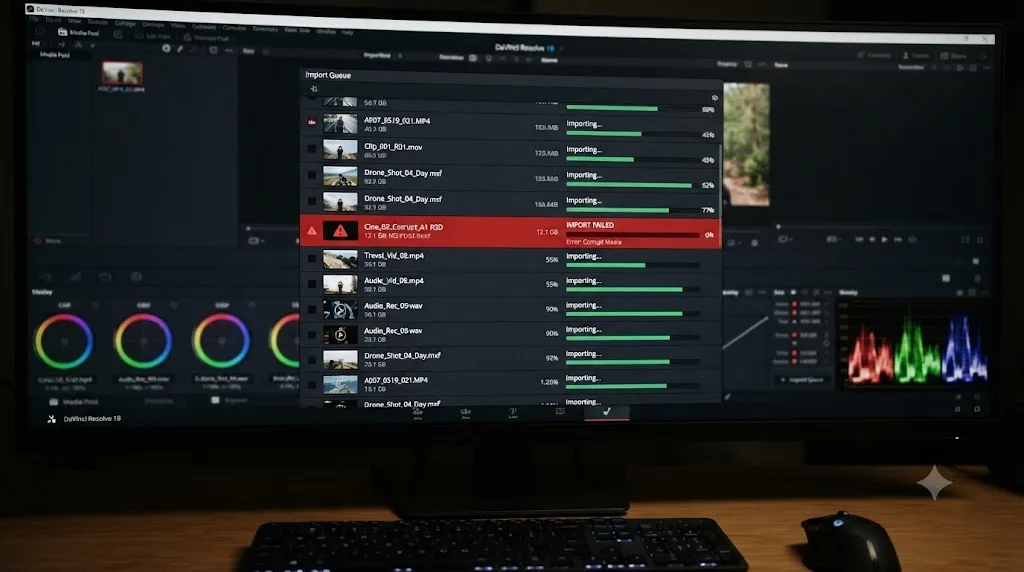
Sometimes there's no visible dialog at all, and Resolve just quits without ever showing you the Gatekeeper warning. This tends to happen with a corrupted or partial download rather than a genuinely blocked one. If DaVinci Resolve quits with zero dialog boxes of any kind, not even a Gatekeeper warning, treat that as a sign the installer itself may be damaged, not just blocked. Re-download the installer from Blackmagic's site rather than reusing a copy that's been sitting in your Downloads folder for months, and verify the disk image mounts cleanly before running the installer inside it.
Should you download DaVinci Resolve from the App Store or Blackmagic's website?
This matters more than it sounds like it should, because the two versions aren't troubleshot the same way, and picking the wrong one when you're already fighting a launch crash makes the whole process harder.
Forum threads on this exact symptom, including one titled "DaVinci Resolve crashes on Mac at the launching process", repeatedly draw a hard line between the Mac App Store build and the version downloaded directly from Blackmagic's site. Blackmagic's own diagnostic path, running CaptureLogs.app inside /Library/Application Support/Blackmagic Design/DaVinci Resolve to generate a support log, only applies to the website download. The App Store version runs inside Apple's sandbox, which means some of the standard troubleshooting steps, including direct access to certain support files, simply don't apply the same way.
If you're already troubleshooting a launch crash, the App Store build gives Blackmagic's own support team less to work with than the direct download does. That's not a reason to distrust the App Store version generally, plenty of people run it without issue, but if you're deep enough into this article that you're considering a reinstall, the website installer is the version that gives you every tool on this page, plus the ability to send a real diagnostic log if you end up contacting Blackmagic support directly.
If you're currently on the App Store version and everything else on this page has failed, uninstalling it and installing the website version fresh is a legitimate next step, not a last resort you should feel bad about.
Is a corrupted preferences file crashing Resolve before the UI even loads?
This is the single most common cause behind a Resolve install that used to launch fine and suddenly doesn't, with no OS update, no new plugin, nothing you can point to as the trigger.
DaVinci Resolve reads a set of preference files the instant it starts, before it draws a single window. If one of those files got corrupted, whether from a previous crash mid-write, a forced shutdown, or a setting that got saved in a bad state, Resolve can die trying to parse it, and it does that dying before it's built any UI capable of showing you an error about it.
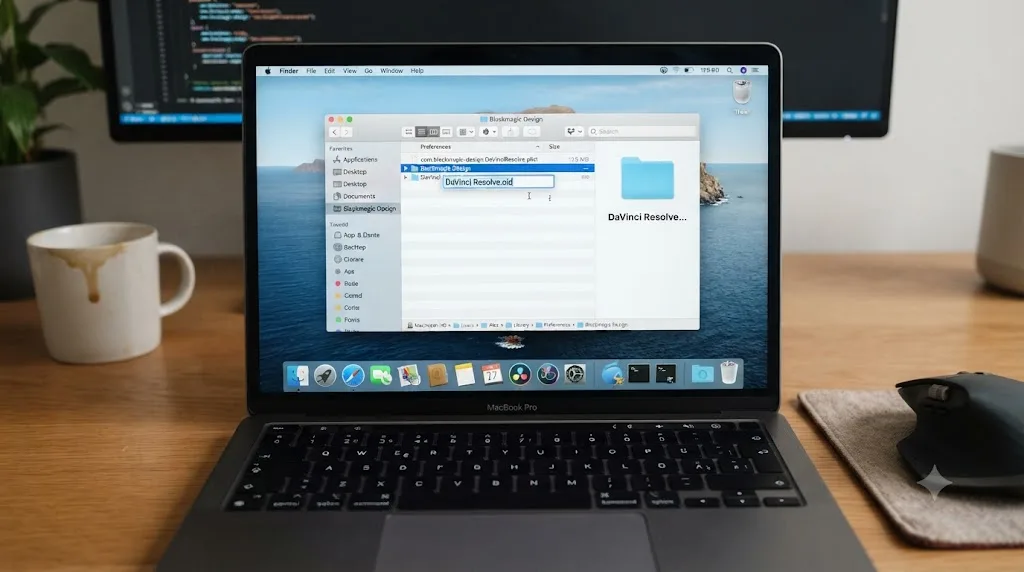
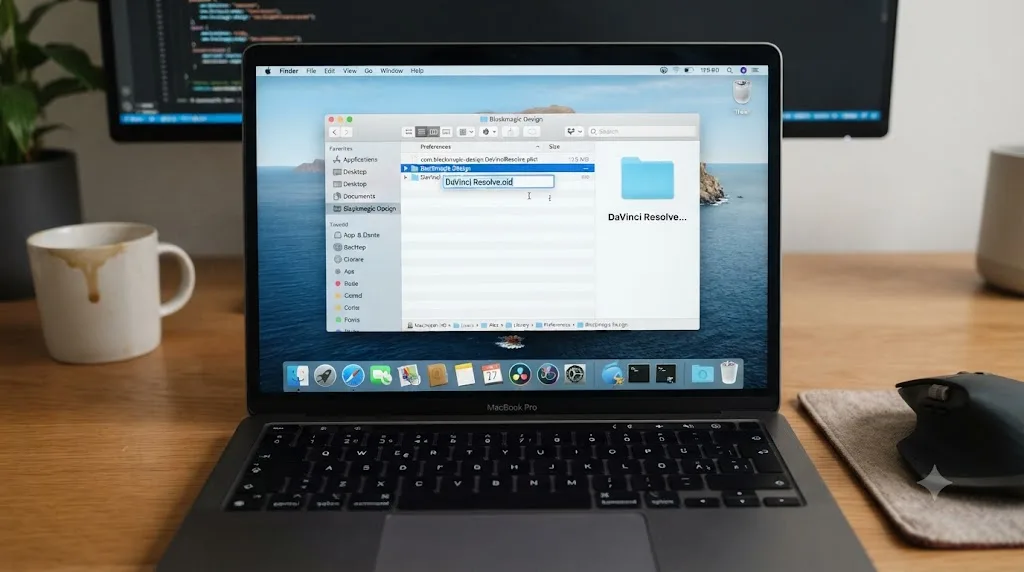
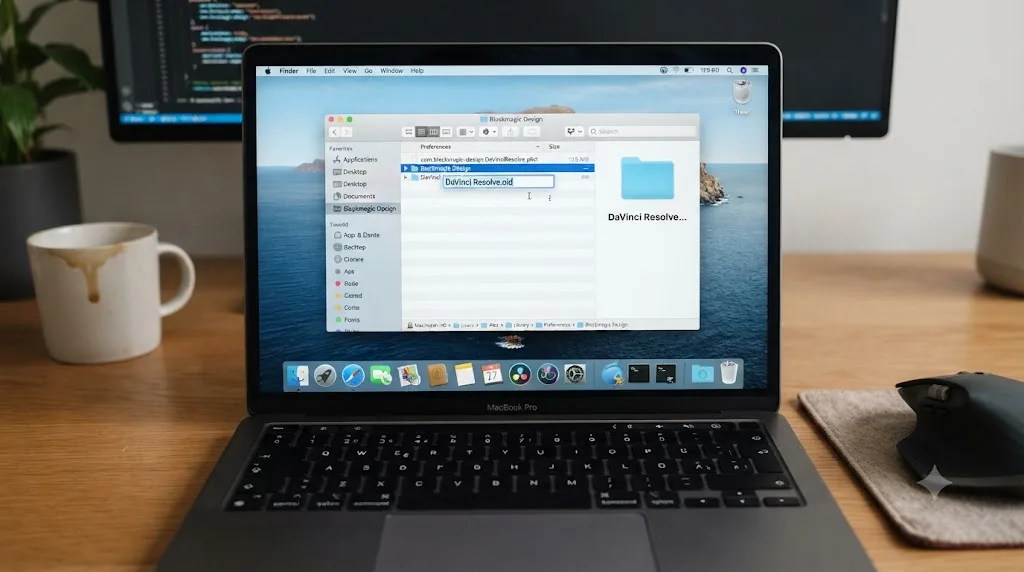
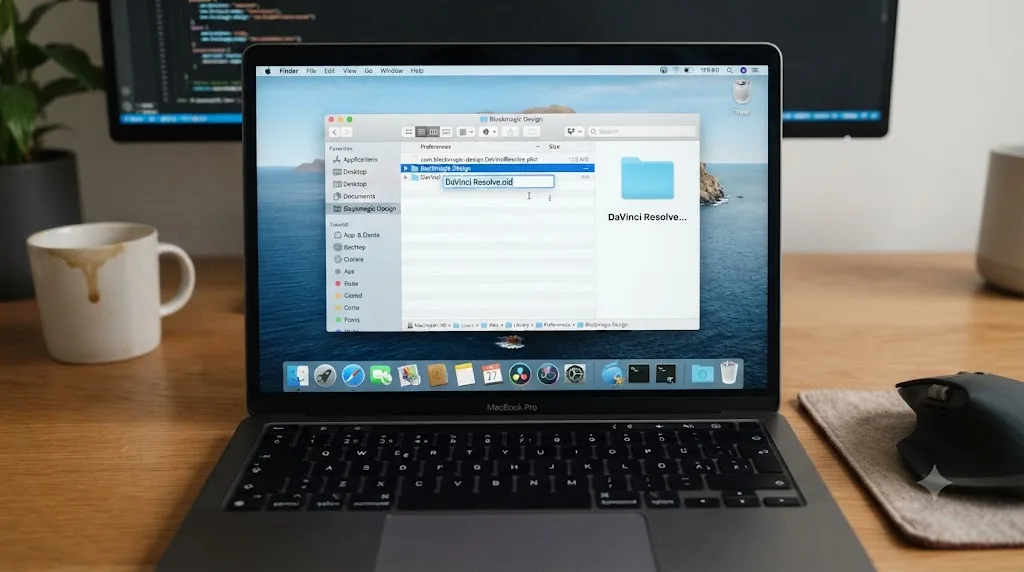
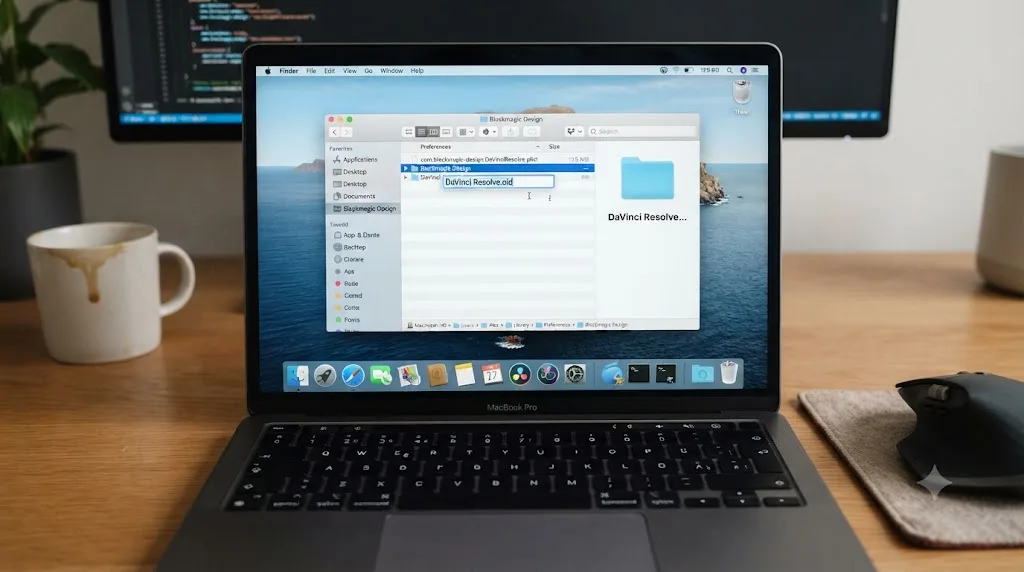
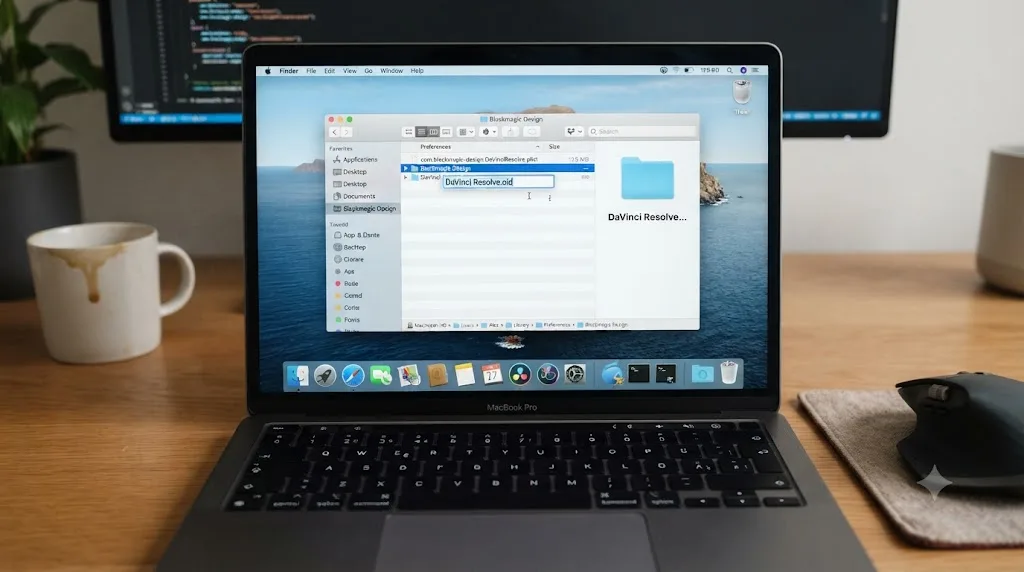
On Blackmagic's own official forum, support staff member Dwaine Maggart has walked users through this exact fix repeatedly, including in a thread specifically about DaVinci Resolve Studio crashing on opening on Mac. The recommended fix is to rename the preferences folder so Resolve is forced to build a brand new one from scratch on its next launch, rather than trying to load the damaged version. Here's the exact process:
- Make sure DaVinci Resolve is fully quit, not just in the background. Check the Dock and Activity Monitor if you're not sure.
- Open Finder and press Command+Shift+G to open the Go to Folder dialog.
- Type
~/Library/Preferences/Blackmagic Design/and press Return. - Find the folder named DaVinci Resolve.
- Rename it to something like DaVinci Resolve.old, rather than deleting it outright, so you can recover a specific custom setting later if you need to.
- Relaunch DaVinci Resolve.
If preferences were your problem, Resolve opens normally this time, straight to a fresh, default configuration. You'll need to redo anything you'd customized, memory and GPU limits, custom keyboard shortcuts, UI layout preferences, but that's a small cost against getting the app running again.
A DaVinci Resolve install that quits instantly and used to work fine, with no update or new hardware involved, points at corrupted preferences before it points at anything else. It's also the cheapest fix on this entire page to test, since it takes under two minutes and costs you nothing but re-entering a few settings if it turns out not to be the cause.
Is a third-party OFX plugin crashing Resolve before it finishes loading?
If resetting preferences didn't fix it, and you've installed or updated any third-party effects plugin recently, this is the next most likely cause, and it's a well-documented one across multiple Resolve versions.
DaVinci Resolve scans and loads every OFX plugin sitting in its plugin folders as part of its startup sequence, before it shows you the main interface. If one of those plugins crashes during that scan, and third-party OFX plugins do this more often than you'd expect, it can take the whole application down with it rather than failing gracefully on its own.
A thread titled "Resolve Crashes on Launch, brand new Macbook Air M3" documents exactly this pattern, where a Maxon Universe plugin update triggered instant crashes at launch on brand new Apple Silicon hardware, something the user had no reason to suspect since the machine itself was new and presumably problem-free. This isn't limited to one plugin vendor either. A separate, older thread on OFX plugins not loading and Resolve crashing documents Red Giant's Universe plugin suite causing the identical symptom on a different setup entirely, years apart from the Maxon report.
The fix doesn't require identifying the exact broken plugin up front. It requires temporarily hiding all of them from Resolve at once, confirming that fixes the crash, then reintroducing them one at a time:
- Quit DaVinci Resolve completely if it's running (it likely isn't, since it's crashing on open, but check anyway).
- Open Finder and press Command+Shift+G.
- Type
/Library/OFX/and press Return. - Find the Plugins folder inside it.
- Rename it to Plugins.tmp. This is enough to prevent Resolve from seeing any third-party OFX plugin without deleting anything.
- Relaunch DaVinci Resolve.
If Resolve opens normally this time, a plugin was your cause. To find which one specifically, rename Plugins.tmp back to Plugins, then move plugin bundles out of that folder one vendor at a time (Maxon Universe, Red Giant Universe, Boris FX Sapphire or Continuum, or whatever you've installed), relaunching after each move until the crash reappears. The last one you moved out before it crashed again is your culprit.
A DaVinci Resolve crash that started right after installing or updating a third-party OFX plugin is a plugin problem until you've proven otherwise by removing it and confirming the crash disappears. Don't assume you need to reinstall Resolve itself or reset your whole system when the actual fault sits in a single bundle inside /Library/OFX/Plugins. If you hit a related but different symptom later, where Resolve opens fine but a specific project complains about a missing effect, that's a separate issue covered in our guide on DaVinci Resolve plugin not found and missing effect errors.
Is a firewall or network monitor blocking DaVinci Resolve's activation check?
This one's specific to DaVinci Resolve Studio, the paid edition, and it's easy to miss entirely because nothing about the symptom points at a network tool.
Resolve Studio checks your license or activation status early in its launch sequence, reaching out to Blackmagic's servers before it finishes starting up. If a firewall, VPN, or network monitoring tool silently intercepts or blocks that call, instead of returning a clear "no internet connection" error, Resolve can hang and then quit, with nothing in the interface hinting that a network tool was involved at all.
A forum thread on being unable to activate DaVinci Resolve Studio traces exactly this pattern back to Little Snitch, the popular Mac network monitoring app. The user found that Little Snitch was blocking Resolve's activation traffic even though its visible interface wasn't actively running or showing any alert, since some of its filtering happens through background processes independent of whether its main window is open. Removing it resolved the activation failure immediately, with no reboot required.
You don't have to uninstall your firewall permanently to test this. Pause it temporarily:
- If you're running Little Snitch, open it and choose to pause or temporarily disable network filtering from its menu bar icon.
- If you're running a VPN client, disconnect it fully rather than just switching servers.
- If you have other network monitoring or security software, check its own pause or disable option.
- Relaunch DaVinci Resolve Studio.
If Resolve launches cleanly with the network tool paused, you've confirmed the cause. From there, the long-term fix is adding a specific allow rule for DaVinci Resolve's network activity in that tool's settings, rather than leaving it permanently disabled, since these tools exist for real reasons.
A DaVinci Resolve Studio crash on launch that goes away the moment you pause your firewall or VPN is an activation-check problem, not an application bug, and the permanent fix is an allow rule, not permanently disabling your security software. This is also one of the few branches on this page that only explains a Studio crash. If you're seeing this same symptom on the free edition, which has nothing to activate on launch, a network tool almost certainly isn't your cause.
Could low disk space or a missing permission be the real cause?
Two smaller, easy-to-check causes round out the list, and both are worth ruling out quickly since neither takes more than a minute to test.
DaVinci Resolve writes cache and log files to your system drive from the moment it launches, even before you've opened a single project. If that drive is critically low on free space, sometimes down to a few hundred megabytes, that first write can fail in a way that takes the whole launch down with it. This is the same underlying fragility that causes DaVinci Resolve project corruption more broadly, where a drive running out of space mid-write is one of the most repeated root causes editors report, as covered in our guide on how to prevent DaVinci Resolve project corruption. Check available space with About This Mac > Storage, and if you're under roughly 10 to 15 gigabytes free on your system drive, clear space before troubleshooting anything else on this page further.
The second is Full Disk Access, a macOS privacy permission separate from Gatekeeper. Some Resolve functionality, particularly around media indexing and certain project database operations, expects broader file system access than macOS grants by default. Check it directly:
- Open System Settings > Privacy & Security.
- Click Full Disk Access in the list.
- Look for DaVinci Resolve. If it's present but toggled off, switch it on.
- If it's missing entirely, click the plus button, navigate to your Applications folder, and add DaVinci Resolve manually.
- Relaunch DaVinci Resolve for the permission change to take effect.
Neither of these two causes is as common as the macOS compatibility, Gatekeeper, preferences, or plugin issues covered above, which is exactly why they belong later in this checklist rather than first. But they're fast enough to check that skipping them to save two minutes usually costs you more time than checking them would have.
Is Resolve running under Rosetta by mistake on your Apple Silicon Mac?
This branch is rarer today than it was a few years ago, but it's still worth a thirty second check if you're on a newer Apple Silicon Mac and older troubleshooting advice led you to enable Rosetta at some point.
DaVinci Resolve ships as a universal binary, meaning the same app bundle contains both an Apple Silicon build and an Intel build, and macOS picks the right one automatically for your hardware. Apple's own documentation on running Intel-based software describes how this works under the hood: universal apps let a developer include an option to force the Intel version to run through Rosetta 2 translation instead of the native build, according to Apple's support guide on using Intel-based apps on Apple silicon. For a handful of older plugin compatibility reasons, some Resolve users manually enabled this at some point, and it can persist as a forgotten setting long after the reason for enabling it stopped applying.
Check and fix it in seconds:
- Open Finder and go to your Applications folder.
- Find DaVinci Resolve, select it once, and press Command+I to open Get Info.
- Look for a checkbox labeled "Open using Rosetta."
- If it's checked, uncheck it.
- Relaunch DaVinci Resolve.
Running the Intel build of DaVinci Resolve under Rosetta emulation on an Apple Silicon Mac is never the right default choice, and it's worth ruling out with a single checkbox before you assume a deeper problem exists. If this checkbox was ticked and unticking it fixes your launch crash, that's the whole fix, no reinstall, no preference reset required.
A worked example: diagnosing and fixing a real Mac launch crash, start to finish
Here's how this plays out on an actual machine, walking through the branches above in the order they'd realistically surface.
An editor updates to a new MacBook Pro on Apple Silicon and copies over their old DaVinci Resolve Studio install rather than downloading fresh, since it had a handful of custom OFX plugins configured exactly how they liked. Resolve opens fine for two weeks. Then, the same week they install a new noise reduction plugin from a smaller third-party vendor to try out, launches start quitting instantly, no dialog, no error, just back to the desktop.
- They check About This Mac first, confirming they're on Apple Silicon running macOS 15 Sequoia, both fully supported, ruling out the hardware and OS compatibility branch immediately.
- They check System Settings > Privacy & Security > Security for a Gatekeeper warning. Nothing's listed there, ruling that branch out too, since this isn't a fresh install being blocked.
- They rename their Preferences/Blackmagic Design/DaVinci Resolve folder and relaunch. Resolve still quits instantly. Preferences weren't the cause, and they rename the folder back since they didn't want to lose their custom settings for nothing.
- They rename /Library/OFX/Plugins to Plugins.tmp and relaunch. Resolve opens cleanly this time, straight to the project browser.
- They rename Plugins.tmp back to Plugins, then move plugin bundles out one vendor at a time, relaunching after each. The crash returns the moment they reintroduce the new noise reduction plugin they'd just installed that same week.
- They check the plugin vendor's site and find a known issue with that specific build on the newest Resolve point release, with a patched version already available. They update the plugin, put it back in the OFX folder, and relaunch. Resolve opens normally and the plugin works.
Total real cause: a single third-party plugin, installed the same week the crashes started, that hadn't yet been updated for compatibility with the current Resolve build. Total real fix: isolate it by disabling all third-party plugins at once, then narrow to the specific one through reintroduction, rather than reinstalling Resolve itself or resetting anything else that wasn't actually broken.
Quick reference: symptom, cause, and fix
Bookmark this table and match your actual symptom to a row before spending time on branches that don't fit your situation, since several of these look identical from the outside but need different fixes entirely.
| Symptom | Likely cause | Fix |
|---|---|---|
| Never worked, even once, on this Mac | Unsupported chip or macOS version | Check About This Mac against Resolve's published requirements, install Resolve 20 if you're on Intel |
| A dialog names DaVinci Resolve as blocked | Gatekeeper flagging an unnotarized or interrupted download | System Settings > Privacy & Security > Security > Open Anyway |
| No dialog at all, ever, just instant quit | Corrupted installer or a genuinely damaged download | Re-download fresh from Blackmagic's site rather than reusing an old copy |
| Worked before, quits now, nothing else changed | Corrupted preferences file | Rename ~/Library/Preferences/Blackmagic Design/DaVinci Resolve and relaunch |
| Started right after installing or updating a plugin | A crashing third-party OFX plugin | Rename /Library/OFX/Plugins to Plugins.tmp, relaunch, then reintroduce plugins one at a time |
| Studio quits, free edition opens fine on the same Mac | Blocked activation check | Pause Little Snitch, VPN, or similar network tools and relaunch |
| Started after a big export or moving lots of files | Low disk space or a missing Full Disk Access permission | Check About This Mac > Storage and Privacy & Security > Full Disk Access |
| You once enabled a Rosetta setting and forgot about it | Running the Intel build under emulation by mistake | Get Info on DaVinci Resolve in Applications, uncheck Open using Rosetta |
Does this happen on the free version of DaVinci Resolve too, or only Studio?
Almost all of it, yes. macOS and hardware compatibility, Gatekeeper, corrupted preferences, and crashing third-party OFX plugins don't check which edition you're running before they cause a problem. A free-edition install can quit instantly on an unsupported Intel Mac exactly as readily as a Studio install can.
The one genuinely edition-specific branch is the activation check covered above. The free edition doesn't phone home to a license server on every launch the way Studio does, so if your crash traces specifically to a firewall or VPN blocking a network call, that's a Studio-only cause by definition. If you're running the free edition and ruled out everything else on this page, the activation branch isn't worth spending time on, since there's no activation check happening for it to block.
Everything else, disk space, Full Disk Access, Rosetta settings, App Store versus website installer quirks, applies identically regardless of which edition sits in your Applications folder.
Is there an app that helps you while using DaVinci Resolve avoid problems like this?
Once you're past this checklist and Resolve is actually open, a different kind of gap shows up, and it's worth naming honestly here rather than pretending this guide covers everything.
TryUncle is the on-screen assistant for DaVinci Resolve on macOS, ask in plain words and Uncle points at the exact control on your screen. It's a paid app at $34.99 a month, cancel anytime, and it's worth being direct about what it does and doesn't do here: it needs Resolve open and running to work at all, so it can't fix a launch crash for you, and macOS only means it won't help anyone troubleshooting this on Windows or Linux either.
What it does address is the moment right after this checklist ends, when Resolve is finally open and you're staring at a setting you don't recognize, wondering whether it's related to what just crashed. That's a genuinely different problem than the one this page solves, and it's a different approach than the AI editing tools already out there. Chat-based assistants like Sottocut and cutagent.ai automate specific edits from a prompt. PremiereCopilot and heyeddie.ai answer Resolve questions in a chat window without seeing your actual project. None of them watch your screen live the way Uncle does, pointing at the Preferences panel you actually have open right now instead of describing one from memory.
If setup friction like a launch crash is the kind of thing that's made you consider getting steadier footing in Resolve generally, our comparison of the best AI tools to learn DaVinci Resolve covers where TryUncle fits against Blackmagic's own free training, ChatGPT, and Resolve's built-in Neural Engine tools, honestly, including where each one still wins.
The verdict
A DaVinci Resolve install that quits the instant it opens on Mac feels like a mystery because it hands you nothing to search, no error text, no crash code, just silence. It isn't actually mysterious. It's one of a short, well-documented list: an Intel Mac or old macOS version Resolve 21 was never built to run on, Gatekeeper quietly blocking an unsigned or damaged download, a corrupted preferences file poisoning the very first thing Resolve tries to read, a third-party OFX plugin crashing the loader before the UI exists, or a firewall silently blocking Resolve Studio's activation check.
Work through this checklist in order, starting with the thirty-second checks, and you'll almost always find your cause before you reach the last branch. Confirm your Mac and macOS are actually supported first, since nothing else matters if they aren't. Check for a Gatekeeper dialog next. Reset preferences, since it's the cheapest test on this page and the single most common fix for an install that used to work. Isolate third-party OFX plugins if you've installed or updated any recently. Pause your firewall if you're on Studio specifically. None of these require reinstalling macOS, buying new hardware, or starting your Resolve setup over from nothing, and in most cases, you'll be back inside a working project within the same ten minutes it took to read this far.
Frequently asked questions
- Why does DaVinci Resolve quit the instant I open it on my Mac, with no error message?
- A silent instant quit, no dialog, no crash report you noticed, almost always means the app died before its own UI finished initializing. That points at one of a handful of causes: macOS or your Mac's chip isn't supported by the Resolve version you installed, Gatekeeper silently refused to run an unsigned copy, a corrupted preferences file crashed the app on its first read, or a third-party OFX plugin crashed the loader before the splash screen even appeared.
- Is my Mac too old to run DaVinci Resolve 21?
- If it's an Intel Mac, yes. Resolve 21 dropped Intel support entirely and requires an Apple Silicon Mac (M1 or newer) running macOS 15 Sequoia or later. If you're on an Intel Mac or an older macOS version, DaVinci Resolve 20 is the newest version you can actually run, and it's a real download choice, not a downgrade you should feel bad about making.
- How do I reset DaVinci Resolve's preferences on Mac?
- Quit Resolve completely, open Finder, press Command+Shift+G, and go to ~/Library/Preferences/Blackmagic Design/. Rename the DaVinci Resolve folder to something like DaVinci Resolve.old, then relaunch Resolve. It rebuilds a fresh, default preferences folder automatically. If the crash stops, a corrupted preference file was your cause, and you can manually reapply any custom settings afterward.
- Why does DaVinci Resolve say it can't be opened because Apple cannot check it for malicious software?
- That's macOS Gatekeeper, not a Resolve bug. It flags any app it hasn't independently notarized in the way it expects, which can happen with an install disk image that got interrupted or a build downloaded through a redirect. Go to System Settings > Privacy & Security, scroll to Security, and click Open Anyway next to the DaVinci Resolve warning, then confirm with your password.
- Can a firewall or network monitor like Little Snitch really stop DaVinci Resolve from launching?
- Yes, and it's easy to miss because the app doesn't say that's what happened. DaVinci Resolve Studio checks your license or activation status against Blackmagic's servers early in launch, and a network filter silently blocking that call can make the app hang or quit rather than showing a clear network error. Pause Little Snitch, VPNs, or similar tools and relaunch to test.
- Does this happen on the free version of DaVinci Resolve too, or only Studio?
- Most causes hit both editions equally. Gatekeeper, corrupt preferences, unsupported macOS versions, and bad OFX plugins don't care which edition you're running. The one edition-specific branch is activation: the free version has nothing to check on launch, so if your crash is tied to a firewall or network monitor, it's a Studio-only cause by definition.
- Is there an app that helps you while using DaVinci Resolve avoid setup problems like this?
- Yes. TryUncle is a paid macOS app whose assistant, Uncle, watches your DaVinci Resolve screen once it's actually open and points at the exact control you need, live, on the Edit, Color, and Fusion pages. It won't fix a launch crash for you since it needs Resolve running to work, but once you're past this checklist, it closes a different gap than chat-based AI tools like Sottocut, PremiereCopilot, or cutagent.ai, which answer questions or automate edits without seeing your actual screen.
- Should I download DaVinci Resolve from the App Store or Blackmagic's website?
- Blackmagic's own diagnostic tools, including CaptureLogs.app for generating a support log, only work with the direct website download, not the Mac App Store build. If you're troubleshooting a launch crash and want the full toolkit available to you, including detailed logs Blackmagic support can actually read, the website installer gives you more to work with than the sandboxed App Store version.
Sources
- DaVinci Resolve 21 System Requirements: Windows, Mac & Linux, DaVinci Resolve Club
- Open a Mac app from an unknown developer, Apple Support
- Using Intel-based apps on a Mac with Apple silicon, Apple Support
- Blackmagic Forum: Davinci Resolve studio crashes on opening (Mac)
- Blackmagic Forum: DaVinci Resolve crashes on Mac at the launching process
- Blackmagic Forum: Resolve Crashes on Launch, brand new Macbook Air M3
- Blackmagic Forum: OFX Plugins Not Loading Then Resolve Crashing
- Blackmagic Forum: Unable to activate Davinci Resolve Studio
- Blackmagic Forum: Davinci Resolve won't start on Mac - serious problem!
- Blackmagic Forum: DaVinci Resolve 18 - not opening macOS Sequoia
- DaVinci Resolve 21.0.2 Update, Newsshooter
Learn by doing, not watching
Stop translating tutorials to your timeline.
TryUncle stays beside Resolve on Mac and Windows. When you ask, Uncle sees your screen and points at the exact control you need. No hunting through tabs, timestamps, or mismatched tutorials.
Meet TryUncleKeep reading
 FixesJul 17, 202627 min read
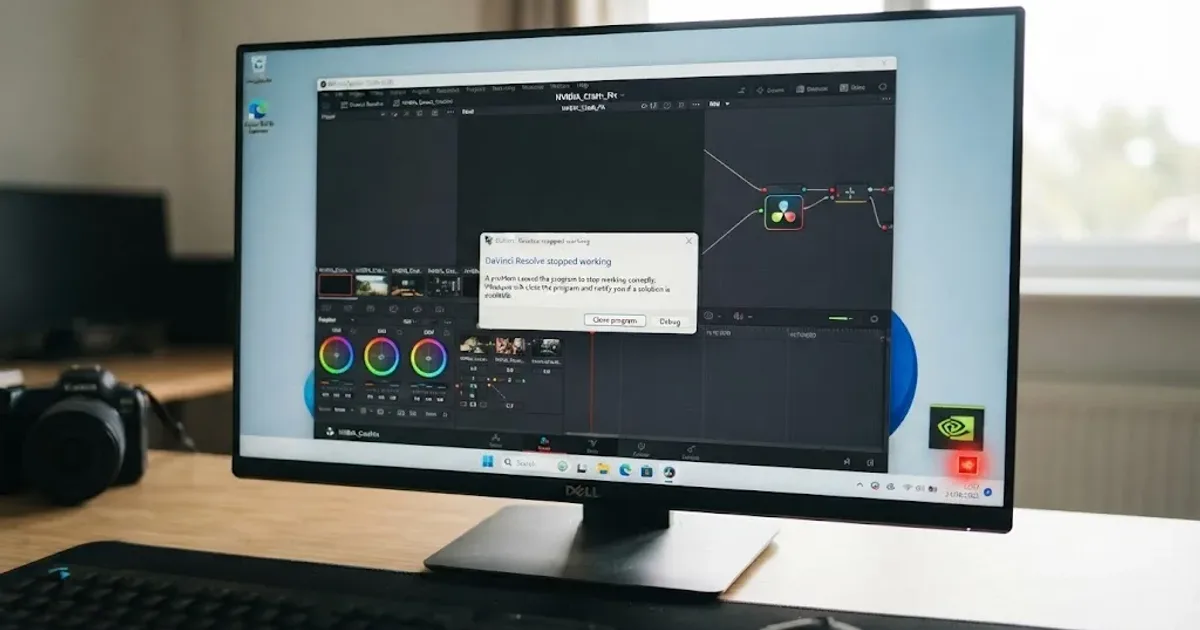
DaVinci Resolve NVIDIA Driver Crash on Windows: The Real Fix
DaVinci Resolve crashing on Windows with an NVIDIA GPU almost always traces to the Game Ready vs Studio Driver split. Here's the diagnosis and every fix branch.
 FixesJul 17, 202631 min read
DaVinci Resolve Plugin Not Found or Missing Effect: The Fix
Why DaVinci Resolve shows a plugin not found or missing effect error, and the install path, cache, and Video Plugins fixes that actually solve it.
 FixesJul 16, 202630 min read
How to Prevent DaVinci Resolve Project Corruption
The real causes of DaVinci Resolve project corruption, from cloud-synced databases to power loss, and the exact habits that prevent it in 2026.