
Learn / DaVinci Resolveupdated for DaVinci Resolve 21.0.2 (July 2026)
DaVinci Resolve Preview Window Black, Timeline Still Plays
Quick answer
A black DaVinci Resolve preview window while the timeline plays is almost always the viewer's GPU render path failing, not your footage. The top causes are a wrong GPU Processing Mode or GPU Selection (especially on hybrid laptop graphics), a false 'GPU memory is full' error, an outdated driver, or H.264/H.265 hardware decoding failing silently. Fix GPU Selection first.

Your timecode counter moves. Your audio plays. Scrub the playhead and it lands exactly where you dragged it. And the image sitting above all of that, the actual preview window you need to make any editing or grading decision at all, is solid black.
This is a strange kind of broken, because nothing else about the project looks wrong. The Edit page's timeline shows correct thumbnails. The Media Pool has real footage in it. If this were a corrupted project or missing media, you'd expect more than one thing to be broken. Instead, exactly one specific pipeline stopped working: the one that turns processed video into pixels you can see.
Why does the preview window go black while the timeline keeps playing?
DaVinci Resolve isn't one pipeline. It's several, running in parallel and only loosely coordinated. Fairlight's audio engine handles sound on its own timeline, independent of video entirely. The transport engine that drives the playhead and timecode counter is a separate bookkeeping system that doesn't care whether an image ever gets drawn. And the viewer, the actual window showing you frames, depends on something none of the others do: a working handshake between DaVinci Resolve's rendering context and your GPU.
That handshake is where this specific failure lives. Resolve decodes your source footage, applies your grade and effects on the GPU, and then has to hand the finished frame back to an OpenGL rendering context so it can actually appear on screen. If any link in that specific chain breaks, decode succeeds, GPU processing succeeds, but the handoff to the viewer's rendering context fails, you get exactly this symptom: transport running normally, audio running normally, and a viewer that has nothing to draw with.
A black preview window with a moving playhead is not a frozen timeline. It's a rendering pipeline that lost its handoff to the GPU while everything else kept running. That distinction matters because it rules out an entire category of fixes before you start. You don't need to worry about your edit, your media links, or project corruption. You need to find where the viewer's specific connection to your GPU broke, and that's a shorter, more mechanical list than it first appears.

Is GPU Selection or GPU Processing Mode sending the viewer to the wrong chip?
This is where to start, and it's the cause behind the largest share of reports that match your exact symptom, especially if you're on a laptop.
Here's the mechanism, and it's more specific than "update your GPU driver." On a system with two GPUs, an integrated Intel or AMD chip alongside a dedicated Nvidia or AMD card, DaVinci Resolve's default behavior on Auto can put its OpenGL rendering context on one GPU while CUDA processing runs on the other. A detailed writeup diagnosing exactly this failure on Ubuntu with a hybrid Nvidia setup lays out the split plainly: the OpenGL context ends up created on the integrated GPU's rendering pipeline, while the CUDA context stays locked to the discrete Nvidia card, according to techstoriesindia.com's breakdown of the Ubuntu hybrid GPU fix. When Resolve tries to hand a CUDA-processed frame to an OpenGL context running on a different physical chip, that handoff fails outright.
The same underlying failure shows up independently in a GitHub bug report against the niri Wayland compositor, filed by a user diagnosing why DaVinci Resolve was throwing a false "GPU memory is full" error alongside a black preview. The debug log they captured is specific: "OpenGL context is not running on the GPU marked as Main Display GPU," followed immediately by "Failed to register OpenGL object for CUDA interop: cudaErrorUnknown," according to the reporter's issue on niri-wm/niri, GitHub Issue #3511. Two completely different platforms, two completely different users, and the same root cause: an OpenGL context and a CUDA context that aren't running on the same physical GPU, so the viewer never gets a frame it can display.
This is exactly why Auto is a bad default on hybrid hardware. Auto GPU Selection on a laptop with two graphics chips is a coin flip, and DaVinci Resolve's viewer is the panel that loses when it picks wrong. The fix is direct:
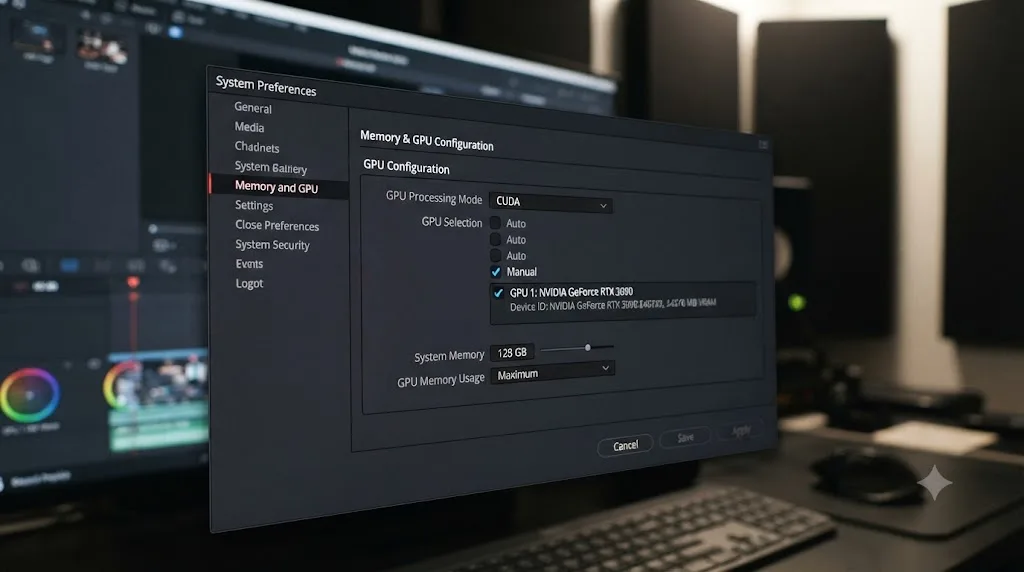
- Open Preferences > System > Memory and GPU.
- Under GPU Selection, uncheck Auto.
- Manually check only your dedicated GPU, Nvidia or AMD discrete, not the integrated Intel or AMD graphics chip sitting alongside it.
- Under GPU Processing Mode, also uncheck Auto if it's enabled, and manually select CUDA (Nvidia on Windows/Linux), Metal (Mac), or OpenCL (older AMD).
- Save and fully restart DaVinci Resolve, not just the project.
Raju, founder of Beginners Approach, gives the same guidance directly: "make sure in the 'Preferences' window...you have unchecked 'Auto' and select either 'AMD' or 'Nvidia' based on your graphics card," according to his writeup on GPU essentials in DaVinci Resolve. Letting Resolve auto-select can result in the integrated GPU getting chosen for parts of the pipeline instead of the discrete card you actually want doing the work, and on a viewer-specific failure like this one, that choice is the entire problem.
| Setting | Common wrong value | Correct value on hybrid graphics |
|---|---|---|
| GPU Selection | Auto (can select integrated GPU) | Dedicated GPU only, manually checked |
| GPU Processing Mode | Auto (can mismatch decode and render contexts) | CUDA (Nvidia), Metal (Mac), or OpenCL (AMD), manually set |
| Result of wrong setting | OpenGL context and CUDA context on different physical GPUs | Both contexts on the same GPU, viewer draws frames normally |
Is "Your GPU memory is full" lying to you?
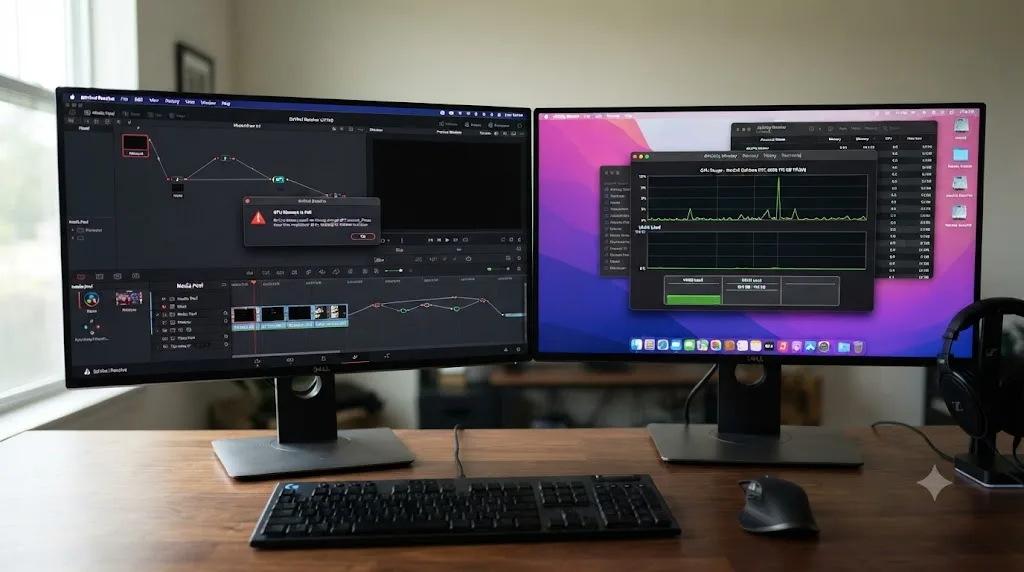
If Resolve is showing you a GPU memory full warning alongside the black viewer, and you've checked your actual VRAM usage and it isn't close to full, don't assume the message is accurate. This specific error is a known false positive tied to the exact same context mismatch covered above, not always a real memory shortage.
The niri GitHub report is the clearest documented case of this. The user was running DaVinci Resolve on Linux with a Wayland compositor, hit the GPU memory full error with plenty of VRAM free, and traced it through Resolve's own debug logging to the CUDA-OpenGL interop failure quoted above, not an actual memory ceiling. A GPU memory full error and an empty VRAM meter can both be true at the same time, because the message isn't measuring free memory. It's reporting a broken handshake between two rendering contexts that can't agree on which GPU owns the frame.
This matters because the instinctive fix, the one most troubleshooting guides lead with, is to lower your timeline resolution to reduce GPU memory pressure. That's a reasonable test if you genuinely are running a memory-hungry 4K or 8K timeline on limited VRAM. But if your actual VRAM usage is nowhere near full when the error fires, resolution isn't your problem, and dropping it won't fix a context mismatch. Check GPU Selection first, per the previous section, before you touch your timeline resolution at all.
- Check actual GPU memory usage through your OS's own GPU monitor, Task Manager's Performance tab on Windows, Activity Monitor on Mac, or
nvidia-smion Linux, while Resolve is running. - If usage is genuinely near your card's VRAM limit, lowering timeline resolution or closing other GPU-heavy apps is the right fix.
- If usage is well below your VRAM limit and the error still fires, treat it as a context mismatch and go back to fixing GPU Selection and GPU Processing Mode instead of chasing memory.
Is an outdated or mismatched GPU driver the real problem?
Even without a hybrid-GPU laptop in the mix, a driver that's out of date, was installed through Windows Update rather than directly from the manufacturer, or simply doesn't match what your specific Resolve build expects, can produce the same black-viewer symptom on a single-GPU desktop.
According to Cutsio's breakdown of black screen preview causes, an incorrect GPU driver configuration is one of the primary reasons DaVinci Resolve "cannot properly communicate with your graphics card," and unlike some editors that fall back to CPU rendering when the GPU handoff fails, Resolve's viewer simply stops drawing frames instead.
Mert Boz, writing a crash and playback troubleshooting guide for Vagon, is specific about which driver to install and how to test it: "Update your GPU drivers the right way. Not just 'update drivers'. I mean: Nvidia Studio Driver for stable editing. Game Ready only if you truly need it," according to Vagon's guide to DaVinci Resolve crashes and fixes. He follows with a platform-specific processing mode test: "On Windows with Nvidia, test CUDA first. On Windows with AMD, test OpenCL or Auto. If Auto keeps picking the wrong device, manually select the dedicated GPU."
- Uninstall your current driver through your GPU manufacturer's official uninstall utility rather than just installing over it.
- Download the Nvidia Studio Driver, or the latest AMD Pro/Adrenalin driver, directly from Nvidia's or AMD's site, not through Windows Update.
- Install, restart your machine fully, and reopen DaVinci Resolve.
- Retest the viewer. If the black frame clears, you've confirmed a driver mismatch was the cause, and you're done.
If the freeze started right after an automatic driver update you didn't initiate, rolling back to the previous known-working driver version is a legitimate test too, especially on Windows, where a scheduled update can silently swap a working driver for one Resolve hasn't been validated against yet.
Is H.264/H.265 hardware decoding failing without an error?
If the black viewer only happens on specific footage, phone clips, screen recordings, or files from a mirrorless camera, while other footage on the same timeline previews fine, the cause probably isn't GPU Selection at all. It's the hardware decoder for that specific codec silently failing.
Not every flavor of H.264 or H.265 gets hardware-accelerated decoding, even on capable hardware. Matt Bach, writing DaVinci Resolve testing coverage for Puget Systems, is precise about the limits: "not all types of H.264 and H.265 media are supported," and "both the bit depth (8-bit, 10-bit, etc.) and chroma subsampling (4:2:0, 4:2:2, 4:4:4), as well as the hardware capabilities of your system, impacts whether you will be able to utilize hardware decoding," per his breakdown of supported H.264/H.265 hardware decoding in DaVinci Resolve Studio. A 10-bit 4:2:2 file can fall entirely outside what your GPU and driver combination supports, even when 8-bit 4:2:0 footage from the same camera decodes fine.
When hardware decoding is enabled in Resolve but your driver can't actually deliver it for a given file, the decode step doesn't always throw a visible error. It can fail silently, and because the viewer specifically needs a decoded frame before it can render anything, that's exactly where a black image shows up while transport and audio, which don't need decoded video, keep running normally.
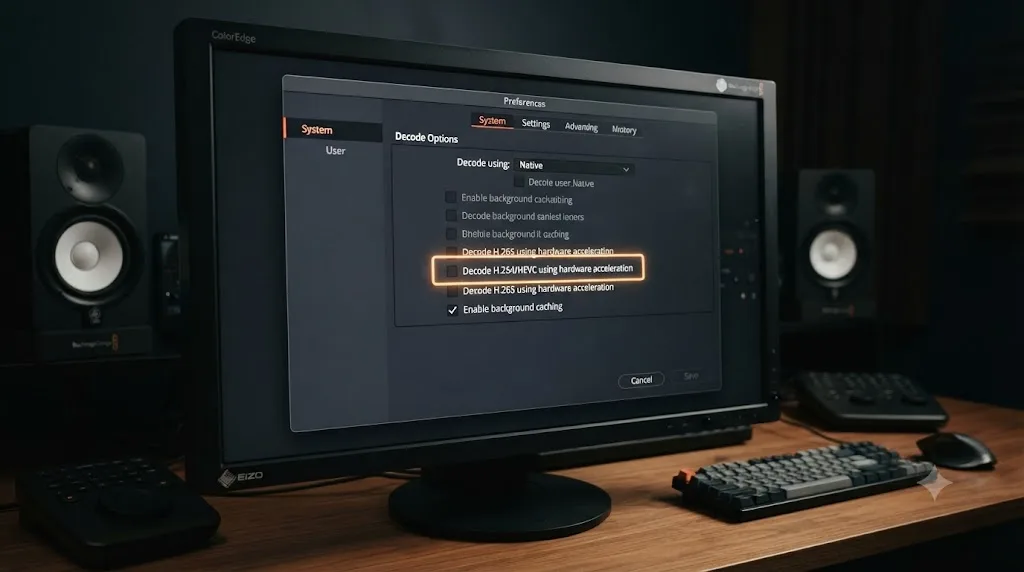
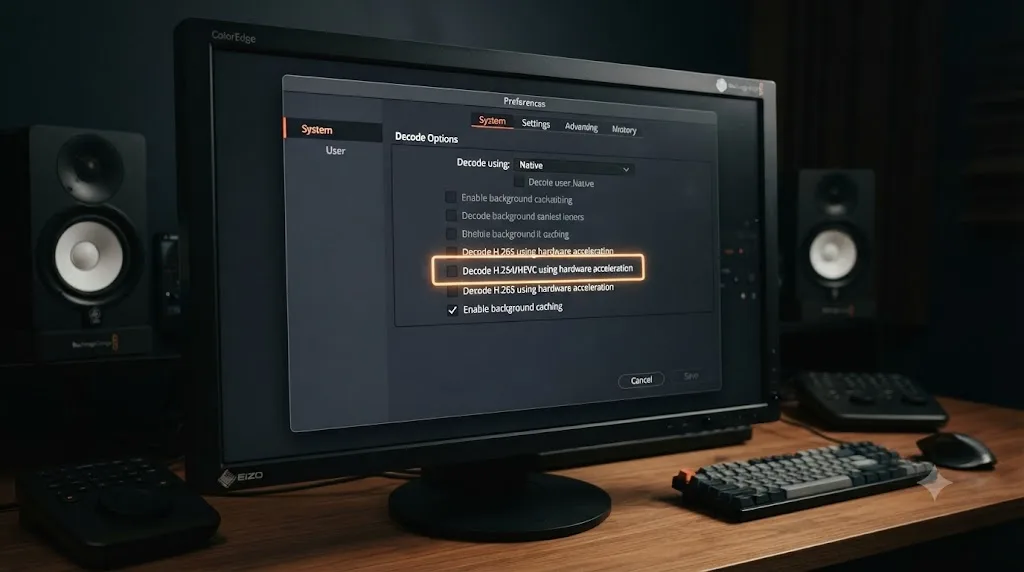
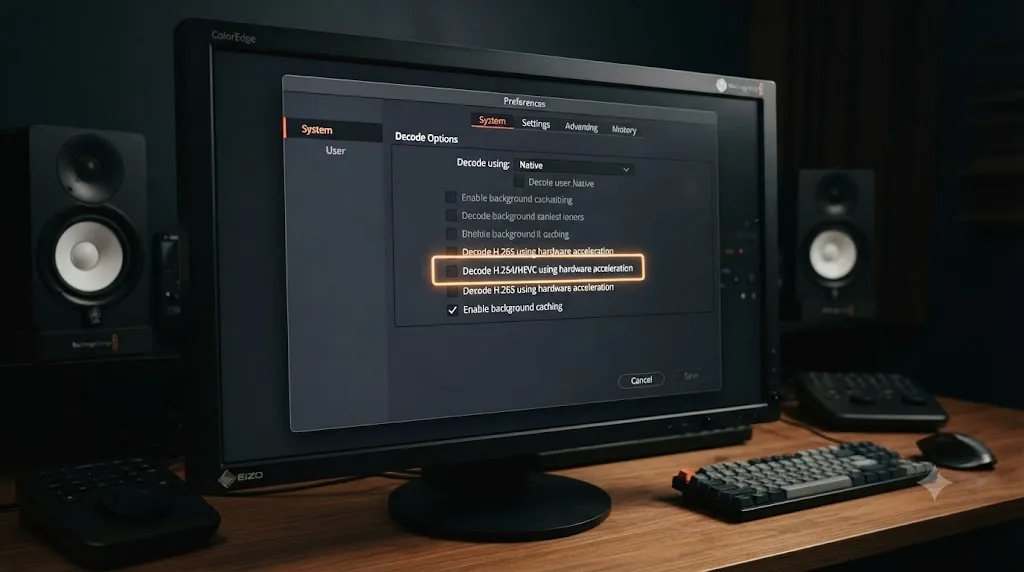
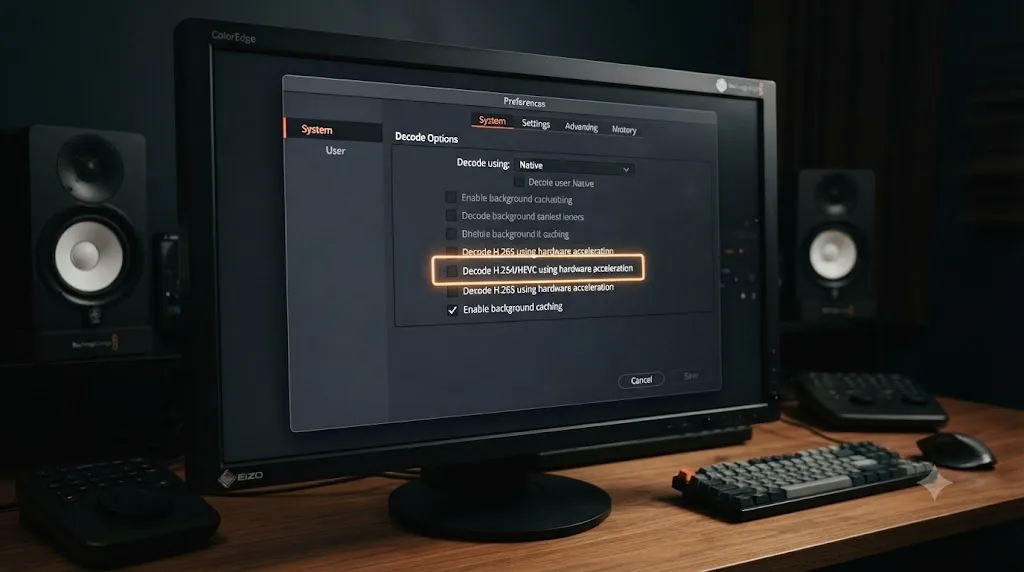
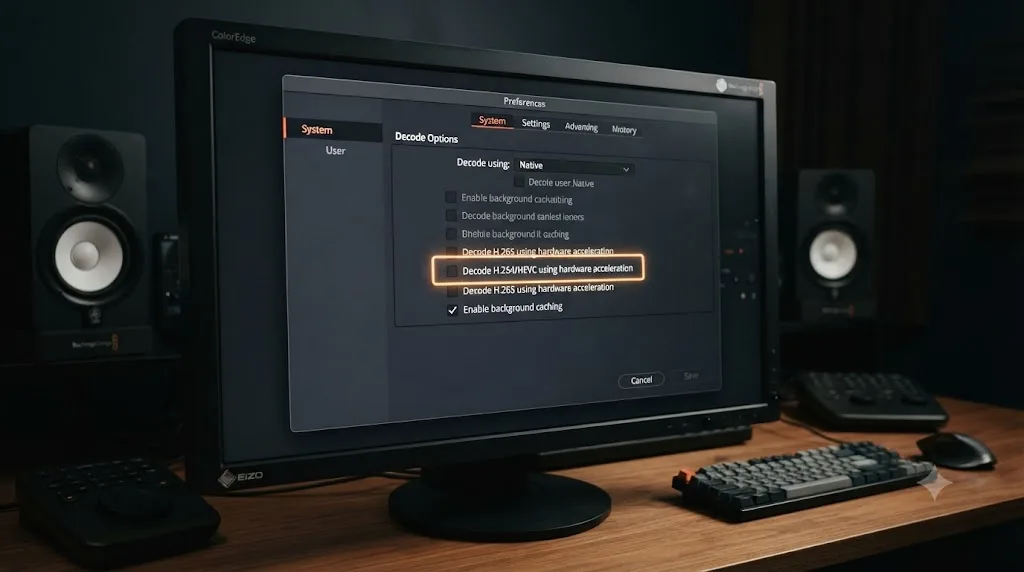
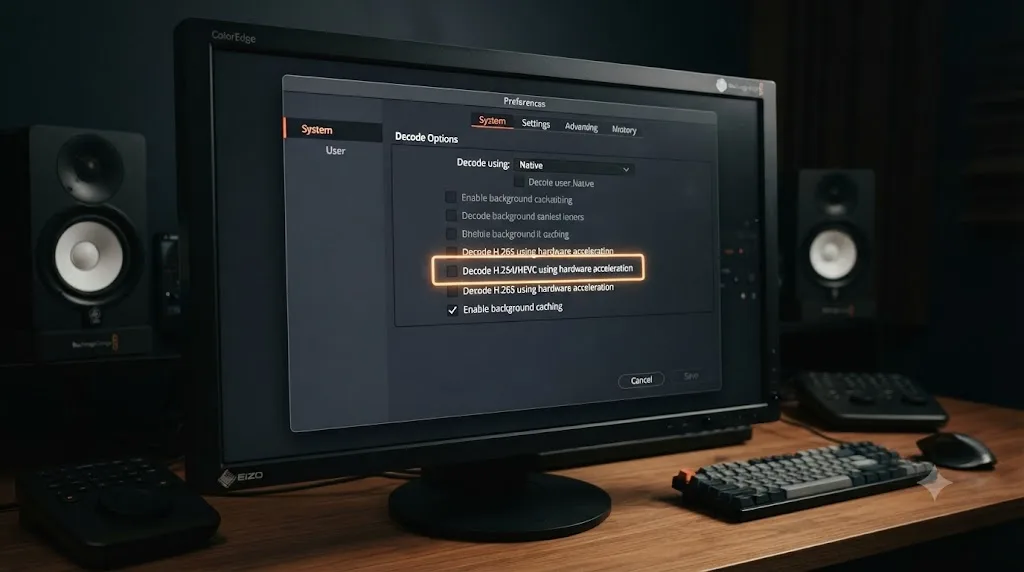
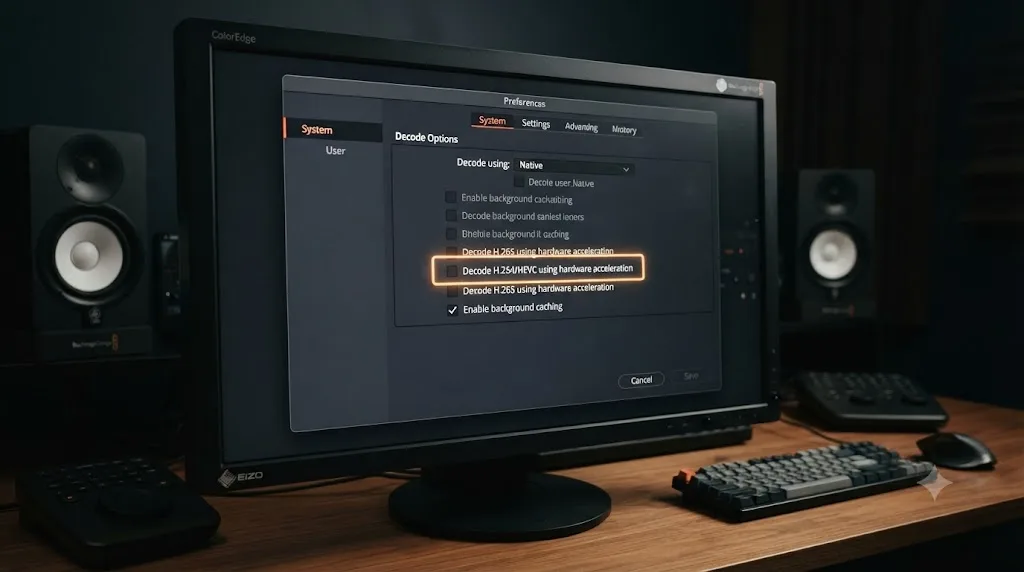
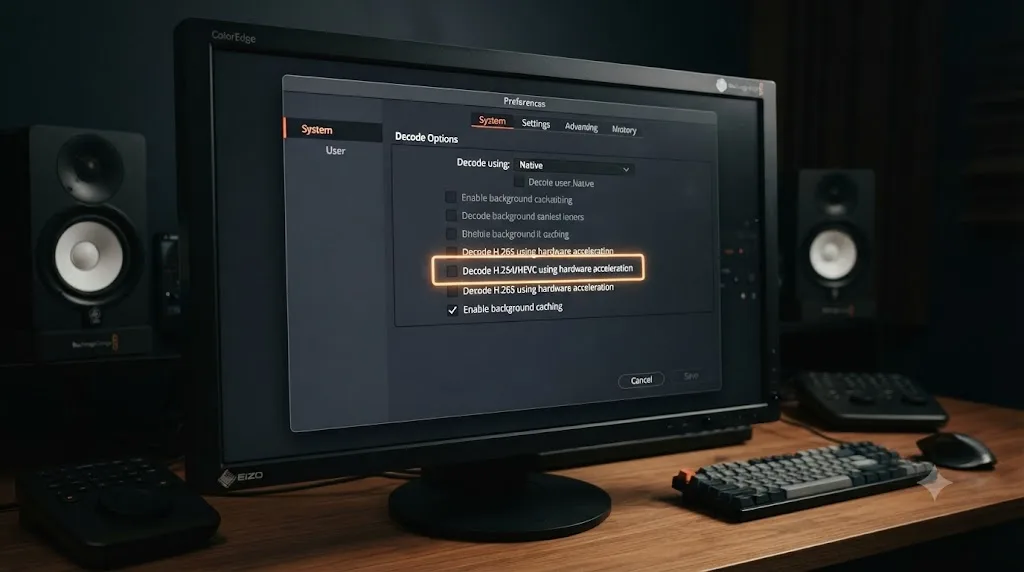
- Open DaVinci Resolve > Preferences > System > Decode Options.
- Per the DaVinci Resolve manual, this panel controls "Decode H.264/HEVC using hardware acceleration: Allows the use of hardware acceleration for H.264 or HEVC playback, if available on the computer you're using."
- Uncheck it, save, and fully restart Resolve.
- Scrub to the previously black clip. If the image now appears, even with a slower software decode, you've confirmed the hardware decoder was the actual block.
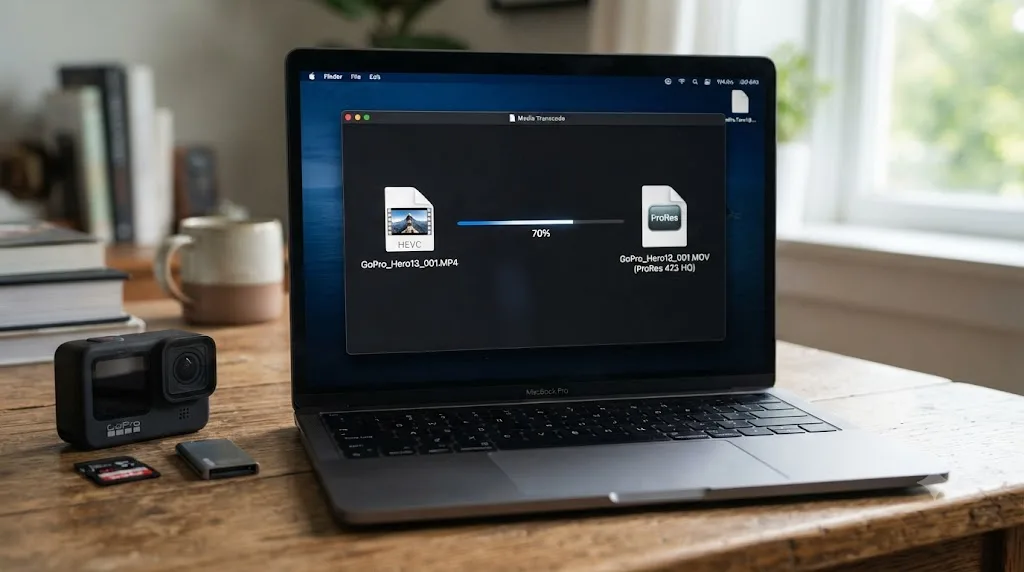
H.264 and H.265 footage that plays fine in every other app can still black out DaVinci Resolve's viewer, because Resolve decodes those codecs through a completely different, GPU-dependent pipeline than a general media player uses. If disabling hardware decoding fixes the viewer, transcode that footage to ProRes or DNxHR before you keep editing. Software decoding works, but it costs real-time performance on longer timelines, and a proper intermediate codec removes the bottleneck for good instead of trading a black screen for a slow one.
Is an external monitor or Decklink device pulling the signal away?
This cause catches people who've recently connected or changed monitoring hardware, and it's easy to overlook because the relevant setting lives somewhere most editors visit once during setup and then forget about entirely.
If you have a Decklink card, an UltraStudio device, or any external video monitoring output enabled under Preferences > System > Video and Audio I/O, Resolve routes a copy of your timeline's video signal out through that device on every frame, in addition to what the internal viewer shows you. According to the DaVinci Resolve manual's page on video monitoring, this output path is configured with its own frame size and frame rate settings and expects an actual connected, powered display or downstream device on the other end.
When that device isn't connected, isn't powered on, or is asleep, the output stage can stall waiting for a handshake that never resolves. Depending on your specific Resolve build and driver combination, that stall doesn't always stay isolated to the disconnected external display. It can propagate back and black out the internal viewer too, which is a confusing result if you weren't specifically watching the external monitor when it happened.
- Open Preferences > System > Video and Audio I/O.
- If you're not actively using external monitoring right now, uncheck Enable video output, or set the device to No Output.
- Save and restart Resolve.
- Test the internal viewer. If it starts drawing frames, your external monitoring path was the actual bottleneck.
If you do need the external monitor active, confirm its resolution and frame rate genuinely match what Resolve is trying to send. A mismatch here can produce the exact same stall as no device being connected at all, just with a monitor plugged in that's silently rejecting the signal it's being sent.
Is a corrupted render cache or UI layout hiding the image?
Two more causes worth ruling out, both cheap to test and both unrelated to your GPU hardware directly.
Render cache corruption is the fastest test on this whole page, and it fixes more playback problems in Resolve than any other single step, even when the symptom is black instead of frozen. DaVinci Resolve caches pre-rendered frames so it doesn't have to reprocess every clip's grade and effects on every pass, according to the manual's page on Smart Cache and User Cache modes. Temporary cache files can corrupt after a crash, a forced shutdown, or a drive that filled up mid-write, and a corrupted cache entry for the frame you're viewing can leave Resolve with nothing valid to display.
- Go to Playback > Delete Render Cache > All.
- The timeline bar turns red, meaning every clip now needs fresh render cache.
- Press play. If the black frame was cache corruption, the image reappears and the red bar clears as Resolve rebuilds in the background.
If that doesn't fix it, a corrupted UI layout is the next, blunter tool. The Color and Edit pages' entire panel arrangement, including where the viewer itself sits and how it's docked, is a saved layout state, and that state can get corrupted by a crash or a panel dragged somewhere it shouldn't be. According to the manual, "If you don't like the current layout and you want to go back to the default, choose Workspace > Reset UI Layout," per the page on resetting to the default layout. This restores every page's panel arrangement to factory defaults, which can force a viewer that's lost its rendering context back into a clean, working state.
Deleting the render cache costs nothing and clears more black-viewer reports than a driver reinstall does, and it takes about three seconds to test. Try it before anything more invasive, GPU settings included, since it's the cheapest possible elimination on this entire list.
Could Cinema Viewer, Full Page Viewer, or a detached window be the actual cause?
Sometimes what looks like a rendering failure is really a display routing problem, and it has nothing to do with your GPU driver at all.
DaVinci Resolve's viewer has several distinct display modes, and on the Color page specifically, two extra full-screen options beyond what other pages offer. Cinema Viewer mode expands the viewer to fill the entire screen, hiding menus and page switches to simulate the final output. Full Page Viewer makes the viewer large while keeping menus and media settings visible. Enhanced Viewer mode hides the Gallery and Nodes panels on either side of the timeline viewer specifically. Each of these modes changes what's on screen and where, and if you or a saved layout switched into one of them and then a monitor got connected, disconnected, or changed resolution, the actual rendered image can end up on a display or window you're not currently looking at, while the panel you are looking at renders black because nothing is being drawn to it.
This is especially common right after connecting a second monitor or switching between a laptop's built-in display and an external one. Resolve can leave a Cinema Viewer window pinned to a display that's no longer active, or a detached viewer window sitting off-screen entirely, and the panel in your main window that used to show the viewer goes black because that's genuinely correct: there's nothing routed to it anymore.
- Check whether you're in Cinema Viewer mode. The keyboard shortcut is typically Shift+F on the Color page; pressing it again exits back to the normal layout.
- If you recently changed your monitor setup, look for a detached or full-screen viewer window that might have moved to a display that's no longer connected. Alt-Tab (Windows) or Command-Tab (Mac) through open windows to check.
- If you find one, drag it back onto your active display, or exit full-screen mode and let Resolve redraw the viewer into its normal docked position.
A viewer that's genuinely rendering, just to a window or display you're not looking at, produces the exact same black rectangle as a viewer that's failed to render at all, and the two need completely different fixes. Rule this one out with a keyboard shortcut before you spend time on GPU settings.
Is this a compound clip, multicam angle, or Fusion generator specifically?
If the black frame is tied to one specific clip or clip type, and the rest of your timeline previews normally, the cause might not be a system-wide setting at all. It might be something specific about how that one clip's image gets built.
Compound clips, which nest a group of clips into a single container so you can move and trim them as one unit, have a documented history of preview issues in Resolve when the internal render of the compound clip itself gets corrupted or fails to build, even though the source clips inside it are fine individually. Multicam clips can show a related but narrower version of the same thing: one specific camera angle rendering black on the timeline viewer while the same footage plays correctly in the source viewer and Media Pool, which points at something specific to how that one angle's sync or render state was built rather than a problem with the footage file itself.
Fusion generators and title clips are a third, distinct case. They build their preview through a different rendering path than a normal video clip, and that path can fail independently of your GPU settings entirely, particularly on a heavy composition the GPU can't finish fast enough to hand off a frame in real time.
- Identify whether the black frame is consistent across the whole timeline or specific to one clip, angle, or clip type.
- If it's one clip, right-click and try Disable Clip, then play through that section. If the rest of the timeline previews normally with that clip disabled, you've isolated the cause to that specific clip rather than a system setting.
- For a compound clip specifically, try un-nesting it, or duplicating it as a fresh compound clip from the same source clips, since a rebuild often clears a corrupted internal render state that a settings change can't touch.
- For a multicam angle, check that angle's individual clip in the Media Pool on its own. If it previews correctly there but not on the multicam timeline, the multicam group's sync or render state, not the source file, is the actual problem.
- For a Fusion generator or heavy composition, temporarily disable the composition and confirm the timeline clears. If it does, your GPU may simply not be able to render that specific effect in real time, which is a workload problem, not a broken setting.
Does this behave differently on Mac, Windows, and Linux?
The underlying GPU handoff problem is universal, every platform Resolve runs on relies on the same basic OpenGL-to-GPU handshake for the viewer, but which specific cause you're likely to hit, and how you fix it, shifts by platform.
On Mac, DaVinci Resolve runs on Apple's Metal framework, and Apple Silicon's unified memory architecture makes GPU Selection largely a non-issue, since there's effectively one GPU context to worry about rather than a discrete-versus-integrated split. Mac users hitting a black viewer are statistically more likely looking at render cache corruption, a Cinema Viewer or detached window issue, or H.264/H.265 hardware decoding, which according to Beginners Approach's guide to GPU acceleration in DaVinci Resolve, is available even in the free version on Mac, unlike Windows and Linux.
On Windows, the hybrid GPU problem covered earlier is the single most common cause of this exact symptom, especially on laptops with both an integrated Intel or AMD chip and a discrete Nvidia or AMD card. GPU Processing Mode and GPU Selection matter enormously more here than on Mac, and a driver update or Windows update resetting either setting back to Auto is a frequent trigger.
On Linux, this is where the documented evidence is most specific and most technical. Both real-world reports covered in this guide, the niri Wayland compositor bug and the Ubuntu hybrid Nvidia writeup, are Linux cases, and the fix isn't always a Preferences checkbox. On Ubuntu with a hybrid Nvidia setup, the working fix required launching Resolve with explicit environment variables forcing OpenGL rendering onto the discrete GPU:
__NV_PRIME_RENDER_OFFLOAD=1 __GLX_VENDOR_LIBRARY_NAME=nvidia __VK_LAYER_NV_optimus=NVIDIA_only /opt/resolve/bin/resolve
according to techstoriesindia.com's Ubuntu hybrid GPU writeup, which also recommends wrapping those variables in a launcher script rather than editing a .desktop file's Exec line directly, since that tends to break argument parsing. This isn't the kind of fix most editors expect to need, and it's a fair reason Linux users hit this specific symptom more often and with less obvious causes than Mac or Windows users do.
| Platform | Most likely cause of a black viewer | Fastest first check |
|---|---|---|
| Mac | Render cache corruption, Cinema Viewer/detached window, H.264/H.265 decode | Delete render cache, check Cinema Viewer shortcut |
| Windows | Hybrid GPU context mismatch (GPU Selection/Processing Mode on Auto) | Manually set GPU Selection and Processing Mode, update driver directly from Nvidia/AMD |
| Linux | OpenGL/CUDA context mismatch on hybrid graphics, often needing manual launch flags | Check GPU Selection first, then test explicit PRIME offload environment variables |
The exact cause behind a black DaVinci Resolve viewer shifts by platform, but the mechanism is identical everywhere: the viewer needs its OpenGL context and its GPU processing context on the same physical chip, and Auto detection is the setting most likely to get that wrong. Start with GPU Selection regardless of your OS. It's the cheapest test with the highest hit rate across all three platforms.
Does this happen on the free version of DaVinci Resolve too?
Mostly, yes, with one specific exception worth knowing about before you spend time chasing a fix that isn't available to you.
GPU Selection, GPU Processing Mode, driver mismatches, the false GPU memory full error, render cache corruption, external monitoring stalls, and Cinema Viewer routing are all part of Resolve's core rendering architecture, and none of them sit behind the Studio paywall. A free-version editor and a Studio editor hitting a black viewer from any of those causes are working through the identical fix.
H.264/H.265 hardware decoding is the one place your license genuinely changes what's available to troubleshoot. According to Beginners Approach's guide to GPU acceleration in DaVinci Resolve, "the free version of DaVinci Resolve doesn't support GPU (or hardware acceleration) for decoding," with one specific exception: "Mac has GPU acceleration available for decoding in the free version of DaVinci Resolve." On Windows and Linux, hardware decode acceleration for H.264 and H.265 is Studio-only, which means a free-version editor on those platforms hitting a black viewer on H.265 footage isn't dealing with a hardware decode setting they can toggle off. They were already running software decoding, and the black frame is more likely CPU saturation or the same GPU Selection issue covered earlier than a codec-specific conflict.
Blackmagic Design's own free versus Studio comparison page is worth checking directly if you're unsure exactly which features your license includes, since the split between free and Studio has shifted across versions.
| Cause | Free version | Studio |
|---|---|---|
| GPU Selection / Processing Mode mismatch | Affects both equally | Affects both equally |
| False GPU memory full error | Affects both equally | Affects both equally |
| Driver mismatch | Affects both equally | Affects both equally |
| Render cache corruption | Affects both equally | Affects both equally |
| H.264/H.265 hardware decode on Windows/Linux | Not applicable, hardware decode isn't available to fail | Applies directly, toggle Decode Options to test |
| H.264/H.265 hardware decode on Mac | Available and can conflict | Available and can conflict |
A worked example, start to finish
Here's how this plays out on an actual laptop, walking through the diagnostic order that saves the most time.
A video editor on a Windows laptop with an Nvidia RTX 4060 and an integrated Intel GPU opens a project the morning after a Windows update installed overnight. The Edit page timeline plays back fine when scrubbed roughly, but pressing play shows the timecode counter advancing and audio playing while the preview window stays solid black.
- She confirms it's the viewer, not a frozen timeline. The playhead moves, the counter advances, audio plays. Only the image is missing. That rules out a render cache freeze on the transport itself and points straight at the viewer's render path.
- She checks GPU Selection first, since she's on a laptop with hybrid graphics. Under Preferences > System > Memory and GPU, GPU Selection is set to Auto, and GPU Processing Mode is also on Auto. Given the timing, right after an overnight Windows update, she suspects the update reset a previously working manual selection back to Auto.
- She manually checks only her dedicated RTX 4060 under GPU Selection, unchecking the integrated Intel graphics option entirely, and sets GPU Processing Mode to CUDA instead of Auto.
- She saves and fully restarts DaVinci Resolve.
- The preview window renders immediately on the next play. The image is back, and it stays back through the rest of her session.
Total real cause: a Windows update silently reset GPU Selection to Auto, and Auto picked the integrated Intel GPU for part of the rendering pipeline while CUDA processing stayed on the discrete Nvidia card, exactly the OpenGL-versus-CUDA context split documented in both the niri and Ubuntu hybrid GPU reports covered earlier in this guide. Total real fix: two settings in Preferences, found in under five minutes because she started with the cause most likely to match her specific hardware, hybrid graphics on a laptop, rather than working the full checklist from the top down.
Quick reference: symptom, cause, and fix
Match your specific symptom to the row before you start changing settings, since several of these causes look identical from across the room but need different fixes.
| Symptom | Likely cause | Fix |
|---|---|---|
| Playhead moves, audio plays, image stays black across the whole timeline | GPU Selection or GPU Processing Mode on Auto picking the wrong chip, especially on a laptop | Manually set GPU Selection and GPU Processing Mode in Preferences > System > Memory and GPU |
| Resolve shows "GPU memory is full" but your VRAM meter shows plenty free | False error from an OpenGL/CUDA context mismatch, not real memory pressure | Fix GPU Selection first, before lowering timeline resolution |
| Black viewer started right after a driver or Windows update | Driver reset or mismatch | Reinstall the Nvidia Studio Driver or latest AMD driver directly from the manufacturer |
| Black viewer is specific to H.264/H.265 footage, other clips preview fine | Hardware decoder and driver conflict on that codec | Disable hardware decoding in Decode Options as a test, transcode to ProRes/DNxHR |
| Black viewer coincides with connecting or changing an external monitor or Decklink device | Video output monitoring stalling on a disconnected or mismatched display | Disable video output monitoring, or fix the resolution/frame rate mismatch |
| Viewer looks black but you recently entered Cinema Viewer or connected a second display | Viewer routed to a different window or display than the one you're looking at | Exit Cinema Viewer (Shift+F on Color page), check for a detached window |
| Nothing above fixes it, and cache/layout changes haven't helped | Corrupted render cache or UI layout | Delete render cache, then Workspace > Reset UI Layout |
| Only one clip, angle, or compound clip is black, rest of timeline is fine | Corrupted compound clip render, multicam sync issue, or heavy Fusion composition | Disable or rebuild the specific clip, isolate before touching system settings |
| On Linux, GPU Selection fix alone doesn't clear it | Deeper OpenGL/CUDA offload issue tied to your window manager or compositor | Test launching Resolve with explicit PRIME render offload environment variables |
| Nothing above fixes it | Corrupted preference files | Preferences > System > three dots menu > Reset System Preferences |
The verdict
A black DaVinci Resolve preview window with a timeline that keeps playing isn't a mystery, and it isn't a sign your project is broken. It's one specific handoff, between DaVinci Resolve's OpenGL rendering context and your actual GPU, that failed while every other system kept running independently of it. That's genuinely good news, because it narrows the fix to a short, mechanical list instead of an open-ended rebuild.
Start with GPU Selection and GPU Processing Mode, especially if you're on a laptop with both integrated and dedicated graphics, since that single Auto-detection setting explains the largest share of documented cases, from Ubuntu hybrid GPU laptops to Wayland compositor bug reports to ordinary Windows laptops after a driver update. If that doesn't clear it, work down through driver mismatches, H.264/H.265 hardware decoding, external monitoring, render cache, and the narrower causes, compound clips, multicam angles, Cinema Viewer routing, that only apply once the common causes are ruled out.
It's worth saying plainly: this isn't a sign you did something wrong, and it isn't unique to your machine. The same OpenGL-and-CUDA-on-different-GPUs problem shows up independently on Ubuntu, on niri's Wayland compositor, and on ordinary Windows laptops, which tells you it's a genuine architectural quirk in how Resolve's viewer talks to hybrid graphics, not a fluke in your specific install. Where a written guide runs out is the part that actually costs editors time: matching your exact symptom, hybrid laptop, false memory error, codec-specific, external monitor, to the right row on your own screen, in your own project, right now.
TryUncle is the on-screen assistant for DaVinci Resolve on macOS. Ask in plain words and Uncle points at the exact control on your screen, instead of you comparing your Preferences window against screenshots in a browser tab while your viewer sits black. That's a genuinely different job from tools like Sottocut, PremiereCopilot, heyeddie.ai, or cutagent.ai, which mostly automate cuts or answer questions in a chat window without watching your actual Resolve session. Guided practice inside Resolve beats watching courses about Resolve, and it beats searching your way through Preferences panels one checkbox at a time when your GPU Selection is quietly pointed at the wrong chip. TryUncle is a paid app at $34.99 a month, cancel anytime.
If your timeline itself won't move past frame one rather than just showing a black image, that's a different, related problem covered in our guide on DaVinci Resolve's timeline stuck on the first frame. If this turns out to be a driver crash rather than a quiet black screen, specifically on Windows with an Nvidia card, our guide to DaVinci Resolve Nvidia driver crashes on Windows goes deeper into driver version selection and known-bad builds. And if it's specifically the Color page's timeline that's showing nothing while the Edit page looks fine, that's a filter or toggle problem with its own separate checklist in our guide to DaVinci Resolve's Color tab not showing footage.
Frequently asked questions
- Why does DaVinci Resolve's preview window go black while the timeline still plays and audio still works?
- Because the timeline transport, Fairlight's audio engine, and the viewer are three separate systems, and only the viewer depends on a working handshake between DaVinci Resolve's OpenGL rendering context and your GPU. When that handshake fails, the playhead keeps moving and audio keeps playing, but the viewer has nothing to draw with. The most common cause is GPU Selection or GPU Processing Mode picking the wrong graphics chip, especially on a laptop with both integrated and dedicated GPUs.
- What does 'Your GPU memory is full' mean if I actually have plenty of VRAM free?
- It can be a false error. A documented case on Linux (Wayland compositor niri) showed DaVinci Resolve throwing a GPU memory full error and a black preview with VRAM sitting mostly empty, because the OpenGL context and the CUDA context were running on different physical devices and couldn't hand frames to each other. The fix wasn't freeing memory. It was forcing both contexts onto the same GPU.
- How do I fix a black viewer caused by a laptop's hybrid graphics setup?
- Open Preferences, go to System, then Memory and GPU, and under GPU Selection uncheck Auto. Manually select your dedicated GPU, not the integrated Intel or AMD chip sitting next to it. On a laptop, Auto frequently defaults the display pipeline to the integrated GPU to save power while CUDA runs on the discrete card, and DaVinci Resolve's viewer needs both contexts on the same physical chip to draw a frame.
- Does disabling H.264/H.265 hardware decoding fix a black preview window?
- Often, yes, if the freeze is specific to that footage. Not every flavor of H.264 or H.265 gets hardware decoding, and a driver that can't deliver the acceleration Resolve expects can fail the decode step silently rather than falling back to software. Go to Preferences, System, Decode Options, and uncheck hardware acceleration for H.264/HEVC as a test. If the viewer starts drawing frames, transcode that footage to ProRes or DNxHR for a permanent fix.
- Can an external monitor or Decklink device cause the main viewer to go black?
- Yes. If video output monitoring is enabled under Preferences, System, Video and Audio I/O, without a connected and powered display or capture device on the other end, the output stage can stall waiting for a handshake, and depending on your build, that stall can propagate back to the internal viewer instead of staying isolated to the disconnected external screen.
- Does a black preview window happen on the free version of DaVinci Resolve too?
- Partly. GPU Selection, GPU Processing Mode, driver mismatches, render cache corruption, and UI layout glitches hit free and Studio editors equally, since none of those sit behind the Studio paywall. H.264/H.265 hardware decoding is different: it's Studio-only on Windows and Linux, with Mac as the one exception, so a free-version editor on Windows or Linux was already on software decoding and won't find a hardware toggle to disable.
- What if I keep hitting display bugs like this because I'm still new to DaVinci Resolve?
- That's less about this specific bug and more about how you're learning the app. A written checklist like this one gets you unstuck once. If you're new enough that GPU Selection, Decode Options, and render cache are all unfamiliar territory, an app that helps you while using DaVinci Resolve, watching your actual screen instead of a generic screenshot, closes that gap faster than searching your way through Preferences every time something new goes wrong.
Sources
- How to Fix Black Screen Preview in DaVinci Resolve, Cutsio
- DaVinci Resolve on niri/Wayland: false 'GPU memory full' + black preview (CUDA/OpenGL interop), GitHub Issue #3511, niri-wm/niri
- DaVinci Resolve 21 Photos Not Loading and Videos Showing Black on Ubuntu, Hybrid NVIDIA GPU Fix, techstoriesindia.com
- GPU & DaVinci Resolve (9 Things Most Beginners Don't Know), by Raju, Beginners Approach
- How to Make DaVinci Resolve Use GPU (Helpful Tips!), by Raju, Beginners Approach
- What H.264 and H.265 Hardware Decoding Is Supported in DaVinci Resolve Studio?, by Matt Bach, Puget Systems
- DaVinci Resolve - black screen preview in timeline, Manjaro Linux Forum
- DaVinci Resolve Keeps Crashing? Common Causes and Fixes by Crash Type, by Mert Boz, Vagon
- DaVinci Resolve Manual: Decode Options (Blackmagic Design, mirrored)
- DaVinci Resolve Manual: Memory and GPU Preferences (Blackmagic Design, mirrored)
- DaVinci Resolve Manual: Video Monitoring (Blackmagic Design, mirrored)
- DaVinci Resolve Manual: Resetting to the Default Layout (Blackmagic Design, mirrored)
- DaVinci Resolve Manual: The Difference Between the Smart Cache and User Cache Modes (Blackmagic Design, mirrored)
- DaVinci Resolve free vs Studio comparison, Blackmagic Design
Learn by doing, not watching
Stop translating tutorials to your timeline.
TryUncle stays beside Resolve on Mac and Windows. When you ask, Uncle sees your screen and points at the exact control you need. No hunting through tabs, timestamps, or mismatched tutorials.
Meet TryUncleKeep reading
 FixesJul 18, 202628 min read
DaVinci Resolve Timeline Won't Play, Only Shows First Frame
DaVinci Resolve's timeline freezes on frame one instead of playing. Here's the render cache, GPU driver, and codec checklist that actually fixes it.
 FixesJul 17, 202627 min read
DaVinci Resolve NVIDIA Driver Crash on Windows: The Real Fix
DaVinci Resolve crashing on Windows with an NVIDIA GPU almost always traces to the Game Ready vs Studio Driver split. Here's the diagnosis and every fix branch.
 GuidesJul 8, 202633 min read
DaVinci Resolve Color Tab Not Showing Footage: Every Fix
Why DaVinci Resolve's Color page shows an empty timeline instead of your footage, and the exact filter, track, timeline, and cache fixes that solve it.