
Learn / DaVinci Resolveupdated for DaVinci Resolve 21.0.2 (July 2026)
DaVinci Resolve Timeline Won't Play, Only Shows First Frame
Quick answer
A DaVinci Resolve timeline stuck on its first frame is almost always a render cache, GPU driver, or hardware decode problem, not a broken project. Delete the render cache, confirm your GPU Processing Mode and driver, and disable H.264/H.265 hardware decoding if the freeze started with delivered footage. In DaVinci Resolve 21, also check Background Render in Preferences.
You hit play. The timecode counter doesn't move. The image doesn't change. You hit it again, you scrub the playhead three seconds down the timeline and drag it back, and the frame that's staring at you is still the exact same frame it was staring at you with thirty seconds ago. Nothing crashed. Resolve didn't throw an error. It just stopped.
This is a different animal from a stuttery timeline or dropped frames during scrubbing. Those problems usually mean your system is struggling to keep up. A hard freeze on frame one, where playback simply refuses to start, almost always means something specific is blocking the pipeline entirely, and it's rarely the thing people guess first.
Why does DaVinci Resolve's timeline freeze on the first frame instead of playing?
A DaVinci Resolve timeline is built out of several pipelines running at once: a decode stage that turns your compressed source files into raw frames, a GPU stage that applies your grade and effects, a cache layer that stores pre-rendered frames so playback doesn't have to redo that work every single time, and Fairlight's audio engine running mostly independent of all three. A stuck-on-frame-one freeze means one of those stages never handed off a finished frame to the viewer, and everything downstream is sitting there waiting for a delivery that isn't coming.
That's a useful mental model because it tells you where to look first. If audio keeps playing while video is frozen, the block is in decode or GPU processing, not in the transport itself, since Fairlight doesn't need anything from the video pipeline to run. One editor on a Framework laptop forum described exactly this split after moving to Linux with an AMD GPU: "the timeline won't progress when pressing 'play', and video in the timeline isn't rendered/displayed," while audio in Fairlight worked normally, according to a thread on the Framework Community forum. That's the single cleanest diagnostic signal you'll get before touching any settings: does sound move while picture doesn't.
If both audio and video are frozen together, the block sits further upstream, usually in the render cache or the transport engine itself rather than in decode. A DaVinci Resolve timeline frozen on its first frame is a specific, diagnosable failure, not a vague performance problem, and the fix depends entirely on which pipeline stage actually stalled. The rest of this guide walks through each stage in the order most likely to be your actual cause, starting with the one that resolves this fastest for the most people: the render cache.
How do you clear a corrupted render cache, and does that actually fix it?
Start here. Not because it's the most interesting cause, but because it's the fastest to test and it fixes more first-frame freezes than every other cause on this page combined.
DaVinci Resolve caches pre-rendered frames so your timeline doesn't have to reprocess every clip's grade and effects on every single pass. Per the DaVinci Resolve manual's page on Smart Cache and User Cache modes, Smart Cache automatically caches processor-intensive formats and effects, including H.264, H.265, and Fusion clips, while User Cache leaves that decision to you. Either way, those cache files live on disk as temporary render files, and temporary files can corrupt, especially after a crash, a forced shutdown, or a drive that filled up mid-write.
When the cache file for your very first frame is the one that's corrupted, Resolve can get stuck trying to read a broken file instead of falling back to decoding the source clip fresh. The playhead sits there because the frame it's waiting on will never arrive in a readable state.
- Go to Playback > Delete Render Cache > All.
- The timeline bar turns red, meaning every clip now needs fresh render cache.
- Press play. If the freeze was cache corruption, playback resumes immediately, and the red bar clears back to normal as Resolve re-caches in the background.
According to Cutsio's guide to black frames in DaVinci Resolve, the same "Playback > Delete Render Cache" path with "Select All" is the standard fix for corrupted temporary playback files causing exactly this kind of stuck or black-frame behavior. It's a non-destructive operation. It touches nothing about your edit, your grade, or your original media, it just throws away pre-rendered frames and lets Resolve rebuild them.
If deleting the cache doesn't fix it, you've learned something valuable: the freeze isn't a stale-file problem, and you can rule out the single most common cause and move down this list with confidence. Deleting the render cache costs you nothing and fixes more stuck-on-frame-one timelines than any other single step in this guide. Mert Boz, writing a crash and playback troubleshooting guide for Vagon, puts the same logic plainly: "A surprising number of playback crashes come from corrupted cache files. Clear the render cache, restart Resolve, and test the same timeline again," according to Vagon's guide to DaVinci Resolve crashes and fixes.
| Cache mode | What it caches automatically | When to use it |
|---|---|---|
| Smart | H.264, H.265, DCP, JPEG2K, camera raw clips, speed effects, Fusion clips | Default for most editors, handles the formats most likely to freeze on their own |
| User | Nothing automatically, you manually flag clips and effects | Editors who want precise control over disk usage on a heavy project |
| None | Nothing, ever | Not recommended, and directly relevant here since a fully un-cached H.264/H.265 timeline is more likely to stall on decode |
Is DaVinci Resolve 21's Background Render feature the real culprit?
If you're specifically on DaVinci Resolve 21 and this freeze started after updating, check this before anything more complicated. Background Render, along with quick exports and background proxy generation, is a new feature in DaVinci Resolve 21 that renders portions of your timeline in the background while you keep working, so playback and exports feel faster once the cache catches up.
It's also been inconsistent since launch. Multiple editors have reported the feature interrupting or fully stalling exports, sometimes hanging on a "waiting to render" or "failed to render" message rather than completing, according to a writeup on fixing render failures in DaVinci Resolve 21. The same background process that's supposed to be quietly pre-rendering your timeline can, on certain projects and GPU configurations, end up contending with the exact same GPU resources your live playback needs, and when that contention locks up, playback can freeze right where it started instead of ever advancing past frame one.
The setting lives under DaVinci Resolve > Preferences, and Resolve's own preferences window has a search bar specifically so you don't have to hunt through tabs for it. Type background and you'll find both Enable Background Render and a related toggle, Pause Background Renders During Playback or Interaction, which is meant to prevent exactly this kind of contention but doesn't always catch it in every build.
- Open DaVinci Resolve > Preferences and search "background."
- Uncheck Enable Background Render.
- Fully quit and reopen DaVinci Resolve, not just close the project. Preference changes to background processing don't always take effect until a full restart.
- Test the timeline again.
If you'd rather keep Background Render on because you rely on it for faster exports on other projects, confirm Pause Background Renders During Playback or Interaction is checked first, since that's the safer middle ground: it lets background rendering happen while you're idle, then gets out of the way the moment you press play.
Is a GPU driver or GPU Processing Mode setting freezing your timeline?
Every frame that reaches your viewer, cached or not, gets touched by the GPU at some point in the pipeline, whether that's applying a color grade, running an OFX effect, or just compositing the final image. If Resolve can't talk to your GPU correctly, that handoff can stall completely rather than just slowing down, and a full stall looks exactly like a timeline frozen on frame one.
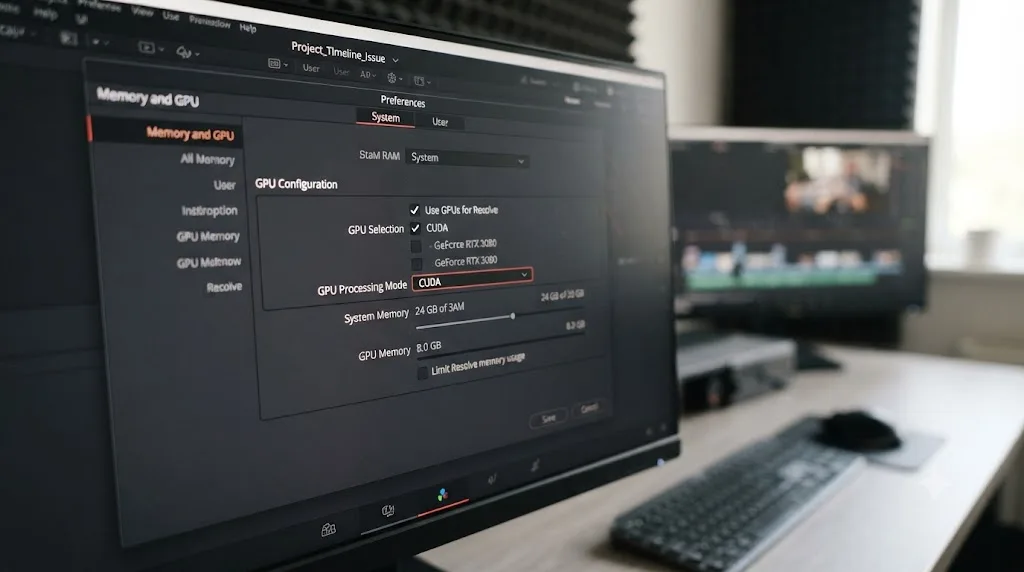
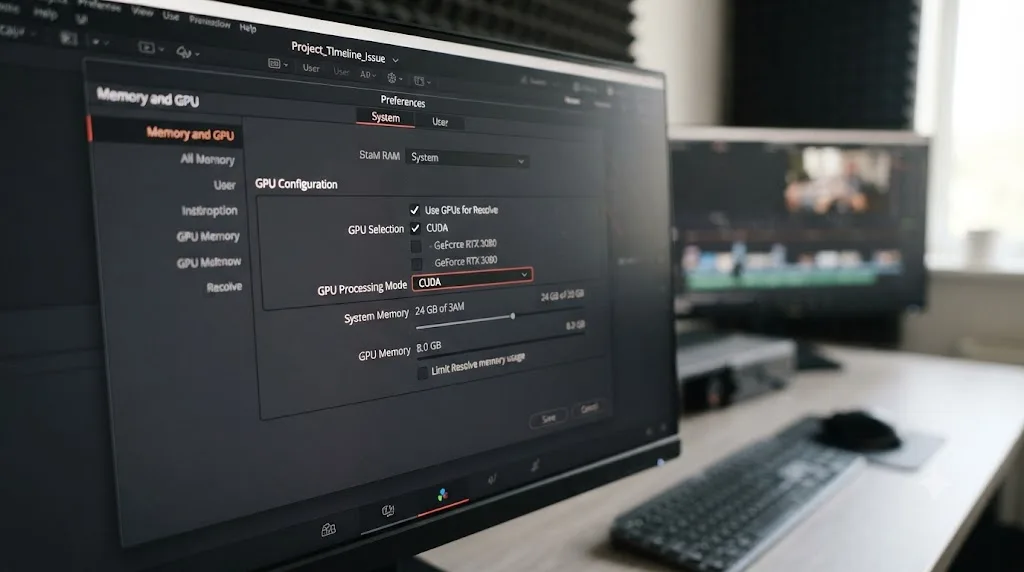
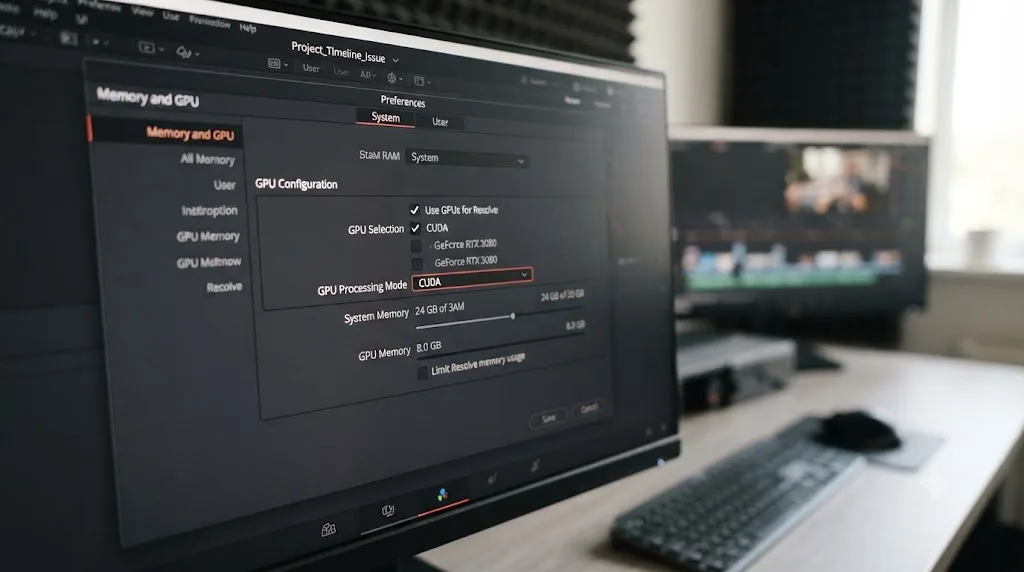
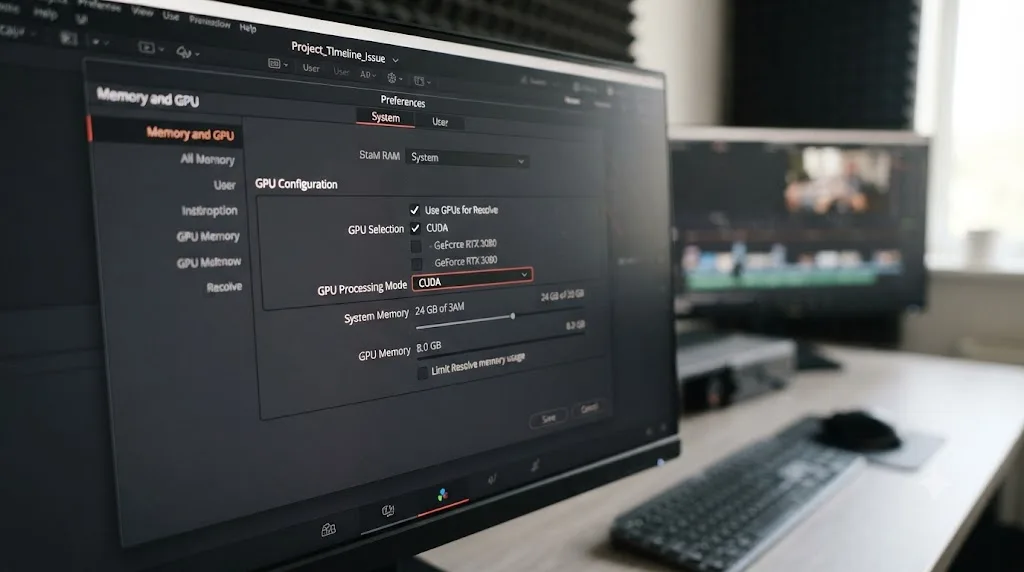
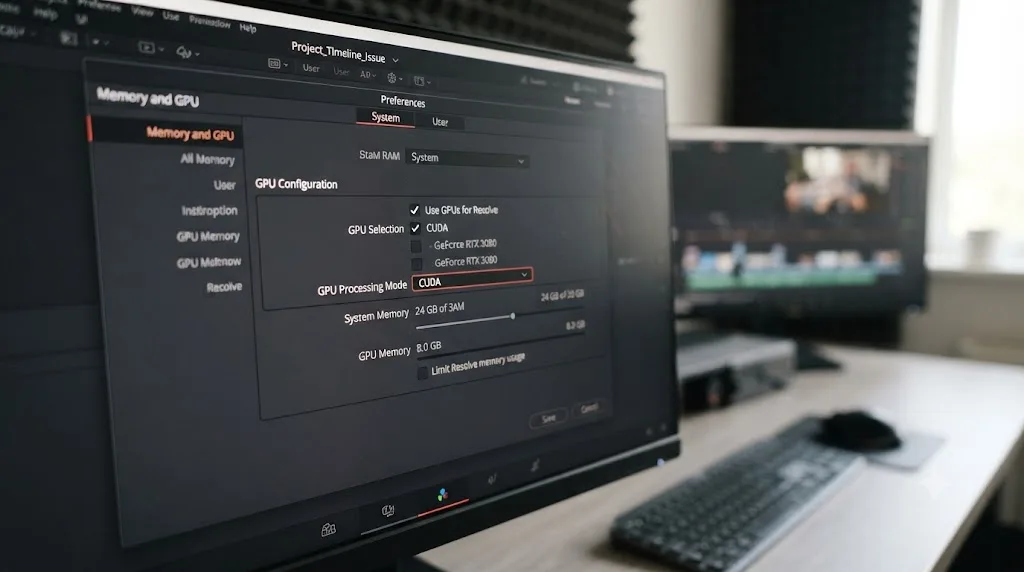
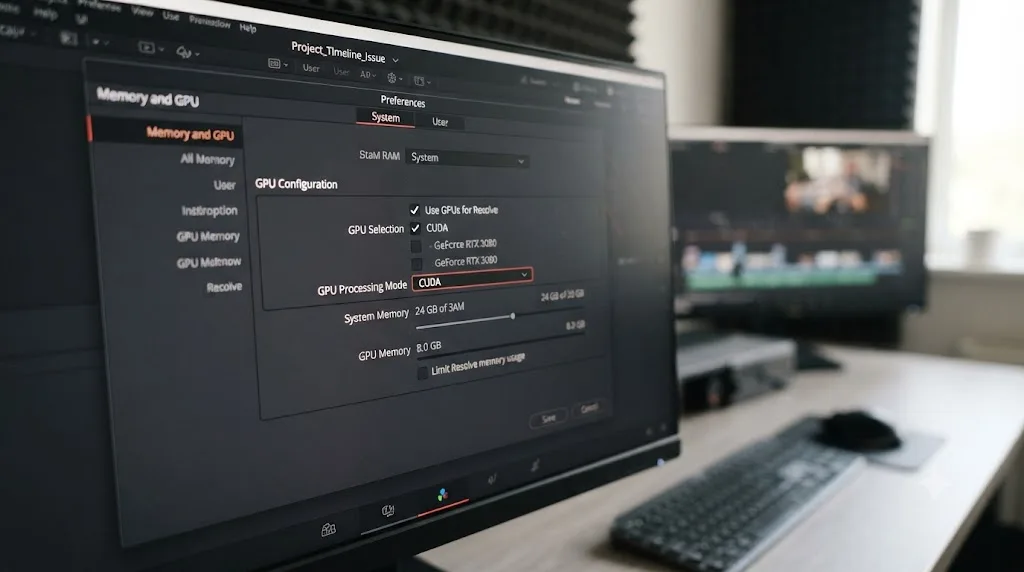
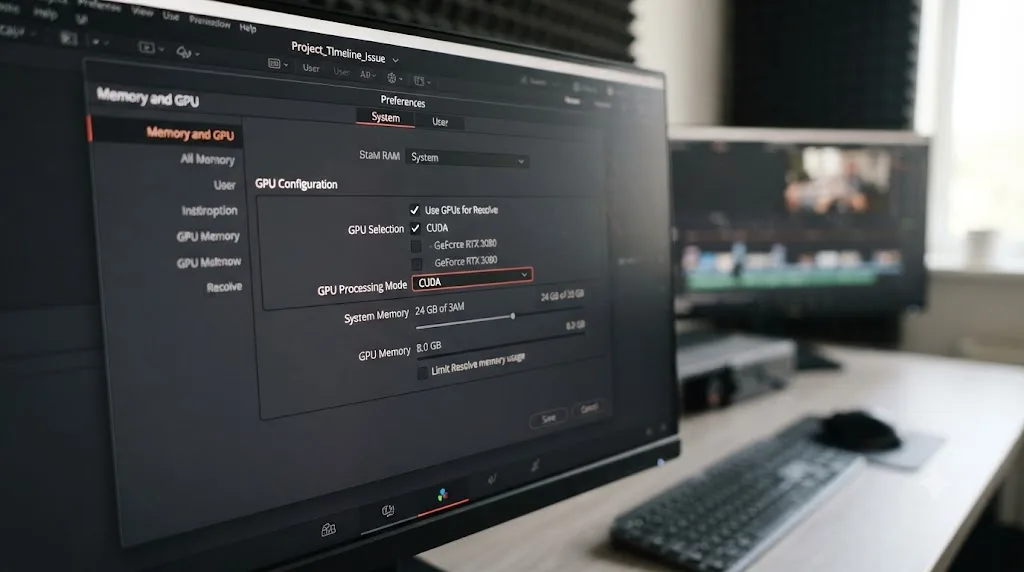
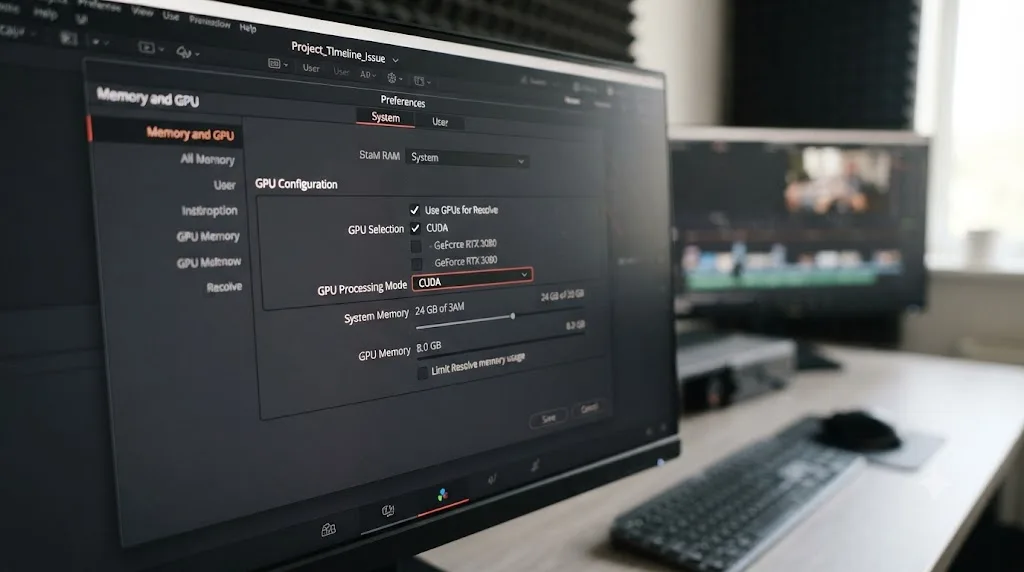
GPU Processing Mode, found in Preferences > Memory and GPU, defaults to Auto, and Auto genuinely does pick correctly most of the time. But Auto isn't infallible. A driver update, a Windows update that resets GPU priority, or a laptop with both an integrated and a dedicated GPU can all cause Auto to select the wrong device or lose track of the right one entirely, and when that happens, Resolve doesn't always throw a clear error, it just stops delivering frames.
Mert Boz's guidance on this, from the same Vagon troubleshooting piece cited above, is specific and worth following as a default checklist: "Update your GPU drivers the right way. Not just 'update drivers'. I mean: Nvidia Studio Driver for stable editing. Game Ready only if you truly need it." He follows that with a platform-specific test order: "On Windows with Nvidia, test CUDA first. On Windows with AMD, test OpenCL or Auto. If Auto keeps picking the wrong device, manually select the dedicated GPU."
- Open Preferences > Memory and GPU.
- Under GPU Selection, confirm your actual dedicated GPU is checked, not just an integrated Intel or AMD graphics chip sitting alongside it.
- Under GPU Processing Mode, if you're on Windows with Nvidia, try CUDA. On AMD, try OpenCL. On Mac, Metal is the only real option and rarely needs manual intervention.
- Save, then fully restart DaVinci Resolve, not just the project.
- If the freeze clears, go install the correct driver for your specific card from Nvidia's or AMD's own site rather than relying on whatever Windows Update installed, since Windows Update drivers are frequently behind and occasionally mismatched to Resolve's requirements.
Auto GPU Processing Mode is a good default until a driver update breaks it silently, and a silently broken GPU selection produces a frozen timeline with no error message at all. That combination, no crash and no warning, is exactly why this cause gets missed so often. Editors assume a freeze with no error means a software bug, when it's frequently a hardware handoff that just stopped happening.
If your timeline freezes specifically on a heavy Nvidia GPU workflow, or you've noticed the freeze coincides with other GPU-related instability like random crashes elsewhere in the app, our guide on DaVinci Resolve Nvidia driver crashes on Windows goes deeper into driver version selection and known-bad driver builds specifically for Nvidia hardware.
Are H.264/H.265 (HEVC) hardware decoding and your driver fighting each other?
This is the cause behind the single most common version of this specific complaint, and it's worth understanding properly rather than just flipping a checkbox, because it explains why the freeze so often starts right after you bring in footage from a phone, a mirrorless camera, or a screen recording.
H.264 and H.265 are long-GOP codecs, which means most frames in the file aren't complete images on their own, they're instructions for how to reconstruct a frame from the frames around it. Richard Lackey, a working colorist and Resolve trainer, explains the practical consequence of this plainly: "There is no magical way to ensure perfect real-time playback of AVC / H.264 and H.265 / HEVC encoded video natively in DaVinci Resolve," according to his writeup on transcoding for DaVinci Resolve. He continues: "Resolve first must decompress and decode the source media into its uncompressed 32-bit floating point YRGB space" before any processing can happen at all, and for these codecs specifically, "Resolve has to decode H.264 and H.265 / HEVC encoded files using your system CPU before full raster video frames can be processed," unless hardware acceleration is available and working correctly.
That's the mechanism. When hardware decoding is enabled but your GPU driver can't actually deliver it, whether because of a driver bug, an unsupported chroma subsampling in the specific file, or a mismatch between what Resolve expects and what the driver reports, the decode step doesn't just slow down, it can hang entirely waiting on a handoff that never completes. The first frame is exactly where you'd see that, since it's the first frame Resolve tries to decode before playback can begin at all.
Not every flavor of H.264 or H.265 gets hardware decoding in the first place. Matt Bach, writing DaVinci Resolve testing coverage for Puget Systems, is specific about the limits: "not all types of H.264 and H.265 media are supported," and "both the bit depth (8-bit, 10-bit, etc.) and chroma subsampling (4:2:0, 4:2:2, 4:4:4), as well as the hardware capabilities of your system, impacts whether you will be able to utilize hardware decoding," per his breakdown of supported H.264/H.265 hardware decoding in DaVinci Resolve Studio. A 10-bit 4:2:2 HEVC file from a higher-end camera can fall completely outside what your specific GPU and driver combination supports, even if 8-bit 4:2:0 footage from the same camera model plays perfectly fine.
Here's how to test it:
- Open DaVinci Resolve > Preferences > System > Decode Options.
- Per the DaVinci Resolve manual, this panel controls "Decode H.264/HEVC using hardware acceleration: Allows the use of hardware acceleration for H.264 or HEVC playback, if available on the computer you're using."
- Uncheck it, save, and fully restart Resolve.
- Test the frozen timeline. If it now plays, even slowly, the hardware decoder was the actual block, not a broken project.
If disabling hardware decoding fixes playback, you have two paths forward. You can leave it disabled and accept slower, CPU-only decoding, which works but costs real-time performance on longer timelines. Or you can do what Lackey recommends as the durable fix: "Transcoding your AVC / H.264 and HEVC / H.265 encoded media before bringing it into Resolve, or generating optimized media within Resolve is your best solution to improve performance, stability and reliability throughout your post production workflow." He suggests ProRes or DNxHR as intermediate formats, both of which decode without any of the long-GOP reconstruction overhead that's causing the freeze in the first place.
A timeline that freezes specifically on H.264 or H.265 footage while everything else plays fine is almost never a corrupted file, it's a hardware decoder that can't finish the handshake your GPU driver promised it could make. That distinction matters because it tells you exactly where to spend your troubleshooting time: the driver and the decode settings, not the media itself.
Is it actually Media Offline wearing a first-frame disguise?
Sometimes what looks like a stubborn freeze is actually Resolve correctly telling you it can't find your media, just without the obvious red banner you'd expect to see immediately.
Hamza Mohammad Anwar, writing a troubleshooting guide for Appuals, breaks down the core causes of Media Offline plainly. It "occurs when Resolve is unable to locate the original source files, typically due to the files being moved, renamed, or disconnected (such as from an external or network drive)," according to Appuals' guide to the Media Offline error. He also notes that "another common cause is the use of unsupported formats or codecs such as 10-bit H.265 (HEVC) or AV1," which overlaps directly with the hardware decode problem above, and that "if timeline caching is enabled and the cache becomes damaged or invalid, it can lead to playback issues," overlapping with the render cache cause too. Media Offline isn't always its own separate category, it's frequently the visible symptom of one of the causes already covered on this page.
The reason it can look like a frame-one freeze rather than an obvious error: if the very first clip on your timeline is the offline one, and Resolve renders its Media Offline placeholder as a still frame, the whole timeline can appear to be stuck on frame one when what's actually happening is that playback never gets past the first, broken clip.
- Open the Media Pool and look for a clip showing a Media Offline banner directly on its thumbnail, not just in the viewer.
- If you find one, right-click it and choose Relink Selected Clips to point Resolve back at the file's current location, especially if you moved your project between drives or computers recently.
- If the drive holding your original media is disconnected, network storage that's asleep, or an external SSD that unmounted, reconnect it and Resolve should recognize the clips automatically without a manual relink.
- If Resolve says the format itself is unsupported, that's a codec problem, not a missing file, and the fix is the transcode path from the previous section.
According to Beginners Approach's guide to Media Offline, the fix set is consistent across most causes: relink or replace missing clips through the Media Pool, or regenerate the timeline's media links by duplicating it as a new timeline if relinking doesn't stick. A DaVinci Resolve timeline stuck on frame one and a timeline showing Media Offline can look identical from across the room, but they need genuinely different fixes, and checking the Media Pool for a red banner takes ten seconds.
Could missing or broken proxy and optimized media be the cause?
If you're working with proxies or optimized media, an entire separate category of first-frame freeze opens up, one that has nothing to do with your original camera files at all.
Proxies and optimized media exist to make playback lighter, generating smaller, easier-to-decode versions of your source clips that Resolve substitutes in during editing. When that substitution path breaks, whether the proxy files were moved, the drive holding them went offline, or the optimized media cache itself is corrupted, Resolve can hang trying to load a proxy file that no longer exists rather than falling back cleanly to the original.
This is a documented, long-running issue with optimized media specifically. According to reporting on Beginners Approach's guide to Media Offline, disabling Playback > Use Optimized Media If Available resolves a "long-standing bug where partially-written files are not cleaned up" in the optimized media cache, a problem that has persisted across multiple Resolve versions rather than being a one-off glitch tied to a single release.
- Open the Playback menu.
- Check whether Proxy Mode is enabled, and if it is, temporarily switch it off.
- Check Proxy Handling. If it's set to Prefer Proxies, switch to Prefer Camera Originals as a test.
- Uncheck Use Optimized Media If Available.
- Play the timeline again. If it now plays cleanly, your proxy or optimized media files are the broken link, not your originals.
- Regenerate proxies and optimized media from scratch through the Media Pool's right-click menu rather than trying to repair the existing, broken versions.
Proxy media exists to make playback faster, and broken proxy media is one of the few causes on this page where the fix isn't fixing the original file at all, it's throwing away the substitute and starting over. If your original camera files play fine once you disable proxies, don't spend more time chasing the original media itself. The problem was never there.
Is an external monitor or Decklink device holding your timeline hostage?
This one catches people who've just added or changed hardware, and it's easy to overlook because the setting lives somewhere most editors only visit once, during initial setup, and never think about again.
If you have a Decklink card, an UltraStudio device, or any external video monitoring output enabled under Preferences > System > Video and Audio I/O, DaVinci Resolve routes a copy of your timeline's video signal out through that device on every frame, in addition to what you see in the app's own viewer. Per the DaVinci Resolve manual's page on video monitoring, this output is configured with its own frame size and frame rate settings, and it expects an actual connected, powered display or downstream device on the other end.
When that device isn't connected, has been unplugged, or is asleep, the output stage can stall waiting for a handshake that never resolves, and depending on your Resolve build and driver combination, that stall can propagate back and freeze the internal viewer too, not just the external one. This is a well-documented category of complaint specifically around Decklink hardware, where a no-signal condition on the output side blocks playback rather than just failing to show anything on the disconnected monitor.
- Open Preferences > System > Video and Audio I/O.
- If you're not actively using external monitoring right now, uncheck Enable video output, or set the device to No Output.
- Save and restart Resolve.
- Test playback. If it resumes, your external monitoring path is the actual bottleneck, and you can re-enable it once the target display or device is properly connected and powered.
If you do need external monitoring active, confirm the connected display's resolution and frame rate genuinely match what Resolve is trying to send, since a mismatch here can produce the same stall as no device being connected at all, just with a monitor plugged in that's silently rejecting the signal.
Could a Fusion composition or a heavy OFX plugin be freezing playback?
If the freeze is specific to one clip, and every other clip on the timeline plays normally, the block might not be a system-wide setting at all. It might be one effect doing more work than your GPU can complete in real time.
Fusion compositions and certain GPU-intensive OFX plugins, particularly noise reduction, advanced tracking, or third-party neural network effects, can be computationally heavy enough that Resolve genuinely can't finish processing that specific frame fast enough to hand off to the viewer. Unlike a true system-level freeze, this usually shows up as playback that stalls hard on that one clip specifically and then resumes normally once the playhead moves past it, though on an underpowered GPU it can look indistinguishable from a full freeze if that heavy clip happens to sit right at the start of your timeline.
Mert Boz's guidance from Vagon's troubleshooting piece applies directly here too: "Lower timeline resolution during editing. Switch to proxy mode before working on heavy timelines. Temporarily disable Fusion or color nodes," as a way to isolate whether an effect, not your hardware or settings, is the actual constraint.
- Identify which clip the freeze happens on. If it's consistently the first clip on your timeline, that's your prime suspect regardless of what other causes you've already ruled out.
- Right-click that clip and choose Disable Clip, or temporarily remove its Fusion composition or the specific OFX effect you suspect.
- Play the timeline again. If it now moves past that point cleanly, you've found your bottleneck.
- Re-enable the effect and switch Playback > Timeline Proxy Mode to Half or Quarter Resolution as a test. If that alone resolves it, your GPU simply can't process that effect at full resolution in real time, and the effect itself isn't broken, it's just heavier than your hardware can deliver live.
- For final delivery, you don't need real-time playback of a heavy effect anyway, since Deliver page rendering isn't bound by the same real-time constraint editing playback is.
A freeze that's tied to one specific clip and clears the moment the playhead crosses it is a GPU workload problem, not a broken timeline, and it needs a completely different fix from a freeze that affects every clip equally. Knowing which of these two patterns you're looking at saves you from disabling GPU drivers or clearing caches that were never the actual issue.
Does this behave differently on Mac, Windows, and Linux?
The underlying causes on this page apply across all three platforms Resolve runs on, but which one you're most likely to hit, and how you fix it, does shift depending on your operating system.
On Mac, DaVinci Resolve runs on Metal and benefits from Apple Silicon's unified memory architecture, which generally makes GPU Processing Mode a non-issue since there's only one real option and it's rarely misconfigured. Mac users hitting a first-frame freeze are statistically more likely to be looking at render cache corruption, Background Render, or a proxy and optimized media problem than a GPU driver conflict, since macOS handles GPU driver updates as part of the OS itself rather than a separate install you can get wrong.
On Windows, GPU Processing Mode and driver selection matter enormously more, since a system can have an integrated GPU, a dedicated Nvidia or AMD card, or both, and Auto detection genuinely does get it wrong after certain driver or Windows updates. This is where the H.264/H.265 hardware decode conflict shows up most often too, since Windows GPU drivers are updated independently of Resolve and can drift out of sync with what a given Resolve build expects.
On Linux, hardware decode and GPU driver issues are the most common cause by a wide margin, and the fixes are more involved than a checkbox in Preferences. The Framework Community thread cited earlier in this guide documents a specific case: an editor on Fedora 37 with an AMD Radeon RX 6700 XT running ROCm drivers found video wouldn't render or display at all, while Fairlight audio worked fine. The fix that ultimately worked, according to user Ta_Duc's reply in that same thread, wasn't a Resolve setting at all: "I did a few patches mentioned by multiple forum, but the one that really allows me to run Davinci Resolve was to use the command: DRI_PRIME=1 /opt/resolve/bin/resolve," forcing the discrete GPU to handle the launch instead of letting the system default to an integrated one, alongside installing specific ROCm and Mesa packages.
| Platform | Most likely cause of a first-frame freeze | Fastest first check |
|---|---|---|
| Mac | Render cache corruption, Background Render, broken proxy/optimized media | Delete render cache, then check Background Render |
| Windows | GPU Processing Mode mismatch, outdated or wrong driver, H.264/H.265 hardware decode conflict | Update GPU driver from Nvidia or AMD directly, then test Decode Options |
| Linux | GPU driver and hardware decode configuration, often requiring manual launch flags or package installs | Confirm discrete GPU is actually being used, check ROCm or Mesa package versions |
The cause behind a frozen DaVinci Resolve timeline shifts by platform, but the diagnostic order is the same everywhere: rule out cache and background processing before you start troubleshooting drivers. Jumping straight to a driver reinstall on Windows, or a package rebuild on Linux, when the actual problem was a corrupted render cache costs you far more time than starting with the cheap tests first.
Does this happen on the free version of DaVinci Resolve too?
Partly. Some causes on this page hit free and Studio editors identically. Others are shaped directly by which version you're running, and knowing which is which saves you from chasing a fix that isn't available to you.
Render cache corruption, Background Render's stability quirks in DaVinci Resolve 21, GPU Processing Mode misconfiguration, and external monitoring stalls are all part of Resolve's core playback architecture, and none of them sit behind the Studio paywall. A free-version editor and a Studio editor hitting those specific causes are working through the exact same fix.
H.264/H.265 hardware decoding is a different story, and it's the one place on this page where your license genuinely changes what troubleshooting options exist. According to Beginners Approach's guide to GPU acceleration in DaVinci Resolve, "the free version of DaVinci Resolve doesn't support GPU (or hardware acceleration) for decoding," with one specific exception: "Mac has GPU acceleration available for decoding in the free version of DaVinci Resolve." On Windows and Linux, hardware decode acceleration for H.264 and H.265 is Studio-only. That means a free-version editor on Windows or Linux hitting a first-frame freeze on H.265 footage isn't dealing with a broken hardware decode setting they can toggle off, they were already running on CPU-only software decoding the whole time, and the freeze is more likely CPU saturation than a driver conflict. The fix there is the same one Richard Lackey recommends for everyone regardless of license: transcode to ProRes or DNxHR before editing, since that removes the decode bottleneck entirely rather than trying to accelerate around it.
Blackmagic Design's own free versus Studio comparison page is worth checking directly if you're unsure which features your specific license includes, since Resolve's feature split between free and Studio has shifted across versions and isn't always intuitive from memory alone.
| Cause | Free version | Studio |
|---|---|---|
| Render cache corruption | Affects both equally | Affects both equally |
| Background Render (Resolve 21) | Affects both equally | Affects both equally |
| GPU Processing Mode / driver mismatch | Affects both equally | Affects both equally |
| H.264/H.265 hardware decode conflict on Windows/Linux | Not applicable, hardware decode isn't available to conflict with | Applies directly, toggle Decode Options to test |
| H.264/H.265 hardware decode on Mac | Available and can conflict | Available and can conflict |
A worked example, start to finish
Here's how this actually plays out on a real project, walking through the diagnostic order in the sequence that saves the most time.
A freelance editor on Windows 11 with an Nvidia RTX 4070 opens a client project the morning after a Windows update installed automatically overnight. She presses play on her main timeline. Nothing happens. The counter sits at 00:00:00:00. She scrubs the playhead five seconds in, and the frame changes correctly, the image is right, everything looks fine, but pressing play again does nothing.
- She checks whether audio plays. It does, Fairlight's transport moves and she can hear dialogue, but no picture updates. That tells her the block is specifically in video decode or GPU processing, not the whole playback engine.
- She deletes the render cache through Playback > Delete Render Cache > All. The timeline bar turns red. She presses play. Still frozen. Cache corruption is ruled out.
- She checks Background Render, since she's on DaVinci Resolve 21 and hasn't touched this setting before. It's enabled. She disables it, fully quits Resolve, reopens the project, and tests again. Still frozen.
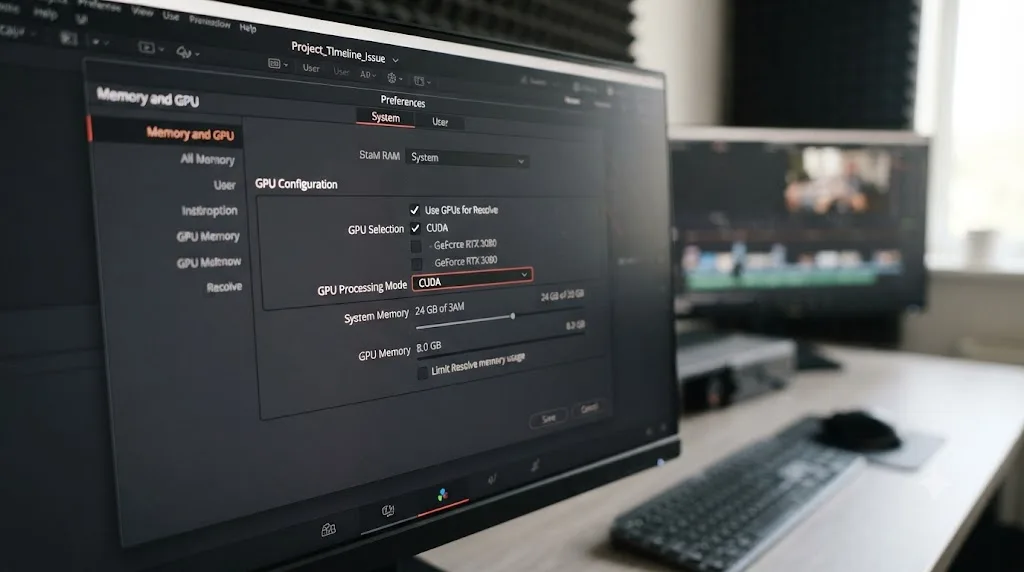
- She opens Preferences > Memory and GPU. GPU Processing Mode is set to Auto. Given the timing, right after an overnight Windows update, she suspects this is the actual cause: Windows updates are a known trigger for GPU priority resets. She manually sets GPU Processing Mode to CUDA instead of Auto, confirms GPU Selection shows her RTX 4070 checked and nothing else, saves, and restarts Resolve fully.
- Playback resumes immediately. The freeze is gone, and it stays gone through the rest of her session.
Total real cause: a Windows update silently reset her GPU Processing Mode away from a working manual selection back to a broken Auto detection. Total real fix: three minutes in Preferences, once she'd ruled out the two faster, more common causes first. The pattern worth remembering isn't the specific fix, it's the order: cheap tests first, hardware-specific tests once those are exhausted, not the other way around.
Quick reference: symptom, cause, and fix
Match your actual symptom to the row before you start changing settings, since several of these causes look identical from the surface but need completely different fixes.
| Symptom | Likely cause | Fix |
|---|---|---|
| Playhead and timecode counter never move at all | Render cache corruption or a stalled transport engine | Delete render cache (Playback > Delete Render Cache > All) |
| Freeze started right after updating to DaVinci Resolve 21 | Background Render contention | Disable Enable Background Render in Preferences, restart fully |
| No error, playback just silently never starts, especially after a driver or Windows update | GPU Processing Mode reset to Auto and picking the wrong device | Manually set GPU Processing Mode and confirm GPU Selection in Preferences > Memory and GPU |
| Audio plays fine, video never updates | Video decode specifically is blocked, not the whole engine | Test with H.264/H.265 hardware decoding disabled in Decode Options |
| Freeze is specific to H.264 or H.265 footage, other clips play fine | Hardware decoder and GPU driver conflict on that codec | Disable hardware decoding as a test, transcode to ProRes or DNxHR as the durable fix |
| Media Offline banner visible in the Media Pool | Missing, moved, or disconnected source files, or an unsupported codec | Relink clips, reconnect the drive, or transcode unsupported formats |
| Timeline plays fine on original files but freezes with proxies enabled | Broken, moved, or corrupted proxy or optimized media | Disable Proxy Mode and Use Optimized Media If Available, regenerate from scratch |
| Freeze coincides with connecting or changing external monitoring hardware | Decklink or UltraStudio output stalling on a disconnected or mismatched display | Disable video output monitoring in Video and Audio I/O, or fix the resolution/frame rate mismatch |
| Freeze is tied to one specific clip and clears once the playhead passes it | A heavy Fusion composition or GPU-intensive OFX effect | Disable the clip or effect to confirm, then drop Timeline Proxy Mode to Half or Quarter Resolution |
| Nothing above fixes it | Corrupted preference files | Preferences > System > three dots menu > Reset System Preferences |
The verdict
A DaVinci Resolve timeline that only shows its first frame is never actually broken in the sense that scares people when it happens. It's a specific pipeline stage, decode, GPU processing, the render cache, or a background feature that's stalled instead of completing, and every one of those stalls has a documented cause and a specific fix. The freeze feels catastrophic because there's no error message and no obvious next step. There's just a frozen frame and a deadline.
Work through this in order: delete the render cache first, since it's free and fixes the most cases. Check Background Render if you're on DaVinci Resolve 21. Confirm your GPU Processing Mode and driver next, especially if this started after any kind of update. Then test H.264/H.265 hardware decoding specifically if the freeze is codec-shaped rather than system-wide. Everything else on this page, Media Offline, broken proxies, external monitoring, a heavy Fusion node, is a narrower branch you'll only need once the more common causes are ruled out.
It's worth being honest here too: this isn't a problem unique to Resolve, or a sign you did something wrong. The Blackmagic Forum has editors reporting versions of this exact freeze going back years, across every GPU vendor and every OS Resolve runs on, and the community's collective troubleshooting, the same GPU config and cache steps covered throughout this guide, remains the honest first stop for a reason. Where a written checklist runs out is the part that actually costs editors time: matching your specific symptom, audio-plays-video-doesn't, freeze-on-one-clip-only, freeze-since-an-update, to the right row in a guide like this one, on your own machine, with your own project open.
TryUncle is the on-screen assistant for DaVinci Resolve on macOS. Ask in plain words and Uncle points at the exact control on your screen, instead of you comparing your Preferences window against screenshots in a browser tab while your timeline sits frozen. That's a genuinely different job from tools like Sottocut, PremiereCopilot, heyeddie.ai, or cutagent.ai, which mostly automate cuts or answer questions in a chat window without watching your actual Resolve session. When your GPU Processing Mode is misconfigured or your render cache is corrupted, an AI that can see your screen and point at the specific checkbox beats one that can only describe where the checkbox generally lives. TryUncle is a paid subscription at $34.99 a month, cancel anytime, with full details on the site.
If this freeze turns out to be a genuine GPU driver issue specifically, our guide to DaVinci Resolve Nvidia driver crashes on Windows goes deeper into driver version selection. If your timeline plays but stutters rather than freezing outright, that's a different problem covered in our guide to mixed frame rate timeline jitter. And if what actually looks frozen is a bin or timeline that's grayed out because a collaborator has it locked rather than a true playback stall, our guide to Collaboration mode timeline locks covers that specific, very different cause.
Frequently asked questions
- Why does my DaVinci Resolve timeline show only the first frame and never play?
- The most common causes, in order of likelihood, are a corrupted render cache, DaVinci Resolve 21's Background Render feature getting stuck, a GPU driver or GPU Processing Mode mismatch, or H.264/H.265 hardware decoding fighting your graphics driver. Start by deleting the render cache from the Playback menu, since that alone resolves the majority of first-frame freezes without touching anything else.
- How do I clear the render cache in DaVinci Resolve?
- Go to Playback > Delete Render Cache > All. The timeline bar will briefly turn red to show it needs to re-render, then playback should resume normally. This removes corrupted temporary cache files without touching your original media, your edit, or your color grade in any way.
- Does disabling Background Render fix a frozen timeline in DaVinci Resolve 21?
- For many editors, yes. Background Render is new in DaVinci Resolve 21 and enabled inconsistently across builds, and multiple editors have reported it stalling playback and exports alike. Open DaVinci Resolve > Preferences, search for background, and uncheck Enable Background Render, then restart the app before you troubleshoot anything else.
- Why does my timeline play audio but not video?
- This split points at video decoding specifically, not the whole playback engine, since Fairlight's audio engine runs independently of the video pipeline. The usual causes are a GPU Processing Mode set wrong for your hardware, H.264/H.265 hardware decoding failing silently against an unsupported or outdated driver, or 10-bit footage hitting the free version's decoding limits.
- Is a bad GPU driver the reason my DaVinci Resolve timeline won't play?
- It's one of the most common reasons, especially right after a Windows or driver update. Roll back or reinstall the Nvidia Studio Driver or the latest AMD Pro driver, confirm GPU Processing Mode in Preferences > Memory and GPU isn't stuck on the wrong device, and restart Resolve fully rather than just reopening the project.
- Should I transcode H.265 footage before editing in DaVinci Resolve?
- If your timeline freezes specifically on H.265 (HEVC) clips, yes. Long-GOP codecs like H.265 force Resolve's CPU or hardware decoder to fully reconstruct each frame before it can play, and a driver that can't hardware-accelerate that decode will choke on frame one. Transcoding to ProRes or DNxHR before editing removes the decode bottleneck entirely.
- Does this playback freeze happen on the free version of DaVinci Resolve too?
- Some causes do, some don't. Render cache corruption, Background Render, and GPU driver mismatches affect free and Studio equally. But H.264/H.265 hardware decoding is Studio-only on Windows and Linux, meaning a free-version editor on those platforms hitting a first-frame freeze on H.265 footage needs to transcode, not just toggle a setting, since the hardware decode path isn't available to disable or enable in the first place.
Sources
- Blackmagic Forum: No Playback In Viewer Window / Cannot Play Timeline
- Blackmagic Forum: Playhead Isn't Moving in DaVinci Resolve Studio 17.4.2.9
- Blackmagic Forum: Render Cache for Playback Not Working
- Framework Community: DaVinci Resolve 18, No Video, Timeline Won't Play, Audio Works in Fairlight (AMD GPU ROCm Linux)
- AVC / H.264 / HEVC and DaVinci Resolve: Why You Need to Transcode, by Richard Lackey
- What H.264 and H.265 Hardware Decoding Is Supported in DaVinci Resolve Studio?, by Matt Bach, Puget Systems
- DaVinci Resolve Manual: Decode Options (Blackmagic Design, mirrored)
- DaVinci Resolve Manual: The Difference Between the Smart Cache and User Cache Modes (Blackmagic Design, mirrored)
- DaVinci Resolve Manual: Video Monitoring (Blackmagic Design, mirrored)
- How to Fix 'Media Offline' Error in DaVinci Resolve?, by Hamza Mohammad Anwar, Appuals
- DaVinci Resolve Media Offline (6 Proven Fixes!), Beginners Approach
- How to Fix Black Frames in DaVinci Resolve, Cutsio
- DaVinci Resolve Keeps Crashing? Common Causes and Fixes by Crash Type, by Mert Boz, Vagon
- How to Fix Render Failed in DaVinci Resolve 21, downloadsource.net
- DaVinci Resolve free vs Studio comparison, Blackmagic Design
- How to Make DaVinci Resolve Use GPU (Helpful Tips!), by Raju, Beginners Approach
Learn by doing, not watching
Stop translating tutorials to your timeline.
TryUncle stays beside Resolve on Mac and Windows. When you ask, Uncle sees your screen and points at the exact control you need. No hunting through tabs, timestamps, or mismatched tutorials.
Meet TryUncleKeep reading
 FixesJul 17, 202627 min read
DaVinci Resolve NVIDIA Driver Crash on Windows: The Real Fix
DaVinci Resolve crashing on Windows with an NVIDIA GPU almost always traces to the Game Ready vs Studio Driver split. Here's the diagnosis and every fix branch.
 FixesJul 12, 202629 min read
DaVinci Resolve Mixed Frame Rate Timeline Jittery: The Fix
DaVinci Resolve timeline jitters when clips have mixed frame rates. Here's why it happens, the setting that locks after import, and every real fix.
 FixesJul 11, 202628 min read
DaVinci Resolve Collaboration Mode Timeline Locked: The Fix
Why DaVinci Resolve locks a timeline, or a whole bin of them, in Multi-User Collaboration, and the fix: give each active timeline its own bin.