Learn / DaVinci Resolveupdated for DaVinci Resolve 21.1 (October 2026)
DaVinci Resolve Node Graph: Fit All Nodes
Quick answer
On the Color page, right-click an empty area of the Node Editor and choose Zoom to Window to fit the node tree inside its panel. This changes the graph view, not the viewer image or your grade. Fusion has its own Node Editor, so use that panel’s navigation controls rather than assuming the Color page command or a viewer shortcut applies.
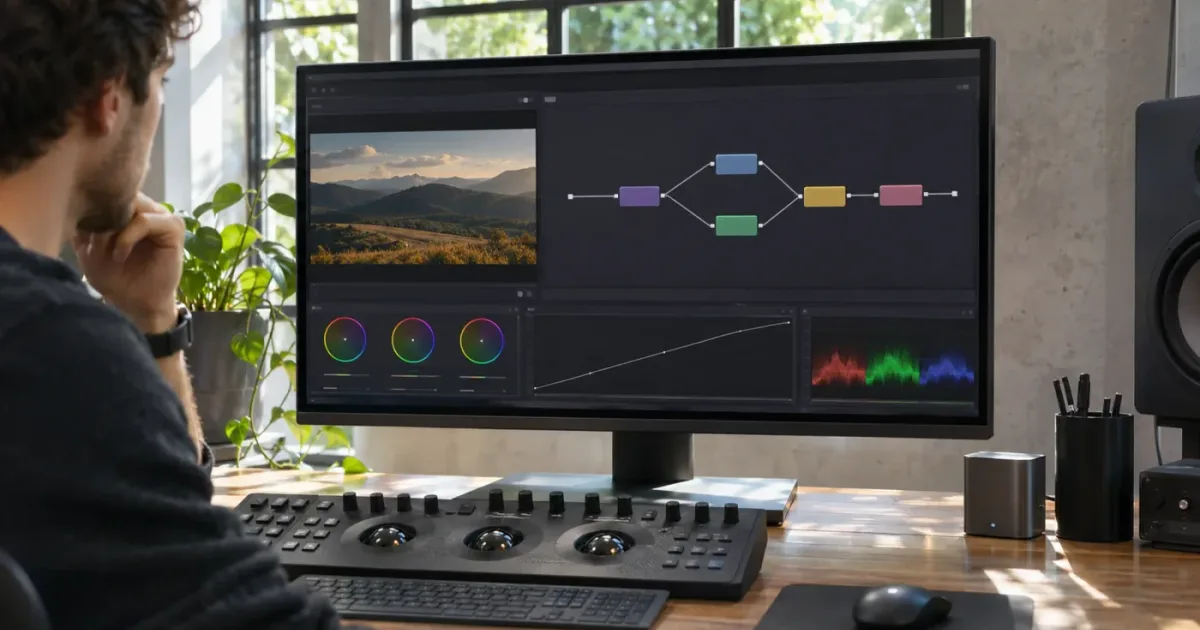
I’d start by checking which panel you’re trying to fit. Resolve has a node graph and a viewer, and the two can be zoomed independently. That small distinction saves a lot of clicking when the nodes seem to have vanished.
As of October 24, 2026, Blackmagic Design lists DaVinci Resolve 21.1 in its support materials. The steps below address the Color page node graph. Fusion has a separate Node Editor, so I’ll treat that as a different case rather than assume every panel shares one command.
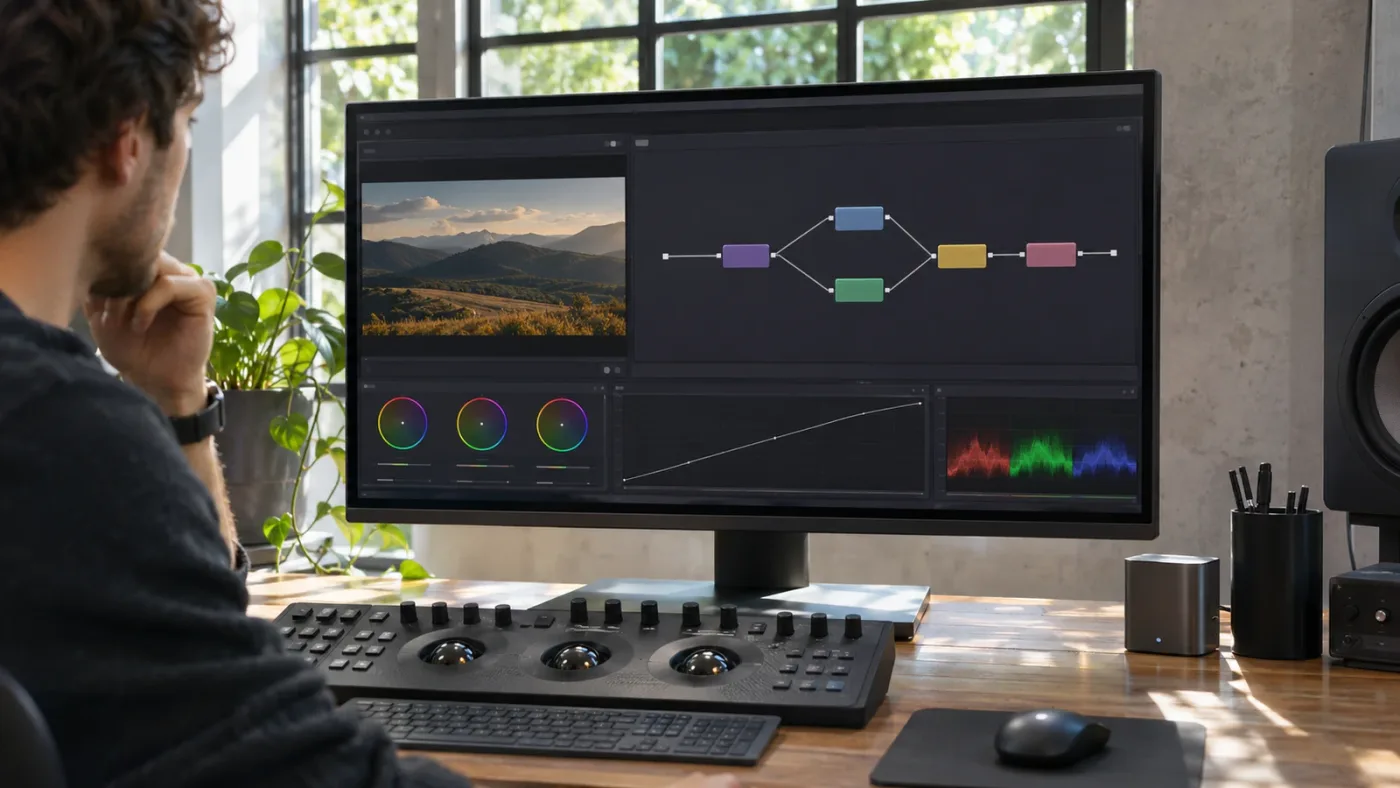
How do I fit all nodes in the DaVinci Resolve Color page?
Right-click an empty area of the Color page Node Editor and choose Zoom to Window. Resolve fits the node tree to the available graph panel. That changes the graph’s view, not the grade or the viewer image. Blackmagic’s reference documentation describes the command as fitting the node tree to the current size of the graph panel. The current DaVinci Resolve manual and support materials are the best place to check if an installed version uses different wording.
- Go to the Color page.
- Select the clip whose nodes you want to see.
- Find the Node Editor, the panel showing the node tree.
- Right-click a blank patch of the graph background. Avoid clicking a node or its connecting line.
- Choose Zoom to Window from the context menu.
The graph should rescale so more, or all, of the tree is visible within the panel. If the menu item doesn’t appear, check where the pointer is before trying anything else. A right-click in the viewer, timeline, or another panel opens a different menu.
The command’s wording has stayed recognizable across older Color page documentation. The DaVinci Resolve Colorist Reference Manual describes Zoom to Window as fitting the node tree to the current size of the graph area. That manual is old, so use it for the specific navigation concept, not as a guarantee that every detail of its interface matches Resolve 21.1. If your menu differs, check the current manual from Blackmagic’s support center.
Before moving on, look at what changed. The node boxes and their connecting lines should have changed scale or position inside the Node Editor. The image in the viewer should look the same. That visual check is enough to confirm you fitted the graph rather than the picture.
On the Color page, Zoom to Window fits the node tree inside the Node Editor, not the image inside the viewer.
Why is my DaVinci Resolve node graph off-screen?
A graph can be off-screen because its view was zoomed or panned, not because its nodes or connections were deleted. Fitting the graph to its panel is the simplest low-risk check because it changes how the graph is displayed, not the node tree itself.
On the Color page, use the context menu’s Zoom to Window command. If you can see part of the graph but its edges are outside the panel, fitting should help bring the overall tree into view. If the graph still looks absent, check whether the Node Editor is narrow, hidden, or covered by another part of the interface. A fit command can only use the panel space Resolve gives it.
The Color page uses nodes as building blocks for color correction. Image data passes through connected correction or effect nodes toward the output. The graph is therefore a map of processing order, not a second version of the viewer. Blackmagic’s Color page overview explains that node-based workflow.
Use this quick check to separate the likely causes:
| What you see | What to check first |
|---|---|
| The image is visible, but the node graph seems missing | Check whether the Node Editor is open and visible. |
| Some nodes are visible, but the tree is cut off | Use Zoom to Window in the Color page Node Editor. |
| The full tree is visible, but the image looks cropped | Adjust viewer zoom instead of graph zoom. |
| You can’t find the node panel | Confirm you’re on the Color page and inspect the page layout. |
| Your graph looks unlike the tutorial | Check whether the tutorial shows Color or Fusion and whether its layout or version differs. |
Fitting the graph won’t restore a deleted node, reconnect a broken branch, or fix an incorrect grade. It only changes the view. If a node is genuinely missing or disconnected, you’ll need to diagnose that separately. For a panel that has disappeared rather than a tree that moved off-screen, see DaVinci Resolve Color Page Node Graph Missing.
A narrow panel can make a successful fit look like a failure. Imagine a wide tree with several branches inside a very narrow Node Editor. To fit the whole tree, Resolve has less width to work with, so it may shrink the graph until the full structure fits. Widen the panel, fit the tree again, and see whether the labels are easier to read.
There’s another clue: the selected clip matters. The Color page graph shows the nodes for the clip or item you’ve selected. If you switch clips, the graph can change because you’re looking at a different grade, even though nothing was lost. Before concluding that a node disappeared, check the selected clip and compare the visible node tree with the one you expected.
How do I tell the node graph apart from the viewer zoom?
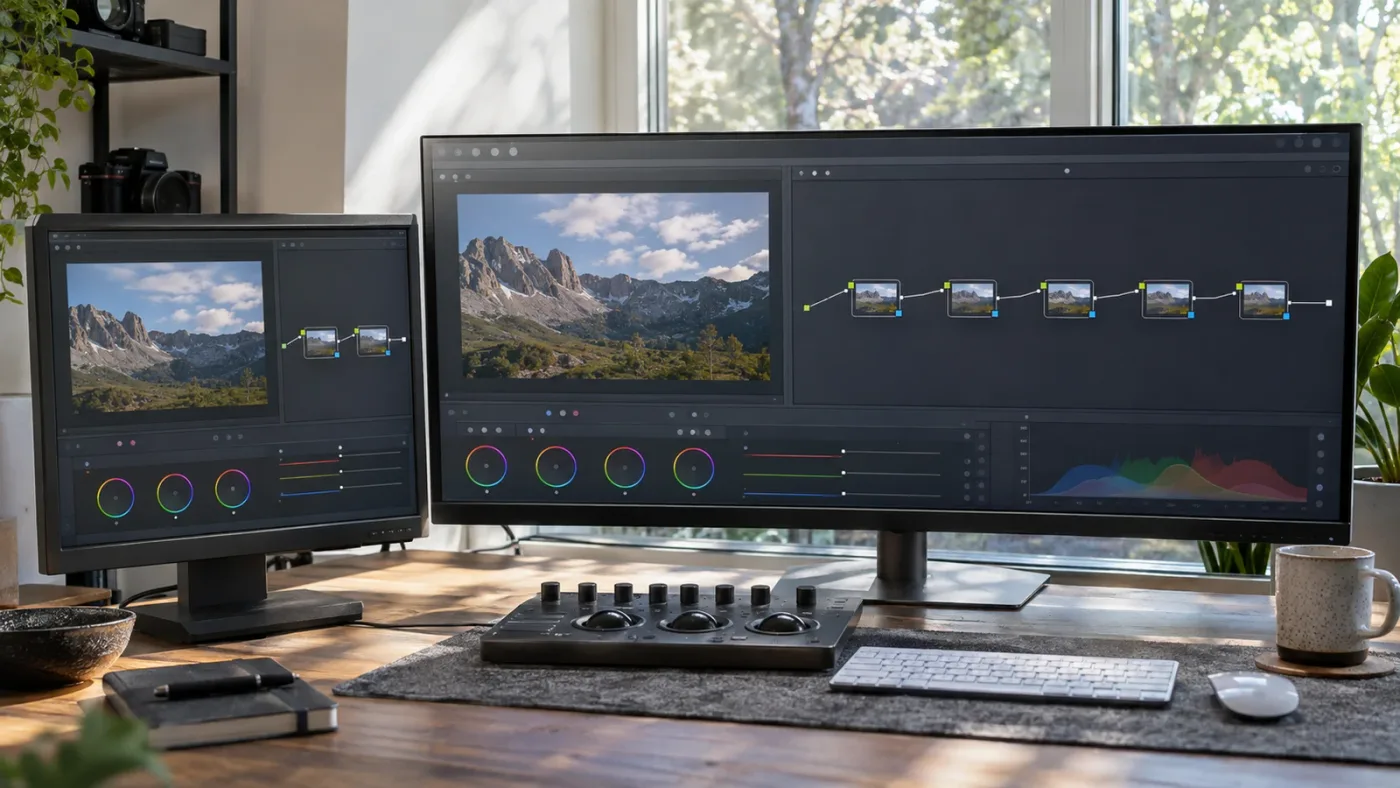
The node graph shows processing structure; the viewer shows the resulting image. A graph-fit command changes the scale of the node structure inside the Node Editor. A viewer-fit command changes how the image is framed inside the viewer.
Resolve places these work areas near one another, so a misplaced click can produce the wrong menu. A shortcut may also behave differently depending on the active panel. Check what you’re looking at before choosing a command.
| What you want to fit | Where to work | What the action changes |
|---|---|---|
| Color page node tree | Empty area inside the Color page Node Editor | The graph’s scale and view within its panel |
| Fusion node tree | Fusion Node Editor | The Fusion graph’s view, using Fusion’s navigation controls |
| Viewer image | Viewer panel | How large the image appears in the viewer |
| Timeline | Timeline panel | How much of the timeline is visible |
Here’s a quick physical check: if node boxes and their connecting lines change size, you’re navigating the graph. If the video or still image changes size, you’re navigating the viewer. The image can stay unchanged while you zoom the graph, and the graph can stay unchanged while you adjust the viewer.
That’s why Ctrl+F and Command-F aren’t universal “fit all nodes” commands. Blackmagic’s Fusion visual effects guide describes Command-F on macOS or Ctrl-F on Windows as a way to fit the image in the viewer when the pointer is over that viewer. It doesn’t establish that the same keystroke fits a node graph. Use the control for the panel you mean to change.
Older Color page documentation also describes separate graph controls, including scrolling to zoom, a zoom slider, dragging empty gray space to pan, and a context-menu command for fitting the tree. The labels and details can vary by version, but the useful idea remains simple: identify the panel, then use that panel’s navigation controls.
Why doesn’t Ctrl+F fit all nodes?
Ctrl+F may do something else because Resolve’s commands depend on the active panel, and viewer zoom is separate from node-graph zoom. For the Color page graph, right-click its empty background and choose Zoom to Window instead of relying on a remembered shortcut.
Keyboard behavior can differ across macOS and Windows, between pages, and with customized keyboard mappings. A shortcut listed for a viewer shouldn’t be assumed to work in a Node Editor. In the Fusion guide, the Command-F or Ctrl-F instruction applies to fitting the viewer image when the pointer is over the viewer. Node Editor navigation is described separately.
If a tutorial says “press the fit shortcut,” pause and check which panel is active in the demonstration. A context-sensitive action can be easy to misread in a video, especially when the pointer is hard to see. Resolve’s Keyboard Customization window can help you inspect the commands and mappings available in your own setup. It doesn’t make one shortcut apply to every panel.
For the Color page graph, the context menu has a practical advantage: you can see where you’re applying the command. Right-clicking inside the graph and choosing Zoom to Window is less ambiguous than pressing a key while the pointer or panel focus might be elsewhere.
Use a shortcut only after confirming all three:
- The tutorial is about the same page you’re using.
- The pointer or panel focus is in the same work area.
- The command is listed for that specific panel in your version or keyboard mapping.
If any point is uncertain, use the graph’s own menu. It’s a direct way to tell Resolve which view you want to change.
A common example: you’re on Color, the viewer image is too large, and you press a remembered fit shortcut while the pointer is over the viewer. The image changes, but the node boxes don’t. That doesn’t mean Resolve ignored your command. It means the command affected the viewer, which was the active target. Move into empty Node Editor space and use its context menu to fit the graph.
A viewer shortcut and a node-graph command can look similar in a tutorial but affect different panels.
What should I do if Zoom to Window is missing?
Make sure the pointer is over blank space inside the Color page Node Editor. Clicking a node, a connection, the viewer, or another panel may open a different context menu.
Then check the page and panel:
- You’re on the Edit page: Switch to the Color page if you’re trying to fit a color-grade node tree.
- You’re on the Fusion page: Use Fusion’s Node Editor controls instead of expecting the Color page menu.
- You right-clicked a node: Move to empty background and open the menu again.
- The graph panel is mostly hidden: Expand the relevant area or adjust its divider, then try again.
- The interface is arranged unusually: Make the Node Editor visible before trying to fit the graph. If you’re considering a layout reset, check the current manual first, especially if you’ve customized your workspace.
A layout reset and a graph fit aren’t the same operation. A layout reset changes the arrangement of interface panels. A fit command changes the graph’s framing inside its panel. Start with the narrower action, Zoom to Window, before changing the overall workspace.
If the graph panel is open but the tree still seems absent, don’t immediately reset the layout. First check the selected clip, page, panel width, and whether the graph may be panned outside the visible area. If you’re in the Color page and blank-space right-clicking shows the expected menu, try the fit command. If the menu itself is absent, you may be in the wrong panel or page.
There’s a useful distinction between a graph that is off-screen and a graph that isn’t there for the selected item. If fitting shows a tiny tree, the graph was likely present but too large or far from the current view. If fitting does nothing and the panel appears empty, check that the selected item actually has a node tree to display and that you’re in the correct editor. Don’t use Undo to solve a navigation problem; it can reverse an edit that has nothing to do with the view.
You can use zooming and panning to search manually if the fit command isn’t available in that panel or version. Zoom out inside the graph and pan its background, taking care not to drag a node or connection. In the Color page, the older manual documents scrolling and dragging empty space as graph navigation methods. Treat the exact gesture as version-dependent, and use the current manual if your controls differ.
How do I fit a Fusion node graph?
Fusion has a separate Node Editor, so don’t assume the Color page’s exact menu or a viewer shortcut will fit a Fusion composition. Use the controls in the Fusion graph itself, and keep the Fusion viewer’s zoom commands separate from graph navigation.
Fusion nodes represent a compositing flow. Blackmagic’s Fusion Reference Manual describes the Node Navigator as a way to find and move around a node tree when it has been panned out of view. The manual also documents ways to show or hide the Navigator, including a menu option and the V key. Those details come from Fusion 18.6 documentation, so check the current manual if the control behaves differently in your Resolve release.
Try this sequence:
- Click in the Fusion Node Editor so you know which panel you’re navigating.
- Zoom out in the graph using its available controls.
- If the Node Navigator is visible, use it to move around the graph.
- Pan using the Node Editor’s navigation method, not by dragging in the viewer.
- If your version offers a fit or framing command in the graph’s own menu, use it there.
- Check that the expected source and output nodes are visible before zooming back in.
The Navigator is useful when you’ve panned the graph far enough that the relevant nodes are outside the visible area. You can use its miniature view to move around the tree. If you don’t see a Navigator, that alone doesn’t prove that nodes are missing. It may be hidden, or the graph may not be panned far enough for it to appear automatically. Check the Node Editor’s menu for Navigator options.
Fusion’s viewer has its own zoom and pan controls. In the visual effects guide, Command-F on macOS or Ctrl-F on Windows fits the image in the viewer when the pointer is over that viewer. Don’t treat that as a node-graph fit shortcut. If you’re trying to inspect the graph, keep your pointer and actions inside the Node Editor.
For a specific example, say a Fusion composition’s output looks right, but you can’t see the node that creates a title because the graph has been moved sideways. The picture in the viewer doesn’t tell you where the node is on the canvas. Use the Node Navigator or the Node Editor’s zoom and pan controls to find the graph first. Once the relevant nodes are visible, inspect their connections. Don’t move the viewer image to solve a graph-navigation problem.
If your immediate goal is to see a Color page grade, return to Color and use Zoom to Window in its Node Editor. If you’re building or inspecting a composite, stay in Fusion and navigate its graph. The page matters.
For help with controls inside Fusion, see DaVinci Resolve Fusion Node Controls Not Showing.
Fusion graph navigation and Fusion viewer navigation are separate tasks, even when both panels show the same composition.
Does fitting the graph change my grade?
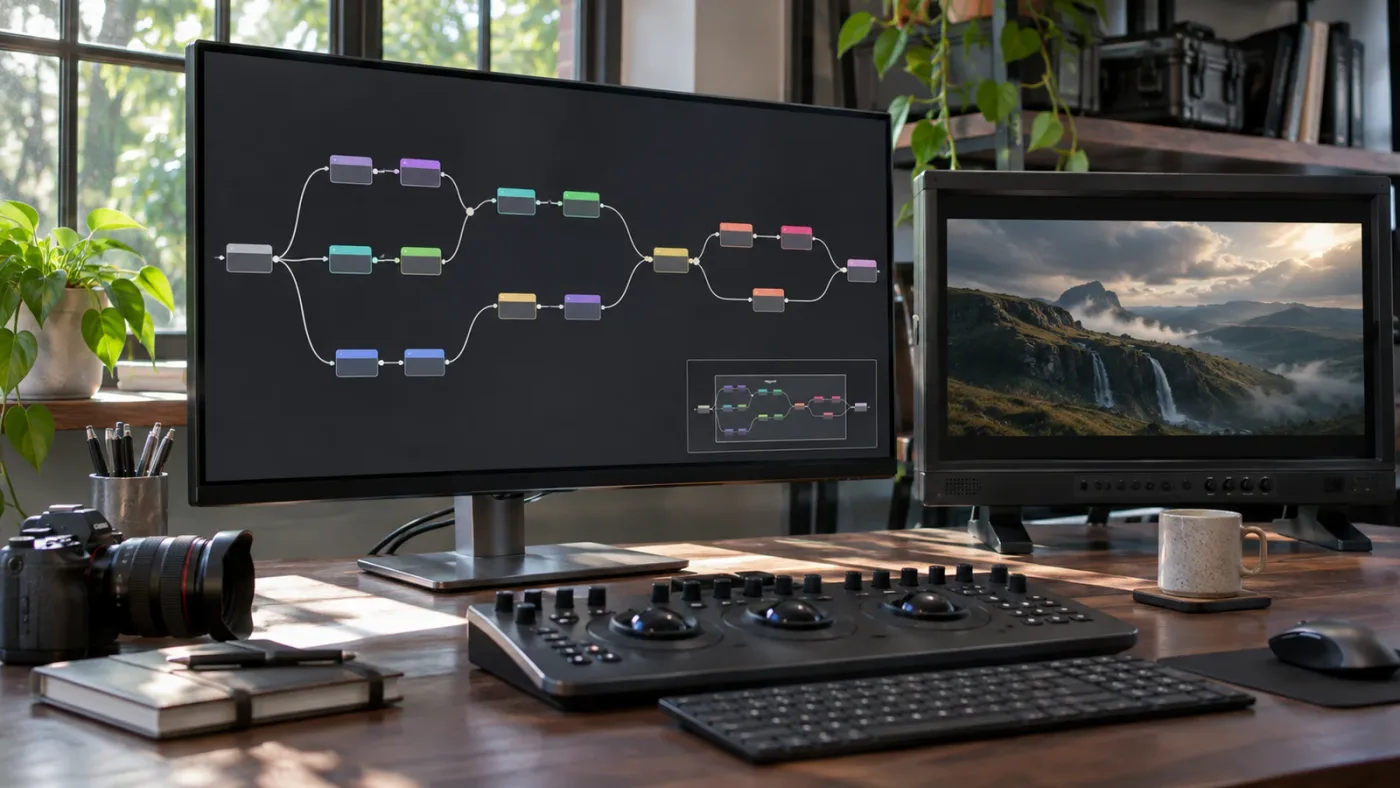
No. Fitting the node graph changes its display inside the editor panel; it doesn’t change node settings, connections, or the graded image. You’re changing how you look at the node tree, not the processing it describes.
That makes graph fitting a sensible first move when you lose sight of nodes. It’s a view adjustment, unlike adding or deleting a node, changing a parameter, reconnecting a wire, or bypassing a correction. Still, take care where you click. A context menu opened over a node may offer node actions rather than view actions.
After fitting, inspect the graph before making edits:
- Are the expected nodes visible?
- Do the connection lines still run through the expected branches?
- Does the viewer image look as it did before?
- Did you only change the graph view, or did you also select or manipulate a node?
If the picture changes, don’t assume the fit command caused it. You may have selected a node or changed a control while navigating. Undo only if you can identify the edit you want to reverse. Otherwise, inspect the selected node and compare the image before making more changes.
Resolve’s Color page describes image data flowing through connected nodes from source toward output. Seeing the full graph can make that order easier to inspect, but the fit action itself isn’t a grading operation. Blackmagic’s node overview is a useful reference if the graph structure is unfamiliar.
A worked example helps separate the operations. Suppose the image looks normal, but the graph is zoomed so far in that only one node is visible. You use Zoom to Window, and now several nodes appear smaller. If the viewer image hasn’t changed and the connections remain as they were, you’ve changed the graph view only. You haven’t made a new correction.
Now consider a different result: after a click, the viewer image changes. That’s a reason to stop and inspect, not a reason to assume fitting altered the grade. Check which node is selected, whether a control changed, and whether a connection was touched. If you know you made an unwanted edit, undo it. If you’re unsure, avoid pressing Undo repeatedly because that can reverse other recent work.
Fitting a graph is a navigation change, not a color correction.
Why are the nodes still too small after fitting?
A fit command tries to show the whole tree in the available panel. A large or wide graph can therefore appear small. Give the Node Editor more room, fit again, then zoom in on the part you need.
A fit-to-window view trades node size for coverage. If your tree has many branches, Resolve may need to scale it down so its outer edges fit inside the panel. That’s expected. The purpose is to locate the whole tree, not necessarily to read every label at once.
Try these options:
- Widen the Node Editor. Drag the divider between it and a neighboring area to give the graph more room.
- Use fit as a reset, then zoom in. First frame the full tree; then zoom toward the nodes you’re inspecting.
- Pan instead of repeatedly zooming. Once you know where the relevant branch sits, move the graph view to it.
- Check for distant nodes. A node placed far from the main tree can force the rest of the graph to shrink to fit.
- Consider a row-based view for Color nodes. DaVinci Resolve 21 added a layer-list view to the Color page Node Editor. It can be easier to scan when a conventional graph feels crowded, but it doesn’t show branching connections in the same way.
Blackmagic’s Resolve 21 feature overview describes layer-list node graphs as one of the Color page workflow changes. The row-based view is an alternative for managing or scanning nodes, not a replacement when you need to inspect how branches connect. The exact controls available depend on your installed version.
If a fit view looks tiny, compare the panel sizes before changing the graph. Widen the Node Editor and fit again. If the tree grows, panel width was part of the problem. If it remains small, look for a node positioned far from the rest of the tree or for branches that make the graph unusually wide or tall.
Here’s a practical way to decide what to do next:
| What fitting shows | Next move |
|---|---|
| The whole tree is visible and readable | Stop. The graph is framed correctly. |
| The whole tree is visible, but labels are tiny | Widen the panel, then zoom in on the relevant section. |
| Most nodes are visible, but one far-off node makes everything small | Inspect the distant area before moving anything. |
| Only part of the graph appears after fitting | Confirm the correct page and selected clip, then check the panel and version. |
| The graph is readable, but you need to follow branches | Stay in graph view and trace the visible connections. |
Don’t delete nodes just because their fit view is small. First distinguish a display problem from a graph-design problem. If you can read a branch after zooming into it, the fit command did its job by showing you where to look.
Should I clean up the graph before fitting all nodes?
Fit the graph first, then decide whether cleanup is useful. Fitting is reversible navigation. Reorganizing nodes changes their arrangement and can make it harder to compare your graph with a tutorial or saved workflow.
A tidy layout can make relationships easier to read, especially when a tree includes branches. But first ask what you actually need. If you simply want to regain a view of the full tree, use Zoom to Window. Don’t begin by dragging nodes around.
If you decide to tidy the graph after you can see it, work deliberately:
- Note the existing node order and branches.
- Avoid dragging connection endpoints unless you intend to change connections.
- Move nodes only when you’re confident the action is rearranging the graph, not disconnecting it.
- Check the image and connections after any structural adjustment.
- Save a version or project copy before substantial restructuring if you need a safe checkpoint.
For a color grade, a node’s position on the canvas isn’t the same as its processing order. Follow the connection lines and node labels rather than inferring the grade from visual spacing alone. The wires matter.
Colorist Patrick Inhofer writes, “I’ve learned to embrace fixed node trees since they allow me to focus less on the Node Graph and keep my eyes on the image.” That’s one colorist’s view, not a universal rule that every editor should use a fixed tree. It does underline a useful point for this fix: the graph helps you understand the processing, but it isn’t the image itself. Once the graph is visible, return your attention to the picture and the result you want. The quote appears in Inhofer’s Mixing Light article on fixed node trees.
A worked example: you open a project and find a node far away from the main sequence. The whole graph looks tiny after fitting. Don’t immediately drag the distant node into the middle. First zoom in on it and check its connections. It may be part of a deliberate branch. If you do reorganize it, confirm that the wires remain connected and the viewer image still looks right.
That’s also why a graph fit is useful before comparing your tree with a tutorial. It gives you an overview without rearranging anything. Then you can zoom in on the branch the tutorial discusses and compare connections rather than relying on canvas position alone.
When should I use the layer list instead of fitting the graph?
Use DaVinci Resolve 21’s Color page layer-list view when you want a less crowded way to manage nodes. Use graph view when you need to see how branches connect. The layer list presents rows; the graph makes connections visible.
Blackmagic describes the layer list as an alternative view in which nodes are listed in rows in graph order. The company’s Resolve 21 feature overview describes it as a Color page workflow change. Because interface details can change between releases, check your installed version’s manual if you can’t find the control.
Choose based on what you need to inspect:
| If your immediate task is… | Prefer… | Why |
|---|---|---|
| See the full color node tree at once | Graph view with Zoom to Window | It frames the connected structure in the Node Editor. |
| Read or manage a sequence of nodes | Layer-list view in Resolve 21 | Rows can be easier to scan than a crowded graph. |
| Follow parallel branches or connection paths | Graph view | The visible connections show the branching structure. |
| Find a particular control on a selected node | Select that node and inspect its controls | Fitting the graph doesn’t reveal or change every node setting. |
| Understand a Fusion composite | Fusion Node Editor | Fusion graph and viewer navigation are separate. |
The layer list isn’t a universal fix for every graph problem. If you need to see how an image branches into parallel operations and returns to the main flow, graph view is more direct. If you’re scanning a sequence of Color nodes or managing them, rows may reduce visual clutter.
The choice also depends on what question you’re asking. “Which node comes next?” may be easier to answer from a row-based list. “Where does this branch split and rejoin?” calls for the connected graph. “Where did the node go?” calls for fitting or navigating the graph, not switching views and assuming the node has been repaired.
The feature is version-specific. The layer-list option is listed among Resolve 21’s Color page changes, so an older installed release may not show it. Check the version displayed in Resolve and consult the matching manual before following a tutorial that describes this view.
What should I do if fitting the graph doesn’t solve the problem?
First identify which of these problems you actually have: the graph is out of view, the Node Editor is hidden, the wrong clip is selected, or the tree is genuinely different from what you expected. Each calls for a different next step.
Use this troubleshooting sequence:
- Confirm the page. Use Color for a Color page grade and Fusion for a Fusion composition.
- Confirm the selected item. In Color, make sure you selected the clip whose grade you want to inspect.
- Confirm the panel. The graph must be visible and large enough to work in.
- Fit or navigate the graph. In Color, use Zoom to Window. In Fusion, use its Node Editor controls and Navigator if available.
- Check the connections. If the expected nodes are visible, follow the wires before deciding that a node is missing.
- Only then investigate an absent or disconnected node. A view command can’t restore a deleted node or repair a connection.
This sequence avoids a common wrong turn: repeatedly zooming the viewer when the graph is the issue, or resetting the entire layout when only the graph view needs to be reframed. It also avoids making a structural edit while you’re still trying to locate the tree.
Here are a few concrete branches:
- The graph changes when you select a different clip. That may be normal because you’re now looking at another clip’s grade. Re-select the original clip before comparing nodes.
- Zoom to Window shows a tiny but complete tree. Widen the Node Editor and fit again. Then zoom into the branch you need.
- Zoom to Window has no visible effect. Check that the pointer is in the Color page Node Editor and that the correct clip is selected. If the panel appears empty, confirm the page and the item.
- The viewer image changes while you’re trying to fit the graph. Stop and inspect the viewer and selected node. You may have used a viewer control or changed a parameter instead.
- Fusion nodes have vanished outside the visible canvas. Use Fusion’s Navigator or graph navigation. Don’t use a viewer-fit command as a substitute.
- The panel itself is missing. Work on the page layout or panel visibility first. Fitting can’t frame a graph in a panel you can’t access.
Keep the first troubleshooting step small. A graph fit is a navigation operation. Moving nodes, changing connections, resetting a layout, and changing grade controls are broader actions. Use those only when you’ve confirmed that navigation isn’t the real problem.
If the display looks different from a video tutorial, compare the page, selected clip, and Resolve version before copying its steps. Tutorials may demonstrate a different layout, an older release, or a different node tree. The same command can still do the same kind of job while the surrounding interface looks unfamiliar.
What is the quickest safe way to recover an off-screen node graph?
In the Color page, right-click empty space in the Node Editor and choose Zoom to Window. In Fusion, navigate in Fusion’s Node Editor and keep its viewer controls separate. Then confirm you changed only the view.
Use this short decision path:
- Color page, nodes are too large or partly out of view: Choose Zoom to Window from the graph’s context menu.
- Color page, the node panel is hidden: Make the panel visible before fitting the graph.
- Fusion page, graph is panned away: Zoom or pan in the Fusion Node Editor; use its Navigator if it’s available.
- Viewer image is the part that looks cropped: Use the viewer’s fit control, not a node-graph command.
- You need less clutter in Resolve 21: Consider the Color page layer-list view, while remembering it doesn’t show branches in the same way.
DaVinci Resolve’s node editor is a visual map of connected image operations. Fitting it is a small interface action, but using the right panel matters. If you want help identifying the right control on your screen, TryUncle offers on-screen guidance for this kind of task on Mac and Windows. You ask Uncle a question, review the guidance, and make the changes yourself.
For the Color page, start with right-click empty graph space, then Zoom to Window. For Fusion, use the Fusion Node Editor. If the image, not the nodes, is out of frame, fit the viewer instead.
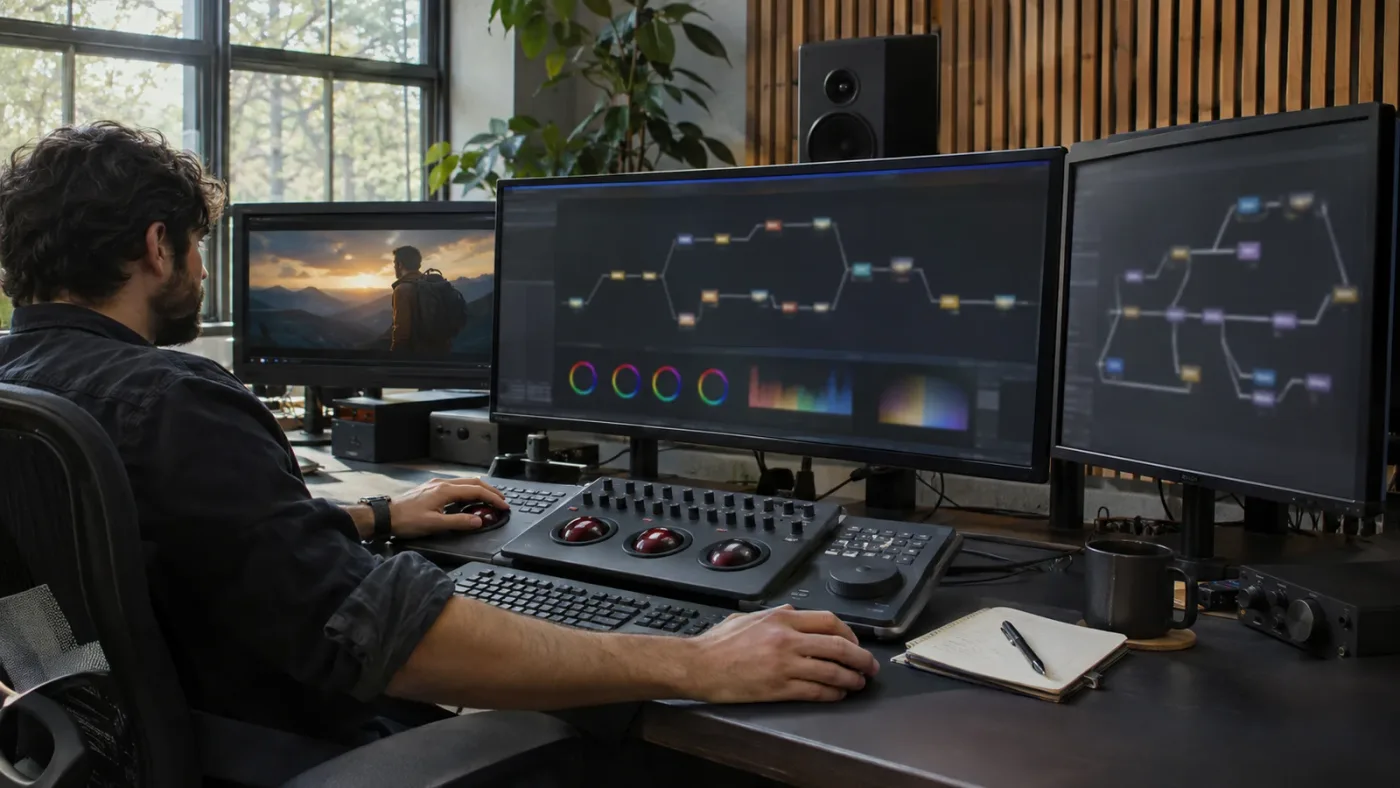
Frequently asked questions
- How do I fit all nodes in the DaVinci Resolve Color page?
- Right-click an empty area of the Color page Node Editor and choose Zoom to Window. The command fits the node tree to the graph panel, not the viewer image.
- Why doesn't Ctrl+F fit my DaVinci Resolve node graph?
- Keyboard commands depend on the active panel and page, and Ctrl+F is not a universal node-graph fit command. Right-click empty graph space and choose Zoom to Window in the Color page, or use the Fusion Node Editor's own controls.
- How do I find nodes that disappeared off-screen in Fusion?
- Use the Fusion Node Editor's zoom and pan controls, or its Navigator if it appears after the graph has been panned away. The Fusion viewer has separate navigation from the node graph.
- Does Zoom to Window change my grade or node connections?
- No. Zoom to Window changes how the graph is displayed in the panel. It does not change node settings, connections, or the image grade.
Sources
- DaVinci Resolve Support Center and 21.1 Manual
- DaVinci Resolve Color Page: Work with Nodes
- DaVinci Resolve: What's New
- DaVinci Resolve 21.1 announcement
- DaVinci Resolve Colorist Reference Manual, The Color Page
- Fusion Reference Manual 18.6
- The Visual Effects Guide to DaVinci Resolve 18
- Color Grading 101 Part 4: Pat's DaVinci Fixed Node Tree (2024 Edition)
Learn by doing, not watching
Stop translating tutorials to your timeline.
TryUncle stays beside Resolve on Mac and Windows. When you ask, Uncle sees your screen and points at the exact control you need. No hunting through tabs, timestamps, or mismatched tutorials.
Meet TryUncleKeep reading
 FixesSep 26, 202617 min read
DaVinci Resolve Color Page Node Graph Missing? Fix It
Fix a missing DaVinci Resolve color page node graph in Resolve 21. Restore the layout, recenter nodes, and check Layer List view.
 FixesSep 28, 202617 min read
DaVinci Resolve Fusion Node Controls Not Showing? Fix It
Fix DaVinci Resolve Fusion node controls not showing by restoring the Inspector, activating the right node, and turning viewer controls back on.
 GuidesJul 20, 202638 min read
DaVinci Resolve Keyboard Shortcuts Every Colorist Should Know
Every keyboard shortcut a DaVinci Resolve colorist needs: node commands, bypass and compare keys, gallery stills, and how to customize your own layout.