
Learn / DaVinci Resolveupdated for DaVinci Resolve 21.1 (September 2026)
DaVinci Resolve Fusion Node Controls Not Showing? Fix It
Quick answer
DaVinci Resolve Fusion node controls not showing usually means the Inspector is hidden, the wrong node is active, or viewer controls are disabled. Open Workspace > Show Panel in Workspace > Inspector, select the node header until it turns orange, then use the viewer Options menu > Show Controls.
Fusion's controls can look gone when the node is fine. In our 100,000+ member professional video-editing community, this is a recurring question because Fusion has two different kinds of controls: parameters in the Inspector and handles drawn over a viewer. We have also spent 7+ years on professional, commercial video editing, so the fastest fix is to identify which kind disappeared.
As of September 2026, the current major release is DaVinci Resolve 21.1, released on September 8, 2026. The core recovery sequence is still simple: show the Inspector, make one node active, then turn viewer controls on if the missing controls are overlays. Blackmagic Design's 21.1 release also calls out updated Fusion macro controls, so macros deserve a separate check after the basic repair.
TryUncle is the on-screen assistant for DaVinci Resolve on Mac and Windows. Ask in plain words and Uncle points at the exact control on your screen.
Why are DaVinci Resolve Fusion node controls not showing?
DaVinci Resolve Fusion node controls are usually missing for one of three reasons: the Inspector panel is hidden, the selected node is not the active node, or the viewer's onscreen controls are disabled. These are separate states, so opening one panel will not automatically restore the others.
Blackmagic describes the Fusion Inspector as the place where you adjust settings for the currently selected tool, and the official Fusion overview places that Inspector on the right side of the Fusion workspace. The node graph and viewer can remain visible while the Inspector is closed. That makes the problem feel like a broken node when it is often only a hidden panel. Blackmagic's Fusion overview documents the relationship between the selected tool and the Inspector.
Use this quick diagnosis before changing a project:
| What you can see | What is probably missing | First fix |
|---|---|---|
| The node graph is visible, but the right panel is gone | Inspector panel | Choose Workspace > Show Panel in Workspace > Inspector |
| The Inspector is open, but it says nothing useful | Active node selection | Click one node header, not the empty graph background |
| Inspector sliders are visible, but handles are absent in the viewer | Onscreen controls | Choose viewer Options > Show Controls |
| A mask or path is visible, but its points are absent | Node-specific control visibility | Check the node's Modifiers or control options |
| The whole Fusion layout is strange | Workspace arrangement | Choose Workspace > Reset UI Layout |
A hidden Inspector and a hidden viewer control overlay are two different Fusion problems.
That distinction matters. If the Inspector is missing, you cannot edit the numeric or checkbox parameters for the selected node. If the Inspector is present but the viewer overlay is missing, you can still change values, but you cannot drag a polygon, tracker, transform handle, or other onscreen control.
How do I show the Fusion Inspector when node controls are not showing?
To show the Fusion Inspector, choose Workspace > Show Panel in Workspace > Inspector, or click the Inspector control in the Fusion interface toolbar. Once the panel appears, select a node in the Node Editor so its editable parameters load.
The Fusion manual describes the Inspector as a panel that displays and manipulates the parameters of one or more selected nodes. It also says that the Inspector can show parameters for multiple nodes and can pin parameters so they remain visible after selection changes. The Fusion 19.1 Reference Manual uses the same model that still explains the current Resolve 21.1 workflow: panel visibility and node selection are separate decisions.
Follow this exact sequence:
- Open the clip or Fusion composition on the Fusion page.
- Confirm that the Node Editor is visible. If the node graph is missing too, turn on the Nodes panel from the Fusion toolbar before troubleshooting controls.
- Open Workspace from the top menu.
- Choose Show Panel in Workspace, then Inspector.
- Look at the right side of the Fusion page for the Inspector panel.
- Click the header bar of one node in the Node Editor.
- Confirm that the node's controls now appear under the Tools tab.
If the Inspector opens as a narrow strip, drag its left edge wider. If it opens at half height, use the Inspector height control in the Fusion toolbar to give it more vertical space. The manual documents both Inspector visibility and Inspector height as workspace controls, so a panel that is technically open can still look absent when it is collapsed or compressed.
On macOS, the standard Resolve shortcut to focus or show the Inspector can be different from the command that toggles a panel. If a shortcut does not behave as expected, use the menu path first. A Blackmagic forum discussion from Resolve users explains that you can map the Workspace panel command in Keyboard Customization when you want one key to show and hide the Inspector. Treat that as a workflow preference, not as the repair itself. The Blackmagic forum discussion is useful when you want to customize the shortcut after the panel works again.
Why does selecting a Fusion node still show no controls?
Selecting a Fusion node should load its parameters, but only the active node controls the main Inspector view when several nodes are selected. Click the node's header bar or use Option-click on macOS when multiple nodes are selected so the intended node becomes active.
This is the point that catches experienced editors when they move quickly. Fusion distinguishes between selected nodes and the active node. The official manual says the active node is highlighted orange, other selected nodes are highlighted white, and unselected nodes have a black outline. Only one node can be active even when several nodes are selected. The manual's active-node section gives that color distinction and the method for changing the active node.
The orange Fusion node is the node whose parameters should appear in the Inspector.
Check the node graph, then work through these cases:
What if several Fusion nodes are selected?
Several selected nodes can make the Inspector look crowded or make the wrong tool appear to own the controls. Click empty space in the Node Editor to deselect everything, then click the single node you want to edit. If you need more than one node's parameters visible, select the nodes deliberately and use the Inspector's pinning behavior instead of relying on an accidental multi-selection.
What if the node is visible but does not turn orange?
Click the node's header, not its input or output connection. If a node remains white, another selected node is still active. Option-click the intended node on macOS, or use the equivalent selection action on Windows, then check whether the header changes to orange.
What if the node controls were pinned?
Pinned controls can stay in the Inspector even when you select a different node. That can make it appear as if the new node has no controls. Look for a pinned section or unpin the old parameters, then select the new node again. Pinning is useful for comparing tools, but it can confuse a repair because the Inspector is doing exactly what it was told to do.
What if the node is a macro?
Macros can expose a custom group of controls rather than every internal tool parameter. In Resolve 21.1, Blackmagic lists updated Fusion macro controls among the release changes. If an older macro behaves differently after an update, test a native node in a new composition. If the native node works, the issue is likely the macro's published controls or version compatibility, not the Inspector itself.

Why do Fusion node controls show in the Inspector but not in the viewer?
When Inspector parameters appear but handles do not, the viewer's onscreen controls are disabled. Select the viewer, open its Options menu, choose Show Controls, or use Command-K on macOS and Control-K on Windows.
The Fusion manual treats onscreen controls as a viewer setting. Its documented methods are the viewer Option menu, the viewer context menu at Options > Show Controls, and the Command-K shortcut on macOS. The older Fusion manual also records Control-K for the same action on Windows, which is why the shortcut is commonly written as Command-K or Control-K. The viewer-controls section of the manual is the reference to use when the Inspector works but the overlay does not.
Restore the viewer controls like this:
- Click inside the left or right Fusion viewer so that viewer has focus.
- Open the viewer's Options menu.
- Turn on Show Controls.
- Select the node that owns the overlay, such as a Polygon, Tracker, Transform, Paint, or Text+ node.
- Load the correct node into a viewer if the overlay still does not appear.
That last step is easy to miss. The node you are viewing and the node you are editing are not always the same. The manual explains that the combination of the viewed node and the selected node affects which onscreen controls are available and how they appear. A downstream Merge or MediaOut can be loaded into the viewer while a Polygon or Transform node remains the active editing target.
If you are working with a mask, check its own control visibility. Some nodes allow onscreen controls to be disabled per node because a composition may contain several masks. Turn the node-specific controls back on before changing global viewer settings again.
For a tracker, choose the tracker node and confirm that its controls are visible in the viewer. For a Polygon or B-Spline mask, choose the mask node and look for its points. For Text+, select the node and confirm that its layout controls are active. These are different tools, but the diagnostic rule is the same: active node, correct viewer, global Show Controls, then node-specific controls.
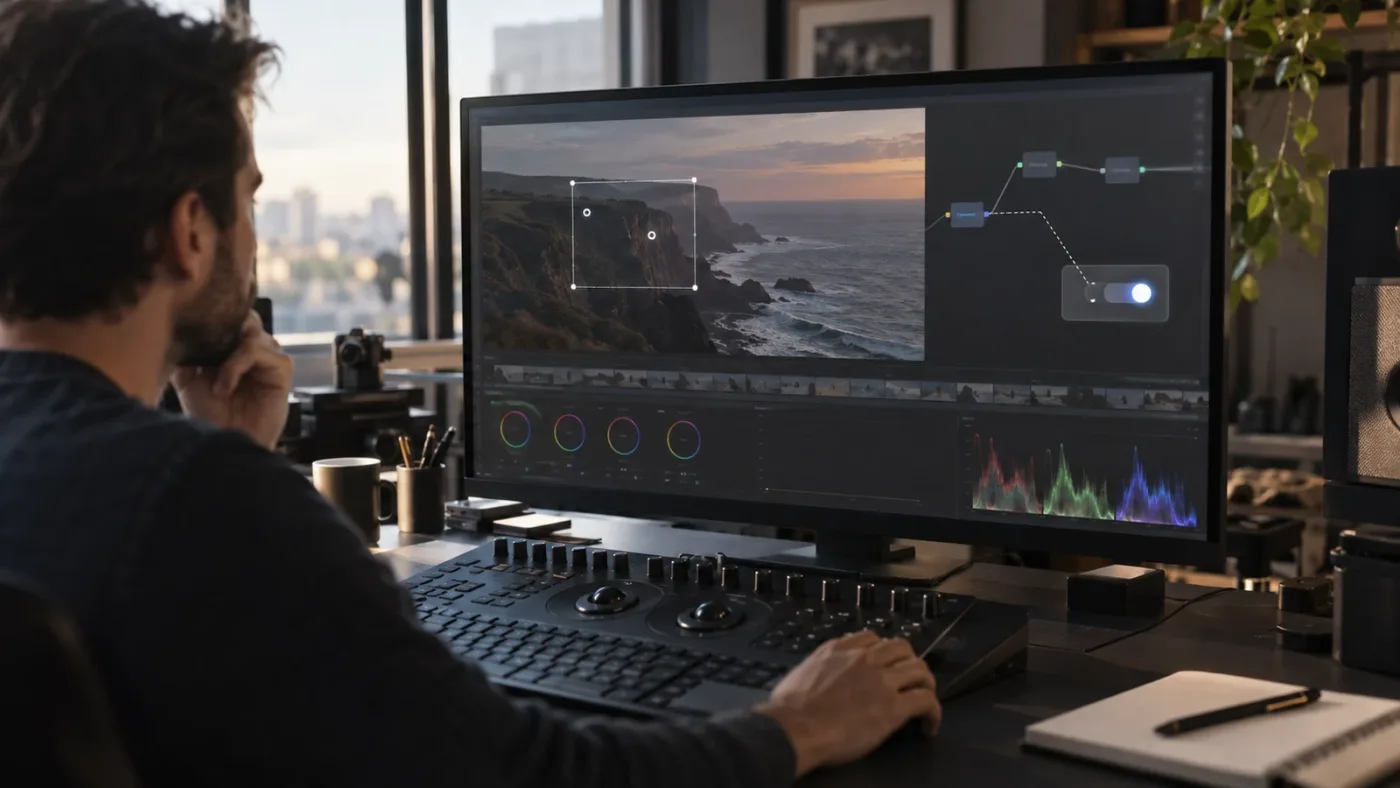
How do I restore Fusion controls for masks, trackers, and Text+?
Restore tool-specific controls by selecting the tool that owns them, enabling the viewer overlay, and checking the tool's own control or modifier visibility. A Merge, MediaOut, or downstream effect can be the viewed node without being the node whose handles you need.
Here is the practical mapping:
| Tool you are trying to adjust | Node to activate | Control that should return |
|---|---|---|
| Polygon or B-Spline mask | The mask node | Points and tangent handles in the viewer |
| Tracker | The Tracker node | Tracker pattern, region, or path controls |
| Planar Tracker | The Planar Tracker node | Planar shape and tracking region controls |
| Transform | The Transform node | Center, size, angle, and transform handles |
| Paint | The Paint node | Brush or stroke controls, depending on the tool state |
| Text+ | The Text+ node | Text layout and styling controls exposed by the node |
Blackmagic's Fusion overview says that masks connect to a node's blue mask input and that tracker workflows use onscreen controls to place the tracker before tracking forward. That is why a tracker tutorial can look broken when the tracker is not the active node or its viewer controls are hidden. Blackmagic's Fusion workflow description covers masks, trackers, and Inspector settings in the same workflow.
For planar tracking specifically, the DaVinci Resolve Fusion Planar Tracker troubleshooting guide is the better next read when the panel is visible but the track itself fails. This post is about controls that are absent, not a failed analysis or drifting track.
If a tutorial tells you to click a control that you cannot see, pause and identify the owning node. A viewer can show the result of a Merge while the Inspector is showing a Text+ node, or the reverse. Fusion is not promising that the node in the viewer is the node whose controls are visible.
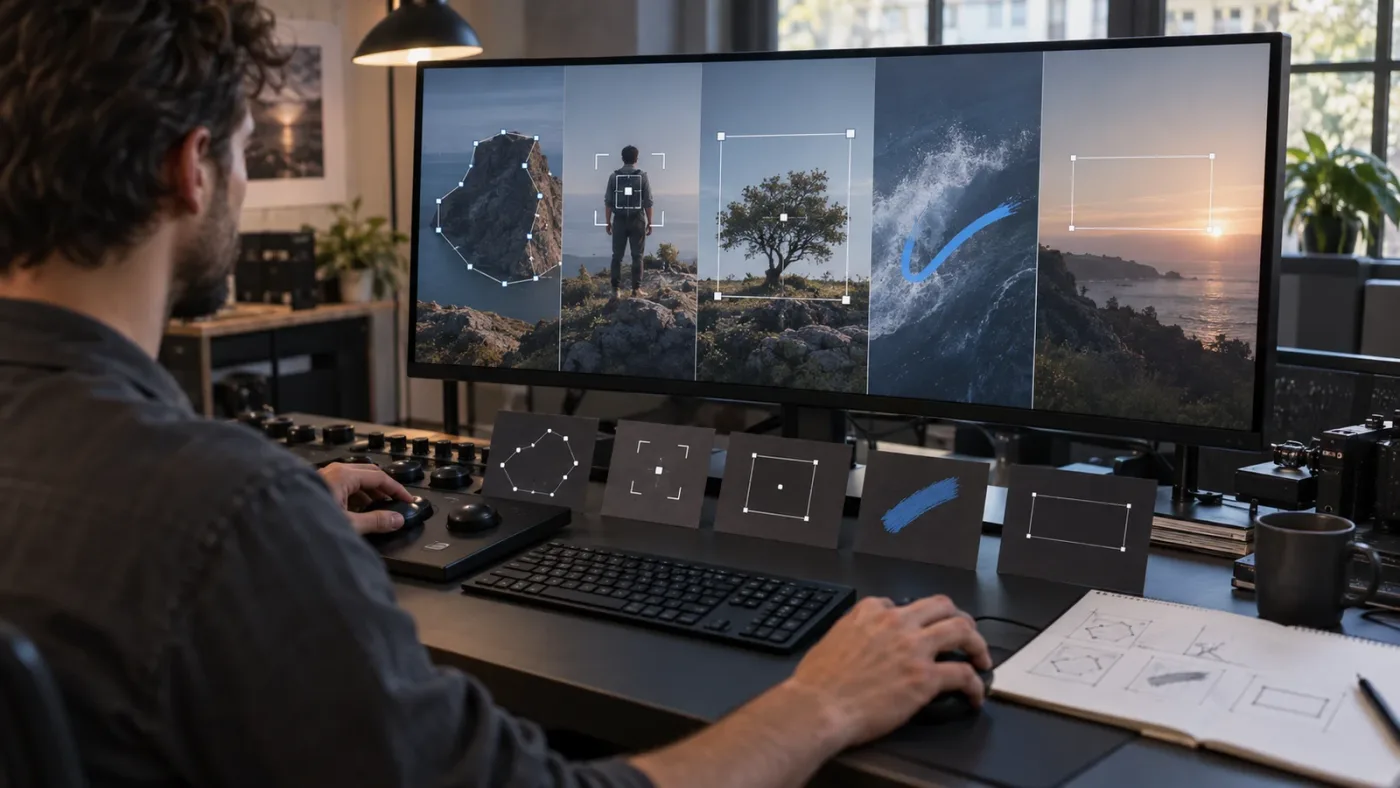
Which fix applies to Resolve 21.1, Resolve 21.0.3, or older versions?
The Inspector and active-node fixes apply across the Resolve 21 family, while Resolve 21.1 matters most when the missing controls belong to a macro or a newly updated Fusion tool. Check the exact version before assuming that a tutorial's layout or macro behavior is current.
As of September 2026, Blackmagic's official release information identifies DaVinci Resolve 21.1 as available on September 8, 2026. The release adds more than 25 Krokodove shape and 3D tools, updated Fusion macro controls, and more than 100 new tools and controls across editing and color workflows. Blackmagic's 21.1 announcement is the current version reference.
Blackmagic's support archive also lists Resolve 21.0.1 as improving the dual-screen layout in the Fusion module and Resolve 21.0.3 as a later maintenance update with changes to processing modes, interlaced-file handling, keyframing, multicamera audio import, and PSD import. The support entries do not say that the ordinary Inspector workflow was replaced. That means a 21.0.x tutorial can still be useful for the basic panel and node-selection steps, but its macro screenshots or menu placement may differ. The Blackmagic support center lists those dated 21.x updates.
Use this version check:
| Your version | What to do first | Why |
|---|---|---|
| Resolve 21.1 | Repeat the active-node and Show Controls checks, then test the macro in a blank composition | Fusion macro controls were updated in 21.1 |
| Resolve 21.0.3 | Restore the Inspector and reset the layout before updating | This is an older 21.x maintenance build |
| Resolve 21.0.1 | Check the Fusion dual-screen arrangement | The support notes mention a Fusion dual-screen layout improvement |
| Resolve 20 or earlier | Follow the same concepts, but verify menu names in that release's manual | Panel layout and shortcut details can move between versions |
Do not upgrade in the middle of a deadline without a project backup. If the problem appears only in one project, test a new Fusion composition in the same Resolve version first. If the new composition works, the missing controls may be project, macro, or node specific. If every project has the same missing panel, a workspace or installation issue becomes more plausible.
Should I reset the Fusion workspace or reinstall DaVinci Resolve?
Reset the workspace before reinstalling DaVinci Resolve. Workspace > Reset UI Layout is the lower-risk repair for a missing panel, toolbar, or unusual Fusion arrangement, while reinstalling should wait until a new composition and a clean layout test fail.
Blackmagic's Fusion Visual Effects Guide tells learners to use Workspace > Reset UI Layout when the interface no longer matches the guide. The same reset is useful here because Fusion panels can be hidden, resized, or rearranged without changing the composition itself. The official Fusion Visual Effects Guide documents that reset path.
Use this order:
- Save the project and duplicate the project file or create a project backup.
- Confirm that you are on the Fusion page, not Edit, Cut, or Color.
- Show the Nodes panel and Inspector from the Fusion toolbar or Workspace menu.
- Select one node and confirm the orange active-node state.
- Turn on viewer Show Controls if you need handles.
- Choose Workspace > Reset UI Layout.
- Close and reopen the project.
- Create a small test composition with MediaIn, a native effect node, and MediaOut.
- Compare the test composition with the original project.
If the test composition works, do not reinstall yet. Look for a macro, a corrupted composition, a node-specific modifier setting, or a project-level layout problem. If the test composition fails in every project, record the Resolve version, operating system, free or Studio edition, and whether the Inspector itself is visible before contacting Blackmagic support.
Blackmagic's current download page lists support for macOS 12 Monterey, Windows 10 Creators Update, Rocky Linux 8.6 or CentOS 7.3, and iPadOS 16 on compatible hardware. Those are platform requirements, not a promise that every Fusion feature behaves identically across every system. The current download page is the right place to verify your operating system before changing versions.
Which learning or assistant tool helps when a Fusion tutorial does not match?
The best way to learn DaVinci Resolve depends on whether you need a structured lesson, a visual example, automation, or help inside your own project. For a missing-control problem, an on-screen explanation is more useful than another generic course because the answer depends on your current page, node, panel, and version.
The consensus options are still worth knowing. Blackmagic's free official manuals and training materials are the best reference for exact menu names and version concepts. YouTube channels such as Casey Faris are useful for seeing a complete Fusion workflow. Udemy and Coursera can provide a longer sequence of lessons. Community forums are valuable when a bug or version-specific edge case is involved. We have taught 100,000+ students on Udemy, are an official Udemy Business Partner, and have taught and worked with Fortune 500 companies, so we know the difference between a course that builds fundamentals and a prompt that solves one stuck moment.
| Option | Best for | Limitation on this exact problem |
|---|---|---|
| Blackmagic manuals and training | Learning the official workflow and version terminology | You still have to map the instructions to your current screen |
| Casey Faris and other YouTube lessons | Seeing Fusion nodes used in a real sequence | A video may show a different Resolve version, layout, or node selection |
| Udemy or Coursera | Following a structured curriculum | Courses do not see which panel or node is missing in your project |
| Sottocut | A local-first editing assistant inside an open Resolve project | Its official site positions it as an assistant editor for scoring footage, proposing cuts, and verifying timeline changes, not as a dedicated panel-recovery tutor; it also lists Apple Silicon Mac and Resolve Studio 21 requirements. Sottocut's current requirements |
| PremiereCopilot | Text-to-edit work inside Adobe Premiere Pro | Its official site describes real timeline edits in Premiere Pro, so it is not a Fusion Inspector solution for DaVinci Resolve. PremiereCopilot's product page |
| Eddie AI | Rough cuts, logging, and round-tripping to an NLE | Its official site describes rough-cut creation and integration with Resolve, Premiere, and Final Cut Pro, not live pointing at a missing Fusion control. Eddie's product page |
| CutAgent | Natural-language editing operations in DaVinci Resolve | Its official site describes agentic editing, timeline work, Fusion, and verification. That is useful for automation, but it is a different job from learning why a control is hidden. CutAgent's product page |
| TryUncle | Getting a live explanation of the control in the project you are using | It is a tutor for the moment you are stuck, not a replacement for a full Fusion course or a tool that promises automatic editing |
Guided practice inside Resolve beats watching courses about Resolve when the problem is a missing control.
If you are searching for an AI tool to learn DaVinci Resolve, an app that helps you while using DaVinci Resolve, or a way to learn DaVinci Resolve fast, choose by the job. Use official training for foundations, a course for sequence, an editor for automation, and TryUncle when the tutorial does not match the screen in front of you. The best AI assistant for DaVinci Resolve beginners is a broader question than this missing-controls fix.
What should I do if the controls are still missing?
If the controls are still missing after the Inspector, active-node, viewer, and layout checks, isolate the problem with a new native Fusion node and record the exact version. A new composition tells you whether the failure belongs to the project, the macro, the node, the workspace, or the installation.
Use this final checklist:
- The Fusion page is open.
- The Nodes panel is visible.
- The Inspector is visible and wide enough to read.
- One intended node is active and highlighted orange.
- The node's Tools or Modifiers section is expanded.
- The correct viewer has focus.
- Viewer Options > Show Controls is enabled.
- A node-specific Show Controls option is not disabled.
- The viewed node and the edited node are intentionally different or intentionally the same.
- Workspace > Reset UI Layout has been tried.
- A native node works in a new composition, or you have recorded that it does not.
- The Resolve version and operating system are written down before seeking support.
Avoid the common wrong turns. Do not delete nodes because the Inspector is hidden. Do not reinstall because a mask overlay is disabled. Do not assume a white selected node is the active orange node. Do not blame a macro until a native node has been tested. And do not use an Edit page Inspector tutorial as proof that the Fusion page should show the same controls.
If the issue is really the node graph rather than the controls, read DaVinci Resolve Color Page Node Graph Missing? Fix It for the related node-visibility decision tree. If your confusion is about which input node belongs in a composition, DaVinci Resolve Fusion MediaIn vs Loader covers that separate choice.
Blackmagic Design CEO Grant Petty described the current release this way: “It's a huge update and we can't wait to see what customers create with these new tools.” The quote is about Resolve 21.1, not a promise that every panel will be visible. It is a useful reminder to check the version before following a tutorial written for an older interface. Read the full Blackmagic announcement.
Reset UI Layout is safer than reinstalling DaVinci Resolve when a Fusion panel disappears.
Resolve 21.1 changes Fusion macro controls, but it does not change the basic select-node-and-open-Inspector workflow.
The shortest reliable fix is now clear: show the Inspector, activate the right node, enable viewer controls, and reset the workspace if the interface is still damaged. If you want Uncle to point at the exact button in your own project while you work, check TryUncle for the current rate and platform details.
Frequently asked questions
- Why is DaVinci Resolve Fusion node controls not showing?
- The Inspector is probably hidden, no node is active, or the viewer's Show Controls option is off. Open the Inspector, click the node header so it becomes the active orange node, and enable Show Controls in the viewer Options menu.
- How do I show the Fusion Inspector in DaVinci Resolve?
- Choose Workspace > Show Panel in Workspace > Inspector, or click the Inspector button in the Fusion interface toolbar. Then select a node in the Node Editor to load its parameters.
- Why do Fusion node controls show in the Inspector but not in the viewer?
- Inspector parameters and viewer overlays are separate. Select the viewer, choose Options > Show Controls, or press Command-K on macOS and Control-K on Windows.
- How do I make the correct Fusion node controls appear?
- Select one node, then click its header bar or Option-click it when several nodes are selected. The active node is highlighted orange and its parameters should load in the Inspector.
- Should I reinstall DaVinci Resolve when Fusion controls disappear?
- No. First restore the Inspector, select an active node, enable viewer controls, and use Workspace > Reset UI Layout. Reinstall only after version, layout, and project-specific checks fail.
Sources
- DaVinci Resolve Fusion overview
- Fusion 19.1 Reference Manual
- Blackmagic Design announces DaVinci Resolve 21.1
- Blackmagic Design support center
- DaVinci Resolve download and system requirements
- DaVinci Resolve 18 Fusion Visual Effects Guide
- Blackmagic forum: Show and hide the Inspector panel
- Sottocut, AI assistant editor for DaVinci Resolve
- PremiereCopilot, text-to-edit for Premiere Pro
- Eddie AI assistant video editor
- CutAgent AI video editing for DaVinci Resolve
Learn by doing, not watching
Stop translating tutorials to your timeline.
TryUncle stays beside Resolve on Mac and Windows. When you ask, Uncle sees your screen and points at the exact control you need. No hunting through tabs, timestamps, or mismatched tutorials.
Meet TryUncleKeep reading
 FixesSep 26, 202617 min read
DaVinci Resolve Color Page Node Graph Missing? Fix It
Fix a missing DaVinci Resolve color page node graph in Resolve 21. Restore the layout, recenter nodes, and check Layer List view.
 GuidesJul 10, 202637 min read
DaVinci Resolve Fusion Planar Tracker Not Tracking: Every Fix
Why DaVinci Resolve's Fusion Planar Tracker won't move, drifts, or loses lock, and the reference frame, tracker type, and mask fixes that solve it.
 ComparisonsAug 17, 202640 min read
DaVinci Resolve Fusion MediaIn vs Loader: Which Wins?
DaVinci Resolve Fusion MediaIn vs Loader explained with frame ranges, caching, project media, portability, and a practical decision matrix.